Microsoft
Excel 2013
Chapter 2
Formulas, Functions,
and Formatting
• Enter formulas using the keyboard
• Enter formulas using Point mode
• Apply the MAX, MIN, and AVERAGE functions
• Verify a formula using Range Finder
• Apply a theme to a workbook
• Apply a date format to a cell or range
Objectives
Formulas, Functions, and Formatting 2
• Add conditional formatting to cells
• Change column width and row height
• Check the spelling on a worksheet
• Change margins and headers in Page Layout view
• Preview and print versions and sections of a
worksheet
Formulas, Functions, and Formatting 3
Objectives
Formulas, Functions, and Formatting 4
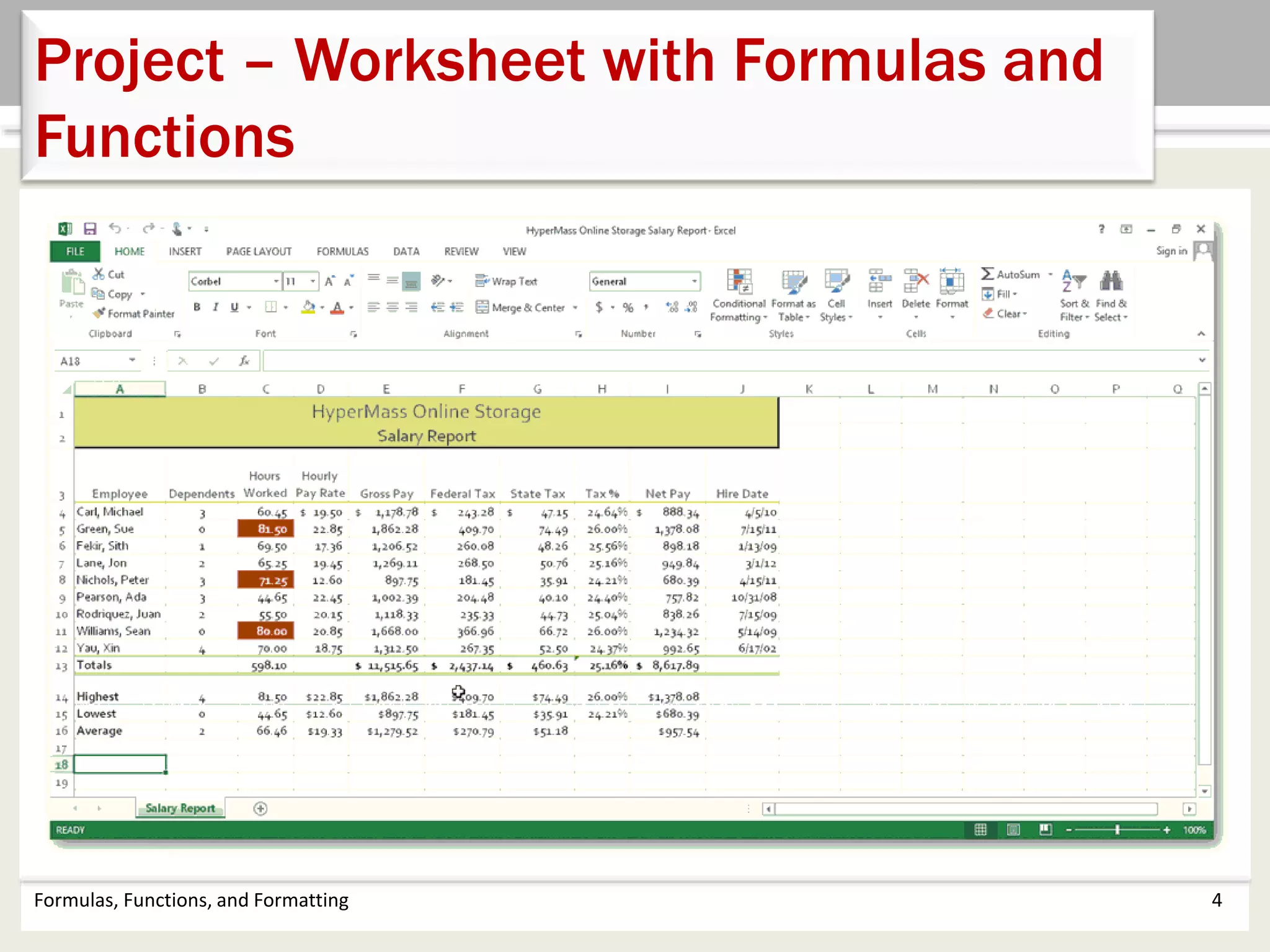
Project – Worksheet with Formulas and
Functions
• Enter formulas in the worksheet
• Enter functions in the worksheet
• Verify formulas in the worksheet
• Format the worksheet
• Check spelling
• Print the worksheet
Formulas, Functions, and Formatting 5
Roadmap
Formulas, Functions, and Formatting 6
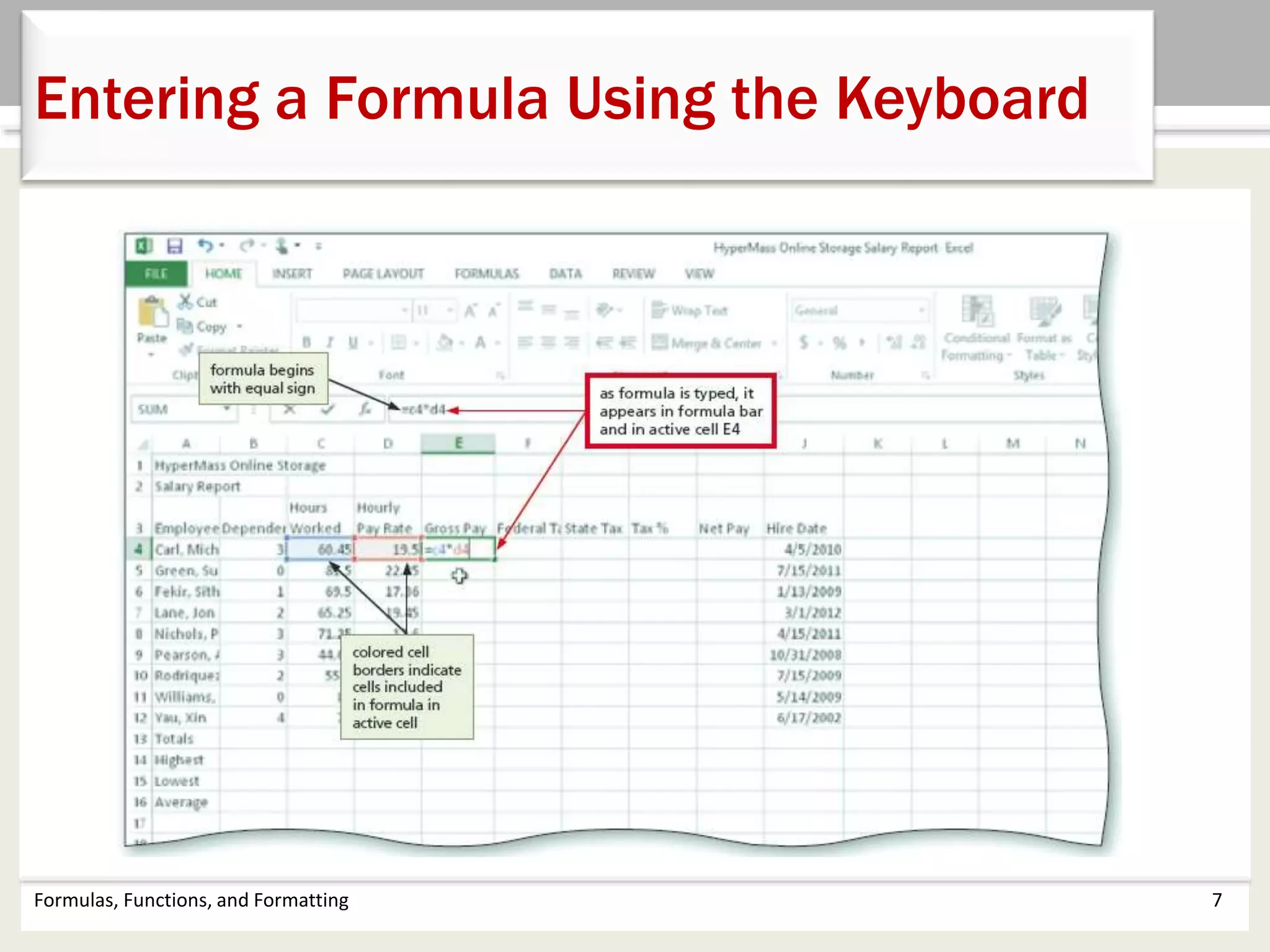
Entering a Formula Using the Keyboard
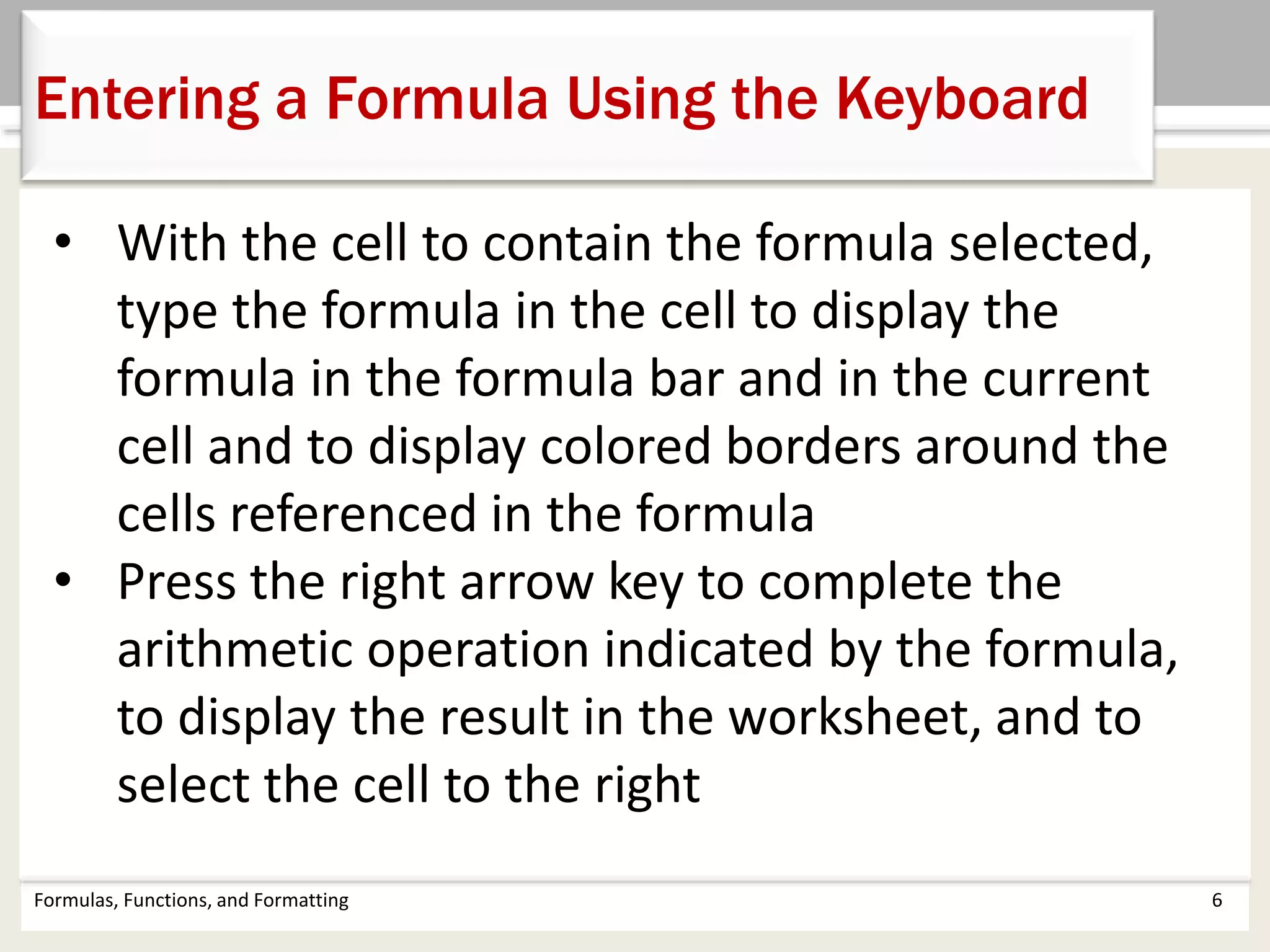
• With the cell to contain the formula selected,
type the formula in the cell to display the
formula in the formula bar and in the current
cell and to display colored borders around the
cells referenced in the formula
• Press the right arrow key to complete the
arithmetic operation indicated by the formula,
to display the result in the worksheet, and to
select the cell to the right
Formulas, Functions, and Formatting 7
Entering a Formula Using the Keyboard
Formulas, Functions, and Formatting 8
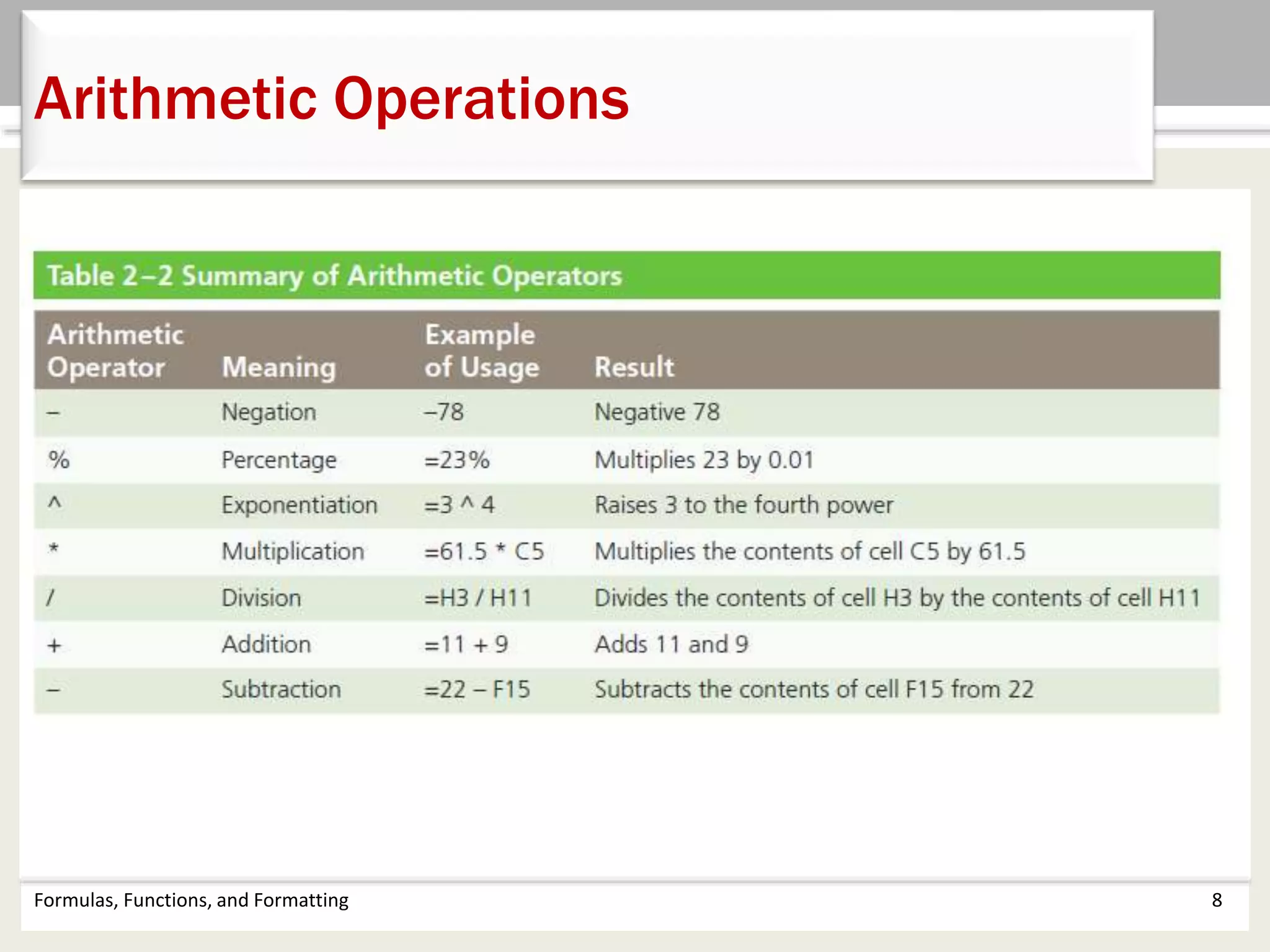
Arithmetic Operations
Formulas, Functions, and Formatting 9
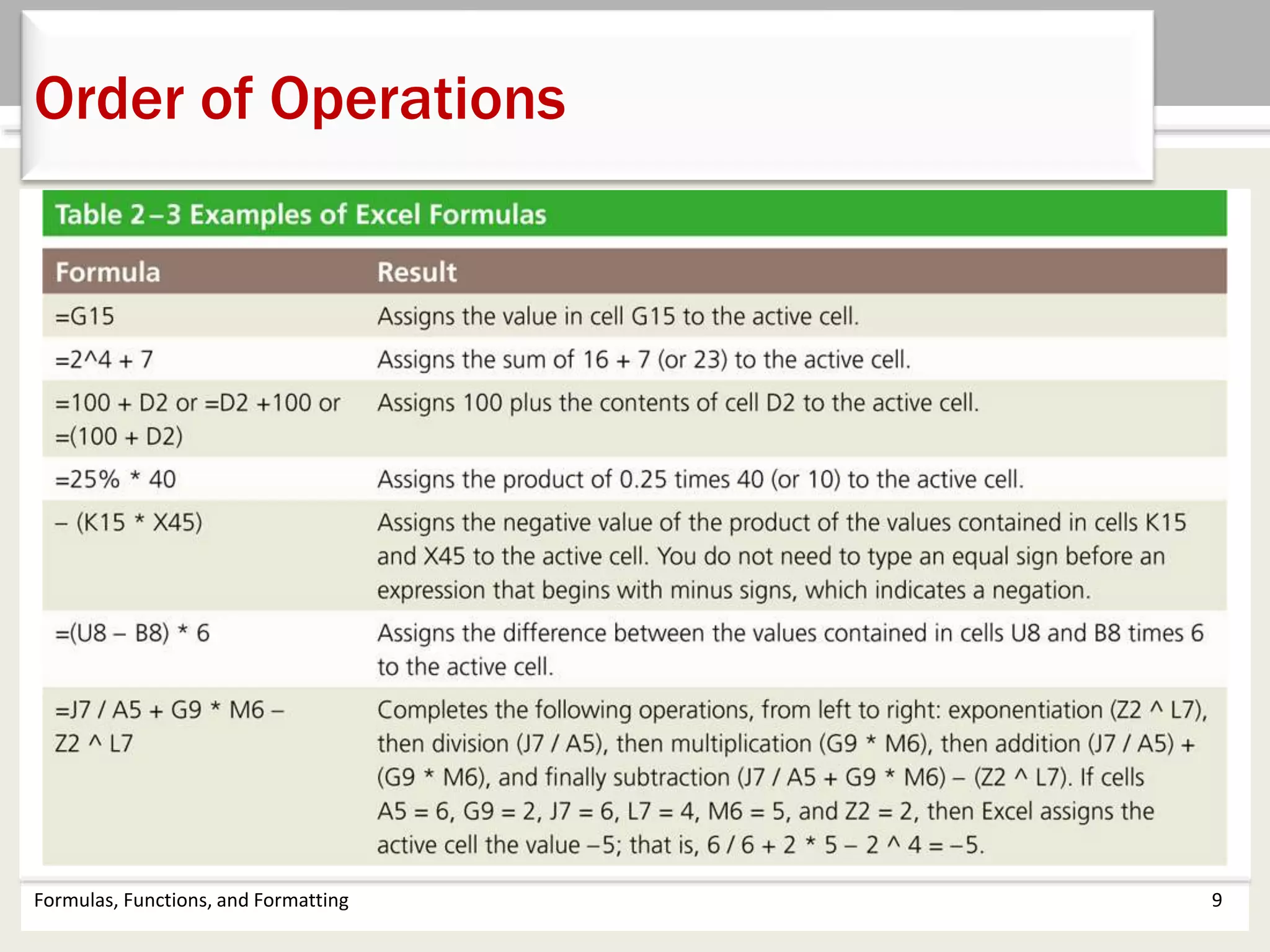
Order of Operations
Formulas, Functions, and Formatting 10
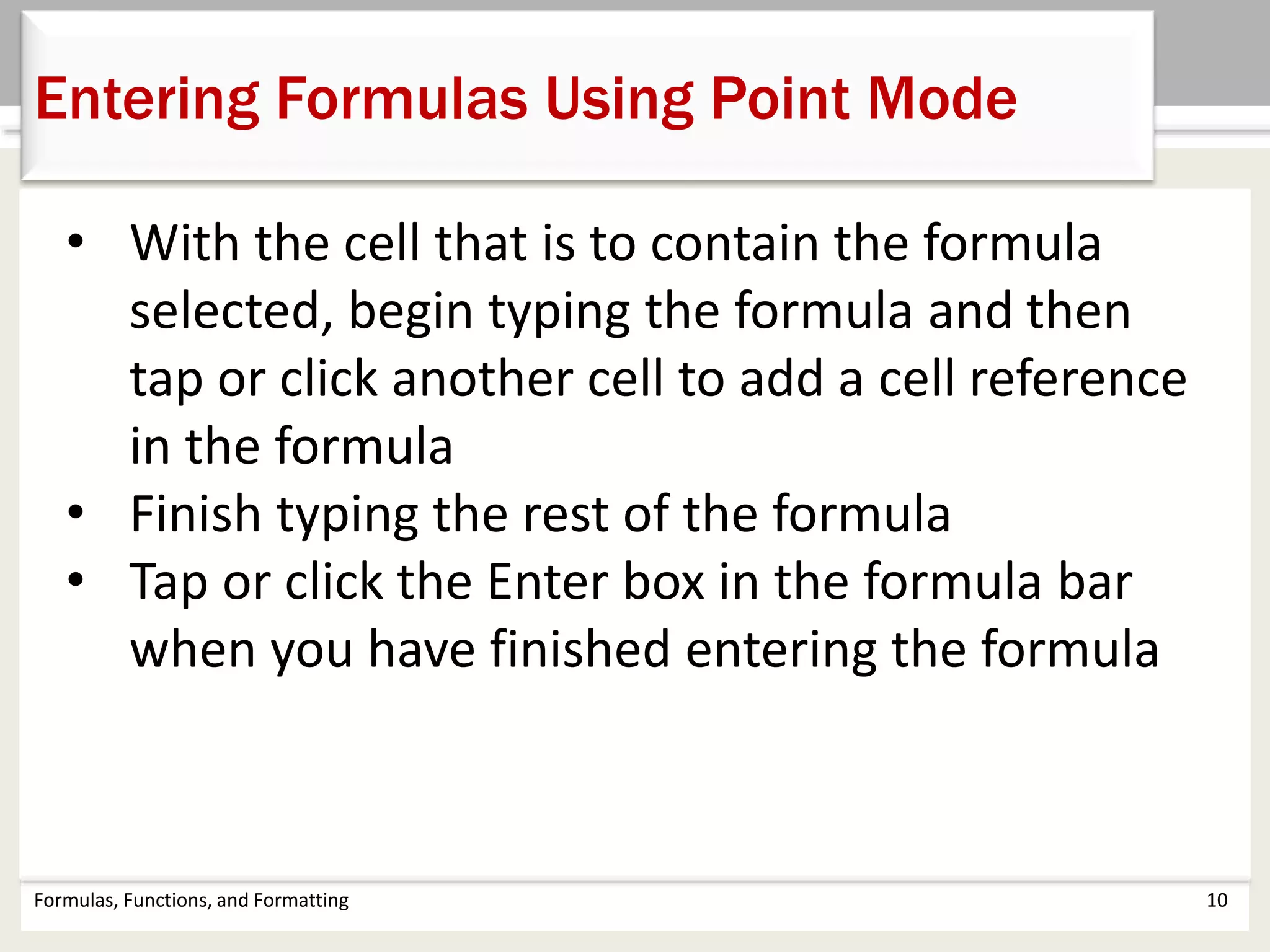
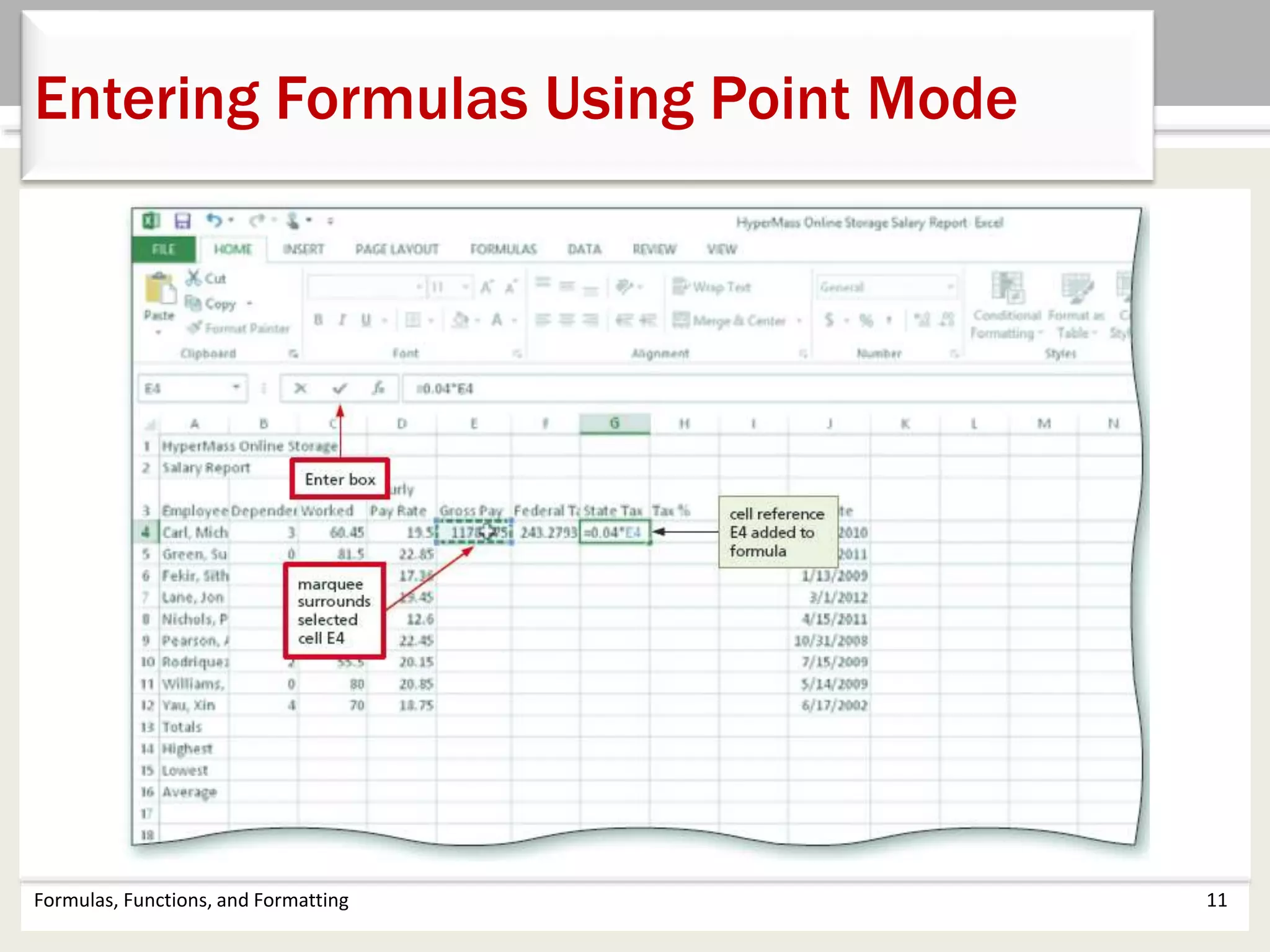
Entering Formulas Using Point Mode
• With the cell that is to contain the formula
selected, begin typing the formula and then
tap or click another cell to add a cell reference
in the formula
• Finish typing the rest of the formula
• Tap or click the Enter box in the formula bar
when you have finished entering the formula
Formulas, Functions, and Formatting 11
Entering Formulas Using Point Mode
Formulas, Functions, and Formatting 12
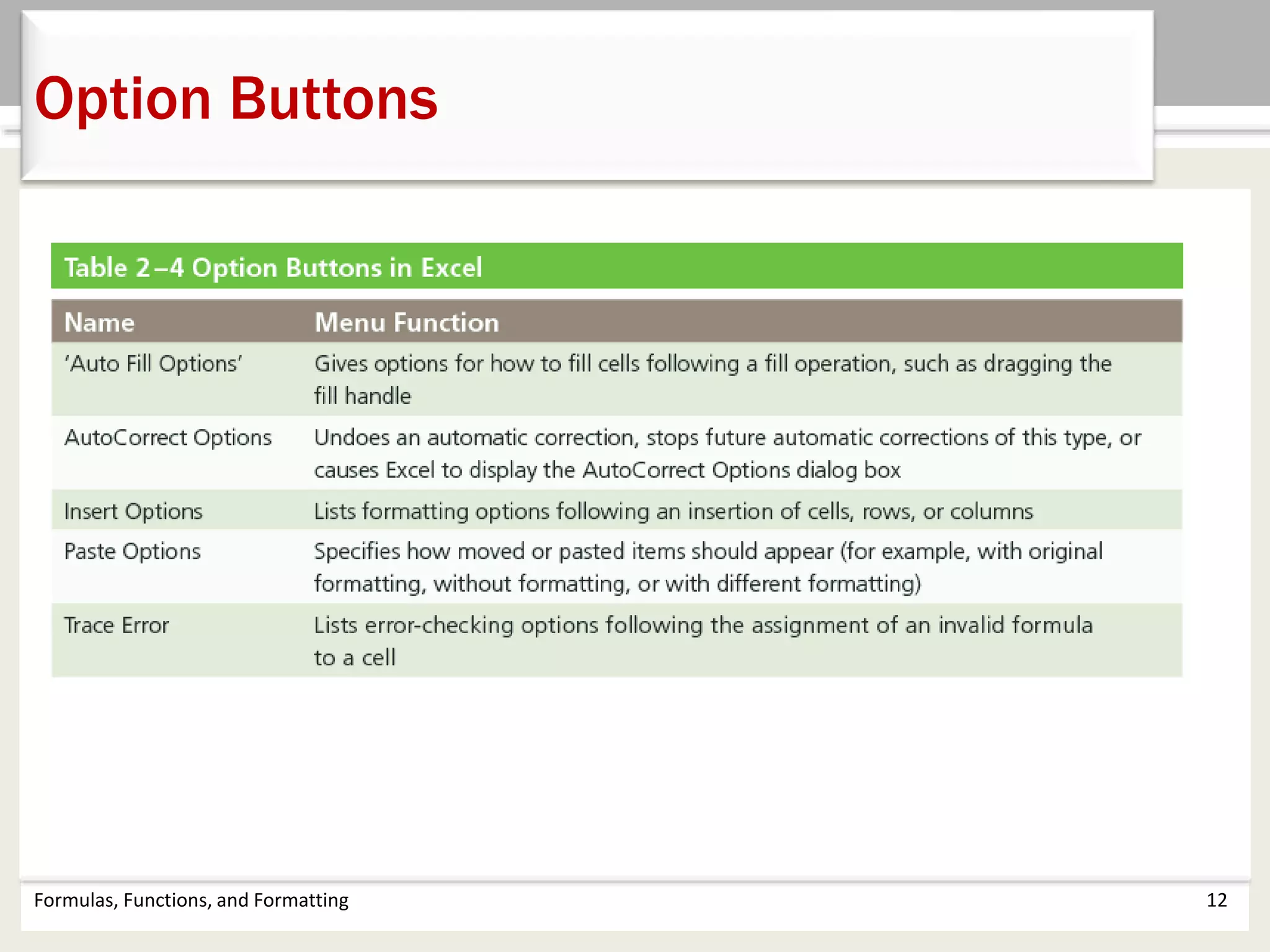
Option Buttons
Formulas, Functions, and Formatting 13
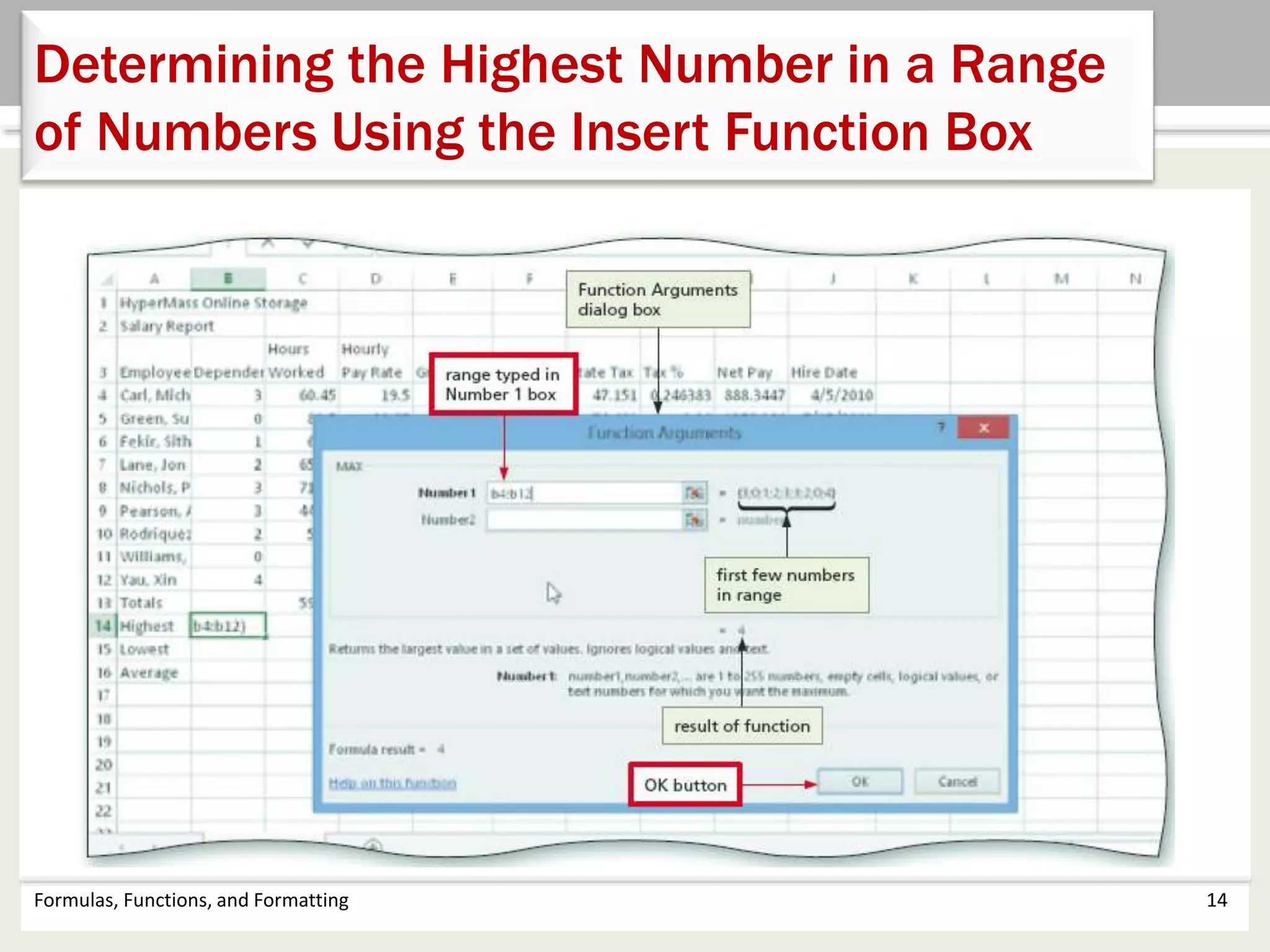
Determining the Highest Number in a Range
of Numbers Using the Insert Function Box
• Select the cell to contain the maximum number
• Tap or click the Insert Function box in the formula bar
to display the Insert Function dialog box
• If necessary, scroll to and then tap or click MAX in the
Select a function list
• Tap or click the OK button to display the Function
Arguments dialog box and type the cell range in the
Number1 box to enter the first argument of the
function
• Tap or click the OK button to display the highest value
in the chosen range in the selected cell
Formulas, Functions, and Formatting 14
Determining the Highest Number in a Range
of Numbers Using the Insert Function Box
Formulas, Functions, and Formatting 15
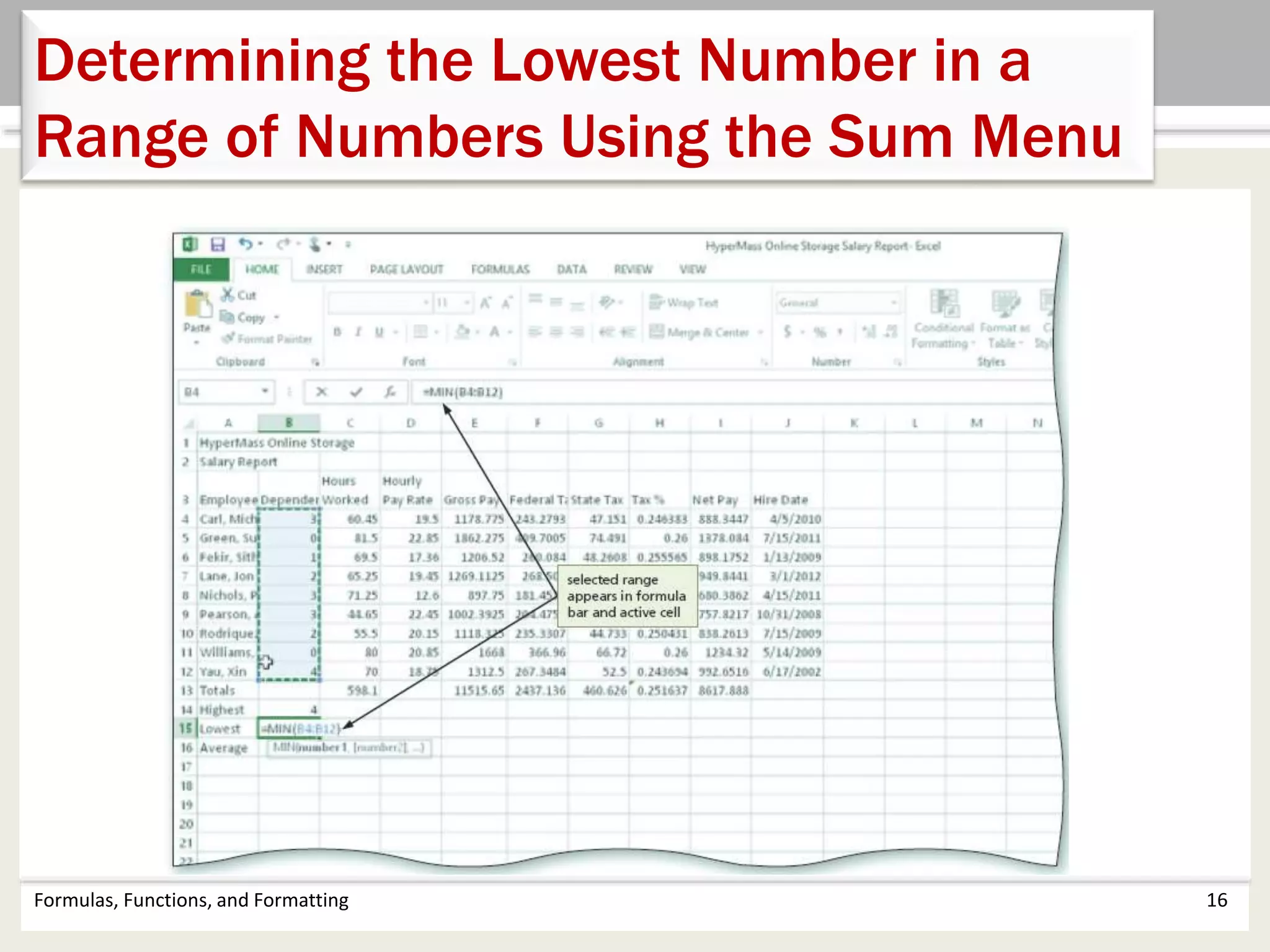
Determining the Lowest Number in a
Range of Numbers Using the Sum Menu
• Select cell that is to contain the minimum value and
then tap or click the Sum arrow in the HOME tab
• Tap or click Min to display the MIN function in the
formula bar and in the active cell
• Drag through the range of values of which you want to
determine the lowest number
• Tap or click the Enter box to determine the lowest value
in the range and display the result in the formula bar
and in the selected cell
Formulas, Functions, and Formatting 16
Determining the Lowest Number in a
Range of Numbers Using the Sum Menu
Formulas, Functions, and Formatting 17
Determining the Average of a Range of
Numbers Using the Keyboard
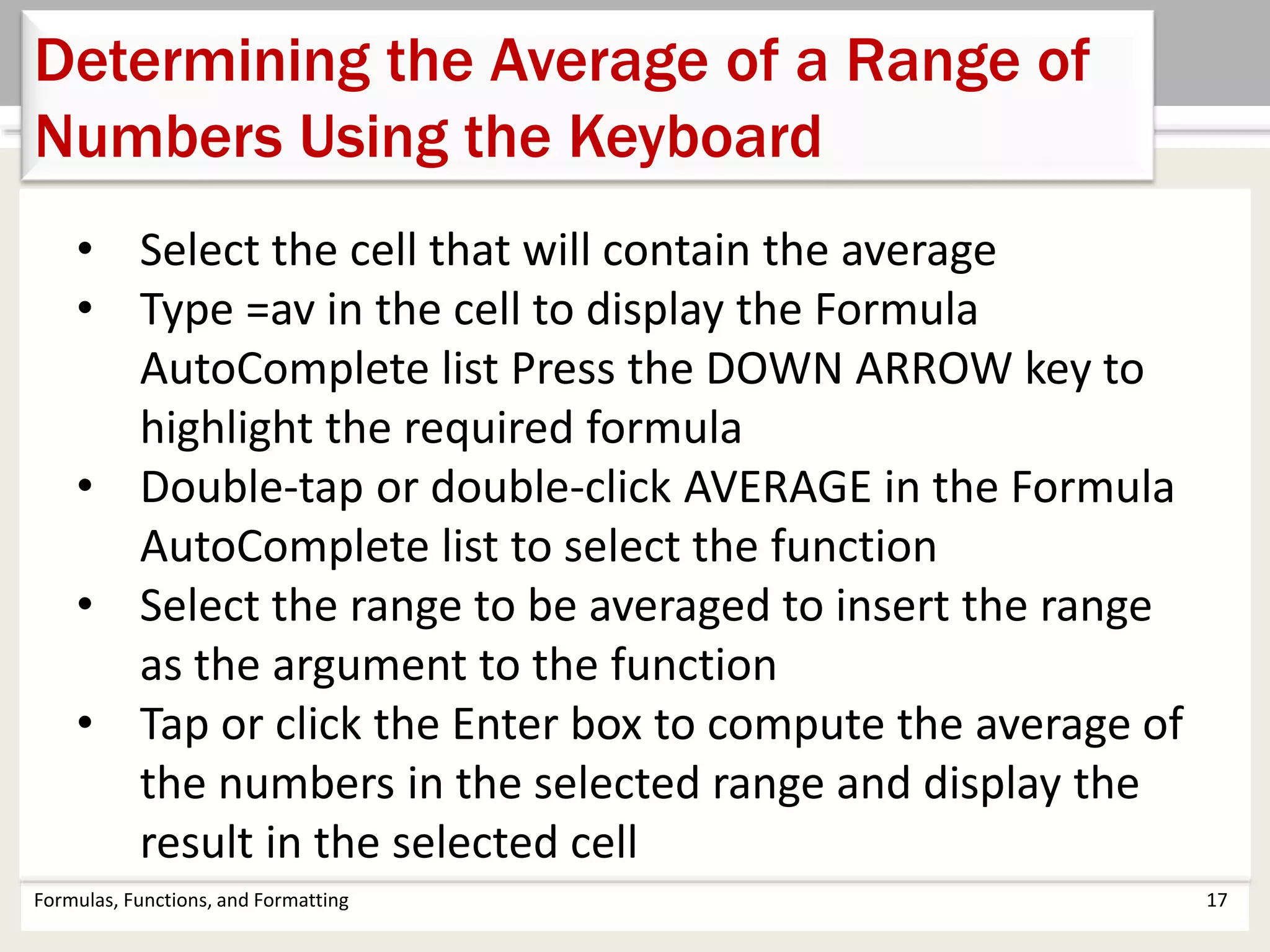
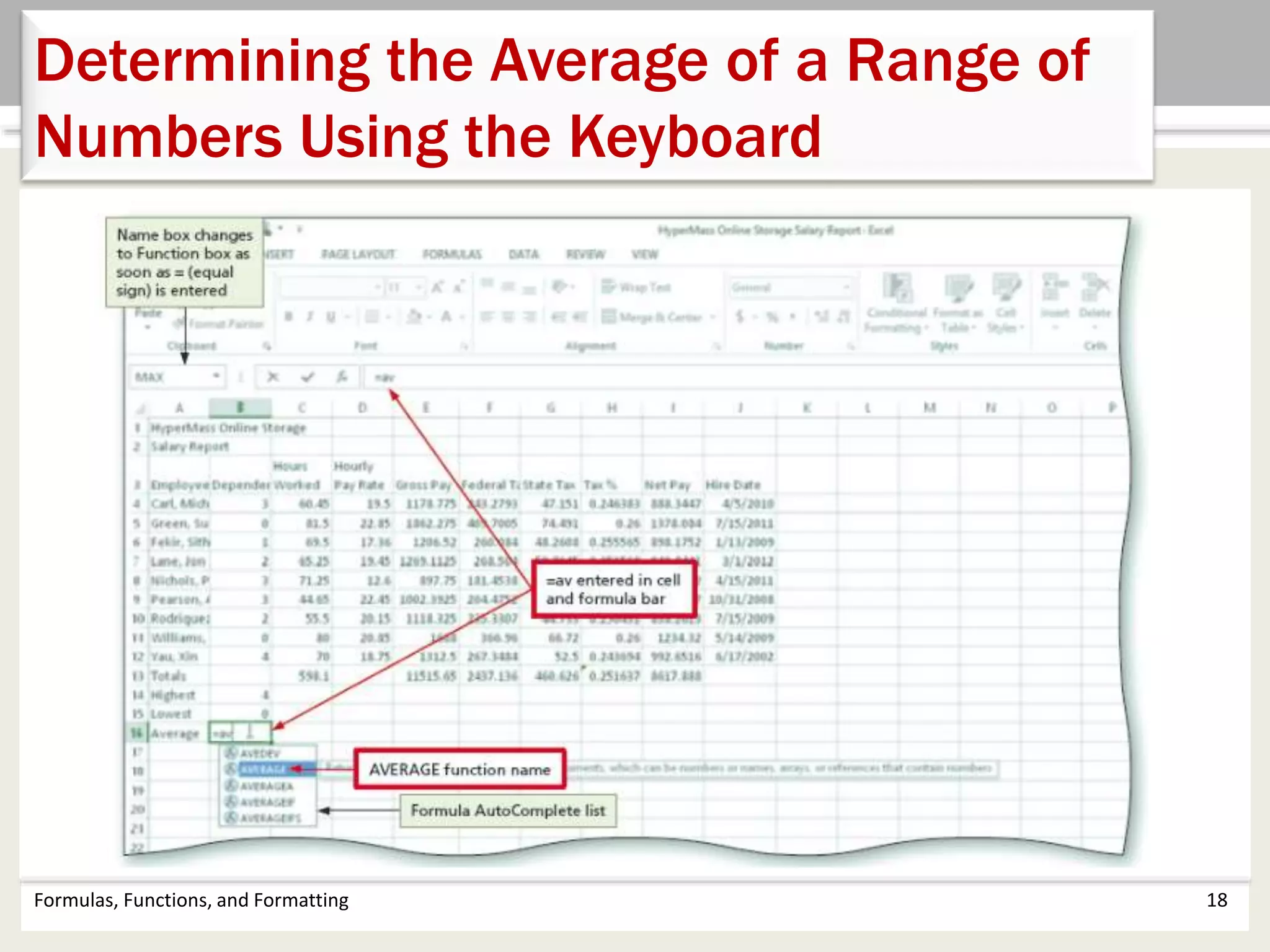
• Select the cell that will contain the average
• Type =av in the cell to display the Formula
AutoComplete list Press the DOWN ARROW key to
highlight the required formula
• Double-tap or double-click AVERAGE in the Formula
AutoComplete list to select the function
• Select the range to be averaged to insert the range
as the argument to the function
• Tap or click the Enter box to compute the average of
the numbers in the selected range and display the
result in the selected cell
Formulas, Functions, and Formatting 18
Determining the Average of a Range of
Numbers Using the Keyboard
Formulas, Functions, and Formatting 19
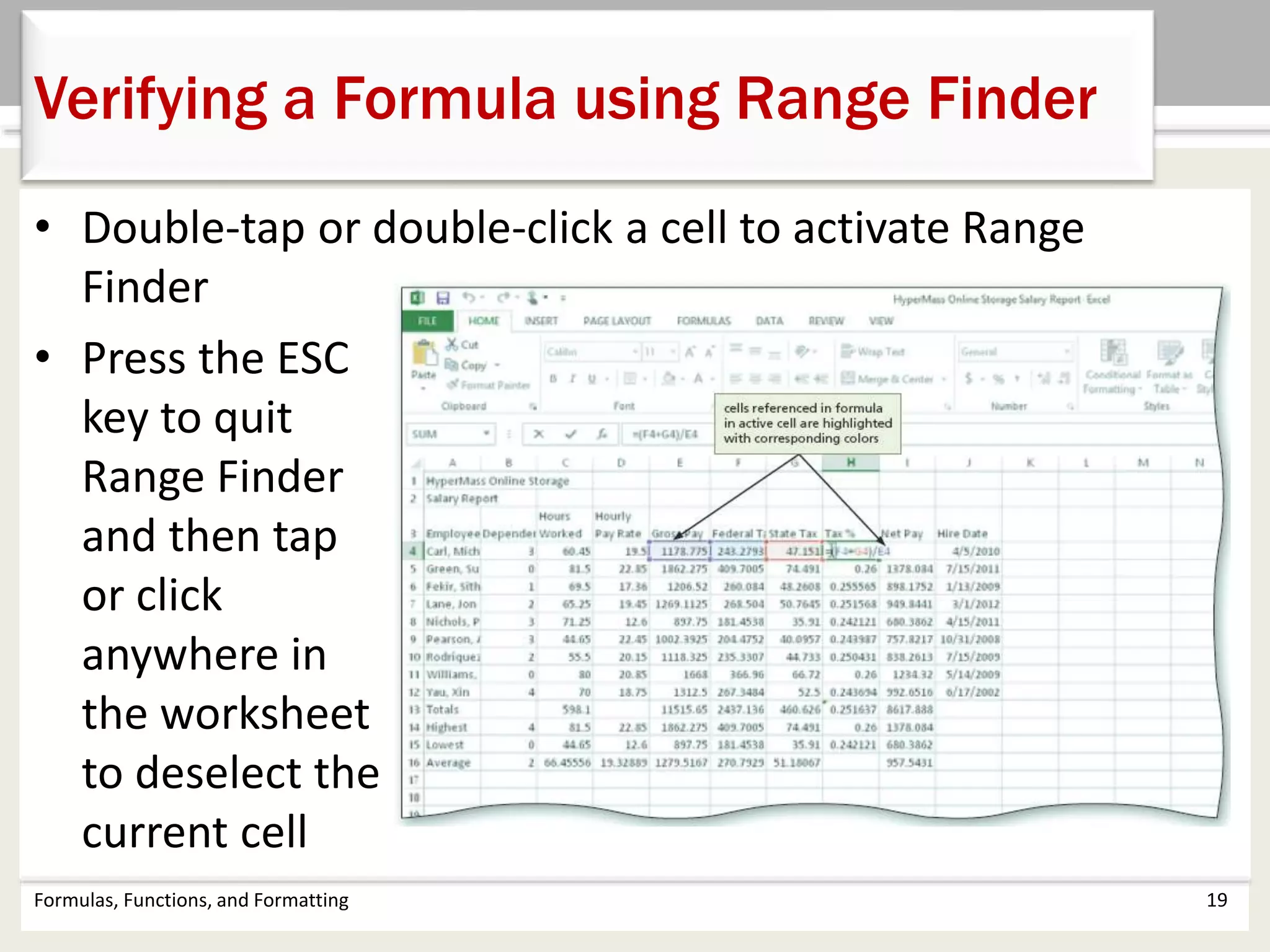
Verifying a Formula using Range Finder
• Double-tap or double-click a cell to activate Range
Finder
• Press the ESC
key to quit
Range Finder
and then tap
or click
anywhere in
the worksheet
to deselect the
current cell
Formulas, Functions, and Formatting 20
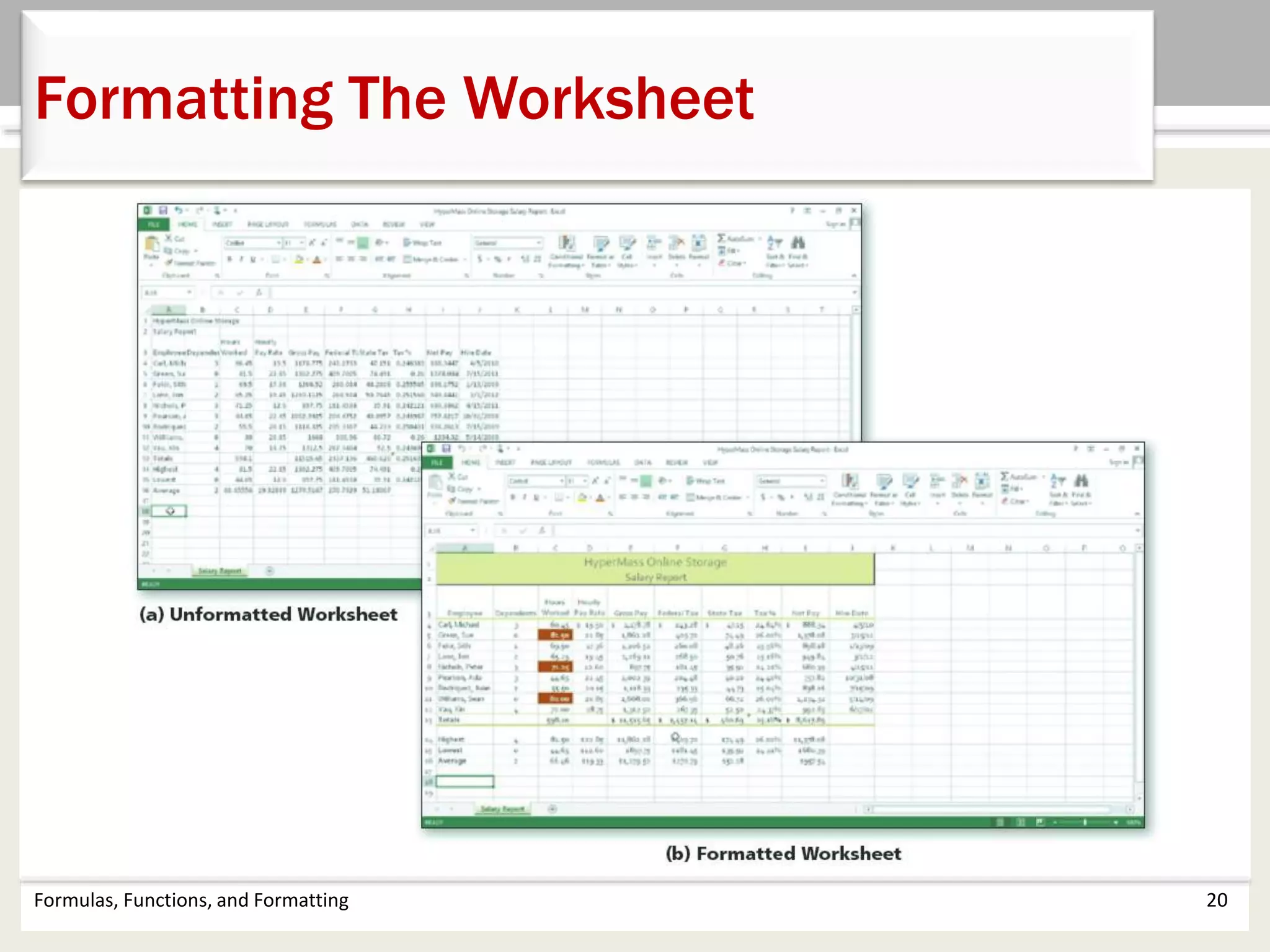
Formatting The Worksheet
Formulas, Functions, and Formatting 21
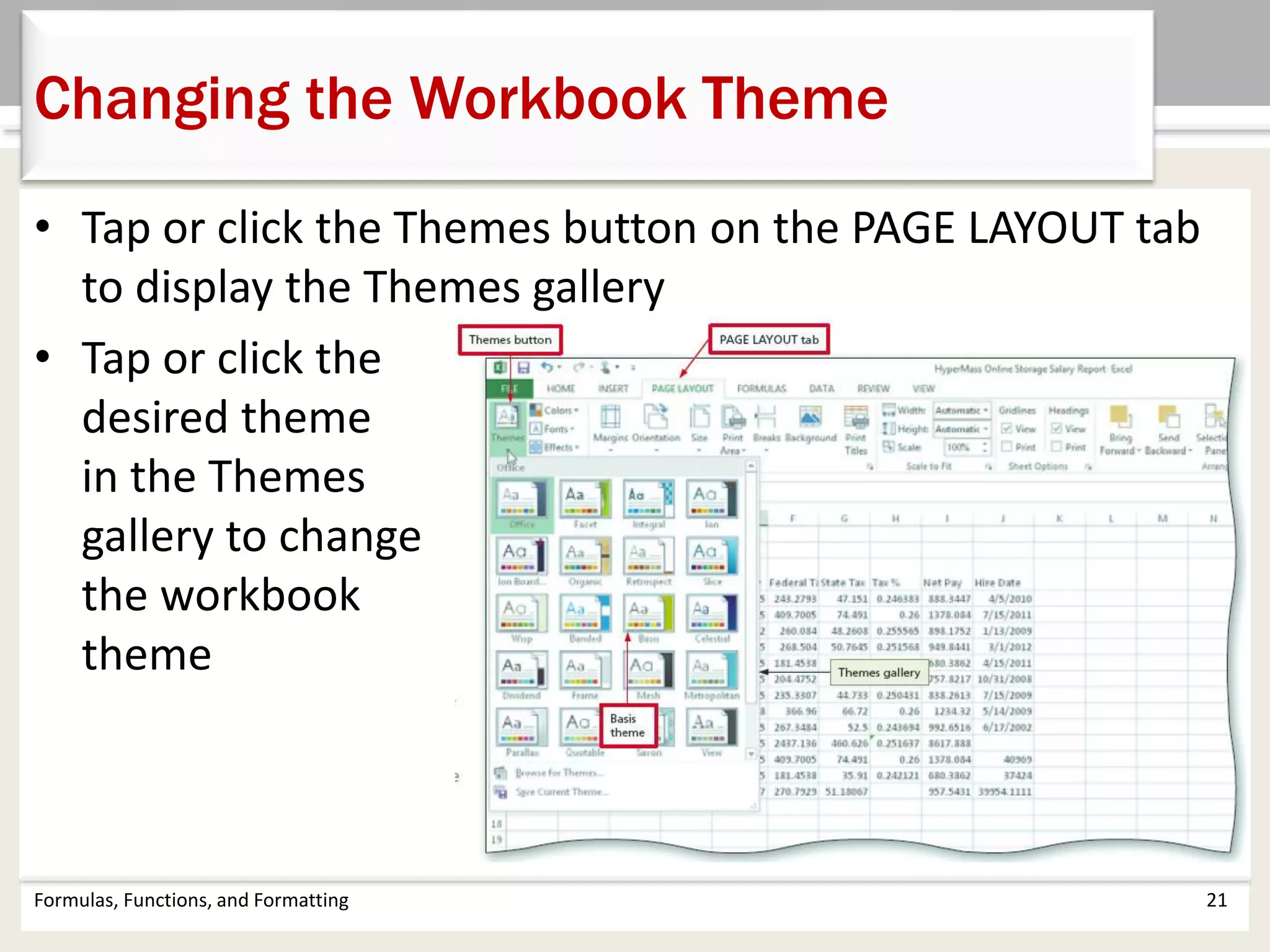
Changing the Workbook Theme
• Tap or click the Themes button on the PAGE LAYOUT tab
to display the Themes gallery
• Tap or click the
desired theme
in the Themes
gallery to change
the workbook
theme
• Select the range to color and then tap or click the Fill
Color arrow on the HOME tab to display the Fill Color
gallery
• Tap or click a color to select it and change the
background color of the range of cells
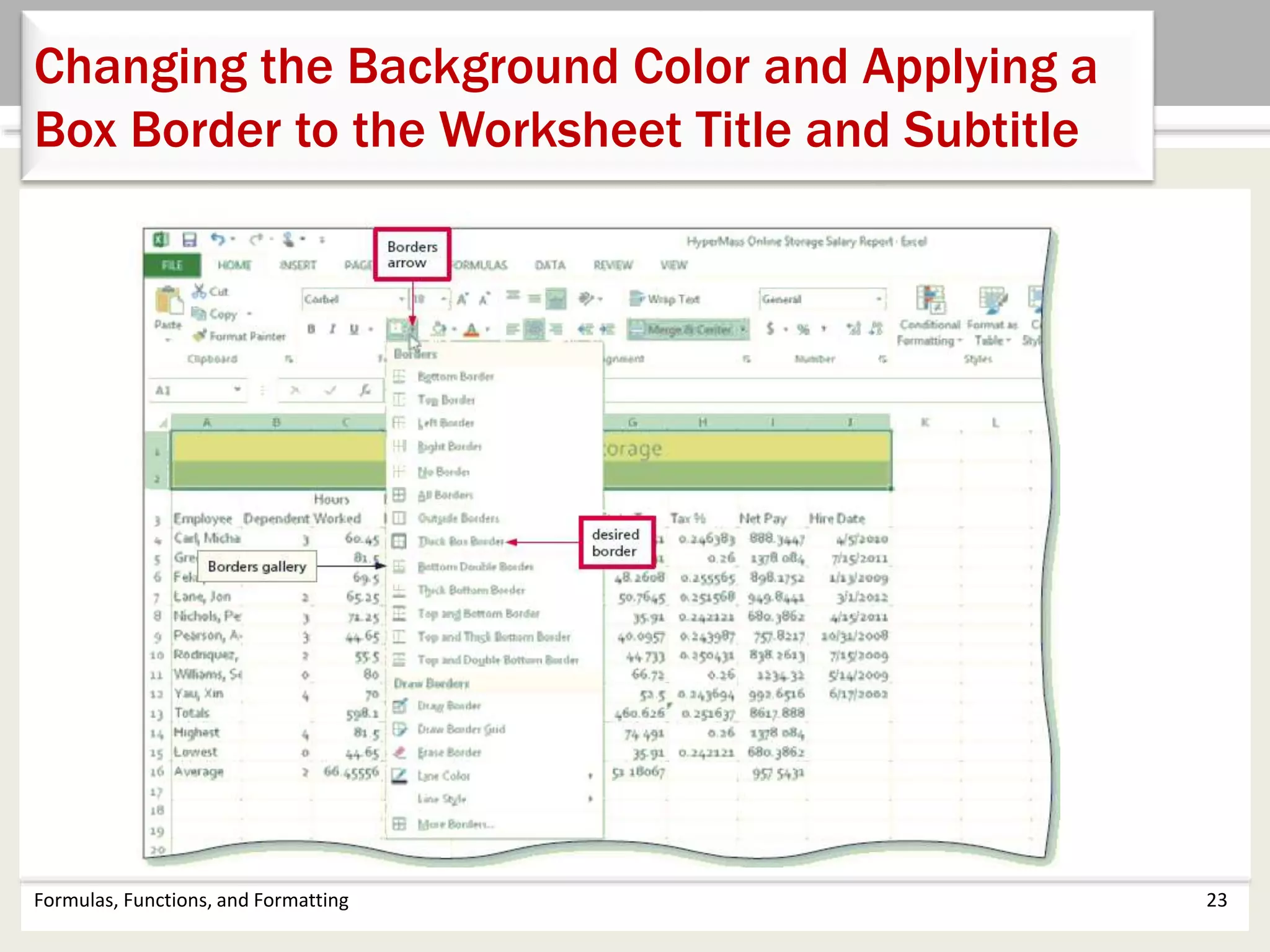
• Tap or click the Borders arrow on the HOME tab to
display the Borders gallery
• Tap or click a border in the Borders gallery to select it
and display a border around the selected range
Formulas, Functions, and Formatting 22
Changing the Background Color and Applying a
Box Border to the Worksheet Title and Subtitle
Formulas, Functions, and Formatting 23
Changing the Background Color and Applying a
Box Border to the Worksheet Title and Subtitle
Formulas, Functions, and Formatting 24
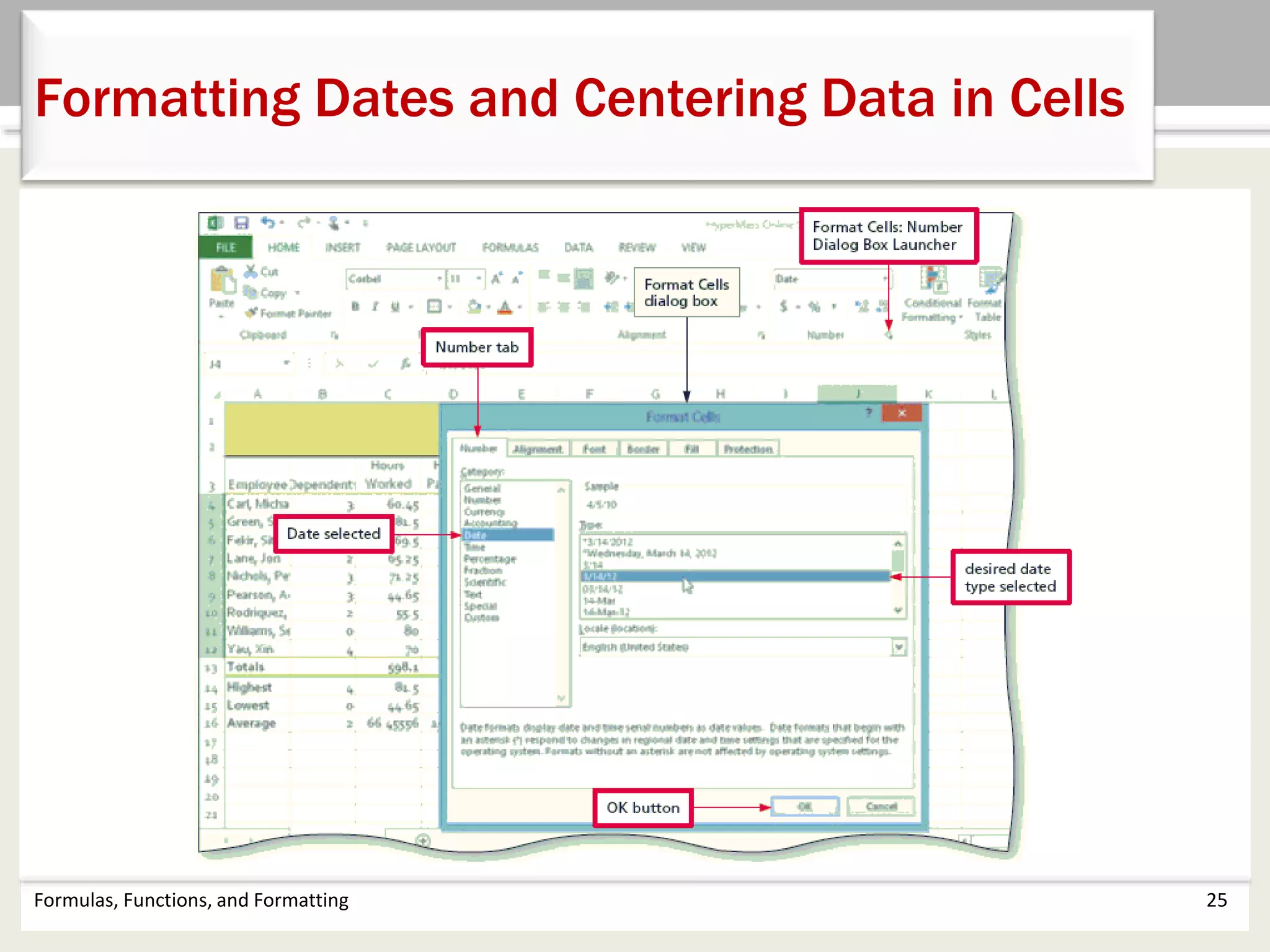
Formatting Dates and Centering Data in
Cells
• Select the range to contain the new date format
• Tap or click the Format Cells: Number Format Dialog Box Launcher
in the HOME tab to display the dialog box
• If necessary, tap or click the NUMBER tab and tap or click Date in
the Category list, and then tap or click a date type to choose the
format for the selected range
• Tap or click the NUMBER tab and then tap or click Date in the
Category list to choose the format for the selected range
• Tap or click the OK button to format the dates in the current
column using the selected date format style
• Select the range to be centered and then tap or click the Center
button on the HOME tab to center the data in the selected range
Formulas, Functions, and Formatting 25
Formatting Dates and Centering Data in Cells
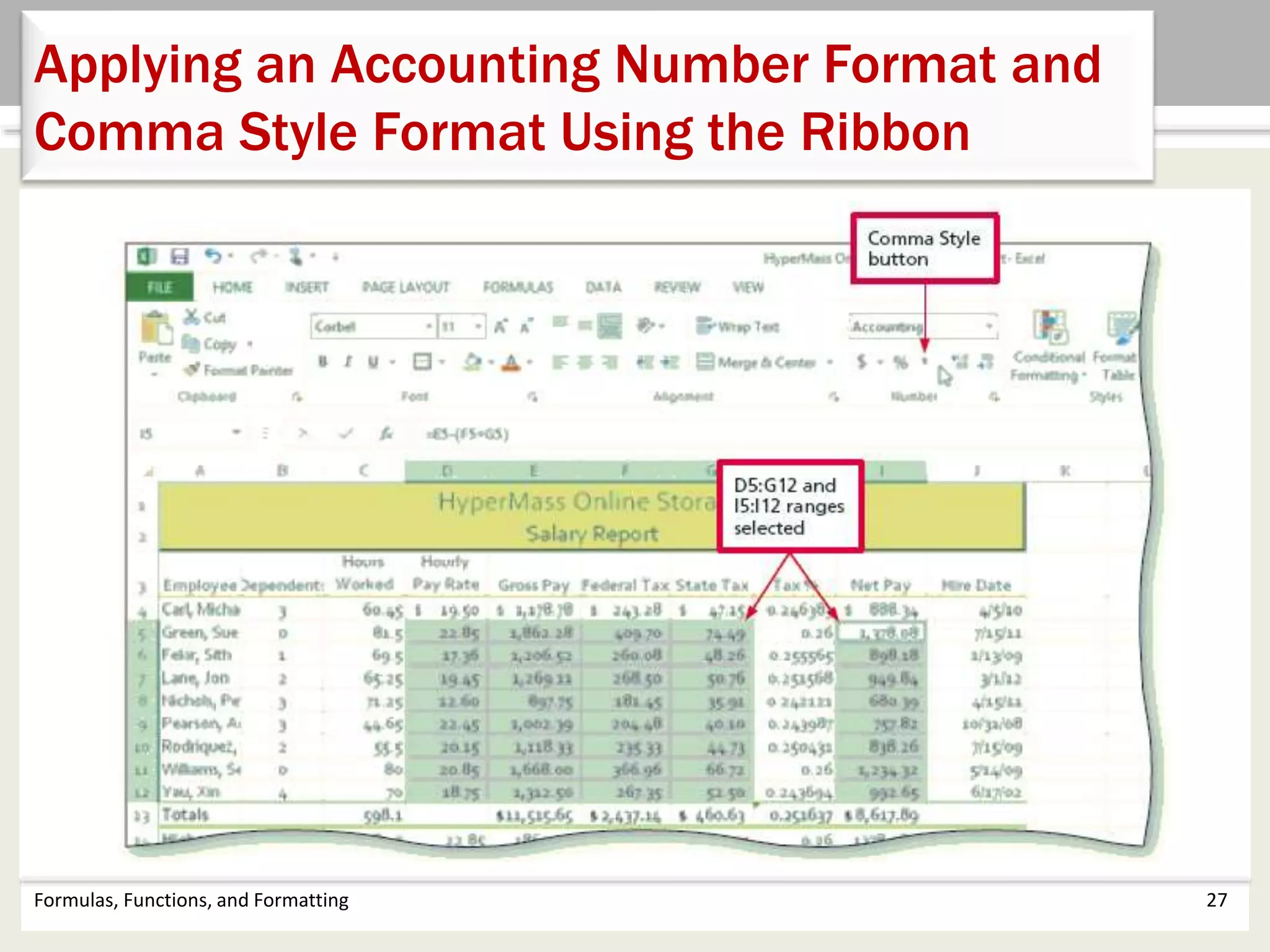
• Select the range to contain the accounting number
format
• While holding down the CTRL key, select the nonadjacent
ranges and cells
• Tap or click the ‘Accounting Number Format’ button on
the HOME tab to apply the accounting number format to
the selected nonadjacent ranges
• Tap or click the Comma Style button on the HOME tab to
assign the Comma style format to the selected range
Formulas, Functions, and Formatting 26
Applying an Accounting Number Format and
Comma Style Format Using the Ribbon
Formulas, Functions, and Formatting 27
Applying an Accounting Number Format and
Comma Style Format Using the Ribbon
Formulas, Functions, and Formatting 28
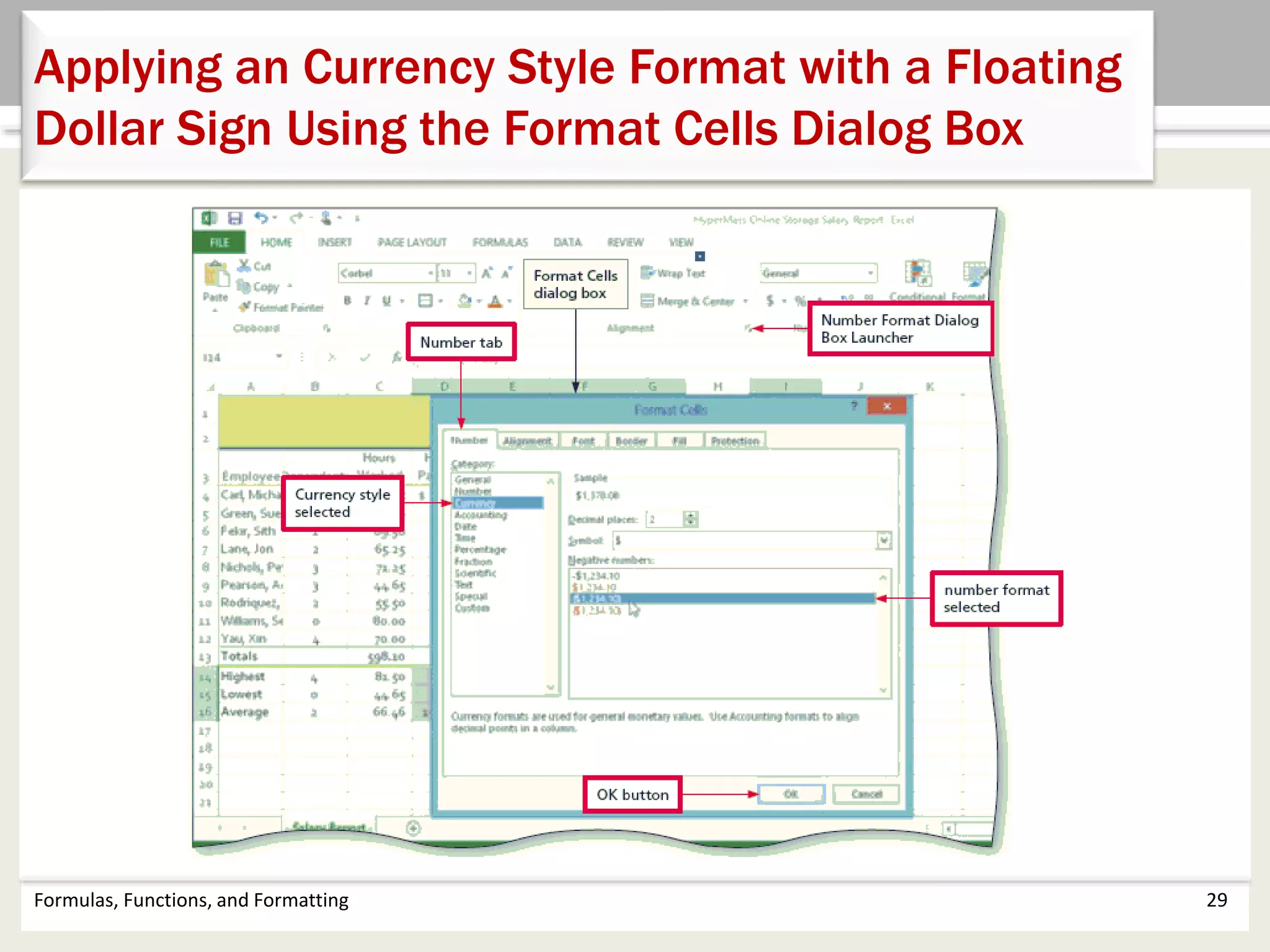
Applying a Currency Style Format with a Floating
Dollar Sign Using the Format Cells Dialog Box
• Select the range to format and then tap or click the
Number Format Dialog Box Launcher in the HOME tab
to display the Format Cells dialog box
• If necessary, tap or click the NUMBER tab to display the
Number sheet
• Tap or click Currency in the Category list to select the
necessary number format category and then tap or click
a style in the Negative numbers list to select the desired
currency format
• Tap or click the OK button to assign the currency style
format to the selected ranges
Formulas, Functions, and Formatting 29
Applying an Currency Style Format with a Floating
Dollar Sign Using the Format Cells Dialog Box
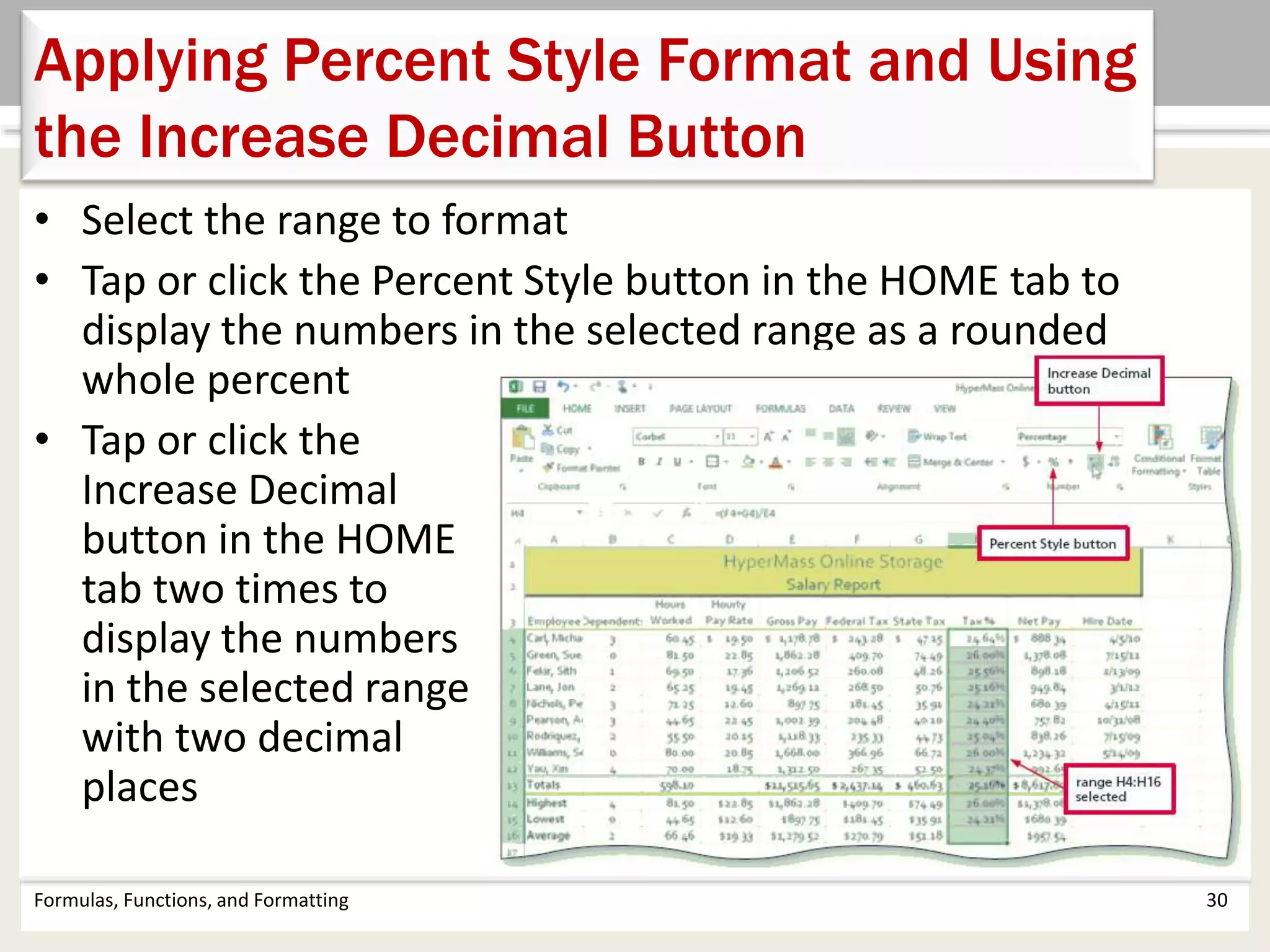
• Select the range to format
• Tap or click the Percent Style button in the HOME tab to
display the numbers in the selected range as a rounded
whole percent
• Tap or click the
Increase Decimal
button in the HOME
tab two times to
display the numbers
in the selected range
with two decimal
places
Formulas, Functions, and Formatting 30
Applying Percent Style Format and Using
the Increase Decimal Button
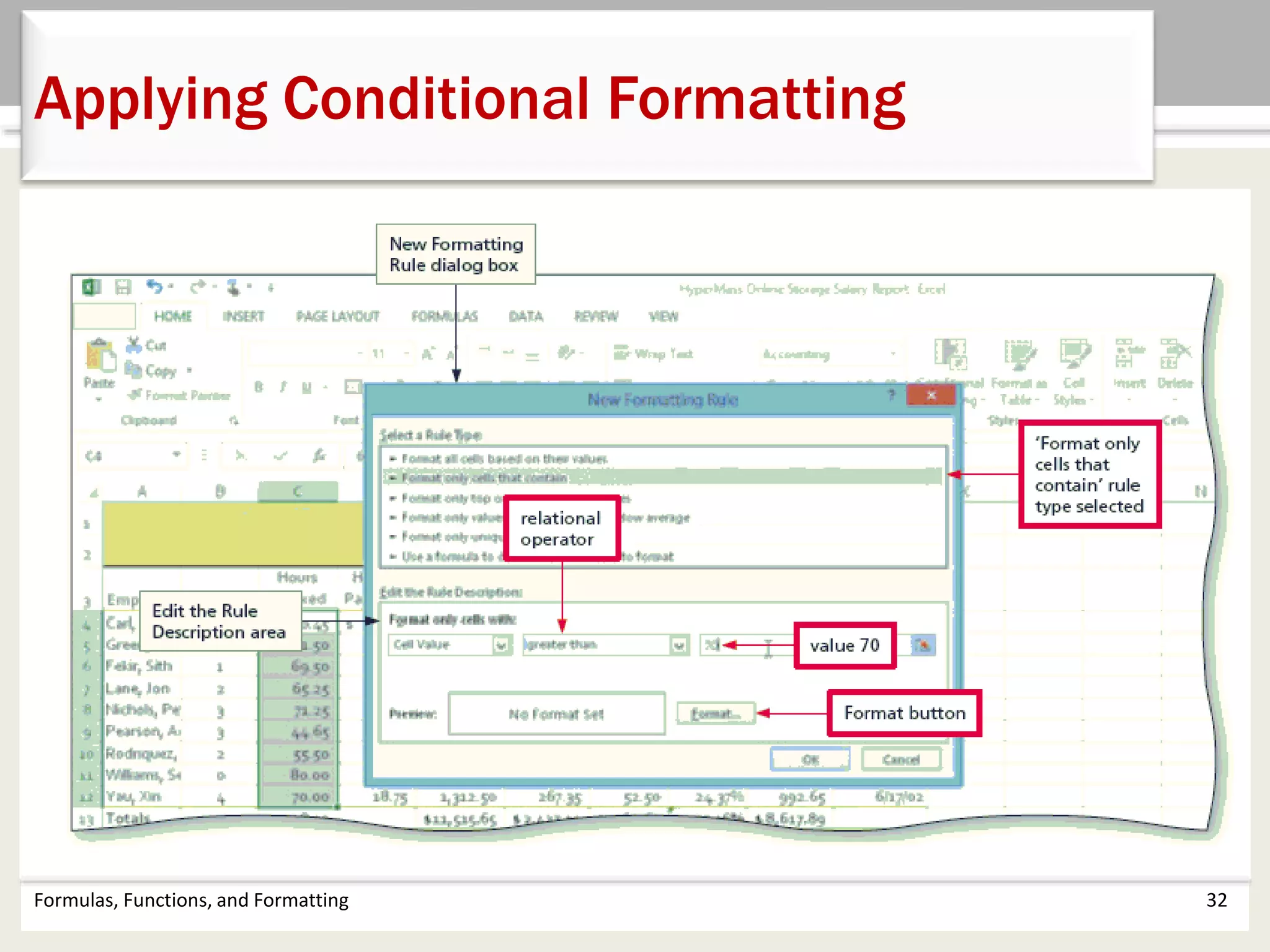
• Select the range to which you wish to apply
conditional formatting
• Tap or click the Conditional Formatting button on the
HOME tab to display the Conditional Formatting list
• Tap or click New Rule in the Conditional Formatting
list to display the New Formatting Rule dialog box
• Tap or click the desired rule type in the Select a Rule
Type area
• Select and type the desired values in the Edit the Rule
Description area
Formulas, Functions, and Formatting 31
Applying Conditional Formatting
Formulas, Functions, and Formatting 32
Applying Conditional Formatting
Formulas, Functions, and Formatting 33
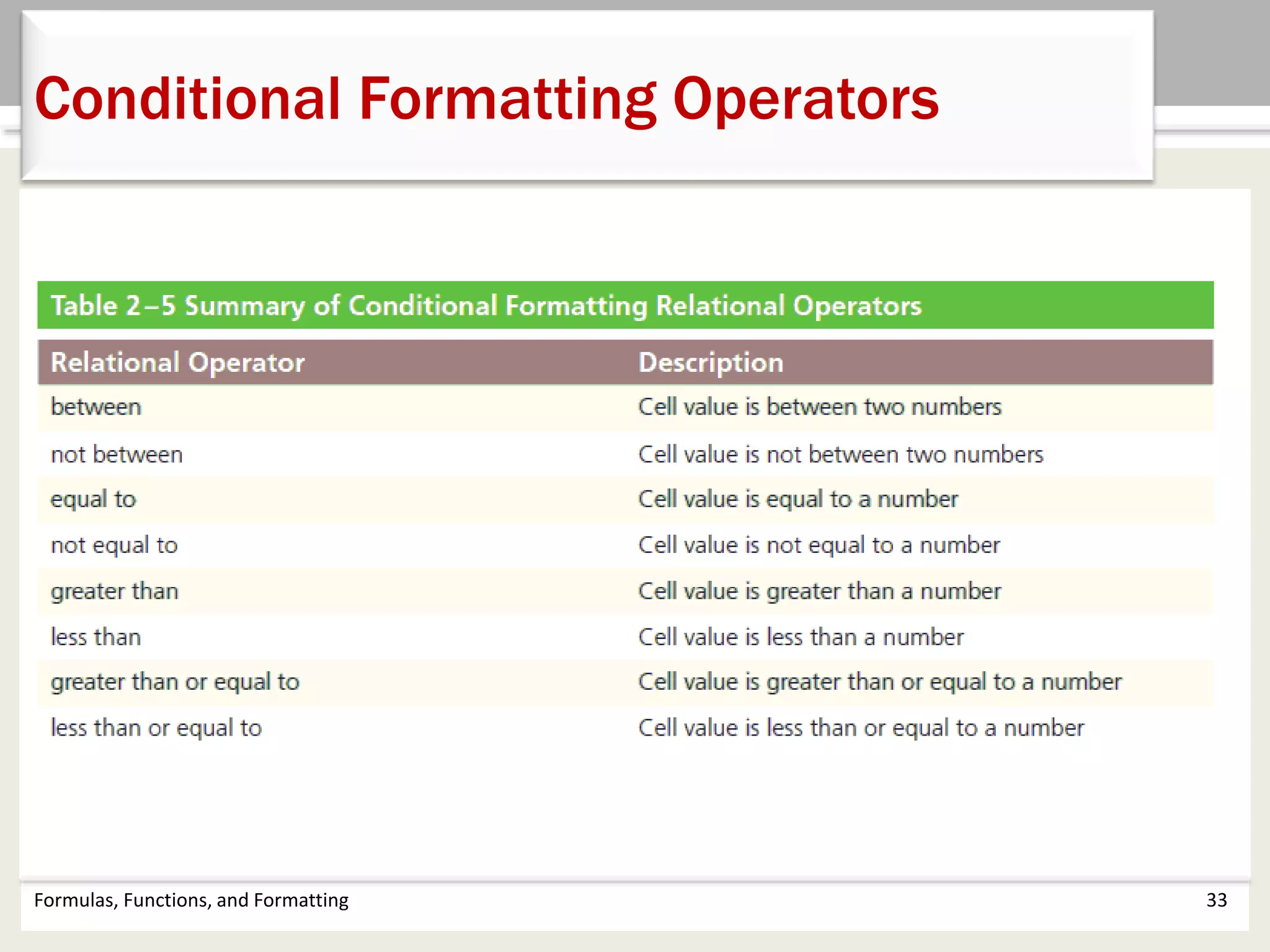
Conditional Formatting Operators
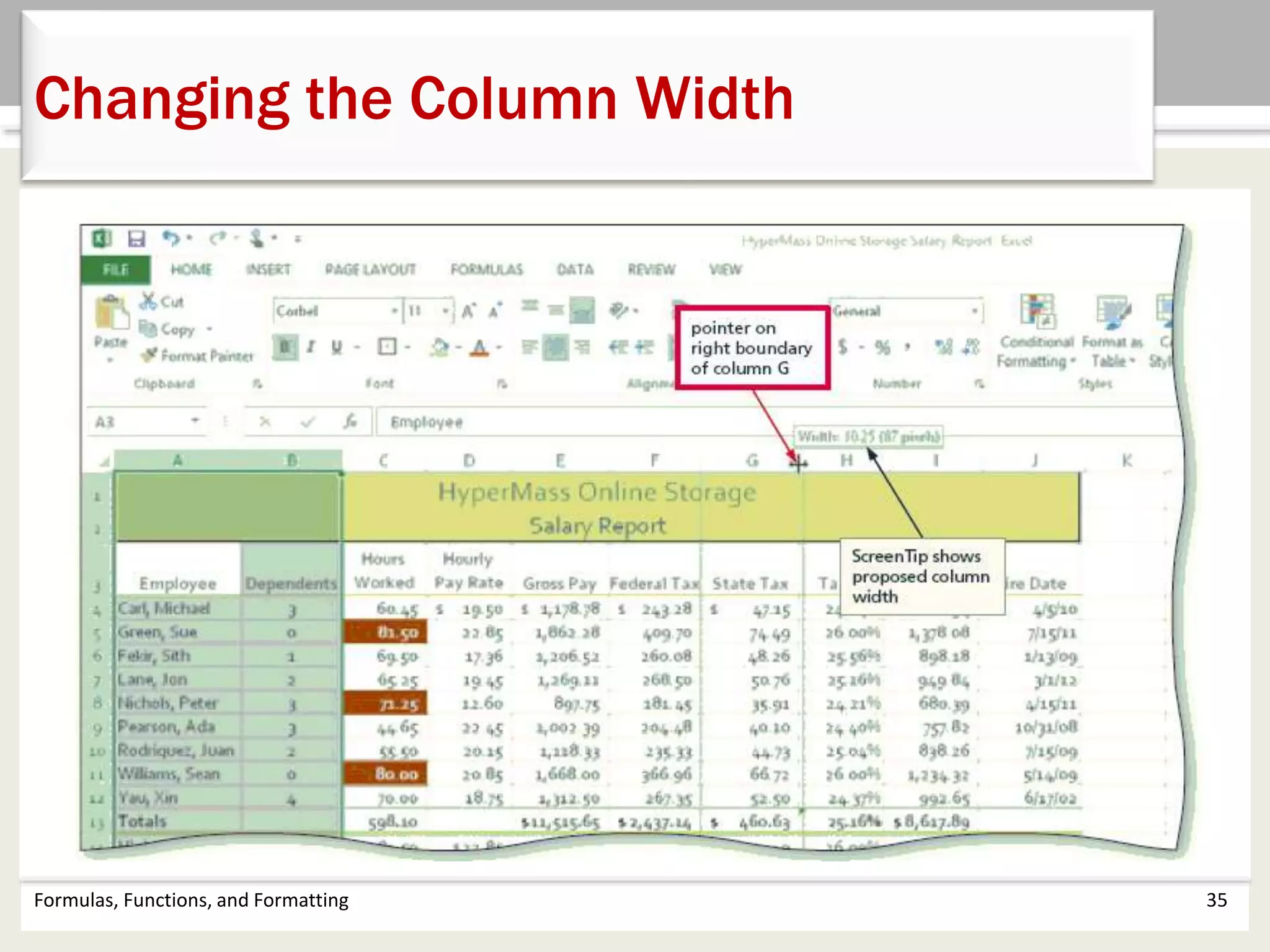
• Drag through column headings to select the columns
• Tap or point to the boundary on the rightmost column
heading to cause the pointer to become a split double arrow
• Double-tap or double-click the right boundary of the column
to change the width of the selected columns to best fit
• To resize a column by dragging, point to the boundary of the
right side of the column heading. When the mouse pointer
changes to a split double arrow, drag to the desired width,
and then Lift your finger or release the mouse button to
change the column widths
Formulas, Functions, and Formatting 34
Changing the Column Width
Formulas, Functions, and Formatting 35
Changing the Column Width
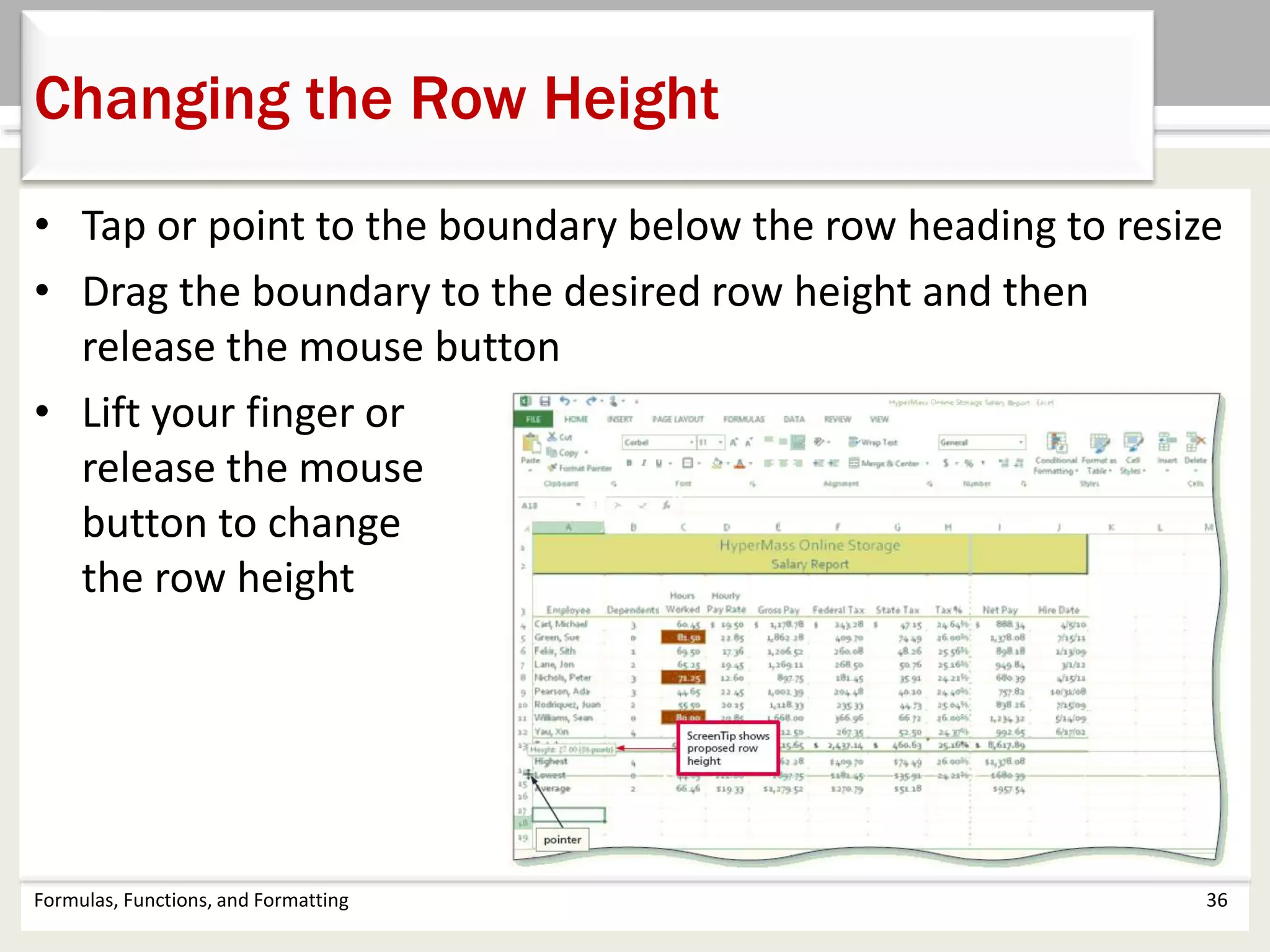
• Tap or point to the boundary below the row heading to resize
• Drag the boundary to the desired row height and then
release the mouse button
• Lift your finger or
release the mouse
button to change
the row height
Formulas, Functions, and Formatting 36
Changing the Row Height
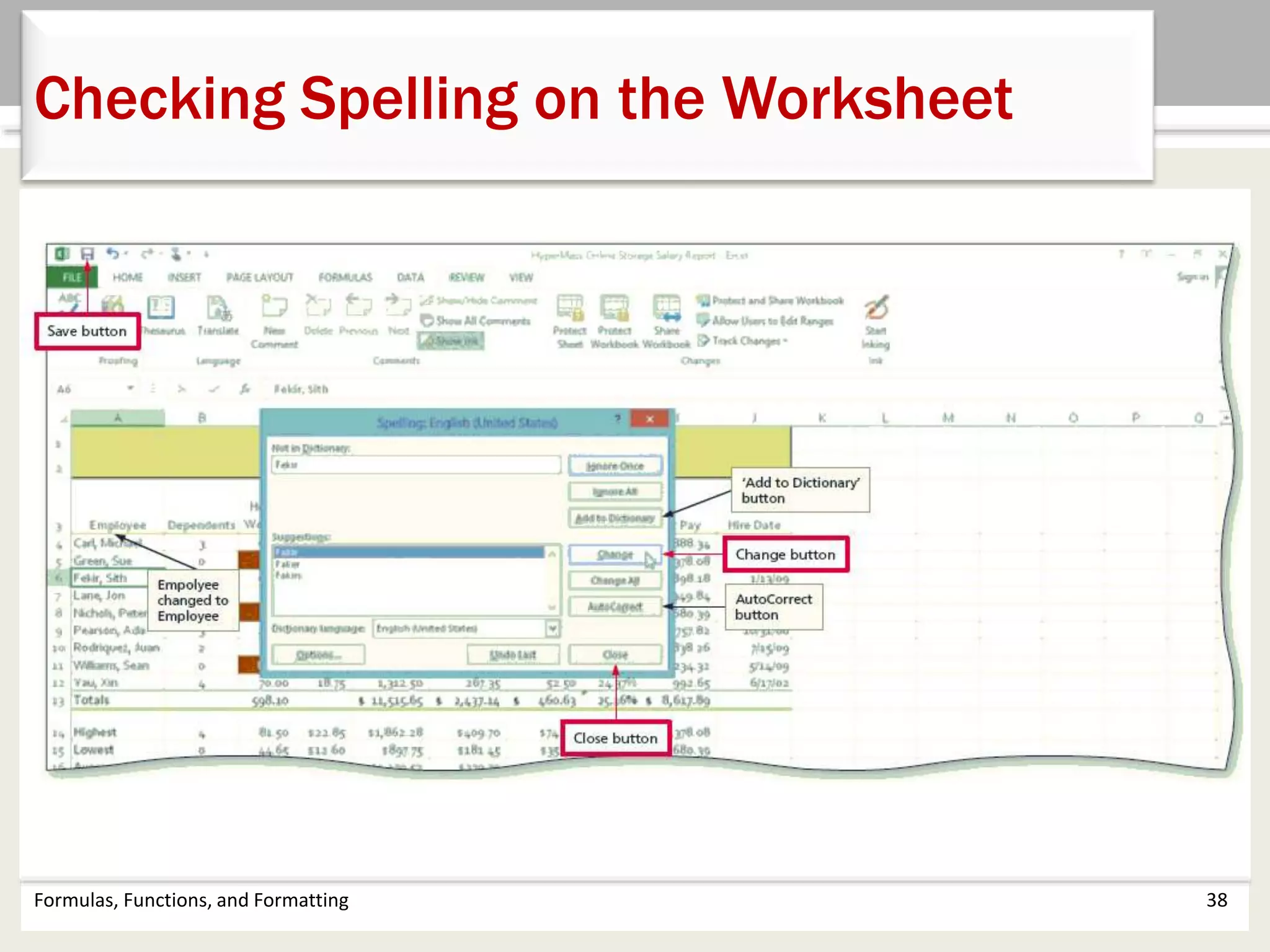
• Tap or click cell A1 so that the spell checker begins at
the beginning of the worksheet
• Tap or click the Spelling button on the REVIEW tab to
run the spell checker and display the misspelled
words in the Spelling dialog box
• Apply the desired action to each misspelled word
• When the spell checker is finished, Tap or click the
Close button
Formulas, Functions, and Formatting 37
Checking Spelling on the Worksheet
Formulas, Functions, and Formatting 38
Checking Spelling on the Worksheet
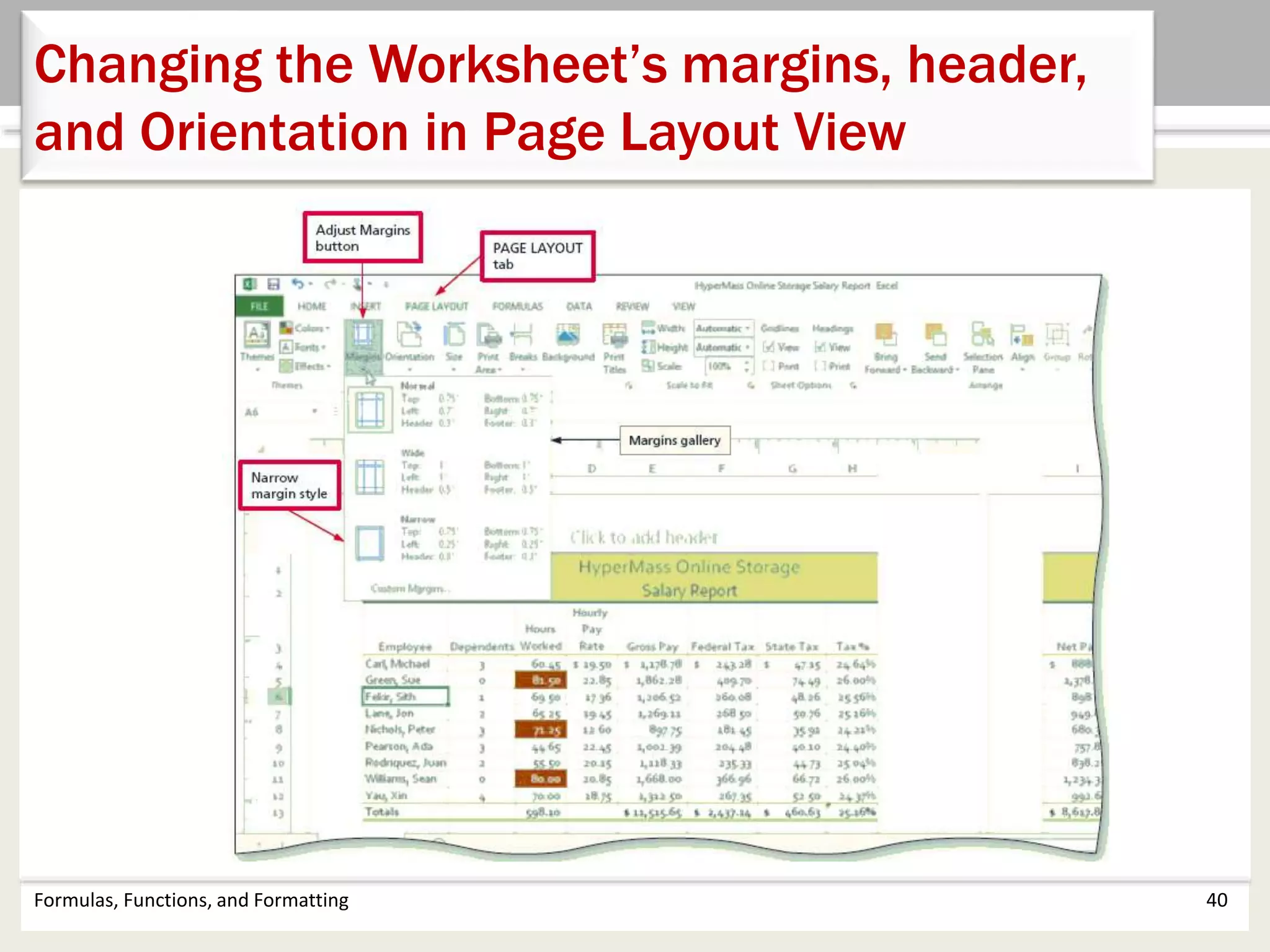
• Tap or click the Page Layout button on the status bar to
view the worksheet in Page Layout view
• Tap or click the Adjust Margins button on the PAGE
LAYOUT tab to display the Margins gallery
• Tap or click the desired margin style to change the
worksheet margins to the selected style
• Tap or click above cell A1 in the center area of the Header
area
• Type the desired worksheet header, and then press the
ENTER key
Formulas, Functions, and Formatting 39
Changing the Worksheet’s Margins, Header,
and Orientation in Page Layout View
Formulas, Functions, and Formatting 40
Changing the Worksheet’s margins, header,
and Orientation in Page Layout View
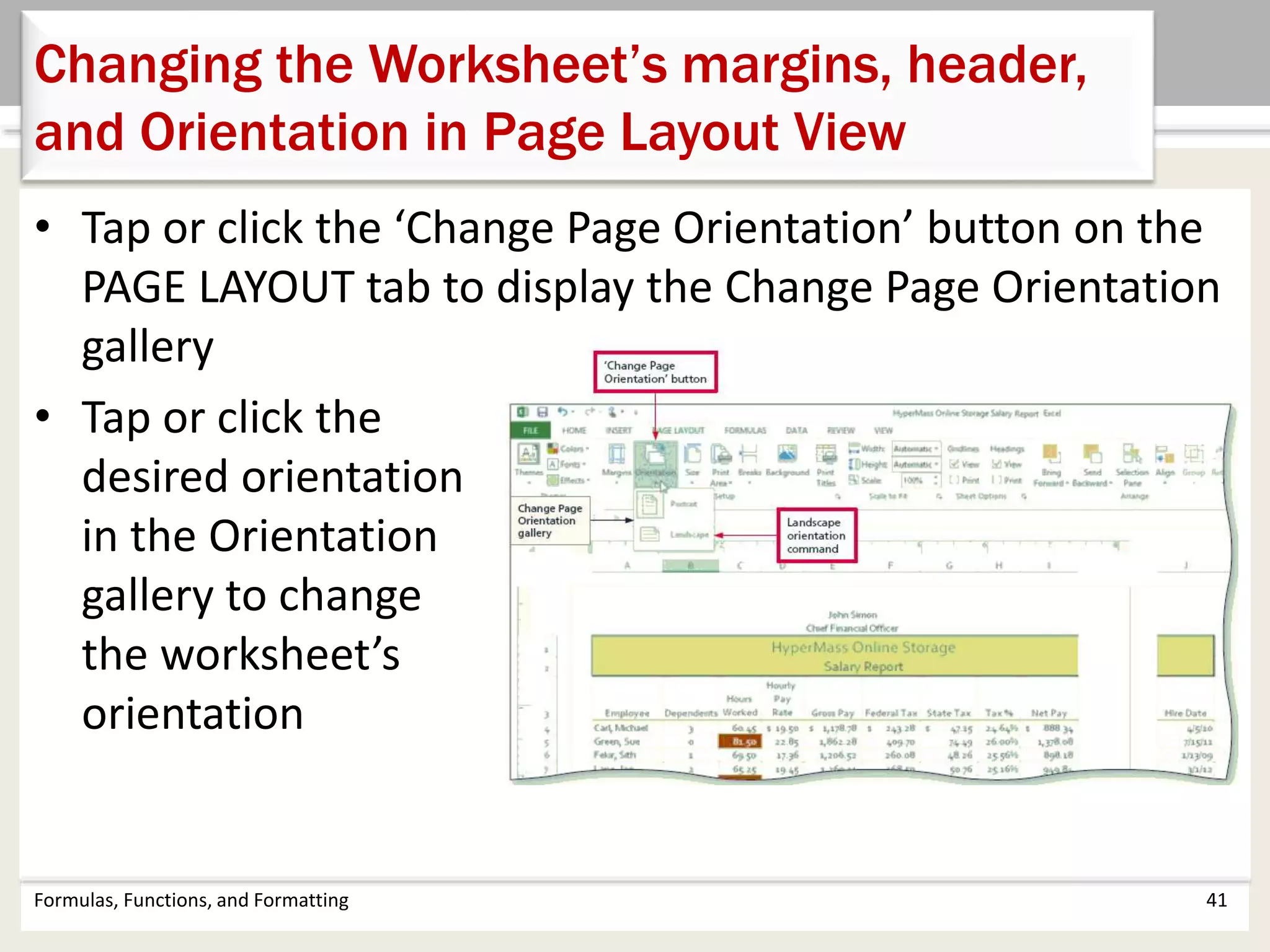
• Tap or click the ‘Change Page Orientation’ button on the
PAGE LAYOUT tab to display the Change Page Orientation
gallery
• Tap or click the
desired orientation
in the Orientation
gallery to change
the worksheet’s
orientation
Formulas, Functions, and Formatting 41
Changing the Worksheet’s margins, header,
and Orientation in Page Layout View
Formulas, Functions, and Formatting 42
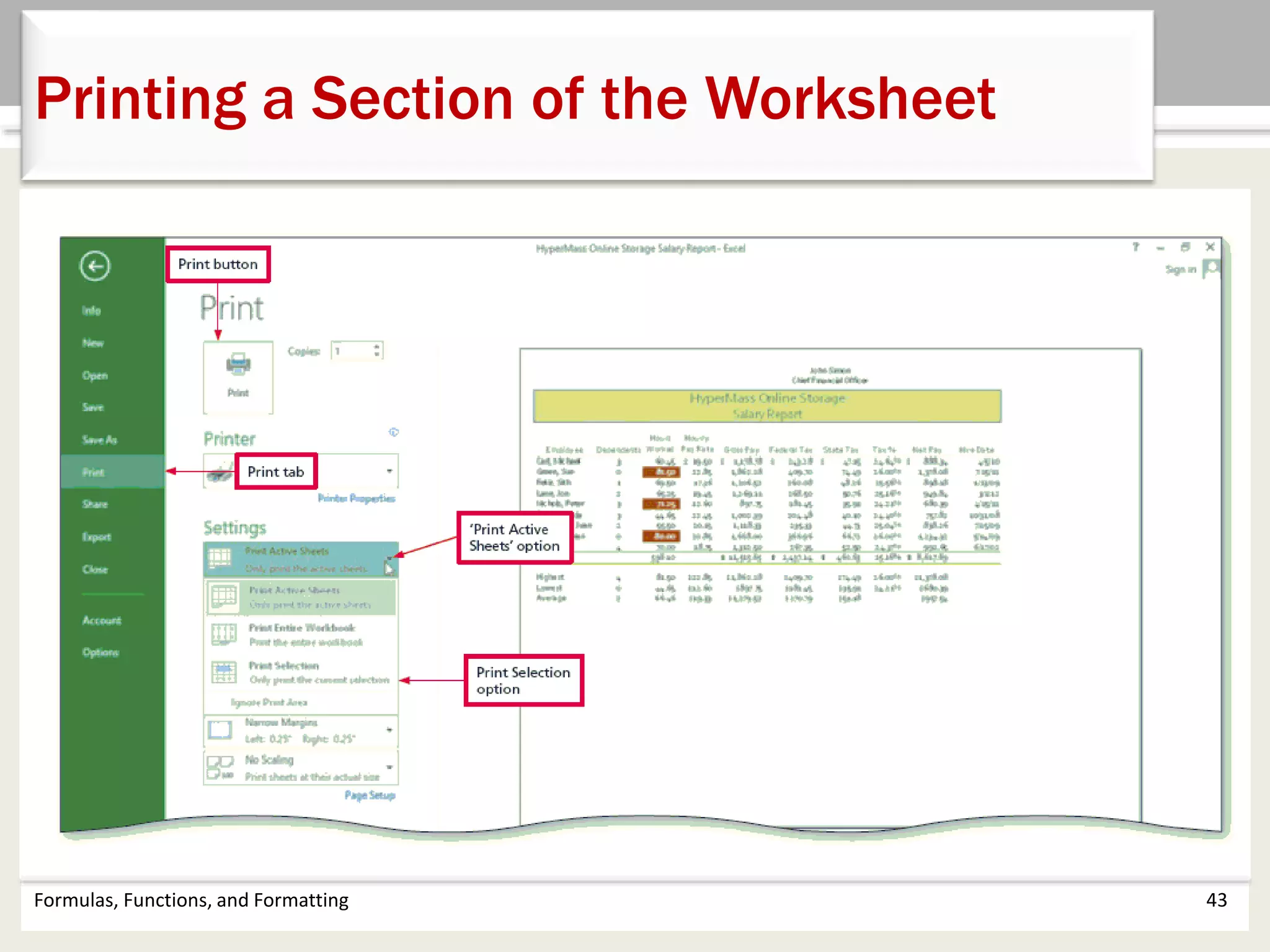
Printing a Section of the Worksheet
• Select the range to print
• Tap or click FILE on the ribbon to open Backstage view
• Tap or click the Print tab to display the Print gallery
• Tap or click ‘Print Active Sheets’ in the Settings area on
the PRINT tab to display a list of printing options
• Tap or click Print Selection to print the selected range
• Tap or click the Print button in the Print gallery to print
the selected range of the worksheet
• Tap or click the Normal button on the status bar to return
to Normal view
Formulas, Functions, and Formatting 43
Printing a Section of the Worksheet
Formulas, Functions, and Formatting 44
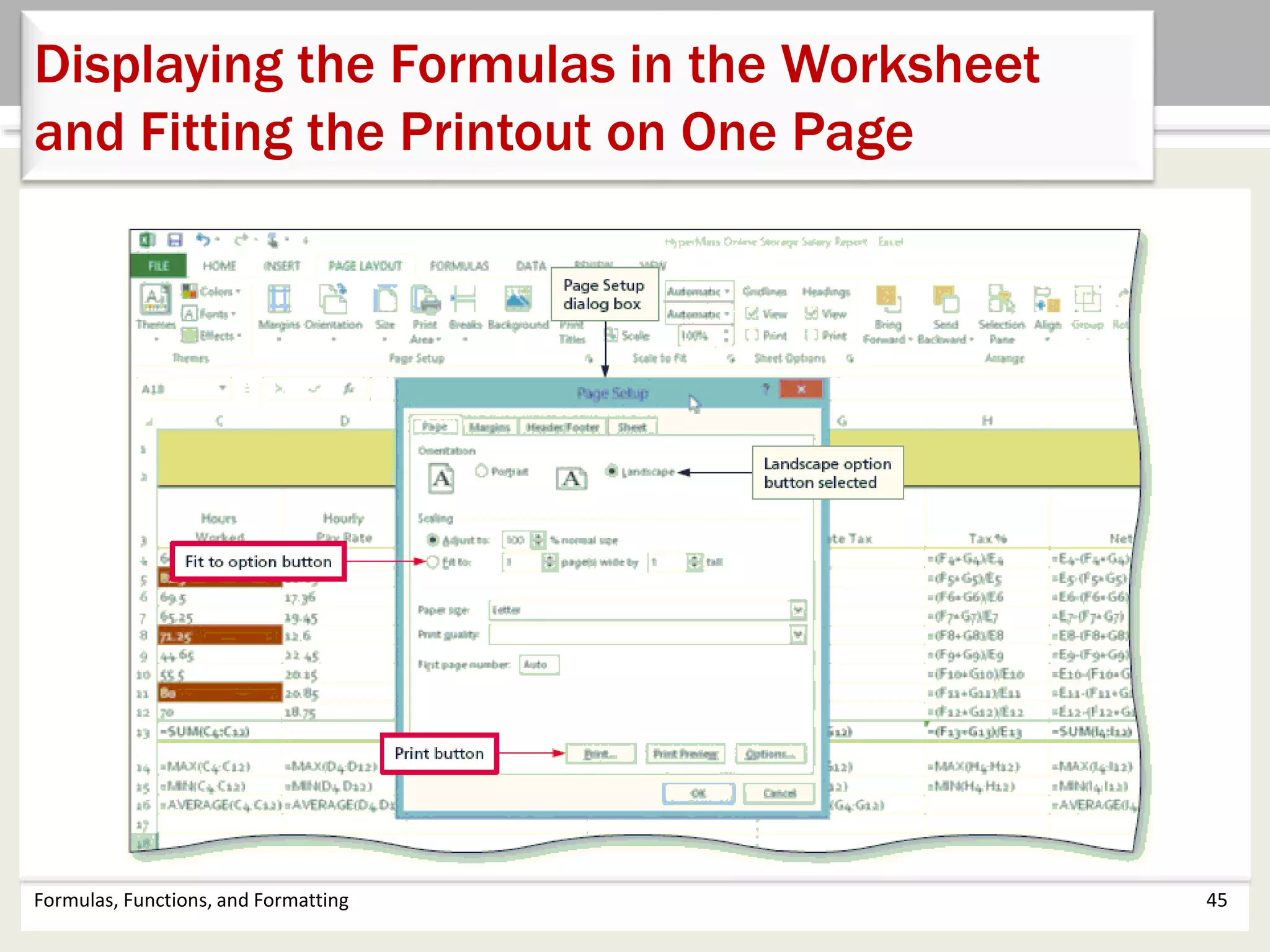
Displaying the Formulas in the Worksheet
and Fitting the Printout on One Page
• Press CTRL+ACCENT MARK (`) to display the worksheet with
formulas
• Tap or click the Page Setup Dialog Box Launcher on the PAGE
LAYOUT tab to display the Page Setup dialog box
• If necessary, tap or click the desired Orientation in the Page sheet
to select it
• If necessary, tap or click Fit to in the Scaling area to select it
• Tap or click the Print button to print the formulas in the worksheet
on one page. If necessary, in the Backstage view, select the Print
Active Sheets option in the Settings area of the Print gallery
• When Excel displays the Backstage view, tap or click the Print
button to print the worksheet
• After viewing and printing the formulas version, press
CTRL+ACCENT MARK (`) to display the values version
Formulas, Functions, and Formatting 45
Displaying the Formulas in the Worksheet
and Fitting the Printout on One Page
Chapter Summary
Formulas, Functions, and Formatting 46
• Enter formulas using the keyboard
• Enter formulas using Point mode
• Apply the MAX, MIN, and AVERAGE functions
• Verify a formula using Range Finder
• Apply a theme to a workbook
• Apply a date format to a cell or range
Chapter Summary
Formulas, Functions, and Formatting 47
• Add conditional formatting to cells
• Change column width and row height
• Check the spelling on a worksheet
• Change margins and headers in Page Layout view
• Preview and print versions and sections of a worksheet
Chapter 2 Complete
Microsoft
Excel 2013

Excel Chapter 02

  • 1.
  • 2.
    • Enter formulasusing the keyboard • Enter formulas using Point mode • Apply the MAX, MIN, and AVERAGE functions • Verify a formula using Range Finder • Apply a theme to a workbook • Apply a date format to a cell or range Objectives Formulas, Functions, and Formatting 2
  • 3.
    • Add conditionalformatting to cells • Change column width and row height • Check the spelling on a worksheet • Change margins and headers in Page Layout view • Preview and print versions and sections of a worksheet Formulas, Functions, and Formatting 3 Objectives
  • 4.
    Formulas, Functions, andFormatting 4 Project – Worksheet with Formulas and Functions
  • 5.
    • Enter formulasin the worksheet • Enter functions in the worksheet • Verify formulas in the worksheet • Format the worksheet • Check spelling • Print the worksheet Formulas, Functions, and Formatting 5 Roadmap
  • 6.
    Formulas, Functions, andFormatting 6 Entering a Formula Using the Keyboard • With the cell to contain the formula selected, type the formula in the cell to display the formula in the formula bar and in the current cell and to display colored borders around the cells referenced in the formula • Press the right arrow key to complete the arithmetic operation indicated by the formula, to display the result in the worksheet, and to select the cell to the right
  • 7.
    Formulas, Functions, andFormatting 7 Entering a Formula Using the Keyboard
  • 8.
    Formulas, Functions, andFormatting 8 Arithmetic Operations
  • 9.
    Formulas, Functions, andFormatting 9 Order of Operations
  • 10.
    Formulas, Functions, andFormatting 10 Entering Formulas Using Point Mode • With the cell that is to contain the formula selected, begin typing the formula and then tap or click another cell to add a cell reference in the formula • Finish typing the rest of the formula • Tap or click the Enter box in the formula bar when you have finished entering the formula
  • 11.
    Formulas, Functions, andFormatting 11 Entering Formulas Using Point Mode
  • 12.
    Formulas, Functions, andFormatting 12 Option Buttons
  • 13.
    Formulas, Functions, andFormatting 13 Determining the Highest Number in a Range of Numbers Using the Insert Function Box • Select the cell to contain the maximum number • Tap or click the Insert Function box in the formula bar to display the Insert Function dialog box • If necessary, scroll to and then tap or click MAX in the Select a function list • Tap or click the OK button to display the Function Arguments dialog box and type the cell range in the Number1 box to enter the first argument of the function • Tap or click the OK button to display the highest value in the chosen range in the selected cell
  • 14.
    Formulas, Functions, andFormatting 14 Determining the Highest Number in a Range of Numbers Using the Insert Function Box
  • 15.
    Formulas, Functions, andFormatting 15 Determining the Lowest Number in a Range of Numbers Using the Sum Menu • Select cell that is to contain the minimum value and then tap or click the Sum arrow in the HOME tab • Tap or click Min to display the MIN function in the formula bar and in the active cell • Drag through the range of values of which you want to determine the lowest number • Tap or click the Enter box to determine the lowest value in the range and display the result in the formula bar and in the selected cell
  • 16.
    Formulas, Functions, andFormatting 16 Determining the Lowest Number in a Range of Numbers Using the Sum Menu
  • 17.
    Formulas, Functions, andFormatting 17 Determining the Average of a Range of Numbers Using the Keyboard • Select the cell that will contain the average • Type =av in the cell to display the Formula AutoComplete list Press the DOWN ARROW key to highlight the required formula • Double-tap or double-click AVERAGE in the Formula AutoComplete list to select the function • Select the range to be averaged to insert the range as the argument to the function • Tap or click the Enter box to compute the average of the numbers in the selected range and display the result in the selected cell
  • 18.
    Formulas, Functions, andFormatting 18 Determining the Average of a Range of Numbers Using the Keyboard
  • 19.
    Formulas, Functions, andFormatting 19 Verifying a Formula using Range Finder • Double-tap or double-click a cell to activate Range Finder • Press the ESC key to quit Range Finder and then tap or click anywhere in the worksheet to deselect the current cell
  • 20.
    Formulas, Functions, andFormatting 20 Formatting The Worksheet
  • 21.
    Formulas, Functions, andFormatting 21 Changing the Workbook Theme • Tap or click the Themes button on the PAGE LAYOUT tab to display the Themes gallery • Tap or click the desired theme in the Themes gallery to change the workbook theme
  • 22.
    • Select therange to color and then tap or click the Fill Color arrow on the HOME tab to display the Fill Color gallery • Tap or click a color to select it and change the background color of the range of cells • Tap or click the Borders arrow on the HOME tab to display the Borders gallery • Tap or click a border in the Borders gallery to select it and display a border around the selected range Formulas, Functions, and Formatting 22 Changing the Background Color and Applying a Box Border to the Worksheet Title and Subtitle
  • 23.
    Formulas, Functions, andFormatting 23 Changing the Background Color and Applying a Box Border to the Worksheet Title and Subtitle
  • 24.
    Formulas, Functions, andFormatting 24 Formatting Dates and Centering Data in Cells • Select the range to contain the new date format • Tap or click the Format Cells: Number Format Dialog Box Launcher in the HOME tab to display the dialog box • If necessary, tap or click the NUMBER tab and tap or click Date in the Category list, and then tap or click a date type to choose the format for the selected range • Tap or click the NUMBER tab and then tap or click Date in the Category list to choose the format for the selected range • Tap or click the OK button to format the dates in the current column using the selected date format style • Select the range to be centered and then tap or click the Center button on the HOME tab to center the data in the selected range
  • 25.
    Formulas, Functions, andFormatting 25 Formatting Dates and Centering Data in Cells
  • 26.
    • Select therange to contain the accounting number format • While holding down the CTRL key, select the nonadjacent ranges and cells • Tap or click the ‘Accounting Number Format’ button on the HOME tab to apply the accounting number format to the selected nonadjacent ranges • Tap or click the Comma Style button on the HOME tab to assign the Comma style format to the selected range Formulas, Functions, and Formatting 26 Applying an Accounting Number Format and Comma Style Format Using the Ribbon
  • 27.
    Formulas, Functions, andFormatting 27 Applying an Accounting Number Format and Comma Style Format Using the Ribbon
  • 28.
    Formulas, Functions, andFormatting 28 Applying a Currency Style Format with a Floating Dollar Sign Using the Format Cells Dialog Box • Select the range to format and then tap or click the Number Format Dialog Box Launcher in the HOME tab to display the Format Cells dialog box • If necessary, tap or click the NUMBER tab to display the Number sheet • Tap or click Currency in the Category list to select the necessary number format category and then tap or click a style in the Negative numbers list to select the desired currency format • Tap or click the OK button to assign the currency style format to the selected ranges
  • 29.
    Formulas, Functions, andFormatting 29 Applying an Currency Style Format with a Floating Dollar Sign Using the Format Cells Dialog Box
  • 30.
    • Select therange to format • Tap or click the Percent Style button in the HOME tab to display the numbers in the selected range as a rounded whole percent • Tap or click the Increase Decimal button in the HOME tab two times to display the numbers in the selected range with two decimal places Formulas, Functions, and Formatting 30 Applying Percent Style Format and Using the Increase Decimal Button
  • 31.
    • Select therange to which you wish to apply conditional formatting • Tap or click the Conditional Formatting button on the HOME tab to display the Conditional Formatting list • Tap or click New Rule in the Conditional Formatting list to display the New Formatting Rule dialog box • Tap or click the desired rule type in the Select a Rule Type area • Select and type the desired values in the Edit the Rule Description area Formulas, Functions, and Formatting 31 Applying Conditional Formatting
  • 32.
    Formulas, Functions, andFormatting 32 Applying Conditional Formatting
  • 33.
    Formulas, Functions, andFormatting 33 Conditional Formatting Operators
  • 34.
    • Drag throughcolumn headings to select the columns • Tap or point to the boundary on the rightmost column heading to cause the pointer to become a split double arrow • Double-tap or double-click the right boundary of the column to change the width of the selected columns to best fit • To resize a column by dragging, point to the boundary of the right side of the column heading. When the mouse pointer changes to a split double arrow, drag to the desired width, and then Lift your finger or release the mouse button to change the column widths Formulas, Functions, and Formatting 34 Changing the Column Width
  • 35.
    Formulas, Functions, andFormatting 35 Changing the Column Width
  • 36.
    • Tap orpoint to the boundary below the row heading to resize • Drag the boundary to the desired row height and then release the mouse button • Lift your finger or release the mouse button to change the row height Formulas, Functions, and Formatting 36 Changing the Row Height
  • 37.
    • Tap orclick cell A1 so that the spell checker begins at the beginning of the worksheet • Tap or click the Spelling button on the REVIEW tab to run the spell checker and display the misspelled words in the Spelling dialog box • Apply the desired action to each misspelled word • When the spell checker is finished, Tap or click the Close button Formulas, Functions, and Formatting 37 Checking Spelling on the Worksheet
  • 38.
    Formulas, Functions, andFormatting 38 Checking Spelling on the Worksheet
  • 39.
    • Tap orclick the Page Layout button on the status bar to view the worksheet in Page Layout view • Tap or click the Adjust Margins button on the PAGE LAYOUT tab to display the Margins gallery • Tap or click the desired margin style to change the worksheet margins to the selected style • Tap or click above cell A1 in the center area of the Header area • Type the desired worksheet header, and then press the ENTER key Formulas, Functions, and Formatting 39 Changing the Worksheet’s Margins, Header, and Orientation in Page Layout View
  • 40.
    Formulas, Functions, andFormatting 40 Changing the Worksheet’s margins, header, and Orientation in Page Layout View
  • 41.
    • Tap orclick the ‘Change Page Orientation’ button on the PAGE LAYOUT tab to display the Change Page Orientation gallery • Tap or click the desired orientation in the Orientation gallery to change the worksheet’s orientation Formulas, Functions, and Formatting 41 Changing the Worksheet’s margins, header, and Orientation in Page Layout View
  • 42.
    Formulas, Functions, andFormatting 42 Printing a Section of the Worksheet • Select the range to print • Tap or click FILE on the ribbon to open Backstage view • Tap or click the Print tab to display the Print gallery • Tap or click ‘Print Active Sheets’ in the Settings area on the PRINT tab to display a list of printing options • Tap or click Print Selection to print the selected range • Tap or click the Print button in the Print gallery to print the selected range of the worksheet • Tap or click the Normal button on the status bar to return to Normal view
  • 43.
    Formulas, Functions, andFormatting 43 Printing a Section of the Worksheet
  • 44.
    Formulas, Functions, andFormatting 44 Displaying the Formulas in the Worksheet and Fitting the Printout on One Page • Press CTRL+ACCENT MARK (`) to display the worksheet with formulas • Tap or click the Page Setup Dialog Box Launcher on the PAGE LAYOUT tab to display the Page Setup dialog box • If necessary, tap or click the desired Orientation in the Page sheet to select it • If necessary, tap or click Fit to in the Scaling area to select it • Tap or click the Print button to print the formulas in the worksheet on one page. If necessary, in the Backstage view, select the Print Active Sheets option in the Settings area of the Print gallery • When Excel displays the Backstage view, tap or click the Print button to print the worksheet • After viewing and printing the formulas version, press CTRL+ACCENT MARK (`) to display the values version
  • 45.
    Formulas, Functions, andFormatting 45 Displaying the Formulas in the Worksheet and Fitting the Printout on One Page
  • 46.
    Chapter Summary Formulas, Functions,and Formatting 46 • Enter formulas using the keyboard • Enter formulas using Point mode • Apply the MAX, MIN, and AVERAGE functions • Verify a formula using Range Finder • Apply a theme to a workbook • Apply a date format to a cell or range
  • 47.
    Chapter Summary Formulas, Functions,and Formatting 47 • Add conditional formatting to cells • Change column width and row height • Check the spelling on a worksheet • Change margins and headers in Page Layout view • Preview and print versions and sections of a worksheet
  • 48.