Chapter 6
Creating, Sorting,
and
Querying a Table
Microsoft
Excel 2013
• Create and manipulate a table
• Delete duplicate records
• Add calculated columns to a table with structured
references
• Use the VLOOKUP function to look up a value in a
table
• Use icon sets with conditional formatting
• Insert a total row
• Sort a table based on one field or multiple fields
Objectives
Creating, Sorting, and Querying a Table 2
• Sort, query, and search a table using AutoFilter
• Remove filters
• Create criteria and extract ranges
• Apply database functions, such as SUMIF and
COUNTIF
• Use the MATCH and INDEX functions to look up a
value in a table
• Display automatic subtotals
• Use outline features to group, hide, and unhide data
Creating, Sorting, and Querying a Table 3
Objectives
Creating, Sorting, and Querying a Table 4
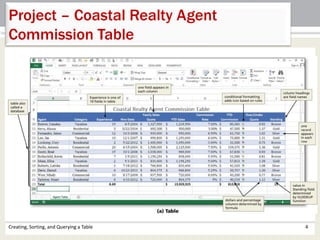
Project – Coastal Realty Agent
Commission Table
• Create and format a table
• Insert a calculated field using a structured reference
• Use LOOKUP tables in the worksheet
• Apply conditional formatting and icon sets
• Sort tables
• Query a table
• Extract records with criteria ranges
• Use database functions and conditional functions
• Display automatic subtotals and outline
Creating, Sorting, and Querying a Table 5
Roadmap
Creating, Sorting, and Querying a Table 6
Formatting a Range as a Table
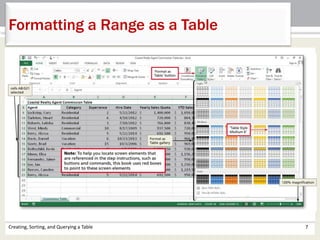
• Select the range to format
• Tap or click the ‘Format as Table’ button on the
HOME tab to display the Format as Table
gallery
• Tap or click the desired table style
Creating, Sorting, and Querying a Table 7
Formatting a Range as a Table
Creating, Sorting, and Querying a Table 8
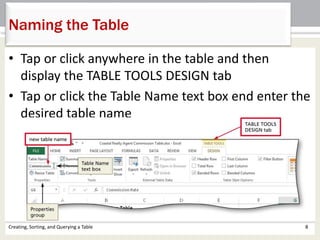
Naming the Table
• Tap or click anywhere in the table and then
display the TABLE TOOLS DESIGN tab
• Tap or click the Table Name text box end enter the
desired table name
Creating, Sorting, and Querying a Table 9
Removing Duplicates
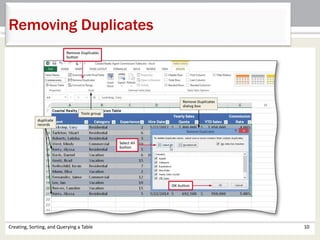
• Tap or click the Remove Duplicates button on the
TABLE TOOLS DESIGN tab to display the Remove
Duplicates dialog box
• Tap or click the Select All button to select all
columns
• Tap or click the OK button to remove duplicate
records from the table
• Tap or click the OK button to finish the process
Creating, Sorting, and Querying a Table 10
Removing Duplicates
Creating, Sorting, and Querying a Table 11
Entering a New Record into a Table
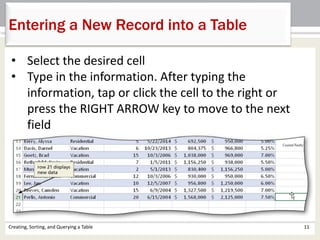
• Select the desired cell
• Type in the information. After typing the
information, tap or click the cell to the right or
press the RIGHT ARROW key to move to the next
field
Creating, Sorting, and Querying a Table 12
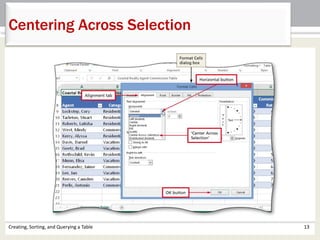
Centering Across Selection
• Select the desired range. Press and hold or right-
click to display the shortcut menu
• Tap or click Format Cells to display the Format Cells
dialog box
• Tap or click the Alignment tab and then tap or click
the Horizontal button in the Text alignment area
• Tap or click ‘Center Across Selection’ in the
Horizontal list to center the title across the
selection
• Tap of click the OK button to apply the settings
Creating, Sorting, and Querying a Table 13
Centering Across Selection
Creating, Sorting, and Querying a Table 14
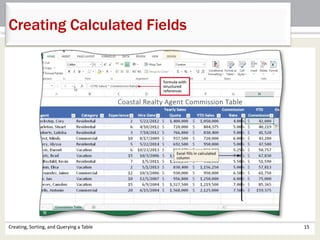
Creating Calculated Fields
• Tap or click the desired cell
• Tap or click the ‘Accounting Number Format’
button on the HOME tab and then tap or click the
Decrease Decimal button on the HOME tab twice
so that data is formatted as whole dollars
• Type =[YTD Sales] * [Commission Rate] to enter
the formula with structured references and then
tap or click the Enter box in the formula bar to
create a calculated column
Creating, Sorting, and Querying a Table 15
Creating Calculated Fields
Creating, Sorting, and Querying a Table 16
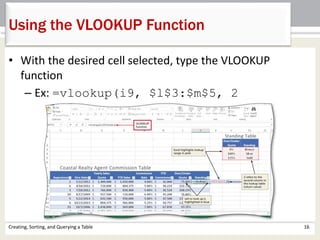
Using the VLOOKUP Function
• With the desired cell selected, type the VLOOKUP
function
– Ex: =vlookup(i9, $l$3:$m$5, 2
Creating, Sorting, and Querying a Table 17
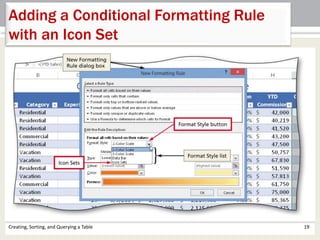
Adding a Conditional Formatting Rule
with an Icon Set
• Select the range to contain the conditional formatting
• Tap or click the Conditional Formatting button on the
HOME tab to display the Conditional Formatting
gallery
• Tap or click New Rule in the to display the New
Formatting Rule dialog box
• Tap or click the Format Style button to display the
Format Style list
Creating, Sorting, and Querying a Table 18
Adding a Conditional Formatting Rule
with an Icon Set
• Tap or click Icon Sets in the Format Style list to display
the icon style area in the Edit the Rule Description
area
• Tap or click the Icon Style box arrow to display the
Icon Style list and then tap or click the desired icon
style
• Enter the desired values for each icon in the Value
box
• Tap or click the OK button to display icons in each row
of the table
Creating, Sorting, and Querying a Table 19
Adding a Conditional Formatting Rule
with an Icon Set
Creating, Sorting, and Querying a Table 20
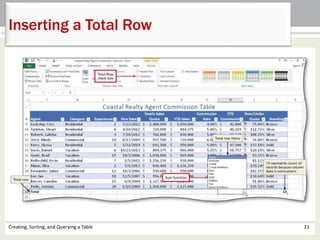
Inserting a Total Row
• Tap or click the table to make it active
• Tap or click the Total Row check box in the TABLE
TOOLS DESIGN tab to add the total row and
display the record count in the last column of the
table
• Tap or click the cell in the total row
• Tap or click the button on the right side of the cell
to display a list of available statistical functions
• Tap or click the desired function
Creating, Sorting, and Querying a Table 21
Inserting a Total Row
Creating, Sorting, and Querying a Table 22
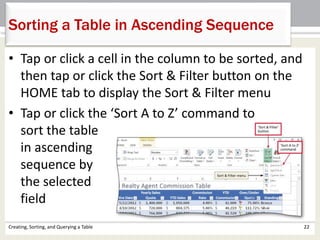
Sorting a Table in Ascending Sequence
• Tap or click a cell in the column to be sorted, and
then tap or click the Sort & Filter button on the
HOME tab to display the Sort & Filter menu
• Tap or click the ‘Sort A to Z’ command to
sort the table
in ascending
sequence by
the selected
field
Creating, Sorting, and Querying a Table 23
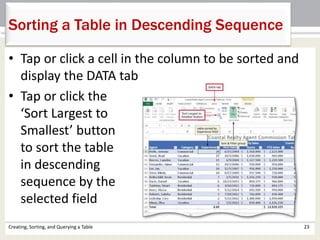
Sorting a Table in Descending Sequence
• Tap or click a cell in the column to be sorted and
display the DATA tab
• Tap or click the
‘Sort Largest to
Smallest’ button
to sort the table
in descending
sequence by the
selected field
Creating, Sorting, and Querying a Table 24
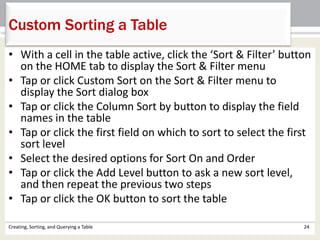
Custom Sorting a Table
• With a cell in the table active, click the ‘Sort & Filter’ button
on the HOME tab to display the Sort & Filter menu
• Tap or click Custom Sort on the Sort & Filter menu to
display the Sort dialog box
• Tap or click the Column Sort by button to display the field
names in the table
• Tap or click the first field on which to sort to select the first
sort level
• Select the desired options for Sort On and Order
• Tap or click the Add Level button to ask a new sort level,
and then repeat the previous two steps
• Tap or click the OK button to sort the table
Creating, Sorting, and Querying a Table 25
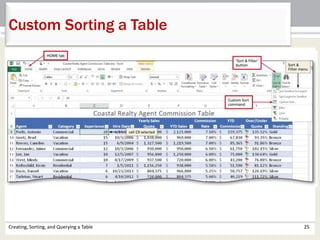
Custom Sorting a Table
Creating, Sorting, and Querying a Table 26
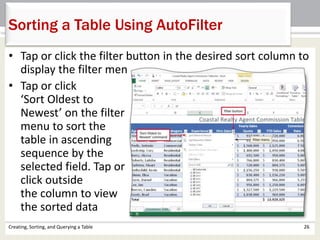
Sorting a Table Using AutoFilter
• Tap or click the filter button in the desired sort column to
display the filter menu
• Tap or click
‘Sort Oldest to
Newest’ on the filter
menu to sort the
table in ascending
sequence by the
selected field. Tap or
click outside
the column to view
the sorted data
Creating, Sorting, and Querying a Table 27
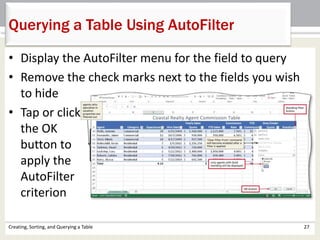
Querying a Table Using AutoFilter
• Display the AutoFilter menu for the field to query
• Remove the check marks next to the fields you wish
to hide
• Tap or click
the OK
button to
apply the
AutoFilter
criterion
Creating, Sorting, and Querying a Table 28
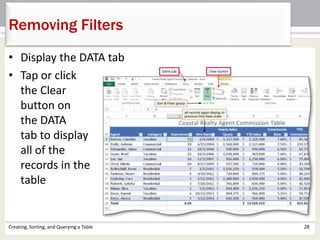
Removing Filters
• Display the DATA tab
• Tap or click
the Clear
button on
the DATA
tab to display
all of the
records in the
table
Creating, Sorting, and Querying a Table 29
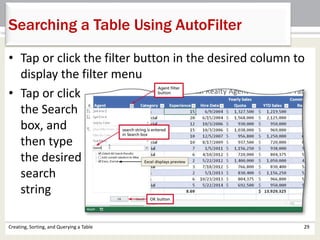
Searching a Table Using AutoFilter
• Tap or click the filter button in the desired column to
display the filter menu
• Tap or click
the Search
box, and
then type
the desired
search
string
Creating, Sorting, and Querying a Table 30
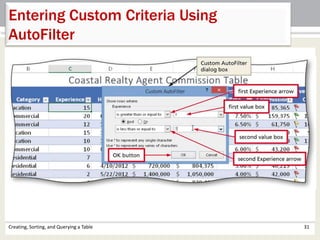
Entering Custom Criteria Using
AutoFilter
• Tap or click the filter button in the desired cell to
display the filter menu
• Tap or click Number Filters to display the Number
Filters submenu
• Tap or click Custom Filter to display the Custom
AutoFilter dialog box
• Select the desired options for the AutoFilter
• Tap or click the OK button to display records in the
table that match the custom AutoFilter criteria
Creating, Sorting, and Querying a Table 31
Entering Custom Criteria Using
AutoFilter
Creating, Sorting, and Querying a Table 32
Turing Off AutoFilter
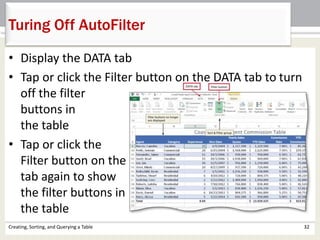
• Display the DATA tab
• Tap or click the Filter button on the DATA tab to turn
off the filter
buttons in
the table
• Tap or click the
Filter button on the DATA
tab again to show
the filter buttons in
the table
Creating, Sorting, and Querying a Table 33
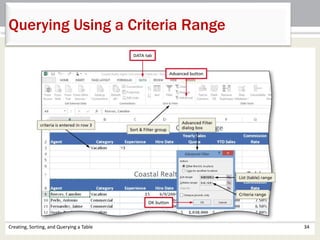
Querying Using a Criteria Range
• Enter the criteria data in the desired cells
• Tap or click the table to make it active
• Display the DATA tab and then tap or click the
Advanced button to display the Advanced Filter
dialog box
• Tap or click the OK button to hide all records that
do not meet the comparison criteria
Creating, Sorting, and Querying a Table 34
Querying Using a Criteria Range
Creating, Sorting, and Querying a Table 35
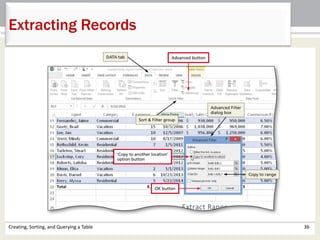
Extracting Records
• Activate the table
• Tap or click the Advanced button on the DATA tab
to display the Advanced Filter dialog box
• Tap or click ‘Copy to another location’ in the
Action area to cause the records that meet the
criteria to be copied to a different location on the
worksheet
• Tap or click the OK button to copy any records
that meet the comparison criteria in the criteria
range from the table to the extract range
Creating, Sorting, and Querying a Table 36
Extracting Records
Creating, Sorting, and Querying a Table 37
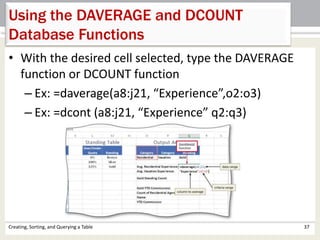
Using the DAVERAGE and DCOUNT
Database Functions
• With the desired cell selected, type the DAVERAGE
function or DCOUNT function
– Ex: =daverage(a8:j21, “Experience”,o2:o3)
– Ex: =dcont (a8:j21, “Experience” q2:q3)
Creating, Sorting, and Querying a Table 38
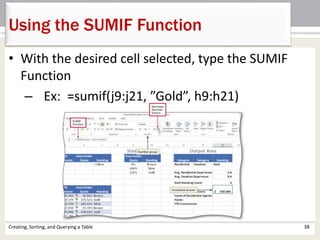
Using the SUMIF Function
• With the desired cell selected, type the SUMIF
Function
– Ex: =sumif(j9:j21, ”Gold”, h9:h21)
Creating, Sorting, and Querying a Table 39
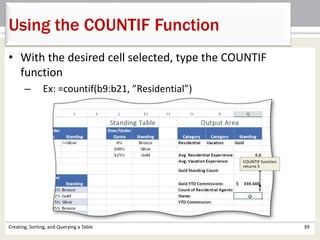
Using the COUNTIF Function
• With the desired cell selected, type the COUNTIF
function
– Ex: =countif(b9:b21, ”Residential”)
Creating, Sorting, and Querying a Table 40
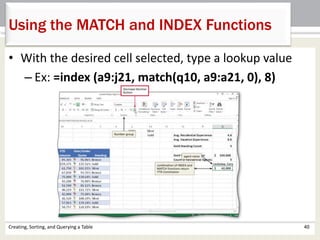
Using the MATCH and INDEX Functions
• With the desired cell selected, type a lookup value
– Ex: =index (a9:j21, match(q10, a9:a21, 0), 8)
Creating, Sorting, and Querying a Table 41
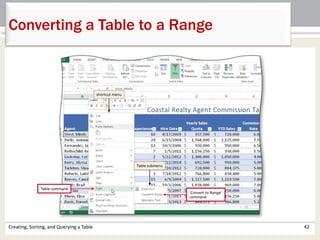
Converting a Table to a Range
• Tap or click the filter button in the desired column
and then tap or click ‘Sort A to Z’ to sort by
category
• Press and hold or right-click anywhere in the table
and then tap or click Table on the shortcut menu
to display the Table submenu
• Tap or click ‘Convert to Range’ to display a
Microsoft Excel dialog box
• Tap or click the Yes button to convert a table to a
range
Creating, Sorting, and Querying a Table 42
Converting a Table to a Range
Creating, Sorting, and Querying a Table 43
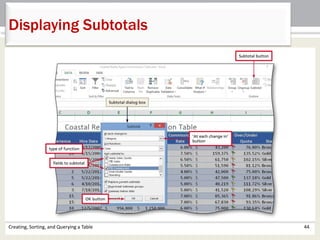
Displaying Subtotals
• Tap or click in the desired criterion field
• Tap or click the Subtotal button on the DATA tab to
display the Subtotal dialog box
• Tap or click the ‘At each change in’ button and then tap
or click Category to select a column heading on which to
create subtotals
• If necessary, tap or click the Use function button and
then select Sum in the Use function list
• In the ‘Add subtotal to’ list , tap or click desired values to
subtotal
• Tap or click the OK button to add subtotals to the range
Creating, Sorting, and Querying a Table 44
Displaying Subtotals
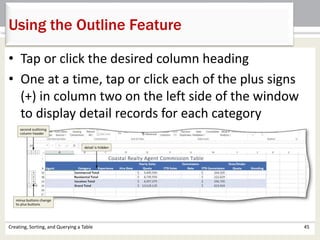
Using the Outline Feature
Creating, Sorting, and Querying a Table 45
• Tap or click the desired column heading
• One at a time, tap or click each of the plus signs
(+) in column two on the left side of the window
to display detail records for each category
Chapter Summary
Creating, Sorting, and Querying a Table 46
• Create and manipulate a table
• Delete duplicate records
• Add calculated columns to a table with structured
references
• Use the VLOOKUP function to look up a value in a
table
• Use icon sets with conditional formatting
• Insert a total row
• Sort a table based on one field or multiple fields
Chapter Summary
Creating, Sorting, and Querying a Table 47
• Sort, query, and search a table using AutoFilter
• Remove filters
• Create criteria and extract ranges
• Apply database functions, such as SUMIF and
COUNTIF
• Use the MATCH and INDEX functions to look up a
value in a table
• Display automatic subtotals
• Use outline features to group, hide, and unhide data
Chapter 6
Complete
Microsoft
Excel 2013

Excel ch06

  • 1.
    Chapter 6 Creating, Sorting, and Queryinga Table Microsoft Excel 2013
  • 2.
    • Create andmanipulate a table • Delete duplicate records • Add calculated columns to a table with structured references • Use the VLOOKUP function to look up a value in a table • Use icon sets with conditional formatting • Insert a total row • Sort a table based on one field or multiple fields Objectives Creating, Sorting, and Querying a Table 2
  • 3.
    • Sort, query,and search a table using AutoFilter • Remove filters • Create criteria and extract ranges • Apply database functions, such as SUMIF and COUNTIF • Use the MATCH and INDEX functions to look up a value in a table • Display automatic subtotals • Use outline features to group, hide, and unhide data Creating, Sorting, and Querying a Table 3 Objectives
  • 4.
    Creating, Sorting, andQuerying a Table 4 Project – Coastal Realty Agent Commission Table
  • 5.
    • Create andformat a table • Insert a calculated field using a structured reference • Use LOOKUP tables in the worksheet • Apply conditional formatting and icon sets • Sort tables • Query a table • Extract records with criteria ranges • Use database functions and conditional functions • Display automatic subtotals and outline Creating, Sorting, and Querying a Table 5 Roadmap
  • 6.
    Creating, Sorting, andQuerying a Table 6 Formatting a Range as a Table • Select the range to format • Tap or click the ‘Format as Table’ button on the HOME tab to display the Format as Table gallery • Tap or click the desired table style
  • 7.
    Creating, Sorting, andQuerying a Table 7 Formatting a Range as a Table
  • 8.
    Creating, Sorting, andQuerying a Table 8 Naming the Table • Tap or click anywhere in the table and then display the TABLE TOOLS DESIGN tab • Tap or click the Table Name text box end enter the desired table name
  • 9.
    Creating, Sorting, andQuerying a Table 9 Removing Duplicates • Tap or click the Remove Duplicates button on the TABLE TOOLS DESIGN tab to display the Remove Duplicates dialog box • Tap or click the Select All button to select all columns • Tap or click the OK button to remove duplicate records from the table • Tap or click the OK button to finish the process
  • 10.
    Creating, Sorting, andQuerying a Table 10 Removing Duplicates
  • 11.
    Creating, Sorting, andQuerying a Table 11 Entering a New Record into a Table • Select the desired cell • Type in the information. After typing the information, tap or click the cell to the right or press the RIGHT ARROW key to move to the next field
  • 12.
    Creating, Sorting, andQuerying a Table 12 Centering Across Selection • Select the desired range. Press and hold or right- click to display the shortcut menu • Tap or click Format Cells to display the Format Cells dialog box • Tap or click the Alignment tab and then tap or click the Horizontal button in the Text alignment area • Tap or click ‘Center Across Selection’ in the Horizontal list to center the title across the selection • Tap of click the OK button to apply the settings
  • 13.
    Creating, Sorting, andQuerying a Table 13 Centering Across Selection
  • 14.
    Creating, Sorting, andQuerying a Table 14 Creating Calculated Fields • Tap or click the desired cell • Tap or click the ‘Accounting Number Format’ button on the HOME tab and then tap or click the Decrease Decimal button on the HOME tab twice so that data is formatted as whole dollars • Type =[YTD Sales] * [Commission Rate] to enter the formula with structured references and then tap or click the Enter box in the formula bar to create a calculated column
  • 15.
    Creating, Sorting, andQuerying a Table 15 Creating Calculated Fields
  • 16.
    Creating, Sorting, andQuerying a Table 16 Using the VLOOKUP Function • With the desired cell selected, type the VLOOKUP function – Ex: =vlookup(i9, $l$3:$m$5, 2
  • 17.
    Creating, Sorting, andQuerying a Table 17 Adding a Conditional Formatting Rule with an Icon Set • Select the range to contain the conditional formatting • Tap or click the Conditional Formatting button on the HOME tab to display the Conditional Formatting gallery • Tap or click New Rule in the to display the New Formatting Rule dialog box • Tap or click the Format Style button to display the Format Style list
  • 18.
    Creating, Sorting, andQuerying a Table 18 Adding a Conditional Formatting Rule with an Icon Set • Tap or click Icon Sets in the Format Style list to display the icon style area in the Edit the Rule Description area • Tap or click the Icon Style box arrow to display the Icon Style list and then tap or click the desired icon style • Enter the desired values for each icon in the Value box • Tap or click the OK button to display icons in each row of the table
  • 19.
    Creating, Sorting, andQuerying a Table 19 Adding a Conditional Formatting Rule with an Icon Set
  • 20.
    Creating, Sorting, andQuerying a Table 20 Inserting a Total Row • Tap or click the table to make it active • Tap or click the Total Row check box in the TABLE TOOLS DESIGN tab to add the total row and display the record count in the last column of the table • Tap or click the cell in the total row • Tap or click the button on the right side of the cell to display a list of available statistical functions • Tap or click the desired function
  • 21.
    Creating, Sorting, andQuerying a Table 21 Inserting a Total Row
  • 22.
    Creating, Sorting, andQuerying a Table 22 Sorting a Table in Ascending Sequence • Tap or click a cell in the column to be sorted, and then tap or click the Sort & Filter button on the HOME tab to display the Sort & Filter menu • Tap or click the ‘Sort A to Z’ command to sort the table in ascending sequence by the selected field
  • 23.
    Creating, Sorting, andQuerying a Table 23 Sorting a Table in Descending Sequence • Tap or click a cell in the column to be sorted and display the DATA tab • Tap or click the ‘Sort Largest to Smallest’ button to sort the table in descending sequence by the selected field
  • 24.
    Creating, Sorting, andQuerying a Table 24 Custom Sorting a Table • With a cell in the table active, click the ‘Sort & Filter’ button on the HOME tab to display the Sort & Filter menu • Tap or click Custom Sort on the Sort & Filter menu to display the Sort dialog box • Tap or click the Column Sort by button to display the field names in the table • Tap or click the first field on which to sort to select the first sort level • Select the desired options for Sort On and Order • Tap or click the Add Level button to ask a new sort level, and then repeat the previous two steps • Tap or click the OK button to sort the table
  • 25.
    Creating, Sorting, andQuerying a Table 25 Custom Sorting a Table
  • 26.
    Creating, Sorting, andQuerying a Table 26 Sorting a Table Using AutoFilter • Tap or click the filter button in the desired sort column to display the filter menu • Tap or click ‘Sort Oldest to Newest’ on the filter menu to sort the table in ascending sequence by the selected field. Tap or click outside the column to view the sorted data
  • 27.
    Creating, Sorting, andQuerying a Table 27 Querying a Table Using AutoFilter • Display the AutoFilter menu for the field to query • Remove the check marks next to the fields you wish to hide • Tap or click the OK button to apply the AutoFilter criterion
  • 28.
    Creating, Sorting, andQuerying a Table 28 Removing Filters • Display the DATA tab • Tap or click the Clear button on the DATA tab to display all of the records in the table
  • 29.
    Creating, Sorting, andQuerying a Table 29 Searching a Table Using AutoFilter • Tap or click the filter button in the desired column to display the filter menu • Tap or click the Search box, and then type the desired search string
  • 30.
    Creating, Sorting, andQuerying a Table 30 Entering Custom Criteria Using AutoFilter • Tap or click the filter button in the desired cell to display the filter menu • Tap or click Number Filters to display the Number Filters submenu • Tap or click Custom Filter to display the Custom AutoFilter dialog box • Select the desired options for the AutoFilter • Tap or click the OK button to display records in the table that match the custom AutoFilter criteria
  • 31.
    Creating, Sorting, andQuerying a Table 31 Entering Custom Criteria Using AutoFilter
  • 32.
    Creating, Sorting, andQuerying a Table 32 Turing Off AutoFilter • Display the DATA tab • Tap or click the Filter button on the DATA tab to turn off the filter buttons in the table • Tap or click the Filter button on the DATA tab again to show the filter buttons in the table
  • 33.
    Creating, Sorting, andQuerying a Table 33 Querying Using a Criteria Range • Enter the criteria data in the desired cells • Tap or click the table to make it active • Display the DATA tab and then tap or click the Advanced button to display the Advanced Filter dialog box • Tap or click the OK button to hide all records that do not meet the comparison criteria
  • 34.
    Creating, Sorting, andQuerying a Table 34 Querying Using a Criteria Range
  • 35.
    Creating, Sorting, andQuerying a Table 35 Extracting Records • Activate the table • Tap or click the Advanced button on the DATA tab to display the Advanced Filter dialog box • Tap or click ‘Copy to another location’ in the Action area to cause the records that meet the criteria to be copied to a different location on the worksheet • Tap or click the OK button to copy any records that meet the comparison criteria in the criteria range from the table to the extract range
  • 36.
    Creating, Sorting, andQuerying a Table 36 Extracting Records
  • 37.
    Creating, Sorting, andQuerying a Table 37 Using the DAVERAGE and DCOUNT Database Functions • With the desired cell selected, type the DAVERAGE function or DCOUNT function – Ex: =daverage(a8:j21, “Experience”,o2:o3) – Ex: =dcont (a8:j21, “Experience” q2:q3)
  • 38.
    Creating, Sorting, andQuerying a Table 38 Using the SUMIF Function • With the desired cell selected, type the SUMIF Function – Ex: =sumif(j9:j21, ”Gold”, h9:h21)
  • 39.
    Creating, Sorting, andQuerying a Table 39 Using the COUNTIF Function • With the desired cell selected, type the COUNTIF function – Ex: =countif(b9:b21, ”Residential”)
  • 40.
    Creating, Sorting, andQuerying a Table 40 Using the MATCH and INDEX Functions • With the desired cell selected, type a lookup value – Ex: =index (a9:j21, match(q10, a9:a21, 0), 8)
  • 41.
    Creating, Sorting, andQuerying a Table 41 Converting a Table to a Range • Tap or click the filter button in the desired column and then tap or click ‘Sort A to Z’ to sort by category • Press and hold or right-click anywhere in the table and then tap or click Table on the shortcut menu to display the Table submenu • Tap or click ‘Convert to Range’ to display a Microsoft Excel dialog box • Tap or click the Yes button to convert a table to a range
  • 42.
    Creating, Sorting, andQuerying a Table 42 Converting a Table to a Range
  • 43.
    Creating, Sorting, andQuerying a Table 43 Displaying Subtotals • Tap or click in the desired criterion field • Tap or click the Subtotal button on the DATA tab to display the Subtotal dialog box • Tap or click the ‘At each change in’ button and then tap or click Category to select a column heading on which to create subtotals • If necessary, tap or click the Use function button and then select Sum in the Use function list • In the ‘Add subtotal to’ list , tap or click desired values to subtotal • Tap or click the OK button to add subtotals to the range
  • 44.
    Creating, Sorting, andQuerying a Table 44 Displaying Subtotals
  • 45.
    Using the OutlineFeature Creating, Sorting, and Querying a Table 45 • Tap or click the desired column heading • One at a time, tap or click each of the plus signs (+) in column two on the left side of the window to display detail records for each category
  • 46.
    Chapter Summary Creating, Sorting,and Querying a Table 46 • Create and manipulate a table • Delete duplicate records • Add calculated columns to a table with structured references • Use the VLOOKUP function to look up a value in a table • Use icon sets with conditional formatting • Insert a total row • Sort a table based on one field or multiple fields
  • 47.
    Chapter Summary Creating, Sorting,and Querying a Table 47 • Sort, query, and search a table using AutoFilter • Remove filters • Create criteria and extract ranges • Apply database functions, such as SUMIF and COUNTIF • Use the MATCH and INDEX functions to look up a value in a table • Display automatic subtotals • Use outline features to group, hide, and unhide data
  • 48.