Chapter 4
Creating and Formatting
Information Graphics
Microsoft
PowerPoint 2013
• Insert a SmartArt graphic
• Insert images from a file into a SmartArt graphic
• Format a SmartArt graphic
• Convert text to a SmartArt graphic
• Create and format a chart
• Rotate a chart
Creating and Formatting Information Graphics 2
Objectives
• Change the chart title and legend
• Separate a pie chart slice
• Create and format a table
• Insert a symbol in a table
• Change table text alignment and orientation
• Add an image to a table
Creating and Formatting Information Graphics 3
Objectives
Creating and Formatting Information Graphics 4
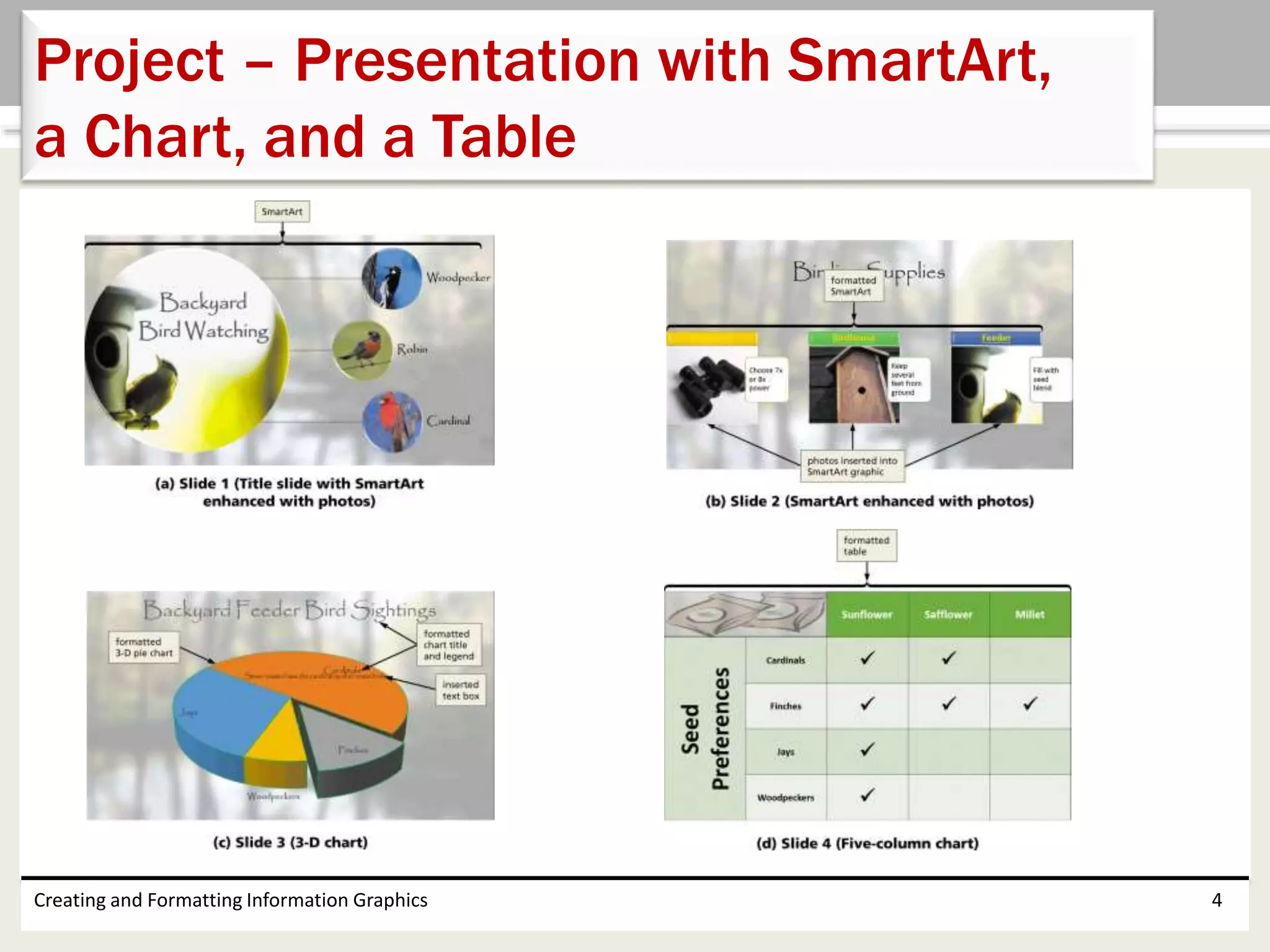
Project – Presentation with SmartArt,
a Chart, and a Table
• Insert and modify a SmartArt graphic
• Add SmartArt styles and effects
• Convert text to a SmartArt graphic and format the
content
• Create a chart to show proportions
• Format a chart by changing style and layout
• Create a table to compare and contrast data
• Change table content style and alignment
Creating and Formatting Information Graphics 5
Roadmap
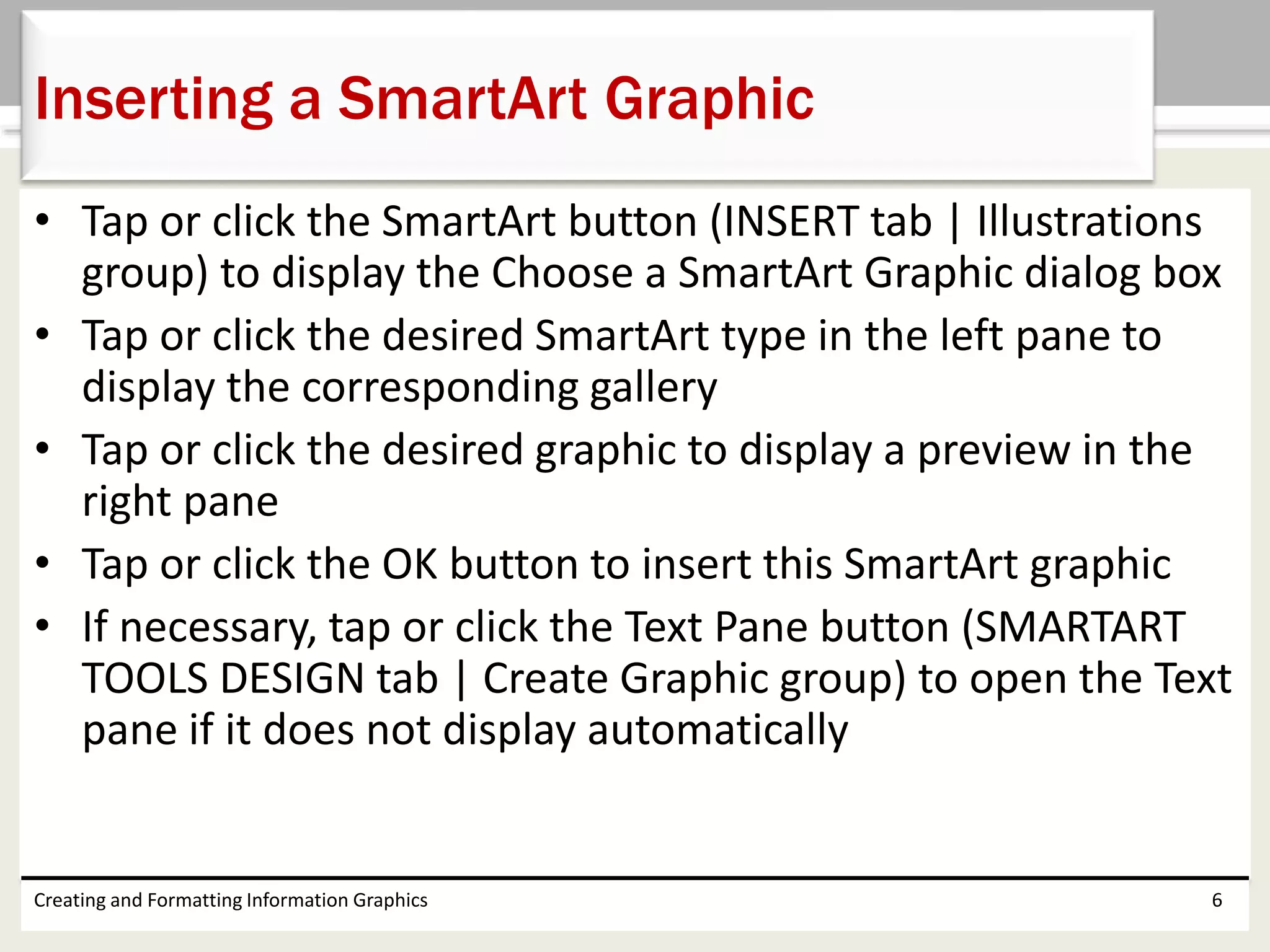
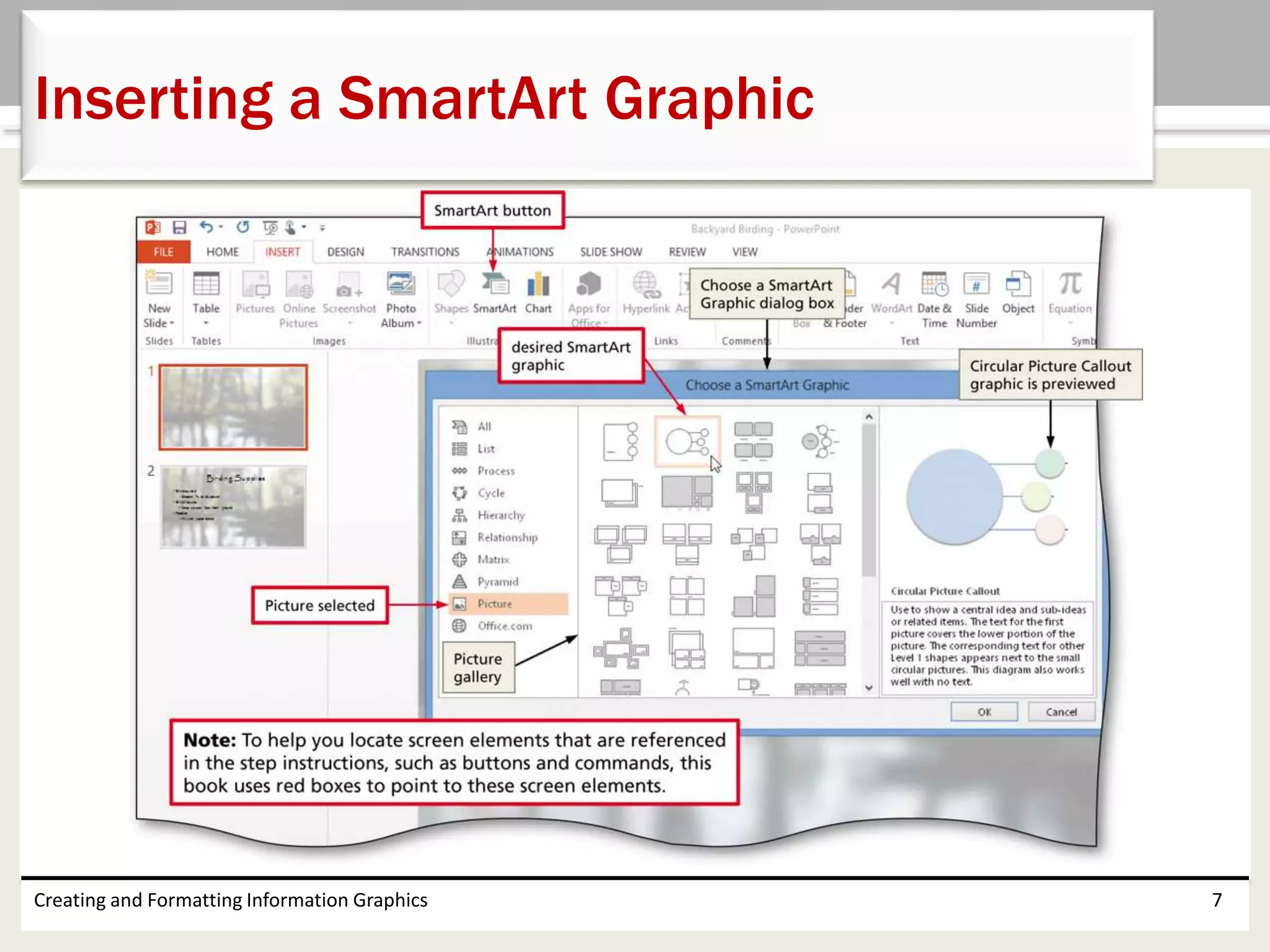
• Tap or click the SmartArt button (INSERT tab | Illustrations
group) to display the Choose a SmartArt Graphic dialog box
• Tap or click the desired SmartArt type in the left pane to
display the corresponding gallery
• Tap or click the desired graphic to display a preview in the
right pane
• Tap or click the OK button to insert this SmartArt graphic
• If necessary, tap or click the Text Pane button (SMARTART
TOOLS DESIGN tab | Create Graphic group) to open the Text
pane if it does not display automatically
Creating and Formatting Information Graphics 6
Inserting a SmartArt Graphic
Creating and Formatting Information Graphics 7
Inserting a SmartArt Graphic
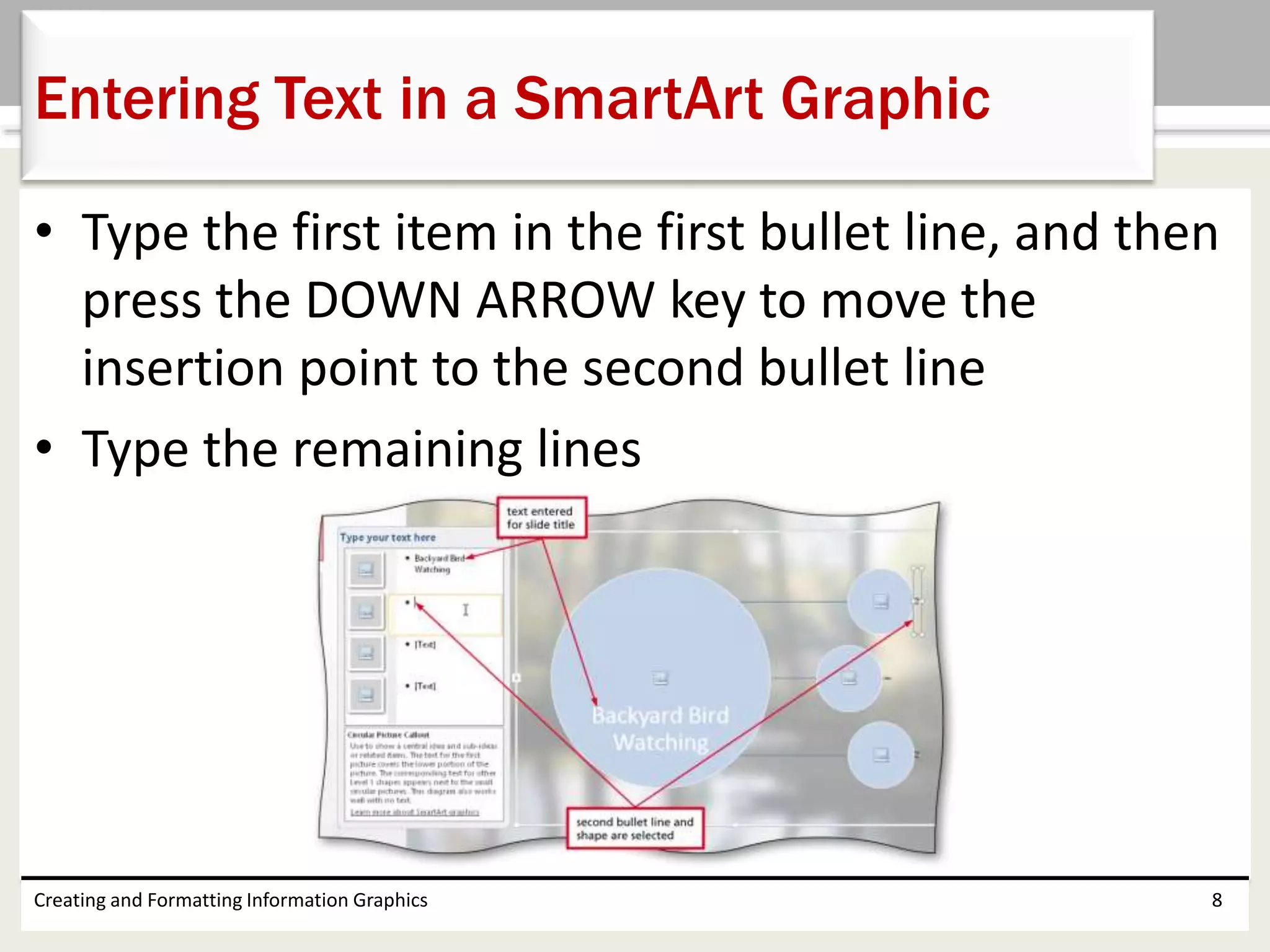
• Type the first item in the first bullet line, and then
press the DOWN ARROW key to move the
insertion point to the second bullet line
• Type the remaining lines
Creating and Formatting Information Graphics 8
Entering Text in a SmartArt Graphic
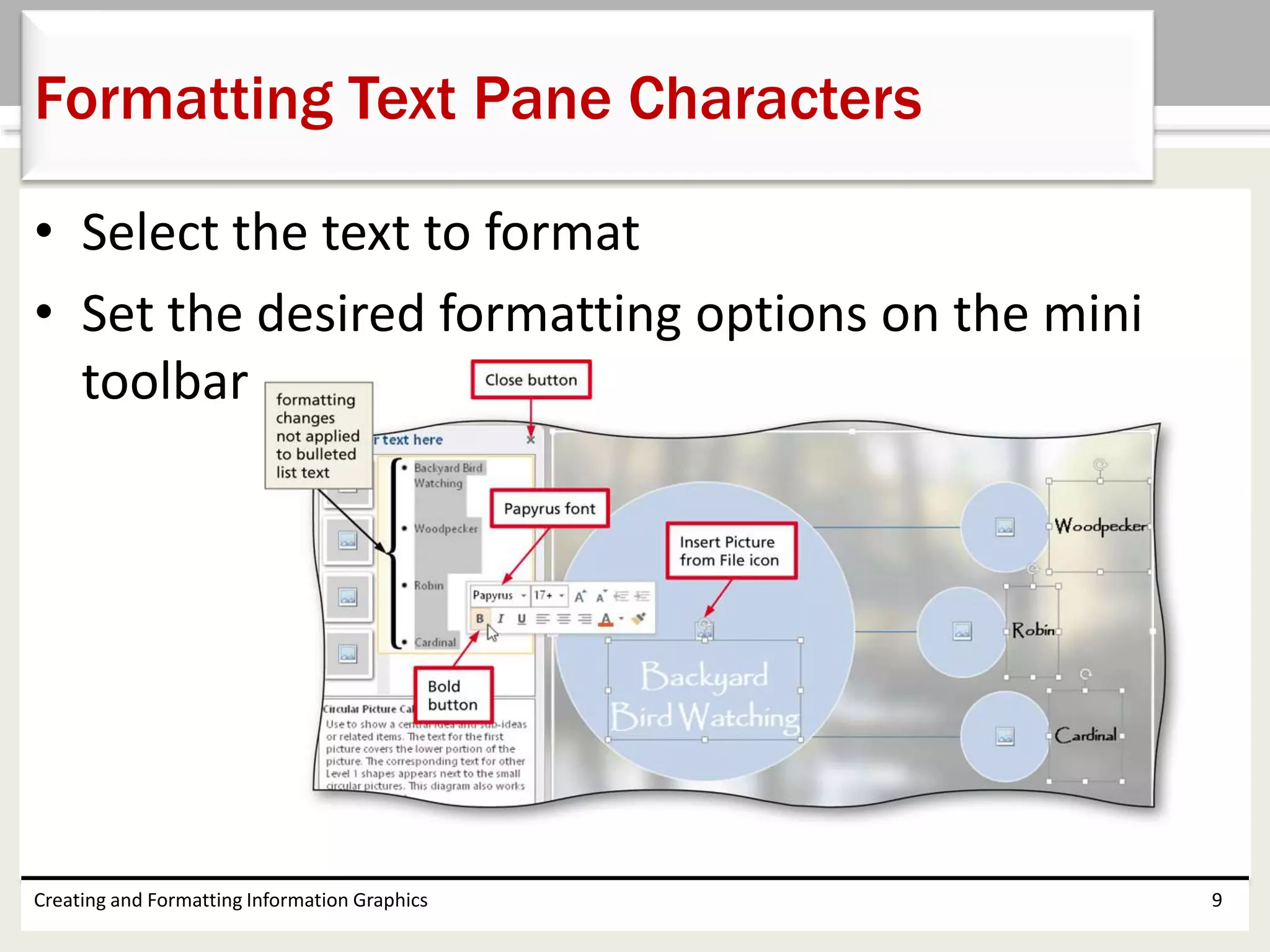
• Select the text to format
• Set the desired formatting options on the mini
toolbar
Creating and Formatting Information Graphics 9
Formatting Text Pane Characters
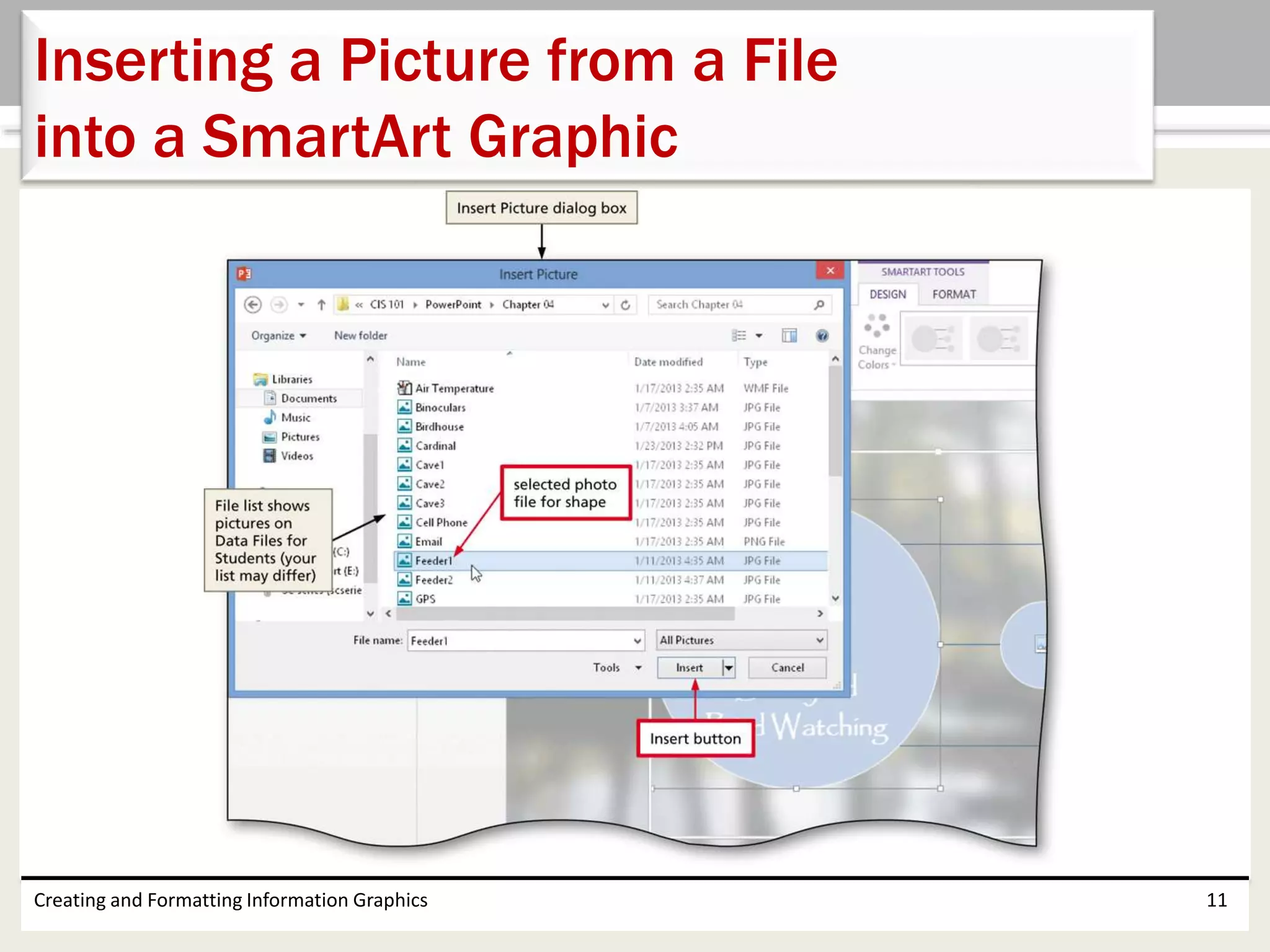
• Tap or click the Insert Picture from File icon in the
picture placeholder to display the Insert Picture
dialog box
• Tap or click the Browse button in the From a file
area to display the Insert Picture dialog box
• Navigate to the location of the picture to insert
• Tap or click the picture to insert
• Tap or click the Insert button to insert the picture
into the SmartArt picture placeholder
Creating and Formatting Information Graphics 10
Inserting a Picture from a File
into a SmartArt Graphic
Creating and Formatting Information Graphics 11
Inserting a Picture from a File
into a SmartArt Graphic
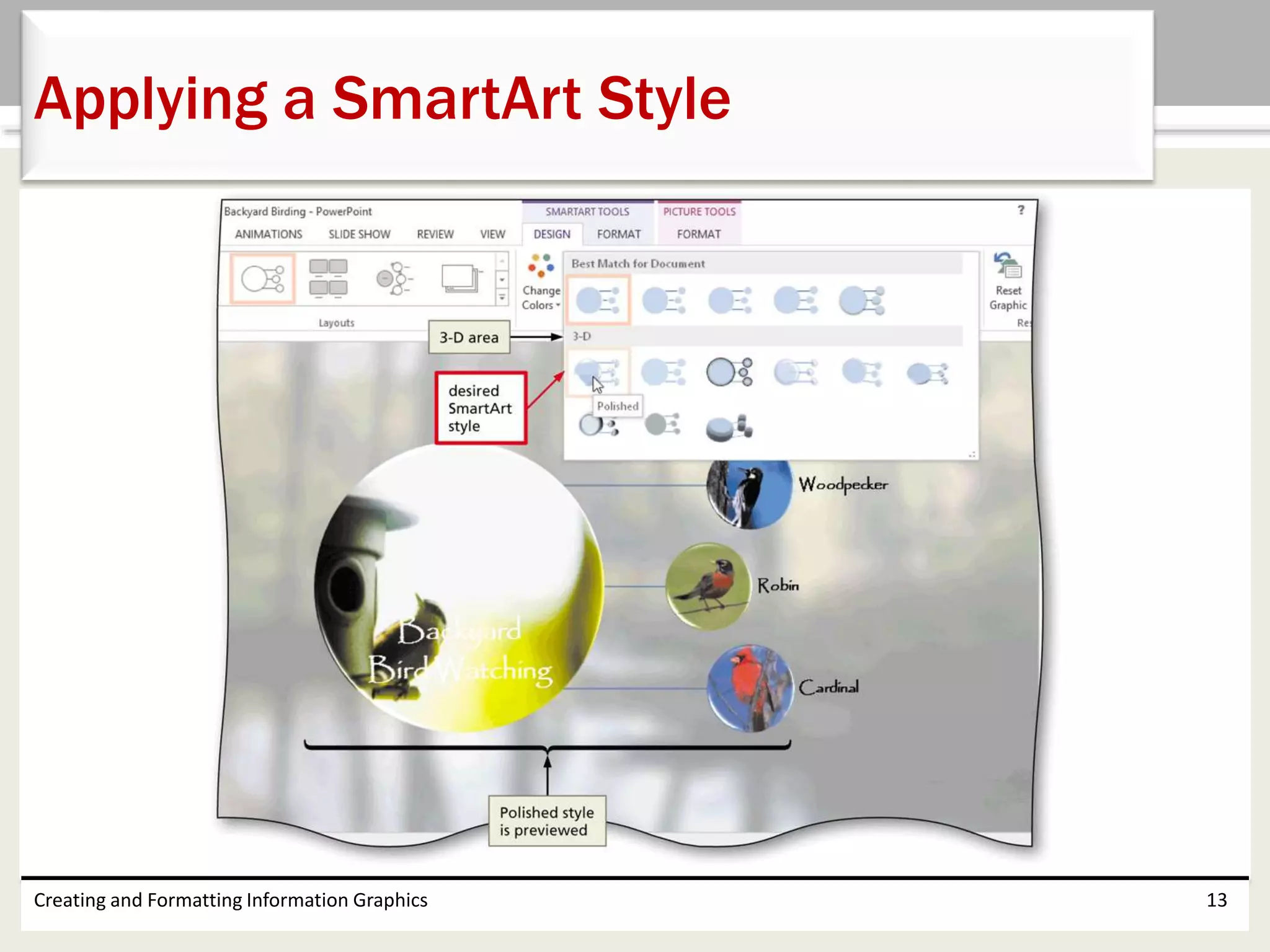
• With the SmartArt graphic selected, tap or click
the More button (SMART ART TOOLS DESIGN tab
| SmartArt Styles group) to expand the SmartArt
Styles gallery
• Tap or click the desired style to apply the style to
the graphic
Creating and Formatting Information Graphics 12
Applying a SmartArt Style
Creating and Formatting Information Graphics 13
Applying a SmartArt Style
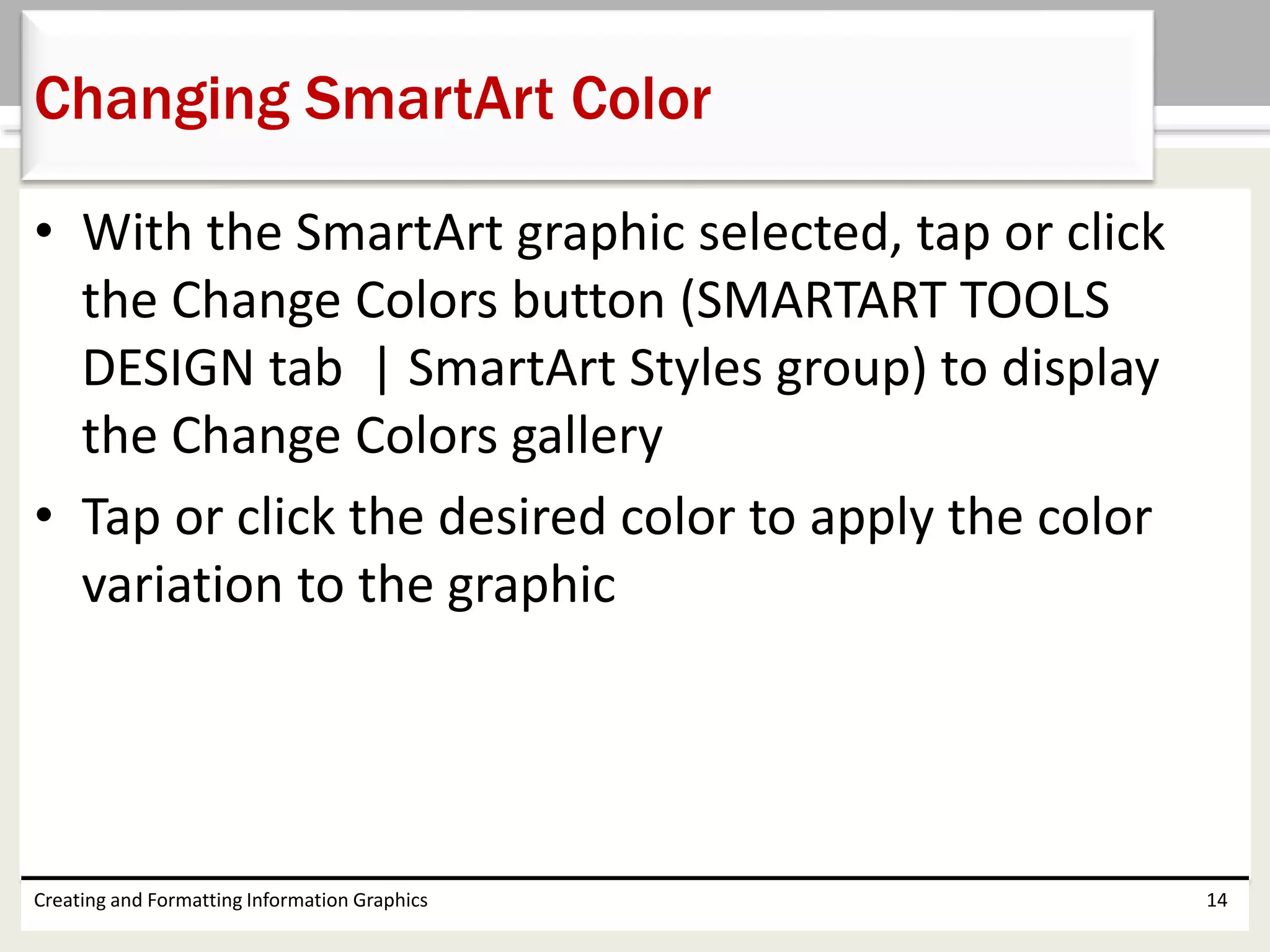
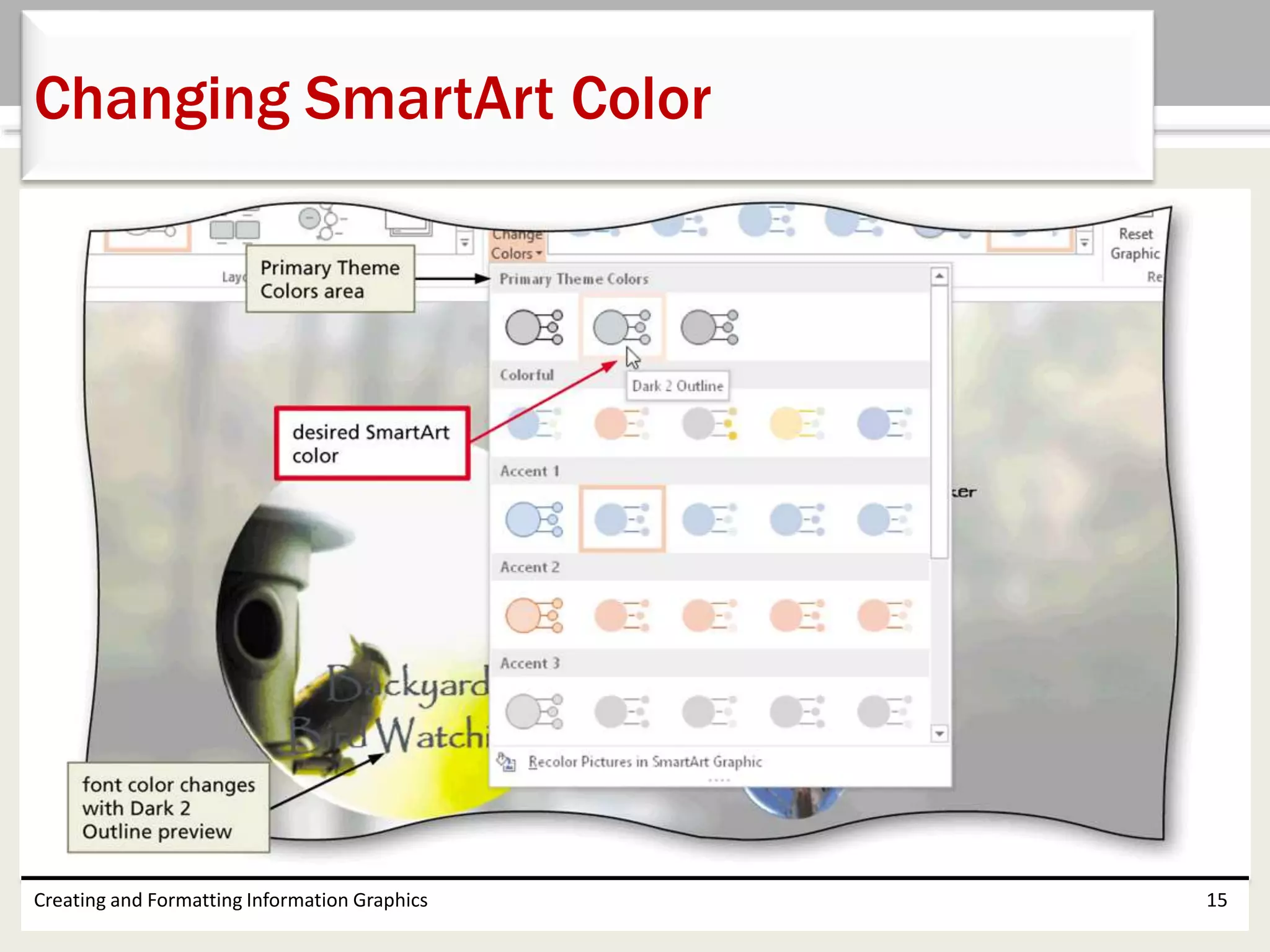
• With the SmartArt graphic selected, tap or click
the Change Colors button (SMARTART TOOLS
DESIGN tab | SmartArt Styles group) to display
the Change Colors gallery
• Tap or click the desired color to apply the color
variation to the graphic
Creating and Formatting Information Graphics 14
Changing SmartArt Color
Creating and Formatting Information Graphics 15
Changing SmartArt Color
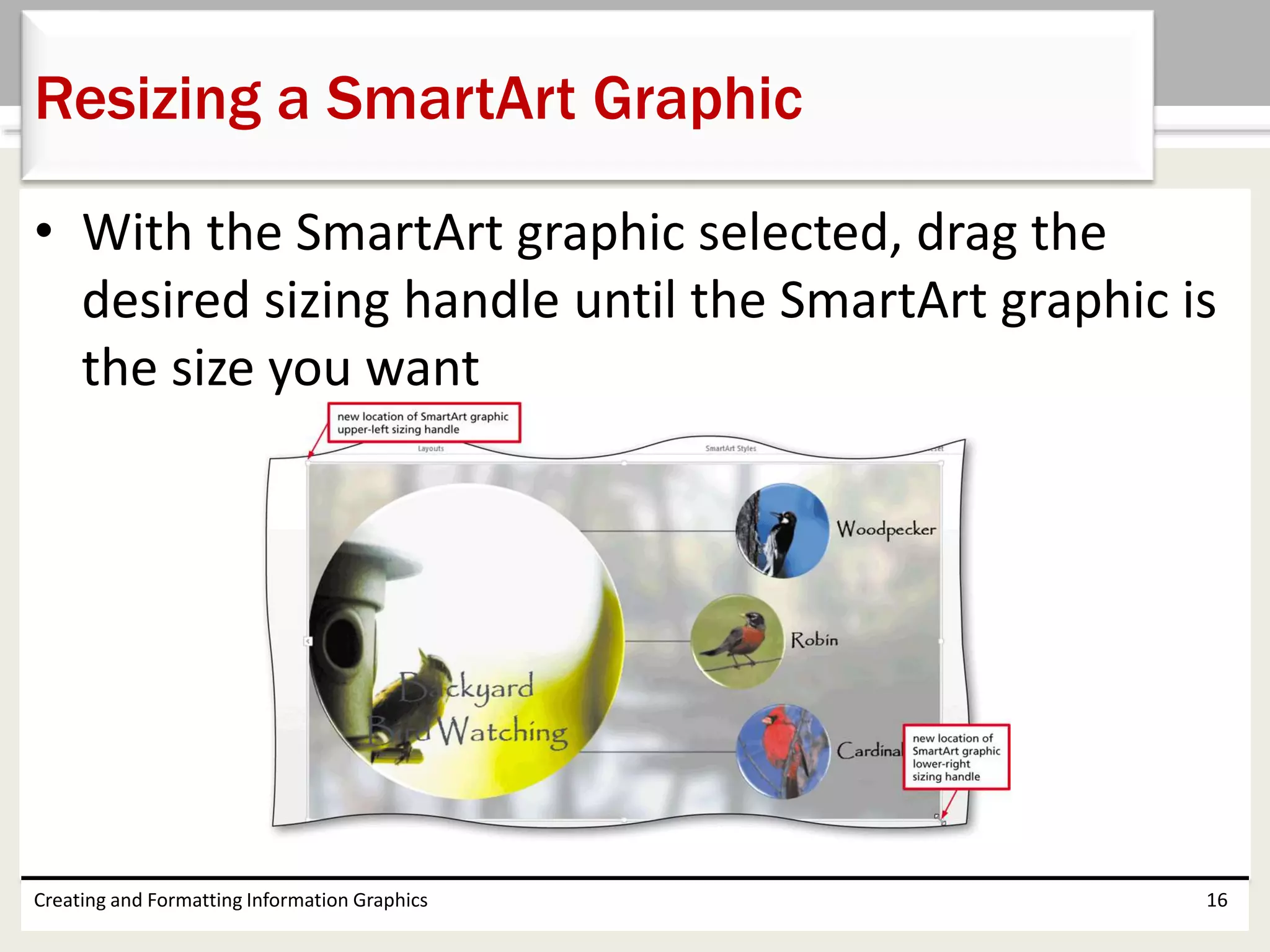
• With the SmartArt graphic selected, drag the
desired sizing handle until the SmartArt graphic is
the size you want
Creating and Formatting Information Graphics 16
Resizing a SmartArt Graphic
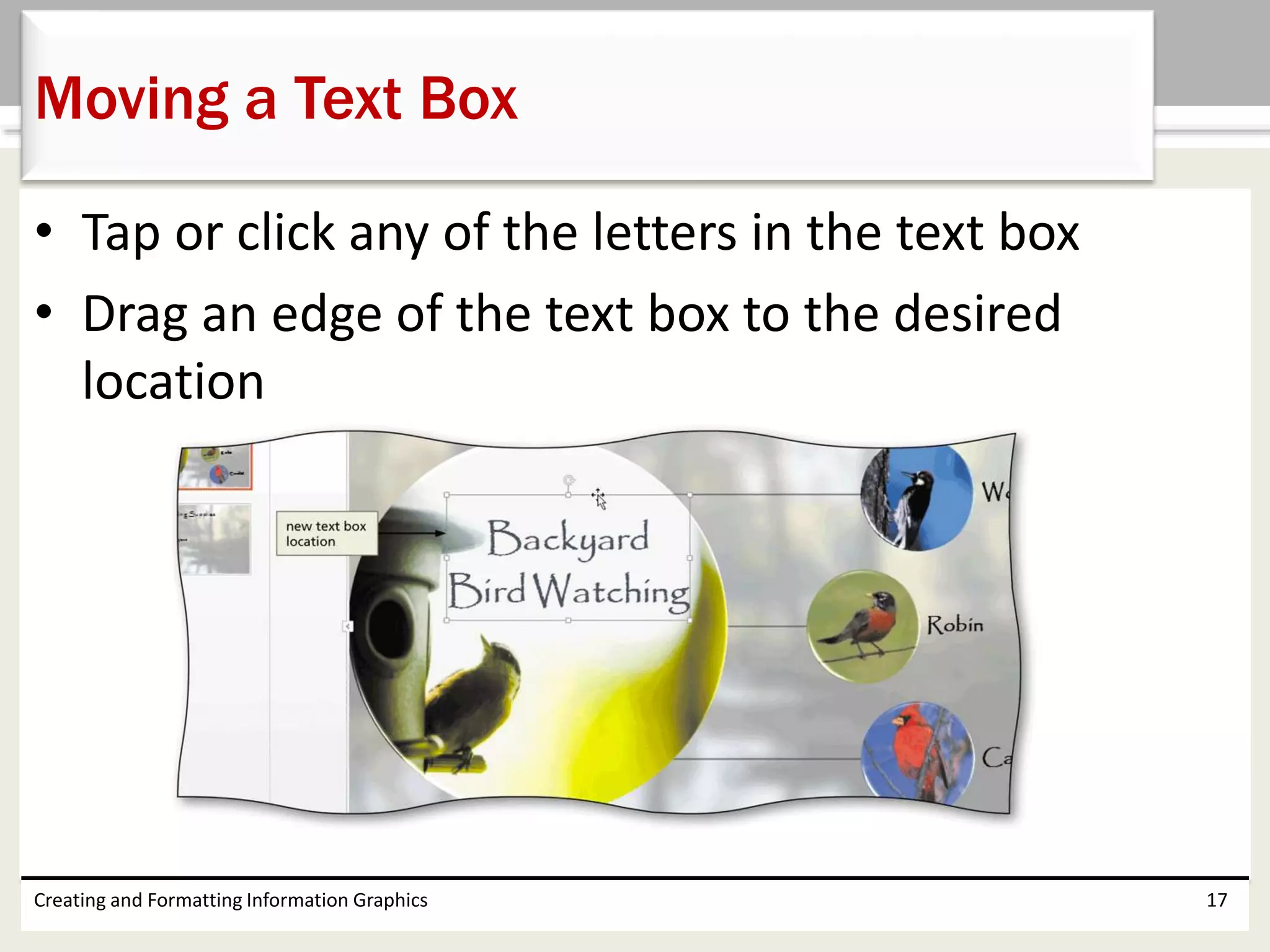
• Tap or click any of the letters in the text box
• Drag an edge of the text box to the desired
location
Creating and Formatting Information Graphics 17
Moving a Text Box
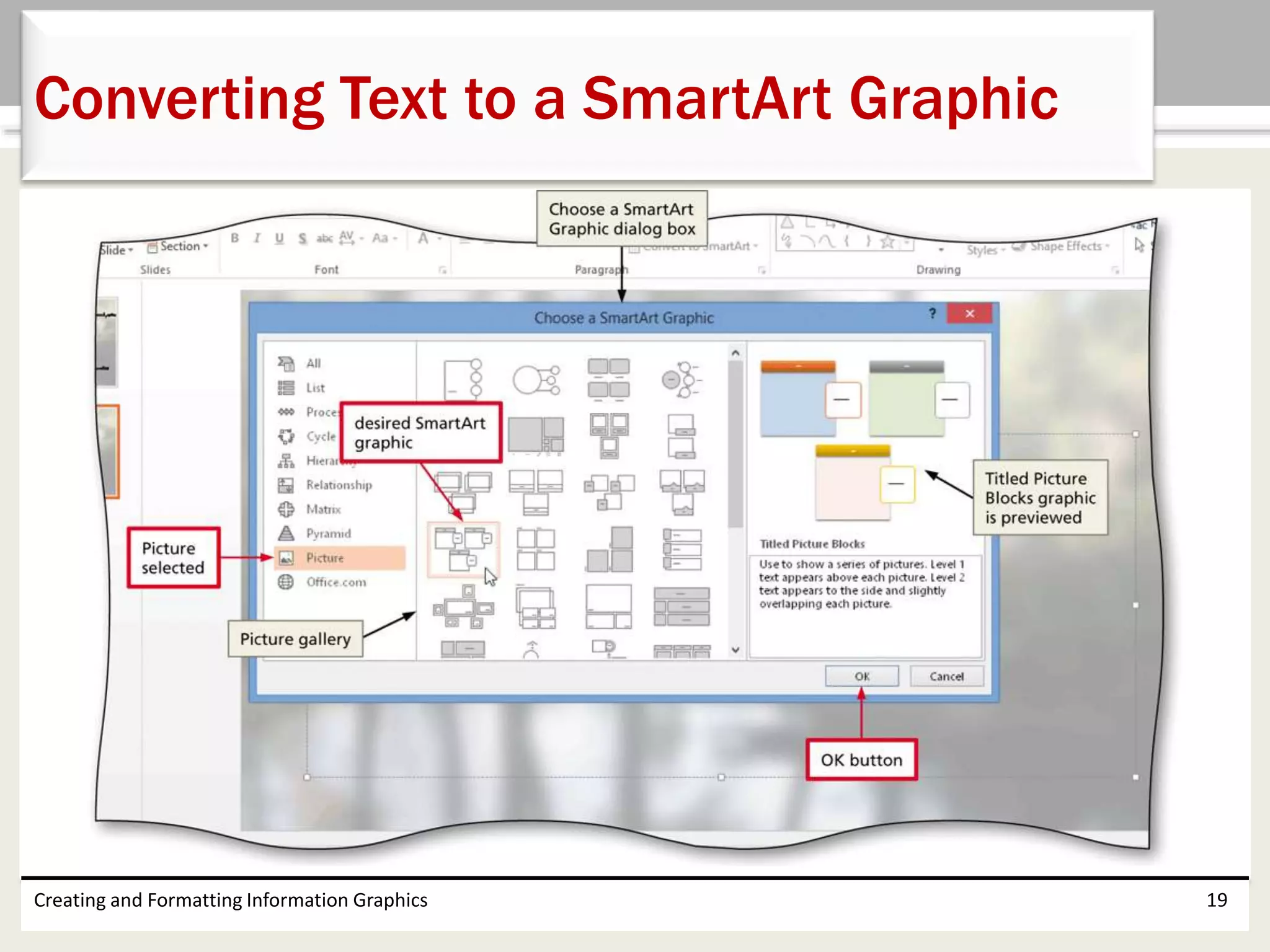
• Select the bulleted list items to convert and then click
the ‘Convert to SmartArt’ button (HOME tab |
Paragraph group) to display the SmartArt Graphics
gallery
• Tap or click ‘More SmartArt Graphics’ in the SmartArt
Graphics gallery to display the Choose a SmartArt
Graphic dialog box
• Tap or click the desired category in the left pane
• Tap or click the desired SmartArt graphic shape in the
right pane
• Tap or click the OK button to apply this shape and
convert the text
Creating and Formatting Information Graphics 18
Converting Text to a SmartArt Graphic
Creating and Formatting Information Graphics 19
Converting Text to a SmartArt Graphic
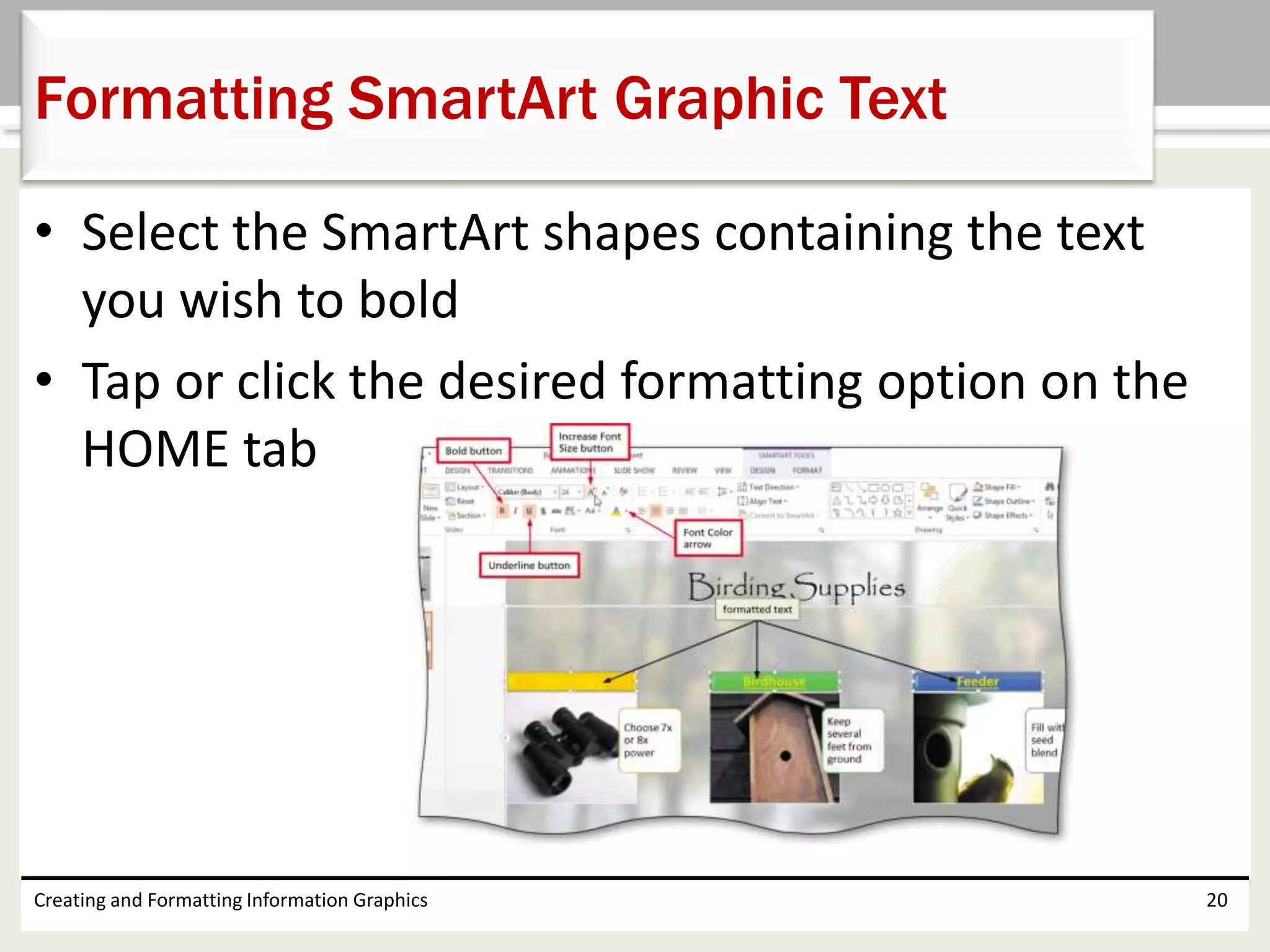
• Select the SmartArt shapes containing the text
you wish to bold
• Tap or click the desired formatting option on the
HOME tab
Creating and Formatting Information Graphics 20
Formatting SmartArt Graphic Text
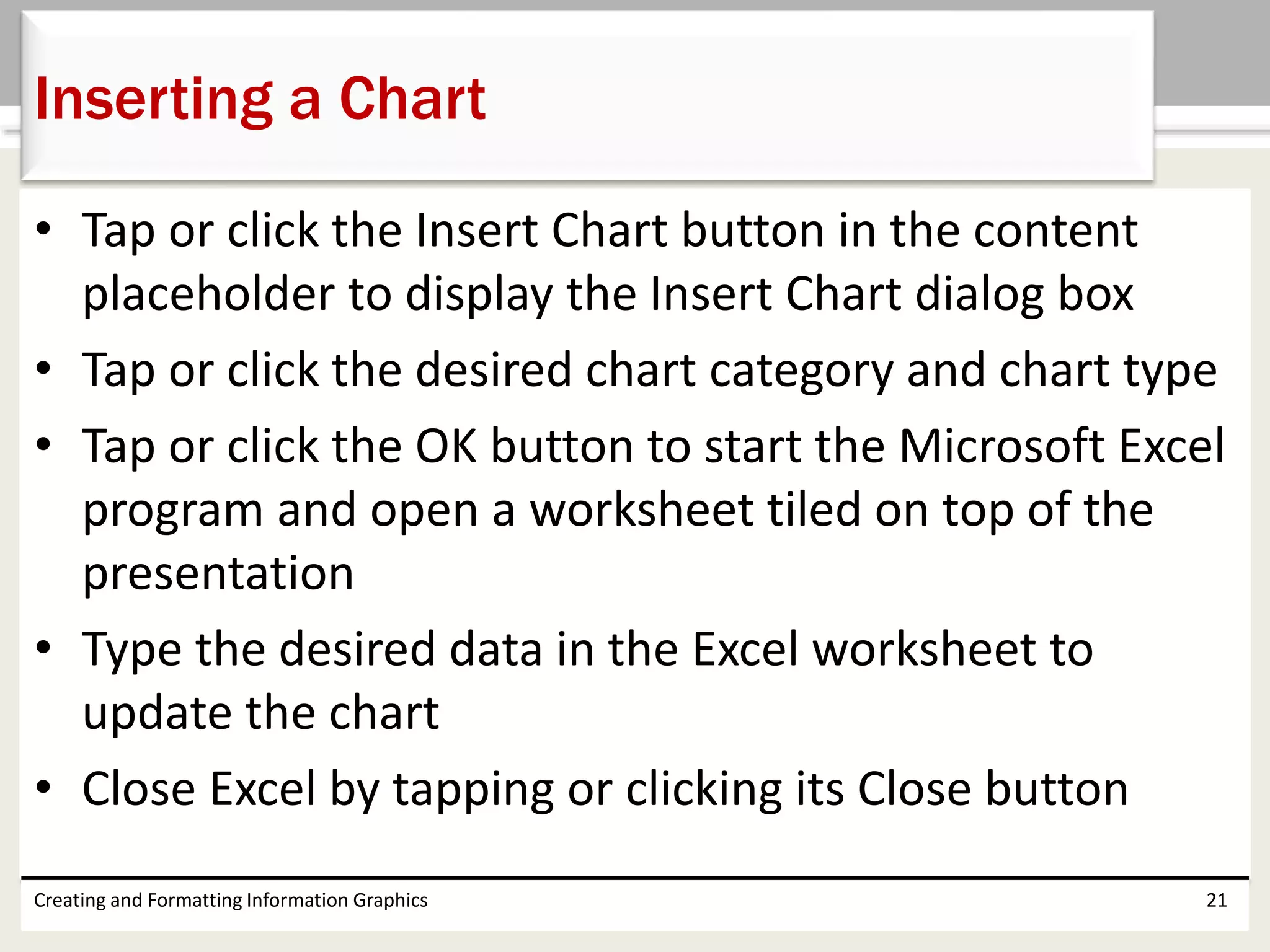
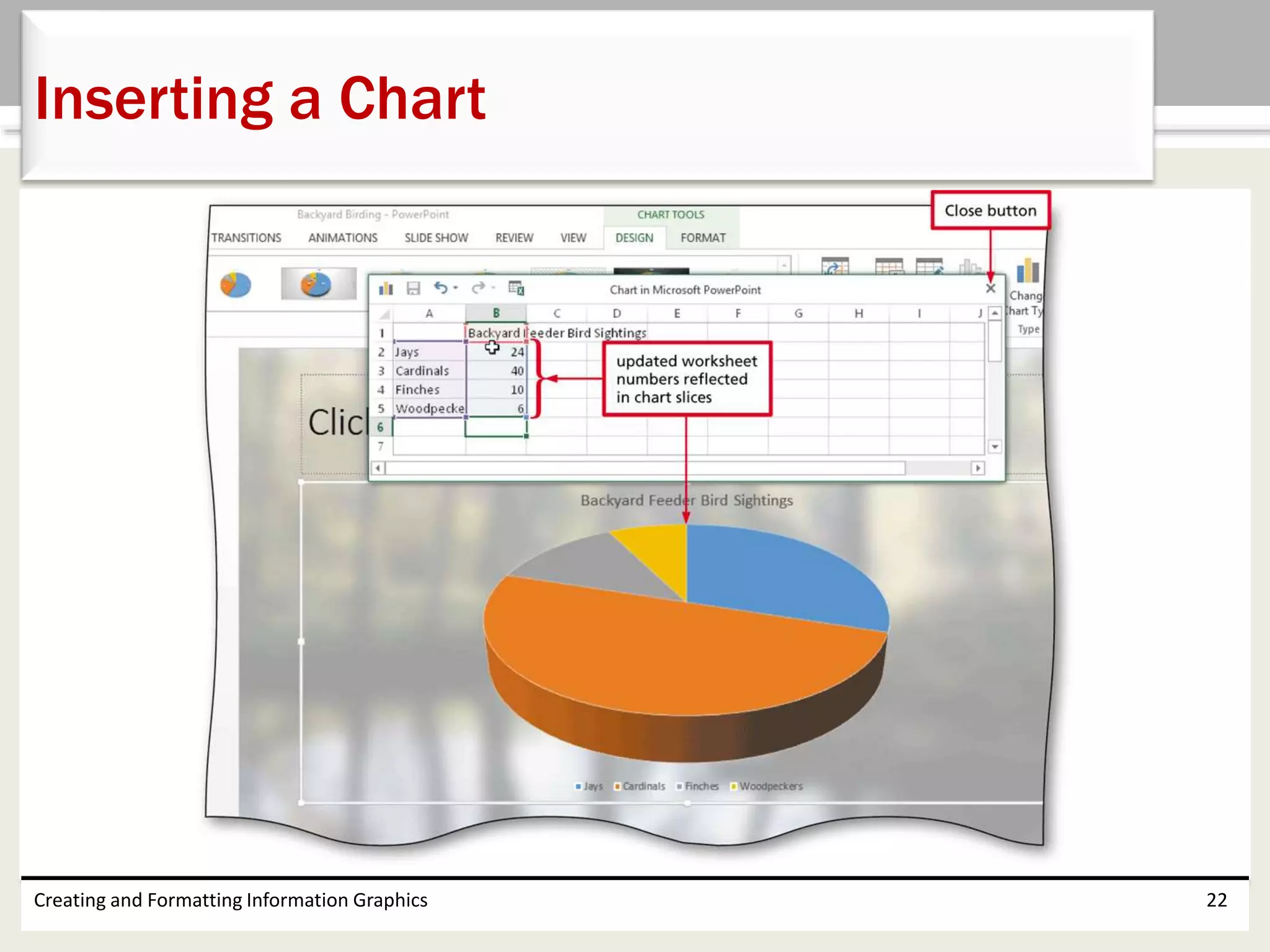
• Tap or click the Insert Chart button in the content
placeholder to display the Insert Chart dialog box
• Tap or click the desired chart category and chart type
• Tap or click the OK button to start the Microsoft Excel
program and open a worksheet tiled on top of the
presentation
• Type the desired data in the Excel worksheet to
update the chart
• Close Excel by tapping or clicking its Close button
Creating and Formatting Information Graphics 21
Inserting a Chart
Creating and Formatting Information Graphics 22
Inserting a Chart
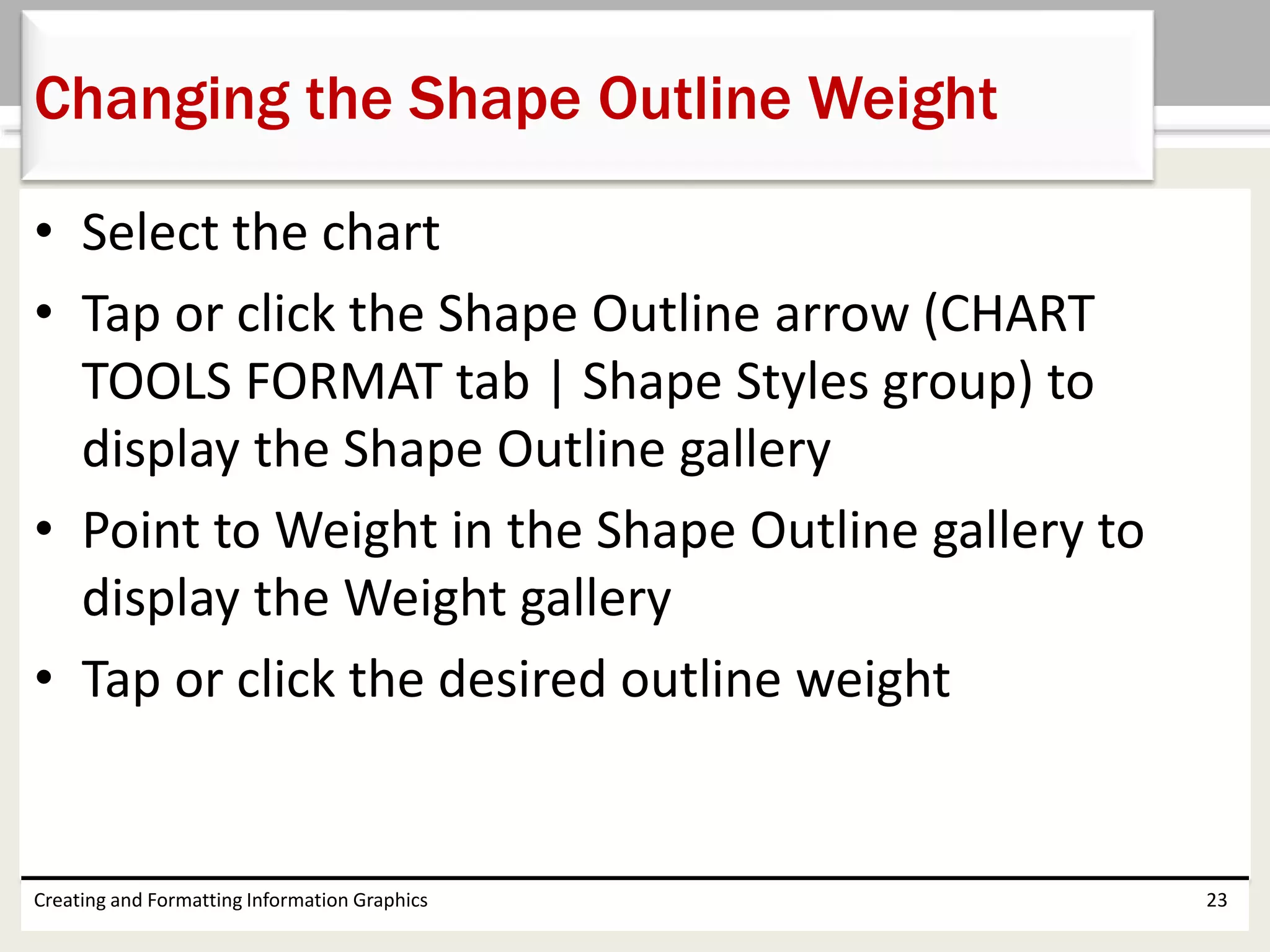
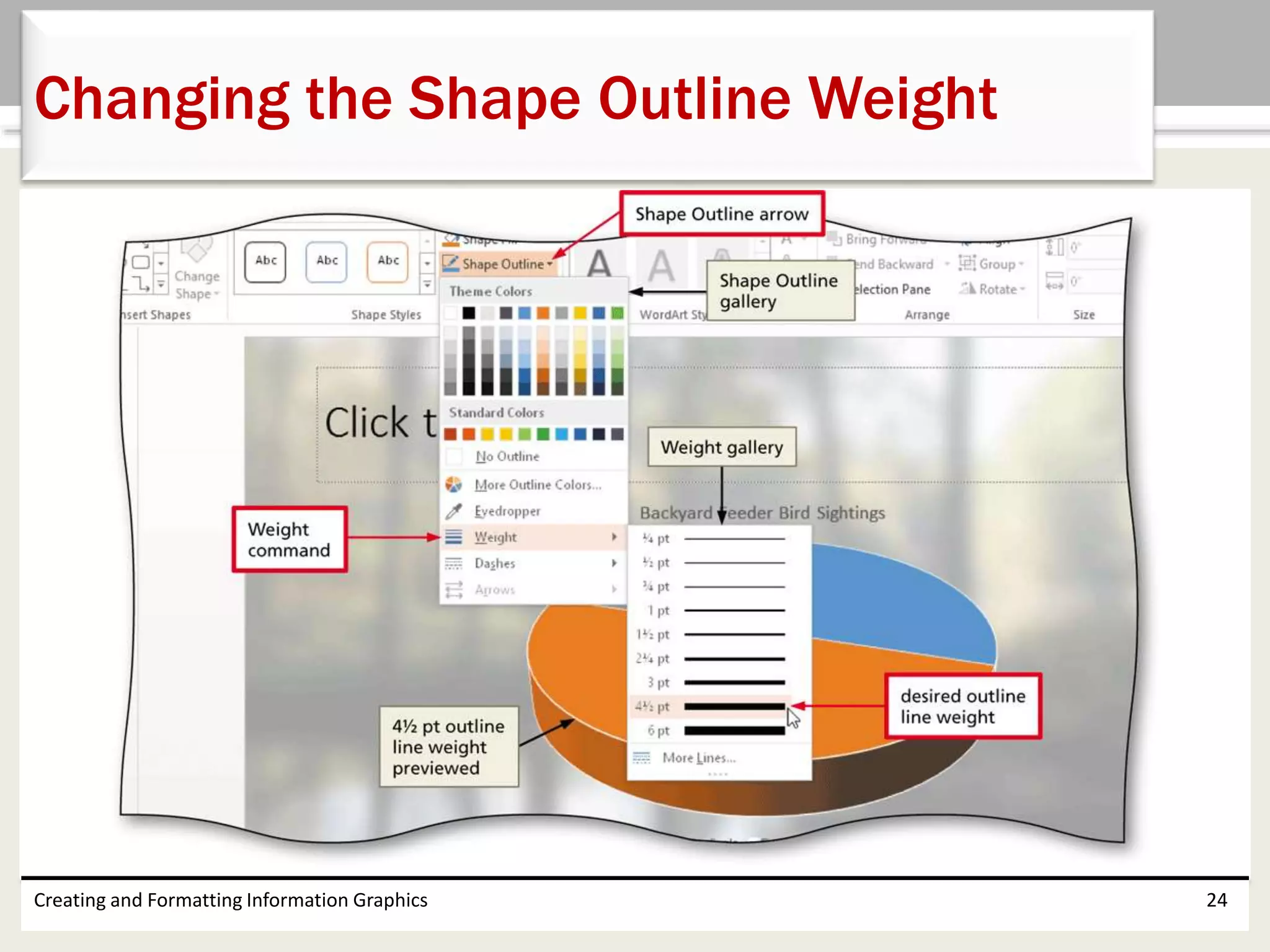
• Select the chart
• Tap or click the Shape Outline arrow (CHART
TOOLS FORMAT tab | Shape Styles group) to
display the Shape Outline gallery
• Point to Weight in the Shape Outline gallery to
display the Weight gallery
• Tap or click the desired outline weight
Creating and Formatting Information Graphics 23
Changing the Shape Outline Weight
Creating and Formatting Information Graphics 24
Changing the Shape Outline Weight
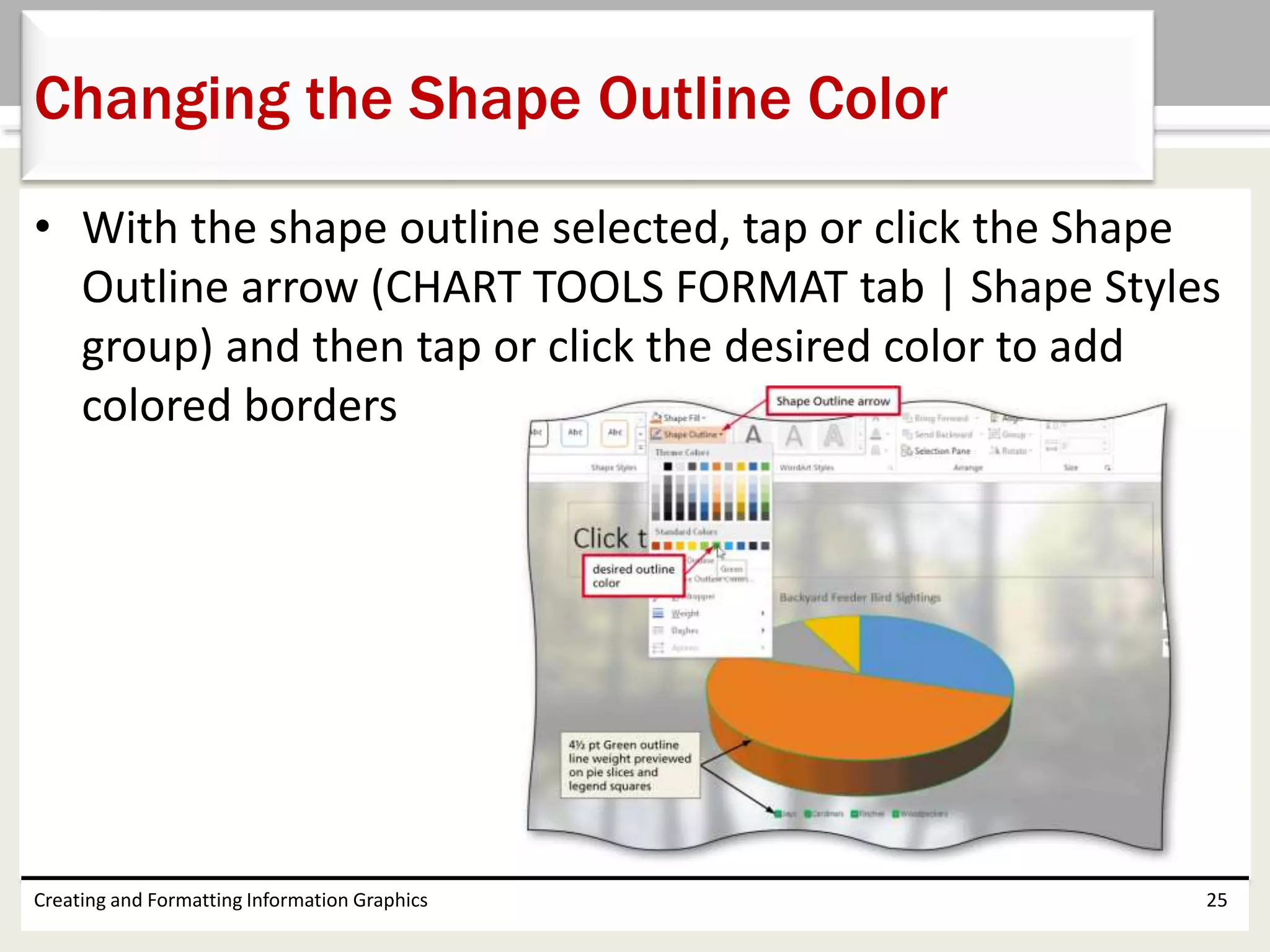
• With the shape outline selected, tap or click the Shape
Outline arrow (CHART TOOLS FORMAT tab | Shape Styles
group) and then tap or click the desired color to add
colored borders
Creating and Formatting Information Graphics 25
Changing the Shape Outline Color
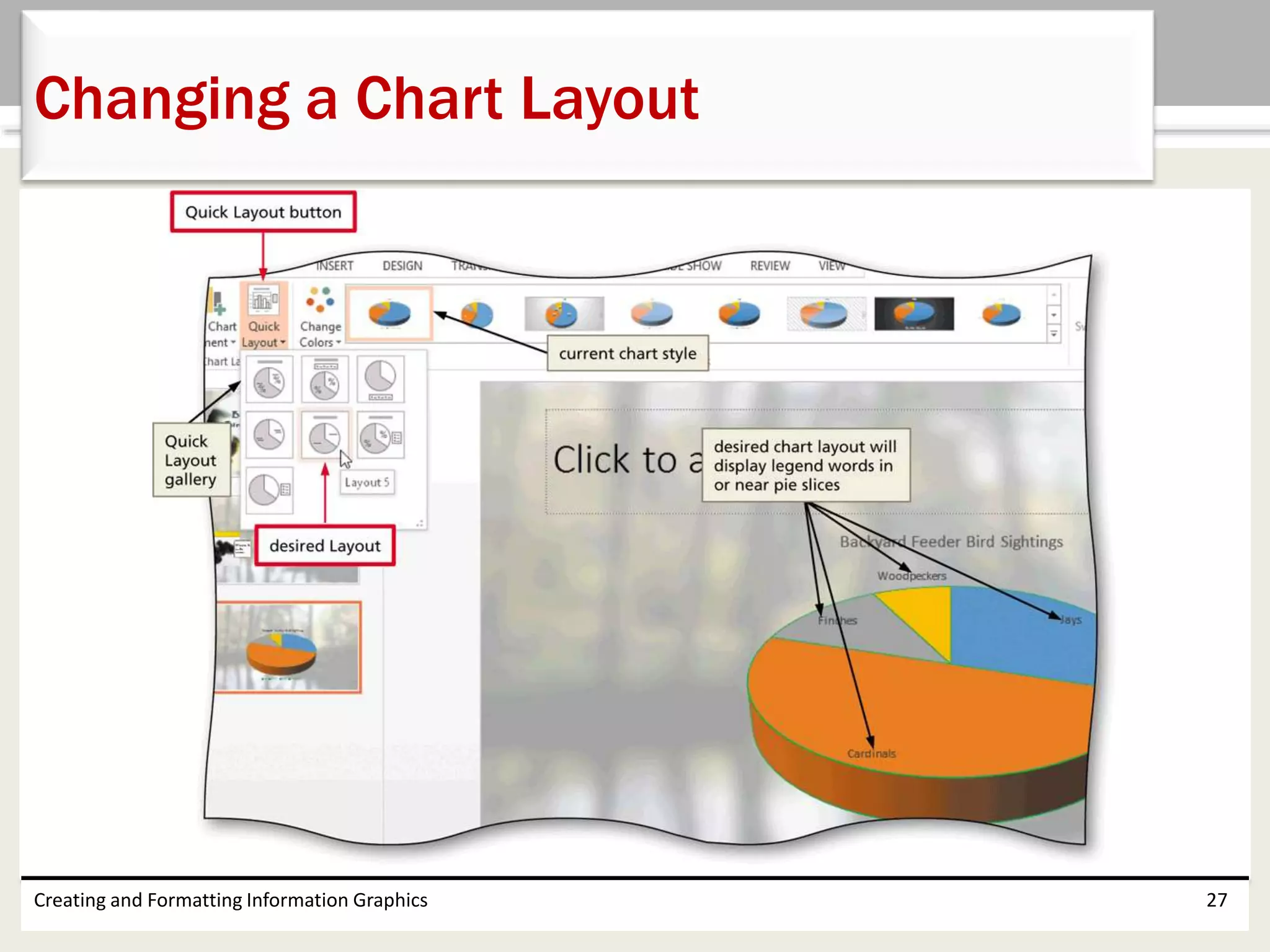
• With the chart selected, tap or click the CHART
TOOLS DESIGN tab to display the Chart Tools
Design ribbon and then tap or click the Quick
Layout button to display the Quick Layout gallery
• Tap or click the desired layout to apply the
selected layout to the chart
Creating and Formatting Information Graphics 26
Changing a Chart Layout
Creating and Formatting Information Graphics 27
Changing a Chart Layout
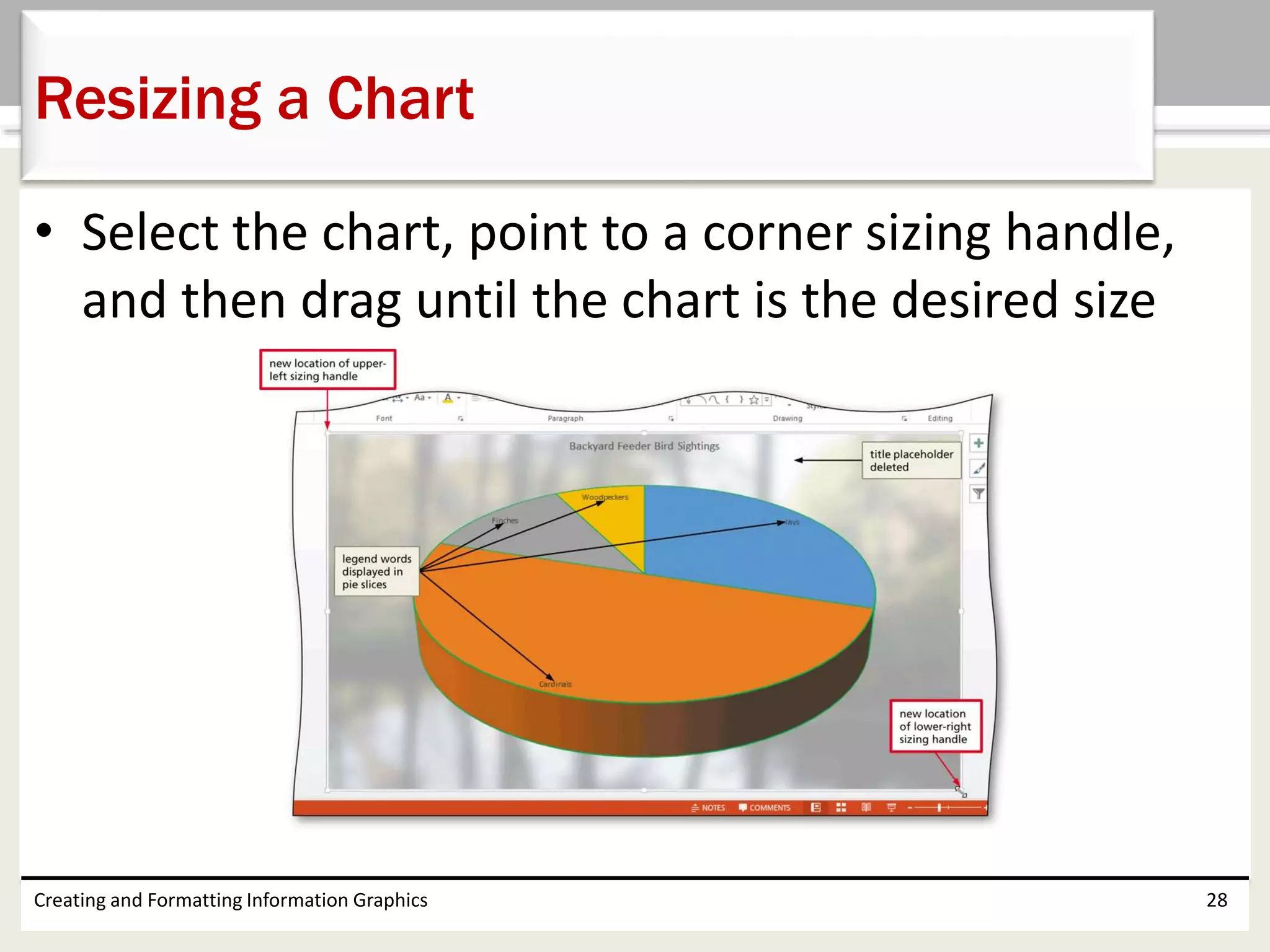
• Select the chart, point to a corner sizing handle,
and then drag until the chart is the desired size
Creating and Formatting Information Graphics 28
Resizing a Chart
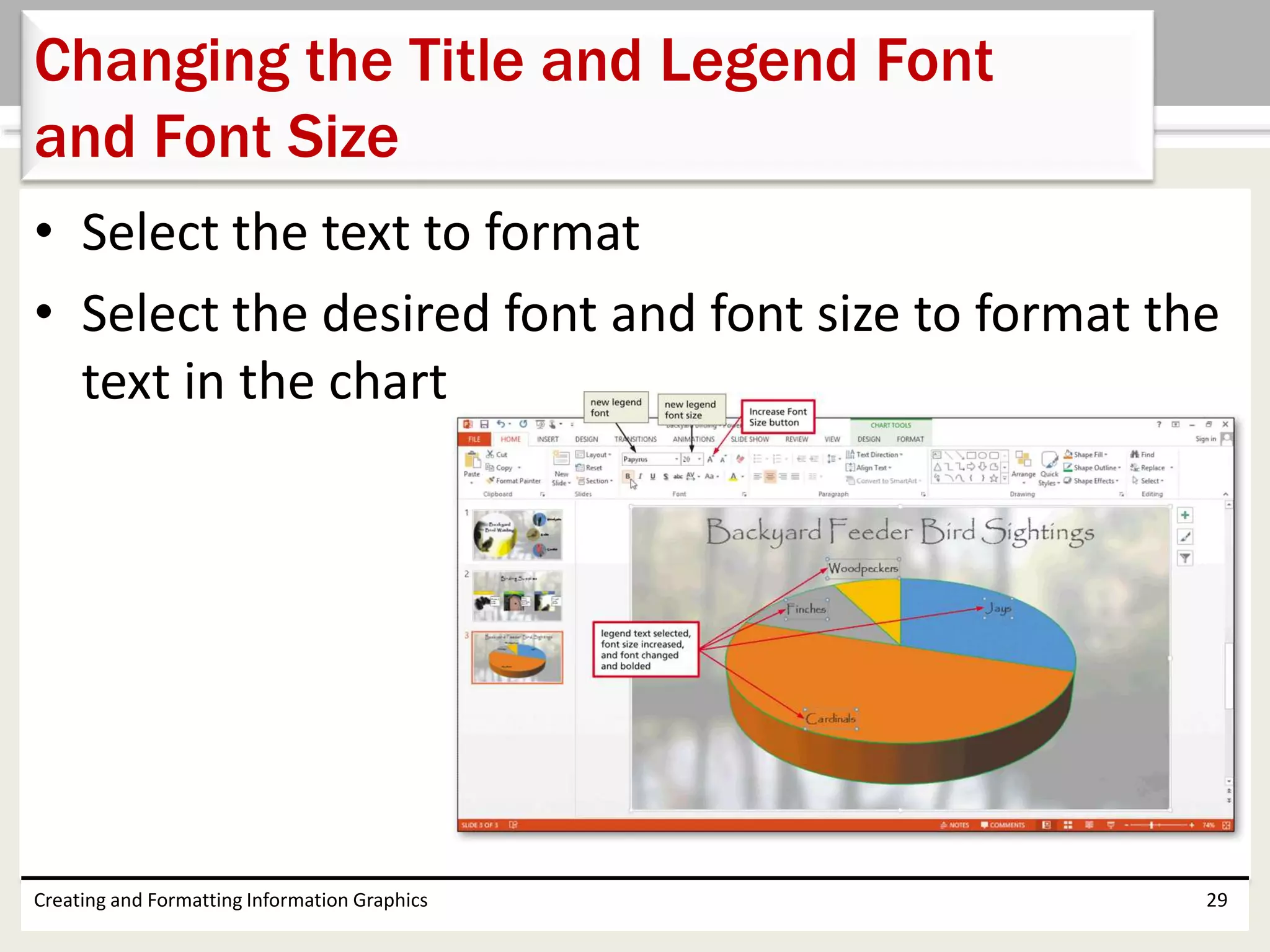
• Select the text to format
• Select the desired font and font size to format the
text in the chart
Creating and Formatting Information Graphics 29
Changing the Title and Legend Font
and Font Size
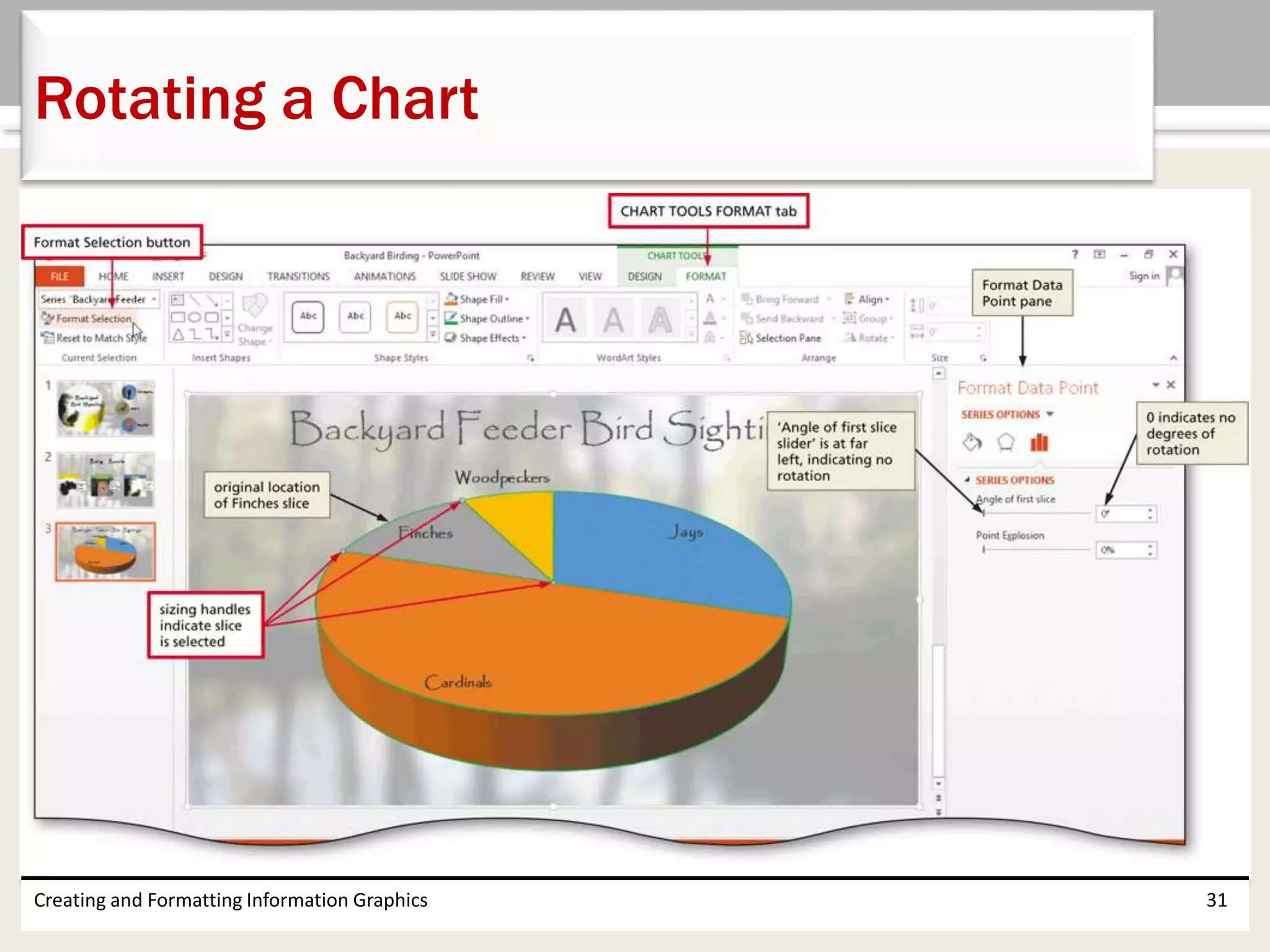
• Tap or click the Format Selection button (CHART
TOOLS FORMAT tab | Current Selection group) to
display the Format Data Point dialog box
• Tap or click the ‘Angle of first slice’ slider and drag
it to the desired location
Creating and Formatting Information Graphics 30
Rotating a Chart
Creating and Formatting Information Graphics 31
Rotating a Chart
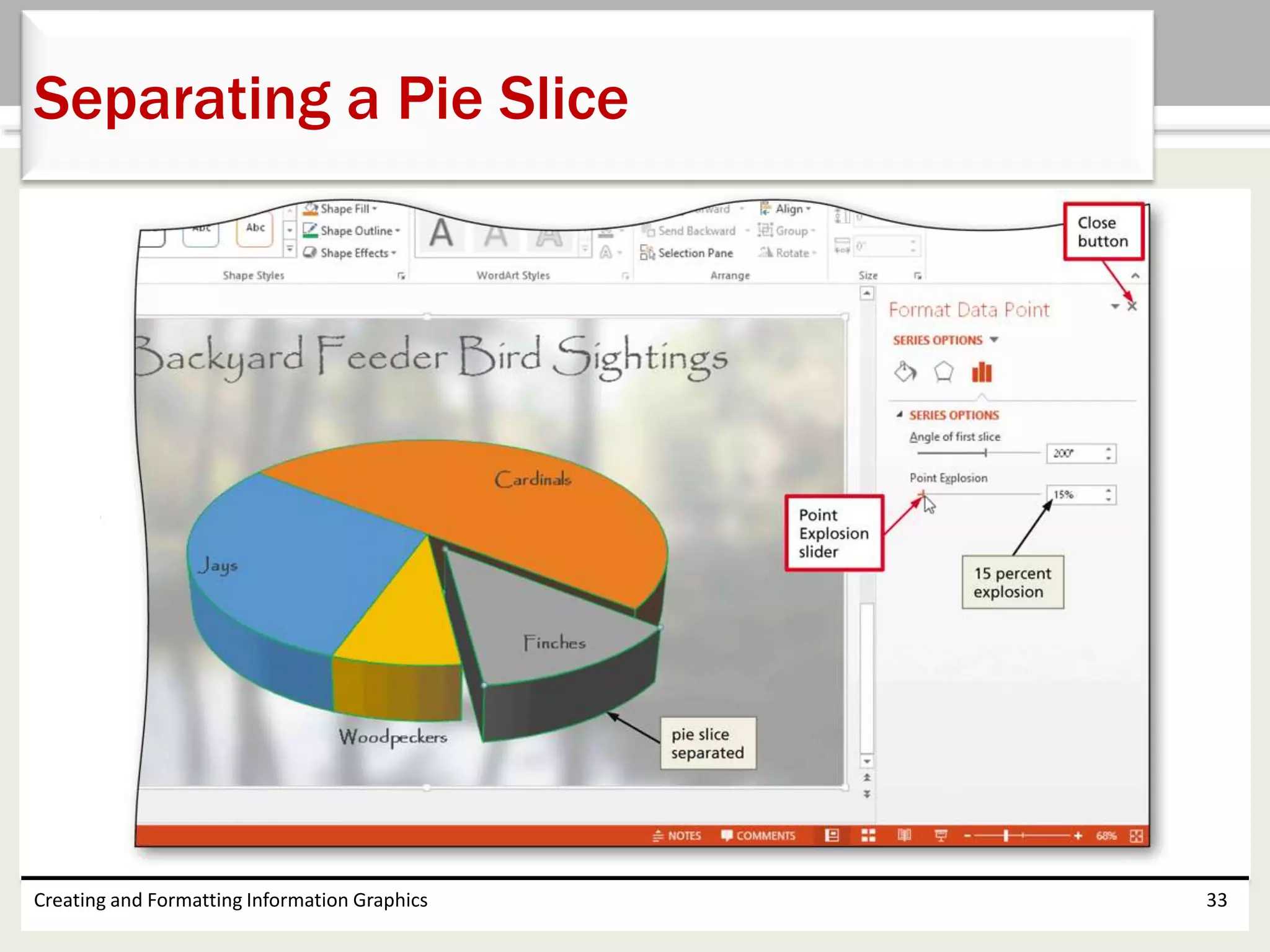
• Select the pie slice to separate
• Tap or click the Point Explosion slider and drag it
to the desired value
• Tap or click the Close button in the Format Data
Point pane to close the pane
Creating and Formatting Information Graphics 32
Separating a Pie Slice
Creating and Formatting Information Graphics 33
Separating a Pie Slice
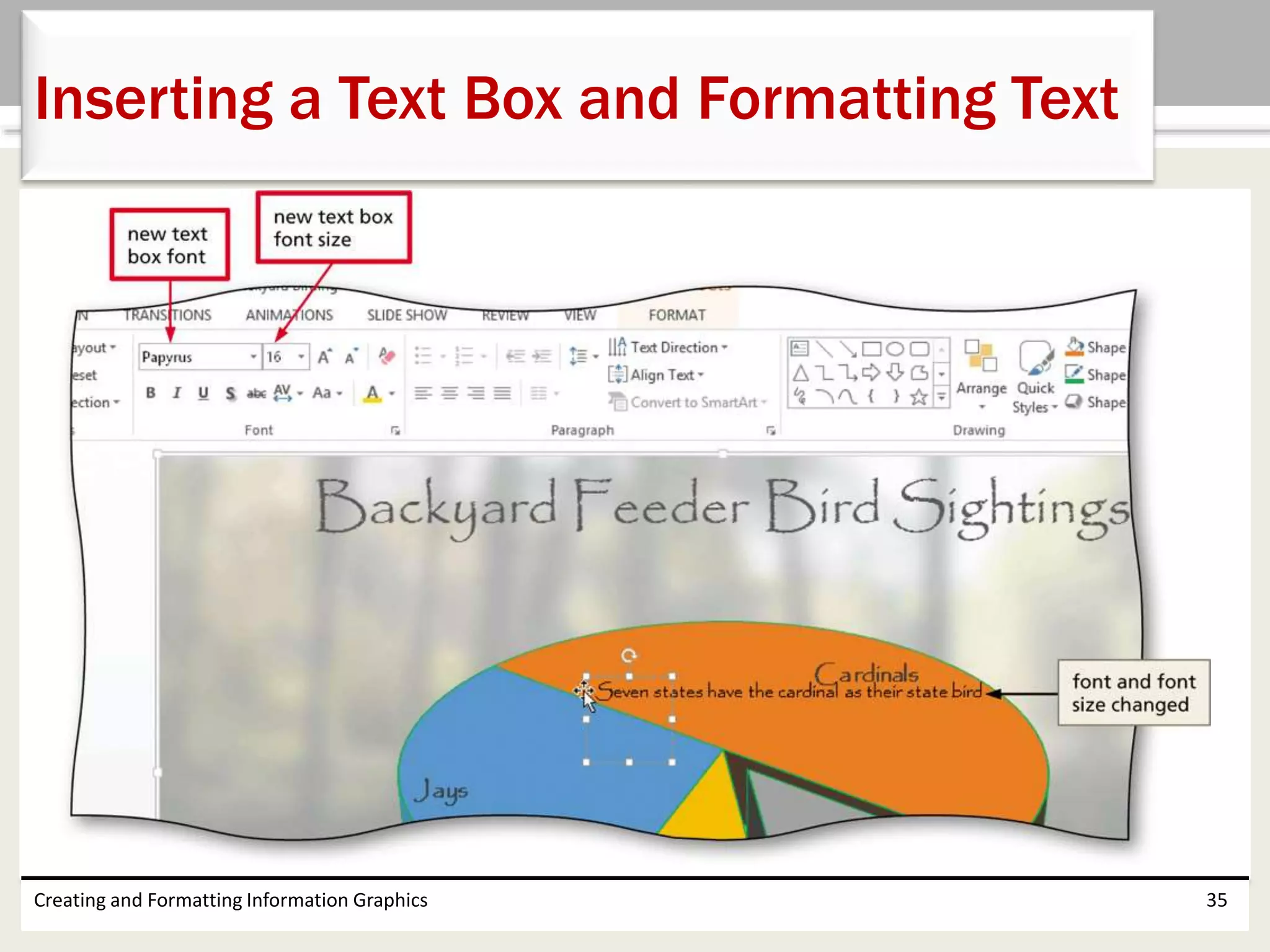
• Tap or click the Text Box button (INSERT tab | Text
group), and then if you are using a mouse, click
the desired location for the text box
• If necessary, drag the text box to the desired
location
• If necessary, tap or click the text box and then
type the desired text
• Select the text in the text box and then apply the
desired formatting
Creating and Formatting Information Graphics 34
Inserting a Text Box and Formatting Text
Creating and Formatting Information Graphics 35
Inserting a Text Box and Formatting Text
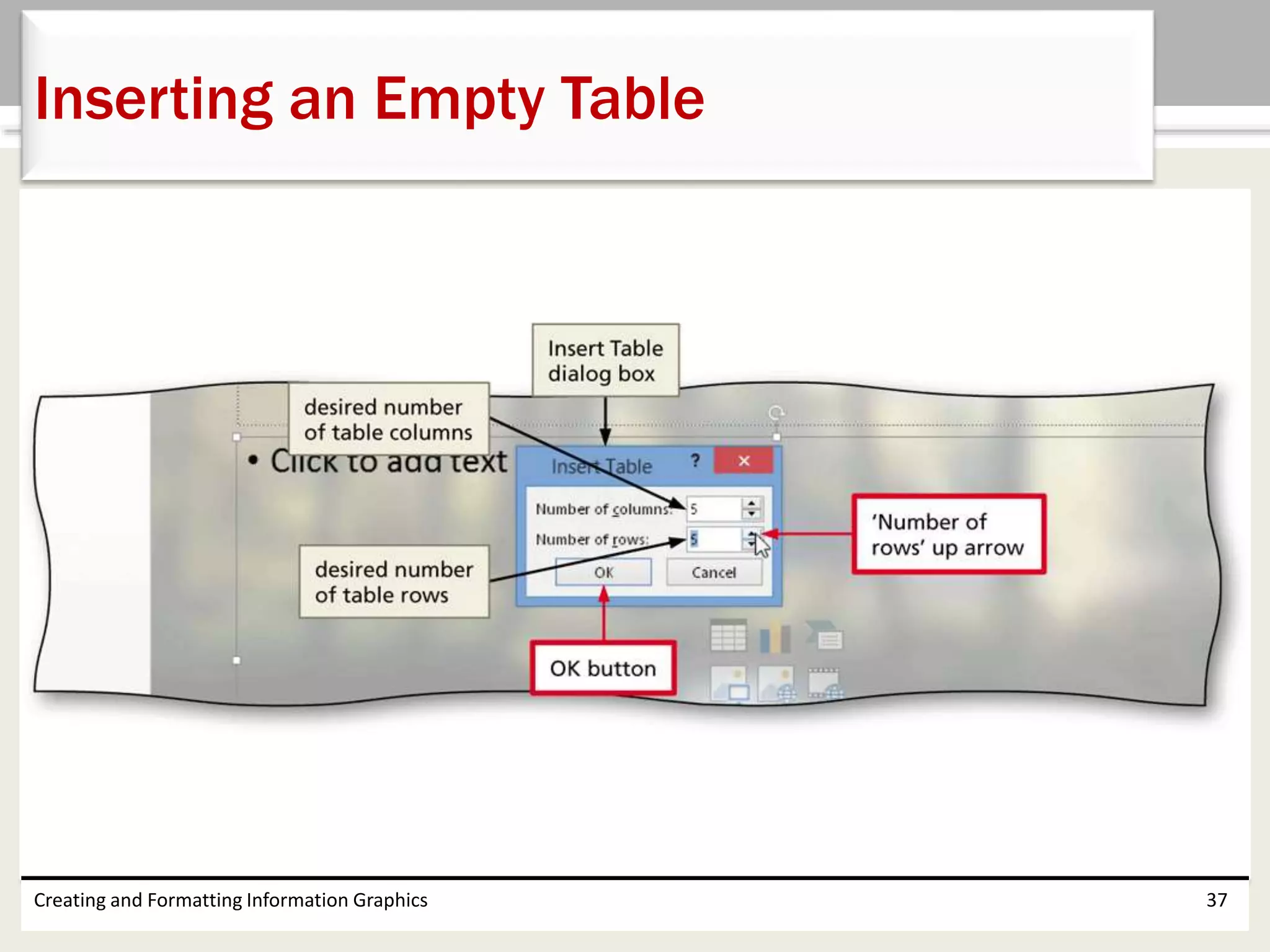
• Tap or click the Insert Table button in the content
placeholder to display the Insert Table dialog box
• Tap or click the up or down arrow to the right of
the ‘Number of columns’ box one time so that the
desired number of columns appears in the box
• Tap or click the up or down arrow to the right of
the ‘Number of rows’ box four times so that the
desired number of rows appears in the box
• Tap or click the OK button
Creating and Formatting Information Graphics 36
Inserting an Empty Table
Creating and Formatting Information Graphics 37
Inserting an Empty Table
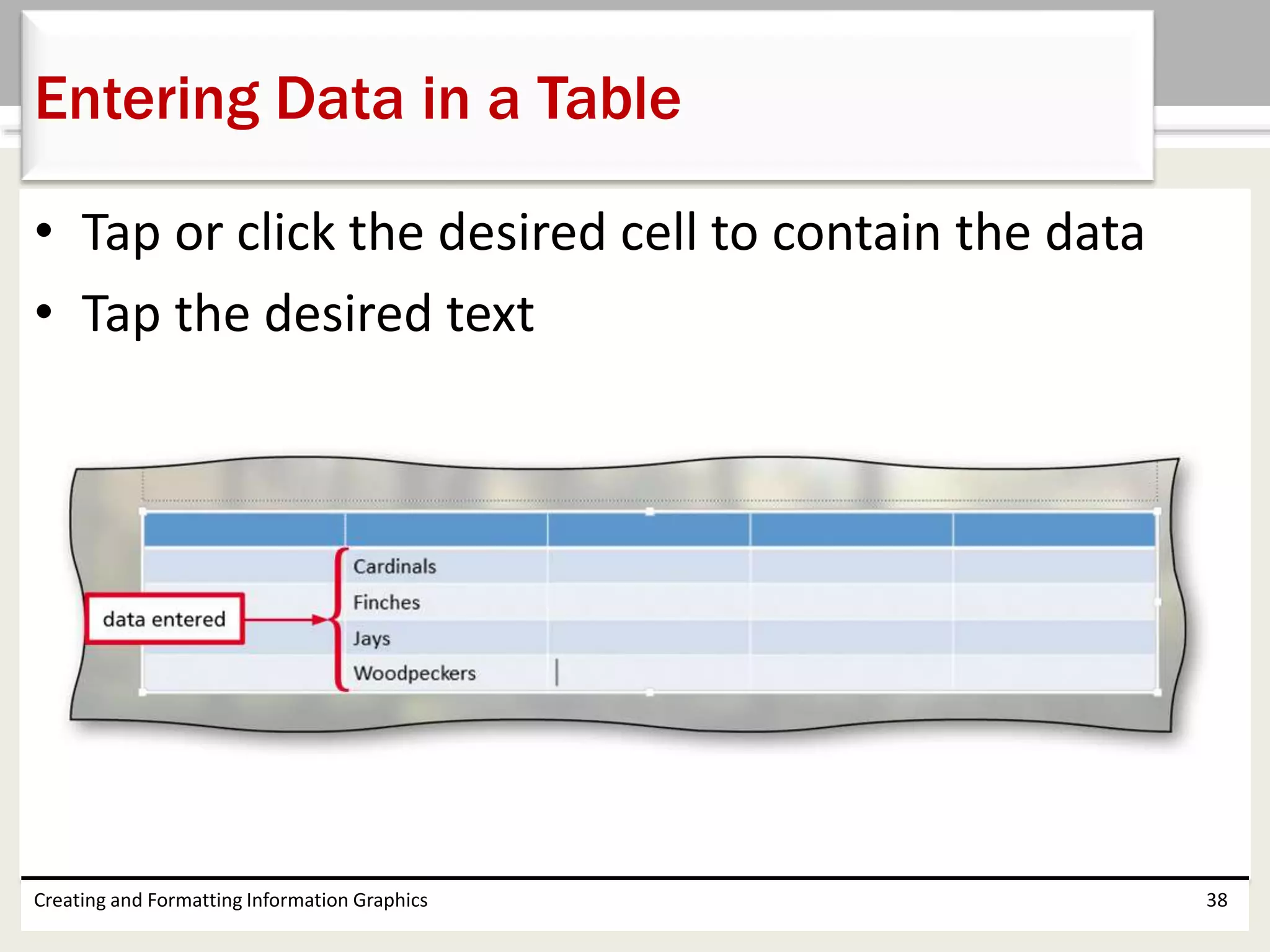
• Tap or click the desired cell to contain the data
• Tap the desired text
Creating and Formatting Information Graphics 38
Entering Data in a Table
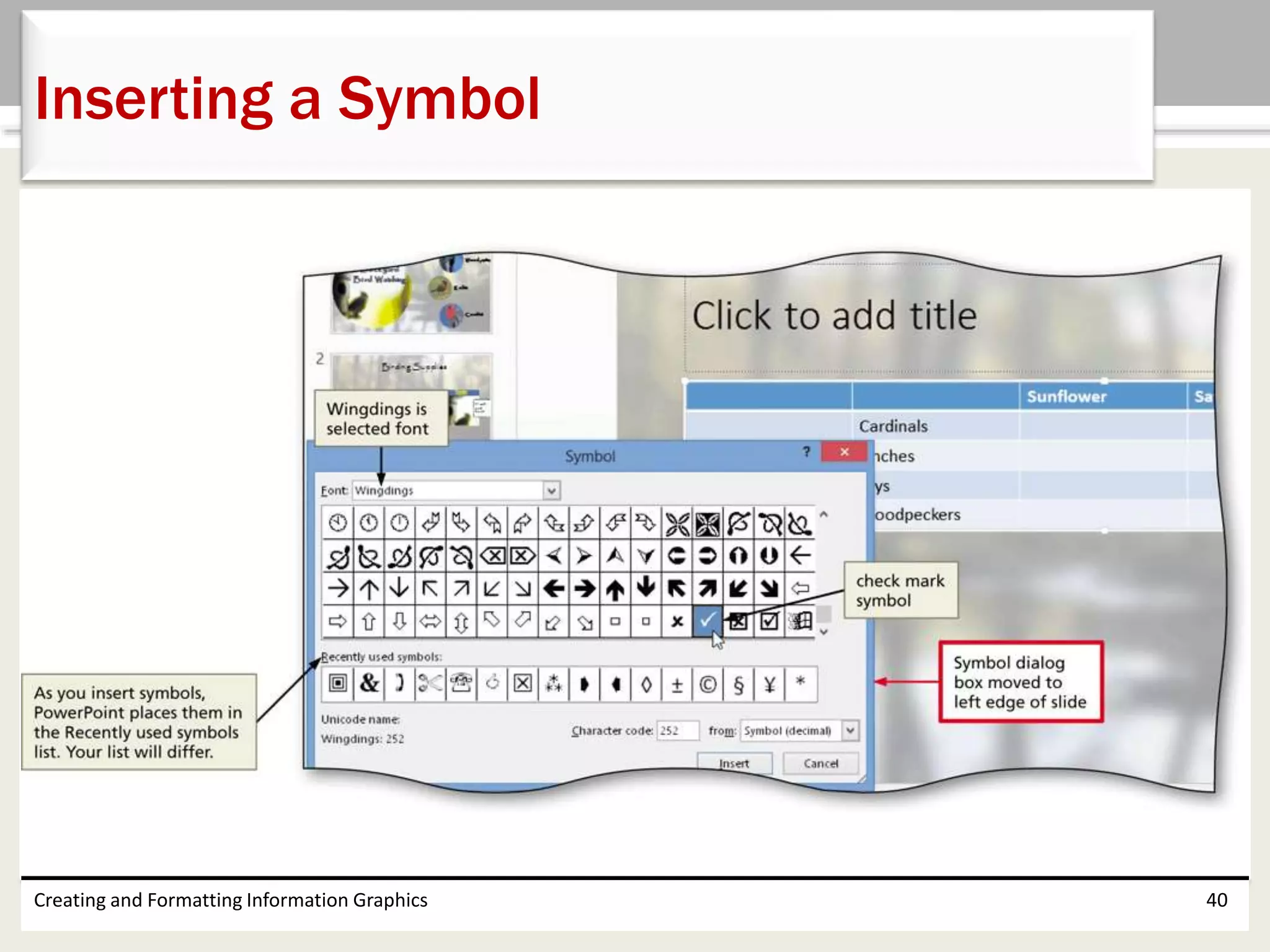
• Tap or click the Symbol button (INSERT tab |
Symbols group) to display the Symbol dialog box
• Select the desired font in the Font box
• Scroll to and then tap or click the desired symbol
in the list of symbols
• Tap or click the Insert button
• Tap or click the Close button
Creating and Formatting Information Graphics 39
Inserting a Symbol
Creating and Formatting Information Graphics 40
Inserting a Symbol
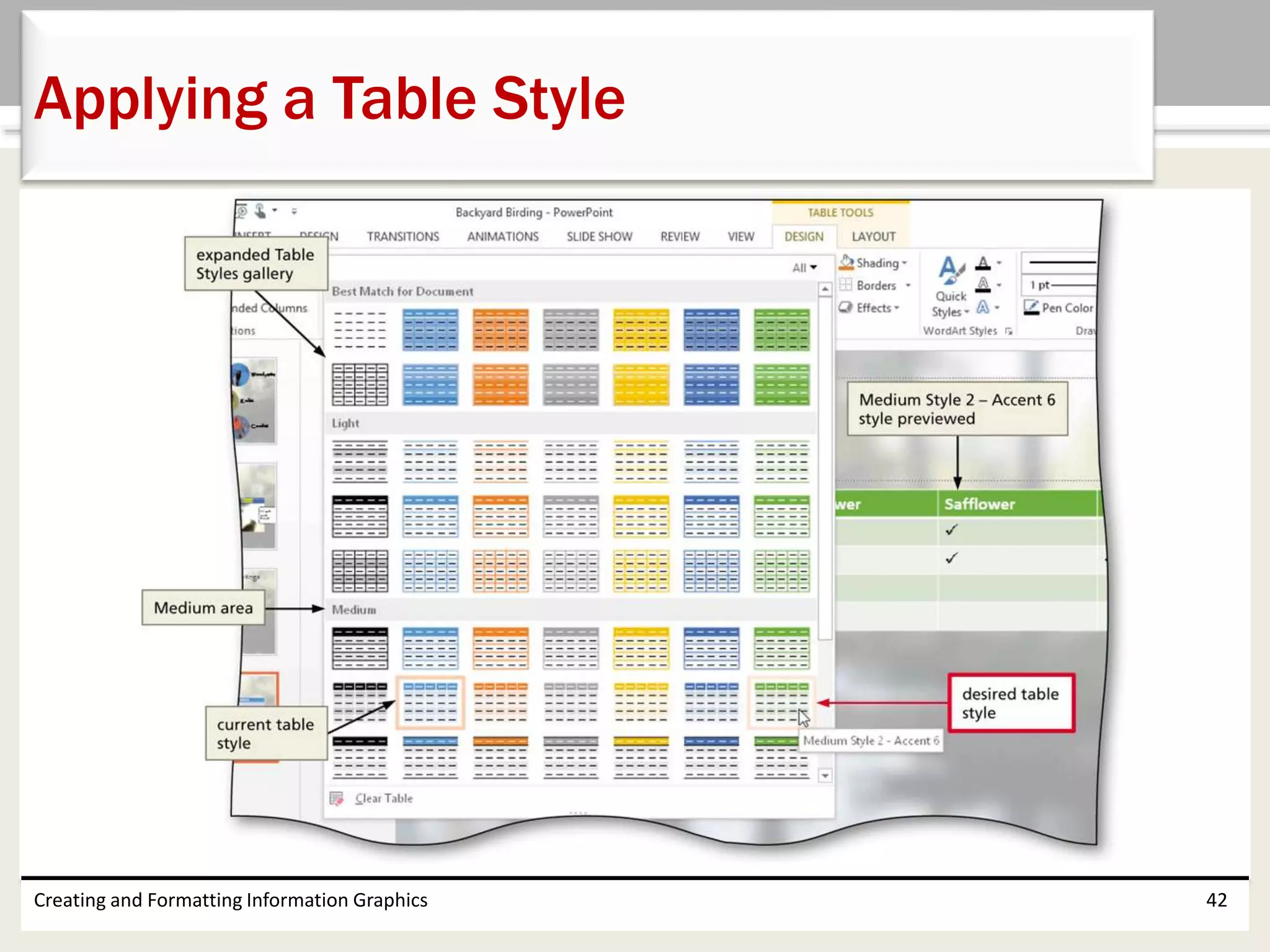
• With the insertion point in the table, display the
TABLE TOOLS DESIGN tab
• Tap or click the More button in the Table Styles
gallery to expand the Table Styles gallery
• Tap or click the desired table style
Creating and Formatting Information Graphics 41
Applying a Table Style
Creating and Formatting Information Graphics 42
Applying a Table Style
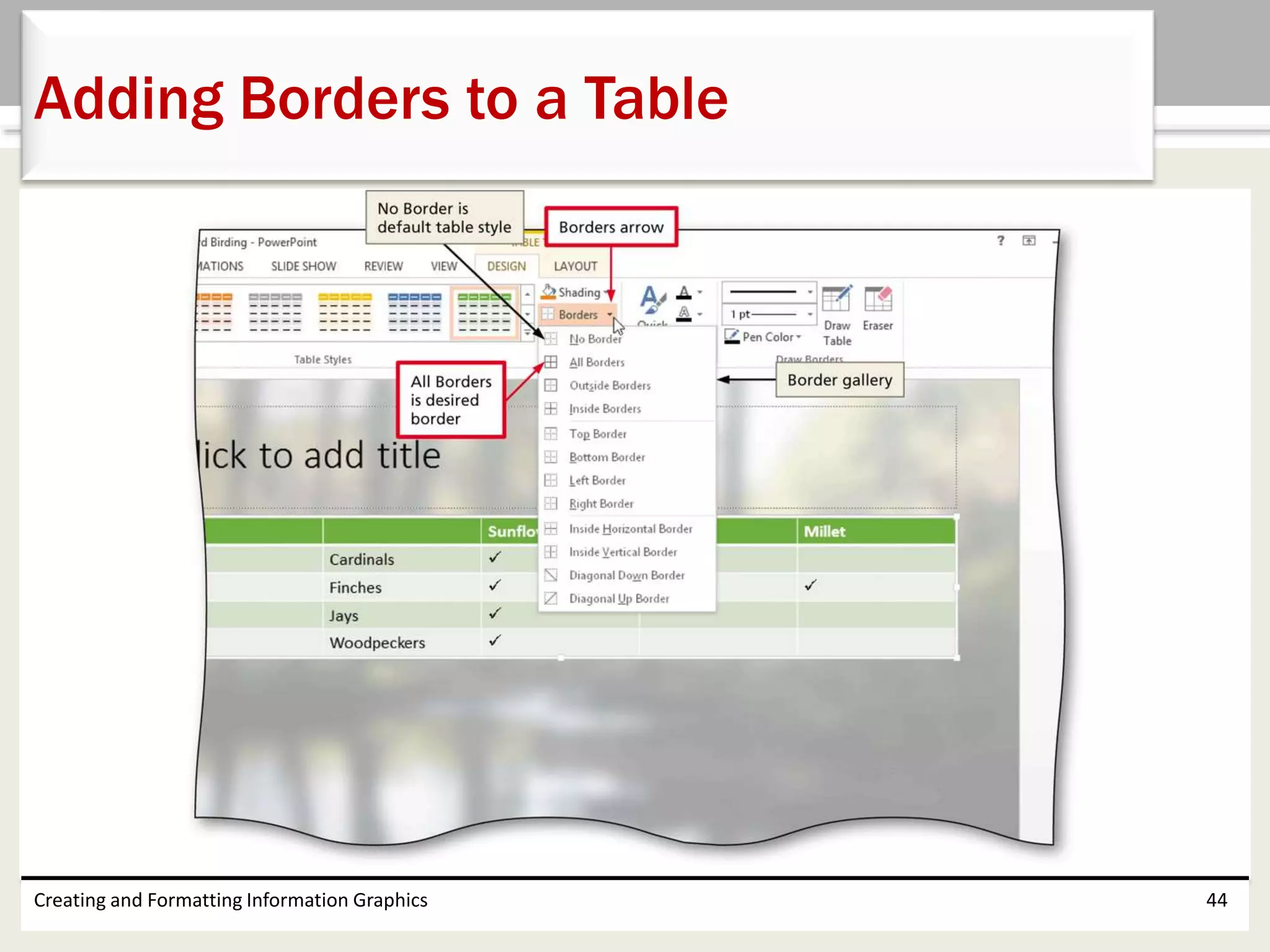
• Tap or click the edge of the table so that the
insertion point does not appear in any cell
• Tap or click the Border arrow (TABLE TOOLS
DESIGN tab | Table Styles group) to display the
Border gallery
• Tap or click the desired selection
Creating and Formatting Information Graphics 43
Adding Borders to a Table
Creating and Formatting Information Graphics 44
Adding Borders to a Table
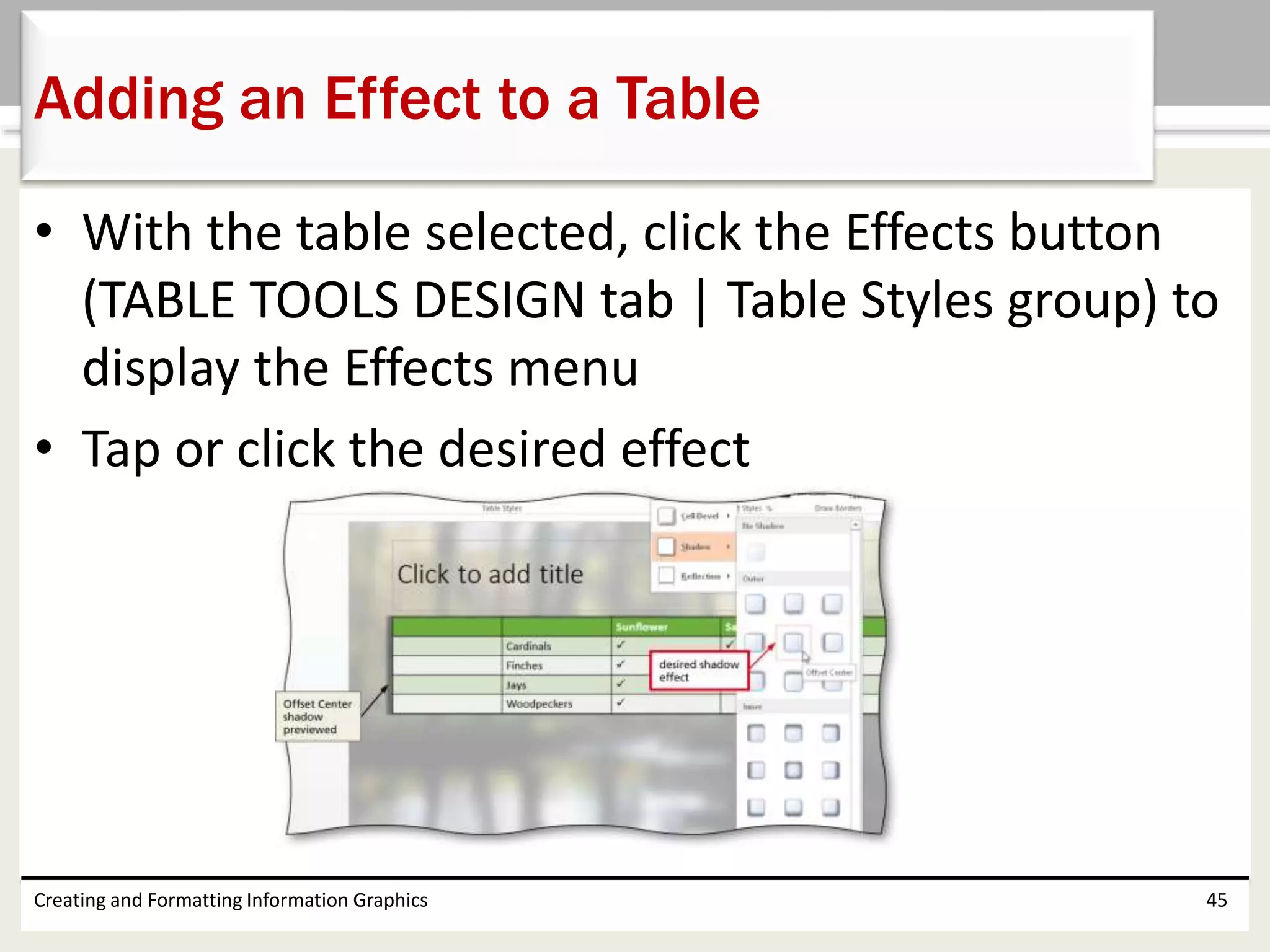
• With the table selected, click the Effects button
(TABLE TOOLS DESIGN tab | Table Styles group) to
display the Effects menu
• Tap or click the desired effect
Creating and Formatting Information Graphics 45
Adding an Effect to a Table
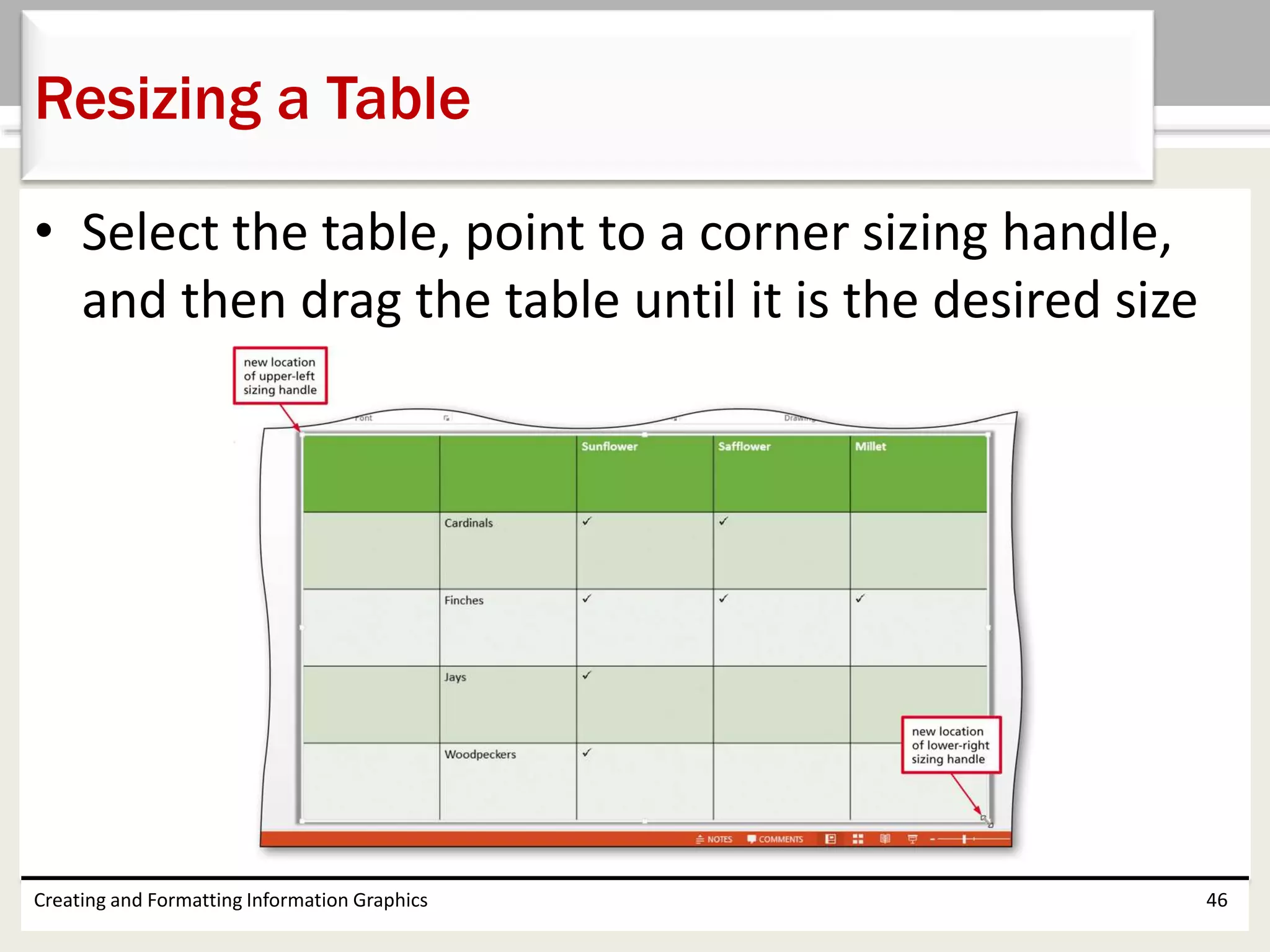
• Select the table, point to a corner sizing handle,
and then drag the table until it is the desired size
Creating and Formatting Information Graphics 46
Resizing a Table
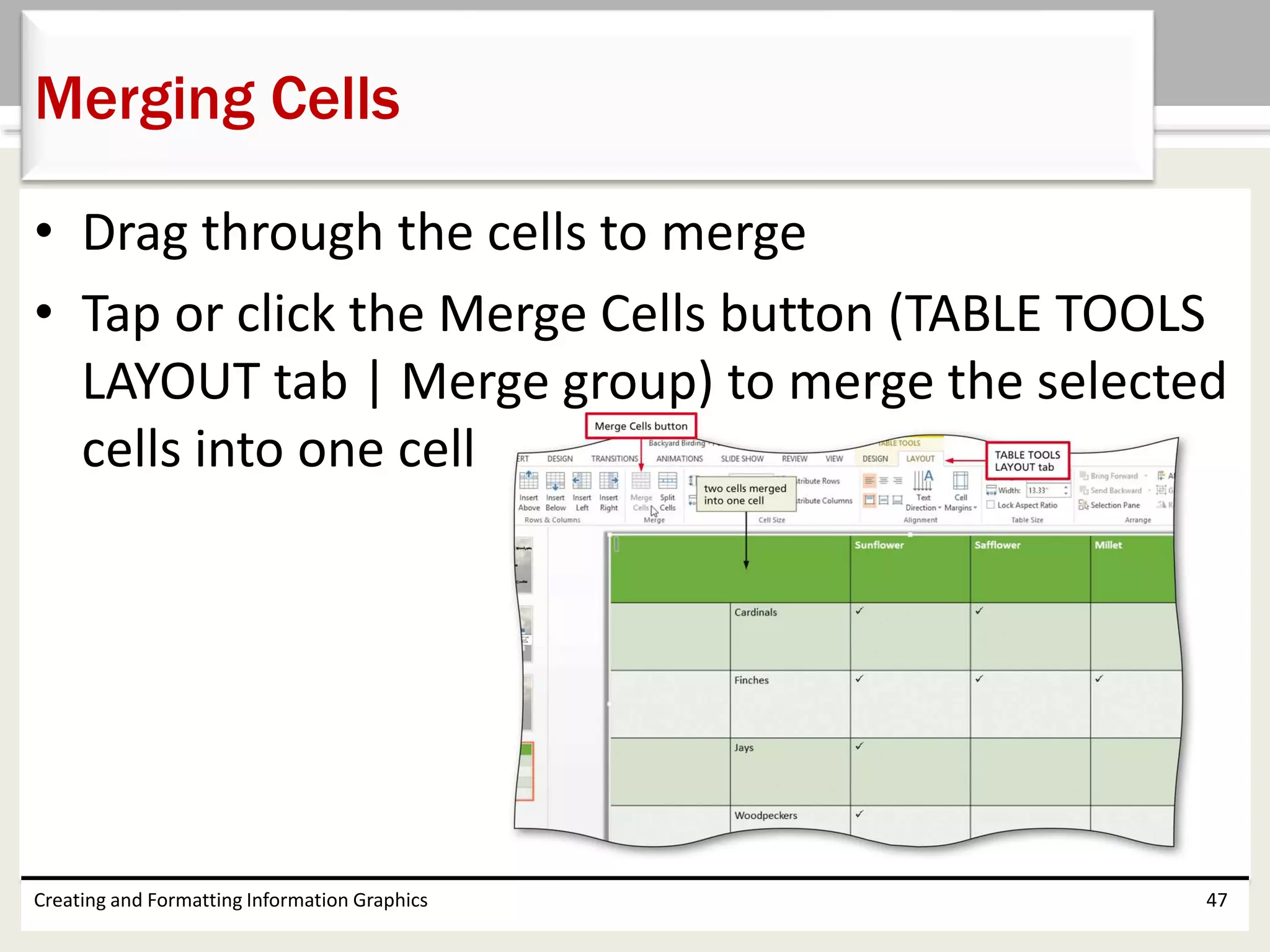
• Drag through the cells to merge
• Tap or click the Merge Cells button (TABLE TOOLS
LAYOUT tab | Merge group) to merge the selected
cells into one cell
Creating and Formatting Information Graphics 47
Merging Cells
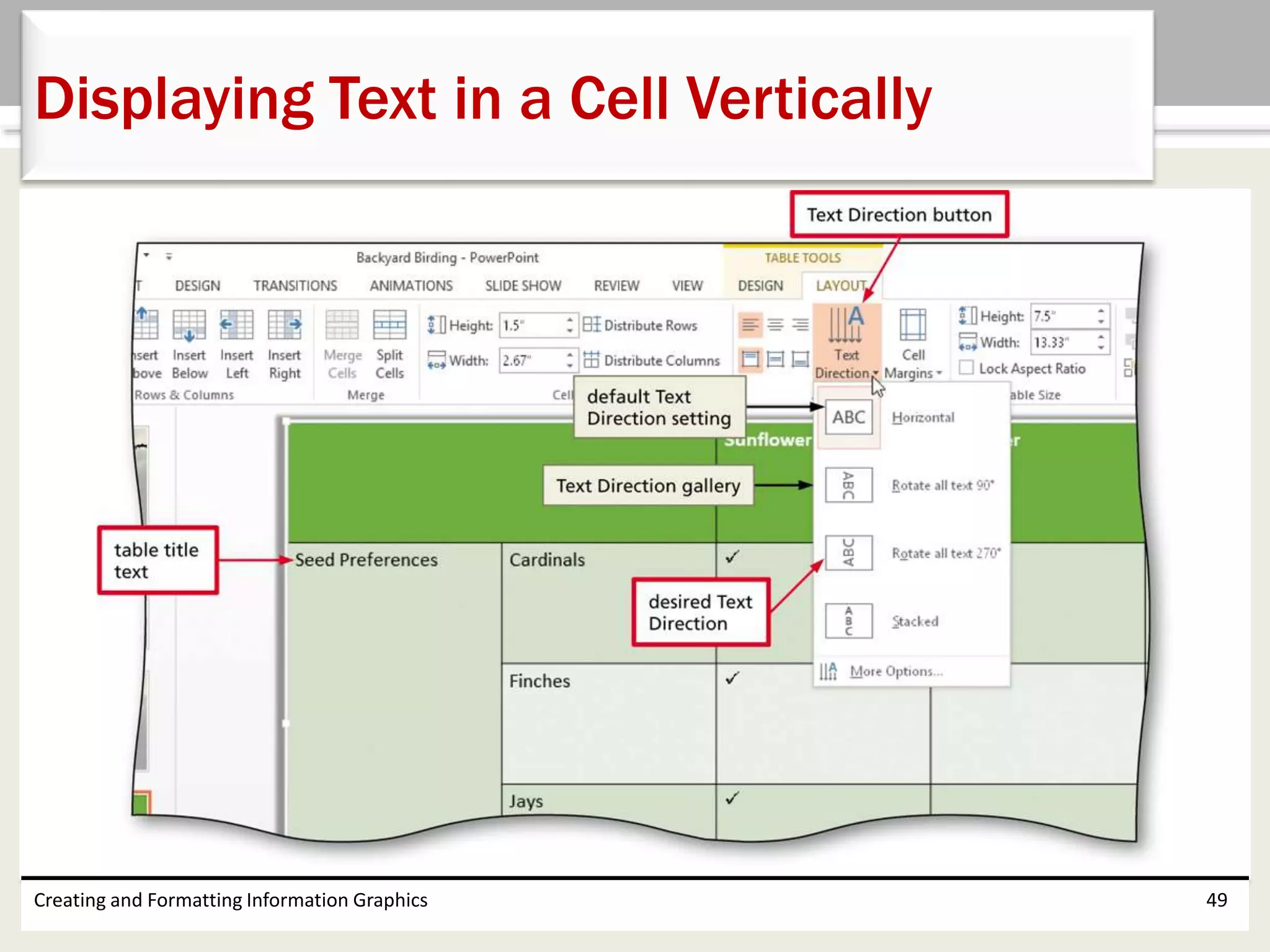
• Tap or click the Text Direction button (TABLE
TOOLS LAYOUT tab | Alignment group) to display
the Text Direction gallery
• Tap or click ‘Rotate all text 270°’ to rotate the text
in the cell
Creating and Formatting Information Graphics 48
Displaying Text in a Cell Vertically
Creating and Formatting Information Graphics 49
Displaying Text in a Cell Vertically
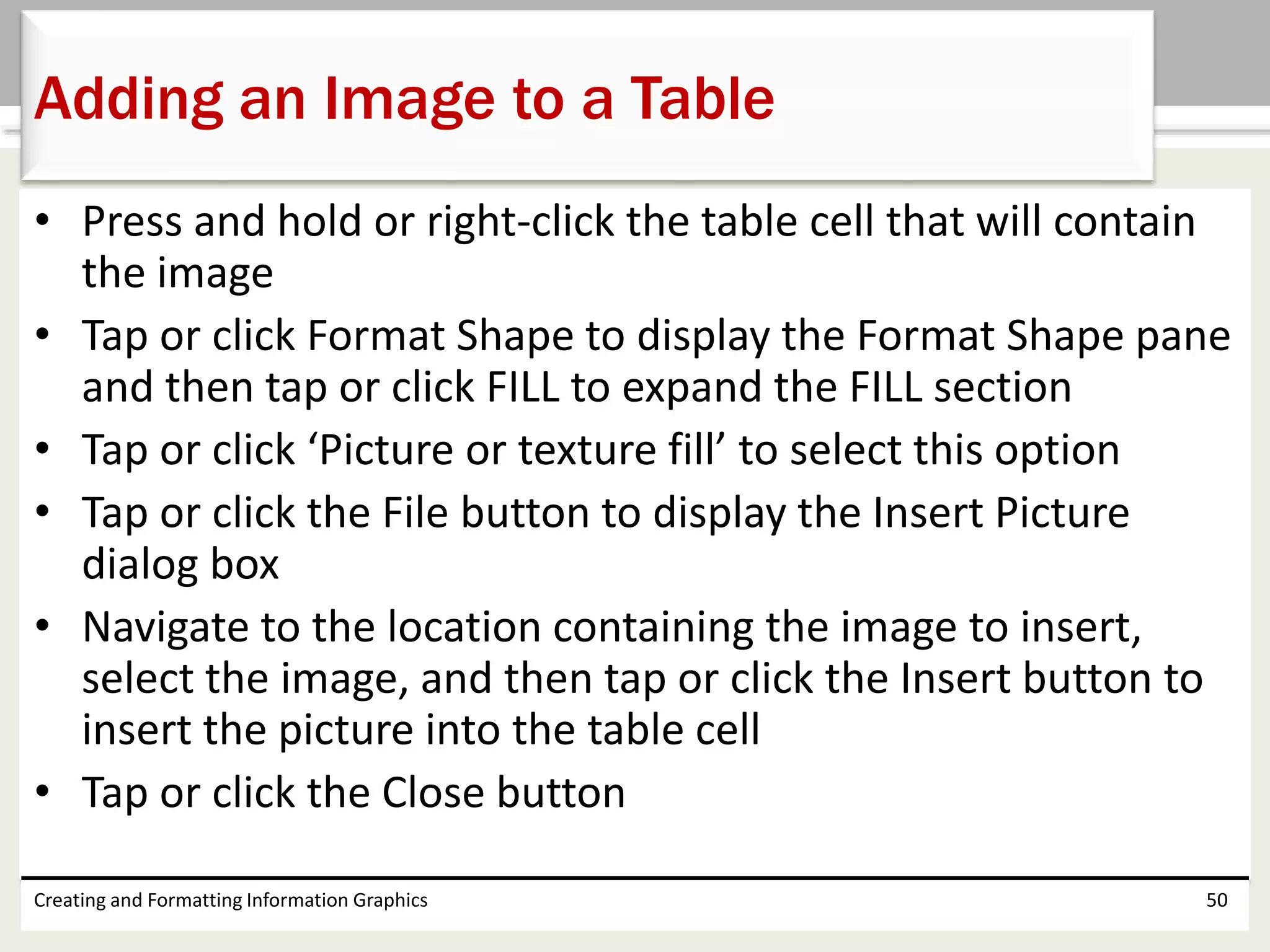
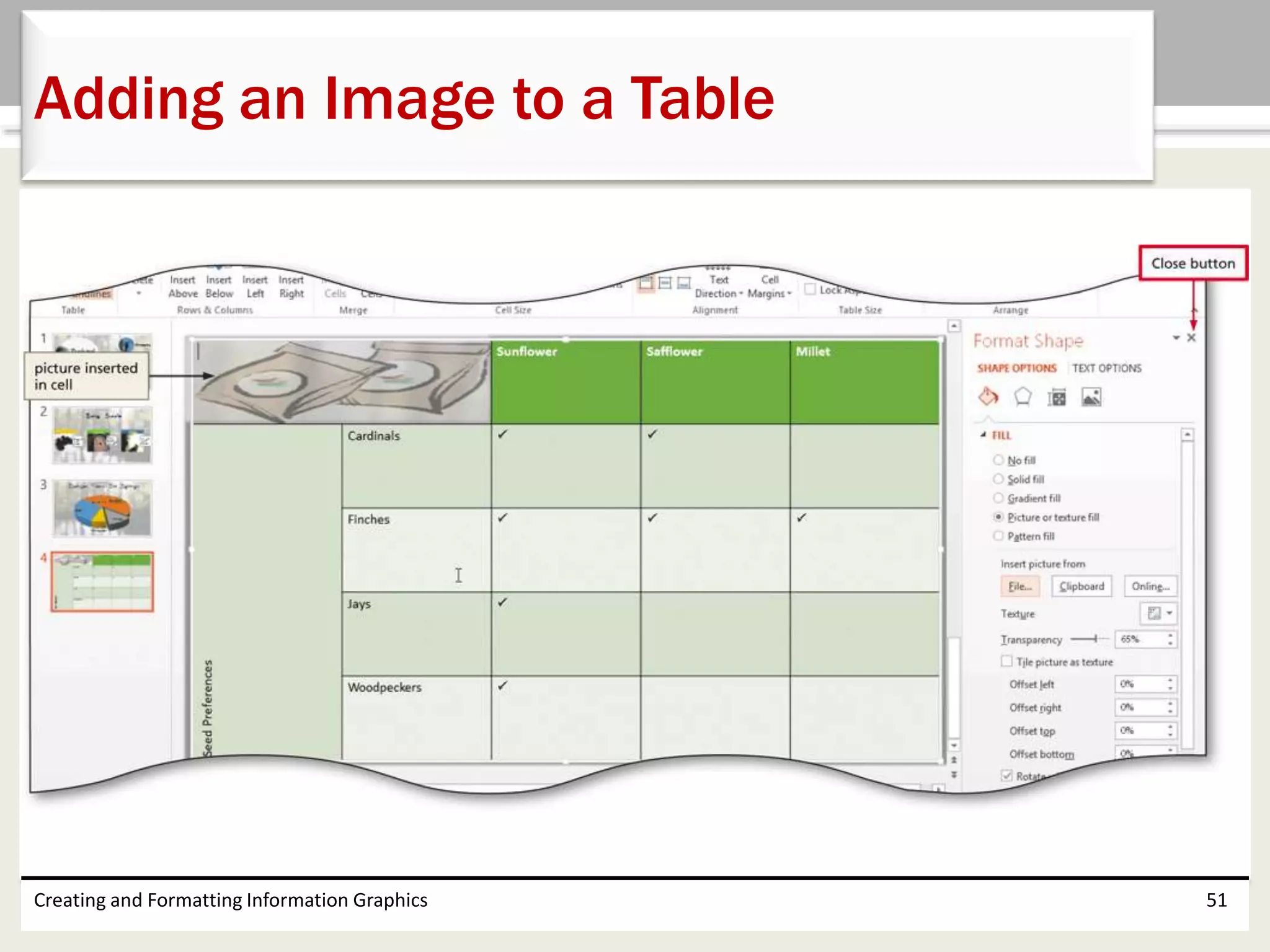
• Press and hold or right-click the table cell that will contain
the image
• Tap or click Format Shape to display the Format Shape pane
and then tap or click FILL to expand the FILL section
• Tap or click ‘Picture or texture fill’ to select this option
• Tap or click the File button to display the Insert Picture
dialog box
• Navigate to the location containing the image to insert,
select the image, and then tap or click the Insert button to
insert the picture into the table cell
• Tap or click the Close button
Creating and Formatting Information Graphics 50
Adding an Image to a Table
Creating and Formatting Information Graphics 51
Adding an Image to a Table
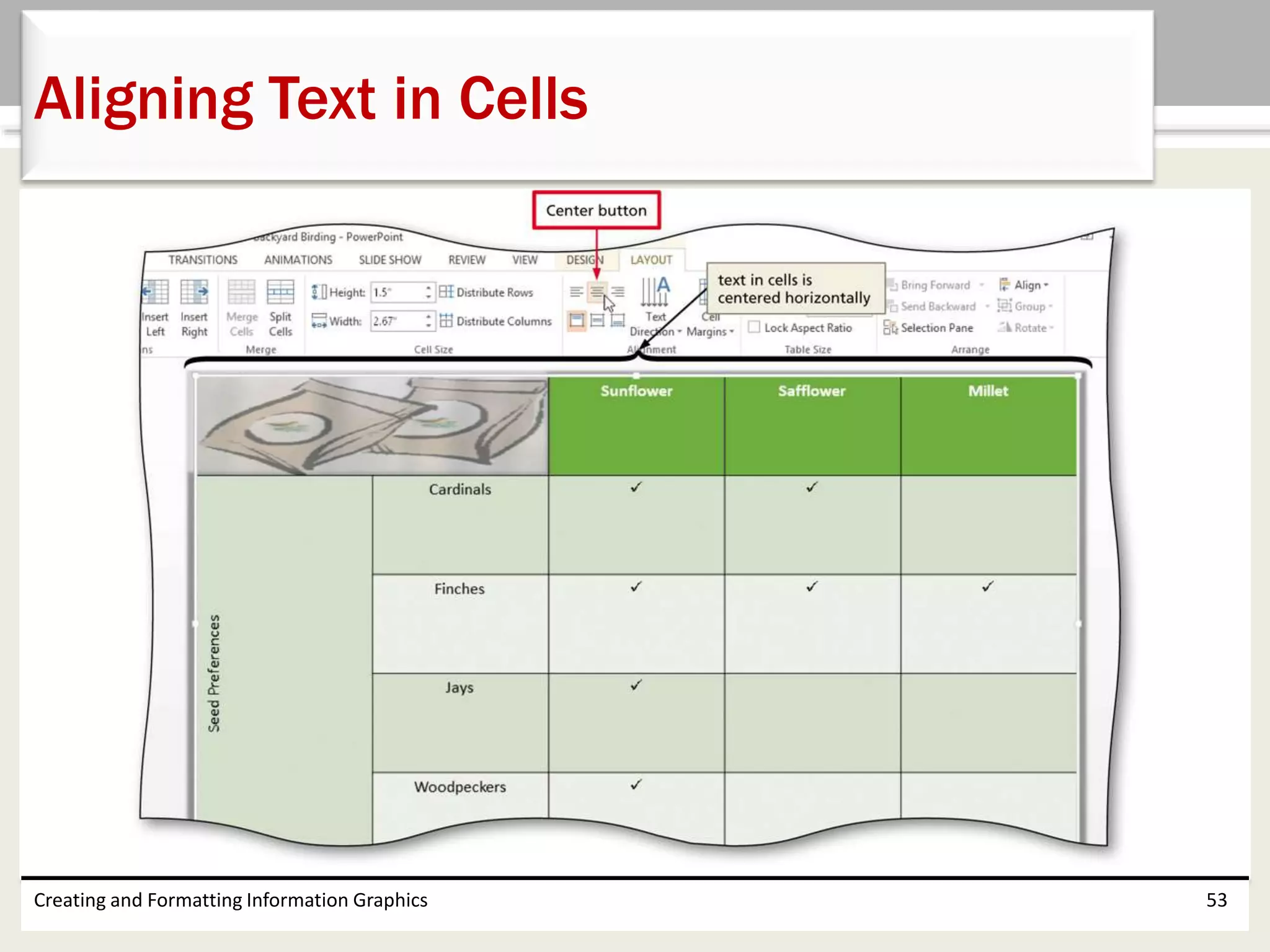
• With the TABLE TOOLS LAYOUT tab displayed, tap
or click the Select button to display the Select
menu
• Tap or click Select Table in the Select menu to
select the entire table
• Tap or click the desired alignment button to align
the text in the cells
Creating and Formatting Information Graphics 52
Aligning Text in Cells
Creating and Formatting Information Graphics 53
Aligning Text in Cells
• Insert a SmartArt graphic
• Insert images from a file into a SmartArt graphic
• Format a SmartArt graphic
• Convert text to a SmartArt graphic
• Create and format a chart
• Rotate a chart
Creating and Formatting Information Graphics 54
Chapter Summary
• Change the chart title and legend
• Separate a pie chart slice
• Create and format a table
• Insert a symbol in a table
• Change table text alignment and orientation
• Add an image to a table
Creating and Formatting Information Graphics 55
Chapter Summary
Chapter 4 Complete
Microsoft
PowerPoint 2013

PowerPoint 2013 ch04

  • 1.
    Chapter 4 Creating andFormatting Information Graphics Microsoft PowerPoint 2013
  • 2.
    • Insert aSmartArt graphic • Insert images from a file into a SmartArt graphic • Format a SmartArt graphic • Convert text to a SmartArt graphic • Create and format a chart • Rotate a chart Creating and Formatting Information Graphics 2 Objectives
  • 3.
    • Change thechart title and legend • Separate a pie chart slice • Create and format a table • Insert a symbol in a table • Change table text alignment and orientation • Add an image to a table Creating and Formatting Information Graphics 3 Objectives
  • 4.
    Creating and FormattingInformation Graphics 4 Project – Presentation with SmartArt, a Chart, and a Table
  • 5.
    • Insert andmodify a SmartArt graphic • Add SmartArt styles and effects • Convert text to a SmartArt graphic and format the content • Create a chart to show proportions • Format a chart by changing style and layout • Create a table to compare and contrast data • Change table content style and alignment Creating and Formatting Information Graphics 5 Roadmap
  • 6.
    • Tap orclick the SmartArt button (INSERT tab | Illustrations group) to display the Choose a SmartArt Graphic dialog box • Tap or click the desired SmartArt type in the left pane to display the corresponding gallery • Tap or click the desired graphic to display a preview in the right pane • Tap or click the OK button to insert this SmartArt graphic • If necessary, tap or click the Text Pane button (SMARTART TOOLS DESIGN tab | Create Graphic group) to open the Text pane if it does not display automatically Creating and Formatting Information Graphics 6 Inserting a SmartArt Graphic
  • 7.
    Creating and FormattingInformation Graphics 7 Inserting a SmartArt Graphic
  • 8.
    • Type thefirst item in the first bullet line, and then press the DOWN ARROW key to move the insertion point to the second bullet line • Type the remaining lines Creating and Formatting Information Graphics 8 Entering Text in a SmartArt Graphic
  • 9.
    • Select thetext to format • Set the desired formatting options on the mini toolbar Creating and Formatting Information Graphics 9 Formatting Text Pane Characters
  • 10.
    • Tap orclick the Insert Picture from File icon in the picture placeholder to display the Insert Picture dialog box • Tap or click the Browse button in the From a file area to display the Insert Picture dialog box • Navigate to the location of the picture to insert • Tap or click the picture to insert • Tap or click the Insert button to insert the picture into the SmartArt picture placeholder Creating and Formatting Information Graphics 10 Inserting a Picture from a File into a SmartArt Graphic
  • 11.
    Creating and FormattingInformation Graphics 11 Inserting a Picture from a File into a SmartArt Graphic
  • 12.
    • With theSmartArt graphic selected, tap or click the More button (SMART ART TOOLS DESIGN tab | SmartArt Styles group) to expand the SmartArt Styles gallery • Tap or click the desired style to apply the style to the graphic Creating and Formatting Information Graphics 12 Applying a SmartArt Style
  • 13.
    Creating and FormattingInformation Graphics 13 Applying a SmartArt Style
  • 14.
    • With theSmartArt graphic selected, tap or click the Change Colors button (SMARTART TOOLS DESIGN tab | SmartArt Styles group) to display the Change Colors gallery • Tap or click the desired color to apply the color variation to the graphic Creating and Formatting Information Graphics 14 Changing SmartArt Color
  • 15.
    Creating and FormattingInformation Graphics 15 Changing SmartArt Color
  • 16.
    • With theSmartArt graphic selected, drag the desired sizing handle until the SmartArt graphic is the size you want Creating and Formatting Information Graphics 16 Resizing a SmartArt Graphic
  • 17.
    • Tap orclick any of the letters in the text box • Drag an edge of the text box to the desired location Creating and Formatting Information Graphics 17 Moving a Text Box
  • 18.
    • Select thebulleted list items to convert and then click the ‘Convert to SmartArt’ button (HOME tab | Paragraph group) to display the SmartArt Graphics gallery • Tap or click ‘More SmartArt Graphics’ in the SmartArt Graphics gallery to display the Choose a SmartArt Graphic dialog box • Tap or click the desired category in the left pane • Tap or click the desired SmartArt graphic shape in the right pane • Tap or click the OK button to apply this shape and convert the text Creating and Formatting Information Graphics 18 Converting Text to a SmartArt Graphic
  • 19.
    Creating and FormattingInformation Graphics 19 Converting Text to a SmartArt Graphic
  • 20.
    • Select theSmartArt shapes containing the text you wish to bold • Tap or click the desired formatting option on the HOME tab Creating and Formatting Information Graphics 20 Formatting SmartArt Graphic Text
  • 21.
    • Tap orclick the Insert Chart button in the content placeholder to display the Insert Chart dialog box • Tap or click the desired chart category and chart type • Tap or click the OK button to start the Microsoft Excel program and open a worksheet tiled on top of the presentation • Type the desired data in the Excel worksheet to update the chart • Close Excel by tapping or clicking its Close button Creating and Formatting Information Graphics 21 Inserting a Chart
  • 22.
    Creating and FormattingInformation Graphics 22 Inserting a Chart
  • 23.
    • Select thechart • Tap or click the Shape Outline arrow (CHART TOOLS FORMAT tab | Shape Styles group) to display the Shape Outline gallery • Point to Weight in the Shape Outline gallery to display the Weight gallery • Tap or click the desired outline weight Creating and Formatting Information Graphics 23 Changing the Shape Outline Weight
  • 24.
    Creating and FormattingInformation Graphics 24 Changing the Shape Outline Weight
  • 25.
    • With theshape outline selected, tap or click the Shape Outline arrow (CHART TOOLS FORMAT tab | Shape Styles group) and then tap or click the desired color to add colored borders Creating and Formatting Information Graphics 25 Changing the Shape Outline Color
  • 26.
    • With thechart selected, tap or click the CHART TOOLS DESIGN tab to display the Chart Tools Design ribbon and then tap or click the Quick Layout button to display the Quick Layout gallery • Tap or click the desired layout to apply the selected layout to the chart Creating and Formatting Information Graphics 26 Changing a Chart Layout
  • 27.
    Creating and FormattingInformation Graphics 27 Changing a Chart Layout
  • 28.
    • Select thechart, point to a corner sizing handle, and then drag until the chart is the desired size Creating and Formatting Information Graphics 28 Resizing a Chart
  • 29.
    • Select thetext to format • Select the desired font and font size to format the text in the chart Creating and Formatting Information Graphics 29 Changing the Title and Legend Font and Font Size
  • 30.
    • Tap orclick the Format Selection button (CHART TOOLS FORMAT tab | Current Selection group) to display the Format Data Point dialog box • Tap or click the ‘Angle of first slice’ slider and drag it to the desired location Creating and Formatting Information Graphics 30 Rotating a Chart
  • 31.
    Creating and FormattingInformation Graphics 31 Rotating a Chart
  • 32.
    • Select thepie slice to separate • Tap or click the Point Explosion slider and drag it to the desired value • Tap or click the Close button in the Format Data Point pane to close the pane Creating and Formatting Information Graphics 32 Separating a Pie Slice
  • 33.
    Creating and FormattingInformation Graphics 33 Separating a Pie Slice
  • 34.
    • Tap orclick the Text Box button (INSERT tab | Text group), and then if you are using a mouse, click the desired location for the text box • If necessary, drag the text box to the desired location • If necessary, tap or click the text box and then type the desired text • Select the text in the text box and then apply the desired formatting Creating and Formatting Information Graphics 34 Inserting a Text Box and Formatting Text
  • 35.
    Creating and FormattingInformation Graphics 35 Inserting a Text Box and Formatting Text
  • 36.
    • Tap orclick the Insert Table button in the content placeholder to display the Insert Table dialog box • Tap or click the up or down arrow to the right of the ‘Number of columns’ box one time so that the desired number of columns appears in the box • Tap or click the up or down arrow to the right of the ‘Number of rows’ box four times so that the desired number of rows appears in the box • Tap or click the OK button Creating and Formatting Information Graphics 36 Inserting an Empty Table
  • 37.
    Creating and FormattingInformation Graphics 37 Inserting an Empty Table
  • 38.
    • Tap orclick the desired cell to contain the data • Tap the desired text Creating and Formatting Information Graphics 38 Entering Data in a Table
  • 39.
    • Tap orclick the Symbol button (INSERT tab | Symbols group) to display the Symbol dialog box • Select the desired font in the Font box • Scroll to and then tap or click the desired symbol in the list of symbols • Tap or click the Insert button • Tap or click the Close button Creating and Formatting Information Graphics 39 Inserting a Symbol
  • 40.
    Creating and FormattingInformation Graphics 40 Inserting a Symbol
  • 41.
    • With theinsertion point in the table, display the TABLE TOOLS DESIGN tab • Tap or click the More button in the Table Styles gallery to expand the Table Styles gallery • Tap or click the desired table style Creating and Formatting Information Graphics 41 Applying a Table Style
  • 42.
    Creating and FormattingInformation Graphics 42 Applying a Table Style
  • 43.
    • Tap orclick the edge of the table so that the insertion point does not appear in any cell • Tap or click the Border arrow (TABLE TOOLS DESIGN tab | Table Styles group) to display the Border gallery • Tap or click the desired selection Creating and Formatting Information Graphics 43 Adding Borders to a Table
  • 44.
    Creating and FormattingInformation Graphics 44 Adding Borders to a Table
  • 45.
    • With thetable selected, click the Effects button (TABLE TOOLS DESIGN tab | Table Styles group) to display the Effects menu • Tap or click the desired effect Creating and Formatting Information Graphics 45 Adding an Effect to a Table
  • 46.
    • Select thetable, point to a corner sizing handle, and then drag the table until it is the desired size Creating and Formatting Information Graphics 46 Resizing a Table
  • 47.
    • Drag throughthe cells to merge • Tap or click the Merge Cells button (TABLE TOOLS LAYOUT tab | Merge group) to merge the selected cells into one cell Creating and Formatting Information Graphics 47 Merging Cells
  • 48.
    • Tap orclick the Text Direction button (TABLE TOOLS LAYOUT tab | Alignment group) to display the Text Direction gallery • Tap or click ‘Rotate all text 270°’ to rotate the text in the cell Creating and Formatting Information Graphics 48 Displaying Text in a Cell Vertically
  • 49.
    Creating and FormattingInformation Graphics 49 Displaying Text in a Cell Vertically
  • 50.
    • Press andhold or right-click the table cell that will contain the image • Tap or click Format Shape to display the Format Shape pane and then tap or click FILL to expand the FILL section • Tap or click ‘Picture or texture fill’ to select this option • Tap or click the File button to display the Insert Picture dialog box • Navigate to the location containing the image to insert, select the image, and then tap or click the Insert button to insert the picture into the table cell • Tap or click the Close button Creating and Formatting Information Graphics 50 Adding an Image to a Table
  • 51.
    Creating and FormattingInformation Graphics 51 Adding an Image to a Table
  • 52.
    • With theTABLE TOOLS LAYOUT tab displayed, tap or click the Select button to display the Select menu • Tap or click Select Table in the Select menu to select the entire table • Tap or click the desired alignment button to align the text in the cells Creating and Formatting Information Graphics 52 Aligning Text in Cells
  • 53.
    Creating and FormattingInformation Graphics 53 Aligning Text in Cells
  • 54.
    • Insert aSmartArt graphic • Insert images from a file into a SmartArt graphic • Format a SmartArt graphic • Convert text to a SmartArt graphic • Create and format a chart • Rotate a chart Creating and Formatting Information Graphics 54 Chapter Summary
  • 55.
    • Change thechart title and legend • Separate a pie chart slice • Create and format a table • Insert a symbol in a table • Change table text alignment and orientation • Add an image to a table Creating and Formatting Information Graphics 55 Chapter Summary
  • 56.