Microsoft 
Word 2013 
Chapter 10 
Creating a Template 
for an Online Form
Objectives 
• Save a document as a template 
• Change paper size 
• Change page color 
• Insert a borderless table in a form 
• Show the DEVELOPER tab 
• Insert plain text, drop-down list, check box, rich 
text, combo box, and date picker content controls 
Creating a Template for an Online Form 2
Objectives 
• Edit placeholder text 
• Change properties of content controls 
• Insert and format a rectangle shape 
• Customize a theme 
• Protect a form 
• Open a new document based on a template 
• Fill in a form 
Creating a Template for an Online Form 3
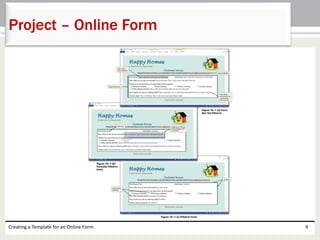
Project – Online Form 
Creating a Template for an Online Form 4
Roadmap 
• Save a document as a template 
• Set form formats for the template 
• Enter text, graphics, and content controls in the 
form 
• Protect the form 
• Use the form 
Creating a Template for an Online Form 5
Saving a Document as a Template 
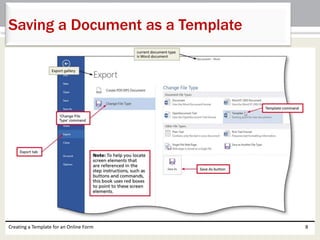
• If necessary, open a new blank document in the Word 
window 
• With a USB flash drive connected to one of the 
computer’s USB ports, open the Backstage view and 
then click the Save & Send tab in the Backstage view 
to display the Save & Send gallery 
• Tap or click ‘Change File Type’ in the Export gallery to 
display information in the right pane about various 
file types that can be opened in Word 
• Tap or click Template in the right pane to specify the 
file type for the current document 
Creating a Template for an Online Form 6
Saving a Document as a Template 
• Tap or click the Save As button to display the Save 
As dialog box with the file type automatically 
changed to Word Template 
• Type the desired file name in the File name text 
box 
• If necessary, navigate to the desired save location 
• Tap or click the Save button to save the document 
as a Word template with the entered file name 
Creating a Template for an Online Form 7
Saving a Document as a Template 
Creating a Template for an Online Form 8
Changing Paper Size 
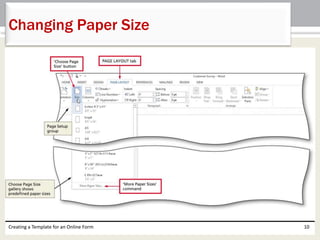
• Tap or click the ‘Choose Page Size’ button (PAGE 
LAYOUT tab | Page Setup group) to display the 
Choose Page Size gallery 
• Select the desired page size or click ‘More Paper 
Sizes’ in the Page Size gallery to display the Paper 
sheet in the Page Setup dialog box 
• If you chose More Paper Sizes, type the desired 
height and width in the Page Setup dialog box 
• Tap or click the OK button to change the paper 
size to the entered measurements 
Creating a Template for an Online Form 9
Changing Paper Size 
Creating a Template for an Online Form 10
Adding a Page Color 
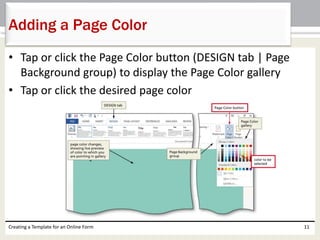
• Tap or click the Page Color button (DESIGN tab | Page 
Background group) to display the Page Color gallery 
• Tap or click the desired page color 
Creating a Template for an Online Form 11
Adding a Pattern Fill Effect 
to a Page Color 
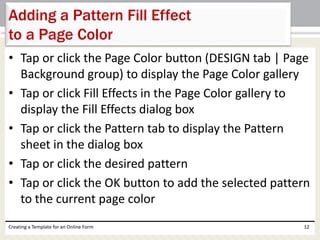
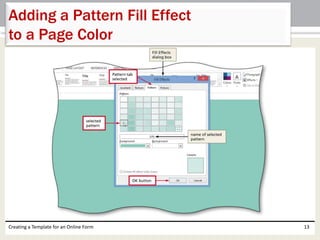
• Tap or click the Page Color button (DESIGN tab | Page 
Background group) to display the Page Color gallery 
• Tap or click Fill Effects in the Page Color gallery to 
display the Fill Effects dialog box 
• Tap or click the Pattern tab to display the Pattern 
sheet in the dialog box 
• Tap or click the desired pattern 
• Tap or click the OK button to add the selected pattern 
to the current page color 
Creating a Template for an Online Form 12
Adding a Pattern Fill Effect 
to a Page Color 
Creating a Template for an Online Form 13
Using a Table to Control Layout 
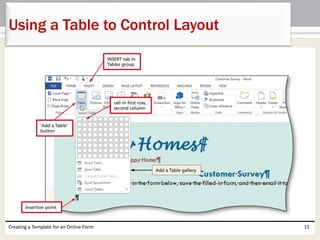
• Position the insertion point where the table should be 
inserted 
• Tap or click the ‘Add a Table’ button (INSERT tab | Tables 
group) to display the Add a Table gallery 
• Tap or click the cell corresponding to the dimensions of the 
table you wish to insert 
• Select the table 
• Tap or click the Borders arrow (TABLE TOOLS DESIGN tab | 
Table Styles group) to display the Borders gallery 
• Tap or click No Border in the Borders gallery to remove the 
borders from the table 
• Tap or click the first cell in the table to remove the selection 
Creating a Template for an Online Form 14
Using a Table to Control Layout 
Creating a Template for an Online Form 15
Content Controls 
Creating a Template for an Online Form 16
Showing the DEVELOPER Tab 
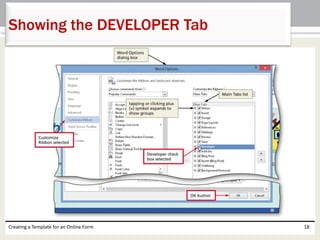
• Open the Backstage view 
• Tap or click the Options button in the Backstage 
view to display the Word Options dialog box 
• Tap or click Customize Ribbon in the left pane 
• Place a check mark in the Developer check box in 
the Main Tabs list 
• Tap or click the OK button to show the 
DEVELOPER tab on the ribbon 
Creating a Template for an Online Form 17
Showing the DEVELOPER Tab 
Creating a Template for an Online Form 18
Inserting a Plain Text Content Control 
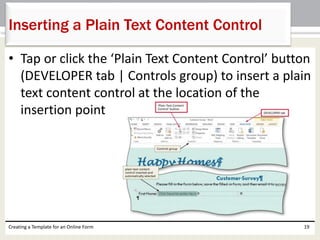
• Tap or click the ‘Plain Text Content Control’ button 
(DEVELOPER tab | Controls group) to insert a plain 
text content control at the location of the 
insertion point 
Creating a Template for an Online Form 19
Editing Placeholder Text 
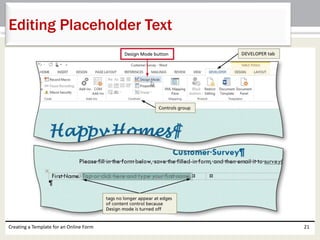
• With the plain text content control selected, tap 
or click the Design Mode button (DEVELOPER tab 
| Controls group) to turn on Design mode, which 
displays tags at the beginning and ending of the 
placeholder text 
• Edit the placeholder text as desired 
• Tap or click the Design Mode button (DEVELOPER 
tab | Controls group) to turn off Design mode 
Creating a Template for an Online Form 20
Editing Placeholder Text 
Creating a Template for an Online Form 21
Changing the Properties of a Plain Text 
Content Control 
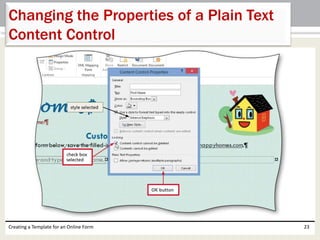
• With content control selected, tap or click the 
Control Properties button (DEVELOPER tab | 
Controls group) to display the Content Control 
Properties dialog box 
• Make the desired changes, and then tap or click 
the OK button 
Creating a Template for an Online Form 22
Changing the Properties of a Plain Text 
Content Control 
Creating a Template for an Online Form 23
Inserting a Drop-Down List 
Content Control 
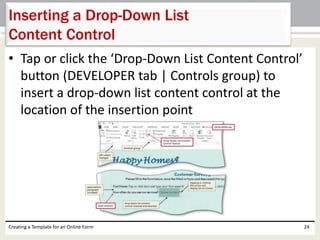
• Tap or click the ‘Drop-Down List Content Control’ 
button (DEVELOPER tab | Controls group) to 
insert a drop-down list content control at the 
location of the insertion point 
Creating a Template for an Online Form 24
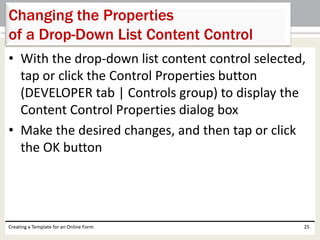
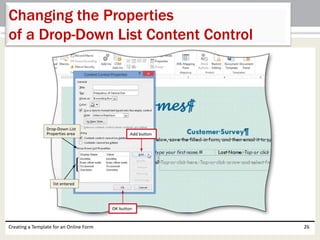
Changing the Properties 
of a Drop-Down List Content Control 
• With the drop-down list content control selected, 
tap or click the Control Properties button 
(DEVELOPER tab | Controls group) to display the 
Content Control Properties dialog box 
• Make the desired changes, and then tap or click 
the OK button 
Creating a Template for an Online Form 25
Changing the Properties 
of a Drop-Down List Content Control 
Creating a Template for an Online Form 26
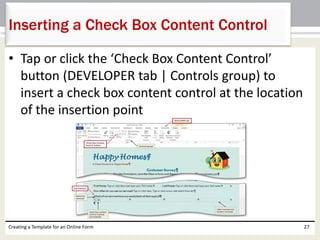
Inserting a Check Box Content Control 
• Tap or click the ‘Check Box Content Control’ 
button (DEVELOPER tab | Controls group) to 
insert a check box content control at the location 
of the insertion point 
Creating a Template for an Online Form 27
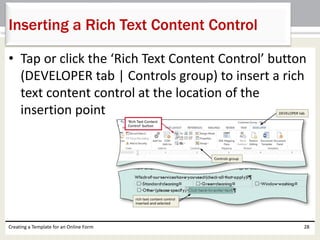
Inserting a Rich Text Content Control 
• Tap or click the ‘Rich Text Content Control’ button 
(DEVELOPER tab | Controls group) to insert a rich 
text content control at the location of the 
insertion point 
Creating a Template for an Online Form 28
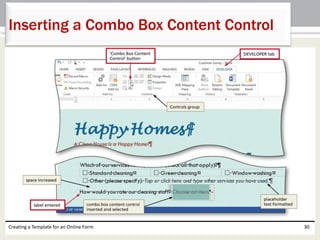
Inserting a Combo Box Content Control 
• Tap or click the ‘Combo Box Content Control’ 
button (DEVELOPER tab | Controls group) to 
insert a combo box content control at the location 
of the insertion point 
Creating a Template for an Online Form 29
Inserting a Combo Box Content Control 
Creating a Template for an Online Form 30
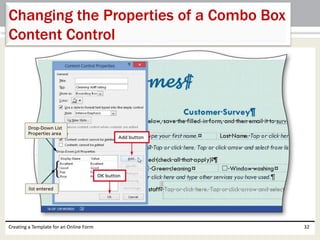
Changing the Properties of a Combo Box 
Content Control 
• With content control selected, tap or click the 
Control Properties button (DEVELOPER tab | 
Controls group) to display the Content Control 
Properties dialog box 
• Make the desired changes, and then tap or click 
the OK button 
Creating a Template for an Online Form 31
Changing the Properties of a Combo Box 
Content Control 
Creating a Template for an Online Form 32
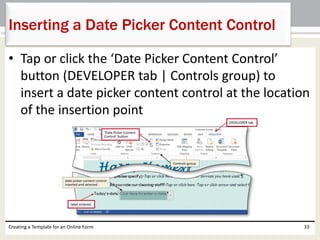
Inserting a Date Picker Content Control 
• Tap or click the ‘Date Picker Content Control’ 
button (DEVELOPER tab | Controls group) to 
insert a date picker content control at the location 
of the insertion point 
Creating a Template for an Online Form 33
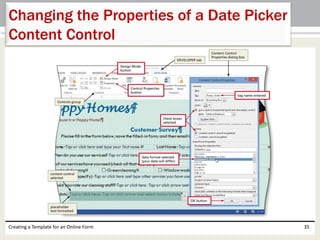
Changing the Properties of a Date Picker 
Content Control 
• With content control selected, tap or click the 
Control Properties button (DEVELOPER tab | 
Controls group) to display the Content Control 
Properties dialog box 
• Make the desired changes, and then tap or click 
the OK Button 
Creating a Template for an Online Form 34
Changing the Properties of a Date Picker 
Content Control 
Creating a Template for an Online Form 35
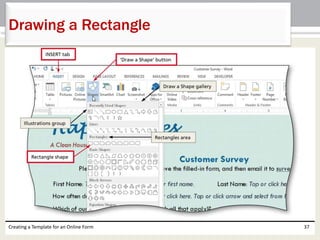
Drawing a Rectangle 
• Tap or click the ‘Draw a Shape’ button (INSERT tab | 
Illustrations group) to display the Shapes gallery 
• Tap or click the rectangle shape in the Rectangles 
area of the Draw a Shape gallery, so that you can 
draw a rectangle on the screen 
• Position the crosshair mouse pointer at the top-left 
corner for the rectangle 
• Drag the mouse pointer downward and rightward to 
form a rectangle 
• Release the mouse button to draw the rectangle 
shape 
Creating a Template for an Online Form 36
Drawing a Rectangle 
Creating a Template for an Online Form 37
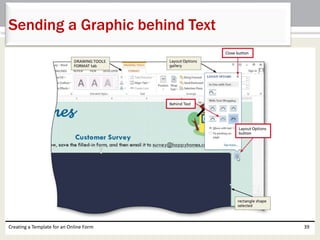
Sending a Graphic behind Text 
• With the graphic selected, tap or click the Layout 
Options button attached to the graphic to display 
the Layout Options gallery 
• Tap or click Behind Text in the Layout Options 
gallery to position the graphic behind the text 
• Tap or click the Close button in the Layout Options 
gallery to close the gallery 
Creating a Template for an Online Form 38
Sending a Graphic behind Text 
Creating a Template for an Online Form 39
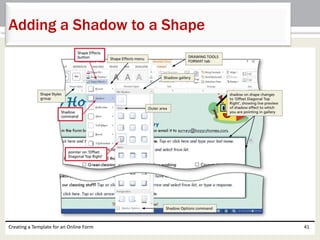
Adding a Shadow to a Shape 
• With the shape selected, tap or point to Shadow 
on the Shape Effects menu to display the Shadow 
gallery 
• Tap or click the desired shadow effect to apply the 
selected shadow to the selected shape 
Creating a Template for an Online Form 40
Adding a Shadow to a Shape 
Creating a Template for an Online Form 41
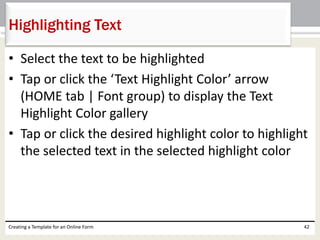
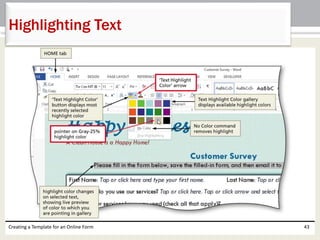
Highlighting Text 
• Select the text to be highlighted 
• Tap or click the ‘Text Highlight Color’ arrow 
(HOME tab | Font group) to display the Text 
Highlight Color gallery 
• Tap or click the desired highlight color to highlight 
the selected text in the selected highlight color 
Creating a Template for an Online Form 42
Highlighting Text 
Creating a Template for an Online Form 43
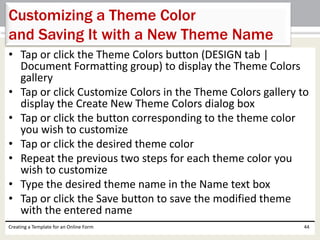
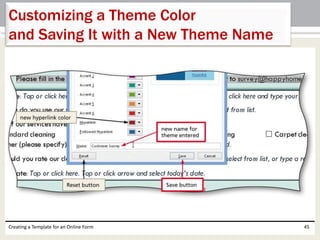
Customizing a Theme Color 
and Saving It with a New Theme Name 
• Tap or click the Theme Colors button (DESIGN tab | 
Document Formatting group) to display the Theme Colors 
gallery 
• Tap or click Customize Colors in the Theme Colors gallery to 
display the Create New Theme Colors dialog box 
• Tap or click the button corresponding to the theme color 
you wish to customize 
• Tap or click the desired theme color 
• Repeat the previous two steps for each theme color you 
wish to customize 
• Type the desired theme name in the Name text box 
• Tap or click the Save button to save the modified theme 
with the entered name 
Creating a Template for an Online Form 44
Customizing a Theme Color 
and Saving It with a New Theme Name 
Creating a Template for an Online Form 45
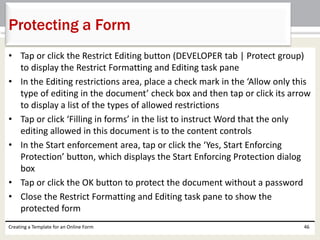
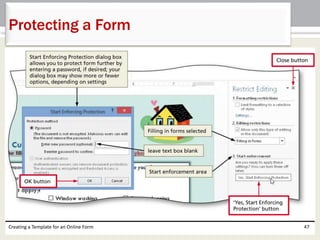
Protecting a Form 
• Tap or click the Restrict Editing button (DEVELOPER tab | Protect group) 
to display the Restrict Formatting and Editing task pane 
• In the Editing restrictions area, place a check mark in the ‘Allow only this 
type of editing in the document’ check box and then tap or click its arrow 
to display a list of the types of allowed restrictions 
• Tap or click ‘Filling in forms’ in the list to instruct Word that the only 
editing allowed in this document is to the content controls 
• In the Start enforcement area, tap or click the ‘Yes, Start Enforcing 
Protection’ button, which displays the Start Enforcing Protection dialog 
box 
• Tap or click the OK button to protect the document without a password 
• Close the Restrict Formatting and Editing task pane to show the 
protected form 
Creating a Template for an Online Form 46
Protecting a Form 
Creating a Template for an Online Form 47
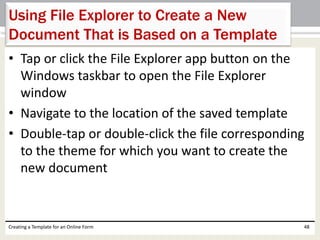
Using File Explorer to Create a New 
Document That is Based on a Template 
• Tap or click the File Explorer app button on the 
Windows taskbar to open the File Explorer 
window 
• Navigate to the location of the saved template 
• Double-tap or double-click the file corresponding 
to the theme for which you want to create the 
new document 
Creating a Template for an Online Form 48
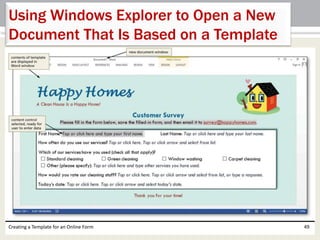
Using Windows Explorer to Open a New 
Document That Is Based on a Template 
Creating a Template for an Online Form 49
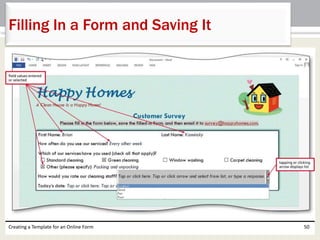
Filling In a Form and Saving It 
Creating a Template for an Online Form 50
Chapter Summary 
• Save a document as a template 
• Change paper size 
• Change page color 
• Insert a borderless table in a form 
• Show the DEVELOPER tab 
• Insert plain text, drop-down list, check box, rich 
text, combo box, and date picker content controls 
Creating a Template for an Online Form 51
Chapter Summary 
• Edit placeholder text 
• Change properties of content controls 
• Insert and format a rectangle shape 
• Customize a theme 
• Protect a form 
• Open a new document based on a template 
• Fill in a form 
Creating a Template for an Online Form 52
Microsoft 
Word 2013 
Chapter 10 Complete

Word ch10

  • 1.
    Microsoft Word 2013 Chapter 10 Creating a Template for an Online Form
  • 2.
    Objectives • Savea document as a template • Change paper size • Change page color • Insert a borderless table in a form • Show the DEVELOPER tab • Insert plain text, drop-down list, check box, rich text, combo box, and date picker content controls Creating a Template for an Online Form 2
  • 3.
    Objectives • Editplaceholder text • Change properties of content controls • Insert and format a rectangle shape • Customize a theme • Protect a form • Open a new document based on a template • Fill in a form Creating a Template for an Online Form 3
  • 4.
    Project – OnlineForm Creating a Template for an Online Form 4
  • 5.
    Roadmap • Savea document as a template • Set form formats for the template • Enter text, graphics, and content controls in the form • Protect the form • Use the form Creating a Template for an Online Form 5
  • 6.
    Saving a Documentas a Template • If necessary, open a new blank document in the Word window • With a USB flash drive connected to one of the computer’s USB ports, open the Backstage view and then click the Save & Send tab in the Backstage view to display the Save & Send gallery • Tap or click ‘Change File Type’ in the Export gallery to display information in the right pane about various file types that can be opened in Word • Tap or click Template in the right pane to specify the file type for the current document Creating a Template for an Online Form 6
  • 7.
    Saving a Documentas a Template • Tap or click the Save As button to display the Save As dialog box with the file type automatically changed to Word Template • Type the desired file name in the File name text box • If necessary, navigate to the desired save location • Tap or click the Save button to save the document as a Word template with the entered file name Creating a Template for an Online Form 7
  • 8.
    Saving a Documentas a Template Creating a Template for an Online Form 8
  • 9.
    Changing Paper Size • Tap or click the ‘Choose Page Size’ button (PAGE LAYOUT tab | Page Setup group) to display the Choose Page Size gallery • Select the desired page size or click ‘More Paper Sizes’ in the Page Size gallery to display the Paper sheet in the Page Setup dialog box • If you chose More Paper Sizes, type the desired height and width in the Page Setup dialog box • Tap or click the OK button to change the paper size to the entered measurements Creating a Template for an Online Form 9
  • 10.
    Changing Paper Size Creating a Template for an Online Form 10
  • 11.
    Adding a PageColor • Tap or click the Page Color button (DESIGN tab | Page Background group) to display the Page Color gallery • Tap or click the desired page color Creating a Template for an Online Form 11
  • 12.
    Adding a PatternFill Effect to a Page Color • Tap or click the Page Color button (DESIGN tab | Page Background group) to display the Page Color gallery • Tap or click Fill Effects in the Page Color gallery to display the Fill Effects dialog box • Tap or click the Pattern tab to display the Pattern sheet in the dialog box • Tap or click the desired pattern • Tap or click the OK button to add the selected pattern to the current page color Creating a Template for an Online Form 12
  • 13.
    Adding a PatternFill Effect to a Page Color Creating a Template for an Online Form 13
  • 14.
    Using a Tableto Control Layout • Position the insertion point where the table should be inserted • Tap or click the ‘Add a Table’ button (INSERT tab | Tables group) to display the Add a Table gallery • Tap or click the cell corresponding to the dimensions of the table you wish to insert • Select the table • Tap or click the Borders arrow (TABLE TOOLS DESIGN tab | Table Styles group) to display the Borders gallery • Tap or click No Border in the Borders gallery to remove the borders from the table • Tap or click the first cell in the table to remove the selection Creating a Template for an Online Form 14
  • 15.
    Using a Tableto Control Layout Creating a Template for an Online Form 15
  • 16.
    Content Controls Creatinga Template for an Online Form 16
  • 17.
    Showing the DEVELOPERTab • Open the Backstage view • Tap or click the Options button in the Backstage view to display the Word Options dialog box • Tap or click Customize Ribbon in the left pane • Place a check mark in the Developer check box in the Main Tabs list • Tap or click the OK button to show the DEVELOPER tab on the ribbon Creating a Template for an Online Form 17
  • 18.
    Showing the DEVELOPERTab Creating a Template for an Online Form 18
  • 19.
    Inserting a PlainText Content Control • Tap or click the ‘Plain Text Content Control’ button (DEVELOPER tab | Controls group) to insert a plain text content control at the location of the insertion point Creating a Template for an Online Form 19
  • 20.
    Editing Placeholder Text • With the plain text content control selected, tap or click the Design Mode button (DEVELOPER tab | Controls group) to turn on Design mode, which displays tags at the beginning and ending of the placeholder text • Edit the placeholder text as desired • Tap or click the Design Mode button (DEVELOPER tab | Controls group) to turn off Design mode Creating a Template for an Online Form 20
  • 21.
    Editing Placeholder Text Creating a Template for an Online Form 21
  • 22.
    Changing the Propertiesof a Plain Text Content Control • With content control selected, tap or click the Control Properties button (DEVELOPER tab | Controls group) to display the Content Control Properties dialog box • Make the desired changes, and then tap or click the OK button Creating a Template for an Online Form 22
  • 23.
    Changing the Propertiesof a Plain Text Content Control Creating a Template for an Online Form 23
  • 24.
    Inserting a Drop-DownList Content Control • Tap or click the ‘Drop-Down List Content Control’ button (DEVELOPER tab | Controls group) to insert a drop-down list content control at the location of the insertion point Creating a Template for an Online Form 24
  • 25.
    Changing the Properties of a Drop-Down List Content Control • With the drop-down list content control selected, tap or click the Control Properties button (DEVELOPER tab | Controls group) to display the Content Control Properties dialog box • Make the desired changes, and then tap or click the OK button Creating a Template for an Online Form 25
  • 26.
    Changing the Properties of a Drop-Down List Content Control Creating a Template for an Online Form 26
  • 27.
    Inserting a CheckBox Content Control • Tap or click the ‘Check Box Content Control’ button (DEVELOPER tab | Controls group) to insert a check box content control at the location of the insertion point Creating a Template for an Online Form 27
  • 28.
    Inserting a RichText Content Control • Tap or click the ‘Rich Text Content Control’ button (DEVELOPER tab | Controls group) to insert a rich text content control at the location of the insertion point Creating a Template for an Online Form 28
  • 29.
    Inserting a ComboBox Content Control • Tap or click the ‘Combo Box Content Control’ button (DEVELOPER tab | Controls group) to insert a combo box content control at the location of the insertion point Creating a Template for an Online Form 29
  • 30.
    Inserting a ComboBox Content Control Creating a Template for an Online Form 30
  • 31.
    Changing the Propertiesof a Combo Box Content Control • With content control selected, tap or click the Control Properties button (DEVELOPER tab | Controls group) to display the Content Control Properties dialog box • Make the desired changes, and then tap or click the OK button Creating a Template for an Online Form 31
  • 32.
    Changing the Propertiesof a Combo Box Content Control Creating a Template for an Online Form 32
  • 33.
    Inserting a DatePicker Content Control • Tap or click the ‘Date Picker Content Control’ button (DEVELOPER tab | Controls group) to insert a date picker content control at the location of the insertion point Creating a Template for an Online Form 33
  • 34.
    Changing the Propertiesof a Date Picker Content Control • With content control selected, tap or click the Control Properties button (DEVELOPER tab | Controls group) to display the Content Control Properties dialog box • Make the desired changes, and then tap or click the OK Button Creating a Template for an Online Form 34
  • 35.
    Changing the Propertiesof a Date Picker Content Control Creating a Template for an Online Form 35
  • 36.
    Drawing a Rectangle • Tap or click the ‘Draw a Shape’ button (INSERT tab | Illustrations group) to display the Shapes gallery • Tap or click the rectangle shape in the Rectangles area of the Draw a Shape gallery, so that you can draw a rectangle on the screen • Position the crosshair mouse pointer at the top-left corner for the rectangle • Drag the mouse pointer downward and rightward to form a rectangle • Release the mouse button to draw the rectangle shape Creating a Template for an Online Form 36
  • 37.
    Drawing a Rectangle Creating a Template for an Online Form 37
  • 38.
    Sending a Graphicbehind Text • With the graphic selected, tap or click the Layout Options button attached to the graphic to display the Layout Options gallery • Tap or click Behind Text in the Layout Options gallery to position the graphic behind the text • Tap or click the Close button in the Layout Options gallery to close the gallery Creating a Template for an Online Form 38
  • 39.
    Sending a Graphicbehind Text Creating a Template for an Online Form 39
  • 40.
    Adding a Shadowto a Shape • With the shape selected, tap or point to Shadow on the Shape Effects menu to display the Shadow gallery • Tap or click the desired shadow effect to apply the selected shadow to the selected shape Creating a Template for an Online Form 40
  • 41.
    Adding a Shadowto a Shape Creating a Template for an Online Form 41
  • 42.
    Highlighting Text •Select the text to be highlighted • Tap or click the ‘Text Highlight Color’ arrow (HOME tab | Font group) to display the Text Highlight Color gallery • Tap or click the desired highlight color to highlight the selected text in the selected highlight color Creating a Template for an Online Form 42
  • 43.
    Highlighting Text Creatinga Template for an Online Form 43
  • 44.
    Customizing a ThemeColor and Saving It with a New Theme Name • Tap or click the Theme Colors button (DESIGN tab | Document Formatting group) to display the Theme Colors gallery • Tap or click Customize Colors in the Theme Colors gallery to display the Create New Theme Colors dialog box • Tap or click the button corresponding to the theme color you wish to customize • Tap or click the desired theme color • Repeat the previous two steps for each theme color you wish to customize • Type the desired theme name in the Name text box • Tap or click the Save button to save the modified theme with the entered name Creating a Template for an Online Form 44
  • 45.
    Customizing a ThemeColor and Saving It with a New Theme Name Creating a Template for an Online Form 45
  • 46.
    Protecting a Form • Tap or click the Restrict Editing button (DEVELOPER tab | Protect group) to display the Restrict Formatting and Editing task pane • In the Editing restrictions area, place a check mark in the ‘Allow only this type of editing in the document’ check box and then tap or click its arrow to display a list of the types of allowed restrictions • Tap or click ‘Filling in forms’ in the list to instruct Word that the only editing allowed in this document is to the content controls • In the Start enforcement area, tap or click the ‘Yes, Start Enforcing Protection’ button, which displays the Start Enforcing Protection dialog box • Tap or click the OK button to protect the document without a password • Close the Restrict Formatting and Editing task pane to show the protected form Creating a Template for an Online Form 46
  • 47.
    Protecting a Form Creating a Template for an Online Form 47
  • 48.
    Using File Explorerto Create a New Document That is Based on a Template • Tap or click the File Explorer app button on the Windows taskbar to open the File Explorer window • Navigate to the location of the saved template • Double-tap or double-click the file corresponding to the theme for which you want to create the new document Creating a Template for an Online Form 48
  • 49.
    Using Windows Explorerto Open a New Document That Is Based on a Template Creating a Template for an Online Form 49
  • 50.
    Filling In aForm and Saving It Creating a Template for an Online Form 50
  • 51.
    Chapter Summary •Save a document as a template • Change paper size • Change page color • Insert a borderless table in a form • Show the DEVELOPER tab • Insert plain text, drop-down list, check box, rich text, combo box, and date picker content controls Creating a Template for an Online Form 51
  • 52.
    Chapter Summary •Edit placeholder text • Change properties of content controls • Insert and format a rectangle shape • Customize a theme • Protect a form • Open a new document based on a template • Fill in a form Creating a Template for an Online Form 52
  • 53.
    Microsoft Word 2013 Chapter 10 Complete