Chapter 9
Administering a Database
System
Microsoft
Access 2013
• Convert a database to and from earlier versions of
Access
• Use the Table Analyzer, Performance Analyzer, and
Documenter
• Create custom categories and groups in the
Navigation Pane
• Use table, database, and field properties
• Create indexes
• Enable and use automatic error checking
Administering a Database System 2
Objectives
• Create custom data type parts
• Create a database for a template
• Create a custom template
• Encrypt a database and set a password
• Lock a database and split a database
• Create a custom web app
• Create custom views for a web app
Administering a Database System 3
Objectives
Administering a Database System 4
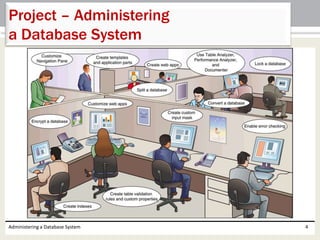
Project – Administering
a Database System
• Learn how to convert a database
• Use tools to analyze and document a database
• Customize the Navigation Pane
• Use custom properties and create indexes
• Create a custom data part
• Create a custom template
• Encrypt, lock, and split a database
• Learn how to create a custom web app
• Learn how to create custom view in a web app
Administering a Database System 5
Roadmap
Administering a Database System 6
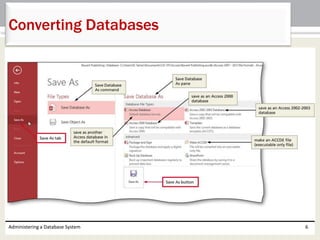
Converting Databases
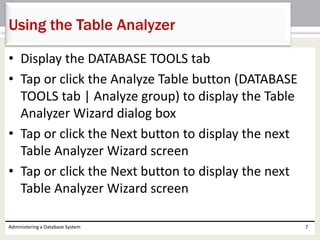
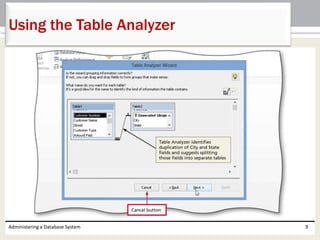
• Display the DATABASE TOOLS tab
• Tap or click the Analyze Table button (DATABASE
TOOLS tab | Analyze group) to display the Table
Analyzer Wizard dialog box
• Tap or click the Next button to display the next
Table Analyzer Wizard screen
• Tap or click the Next button to display the next
Table Analyzer Wizard screen
Administering a Database System 7
Using the Table Analyzer
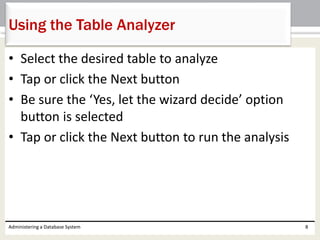
• Select the desired table to analyze
• Tap or click the Next button
• Be sure the ‘Yes, let the wizard decide’ option
button is selected
• Tap or click the Next button to run the analysis
Administering a Database System 8
Using the Table Analyzer
Administering a Database System 9
Using the Table Analyzer
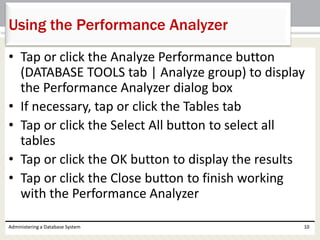
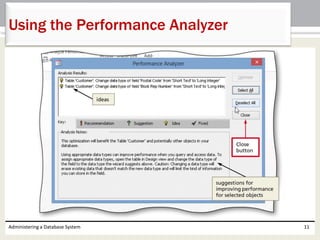
• Tap or click the Analyze Performance button
(DATABASE TOOLS tab | Analyze group) to display
the Performance Analyzer dialog box
• If necessary, tap or click the Tables tab
• Tap or click the Select All button to select all
tables
• Tap or click the OK button to display the results
• Tap or click the Close button to finish working
with the Performance Analyzer
Administering a Database System 10
Using the Performance Analyzer
Administering a Database System 11
Using the Performance Analyzer
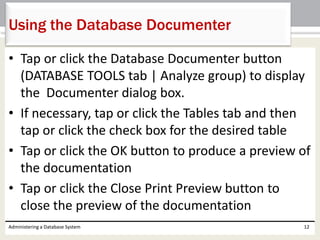
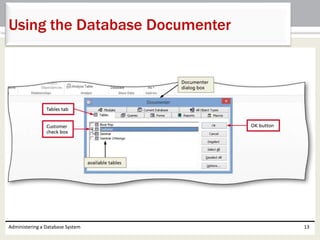
• Tap or click the Database Documenter button
(DATABASE TOOLS tab | Analyze group) to display
the Documenter dialog box.
• If necessary, tap or click the Tables tab and then
tap or click the check box for the desired table
• Tap or click the OK button to produce a preview of
the documentation
• Tap or click the Close Print Preview button to
close the preview of the documentation
Administering a Database System 12
Using the Database Documenter
Administering a Database System 13
Using the Database Documenter
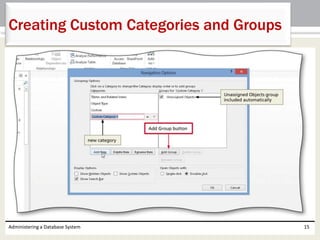
• Press and hold or right-click the Navigation Pane title bar to
display a shortcut menu
• Tap or click the Navigation Options command on the
shortcut menu to display the Navigation Options dialog box
• Tap or click the Add Item button to add a new category
• Type the desired category name
• Tap or click the Add Group button to add a group and then
type the desired group name
• Repeat the previous step for each group you wish to add
• Tap or click the OK button to create the new category and
groups
Administering a Database System 14
Creating Custom Categories and Groups
Administering a Database System 15
Creating Custom Categories and Groups
• Tap or click the Navigation Pane arrow to produce the
Navigation Pane menu
• Tap or click the desired category to display the groups
within the category
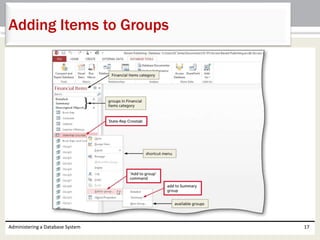
• Press and hold or right-click the desired item to
display a shortcut menu
• Point to the ‘Add to group’ command on the shortcut
menu to display the list of available groups
• Tap or click the desired group name to add the
selected item to the group
Administering a Database System 16
Adding Items to Groups
Administering a Database System 17
Adding Items to Groups
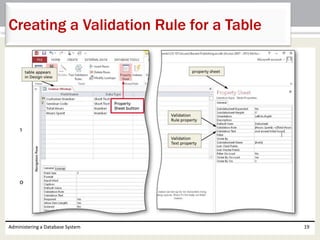
• Open the desired table in Design view
• Tap or click the Property Sheet button (TABLE
TOOLS DESIGN tab | Show/ Hide group) to display
the table’s property sheet
• Tap or click the Validation Rule property and type
the desired validation rule
– [Hours Spent]<=[Total Hours]
• Tap or click the Validation Text property and type
the desired validation text
Administering a Database System 18
Creating a Validation Rule for a Table
Administering a Database System 19
Creating a Validation Rule for a Table
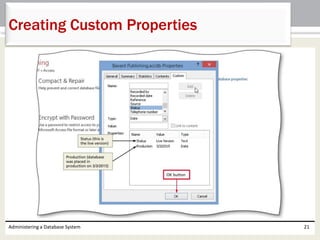
• Tap or click FILE on the ribbon to open the Backstage view
• Ensure the Info tab is selected
• Tap or click the ‘View and edit database properties’ link
• Tap or click the Custom tab
• Tap or click the desired property in the Name list
• Select the desired type
• Ensure that the Type is Text
• Type the desired value in the Value box
• Tap or click the Add button
• Tap or click the OK button
Administering a Database System 20
Creating Custom Properties
Administering a Database System 21
Creating Custom Properties
Administering a Database System 22
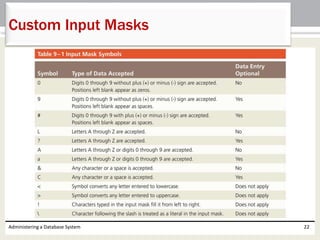
Custom Input Masks
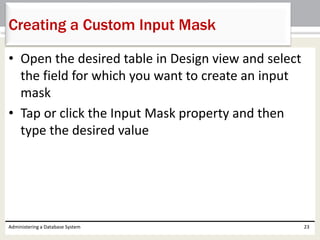
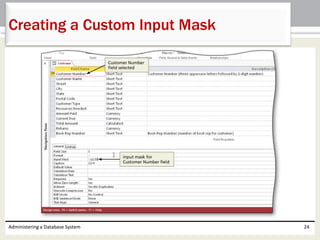
• Open the desired table in Design view and select
the field for which you want to create an input
mask
• Tap or click the Input Mask property and then
type the desired value
Administering a Database System 23
Creating a Custom Input Mask
Administering a Database System 24
Creating a Custom Input Mask
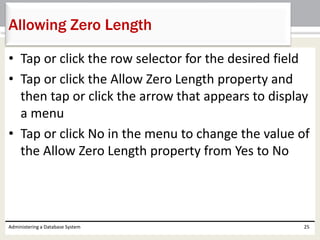
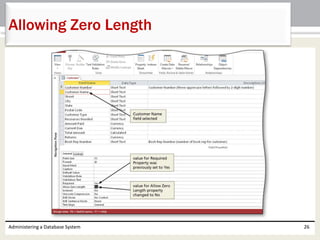
• Tap or click the row selector for the desired field
• Tap or click the Allow Zero Length property and
then tap or click the arrow that appears to display
a menu
• Tap or click No in the menu to change the value of
the Allow Zero Length property from Yes to No
Administering a Database System 25
Allowing Zero Length
Administering a Database System 26
Allowing Zero Length
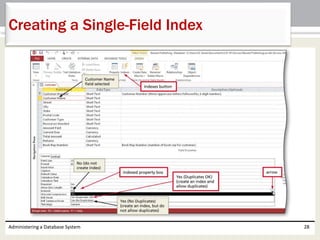
• Select the desired field
• Tap or click the Indexed property box in the Field
Properties pane to select the property
• Tap or click the down arrow that appears to
display the Indexed list
• Tap or click the Yes (Duplicates OK) item in the list
to specify that duplicates are to be allowed
Administering a Database System 27
Creating a Single-Field Index
Administering a Database System 28
Creating a Single-Field Index
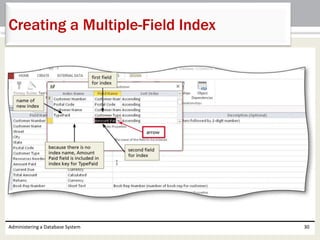
• Tap or click the Indexes button (TABLE TOOLS DESIGN tab |
Show/Hide group)
• Tap or click the first available blank row to enter the name of the
new index
• Type the desired index name, and then press the TAB key
• Tap or click the arrow in the Field Name column, and then select
the first field for the index
• Press the TAB key three times to move to the Field Name
column on the following row
• Select the second field for the index
• Tap or click the Close button to close the window
• Tap or click the Save button on the Quick Access Toolbar to save
your change
Administering a Database System 29
Creating a Multiple-Field Index
Administering a Database System 30
Creating a Multiple-Field Index
Administering a Database System 31
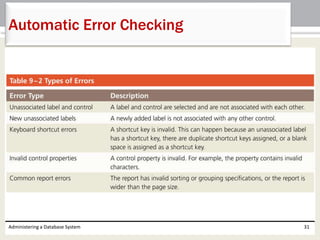
Automatic Error Checking
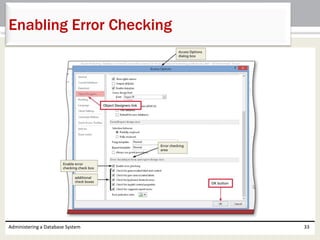
• Tap or click FILE on the ribbon and then tap or click
the Options button to display the Access Options
dialog box
• Tap or click Object Designers to display the options
for creating and modifying objects
• Scroll down so that the Error checking section
appears
• Ensure the ‘Enable error checking’ check box is
checked
• Tap or click the OK button to close the Access Options
dialog box
Administering a Database System 32
Enabling Error Checking
Administering a Database System 33
Enabling Error Checking
• Select the column headings from which to create the
custom data part
• Tap or click the More Fields button (TABLE TOOLS
FIELDS tab | Add & Delete group) to display the More
Fields gallery
• Tap or click ‘Save Selection as New Data Type’ to
display the Create New Data Type from Fields dialog
box
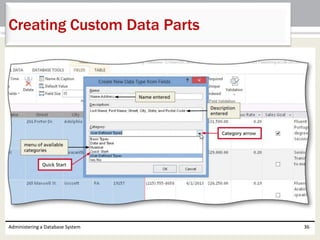
• Enter the name for the custom data type
• Enter the desired description
Administering a Database System 34
Creating Custom Data Parts
• Tap or click the Category arrow to display a list of
available categories
• Tap or click Quick Start to indicate the new data
type will be added to the Quick Start category
• Tap or click the OK button to save the data type
• When Access indicates that your template (that is,
your Quick Start field) has been saved, tap or click
the OK button
Administering a Database System 35
Creating Custom Data Parts
Administering a Database System 36
Creating Custom Data Parts
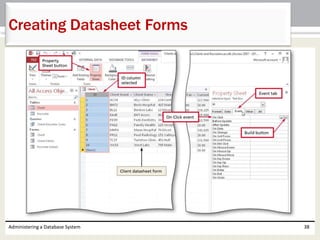
• Select the desired table from which you want to
create the form
• Tap or click the More Forms button (CREATE tab |
Forms group) to display the More Forms menu
• Tap or click Datasheet to create a datasheet form
for the selected table
• Tap or click the Save button on the Quick Access
Toolbar and then type the desired form name
• Save the datasheet form
Administering a Database System 37
Creating Datasheet Forms
Administering a Database System 38
Creating Datasheet Forms
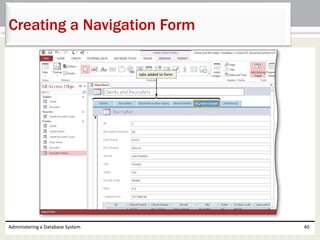
• Display the CREATE tab and then tap or click the Navigation
button (CREATE tab | Forms group) to show the menu of
available navigation forms
• Tap or click Horizontal Tabs in the menu to create a form with a
navigation control in which the tabs are arranged in a single row,
horizontally
• If a field list appears, tap or click the ‘Add Existing Fields’ button
(FORM LAYOUT TOOLS DESIGN tab | Tools group) to remove the
field list
• Save the navigation form using the desired name
• Tap or click the form title twice, once to select it and the second
time to produce an insertion point
• Erase the current title and then type the desired form title
• Drag the desired forms to the desired locations
Administering a Database System 39
Creating a Navigation Form
Administering a Database System 40
Creating a Navigation Form
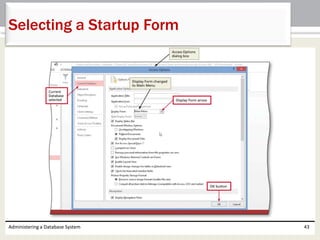
• Tap or click FILE on the ribbon to display the
Backstage view
• Tap or click the Options button
• Tap or click Current Database to select the options
for the current database
• Tap or click the Display Form arrow to display the
list of available forms
• Tap or click the name of the form to automatically
be displayed whenever the database is opened
Administering a Database System 41
Selecting a Startup Form
• Tap or click the OK button to save your changes
• Tap or click the OK button when Access displays a
message indicating that you must close and
reopen the database for the change to take effect
• Close the database
Administering a Database System 42
Selecting a Startup Form
Administering a Database System 43
Selecting a Startup Form
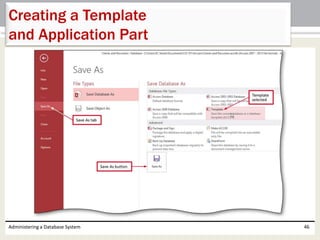
• Open the Backstage view
• Tap or click the Save As tab
• Tap or click the Template button in the Save Database
As area to indicate you are creating a template
• Tap or click the Save As button to display the Create
New Template from This Database dialog box
• Type the desired template name
• Type the desired template description
Administering a Database System 44
Creating a Template
and Application Part
• Tap or click the Application Part check box to
indicate that you also want to create an
application part
• Tap or click the ‘Include Data in Template’ check
box to indicate you want to include the data in the
database as part of the template
• Tap or click the OK button to create the template
• When Access indicates that the template has
been successfully saved, tap or click the OK
button
Administering a Database System 45
Creating a Template
and Application Part
Administering a Database System 46
Creating a Template
and Application Part
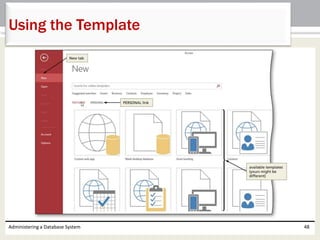
• Tap or click FILE on the ribbon to open the Backstage
view, if necessary
• Ensure that the New tab is selected
• Tap or click the PERSONAL link to display the
templates you have created
• Tap or click the desired template
• Type the desired database name and then navigate to
the location of the database to be opened
• Tap or click the Create button to create the database
from the template
• Close the database
Administering a Database System 47
Using the Template
Administering a Database System 48
Using the Template
• Create or open the database for which you want
to use the application part
• Display the CREATE tab and then tap or click the
Application Parts button (CREATE tab | Templates
group)
• Tap or click the application part to be added.
• If Access indicates that open objects must be
closed, tap or click the Yes button
Administering a Database System 49
Using the Application Part
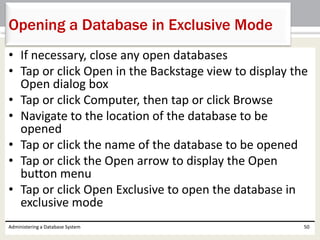
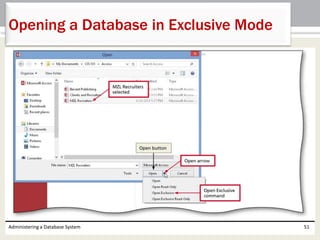
• If necessary, close any open databases
• Tap or click Open in the Backstage view to display the
Open dialog box
• Tap or click Computer, then tap or click Browse
• Navigate to the location of the database to be
opened
• Tap or click the name of the database to be opened
• Tap or click the Open arrow to display the Open
button menu
• Tap or click Open Exclusive to open the database in
exclusive mode
Administering a Database System 50
Opening a Database in Exclusive Mode
Administering a Database System 51
Opening a Database in Exclusive Mode
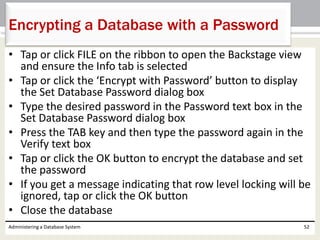
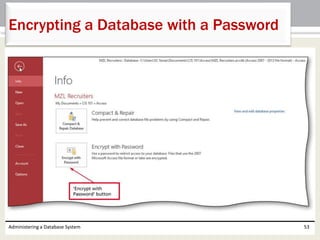
• Tap or click FILE on the ribbon to open the Backstage view
and ensure the Info tab is selected
• Tap or click the ‘Encrypt with Password’ button to display
the Set Database Password dialog box
• Type the desired password in the Password text box in the
Set Database Password dialog box
• Press the TAB key and then type the password again in the
Verify text box
• Tap or click the OK button to encrypt the database and set
the password
• If you get a message indicating that row level locking will be
ignored, tap or click the OK button
• Close the database
Administering a Database System 52
Encrypting a Database with a Password
Administering a Database System 53
Encrypting a Database with a Password
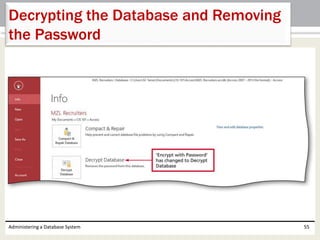
• Open the database to be decrypted in exclusive
mode, entering your password when requested
• Open the Backstage view and ensure the Info tab is
selected
• Tap or click the Decrypt Database button to display
the Unset Database Password dialog box
• Type the password in the Password dialog box
• Tap or click the OK button to remove the password
and decrypt the database
• Close the database
Administering a Database System 54
Decrypting the Database and Removing
the Password
Administering a Database System 55
Decrypting the Database and Removing
the Password
• With the database open, tap or click FILE on the
ribbon to open the Backstage view
• Tap or click the Save As tab
• Tap or click Make ACCDE in the Advanced area
• Tap or click the Save As button
• In the Save As dialog box, indicate a location and
name for the ACCDE file
• Tap or click the Save button in the Save As dialog
box to create the file
Administering a Database System 56
Creating a Locked Database
(ACCDE File)
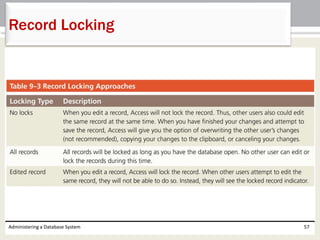
Administering a Database System 57
Record Locking
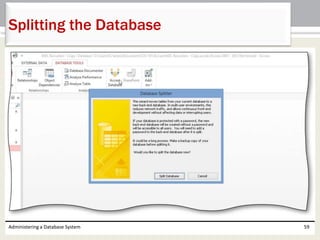
• Open the database to be split
• Display the DATABASE TOOLS tab
• Tap or click the Access Database button (DATABASE TOOLS tab |
Move Data group) to display the Database Splitter dialog box
• Tap or click the Split Database button to display the Create Back-
end Database dialog box
• Either accept the file name Access suggests or change it to the
one you want
• Select a location for the back-end database
• Tap or click the Split button to split the database
• Tap or click the OK button to close the dialog box reporting that
the split was successful
Administering a Database System 58
Splitting the Database
Administering a Database System 59
Splitting the Database
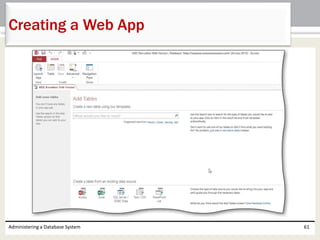
• Tap or click either ‘Custom web app’ to create a web
app of your own design or one of the web app
templates to create a web app matching the template
• Enter a descriptive name for the web app
• If you see a list of available locations for the web app,
you can select one of the locations. If not, or if none
of the available locations is appropriate, enter the
URL that points to your SharePoint site
• Tap or click the Create button to create the web app.
• If requested, enter the User ID and password for your
SharePoint site and click the Sign In button to finish
creating the web app on your SharePoint site
Administering a Database System 60
Creating a Web App
Administering a Database System 61
Creating a Web App
• Tap or click the icon for the type of data to import.
• Browse to the location of the data to import and
select the file to import
• Tap or click the OK button
• Select the tables to import. If you want to import
all the tables in the data source, tap or click the
Select All button
• Tap or click the OK button to import the data
Administering a Database System 62
Creating Tables by Importing Data
• Enter the type of object for which you will be
storing data (for example, Customers), and tap or
click the Search button
• When Access presents a list of options, tap or click
the option that best fits your needs
Administering a Database System 63
Creating Tables from Templates
• Tap or click the ‘add a new blank table’ link to
create the table and display the table in Design
view
Administering a Database System 64
Creating Blank Tables
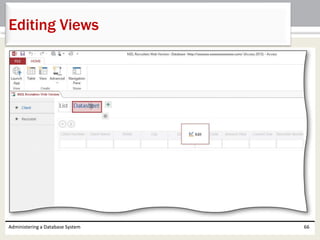
• Tap or click the table whose view you want to edit
• Tap or click the view to edit
• Tap or click the Edit button
• When finished editing, tap or click the Close
button for the view you are editing
• Tap or click the Yes button to save your changes.
Tap or click the No button if you do not want to
save your changes
Administering a Database System 65
Editing Views
Administering a Database System 66
Editing Views
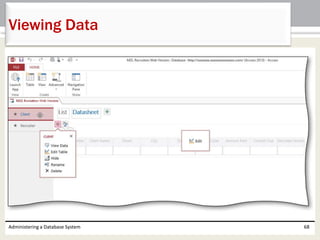
• Tap or click the table containing the data you
want to view or update
• Tap or click the Settings/Action button
• Tap or click View Data on the Settings/Action
menu
Administering a Database System 67
Viewing Data
Administering a Database System 68
Viewing Data
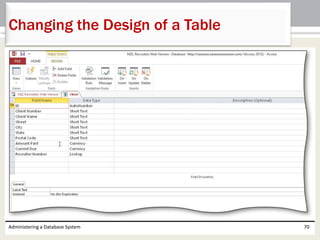
• Tap or click the table whose design you want to
view or update
• Tap or click the Settings/Action button
• Tap or click Edit Table on the Settings/Action
menu
Administering a Database System 69
Changing the Design of a Table
Administering a Database System 70
Changing the Design of a Table
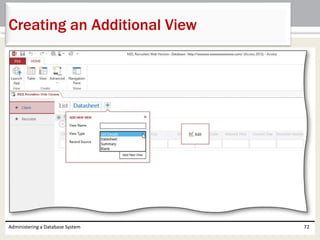
• Tap or click the ‘Add New View’ button
• Enter a name for the view
• Tap or click the View Type arrow to display the menu
of available view types
• Tap or click the desired view type
• Tap or click the Record Source arrow to display a list
of the available tables and queries
• Tap or click the desired table or query
• Tap or click the ‘Add New View’ button to create the
new view
Administering a Database System 71
Creating an Additional View
Administering a Database System 72
Creating an Additional View
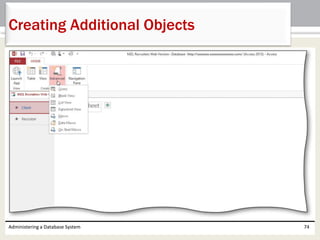
• To create a table, tap or click the Table button
(HOME tab | Create group), and then indicate
whether you will create the table using a
template, create a blank table, or import a table
from an existing data source
• To create another type of object, tap or click the
Advanced button (HOME tab | Create group) to
display the Advanced menu, and then select the
type of object to create
Administering a Database System 73
Creating Additional Objects
Administering a Database System 74
Creating Additional Objects
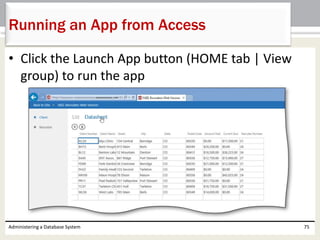
• Click the Launch App button (HOME tab | View
group) to run the app
Administering a Database System 75
Running an App from Access
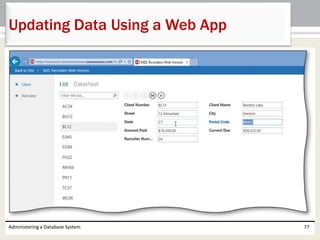
• Tap or click the table to be updated
• Tap or click either the List link to select List view or the Datasheet link to
select Datasheet view
• To add a record in Datasheet view, tap or click the Add button, enter the
contents of the record, and press the tab key after entering the final
field. To add in List view, tap or click the Add button, enter the contents
of the record, and tap or click the Save button
• To delete a record in either view, select the record to be deleted, click the
Delete button, and then confirm the deletion
• To edit a record in Datasheet view, tap or click the field to be changed
and make the necessary change. As soon as you leave the record, the
change will automatically be saved. To edit a record in List view, select
the record to be edited, tap or click the Edit button, make the change,
and then tap or click the Save button
Administering a Database System 76
Updating Data Using a Web App
Administering a Database System 77
Updating Data Using a Web App
• Type the URL for your SharePoint site and press
enter
• When requested, type your user name and
password
• Tap or click the OK button to display the contents
of your SharePoint site
• Tap or click the desired web app to run the app
Administering a Database System 78
Running a Web App from a Browser
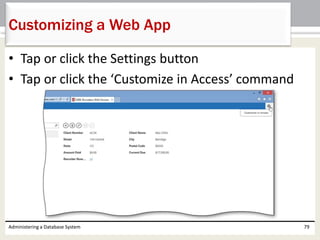
• Tap or click the Settings button
• Tap or click the ‘Customize in Access’ command
Administering a Database System 79
Customizing a Web App
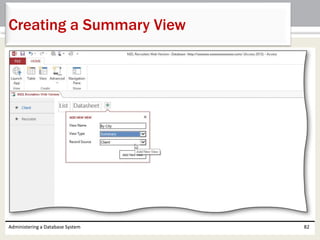
• Tap or click the table for which you want to add the view
and then tap or click the ‘Add New View’ button to display
the ADD NEW VIEW box
• Enter a name for the view, select Summary as the view
type, and select the table that will be the record source
• Tap or click the ‘Add New View’ button (ADD NEW VIEW
dialog box) to create the view
• Tap or click the Edit button to edit the view.
• Tap or click the box on the left side of the view and then tap
or click the Data button to display the DATA box
• Enter the Group By field, sort order, whether you want a
count displayed, the header for the calculation, the field for
the calculation, and the calculation type (average or sum)
Administering a Database System 80
Creating a Summary View
• Close the DATA box, tap or click the box on the
right, and then tap or click its Data button
• Enter up to four fields to be displayed. You can
optionally enter captions for any of the fields.
• Enter the popup view
• Enter the sort order
• Close the view and tap or click the Yes button
when asked if you want to save your changes
Administering a Database System 81
Creating a Summary View
Administering a Database System 82
Creating a Summary View
• Convert a database to and from earlier versions of
Access
• Use the Table Analyzer, Performance Analyzer, and
Documenter
• Create custom categories and groups in the
Navigation Pane
• Use table, database, and field properties
• Create indexes
• Enable and use automatic error checking
Administering a Database System 83
Chapter Summary
• Create custom data type parts
• Create a database for a template
• Create a custom template
• Encrypt a database and set a password
• Lock a database and split a database
• Create a custom web app
• Create custom views for a web app
Administering a Database System 84
Chapter Summary
Chapter 9 Complete
Microsoft
Access 2013

Access2013 ch09

  • 1.
    Chapter 9 Administering aDatabase System Microsoft Access 2013
  • 2.
    • Convert adatabase to and from earlier versions of Access • Use the Table Analyzer, Performance Analyzer, and Documenter • Create custom categories and groups in the Navigation Pane • Use table, database, and field properties • Create indexes • Enable and use automatic error checking Administering a Database System 2 Objectives
  • 3.
    • Create customdata type parts • Create a database for a template • Create a custom template • Encrypt a database and set a password • Lock a database and split a database • Create a custom web app • Create custom views for a web app Administering a Database System 3 Objectives
  • 4.
    Administering a DatabaseSystem 4 Project – Administering a Database System
  • 5.
    • Learn howto convert a database • Use tools to analyze and document a database • Customize the Navigation Pane • Use custom properties and create indexes • Create a custom data part • Create a custom template • Encrypt, lock, and split a database • Learn how to create a custom web app • Learn how to create custom view in a web app Administering a Database System 5 Roadmap
  • 6.
    Administering a DatabaseSystem 6 Converting Databases
  • 7.
    • Display theDATABASE TOOLS tab • Tap or click the Analyze Table button (DATABASE TOOLS tab | Analyze group) to display the Table Analyzer Wizard dialog box • Tap or click the Next button to display the next Table Analyzer Wizard screen • Tap or click the Next button to display the next Table Analyzer Wizard screen Administering a Database System 7 Using the Table Analyzer
  • 8.
    • Select thedesired table to analyze • Tap or click the Next button • Be sure the ‘Yes, let the wizard decide’ option button is selected • Tap or click the Next button to run the analysis Administering a Database System 8 Using the Table Analyzer
  • 9.
    Administering a DatabaseSystem 9 Using the Table Analyzer
  • 10.
    • Tap orclick the Analyze Performance button (DATABASE TOOLS tab | Analyze group) to display the Performance Analyzer dialog box • If necessary, tap or click the Tables tab • Tap or click the Select All button to select all tables • Tap or click the OK button to display the results • Tap or click the Close button to finish working with the Performance Analyzer Administering a Database System 10 Using the Performance Analyzer
  • 11.
    Administering a DatabaseSystem 11 Using the Performance Analyzer
  • 12.
    • Tap orclick the Database Documenter button (DATABASE TOOLS tab | Analyze group) to display the Documenter dialog box. • If necessary, tap or click the Tables tab and then tap or click the check box for the desired table • Tap or click the OK button to produce a preview of the documentation • Tap or click the Close Print Preview button to close the preview of the documentation Administering a Database System 12 Using the Database Documenter
  • 13.
    Administering a DatabaseSystem 13 Using the Database Documenter
  • 14.
    • Press andhold or right-click the Navigation Pane title bar to display a shortcut menu • Tap or click the Navigation Options command on the shortcut menu to display the Navigation Options dialog box • Tap or click the Add Item button to add a new category • Type the desired category name • Tap or click the Add Group button to add a group and then type the desired group name • Repeat the previous step for each group you wish to add • Tap or click the OK button to create the new category and groups Administering a Database System 14 Creating Custom Categories and Groups
  • 15.
    Administering a DatabaseSystem 15 Creating Custom Categories and Groups
  • 16.
    • Tap orclick the Navigation Pane arrow to produce the Navigation Pane menu • Tap or click the desired category to display the groups within the category • Press and hold or right-click the desired item to display a shortcut menu • Point to the ‘Add to group’ command on the shortcut menu to display the list of available groups • Tap or click the desired group name to add the selected item to the group Administering a Database System 16 Adding Items to Groups
  • 17.
    Administering a DatabaseSystem 17 Adding Items to Groups
  • 18.
    • Open thedesired table in Design view • Tap or click the Property Sheet button (TABLE TOOLS DESIGN tab | Show/ Hide group) to display the table’s property sheet • Tap or click the Validation Rule property and type the desired validation rule – [Hours Spent]<=[Total Hours] • Tap or click the Validation Text property and type the desired validation text Administering a Database System 18 Creating a Validation Rule for a Table
  • 19.
    Administering a DatabaseSystem 19 Creating a Validation Rule for a Table
  • 20.
    • Tap orclick FILE on the ribbon to open the Backstage view • Ensure the Info tab is selected • Tap or click the ‘View and edit database properties’ link • Tap or click the Custom tab • Tap or click the desired property in the Name list • Select the desired type • Ensure that the Type is Text • Type the desired value in the Value box • Tap or click the Add button • Tap or click the OK button Administering a Database System 20 Creating Custom Properties
  • 21.
    Administering a DatabaseSystem 21 Creating Custom Properties
  • 22.
    Administering a DatabaseSystem 22 Custom Input Masks
  • 23.
    • Open thedesired table in Design view and select the field for which you want to create an input mask • Tap or click the Input Mask property and then type the desired value Administering a Database System 23 Creating a Custom Input Mask
  • 24.
    Administering a DatabaseSystem 24 Creating a Custom Input Mask
  • 25.
    • Tap orclick the row selector for the desired field • Tap or click the Allow Zero Length property and then tap or click the arrow that appears to display a menu • Tap or click No in the menu to change the value of the Allow Zero Length property from Yes to No Administering a Database System 25 Allowing Zero Length
  • 26.
    Administering a DatabaseSystem 26 Allowing Zero Length
  • 27.
    • Select thedesired field • Tap or click the Indexed property box in the Field Properties pane to select the property • Tap or click the down arrow that appears to display the Indexed list • Tap or click the Yes (Duplicates OK) item in the list to specify that duplicates are to be allowed Administering a Database System 27 Creating a Single-Field Index
  • 28.
    Administering a DatabaseSystem 28 Creating a Single-Field Index
  • 29.
    • Tap orclick the Indexes button (TABLE TOOLS DESIGN tab | Show/Hide group) • Tap or click the first available blank row to enter the name of the new index • Type the desired index name, and then press the TAB key • Tap or click the arrow in the Field Name column, and then select the first field for the index • Press the TAB key three times to move to the Field Name column on the following row • Select the second field for the index • Tap or click the Close button to close the window • Tap or click the Save button on the Quick Access Toolbar to save your change Administering a Database System 29 Creating a Multiple-Field Index
  • 30.
    Administering a DatabaseSystem 30 Creating a Multiple-Field Index
  • 31.
    Administering a DatabaseSystem 31 Automatic Error Checking
  • 32.
    • Tap orclick FILE on the ribbon and then tap or click the Options button to display the Access Options dialog box • Tap or click Object Designers to display the options for creating and modifying objects • Scroll down so that the Error checking section appears • Ensure the ‘Enable error checking’ check box is checked • Tap or click the OK button to close the Access Options dialog box Administering a Database System 32 Enabling Error Checking
  • 33.
    Administering a DatabaseSystem 33 Enabling Error Checking
  • 34.
    • Select thecolumn headings from which to create the custom data part • Tap or click the More Fields button (TABLE TOOLS FIELDS tab | Add & Delete group) to display the More Fields gallery • Tap or click ‘Save Selection as New Data Type’ to display the Create New Data Type from Fields dialog box • Enter the name for the custom data type • Enter the desired description Administering a Database System 34 Creating Custom Data Parts
  • 35.
    • Tap orclick the Category arrow to display a list of available categories • Tap or click Quick Start to indicate the new data type will be added to the Quick Start category • Tap or click the OK button to save the data type • When Access indicates that your template (that is, your Quick Start field) has been saved, tap or click the OK button Administering a Database System 35 Creating Custom Data Parts
  • 36.
    Administering a DatabaseSystem 36 Creating Custom Data Parts
  • 37.
    • Select thedesired table from which you want to create the form • Tap or click the More Forms button (CREATE tab | Forms group) to display the More Forms menu • Tap or click Datasheet to create a datasheet form for the selected table • Tap or click the Save button on the Quick Access Toolbar and then type the desired form name • Save the datasheet form Administering a Database System 37 Creating Datasheet Forms
  • 38.
    Administering a DatabaseSystem 38 Creating Datasheet Forms
  • 39.
    • Display theCREATE tab and then tap or click the Navigation button (CREATE tab | Forms group) to show the menu of available navigation forms • Tap or click Horizontal Tabs in the menu to create a form with a navigation control in which the tabs are arranged in a single row, horizontally • If a field list appears, tap or click the ‘Add Existing Fields’ button (FORM LAYOUT TOOLS DESIGN tab | Tools group) to remove the field list • Save the navigation form using the desired name • Tap or click the form title twice, once to select it and the second time to produce an insertion point • Erase the current title and then type the desired form title • Drag the desired forms to the desired locations Administering a Database System 39 Creating a Navigation Form
  • 40.
    Administering a DatabaseSystem 40 Creating a Navigation Form
  • 41.
    • Tap orclick FILE on the ribbon to display the Backstage view • Tap or click the Options button • Tap or click Current Database to select the options for the current database • Tap or click the Display Form arrow to display the list of available forms • Tap or click the name of the form to automatically be displayed whenever the database is opened Administering a Database System 41 Selecting a Startup Form
  • 42.
    • Tap orclick the OK button to save your changes • Tap or click the OK button when Access displays a message indicating that you must close and reopen the database for the change to take effect • Close the database Administering a Database System 42 Selecting a Startup Form
  • 43.
    Administering a DatabaseSystem 43 Selecting a Startup Form
  • 44.
    • Open theBackstage view • Tap or click the Save As tab • Tap or click the Template button in the Save Database As area to indicate you are creating a template • Tap or click the Save As button to display the Create New Template from This Database dialog box • Type the desired template name • Type the desired template description Administering a Database System 44 Creating a Template and Application Part
  • 45.
    • Tap orclick the Application Part check box to indicate that you also want to create an application part • Tap or click the ‘Include Data in Template’ check box to indicate you want to include the data in the database as part of the template • Tap or click the OK button to create the template • When Access indicates that the template has been successfully saved, tap or click the OK button Administering a Database System 45 Creating a Template and Application Part
  • 46.
    Administering a DatabaseSystem 46 Creating a Template and Application Part
  • 47.
    • Tap orclick FILE on the ribbon to open the Backstage view, if necessary • Ensure that the New tab is selected • Tap or click the PERSONAL link to display the templates you have created • Tap or click the desired template • Type the desired database name and then navigate to the location of the database to be opened • Tap or click the Create button to create the database from the template • Close the database Administering a Database System 47 Using the Template
  • 48.
    Administering a DatabaseSystem 48 Using the Template
  • 49.
    • Create oropen the database for which you want to use the application part • Display the CREATE tab and then tap or click the Application Parts button (CREATE tab | Templates group) • Tap or click the application part to be added. • If Access indicates that open objects must be closed, tap or click the Yes button Administering a Database System 49 Using the Application Part
  • 50.
    • If necessary,close any open databases • Tap or click Open in the Backstage view to display the Open dialog box • Tap or click Computer, then tap or click Browse • Navigate to the location of the database to be opened • Tap or click the name of the database to be opened • Tap or click the Open arrow to display the Open button menu • Tap or click Open Exclusive to open the database in exclusive mode Administering a Database System 50 Opening a Database in Exclusive Mode
  • 51.
    Administering a DatabaseSystem 51 Opening a Database in Exclusive Mode
  • 52.
    • Tap orclick FILE on the ribbon to open the Backstage view and ensure the Info tab is selected • Tap or click the ‘Encrypt with Password’ button to display the Set Database Password dialog box • Type the desired password in the Password text box in the Set Database Password dialog box • Press the TAB key and then type the password again in the Verify text box • Tap or click the OK button to encrypt the database and set the password • If you get a message indicating that row level locking will be ignored, tap or click the OK button • Close the database Administering a Database System 52 Encrypting a Database with a Password
  • 53.
    Administering a DatabaseSystem 53 Encrypting a Database with a Password
  • 54.
    • Open thedatabase to be decrypted in exclusive mode, entering your password when requested • Open the Backstage view and ensure the Info tab is selected • Tap or click the Decrypt Database button to display the Unset Database Password dialog box • Type the password in the Password dialog box • Tap or click the OK button to remove the password and decrypt the database • Close the database Administering a Database System 54 Decrypting the Database and Removing the Password
  • 55.
    Administering a DatabaseSystem 55 Decrypting the Database and Removing the Password
  • 56.
    • With thedatabase open, tap or click FILE on the ribbon to open the Backstage view • Tap or click the Save As tab • Tap or click Make ACCDE in the Advanced area • Tap or click the Save As button • In the Save As dialog box, indicate a location and name for the ACCDE file • Tap or click the Save button in the Save As dialog box to create the file Administering a Database System 56 Creating a Locked Database (ACCDE File)
  • 57.
    Administering a DatabaseSystem 57 Record Locking
  • 58.
    • Open thedatabase to be split • Display the DATABASE TOOLS tab • Tap or click the Access Database button (DATABASE TOOLS tab | Move Data group) to display the Database Splitter dialog box • Tap or click the Split Database button to display the Create Back- end Database dialog box • Either accept the file name Access suggests or change it to the one you want • Select a location for the back-end database • Tap or click the Split button to split the database • Tap or click the OK button to close the dialog box reporting that the split was successful Administering a Database System 58 Splitting the Database
  • 59.
    Administering a DatabaseSystem 59 Splitting the Database
  • 60.
    • Tap orclick either ‘Custom web app’ to create a web app of your own design or one of the web app templates to create a web app matching the template • Enter a descriptive name for the web app • If you see a list of available locations for the web app, you can select one of the locations. If not, or if none of the available locations is appropriate, enter the URL that points to your SharePoint site • Tap or click the Create button to create the web app. • If requested, enter the User ID and password for your SharePoint site and click the Sign In button to finish creating the web app on your SharePoint site Administering a Database System 60 Creating a Web App
  • 61.
    Administering a DatabaseSystem 61 Creating a Web App
  • 62.
    • Tap orclick the icon for the type of data to import. • Browse to the location of the data to import and select the file to import • Tap or click the OK button • Select the tables to import. If you want to import all the tables in the data source, tap or click the Select All button • Tap or click the OK button to import the data Administering a Database System 62 Creating Tables by Importing Data
  • 63.
    • Enter thetype of object for which you will be storing data (for example, Customers), and tap or click the Search button • When Access presents a list of options, tap or click the option that best fits your needs Administering a Database System 63 Creating Tables from Templates
  • 64.
    • Tap orclick the ‘add a new blank table’ link to create the table and display the table in Design view Administering a Database System 64 Creating Blank Tables
  • 65.
    • Tap orclick the table whose view you want to edit • Tap or click the view to edit • Tap or click the Edit button • When finished editing, tap or click the Close button for the view you are editing • Tap or click the Yes button to save your changes. Tap or click the No button if you do not want to save your changes Administering a Database System 65 Editing Views
  • 66.
    Administering a DatabaseSystem 66 Editing Views
  • 67.
    • Tap orclick the table containing the data you want to view or update • Tap or click the Settings/Action button • Tap or click View Data on the Settings/Action menu Administering a Database System 67 Viewing Data
  • 68.
    Administering a DatabaseSystem 68 Viewing Data
  • 69.
    • Tap orclick the table whose design you want to view or update • Tap or click the Settings/Action button • Tap or click Edit Table on the Settings/Action menu Administering a Database System 69 Changing the Design of a Table
  • 70.
    Administering a DatabaseSystem 70 Changing the Design of a Table
  • 71.
    • Tap orclick the ‘Add New View’ button • Enter a name for the view • Tap or click the View Type arrow to display the menu of available view types • Tap or click the desired view type • Tap or click the Record Source arrow to display a list of the available tables and queries • Tap or click the desired table or query • Tap or click the ‘Add New View’ button to create the new view Administering a Database System 71 Creating an Additional View
  • 72.
    Administering a DatabaseSystem 72 Creating an Additional View
  • 73.
    • To createa table, tap or click the Table button (HOME tab | Create group), and then indicate whether you will create the table using a template, create a blank table, or import a table from an existing data source • To create another type of object, tap or click the Advanced button (HOME tab | Create group) to display the Advanced menu, and then select the type of object to create Administering a Database System 73 Creating Additional Objects
  • 74.
    Administering a DatabaseSystem 74 Creating Additional Objects
  • 75.
    • Click theLaunch App button (HOME tab | View group) to run the app Administering a Database System 75 Running an App from Access
  • 76.
    • Tap orclick the table to be updated • Tap or click either the List link to select List view or the Datasheet link to select Datasheet view • To add a record in Datasheet view, tap or click the Add button, enter the contents of the record, and press the tab key after entering the final field. To add in List view, tap or click the Add button, enter the contents of the record, and tap or click the Save button • To delete a record in either view, select the record to be deleted, click the Delete button, and then confirm the deletion • To edit a record in Datasheet view, tap or click the field to be changed and make the necessary change. As soon as you leave the record, the change will automatically be saved. To edit a record in List view, select the record to be edited, tap or click the Edit button, make the change, and then tap or click the Save button Administering a Database System 76 Updating Data Using a Web App
  • 77.
    Administering a DatabaseSystem 77 Updating Data Using a Web App
  • 78.
    • Type theURL for your SharePoint site and press enter • When requested, type your user name and password • Tap or click the OK button to display the contents of your SharePoint site • Tap or click the desired web app to run the app Administering a Database System 78 Running a Web App from a Browser
  • 79.
    • Tap orclick the Settings button • Tap or click the ‘Customize in Access’ command Administering a Database System 79 Customizing a Web App
  • 80.
    • Tap orclick the table for which you want to add the view and then tap or click the ‘Add New View’ button to display the ADD NEW VIEW box • Enter a name for the view, select Summary as the view type, and select the table that will be the record source • Tap or click the ‘Add New View’ button (ADD NEW VIEW dialog box) to create the view • Tap or click the Edit button to edit the view. • Tap or click the box on the left side of the view and then tap or click the Data button to display the DATA box • Enter the Group By field, sort order, whether you want a count displayed, the header for the calculation, the field for the calculation, and the calculation type (average or sum) Administering a Database System 80 Creating a Summary View
  • 81.
    • Close theDATA box, tap or click the box on the right, and then tap or click its Data button • Enter up to four fields to be displayed. You can optionally enter captions for any of the fields. • Enter the popup view • Enter the sort order • Close the view and tap or click the Yes button when asked if you want to save your changes Administering a Database System 81 Creating a Summary View
  • 82.
    Administering a DatabaseSystem 82 Creating a Summary View
  • 83.
    • Convert adatabase to and from earlier versions of Access • Use the Table Analyzer, Performance Analyzer, and Documenter • Create custom categories and groups in the Navigation Pane • Use table, database, and field properties • Create indexes • Enable and use automatic error checking Administering a Database System 83 Chapter Summary
  • 84.
    • Create customdata type parts • Create a database for a template • Create a custom template • Encrypt a database and set a password • Lock a database and split a database • Create a custom web app • Create custom views for a web app Administering a Database System 84 Chapter Summary
  • 85.