Linux For Embedded Systems
ForArabs
Ahmed ElArabawy
Course 102:
UnderstandingLinux
Lecture 22:
Package Management
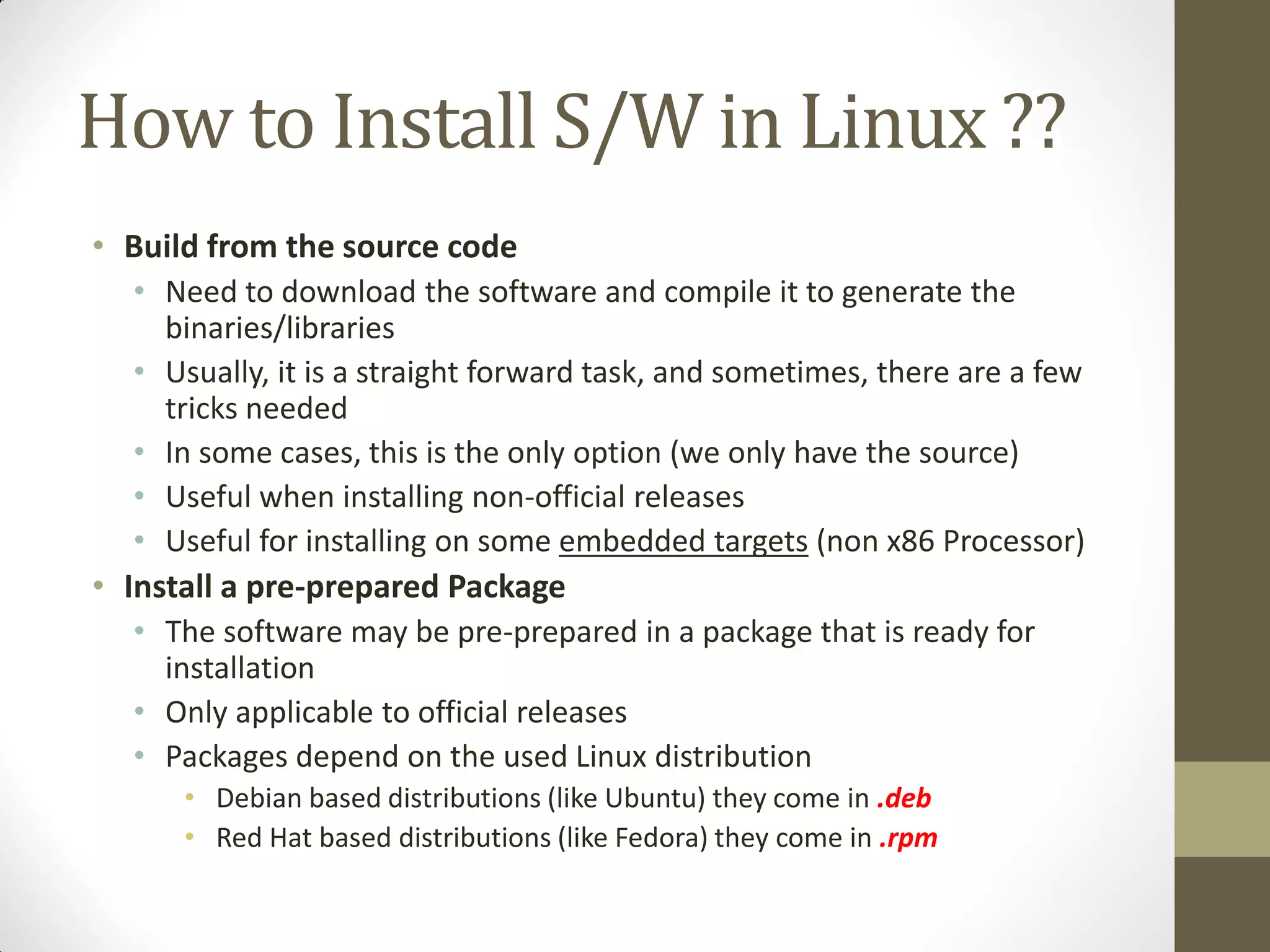
How to Install S/W in Linux ??
• Build from the source code
• Need to download the software and compile it to generate the
binaries/libraries
• Usually, it is a straight forward task, and sometimes, there are a few
tricks needed
• In some cases, this is the only option (we only have the source)
• Useful when installing non-official releases
• Useful for installing on some embedded targets (non x86 Processor)
• Install a pre-prepared Package
• The software may be pre-prepared in a package that is ready for
installation
• Only applicable to official releases
• Packages depend on the used Linux distribution
• Debian based distributions (like Ubuntu) they come in .deb
• Red Hat based distributions (like Fedora) they come in .rpm
Build From the Source Code
Installing Software from the
Source Code
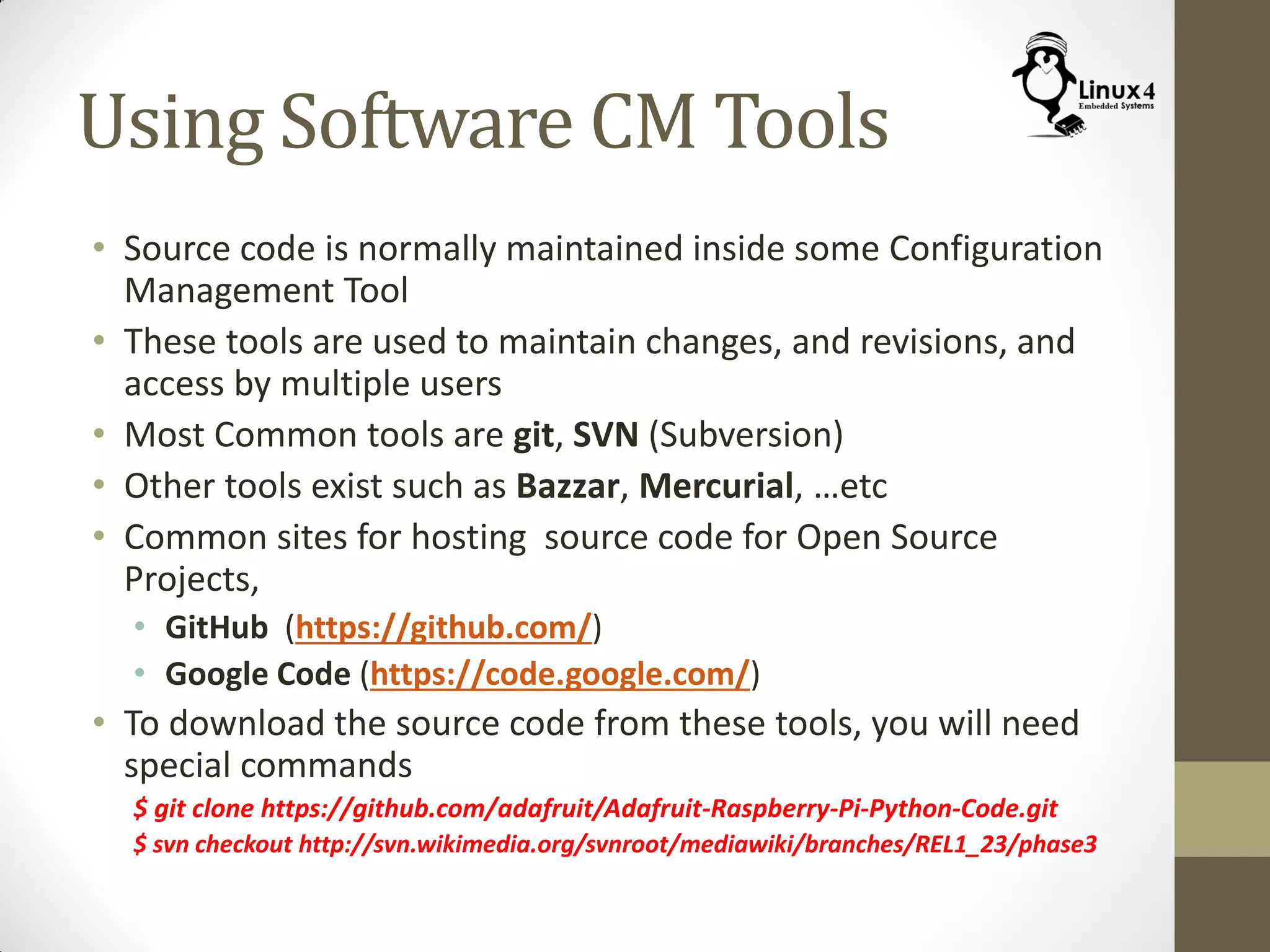
• Download the source code
• Simple download of a zip or rar file, then extract the source code
• Download via some SW configuration tool (svn, git, …)
• Check the readme file that comes with the source code for the
instructions to build and install the package
• The readme file should outline any adjustments needed to be
done before building the source
• It should also outline any dependencies required for this code
to run
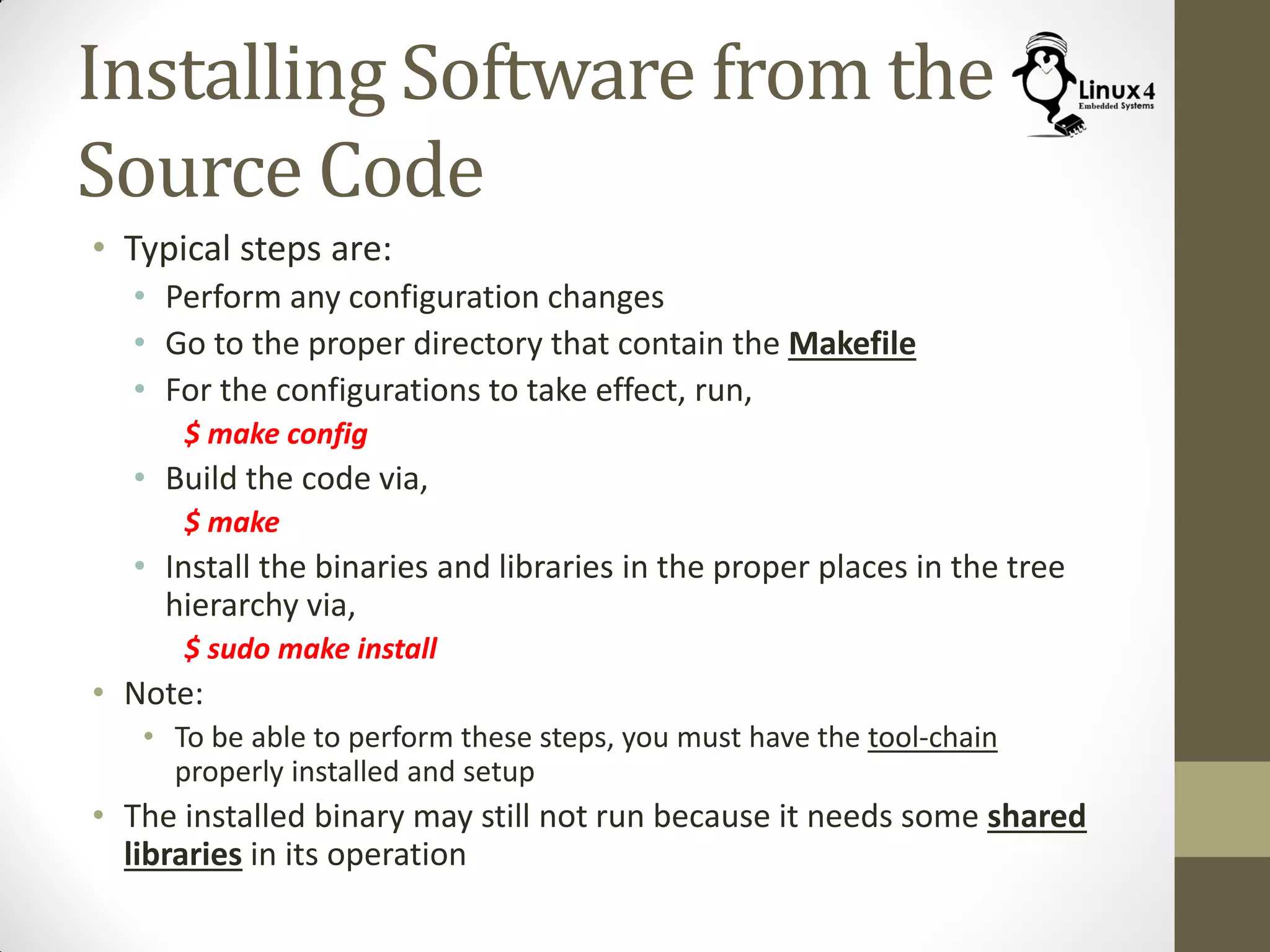
Using Software CM Tools
• Source code is normally maintained inside some Configuration
Management Tool
• These tools are used to maintain changes, and revisions, and
access by multiple users
• Most Common tools are git, SVN (Subversion)
• Other tools exist such as Bazzar, Mercurial, …etc
• Common sites for hosting source code for Open Source
Projects,
• GitHub (https://github.com/)
• Google Code (https://code.google.com/)
• To download the source code from these tools, you will need
special commands
$ git clone https://github.com/adafruit/Adafruit-Raspberry-Pi-Python-Code.git
$ svn checkout http://svn.wikimedia.org/svnroot/mediawiki/branches/REL1_23/phase3
Installing Software from the
Source Code
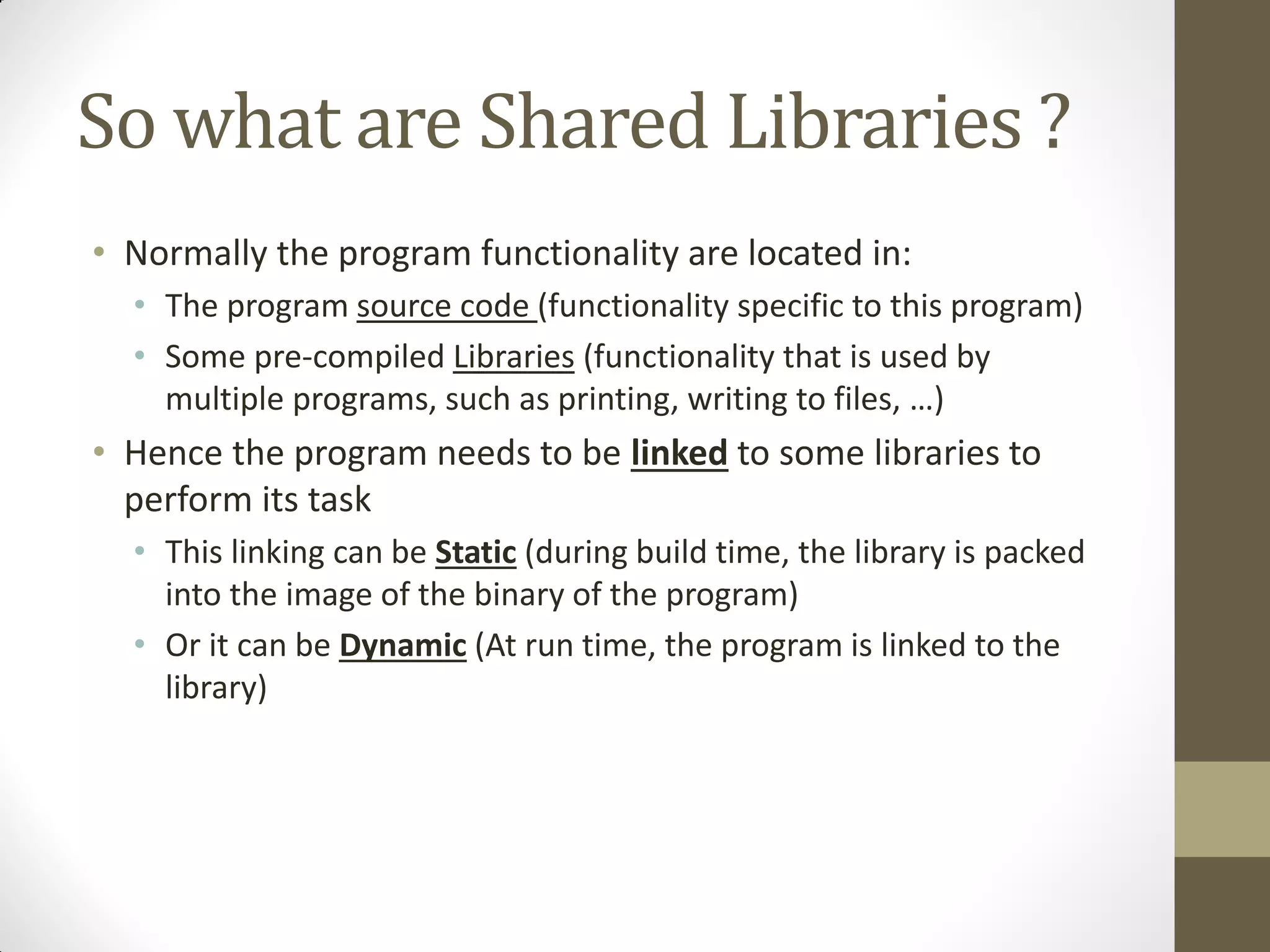
• Typical steps are:
• Perform any configuration changes
• Go to the proper directory that contain the Makefile
• For the configurations to take effect, run,
$ make config
• Build the code via,
$ make
• Install the binaries and libraries in the proper places in the tree
hierarchy via,
$ sudo make install
• Note:
• To be able to perform these steps, you must have the tool-chain
properly installed and setup
• The installed binary may still not run because it needs some shared
libraries in its operation
So what are Shared Libraries ?
• Normally the program functionality are located in:
• The program source code (functionality specific to this program)
• Some pre-compiled Libraries (functionality that is used by
multiple programs, such as printing, writing to files, …)
• Hence the program needs to be linked to some libraries to
perform its task
• This linking can be Static (during build time, the library is packed
into the image of the binary of the program)
• Or it can be Dynamic (At run time, the program is linked to the
library)
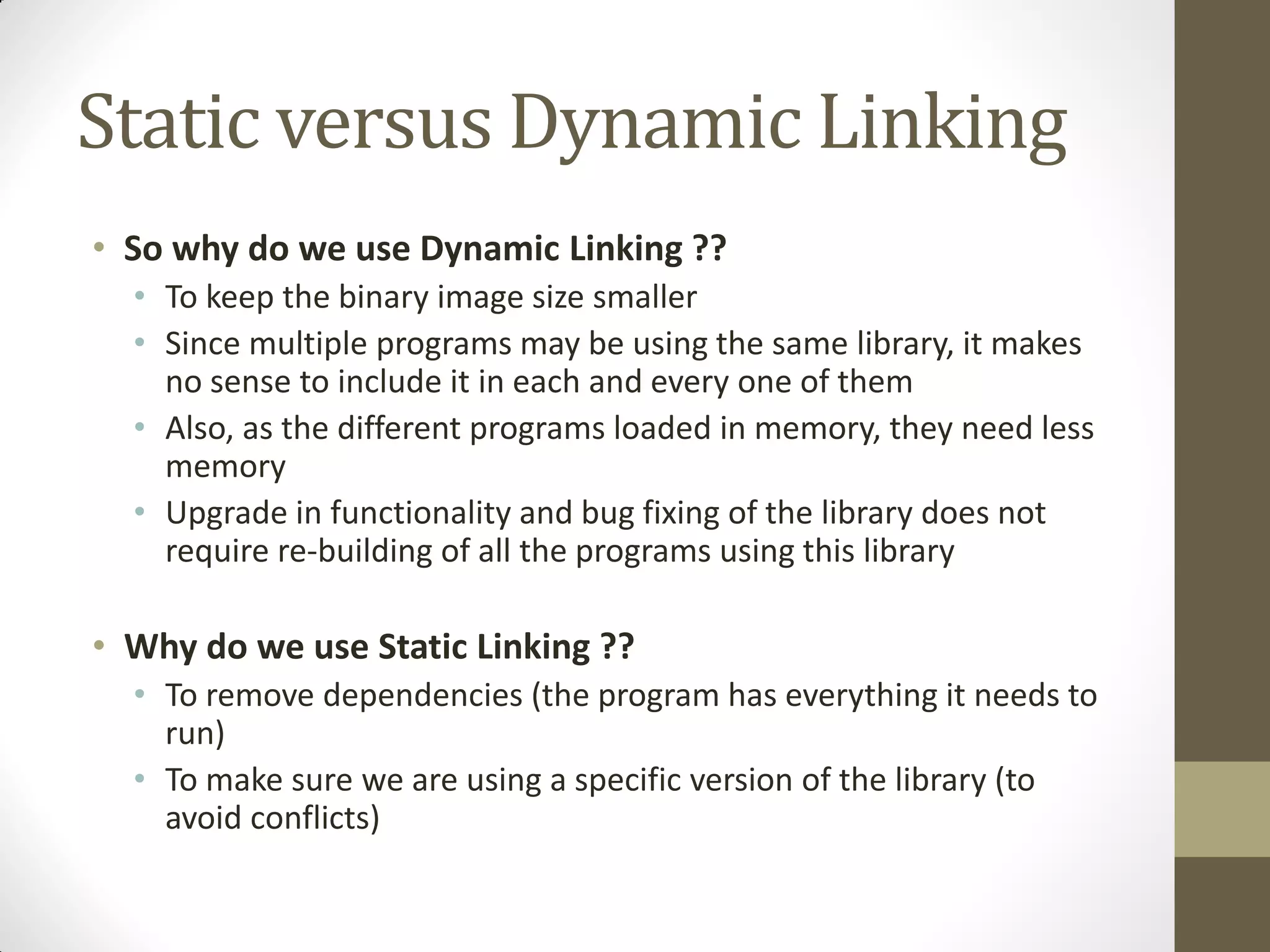
Static versus Dynamic Linking
• So why do we use Dynamic Linking ??
• To keep the binary image size smaller
• Since multiple programs may be using the same library, it makes
no sense to include it in each and every one of them
• Also, as the different programs loaded in memory, they need less
memory
• Upgrade in functionality and bug fixing of the library does not
require re-building of all the programs using this library
• Why do we use Static Linking ??
• To remove dependencies (the program has everything it needs to
run)
• To make sure we are using a specific version of the library (to
avoid conflicts)
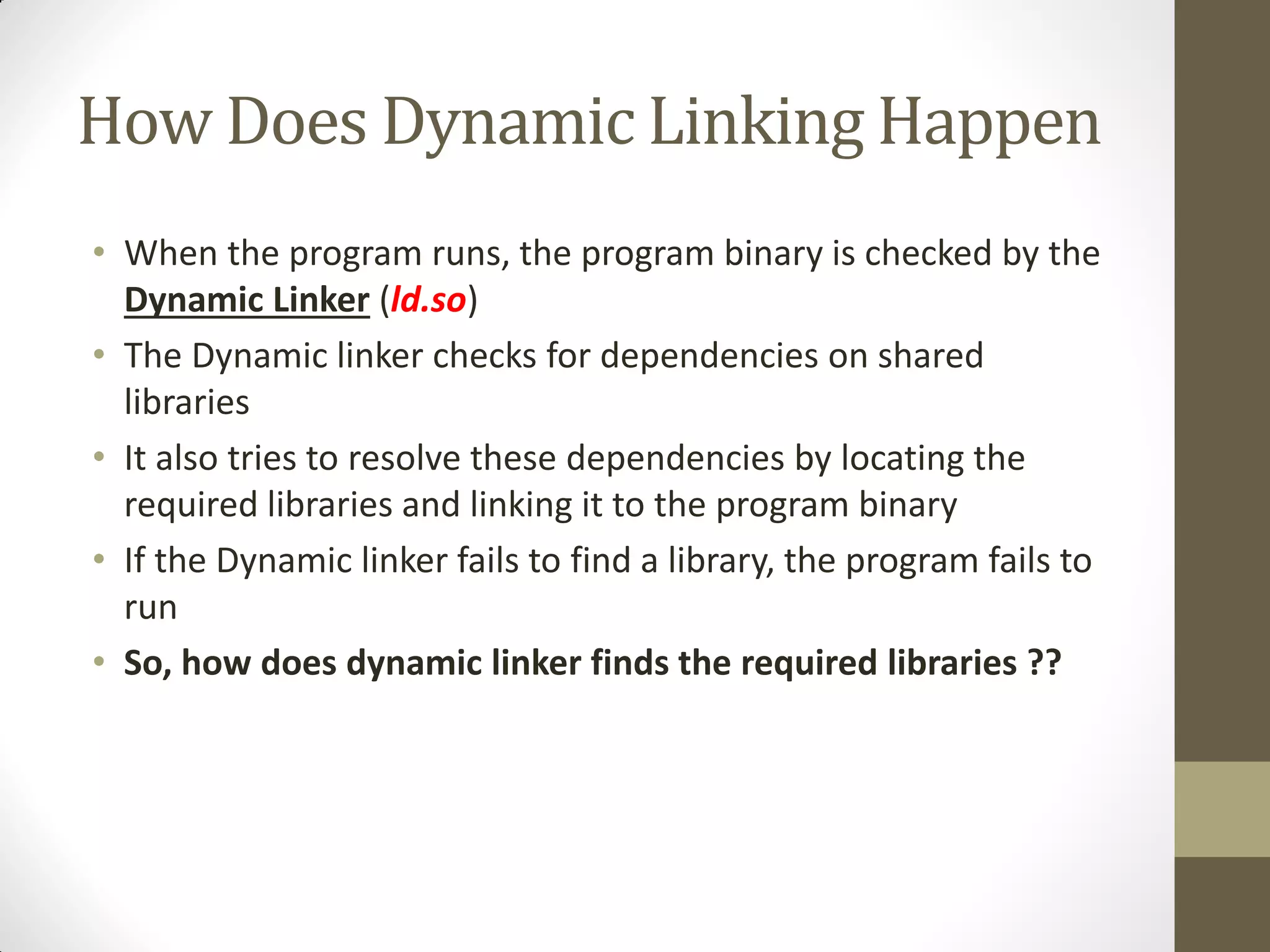
How Does Dynamic Linking Happen
• When the program runs, the program binary is checked by the
Dynamic Linker (ld.so)
• The Dynamic linker checks for dependencies on shared
libraries
• It also tries to resolve these dependencies by locating the
required libraries and linking it to the program binary
• If the Dynamic linker fails to find a library, the program fails to
run
• So, how does dynamic linker finds the required libraries ??
Dynamic Linker Finds the Libraries,
Via Library Path Environment Variable:
• It checks the environment variable LD_LIBRARY_PATH, which
contain a list of directories (separated by a colon “:”) that
contain the libraries
Via Dynamic Linker Cache
• The dynamic linker cache is a binary file (/etc/ld.so.cache)
• It contains an index of libraries and their locations
• It provides a fast method for the dynamic linker to find
libraries in the specified directories
• To add a directory to the dynamic linker cache,
• Add the directory path to the file /etc/ld.so.conf
• Run the utility ldconfig to generate the binary cache
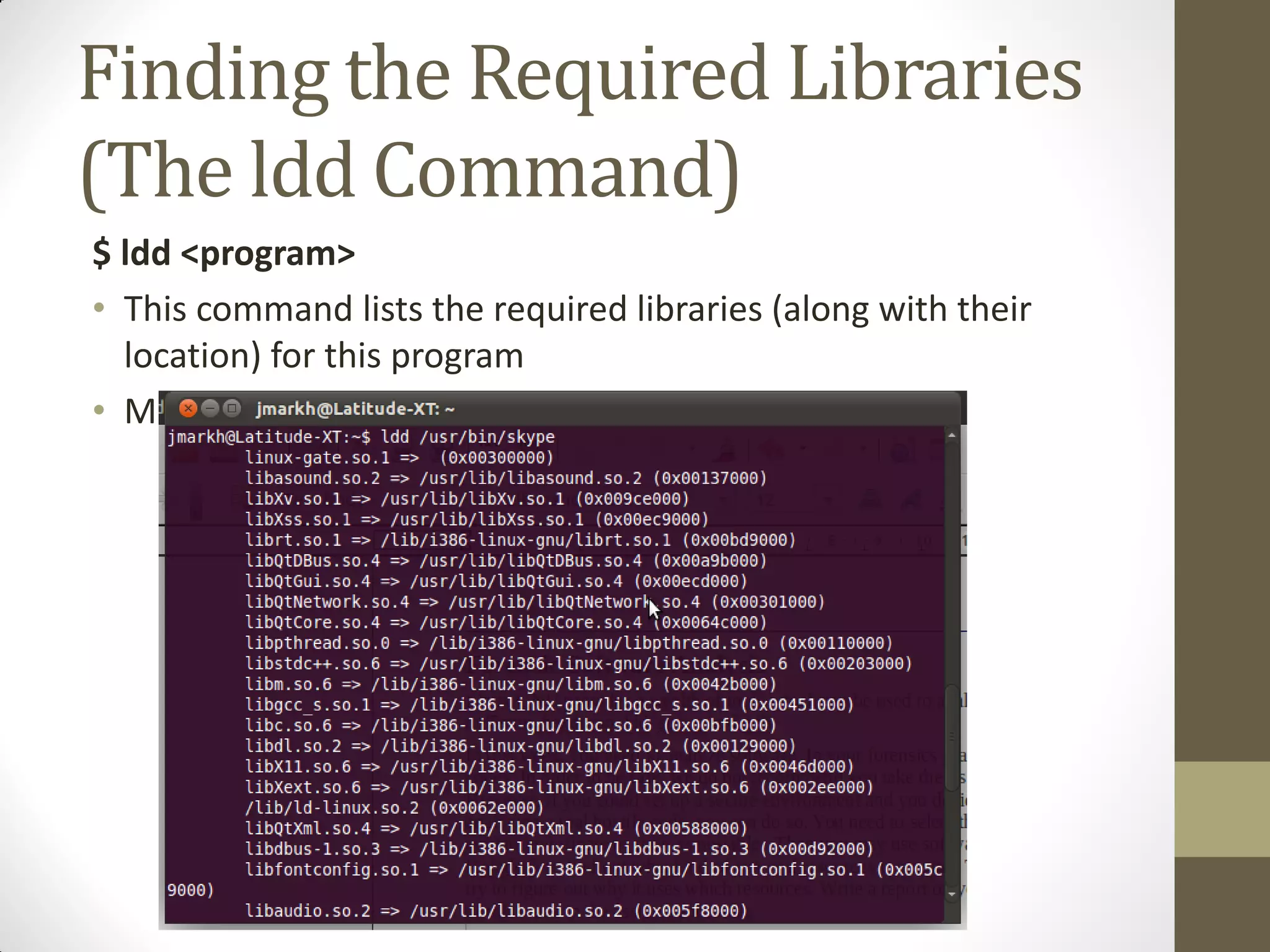
Finding the Required Libraries
(The ldd Command)
$ ldd <program>
• This command lists the required libraries (along with their
location) for this program
• Multiple programs can be specified for the command
Managing the Dynamic Linker Cache File
(The ldconfig Command)
$ ldconfig
$ ldconfig <Library Directories>
• This command is used to display contents, or build the
Dynamic Linker Cache file (/etc/ld.so.cache)
• To display the cache contents
$ ldconfig -p
• To build the cache from the /etc/ld.so.conf file (in addition to
/lib and /usr/lib)
$ ldconfig
• To build the cache as above, with the addition of /usr/local/lib,
$ ldconfig /usr/local/lib
Using a Pre-prepared
Software Package
Software Packages
• A Software Package is an archive of files that contains,
• The binary files to be installed (previously built)
• Any configuration files needed for the application
• Meta data about the package (including a list of dependencies)
• Pre/post installation scripts
• Packages are available,
• Individually on internal sites (a package file with extension .deb
or .rpm)
• Among a group within common repositories (collection of
packages)
• Tools and package format is dependent on the Linux
distribution (we will focus on Debian based distributions)
Debian Package File Name Format
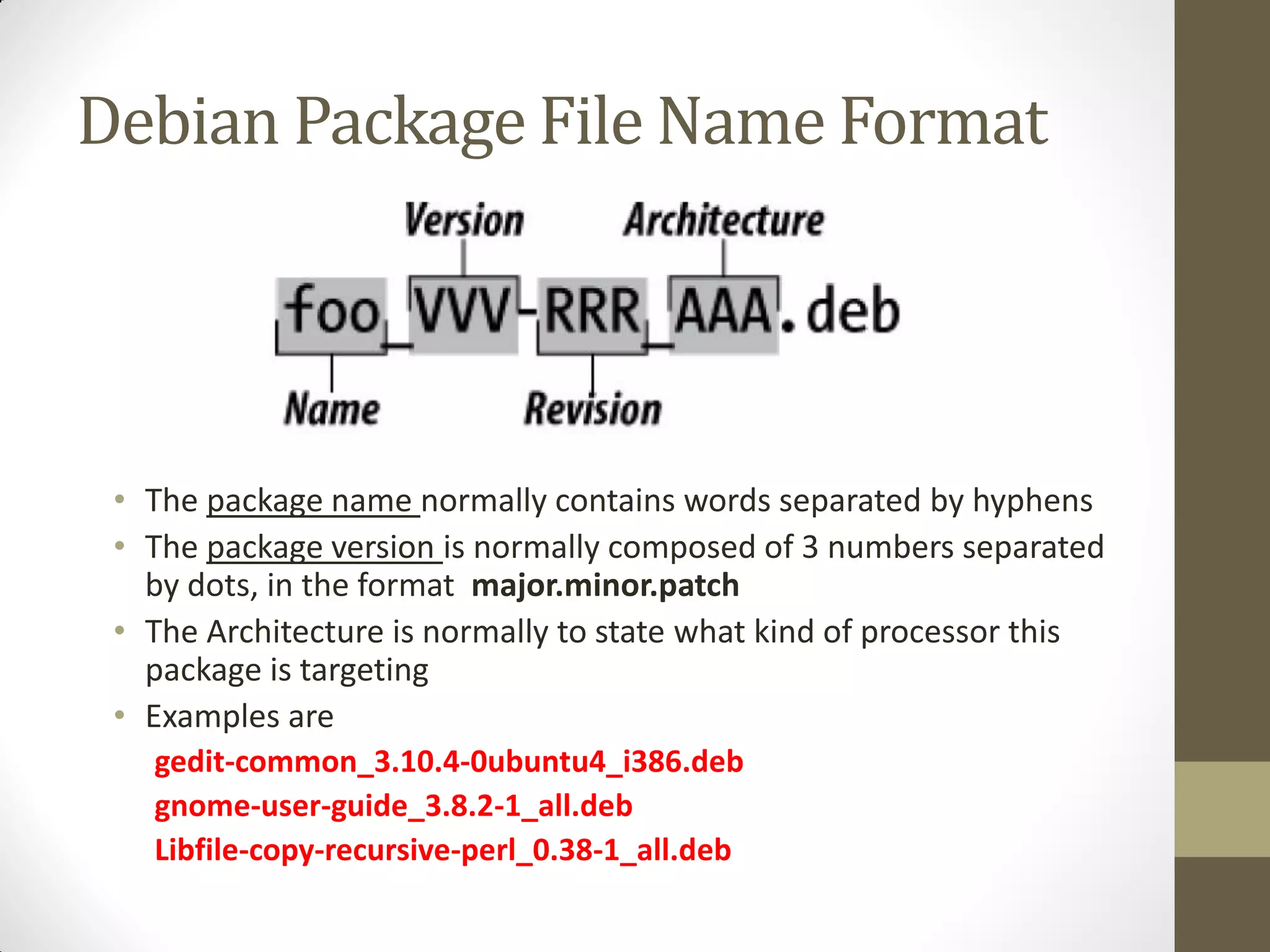
• The package name normally contains words separated by hyphens
• The package version is normally composed of 3 numbers separated
by dots, in the format major.minor.patch
• The Architecture is normally to state what kind of processor this
package is targeting
• Examples are
gedit-common_3.10.4-0ubuntu4_i386.deb
gnome-user-guide_3.8.2-1_all.deb
Libfile-copy-recursive-perl_0.38-1_all.deb
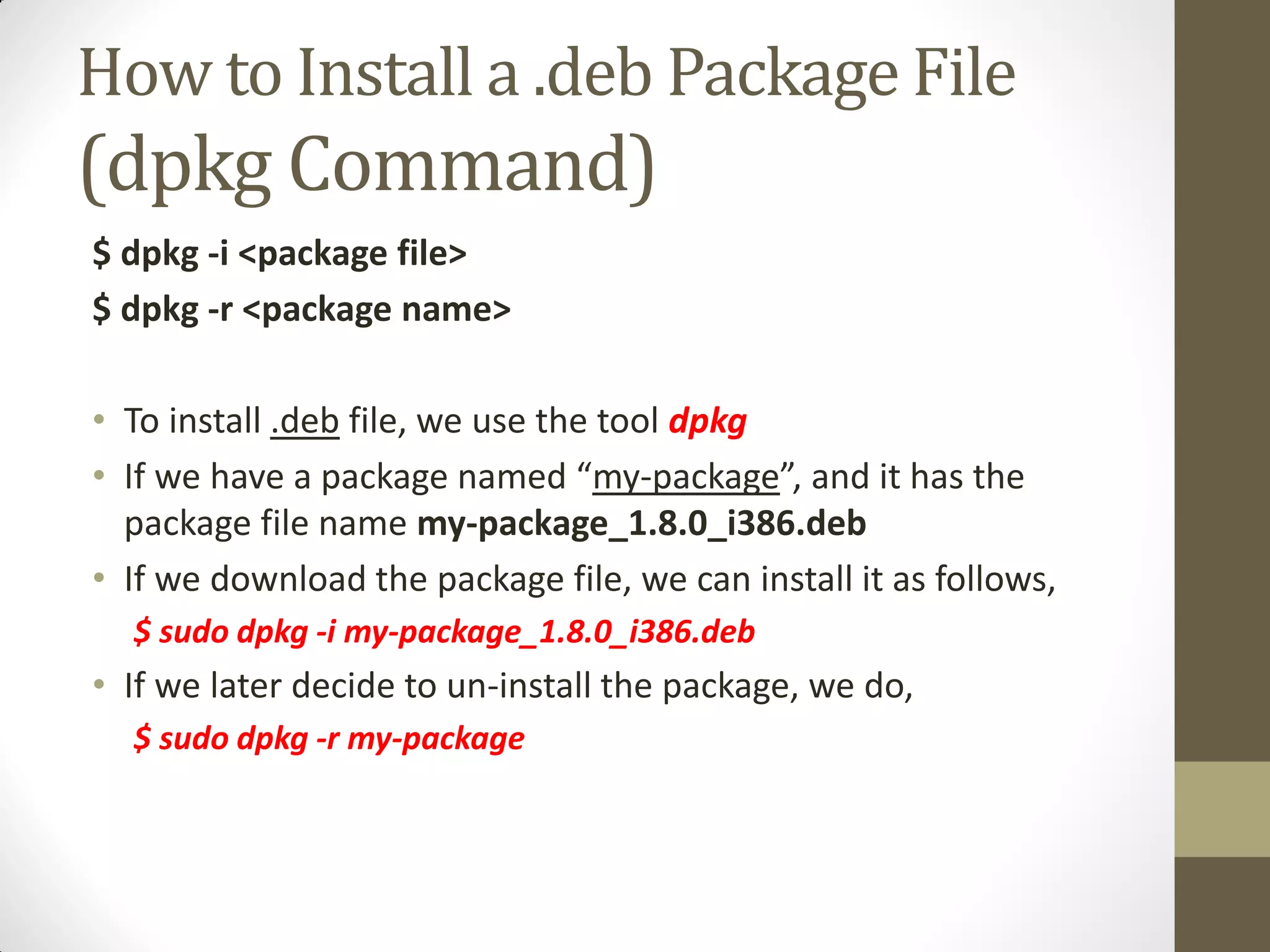
How to Install a .deb Package File
(dpkg Command)
$ dpkg -i <package file>
$ dpkg -r <package name>
• To install .deb file, we use the tool dpkg
• If we have a package named “my-package”, and it has the
package file name my-package_1.8.0_i386.deb
• If we download the package file, we can install it as follows,
$ sudo dpkg -i my-package_1.8.0_i386.deb
• If we later decide to un-install the package, we do,
$ sudo dpkg -r my-package
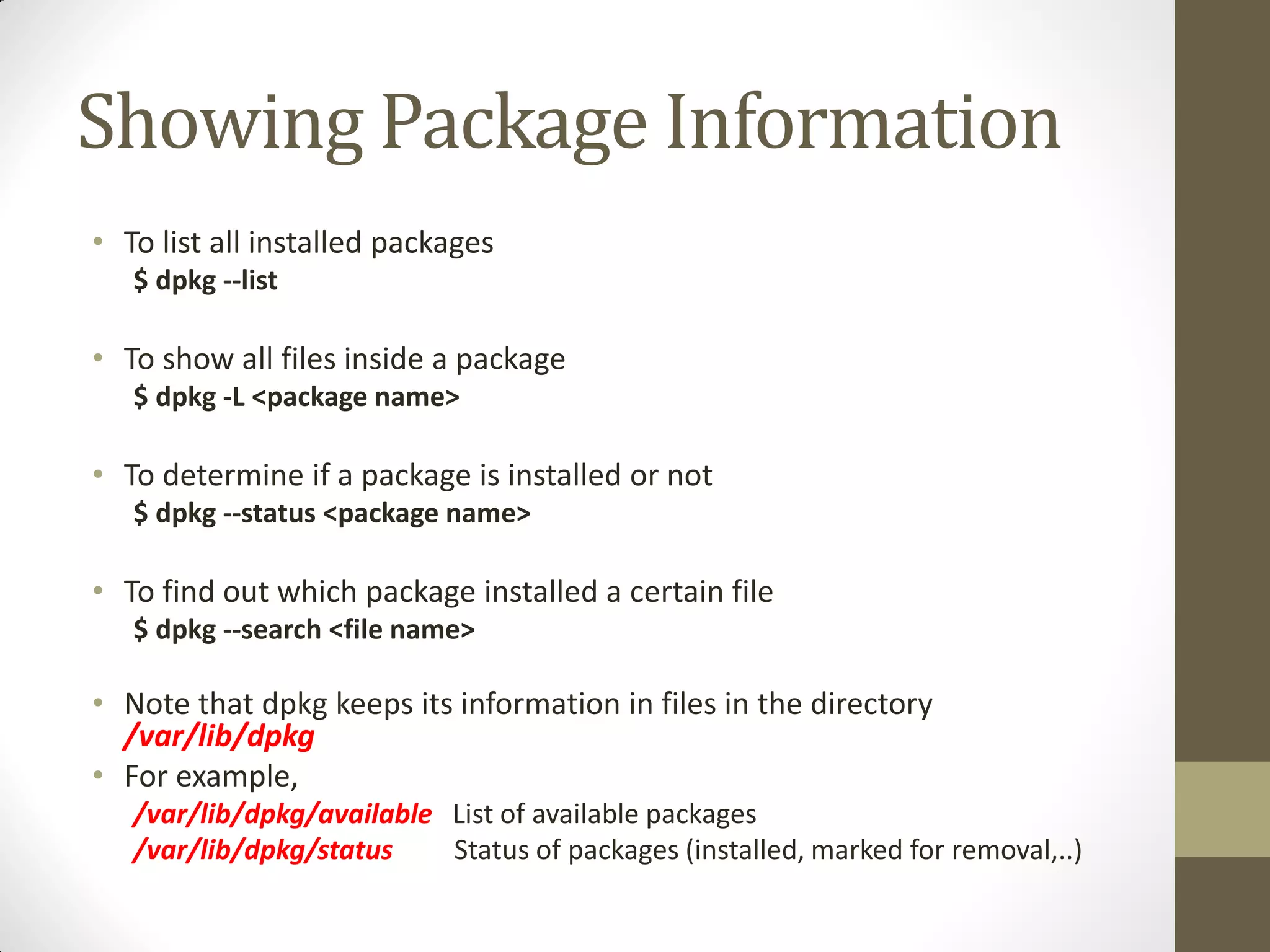
Showing Package Information
• To list all installed packages
$ dpkg --list
• To show all files inside a package
$ dpkg -L <package name>
• To determine if a package is installed or not
$ dpkg --status <package name>
• To find out which package installed a certain file
$ dpkg --search <file name>
• Note that dpkg keeps its information in files in the directory
/var/lib/dpkg
• For example,
/var/lib/dpkg/available List of available packages
/var/lib/dpkg/status Status of packages (installed, marked for removal,..)
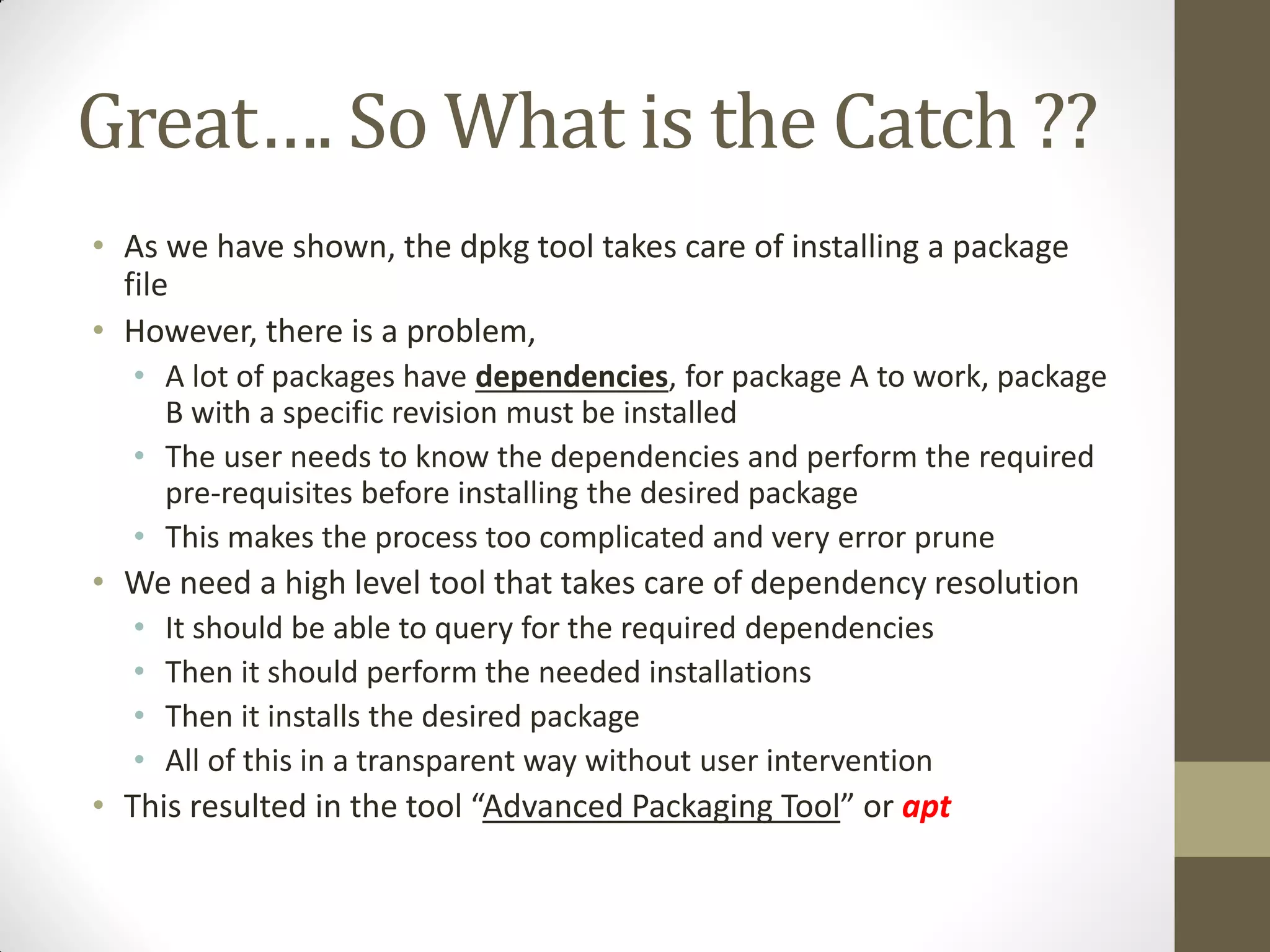
Great…. So What is the Catch ??
• As we have shown, the dpkg tool takes care of installing a package
file
• However, there is a problem,
• A lot of packages have dependencies, for package A to work, package
B with a specific revision must be installed
• The user needs to know the dependencies and perform the required
pre-requisites before installing the desired package
• This makes the process too complicated and very error prune
• We need a high level tool that takes care of dependency resolution
• It should be able to query for the required dependencies
• Then it should perform the needed installations
• Then it installs the desired package
• All of this in a transparent way without user intervention
• This resulted in the tool “Advanced Packaging Tool” or apt
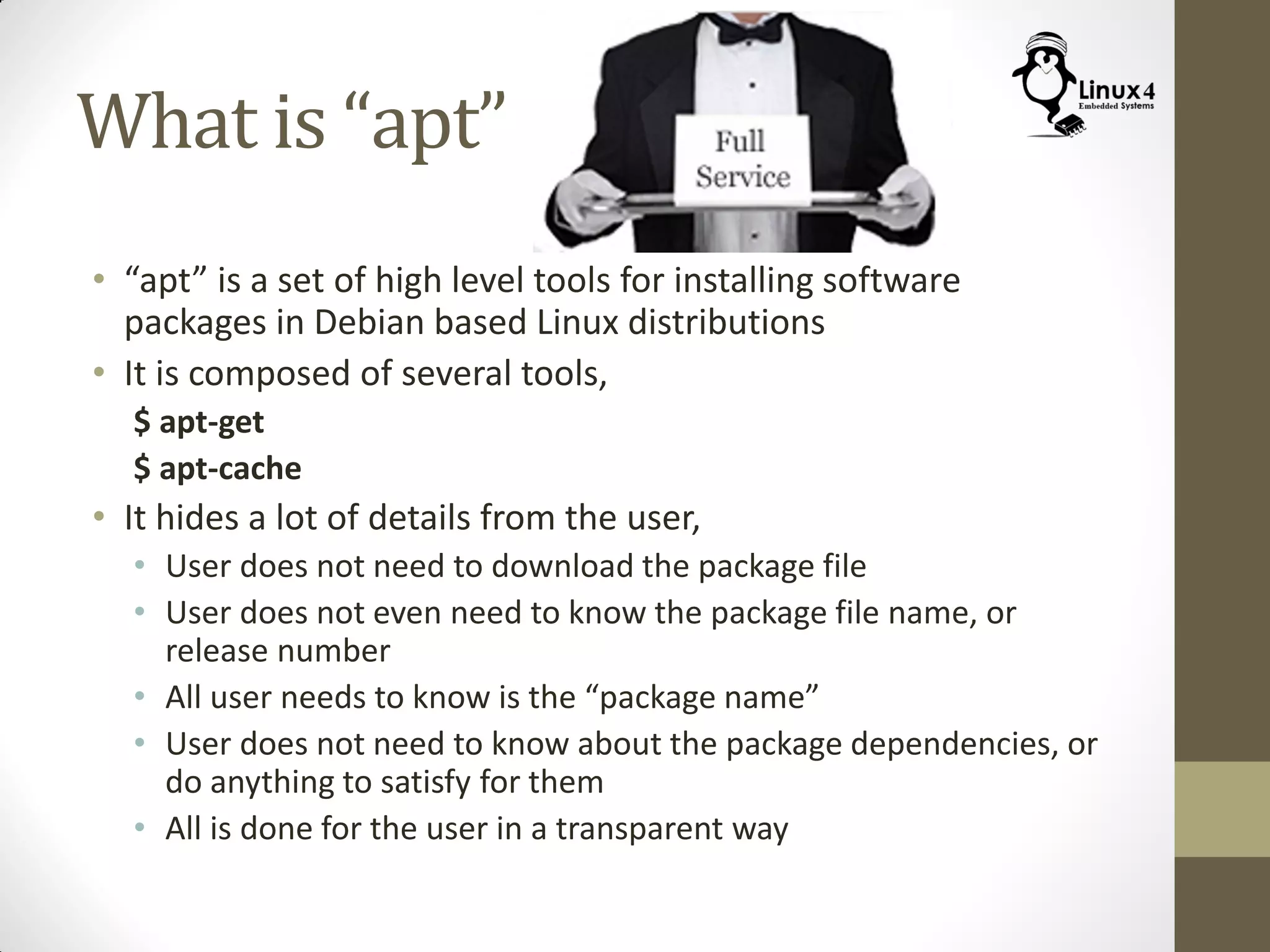
What is “apt”
• “apt” is a set of high level tools for installing software
packages in Debian based Linux distributions
• It is composed of several tools,
$ apt-get
$ apt-cache
• It hides a lot of details from the user,
• User does not need to download the package file
• User does not even need to know the package file name, or
release number
• All user needs to know is the “package name”
• User does not need to know about the package dependencies, or
do anything to satisfy for them
• All is done for the user in a transparent way
Installing Packages using apt
(apt-get install Command)
• To install a certain program or library, all you need is to know the name
of the package that contains it
• If you don’t know it, you can find the package name via some web
search
• Then use the command:
$ sudo apt-get install <package name>
• The apt tool then performs all the necessary steps
• This includes,
• It identifies the latest version for the package to be installed
• It identifies any pre-requisites for the package (along with the needed version
number of each of them)
• It calculates how much disk space needed for the installation of the package
• It prompts the user to approve the installation before it is done
• If user approve the installation, the tool downloads all the needed files from
the internet if not available locally on the machine
• Then the installation procedure is performed
• So how does apt does all of that ???
Software Repository
• Normally package files are not stored isolated
• Packages are grouped in big archives called “Package
Repositories”
• A repository is a collection of packages along with some index
file to organize them
• The apt tool keeps track of which repositories to search for
the desired package
• This is done via a configuration file /etc/apt/sources.list
• This configuration file contains a list of the URLs for the
servers containing the different repositories to search for
packages
Example:
Repositories for Ubuntu
• Ubuntu for example comes with a set of repositories
• The URLs of the mirror servers containing those repos are
listed in /etc/apt/sources.list
• Software packages in Ubuntu repositories are divided into 4
categories,
• Main: Contain open-source free packages supported by ubuntu,
and comes installed with the distribution
• Restricted: Contain proprietary software needed by Ubuntu. This
include hardware drivers which does not have an open-source
replacement
• Universe: Contain all available open source software. Not
supported by Ubuntu
• Multiverse: Contain proprietary software that is not supported by
Ubuntu (install on your own responsibility)
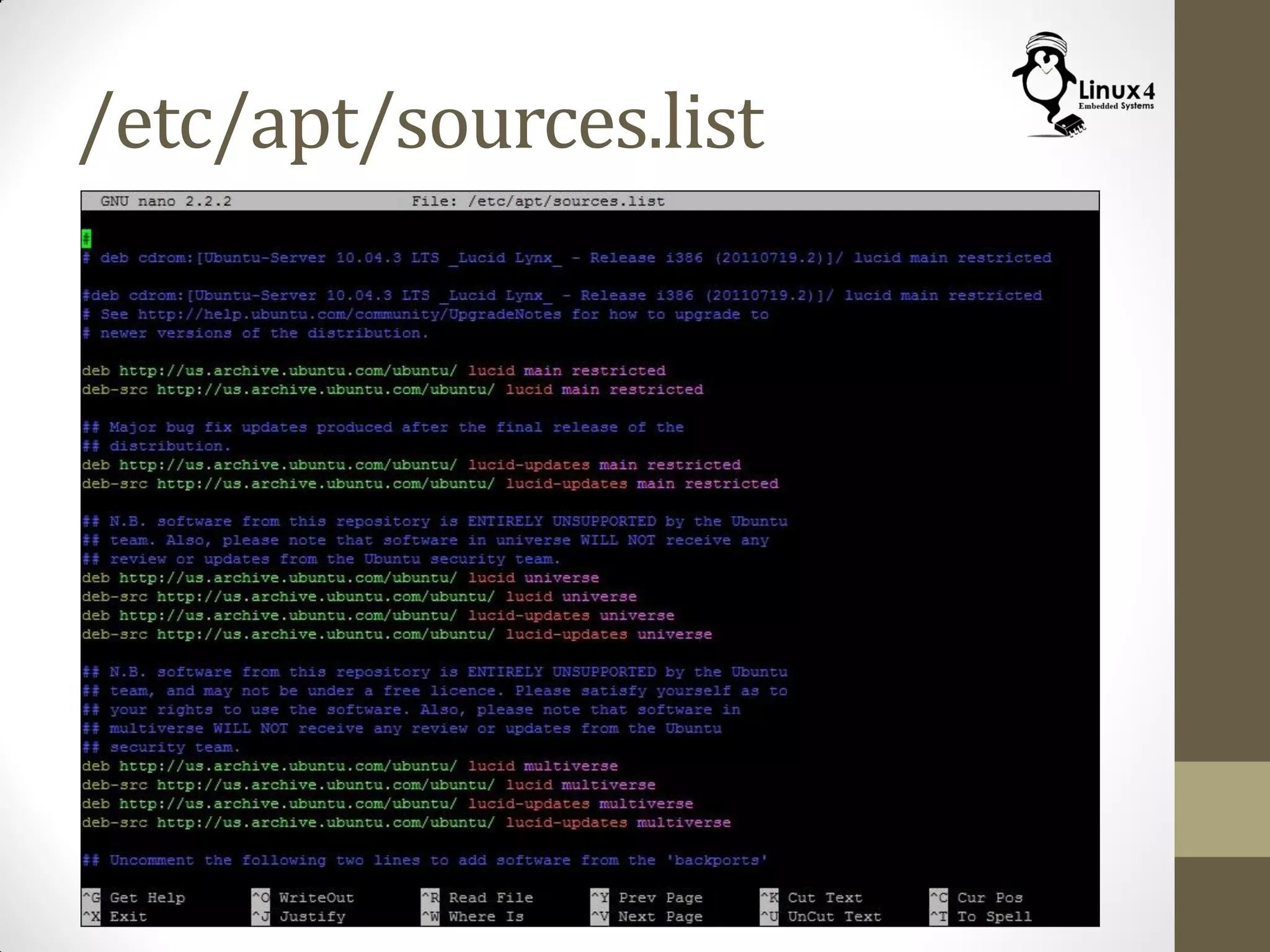
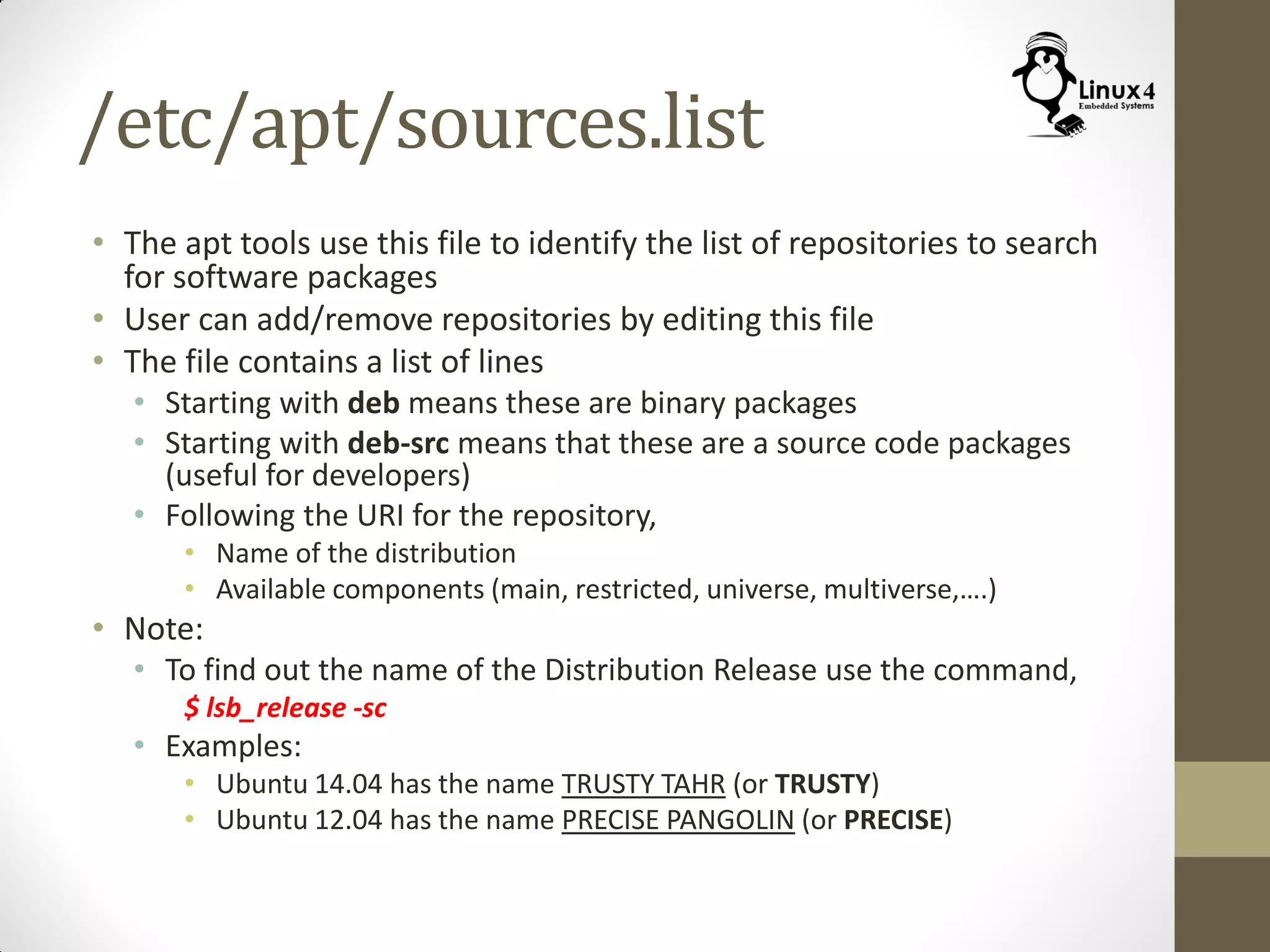
/etc/apt/sources.list
• The apt tools use this file to identify the list of repositories to search
for software packages
• User can add/remove repositories by editing this file
• The file contains a list of lines
• Starting with deb means these are binary packages
• Starting with deb-src means that these are a source code packages
(useful for developers)
• Following the URI for the repository,
• Name of the distribution
• Available components (main, restricted, universe, multiverse,….)
• Note:
• To find out the name of the Distribution Release use the command,
$ lsb_release -sc
• Examples:
• Ubuntu 14.04 has the name TRUSTY TAHR (or TRUSTY)
• Ubuntu 12.04 has the name PRECISE PANGOLIN (or PRECISE)
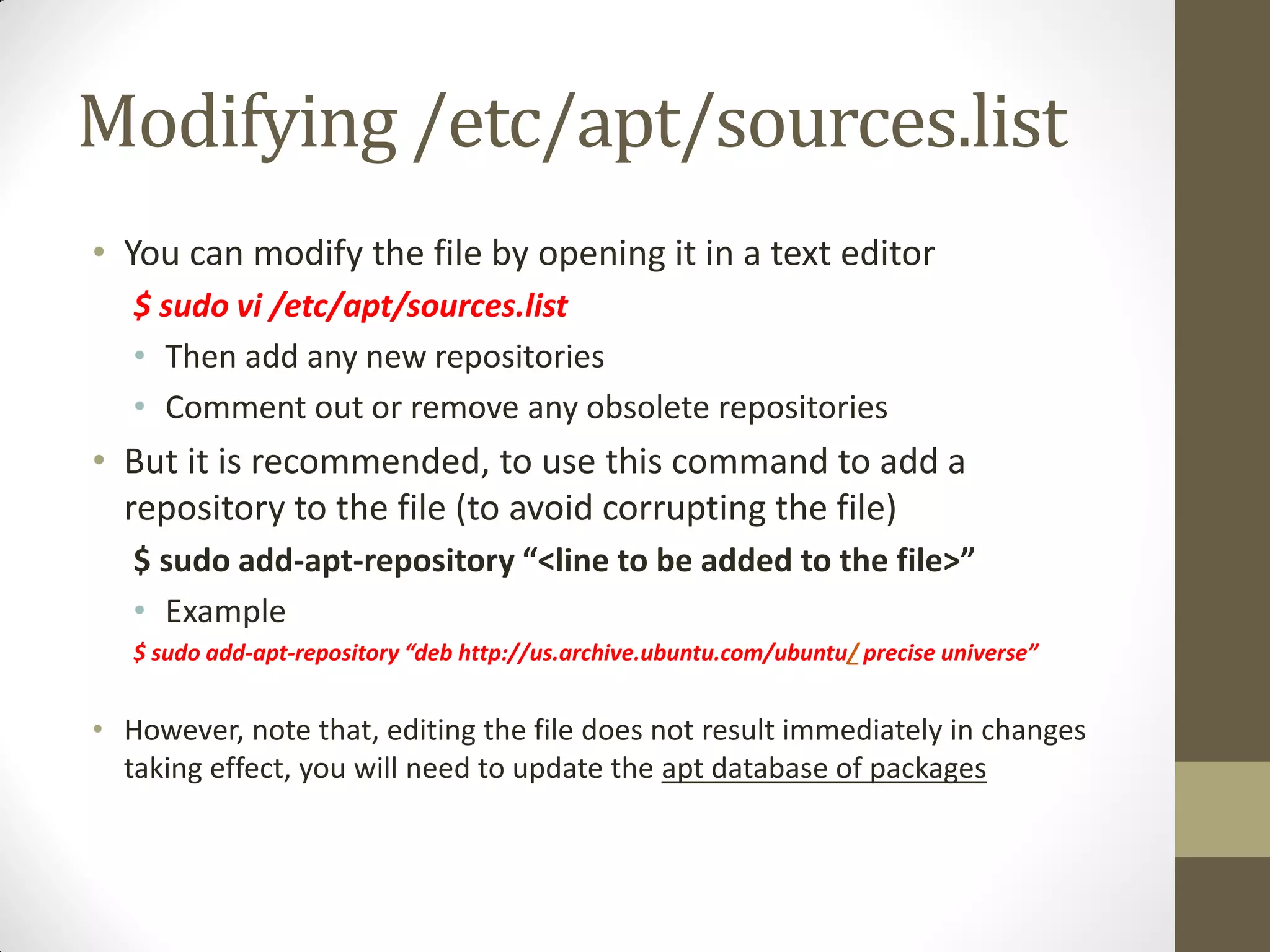
Modifying /etc/apt/sources.list
• You can modify the file by opening it in a text editor
$ sudo vi /etc/apt/sources.list
• Then add any new repositories
• Comment out or remove any obsolete repositories
• But it is recommended, to use this command to add a
repository to the file (to avoid corrupting the file)
$ sudo add-apt-repository “<line to be added to the file>”
• Example
$ sudo add-apt-repository “deb http://us.archive.ubuntu.com/ubuntu/ precise universe”
• However, note that, editing the file does not result immediately in changes
taking effect, you will need to update the apt database of packages
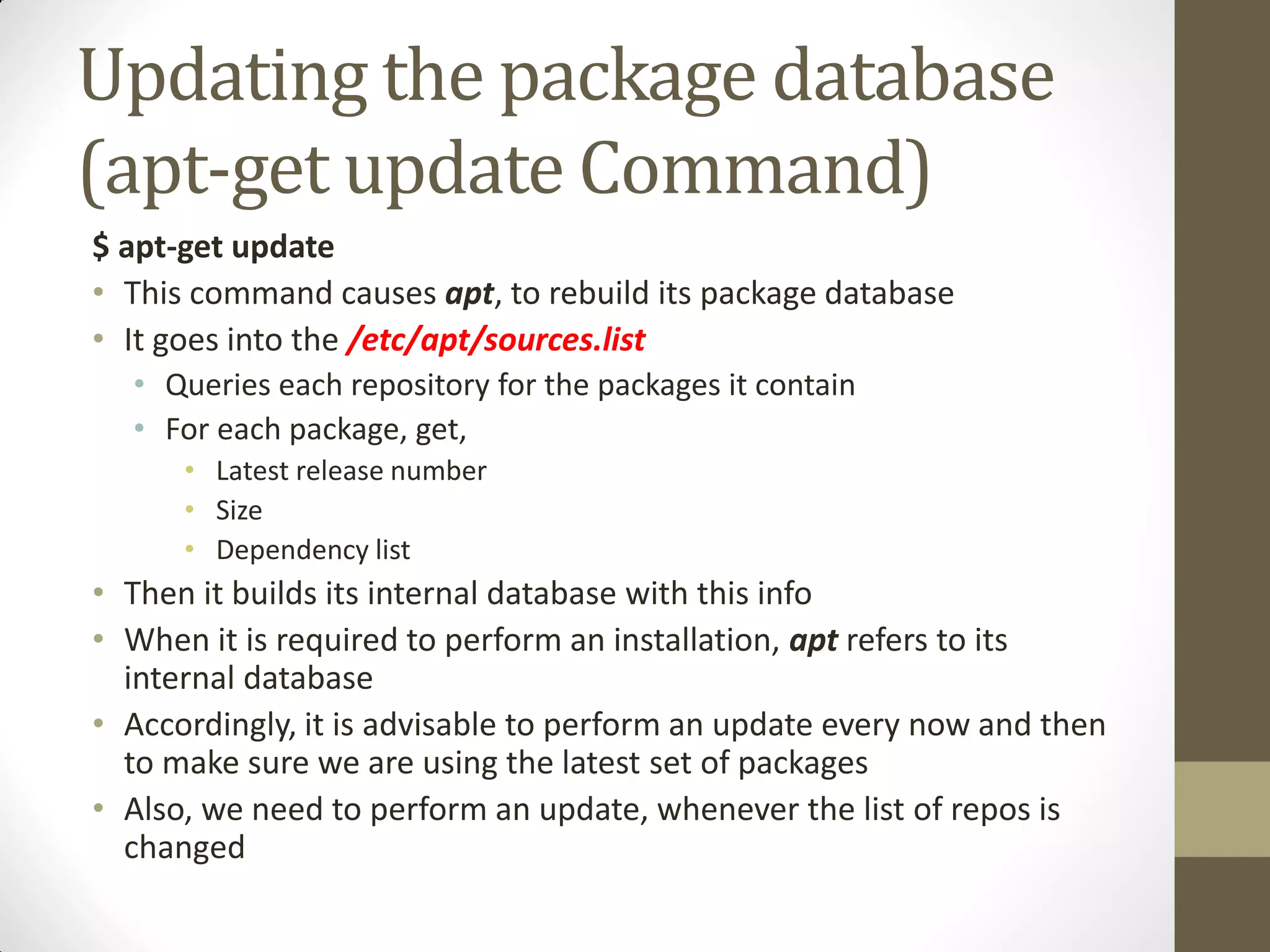
Updating the package database
(apt-get update Command)
$ apt-get update
• This command causes apt, to rebuild its package database
• It goes into the /etc/apt/sources.list
• Queries each repository for the packages it contain
• For each package, get,
• Latest release number
• Size
• Dependency list
• Then it builds its internal database with this info
• When it is required to perform an installation, apt refers to its
internal database
• Accordingly, it is advisable to perform an update every now and then
to make sure we are using the latest set of packages
• Also, we need to perform an update, whenever the list of repos is
changed
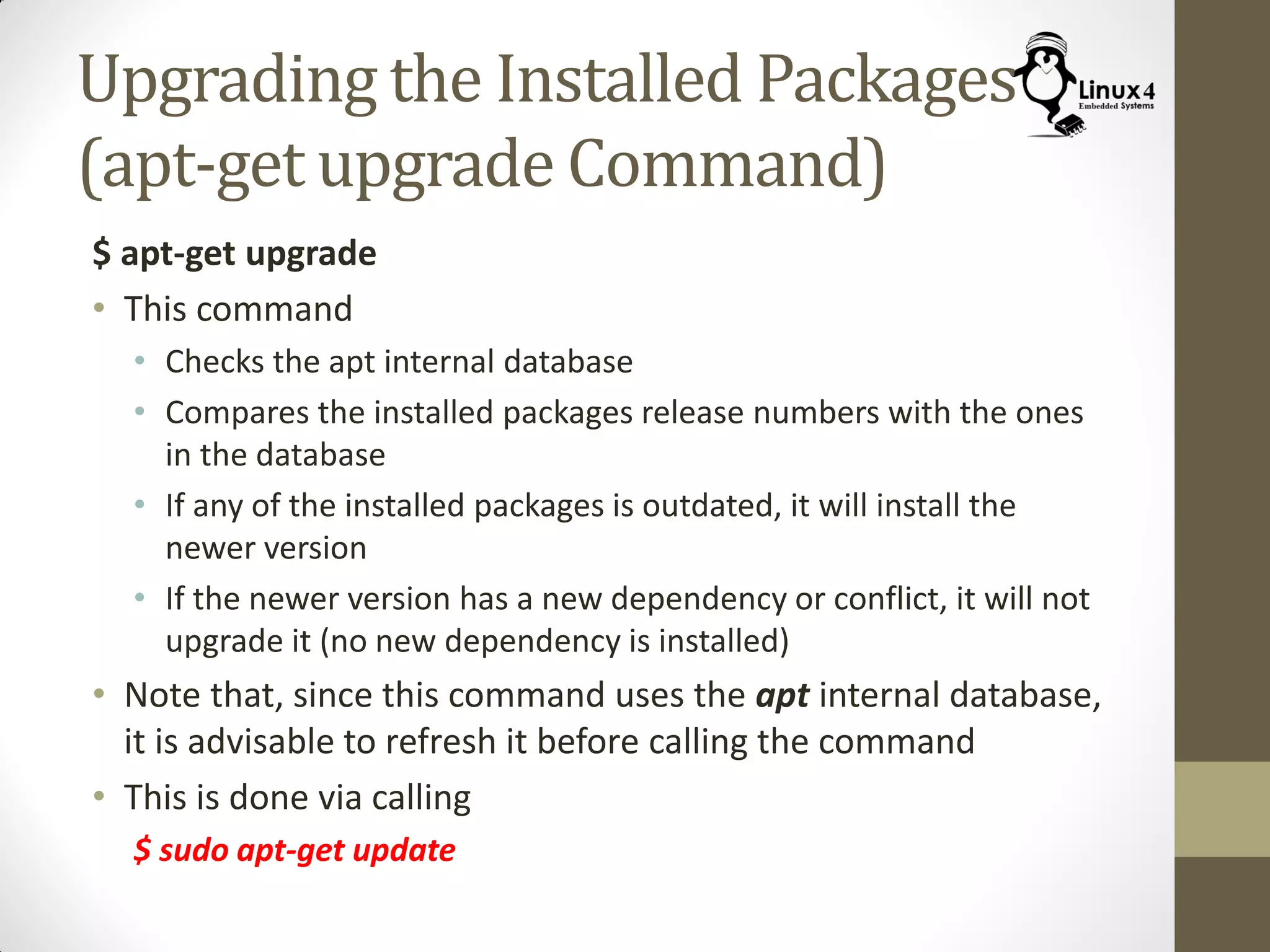
Upgrading the Installed Packages
(apt-get upgrade Command)
$ apt-get upgrade
• This command
• Checks the apt internal database
• Compares the installed packages release numbers with the ones
in the database
• If any of the installed packages is outdated, it will install the
newer version
• If the newer version has a new dependency or conflict, it will not
upgrade it (no new dependency is installed)
• Note that, since this command uses the apt internal database,
it is advisable to refresh it before calling the command
• This is done via calling
$ sudo apt-get update
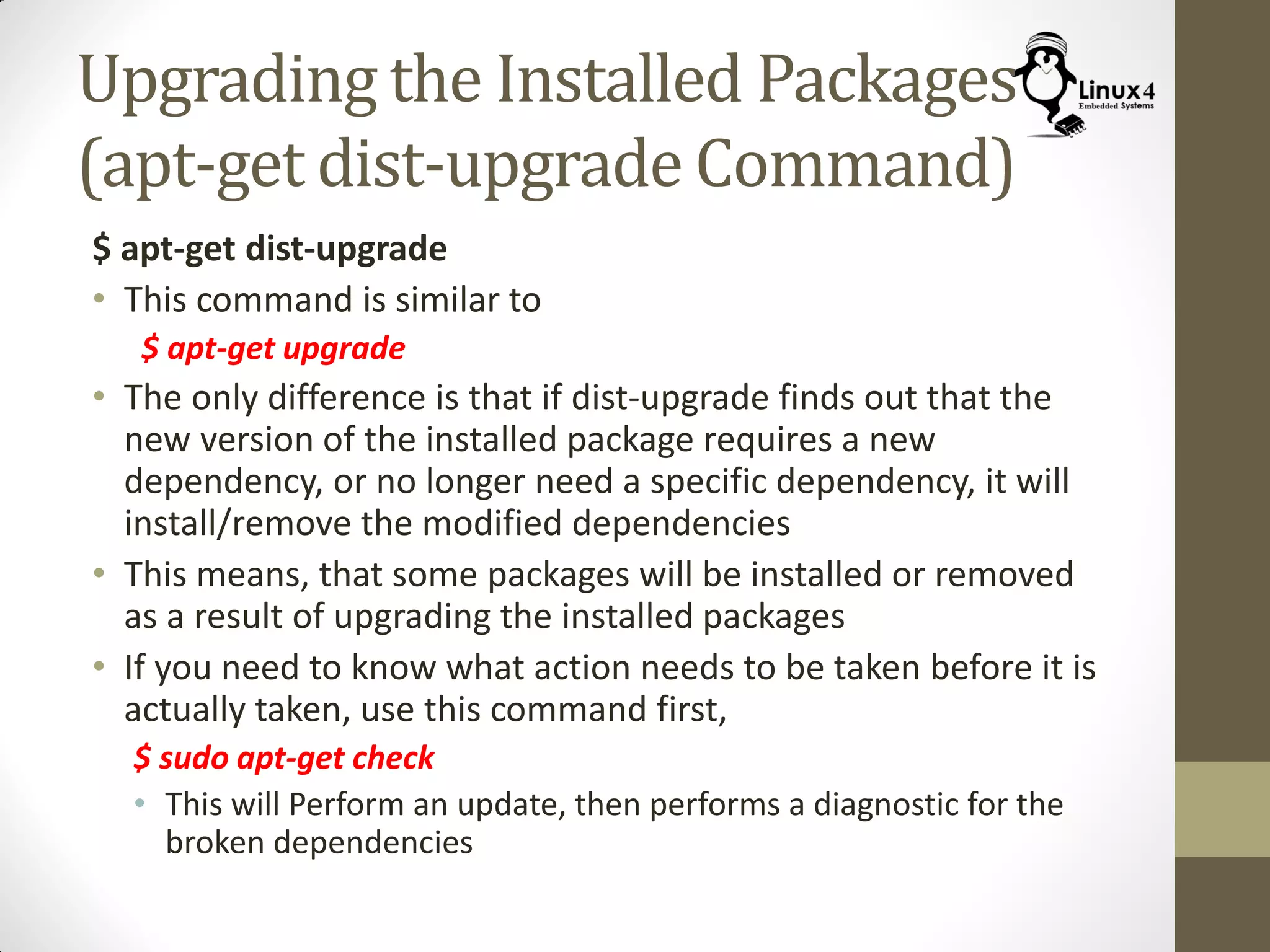
Upgrading the Installed Packages
(apt-get dist-upgrade Command)
$ apt-get dist-upgrade
• This command is similar to
$ apt-get upgrade
• The only difference is that if dist-upgrade finds out that the
new version of the installed package requires a new
dependency, or no longer need a specific dependency, it will
install/remove the modified dependencies
• This means, that some packages will be installed or removed
as a result of upgrading the installed packages
• If you need to know what action needs to be taken before it is
actually taken, use this command first,
$ sudo apt-get check
• This will Perform an update, then performs a diagnostic for the
broken dependencies
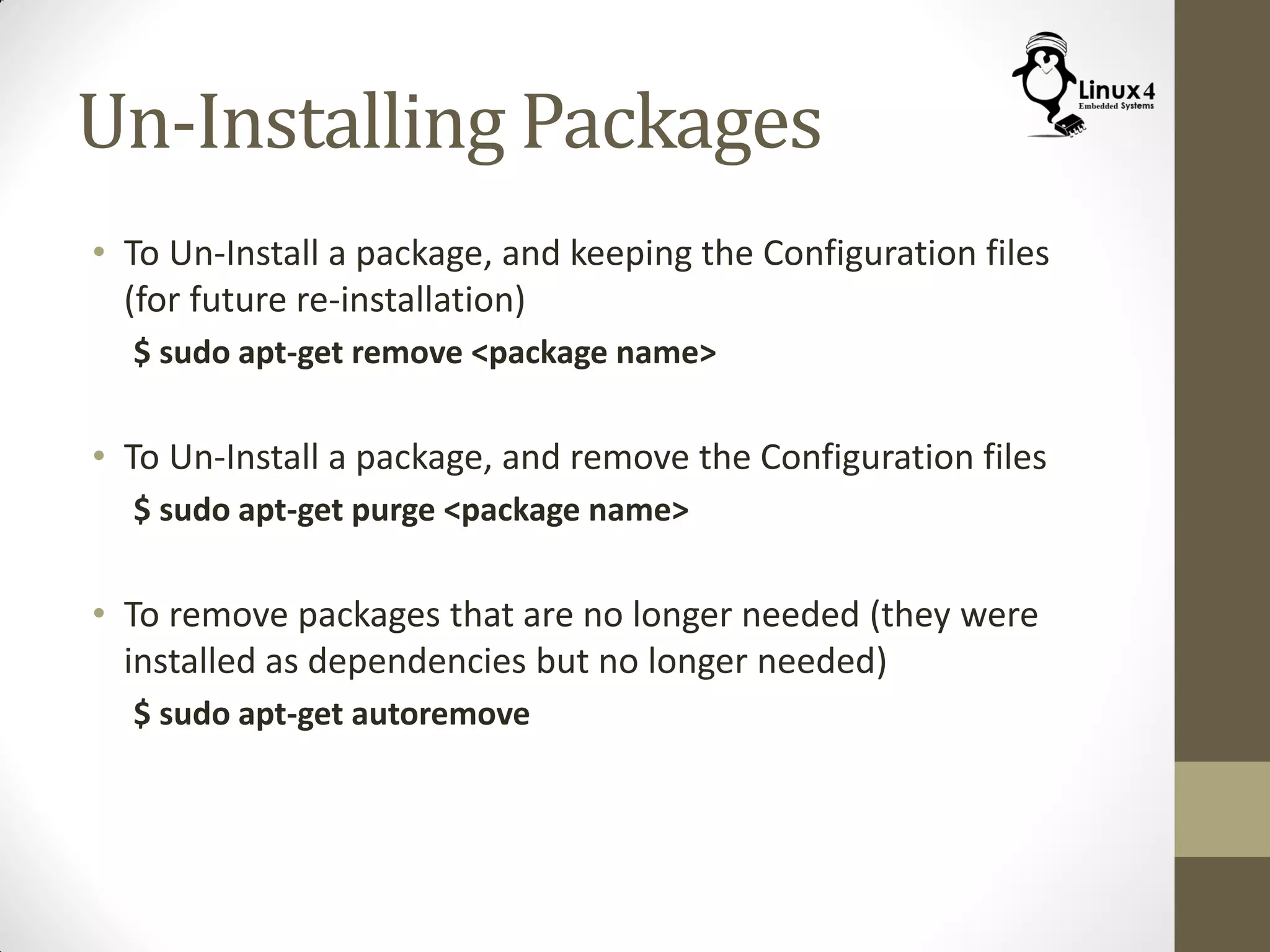
Un-Installing Packages
• To Un-Install a package, and keeping the Configuration files
(for future re-installation)
$ sudo apt-get remove <package name>
• To Un-Install a package, and remove the Configuration files
$ sudo apt-get purge <package name>
• To remove packages that are no longer needed (they were
installed as dependencies but no longer needed)
$ sudo apt-get autoremove
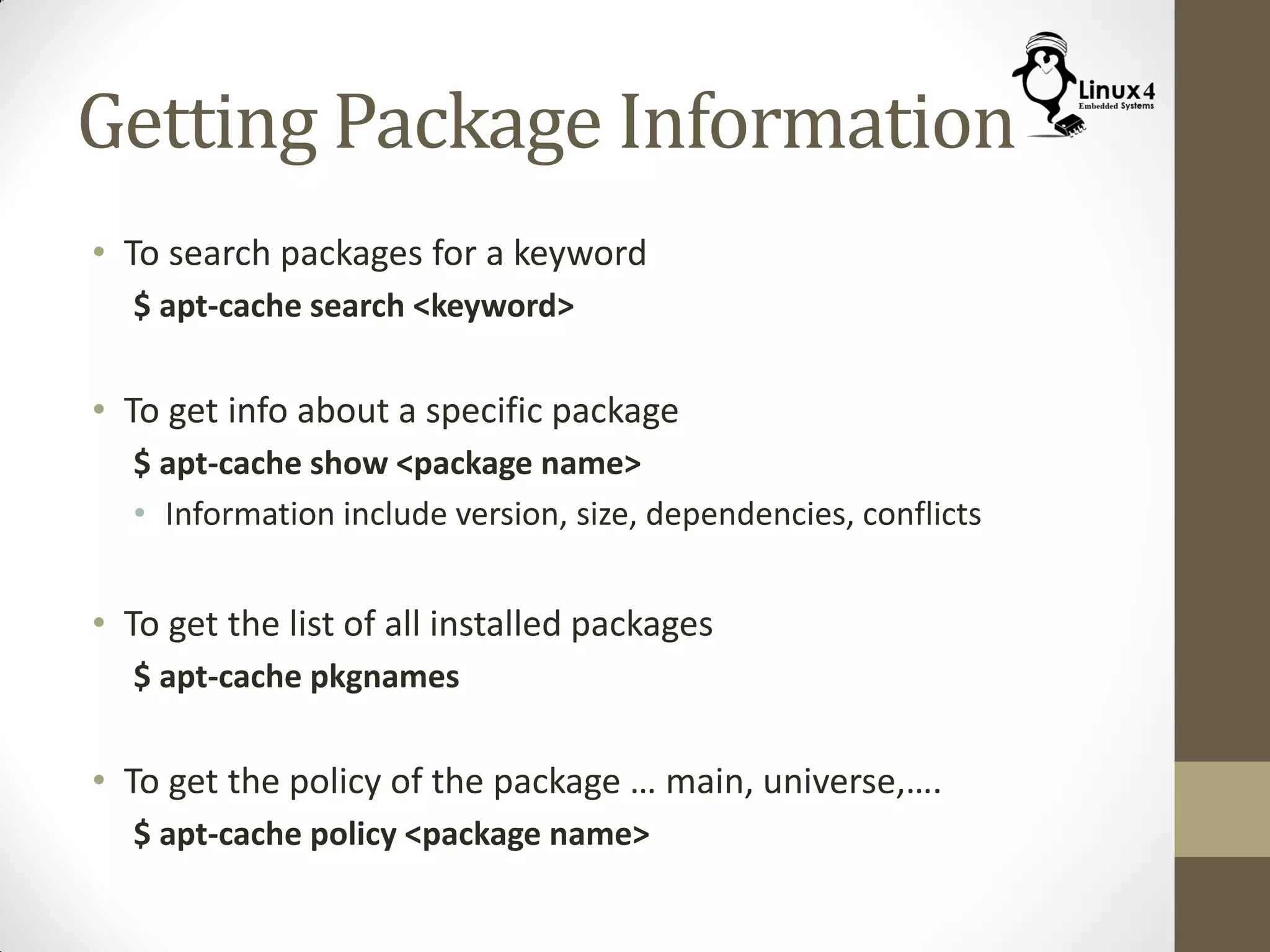
Getting Package Information
• To search packages for a keyword
$ apt-cache search <keyword>
• To get info about a specific package
$ apt-cache show <package name>
• Information include version, size, dependencies, conflicts
• To get the list of all installed packages
$ apt-cache pkgnames
• To get the policy of the package … main, universe,….
$ apt-cache policy <package name>
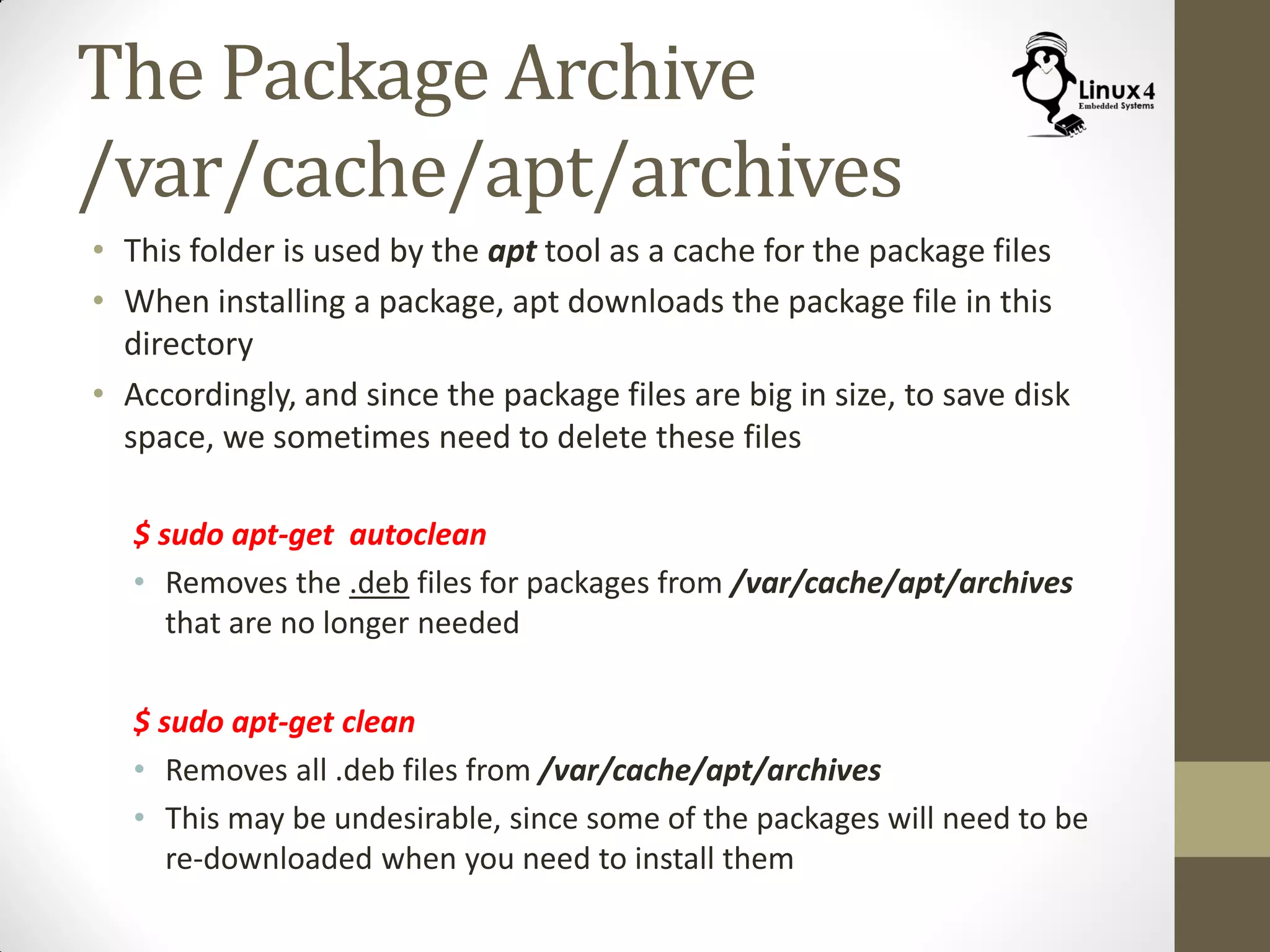
The Package Archive
/var/cache/apt/archives
• This folder is used by the apt tool as a cache for the package files
• When installing a package, apt downloads the package file in this
directory
• Accordingly, and since the package files are big in size, to save disk
space, we sometimes need to delete these files
$ sudo apt-get autoclean
• Removes the .deb files for packages from /var/cache/apt/archives
that are no longer needed
$ sudo apt-get clean
• Removes all .deb files from /var/cache/apt/archives
• This may be undesirable, since some of the packages will need to be
re-downloaded when you need to install them
http://Linux4EmbeddedSystems.com

Course 102: Lecture 22: Package Management

  • 1.
    Linux For EmbeddedSystems ForArabs Ahmed ElArabawy Course 102: UnderstandingLinux
  • 2.
  • 3.
    How to InstallS/W in Linux ?? • Build from the source code • Need to download the software and compile it to generate the binaries/libraries • Usually, it is a straight forward task, and sometimes, there are a few tricks needed • In some cases, this is the only option (we only have the source) • Useful when installing non-official releases • Useful for installing on some embedded targets (non x86 Processor) • Install a pre-prepared Package • The software may be pre-prepared in a package that is ready for installation • Only applicable to official releases • Packages depend on the used Linux distribution • Debian based distributions (like Ubuntu) they come in .deb • Red Hat based distributions (like Fedora) they come in .rpm
  • 4.
    Build From theSource Code
  • 5.
    Installing Software fromthe Source Code • Download the source code • Simple download of a zip or rar file, then extract the source code • Download via some SW configuration tool (svn, git, …) • Check the readme file that comes with the source code for the instructions to build and install the package • The readme file should outline any adjustments needed to be done before building the source • It should also outline any dependencies required for this code to run
  • 6.
    Using Software CMTools • Source code is normally maintained inside some Configuration Management Tool • These tools are used to maintain changes, and revisions, and access by multiple users • Most Common tools are git, SVN (Subversion) • Other tools exist such as Bazzar, Mercurial, …etc • Common sites for hosting source code for Open Source Projects, • GitHub (https://github.com/) • Google Code (https://code.google.com/) • To download the source code from these tools, you will need special commands $ git clone https://github.com/adafruit/Adafruit-Raspberry-Pi-Python-Code.git $ svn checkout http://svn.wikimedia.org/svnroot/mediawiki/branches/REL1_23/phase3
  • 7.
    Installing Software fromthe Source Code • Typical steps are: • Perform any configuration changes • Go to the proper directory that contain the Makefile • For the configurations to take effect, run, $ make config • Build the code via, $ make • Install the binaries and libraries in the proper places in the tree hierarchy via, $ sudo make install • Note: • To be able to perform these steps, you must have the tool-chain properly installed and setup • The installed binary may still not run because it needs some shared libraries in its operation
  • 8.
    So what areShared Libraries ? • Normally the program functionality are located in: • The program source code (functionality specific to this program) • Some pre-compiled Libraries (functionality that is used by multiple programs, such as printing, writing to files, …) • Hence the program needs to be linked to some libraries to perform its task • This linking can be Static (during build time, the library is packed into the image of the binary of the program) • Or it can be Dynamic (At run time, the program is linked to the library)
  • 9.
    Static versus DynamicLinking • So why do we use Dynamic Linking ?? • To keep the binary image size smaller • Since multiple programs may be using the same library, it makes no sense to include it in each and every one of them • Also, as the different programs loaded in memory, they need less memory • Upgrade in functionality and bug fixing of the library does not require re-building of all the programs using this library • Why do we use Static Linking ?? • To remove dependencies (the program has everything it needs to run) • To make sure we are using a specific version of the library (to avoid conflicts)
  • 10.
    How Does DynamicLinking Happen • When the program runs, the program binary is checked by the Dynamic Linker (ld.so) • The Dynamic linker checks for dependencies on shared libraries • It also tries to resolve these dependencies by locating the required libraries and linking it to the program binary • If the Dynamic linker fails to find a library, the program fails to run • So, how does dynamic linker finds the required libraries ??
  • 11.
    Dynamic Linker Findsthe Libraries, Via Library Path Environment Variable: • It checks the environment variable LD_LIBRARY_PATH, which contain a list of directories (separated by a colon “:”) that contain the libraries Via Dynamic Linker Cache • The dynamic linker cache is a binary file (/etc/ld.so.cache) • It contains an index of libraries and their locations • It provides a fast method for the dynamic linker to find libraries in the specified directories • To add a directory to the dynamic linker cache, • Add the directory path to the file /etc/ld.so.conf • Run the utility ldconfig to generate the binary cache
  • 12.
    Finding the RequiredLibraries (The ldd Command) $ ldd <program> • This command lists the required libraries (along with their location) for this program • Multiple programs can be specified for the command
  • 13.
    Managing the DynamicLinker Cache File (The ldconfig Command) $ ldconfig $ ldconfig <Library Directories> • This command is used to display contents, or build the Dynamic Linker Cache file (/etc/ld.so.cache) • To display the cache contents $ ldconfig -p • To build the cache from the /etc/ld.so.conf file (in addition to /lib and /usr/lib) $ ldconfig • To build the cache as above, with the addition of /usr/local/lib, $ ldconfig /usr/local/lib
  • 14.
  • 15.
    Software Packages • ASoftware Package is an archive of files that contains, • The binary files to be installed (previously built) • Any configuration files needed for the application • Meta data about the package (including a list of dependencies) • Pre/post installation scripts • Packages are available, • Individually on internal sites (a package file with extension .deb or .rpm) • Among a group within common repositories (collection of packages) • Tools and package format is dependent on the Linux distribution (we will focus on Debian based distributions)
  • 16.
    Debian Package FileName Format • The package name normally contains words separated by hyphens • The package version is normally composed of 3 numbers separated by dots, in the format major.minor.patch • The Architecture is normally to state what kind of processor this package is targeting • Examples are gedit-common_3.10.4-0ubuntu4_i386.deb gnome-user-guide_3.8.2-1_all.deb Libfile-copy-recursive-perl_0.38-1_all.deb
  • 17.
    How to Installa .deb Package File (dpkg Command) $ dpkg -i <package file> $ dpkg -r <package name> • To install .deb file, we use the tool dpkg • If we have a package named “my-package”, and it has the package file name my-package_1.8.0_i386.deb • If we download the package file, we can install it as follows, $ sudo dpkg -i my-package_1.8.0_i386.deb • If we later decide to un-install the package, we do, $ sudo dpkg -r my-package
  • 18.
    Showing Package Information •To list all installed packages $ dpkg --list • To show all files inside a package $ dpkg -L <package name> • To determine if a package is installed or not $ dpkg --status <package name> • To find out which package installed a certain file $ dpkg --search <file name> • Note that dpkg keeps its information in files in the directory /var/lib/dpkg • For example, /var/lib/dpkg/available List of available packages /var/lib/dpkg/status Status of packages (installed, marked for removal,..)
  • 19.
    Great…. So Whatis the Catch ?? • As we have shown, the dpkg tool takes care of installing a package file • However, there is a problem, • A lot of packages have dependencies, for package A to work, package B with a specific revision must be installed • The user needs to know the dependencies and perform the required pre-requisites before installing the desired package • This makes the process too complicated and very error prune • We need a high level tool that takes care of dependency resolution • It should be able to query for the required dependencies • Then it should perform the needed installations • Then it installs the desired package • All of this in a transparent way without user intervention • This resulted in the tool “Advanced Packaging Tool” or apt
  • 20.
    What is “apt” •“apt” is a set of high level tools for installing software packages in Debian based Linux distributions • It is composed of several tools, $ apt-get $ apt-cache • It hides a lot of details from the user, • User does not need to download the package file • User does not even need to know the package file name, or release number • All user needs to know is the “package name” • User does not need to know about the package dependencies, or do anything to satisfy for them • All is done for the user in a transparent way
  • 21.
    Installing Packages usingapt (apt-get install Command) • To install a certain program or library, all you need is to know the name of the package that contains it • If you don’t know it, you can find the package name via some web search • Then use the command: $ sudo apt-get install <package name> • The apt tool then performs all the necessary steps • This includes, • It identifies the latest version for the package to be installed • It identifies any pre-requisites for the package (along with the needed version number of each of them) • It calculates how much disk space needed for the installation of the package • It prompts the user to approve the installation before it is done • If user approve the installation, the tool downloads all the needed files from the internet if not available locally on the machine • Then the installation procedure is performed • So how does apt does all of that ???
  • 22.
    Software Repository • Normallypackage files are not stored isolated • Packages are grouped in big archives called “Package Repositories” • A repository is a collection of packages along with some index file to organize them • The apt tool keeps track of which repositories to search for the desired package • This is done via a configuration file /etc/apt/sources.list • This configuration file contains a list of the URLs for the servers containing the different repositories to search for packages
  • 23.
    Example: Repositories for Ubuntu •Ubuntu for example comes with a set of repositories • The URLs of the mirror servers containing those repos are listed in /etc/apt/sources.list • Software packages in Ubuntu repositories are divided into 4 categories, • Main: Contain open-source free packages supported by ubuntu, and comes installed with the distribution • Restricted: Contain proprietary software needed by Ubuntu. This include hardware drivers which does not have an open-source replacement • Universe: Contain all available open source software. Not supported by Ubuntu • Multiverse: Contain proprietary software that is not supported by Ubuntu (install on your own responsibility)
  • 24.
  • 25.
    /etc/apt/sources.list • The apttools use this file to identify the list of repositories to search for software packages • User can add/remove repositories by editing this file • The file contains a list of lines • Starting with deb means these are binary packages • Starting with deb-src means that these are a source code packages (useful for developers) • Following the URI for the repository, • Name of the distribution • Available components (main, restricted, universe, multiverse,….) • Note: • To find out the name of the Distribution Release use the command, $ lsb_release -sc • Examples: • Ubuntu 14.04 has the name TRUSTY TAHR (or TRUSTY) • Ubuntu 12.04 has the name PRECISE PANGOLIN (or PRECISE)
  • 26.
    Modifying /etc/apt/sources.list • Youcan modify the file by opening it in a text editor $ sudo vi /etc/apt/sources.list • Then add any new repositories • Comment out or remove any obsolete repositories • But it is recommended, to use this command to add a repository to the file (to avoid corrupting the file) $ sudo add-apt-repository “<line to be added to the file>” • Example $ sudo add-apt-repository “deb http://us.archive.ubuntu.com/ubuntu/ precise universe” • However, note that, editing the file does not result immediately in changes taking effect, you will need to update the apt database of packages
  • 27.
    Updating the packagedatabase (apt-get update Command) $ apt-get update • This command causes apt, to rebuild its package database • It goes into the /etc/apt/sources.list • Queries each repository for the packages it contain • For each package, get, • Latest release number • Size • Dependency list • Then it builds its internal database with this info • When it is required to perform an installation, apt refers to its internal database • Accordingly, it is advisable to perform an update every now and then to make sure we are using the latest set of packages • Also, we need to perform an update, whenever the list of repos is changed
  • 28.
    Upgrading the InstalledPackages (apt-get upgrade Command) $ apt-get upgrade • This command • Checks the apt internal database • Compares the installed packages release numbers with the ones in the database • If any of the installed packages is outdated, it will install the newer version • If the newer version has a new dependency or conflict, it will not upgrade it (no new dependency is installed) • Note that, since this command uses the apt internal database, it is advisable to refresh it before calling the command • This is done via calling $ sudo apt-get update
  • 29.
    Upgrading the InstalledPackages (apt-get dist-upgrade Command) $ apt-get dist-upgrade • This command is similar to $ apt-get upgrade • The only difference is that if dist-upgrade finds out that the new version of the installed package requires a new dependency, or no longer need a specific dependency, it will install/remove the modified dependencies • This means, that some packages will be installed or removed as a result of upgrading the installed packages • If you need to know what action needs to be taken before it is actually taken, use this command first, $ sudo apt-get check • This will Perform an update, then performs a diagnostic for the broken dependencies
  • 30.
    Un-Installing Packages • ToUn-Install a package, and keeping the Configuration files (for future re-installation) $ sudo apt-get remove <package name> • To Un-Install a package, and remove the Configuration files $ sudo apt-get purge <package name> • To remove packages that are no longer needed (they were installed as dependencies but no longer needed) $ sudo apt-get autoremove
  • 31.
    Getting Package Information •To search packages for a keyword $ apt-cache search <keyword> • To get info about a specific package $ apt-cache show <package name> • Information include version, size, dependencies, conflicts • To get the list of all installed packages $ apt-cache pkgnames • To get the policy of the package … main, universe,…. $ apt-cache policy <package name>
  • 32.
    The Package Archive /var/cache/apt/archives •This folder is used by the apt tool as a cache for the package files • When installing a package, apt downloads the package file in this directory • Accordingly, and since the package files are big in size, to save disk space, we sometimes need to delete these files $ sudo apt-get autoclean • Removes the .deb files for packages from /var/cache/apt/archives that are no longer needed $ sudo apt-get clean • Removes all .deb files from /var/cache/apt/archives • This may be undesirable, since some of the packages will need to be re-downloaded when you need to install them
  • 33.