Linux For Embedded Systems
ForArabs
Ahmed ElArabawy
Course 102:
UnderstandingLinux
Lecture 4:
Using Wild Cards
Wild Cards
• Sometimes you will need to execute a command on a group of
files instead of a single file
• Examples:
• You want to delete all log files
• You want to list all image files
• You want to copy old files (ending with .old) to a different place
• The solution for that is to use Wild Cards (also called Globbing)
• Wild cards are patterns that work as placeholders in file
names and directory names that are used to apply the
command on a group of files/directories that share something
in their name
• Remember wild cards are used for file names and directory
names ONLY ….. For normal text another patterns are used
(Regular Expressions) which will be covered in a future lecture
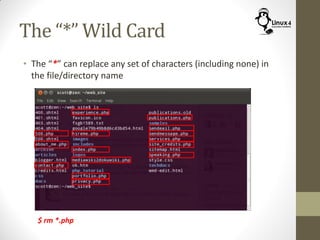
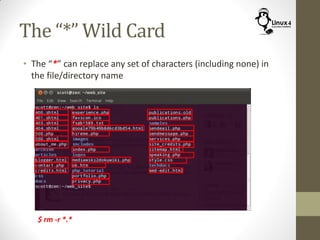
The “*” Wild Card
• The “*” can replace any set of characters (including none) in
the file/directory name
$ rm *.php
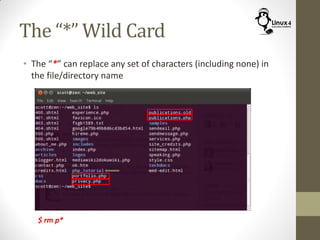
The “*” Wild Card
• The “*” can replace any set of characters (including none) in
the file/directory name
$ rm p*
The “*” Wild Card
• The “*” can replace any set of characters (including none) in
the file/directory name
$ rm *.*htm*
The “*” Wild Card
• The “*” can replace any set of characters (including none) in
the file/directory name
$ rm -r *.*
The “*” Wild Card
• The “*” can replace any set of characters (including none) in
the file/directory name
$ rm -r *
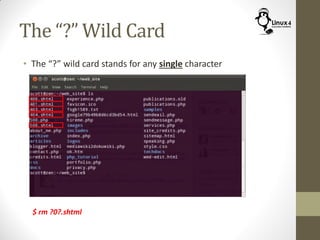
The “?” Wild Card
• The “?” wild card stands for any single character
$ rm 40?.shtml
The “?” Wild Card
• The “?” wild card stands for any single character
$ rm ?0?.shtml
[<chars>] and [!<chars>]
• We can have more restriction than the use of “?” by specifying
a limited set of options for the character
“[ars]” : Stands for a Single character from the list a,r,s
“[!ars]” : Stands for any Single character except for the list a,r,s
“[2-5]”: Stands for a Single character from the range 2 to 5
“[!2-5]”: Stands for any Single character except for the list 2 to 5
“[a-l]” : Stands for a Single character from range of ‘a’ to ‘l’
“[!a-l]”: Stands for any Single character except for the list a to l
“[1-37-9]”: Stands for 1,2,3,7,8,9
“[a-chk]”: Stands for a,b,c,h,k
• Examples:
$ rm -r ab[c-fh-j]
removes the files/folders named abc,abd,abe,abf, abh,abi,abj
$ ls results-[0-9][0-9].log
lists the files named results-00.log to results-99.log
[[:<Class Name>:]]
• “[[:<class name>:]]” stands for a single character
belonging to the specified class
• Some of used classes,
[[:alnum:]] Alpha Numeric characters (a-z, A-Z, 0-9)
[[:alpha:]] Alphabets (a-z, A-Z)
[[:digit:]] Digits (0-9)
[[:lower:]] Lower case character (a-z)
[[:upper:]] Upper case character (A-Z)
• Examples:
$ cp results-[[:digit:]][[:digit:]]-[[:alpha:]].log ~/log
Use of Curly Brackets “{ }”
• Curly brackets are used to group selections
• Examples,
$ rm {*.log,*.txt}
$ cp {*.pdf,*.doc} ~/documents/
• Note:
This also works
$ rm *.log *.txt
$ cp *.pdf *.doc ~/documents/
A nice tip,
• If you are going to remove a bunch of files/directories using
wild cards, a good idea is to list them first with the same
wildcard pattern to make sure you are not doing a mistake and
removing the wrong files, then replace “ls” with an “rm”
• Or if not sure, use the ‘-i’ to confirm each file delete before it
is deleted
Escape Sequence “”
• Some special letters has a meaning (such as space, *, “, ‘, (, …)
• It is not recommended to use these letters in file/directory
names
• But, if we have to then there is a special way of dealing with
them,
• If we need to delete a file named “my results.txt”
$ rm my results.txt
$ rm my results.txt
• This is called “Escaping the space letter” which means
changing its default meaning from a separator letter into a
general letter inside the filename
Examples of Escape Sequence
Real File Name File Name representation
my?file.log my?file.log
my*file.log my*file.log
my file (today).txt my file (today).txt
“my file” ”my file”
abc[!2] abc[!2]
http://Linux4EmbeddedSystems.com

Course 102: Lecture 4: Using Wild Cards

  • 1.
    Linux For EmbeddedSystems ForArabs Ahmed ElArabawy Course 102: UnderstandingLinux
  • 2.
  • 3.
    Wild Cards • Sometimesyou will need to execute a command on a group of files instead of a single file • Examples: • You want to delete all log files • You want to list all image files • You want to copy old files (ending with .old) to a different place • The solution for that is to use Wild Cards (also called Globbing) • Wild cards are patterns that work as placeholders in file names and directory names that are used to apply the command on a group of files/directories that share something in their name • Remember wild cards are used for file names and directory names ONLY ….. For normal text another patterns are used (Regular Expressions) which will be covered in a future lecture
  • 4.
    The “*” WildCard • The “*” can replace any set of characters (including none) in the file/directory name $ rm *.php
  • 5.
    The “*” WildCard • The “*” can replace any set of characters (including none) in the file/directory name $ rm p*
  • 6.
    The “*” WildCard • The “*” can replace any set of characters (including none) in the file/directory name $ rm *.*htm*
  • 7.
    The “*” WildCard • The “*” can replace any set of characters (including none) in the file/directory name $ rm -r *.*
  • 8.
    The “*” WildCard • The “*” can replace any set of characters (including none) in the file/directory name $ rm -r *
  • 9.
    The “?” WildCard • The “?” wild card stands for any single character $ rm 40?.shtml
  • 10.
    The “?” WildCard • The “?” wild card stands for any single character $ rm ?0?.shtml
  • 11.
    [<chars>] and [!<chars>] •We can have more restriction than the use of “?” by specifying a limited set of options for the character “[ars]” : Stands for a Single character from the list a,r,s “[!ars]” : Stands for any Single character except for the list a,r,s “[2-5]”: Stands for a Single character from the range 2 to 5 “[!2-5]”: Stands for any Single character except for the list 2 to 5 “[a-l]” : Stands for a Single character from range of ‘a’ to ‘l’ “[!a-l]”: Stands for any Single character except for the list a to l “[1-37-9]”: Stands for 1,2,3,7,8,9 “[a-chk]”: Stands for a,b,c,h,k • Examples: $ rm -r ab[c-fh-j] removes the files/folders named abc,abd,abe,abf, abh,abi,abj $ ls results-[0-9][0-9].log lists the files named results-00.log to results-99.log
  • 12.
    [[:<Class Name>:]] • “[[:<classname>:]]” stands for a single character belonging to the specified class • Some of used classes, [[:alnum:]] Alpha Numeric characters (a-z, A-Z, 0-9) [[:alpha:]] Alphabets (a-z, A-Z) [[:digit:]] Digits (0-9) [[:lower:]] Lower case character (a-z) [[:upper:]] Upper case character (A-Z) • Examples: $ cp results-[[:digit:]][[:digit:]]-[[:alpha:]].log ~/log
  • 13.
    Use of CurlyBrackets “{ }” • Curly brackets are used to group selections • Examples, $ rm {*.log,*.txt} $ cp {*.pdf,*.doc} ~/documents/ • Note: This also works $ rm *.log *.txt $ cp *.pdf *.doc ~/documents/
  • 14.
    A nice tip, •If you are going to remove a bunch of files/directories using wild cards, a good idea is to list them first with the same wildcard pattern to make sure you are not doing a mistake and removing the wrong files, then replace “ls” with an “rm” • Or if not sure, use the ‘-i’ to confirm each file delete before it is deleted
  • 15.
    Escape Sequence “” •Some special letters has a meaning (such as space, *, “, ‘, (, …) • It is not recommended to use these letters in file/directory names • But, if we have to then there is a special way of dealing with them, • If we need to delete a file named “my results.txt” $ rm my results.txt $ rm my results.txt • This is called “Escaping the space letter” which means changing its default meaning from a separator letter into a general letter inside the filename
  • 16.
    Examples of EscapeSequence Real File Name File Name representation my?file.log my?file.log my*file.log my*file.log my file (today).txt my file (today).txt “my file” ”my file” abc[!2] abc[!2]
  • 17.