Linux For Embedded Systems
ForArabs
Ahmed ElArabawy
Course 102:
UnderstandingLinux
Lecture 10:
Learning About the Shell
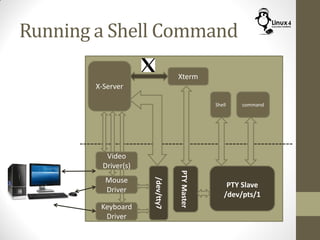
Running a Shell Command
Keyboard
Driver
X-Server
Video
Driver(s)
Mouse
Driver
/dev/tty7
Xterm
Shell
PTYMaster
PTY Slave
/dev/pts/1
command
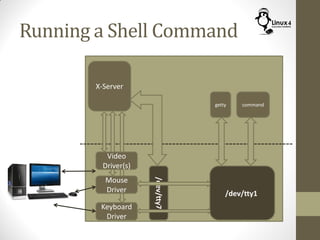
Running a Shell Command
Keyboard
Driver
X-Server
Video
Driver(s)
Mouse
Driver
/dev/tty7
Shell
/dev/tty1
commandgetty
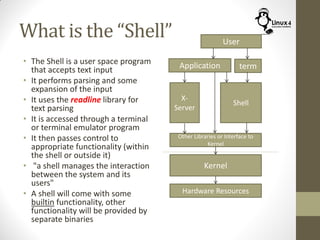
What is the “Shell”
• The Shell is a user space program
that accepts text input
• It performs parsing and some
expansion of the input
• It uses the readline library for
text parsing
• It is accessed through a terminal
or terminal emulator program
• It then passes control to
appropriate functionality (within
the shell or outside it)
• "a shell manages the interaction
between the system and its
users"
• A shell will come with some
builtin functionality, other
functionality will be provided by
separate binaries
X-
Server
Shell
Application
Other Libraries or Interface to
Kernel
Kernel
Hardware Resources
User
term
Types of Shells
• First Shell is the sh shell, also called the Bourne shell. It is
currently obsolete
• That was followed by the csh which is C-like shell. This is also
currently obsolete
• Then there is the tcsh which is still around but not that
popular
• The most popular shell (and the one we will be using) is the
bash shell. This is part of the GNU project
Types of Shells
• Supported shells will be listed in the file /etc/shells
• Default shell for the user will be stated in /etc/passwd
• To switch to a different shell, call its binary, for example if you
are running with a different shell and want to use bash,
$ bash
Then you can exit to the original shell by,
$ exit
• To know what shell you are using,
$ echo $SHELL
Commands Categories
Commands can be one of the following
1. Built-in command within the shell program (such as ‘cd’)
2. A binary or executable in the system, that is called by the
shell program. This binary should be in the PATH to be
accessible (they normally reside in /usr/bin)
3. Alias to another command (we will see how to do that)
4. A shell function (we will learn more about it in bash scripting
course)
Identify the Command Category
(type Command)
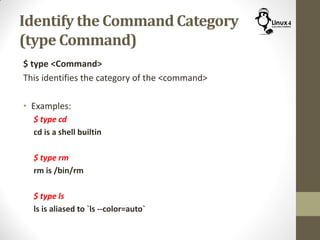
$ type <Command>
This identifies the category of the <command>
• Examples:
$ type cd
cd is a shell builtin
$ type rm
rm is /bin/rm
$ type ls
ls is aliased to `ls --color=auto`
Builtin Commands
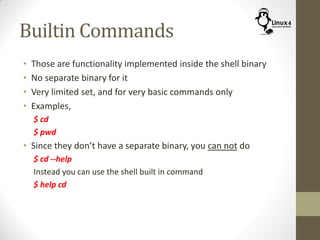
• Those are functionality implemented inside the shell binary
• No separate binary for it
• Very limited set, and for very basic commands only
• Examples,
$ cd
$ pwd
• Since they don’t have a separate binary, you can not do
$ cd --help
Instead you can use the shell built in command
$ help cd
Separate Binary Commands
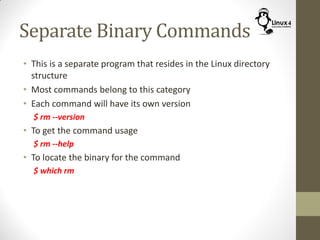
• This is a separate program that resides in the Linux directory
structure
• Most commands belong to this category
• Each command will have its own version
$ rm --version
• To get the command usage
$ rm --help
• To locate the binary for the command
$ which rm
Aliases
• Aliases are an abbreviation of another command (with
options/arguments)
• To make an alias command
$ alias newCommand=‘long command’ (Make sure no spaces)
Example:
$ alias ll=‘ls -al’
• To remove an alias command
$ unalias <alias command>
Example:
$ unalias ll
• To list all of aliases
$ alias
Aliases
• If the new command is a used command, it will still work (the
new command will override the old one)
$ alias ls= ‘ls --color=auto’
• Make sure you don’t do this by mistake, check the existence of
a command with the alias name before you do the aliasing
$ type <alias candidate>
It should tell you it is not found
Command History
• When you enter a command, Linux stores it in a history file ~/.bash-
history
• To browse through command history
$ history
• Now you can do the following,
$ !! (to enter the last command)
$ ! <n> (to enter the command # n in the histroy
$ ! abc (to enter the last command starting with ‘abc’)
$ ^abc ^def (enter the last command but replace ‘abc’ with ‘def’)
$ command2 !* (run command2 with all arguments from the last
command)
$ command2 !$ (run command2 with only last argument from the last
command)
$ command2 !^ (run command2 with only the first argument from the
last command)
Writing Commands to a file
(script Command)
$ script <file>
To write commands and their output to a file
$ script file
$ script -a file (append the existing file)
$ script -t file (put time stamp in front of each command)
$ script -f file (flush after each command)
Shell Types
• Shells belong to two categories
• Login shell
• Shells that require login before starting
• Non-Login shell
• Those shells don’t require a login
• They are children of login shells
• To exit a shell,
• For Login shell
$ logout
• For non-login Shells
$ exit
Why Do we Call it a Shell ???
Shell Startup --Login Shells
When the Login Shell starts up, it goes through these steps to
set the proper environment
• System Wide Configurations
• It reads /etc/profile for global configurations (for all users)
• User Specific Configurations
• Then it reads one of the following for user specific
extensions/overrides (if it finds one of the files starting from the
first, it will read it and skip the rest)
~/.bash-profile
~/.bash-login
~/.profile
• Note that those files normally call ~/.bashrc internally
Shell Startup – Non-Login Shells
Non-Login Shells build their environment as follows,
• First, they inherit the environment from their parent Login Shells
• On top of that, it reads the following configuration files,
• For Global settings they read the files:
/etc/.bashrc
/etc/bash.bashrc
• For user specific settings, they read,
~/.bashrc
Updating ~/.bashrc
• Each user can put his own settings in ~/.bashrc such as,
• Set environment Variables
• Set Command Aliases
• Define Shell Functions
• The new settings in ~/.bashrc will not take effect in the
current shell, since it is only read at shell startup
• Solution,
• Start a new shell
• Manually Force a ~/.bashrc read
Running the ~/.bashrc Script
(source Command)
• Normally, scripts are run by calling them from the prompt
$ <script name>
• We can not just call the script in ~/.bashrc like normal script …
WHY??
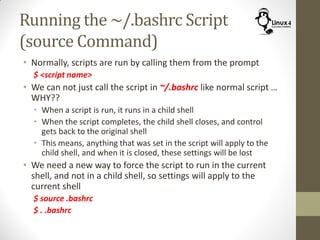
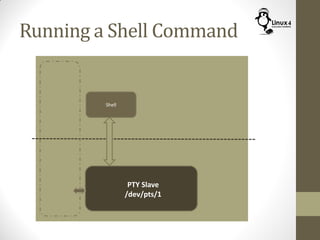
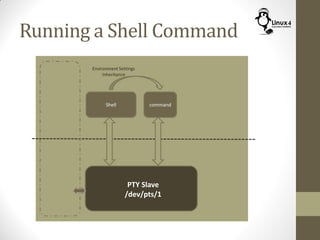
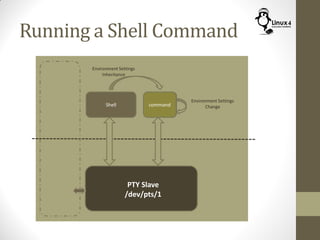
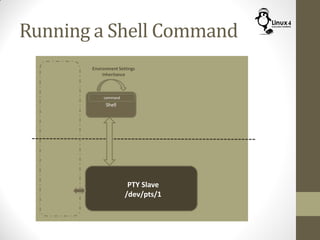
• When a script is run, it runs in a child shell
• When the script completes, the child shell closes, and control
gets back to the original shell
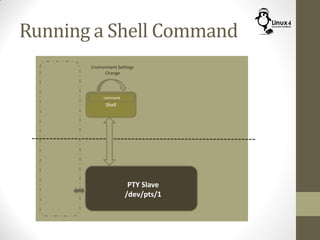
• This means, anything that was set in the script will apply to the
child shell, and when it is closed, these settings will be lost
• We need a new way to force the script to run in the current
shell, and not in a child shell, so settings will apply to the
current shell
$ source .bashrc
$ . .bashrc
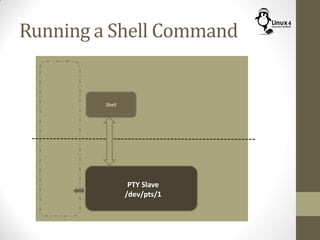
Running a Shell Command
Shell
PTY Slave
/dev/pts/1
Running a Shell Command
Shell
PTY Slave
/dev/pts/1
command
Environment Settings
Inheritance
Running a Shell Command
Shell
PTY Slave
/dev/pts/1
command
Environment Settings
Inheritance
Environment Settings
Changecommand
Running a Shell Command
Shell
PTY Slave
/dev/pts/1
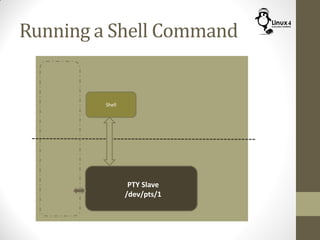
Running a Shell Command
Shell
PTY Slave
/dev/pts/1
Environment Settings
Inheritance
command
Running a Shell Command
Shell
PTY Slave
/dev/pts/1
command
Shell
command
Environment Settings
Change
Running a Shell Command
Shell
PTY Slave
/dev/pts/1
command
Shell
USEFUL SETTINGS IN ~/.bashrc
Common Settings
• Setting Aliases
• A good place to set Aliases is in the ~/.bashrc
• Note that these aliases only apply for that user, so if you run as
root, you will not have these aliases set
• Setting Environment Variables for the user
• Define shell functions
Protecting from File Over-Write
(Setting noclobber)
• Clobbering a file means over-writing a file (normally in an
unintentional way)
• This happens very often through output redirection
$ echo “Good Morning” > file.txt
• To avoid that we adjust the noclobber settings in ~/.bashrc
• Example:
$ set -o noclobber (this will protect files from being over-written)
$ set +o noclobber (this will remove the protection)
• Note
• If files are protected from over-writing, you can still force an over-
write
$ echo “Good Morning” >| file.txt
http://Linux4EmbeddedSystems.com

Course 102: Lecture 10: Learning About the Shell

  • 1.
    Linux For EmbeddedSystems ForArabs Ahmed ElArabawy Course 102: UnderstandingLinux
  • 2.
  • 3.
    Running a ShellCommand Keyboard Driver X-Server Video Driver(s) Mouse Driver /dev/tty7 Xterm Shell PTYMaster PTY Slave /dev/pts/1 command
  • 4.
    Running a ShellCommand Keyboard Driver X-Server Video Driver(s) Mouse Driver /dev/tty7 Shell /dev/tty1 commandgetty
  • 5.
    What is the“Shell” • The Shell is a user space program that accepts text input • It performs parsing and some expansion of the input • It uses the readline library for text parsing • It is accessed through a terminal or terminal emulator program • It then passes control to appropriate functionality (within the shell or outside it) • "a shell manages the interaction between the system and its users" • A shell will come with some builtin functionality, other functionality will be provided by separate binaries X- Server Shell Application Other Libraries or Interface to Kernel Kernel Hardware Resources User term
  • 6.
    Types of Shells •First Shell is the sh shell, also called the Bourne shell. It is currently obsolete • That was followed by the csh which is C-like shell. This is also currently obsolete • Then there is the tcsh which is still around but not that popular • The most popular shell (and the one we will be using) is the bash shell. This is part of the GNU project
  • 7.
    Types of Shells •Supported shells will be listed in the file /etc/shells • Default shell for the user will be stated in /etc/passwd • To switch to a different shell, call its binary, for example if you are running with a different shell and want to use bash, $ bash Then you can exit to the original shell by, $ exit • To know what shell you are using, $ echo $SHELL
  • 8.
    Commands Categories Commands canbe one of the following 1. Built-in command within the shell program (such as ‘cd’) 2. A binary or executable in the system, that is called by the shell program. This binary should be in the PATH to be accessible (they normally reside in /usr/bin) 3. Alias to another command (we will see how to do that) 4. A shell function (we will learn more about it in bash scripting course)
  • 9.
    Identify the CommandCategory (type Command) $ type <Command> This identifies the category of the <command> • Examples: $ type cd cd is a shell builtin $ type rm rm is /bin/rm $ type ls ls is aliased to `ls --color=auto`
  • 10.
    Builtin Commands • Thoseare functionality implemented inside the shell binary • No separate binary for it • Very limited set, and for very basic commands only • Examples, $ cd $ pwd • Since they don’t have a separate binary, you can not do $ cd --help Instead you can use the shell built in command $ help cd
  • 11.
    Separate Binary Commands •This is a separate program that resides in the Linux directory structure • Most commands belong to this category • Each command will have its own version $ rm --version • To get the command usage $ rm --help • To locate the binary for the command $ which rm
  • 12.
    Aliases • Aliases arean abbreviation of another command (with options/arguments) • To make an alias command $ alias newCommand=‘long command’ (Make sure no spaces) Example: $ alias ll=‘ls -al’ • To remove an alias command $ unalias <alias command> Example: $ unalias ll • To list all of aliases $ alias
  • 13.
    Aliases • If thenew command is a used command, it will still work (the new command will override the old one) $ alias ls= ‘ls --color=auto’ • Make sure you don’t do this by mistake, check the existence of a command with the alias name before you do the aliasing $ type <alias candidate> It should tell you it is not found
  • 14.
    Command History • Whenyou enter a command, Linux stores it in a history file ~/.bash- history • To browse through command history $ history • Now you can do the following, $ !! (to enter the last command) $ ! <n> (to enter the command # n in the histroy $ ! abc (to enter the last command starting with ‘abc’) $ ^abc ^def (enter the last command but replace ‘abc’ with ‘def’) $ command2 !* (run command2 with all arguments from the last command) $ command2 !$ (run command2 with only last argument from the last command) $ command2 !^ (run command2 with only the first argument from the last command)
  • 15.
    Writing Commands toa file (script Command) $ script <file> To write commands and their output to a file $ script file $ script -a file (append the existing file) $ script -t file (put time stamp in front of each command) $ script -f file (flush after each command)
  • 16.
    Shell Types • Shellsbelong to two categories • Login shell • Shells that require login before starting • Non-Login shell • Those shells don’t require a login • They are children of login shells • To exit a shell, • For Login shell $ logout • For non-login Shells $ exit
  • 17.
    Why Do weCall it a Shell ???
  • 18.
    Shell Startup --LoginShells When the Login Shell starts up, it goes through these steps to set the proper environment • System Wide Configurations • It reads /etc/profile for global configurations (for all users) • User Specific Configurations • Then it reads one of the following for user specific extensions/overrides (if it finds one of the files starting from the first, it will read it and skip the rest) ~/.bash-profile ~/.bash-login ~/.profile • Note that those files normally call ~/.bashrc internally
  • 19.
    Shell Startup –Non-Login Shells Non-Login Shells build their environment as follows, • First, they inherit the environment from their parent Login Shells • On top of that, it reads the following configuration files, • For Global settings they read the files: /etc/.bashrc /etc/bash.bashrc • For user specific settings, they read, ~/.bashrc
  • 20.
    Updating ~/.bashrc • Eachuser can put his own settings in ~/.bashrc such as, • Set environment Variables • Set Command Aliases • Define Shell Functions • The new settings in ~/.bashrc will not take effect in the current shell, since it is only read at shell startup • Solution, • Start a new shell • Manually Force a ~/.bashrc read
  • 21.
    Running the ~/.bashrcScript (source Command) • Normally, scripts are run by calling them from the prompt $ <script name> • We can not just call the script in ~/.bashrc like normal script … WHY?? • When a script is run, it runs in a child shell • When the script completes, the child shell closes, and control gets back to the original shell • This means, anything that was set in the script will apply to the child shell, and when it is closed, these settings will be lost • We need a new way to force the script to run in the current shell, and not in a child shell, so settings will apply to the current shell $ source .bashrc $ . .bashrc
  • 22.
    Running a ShellCommand Shell PTY Slave /dev/pts/1
  • 23.
    Running a ShellCommand Shell PTY Slave /dev/pts/1 command Environment Settings Inheritance
  • 24.
    Running a ShellCommand Shell PTY Slave /dev/pts/1 command Environment Settings Inheritance Environment Settings Changecommand
  • 25.
    Running a ShellCommand Shell PTY Slave /dev/pts/1
  • 26.
    Running a ShellCommand Shell PTY Slave /dev/pts/1 Environment Settings Inheritance command
  • 27.
    Running a ShellCommand Shell PTY Slave /dev/pts/1 command Shell command Environment Settings Change
  • 28.
    Running a ShellCommand Shell PTY Slave /dev/pts/1 command Shell
  • 29.
  • 30.
    Common Settings • SettingAliases • A good place to set Aliases is in the ~/.bashrc • Note that these aliases only apply for that user, so if you run as root, you will not have these aliases set • Setting Environment Variables for the user • Define shell functions
  • 31.
    Protecting from FileOver-Write (Setting noclobber) • Clobbering a file means over-writing a file (normally in an unintentional way) • This happens very often through output redirection $ echo “Good Morning” > file.txt • To avoid that we adjust the noclobber settings in ~/.bashrc • Example: $ set -o noclobber (this will protect files from being over-written) $ set +o noclobber (this will remove the protection) • Note • If files are protected from over-writing, you can still force an over- write $ echo “Good Morning” >| file.txt
  • 32.