Linux For Embedded Systems
ForArabs
Ahmed ElArabawy
Course 102:
UnderstandingLinux
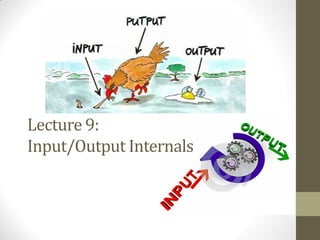
Lecture 9:
Input/Output Internals
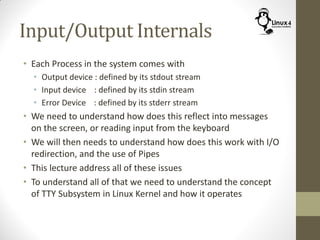
• Each Process in the system comes with
• Output device : defined by its stdout stream
• Input device : defined by its stdin stream
• Error Device : defined by its stderr stream
• We need to understand how does this reflect into messages
on the screen, or reading input from the keyboard
• We will then needs to understand how does this work with I/O
redirection, and the use of Pipes
• This lecture address all of these issues
• To understand all of that we need to understand the concept
of TTY Subsystem in Linux Kernel and how it operates
HISTORICAL BACKGROUND
1869
Stock Ticker
Telex
The Birth of Computers
TTY Device
UART
Driver
Line
Discipline
TTY
Driver
User App
User App
User App
TTY Device (/dev/ttyS*)
stdout = /dev/ttyS1
stderr = /dev/ttyS1
stdin = /dev/ttyS1
Cotrolling TTY: /dev/ttyS1
TTY Device
UART
Driver
Line
Discipline
TTY
Driver
User App
User App
User App
TTY Device (/dev/ttyS*)
stdout = /dev/ttyS2
stderr = /dev/ttyS2
stdin = /dev/ttyS2
TTY Device
Line
Discipline
TTY
Driver
User App
User App
User App
USB
Driver
TTY Device (/dev/ttyUSB*)
stdout = /dev/ttyUSB1
stderr = /dev/ttyUSB1
stdin = /dev/ttyUSB1
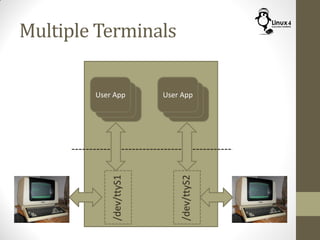
Multiple Terminals
User App
User App
User App
/dev/ttyS1
/dev/ttyS2
User App
User App
User App
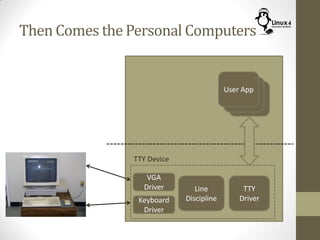
Then Comes the Personal Computers
Line
Discipline
TTY
Driver
User App
User App
User App
TTY Device
VGA
Driver
Keyboard
Driver
TTY Devices
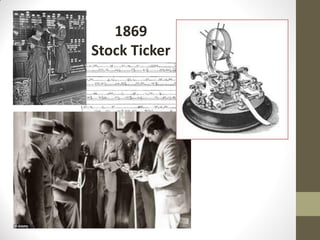
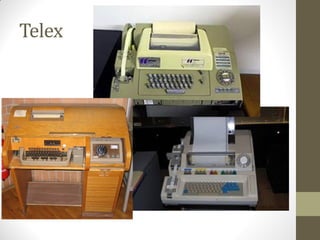
• TTY stands for TeleTYpewriter
• TTY machines were used originally in stock tickers, and Telex Machines
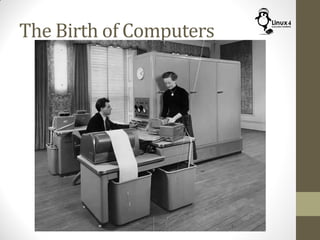
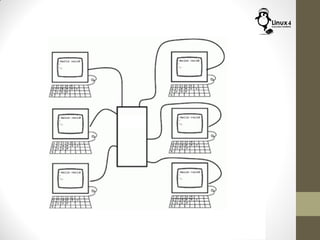
• When Computers were introduced, a computer was a big central unit,
TTY machines were used as an I/O terminal, and connect to the
computer via UART (Serial Interface)
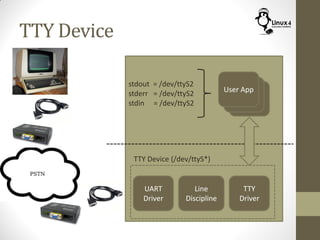
• In case the terminal is remote, a modem pair were used
• Unix supported all of this via the introduction of TTY subsystem in its
kernel
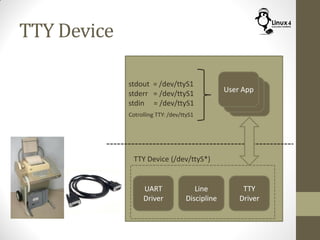
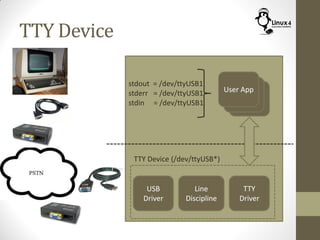
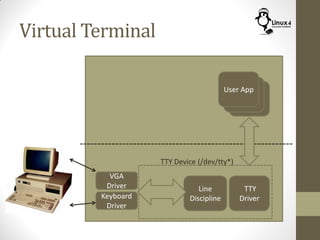
• TTY device is composed of 3 blocks
• A driver to the hardware interface(UART driver, USB driver, VGA/KB drivers, ..)
• Line Discipline to handle low level editing commands (backspace, erase word,
clear line, …. )
• TTY driver to interface with the user space applications
• The User space application communicates with the TTY driver via system
calls and signals
• The default I/O Streams of the user application is the assigned TTY
device (/dev/tty*)
• This TTY Terminal is also the controlling terminal for its user
applications
VIRTUAL TERMINALS
Introducing Virtual Terminals
• When we were connecting terminals via the serial interface,
we were able to have multiple terminals to the computer
• However, when we connect the monitor and keyboard directly
to the PC, and use the same architecture, we can not have
multiple terminals (only one monitor/keyboard pair)
• We need a new architecture that will enable us to run multiple
terminals from the same Physical Terminal(Keyboard/Monitor)
• This led to the introduction of the concept of Virtual Terminals
in Linux
Virtual Terminal
Line
Discipline
User App
User App
User App
Keyboard
Driver
VGA
Driver TTY
Driver
TTY Device (/dev/tty*)
Multiple Virtual Terminals
Keyboard
Driver
VGA
Driver
/dev/tty1
/dev/tty2
/dev/tty3
/dev/ttyN
…….
User
App
User
App
User
App
User
App
Multiple Virtual Terminals
Keyboard
Driver
VGA
Driver
/dev/tty1
/dev/tty2
/dev/tty3
/dev/ttyN
…….
User
App
User
App
User
App
User
AppALT-F2
Multiple Virtual Terminals
Keyboard
Driver
VGA
Driver
/dev/tty1
/dev/tty2
/dev/tty3
/dev/ttyN
…….
User
App
User
App
User
App
User
App
ALT-F3
Virtual Terminals
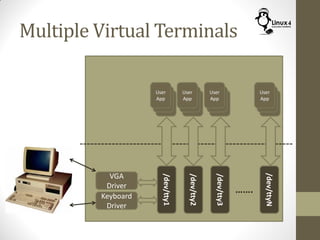
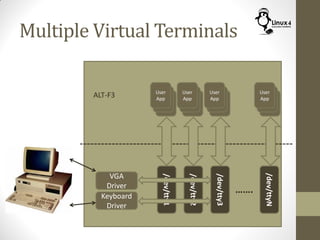
• A new architecture is used to be able to have multiple
terminals on the same machines (with the same physical
terminal)
• The Monitor/Keyboard drivers are no longer part of a TTY
device, they are now separate devices
• Linux kernel provides up to 63 virtual terminals (VT)
(/dev/tty1 up to /dev/tty63)
• Most distributions initialize only 7 VTs (/dev/tty1 - /dev/tty7)
• On each of these VTs, the user app getty is started. This
program is responsible for user login
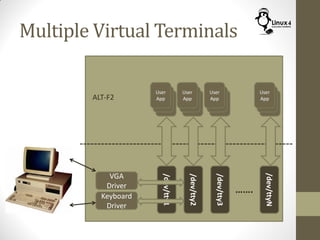
• All VTs are active, but only one have access to the Physical
terminal (Monitor/Keyboard)
• To switch between different VTs, use ALT-Fn to go to the VT#n
NOW LET US ADD SOME GUI
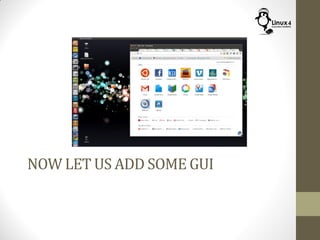
Linux GUI
• So far we have talked about Text I/O
• We need to have,
• Windowing (Multiple windows, maximize, minimize, ...)
• Fonts, colors, icons
• Handling of mouse actions
• Displaying of Graphics
• For performing all of these tasks, Linux uses X-Window System
• The X-Window System (also Called X system, or X11 System) is a
Windowing system for bitmap displays
• It is composed of:
• Server (X-Server):
• A user application that is responsible for handling the Graphical User
Interface and connecting to the drivers
• Most Linux distributions use the Xorg application for this
• Client (X-Client)
• The client part lives in every user application that needs to use the GUI
• The user app connects to the Xserver using the X Protocol
X-Server and VTs
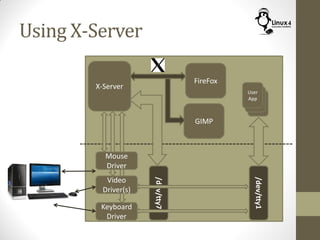
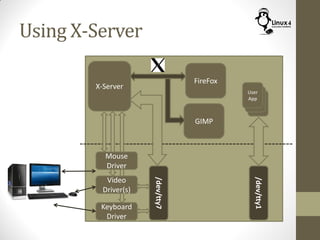
• As mentioned before, Linux distributions, initialize some VTs to run
getty for user login (most Distributions use /dev/tty1 to /dev/tty6
for that)
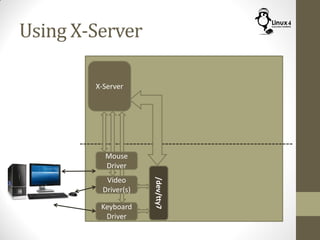
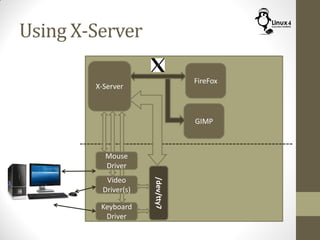
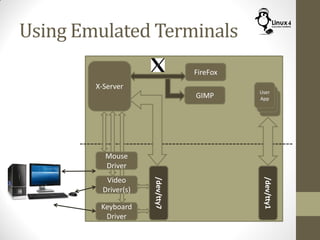
• The X-Server is started on at least one VT (normally /dev/tty7). This
is X-Session # 0
• Some Distributions start the X-server on multiple VTs (so we get
multiple X-Sessions)
• A User can add more X-Sessions or stop X-Sessions if needed.
Remember, the X-Server, is just a User application that is started on
one of the VTs
• Since Alt-Fn has some meaning for the GUI, to move from the GUI to
another VT, use Ctrl-Alt-Fn instead
• So assuming we have X-server running on /dev/tty7
• To move to VT#1  Ctrl-Alt-F1
• To move back to the GUI  Alt-F7
Using X-Server
Keyboard
Driver
X-Server
Mouse
Driver
Video
Driver(s)
/dev/tty7
Using X-Server
Keyboard
Driver
X-Server
Mouse
Driver
Video
Driver(s)
FireFox
GIMP
/dev/tty7
Using X-Server
Keyboard
Driver
X-Server
Mouse
Driver
Video
Driver(s)
/dev/tty1
User
App
FireFox
GIMP
/dev/tty7
Using X-Server
Keyboard
Driver
X-Server
Mouse
Driver
Video
Driver(s)
/dev/tty1
User
App
FireFox
GIMP
/dev/tty7
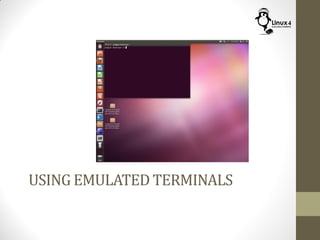
USING EMULATED TERMINALS
Emulated Terminals
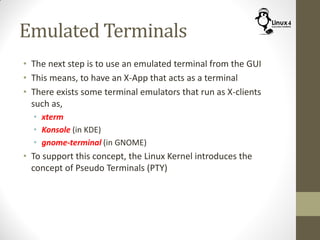
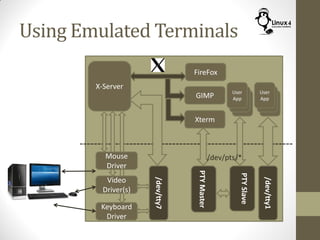
• The next step is to use an emulated terminal from the GUI
• This means, to have an X-App that acts as a terminal
• There exists some terminal emulators that run as X-clients
such as,
• xterm
• Konsole (in KDE)
• gnome-terminal (in GNOME)
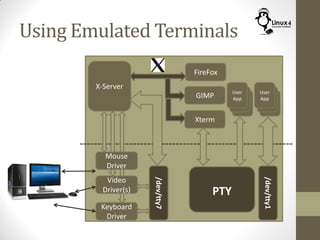
• To support this concept, the Linux Kernel introduces the
concept of Pseudo Terminals (PTY)
Using Emulated Terminals
Keyboard
Driver
X-Server
Mouse
Driver
Video
Driver(s)
/dev/tty1
User
App
FireFox
GIMP
/dev/tty7
Using Emulated Terminals
Keyboard
Driver
X-Server
Mouse
Driver
Video
Driver(s)
/dev/tty1
User
App
FireFox
GIMP
/dev/tty7
Xterm
PTY
User
App
Using Emulated Terminals
Keyboard
Driver
X-Server
Mouse
Driver
Video
Driver(s)
/dev/tty1
User
App
FireFox
GIMP
/dev/tty7
Xterm
User
App
PTYMaster
PTYSlave
/dev/pts/*
USE CASES
Running a Shell Command
Keyboard
Driver
X-Server
Mouse
Driver
Video
Driver(s)
/dev/tty7
Xterm
Shell
PTYMaster
PTY Slave
/dev/pts/1
command
Controlling TTY/PTY
Default stdin/stdout/stderr
Redirecting stdout to a File
Keyboard
Driver
X-Server
Mouse
Driver
Video
Driver(s)
/dev/tty7
Xterm
Shell
PTYMaster
PTY Slave
/dev/pts/1
command
File
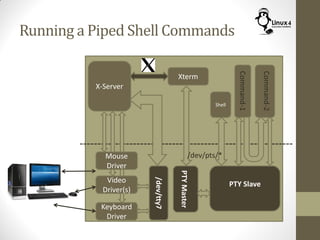
Running a Piped Shell Commands
Keyboard
Driver
X-Server
Mouse
Driver
Video
Driver(s)
/dev/tty7
Xterm
Shell
PTYMaster
PTY Slave
/dev/pts/*
Command-1
Command-2
IdentifyTheControllingTTY/PTYDevice
(tty Command)
$ tty
• If you run this command from any terminal
(Physical/Virtual/Emulated), you will get the TTY/PTY device
associated with it
MANAGING EMULATED SESSIONS
THE SCREEN COMMAND
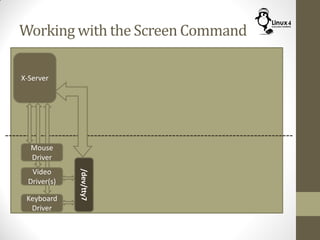
Working with the Screen Command
Keyboard
Driver
X-Server
Mouse
Driver
Video
Driver(s)
/dev/tty7
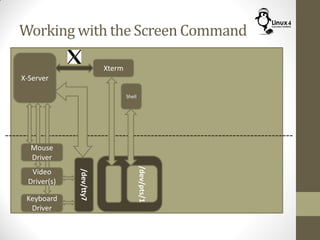
Working with the Screen Command
Keyboard
Driver
X-Server
Mouse
Driver
Video
Driver(s)
/dev/tty7
Xterm
Shell
/dev/pts/1
Working with the Screen Command
Keyboard
Driver
X-Server
Mouse
Driver
Video
Driver(s)
/dev/tty7
Xterm
Shell
command
/dev/pts/1
$ command
Working with the Screen Command
Keyboard
Driver
X-Server
Mouse
Driver
Video
Driver(s)
/dev/tty7
Xterm
Shell
command
/dev/pts/1
Close
Working with the Screen Command
Keyboard
Driver
X-Server
Mouse
Driver
Video
Driver(s)
/dev/tty7
Working with the Screen Command
Keyboard
Driver
X-Server
Mouse
Driver
Video
Driver(s)
/dev/tty7
Xterm
Shell
/dev/pts/1
screen
term
/dev/pts/2
Shell
$ screen
Working with the Screen Command
Keyboard
Driver
X-Server
Mouse
Driver
Video
Driver(s)
/dev/tty7
Xterm
Shell
command
/dev/pts/1
screen
term
/dev/pts/2
Shell
term
/dev/pts/3
Shell
Ctrl-A c
Working with the Screen Command
Keyboard
Driver
X-Server
Mouse
Driver
Video
Driver(s)
/dev/tty7
Xterm
Shell
command
/dev/pts/1
screen
term
/dev/pts/2
Shell
term
/dev/pts/3
Shell
Ctrl-A d
Working with the Screen Command
Keyboard
Driver
X-Server
Mouse
Driver
Video
Driver(s)
/dev/tty7
Xterm
Shell
command
/dev/pts/1
screen
term
/dev/pts/2
Shell
term
/dev/pts/3
Shell
Close
Working with the Screen Command
Keyboard
Driver
X-Server
Mouse
Driver
Video
Driver(s)
/dev/tty7
commandscreen
term
/dev/pts/2
Shell
term
/dev/pts/3
Shell
Working with the Screen Command
Keyboard
Driver
X-Server
Mouse
Driver
Video
Driver(s)
/dev/tty7
Xterm
Shell
command
/dev/pts/1
screen
term
/dev/pts/2
Shell
term
/dev/pts/3
Shell
Working with the Screen Command
Keyboard
Driver
X-Server
Mouse
Driver
Video
Driver(s)
/dev/tty7
Xterm
Shell
command
/dev/pts/1
screen
term
/dev/pts/2
Shell
term
/dev/pts/3
Shell
$ screen -r
Managing Emulated Terminals
(screen Command)
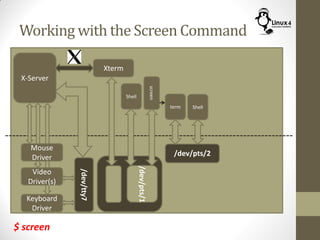
$ screen
$ screen -r
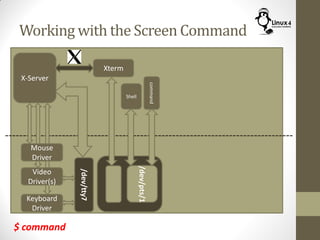
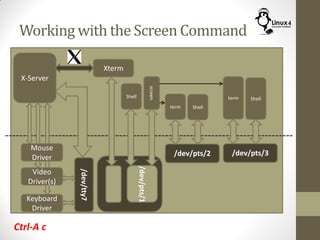
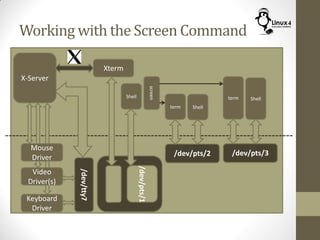
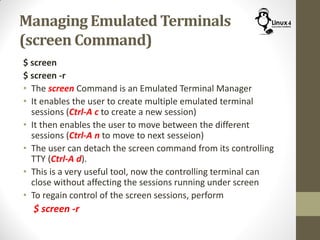
• The screen Command is an Emulated Terminal Manager
• It enables the user to create multiple emulated terminal
sessions (Ctrl-A c to create a new session)
• It then enables the user to move between the different
sessions (Ctrl-A n to move to next sesseion)
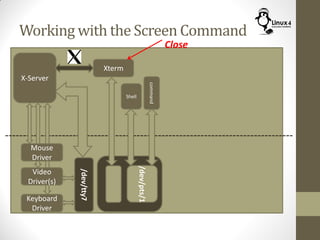
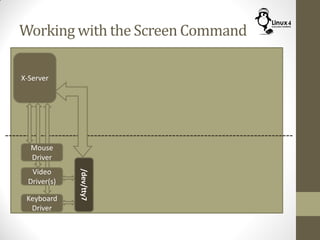
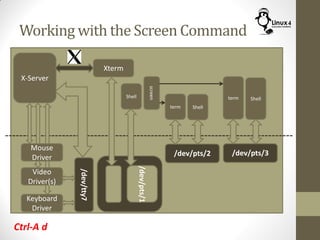
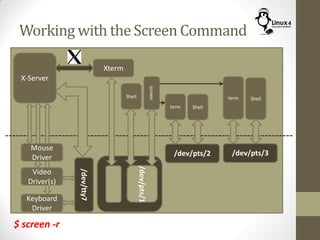
• The user can detach the screen command from its controlling
TTY (Ctrl-A d).
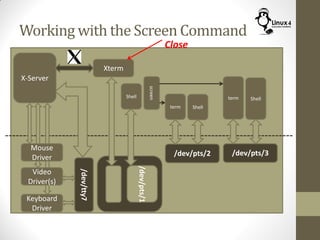
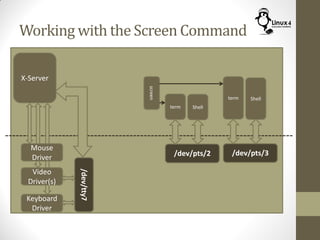
• This is a very useful tool, now the controlling terminal can
close without affecting the sessions running under screen
• To regain control of the screen sessions, perform
$ screen -r
http://Linux4EmbeddedSystems.com

Course 102: Lecture 9: Input Output Internals