Linux For Embedded Systems
ForArabs
Ahmed ElArabawy
Course 102:
UnderstandingLinux
Lecture 17:
Process Monitoring
On a UNIX system, everything is a file; if something is not a file, it is a process
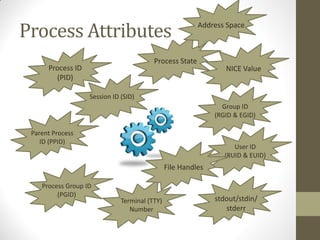
Process Attributes
Process ID
(PID)
Parent Process
ID (PPID)
NICE Value
Terminal (TTY)
Number
User ID
(RUID & EUID)
Group ID
(RGID & EGID)
Session ID (SID)
Process Group ID
(PGID)
Process State
Address Space
File Handles
stdout/stdin/
stderr
Process Attributes
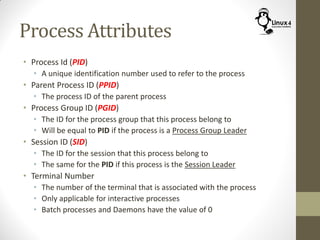
• Process Id (PID)
• A unique identification number used to refer to the process
• Parent Process ID (PPID)
• The process ID of the parent process
• Process Group ID (PGID)
• The ID for the process group that this process belong to
• Will be equal to PID if the process is a Process Group Leader
• Session ID (SID)
• The ID for the session that this process belong to
• The same for the PID if this process is the Session Leader
• Terminal Number
• The number of the terminal that is associated with the process
• Only applicable for interactive processes
• Batch processes and Daemons have the value of 0
Process Attributes
• Owner User ID
• There are two user IDs for the process
• Real User ID (RUID): the user who started the process
• Effective User ID (EUID): the user whose privileges will be inherited
by the process when accessing resources
• By default RUID and EUID has the same value
• Owner Group ID
• Similar to user ID, there are two Group IDs
• Real Group ID (RGID): The primary group of the user who started the
process
• Effective Group ID (EGID): The Group ID whose privileges are
inherited by the process when accessing system resources
• By default RGID and EGID has the same value
Process Priority
• Each process will have a priority value
• The process priority affects the scheduler behavior in the
Linux Kernel
• A Process with higher priority may,
• Receive more processor time by the kernel
• Get scheduled more often
• Preempt processes with lower processes
• Process priority is defined by,
• User Controlled value (nice Value)
• Kernel calculated value (based on the process behavior)
• Processing bound
• I/O bound
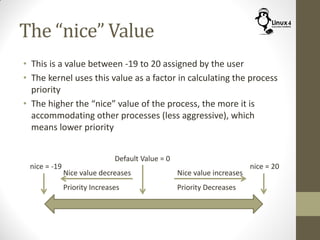
The “nice” Value
• This is a value between -19 to 20 assigned by the user
• The kernel uses this value as a factor in calculating the process
priority
• The higher the “nice” value of the process, the more it is
accommodating other processes (less aggressive), which
means lower priority
Default Value = 0
Nice value increases
Priority Decreases
nice = 20nice = -19
Nice value decreases
Priority Increases
Set Process Priority
(nice Command)
$ nice -<value> command
$ nice -n <value> command
This command sets the nice value to manipulate the process priority
• To increase priority, nice should be decreased and vice versa
• nice value vary between -20 to +19
• Default nice value is “0”
• Example:
• To set nice to value 5 for a new process,
$ nice -5 processCommand &
$ nice -n 5 processCommand &
• To set nice to value -10 for a new process
$ nice --10 processCommand &
$ nice -n -10 processCommand &
• Note: non-root users can only do 1-19 nice values
Modify Process Priority
(renice Command)
$ renice <value> <pid of process>
This command changes the “nice” value of a process
Example:
$ renice 10 1002
• Note,
• Non-root users can only increase the processes nice value
(decrease its priority)
• The passed value is the new nice value and not a
increment/decrement value
DISPLAY PROCESS INFORMATION &
SYSTEM RESOURCE USAGE
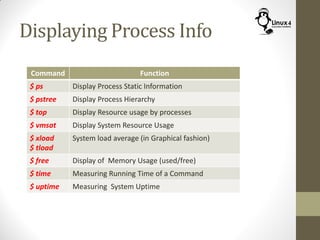
Displaying Process Info
Command Function
$ ps Display Process Static Information
$ pstree Display Process Hierarchy
$ top Display Resource usage by processes
$ vmsat Display System Resource Usage
$ xload
$ tload
System load average (in Graphical fashion)
$ free Display of Memory Usage (used/free)
$ time Measuring Running Time of a Command
$ uptime Measuring System Uptime
Display Process Info
(ps Command)
$ ps <options>
Display Information about the running processes
• The ps command is a very powerful and diverse command
• It has a lot of options to change the ways to display process
info,
• Some options are used to define the scope of which processes to
show
• Other options are used to define the format of the listing and
which information to show
• we will go through the common forms for the command
The ps Command
Defining Scope
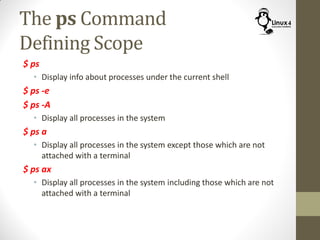
$ ps
• Display info about processes under the current shell
$ ps -e
$ ps -A
• Display all processes in the system
$ ps a
• Display all processes in the system except those which are not
attached with a terminal
$ ps ax
• Display all processes in the system including those which are not
attached with a terminal
Defining Format
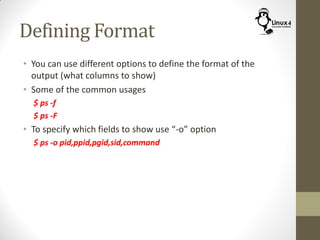
• You can use different options to define the format of the
output (what columns to show)
• Some of the common usages
$ ps -f
$ ps -F
• To specify which fields to show use “-o” option
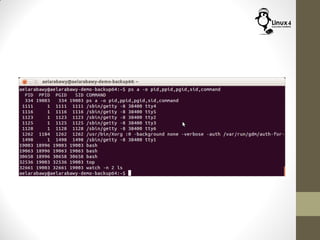
$ ps -o pid,ppid,pgid,sid,command
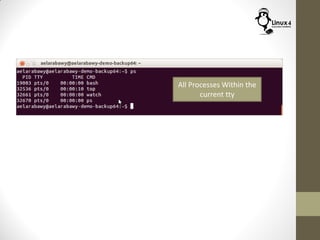
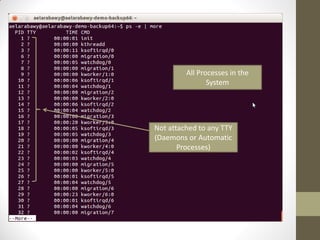
All Processes Within the
current tty
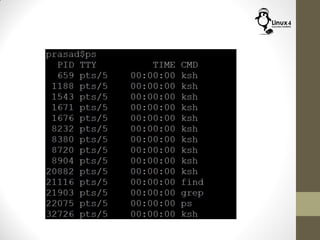
All Processes in the
System
Not attached to any TTY
(Daemons or Automatic
Processes)
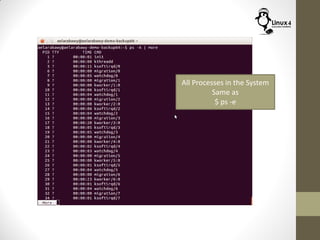
All Processes in the System
Same as
$ ps -e
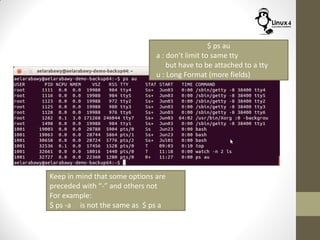
$ ps au
a : don’t limit to same tty
but have to be attached to a tty
u : Long Format (more fields)
Keep in mind that some options are
preceded with “-” and others not
For example:
$ ps -a is not the same as $ ps a
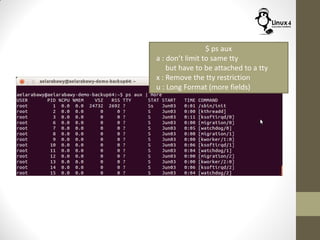
$ ps aux
a : don’t limit to same tty
but have to be attached to a tty
x : Remove the tty restriction
u : Long Format (more fields)
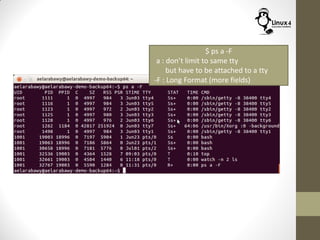
$ ps a -F
a : don’t limit to same tty
but have to be attached to a tty
-F : Long Format (more fields)
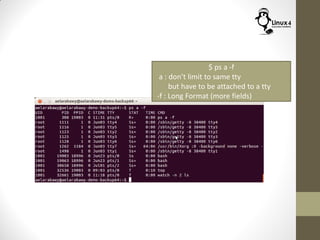
$ ps a -f
a : don’t limit to same tty
but have to be attached to a tty
-f : Long Format (more fields)
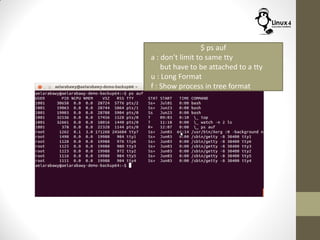
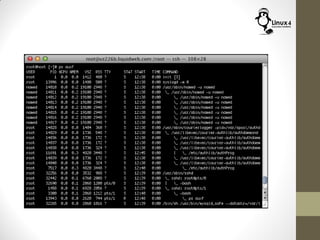
$ ps auf
a : don’t limit to same tty
but have to be attached to a tty
u : Long Format
f : Show process in tree format
Showing Threads
• To show threads for multithreaded applications, use one of
the following options
$ ps -H
$ ps -L
$ ps -T
$ ps -m
Common Practices
• There are hundreds of processes running in the system
• A common practice, is to do a full listing and pipe the output
to a search filter to limit the list to what we are interested in
$ ps -ef | grep root
• This shows all processes owned by the root user
$ ps aux | grep “pts/2”
• This shows all processes attached to the tty pts/2
• There are a lot of options for scope and format. For a special
need, it is advised to refer to the man page for the command
$ man ps
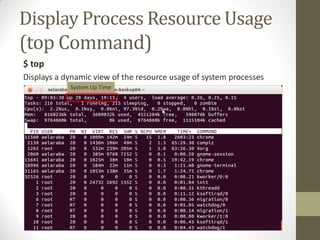
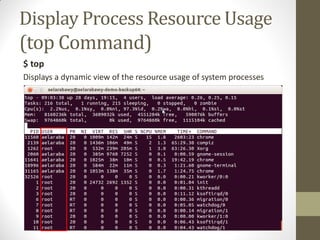
Display Process Resource Usage
(top Command)
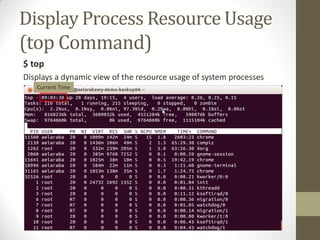
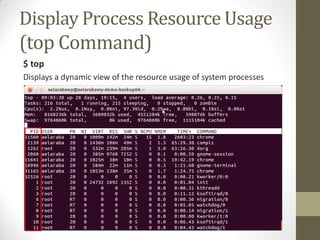
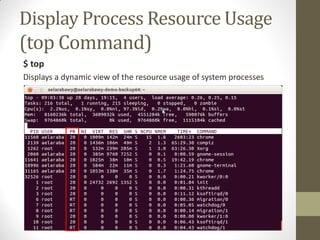
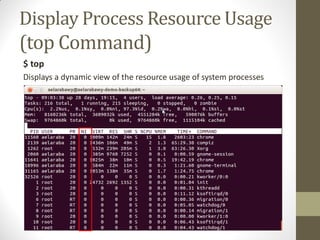
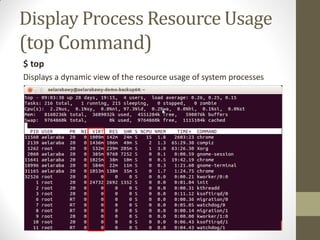
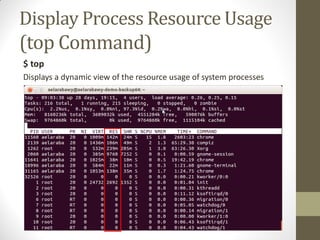
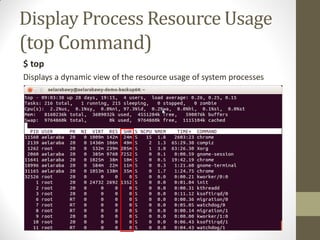
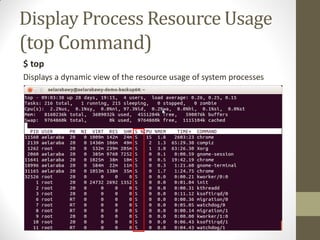
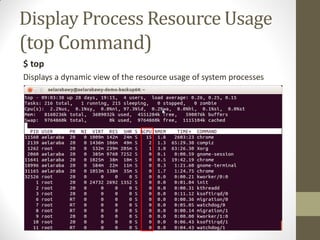
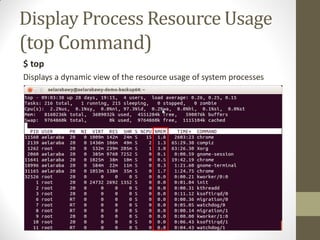
$ top
Displays a dynamic view of the resource usage of system processes
Current Time
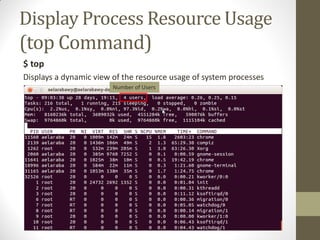
Display Process Resource Usage
(top Command)
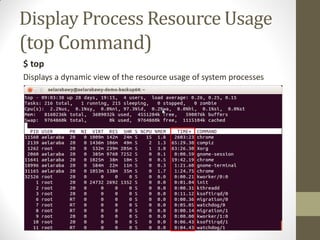
$ top
Displays a dynamic view of the resource usage of system processes
System Up Time
Display Process Resource Usage
(top Command)
$ top
Displays a dynamic view of the resource usage of system processes
Number of Users
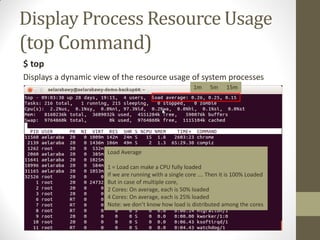
Display Process Resource Usage
(top Command)
$ top
Displays a dynamic view of the resource usage of system processes
1m 5m 15m
Load Average
1 = Load can make a CPU fully loaded
If we are running with a single core …. Then it is 100% Loaded
But in case of multiple core,
2 Cores: On average, each is 50% loaded
4 Cores: On average, each is 25% loaded
Note: we don’t know how load is distributed among the cores
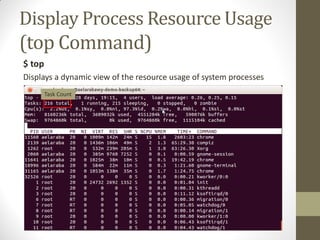
Display Process Resource Usage
(top Command)
$ top
Displays a dynamic view of the resource usage of system processes
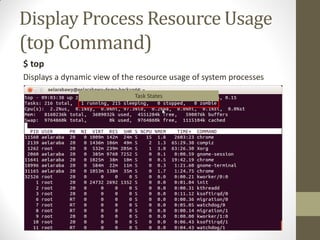
Task Count
Display Process Resource Usage
(top Command)
$ top
Displays a dynamic view of the resource usage of system processes
Task States
Display Process Resource Usage
(top Command)
$ top
Displays a dynamic view of the resource usage of system processes
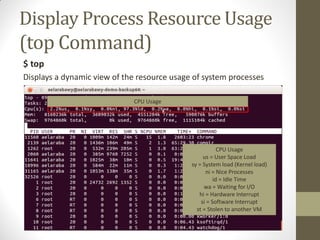
CPU Usage
CPU Usage
us = User Space Load
sy = System load (Kernel load)
ni = Nice Processes
id = Idle Time
wa = Waiting for I/O
hi = Hardware Interrupt
si = Software Interrupt
st = Stolen to another VM
Display Process Resource Usage
(top Command)
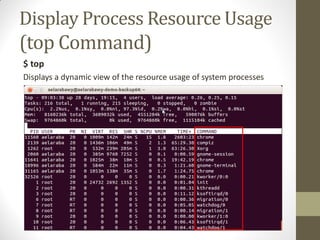
$ top
Displays a dynamic view of the resource usage of system processes
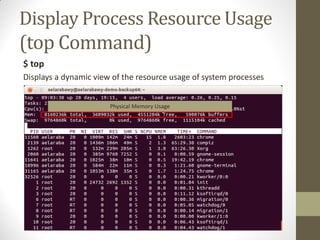
Physical Memory Usage
Display Process Resource Usage
(top Command)
$ top
Displays a dynamic view of the resource usage of system processes
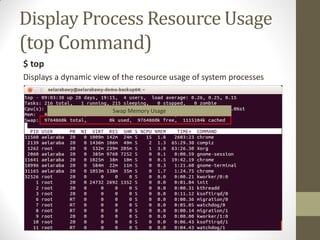
Swap Memory Usage
Display Process Resource Usage
(top Command)
$ top
Displays a dynamic view of the resource usage of system processes
Display Process Resource Usage
(top Command)
$ top
Displays a dynamic view of the resource usage of system processes
Display Process Resource Usage
(top Command)
$ top
Displays a dynamic view of the resource usage of system processes
Display Process Resource Usage
(top Command)
$ top
Displays a dynamic view of the resource usage of system processes
Display Process Resource Usage
(top Command)
$ top
Displays a dynamic view of the resource usage of system processes
Display Process Resource Usage
(top Command)
$ top
Displays a dynamic view of the resource usage of system processes
Display Process Resource Usage
(top Command)
$ top
Displays a dynamic view of the resource usage of system processes
Display Process Resource Usage
(top Command)
$ top
Displays a dynamic view of the resource usage of system processes
Display Process Resource Usage
(top Command)
$ top
Displays a dynamic view of the resource usage of system processes
Display Process Resource Usage
(top Command)
$ top
Displays a dynamic view of the resource usage of system processes
Display Process Resource Usage
(top Command)
$ top
Displays a dynamic view of the resource usage of system processes
Display Process Resource Usage
(top Command)
$ top
Displays a dynamic view of the resource usage of system processes
Manipulating Output
• While the “top” tool is running,
• Push ‘M’ to sort by memory usage
• Push ‘P’ to sort by CPU processing usage
• Push ‘T’ to sort by Time
• Push ‘k <pid>’ to kill process by its pid
• Push ‘h’ for getting a help page for all options
• Push ‘H’ to enable/disable showing threads separately
• Push ‘q’ to quit the tool
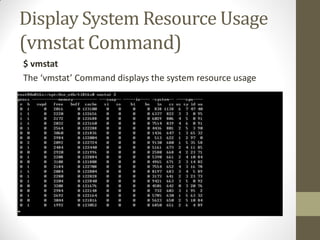
Display System Resource Usage
(vmstat Command)
$ vmstat
The ‘vmstat’ Command displays the system resource usage
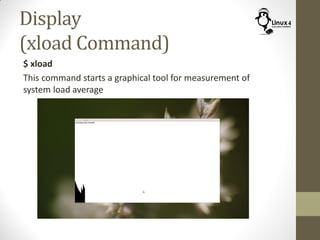
Display
(xload Command)
$ xload
This command starts a graphical tool for measurement of
system load average
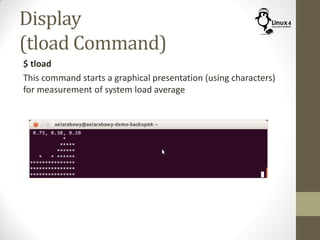
Display
(tload Command)
$ tload
This command starts a graphical presentation (using characters)
for measurement of system load average
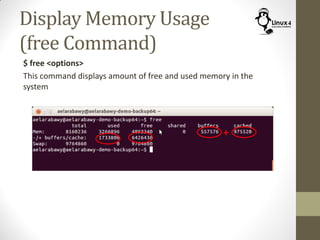
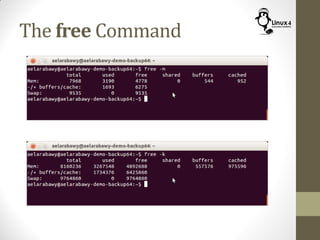
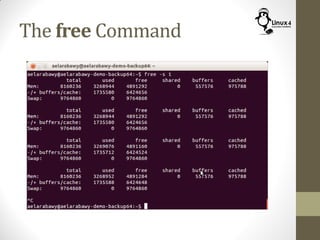
Display Memory Usage
(free Command)
$ free <options>
This command displays amount of free and used memory in the
system
+
The free Command
The free Command
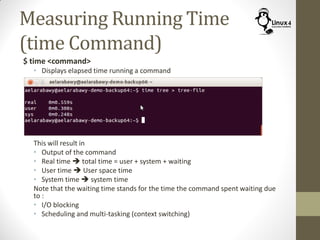
Measuring Running Time
(time Command)
$ time <command>
• Displays elapsed time running a command
This will result in
• Output of the command
• Real time  total time = user + system + waiting
• User time  User space time
• System time  system time
Note that the waiting time stands for the time the command spent waiting due
to :
• I/O blocking
• Scheduling and multi-tasking (context switching)
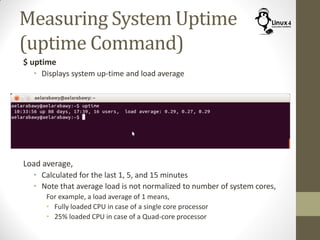
Measuring System Uptime
(uptime Command)
$ uptime
• Displays system up-time and load average
Load average,
• Calculated for the last 1, 5, and 15 minutes
• Note that average load is not normalized to number of system cores,
For example, a load average of 1 means,
• Fully loaded CPU in case of a single core processor
• 25% loaded CPU in case of a Quad-core processor
http://Linux4EmbeddedSystems.com

Course 102: Lecture 17: Process Monitoring

  • 1.
    Linux For EmbeddedSystems ForArabs Ahmed ElArabawy Course 102: UnderstandingLinux
  • 2.
    Lecture 17: Process Monitoring Ona UNIX system, everything is a file; if something is not a file, it is a process
  • 3.
    Process Attributes Process ID (PID) ParentProcess ID (PPID) NICE Value Terminal (TTY) Number User ID (RUID & EUID) Group ID (RGID & EGID) Session ID (SID) Process Group ID (PGID) Process State Address Space File Handles stdout/stdin/ stderr
  • 4.
    Process Attributes • ProcessId (PID) • A unique identification number used to refer to the process • Parent Process ID (PPID) • The process ID of the parent process • Process Group ID (PGID) • The ID for the process group that this process belong to • Will be equal to PID if the process is a Process Group Leader • Session ID (SID) • The ID for the session that this process belong to • The same for the PID if this process is the Session Leader • Terminal Number • The number of the terminal that is associated with the process • Only applicable for interactive processes • Batch processes and Daemons have the value of 0
  • 5.
    Process Attributes • OwnerUser ID • There are two user IDs for the process • Real User ID (RUID): the user who started the process • Effective User ID (EUID): the user whose privileges will be inherited by the process when accessing resources • By default RUID and EUID has the same value • Owner Group ID • Similar to user ID, there are two Group IDs • Real Group ID (RGID): The primary group of the user who started the process • Effective Group ID (EGID): The Group ID whose privileges are inherited by the process when accessing system resources • By default RGID and EGID has the same value
  • 6.
    Process Priority • Eachprocess will have a priority value • The process priority affects the scheduler behavior in the Linux Kernel • A Process with higher priority may, • Receive more processor time by the kernel • Get scheduled more often • Preempt processes with lower processes • Process priority is defined by, • User Controlled value (nice Value) • Kernel calculated value (based on the process behavior) • Processing bound • I/O bound
  • 7.
    The “nice” Value •This is a value between -19 to 20 assigned by the user • The kernel uses this value as a factor in calculating the process priority • The higher the “nice” value of the process, the more it is accommodating other processes (less aggressive), which means lower priority Default Value = 0 Nice value increases Priority Decreases nice = 20nice = -19 Nice value decreases Priority Increases
  • 8.
    Set Process Priority (niceCommand) $ nice -<value> command $ nice -n <value> command This command sets the nice value to manipulate the process priority • To increase priority, nice should be decreased and vice versa • nice value vary between -20 to +19 • Default nice value is “0” • Example: • To set nice to value 5 for a new process, $ nice -5 processCommand & $ nice -n 5 processCommand & • To set nice to value -10 for a new process $ nice --10 processCommand & $ nice -n -10 processCommand & • Note: non-root users can only do 1-19 nice values
  • 9.
    Modify Process Priority (reniceCommand) $ renice <value> <pid of process> This command changes the “nice” value of a process Example: $ renice 10 1002 • Note, • Non-root users can only increase the processes nice value (decrease its priority) • The passed value is the new nice value and not a increment/decrement value
  • 10.
    DISPLAY PROCESS INFORMATION& SYSTEM RESOURCE USAGE
  • 11.
    Displaying Process Info CommandFunction $ ps Display Process Static Information $ pstree Display Process Hierarchy $ top Display Resource usage by processes $ vmsat Display System Resource Usage $ xload $ tload System load average (in Graphical fashion) $ free Display of Memory Usage (used/free) $ time Measuring Running Time of a Command $ uptime Measuring System Uptime
  • 12.
    Display Process Info (psCommand) $ ps <options> Display Information about the running processes • The ps command is a very powerful and diverse command • It has a lot of options to change the ways to display process info, • Some options are used to define the scope of which processes to show • Other options are used to define the format of the listing and which information to show • we will go through the common forms for the command
  • 13.
    The ps Command DefiningScope $ ps • Display info about processes under the current shell $ ps -e $ ps -A • Display all processes in the system $ ps a • Display all processes in the system except those which are not attached with a terminal $ ps ax • Display all processes in the system including those which are not attached with a terminal
  • 14.
    Defining Format • Youcan use different options to define the format of the output (what columns to show) • Some of the common usages $ ps -f $ ps -F • To specify which fields to show use “-o” option $ ps -o pid,ppid,pgid,sid,command
  • 15.
    All Processes Withinthe current tty
  • 17.
    All Processes inthe System Not attached to any TTY (Daemons or Automatic Processes)
  • 18.
    All Processes inthe System Same as $ ps -e
  • 19.
    $ ps au a: don’t limit to same tty but have to be attached to a tty u : Long Format (more fields) Keep in mind that some options are preceded with “-” and others not For example: $ ps -a is not the same as $ ps a
  • 20.
    $ ps aux a: don’t limit to same tty but have to be attached to a tty x : Remove the tty restriction u : Long Format (more fields)
  • 21.
    $ ps a-F a : don’t limit to same tty but have to be attached to a tty -F : Long Format (more fields)
  • 22.
    $ ps a-f a : don’t limit to same tty but have to be attached to a tty -f : Long Format (more fields)
  • 23.
    $ ps auf a: don’t limit to same tty but have to be attached to a tty u : Long Format f : Show process in tree format
  • 26.
    Showing Threads • Toshow threads for multithreaded applications, use one of the following options $ ps -H $ ps -L $ ps -T $ ps -m
  • 27.
    Common Practices • Thereare hundreds of processes running in the system • A common practice, is to do a full listing and pipe the output to a search filter to limit the list to what we are interested in $ ps -ef | grep root • This shows all processes owned by the root user $ ps aux | grep “pts/2” • This shows all processes attached to the tty pts/2 • There are a lot of options for scope and format. For a special need, it is advised to refer to the man page for the command $ man ps
  • 28.
    Display Process ResourceUsage (top Command) $ top Displays a dynamic view of the resource usage of system processes Current Time
  • 29.
    Display Process ResourceUsage (top Command) $ top Displays a dynamic view of the resource usage of system processes System Up Time
  • 30.
    Display Process ResourceUsage (top Command) $ top Displays a dynamic view of the resource usage of system processes Number of Users
  • 31.
    Display Process ResourceUsage (top Command) $ top Displays a dynamic view of the resource usage of system processes 1m 5m 15m Load Average 1 = Load can make a CPU fully loaded If we are running with a single core …. Then it is 100% Loaded But in case of multiple core, 2 Cores: On average, each is 50% loaded 4 Cores: On average, each is 25% loaded Note: we don’t know how load is distributed among the cores
  • 32.
    Display Process ResourceUsage (top Command) $ top Displays a dynamic view of the resource usage of system processes Task Count
  • 33.
    Display Process ResourceUsage (top Command) $ top Displays a dynamic view of the resource usage of system processes Task States
  • 34.
    Display Process ResourceUsage (top Command) $ top Displays a dynamic view of the resource usage of system processes CPU Usage CPU Usage us = User Space Load sy = System load (Kernel load) ni = Nice Processes id = Idle Time wa = Waiting for I/O hi = Hardware Interrupt si = Software Interrupt st = Stolen to another VM
  • 35.
    Display Process ResourceUsage (top Command) $ top Displays a dynamic view of the resource usage of system processes Physical Memory Usage
  • 36.
    Display Process ResourceUsage (top Command) $ top Displays a dynamic view of the resource usage of system processes Swap Memory Usage
  • 37.
    Display Process ResourceUsage (top Command) $ top Displays a dynamic view of the resource usage of system processes
  • 38.
    Display Process ResourceUsage (top Command) $ top Displays a dynamic view of the resource usage of system processes
  • 39.
    Display Process ResourceUsage (top Command) $ top Displays a dynamic view of the resource usage of system processes
  • 40.
    Display Process ResourceUsage (top Command) $ top Displays a dynamic view of the resource usage of system processes
  • 41.
    Display Process ResourceUsage (top Command) $ top Displays a dynamic view of the resource usage of system processes
  • 42.
    Display Process ResourceUsage (top Command) $ top Displays a dynamic view of the resource usage of system processes
  • 43.
    Display Process ResourceUsage (top Command) $ top Displays a dynamic view of the resource usage of system processes
  • 44.
    Display Process ResourceUsage (top Command) $ top Displays a dynamic view of the resource usage of system processes
  • 45.
    Display Process ResourceUsage (top Command) $ top Displays a dynamic view of the resource usage of system processes
  • 46.
    Display Process ResourceUsage (top Command) $ top Displays a dynamic view of the resource usage of system processes
  • 47.
    Display Process ResourceUsage (top Command) $ top Displays a dynamic view of the resource usage of system processes
  • 48.
    Display Process ResourceUsage (top Command) $ top Displays a dynamic view of the resource usage of system processes
  • 49.
    Manipulating Output • Whilethe “top” tool is running, • Push ‘M’ to sort by memory usage • Push ‘P’ to sort by CPU processing usage • Push ‘T’ to sort by Time • Push ‘k <pid>’ to kill process by its pid • Push ‘h’ for getting a help page for all options • Push ‘H’ to enable/disable showing threads separately • Push ‘q’ to quit the tool
  • 50.
    Display System ResourceUsage (vmstat Command) $ vmstat The ‘vmstat’ Command displays the system resource usage
  • 51.
    Display (xload Command) $ xload Thiscommand starts a graphical tool for measurement of system load average
  • 52.
    Display (tload Command) $ tload Thiscommand starts a graphical presentation (using characters) for measurement of system load average
  • 53.
    Display Memory Usage (freeCommand) $ free <options> This command displays amount of free and used memory in the system +
  • 54.
  • 55.
  • 56.
    Measuring Running Time (timeCommand) $ time <command> • Displays elapsed time running a command This will result in • Output of the command • Real time  total time = user + system + waiting • User time  User space time • System time  system time Note that the waiting time stands for the time the command spent waiting due to : • I/O blocking • Scheduling and multi-tasking (context switching)
  • 57.
    Measuring System Uptime (uptimeCommand) $ uptime • Displays system up-time and load average Load average, • Calculated for the last 1, 5, and 15 minutes • Note that average load is not normalized to number of system cores, For example, a load average of 1 means, • Fully loaded CPU in case of a single core processor • 25% loaded CPU in case of a Quad-core processor
  • 58.