Troubleshooting Linux Keith Wright Technical Training Resources, Inc.
Troubleshooting  Be prepared! What's the problem? What does the problem affect? What or who is to blame? Searching for solutions Solving the problem or not! What's next?
Be Prepared Documentation Back it up! Software Back up any important data Have a regular schedule Automate Backup configuration changes Prepare rescue media Hardware Have spare parts available Have spare machines  Use Virtualization/Clustering
What's the problem? Gather Information User gnome-screenshot –interactive Run from terminal Log files (/var/log) /usr/bin/gnome-system-log history strace/ltrace top, ps, sar, iostat, vmstat tcpdump, wireshark, ntop, snort Debugging Options
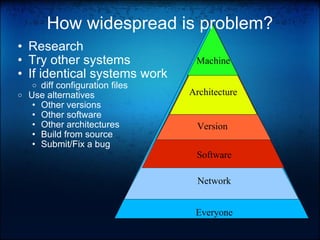
How widespread is problem? Research  Try other systems If identical systems work diff configuration files Use alternatives Other versions Other software Other architectures Build from source Submit/Fix a bug Network Version Architecture Machine Everyone Software
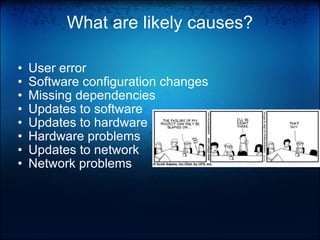
What are likely causes? User error Software configuration changes Missing dependencies Updates to software Updates to hardware Hardware problems  Updates to network Network problems
Quick Fixes Software  Reboot Reinstall software add-apt-repository (/etc/apt/sources.list) Update (apt-get update;apt-get upgrade –f) Hardware ->  System, Administration, Hardware Drivers System, Administration, System Testing Shutdown and Boot Check cables, connections, indicator lights, and power Ubuntu: Recovery Mode Clean, dpkg, grub, netroot, root
Troubleshooting Boot grub legacy: /boot/grub/menu.lst grub 2: /boot/grub/grub.cfg startupmanager package Recovery Mode Append kernel arguments 1 (Single user mode) emergency (Just a shell) linux rescue (Get rescue distro CD or...) package: grub-rescue-pc  mount /dev/rootpartition /target dpkg --root /target --install package.deb sysv-rc-conf or rcconf to manage daemons  /etc/default/* for startup parameters /etc/init.d/* for daemon scripts /etc/init/* for system initialization scripts
Troubleshooting X11 gnome-display-properties ~/.config/monitors.xml ~/.gconfd/saved_state  ~/Xclients-default /etc/X11/xorg.conf /var/log/Xorg.0.log CTRL+ALT+BACKSPACE ATI & Nvidia drivers System, Administration, Hardware Drivers Need to build kernel module build-essential linux-headers-$(uname –r)
GNOME Desktop Problems gconf-editor /apps/panel/global/locked_down /desktop/gnome/lockdown  rm -rf ~/.gconf ~/.gconfd ~/.gnome2 ~/.gnome2_private
Troubleshooting Processes ps -ef | grep foo pkill (-9) foo, pkill -u user kill -9 pid xkill top, htop, atop, gnome-system-monitor latencytop, powertop
GUI Applications Is a dialog box displayed? Press the PrintScr key on the keyboard and save the message Save the file for reference or being able to share it with others Run Application from Terminal Right-click the menu item, select Add this laucher to the desktop Right-click the item on the desktop, select Properties, and copy the command Open a Terminal and execute the command Look for informative error messages
Application crashes Open a terminal Read the manual and start the Application in a debugging mode Perform operation that caused crash Analyze any error messages Save output Research error message
Command Not Found or not working as expected Was the command typed correctly? Is the file executable to the user Is the file located on the user's PATH? Echo $PATH Export PATH=/foo/bar:$PATH Is the executing the correct one? which echo   type  echo alias
Troubleshooting Ethernet Using networking or network-manager services ifconfig, ip route, traceroute, mtr Configuration Files: /etc/network/interfaces (Ubuntu) /etc/resolv.conf /etc/hosts
Troubleshooting Wireless Know your kernel: uname -r Know your hardware: dmesg, lspci -v, lsusb -v, /etc/modules Know your configuration: ifconfig, iwconfig, nm-tool, iwlist wlan0 scan System, Preferences, Network Connections http://www.hpl.hp.com/personal/Jean_Tourrilhes/Linux/Wireless.html
NetworkManager If you use NetworkManager, then you don't use the networking service. nm-applet runs in notification area No longer need to login to activate connections nm-tool  provides useful information Right click, Edit Connections sudo restart network-manager
Troubleshooting Hardware Swap it! OS then parts dmesg lspci -v lsusb lshal /proc cpuinfo meminfo
Troubleshooting Disks fdisk -l blkid df -h, du -sh mount /etc/fstab fuser -v foo.bar lsof (-u user) (-p pid) smartctl -a /dev/sda
Disk Recovery Tools testdisk  recovers partitions and deleted files foremost recovers specific file types that are deleted
Troubleshooting Help Search for exact error message Research RTFM, info and doc Use community forums Use mailing lists help.ubuntu.com ubuntuforums.org linuxquestions.org freenode.net
References http://delicious.com/keithwright/scalets http://help.ubuntu.com http://ubuntuforums.org/ http://forums.fedoraforum.org/ http://tldp.org/ http://www.linuxtroubleshooting.com/ Irc freenode.net #rhel #fedora #ubuntu
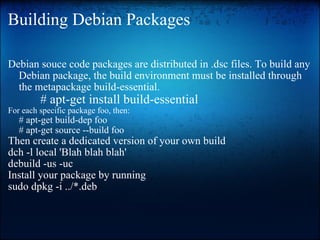
Building Debian Packages Debian souce code packages are distributed in .dsc files. To build any Debian package, the build environment must be installed through the metapackage build-essential.              # apt-get install build-essential For each specific package foo, then:  # apt-get build-dep foo # apt-get source --build foo Then create a dedicated version of your own build dch -l local 'Blah blah blah'  debuild -us -uc  Install your package by running  sudo dpkg -i ../*.deb
Using the dpkg command To enable logging of commands use the --log option List all packages: dpkg -l To query an individual package: dpkg --status  package Viewing package status:  dpkg --get-selections \* > selections.txt Setting package status: dpkg --set-selections  <selections.txt Installing a package: dpkg --install  package.deb Unpack a package: dpkg --unpack  package.deb   Configure a package: dpkg --configure  package Remove a package (but not configs): dpkg --remove  package Purge all package files: dpkg --purge  package List files in a package: dpkg --listfiles  package   Find package providing file: dpkg --search  filename   To find a package to provide a file: apt-file search  filename       
apt-get - To install, update, remove, or purge packages Repositories configured with /etc/apt/sources.list Update list of available packages: apt-get update  Install updated packages without adding/removing: apt-get upgrade Install all updated packages: apt-get dist-upgrade  Install a specific package: apt-get install  package Remove a package: apt-get remove  package Purge a package: apt-get --purge remove  package   The cron-apt package creates a cron job to automatically update     
apt-cache - To query packages To search for a keyword: apt-cache search  keyword   To query information: apt-cache show  package   To determine dependencies: apt-cache depends  package To show detailed information about all versions of a package and its dependencies: apt-cache showpkg  package
Troubleshooting Packages Try creating a new user and running the application. If it works for the new user, but not the old one, then old configuration files may be the problem. Move the old user's dot files and retry. If one package overwrites (conflicts) with another packages files, then remove one of the packages. If install or remove scripts for a package fail, then correct the problem in: /var/lib/dpkg/packagename.scriptname file. Then use: dpkg --configure –a apt-get update; apt-get upgrade -f
Package Management Frontends aptitude       - works CLI and well as an text application      - tracks dependencies and removes them when not needed  dselect - works as a menu driven text application synaptic - GUI application software-center - GUI application appearing on Applications menu

Linux Troubleshooting

  • 1.
    Troubleshooting Linux KeithWright Technical Training Resources, Inc.
  • 2.
    Troubleshooting Beprepared! What's the problem? What does the problem affect? What or who is to blame? Searching for solutions Solving the problem or not! What's next?
  • 3.
    Be Prepared DocumentationBack it up! Software Back up any important data Have a regular schedule Automate Backup configuration changes Prepare rescue media Hardware Have spare parts available Have spare machines Use Virtualization/Clustering
  • 4.
    What's the problem?Gather Information User gnome-screenshot –interactive Run from terminal Log files (/var/log) /usr/bin/gnome-system-log history strace/ltrace top, ps, sar, iostat, vmstat tcpdump, wireshark, ntop, snort Debugging Options
  • 5.
    How widespread isproblem? Research Try other systems If identical systems work diff configuration files Use alternatives Other versions Other software Other architectures Build from source Submit/Fix a bug Network Version Architecture Machine Everyone Software
  • 6.
    What are likelycauses? User error Software configuration changes Missing dependencies Updates to software Updates to hardware Hardware problems Updates to network Network problems
  • 7.
    Quick Fixes Software Reboot Reinstall software add-apt-repository (/etc/apt/sources.list) Update (apt-get update;apt-get upgrade –f) Hardware ->  System, Administration, Hardware Drivers System, Administration, System Testing Shutdown and Boot Check cables, connections, indicator lights, and power Ubuntu: Recovery Mode Clean, dpkg, grub, netroot, root
  • 8.
    Troubleshooting Boot grublegacy: /boot/grub/menu.lst grub 2: /boot/grub/grub.cfg startupmanager package Recovery Mode Append kernel arguments 1 (Single user mode) emergency (Just a shell) linux rescue (Get rescue distro CD or...) package: grub-rescue-pc mount /dev/rootpartition /target dpkg --root /target --install package.deb sysv-rc-conf or rcconf to manage daemons /etc/default/* for startup parameters /etc/init.d/* for daemon scripts /etc/init/* for system initialization scripts
  • 9.
    Troubleshooting X11 gnome-display-properties~/.config/monitors.xml ~/.gconfd/saved_state ~/Xclients-default /etc/X11/xorg.conf /var/log/Xorg.0.log CTRL+ALT+BACKSPACE ATI & Nvidia drivers System, Administration, Hardware Drivers Need to build kernel module build-essential linux-headers-$(uname –r)
  • 10.
    GNOME Desktop Problemsgconf-editor /apps/panel/global/locked_down /desktop/gnome/lockdown rm -rf ~/.gconf ~/.gconfd ~/.gnome2 ~/.gnome2_private
  • 11.
    Troubleshooting Processes ps-ef | grep foo pkill (-9) foo, pkill -u user kill -9 pid xkill top, htop, atop, gnome-system-monitor latencytop, powertop
  • 12.
    GUI Applications Isa dialog box displayed? Press the PrintScr key on the keyboard and save the message Save the file for reference or being able to share it with others Run Application from Terminal Right-click the menu item, select Add this laucher to the desktop Right-click the item on the desktop, select Properties, and copy the command Open a Terminal and execute the command Look for informative error messages
  • 13.
    Application crashes Opena terminal Read the manual and start the Application in a debugging mode Perform operation that caused crash Analyze any error messages Save output Research error message
  • 14.
    Command Not Foundor not working as expected Was the command typed correctly? Is the file executable to the user Is the file located on the user's PATH? Echo $PATH Export PATH=/foo/bar:$PATH Is the executing the correct one? which echo  type  echo alias
  • 15.
    Troubleshooting Ethernet Usingnetworking or network-manager services ifconfig, ip route, traceroute, mtr Configuration Files: /etc/network/interfaces (Ubuntu) /etc/resolv.conf /etc/hosts
  • 16.
    Troubleshooting Wireless Knowyour kernel: uname -r Know your hardware: dmesg, lspci -v, lsusb -v, /etc/modules Know your configuration: ifconfig, iwconfig, nm-tool, iwlist wlan0 scan System, Preferences, Network Connections http://www.hpl.hp.com/personal/Jean_Tourrilhes/Linux/Wireless.html
  • 17.
    NetworkManager If youuse NetworkManager, then you don't use the networking service. nm-applet runs in notification area No longer need to login to activate connections nm-tool  provides useful information Right click, Edit Connections sudo restart network-manager
  • 18.
    Troubleshooting Hardware Swapit! OS then parts dmesg lspci -v lsusb lshal /proc cpuinfo meminfo
  • 19.
    Troubleshooting Disks fdisk-l blkid df -h, du -sh mount /etc/fstab fuser -v foo.bar lsof (-u user) (-p pid) smartctl -a /dev/sda
  • 20.
    Disk Recovery Toolstestdisk  recovers partitions and deleted files foremost recovers specific file types that are deleted
  • 21.
    Troubleshooting Help Searchfor exact error message Research RTFM, info and doc Use community forums Use mailing lists help.ubuntu.com ubuntuforums.org linuxquestions.org freenode.net
  • 22.
    References http://delicious.com/keithwright/scalets http://help.ubuntu.comhttp://ubuntuforums.org/ http://forums.fedoraforum.org/ http://tldp.org/ http://www.linuxtroubleshooting.com/ Irc freenode.net #rhel #fedora #ubuntu
  • 23.
    Building Debian PackagesDebian souce code packages are distributed in .dsc files. To build any Debian package, the build environment must be installed through the metapackage build-essential.              # apt-get install build-essential For each specific package foo, then: # apt-get build-dep foo # apt-get source --build foo Then create a dedicated version of your own build dch -l local 'Blah blah blah' debuild -us -uc Install your package by running sudo dpkg -i ../*.deb
  • 24.
    Using the dpkgcommand To enable logging of commands use the --log option List all packages: dpkg -l To query an individual package: dpkg --status package Viewing package status:  dpkg --get-selections \* > selections.txt Setting package status: dpkg --set-selections  <selections.txt Installing a package: dpkg --install package.deb Unpack a package: dpkg --unpack package.deb   Configure a package: dpkg --configure package Remove a package (but not configs): dpkg --remove package Purge all package files: dpkg --purge package List files in a package: dpkg --listfiles package   Find package providing file: dpkg --search filename To find a package to provide a file: apt-file search filename      
  • 25.
    apt-get - Toinstall, update, remove, or purge packages Repositories configured with /etc/apt/sources.list Update list of available packages: apt-get update Install updated packages without adding/removing: apt-get upgrade Install all updated packages: apt-get dist-upgrade Install a specific package: apt-get install package Remove a package: apt-get remove package Purge a package: apt-get --purge remove package   The cron-apt package creates a cron job to automatically update   
  • 26.
    apt-cache - Toquery packages To search for a keyword: apt-cache search keyword   To query information: apt-cache show package To determine dependencies: apt-cache depends package To show detailed information about all versions of a package and its dependencies: apt-cache showpkg package
  • 27.
    Troubleshooting Packages Trycreating a new user and running the application. If it works for the new user, but not the old one, then old configuration files may be the problem. Move the old user's dot files and retry. If one package overwrites (conflicts) with another packages files, then remove one of the packages. If install or remove scripts for a package fail, then correct the problem in: /var/lib/dpkg/packagename.scriptname file. Then use: dpkg --configure –a apt-get update; apt-get upgrade -f
  • 28.
    Package Management Frontendsaptitude       - works CLI and well as an text application     - tracks dependencies and removes them when not needed dselect - works as a menu driven text application synaptic - GUI application software-center - GUI application appearing on Applications menu

Editor's Notes

  • #5 https://help.ubuntu.com/community/ReportingBugs
  • #8 apt-get –reinstall install package aptitutude reinstall package
  • #9 burn the rescue cd in the grub-rescue-pc package using cdrecord -v /usr/lib/grub-rescue/grub-rescue-cdrom.iso
  • #10 On Redhat based systems, also use: system-config-display
  • #15 yum provides */command yum install package
  • #16 /etc/sysconfig/network-scripts/ifcfg-eth0 for Redhat