Linux For Embedded Systems
ForArabs
Ahmed ElArabawy
Cairo University
Computer Eng. Dept.
CMP445-Embedded Systems
Lecture 8:
Lab 1:
Building a Pi Based WiFi Access Point
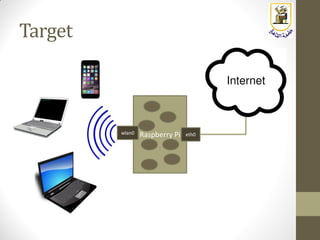
Target
Raspberry Piwlan0 eth0
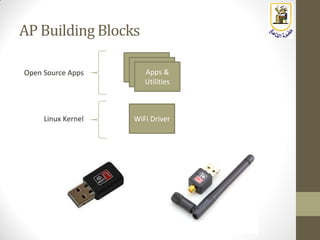
AP Building Blocks
WiFi Driver
Apps &
Utilities
Linux Kernel
Open Source Apps
Building a PiBased WiFiAccessPoint
• We can use the Raspberry Pi board to build a WiFi Access Point
• Some WiFi chipset can be configured to provide AP functionality
• Also, the Linux kernel has strong support for different WiFi modes of operation
• All we need is to install and configure user plane apps that will enable us to switch
the Pi into a fully functional WiFi AP
• Why do we need to build that,
• Extend the WiFi coverage
• But keep in mind that the Pi will be less cost effective, and less powerful than
commercial products
• Learning purposes
• To learn more about WiFi, its modes of operation, configuration parameters, and its
software components
• Build a special featured access point such as more security, special firewall, adding
anonymity (onion server)
• A lot of libraries and applications provide a lot of functionality, so you can customize your
own WiFi AP
• Hack the AP software to test new functionality and features
• All user plane applications are open source with a lot of community support, so you can
develop your own features
• The WiFi drivers running in the Linux Kernel are also open source, so you can also hack it
• Linux provides a well documented API to enable developers to connect to the different
components of the WiFi System
• Build a product where the WiFi AP support is just one part of it
Introduction to WiFi Networks
WiFi Network Types
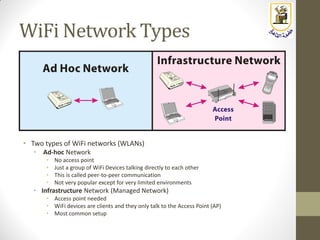
• Two types of WiFi networks (WLANs)
• Ad-hoc Network
• No access point
• Just a group of WiFi Devices talking directly to each other
• This is called peer-to-peer communication
• Not very popular except for very limited environments
• Infrastructure Network (Managed Network)
• Access point needed
• WiFi devices are clients and they only talk to the Access Point (AP)
• Most common setup
Generations of WiFi Networks
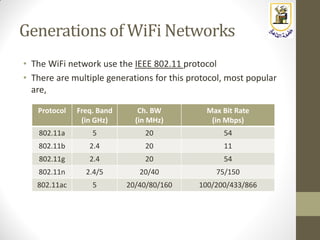
• The WiFi network use the IEEE 802.11 protocol
• There are multiple generations for this protocol, most popular
are,
Protocol Freq. Band
(in GHz)
Ch. BW
(in MHz)
Max Bit Rate
(in Mbps)
802.11a 5 20 54
802.11b 2.4 20 11
802.11g 2.4 20 54
802.11n 2.4/5 20/40 75/150
802.11ac 5 20/40/80/160 100/200/433/866
Wireless Modes of a WiFi
Device
Wireless Modes
• The WiFi device (named a WNIC) can work in one of the
following modes
• Station (STA) infrastructure mode
• AccessPoint (AP) infrastructure mode
• Ad-Hoc (IBSS) mode
• Monitor (MON) mode
• Wireless Distribution System (WDS) mode
• Mesh mode
• In some WNICs, it is possible to run in multiple modes at the
same time
Station (STA) Infrastructure Mode
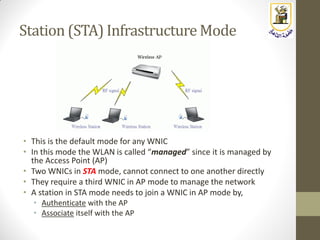
• This is the default mode for any WNIC
• In this mode the WLAN is called ā€œmanagedā€ since it is managed by
the Access Point (AP)
• Two WNICs in STA mode, cannot connect to one another directly
• They require a third WNIC in AP mode to manage the network
• A station in STA mode needs to join a WNIC in AP mode by,
• Authenticate with the AP
• Associate itself with the AP
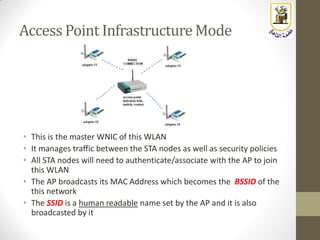
Access Point Infrastructure Mode
• This is the master WNIC of this WLAN
• It manages traffic between the STA nodes as well as security policies
• All STA nodes will need to authenticate/associate with the AP to join
this WLAN
• The AP broadcasts its MAC Address which becomes the BSSID of the
this network
• The SSID is a human readable name set by the AP and it is also
broadcasted by it
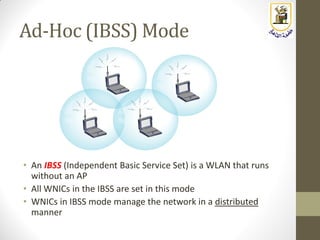
Ad-Hoc (IBSS) Mode
• An IBSS (Independent Basic Service Set) is a WLAN that runs
without an AP
• All WNICs in the IBSS are set in this mode
• WNICs in IBSS mode manage the network in a distributed
manner
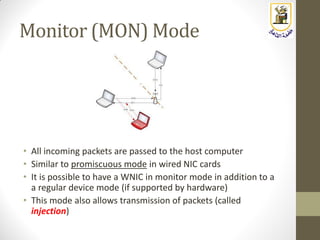
Monitor (MON) Mode
• All incoming packets are passed to the host computer
• Similar to promiscuous mode in wired NIC cards
• It is possible to have a WNIC in monitor mode in addition to a
a regular device mode (if supported by hardware)
• This mode also allows transmission of packets (called
injection)
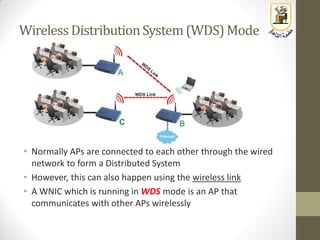
Wireless DistributionSystem(WDS)Mode
• Normally APs are connected to each other through the wired
network to form a Distributed System
• However, this can also happen using the wireless link
• A WNIC which is running in WDS mode is an AP that
communicates with other APs wirelessly
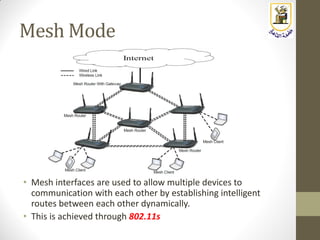
Mesh Mode
• Mesh interfaces are used to allow multiple devices to
communication with each other by establishing intelligent
routes between each other dynamically.
• This is achieved through 802.11s
WiFi Security
WiFi Security
• Security in WiFi has two aspects,
• Authentication
• Verifying the identity of the station when it is joining the network
• Data Integrity (Encryption)
• Ability to hide data content in traffic in the network
• Both authentication and encryption use ciphering to hide keys and
traffic
• When the initial WiFi protocol (802.11) was introduced in 1999 it came
with the security protocol named WEP (Wired Equivalent Protocol)
• WEP uses RC4 ciphering for both authentication and encryption
• WEP ciphering keys,
• 40 bit (10 digits) for WEP-64
• 104 bit (26 digits) for WEP-128
• Soon, it was discovered that WEP is very insecure, and can be easily
breakable, so effort was done to come up with better security protocols
• This triggered the effort done by to introduce the 802.11i Protocol
Introduction of WPA
• It was discovered in 802.11i, that a new security protocol needs to
be completely different than WEP
• That would need long time to draft and will not be a simple software
upgrade (we have to change the ciphering algorithm which is using
hardware)
• Accordingly, current chips would not be able to support it
• It was agreed to introduce an interim protocol until the final
protocol is drafted
• That interim protocol is named WPA (WiFi Protected Access)
• WPA uses a new encryption algorithm that is stronger than WEP. The
new algorithm is named TKIP (Temporary Key Integrity Protocol)
• TKIP improves key handling of WEP but it uses the same ciphering
algorithm (RC4) to be able to run on existing hardware with software
upgrade (ciphering is normally run using hardware accelerators)
• WPA-TKIP is much more secure than WEP but not the final outcome
of 802.11i
Introduction of WPA2 (RSN)
• In the final draft of 802.11i (2004), a new security mechanism
was introduced and called RSN (Robust Security Network).
• The protocol is also named WPA2
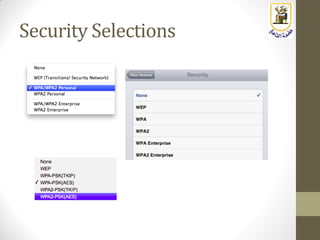
• WPA2 uses a more robust ciphering algorithm AES-CCMP
which can not run on older chips
• In 2006, WPA2 support was a mandatory feature for any WiFi
certified product
• For compatibility purposes with old devices, access points
today come with both WPA and WPA2 protocols, and each
protocol supports both TKIP and AES-CCMP encryption
• WPA-TKIP (the traditional WPA)
• WPA-AES (rarely used, very close to WPA2-AES)
• WPA2-TKIP (used to run WPA2 on the old devices)
• WPA2-AES (the standard WPA2)
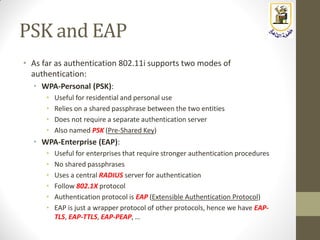
PSK and EAP
• As far as authentication 802.11i supports two modes of
authentication:
• WPA-Personal (PSK):
• Useful for residential and personal use
• Relies on a shared passphrase between the two entities
• Does not require a separate authentication server
• Also named PSK (Pre-Shared Key)
• WPA-Enterprise (EAP):
• Useful for enterprises that require stronger authentication procedures
• No shared passphrases
• Uses a central RADIUS server for authentication
• Follow 802.1X protocol
• Authentication protocol is EAP (Extensible Authentication Protocol)
• EAP is just a wrapper protocol of other protocols, hence we have EAP-
TLS, EAP-TTLS, EAP-PEAP, …
Security Selections
Linux WiFi Support
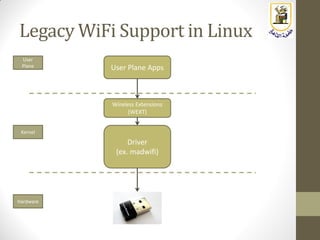
Legacy WiFi Support in Linux
Hardware
Kernel
User
Plane
Driver
(ex. madwifi)
Wireless Extensions
(WEXT)
User Plane Apps
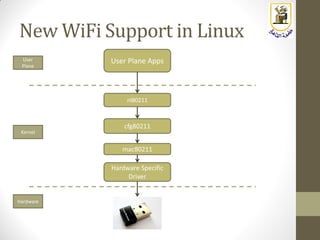
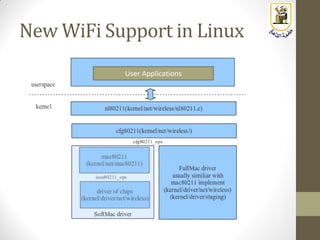
New WiFi Support in Linux
Hardware
Kernel
User
Plane
Hardware Specific
Driver
nl80211
User Plane Apps
mac80211
cfg80211
New WiFi Support in Linux
User Applications
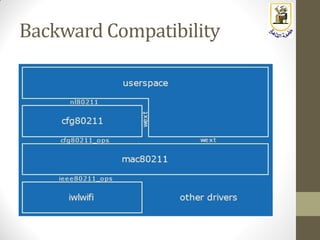
Backward Compatibility
WiFi Chipsets
• There are a lot of WiFi products in the market
• What matters is the used chipset in the product
• This defines the capability of the device,
• What wireless modes does it support (Station, AP, Monitor, .. )
• Can it support multiple modes simultaneously ?
• What type of device architecture does it work with
(wext/nl80211)
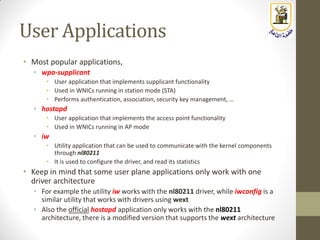
User Applications
• Most popular applications,
• wpa-supplicant
• User application that implements supplicant functionality
• Used in WNICs running in station mode (STA)
• Performs authentication, association, security key management, …
• hostapd
• User application that implements the access point functionality
• Used in WNICs running in AP mode
• iw
• Utility application that can be used to communicate with the kernel components
through nl80211
• It is used to configure the driver, and read its statistics
• Keep in mind that some user plane applications only work with one
driver architecture
• For example the utility iw works with the nl80211 driver, while iwconfig is a
similar utility that works with drivers using wext
• Also the official hostapd application only works with the nl80211
architecture, there is a modified version that supports the wext architecture
Using the iw
Configuration Utility
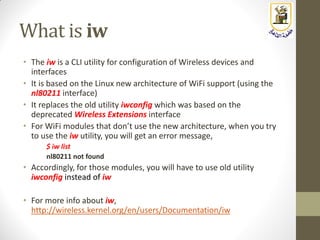
What is iw
• The iw is a CLI utility for configuration of Wireless devices and
interfaces
• It is based on the Linux new architecture of WiFi support (using the
nl80211 interface)
• It replaces the old utility iwconfig which was based on the
deprecated Wireless Extensions interface
• For WiFi modules that don’t use the new architecture, when you try
to use the iw utility, you will get an error message,
$ iw list
nl80211 not found
• Accordingly, for those modules, you will have to use old utility
iwconfig instead of iw
• For more info about iw,
http://wireless.kernel.org/en/users/Documentation/iw
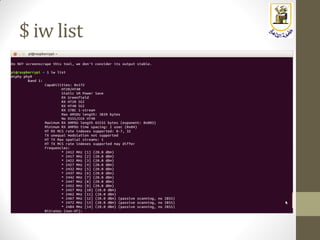
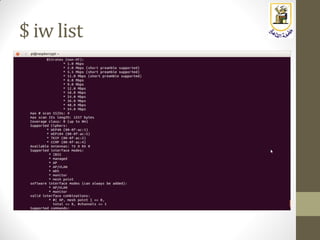
Listing device Capability
(iw list Command)
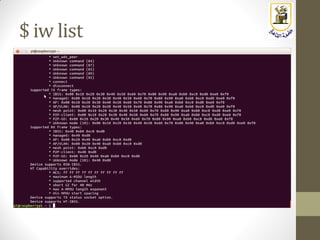
• Using the iw utility, you can list the capability of the WNIC
device such as,
• Supported modes of operation
• Supported channels
• Supported bit rates
• Supported security protocols
• Transmit power ranges
• Supported features (Power save mode, Advanced modulation
types, ..)
• And a lot of other features
$ iw list
$ iw list
$ iw list
$ iw list
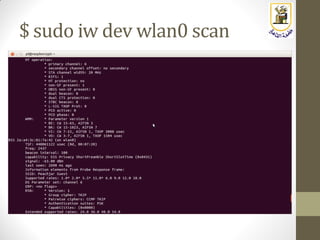
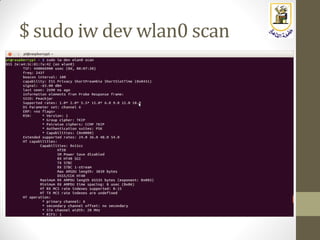
Scanning For Wireless Networks
(iw scan Command)
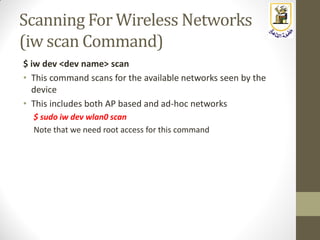
$ iw dev <dev name> scan
• This command scans for the available networks seen by the
device
• This includes both AP based and ad-hoc networks
$ sudo iw dev wlan0 scan
Note that we need root access for this command
$ sudo iw dev wlan0 scan
Listening to Events
(iw event Command)
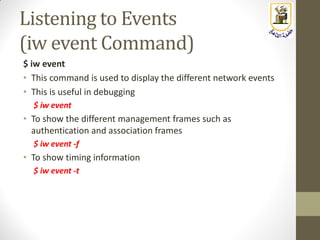
$ iw event
• This command is used to display the different network events
• This is useful in debugging
$ iw event
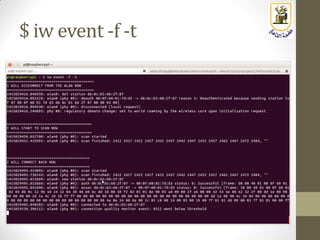
• To show the different management frames such as
authentication and association frames
$ iw event -f
• To show timing information
$ iw event -t
$ iw event -f -t
More iw Commands
• With iw, you can also,
• Collect device statistics
• Collect link information
• Read/set transmit power
• Enable/Disable power saving mode
• Setting frequency channel and BW
• Select bit rate
• Adding / Deleting interfaces
Building the Access Point
Pre-requisites
• Prepare the SD Card with a Raspbian OS
• Setup the Ethernet Connection (eth0)
• Setup the WiFi Connection (wlan0) using a WiFi USB Module
First Step: hostapd
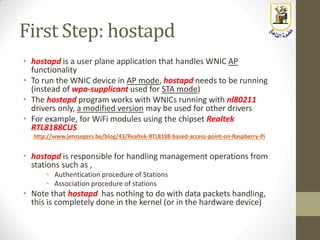
• hostapd is a user plane application that handles WNIC AP
functionality
• To run the WNIC device in AP mode, hostapd needs to be running
(instead of wpa-supplicant used for STA mode)
• The hostapd program works with WNICs running with nl80211
drivers only, a modified version may be used for other drivers
• For example, for WiFi modules using the chipset Realtek
RTL8188CUS
http://www.jenssegers.be/blog/43/Realtek-RTL8188-based-access-point-on-Raspberry-Pi
• hostapd is responsible for handling management operations from
stations such as ,
• Authentication procedure of Stations
• Association procedure of stations
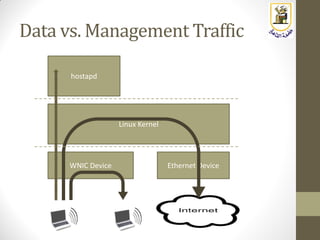
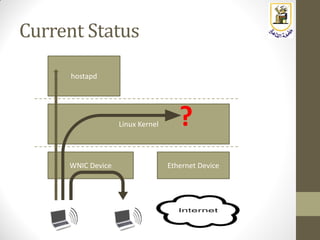
• Note that hostapd has nothing to do with data packets handling,
this is completely done in the kernel (or in the hardware device)
Data vs. Management Traffic
WNIC Device
Linux Kernel
hostapd
Ethernet Device
Setting Up hostapd
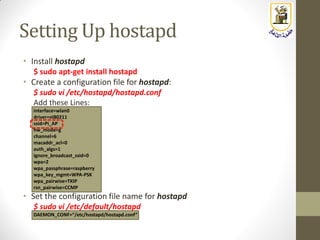
• Install hostapd
$ sudo apt-get install hostapd
• Create a configuration file for hostapd:
$ sudo vi /etc/hostapd/hostapd.conf
Add these Lines:
interface=wlan0
driver=nl80211
ssid=Pi_AP
hw_mode=g
channel=6
macaddr_acl=0
auth_algs=1
ignore_broadcast_ssid=0
wpa=2
wpa_passphrase=raspberry
wpa_key_mgmt=WPA-PSK
wpa_pairwise=TKIP
rsn_pairwise=CCMP
• Set the configuration file name for hostapd
$ sudo vi /etc/default/hostapd
DAEMON_CONF=ā€œ/etc/hostapd/hostapd.confā€
Run hostapd
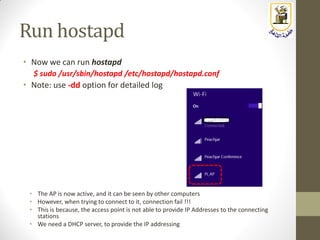
• Now we can run hostapd
$ sudo /usr/sbin/hostapd /etc/hostapd/hostapd.conf
• Note: use -dd option for detailed log
• The AP is now active, and it can be seen by other computers
• However, when trying to connect to it, connection fail !!!
• This is because, the access point is not able to provide IP Addresses to the connecting
stations
• We need a DHCP server, to provide the IP addressing
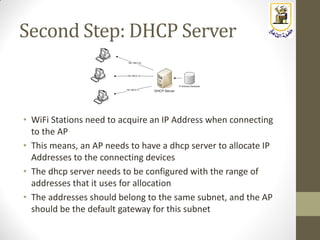
Second Step: DHCP Server
• WiFi Stations need to acquire an IP Address when connecting
to the AP
• This means, an AP needs to have a dhcp server to allocate IP
Addresses to the connecting devices
• The dhcp server needs to be configured with the range of
addresses that it uses for allocation
• The addresses should belong to the same subnet, and the AP
should be the default gateway for this subnet
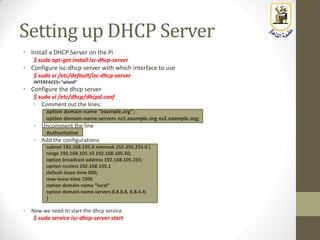
Setting up DHCP Server
• Install a DHCP Server on the Pi
$ sudo apt-get install isc-dhcp-server
• Configure isc-dhcp-server with which interface to use
$ sudo vi /etc/default/isc-dhcp-server
INTERFACES=ā€œwlan0ā€
• Configure the dhcp server
$ sudo vi /etc/dhcp/dhcpd.conf
• Comment out the lines:
option domain-name ā€œexample.orgā€;
option domain-name-servers ns1.example.org ns2.example.org;
• Uncomment the line
Authoritative
• Add the configurations
subnet 192.168.105.0 netmask 255.255.255.0 {
range 192.168.105.10 192.168.105.50;
option broadcast-address 192.168.105.255;
option routers 192.168.105.1
default-lease-time 600;
max-lease-time 7200
option domain-name ā€œlocalā€
option domain-name-servers 8.8.8.8, 8.8.4.4;
}
• Now we need to start the dhcp service
$ sudo service isc-dhcp-server start
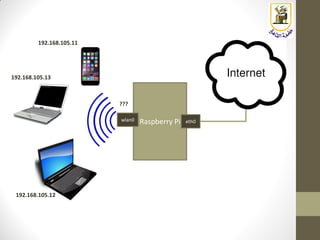
Raspberry Piwlan0 eth0
192.168.105.11
192.168.105.12
192.168.105.13
???
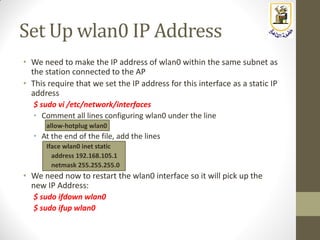
Set Up wlan0 IP Address
• We need to make the IP address of wlan0 within the same subnet as
the station connected to the AP
• This require that we set the IP address for this interface as a static IP
address
$ sudo vi /etc/network/interfaces
• Comment all lines configuring wlan0 under the line
allow-hotplug wlan0
• At the end of the file, add the lines
Iface wlan0 inet static
address 192.168.105.1
netmask 255.255.255.0
• We need now to restart the wlan0 interface so it will pick up the
new IP Address:
$ sudo ifdown wlan0
$ sudo ifup wlan0
Now Let Us Try Again
$ sudo /usr/sbin/hostapd /etc/hostapd/hostapd.conf
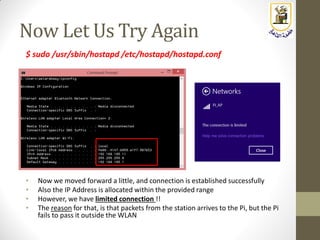
• Now we moved forward a little, and connection is established successfully
• Also the IP Address is allocated within the provided range
• However, we have limited connection !!
• The reason for that, is that packets from the station arrives to the Pi, but the Pi
fails to pass it outside the WLAN
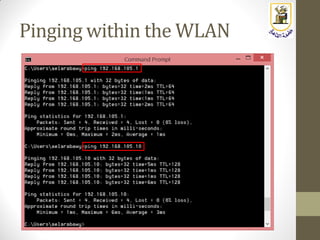
Pinging within the WLAN
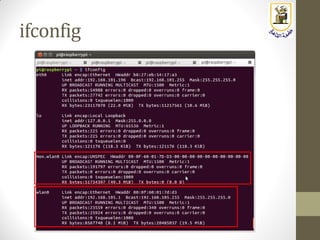
ifconfig
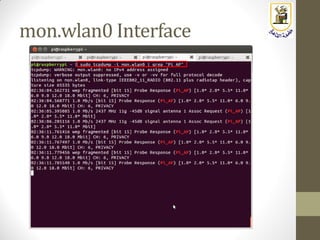
mon.wlan0 Interface
Current Status
WNIC Device
Linux Kernel
hostapd
Ethernet Device
?
Input
Output
Pre-Routing
Post-Routing
ForwardRouting
Networketh0 eth1
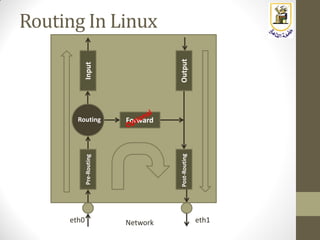
Routing In Linux
Packet Forwarding
• Linux supports packet forwarding as part of its routing
capabilities
• However, this support needs to be enabled (it is disabled by
default)
• To check if packet forwarding is enabled,
$ cat /proc/sys/net/ipv4/ip_forward
1 means enabled, 0 means disabled
• To enable packet forwarding,
$ sudo sh -c ā€œecho 1 > /proc/sys/net/ipv4/ip_forwardā€
• To enable packet forwarding automatically at startup,
$ sudo vi /etc/sysctl.conf
Add the following line at the end of the file
net.ipv4.ip_forward=1
Adding Forwarding Rules
• Now packet forwarding is enabled, we need now to add
forwarding rules
• The tool used for that purpose is called iptables
• With iptables you can add a rule on any leg in the Linux Packet
path (called chains)
• PREROUTING
• POSTROUTING
• FORWARD
• INPUT
• OUTPUT
• In our case we will use these commands,
$ sudo iptables -A FORWARD -i wlan0 -o eth0 -j ACCEPT
$ sudo iptables -A FORWARD -i eth0 -o wlan0 -m state --state RELATED,ESTABLISHED -j ACCEPT
• To check your changes
$ sudo iptables -S
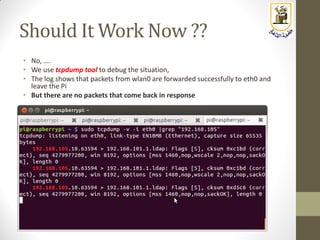
Should It Work Now ??
• No, ….
• We use tcpdump tool to debug the situation,
• The log shows that packets from wlan0 are forwarded successfully to eth0 and
leave the Pi
• But there are no packets that come back in response
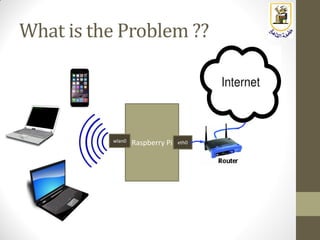
What is the Problem ??
Raspberry Piwlan0 eth0
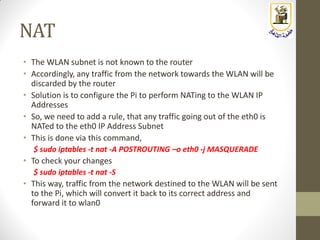
NAT
• The WLAN subnet is not known to the router
• Accordingly, any traffic from the network towards the WLAN will be
discarded by the router
• Solution is to configure the Pi to perform NATing to the WLAN IP
Addresses
• So, we need to add a rule, that any traffic going out of the eth0 is
NATed to the eth0 IP Address Subnet
• This is done via this command,
$ sudo iptables -t nat -A POSTROUTING –o eth0 -j MASQUERADE
• To check your changes
$ sudo iptables -t nat -S
• This way, traffic from the network destined to the WLAN will be sent
to the Pi, which will convert it back to its correct address and
forward it to wlan0
Saving iptables Rules
• The rules we set for iptables will take effect immediately, but
will be lost when the Pi reboots
• To save these settings,
$ sudo sh -c ā€œiptables-save > /etc/iptables.ipv4.natā€
Finally
Notes
• On the bright side,
• You have now a functioning WiFi AP that you can use for real network
connectivity
• Using the configuration files that we have touched on, you can modify the
behavior of your AP
• You can add new features for your AP by adding more libraries and
applications
• More interestingly, you can also add your own ideas and functionality
(remember that all the tools and libraries we used are open source and can
accept added functionality)
• You can build your own embedded device (sensors, motors, … ) along with
WiFi AP functionality as well
• However,
• Although the Pi functions as an AP, we need to remember that commercial
WiFi APs are based on much more powerful boards (most products in the
market use multicore chips with stronger cores than that is used in the Pi)
• This means, the Pi will not be able to handle very high throughput that can be
handled by commercial 802.11n and 802.11ac products
Evaluating the AP
Throughput
Evaluating the AP Throughput
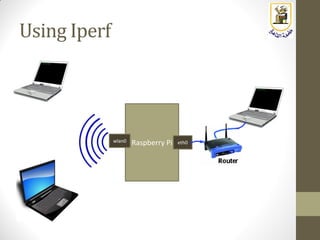
• Now we have the AP operational, we need to measure its
performance
• Things to measure:
• Max bit rate it can handle between stations connected to it
• Max bit rate it can handle between a station and the internet
• Delays and latency
• We can measure that using both UDP and TCP traffic
• To perform these measurements, we use the iperf tool
Using Iperf
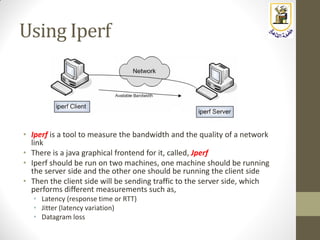
• Iperf is a tool to measure the bandwidth and the quality of a network
link
• There is a java graphical frontend for it, called, Jperf
• Iperf should be run on two machines, one machine should be running
the server side and the other one should be running the client side
• Then the client side will be sending traffic to the server side, which
performs different measurements such as,
• Latency (response time or RTT)
• Jitter (latency variation)
• Datagram loss
Using Iperf
Raspberry Piwlan0 eth0
Installing Iperf
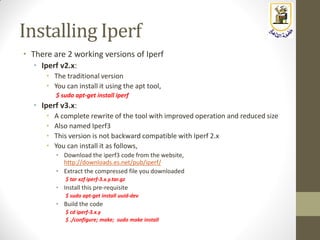
• There are 2 working versions of Iperf
• Iperf v2.x:
• The traditional version
• You can install it using the apt tool,
$ sudo apt-get install iperf
• Iperf v3.x:
• A complete rewrite of the tool with improved operation and reduced size
• Also named Iperf3
• This version is not backward compatible with Iperf 2.x
• You can install it as follows,
• Download the iperf3 code from the website,
http://downloads.es.net/pub/iperf/
• Extract the compressed file you downloaded
$ tar xzf iperf-3.x.y.tar.gz
• Install this pre-requisite
$ sudo apt-get install uuid-dev
• Build the code
$ cd iperf-3.x.y
$ ./configure; make; sudo make install
Running Iperf
(iperf Command)
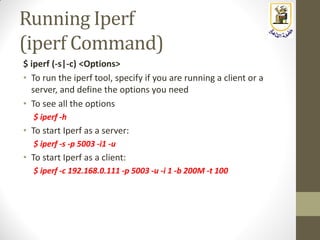
$ iperf (-s|-c) <Options>
• To run the iperf tool, specify if you are running a client or a
server, and define the options you need
• To see all the options
$ iperf -h
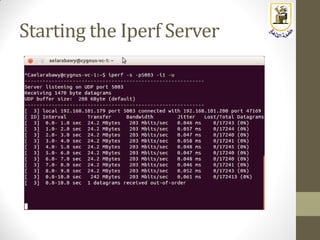
• To start Iperf as a server:
$ iperf -s -p 5003 -i1 -u
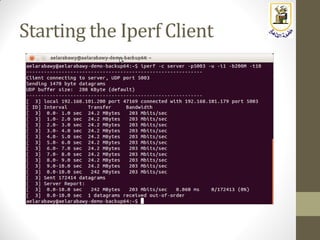
• To start Iperf as a client:
$ iperf -c 192.168.0.111 -p 5003 -u -i 1 -b 200M -t 100
Starting the Iperf Server
Starting the Iperf Client
http://Linux4EmbeddedSystems.com

Embedded Systems: Lecture 8: Lab 1: Building a Raspberry Pi Based WiFi AP

  • 1.
    Linux For EmbeddedSystems ForArabs Ahmed ElArabawy Cairo University Computer Eng. Dept. CMP445-Embedded Systems
  • 2.
    Lecture 8: Lab 1: Buildinga Pi Based WiFi Access Point
  • 3.
  • 4.
    AP Building Blocks WiFiDriver Apps & Utilities Linux Kernel Open Source Apps
  • 5.
    Building a PiBasedWiFiAccessPoint • We can use the Raspberry Pi board to build a WiFi Access Point • Some WiFi chipset can be configured to provide AP functionality • Also, the Linux kernel has strong support for different WiFi modes of operation • All we need is to install and configure user plane apps that will enable us to switch the Pi into a fully functional WiFi AP • Why do we need to build that, • Extend the WiFi coverage • But keep in mind that the Pi will be less cost effective, and less powerful than commercial products • Learning purposes • To learn more about WiFi, its modes of operation, configuration parameters, and its software components • Build a special featured access point such as more security, special firewall, adding anonymity (onion server) • A lot of libraries and applications provide a lot of functionality, so you can customize your own WiFi AP • Hack the AP software to test new functionality and features • All user plane applications are open source with a lot of community support, so you can develop your own features • The WiFi drivers running in the Linux Kernel are also open source, so you can also hack it • Linux provides a well documented API to enable developers to connect to the different components of the WiFi System • Build a product where the WiFi AP support is just one part of it
  • 6.
  • 7.
    WiFi Network Types •Two types of WiFi networks (WLANs) • Ad-hoc Network • No access point • Just a group of WiFi Devices talking directly to each other • This is called peer-to-peer communication • Not very popular except for very limited environments • Infrastructure Network (Managed Network) • Access point needed • WiFi devices are clients and they only talk to the Access Point (AP) • Most common setup
  • 8.
    Generations of WiFiNetworks • The WiFi network use the IEEE 802.11 protocol • There are multiple generations for this protocol, most popular are, Protocol Freq. Band (in GHz) Ch. BW (in MHz) Max Bit Rate (in Mbps) 802.11a 5 20 54 802.11b 2.4 20 11 802.11g 2.4 20 54 802.11n 2.4/5 20/40 75/150 802.11ac 5 20/40/80/160 100/200/433/866
  • 9.
    Wireless Modes ofa WiFi Device
  • 10.
    Wireless Modes • TheWiFi device (named a WNIC) can work in one of the following modes • Station (STA) infrastructure mode • AccessPoint (AP) infrastructure mode • Ad-Hoc (IBSS) mode • Monitor (MON) mode • Wireless Distribution System (WDS) mode • Mesh mode • In some WNICs, it is possible to run in multiple modes at the same time
  • 11.
    Station (STA) InfrastructureMode • This is the default mode for any WNIC • In this mode the WLAN is called ā€œmanagedā€ since it is managed by the Access Point (AP) • Two WNICs in STA mode, cannot connect to one another directly • They require a third WNIC in AP mode to manage the network • A station in STA mode needs to join a WNIC in AP mode by, • Authenticate with the AP • Associate itself with the AP
  • 12.
    Access Point InfrastructureMode • This is the master WNIC of this WLAN • It manages traffic between the STA nodes as well as security policies • All STA nodes will need to authenticate/associate with the AP to join this WLAN • The AP broadcasts its MAC Address which becomes the BSSID of the this network • The SSID is a human readable name set by the AP and it is also broadcasted by it
  • 13.
    Ad-Hoc (IBSS) Mode •An IBSS (Independent Basic Service Set) is a WLAN that runs without an AP • All WNICs in the IBSS are set in this mode • WNICs in IBSS mode manage the network in a distributed manner
  • 14.
    Monitor (MON) Mode •All incoming packets are passed to the host computer • Similar to promiscuous mode in wired NIC cards • It is possible to have a WNIC in monitor mode in addition to a a regular device mode (if supported by hardware) • This mode also allows transmission of packets (called injection)
  • 15.
    Wireless DistributionSystem(WDS)Mode • NormallyAPs are connected to each other through the wired network to form a Distributed System • However, this can also happen using the wireless link • A WNIC which is running in WDS mode is an AP that communicates with other APs wirelessly
  • 16.
    Mesh Mode • Meshinterfaces are used to allow multiple devices to communication with each other by establishing intelligent routes between each other dynamically. • This is achieved through 802.11s
  • 17.
  • 18.
    WiFi Security • Securityin WiFi has two aspects, • Authentication • Verifying the identity of the station when it is joining the network • Data Integrity (Encryption) • Ability to hide data content in traffic in the network • Both authentication and encryption use ciphering to hide keys and traffic • When the initial WiFi protocol (802.11) was introduced in 1999 it came with the security protocol named WEP (Wired Equivalent Protocol) • WEP uses RC4 ciphering for both authentication and encryption • WEP ciphering keys, • 40 bit (10 digits) for WEP-64 • 104 bit (26 digits) for WEP-128 • Soon, it was discovered that WEP is very insecure, and can be easily breakable, so effort was done to come up with better security protocols • This triggered the effort done by to introduce the 802.11i Protocol
  • 19.
    Introduction of WPA •It was discovered in 802.11i, that a new security protocol needs to be completely different than WEP • That would need long time to draft and will not be a simple software upgrade (we have to change the ciphering algorithm which is using hardware) • Accordingly, current chips would not be able to support it • It was agreed to introduce an interim protocol until the final protocol is drafted • That interim protocol is named WPA (WiFi Protected Access) • WPA uses a new encryption algorithm that is stronger than WEP. The new algorithm is named TKIP (Temporary Key Integrity Protocol) • TKIP improves key handling of WEP but it uses the same ciphering algorithm (RC4) to be able to run on existing hardware with software upgrade (ciphering is normally run using hardware accelerators) • WPA-TKIP is much more secure than WEP but not the final outcome of 802.11i
  • 20.
    Introduction of WPA2(RSN) • In the final draft of 802.11i (2004), a new security mechanism was introduced and called RSN (Robust Security Network). • The protocol is also named WPA2 • WPA2 uses a more robust ciphering algorithm AES-CCMP which can not run on older chips • In 2006, WPA2 support was a mandatory feature for any WiFi certified product • For compatibility purposes with old devices, access points today come with both WPA and WPA2 protocols, and each protocol supports both TKIP and AES-CCMP encryption • WPA-TKIP (the traditional WPA) • WPA-AES (rarely used, very close to WPA2-AES) • WPA2-TKIP (used to run WPA2 on the old devices) • WPA2-AES (the standard WPA2)
  • 21.
    PSK and EAP •As far as authentication 802.11i supports two modes of authentication: • WPA-Personal (PSK): • Useful for residential and personal use • Relies on a shared passphrase between the two entities • Does not require a separate authentication server • Also named PSK (Pre-Shared Key) • WPA-Enterprise (EAP): • Useful for enterprises that require stronger authentication procedures • No shared passphrases • Uses a central RADIUS server for authentication • Follow 802.1X protocol • Authentication protocol is EAP (Extensible Authentication Protocol) • EAP is just a wrapper protocol of other protocols, hence we have EAP- TLS, EAP-TTLS, EAP-PEAP, …
  • 22.
  • 23.
  • 24.
    Legacy WiFi Supportin Linux Hardware Kernel User Plane Driver (ex. madwifi) Wireless Extensions (WEXT) User Plane Apps
  • 25.
    New WiFi Supportin Linux Hardware Kernel User Plane Hardware Specific Driver nl80211 User Plane Apps mac80211 cfg80211
  • 26.
    New WiFi Supportin Linux User Applications
  • 27.
  • 28.
    WiFi Chipsets • Thereare a lot of WiFi products in the market • What matters is the used chipset in the product • This defines the capability of the device, • What wireless modes does it support (Station, AP, Monitor, .. ) • Can it support multiple modes simultaneously ? • What type of device architecture does it work with (wext/nl80211)
  • 29.
    User Applications • Mostpopular applications, • wpa-supplicant • User application that implements supplicant functionality • Used in WNICs running in station mode (STA) • Performs authentication, association, security key management, … • hostapd • User application that implements the access point functionality • Used in WNICs running in AP mode • iw • Utility application that can be used to communicate with the kernel components through nl80211 • It is used to configure the driver, and read its statistics • Keep in mind that some user plane applications only work with one driver architecture • For example the utility iw works with the nl80211 driver, while iwconfig is a similar utility that works with drivers using wext • Also the official hostapd application only works with the nl80211 architecture, there is a modified version that supports the wext architecture
  • 30.
  • 31.
    What is iw •The iw is a CLI utility for configuration of Wireless devices and interfaces • It is based on the Linux new architecture of WiFi support (using the nl80211 interface) • It replaces the old utility iwconfig which was based on the deprecated Wireless Extensions interface • For WiFi modules that don’t use the new architecture, when you try to use the iw utility, you will get an error message, $ iw list nl80211 not found • Accordingly, for those modules, you will have to use old utility iwconfig instead of iw • For more info about iw, http://wireless.kernel.org/en/users/Documentation/iw
  • 32.
    Listing device Capability (iwlist Command) • Using the iw utility, you can list the capability of the WNIC device such as, • Supported modes of operation • Supported channels • Supported bit rates • Supported security protocols • Transmit power ranges • Supported features (Power save mode, Advanced modulation types, ..) • And a lot of other features
  • 33.
  • 34.
  • 35.
  • 36.
  • 37.
    Scanning For WirelessNetworks (iw scan Command) $ iw dev <dev name> scan • This command scans for the available networks seen by the device • This includes both AP based and ad-hoc networks $ sudo iw dev wlan0 scan Note that we need root access for this command
  • 38.
    $ sudo iwdev wlan0 scan
  • 39.
    $ sudo iwdev wlan0 scan
  • 40.
    Listening to Events (iwevent Command) $ iw event • This command is used to display the different network events • This is useful in debugging $ iw event • To show the different management frames such as authentication and association frames $ iw event -f • To show timing information $ iw event -t
  • 41.
  • 42.
    More iw Commands •With iw, you can also, • Collect device statistics • Collect link information • Read/set transmit power • Enable/Disable power saving mode • Setting frequency channel and BW • Select bit rate • Adding / Deleting interfaces
  • 43.
  • 44.
    Pre-requisites • Prepare theSD Card with a Raspbian OS • Setup the Ethernet Connection (eth0) • Setup the WiFi Connection (wlan0) using a WiFi USB Module
  • 45.
    First Step: hostapd •hostapd is a user plane application that handles WNIC AP functionality • To run the WNIC device in AP mode, hostapd needs to be running (instead of wpa-supplicant used for STA mode) • The hostapd program works with WNICs running with nl80211 drivers only, a modified version may be used for other drivers • For example, for WiFi modules using the chipset Realtek RTL8188CUS http://www.jenssegers.be/blog/43/Realtek-RTL8188-based-access-point-on-Raspberry-Pi • hostapd is responsible for handling management operations from stations such as , • Authentication procedure of Stations • Association procedure of stations • Note that hostapd has nothing to do with data packets handling, this is completely done in the kernel (or in the hardware device)
  • 46.
    Data vs. ManagementTraffic WNIC Device Linux Kernel hostapd Ethernet Device
  • 47.
    Setting Up hostapd •Install hostapd $ sudo apt-get install hostapd • Create a configuration file for hostapd: $ sudo vi /etc/hostapd/hostapd.conf Add these Lines: interface=wlan0 driver=nl80211 ssid=Pi_AP hw_mode=g channel=6 macaddr_acl=0 auth_algs=1 ignore_broadcast_ssid=0 wpa=2 wpa_passphrase=raspberry wpa_key_mgmt=WPA-PSK wpa_pairwise=TKIP rsn_pairwise=CCMP • Set the configuration file name for hostapd $ sudo vi /etc/default/hostapd DAEMON_CONF=ā€œ/etc/hostapd/hostapd.confā€
  • 48.
    Run hostapd • Nowwe can run hostapd $ sudo /usr/sbin/hostapd /etc/hostapd/hostapd.conf • Note: use -dd option for detailed log • The AP is now active, and it can be seen by other computers • However, when trying to connect to it, connection fail !!! • This is because, the access point is not able to provide IP Addresses to the connecting stations • We need a DHCP server, to provide the IP addressing
  • 49.
    Second Step: DHCPServer • WiFi Stations need to acquire an IP Address when connecting to the AP • This means, an AP needs to have a dhcp server to allocate IP Addresses to the connecting devices • The dhcp server needs to be configured with the range of addresses that it uses for allocation • The addresses should belong to the same subnet, and the AP should be the default gateway for this subnet
  • 50.
    Setting up DHCPServer • Install a DHCP Server on the Pi $ sudo apt-get install isc-dhcp-server • Configure isc-dhcp-server with which interface to use $ sudo vi /etc/default/isc-dhcp-server INTERFACES=ā€œwlan0ā€ • Configure the dhcp server $ sudo vi /etc/dhcp/dhcpd.conf • Comment out the lines: option domain-name ā€œexample.orgā€; option domain-name-servers ns1.example.org ns2.example.org; • Uncomment the line Authoritative • Add the configurations subnet 192.168.105.0 netmask 255.255.255.0 { range 192.168.105.10 192.168.105.50; option broadcast-address 192.168.105.255; option routers 192.168.105.1 default-lease-time 600; max-lease-time 7200 option domain-name ā€œlocalā€ option domain-name-servers 8.8.8.8, 8.8.4.4; } • Now we need to start the dhcp service $ sudo service isc-dhcp-server start
  • 51.
  • 52.
    Set Up wlan0IP Address • We need to make the IP address of wlan0 within the same subnet as the station connected to the AP • This require that we set the IP address for this interface as a static IP address $ sudo vi /etc/network/interfaces • Comment all lines configuring wlan0 under the line allow-hotplug wlan0 • At the end of the file, add the lines Iface wlan0 inet static address 192.168.105.1 netmask 255.255.255.0 • We need now to restart the wlan0 interface so it will pick up the new IP Address: $ sudo ifdown wlan0 $ sudo ifup wlan0
  • 53.
    Now Let UsTry Again $ sudo /usr/sbin/hostapd /etc/hostapd/hostapd.conf • Now we moved forward a little, and connection is established successfully • Also the IP Address is allocated within the provided range • However, we have limited connection !! • The reason for that, is that packets from the station arrives to the Pi, but the Pi fails to pass it outside the WLAN
  • 54.
  • 55.
  • 56.
  • 57.
    Current Status WNIC Device LinuxKernel hostapd Ethernet Device ?
  • 58.
  • 59.
    Packet Forwarding • Linuxsupports packet forwarding as part of its routing capabilities • However, this support needs to be enabled (it is disabled by default) • To check if packet forwarding is enabled, $ cat /proc/sys/net/ipv4/ip_forward 1 means enabled, 0 means disabled • To enable packet forwarding, $ sudo sh -c ā€œecho 1 > /proc/sys/net/ipv4/ip_forwardā€ • To enable packet forwarding automatically at startup, $ sudo vi /etc/sysctl.conf Add the following line at the end of the file net.ipv4.ip_forward=1
  • 60.
    Adding Forwarding Rules •Now packet forwarding is enabled, we need now to add forwarding rules • The tool used for that purpose is called iptables • With iptables you can add a rule on any leg in the Linux Packet path (called chains) • PREROUTING • POSTROUTING • FORWARD • INPUT • OUTPUT • In our case we will use these commands, $ sudo iptables -A FORWARD -i wlan0 -o eth0 -j ACCEPT $ sudo iptables -A FORWARD -i eth0 -o wlan0 -m state --state RELATED,ESTABLISHED -j ACCEPT • To check your changes $ sudo iptables -S
  • 61.
    Should It WorkNow ?? • No, …. • We use tcpdump tool to debug the situation, • The log shows that packets from wlan0 are forwarded successfully to eth0 and leave the Pi • But there are no packets that come back in response
  • 62.
    What is theProblem ?? Raspberry Piwlan0 eth0
  • 63.
    NAT • The WLANsubnet is not known to the router • Accordingly, any traffic from the network towards the WLAN will be discarded by the router • Solution is to configure the Pi to perform NATing to the WLAN IP Addresses • So, we need to add a rule, that any traffic going out of the eth0 is NATed to the eth0 IP Address Subnet • This is done via this command, $ sudo iptables -t nat -A POSTROUTING –o eth0 -j MASQUERADE • To check your changes $ sudo iptables -t nat -S • This way, traffic from the network destined to the WLAN will be sent to the Pi, which will convert it back to its correct address and forward it to wlan0
  • 64.
    Saving iptables Rules •The rules we set for iptables will take effect immediately, but will be lost when the Pi reboots • To save these settings, $ sudo sh -c ā€œiptables-save > /etc/iptables.ipv4.natā€
  • 65.
  • 66.
    Notes • On thebright side, • You have now a functioning WiFi AP that you can use for real network connectivity • Using the configuration files that we have touched on, you can modify the behavior of your AP • You can add new features for your AP by adding more libraries and applications • More interestingly, you can also add your own ideas and functionality (remember that all the tools and libraries we used are open source and can accept added functionality) • You can build your own embedded device (sensors, motors, … ) along with WiFi AP functionality as well • However, • Although the Pi functions as an AP, we need to remember that commercial WiFi APs are based on much more powerful boards (most products in the market use multicore chips with stronger cores than that is used in the Pi) • This means, the Pi will not be able to handle very high throughput that can be handled by commercial 802.11n and 802.11ac products
  • 67.
  • 68.
    Evaluating the APThroughput • Now we have the AP operational, we need to measure its performance • Things to measure: • Max bit rate it can handle between stations connected to it • Max bit rate it can handle between a station and the internet • Delays and latency • We can measure that using both UDP and TCP traffic • To perform these measurements, we use the iperf tool
  • 69.
    Using Iperf • Iperfis a tool to measure the bandwidth and the quality of a network link • There is a java graphical frontend for it, called, Jperf • Iperf should be run on two machines, one machine should be running the server side and the other one should be running the client side • Then the client side will be sending traffic to the server side, which performs different measurements such as, • Latency (response time or RTT) • Jitter (latency variation) • Datagram loss
  • 70.
  • 71.
    Installing Iperf • Thereare 2 working versions of Iperf • Iperf v2.x: • The traditional version • You can install it using the apt tool, $ sudo apt-get install iperf • Iperf v3.x: • A complete rewrite of the tool with improved operation and reduced size • Also named Iperf3 • This version is not backward compatible with Iperf 2.x • You can install it as follows, • Download the iperf3 code from the website, http://downloads.es.net/pub/iperf/ • Extract the compressed file you downloaded $ tar xzf iperf-3.x.y.tar.gz • Install this pre-requisite $ sudo apt-get install uuid-dev • Build the code $ cd iperf-3.x.y $ ./configure; make; sudo make install
  • 72.
    Running Iperf (iperf Command) $iperf (-s|-c) <Options> • To run the iperf tool, specify if you are running a client or a server, and define the options you need • To see all the options $ iperf -h • To start Iperf as a server: $ iperf -s -p 5003 -i1 -u • To start Iperf as a client: $ iperf -c 192.168.0.111 -p 5003 -u -i 1 -b 200M -t 100
  • 73.
  • 74.
  • 75.