Linux For Embedded Systems
ForArabs
Ahmed ElArabawy
Course 102:
UnderstandingLinux
Lecture 11:
Environment Variables
What are Environment Variables ??
• Environment Variables are variables that store information
about the system
• They can be used to store data, set configuration options and
customize the shell environment under Linux
• Can be divided into,
• System Environment Variables
• Standard Names
• Used by the Shell
• Normally they are All Caps
• More can be added by the users for their usage
• Local Variables
• User selected names
• Local to a shell (not passed to children shells or programs)
• Convention is to avoid all caps to differentiate them
Environment Variables Usage
• Examples of use of Environment Variables (not a
full list) :
• Configure look and feel of shell such as colors and bash
prompt
• Time zone, host name,…
• Search path for executables, or any types of files
• Default values for some system configurations
• Some configuration options for specific programs
Process Environment
• Always keep in mind that Linux does not maintain or store a
global set of environment variable for the system
• Each running program (process) will have its own environment
settings
• This means different processes may have different
environment settings
• The environment settings for each running process in the
system can be listed by viewing the file /proc/<pid>/environ
• Where pid is the Process ID (will be discussed in a future lecture)
• Keep in mind that the shell is a process, and hence it has its
own environment settings as well
So How does Processesreceivetheir
EnvironmentSettings ??
By inheritance
• Each process will have a parent process that started it
• The child process inherits the environment settings of its
parent process
• Keep in mind that each program (process) that is started
inside the shell, is a child of that shell, hence processes started
from the shell, inherit the shell environment settings
• Also keep in mind that, a non-login shell is a child of a login
shell, hence it inherits its environment settings at startup
• Note that local variables are not inherited to child shells or
processes
So How does processesreceivetheir
environmentsettings ??
By Startup Scripts
• Some programs source some scripts at startup
• These scripts may include some environment settings that is
added to the process settings inherited from its parent
• We have already discussed this for login/non-login shell
startup
• Login Shells
/etc/profile
~/.bash-profile or ~/.bash-login or ~/.profile
• Non-Login Shells
/etc/.bashrc or /etc/bash.bashrc
~/.bashrc
• GUI Applications (applications started from the GUI)
~/.xinitrc
/etc/profile
• To add settings that will apply to all shells, and all users… we
need to put it in /etc/profile
• In most distributions, it is preferred not to edit /etc/profile
directly
• To enable that, /etc/profile has a loop that sources all scripts
with extentions *.sh in the folder /etc/profile.d
• Accordingly, all we need to do is to put our settings in a new
script file inside this folder and call it something.sh then make
it executable
• Our script will be called from /etc/profile and hence our
settings will be read by login shells, and inherited by non-login
shells
So How does processesreceivetheir
environmentsettings ??
By Passing them as Arguments at start
• If you want to run a program with some environment variables
settings
$ env VAR=VALUE Command
OR
$ VAR=VALUE Command
• Examples:
$ env EDITOR=vim xterm
$ EDITOR=vim PATH=$PATH:~/projects myScript.sh
So How does processesreceivetheir
environmentsettings ??
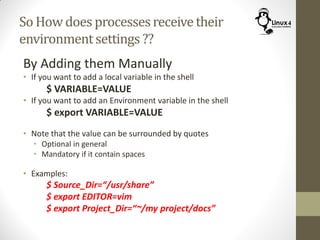
By Adding them Manually
• If you want to add a local variable in the shell
$ VARIABLE=VALUE
• If you want to add an Environment variable in the shell
$ export VARIABLE=VALUE
• Note that the value can be surrounded by quotes
• Optional in general
• Mandatory if it contain spaces
• Examples:
$ Source_Dir=“/usr/share”
$ export EDITOR=vim
$ export Project_Dir=“~/my project/docs”
More About “export”
• To Set a local variable in the shell
$ My_Var=5
This way My_Var will not be inherited to any child or process of the
current shell
• To Convert it into an Environment Variable
$ export My_Var
This way My_Var will be inherited to any child shell or process of
current shell
• To bring it back to be just a local variable
$ export -n My_Var
• To reset an Environment variable
$ export My_Var=
• To Completely remove the variable
$ unset My_Var
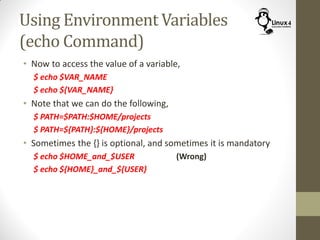
Using Environment Variables
(echo Command)
• Now to access the value of a variable,
$ echo $VAR_NAME
$ echo ${VAR_NAME}
• Note that we can do the following,
$ PATH=$PATH:$HOME/projects
$ PATH=${PATH}:${HOME}/projects
• Sometimes the {} is optional, and sometimes it is mandatory
$ echo $HOME_and_$USER (Wrong)
$ echo ${HOME}_and_${USER}
Using Environment Variables
(printf Command)
• The printf command is just like echo command but uses a
different format
$ printf "$VARIABLE_NAMEn“
$ printf "String %s" $VARIABLE_NAME
$ printf "Signed Decimal Number %d" $VARIABLE_NAME
$ printf "Floating Point Number %f" $VARIABLE_NAME
• Examples:
$ printf "$PATHn"
$ printf "The path is set to %sn" $PATH
$ printf "The File count is %dn" $FILE_COUNT
Listing Environment Variables
(the set Command)
$ set
• The set command lists all variables (both local and
environment vars) seen by the shell
Listing Environment Variables
(the printenv Command)
$ printenv
$ env
• Print a list of all Environment Variables (not including Local Vars)
$ printenv <variable>
• Note that we put the variable without the dollar sign
• Examples:
$ printenv PATH
$ printenv
COMMONLY USED ENVIRONMENT
VARIABLES
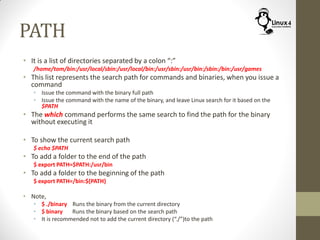
PATH
• It is a list of directories separated by a colon “:”
/home/tom/bin:/usr/local/sbin:/usr/local/bin:/usr/sbin:/usr/bin:/sbin:/bin:/usr/games
• This list represents the search path for commands and binaries, when you issue a
command
• Issue the command with the binary full path
• Issue the command with the name of the binary, and leave Linux search for it based on the
$PATH
• The which command performs the same search to find the path for the binary
without executing it
• To show the current search path
$ echo $PATH
• To add a folder to the end of the path
$ export PATH=$PATH:/usr/bin
• To add a folder to the beginning of the path
$ export PATH=/bin:${PATH}
• Note,
• $ ./binary Runs the binary from the current directory
• $ binary Runs the binary based on the search path
• It is recommended not to add the current directory (“./”)to the path
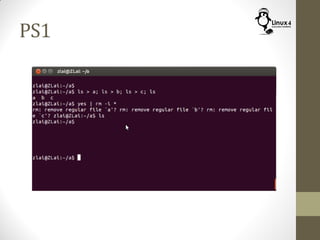
PS1
PS1
PS1
• Responsible for setting the shell prompt
• u  username
• h  hostname
• W  current working directory
• For more options refer to Linux documentations
Example
$ export PS1=[u@h W]$
DISPLAY
• The $DISPLAY is responsible for the X display name
• This means it is not set if you are running from a virtual terminal (not
on X server)
• It is composed of 3 numbers
HOST:DISPLAY_NUMBER.SCREEN_NUMBER
• The Host field is left empty if we are dealing with the local machine,
otherwise, it displays the hostname or address of the machine
running the x-server
• Display number is 0 for the default display (the x-server running on
tty7), for other x-server instances running on other virtual terminals,
it will take numbers 1,2,3,…
• The Screen number is defaulted to 0, and sometimes it is omitted if
it is not different. A display may have multiple screens
• Examples:
localhost:4
google.com:0
:0.0
SHELL
• Contains the path to the login shell
Example:
$ echo $SHELL
/bin/bash
EDITOR
• Represents the name of the default editor
TERM
• Represents the kind of the used terminal
Examples:
• In case of running inside an emulated terminal
$ echo $TERM
xterm
• In case of running inside a Linux Virtual terminal
$ echo $TERM
linux
HOME
• The home directory of the current user
Example:
$ echo $HOME
/home/tom
HISTFILE, HISTFILESIZE, HISTSIZE
• The $HISTFILE carries the name of the file in which
command history is saved
• The $HISTFILESIZE carries the maximum number of lines
contained in the history file
• The $HISTSIZE carries the number of commands to
remember in the command history. The default value is
500.
HOSTNAME
• The name of the your machine
http://Linux4EmbeddedSystems.com

Course 102: Lecture 11: Environment Variables

  • 1.
    Linux For EmbeddedSystems ForArabs Ahmed ElArabawy Course 102: UnderstandingLinux
  • 2.
  • 3.
    What are EnvironmentVariables ?? • Environment Variables are variables that store information about the system • They can be used to store data, set configuration options and customize the shell environment under Linux • Can be divided into, • System Environment Variables • Standard Names • Used by the Shell • Normally they are All Caps • More can be added by the users for their usage • Local Variables • User selected names • Local to a shell (not passed to children shells or programs) • Convention is to avoid all caps to differentiate them
  • 4.
    Environment Variables Usage •Examples of use of Environment Variables (not a full list) : • Configure look and feel of shell such as colors and bash prompt • Time zone, host name,… • Search path for executables, or any types of files • Default values for some system configurations • Some configuration options for specific programs
  • 5.
    Process Environment • Alwayskeep in mind that Linux does not maintain or store a global set of environment variable for the system • Each running program (process) will have its own environment settings • This means different processes may have different environment settings • The environment settings for each running process in the system can be listed by viewing the file /proc/<pid>/environ • Where pid is the Process ID (will be discussed in a future lecture) • Keep in mind that the shell is a process, and hence it has its own environment settings as well
  • 6.
    So How doesProcessesreceivetheir EnvironmentSettings ?? By inheritance • Each process will have a parent process that started it • The child process inherits the environment settings of its parent process • Keep in mind that each program (process) that is started inside the shell, is a child of that shell, hence processes started from the shell, inherit the shell environment settings • Also keep in mind that, a non-login shell is a child of a login shell, hence it inherits its environment settings at startup • Note that local variables are not inherited to child shells or processes
  • 7.
    So How doesprocessesreceivetheir environmentsettings ?? By Startup Scripts • Some programs source some scripts at startup • These scripts may include some environment settings that is added to the process settings inherited from its parent • We have already discussed this for login/non-login shell startup • Login Shells /etc/profile ~/.bash-profile or ~/.bash-login or ~/.profile • Non-Login Shells /etc/.bashrc or /etc/bash.bashrc ~/.bashrc • GUI Applications (applications started from the GUI) ~/.xinitrc
  • 8.
    /etc/profile • To addsettings that will apply to all shells, and all users… we need to put it in /etc/profile • In most distributions, it is preferred not to edit /etc/profile directly • To enable that, /etc/profile has a loop that sources all scripts with extentions *.sh in the folder /etc/profile.d • Accordingly, all we need to do is to put our settings in a new script file inside this folder and call it something.sh then make it executable • Our script will be called from /etc/profile and hence our settings will be read by login shells, and inherited by non-login shells
  • 9.
    So How doesprocessesreceivetheir environmentsettings ?? By Passing them as Arguments at start • If you want to run a program with some environment variables settings $ env VAR=VALUE Command OR $ VAR=VALUE Command • Examples: $ env EDITOR=vim xterm $ EDITOR=vim PATH=$PATH:~/projects myScript.sh
  • 10.
    So How doesprocessesreceivetheir environmentsettings ?? By Adding them Manually • If you want to add a local variable in the shell $ VARIABLE=VALUE • If you want to add an Environment variable in the shell $ export VARIABLE=VALUE • Note that the value can be surrounded by quotes • Optional in general • Mandatory if it contain spaces • Examples: $ Source_Dir=“/usr/share” $ export EDITOR=vim $ export Project_Dir=“~/my project/docs”
  • 11.
    More About “export” •To Set a local variable in the shell $ My_Var=5 This way My_Var will not be inherited to any child or process of the current shell • To Convert it into an Environment Variable $ export My_Var This way My_Var will be inherited to any child shell or process of current shell • To bring it back to be just a local variable $ export -n My_Var • To reset an Environment variable $ export My_Var= • To Completely remove the variable $ unset My_Var
  • 12.
    Using Environment Variables (echoCommand) • Now to access the value of a variable, $ echo $VAR_NAME $ echo ${VAR_NAME} • Note that we can do the following, $ PATH=$PATH:$HOME/projects $ PATH=${PATH}:${HOME}/projects • Sometimes the {} is optional, and sometimes it is mandatory $ echo $HOME_and_$USER (Wrong) $ echo ${HOME}_and_${USER}
  • 13.
    Using Environment Variables (printfCommand) • The printf command is just like echo command but uses a different format $ printf "$VARIABLE_NAMEn“ $ printf "String %s" $VARIABLE_NAME $ printf "Signed Decimal Number %d" $VARIABLE_NAME $ printf "Floating Point Number %f" $VARIABLE_NAME • Examples: $ printf "$PATHn" $ printf "The path is set to %sn" $PATH $ printf "The File count is %dn" $FILE_COUNT
  • 14.
    Listing Environment Variables (theset Command) $ set • The set command lists all variables (both local and environment vars) seen by the shell
  • 15.
    Listing Environment Variables (theprintenv Command) $ printenv $ env • Print a list of all Environment Variables (not including Local Vars) $ printenv <variable> • Note that we put the variable without the dollar sign • Examples: $ printenv PATH $ printenv
  • 16.
  • 17.
    PATH • It isa list of directories separated by a colon “:” /home/tom/bin:/usr/local/sbin:/usr/local/bin:/usr/sbin:/usr/bin:/sbin:/bin:/usr/games • This list represents the search path for commands and binaries, when you issue a command • Issue the command with the binary full path • Issue the command with the name of the binary, and leave Linux search for it based on the $PATH • The which command performs the same search to find the path for the binary without executing it • To show the current search path $ echo $PATH • To add a folder to the end of the path $ export PATH=$PATH:/usr/bin • To add a folder to the beginning of the path $ export PATH=/bin:${PATH} • Note, • $ ./binary Runs the binary from the current directory • $ binary Runs the binary based on the search path • It is recommended not to add the current directory (“./”)to the path
  • 18.
  • 19.
  • 20.
    PS1 • Responsible forsetting the shell prompt • u  username • h  hostname • W  current working directory • For more options refer to Linux documentations Example $ export PS1=[u@h W]$
  • 21.
    DISPLAY • The $DISPLAYis responsible for the X display name • This means it is not set if you are running from a virtual terminal (not on X server) • It is composed of 3 numbers HOST:DISPLAY_NUMBER.SCREEN_NUMBER • The Host field is left empty if we are dealing with the local machine, otherwise, it displays the hostname or address of the machine running the x-server • Display number is 0 for the default display (the x-server running on tty7), for other x-server instances running on other virtual terminals, it will take numbers 1,2,3,… • The Screen number is defaulted to 0, and sometimes it is omitted if it is not different. A display may have multiple screens • Examples: localhost:4 google.com:0 :0.0
  • 22.
    SHELL • Contains thepath to the login shell Example: $ echo $SHELL /bin/bash
  • 23.
    EDITOR • Represents thename of the default editor
  • 24.
    TERM • Represents thekind of the used terminal Examples: • In case of running inside an emulated terminal $ echo $TERM xterm • In case of running inside a Linux Virtual terminal $ echo $TERM linux
  • 25.
    HOME • The homedirectory of the current user Example: $ echo $HOME /home/tom
  • 26.
    HISTFILE, HISTFILESIZE, HISTSIZE •The $HISTFILE carries the name of the file in which command history is saved • The $HISTFILESIZE carries the maximum number of lines contained in the history file • The $HISTSIZE carries the number of commands to remember in the command history. The default value is 500.
  • 27.
    HOSTNAME • The nameof the your machine
  • 28.