Samba Server Setup


             SAMBA SERVER SETUP
Samba Server Setup

                     Samba Service


     File and Printer Sharing from LINIX to Windows
     Uses smb Daemon
     service smb start/stop/restart
Samba Server Setup

                  What is Samba??

  Samba is an Open Source Suite, that provides seamless file and
  print services to SMB/CIFS clients.
   • Samba is freely available.
   • With Samba, you can share a Linux files ystem with
      Windows and vice versa.
   • You can also share printers connected to either Linux or a
      system with Windows.
   • Samba enables a Linux or Unix server to function as a file
      server for client PCs running Windows software.
Samba Server Setup

                 What is Samba??

  What is SMB?
  • SMB stands for – Server Message Block.
  • It is a protocol by which a lot of PC-related machines
    share files and printers and other information such as
    lists of available files and printers.
  • Operating systems that support this natively include
    Windows, OS/2, and Linux.
  What is CIFS?
  • CIFS – Common Internet File System is a protocol
    that is basically an updated SMB.
Samba Server Setup

               Components of SMB

  smbd daemon: This provides the file and print services to SMB
  clients such as Windows NT or other Linux or Unix clients.
   • smb.conf: This is the configuration file for smbd.
   • nmbd daemon: This daemon provides NetBIOS
      nameserving and browsing support.
   • smbclient: This is an smb client program that implement a
      simple FTP-like client on a Linux or Unix box.
   • smbmount: This mounting program enables mounting of
      server directories on a Linux or Unix box.
Samba Server Setup

               Components of SMB


   • testparm: This utility is used to test the smb.conf
     configuration file.
   • smbstatus: This programs lists the current Samba
     connections.
   • SWAT: Swat allows a Samba administrator to configure the
     smb.conf file via a Web browser.
   • smbpasswd: This allows the user to change the password
     used for their SMB sessions.
Samba Server Setup

                    Installation and Setup

  The Samba Server package can be downloaded from the
  Samba website.
   • The file needs to be untared and then configured using
      a ./configure command in the source directory.
   • Then the smb.conf file should be created. The smb.conf file
      has three separate sections:
  [global] : This section controls parameters for the entire SMB
  server. It also provides default values for the other sections.
  Examples: workgroup = MYGROUP
         server string = Samba Server
Samba Server Setup

                  Installation and Setup

  Continued…
         hosts allow = 192.168.1 127.
         printcap name = /etc/printcap
         load printers = yes
         guest account = pcguest
         encrypt passwords = yes
         smb passwd file = /etc/samba/smbpasswd
  [homes]: This section allows network clients to connect to a
  user’s home directory without having an explicit entry in the
  smb.conf file.
  Examples:
          [homes]
             browseable = no
             writeable = yes
Samba Server Setup

                 Installation and Setup

  Continued…
  [printers]: This section is used to specify which printers
  are available.
  Examples:
     [printers]
     print ok = yes
     printer name = lp_mine
     path = /home/everyone

  The testparm program helps in testing the smb.conf
  file once it is configured.
Samba Server Setup

        Samba Server Configuration

     Use GUI Applications  Server Settings  Services  SMB
     Configuration File: /etc/samba/smb.conf
     Configuring File and Directory Sharing
     [share_name]
     comment = Fred's Home Directory
     path = /home/fred
     valid users = fred
     public = no
     writable = yes
     printable = no
Samba Server Setup

         Samba Server Configuration

      Configuring Printer Sharing

     [printer_share_name]
  comment = Fred's Printer
  valid users = fred
  path = /var/spool/samba
  printer = freds_printer
  public = no
  writable = no
  printable = yes
Samba Server Setup

          Authentication Methods


     Use       local    username/password       (stored    in
     /etc/samba/smbpasswd)
     To add a local user: smbpasswd –a fred (fred should be a
     user in /etc/passwd)
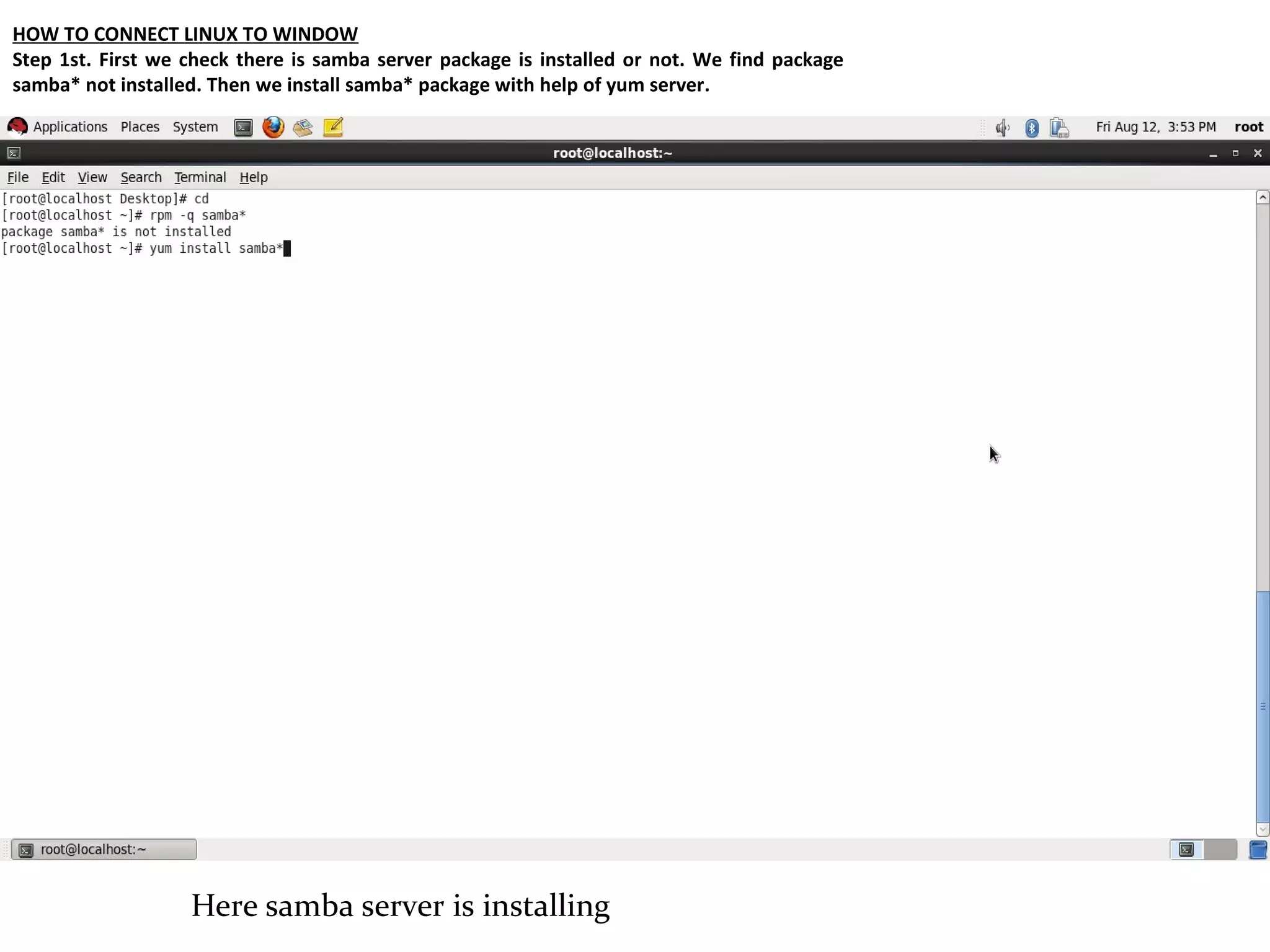
HOW TO CONNECT LINUX TO WINDOW
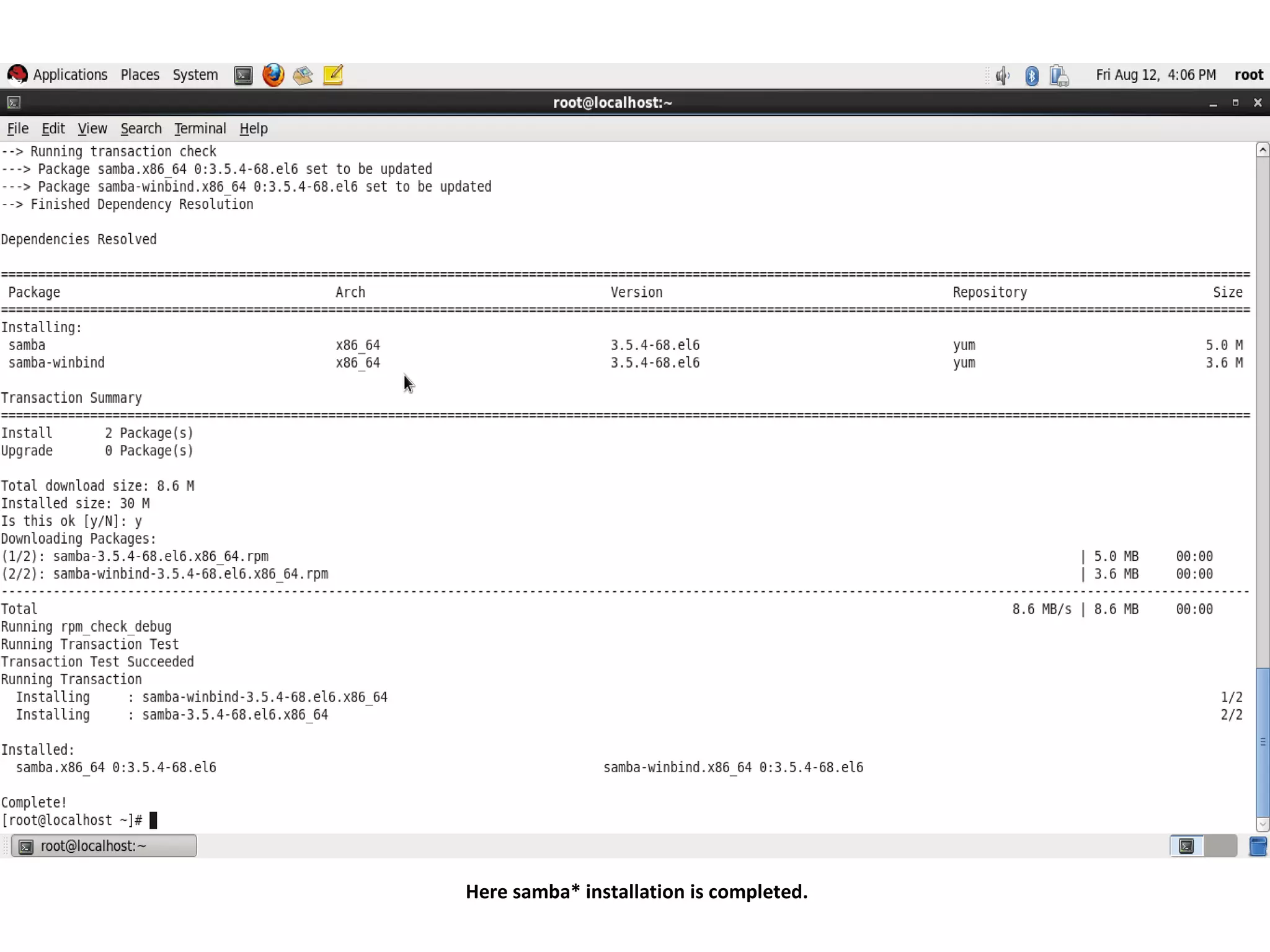
Step 1st. First we check there is samba server package is installed or not. We find package
samba* not installed. Then we install samba* package with help of yum server.


                   Here samba server is installing
Here samba* installation is completed.
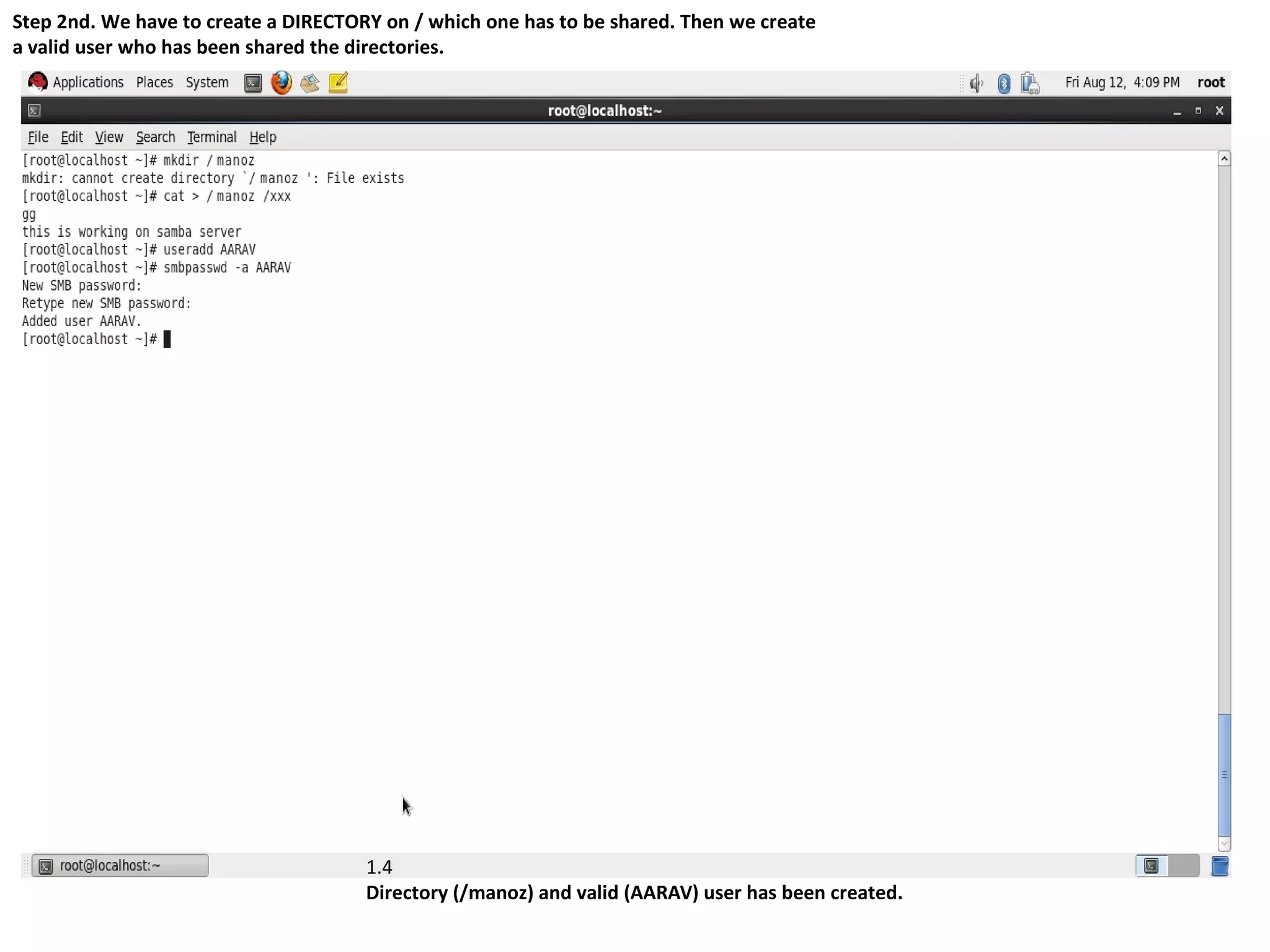
Step 2nd. We have to create a DIRECTORY on / which one has to be shared. Then we create
a valid user who has been shared the directories.


                                      1.4
                                      Directory (/manoz) and valid (AARAV) user has been created.
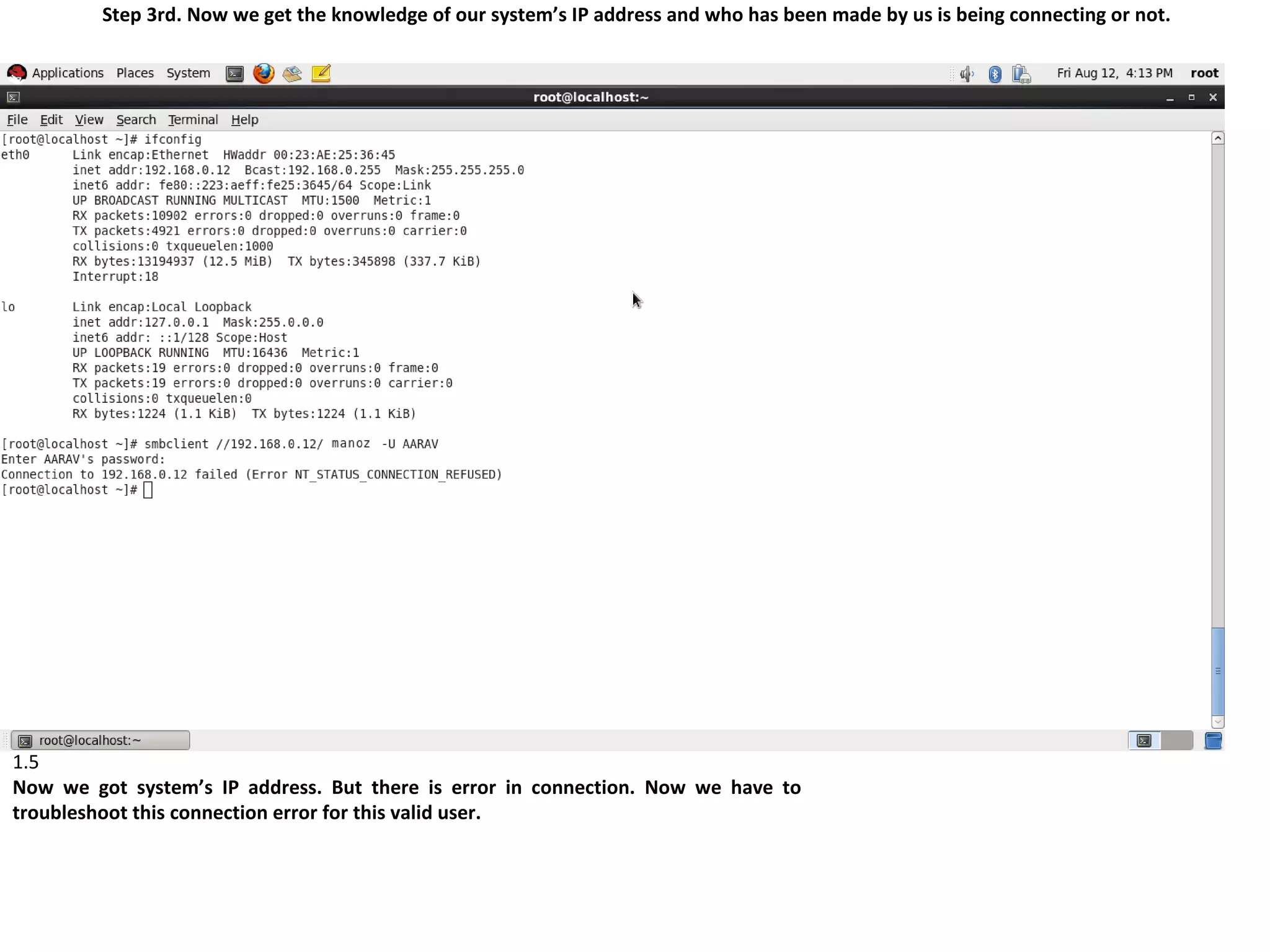
Step 3rd. Now we get the knowledge of our system’s IP address and who has been made by us is being connecting or not.


1.5
Now we got system’s IP address. But there is error in connection. Now we have to
troubleshoot this connection error for this valid user.
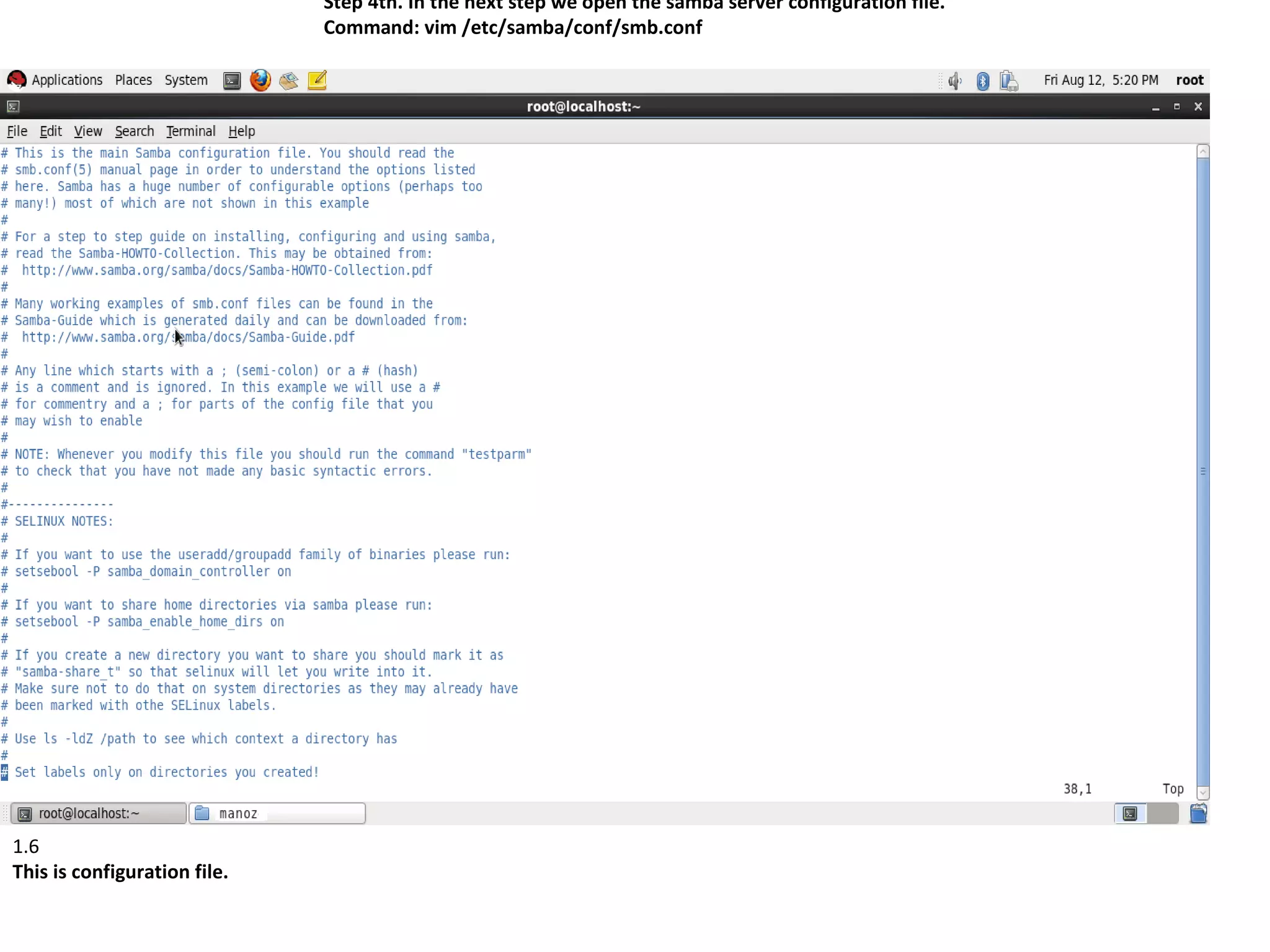
Step 4th. In the next step we open the samba server configuration file.
                              Command: vim /etc/samba/conf/smb.conf


1.6
This is configuration file.
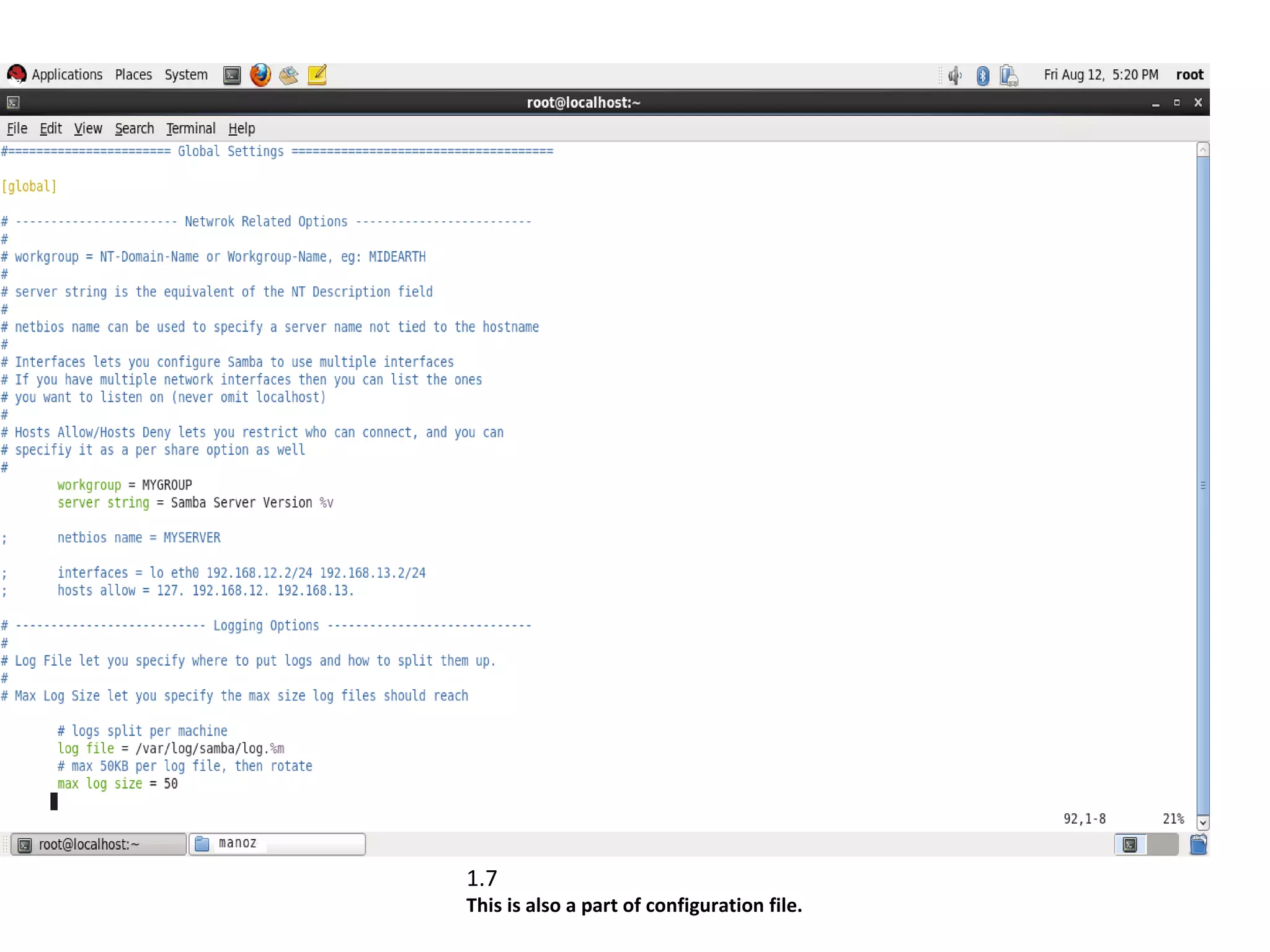
1.7
This is also a part of configuration file.
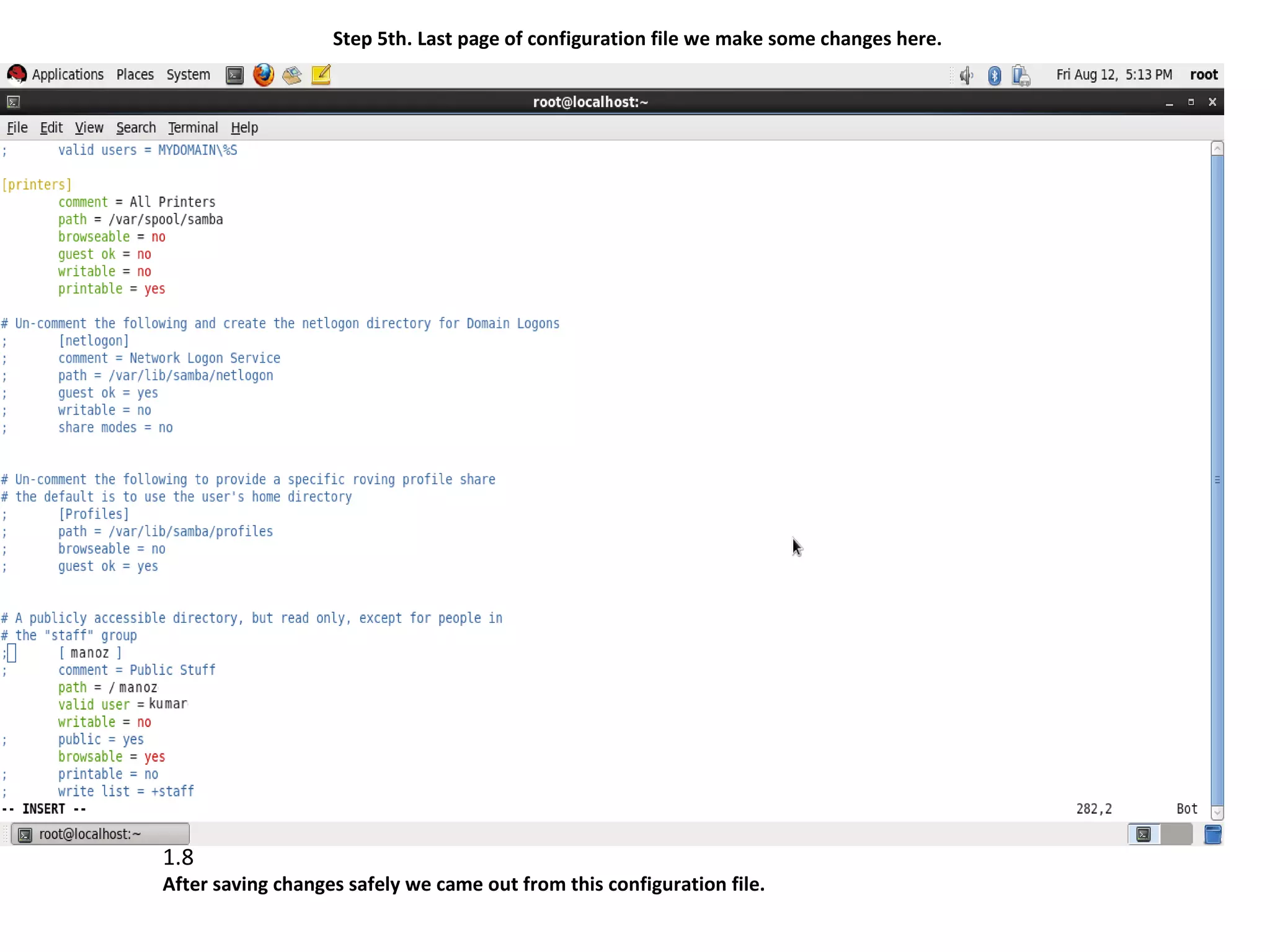
Step 5th. Last page of configuration file we make some changes here.


1.8
After saving changes safely we came out from this configuration file.
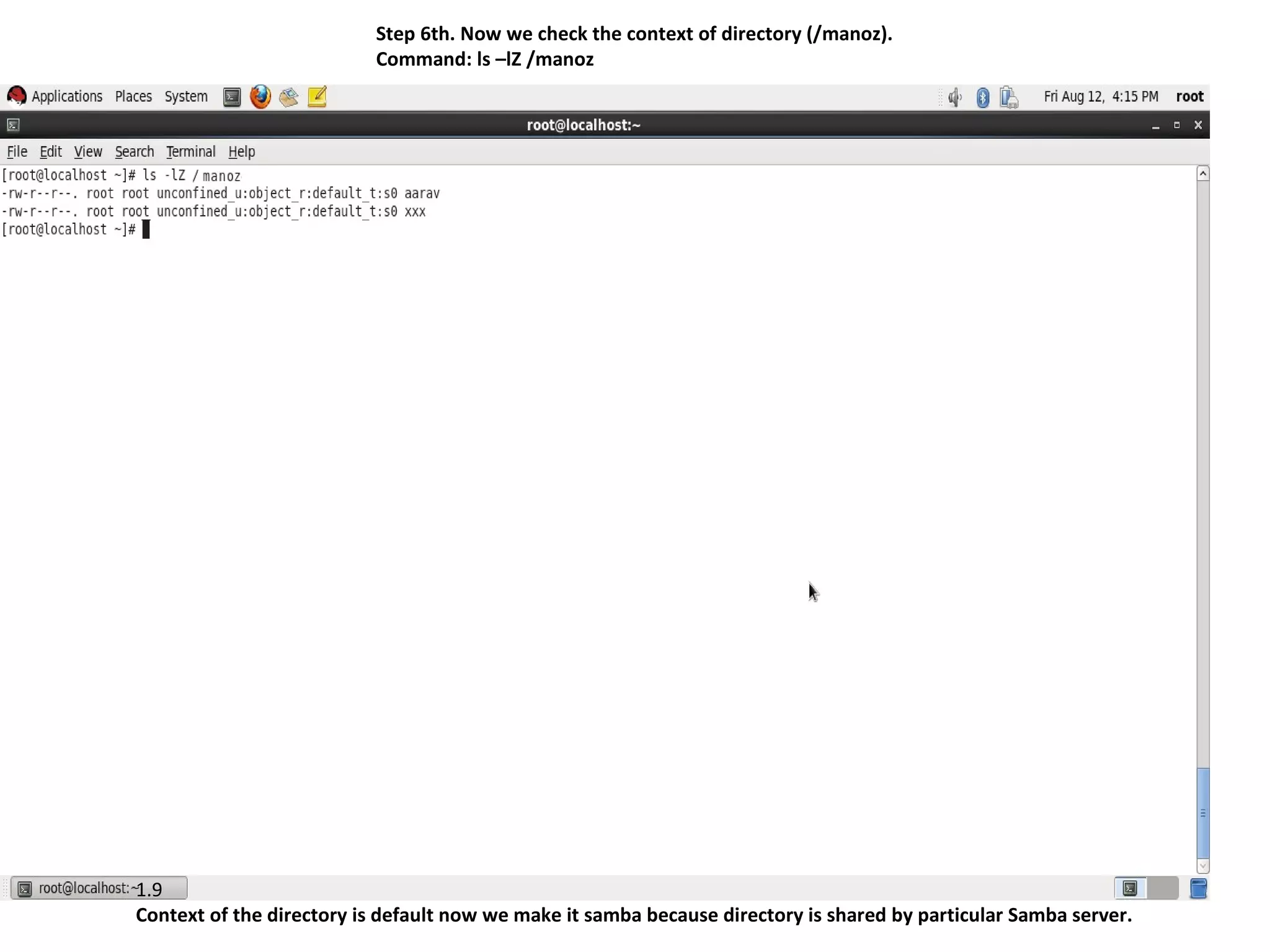
Step 6th. Now we check the context of directory (/manoz).
                          Command: ls –lZ /manoz


1.9
Context of the directory is default now we make it samba because directory is shared by particular Samba server.
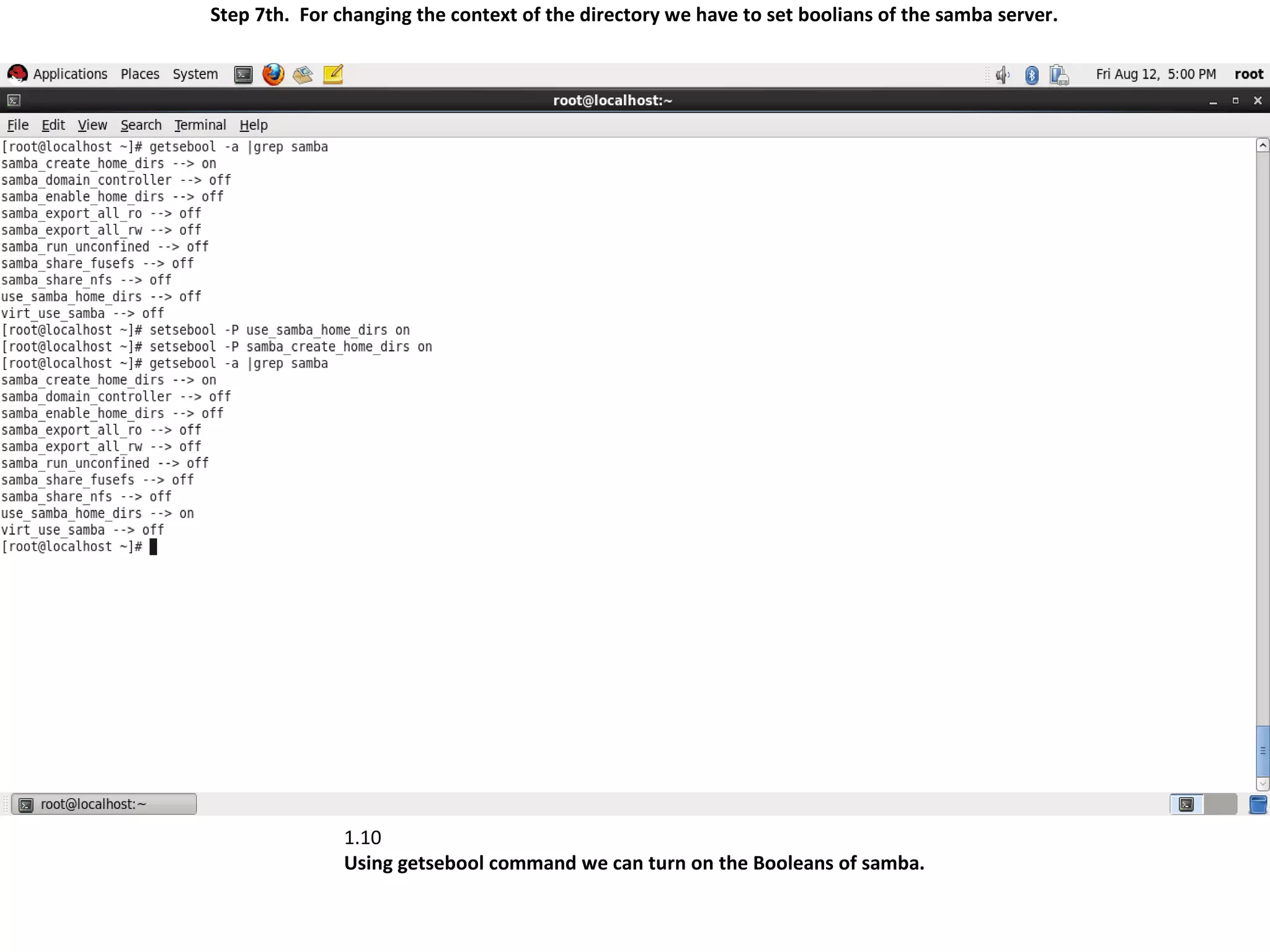
Step 7th. For changing the context of the directory we have to set boolians of the samba server.


               1.10
               Using getsebool command we can turn on the Booleans of samba.
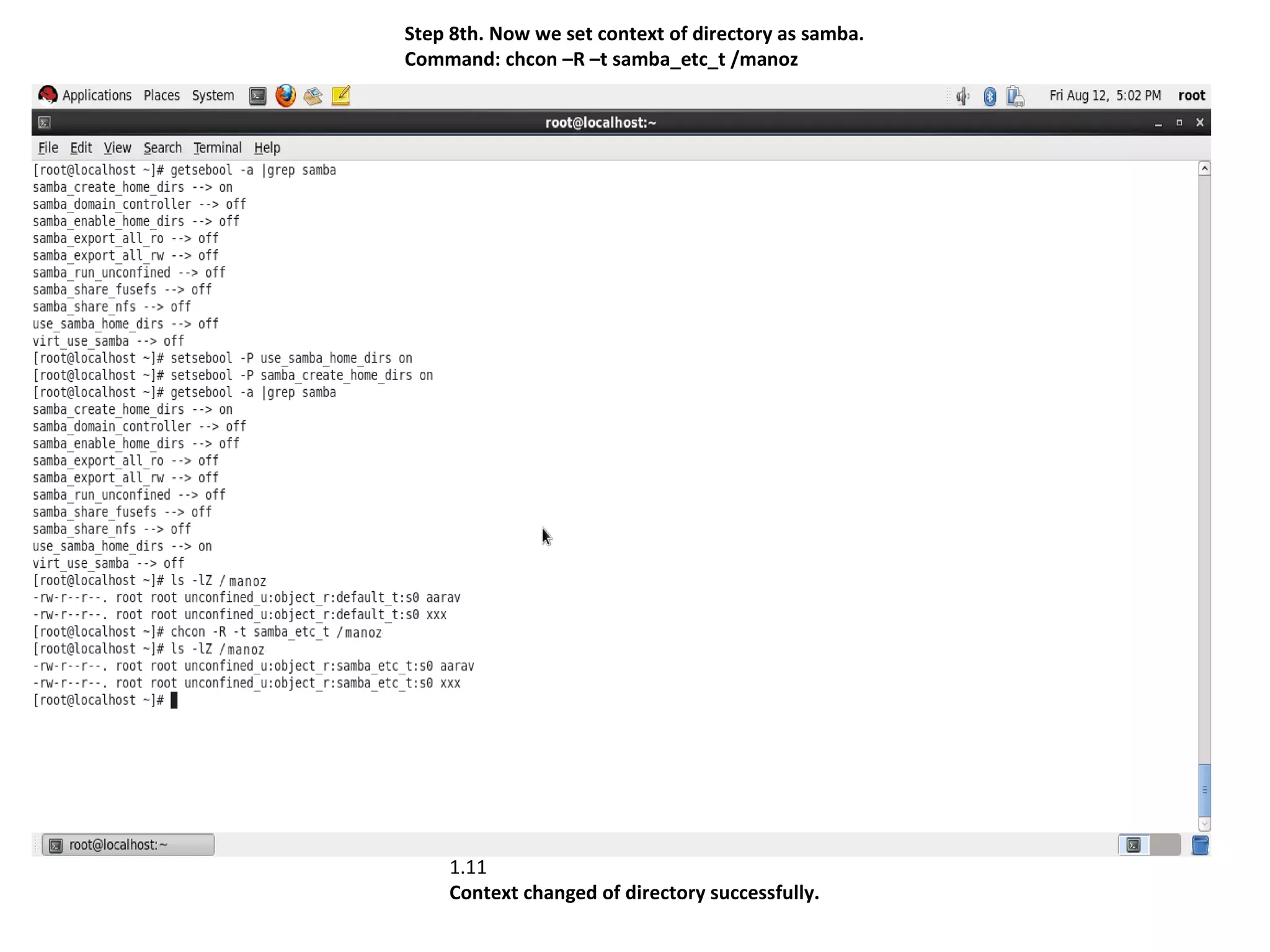
Step 8th. Now we set context of directory as samba.
Command: chcon –R –t samba_etc_t /manoz


    1.11
    Context changed of directory successfully.
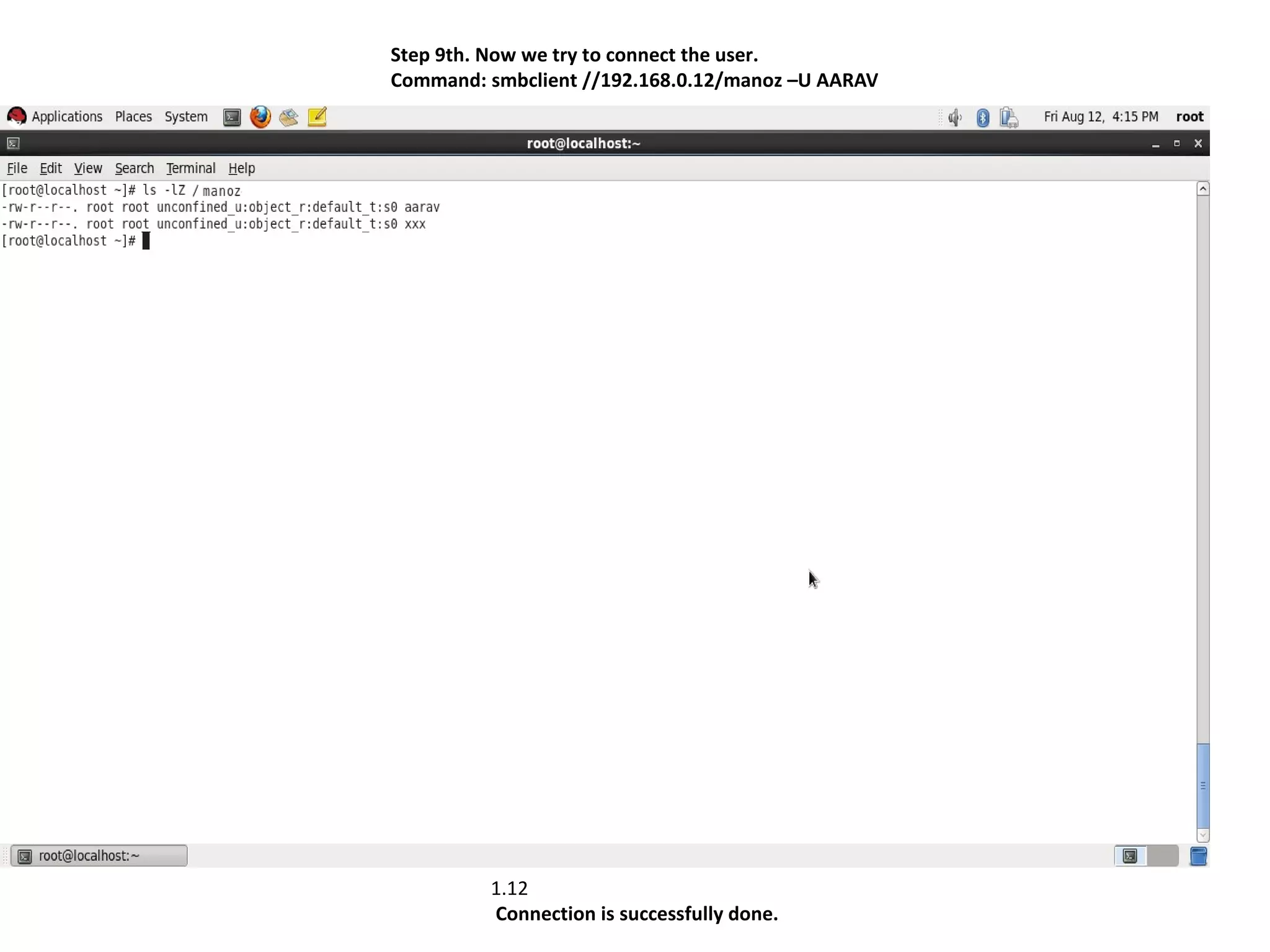
Step 9th. Now we try to connect the user.
Command: smbclient //192.168.0.12/manoz –U AARAV


         1.12
         Connection is successfully done.
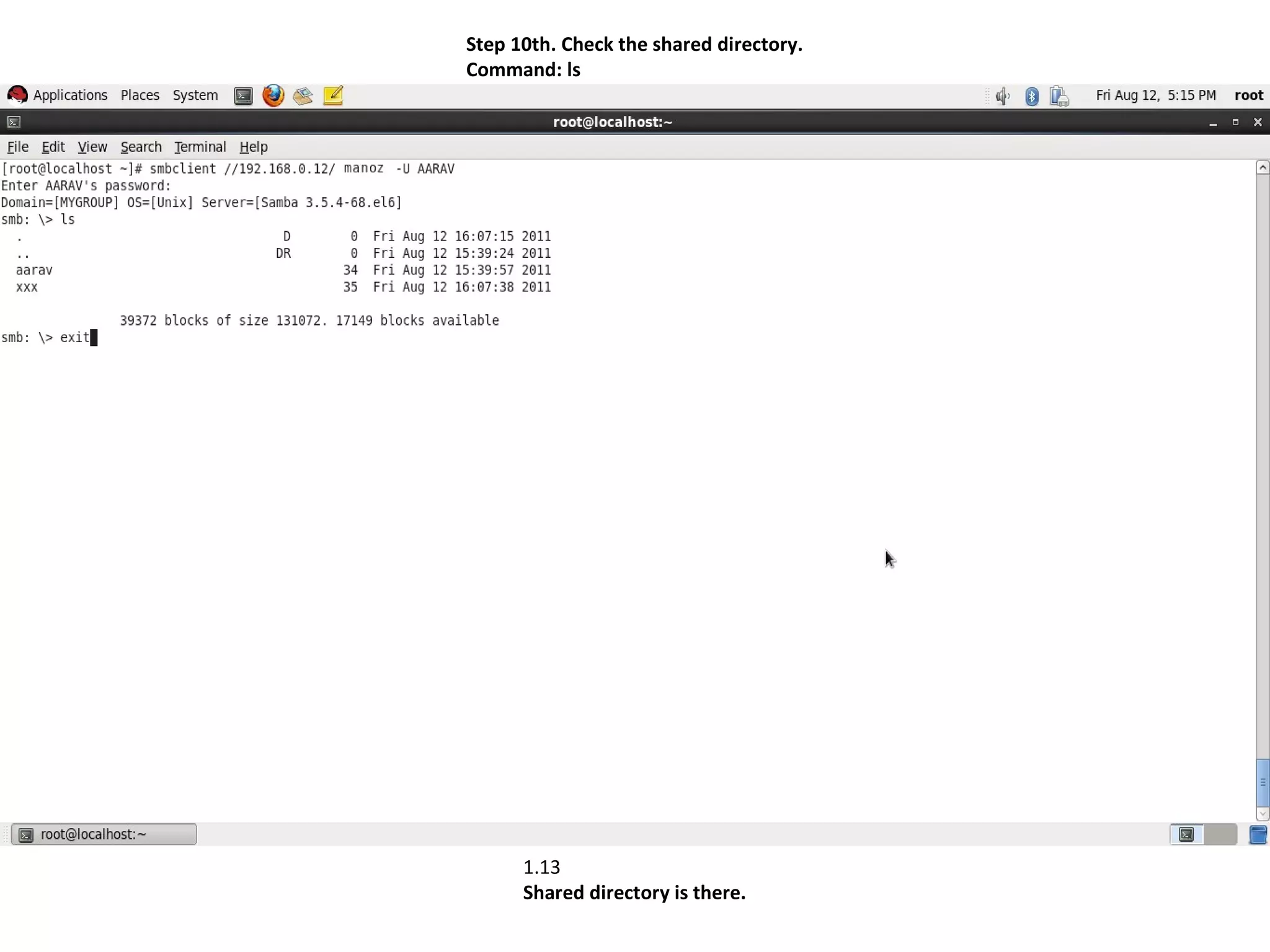
Step 10th. Check the shared directory.
Command: ls


      1.13
      Shared directory is there.
Samba Server Setup

           Samba Client Configuration


     Share the Samba Directory on Windows machine
     Share the Samba Filesystem on Unix machine by
     specifying in /etc/fstab
  server1:/smbdata /users/smbdata smbfs defaults 0 0
  or use
  smbmount //server1/smbdata /users/smbdata –o
  username=fred
Samba Server Setup

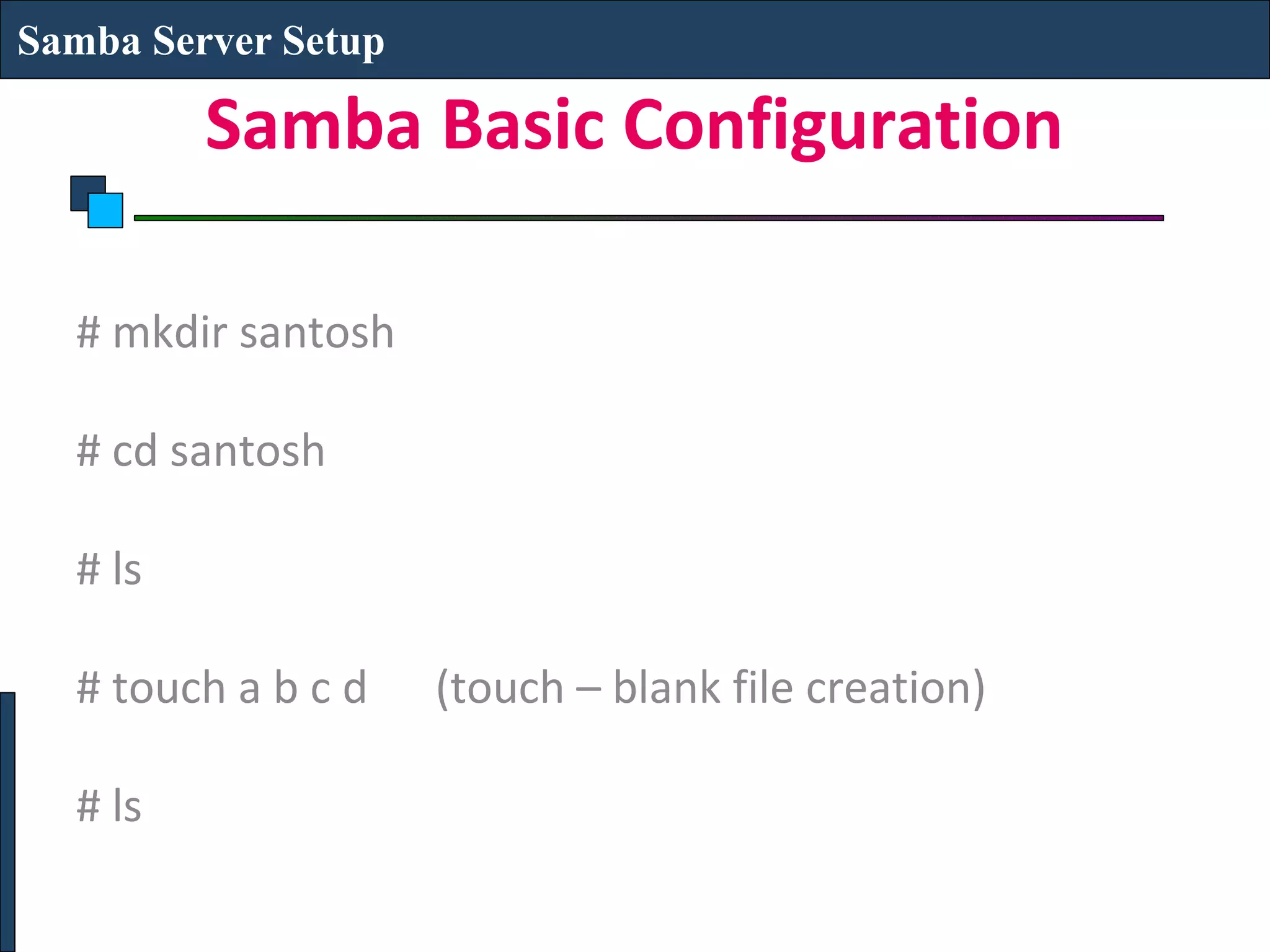
         Samba Basic Configuration

  # mkdir santosh

  # cd santosh

  # ls

  # touch a b c d    (touch – blank file creation)

  # ls
Samba Server Setup

          Samba Basic Configuration

  # nano /etc/samba/smb.conf
  (Go to end of config file i.e from public and remove the comments)
  Make following ammendment
  [santoshshare]        (by replacing [public])
  Comment = My share files
  Path = /santosh
  Public = yes
  Browseable = yes
  Valid users = santosh
  Writable = no
  Hosts allow = 192.168.1.         (only 3 octets)
  (save and exit)
Samba Server Setup

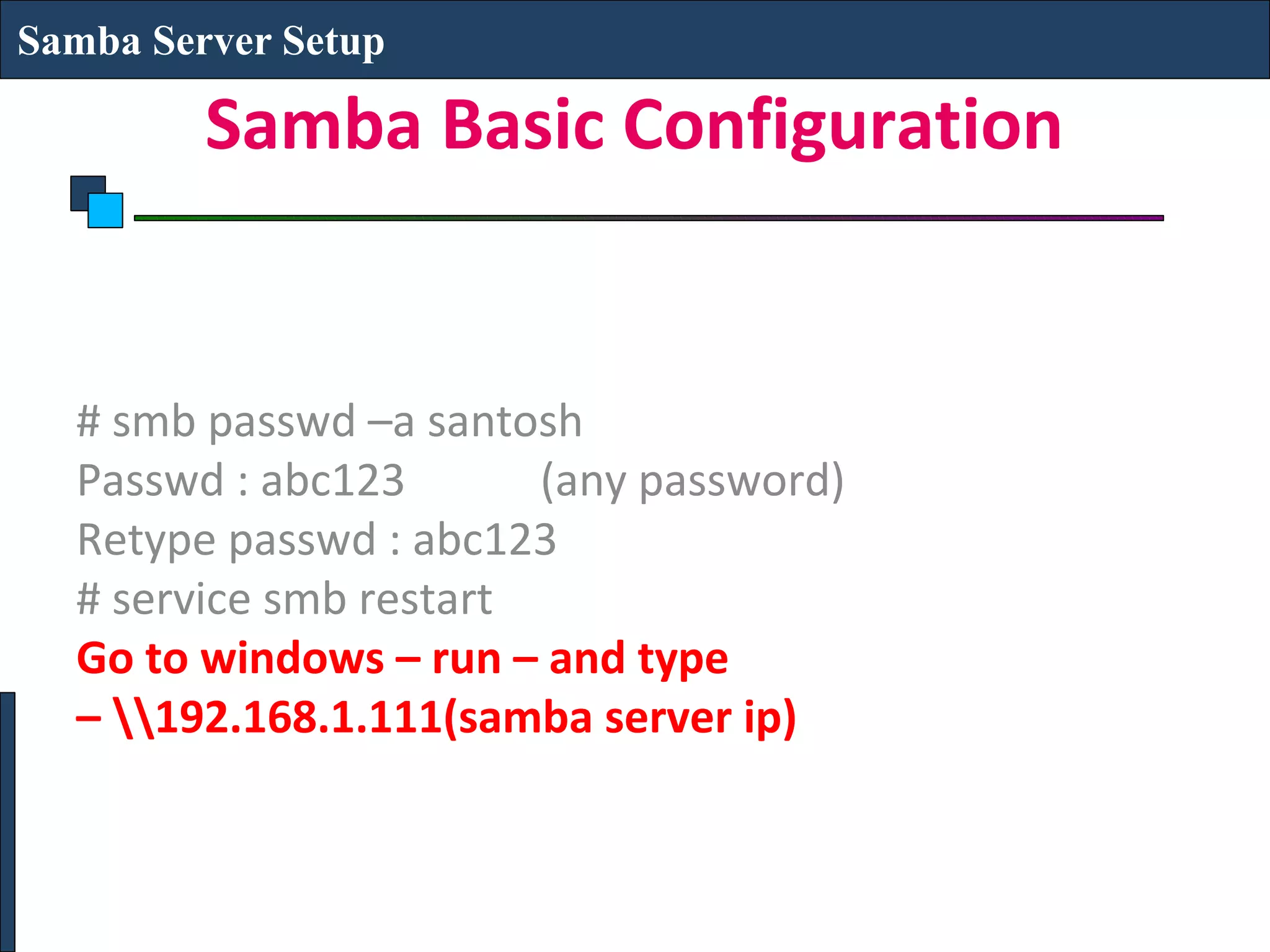
         Samba Basic Configuration


  # smb passwd –a santosh
  Passwd : abc123       (any password)
  Retype passwd : abc123
  # service smb restart
  Go to windows – run – and type
  – 192.168.1.111(samba server ip)
Samba Server Setup


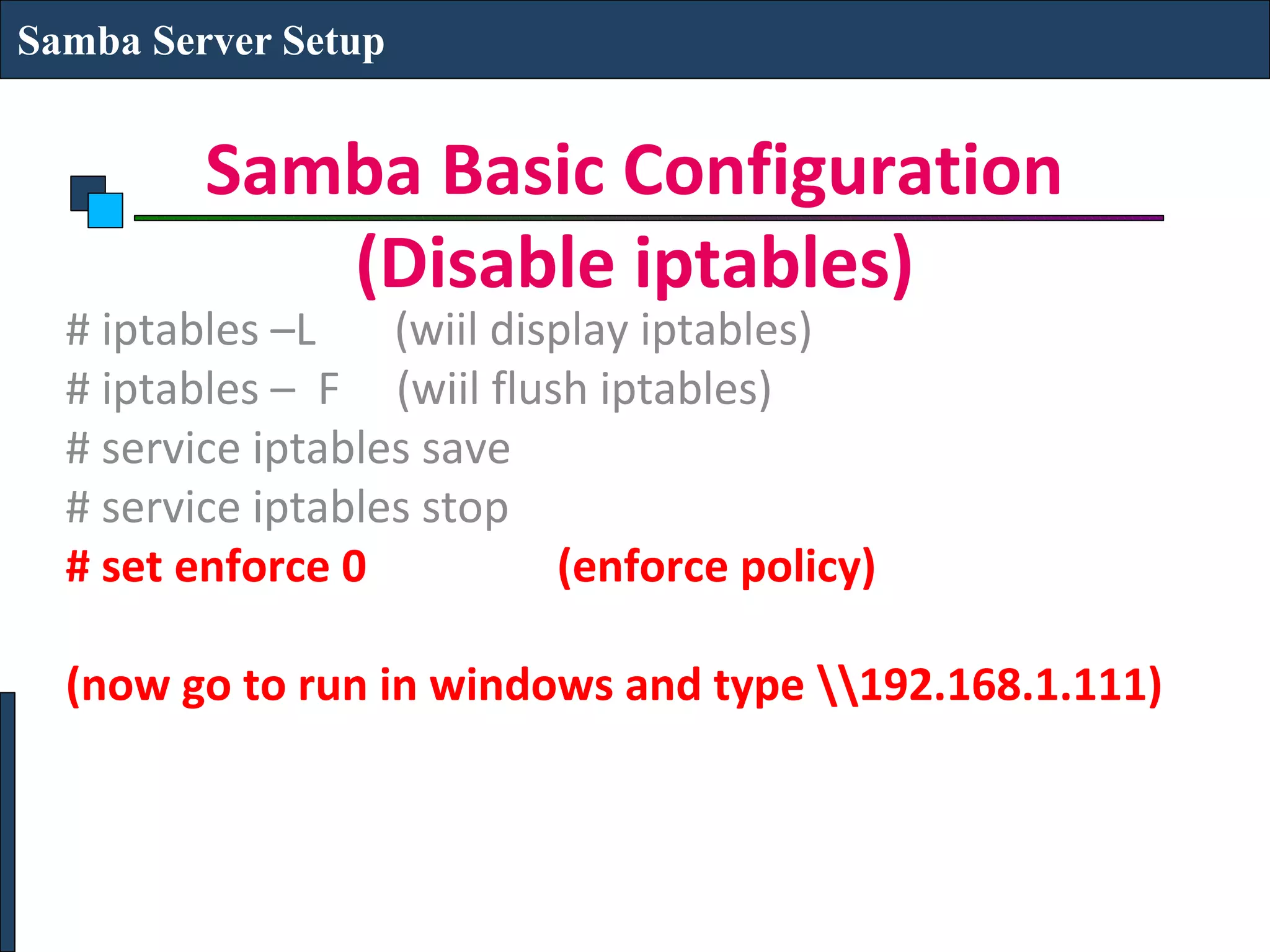
         Samba Basic Configuration
            (Disable iptables)
  # iptables –L    (wiil display iptables)
  # iptables – F (wiil flush iptables)
  # service iptables save
  # service iptables stop
  # set enforce 0           (enforce policy)

  (now go to run in windows and type 192.168.1.111)
THANKS
• Click to edit Master text styles
  – Second level
     • Third level
        – Fourth level
            » Fifth level

Samba server

  • 1.
    Samba Server Setup SAMBA SERVER SETUP
  • 2.
    Samba Server Setup Samba Service File and Printer Sharing from LINIX to Windows Uses smb Daemon service smb start/stop/restart
  • 3.
    Samba Server Setup What is Samba?? Samba is an Open Source Suite, that provides seamless file and print services to SMB/CIFS clients. • Samba is freely available. • With Samba, you can share a Linux files ystem with Windows and vice versa. • You can also share printers connected to either Linux or a system with Windows. • Samba enables a Linux or Unix server to function as a file server for client PCs running Windows software.
  • 4.
    Samba Server Setup What is Samba?? What is SMB? • SMB stands for – Server Message Block. • It is a protocol by which a lot of PC-related machines share files and printers and other information such as lists of available files and printers. • Operating systems that support this natively include Windows, OS/2, and Linux. What is CIFS? • CIFS – Common Internet File System is a protocol that is basically an updated SMB.
  • 5.
    Samba Server Setup Components of SMB smbd daemon: This provides the file and print services to SMB clients such as Windows NT or other Linux or Unix clients. • smb.conf: This is the configuration file for smbd. • nmbd daemon: This daemon provides NetBIOS nameserving and browsing support. • smbclient: This is an smb client program that implement a simple FTP-like client on a Linux or Unix box. • smbmount: This mounting program enables mounting of server directories on a Linux or Unix box.
  • 6.
    Samba Server Setup Components of SMB • testparm: This utility is used to test the smb.conf configuration file. • smbstatus: This programs lists the current Samba connections. • SWAT: Swat allows a Samba administrator to configure the smb.conf file via a Web browser. • smbpasswd: This allows the user to change the password used for their SMB sessions.
  • 7.
    Samba Server Setup Installation and Setup The Samba Server package can be downloaded from the Samba website. • The file needs to be untared and then configured using a ./configure command in the source directory. • Then the smb.conf file should be created. The smb.conf file has three separate sections: [global] : This section controls parameters for the entire SMB server. It also provides default values for the other sections. Examples: workgroup = MYGROUP server string = Samba Server
  • 8.
    Samba Server Setup Installation and Setup Continued… hosts allow = 192.168.1 127. printcap name = /etc/printcap load printers = yes guest account = pcguest encrypt passwords = yes smb passwd file = /etc/samba/smbpasswd [homes]: This section allows network clients to connect to a user’s home directory without having an explicit entry in the smb.conf file. Examples: [homes] browseable = no writeable = yes
  • 9.
    Samba Server Setup Installation and Setup Continued… [printers]: This section is used to specify which printers are available. Examples: [printers] print ok = yes printer name = lp_mine path = /home/everyone The testparm program helps in testing the smb.conf file once it is configured.
  • 10.
    Samba Server Setup Samba Server Configuration Use GUI Applications  Server Settings  Services  SMB Configuration File: /etc/samba/smb.conf Configuring File and Directory Sharing [share_name] comment = Fred's Home Directory path = /home/fred valid users = fred public = no writable = yes printable = no
  • 11.
    Samba Server Setup Samba Server Configuration Configuring Printer Sharing [printer_share_name] comment = Fred's Printer valid users = fred path = /var/spool/samba printer = freds_printer public = no writable = no printable = yes
  • 12.
    Samba Server Setup Authentication Methods Use local username/password (stored in /etc/samba/smbpasswd) To add a local user: smbpasswd –a fred (fred should be a user in /etc/passwd)
  • 13.
    HOW TO CONNECTLINUX TO WINDOW Step 1st. First we check there is samba server package is installed or not. We find package samba* not installed. Then we install samba* package with help of yum server. Here samba server is installing
  • 14.
  • 15.
    Step 2nd. Wehave to create a DIRECTORY on / which one has to be shared. Then we create a valid user who has been shared the directories. 1.4 Directory (/manoz) and valid (AARAV) user has been created.
  • 16.
    Step 3rd. Nowwe get the knowledge of our system’s IP address and who has been made by us is being connecting or not. 1.5 Now we got system’s IP address. But there is error in connection. Now we have to troubleshoot this connection error for this valid user.
  • 17.
    Step 4th. Inthe next step we open the samba server configuration file. Command: vim /etc/samba/conf/smb.conf 1.6 This is configuration file.
  • 18.
    1.7 This is alsoa part of configuration file.
  • 19.
    Step 5th. Lastpage of configuration file we make some changes here. 1.8 After saving changes safely we came out from this configuration file.
  • 20.
    Step 6th. Nowwe check the context of directory (/manoz). Command: ls –lZ /manoz 1.9 Context of the directory is default now we make it samba because directory is shared by particular Samba server.
  • 21.
    Step 7th. Forchanging the context of the directory we have to set boolians of the samba server. 1.10 Using getsebool command we can turn on the Booleans of samba.
  • 22.
    Step 8th. Nowwe set context of directory as samba. Command: chcon –R –t samba_etc_t /manoz 1.11 Context changed of directory successfully.
  • 23.
    Step 9th. Nowwe try to connect the user. Command: smbclient //192.168.0.12/manoz –U AARAV 1.12 Connection is successfully done.
  • 24.
    Step 10th. Checkthe shared directory. Command: ls 1.13 Shared directory is there.
  • 25.
    Samba Server Setup Samba Client Configuration Share the Samba Directory on Windows machine Share the Samba Filesystem on Unix machine by specifying in /etc/fstab server1:/smbdata /users/smbdata smbfs defaults 0 0 or use smbmount //server1/smbdata /users/smbdata –o username=fred
  • 26.
    Samba Server Setup Samba Basic Configuration # mkdir santosh # cd santosh # ls # touch a b c d (touch – blank file creation) # ls
  • 27.
    Samba Server Setup Samba Basic Configuration # nano /etc/samba/smb.conf (Go to end of config file i.e from public and remove the comments) Make following ammendment [santoshshare] (by replacing [public]) Comment = My share files Path = /santosh Public = yes Browseable = yes Valid users = santosh Writable = no Hosts allow = 192.168.1. (only 3 octets) (save and exit)
  • 28.
    Samba Server Setup Samba Basic Configuration # smb passwd –a santosh Passwd : abc123 (any password) Retype passwd : abc123 # service smb restart Go to windows – run – and type – 192.168.1.111(samba server ip)
  • 29.
    Samba Server Setup Samba Basic Configuration (Disable iptables) # iptables –L (wiil display iptables) # iptables – F (wiil flush iptables) # service iptables save # service iptables stop # set enforce 0 (enforce policy) (now go to run in windows and type 192.168.1.111)
  • 30.
    THANKS • Click toedit Master text styles – Second level • Third level – Fourth level » Fifth level