

   Click to edit Master text styles
     Second     level
        Third level
         ď‚— Fourth level
              Fifth level
   Click to edit Master text styles
     Second     level
        Third level
         ď‚— Fourth level
              Fifth level
   Click to edit Master text styles
     Second     level
        Third level
         ď‚— Fourth level
              Fifth level
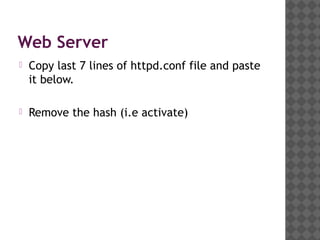
Web Server
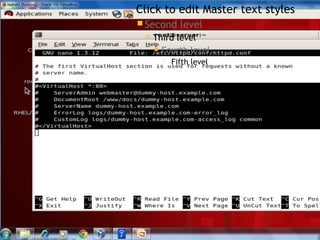
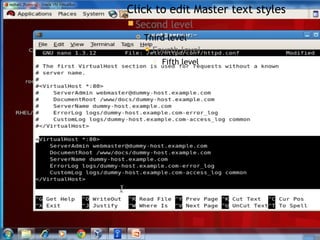
   Copy last 7 lines of httpd.conf file and paste
    it below.

   Remove the hash (i.e activate)
   Click to edit Master text styles
     Second     level
        Third level
         ď‚— Fourth level
              Fifth level
   Click to edit Master text styles
     Second     level
        Third level
         ď‚— Fourth level
              Fifth level
Web Server
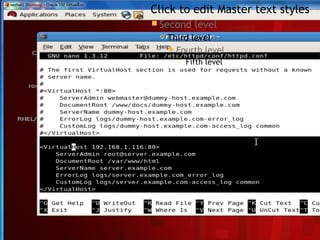
   Amend the copied portion as shown in the
    next screen shot
   Click to edit Master text styles
     Second     level
        Third level
         ď‚— Fourth level
              Fifth level
Web Server
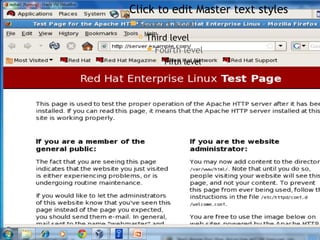
   Save and quit.

   #service httpd restart

   # ping server.example.com

   # ping 192.168.1.116

   # firefox server.example.com
   Click to edit Master text styles
     Second     level
        Third level
         ď‚— Fourth level
              Fifth level
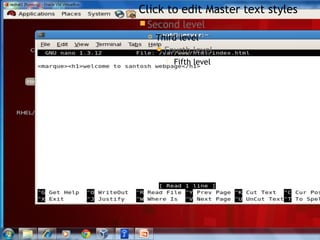
Web Server
(make a web page)

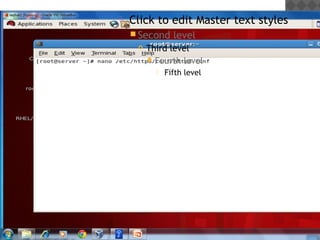
   # nano /var/www/html/index.html
   Click to edit Master text styles
     Second     level
        Third level
         ď‚— Fourth level
              Fifth level
Web Server
(make a web page)
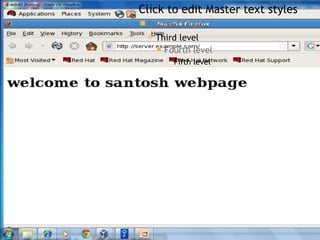
   # service httpd restart
   #chkconfig httpd on     (to remain on continuously)
   # firefox server.example.com
   Click to edit Master text styles
     Second     level
        Third level
         ď‚— Fourth level
              Fifth level
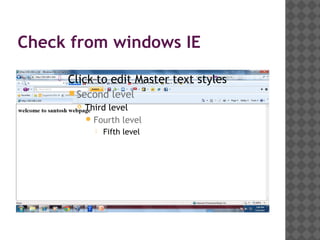
Check from windows IE
       Click to edit Master text styles
         Second     level
            Third level
             ď‚— Fourth level
                  Fifth level
YOUR PRESENT MIND STATE

       Click to edit Master text styles
         Second     level
            Third level
             ď‚— Fourth level
                  Fifth level

Web server

  • 2.
     Click to edit Master text styles  Second level  Third level  Fourth level  Fifth level
  • 3.
     Click to edit Master text styles  Second level  Third level  Fourth level  Fifth level
  • 4.
     Click to edit Master text styles  Second level  Third level  Fourth level  Fifth level
  • 5.
    Web Server  Copy last 7 lines of httpd.conf file and paste it below.  Remove the hash (i.e activate)
  • 6.
     Click to edit Master text styles  Second level  Third level  Fourth level  Fifth level
  • 7.
     Click to edit Master text styles  Second level  Third level  Fourth level  Fifth level
  • 8.
    Web Server  Amend the copied portion as shown in the next screen shot
  • 9.
     Click to edit Master text styles  Second level  Third level  Fourth level  Fifth level
  • 10.
    Web Server  Save and quit.  #service httpd restart  # ping server.example.com  # ping 192.168.1.116  # firefox server.example.com
  • 11.
     Click to edit Master text styles  Second level  Third level  Fourth level  Fifth level
  • 12.
    Web Server (make aweb page)  # nano /var/www/html/index.html
  • 13.
     Click to edit Master text styles  Second level  Third level  Fourth level  Fifth level
  • 14.
    Web Server (make aweb page)  # service httpd restart  #chkconfig httpd on (to remain on continuously)  # firefox server.example.com
  • 15.
     Click to edit Master text styles  Second level  Third level  Fourth level  Fifth level
  • 16.
    Check from windowsIE  Click to edit Master text styles  Second level  Third level  Fourth level  Fifth level
  • 17.
    YOUR PRESENT MINDSTATE  Click to edit Master text styles  Second level  Third level  Fourth level  Fifth level