Gaurav Mishra
<gmishx@gmail.com>
Linux - 6
User Management
27-02-2018
Unrestricted
Gaurav Mishra <gmishx@gmail.com>
Users and groups
• Every file in Linux is owned by a user
which have access and control over it.
• System files are owned by root use.
• Each user belongs to at least one
group and one group can have more
than one user.
• The user can set access for other users
on their files.
• The access to a file is denoted using
the file mode bits.
27-02-2018
Gaurav Mishra <gmishx@gmail.com>
File mode bits
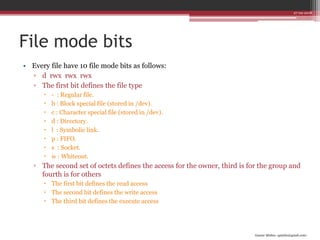
• Every file have 10 file mode bits as follows:
▫ d rwx rwx rwx
▫ The first bit defines the file type
 - : Regular file.
 b : Block special file (stored in /dev).
 c : Character special file (stored in /dev).
 d : Directory.
 l : Symbolic link.
 p : FIFO.
 s : Socket.
 w : Whiteout.
▫ The second set of octets defines the access for the owner, third is for the group and
fourth is for others
 The first bit defines the read access
 The second bit defines the write access
 The third bit defines the execute access
27-02-2018
Gaurav Mishra <gmishx@gmail.com>
Example
• -rw-rw-r-- optimus developers /home/optimus/project1/README.MD
• The string denotes that there is a file README.MD which is owned by the user
optimus and the group developers.
• From the file mode bits, we can derive that
▫ It is a regular file
▫ The owner has read and write access to the file
▫ The group has read and write access to the file
▫ Others can only read the file
27-02-2018
Gaurav Mishra <gmishx@gmail.com>
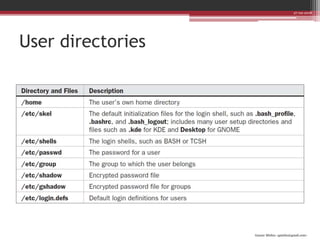
User directories
27-02-2018
Gaurav Mishra <gmishx@gmail.com>
/etc/passwd
• Whenever you create a user, a new
entry is created in /etc/passwd file.
• Each entry takes one line and each
field is separated by colons:
▫ Username
▫ Password
▫ UserID
▫ GroupID
▫ Comment
▫ Home Directory
▫ Login Shell
• The passwords are stored in
/etc/shadow file accessible only to
root in encrypted format for security.
27-02-2018
Gaurav Mishra <gmishx@gmail.com>
User management commands
• Adding new user
▫ adduser [--ingroup GROUP] USER
• Adding new group
▫ addgroup [--gid ID] GROUP
• Listing users
▫ users [GROUP]
• Listing groups
▫ groups [USER]
• Adding user to a group
▫ usermod [-a] -G GROUP USER
• Changing password
▫ passwd [USER]
• Locking/unlocking login
▫ passwd -l USER / passwd -u USER
• Removing login password
▫ passwd -d [USER]
27-02-2018
Gaurav Mishra <gmishx@gmail.com>
Access to file/directory
• Modifying access
▫ chmod <new-mod-bits> FILE/DIRECTORY
▫ chmod <+/-><r/w/x>[…] [u/g/o] FILE/DIRECTORY
▫ Adding write access to group
 chmod +w g /home/user/myfile
▫ Adding execute and removing write access to others
 chmod +x-w o /home/user/myfile
• Changing owner
▫ chown [USER][:GROUP] FILE/DIRECTORY
27-02-2018
Gaurav Mishra <gmishx@gmail.com>
Default access
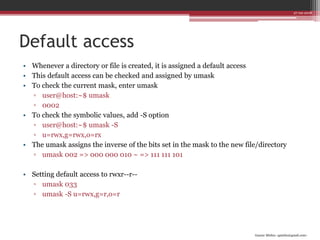
• Whenever a directory or file is created, it is assigned a default access
• This default access can be checked and assigned by umask
• To check the current mask, enter umask
▫ user@host:~$ umask
▫ 0002
• To check the symbolic values, add -S option
▫ user@host:~$ umask -S
▫ u=rwx,g=rwx,o=rx
• The umask assigns the inverse of the bits set in the mask to the new file/directory
▫ umask 002 => 000 000 010 ~ => 111 111 101
• Setting default access to rwxr--r--
▫ umask 033
▫ umask -S u=rwx,g=r,o=r
27-02-2018

Linux User Management

  • 1.
    Gaurav Mishra <gmishx@gmail.com> Linux -6 User Management 27-02-2018 Unrestricted
  • 2.
    Gaurav Mishra <gmishx@gmail.com> Usersand groups • Every file in Linux is owned by a user which have access and control over it. • System files are owned by root use. • Each user belongs to at least one group and one group can have more than one user. • The user can set access for other users on their files. • The access to a file is denoted using the file mode bits. 27-02-2018
  • 3.
    Gaurav Mishra <gmishx@gmail.com> Filemode bits • Every file have 10 file mode bits as follows: ▫ d rwx rwx rwx ▫ The first bit defines the file type  - : Regular file.  b : Block special file (stored in /dev).  c : Character special file (stored in /dev).  d : Directory.  l : Symbolic link.  p : FIFO.  s : Socket.  w : Whiteout. ▫ The second set of octets defines the access for the owner, third is for the group and fourth is for others  The first bit defines the read access  The second bit defines the write access  The third bit defines the execute access 27-02-2018
  • 4.
    Gaurav Mishra <gmishx@gmail.com> Example •-rw-rw-r-- optimus developers /home/optimus/project1/README.MD • The string denotes that there is a file README.MD which is owned by the user optimus and the group developers. • From the file mode bits, we can derive that ▫ It is a regular file ▫ The owner has read and write access to the file ▫ The group has read and write access to the file ▫ Others can only read the file 27-02-2018
  • 5.
  • 6.
    Gaurav Mishra <gmishx@gmail.com> /etc/passwd •Whenever you create a user, a new entry is created in /etc/passwd file. • Each entry takes one line and each field is separated by colons: ▫ Username ▫ Password ▫ UserID ▫ GroupID ▫ Comment ▫ Home Directory ▫ Login Shell • The passwords are stored in /etc/shadow file accessible only to root in encrypted format for security. 27-02-2018
  • 7.
    Gaurav Mishra <gmishx@gmail.com> Usermanagement commands • Adding new user ▫ adduser [--ingroup GROUP] USER • Adding new group ▫ addgroup [--gid ID] GROUP • Listing users ▫ users [GROUP] • Listing groups ▫ groups [USER] • Adding user to a group ▫ usermod [-a] -G GROUP USER • Changing password ▫ passwd [USER] • Locking/unlocking login ▫ passwd -l USER / passwd -u USER • Removing login password ▫ passwd -d [USER] 27-02-2018
  • 8.
    Gaurav Mishra <gmishx@gmail.com> Accessto file/directory • Modifying access ▫ chmod <new-mod-bits> FILE/DIRECTORY ▫ chmod <+/-><r/w/x>[…] [u/g/o] FILE/DIRECTORY ▫ Adding write access to group  chmod +w g /home/user/myfile ▫ Adding execute and removing write access to others  chmod +x-w o /home/user/myfile • Changing owner ▫ chown [USER][:GROUP] FILE/DIRECTORY 27-02-2018
  • 9.
    Gaurav Mishra <gmishx@gmail.com> Defaultaccess • Whenever a directory or file is created, it is assigned a default access • This default access can be checked and assigned by umask • To check the current mask, enter umask ▫ user@host:~$ umask ▫ 0002 • To check the symbolic values, add -S option ▫ user@host:~$ umask -S ▫ u=rwx,g=rwx,o=rx • The umask assigns the inverse of the bits set in the mask to the new file/directory ▫ umask 002 => 000 000 010 ~ => 111 111 101 • Setting default access to rwxr--r-- ▫ umask 033 ▫ umask -S u=rwx,g=r,o=r 27-02-2018