PowerPoint Presentation to AccompanyGO! with Microsoft® Access 2010Chapter 2Sort and Query a Database
ObjectivesOpen an Existing DatabaseCreate Table RelationshipsSort Records in a TableCreate a Query in Design ViewCreate a New Query from an Existing Query
ObjectivesSort Query ResultsSpecify Criteria in a QuerySpecify Numeric Criteria in a QueryUse Compound CriteriaCreate a Query Based on More Than One Table
ObjectivesUse Wildcards in a QueryUse Calculated Fields in a Query Calculate Statistics and Group Data in a QueryCreate a Crosstab Query
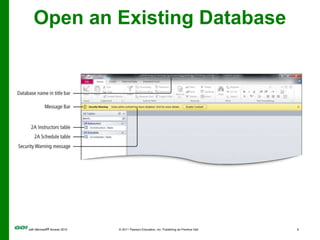
Open an Existing DatabaseYou can open a database file and save it with a new name.The Message Bar is the area below the Ribbon that displays information such as security alerts.The Enable Content button—when you know the database is safe to use on your computer
Open an Existing Database
Create Table RelationshipsAccess databases are relational databases, they connect to other tables through common fields.Common fields are fields that contain the same data in more than one table.After you have a table for each subject in your database, you must provide a way to connect the data in the tables when you need meaningful information.
Create Table RelationshipsTo connect the data in your tables, create common fields in related tables, and then define table relationships.A relationship is an association established between two tables based on common fields.Once established, you create a query, a form, or a report that displays information from more than one table.
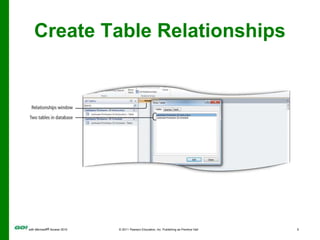
Create Table Relationships
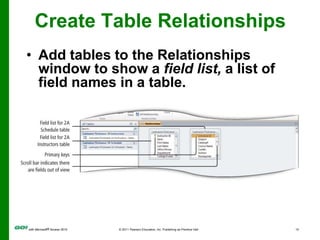
Create Table RelationshipsAdd tables to the Relationships window to show a field list, a list of field names in a table.Create Table RelationshipsBoth tables include the common fieldCreate Table RelationshipsA one-to-many relationship is the most commonExample: Because one instructor can teach many different courses, one Instructor ID number can be present many times in the 2A Schedule tableThis relationship between each instructor and the course is known as a one-to-many relationship
Create Table RelationshipsDragging—creates the one-to-many relationship
Foreign key—field in the related table that connects the primary key in another table
The one side—typically the primary key
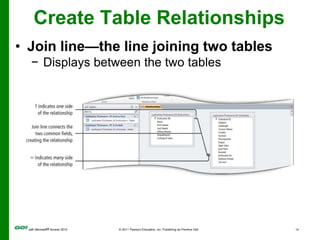
Referential integrity—set of rules to ensure that the data between related tables is validCreate Table RelationshipsJoin line—the line joining two tables
Displays between the two tablesSort Records in a TableSorting—process of arranging data in a specific order based on the value in fieldInitially, records display in the order entered into the table.For a primary key field, records are displayed in order based on that field.
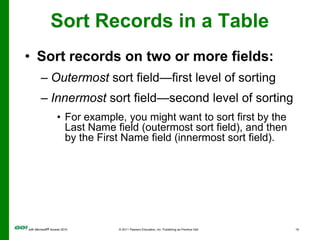
Sort Records in a TableSort records on two or more fields:Outermost sort field—first level of sortingInnermost sort field—second level of sortingFor example, you might want to sort first by the Last Name field (outermost sort field), and then by the First Name field (innermost sort field).
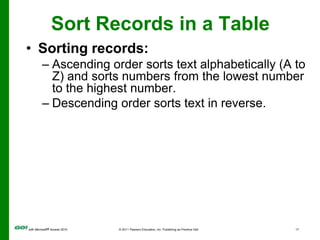
Sort Records in a TableSorting records:Ascending order sorts text alphabetically (A to Z) and sorts numbers from the lowest number to the highest number.Descending order sorts text in reverse.
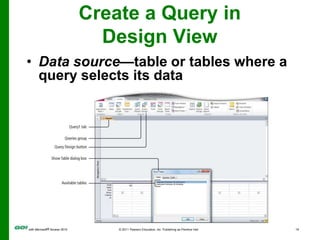
Create a Query in Design ViewQueryAnswers a questionCreates a subset of records, according to your specificationsSelect query—database object that retrieves (selects) specific data from one or more tablesQuery Design view—creates complex queries
Create a Query in Design ViewData source—table or tables where a query selects its data
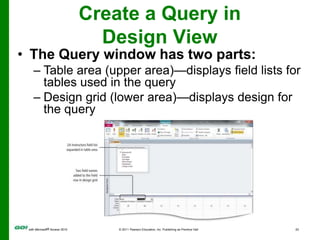
Create a Query in Design ViewThe Query window has two parts:
Table area (upper area)—displays field lists for tables used in the query
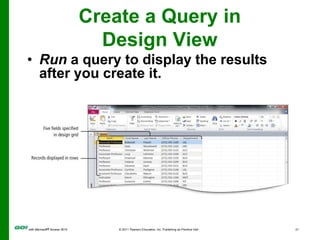
Design grid (lower area)—displays design for the queryCreate a Query in Design ViewRun a query to display the results after you create it.Create a New Query from an Existing QueryModify an existing query, save with a new name, use a new designAn existing query saves time, if your new query uses all or some of the same fields and conditions in an existing query
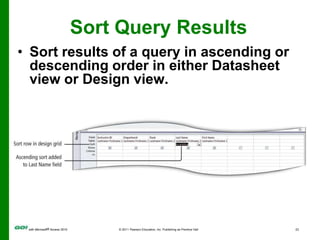
Sort Query ResultsSort results of a query in ascending or descending order in either Datasheet view or Design view.
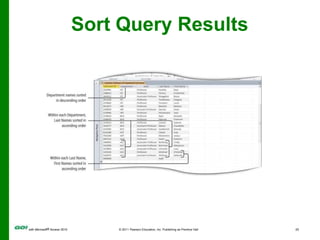
Sort Query ResultsDesign view—results displayed in a specified sort order, or for sorted results in a reportFields with a Sort designation are sorted from left to right.Sorted field on left becomes the outermost sort field.Sorted field on right becomes the innermost sort field.Sorted results not what you intended? Be sure fields are displayed from left to right according to the groupings desired.
Sort Query Results
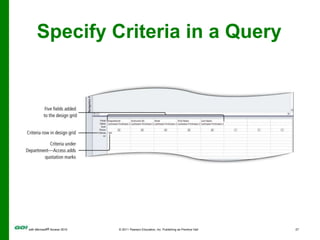
Specify Criteria in a QueryQueries locate information based on criteria.Criteria Are conditions that identify the specific records you are looking forEnable you to ask specific questions to get specific results
Specify Criteria in a Query
Specify Criteria in a QueryLocate records where data is missingMissing records can be located using Is Null—empty—as the criteria the fieldIs Not Null—displays only records where a value has been entered as the criteria
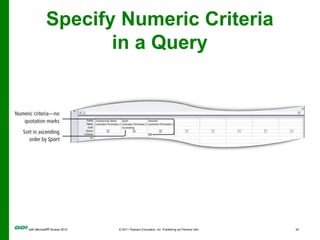
Specify Numeric Criteria in a QueryNumeric data can be set as fields.Design your table setting using data type for fields that will contain numbers, currency, or dates so mathematical calculations can be performed.
Specify Numeric Criteria in a Query
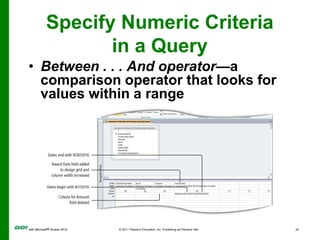
Specify Numeric Criteria in a QueryComparison operators—symbols that evaluate each field valueCan determine if it is the same (=), greater than (>), less than (<), or in between a range of values as specified by the criteria.Equal (=) is assumed, if no comparison operator is specified.
Specify Numeric Criteria in a QueryBetween . . . And operator—a comparison operator that looks for values within a range
Use Compound CriteriaCompound criteria—to specify more than one condition—criteria—in a queryCompound criteria use AND and OR logical operators.AND condition requires records to meet all parts of the specified criteria.OR condition specifies multiple criteria for a single field, or multiple criteria for different fields and displays records that meet any of the conditions.Logical operators enable entry of criteria for the same field or different fields.
Use Compound Criteria
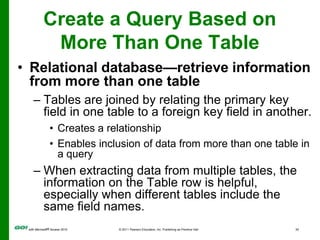
Create a Query Based on More Than One TableRelational database—retrieve information from more than one tableTables are joined by relating the primary key field in one table to a foreign key field in another. Creates a relationshipEnables inclusion of data from more than one table in a queryWhen extracting data from multiple tables, the information on the Table row is helpful, especially when different tables include the same field names.
Create a Query Based on More Than One Table
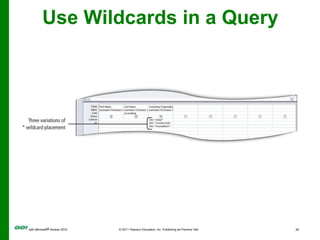
Use Wildcards in a QueryWildcard characters—serve as a placeholder for one or more unknown characters in the criteriaUse wildcard characters in place of the characters:Asterisk (*) is a placeholder to match one or more characters.Question mark (?) is a wildcard that is used to search for unknown single characters.
Use Wildcards in a Query
Use Calculated Fields in a QueryCalculated field—queries created from calculated values are stored hereA calculated field stores the value of a mathematical operation.Multiply two fields together without having to include a specific field for this amount in the table, which reduces the size of the database and provides more flexibility.
Use Calculated Fields in a QueryCalculated field query two steps:Name the field that will store the calculated values.Write the expression—the formula—that performs the calculation.Each field name used in the calculation must be enclosed within its own pair of square brackets.
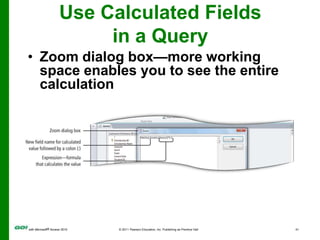
Use Calculated Fields in a QueryZoom dialog box—more working space enables you to see the entire calculation
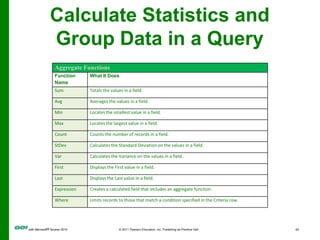
Use Calculated Fields in a QueryProperty Sheet—customize  fields in a queryCalculate Statistics and Group Data in a QueryPerform statistical calculations on a group of recordsAggregate functions—calculations performed on a group of recordsInclude only the field summarized in the query, so that the aggregate function (sum, average, minimum, maximum, etc.) is applied to that single fieldCan also be used to calculate totals by groups of data
Calculate Statistics and Group Data in a Query
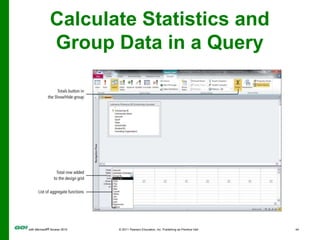
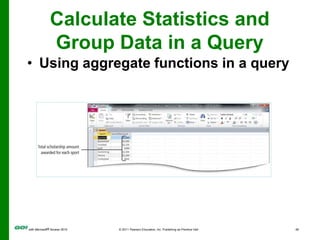
Calculate Statistics and Group Data in a QueryUsing aggregate functions in a query
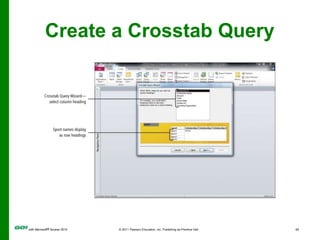
Create a Crosstab QueryA crosstab query:Uses an aggregate function for data that can be grouped by two types of information Displays data in a compact, spreadsheet-like formatAlways has at least one row heading, one column heading, and one summary fieldUse a crosstab query to summarize a large amount of data in a small space so that is easy to read
Create a Crosstab Query
Covered ObjectivesOpen an Existing DatabaseCreate Table RelationshipsSort Records in a TableCreate a Query in Design ViewCreate a New Query from an Existing Query
Covered ObjectivesSort Query ResultsSpecify Criteria in a QuerySpecify Numeric Criteria in a QueryUse Compound CriteriaCreate a Query Based on More Than One Table
Covered ObjectivesUse Wildcards in a QueryUse Calculated Fields in a Query Calculate Statistics and Group Data in a QueryCreate a Crosstab Query
All rights reserved. No part of this publication may be reproduced, stored in a retrieval system, or transmitted, in any form or by any means, electronic, mechanical, photocopying, recording, or otherwise, without the prior written permission of the publisher. Printed in the United States of America.Copyright © 2011 Pearson Education, Inc.  Publishing as Prentice Hall
MS Access Ch 2 PPT

MS Access Ch 2 PPT

  • 1.
    PowerPoint Presentation toAccompanyGO! with Microsoft® Access 2010Chapter 2Sort and Query a Database
  • 2.
    ObjectivesOpen an ExistingDatabaseCreate Table RelationshipsSort Records in a TableCreate a Query in Design ViewCreate a New Query from an Existing Query
  • 3.
    ObjectivesSort Query ResultsSpecifyCriteria in a QuerySpecify Numeric Criteria in a QueryUse Compound CriteriaCreate a Query Based on More Than One Table
  • 4.
    ObjectivesUse Wildcards ina QueryUse Calculated Fields in a Query Calculate Statistics and Group Data in a QueryCreate a Crosstab Query
  • 5.
    Open an ExistingDatabaseYou can open a database file and save it with a new name.The Message Bar is the area below the Ribbon that displays information such as security alerts.The Enable Content button—when you know the database is safe to use on your computer
  • 6.
  • 7.
    Create Table RelationshipsAccessdatabases are relational databases, they connect to other tables through common fields.Common fields are fields that contain the same data in more than one table.After you have a table for each subject in your database, you must provide a way to connect the data in the tables when you need meaningful information.
  • 8.
    Create Table RelationshipsToconnect the data in your tables, create common fields in related tables, and then define table relationships.A relationship is an association established between two tables based on common fields.Once established, you create a query, a form, or a report that displays information from more than one table.
  • 9.
  • 10.
    Create Table RelationshipsAddtables to the Relationships window to show a field list, a list of field names in a table.Create Table RelationshipsBoth tables include the common fieldCreate Table RelationshipsA one-to-many relationship is the most commonExample: Because one instructor can teach many different courses, one Instructor ID number can be present many times in the 2A Schedule tableThis relationship between each instructor and the course is known as a one-to-many relationship
  • 11.
  • 12.
    Foreign key—field inthe related table that connects the primary key in another table
  • 13.
  • 14.
    Referential integrity—set ofrules to ensure that the data between related tables is validCreate Table RelationshipsJoin line—the line joining two tables
  • 15.
    Displays between thetwo tablesSort Records in a TableSorting—process of arranging data in a specific order based on the value in fieldInitially, records display in the order entered into the table.For a primary key field, records are displayed in order based on that field.
  • 16.
    Sort Records ina TableSort records on two or more fields:Outermost sort field—first level of sortingInnermost sort field—second level of sortingFor example, you might want to sort first by the Last Name field (outermost sort field), and then by the First Name field (innermost sort field).
  • 17.
    Sort Records ina TableSorting records:Ascending order sorts text alphabetically (A to Z) and sorts numbers from the lowest number to the highest number.Descending order sorts text in reverse.
  • 18.
    Create a Queryin Design ViewQueryAnswers a questionCreates a subset of records, according to your specificationsSelect query—database object that retrieves (selects) specific data from one or more tablesQuery Design view—creates complex queries
  • 19.
    Create a Queryin Design ViewData source—table or tables where a query selects its data
  • 20.
    Create a Queryin Design ViewThe Query window has two parts:
  • 21.
    Table area (upperarea)—displays field lists for tables used in the query
  • 22.
    Design grid (lowerarea)—displays design for the queryCreate a Query in Design ViewRun a query to display the results after you create it.Create a New Query from an Existing QueryModify an existing query, save with a new name, use a new designAn existing query saves time, if your new query uses all or some of the same fields and conditions in an existing query
  • 23.
    Sort Query ResultsSortresults of a query in ascending or descending order in either Datasheet view or Design view.
  • 24.
    Sort Query ResultsDesignview—results displayed in a specified sort order, or for sorted results in a reportFields with a Sort designation are sorted from left to right.Sorted field on left becomes the outermost sort field.Sorted field on right becomes the innermost sort field.Sorted results not what you intended? Be sure fields are displayed from left to right according to the groupings desired.
  • 25.
  • 26.
    Specify Criteria ina QueryQueries locate information based on criteria.Criteria Are conditions that identify the specific records you are looking forEnable you to ask specific questions to get specific results
  • 27.
  • 28.
    Specify Criteria ina QueryLocate records where data is missingMissing records can be located using Is Null—empty—as the criteria the fieldIs Not Null—displays only records where a value has been entered as the criteria
  • 29.
    Specify Numeric Criteriain a QueryNumeric data can be set as fields.Design your table setting using data type for fields that will contain numbers, currency, or dates so mathematical calculations can be performed.
  • 30.
  • 31.
    Specify Numeric Criteriain a QueryComparison operators—symbols that evaluate each field valueCan determine if it is the same (=), greater than (>), less than (<), or in between a range of values as specified by the criteria.Equal (=) is assumed, if no comparison operator is specified.
  • 32.
    Specify Numeric Criteriain a QueryBetween . . . And operator—a comparison operator that looks for values within a range
  • 33.
    Use Compound CriteriaCompoundcriteria—to specify more than one condition—criteria—in a queryCompound criteria use AND and OR logical operators.AND condition requires records to meet all parts of the specified criteria.OR condition specifies multiple criteria for a single field, or multiple criteria for different fields and displays records that meet any of the conditions.Logical operators enable entry of criteria for the same field or different fields.
  • 34.
  • 35.
    Create a QueryBased on More Than One TableRelational database—retrieve information from more than one tableTables are joined by relating the primary key field in one table to a foreign key field in another. Creates a relationshipEnables inclusion of data from more than one table in a queryWhen extracting data from multiple tables, the information on the Table row is helpful, especially when different tables include the same field names.
  • 36.
    Create a QueryBased on More Than One Table
  • 37.
    Use Wildcards ina QueryWildcard characters—serve as a placeholder for one or more unknown characters in the criteriaUse wildcard characters in place of the characters:Asterisk (*) is a placeholder to match one or more characters.Question mark (?) is a wildcard that is used to search for unknown single characters.
  • 38.
  • 39.
    Use Calculated Fieldsin a QueryCalculated field—queries created from calculated values are stored hereA calculated field stores the value of a mathematical operation.Multiply two fields together without having to include a specific field for this amount in the table, which reduces the size of the database and provides more flexibility.
  • 40.
    Use Calculated Fieldsin a QueryCalculated field query two steps:Name the field that will store the calculated values.Write the expression—the formula—that performs the calculation.Each field name used in the calculation must be enclosed within its own pair of square brackets.
  • 41.
    Use Calculated Fieldsin a QueryZoom dialog box—more working space enables you to see the entire calculation
  • 42.
    Use Calculated Fieldsin a QueryProperty Sheet—customize fields in a queryCalculate Statistics and Group Data in a QueryPerform statistical calculations on a group of recordsAggregate functions—calculations performed on a group of recordsInclude only the field summarized in the query, so that the aggregate function (sum, average, minimum, maximum, etc.) is applied to that single fieldCan also be used to calculate totals by groups of data
  • 43.
    Calculate Statistics andGroup Data in a Query
  • 44.
    Calculate Statistics andGroup Data in a Query
  • 45.
    Calculate Statistics andGroup Data in a QueryUsing aggregate functions in a query
  • 46.
    Create a CrosstabQueryA crosstab query:Uses an aggregate function for data that can be grouped by two types of information Displays data in a compact, spreadsheet-like formatAlways has at least one row heading, one column heading, and one summary fieldUse a crosstab query to summarize a large amount of data in a small space so that is easy to read
  • 47.
  • 48.
    Covered ObjectivesOpen anExisting DatabaseCreate Table RelationshipsSort Records in a TableCreate a Query in Design ViewCreate a New Query from an Existing Query
  • 49.
    Covered ObjectivesSort QueryResultsSpecify Criteria in a QuerySpecify Numeric Criteria in a QueryUse Compound CriteriaCreate a Query Based on More Than One Table
  • 50.
    Covered ObjectivesUse Wildcardsin a QueryUse Calculated Fields in a Query Calculate Statistics and Group Data in a QueryCreate a Crosstab Query
  • 51.
    All rights reserved.No part of this publication may be reproduced, stored in a retrieval system, or transmitted, in any form or by any means, electronic, mechanical, photocopying, recording, or otherwise, without the prior written permission of the publisher. Printed in the United States of America.Copyright © 2011 Pearson Education, Inc.  Publishing as Prentice Hall

Editor's Notes