Windows, MS office
Word, Excel,
PowerPoint
-----NEENA NAIDU
What is MS
Microsoft is company /
corporation in USA.
Bill Gates is the owner of
Microsoft Company.
What is Microsoft Office?
Microsoft office is used for special
purpose office work such as :
Documentation
Work sheet
Presentation
Data base.
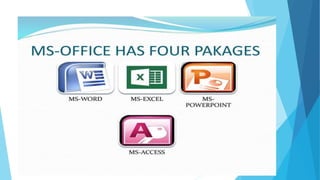
MS-OFFICE HAS FOUR PAKAGES
What is MS-WORD ?
 Microsoft Word is a word processing software package.
 You can use it to type letters , reports and other
documents.
 The four main operations of a word processing package
are:
 Defining the form of the document
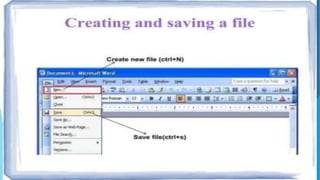
 Entering a document from a keyboard
 Editing ( modifying) the document
 Printing the document.
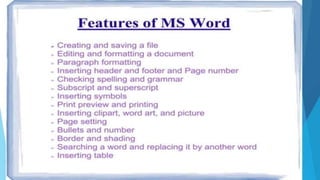
Features of Microsoft Word
 Creating Document.
 Editing document.
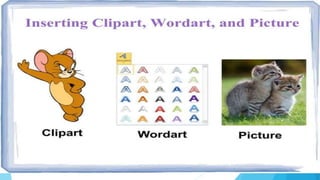
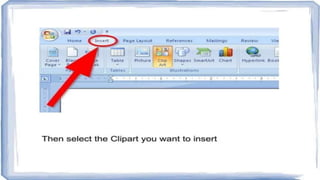
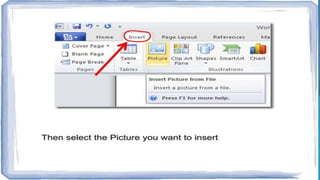
 Graphics.
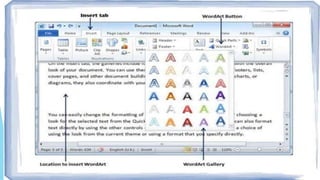
 Word Art.
 Printing Document.
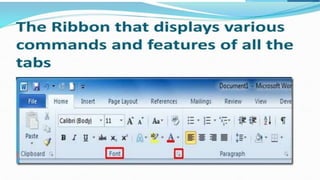
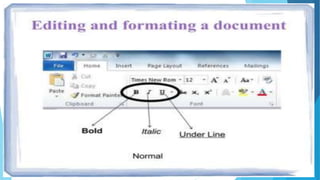
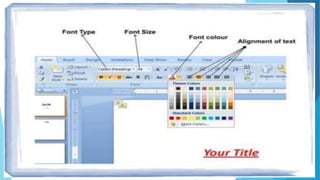
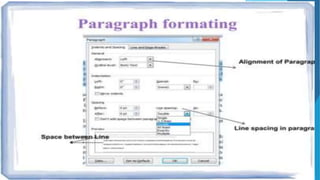
Formatting Word Document
 The process to change the appearance of
a document is called the document
formatting you can format a single.
 The document is formatted to make it
more attractive and beautiful.
 The commands used to format the
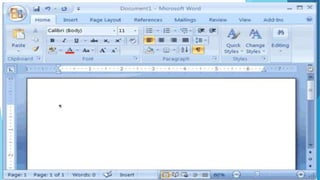
document are selected from the Home
tab.
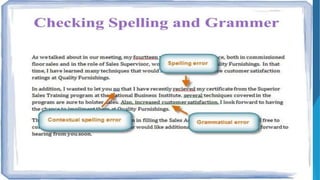
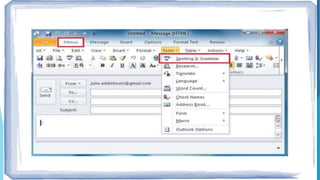
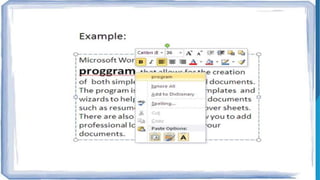
Proofing Word Document
 Spelling Checker
 Grammar checker
 Auto correct.
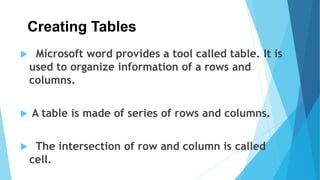
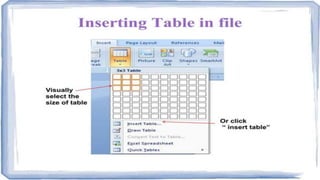
Creating Tables
 Microsoft word provides a tool called table. It is
used to organize information of a rows and
columns.
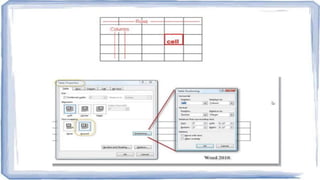
 A table is made of series of rows and columns.
 The intersection of row and column is called
cell.
S
MS Excel
 Excel is an Microsoft application that is mainly
used for calculations and mathematical works.
a) It is a spreadsheet application in which we can
add sheets as per our requirement. In a single
sheet, it consist of rows, columns and cells, where
every cell has different address.
b) Sum, product, subtraction, division and many
mathematical, logical functions are available
within it.
Cont……
c) Other features include table, charts ,
clip art and more.
d) It is basically used for payroll, accounts,
mathematical and for other business
purposes.
Cont…
 Microsoft Excel is a spreadsheet program used to
record and analyze numerical and statistical data.
 Microsoft Excel provides multiple features to perform
various operations like calculations, graph tools, macro
programming, etc.
 It is compatible with multiple OS like Windows, macOS
(The Macintosh Operating System), Android and iOS.
Cont…..
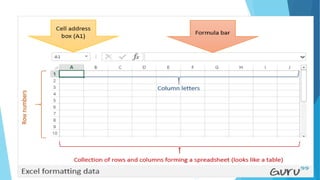
 A Excel spreadsheet can be understood as a
collection of columns and rows that form a table.
 Alphabetical letters are usually assigned to
columns, and numbers are usually assigned to
rows.
 The point where a column and a row meet is called
a cell.
 The address of a cell is given by the letter
representing the column and the number
representing a row.
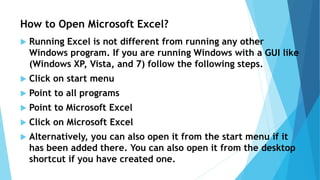
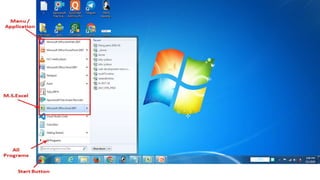
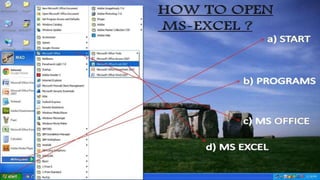
How to Open Microsoft Excel?
 Running Excel is not different from running any other
Windows program. If you are running Windows with a GUI like
(Windows XP, Vista, and 7) follow the following steps.
 Click on start menu
 Point to all programs
 Point to Microsoft Excel
 Click on Microsoft Excel
 Alternatively, you can also open it from the start menu if it
has been added there. You can also open it from the desktop
shortcut if you have created one.
SS
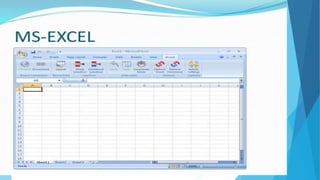
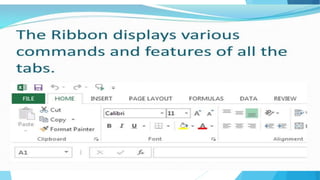
Understanding the Ribbon
The ribbon provides shortcuts to commands in
Excel. A command is an action that the user
performs.
An example of a command is creating a new
document, printing a documenting, etc.
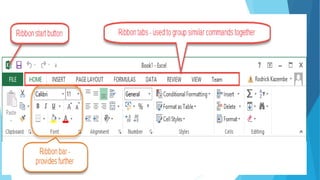
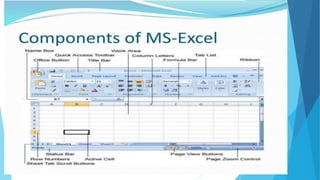
The image below shows the ribbon used in Excel
2013.
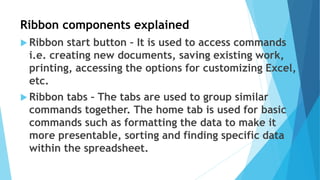
Ribbon components explained
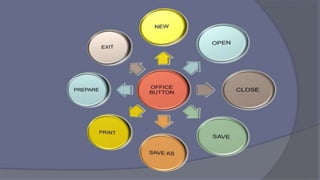
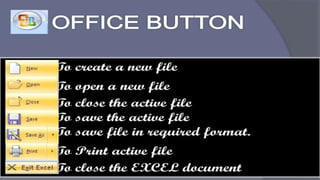
 Ribbon start button – It is used to access commands
i.e. creating new documents, saving existing work,
printing, accessing the options for customizing Excel,
etc.
 Ribbon tabs – The tabs are used to group similar
commands together. The home tab is used for basic
commands such as formatting the data to make it
more presentable, sorting and finding specific data
within the spreadsheet.
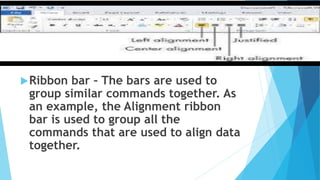
Ribbon bar – The bars are used to
group similar commands together. As
an example, the Alignment ribbon
bar is used to group all the
commands that are used to align data
together.
Understanding the worksheet (Rows and
Columns, Sheets, Workbooks)
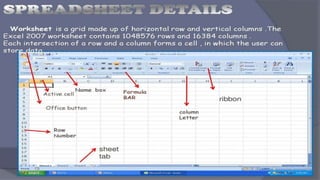
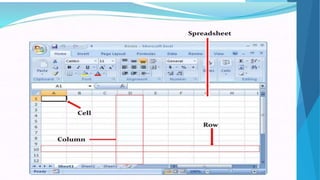
 A worksheet is a collection of rows and columns.
When a row and a column meet, they form a cell.
 Cells are used to record data.
 Each cell is uniquely identified using a cell address.
Columns are usually labelled with letters while rows
are usually numbers.
 A workbook is a collection of worksheets.
 By default, a workbook has three cells in Excel.
 You can delete or add more sheets to suit your
requirements.
 By default, the sheets are named Sheet1, Sheet2 and
so on and so forth.
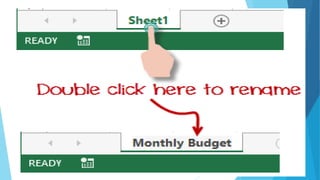
 You can rename the sheet names to more meaningful
names i.e. Daily Expenses, Monthly Budget, etc.
Excel Formulas
 Excel formulas help you identify relationships between
values in the cells of your spreadsheet, perform
mathematical calculations using those values, and
return the resulting value in the cell of your choice.
 Formulas you can automatically perform include sum,
subtraction, percentage, division, average, and even
dates/times.
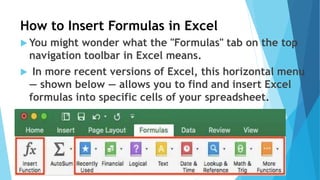
How to Insert Formulas in Excel
 You might wonder what the "Formulas" tab on the top
navigation toolbar in Excel means.
 In more recent versions of Excel, this horizontal menu
— shown below — allows you to find and insert Excel
formulas into specific cells of your spreadsheet.
Cont…..
Excel formulas are also called
"functions."
To insert one into your spreadsheet,
highlight a cell in which you want to
run a formula, then click the far-left
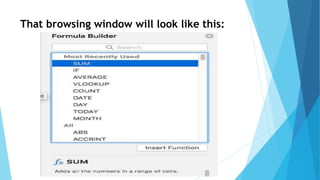
icon, "Insert Function," to browse
popular formulas and what they do.
That browsing window will look like this:
Some formulas apply to the latest version
of Excel.
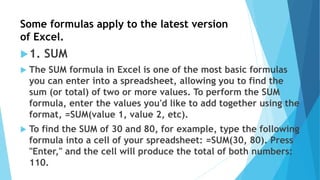
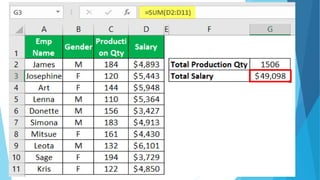
1. SUM
 The SUM formula in Excel is one of the most basic formulas
you can enter into a spreadsheet, allowing you to find the
sum (or total) of two or more values. To perform the SUM
formula, enter the values you'd like to add together using the
format, =SUM(value 1, value 2, etc).
 To find the SUM of 30 and 80, for example, type the following
formula into a cell of your spreadsheet: =SUM(30, 80). Press
"Enter," and the cell will produce the total of both numbers:
110.
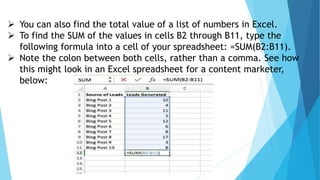
 You can also find the total value of a list of numbers in Excel.
 To find the SUM of the values in cells B2 through B11, type the
following formula into a cell of your spreadsheet: =SUM(B2:B11).
 Note the colon between both cells, rather than a comma. See how
this might look in an Excel spreadsheet for a content marketer,
below:
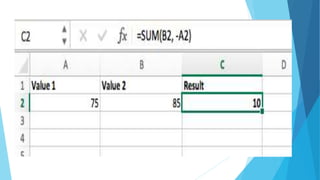
2. Subtraction
 To perform the subtraction formula in Excel, enter the cells
you're subtracting in the format, =SUM(A1, -B1).
 This will subtract a cell using the SUM formula by adding a
negative sign before the cell you're subtracting.
 For example, if A1 was 10 and B1 was 6, =SUM(A1, -B1) would
perform 10 + -6, returning a value of 4.
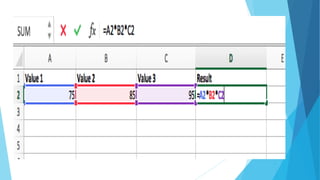
3. Multiplication
 To perform the multiplication formula in Excel, enter the
cells you're multiplying in the format, =A1*B1.
 This formula uses an asterisk to multiply cell A1 by cell B1.
For example, if A1 was 10 and B1 was 6, =A1*B1 would
return a value of 60.
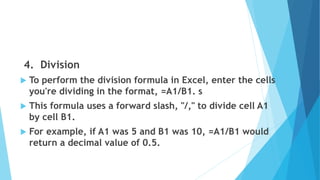
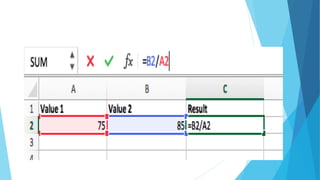
4. Division
 To perform the division formula in Excel, enter the cells
you're dividing in the format, =A1/B1. s
 This formula uses a forward slash, "/," to divide cell A1
by cell B1.
 For example, if A1 was 5 and B1 was 10, =A1/B1 would
return a decimal value of 0.5.
Important Excel shortcuts
 Ctrl + P used to open the print dialogue
window
 Ctrl + N creates a new workbook
 Ctrl + S saves the current workbook
 Ctrl + C copy contents of current select
 Ctrl + V paste data from the clipboard
 SHIFT + F3 displays the function insert dialog
window
 SHIFT + F11 Creates a new worksheet
 F2 Check formula and cell range covered
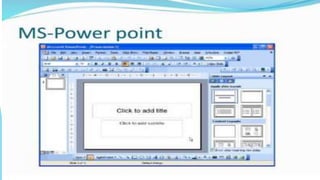
MICROSOFT POWER POINT
Introducing the PowerPoint
window
 Microsoft PowerPoint, or PPT, is a program used to
create presentations – or slideshows as they are more
commonly referred to.
 PPT allows you to automatically create presentation
slides, handouts, overhead transparencies, and even
web pages that can be presented to an audience in
several different ways.
 Over the years of training in both corporate and
educational settings, we have seen some truly
wonderful presentations created using PPT.
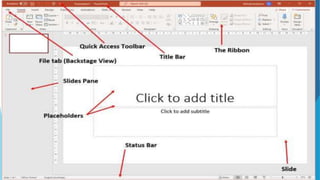
 Below is a preview of the Microsoft PowerPoint 365
window with terminology to help you navigate and
move around the PowerPoint application.
What is Power Point
Power Point is computer software
created by Microsoft which allows the
user to create slides with recordings,
narrations , transitions and other features
in order to present information. An
example of Power Point is presentation
software made by Microsoft.
 Title Bar - Displays the name of the application and
the file currently in use.
 The Ribbon -Displays the numerous functions and
tools available to work with your presentation.
 Quick Access Toolbar- Enables you to customize the
toolbar to contain the commands you use most
frequently.
 File tab (Backstage View)- Provides access to basic
commands such as New, Open, Save, Print and
Share plus access to customize the application.
 Slides pane - Displays a thumbnail version of each
slide within the presentation.
 Slide - The area which will be displayed as full
screen when viewed in Slide Show mode.
 Status Bar - Provides information relating to
features such as slide number, spell check and
shortcuts to Notes, Comments, various different
views and zoom functions.
 Placeholders - Displayed as dotted lines which
allows you to identify where you can add text, and
insert elements such as images or tables.
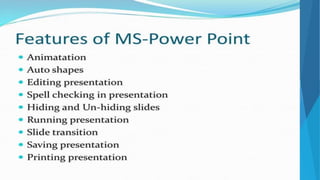
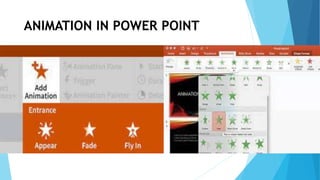
ANIMATION IN POWER POINT
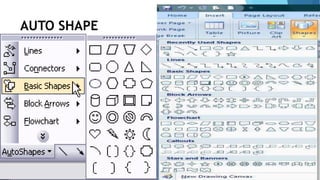
AUTO SHAPE
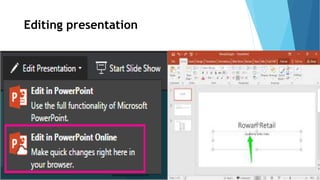
Editing presentation
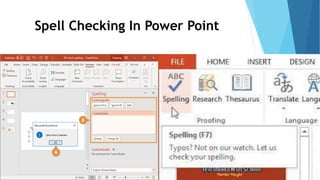
Spell Checking In Power Point
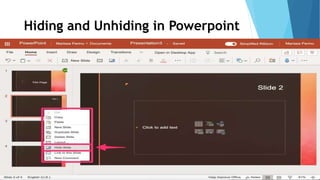
Hiding and Unhiding in Powerpoint
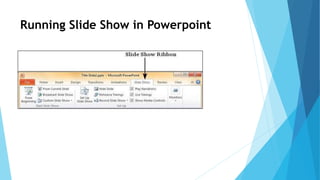
Running Slide Show in Powerpoint
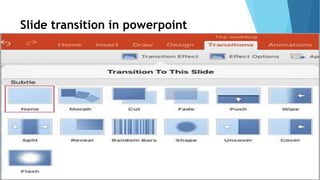
Slide transition in powerpoint
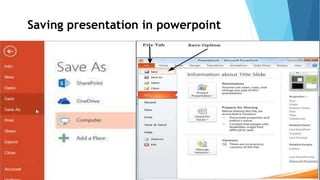
Saving presentation in powerpoint
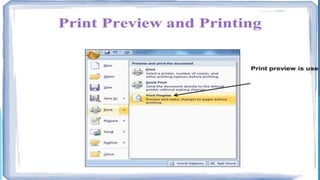
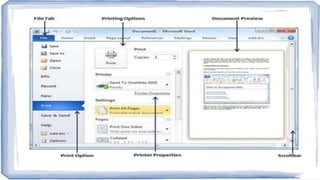
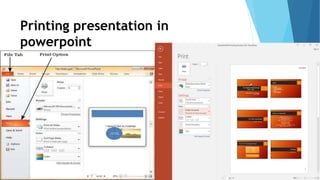
Printing presentation in
powerpoint
Windows, MS office.pptx

Windows, MS office.pptx

  • 1.
    Windows, MS office Word,Excel, PowerPoint -----NEENA NAIDU
  • 2.
    What is MS Microsoftis company / corporation in USA. Bill Gates is the owner of Microsoft Company.
  • 3.
    What is MicrosoftOffice? Microsoft office is used for special purpose office work such as : Documentation Work sheet Presentation Data base.
  • 4.
  • 6.
    What is MS-WORD?  Microsoft Word is a word processing software package.  You can use it to type letters , reports and other documents.  The four main operations of a word processing package are:  Defining the form of the document  Entering a document from a keyboard  Editing ( modifying) the document  Printing the document.
  • 11.
    Features of MicrosoftWord  Creating Document.  Editing document.  Graphics.  Word Art.  Printing Document.
  • 13.
    Formatting Word Document The process to change the appearance of a document is called the document formatting you can format a single.  The document is formatted to make it more attractive and beautiful.  The commands used to format the document are selected from the Home tab.
  • 21.
    Proofing Word Document Spelling Checker  Grammar checker  Auto correct.
  • 43.
    Creating Tables  Microsoftword provides a tool called table. It is used to organize information of a rows and columns.  A table is made of series of rows and columns.  The intersection of row and column is called cell.
  • 46.
  • 48.
    MS Excel  Excelis an Microsoft application that is mainly used for calculations and mathematical works. a) It is a spreadsheet application in which we can add sheets as per our requirement. In a single sheet, it consist of rows, columns and cells, where every cell has different address. b) Sum, product, subtraction, division and many mathematical, logical functions are available within it.
  • 49.
    Cont…… c) Other featuresinclude table, charts , clip art and more. d) It is basically used for payroll, accounts, mathematical and for other business purposes.
  • 50.
    Cont…  Microsoft Excelis a spreadsheet program used to record and analyze numerical and statistical data.  Microsoft Excel provides multiple features to perform various operations like calculations, graph tools, macro programming, etc.  It is compatible with multiple OS like Windows, macOS (The Macintosh Operating System), Android and iOS.
  • 51.
    Cont…..  A Excelspreadsheet can be understood as a collection of columns and rows that form a table.  Alphabetical letters are usually assigned to columns, and numbers are usually assigned to rows.  The point where a column and a row meet is called a cell.  The address of a cell is given by the letter representing the column and the number representing a row.
  • 52.
    How to OpenMicrosoft Excel?  Running Excel is not different from running any other Windows program. If you are running Windows with a GUI like (Windows XP, Vista, and 7) follow the following steps.  Click on start menu  Point to all programs  Point to Microsoft Excel  Click on Microsoft Excel  Alternatively, you can also open it from the start menu if it has been added there. You can also open it from the desktop shortcut if you have created one.
  • 57.
  • 58.
    Understanding the Ribbon Theribbon provides shortcuts to commands in Excel. A command is an action that the user performs. An example of a command is creating a new document, printing a documenting, etc. The image below shows the ribbon used in Excel 2013.
  • 60.
    Ribbon components explained Ribbon start button – It is used to access commands i.e. creating new documents, saving existing work, printing, accessing the options for customizing Excel, etc.  Ribbon tabs – The tabs are used to group similar commands together. The home tab is used for basic commands such as formatting the data to make it more presentable, sorting and finding specific data within the spreadsheet.
  • 61.
    Ribbon bar –The bars are used to group similar commands together. As an example, the Alignment ribbon bar is used to group all the commands that are used to align data together.
  • 62.
    Understanding the worksheet(Rows and Columns, Sheets, Workbooks)  A worksheet is a collection of rows and columns. When a row and a column meet, they form a cell.  Cells are used to record data.  Each cell is uniquely identified using a cell address. Columns are usually labelled with letters while rows are usually numbers.
  • 64.
     A workbookis a collection of worksheets.  By default, a workbook has three cells in Excel.  You can delete or add more sheets to suit your requirements.  By default, the sheets are named Sheet1, Sheet2 and so on and so forth.  You can rename the sheet names to more meaningful names i.e. Daily Expenses, Monthly Budget, etc.
  • 69.
    Excel Formulas  Excelformulas help you identify relationships between values in the cells of your spreadsheet, perform mathematical calculations using those values, and return the resulting value in the cell of your choice.  Formulas you can automatically perform include sum, subtraction, percentage, division, average, and even dates/times.
  • 70.
    How to InsertFormulas in Excel  You might wonder what the "Formulas" tab on the top navigation toolbar in Excel means.  In more recent versions of Excel, this horizontal menu — shown below — allows you to find and insert Excel formulas into specific cells of your spreadsheet.
  • 71.
    Cont….. Excel formulas arealso called "functions." To insert one into your spreadsheet, highlight a cell in which you want to run a formula, then click the far-left icon, "Insert Function," to browse popular formulas and what they do.
  • 72.
    That browsing windowwill look like this:
  • 73.
    Some formulas applyto the latest version of Excel. 1. SUM  The SUM formula in Excel is one of the most basic formulas you can enter into a spreadsheet, allowing you to find the sum (or total) of two or more values. To perform the SUM formula, enter the values you'd like to add together using the format, =SUM(value 1, value 2, etc).  To find the SUM of 30 and 80, for example, type the following formula into a cell of your spreadsheet: =SUM(30, 80). Press "Enter," and the cell will produce the total of both numbers: 110.
  • 74.
     You canalso find the total value of a list of numbers in Excel.  To find the SUM of the values in cells B2 through B11, type the following formula into a cell of your spreadsheet: =SUM(B2:B11).  Note the colon between both cells, rather than a comma. See how this might look in an Excel spreadsheet for a content marketer, below:
  • 76.
    2. Subtraction  Toperform the subtraction formula in Excel, enter the cells you're subtracting in the format, =SUM(A1, -B1).  This will subtract a cell using the SUM formula by adding a negative sign before the cell you're subtracting.  For example, if A1 was 10 and B1 was 6, =SUM(A1, -B1) would perform 10 + -6, returning a value of 4.
  • 78.
    3. Multiplication  Toperform the multiplication formula in Excel, enter the cells you're multiplying in the format, =A1*B1.  This formula uses an asterisk to multiply cell A1 by cell B1. For example, if A1 was 10 and B1 was 6, =A1*B1 would return a value of 60.
  • 80.
    4. Division  Toperform the division formula in Excel, enter the cells you're dividing in the format, =A1/B1. s  This formula uses a forward slash, "/," to divide cell A1 by cell B1.  For example, if A1 was 5 and B1 was 10, =A1/B1 would return a decimal value of 0.5.
  • 82.
    Important Excel shortcuts Ctrl + P used to open the print dialogue window  Ctrl + N creates a new workbook  Ctrl + S saves the current workbook  Ctrl + C copy contents of current select  Ctrl + V paste data from the clipboard  SHIFT + F3 displays the function insert dialog window  SHIFT + F11 Creates a new worksheet  F2 Check formula and cell range covered
  • 83.
  • 85.
    Introducing the PowerPoint window Microsoft PowerPoint, or PPT, is a program used to create presentations – or slideshows as they are more commonly referred to.  PPT allows you to automatically create presentation slides, handouts, overhead transparencies, and even web pages that can be presented to an audience in several different ways.
  • 86.
     Over theyears of training in both corporate and educational settings, we have seen some truly wonderful presentations created using PPT.  Below is a preview of the Microsoft PowerPoint 365 window with terminology to help you navigate and move around the PowerPoint application.
  • 87.
    What is PowerPoint Power Point is computer software created by Microsoft which allows the user to create slides with recordings, narrations , transitions and other features in order to present information. An example of Power Point is presentation software made by Microsoft.
  • 90.
     Title Bar- Displays the name of the application and the file currently in use.  The Ribbon -Displays the numerous functions and tools available to work with your presentation.  Quick Access Toolbar- Enables you to customize the toolbar to contain the commands you use most frequently.  File tab (Backstage View)- Provides access to basic commands such as New, Open, Save, Print and Share plus access to customize the application.
  • 91.
     Slides pane- Displays a thumbnail version of each slide within the presentation.  Slide - The area which will be displayed as full screen when viewed in Slide Show mode.  Status Bar - Provides information relating to features such as slide number, spell check and shortcuts to Notes, Comments, various different views and zoom functions.  Placeholders - Displayed as dotted lines which allows you to identify where you can add text, and insert elements such as images or tables.
  • 93.
  • 94.
  • 95.
  • 96.
    Spell Checking InPower Point
  • 97.
    Hiding and Unhidingin Powerpoint
  • 98.
    Running Slide Showin Powerpoint
  • 99.
  • 100.
  • 101.