By
Adithya Naresh
INTRODUCTION
 Microsoft Access is a Relational Database Management
  System (RDBMS), designed primarily for home or
  small business usage.
 Access is known as a desktop database system because
  it's functions are intended to be run from a single
  computer. This is in contrast to a server database
  application (such as SQL Server), where it is intended
  to be installed on a server, then accessed remotely
  from multiple client machines.
BASICS
 A Table is an arrangement of data in a row and
  column.
 A field is a column in a table that contains particular
  information about a record.
 A Primary Key is a field uniquely identifies every
  record in a table.
 A Record is a set of information stored about a
  particular entry.
 Forms are used to customize formats for
  adding, editing, deleting or displaying data.
 Queries display information from one or more tables
  based on a selection criteria.
 Reports contain data from one or more tables and
  databases that can be printed. Selective fields and
  records can be displayed in a report.
 Macros perform a fixed set of tasks every time they
  are run.
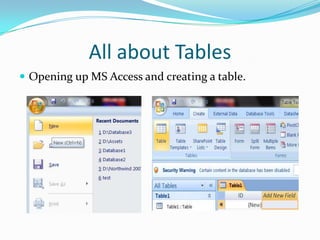
All about Tables
 Opening up MS Access and creating a table.
Table Design Toolbar
Creating Fields


Defining data types
 Text data type is used to store all valid printable
    characters. Default size is 50.
   Memo data type is used to create a text field in which
    size of the values can vary widely.
   Number data type enables you to enter numeric data.
   Currency data type enables you to enter monetary
    data.
   Date/Time data type can store date and time values.
   Yes/No data type, also known as a logical type, stores
    data that can have only two values.
 Auto number data type stores an integer that is
  incremented or decremented automatically as you add
  or delete records.
 OLE object type can store any type of object such as
  video clip, a picture or a word document.
 Lookup Wizard is a field that displays a list that looks
  up data from an existing table or from a fixed set of
  user-defined values.
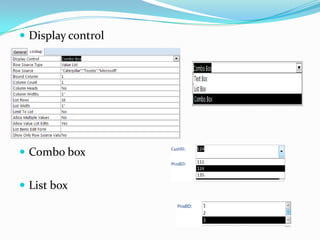
 Display control


 Combo box


 List box
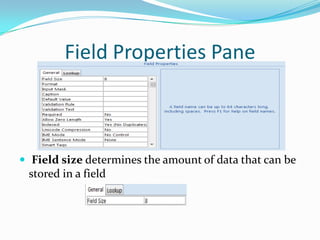
Field Properties Pane


 Field size determines the amount of data that can be
 stored in a field
 Formats allow you to display your data in a form that
 differs from the actual keystrokes used to enter the
 data.


 Default Value is one that is displayed automatically
 for the field when you add a new record to the table.
 Input Mask allows you to have more control over data
 entry by defining data-validation for each character
 that is entered in the field.
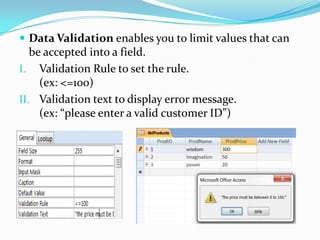
 Data Validation enables you to limit values that can
   be accepted into a field.
I. Validation Rule to set the rule.
     (ex: <=100)
II. Validation text to display error message.
     (ex: “please enter a valid customer ID”)
 Required enables you to enter a Yes value for Required
 if a field should always receive a value during data
 entry.
 Indexed
1. Unique Index(no duplicates).
2. Duplicate Index(with duplicates).


 Caption is used when you want to display an alternate
     name for the field on forms an reports.
Creating Relationships
 One-to-many relationships.
 Many-to-many relationships.
 One-to-one relationships.
Forms
 It helps to arrange fields and view many more on a
 single screen. You can also add enhanced Data
 Validation and editing controls.
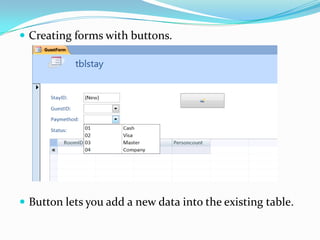
 Creating forms with buttons.


 Button lets you add a new data into the existing table.
Sub Forms
 Used to create a form to accept data in two tables that
 are related by a one-to-many relationship.
Reports
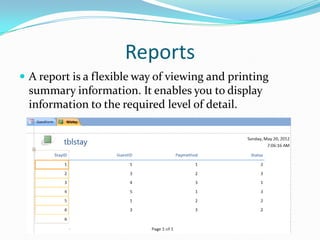
 A report is a flexible way of viewing and printing
  summary information. It enables you to display
  information to the required level of detail.
Queries
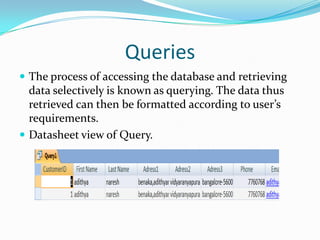
 The process of accessing the database and retrieving
  data selectively is known as querying. The data thus
  retrieved can then be formatted according to user’s
  requirements.
 Datasheet view of Query.
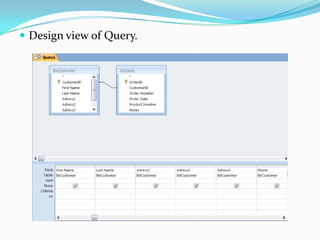
 Design view of Query.
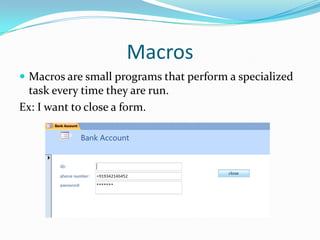
Macros
 Macros are small programs that perform a specialized
  task every time they are run.
Ex: I want to close a form.
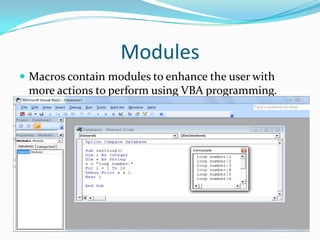
Modules
 Macros contain modules to enhance the user with
 more actions to perform using VBA programming.
Ms access

Ms access

  • 1.
  • 2.
    INTRODUCTION  Microsoft Accessis a Relational Database Management System (RDBMS), designed primarily for home or small business usage.  Access is known as a desktop database system because it's functions are intended to be run from a single computer. This is in contrast to a server database application (such as SQL Server), where it is intended to be installed on a server, then accessed remotely from multiple client machines.
  • 3.
    BASICS  A Tableis an arrangement of data in a row and column.  A field is a column in a table that contains particular information about a record.  A Primary Key is a field uniquely identifies every record in a table.  A Record is a set of information stored about a particular entry.
  • 4.
     Forms areused to customize formats for adding, editing, deleting or displaying data.  Queries display information from one or more tables based on a selection criteria.  Reports contain data from one or more tables and databases that can be printed. Selective fields and records can be displayed in a report.  Macros perform a fixed set of tasks every time they are run.
  • 5.
    All about Tables Opening up MS Access and creating a table.
  • 6.
    Table Design Toolbar CreatingFields Defining data types
  • 7.
     Text datatype is used to store all valid printable characters. Default size is 50.  Memo data type is used to create a text field in which size of the values can vary widely.  Number data type enables you to enter numeric data.  Currency data type enables you to enter monetary data.  Date/Time data type can store date and time values.  Yes/No data type, also known as a logical type, stores data that can have only two values.
  • 8.
     Auto numberdata type stores an integer that is incremented or decremented automatically as you add or delete records.  OLE object type can store any type of object such as video clip, a picture or a word document.  Lookup Wizard is a field that displays a list that looks up data from an existing table or from a fixed set of user-defined values.
  • 9.
     Display control Combo box  List box
  • 10.
    Field Properties Pane Field size determines the amount of data that can be stored in a field
  • 11.
     Formats allowyou to display your data in a form that differs from the actual keystrokes used to enter the data.  Default Value is one that is displayed automatically for the field when you add a new record to the table.
  • 12.
     Input Maskallows you to have more control over data entry by defining data-validation for each character that is entered in the field.
  • 13.
     Data Validationenables you to limit values that can be accepted into a field. I. Validation Rule to set the rule. (ex: <=100) II. Validation text to display error message. (ex: “please enter a valid customer ID”)
  • 14.
     Required enablesyou to enter a Yes value for Required if a field should always receive a value during data entry.
  • 15.
     Indexed 1. UniqueIndex(no duplicates). 2. Duplicate Index(with duplicates).  Caption is used when you want to display an alternate name for the field on forms an reports.
  • 16.
    Creating Relationships  One-to-manyrelationships.  Many-to-many relationships.  One-to-one relationships.
  • 17.
    Forms  It helpsto arrange fields and view many more on a single screen. You can also add enhanced Data Validation and editing controls.
  • 18.
     Creating formswith buttons.  Button lets you add a new data into the existing table.
  • 19.
    Sub Forms  Usedto create a form to accept data in two tables that are related by a one-to-many relationship.
  • 20.
    Reports  A reportis a flexible way of viewing and printing summary information. It enables you to display information to the required level of detail.
  • 21.
    Queries  The processof accessing the database and retrieving data selectively is known as querying. The data thus retrieved can then be formatted according to user’s requirements.  Datasheet view of Query.
  • 22.
     Design viewof Query.
  • 23.
    Macros  Macros aresmall programs that perform a specialized task every time they are run. Ex: I want to close a form.
  • 25.
    Modules  Macros containmodules to enhance the user with more actions to perform using VBA programming.