

CHAPTER 4
Microsoft access 2010
Identify Good Database Design
• A database is an organized collection of data—facts about
people, events, things, or ideas—related to a specific
topic or purpose.
• Information is data that is organized in a useful manner.
Identify Good Database Design
• Use good design techniques when creating a new database.
• Determine the information you want to keep track of to create a new
database.
• Ask yourself, “What questions should this database be able to answer
for me?”
• The purpose of a database is to store data in a manner that makes it
easy for you to get the information you need.
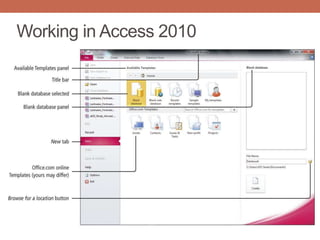
Working in Access 2010
Create a Table and Define Fields
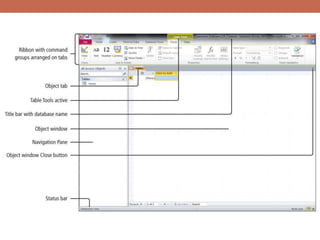
in a New Blank Database
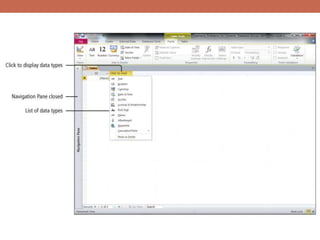
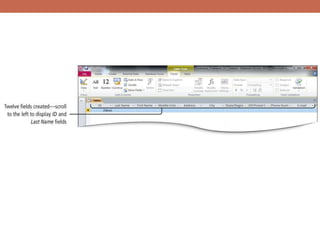
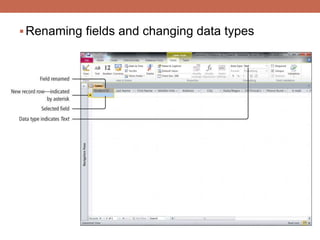
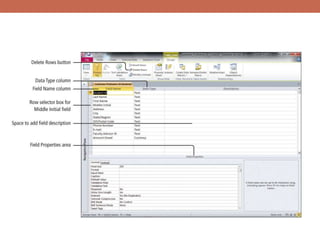
Renaming fields and changing data types
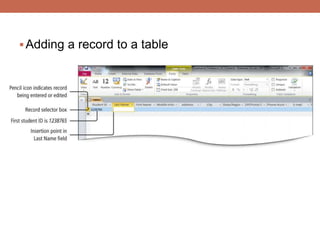
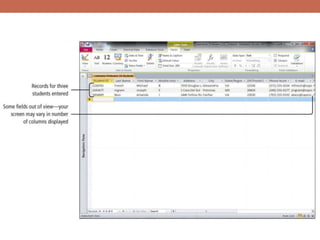
Adding a record to a table
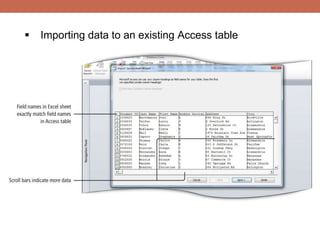
 Importing data to an existing Access table
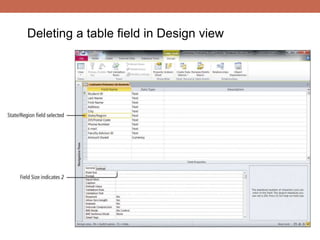
Deleting a table field in Design view
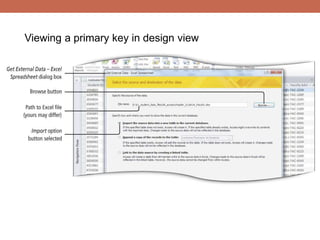
Viewing a primary key in design view
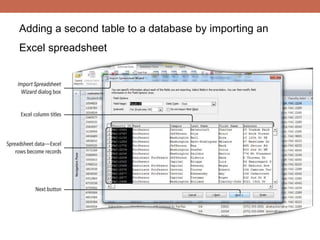
Adding a second table to a database by importing an
Excel spreadsheet
Adjusting column widths
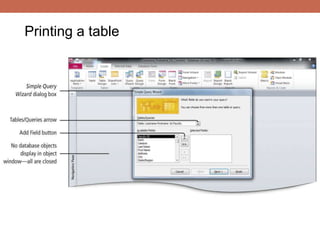
Printing a table
Create and Use a Query, Form, and Report
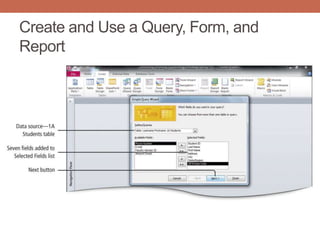
• A query is a database object that retrieves specific
data from one or more database objects—either tables
of other queries.
• A form is an Access object with which you can enter
data, edit data, or display data from a table or a query.
Create and Use a Query, Form, and
Report
Create and Use a Query, Form, and
Report
Create and Use a Query, Form, and
Report
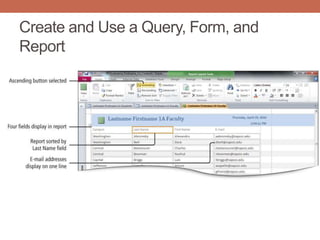
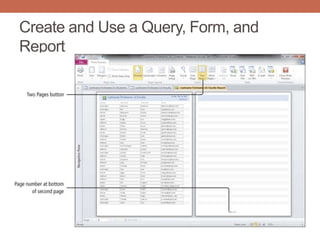
A report is a database object that displays the fields
and records from a table or a query in an easy-to-read
format suitable for printing.
Create and Use a Query, Form, and
Report
Save and Close a Database
 When you close an Access table, any changes made
to the records are saved automatically.
 You will be prompted to save changes to design of the
table or the layout of Datasheet view.
Save and Close a Database
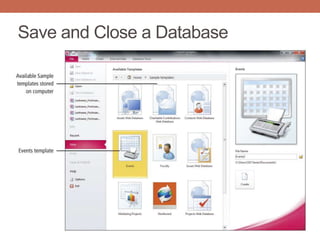
Create a Database Using a Template
 A database template contains pre-built tables, queries,
forms, and reports to perform a specific task.
 You do not have to create the objects.
 All you need to do is enter your data and modify the pre-built
objects to suit your needs.
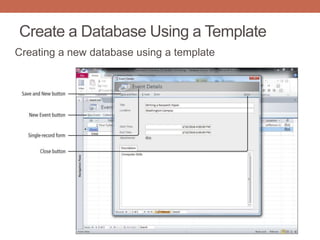
Create a Database Using a Template
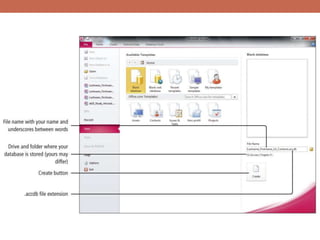
Creating a new database using a template
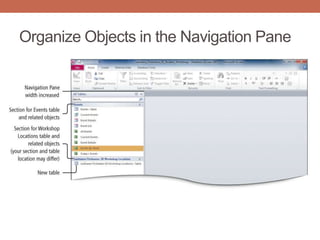
Organize Objects in the Navigation Pane
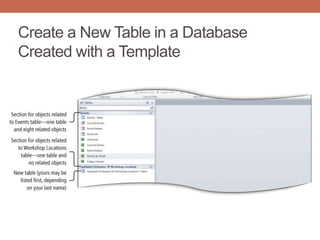
Create a New Table in a Database
Created with a Template
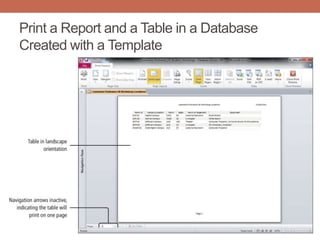
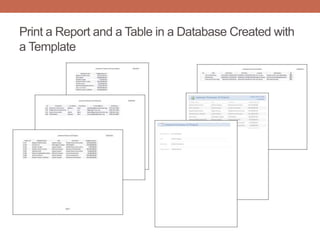
Print a Report and a Table in a Database
Created with a Template
Print a Report and a Table in a Database Created with
a Template
Sort and Query a Database
Objectives
• Open an Existing Database
• Create Table Relationships
• Sort Records in a Table
• Create a Query in Design View
• Create a New Query from an Existing Query
Objectives
• Sort Query Results
• Specify Criteria in a Query
• Specify Numeric Criteria in a Query
• Use Compound Criteria
• Create a Query Based on More Than One Table
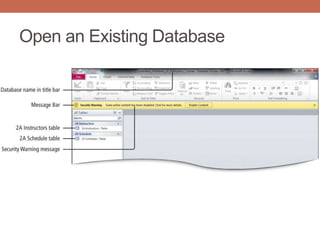
Open an Existing Database
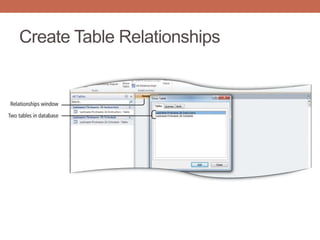
Create Table Relationships
 Access databases are relational databases, they connect to other
tables through common fields.
 Common fields are fields that contain the same data in more than one table.
 After you have a table for each subject in your database, you
must provide a way to connect the data in the tables when you
need meaningful information.
Create Table Relationships
 To connect the data in your tables, create common fields in
related tables, and then define table relationships.
 A relationship is an association established between two tables based
on common fields.
 Once established, you create a query, a form, or a report that displays
information from more than one table.
Create Table Relationships
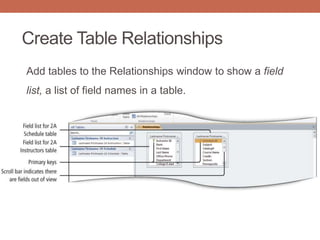
Add tables to the Relationships window to show a field
list, a list of field names in a table.
Create Table Relationships
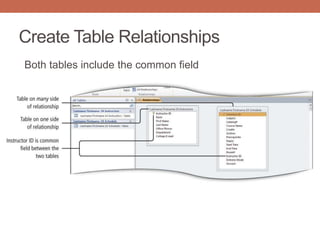
Both tables include the common field
Create Table Relationships
 A one-to-many relationship is the most common
 Example: Because one instructor can teach many different courses,
one Instructor ID number can be present many times in the 2A
Schedule table
 This relationship between each instructor and the course is known as
a one-to-many relationship
Create Table Relationships
 Dragging—creates the one-to-many relationship
 Foreign key—field in the related table that connects the
primary key in another table
 The one side—typically the primary key
 Referential integrity—set of rules to ensure that the data
between related tables is valid
Create Table Relationships
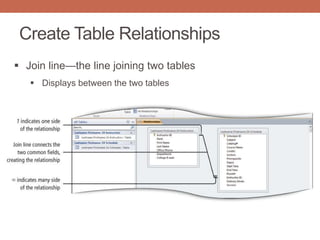
 Join line—the line joining two tables
 Displays between the two tables
Sort Records in a Table
 Sorting—process of arranging data in a specific order
based on the value in field
 Initially, records display in the order entered into the table.
 For a primary key field, records are displayed in order based on that
field.
Sort Records in a Table
 Sort records on two or more fields:
 Outermost sort field—first level of sorting
 Innermost sort field—second level of sorting
 For example, you might want to sort first by the Last Name field
(outermost sort field), and then by the First Name field (innermost
sort field).
Sort Records in a Table
 Sorting records:
 Ascending order sorts text alphabetically (A to Z) and sorts
numbers from the lowest number to the highest number.
 Descending order sorts text in reverse.
Create a Query in Design View
 Query
 Answers a question
 Creates a subset of records, according to your specifications
 Select query—database object that retrieves (selects) specific
data from one or more tables
 Query Design view—creates complex queries
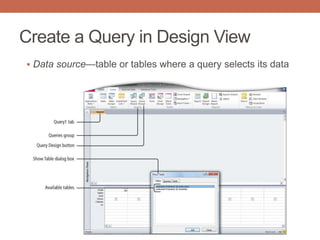
Create a Query in Design View
 Data source—table or tables where a query selects its data
Create a Query in Design View
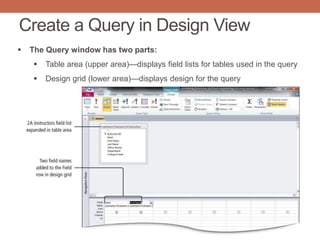
 The Query window has two parts:
 Table area (upper area)—displays field lists for tables used in the query
 Design grid (lower area)—displays design for the query
Create a Query in Design View
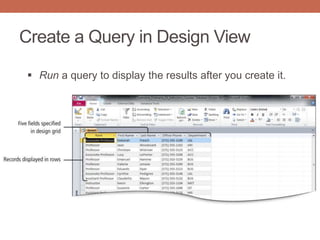
 Run a query to display the results after you create it.
Create a New Query from an Existing Query
 Modify an existing query, save with a new name,
use a new design
 An existing query saves time, if your new query uses all or
some of the same fields and conditions in an existing
query
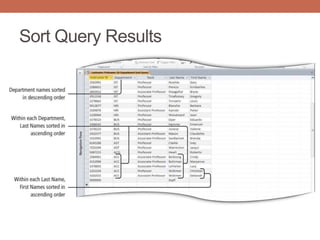
Sort Query Results
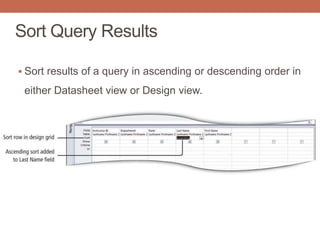
 Sort results of a query in ascending or descending order in
either Datasheet view or Design view.
Sort Query Results
 Design view—results displayed in a specified sort
order, or for sorted results in a report
 Fields with a Sort designation are sorted from left to right.
 Sorted field on left becomes the outermost sort field.
 Sorted field on right becomes the innermost sort field.
 Sorted results not what you intended? Be sure fields are displayed
from left to right according to the groupings desired.
Sort Query Results
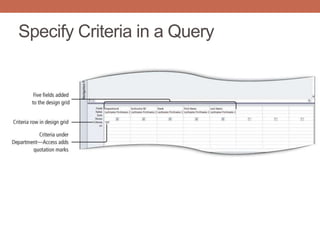
Specify Criteria in a Query
 Queries locate information based on criteria.
 Criteria
 Are conditions that identify the specific records you are looking
for
 Enable you to ask specific questions to get specific results
Specify Criteria in a Query
• Locate records where data is missing
• Missing records can be located using Is Null—empty—as the
criteria the field
• Is Not Null—displays only records where a value has been
entered as the criteria
Specify Numeric Criteria in a Query
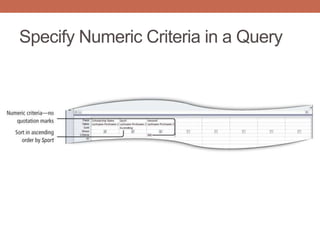
 Numeric data can be set as fields.
 Design your table setting using data type for fields that will
contain numbers, currency, or dates so mathematical
calculations can be performed.
Specify Numeric Criteria in a Query
 Comparison operators—symbols that evaluate each field
value
 Can determine if it is the same (=), greater than (>), less than (<), or in
between a range of values as specified by the criteria.
 Equal (=) is assumed, if no comparison operator is specified.
Specify Numeric Criteria in a Query
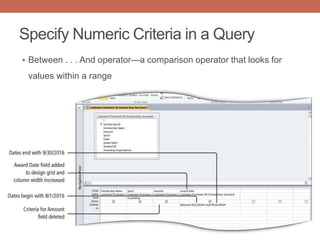
 Between . . . And operator—a comparison operator that looks for
values within a range
Use Compound Criteria
 Compound criteria—to specify more than one condition—criteria—in a
query
 Compound criteria use AND and OR logical operators.
 AND condition requires records to meet all parts of the specified criteria.
 OR condition specifies multiple criteria for a single field, or multiple criteria
for different fields and displays records that meet any of the conditions.
 Logical operators enable entry of criteria for the same field or different fields.
Use Compound Criteria
Create a Query Based on More Than One
Table
 Relational database—retrieve information from more than one table
 Tables are joined by relating the primary key field in one table to a
foreign key field in another.
 Creates a relationship
 Enables inclusion of data from more than one table in a query
 When extracting data from multiple tables, the information on the Table
row is helpful, especially when different tables include the same field
names.
Create a Query Based on More Than One
Table
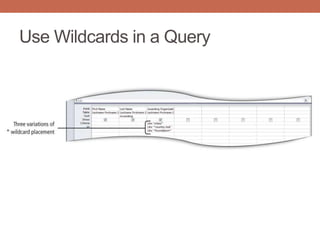
Use Wildcards in a Query
 Wildcard characters—serve as a placeholder for one or
more unknown characters in the criteria
 Use wildcard characters in place of the characters:
 Asterisk (*) is a placeholder to match one or more characters.
 Question mark (?) is a wildcard that is used to search for unknown
single characters.
Use Wildcards in a Query
Use Calculated Fields in a Query
 Calculated field—queries created from calculated values are
stored here
 A calculated field stores the value of a mathematical
operation.
 Multiply two fields together without having to include a specific field for
this amount in the table, which reduces the size of the database and
provides more flexibility.
Use Calculated Fields in a Query
 Calculated field query two steps:
 Name the field that will store the calculated values.
 Write the expression—the formula—that performs the
calculation.
 Each field name used in the calculation must be
enclosed within its own pair of square brackets.
Use Calculated Fields in a Query
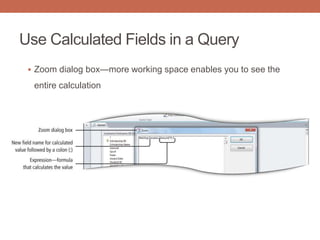
 Zoom dialog box—more working space enables you to see the
entire calculation
Use Calculated Fields in a Query
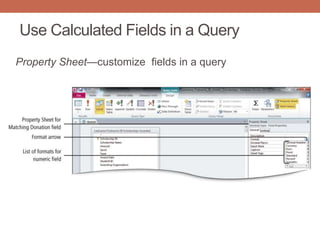
Property Sheet—customize fields in a query
Calculate Statistics and Group Data in a
Query
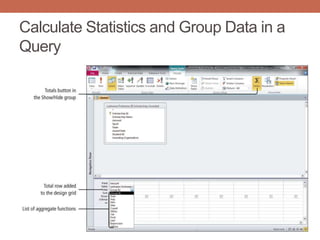
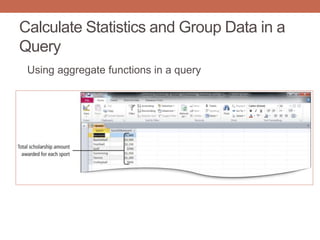
 Perform statistical calculations on a group of records
 Aggregate functions—calculations performed on a group of
records
 Include only the field summarized in the query, so that the aggregate
function (sum, average, minimum, maximum, etc.) is applied to that single
field
 Can also be used to calculate totals by groups of data
Calculate Statistics and Group Data in a
Query
Calculate Statistics and Group Data in a
Query
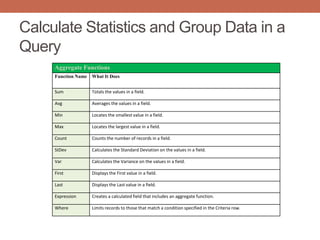
Aggregate Functions
Function Name What It Does
Sum Totals the values in a field.
Avg Averages the values in a field.
Min Locates the smallest value in a field.
Max Locates the largest value in a field.
Count Counts the number of records in a field.
StDev Calculates the Standard Deviation on the values in a field.
Var Calculates the Variance on the values in a field.
First Displays the First value in a field.
Last Displays the Last value in a field.
Expression Creates a calculated field that includes an aggregate function.
Where Limits records to those that match a condition specified in the Criteria row.
Calculate Statistics and Group Data in a
Query
Using aggregate functions in a query
Create a Crosstab Query
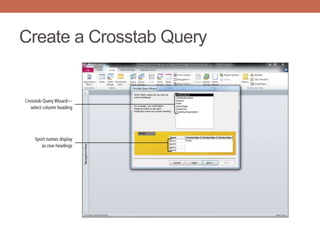
 A crosstab query:
 Uses an aggregate function for data that can be grouped by
two types of information
 Displays data in a compact, spreadsheet-like format
 Always has at least one row heading, one column heading, and
one summary field
 Use a crosstab query to summarize a large amount of data in
a small space so that is easy to read
Create a Crosstab Query

Chapter 4 microsoft access 2010

  • 1.
  • 2.
    Identify Good DatabaseDesign • A database is an organized collection of data—facts about people, events, things, or ideas—related to a specific topic or purpose. • Information is data that is organized in a useful manner.
  • 3.
    Identify Good DatabaseDesign • Use good design techniques when creating a new database. • Determine the information you want to keep track of to create a new database. • Ask yourself, “What questions should this database be able to answer for me?” • The purpose of a database is to store data in a manner that makes it easy for you to get the information you need.
  • 4.
  • 5.
    Create a Tableand Define Fields in a New Blank Database
  • 10.
    Renaming fields andchanging data types
  • 11.
  • 13.
     Importing datato an existing Access table
  • 15.
    Deleting a tablefield in Design view
  • 16.
    Viewing a primarykey in design view
  • 17.
    Adding a secondtable to a database by importing an Excel spreadsheet
  • 18.
  • 19.
  • 20.
    Create and Usea Query, Form, and Report • A query is a database object that retrieves specific data from one or more database objects—either tables of other queries. • A form is an Access object with which you can enter data, edit data, or display data from a table or a query.
  • 21.
    Create and Usea Query, Form, and Report
  • 22.
    Create and Usea Query, Form, and Report
  • 23.
    Create and Usea Query, Form, and Report A report is a database object that displays the fields and records from a table or a query in an easy-to-read format suitable for printing.
  • 24.
    Create and Usea Query, Form, and Report
  • 25.
    Save and Closea Database  When you close an Access table, any changes made to the records are saved automatically.  You will be prompted to save changes to design of the table or the layout of Datasheet view.
  • 26.
    Save and Closea Database
  • 27.
    Create a DatabaseUsing a Template  A database template contains pre-built tables, queries, forms, and reports to perform a specific task.  You do not have to create the objects.  All you need to do is enter your data and modify the pre-built objects to suit your needs.
  • 28.
    Create a DatabaseUsing a Template Creating a new database using a template
  • 29.
    Organize Objects inthe Navigation Pane
  • 30.
    Create a NewTable in a Database Created with a Template
  • 31.
    Print a Reportand a Table in a Database Created with a Template
  • 32.
    Print a Reportand a Table in a Database Created with a Template
  • 33.
    Sort and Querya Database
  • 34.
    Objectives • Open anExisting Database • Create Table Relationships • Sort Records in a Table • Create a Query in Design View • Create a New Query from an Existing Query
  • 35.
    Objectives • Sort QueryResults • Specify Criteria in a Query • Specify Numeric Criteria in a Query • Use Compound Criteria • Create a Query Based on More Than One Table
  • 36.
  • 37.
    Create Table Relationships Access databases are relational databases, they connect to other tables through common fields.  Common fields are fields that contain the same data in more than one table.  After you have a table for each subject in your database, you must provide a way to connect the data in the tables when you need meaningful information.
  • 38.
    Create Table Relationships To connect the data in your tables, create common fields in related tables, and then define table relationships.  A relationship is an association established between two tables based on common fields.  Once established, you create a query, a form, or a report that displays information from more than one table.
  • 39.
  • 40.
    Create Table Relationships Addtables to the Relationships window to show a field list, a list of field names in a table.
  • 41.
    Create Table Relationships Bothtables include the common field
  • 42.
    Create Table Relationships A one-to-many relationship is the most common  Example: Because one instructor can teach many different courses, one Instructor ID number can be present many times in the 2A Schedule table  This relationship between each instructor and the course is known as a one-to-many relationship
  • 43.
    Create Table Relationships Dragging—creates the one-to-many relationship  Foreign key—field in the related table that connects the primary key in another table  The one side—typically the primary key  Referential integrity—set of rules to ensure that the data between related tables is valid
  • 44.
    Create Table Relationships Join line—the line joining two tables  Displays between the two tables
  • 45.
    Sort Records ina Table  Sorting—process of arranging data in a specific order based on the value in field  Initially, records display in the order entered into the table.  For a primary key field, records are displayed in order based on that field.
  • 46.
    Sort Records ina Table  Sort records on two or more fields:  Outermost sort field—first level of sorting  Innermost sort field—second level of sorting  For example, you might want to sort first by the Last Name field (outermost sort field), and then by the First Name field (innermost sort field).
  • 47.
    Sort Records ina Table  Sorting records:  Ascending order sorts text alphabetically (A to Z) and sorts numbers from the lowest number to the highest number.  Descending order sorts text in reverse.
  • 48.
    Create a Queryin Design View  Query  Answers a question  Creates a subset of records, according to your specifications  Select query—database object that retrieves (selects) specific data from one or more tables  Query Design view—creates complex queries
  • 49.
    Create a Queryin Design View  Data source—table or tables where a query selects its data
  • 50.
    Create a Queryin Design View  The Query window has two parts:  Table area (upper area)—displays field lists for tables used in the query  Design grid (lower area)—displays design for the query
  • 51.
    Create a Queryin Design View  Run a query to display the results after you create it.
  • 52.
    Create a NewQuery from an Existing Query  Modify an existing query, save with a new name, use a new design  An existing query saves time, if your new query uses all or some of the same fields and conditions in an existing query
  • 53.
    Sort Query Results Sort results of a query in ascending or descending order in either Datasheet view or Design view.
  • 54.
    Sort Query Results Design view—results displayed in a specified sort order, or for sorted results in a report  Fields with a Sort designation are sorted from left to right.  Sorted field on left becomes the outermost sort field.  Sorted field on right becomes the innermost sort field.  Sorted results not what you intended? Be sure fields are displayed from left to right according to the groupings desired.
  • 55.
  • 56.
    Specify Criteria ina Query  Queries locate information based on criteria.  Criteria  Are conditions that identify the specific records you are looking for  Enable you to ask specific questions to get specific results
  • 57.
  • 58.
    Specify Criteria ina Query • Locate records where data is missing • Missing records can be located using Is Null—empty—as the criteria the field • Is Not Null—displays only records where a value has been entered as the criteria
  • 59.
    Specify Numeric Criteriain a Query  Numeric data can be set as fields.  Design your table setting using data type for fields that will contain numbers, currency, or dates so mathematical calculations can be performed.
  • 60.
  • 61.
    Specify Numeric Criteriain a Query  Comparison operators—symbols that evaluate each field value  Can determine if it is the same (=), greater than (>), less than (<), or in between a range of values as specified by the criteria.  Equal (=) is assumed, if no comparison operator is specified.
  • 62.
    Specify Numeric Criteriain a Query  Between . . . And operator—a comparison operator that looks for values within a range
  • 63.
    Use Compound Criteria Compound criteria—to specify more than one condition—criteria—in a query  Compound criteria use AND and OR logical operators.  AND condition requires records to meet all parts of the specified criteria.  OR condition specifies multiple criteria for a single field, or multiple criteria for different fields and displays records that meet any of the conditions.  Logical operators enable entry of criteria for the same field or different fields.
  • 64.
  • 65.
    Create a QueryBased on More Than One Table  Relational database—retrieve information from more than one table  Tables are joined by relating the primary key field in one table to a foreign key field in another.  Creates a relationship  Enables inclusion of data from more than one table in a query  When extracting data from multiple tables, the information on the Table row is helpful, especially when different tables include the same field names.
  • 66.
    Create a QueryBased on More Than One Table
  • 67.
    Use Wildcards ina Query  Wildcard characters—serve as a placeholder for one or more unknown characters in the criteria  Use wildcard characters in place of the characters:  Asterisk (*) is a placeholder to match one or more characters.  Question mark (?) is a wildcard that is used to search for unknown single characters.
  • 68.
  • 69.
    Use Calculated Fieldsin a Query  Calculated field—queries created from calculated values are stored here  A calculated field stores the value of a mathematical operation.  Multiply two fields together without having to include a specific field for this amount in the table, which reduces the size of the database and provides more flexibility.
  • 70.
    Use Calculated Fieldsin a Query  Calculated field query two steps:  Name the field that will store the calculated values.  Write the expression—the formula—that performs the calculation.  Each field name used in the calculation must be enclosed within its own pair of square brackets.
  • 71.
    Use Calculated Fieldsin a Query  Zoom dialog box—more working space enables you to see the entire calculation
  • 72.
    Use Calculated Fieldsin a Query Property Sheet—customize fields in a query
  • 73.
    Calculate Statistics andGroup Data in a Query  Perform statistical calculations on a group of records  Aggregate functions—calculations performed on a group of records  Include only the field summarized in the query, so that the aggregate function (sum, average, minimum, maximum, etc.) is applied to that single field  Can also be used to calculate totals by groups of data
  • 74.
    Calculate Statistics andGroup Data in a Query
  • 75.
    Calculate Statistics andGroup Data in a Query Aggregate Functions Function Name What It Does Sum Totals the values in a field. Avg Averages the values in a field. Min Locates the smallest value in a field. Max Locates the largest value in a field. Count Counts the number of records in a field. StDev Calculates the Standard Deviation on the values in a field. Var Calculates the Variance on the values in a field. First Displays the First value in a field. Last Displays the Last value in a field. Expression Creates a calculated field that includes an aggregate function. Where Limits records to those that match a condition specified in the Criteria row.
  • 76.
    Calculate Statistics andGroup Data in a Query Using aggregate functions in a query
  • 77.
    Create a CrosstabQuery  A crosstab query:  Uses an aggregate function for data that can be grouped by two types of information  Displays data in a compact, spreadsheet-like format  Always has at least one row heading, one column heading, and one summary field  Use a crosstab query to summarize a large amount of data in a small space so that is easy to read
  • 78.

Editor's Notes