Access Lesson 5
Creating and Modifying Reports

Microsoft Office 2010
Introductory

1

Pasewark & Pasewark
Objectives
Create a report using the Report tool, the
Label Wizard, and the Report Wizard.
Modify a report in Layout view.
Modify a report in Design view.
Add a line, label, and picture to a report.
Move a control in a report.
Resize a report.

Access Lesson 5




2

Pasewark & Pasewark







Microsoft Office 2010 Introductory
Vocabulary

Access Lesson 5



grouping level
Label Wizard
Line tool
Print Preview
read-only



3

Pasewark & Pasewark









report
report selector
Report tool
Report Wizard

Microsoft Office 2010 Introductory
Creating a Report Using the
Report Tool

Access Lesson 5



–
–
–



4

A report is a database object that displays
data from one or more tables or queries in a
format that has an appearance similar to a
printed report. You can use reports to:
Create a formatted list of information
Summarize information
Print form letters and mailing labels

The tables or queries that contain the data
used in a report are called the record source.

Pasewark & Pasewark

Microsoft Office 2010 Introductory
Creating a Report Using the
Report Tool (continued)
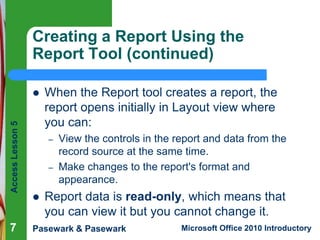
The Report tool quickly creates a simple
report that includes all the fields in the
selected table or query, uses a columnar
format, formats the report using a theme, and
includes a title with the same name as the
record source.
When fields appear in a report, they appear
in controls.

Access Lesson 5





5

Pasewark & Pasewark

Microsoft Office 2010 Introductory
Creating a Report Using the
Report Tool (continued)
Report created using the Report tool

Access Lesson 5



6

Pasewark & Pasewark

Microsoft Office 2010 Introductory
Creating a Report Using the
Report Tool (continued)

Access Lesson 5



7

When the Report tool creates a report, the
report opens initially in Layout view where
you can:
–
–



View the controls in the report and data from the
record source at the same time.
Make changes to the report's format and
appearance.

Report data is read-only, which means that
you can view it but you cannot change it.

Pasewark & Pasewark

Microsoft Office 2010 Introductory
Creating a Report Using the Label
Wizard
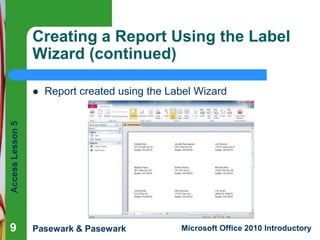
The Label Wizard lets you create a report to
print standard or custom labels.
Use the Label Wizard dialog boxes to choose
the font name, style, size, and color to use
when printing the labels.
When you use a wizard to create a report,
the report opens in Print Preview.

Access Lesson 5




8

Pasewark & Pasewark



Microsoft Office 2010 Introductory
Creating a Report Using the Label
Wizard (continued)
Report created using the Label Wizard

Access Lesson 5



9

Pasewark & Pasewark

Microsoft Office 2010 Introductory
Creating a Report Using the Report
Wizard

Access Lesson 5



10





To create a customized report quickly, use
the Report Wizard.
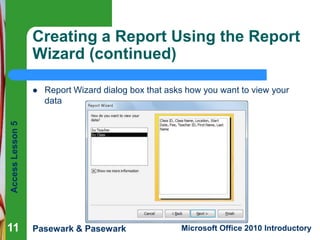
A grouping level organizes data based on
one or more fields. You can also choose a
sort order.
The layout options for reports are Stepped,
Block, and Outline, which arrange data in
different ways.

Pasewark & Pasewark

Microsoft Office 2010 Introductory
Creating a Report Using the Report
Wizard (continued)
Report Wizard dialog box that asks how you want to view your
data

Access Lesson 5



11

Pasewark & Pasewark

Microsoft Office 2010 Introductory
Modifying a Report in Layout View

Access Lesson 5



12




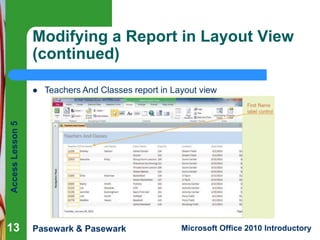
An easy way to create a report is to use the
Report Wizard.
You can use Layout view to make
adjustments to the report.
Controls in reports are grouped in control
layouts, just like they are in forms.

Pasewark & Pasewark

Microsoft Office 2010 Introductory
Modifying a Report in Layout View
(continued)
Teachers And Classes report in Layout view

Access Lesson 5



13

Pasewark & Pasewark

Microsoft Office 2010 Introductory
Modifying a Report in Design View

Access Lesson 5







14

There are certain types of report changes
that you must make in Design view.
When you view a report in Design view, you
see the different sections of the report.
To add a control to a report, click the button
in the Controls group and then click the
desired location in the report.
The Line tool lets you draw a line in a report.

Pasewark & Pasewark

Microsoft Office 2010 Introductory
Modifying a Report in Design View
(continued)
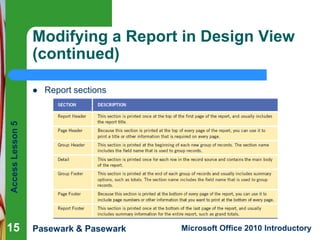
Report sections

Access Lesson 5



15

Pasewark & Pasewark

Microsoft Office 2010 Introductory
Modifying a Report in Design View
(continued)

Access Lesson 5



16






Add new controls to a report by using the
tools in the Controls group.
Drag a control to position it on the page.
To resize a report, drag the report's edge or
use the report selector.
You can add any type of picture to a report.

Pasewark & Pasewark

Microsoft Office 2010 Introductory
Modifying a Report in Design View
(continued)
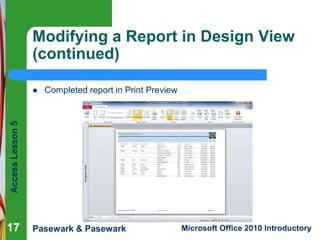
Completed report in Print Preview

Access Lesson 5



17

Pasewark & Pasewark

Microsoft Office 2010 Introductory
Access Lesson 5

Summary

18

In this lesson, you learned:
 A report is a database object that displays data from one
or more tables or queries in a format that has an
appearance similar to a printed report. You can use the
Report tool or the Report Wizard to create a report. You
can also use the Label Wizard to create a report that is
used to print labels.
 When used in a report, a field that is used as a grouping
level organizes data into groups. You can also choose to
sort data within the groups based on a field.
Pasewark & Pasewark

Microsoft Office 2010 Introductory
Summary (continued)

Access Lesson 5



19



When working in Layout view, you can resize
the controls in a control layout by selecting
the control and dragging its edge to increase
or decrease its width.
You can use Design view to change the
height of a report section. You can also add a
line, label, or picture to a report. You can
change the location of a control in a report by
dragging it to a new location.

Pasewark & Pasewark

Microsoft Office 2010 Introductory
Summary (continued)

Access Lesson 5



20

When a report contains blank pages, drag
the right edge of the report to resize the
report, or click the report selector to select
the report, click the Error Checking Options
button, and then click the Remove Extra
Report Space option on the shortcut menu to
resize the report.

Pasewark & Pasewark

Microsoft Office 2010 Introductory

Access lesson05

  • 1.
    Access Lesson 5 Creatingand Modifying Reports Microsoft Office 2010 Introductory 1 Pasewark & Pasewark
  • 2.
    Objectives Create a reportusing the Report tool, the Label Wizard, and the Report Wizard. Modify a report in Layout view. Modify a report in Design view. Add a line, label, and picture to a report. Move a control in a report. Resize a report. Access Lesson 5   2 Pasewark & Pasewark     Microsoft Office 2010 Introductory
  • 3.
    Vocabulary  Access Lesson 5  groupinglevel Label Wizard Line tool Print Preview read-only  3 Pasewark & Pasewark       report report selector Report tool Report Wizard Microsoft Office 2010 Introductory
  • 4.
    Creating a ReportUsing the Report Tool Access Lesson 5  – – –  4 A report is a database object that displays data from one or more tables or queries in a format that has an appearance similar to a printed report. You can use reports to: Create a formatted list of information Summarize information Print form letters and mailing labels The tables or queries that contain the data used in a report are called the record source. Pasewark & Pasewark Microsoft Office 2010 Introductory
  • 5.
    Creating a ReportUsing the Report Tool (continued) The Report tool quickly creates a simple report that includes all the fields in the selected table or query, uses a columnar format, formats the report using a theme, and includes a title with the same name as the record source. When fields appear in a report, they appear in controls. Access Lesson 5   5 Pasewark & Pasewark Microsoft Office 2010 Introductory
  • 6.
    Creating a ReportUsing the Report Tool (continued) Report created using the Report tool Access Lesson 5  6 Pasewark & Pasewark Microsoft Office 2010 Introductory
  • 7.
    Creating a ReportUsing the Report Tool (continued) Access Lesson 5  7 When the Report tool creates a report, the report opens initially in Layout view where you can: – –  View the controls in the report and data from the record source at the same time. Make changes to the report's format and appearance. Report data is read-only, which means that you can view it but you cannot change it. Pasewark & Pasewark Microsoft Office 2010 Introductory
  • 8.
    Creating a ReportUsing the Label Wizard The Label Wizard lets you create a report to print standard or custom labels. Use the Label Wizard dialog boxes to choose the font name, style, size, and color to use when printing the labels. When you use a wizard to create a report, the report opens in Print Preview. Access Lesson 5   8 Pasewark & Pasewark  Microsoft Office 2010 Introductory
  • 9.
    Creating a ReportUsing the Label Wizard (continued) Report created using the Label Wizard Access Lesson 5  9 Pasewark & Pasewark Microsoft Office 2010 Introductory
  • 10.
    Creating a ReportUsing the Report Wizard Access Lesson 5  10   To create a customized report quickly, use the Report Wizard. A grouping level organizes data based on one or more fields. You can also choose a sort order. The layout options for reports are Stepped, Block, and Outline, which arrange data in different ways. Pasewark & Pasewark Microsoft Office 2010 Introductory
  • 11.
    Creating a ReportUsing the Report Wizard (continued) Report Wizard dialog box that asks how you want to view your data Access Lesson 5  11 Pasewark & Pasewark Microsoft Office 2010 Introductory
  • 12.
    Modifying a Reportin Layout View Access Lesson 5  12   An easy way to create a report is to use the Report Wizard. You can use Layout view to make adjustments to the report. Controls in reports are grouped in control layouts, just like they are in forms. Pasewark & Pasewark Microsoft Office 2010 Introductory
  • 13.
    Modifying a Reportin Layout View (continued) Teachers And Classes report in Layout view Access Lesson 5  13 Pasewark & Pasewark Microsoft Office 2010 Introductory
  • 14.
    Modifying a Reportin Design View Access Lesson 5     14 There are certain types of report changes that you must make in Design view. When you view a report in Design view, you see the different sections of the report. To add a control to a report, click the button in the Controls group and then click the desired location in the report. The Line tool lets you draw a line in a report. Pasewark & Pasewark Microsoft Office 2010 Introductory
  • 15.
    Modifying a Reportin Design View (continued) Report sections Access Lesson 5  15 Pasewark & Pasewark Microsoft Office 2010 Introductory
  • 16.
    Modifying a Reportin Design View (continued) Access Lesson 5  16    Add new controls to a report by using the tools in the Controls group. Drag a control to position it on the page. To resize a report, drag the report's edge or use the report selector. You can add any type of picture to a report. Pasewark & Pasewark Microsoft Office 2010 Introductory
  • 17.
    Modifying a Reportin Design View (continued) Completed report in Print Preview Access Lesson 5  17 Pasewark & Pasewark Microsoft Office 2010 Introductory
  • 18.
    Access Lesson 5 Summary 18 Inthis lesson, you learned:  A report is a database object that displays data from one or more tables or queries in a format that has an appearance similar to a printed report. You can use the Report tool or the Report Wizard to create a report. You can also use the Label Wizard to create a report that is used to print labels.  When used in a report, a field that is used as a grouping level organizes data into groups. You can also choose to sort data within the groups based on a field. Pasewark & Pasewark Microsoft Office 2010 Introductory
  • 19.
    Summary (continued) Access Lesson5  19  When working in Layout view, you can resize the controls in a control layout by selecting the control and dragging its edge to increase or decrease its width. You can use Design view to change the height of a report section. You can also add a line, label, or picture to a report. You can change the location of a control in a report by dragging it to a new location. Pasewark & Pasewark Microsoft Office 2010 Introductory
  • 20.
    Summary (continued) Access Lesson5  20 When a report contains blank pages, drag the right edge of the report to resize the report, or click the report selector to select the report, click the Error Checking Options button, and then click the Remove Extra Report Space option on the shortcut menu to resize the report. Pasewark & Pasewark Microsoft Office 2010 Introductory