E X E C L
Basic features of MS Excel Saving MS Excel Closing MS Excel Parts of MS Excel Opening MS Excel
Customizing Excel Modifying a Worksheet Formatting Cells Formulas and Functions Sorting and Filling Graphics and Charts Features of MS Excel
Opening MS Excel Click the  START  button Select  All Programs Click  Microsoft Excel   and wait .
 
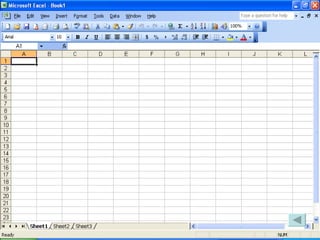
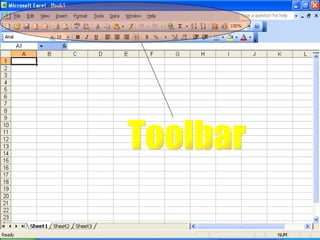
This are the parts of MS Excel: Name Box, Formula Bar, Row Number, Sheet Tab, Active Cell, Column, Row Located between the menu bar and the formula bar. Contains tools represented by icons for graphical access to commands Toolbar EXCEL
Toolbar
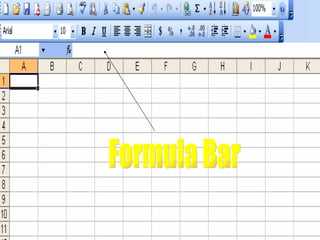
FORMULA BAR Located above the document window. Displays cell contents and can be activated to edit cell contents. Formula Bar EXCEL
Formula Bar
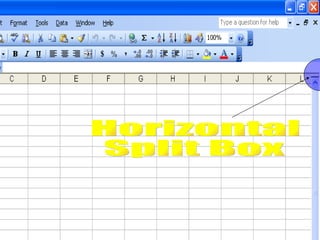
HORIZONTAL SPLIT BOX Located at the end of the scroll bar after the formula bar. It is used for dragging to a new location to split the window.  Horizontal Split Box EXCEL
Horizontal Split Box
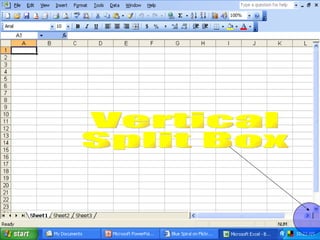
VERTICAL SPLIT BOX Located at the end of the scroll bar after to split the window into two views. Vertical Split Box EXCEL
Vertical Split Box
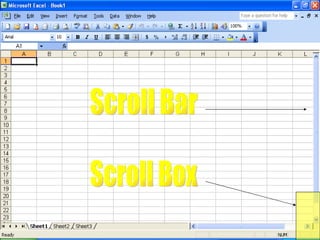
SCROLL BAR Located along the right side and bottom of the document window. Use to moved the screen display horizontally or vertically. Contains arrow and a box that move along the bar as the arrow are activated. Scroll Bar EXCEL
SCROLL BOX Allows you to move the box to a particular location of a page in scrolling the vertical and horizontal portion of the screen.  Scroll Box EXCEL
Scroll Bar Scroll Box
STATUS INDICATOR Located at the bottom of the application window. Displays about the command you are using or what to do next.  Status Indicator EXCEL
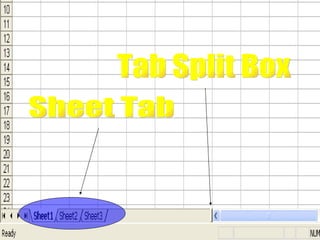
TAB SPLIT BOX and SHEET TAB You can drag going to left or right in order to adjust the sizes  Tab Split Box EXCEL Sheet Tab Allows you to move to a particular sheet that you want to work on.
Sheet Tab Tab Split Box
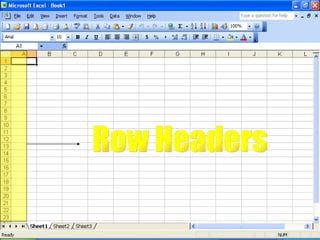
ROW HEADERS Runs vertically with numbers Row Headers EXCEL
Row Headers
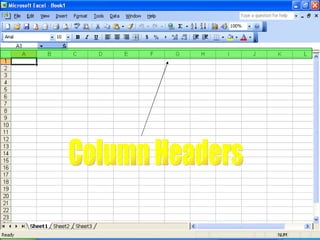
COLUMN HEADERS Column runs horizontally with letters Column Headers EXCEL
Column Headers
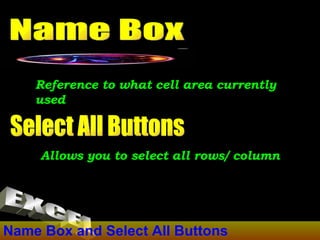
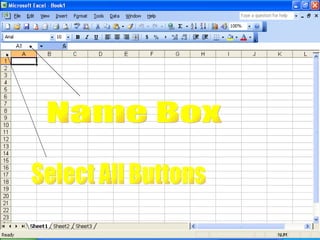
Name Box and Select All Buttons Reference to what cell area currently used Name Box EXCEL Select All Buttons Allows you to select all rows/ column
Name Box Select All Buttons
ROWS and COLUMNS How many rows we have? How many columns we have in Microsoft Excel? Rows and Columns EXCEL
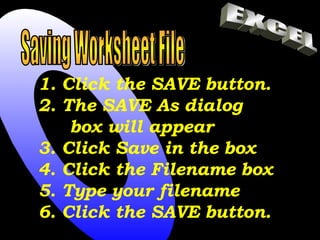
Saving Worksheet File Click the SAVE button. The SAVE As dialog box will appear 3. Click Save in the box 4. Click the Filename box 5. Type your filename 6. Click the SAVE button. EXCEL
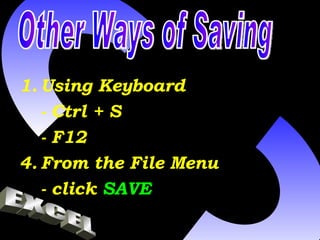
Using Keyboard - Ctrl + S - F12 From the File Menu - click  SAVE Other Ways of Saving EXCEL
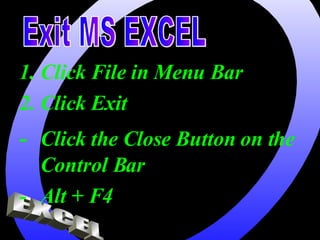
Click File in Menu Bar Click Exit EXCEL Exit MS EXCEL - Click the Close Button on the Control Bar - Alt + F4

MS Excel 2nd

  • 1.
    E X EC L
  • 2.
    Basic features ofMS Excel Saving MS Excel Closing MS Excel Parts of MS Excel Opening MS Excel
  • 3.
    Customizing Excel Modifyinga Worksheet Formatting Cells Formulas and Functions Sorting and Filling Graphics and Charts Features of MS Excel
  • 4.
    Opening MS ExcelClick the START button Select All Programs Click Microsoft Excel and wait .
  • 5.
  • 6.
    This are theparts of MS Excel: Name Box, Formula Bar, Row Number, Sheet Tab, Active Cell, Column, Row Located between the menu bar and the formula bar. Contains tools represented by icons for graphical access to commands Toolbar EXCEL
  • 7.
  • 8.
    FORMULA BAR Locatedabove the document window. Displays cell contents and can be activated to edit cell contents. Formula Bar EXCEL
  • 9.
  • 10.
    HORIZONTAL SPLIT BOXLocated at the end of the scroll bar after the formula bar. It is used for dragging to a new location to split the window. Horizontal Split Box EXCEL
  • 11.
  • 12.
    VERTICAL SPLIT BOXLocated at the end of the scroll bar after to split the window into two views. Vertical Split Box EXCEL
  • 13.
  • 14.
    SCROLL BAR Locatedalong the right side and bottom of the document window. Use to moved the screen display horizontally or vertically. Contains arrow and a box that move along the bar as the arrow are activated. Scroll Bar EXCEL
  • 15.
    SCROLL BOX Allowsyou to move the box to a particular location of a page in scrolling the vertical and horizontal portion of the screen. Scroll Box EXCEL
  • 16.
  • 17.
    STATUS INDICATOR Locatedat the bottom of the application window. Displays about the command you are using or what to do next. Status Indicator EXCEL
  • 18.
    TAB SPLIT BOXand SHEET TAB You can drag going to left or right in order to adjust the sizes Tab Split Box EXCEL Sheet Tab Allows you to move to a particular sheet that you want to work on.
  • 19.
    Sheet Tab TabSplit Box
  • 20.
    ROW HEADERS Runsvertically with numbers Row Headers EXCEL
  • 21.
  • 22.
    COLUMN HEADERS Columnruns horizontally with letters Column Headers EXCEL
  • 23.
  • 24.
    Name Box andSelect All Buttons Reference to what cell area currently used Name Box EXCEL Select All Buttons Allows you to select all rows/ column
  • 25.
    Name Box SelectAll Buttons
  • 26.
    ROWS and COLUMNSHow many rows we have? How many columns we have in Microsoft Excel? Rows and Columns EXCEL
  • 27.
    Saving Worksheet FileClick the SAVE button. The SAVE As dialog box will appear 3. Click Save in the box 4. Click the Filename box 5. Type your filename 6. Click the SAVE button. EXCEL
  • 28.
    Using Keyboard -Ctrl + S - F12 From the File Menu - click SAVE Other Ways of Saving EXCEL
  • 29.
    Click File inMenu Bar Click Exit EXCEL Exit MS EXCEL - Click the Close Button on the Control Bar - Alt + F4