Creating Relationships with Tables
The word  “relationship”  is the key to the power of  Open Office Database and other Relational Database Management System (RDBMS)s.  The ability to create and act on relationships between tables is the real power of relational databases.
Relational databases use fields called  Key fields , which are common among one or more tables to establish these relationships.  There are three ways of relationships can be created.  They are: One-to -one
One-to-many .
Many-to-many
One-to -one:   For every record in one of the tables, one corresponding record exists in other table.
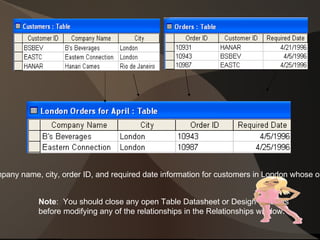
One-to-many:   For each record in a table, many corresponding records may exist in the related table.
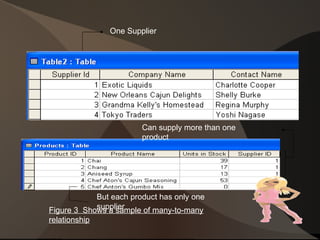
Many-to-many:   For each record in table A, many records may exist in table B; or for each record in table B, many records may exist in table A.  Many-to-many should not exist in a well-designed database.
How to Create Relationships while Creating Tables You can define relationships either while creating a table or afterward.  Both tables must exist in database in order for you to define a relationship.
Using the Table Wizard An easy way to create a new table that is based on a predefined template using Table Wizard.  It is used to create a table to store customers and a table to store orders to create a relationship between students Info or grade table.  Follow these steps: Start Access with a blank database.  Name the database  Relationship Example.
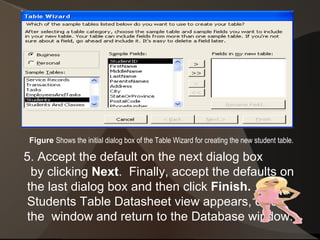
2. Click the New button on the Tables tab of the Database window.  Select the  Table Wizard  from the list that appears, then click  OK. 3. On the first dialog box of the wizard, choose  students  from the  Sample Tables  list box.  Then move all the fields in the  Sample Fields list  box to the  Fields in My New Table list box . 4. Click the >>button.  The dialog box should appear identical to the one show below:
Figure  Shows the initial dialog box of the Table Wizard for creating the new student table. 5. Accept the default on the next dialog box  by clicking  Next .  Finally, accept the defaults on  the last dialog box and then click  Finish.   The  Students Table Datasheet view appears, close the  window and return to the Database window.
You can add the  Students Grade  table in a similar manner.  Because an existing table is in the database, however, the  Table Wizard  provides an additional dialog box.  In this dialog box, you can establish a relationship between the  Students Info  table.  Follow these steps to create the  Students Grade Table , and establish  the relationship:
Click  New , with the Tables tab active in the database window.
Select the  Students Grade  table from the Sample Table list.  Select all fields from the Sample Fields list by clicking the >> button.  Click  Next.
Accept the defaults in the next dialog box.  Click  Next.
The dialog box appears, Access has already assumed that a relationship exists between the  Students Info  and  Students Grade tables , thanks to the  Student ID  field that appears in both tables.
Using the Toolbar You are going to create the  Students Grade  table and afterwards relate this table to  Students Info  table based on their common field – Students ID .  The  Student Info  table provides the general information about a particular student, and the  Student’s Grade  table will provide the necessary data to find his average.
Open the  Students Info  Database.
Click  Table tab  from the  Database Window , then click  New  button.
Choose the  Design View  button and click  OK.
Define the following fields and  Field Properties . Set the  Students ID .  Field set the Field Size to  Byte .  The remaining field creates their  Field Size Property  to  Long Integer  and set the  Decimal Places  property to 2. 5.  Click the  File  menu, and choose  Save . 6.  Type  Students Grade  as the name of the Table, from the  Table Name  box of the  Save as dialog box. 7.  Click on the  OK  button.

Creating relationships with tables

  • 1.
  • 2.
    The word “relationship” is the key to the power of Open Office Database and other Relational Database Management System (RDBMS)s. The ability to create and act on relationships between tables is the real power of relational databases.
  • 3.
    Relational databases usefields called Key fields , which are common among one or more tables to establish these relationships. There are three ways of relationships can be created. They are: One-to -one
  • 4.
  • 5.
  • 6.
    One-to -one: For every record in one of the tables, one corresponding record exists in other table.
  • 7.
    One-to-many: For each record in a table, many corresponding records may exist in the related table.
  • 8.
    Many-to-many: For each record in table A, many records may exist in table B; or for each record in table B, many records may exist in table A. Many-to-many should not exist in a well-designed database.
  • 9.
    How to CreateRelationships while Creating Tables You can define relationships either while creating a table or afterward. Both tables must exist in database in order for you to define a relationship.
  • 10.
    Using the TableWizard An easy way to create a new table that is based on a predefined template using Table Wizard. It is used to create a table to store customers and a table to store orders to create a relationship between students Info or grade table. Follow these steps: Start Access with a blank database. Name the database Relationship Example.
  • 11.
    2. Click theNew button on the Tables tab of the Database window. Select the Table Wizard from the list that appears, then click OK. 3. On the first dialog box of the wizard, choose students from the Sample Tables list box. Then move all the fields in the Sample Fields list box to the Fields in My New Table list box . 4. Click the >>button. The dialog box should appear identical to the one show below:
  • 12.
    Figure Showsthe initial dialog box of the Table Wizard for creating the new student table. 5. Accept the default on the next dialog box by clicking Next . Finally, accept the defaults on the last dialog box and then click Finish. The Students Table Datasheet view appears, close the window and return to the Database window.
  • 13.
    You can addthe Students Grade table in a similar manner. Because an existing table is in the database, however, the Table Wizard provides an additional dialog box. In this dialog box, you can establish a relationship between the Students Info table. Follow these steps to create the Students Grade Table , and establish the relationship:
  • 14.
    Click New, with the Tables tab active in the database window.
  • 15.
    Select the Students Grade table from the Sample Table list. Select all fields from the Sample Fields list by clicking the >> button. Click Next.
  • 16.
    Accept the defaultsin the next dialog box. Click Next.
  • 17.
    The dialog boxappears, Access has already assumed that a relationship exists between the Students Info and Students Grade tables , thanks to the Student ID field that appears in both tables.
  • 18.
    Using the ToolbarYou are going to create the Students Grade table and afterwards relate this table to Students Info table based on their common field – Students ID . The Student Info table provides the general information about a particular student, and the Student’s Grade table will provide the necessary data to find his average.
  • 19.
    Open the Students Info Database.
  • 20.
    Click Tabletab from the Database Window , then click New button.
  • 21.
    Choose the Design View button and click OK.
  • 22.
    Define the followingfields and Field Properties . Set the Students ID . Field set the Field Size to Byte . The remaining field creates their Field Size Property to Long Integer and set the Decimal Places property to 2. 5. Click the File menu, and choose Save . 6. Type Students Grade as the name of the Table, from the Table Name box of the Save as dialog box. 7. Click on the OK button.