CIS145 Final
 100 points
 Open book, open notes, open computer
 True-false, multiple choice, fill-in, short answer
Databases
 Collection of related information
    Scope is based on what information we need to
     complete tasks
 Access uses objects to organize and manage data
    Tables, queries, forms, reports, macros, modules
    All objects are in one file
Tables
 Fields are individual data elements/values - columns
 Records are the collection of data for one occurrence –
  rows
 Table should be about one thing or idea
 Primary key uniquely identifies each record
Table Design
 Include all necessary data
 Store data in smallest parts
 Don’t include calculated fields
Field Data Types
What kind of data will be   Common Types
stored in the field?         Number
                             Currency
Numbers not used for         Text
calculations should
                             Yes/No
usually be text.
                             Date/Time
Properties
 Set specific characteristics and behaviors of objects
  (fields, controls, or other objects)
 Properties set for a field are inherited by controls that
  refer to that field
   Drag field from field list in form design view
Data Validation
 Need to make sure we have good data - proper type
  and values
 Properties can help with validation:
   Field Size: How much data to accept
   Input Mask: How or what data is entered
   Format: How data is displayed
   Validation Rules: What data is acceptable
   Required: value must be entered
Relational Databases
 Have more than one table where tables are related to
 each other
   One to one
   One to many
   Many to many
 A combination of fields may be used for the table’s
 primary key
One to Many Relationships
 Each table contains data about a specific subject
  (customers, loans)
 Each table on the ‘one’ side has a primary key
 Primary key of the “one” table is used to create a
  foreign key in the “many” table
Many to Many Relationships
 Two tables are related, but can have many records in
 each table in common
   One student can attend many courses; one course can be
    attended by many students
 Implement a many to many relationship by creating a
 pair of one to many relationships with a third (join)
 table
Foreign Key
 A foreign key points to a record in another table
 Foreign key “looks like” the related primary key
    Same number of fields
    Data types for each field must match
    Field names don’t matter
Referential Integrity
 Makes sure that the records in related tables are
 consistent
   Must have a customer in the customer table for an order
    to be assigned that customer ID
   Avoids “orphans”
 Can’t delete a record or change the primary key in the
 one table when associated records are in the many
 table, unless have cascade delete and cascade update
 enabled
Relationships Window
 Where relationships between tables are created and
  defined
 Related fields must have the same data type
    Autonumber is related to number field with long integer
     field size

 The one table has a 1 next to it; the many has a    next
  to it
Select Queries
 Select Queries represent a question and an answer
 Question is created in design view
    Design view creates a Structured Query Language (SQL)
     statement
 Answer is shown in datasheet view
    Answer is a dynaset - dynamic subset of a table
Query Design
 Specify data source - table or another query (FROM)
 Determine which rows to include (WHERE)
 Identify groups (GROUP BY)
 Specify groups to include in result (HAVING)
 Identify fields to include in result (SELECT)
 Specify how to sort the answer (ORDER BY)
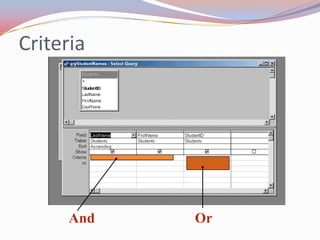
Criteria


      And   Or
Wildcards
 ‘*’ is for a group of characters (0, 1 or more characters)
 ‘?’ is for a single character (and there must be a
  character)

“S*ND” will return sand, sound, send, stand, spend
“S?ND” will return sand, send
Total Queries
 Select query with results summarized by one or more
 fields
   Find value(s) that records share and summarize
    information
 Similar to Groups in a Report
Multi-table Queries
 Can use multiple tables in a query
 If tables are not already related, can connect tables in
  the query itself
   Drag the connecting field from the one table to the
    many table
 “Joins” describe how rows in one table match rows in
  the other table(s)
Joins
 When using multiple tables, need to connect through a
  join
 Inner-join is most common and requires matching values
  in both tables
 Outer-join includes all rows from one table and any
  matching records from second table that exist
 Cartesian Join matches all rows from one table with all
  rows from 2nd table
Autolookup Queries
 Use queries to automatically look up data from related
  tables
 Must contain the foreign key from the many table
    Value entered in foreign key is matched to value in
     related primary key to “look up” data
 Can add, change or delete data in the source tables
    Many side will determine where a new row is added or
     existing row deleted
Parameter Queries
 Parameter queries allow entry of criteria when query is
 run
   A “place holder” allows the criteria to be saved without a
    specific value
   Behaves like an argument in other programming
    languages
 Allows query to be used with different values without
 having to go into design view
Action Queries
 Action queries are about change
 Can change data
    Update: change an existing value
    Append: add rows to a table
    Delete: remove rows from a table
 Can change database
    Make-table: create a new database object
Getting & Using Data in Forms and Reports
  Forms and reports have a recordsource property
     Can get data from a table or query
  Bound controls use the controlsource property to
   connect to a field
    Field for controlsource must be in form recordsource
    Controlsource is also used for calculations
Forms
  Basic use is to enter and display information from a
   table
     Forms can also help to change data stored in table by
      being bound (record source is a table or query)
  Forms can help others use an application
     Typically an unbound form (no record source)
  Forms use controls: bound, unbound, calculated
Forms - 2
 Forms have sections: header, footer, and detail
    Detail section is used to display data from one row in a
     table or query
 Tab order controls how the cursor moves through
  controls on a form
Forms & Subforms
 Main form is based on the primary (“one”) table
 Subform is based on the many table
 Subform shows records associated with the current
  record in the primary table
 Each form has its own status bar, record selector, and
  navigation buttons
Subforms
 Main form and subform are linked through specific fields;
  fields don’t have to be shown, but must be in data source
  (record source)
 A main form can have several subforms
 Subforms can be displayed as a data sheet, single form or
  continuous forms
    Display is set through the form’s default view in the
     properties window
List Controls
 A list or combo box can be bound to a field in one
 table, and display data from fields in a second table
   Good choice for selecting a value for a foreign key, if the
    primary and foreign keys are single fields
 Rowsource property specifies the list of choices, bound
  column specifies the value to save
 Can show/not show different columns in the list
Reports
 Displays information from a table or query
 Cannot change data
    A report shows the data at the time of printing or print
     preview
    Each time a report is displayed or printed, it recalculates
     and re-reads the data from tables, so one report can
     show different values
Reports - 2
 Reports have sections: report, page, and group headers
  and footers; and detail
 Controls are used to display data, information,
  calculations
   The most common controls are text boxes, labels, and
    lines
Sorting & Grouping
 Groups help to organize data into information for
 records that have something in common
   Can summarize information for subgroups (for
    example, showing subtotals by location)
 Sorting controls the order that information is shown
Subreports
 Allow main report to include all records, regardless of
 whether there are related records
   Subreports are similar in function to subforms, finding
    related rows for the current row in main report
 Can include several subreports, if a query would create
 incomplete or duplicating results

CIS145 Final Review

  • 2.
    CIS145 Final  100points  Open book, open notes, open computer  True-false, multiple choice, fill-in, short answer
  • 3.
    Databases  Collection ofrelated information  Scope is based on what information we need to complete tasks  Access uses objects to organize and manage data  Tables, queries, forms, reports, macros, modules  All objects are in one file
  • 4.
    Tables  Fields areindividual data elements/values - columns  Records are the collection of data for one occurrence – rows  Table should be about one thing or idea  Primary key uniquely identifies each record
  • 5.
    Table Design  Includeall necessary data  Store data in smallest parts  Don’t include calculated fields
  • 6.
    Field Data Types Whatkind of data will be Common Types stored in the field?  Number  Currency Numbers not used for  Text calculations should  Yes/No usually be text.  Date/Time
  • 7.
    Properties  Set specificcharacteristics and behaviors of objects (fields, controls, or other objects)  Properties set for a field are inherited by controls that refer to that field  Drag field from field list in form design view
  • 8.
    Data Validation  Needto make sure we have good data - proper type and values  Properties can help with validation:  Field Size: How much data to accept  Input Mask: How or what data is entered  Format: How data is displayed  Validation Rules: What data is acceptable  Required: value must be entered
  • 9.
    Relational Databases  Havemore than one table where tables are related to each other  One to one  One to many  Many to many  A combination of fields may be used for the table’s primary key
  • 10.
    One to ManyRelationships  Each table contains data about a specific subject (customers, loans)  Each table on the ‘one’ side has a primary key  Primary key of the “one” table is used to create a foreign key in the “many” table
  • 11.
    Many to ManyRelationships  Two tables are related, but can have many records in each table in common  One student can attend many courses; one course can be attended by many students  Implement a many to many relationship by creating a pair of one to many relationships with a third (join) table
  • 12.
    Foreign Key  Aforeign key points to a record in another table  Foreign key “looks like” the related primary key  Same number of fields  Data types for each field must match  Field names don’t matter
  • 13.
    Referential Integrity  Makessure that the records in related tables are consistent  Must have a customer in the customer table for an order to be assigned that customer ID  Avoids “orphans”  Can’t delete a record or change the primary key in the one table when associated records are in the many table, unless have cascade delete and cascade update enabled
  • 14.
    Relationships Window  Whererelationships between tables are created and defined  Related fields must have the same data type  Autonumber is related to number field with long integer field size  The one table has a 1 next to it; the many has a next to it
  • 15.
    Select Queries  SelectQueries represent a question and an answer  Question is created in design view  Design view creates a Structured Query Language (SQL) statement  Answer is shown in datasheet view  Answer is a dynaset - dynamic subset of a table
  • 16.
    Query Design  Specifydata source - table or another query (FROM)  Determine which rows to include (WHERE)  Identify groups (GROUP BY)  Specify groups to include in result (HAVING)  Identify fields to include in result (SELECT)  Specify how to sort the answer (ORDER BY)
  • 17.
    Criteria And Or
  • 18.
    Wildcards  ‘*’ isfor a group of characters (0, 1 or more characters)  ‘?’ is for a single character (and there must be a character) “S*ND” will return sand, sound, send, stand, spend “S?ND” will return sand, send
  • 19.
    Total Queries  Selectquery with results summarized by one or more fields  Find value(s) that records share and summarize information  Similar to Groups in a Report
  • 20.
    Multi-table Queries  Canuse multiple tables in a query  If tables are not already related, can connect tables in the query itself  Drag the connecting field from the one table to the many table  “Joins” describe how rows in one table match rows in the other table(s)
  • 21.
    Joins  When usingmultiple tables, need to connect through a join  Inner-join is most common and requires matching values in both tables  Outer-join includes all rows from one table and any matching records from second table that exist  Cartesian Join matches all rows from one table with all rows from 2nd table
  • 22.
    Autolookup Queries  Usequeries to automatically look up data from related tables  Must contain the foreign key from the many table  Value entered in foreign key is matched to value in related primary key to “look up” data  Can add, change or delete data in the source tables  Many side will determine where a new row is added or existing row deleted
  • 23.
    Parameter Queries  Parameterqueries allow entry of criteria when query is run  A “place holder” allows the criteria to be saved without a specific value  Behaves like an argument in other programming languages  Allows query to be used with different values without having to go into design view
  • 24.
    Action Queries  Actionqueries are about change  Can change data  Update: change an existing value  Append: add rows to a table  Delete: remove rows from a table  Can change database  Make-table: create a new database object
  • 25.
    Getting & UsingData in Forms and Reports  Forms and reports have a recordsource property  Can get data from a table or query  Bound controls use the controlsource property to connect to a field  Field for controlsource must be in form recordsource  Controlsource is also used for calculations
  • 26.
    Forms  Basicuse is to enter and display information from a table  Forms can also help to change data stored in table by being bound (record source is a table or query)  Forms can help others use an application  Typically an unbound form (no record source)  Forms use controls: bound, unbound, calculated
  • 27.
    Forms - 2 Forms have sections: header, footer, and detail  Detail section is used to display data from one row in a table or query  Tab order controls how the cursor moves through controls on a form
  • 28.
    Forms & Subforms Main form is based on the primary (“one”) table  Subform is based on the many table  Subform shows records associated with the current record in the primary table  Each form has its own status bar, record selector, and navigation buttons
  • 29.
    Subforms  Main formand subform are linked through specific fields; fields don’t have to be shown, but must be in data source (record source)  A main form can have several subforms  Subforms can be displayed as a data sheet, single form or continuous forms  Display is set through the form’s default view in the properties window
  • 30.
    List Controls  Alist or combo box can be bound to a field in one table, and display data from fields in a second table  Good choice for selecting a value for a foreign key, if the primary and foreign keys are single fields  Rowsource property specifies the list of choices, bound column specifies the value to save  Can show/not show different columns in the list
  • 31.
    Reports  Displays informationfrom a table or query  Cannot change data  A report shows the data at the time of printing or print preview  Each time a report is displayed or printed, it recalculates and re-reads the data from tables, so one report can show different values
  • 32.
    Reports - 2 Reports have sections: report, page, and group headers and footers; and detail  Controls are used to display data, information, calculations  The most common controls are text boxes, labels, and lines
  • 33.
    Sorting & Grouping Groups help to organize data into information for records that have something in common  Can summarize information for subgroups (for example, showing subtotals by location)  Sorting controls the order that information is shown
  • 34.
    Subreports  Allow mainreport to include all records, regardless of whether there are related records  Subreports are similar in function to subforms, finding related rows for the current row in main report  Can include several subreports, if a query would create incomplete or duplicating results