PowerPoint Presentation to AccompanyGO! with Microsoft® PowerPoint 2010Chapter 1Getting Started with Microsoft Office PowerPoint
ObjectivesCreate a New PresentationEdit a Presentation in Normal ViewAdd Pictures to a PresentationPrint and View a Presentation
ObjectivesEdit an Existing PresentationFormat a PresentationUse Slide Sorter ViewApply Slide Transitions
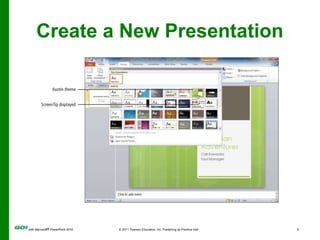
Create a New Presentation
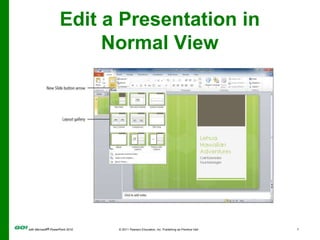
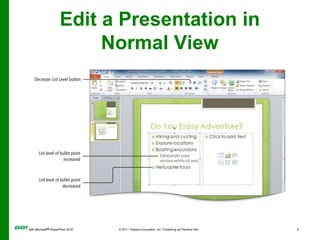
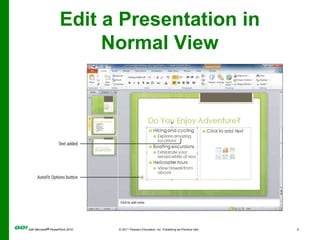
Edit a Presentation in Normal ViewEditingAdding and deleting slides or changing the content of individual slidesList LevelsSimilar to outline levels; represented by bullet symbols, indentation, and size of textAutofitReduces size of text to fit placeholder
Edit a Presentation in Normal View
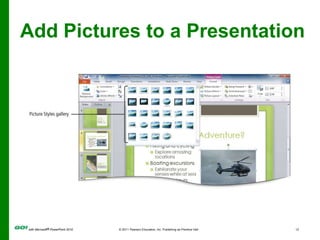
Add Pictures to a PresentationPhotographic images add impact.Options on the Picture Tools Format tab on Ribbon:Picture Styles gallery provides formatting options.Artistic Effects make pictures resemble sketches or paintings.
Add Pictures to a Presentation
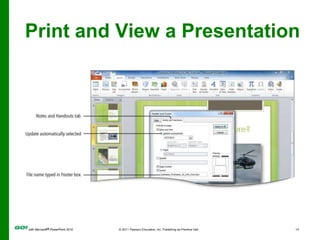
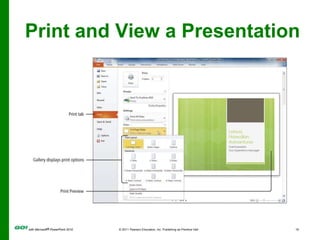
Print and View a PresentationHeadersPrint at top of slide handouts or notes pages, not on the slide imagesFootersPrint at bottom of slides, slide handouts, or notes pagesBackstage viewSelect print setting and preview printing
Print and View a Presentation
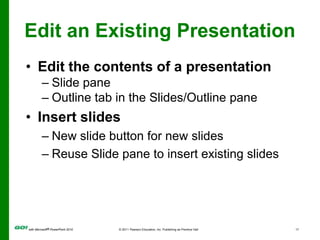
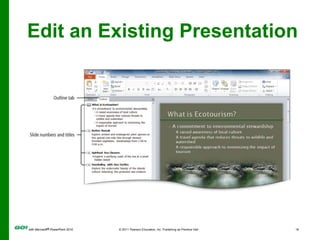
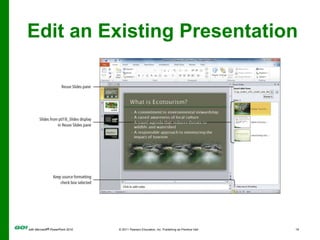
Edit an Existing PresentationEdit the contents of a presentationSlide paneOutline tab in the Slides/Outline paneInsert slidesNew slide button for new slidesReuse Slide pane to insert existing slides
Edit an Existing Presentation
Format a PresentationFormatting on the Slide pane: Change fonts, font sizes, font styles, and font colorsAlign text (left, centered, right, justified)Change line spacingFormatting with the Slide Layout gallery: Home tab, Slides group, and then click Layout buttonChoose from a selection of slide layouts including titles, subtitles, lists, and pictures
Use Slide Sorter ViewDisplay thumbnails of the slidesRearrange slidesDelete slidesFormat multiple slides
Use Slide Sorter View
Apply Slide TransitionsSlide TransitionsMotion effects when moving from one slide to the next during a presentationSelect transition styles from the Transition gallerySelect Duration (speed) in the Timing groupDifferent transitions can be selected for each slide or select Apply To All for the same transition for all slides.
Apply Slide Transitions
Covered ObjectivesCreate a New PresentationEdit a Presentation in Normal ViewAdd Pictures to a PresentationPrint and View a Presentation
Covered ObjectivesEdit an Existing PresentationFormat a PresentationUse Slide Sorter ViewApply Slide Transitions
All rights reserved. No part of this publication may be reproduced, stored in a retrieval system, or transmitted, in any form or by any means, electronic, mechanical, photocopying, recording, or otherwise, without the prior written permission of the publisher. Printed in the United States of America.Copyright © 2011 Pearson Education, Inc.  Publishing as Prentice Hall

MS PowerPoint Ch 1 PPT

  • 1.
    PowerPoint Presentation toAccompanyGO! with Microsoft® PowerPoint 2010Chapter 1Getting Started with Microsoft Office PowerPoint
  • 2.
    ObjectivesCreate a NewPresentationEdit a Presentation in Normal ViewAdd Pictures to a PresentationPrint and View a Presentation
  • 3.
    ObjectivesEdit an ExistingPresentationFormat a PresentationUse Slide Sorter ViewApply Slide Transitions
  • 4.
    Create a NewPresentation
  • 5.
    Create a NewPresentation
  • 6.
    Edit a Presentationin Normal ViewEditingAdding and deleting slides or changing the content of individual slidesList LevelsSimilar to outline levels; represented by bullet symbols, indentation, and size of textAutofitReduces size of text to fit placeholder
  • 7.
    Edit a Presentationin Normal View
  • 8.
    Edit a Presentationin Normal View
  • 9.
    Edit a Presentationin Normal View
  • 10.
    Add Pictures toa PresentationPhotographic images add impact.Options on the Picture Tools Format tab on Ribbon:Picture Styles gallery provides formatting options.Artistic Effects make pictures resemble sketches or paintings.
  • 11.
    Add Pictures toa Presentation
  • 12.
    Add Pictures toa Presentation
  • 13.
    Add Pictures toa Presentation
  • 14.
    Print and Viewa PresentationHeadersPrint at top of slide handouts or notes pages, not on the slide imagesFootersPrint at bottom of slides, slide handouts, or notes pagesBackstage viewSelect print setting and preview printing
  • 15.
    Print and Viewa Presentation
  • 16.
    Print and Viewa Presentation
  • 17.
    Edit an ExistingPresentationEdit the contents of a presentationSlide paneOutline tab in the Slides/Outline paneInsert slidesNew slide button for new slidesReuse Slide pane to insert existing slides
  • 18.
    Edit an ExistingPresentation
  • 19.
    Edit an ExistingPresentation
  • 20.
    Format a PresentationFormattingon the Slide pane: Change fonts, font sizes, font styles, and font colorsAlign text (left, centered, right, justified)Change line spacingFormatting with the Slide Layout gallery: Home tab, Slides group, and then click Layout buttonChoose from a selection of slide layouts including titles, subtitles, lists, and pictures
  • 21.
    Use Slide SorterViewDisplay thumbnails of the slidesRearrange slidesDelete slidesFormat multiple slides
  • 22.
  • 23.
    Apply Slide TransitionsSlideTransitionsMotion effects when moving from one slide to the next during a presentationSelect transition styles from the Transition gallerySelect Duration (speed) in the Timing groupDifferent transitions can be selected for each slide or select Apply To All for the same transition for all slides.
  • 24.
  • 25.
    Covered ObjectivesCreate aNew PresentationEdit a Presentation in Normal ViewAdd Pictures to a PresentationPrint and View a Presentation
  • 26.
    Covered ObjectivesEdit anExisting PresentationFormat a PresentationUse Slide Sorter ViewApply Slide Transitions
  • 27.
    All rights reserved.No part of this publication may be reproduced, stored in a retrieval system, or transmitted, in any form or by any means, electronic, mechanical, photocopying, recording, or otherwise, without the prior written permission of the publisher. Printed in the United States of America.Copyright © 2011 Pearson Education, Inc.  Publishing as Prentice Hall