Introduction to Turnitin


         Centre for Teaching and Learning
          University of Limerick, Ireland
                [W] www.ul.ie/ctl

1     Updated Sept 2011 by Angelica Risquez
Overview
• Types of assignments and originality
  check
• Case scenarios and teaching advice
• Using Turnitin with Sulis
• Using Turnitin on its own
• Originality report
• Grademark
• Peermark
2
Turnitin Overview


3
     www.turnitin.com
Types of “Assignments”
• Paper assignment is the base assignment for all other
  assignments types. Used to obtain an Originality Report
• PeerMark assignment: allows students to review their
  peers' papers based on scale and free response
  questions selected by the instructor.
• Revision Assignment allows students to submit multiple
  drafts without overwriting the previous
  drafts/submissions
• Reflection Assignment is designed as a learning journal
  where students write about what they learned from the
  writing process as well as offer feedback on the
  assignment they worked on.


4
Originality Check

It determines the congruence of text to
sources in:
    • Publicly accessible Internet sources
    • Every document already submitted to Turnitin*
    • Assignments from within the class


* Lecturers can opt out from Turnitin storing papers. Only the lecturer
can access the submitted paper.


5
Originality Check

          PROS                           CONS
• Allows for citation        • It    dos     not     search
  verification and quickly     subscription      databases
  provides documentation of    (e.g. Library databases,
  alleged plagiarism           newspapers, etc) unless
                               those     materials     also
• Detects rewording            appear in assignments
                               previously sent to Turnitin.
• Both lecturer and students
  can upload                 • It does not differentiate
• It allows for peer to peer between quoted materials
  plagiarism detection         and original writing!


6
Possible Scenario

A lecturer (or student who has access to it)
receives an originality report showing a match for
the following passage:
    Today, according to authors of The Death of “e” and the Birth of the
    Real New Economy doing business electronically is the only way to stay
    alive and competitive. It is a necessity to get involved in the digital
    economy. Therefore, “e” is disappearing from our vocabulary because
    conducting business electronically is a normal, every-day activity.

Upon clicking on the comparison link, you find
that the text is found in an on-line article, entitled
The Death of “e” and the Birth of the Real New
Economy.
Is this plagiarism or a false positive? Why?
7
Teaching advice
• Use it proactively
• Notify and explain to your students
• Clear plagiarism policy:
  definition, avoidance, guidelines and disciplinary
  process.
• Help students develop writing skills.
     Writing Centre
     http://www.ul.ie/ctl/regional-writing-centre
• Train and support students (e.g. trial submission)
• Involve students (e.g. submit themselves)
• Be creative! (e.g. using originality report in
  tutorials, peer review and online grading
  features, allowing multiple drafts of an
8
Teaching Advice (2)

UL resources
• http://www2.ul.ie/pdf/201553623.pdf (Appendix 5:
  Plagiarism at College by Prof Sarah Moore)
• http://www.ul.ie/~library/GLIS/html/index.htm (Library
  online tutorials on Harvard referencing style, Refworks,
  researching with the internet, etc).

Other resources
• http://www.turnitin.com/static/support.html
• http://www.plagiarismadvice.org/
• The Turnitin blog

9
Using Turnitin with Sulis
From September 2011, Sulis and Turnitin are
integrated, meaning
• No need to create lecturer or students
  accounts
• When students submit into the Assignment tool
  in Sulis, a Turnitin report can be generated
• Instructors may also choose to allow students
  to view the reports


          How to set up my
          Sulis Assignment to
          get a Turnitin report
10
Using Turnitin on its own
If you want to submit your own
documents into Turnitin, or use the
Grademark        and/or      Peermark
features, you need to use Turnitin on its
own
Steps:
1. Create a user profile

2. Create classes and assignments
3. Instructor/students submit work

11
1. Create a user profile


Go to www.turnitin.com and start by clicking Create
Account.


12
1. Create a user profile


                To get the account ID and a password
                  for your college, log a call with ITD
                               Service Desk
                http://inside/itdservicedesk/default.htm


13
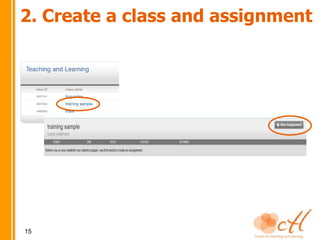
2. Create a class and assignment


14
2. Create a class and assignment


15
2. Create a class and assignment


                          Add rubrics, exclude
                          bibliographic/quoted
                             materials/small
                        matches, allow students
                            to see originality
                       report, allow submissions
                       after due date and search
                                 options

16
3. Instructors/students submit
     Instructor
     workload
          high         a


                            b
      medium


                                   c
           low
                  passive       active     Student
                                         involvement


17
3. Instructors/students submit
a. The instructor submits

        Advantages                 Disadvantages
 • Minimal student            • Students lack of
 induction                    involvement
 • With large classes, you    • They may not pay as
 can submit all papers at     much attention to the
 once (.zip file from Sulis   originality of their work
 or other LMS, use IE!)


 18
3. Instructors/students submit
a. The instructor submits


 19
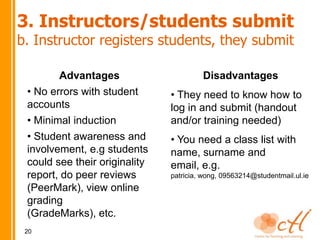
3. Instructors/students submit
b. Instructor registers students, they submit

        Advantages                      Disadvantages
 • No errors with student      • They need to know how to
 accounts                      log in and submit (handout
 • Minimal induction           and/or training needed)
 • Student awareness and       • You need a class list with
 involvement, e.g students     name, surname and
 could see their originality   email, e.g.
 report, do peer reviews       patricia, wong, 09563214@studentmail.ul.ie
 (PeerMark), view online
 grading
 (GradeMarks), etc.
 20
3. Instructors/students submit
b. Instructor registers students, they submit


  Turnitin will automatically send the student an
  email with a provisional password. Students log in
  and submit their work. They get added to your
  class if they already have an account

 21
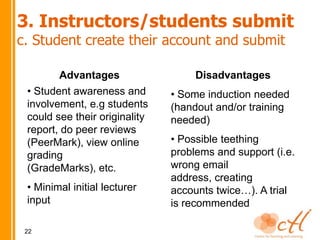
3. Instructors/students submit
c. Student create their account and submit

        Advantages                  Disadvantages
 • Student awareness and       • Some induction needed
 involvement, e.g students     (handout and/or training
 could see their originality   needed)
 report, do peer reviews
 (PeerMark), view online       • Possible teething
 grading                       problems and support (i.e.
 (GradeMarks), etc.            wrong email
                               address, creating
 • Minimal initial lecturer    accounts twice…). A trial
 input                         is recommended

 22
3. Instructors/students submit
c. Student create their account and submit

 Customise and distribute the “Student Turnitin Guide” with
 your class ID and enrolment password:
 http://www.ul.ie/ctl/turnitin-plagiarism-prevention-software


 23
Originality Report (1)
An originality report can be generated through the Assignments tool in Sulis
or through a Turnitin account. Once it is ready…


A greyed-out report icon indicates that the report has not yet been generated.
Please wait a few moments and click your browser’s refresh button (large
reports may take up to 24hh to process)


24
Originality report (2)


25
Originality report (3)


26
Grademark

You can add comments within the body of the paper, point out grammar
and punctuation mistakes, evaluate the paper against your own rubrics
or predefined ones, etc.

Complete instructions available Chapter 4 of Instructor Handout
http://www.ul.ie/ctl/turnitin-plagiarism-prevention-software

And training videos in http://turnitin.com/en_us/training/instructor-training


27
Peermark
Allows students to read, review, and evaluate one or many papers
submitted by their classmates. Instructors can choose whether the
reviews are anonymous or attributed, decide if students should be
excluded from reviews, pair students, and assign students specific
papers to review.


     See training videos in
     http://turnitin.com/en_us/training/instructor-training
28
Peermark (2)
Create new assignment as in slide 13, and select PeerMark Assignment (can
only be created if a class has at least one paper assignment created)
         Note: the due date of the base assignment must come before the
         start date and time of the PeerMark assignment. If anonymity in the
         review is desired, student submissions should not contain the name
         of the author in the text or at the top of the paper


                                 By default, reviews are anonymous and only those
                                    student who submit can review, but you can
                                         change it in “Show more options”

                                    The start date is the date students can begin
                                  reading papers and writing reviews. The due date
                                   prevents students from writing reviews after this
                                  date. The post date is the date students will have
                                    access to reviews written by their classmates


29
Peermark (3)
In Step 2, the instructor determines how many papers will be distributed to the
students in the course. By default, PeerMark will automatically distribute papers
to students


Click Save & Continue or click on the Show more distribution options link to
exclude student papers from distribution or specify which student papers a
student(s) will have to review.
         Note: you need to have students registered as seen in slide 19

In Step 3, add questions for students to answer (your own or from Sample Library)


30
Peermark (4)
After the start date of the PeerMark assignment students may begin writing peer
reviews. To view which papers students have reviewed click on the View link next
to the PeerMark assignment.


Instructors can then view an individual
student’s reviews by clicking on the Show
details link to the right of the students name.

The instructor can write a review to supplement those that students will receive
from their peers. An instructor may also comment on the paper they are
reviewing. A comment is equivalent to the notes that an instructor may write in
the margins of a paper
Instructors may grade
the reviews written by
the students
31
Peermark (5)
Instructors may view a paper’s peer reviews within the document viewer once a
reviewer submits a PeerMark review. To view a paper in the document viewer click
on the paper’s title within the assignment inbox for the paper assignment the peer
review is based on.


 32
Peermark (6)
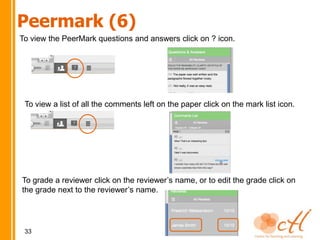
To view the PeerMark questions and answers click on ? icon.


 To view a list of all the comments left on the paper click on the mark list icon.


To grade a reviewer click on the reviewer’s name, or to edit the grade click on
the grade next to the reviewer’s name.


 33
Questions?
     Advanced guides, videos, case students and more in
      http://turnitin.com/en_us/training/instructor-training

           Teaching support and advice in the CTL:
                        Dr. Angélica Risquez
                Technology Enhanced Learning Advisor
                  Centre for Teaching and Learning
                         Millstream Courtyard
                        University of Limerick
                           Limerick, Ireland
                        [T] +353-61-202 580
                        [F] +353-61-338 044
                     [E] angelica.risquez@ul.ie
                          [W] www.ul.ie/ctl


34

Turnitin presentation

  • 1.
    Introduction to Turnitin Centre for Teaching and Learning University of Limerick, Ireland [W] www.ul.ie/ctl 1 Updated Sept 2011 by Angelica Risquez
  • 2.
    Overview • Types ofassignments and originality check • Case scenarios and teaching advice • Using Turnitin with Sulis • Using Turnitin on its own • Originality report • Grademark • Peermark 2
  • 3.
    Turnitin Overview 3 www.turnitin.com
  • 4.
    Types of “Assignments” •Paper assignment is the base assignment for all other assignments types. Used to obtain an Originality Report • PeerMark assignment: allows students to review their peers' papers based on scale and free response questions selected by the instructor. • Revision Assignment allows students to submit multiple drafts without overwriting the previous drafts/submissions • Reflection Assignment is designed as a learning journal where students write about what they learned from the writing process as well as offer feedback on the assignment they worked on. 4
  • 5.
    Originality Check It determinesthe congruence of text to sources in: • Publicly accessible Internet sources • Every document already submitted to Turnitin* • Assignments from within the class * Lecturers can opt out from Turnitin storing papers. Only the lecturer can access the submitted paper. 5
  • 6.
    Originality Check PROS CONS • Allows for citation • It dos not search verification and quickly subscription databases provides documentation of (e.g. Library databases, alleged plagiarism newspapers, etc) unless those materials also • Detects rewording appear in assignments previously sent to Turnitin. • Both lecturer and students can upload • It does not differentiate • It allows for peer to peer between quoted materials plagiarism detection and original writing! 6
  • 7.
    Possible Scenario A lecturer(or student who has access to it) receives an originality report showing a match for the following passage: Today, according to authors of The Death of “e” and the Birth of the Real New Economy doing business electronically is the only way to stay alive and competitive. It is a necessity to get involved in the digital economy. Therefore, “e” is disappearing from our vocabulary because conducting business electronically is a normal, every-day activity. Upon clicking on the comparison link, you find that the text is found in an on-line article, entitled The Death of “e” and the Birth of the Real New Economy. Is this plagiarism or a false positive? Why? 7
  • 8.
    Teaching advice • Useit proactively • Notify and explain to your students • Clear plagiarism policy: definition, avoidance, guidelines and disciplinary process. • Help students develop writing skills. Writing Centre http://www.ul.ie/ctl/regional-writing-centre • Train and support students (e.g. trial submission) • Involve students (e.g. submit themselves) • Be creative! (e.g. using originality report in tutorials, peer review and online grading features, allowing multiple drafts of an 8
  • 9.
    Teaching Advice (2) ULresources • http://www2.ul.ie/pdf/201553623.pdf (Appendix 5: Plagiarism at College by Prof Sarah Moore) • http://www.ul.ie/~library/GLIS/html/index.htm (Library online tutorials on Harvard referencing style, Refworks, researching with the internet, etc). Other resources • http://www.turnitin.com/static/support.html • http://www.plagiarismadvice.org/ • The Turnitin blog 9
  • 10.
    Using Turnitin withSulis From September 2011, Sulis and Turnitin are integrated, meaning • No need to create lecturer or students accounts • When students submit into the Assignment tool in Sulis, a Turnitin report can be generated • Instructors may also choose to allow students to view the reports How to set up my Sulis Assignment to get a Turnitin report 10
  • 11.
    Using Turnitin onits own If you want to submit your own documents into Turnitin, or use the Grademark and/or Peermark features, you need to use Turnitin on its own Steps: 1. Create a user profile 2. Create classes and assignments 3. Instructor/students submit work 11
  • 12.
    1. Create auser profile Go to www.turnitin.com and start by clicking Create Account. 12
  • 13.
    1. Create auser profile To get the account ID and a password for your college, log a call with ITD Service Desk http://inside/itdservicedesk/default.htm 13
  • 14.
    2. Create aclass and assignment 14
  • 15.
    2. Create aclass and assignment 15
  • 16.
    2. Create aclass and assignment Add rubrics, exclude bibliographic/quoted materials/small matches, allow students to see originality report, allow submissions after due date and search options 16
  • 17.
    3. Instructors/students submit Instructor workload high a b medium c low passive active Student involvement 17
  • 18.
    3. Instructors/students submit a.The instructor submits Advantages Disadvantages • Minimal student • Students lack of induction involvement • With large classes, you • They may not pay as can submit all papers at much attention to the once (.zip file from Sulis originality of their work or other LMS, use IE!) 18
  • 19.
    3. Instructors/students submit a.The instructor submits 19
  • 20.
    3. Instructors/students submit b.Instructor registers students, they submit Advantages Disadvantages • No errors with student • They need to know how to accounts log in and submit (handout • Minimal induction and/or training needed) • Student awareness and • You need a class list with involvement, e.g students name, surname and could see their originality email, e.g. report, do peer reviews patricia, wong, 09563214@studentmail.ul.ie (PeerMark), view online grading (GradeMarks), etc. 20
  • 21.
    3. Instructors/students submit b.Instructor registers students, they submit Turnitin will automatically send the student an email with a provisional password. Students log in and submit their work. They get added to your class if they already have an account 21
  • 22.
    3. Instructors/students submit c.Student create their account and submit Advantages Disadvantages • Student awareness and • Some induction needed involvement, e.g students (handout and/or training could see their originality needed) report, do peer reviews (PeerMark), view online • Possible teething grading problems and support (i.e. (GradeMarks), etc. wrong email address, creating • Minimal initial lecturer accounts twice…). A trial input is recommended 22
  • 23.
    3. Instructors/students submit c.Student create their account and submit Customise and distribute the “Student Turnitin Guide” with your class ID and enrolment password: http://www.ul.ie/ctl/turnitin-plagiarism-prevention-software 23
  • 24.
    Originality Report (1) Anoriginality report can be generated through the Assignments tool in Sulis or through a Turnitin account. Once it is ready… A greyed-out report icon indicates that the report has not yet been generated. Please wait a few moments and click your browser’s refresh button (large reports may take up to 24hh to process) 24
  • 25.
  • 26.
  • 27.
    Grademark You can addcomments within the body of the paper, point out grammar and punctuation mistakes, evaluate the paper against your own rubrics or predefined ones, etc. Complete instructions available Chapter 4 of Instructor Handout http://www.ul.ie/ctl/turnitin-plagiarism-prevention-software And training videos in http://turnitin.com/en_us/training/instructor-training 27
  • 28.
    Peermark Allows students toread, review, and evaluate one or many papers submitted by their classmates. Instructors can choose whether the reviews are anonymous or attributed, decide if students should be excluded from reviews, pair students, and assign students specific papers to review. See training videos in http://turnitin.com/en_us/training/instructor-training 28
  • 29.
    Peermark (2) Create newassignment as in slide 13, and select PeerMark Assignment (can only be created if a class has at least one paper assignment created) Note: the due date of the base assignment must come before the start date and time of the PeerMark assignment. If anonymity in the review is desired, student submissions should not contain the name of the author in the text or at the top of the paper By default, reviews are anonymous and only those student who submit can review, but you can change it in “Show more options” The start date is the date students can begin reading papers and writing reviews. The due date prevents students from writing reviews after this date. The post date is the date students will have access to reviews written by their classmates 29
  • 30.
    Peermark (3) In Step2, the instructor determines how many papers will be distributed to the students in the course. By default, PeerMark will automatically distribute papers to students Click Save & Continue or click on the Show more distribution options link to exclude student papers from distribution or specify which student papers a student(s) will have to review. Note: you need to have students registered as seen in slide 19 In Step 3, add questions for students to answer (your own or from Sample Library) 30
  • 31.
    Peermark (4) After thestart date of the PeerMark assignment students may begin writing peer reviews. To view which papers students have reviewed click on the View link next to the PeerMark assignment. Instructors can then view an individual student’s reviews by clicking on the Show details link to the right of the students name. The instructor can write a review to supplement those that students will receive from their peers. An instructor may also comment on the paper they are reviewing. A comment is equivalent to the notes that an instructor may write in the margins of a paper Instructors may grade the reviews written by the students 31
  • 32.
    Peermark (5) Instructors mayview a paper’s peer reviews within the document viewer once a reviewer submits a PeerMark review. To view a paper in the document viewer click on the paper’s title within the assignment inbox for the paper assignment the peer review is based on. 32
  • 33.
    Peermark (6) To viewthe PeerMark questions and answers click on ? icon. To view a list of all the comments left on the paper click on the mark list icon. To grade a reviewer click on the reviewer’s name, or to edit the grade click on the grade next to the reviewer’s name. 33
  • 34.
    Questions? Advanced guides, videos, case students and more in http://turnitin.com/en_us/training/instructor-training Teaching support and advice in the CTL: Dr. Angélica Risquez Technology Enhanced Learning Advisor Centre for Teaching and Learning Millstream Courtyard University of Limerick Limerick, Ireland [T] +353-61-202 580 [F] +353-61-338 044 [E] angelica.risquez@ul.ie [W] www.ul.ie/ctl 34