What is it and how can we
           use it?
Turnitin Intro – Session AIMS
• Develop an understanding of what Turnitin
  can be used for and how it might be used by
  a Faculty.
                       ~
• Set up a Turnitin assignment to use with
  students.
                       ~
• Identify and discuss some of the issues raised
  around online submission and the context in
  the Faculty.
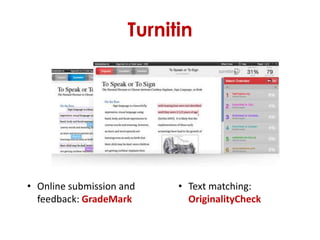
Turnitin


• Online submission and    • Text matching:
  feedback: GradeMark        OriginalityCheck
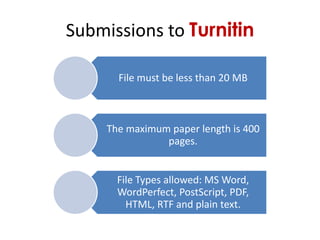
Submissions to Turnitin

      File must be less than 20 MB


    The maximum paper length is 400
               pages.


      File Types allowed: MS Word,
      WordPerfect, PostScript, PDF,
        HTML, RTF and plain text.
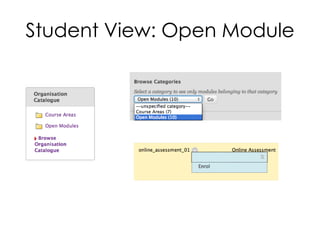
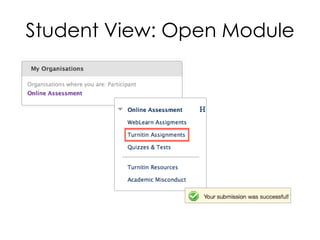
Student View: Open Module
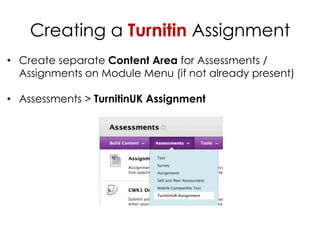
Creating a Turnitin Assignment
• Create separate Content Area for Assessments /
  Assignments on Module Menu (if not already present)

• Assessments > TurnitinUK Assignment
Creating a Turnitin Assignment
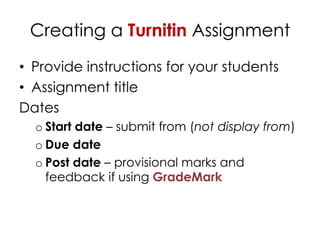
• Provide instructions for your students
• Assignment title
Dates
  o Start date – submit from (not display from)
  o Due date
  o Post date – provisional marks and
    feedback if using GradeMark
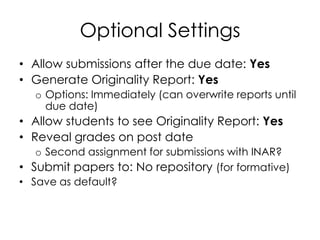
Optional Settings
• Allow submissions after the due date: Yes
• Generate Originality Report: Yes
  o Options: Immediately (can overwrite reports until
    due date)
• Allow students to see Originality Report: Yes
• Reveal grades on post date
   o Second assignment for submissions with INAR?
• Submit papers to: No repository (for formative)
• Save as default?
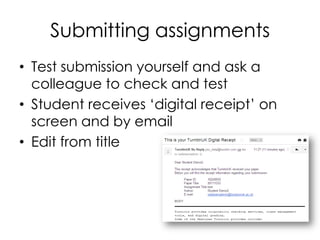
Submitting assignments
• Test submission yourself and ask a
  colleague to check and test
• Student receives ‘digital receipt’ on
  screen and by email
• Edit from title
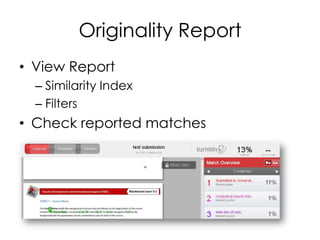
Originality Report
• View Report
  – Similarity Index
  – Filters
• Check reported matches
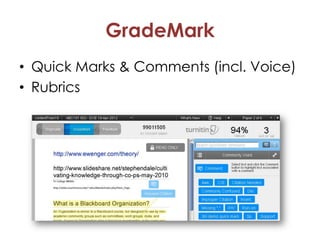
GradeMark
• Quick Marks & Comments (incl. Voice)
• Rubrics
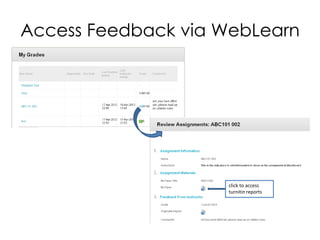
Access Feedback via WebLearn


                    click to access
                    turnitin reports
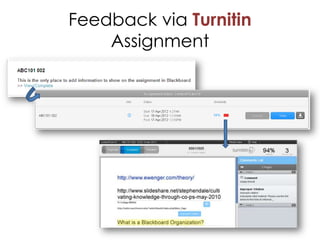
Feedback via Turnitin
    Assignment

Turnitin intro

  • 1.
    What is itand how can we use it?
  • 2.
    Turnitin Intro –Session AIMS • Develop an understanding of what Turnitin can be used for and how it might be used by a Faculty. ~ • Set up a Turnitin assignment to use with students. ~ • Identify and discuss some of the issues raised around online submission and the context in the Faculty.
  • 3.
    Turnitin • Online submissionand • Text matching: feedback: GradeMark OriginalityCheck
  • 4.
    Submissions to Turnitin File must be less than 20 MB The maximum paper length is 400 pages. File Types allowed: MS Word, WordPerfect, PostScript, PDF, HTML, RTF and plain text.
  • 5.
  • 6.
  • 7.
    Creating a TurnitinAssignment • Create separate Content Area for Assessments / Assignments on Module Menu (if not already present) • Assessments > TurnitinUK Assignment
  • 8.
    Creating a TurnitinAssignment • Provide instructions for your students • Assignment title Dates o Start date – submit from (not display from) o Due date o Post date – provisional marks and feedback if using GradeMark
  • 9.
    Optional Settings • Allowsubmissions after the due date: Yes • Generate Originality Report: Yes o Options: Immediately (can overwrite reports until due date) • Allow students to see Originality Report: Yes • Reveal grades on post date o Second assignment for submissions with INAR? • Submit papers to: No repository (for formative) • Save as default?
  • 10.
    Submitting assignments • Testsubmission yourself and ask a colleague to check and test • Student receives ‘digital receipt’ on screen and by email • Edit from title
  • 11.
    Originality Report • ViewReport – Similarity Index – Filters • Check reported matches
  • 12.
    GradeMark • Quick Marks& Comments (incl. Voice) • Rubrics
  • 13.
    Access Feedback viaWebLearn click to access turnitin reports
  • 14.

Editor's Notes

  • #2 Introductions: What do participants know about Turnitin already? Why are they attending the session?-> Preconceptions, interests
  • #4 Also:e-Rater® Grammar check (beta)Rubrics
  • #6 “This is an Open Module that contains a selection of online assessments that are now available on WebLearn. Students may practice submitting assignments and taking tests online. It is highly recommended that students who intend to submit assignments and/or take tests from home use this module first.“
  • #7 Follow steps to submit an assignment. Preview. Submit until digital receiptBREAK if neededView originality report as student, if ready
  • #9 Instructions: could be separate item / attachment to item. Naming convention for files to students, submission typesMS Word (.doc), WordPerfect (.wpd), PostScript (.eps), Portable Document Format (.pdf), HTML (.htm), Rich Text (.rtf) and Plain Text (.txt)Title = Assignment title & Grade Centre column heading. Brief and self-explanatory
  • #10 Not allowed to submit late if submitted on time (unlike WebLearn Assignment)Post date – otherwise other students have to wait for late submissions?Anonymous marking Y where poss for summative
  • #11 Edit like editing Item, etc