Juliet Stoltenkamp, 19 Jan 2012
   Turnitin is an internet based plagiarism detection software.
   Educational institutions submit essays and written
    assignments to the Turnitin website, which checks the
    documents for plagiarism.
   Submissions are checked through:
        •A current and extensive internet publications database
        •Billions of commercial pages from books, newspapers,
        and journals
        •Millions of student papers in Turnitin’s repository
        (added on for intellectual property)
   UWC students will submit their written assignments to
    Turnitin, as a deterrent to plagiarism via the web
   Turnitin checks for possible plagiarism by comparing
    submitted papers to several databases. It scans its own
    database(s), and also has licensing agreements with large
    academic proprietary databases.
   Web- based gateway to Tii       Tii used as a tool to
     Lecturers can create           promote creative writing.
     assignments and view             Students submit and get
     class lists with student          originality reports.
     numbers with their               Students
     originality reports               peruse/navigate
     Students can log in and          report; discuss
     submit assignments and            reports and identify
     get originality reports.          errors with
     One gateway: Link to Tii         lecturer/tutor
     server                           Students rework
                                       documents and
   Training currently undergoing for both lecturers and students
   Bookings are made through our ICT training team (via
    lecturer)
   Tii is being used as a deterrent to plagiarism; not as the
    benchmark for the affect/aftermath of plagiarism
   Lecturer training focuses on using the tool to promote
    creative writing and enhance writing practices within UWC.
   ‘Just-in-time training’: Manuals (lecturer and student) which
    can be directly accessed from
    http://turnitin.uwc.ac.za/student
   Submitted documents- database search:
    ◦ Current and extensively archived copy of the publicly
     accessible internet publications
    ◦ Commercial pages from books, newspapers, and journals
    ◦ Millions of student papers already submitted to Turnitin
    ◦ Massive proprietary database of all Turnitin (Tii) university
     repositories
    ◦ Following, a report is generated.
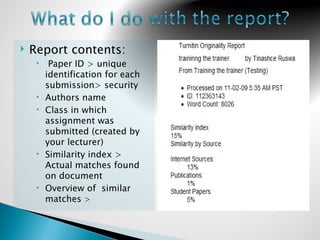
   Report contents:
         Paper ID > unique
         identification for each
         submission> security
        Authors name
        Class in which
         assignment was
         submitted (created by
         your lecturer)
        Similarity index >
         Actual matches found
         on document
        Overview of similar
         matches >
   Source report
        Shows you similarity
         matches in
         descending order
        Click on link to see
         actual source.
        Source number
         enables easy
         navigation- i.e. to
         specific match
         (source) found
        Colour differentiation –
         easy navigation
   Source report
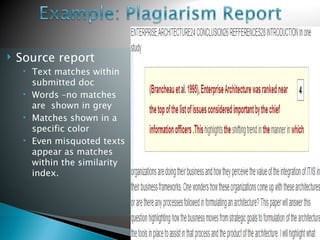
        Text matches within
         submitted doc
        Words –no matches
         are shown in grey
        Matches shown in a
         specific color
        Even misquoted texts
         appear as matches
         within the similarity
         index.
   Assignment inbox
   Shows you the reports of
    the submitted assignments
   Color coded
     Green <25%

     Yellow25%> &<50%

     Orange 50%<&<75%

     Red>75%
Using Tii
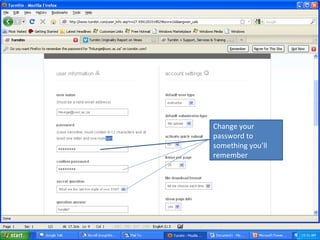
Enter your
email address


                Enter your password
                received from turnitin
                helpdesk if you are the
                first time user.
Change your
password to
something you’ll
remember
HOW TO SUBMIT A PAPER


                        Click on the class
                        name
This page you can see the due date
for the assignment. Click on
submit/resubmit
Click drop down
                       arrow to select the
                       submission method


                                 Enter submission
                                        title
Then Click on Upload


                       Search for your file that
                       you want to upload.e.g.
                       from your flash drive,
                       hard drive depending
                       where you’ve saved it
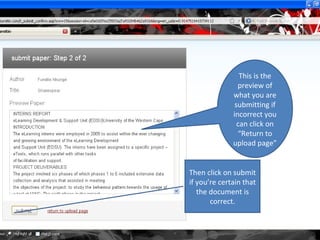
This is the
                preview of
              what you are
               submitting if
              incorrect you
                can click on
                “Return to
              upload page”


Then click on submit
if you’re certain that
   the document is
       correct.
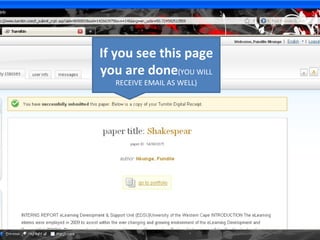
If you see this page
you are done(YOU WILL
  RECEIVE EMAIL AS WELL)
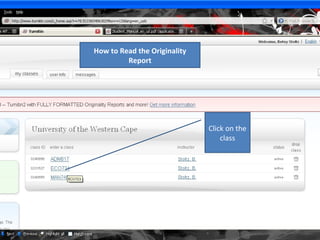
How to Read the Originality
         Report


                              Click on the
                                  class
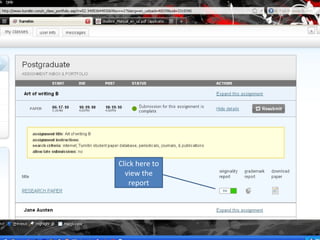
Click here
Click here to
  view the
    report
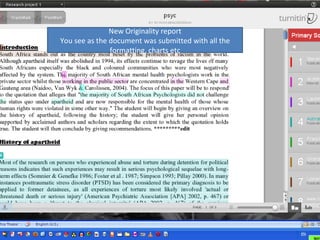
New Originality report
You see as the document was submitted with all the
               formatting, charts etc
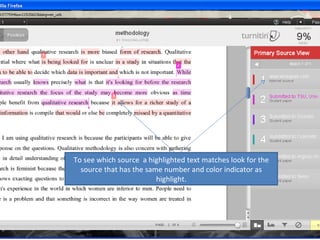
To see which source a highlighted text matches look for the
  source that has the same number and color indicator as
                         highlight.
If would like to see the text from the source in order to compare with student text
    simple click on highlighted text and source comparison window will appear.

Turnitin 19 jan2012_new

  • 1.
  • 2.
    Turnitin is an internet based plagiarism detection software.  Educational institutions submit essays and written assignments to the Turnitin website, which checks the documents for plagiarism.  Submissions are checked through: •A current and extensive internet publications database •Billions of commercial pages from books, newspapers, and journals •Millions of student papers in Turnitin’s repository (added on for intellectual property)
  • 3.
    UWC students will submit their written assignments to Turnitin, as a deterrent to plagiarism via the web  Turnitin checks for possible plagiarism by comparing submitted papers to several databases. It scans its own database(s), and also has licensing agreements with large academic proprietary databases.
  • 4.
    Web- based gateway to Tii  Tii used as a tool to  Lecturers can create promote creative writing. assignments and view  Students submit and get class lists with student originality reports. numbers with their  Students originality reports peruse/navigate  Students can log in and report; discuss submit assignments and reports and identify get originality reports. errors with  One gateway: Link to Tii lecturer/tutor server  Students rework documents and
  • 5.
    Training currently undergoing for both lecturers and students  Bookings are made through our ICT training team (via lecturer)  Tii is being used as a deterrent to plagiarism; not as the benchmark for the affect/aftermath of plagiarism  Lecturer training focuses on using the tool to promote creative writing and enhance writing practices within UWC.  ‘Just-in-time training’: Manuals (lecturer and student) which can be directly accessed from http://turnitin.uwc.ac.za/student
  • 6.
    Submitted documents- database search: ◦ Current and extensively archived copy of the publicly accessible internet publications ◦ Commercial pages from books, newspapers, and journals ◦ Millions of student papers already submitted to Turnitin ◦ Massive proprietary database of all Turnitin (Tii) university repositories ◦ Following, a report is generated.
  • 7.
    Report contents:  Paper ID > unique identification for each submission> security  Authors name  Class in which assignment was submitted (created by your lecturer)  Similarity index > Actual matches found on document  Overview of similar matches >
  • 8.
    Source report  Shows you similarity matches in descending order  Click on link to see actual source.  Source number enables easy navigation- i.e. to specific match (source) found  Colour differentiation – easy navigation
  • 9.
    Source report  Text matches within submitted doc  Words –no matches are shown in grey  Matches shown in a specific color  Even misquoted texts appear as matches within the similarity index.
  • 11.
    Assignment inbox  Shows you the reports of the submitted assignments  Color coded  Green <25%  Yellow25%> &<50%  Orange 50%<&<75%  Red>75%
  • 12.
  • 13.
    Enter your email address Enter your password received from turnitin helpdesk if you are the first time user.
  • 14.
  • 15.
    HOW TO SUBMITA PAPER Click on the class name
  • 16.
    This page youcan see the due date for the assignment. Click on submit/resubmit
  • 17.
    Click drop down arrow to select the submission method Enter submission title Then Click on Upload Search for your file that you want to upload.e.g. from your flash drive, hard drive depending where you’ve saved it
  • 18.
    This is the preview of what you are submitting if incorrect you can click on “Return to upload page” Then click on submit if you’re certain that the document is correct.
  • 19.
    If you seethis page you are done(YOU WILL RECEIVE EMAIL AS WELL)
  • 20.
    How to Readthe Originality Report Click on the class
  • 21.
  • 22.
    Click here to view the report
  • 23.
    New Originality report Yousee as the document was submitted with all the formatting, charts etc
  • 24.
    To see whichsource a highlighted text matches look for the source that has the same number and color indicator as highlight.
  • 25.
    If would liketo see the text from the source in order to compare with student text simple click on highlighted text and source comparison window will appear.