Microsoft
Publisher 2013
Chapter 1
Creating a Flyer
• Choose Publisher template options
• Describe the Publisher window
• Select objects and zoom
• Replace Publisher placeholder text
• Check spelling as you type
• Delete objects
• Format text and autofit
Objectives
Creating a Flyer 2
• Insert and format a photo
• Move, align, and resize objects
• Print a publication
• Open and modify a publication
• Create a hyperlink
• Change the background
• Save a print publication as a web publication
Creating a Flyer 3
Objectives
Creating a Flyer 4
Project – Concert Flyer
• Customize the template options such as choice,
color scheme, and font scheme
• Navigate the interface and select objects
• Replace placeholder text
• Delete objects you do not plan to use in the
publication, if any
• Format the text in the flyer
Creating a Flyer 5
Roadmap
• Insert graphics in placeholders and in other
locations, as necessary
• Format pictures by adding borders and styles
• Enhance the page by repositioning and aligning
objects
• Print and exit the publication
• Open and revise the publication
Creating a Flyer 6
Roadmap
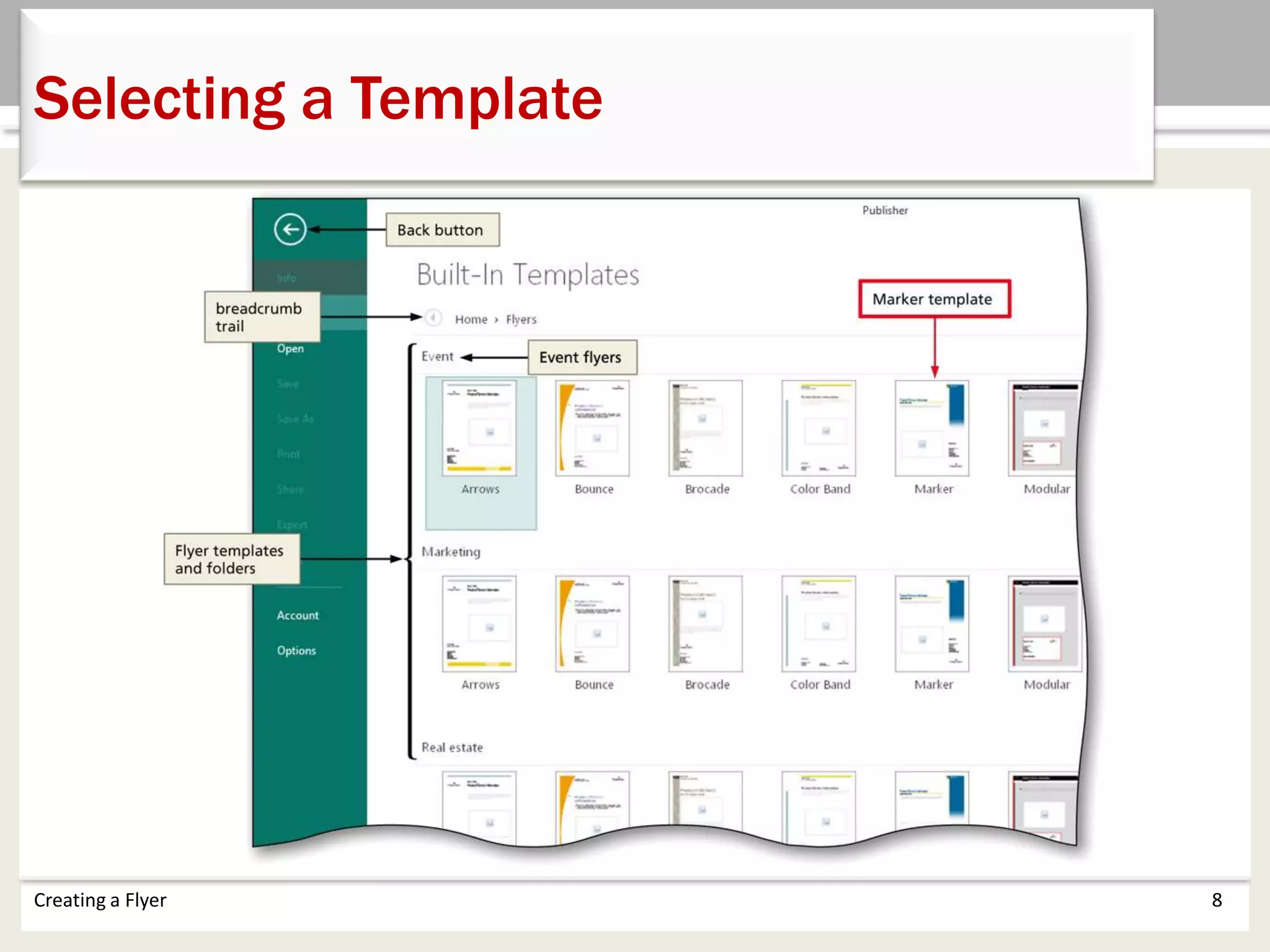
• In the Publisher start screen, tap or click BUILT-IN
to display the built-in templates
• Scroll down to display the desired publication
type (in this case, Flyers)
• Tap or click the desired publication type to display
related publication types
• Tap or click the desired template
Creating a Flyer 7
Selecting a Template
Creating a Flyer 8
Selecting a Template
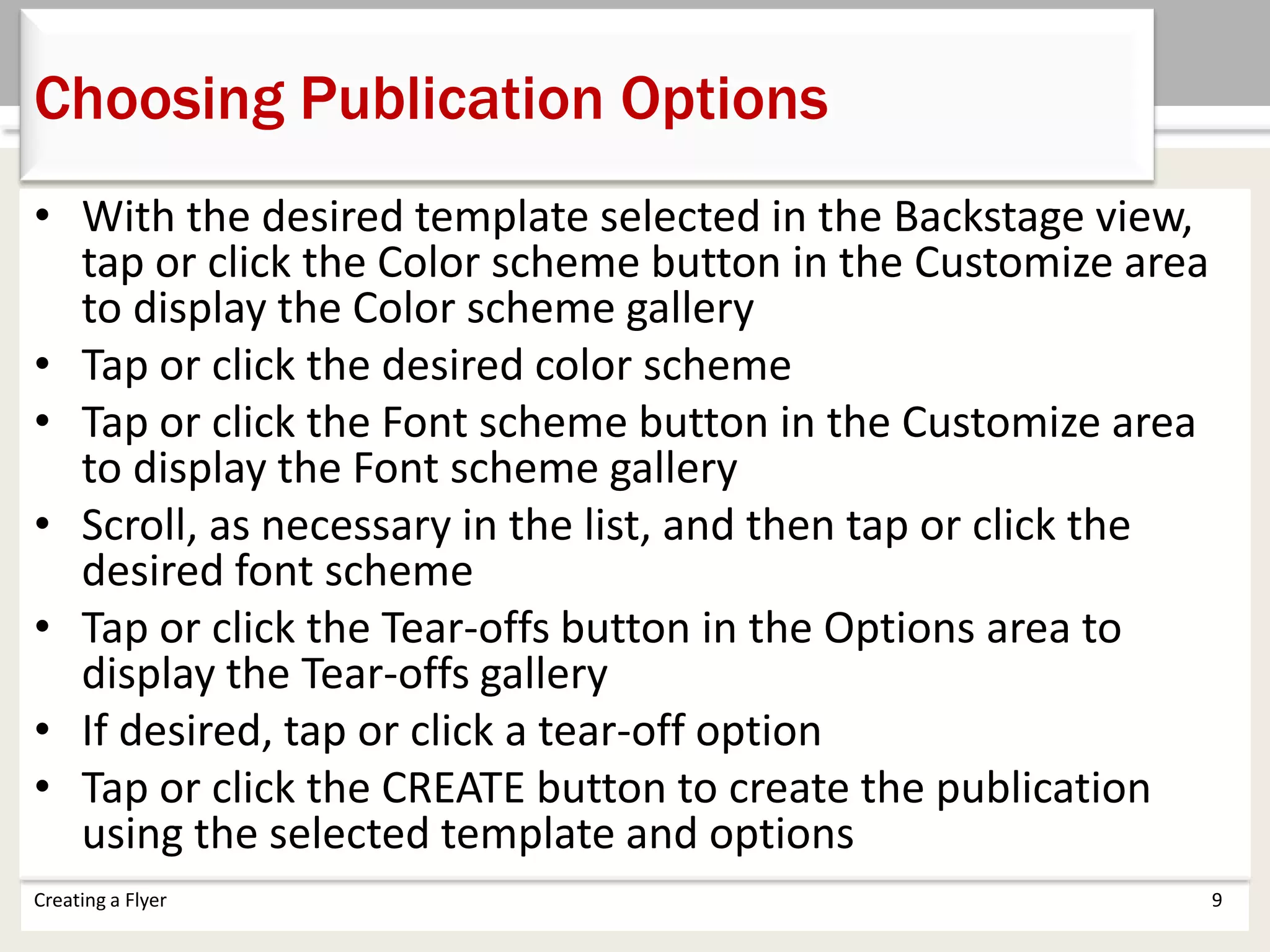
• With the desired template selected in the Backstage view,
tap or click the Color scheme button in the Customize area
to display the Color scheme gallery
• Tap or click the desired color scheme
• Tap or click the Font scheme button in the Customize area
to display the Font scheme gallery
• Scroll, as necessary in the list, and then tap or click the
desired font scheme
• Tap or click the Tear-offs button in the Options area to
display the Tear-offs gallery
• If desired, tap or click a tear-off option
• Tap or click the CREATE button to create the publication
using the selected template and options
Creating a Flyer 9
Choosing Publication Options
Creating a Flyer 10
Choosing Publication Options
• Tap or click the ‘Current page in publication’
button in the status bar to hide the Page
Navigation pane
Creating a Flyer 11
Hiding the Page Navigation Pane
• Tap or click near the desired object to select
Creating a Flyer 12
Selecting
• Press the F9 key on the keyboard to zoom the
selected object to 100%
Creating a Flyer 13
Zooming
Creating a Flyer 14
Selecting Objects and Zooming
• With the placeholder text selected, type the new
placeholder text
Creating a Flyer 15
Replacing Placeholder Text
• Tap or click outside of the selected object to
deselect it
Creating a Flyer 16
Deselecting an Object
• Press and hold or right-click the misspelled word
to display a shortcut menu that includes a list of
spelling corrections
• Tap or click the desired word on the shortcut
menu to replace the flagged word
Creating a Flyer 17
Checking Spelling as You Type
Creating a Flyer 18
Checking Spelling as You Type
• Tap or click the text in one of the tear-off text
boxes to select it
• Type the new text
• Tap or click outside of the text box to synchronize
the other tear-offs
Creating a Flyer 19
Entering Tear-Off Text
• Tap or click the boundary of the object to delete
• Press the DELETE key to delete the selected object
Creating a Flyer 20
Deleting Objects
Creating a Flyer 21
Formatting Text
• Tap or click the text in the desired text box
• Tap or click TEXT BOX TOOLS FORMAT on the
ribbon to display the TEXT BOX TOOLS FORMAT
tab
• Tap or click the Text Fit button
• Tap or click the desired option
Creating a Flyer 22
Autofitting Text
Creating a Flyer 23
Autofitting Text
• Tap or click the text to be changed
• If necessary, tap or click TEXT BOX TOOLS FORMAT
on the ribbon to display the TEXT BOX TOOLS
FORMAT tab
• Tap or click the Text Direction button to change
the text direction
Creating a Flyer 24
Changing Text Direction
Creating a Flyer 25
Changing Text Direction
• Tap or click the ‘Show Whole Page’ button on the
status bar to view the entire page
Creating a Flyer 26
Viewing Whole Page
• Tap or click the picture placeholder
• Tap or click the placeholder icon to display the Insert
Pictures dialog box
• Tap or click Office.com Clip Art to place the insertion
point in the search box
• Type the desired search term in the search box
• Press the ENTER key to begin the search
• When the results appear, tap or click the desired picture
• Tap or click the Insert button to insert the chosen picture
into the publication
Creating a Flyer 27
Using the Picture Placeholder
Creating a Flyer 28
Using the Picture Placeholder
• If necessary, select the picture
• Tap or click PICTURE TOOLS FORMAT on the
ribbon to display the PICTURE TOOLS FORMAT tab
• Tap or click the More button to display the Picture
Styles gallery
• Tap or click the desired picture style in the Picture
Styles gallery to apply the selected style to the
picture
Creating a Flyer 29
Applying a Picture Style
Creating a Flyer 30
Applying a Picture Style
• If necessary, select the picture
• Tap or click the Picture Border button (PICTURE
TOOLS FORMAT tab | Picture Styles group) to
display the Picture Border gallery
• Tap or click Weight to display the Weight gallery
• Tap or click the desired weight
Creating a Flyer 31
Setting the Weight of a Border
Creating a Flyer 32
Setting the Weight of a Border
• With the picture selected, tap or click the Picture
Border button (PICTURE TOOLS FORMAT tab |
Picture Styles group) to display the Picture Border
gallery
• Tap or click the desired border color
Creating a Flyer 33
Changing the Border Color
Creating a Flyer 34
Changing the Border Color
• Tap or click outside the page layout so that no
object is selected
• Tap or click INSERT on the ribbon to display the
INSERT tab
• Tap or click the Pictures button to display the
Insert Picture dialog box
• Navigate to the location of the picture to insert
• Double-tap or double-click the desired picture to
insert the file into the publication
Creating a Flyer 35
Inserting a Picture
from a Storage Device
Creating a Flyer 36
Inserting a Picture
from a Storage Device
• With the object selected, drag the object to the
desired location
Creating a Flyer 37
Moving an Object
• With the object selected, drag the to its new
location and align it using the visual layout guides
• Deselect the picture
Creating a Flyer 38
Aligning an Object
• With the object selected, drag a corner sizing
handle to the desired size
Creating a Flyer 39
Resizing an Object
• Tap or click FILE on the ribbon to open the Backstage view
• Tap or click the Print tab in the Backstage view to display
the Print gallery
• Verify the printer name listed on the Printer Status button
will print a hard copy of the publication. If necessary, click
the Printer Status button to display a list of available printer
options and then click the desired printer to change the
currently selected printer
• Tap or click the Print button in the Print gallery to print the
publication on the currently selected printer
• When the printer stops, retrieve the hard copy
Creating a Flyer 40
Printing a Publication
Creating a Flyer 41
Printing a Publication
• Select the text you wish to make a hyperlink
• Tap or click INSERT on the ribbon to display the
INSERT tab
• Tap or click the ‘Add a hyperlink’ button to display
the Insert Hyperlink dialog box
• Type the desired web address in the Address text
box
• Tap or click the OK button to assign the hyperlink
• Deselect the text to reveal the hyperlink
Creating a Flyer 42
Inserting a Hyperlink
Creating a Flyer 43
Inserting a Hyperlink
• Tap or click the ‘Show Whole Page’ button on the
status bar to display the entire page layout
• Tap or click PAGE DESIGN on the ribbon to display
the PAGE DESIGN tab
• Tap or click the Background button to display the
Background gallery
• Tap or click the desired background
Creating a Flyer 44
Changing the Background
Creating a Flyer 45
Changing the Background
• Tap or click FILE on the ribbon to open the
Backstage view
• Tap or click the Export tab to display the Export
gallery
• Tap or click Publish HTML to display its options
• Tap or click the ‘Web Page (HTML)’ button to
display options for publishing HTML
• Tap or click ‘Single File Web Page (MHTML)’ to
select it
Creating a Flyer 46
Saving a Print Publication
as a Web Publication
• Tap or click the Publish HTML button to display
the Save As dialog box
• Type the desired file name in the File name text
box
• Navigate to the desired storage location
• Tap or click the Save button to save the
publication
Creating a Flyer 47
Saving a Print Publication
as a Web Publication
Creating a Flyer 48
Saving a Print Publication
as a Web Publication
• Run the File Explorer app and navigate to the
location with the web publication
• Double-tap or double-click the publication to
preview
• When the browser window opens, if
necessary, maximize the window
Creating a Flyer 49
Previewing the Web Publication in a
Browser
Creating a Flyer 50
Previewing the Web Publication in a
Browser
• Choose Publisher template options
• Describe the Publisher window
• Select objects and zoom
• Replace Publisher placeholder text
• Check spelling as you type
• Delete objects
• Format text and autofit
Chapter Summary
Creating a Flyer 51
• Insert and format a photo
• Move, align, and resize objects
• Print a publication
• Open and modify a publication
• Create a hyperlink
• Change the background
• Save a print publication as a web publication
Creating a Flyer 52
Chapter Summary
Chapter 1 Complete
Microsoft
Publisher 2013

Ch01_PowerPoint.pptx

  • 1.
  • 2.
    • Choose Publishertemplate options • Describe the Publisher window • Select objects and zoom • Replace Publisher placeholder text • Check spelling as you type • Delete objects • Format text and autofit Objectives Creating a Flyer 2
  • 3.
    • Insert andformat a photo • Move, align, and resize objects • Print a publication • Open and modify a publication • Create a hyperlink • Change the background • Save a print publication as a web publication Creating a Flyer 3 Objectives
  • 4.
    Creating a Flyer4 Project – Concert Flyer
  • 5.
    • Customize thetemplate options such as choice, color scheme, and font scheme • Navigate the interface and select objects • Replace placeholder text • Delete objects you do not plan to use in the publication, if any • Format the text in the flyer Creating a Flyer 5 Roadmap
  • 6.
    • Insert graphicsin placeholders and in other locations, as necessary • Format pictures by adding borders and styles • Enhance the page by repositioning and aligning objects • Print and exit the publication • Open and revise the publication Creating a Flyer 6 Roadmap
  • 7.
    • In thePublisher start screen, tap or click BUILT-IN to display the built-in templates • Scroll down to display the desired publication type (in this case, Flyers) • Tap or click the desired publication type to display related publication types • Tap or click the desired template Creating a Flyer 7 Selecting a Template
  • 8.
    Creating a Flyer8 Selecting a Template
  • 9.
    • With thedesired template selected in the Backstage view, tap or click the Color scheme button in the Customize area to display the Color scheme gallery • Tap or click the desired color scheme • Tap or click the Font scheme button in the Customize area to display the Font scheme gallery • Scroll, as necessary in the list, and then tap or click the desired font scheme • Tap or click the Tear-offs button in the Options area to display the Tear-offs gallery • If desired, tap or click a tear-off option • Tap or click the CREATE button to create the publication using the selected template and options Creating a Flyer 9 Choosing Publication Options
  • 10.
    Creating a Flyer10 Choosing Publication Options
  • 11.
    • Tap orclick the ‘Current page in publication’ button in the status bar to hide the Page Navigation pane Creating a Flyer 11 Hiding the Page Navigation Pane
  • 12.
    • Tap orclick near the desired object to select Creating a Flyer 12 Selecting
  • 13.
    • Press theF9 key on the keyboard to zoom the selected object to 100% Creating a Flyer 13 Zooming
  • 14.
    Creating a Flyer14 Selecting Objects and Zooming
  • 15.
    • With theplaceholder text selected, type the new placeholder text Creating a Flyer 15 Replacing Placeholder Text
  • 16.
    • Tap orclick outside of the selected object to deselect it Creating a Flyer 16 Deselecting an Object
  • 17.
    • Press andhold or right-click the misspelled word to display a shortcut menu that includes a list of spelling corrections • Tap or click the desired word on the shortcut menu to replace the flagged word Creating a Flyer 17 Checking Spelling as You Type
  • 18.
    Creating a Flyer18 Checking Spelling as You Type
  • 19.
    • Tap orclick the text in one of the tear-off text boxes to select it • Type the new text • Tap or click outside of the text box to synchronize the other tear-offs Creating a Flyer 19 Entering Tear-Off Text
  • 20.
    • Tap orclick the boundary of the object to delete • Press the DELETE key to delete the selected object Creating a Flyer 20 Deleting Objects
  • 21.
    Creating a Flyer21 Formatting Text
  • 22.
    • Tap orclick the text in the desired text box • Tap or click TEXT BOX TOOLS FORMAT on the ribbon to display the TEXT BOX TOOLS FORMAT tab • Tap or click the Text Fit button • Tap or click the desired option Creating a Flyer 22 Autofitting Text
  • 23.
    Creating a Flyer23 Autofitting Text
  • 24.
    • Tap orclick the text to be changed • If necessary, tap or click TEXT BOX TOOLS FORMAT on the ribbon to display the TEXT BOX TOOLS FORMAT tab • Tap or click the Text Direction button to change the text direction Creating a Flyer 24 Changing Text Direction
  • 25.
    Creating a Flyer25 Changing Text Direction
  • 26.
    • Tap orclick the ‘Show Whole Page’ button on the status bar to view the entire page Creating a Flyer 26 Viewing Whole Page
  • 27.
    • Tap orclick the picture placeholder • Tap or click the placeholder icon to display the Insert Pictures dialog box • Tap or click Office.com Clip Art to place the insertion point in the search box • Type the desired search term in the search box • Press the ENTER key to begin the search • When the results appear, tap or click the desired picture • Tap or click the Insert button to insert the chosen picture into the publication Creating a Flyer 27 Using the Picture Placeholder
  • 28.
    Creating a Flyer28 Using the Picture Placeholder
  • 29.
    • If necessary,select the picture • Tap or click PICTURE TOOLS FORMAT on the ribbon to display the PICTURE TOOLS FORMAT tab • Tap or click the More button to display the Picture Styles gallery • Tap or click the desired picture style in the Picture Styles gallery to apply the selected style to the picture Creating a Flyer 29 Applying a Picture Style
  • 30.
    Creating a Flyer30 Applying a Picture Style
  • 31.
    • If necessary,select the picture • Tap or click the Picture Border button (PICTURE TOOLS FORMAT tab | Picture Styles group) to display the Picture Border gallery • Tap or click Weight to display the Weight gallery • Tap or click the desired weight Creating a Flyer 31 Setting the Weight of a Border
  • 32.
    Creating a Flyer32 Setting the Weight of a Border
  • 33.
    • With thepicture selected, tap or click the Picture Border button (PICTURE TOOLS FORMAT tab | Picture Styles group) to display the Picture Border gallery • Tap or click the desired border color Creating a Flyer 33 Changing the Border Color
  • 34.
    Creating a Flyer34 Changing the Border Color
  • 35.
    • Tap orclick outside the page layout so that no object is selected • Tap or click INSERT on the ribbon to display the INSERT tab • Tap or click the Pictures button to display the Insert Picture dialog box • Navigate to the location of the picture to insert • Double-tap or double-click the desired picture to insert the file into the publication Creating a Flyer 35 Inserting a Picture from a Storage Device
  • 36.
    Creating a Flyer36 Inserting a Picture from a Storage Device
  • 37.
    • With theobject selected, drag the object to the desired location Creating a Flyer 37 Moving an Object
  • 38.
    • With theobject selected, drag the to its new location and align it using the visual layout guides • Deselect the picture Creating a Flyer 38 Aligning an Object
  • 39.
    • With theobject selected, drag a corner sizing handle to the desired size Creating a Flyer 39 Resizing an Object
  • 40.
    • Tap orclick FILE on the ribbon to open the Backstage view • Tap or click the Print tab in the Backstage view to display the Print gallery • Verify the printer name listed on the Printer Status button will print a hard copy of the publication. If necessary, click the Printer Status button to display a list of available printer options and then click the desired printer to change the currently selected printer • Tap or click the Print button in the Print gallery to print the publication on the currently selected printer • When the printer stops, retrieve the hard copy Creating a Flyer 40 Printing a Publication
  • 41.
    Creating a Flyer41 Printing a Publication
  • 42.
    • Select thetext you wish to make a hyperlink • Tap or click INSERT on the ribbon to display the INSERT tab • Tap or click the ‘Add a hyperlink’ button to display the Insert Hyperlink dialog box • Type the desired web address in the Address text box • Tap or click the OK button to assign the hyperlink • Deselect the text to reveal the hyperlink Creating a Flyer 42 Inserting a Hyperlink
  • 43.
    Creating a Flyer43 Inserting a Hyperlink
  • 44.
    • Tap orclick the ‘Show Whole Page’ button on the status bar to display the entire page layout • Tap or click PAGE DESIGN on the ribbon to display the PAGE DESIGN tab • Tap or click the Background button to display the Background gallery • Tap or click the desired background Creating a Flyer 44 Changing the Background
  • 45.
    Creating a Flyer45 Changing the Background
  • 46.
    • Tap orclick FILE on the ribbon to open the Backstage view • Tap or click the Export tab to display the Export gallery • Tap or click Publish HTML to display its options • Tap or click the ‘Web Page (HTML)’ button to display options for publishing HTML • Tap or click ‘Single File Web Page (MHTML)’ to select it Creating a Flyer 46 Saving a Print Publication as a Web Publication
  • 47.
    • Tap orclick the Publish HTML button to display the Save As dialog box • Type the desired file name in the File name text box • Navigate to the desired storage location • Tap or click the Save button to save the publication Creating a Flyer 47 Saving a Print Publication as a Web Publication
  • 48.
    Creating a Flyer48 Saving a Print Publication as a Web Publication
  • 49.
    • Run theFile Explorer app and navigate to the location with the web publication • Double-tap or double-click the publication to preview • When the browser window opens, if necessary, maximize the window Creating a Flyer 49 Previewing the Web Publication in a Browser
  • 50.
    Creating a Flyer50 Previewing the Web Publication in a Browser
  • 51.
    • Choose Publishertemplate options • Describe the Publisher window • Select objects and zoom • Replace Publisher placeholder text • Check spelling as you type • Delete objects • Format text and autofit Chapter Summary Creating a Flyer 51
  • 52.
    • Insert andformat a photo • Move, align, and resize objects • Print a publication • Open and modify a publication • Create a hyperlink • Change the background • Save a print publication as a web publication Creating a Flyer 52 Chapter Summary
  • 53.