PowerPoint 2007 Joel Kinison Instructional Technology Coordinator College of Southern Maryland
Agenda Getting Started Microsoft PowerPoint New Features Nine Steps in Creating a Presentation 06/07/09 Division of Distance Learning and Faculty Development
Microsoft PowerPoint 06/07/09 Division of Distance Learning and Faculty Development
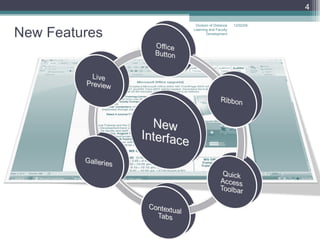
New Features 06/07/09 Division of Distance Learning and Faculty Development
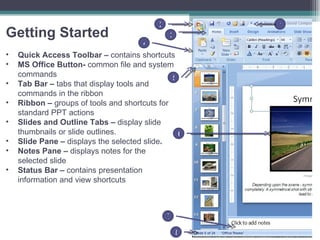
Getting Started Quick Access Toolbar –  contains shortcuts  MS Office Button-  common file and system commands Tab Bar –  tabs that display tools and commands in the ribbon Ribbon –  groups of tools and shortcuts for standard PPT actions Slides and Outline Tabs –  display slide thumbnails or slide outlines. Slide Pane –  displays the selected slide . Notes Pane –  displays notes for the selected slide Status Bar –  contains presentation information and view shortcuts 1 2 3 4 5 6 7 8
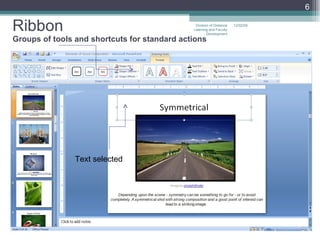
Ribbon Groups of tools and shortcuts for standard actions Text selected 06/07/09 Division of Distance Learning and Faculty Development
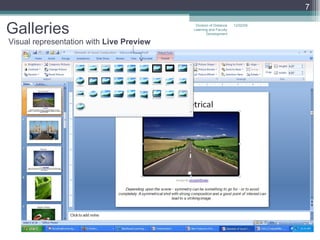
Galleries Visual representation with  Live Preview 06/07/09 Division of Distance Learning and Faculty Development
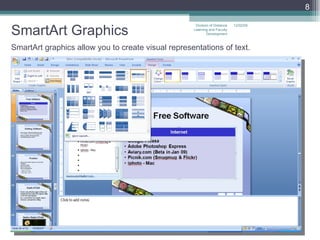
SmartArt Graphics 06/07/09 Division of Distance Learning and Faculty Development SmartArt graphics allow you to create visual representations of text.
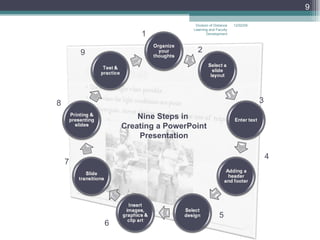
06/07/09 Division of Distance Learning and Faculty Development Nine Steps in  Creating a PowerPoint Presentation 1 2 7 4 5 6 3 8 9
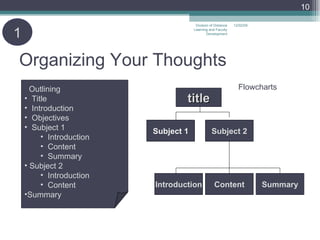
Organizing Your Thoughts 1   Outlining Title Introduction Objectives Subject 1 Introduction Content Summary Subject 2 Introduction Content Summary title Subject 1 Subject 2 Introduction Content Summary Flowcharts 06/07/09 Division of Distance Learning and Faculty Development
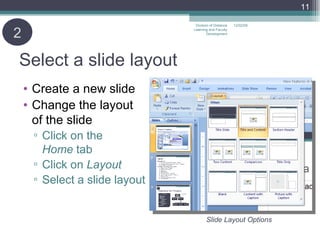
Select a slide layout Create a new slide Change the layout of the slide Click on the  Home  tab Click on  Layout Select a slide layout 2 06/07/09 Division of Distance Learning and Faculty Development Slide Layout Options
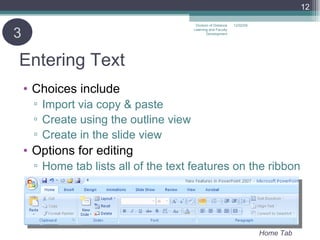
Entering Text Choices include Import via copy & paste Create using the outline view Create in the slide view Options for editing Home tab lists all of the text features on the ribbon 3 06/07/09 Division of Distance Learning and Faculty Development Home Tab
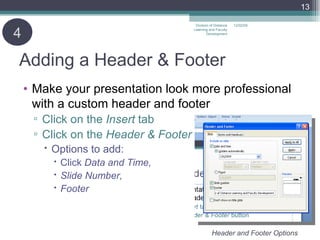
Adding a Header & Footer Make your presentation look more professional with a custom header and footer Click on the  Insert  tab Click on the  Header & Footer Options to add: Click  Data and Time, Slide Number, Footer 4 06/07/09 Division of Distance Learning and Faculty Development Header and Footer Options
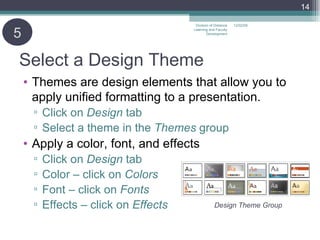
Select a Design Theme Themes are design elements that allow you to apply unified formatting to a presentation. Click on  Design  tab Select a theme in the  Themes  group Apply a color, font, and effects Click on  Design  tab Color – click on  Colors Font – click on  Fonts Effects – click on  Effects 5 06/07/09 Division of Distance Learning and Faculty Development Design Theme Group
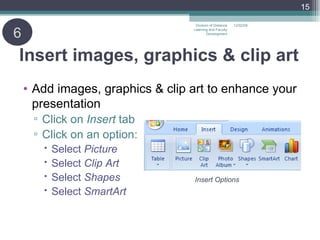
Insert images, graphics & clip art Add images, graphics & clip art to enhance your presentation Click on  Insert  tab Click on an option: Select  Picture Select  Clip Art Select  Shapes Select  SmartArt 06/07/09 Division of Distance Learning and Faculty Development 6 Insert Options
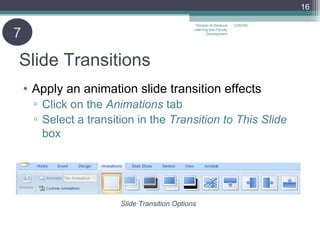
Slide Transitions Apply an animation slide transition effects Click on the  Animations  tab Select a transition in the  Transition to This Slide  box 06/07/09 Division of Distance Learning and Faculty Development Slide Transition Options 7
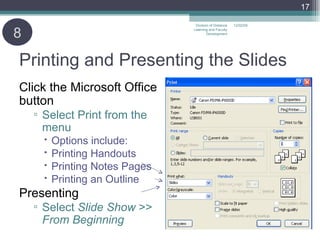
Printing and Presenting the Slides Click the Microsoft Office button  Select Print from the menu Options include: Printing Handouts Printing Notes Pages Printing an Outline Presenting Select  Slide Show  >>  From Beginning 06/07/09 Division of Distance Learning and Faculty Development 8
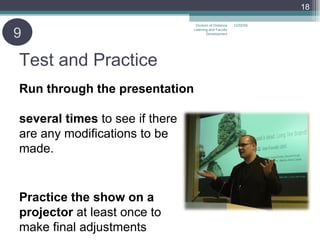
Test and Practice Run through the presentation  several times  to see if there  are any modifications to be made.   Practice the show on a projector  at least once to  make final adjustments 06/07/09 Division of Distance Learning and Faculty Development 9
Questions?  Using PowerPoint Effectively Handout Great tips on creating and delivering an effective presentation 06/07/09 Division of Distance Learning and Faculty Development
PowerPoint 2007 Joel Kinison Instructional Technology Coordinator College of Southern Maryland

New Features In Power Point 2007 Ppt

  • 1.
    PowerPoint 2007 JoelKinison Instructional Technology Coordinator College of Southern Maryland
  • 2.
    Agenda Getting StartedMicrosoft PowerPoint New Features Nine Steps in Creating a Presentation 06/07/09 Division of Distance Learning and Faculty Development
  • 3.
    Microsoft PowerPoint 06/07/09Division of Distance Learning and Faculty Development
  • 4.
    New Features 06/07/09Division of Distance Learning and Faculty Development
  • 5.
    Getting Started QuickAccess Toolbar – contains shortcuts MS Office Button- common file and system commands Tab Bar – tabs that display tools and commands in the ribbon Ribbon – groups of tools and shortcuts for standard PPT actions Slides and Outline Tabs – display slide thumbnails or slide outlines. Slide Pane – displays the selected slide . Notes Pane – displays notes for the selected slide Status Bar – contains presentation information and view shortcuts 1 2 3 4 5 6 7 8
  • 6.
    Ribbon Groups oftools and shortcuts for standard actions Text selected 06/07/09 Division of Distance Learning and Faculty Development
  • 7.
    Galleries Visual representationwith Live Preview 06/07/09 Division of Distance Learning and Faculty Development
  • 8.
    SmartArt Graphics 06/07/09Division of Distance Learning and Faculty Development SmartArt graphics allow you to create visual representations of text.
  • 9.
    06/07/09 Division ofDistance Learning and Faculty Development Nine Steps in Creating a PowerPoint Presentation 1 2 7 4 5 6 3 8 9
  • 10.
    Organizing Your Thoughts1 Outlining Title Introduction Objectives Subject 1 Introduction Content Summary Subject 2 Introduction Content Summary title Subject 1 Subject 2 Introduction Content Summary Flowcharts 06/07/09 Division of Distance Learning and Faculty Development
  • 11.
    Select a slidelayout Create a new slide Change the layout of the slide Click on the Home tab Click on Layout Select a slide layout 2 06/07/09 Division of Distance Learning and Faculty Development Slide Layout Options
  • 12.
    Entering Text Choicesinclude Import via copy & paste Create using the outline view Create in the slide view Options for editing Home tab lists all of the text features on the ribbon 3 06/07/09 Division of Distance Learning and Faculty Development Home Tab
  • 13.
    Adding a Header& Footer Make your presentation look more professional with a custom header and footer Click on the Insert tab Click on the Header & Footer Options to add: Click Data and Time, Slide Number, Footer 4 06/07/09 Division of Distance Learning and Faculty Development Header and Footer Options
  • 14.
    Select a DesignTheme Themes are design elements that allow you to apply unified formatting to a presentation. Click on Design tab Select a theme in the Themes group Apply a color, font, and effects Click on Design tab Color – click on Colors Font – click on Fonts Effects – click on Effects 5 06/07/09 Division of Distance Learning and Faculty Development Design Theme Group
  • 15.
    Insert images, graphics& clip art Add images, graphics & clip art to enhance your presentation Click on Insert tab Click on an option: Select Picture Select Clip Art Select Shapes Select SmartArt 06/07/09 Division of Distance Learning and Faculty Development 6 Insert Options
  • 16.
    Slide Transitions Applyan animation slide transition effects Click on the Animations tab Select a transition in the Transition to This Slide box 06/07/09 Division of Distance Learning and Faculty Development Slide Transition Options 7
  • 17.
    Printing and Presentingthe Slides Click the Microsoft Office button Select Print from the menu Options include: Printing Handouts Printing Notes Pages Printing an Outline Presenting Select Slide Show >> From Beginning 06/07/09 Division of Distance Learning and Faculty Development 8
  • 18.
    Test and PracticeRun through the presentation several times to see if there are any modifications to be made. Practice the show on a projector at least once to make final adjustments 06/07/09 Division of Distance Learning and Faculty Development 9
  • 19.
    Questions? UsingPowerPoint Effectively Handout Great tips on creating and delivering an effective presentation 06/07/09 Division of Distance Learning and Faculty Development
  • 20.
    PowerPoint 2007 JoelKinison Instructional Technology Coordinator College of Southern Maryland