Control Panel


Computer Maintenance
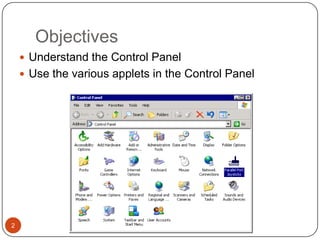
Objectives
     Understand the Control Panel
     Use the various applets in the Control Panel


2
Control Panel Overview
     Control Panel
       Centralized location for management utilities
     Changes in XP:
       New applets
       New view
     Applet
       Small application designed for a limited range of
       function or capability


3
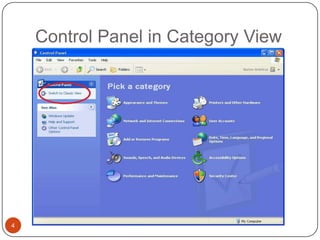
Control Panel in Category View


4
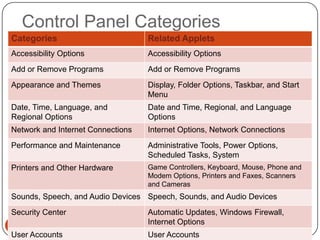
Control Panel Categories
Categories                         Related Applets
Accessibility Options              Accessibility Options
Add or Remove Programs             Add or Remove Programs
Appearance and Themes              Display, Folder Options, Taskbar, and Start
                                   Menu
Date, Time, Language, and          Date and Time, Regional, and Language
Regional Options                   Options
Network and Internet Connections   Internet Options, Network Connections
Performance and Maintenance        Administrative Tools, Power Options,
                                   Scheduled Tasks, System
Printers and Other Hardware        Game Controllers, Keyboard, Mouse, Phone and
                                   Modem Options, Printers and Faxes, Scanners
                                   and Cameras
Sounds, Speech, and Audio Devices Speech, Sounds, and Audio Devices
Security Center                    Automatic Updates, Windows Firewall,
5
                                   Internet Options
User Accounts                      User Accounts
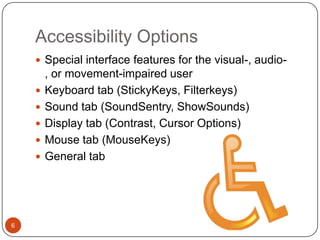
Accessibility Options
     Special interface features for the visual-, audio-
        , or movement-impaired user
       Keyboard tab (StickyKeys, Filterkeys)
       Sound tab (SoundSentry, ShowSounds)
       Display tab (Contrast, Cursor Options)
       Mouse tab (MouseKeys)
       General tab


6
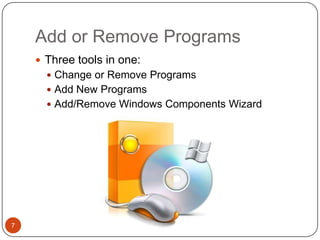
Add or Remove Programs
     Three tools in one:
       Change or Remove Programs
       Add New Programs
       Add/Remove Windows Components Wizard


7
Appearance and Themes
    Display, Folder Options, and Taskbar and Start Menu


8
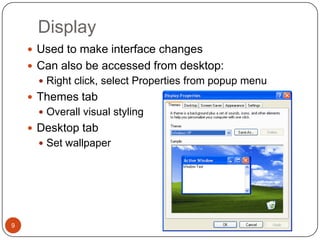
Display
     Used to make interface changes
     Can also be accessed from desktop:
       Right click, select Properties from popup menu
     Themes tab
       Overall visual styling
     Desktop tab
       Set wallpaper


9
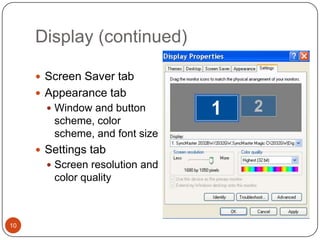
Display (continued)

      Screen Saver tab
      Appearance tab
        Window and button
        scheme, color
        scheme, and font size
      Settings tab
        Screen resolution and
        color quality


10
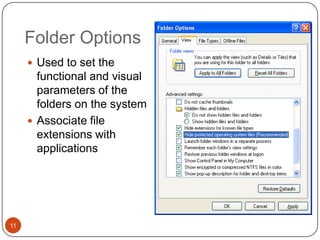
Folder Options
      Used to set the
       functional and visual
       parameters of the
       folders on the system
      Associate file
       extensions with
       applications


11
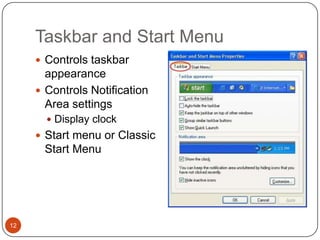
Taskbar and Start Menu
      Controls taskbar
       appearance
      Controls Notification
       Area settings
        Display clock
      Start menu or Classic
      Start Menu


12
Date, Time, Language, and
     Regional Options
     Date and Time, Regional, and Language Options


13
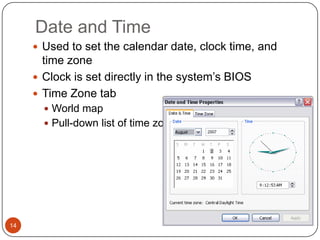
Date and Time
      Used to set the calendar date, clock time, and
       time zone
      Clock is set directly in the system’s BIOS
      Time Zone tab
        World map
        Pull-down list of time zones


14
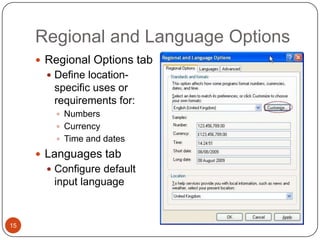
Regional and Language Options
      Regional Options tab
        Define location-
        specific uses or
        requirements for:
          Numbers
          Currency
          Time and dates

      Languages tab
        Configure default
        input language


15
Network and Internet
     Connections
     Internet Options, Network Connections


16
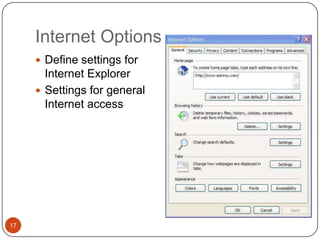
Internet Options
      Define settings for
       Internet Explorer
      Settings for general
       Internet access


17
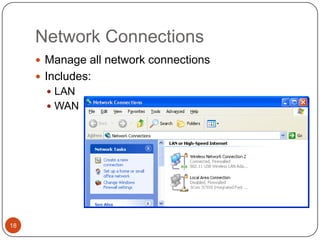
Network Connections
      Manage all network connections
      Includes:
        LAN
        WAN


18
Performance and Maintenance
     Administrative Tools, Power Options, Scheduled
     Tasks, System


19
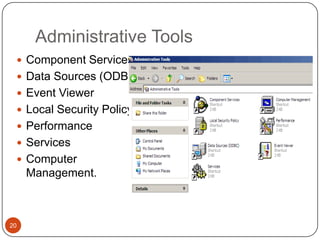
Administrative Tools
  Component Services
  Data Sources (ODBC)
  Event Viewer
  Local Security Policy
  Performance
  Services
  Computer
     Management.


20
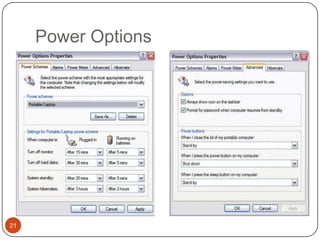
Power Options


21
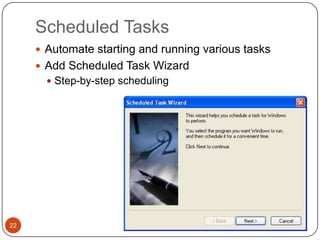
Scheduled Tasks
      Automate starting and running various tasks
      Add Scheduled Task Wizard
        Step-by-step scheduling


22
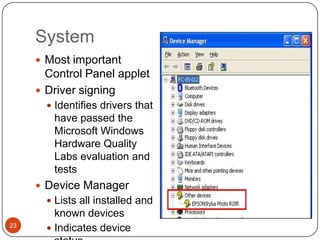
System
      Most important
       Control Panel applet
      Driver signing
        Identifies drivers that
        have passed the
        Microsoft Windows
        Hardware Quality
        Labs evaluation and
        tests
      Device Manager
        Lists all installed and
         known devices
23
        Indicates device
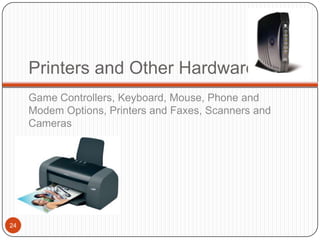
Printers and Other Hardware
     Game Controllers, Keyboard, Mouse, Phone and
     Modem Options, Printers and Faxes, Scanners and
     Cameras


24
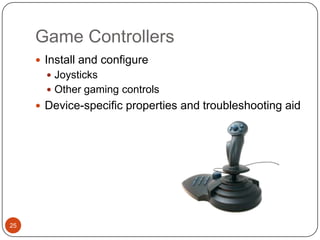
Game Controllers
      Install and configure
        Joysticks
        Other gaming controls
      Device-specific properties and troubleshooting aid


25
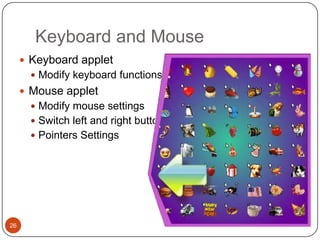
Keyboard and Mouse
      Keyboard applet
        Modify keyboard functions
      Mouse applet
        Modify mouse settings
        Switch left and right buttons
        Pointers Settings


26
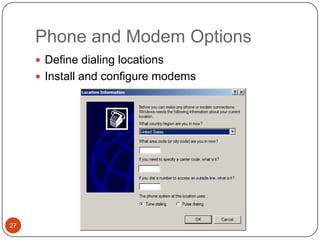
Phone and Modem Options
      Define dialing locations
      Install and configure modems


27
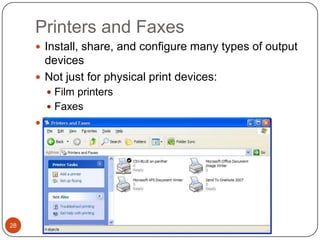
Printers and Faxes
      Install, share, and configure many types of output
       devices
      Not just for physical print devices:
        Film printers
        Faxes
      Manage print queue


28
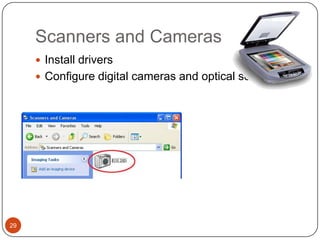
Scanners and Cameras
      Install drivers
      Configure digital cameras and optical scanners


29
Sounds, Speech, and Audio
     Devices
     Speech, Sounds, and Audio Devices


30
Speech
      Text-to-speech capability reads document text
      Microsoft’s Speech API (SAPI)
      Distinct from the Narrator Accessibility Accessory


31
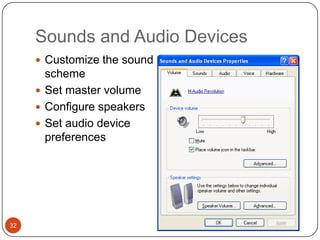
Sounds and Audio Devices
      Customize the sound
       scheme
      Set master volume
      Configure speakers
      Set audio device
       preferences


32
Security Center
     Automatic Updates, Windows Firewall, Internet Options


33
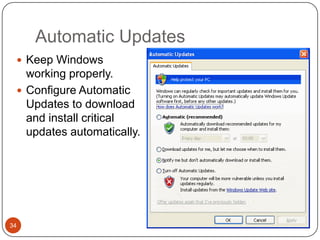
Automatic Updates
  Keep Windows
   working properly.
  Configure Automatic
   Updates to download
   and install critical
   updates automatically.


34
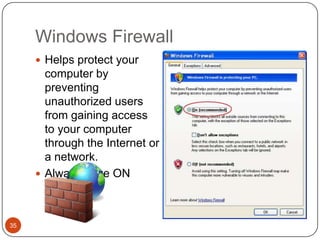
Windows Firewall
      Helps protect your
       computer by
       preventing
       unauthorized users
       from gaining access
       to your computer
       through the Internet or
       a network.
      Always have ON


35
User Accounts
      Create and manage
        Local user accounts
        Passwords
      Access the Local Users and Groups tool
      Specify whether Ctrl+Alt+Delete is required to log
      on


36

Control Panel

  • 1.
  • 2.
    Objectives  Understand the Control Panel  Use the various applets in the Control Panel 2
  • 3.
    Control Panel Overview  Control Panel  Centralized location for management utilities  Changes in XP:  New applets  New view  Applet  Small application designed for a limited range of function or capability 3
  • 4.
    Control Panel inCategory View 4
  • 5.
    Control Panel Categories Categories Related Applets Accessibility Options Accessibility Options Add or Remove Programs Add or Remove Programs Appearance and Themes Display, Folder Options, Taskbar, and Start Menu Date, Time, Language, and Date and Time, Regional, and Language Regional Options Options Network and Internet Connections Internet Options, Network Connections Performance and Maintenance Administrative Tools, Power Options, Scheduled Tasks, System Printers and Other Hardware Game Controllers, Keyboard, Mouse, Phone and Modem Options, Printers and Faxes, Scanners and Cameras Sounds, Speech, and Audio Devices Speech, Sounds, and Audio Devices Security Center Automatic Updates, Windows Firewall, 5 Internet Options User Accounts User Accounts
  • 6.
    Accessibility Options  Special interface features for the visual-, audio- , or movement-impaired user  Keyboard tab (StickyKeys, Filterkeys)  Sound tab (SoundSentry, ShowSounds)  Display tab (Contrast, Cursor Options)  Mouse tab (MouseKeys)  General tab 6
  • 7.
    Add or RemovePrograms  Three tools in one:  Change or Remove Programs  Add New Programs  Add/Remove Windows Components Wizard 7
  • 8.
    Appearance and Themes Display, Folder Options, and Taskbar and Start Menu 8
  • 9.
    Display  Used to make interface changes  Can also be accessed from desktop:  Right click, select Properties from popup menu  Themes tab  Overall visual styling  Desktop tab  Set wallpaper 9
  • 10.
    Display (continued)  Screen Saver tab  Appearance tab  Window and button scheme, color scheme, and font size  Settings tab  Screen resolution and color quality 10
  • 11.
    Folder Options  Used to set the functional and visual parameters of the folders on the system  Associate file extensions with applications 11
  • 12.
    Taskbar and StartMenu  Controls taskbar appearance  Controls Notification Area settings  Display clock  Start menu or Classic Start Menu 12
  • 13.
    Date, Time, Language,and Regional Options Date and Time, Regional, and Language Options 13
  • 14.
    Date and Time  Used to set the calendar date, clock time, and time zone  Clock is set directly in the system’s BIOS  Time Zone tab  World map  Pull-down list of time zones 14
  • 15.
    Regional and LanguageOptions  Regional Options tab  Define location- specific uses or requirements for:  Numbers  Currency  Time and dates  Languages tab  Configure default input language 15
  • 16.
    Network and Internet Connections Internet Options, Network Connections 16
  • 17.
    Internet Options  Define settings for Internet Explorer  Settings for general Internet access 17
  • 18.
    Network Connections  Manage all network connections  Includes:  LAN  WAN 18
  • 19.
    Performance and Maintenance Administrative Tools, Power Options, Scheduled Tasks, System 19
  • 20.
    Administrative Tools Component Services  Data Sources (ODBC)  Event Viewer  Local Security Policy  Performance  Services  Computer Management. 20
  • 21.
  • 22.
    Scheduled Tasks  Automate starting and running various tasks  Add Scheduled Task Wizard  Step-by-step scheduling 22
  • 23.
    System  Most important Control Panel applet  Driver signing  Identifies drivers that have passed the Microsoft Windows Hardware Quality Labs evaluation and tests  Device Manager  Lists all installed and known devices 23  Indicates device
  • 24.
    Printers and OtherHardware Game Controllers, Keyboard, Mouse, Phone and Modem Options, Printers and Faxes, Scanners and Cameras 24
  • 25.
    Game Controllers  Install and configure  Joysticks  Other gaming controls  Device-specific properties and troubleshooting aid 25
  • 26.
    Keyboard and Mouse  Keyboard applet  Modify keyboard functions  Mouse applet  Modify mouse settings  Switch left and right buttons  Pointers Settings 26
  • 27.
    Phone and ModemOptions  Define dialing locations  Install and configure modems 27
  • 28.
    Printers and Faxes  Install, share, and configure many types of output devices  Not just for physical print devices:  Film printers  Faxes  Manage print queue 28
  • 29.
    Scanners and Cameras  Install drivers  Configure digital cameras and optical scanners 29
  • 30.
    Sounds, Speech, andAudio Devices Speech, Sounds, and Audio Devices 30
  • 31.
    Speech  Text-to-speech capability reads document text  Microsoft’s Speech API (SAPI)  Distinct from the Narrator Accessibility Accessory 31
  • 32.
    Sounds and AudioDevices  Customize the sound scheme  Set master volume  Configure speakers  Set audio device preferences 32
  • 33.
    Security Center Automatic Updates, Windows Firewall, Internet Options 33
  • 34.
    Automatic Updates Keep Windows working properly.  Configure Automatic Updates to download and install critical updates automatically. 34
  • 35.
    Windows Firewall  Helps protect your computer by preventing unauthorized users from gaining access to your computer through the Internet or a network.  Always have ON 35
  • 36.
    User Accounts  Create and manage  Local user accounts  Passwords  Access the Local Users and Groups tool  Specify whether Ctrl+Alt+Delete is required to log on 36