WHAT IS
POWERPOINT?
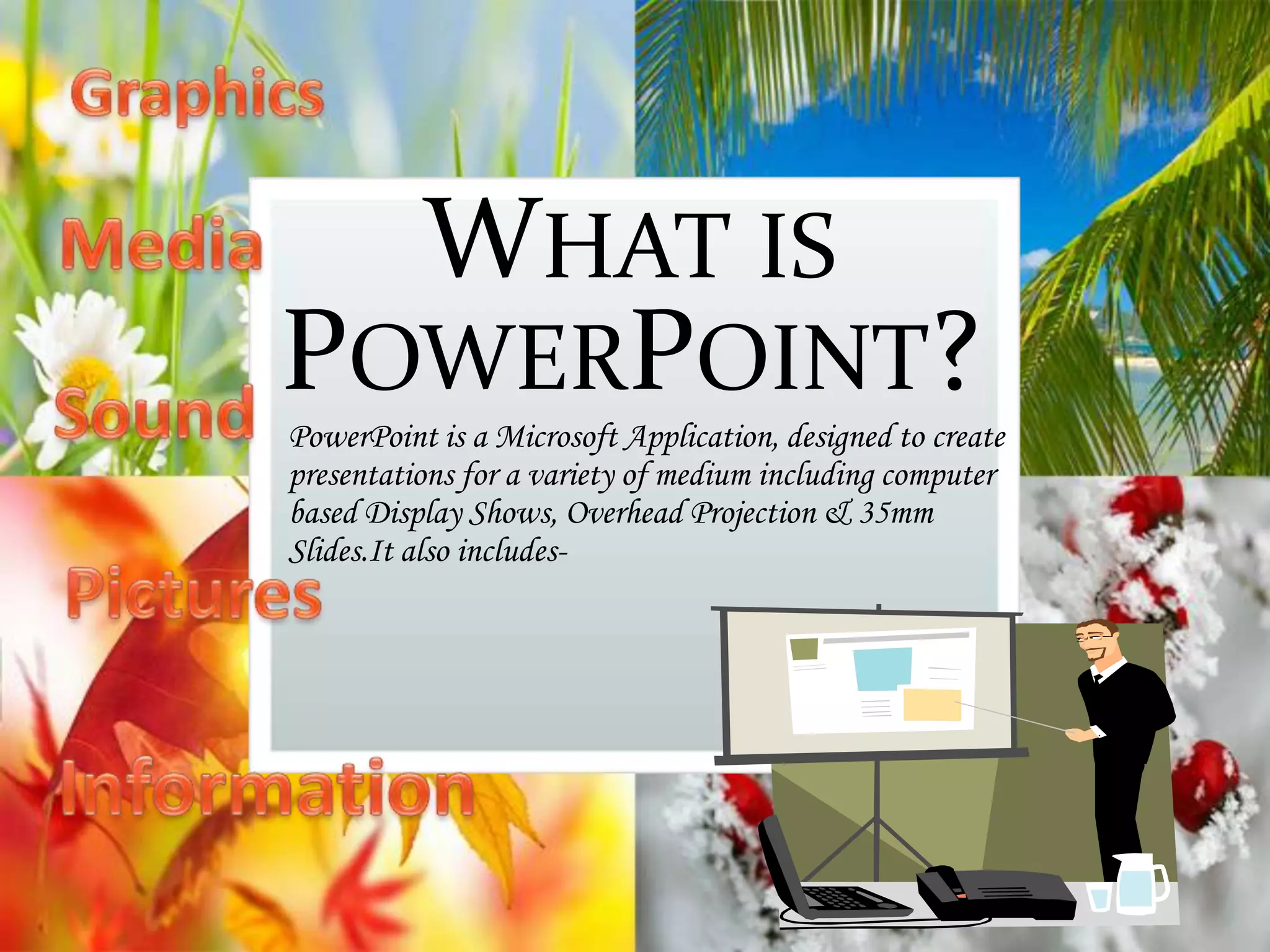
PowerPoint is a Microsoft Application, designed to create
presentations for a variety of medium including computer
based Display Shows, Overhead Projection & 35mm
Slides.It also includes-


Create professional looking
presentations EASILY



a visual aid!


Makes you less nervous since they
will be looking at the PowerPoint

track with the presentation


Helps the presenter stay organized/on

presentation not you

Keeps audience interested giving them
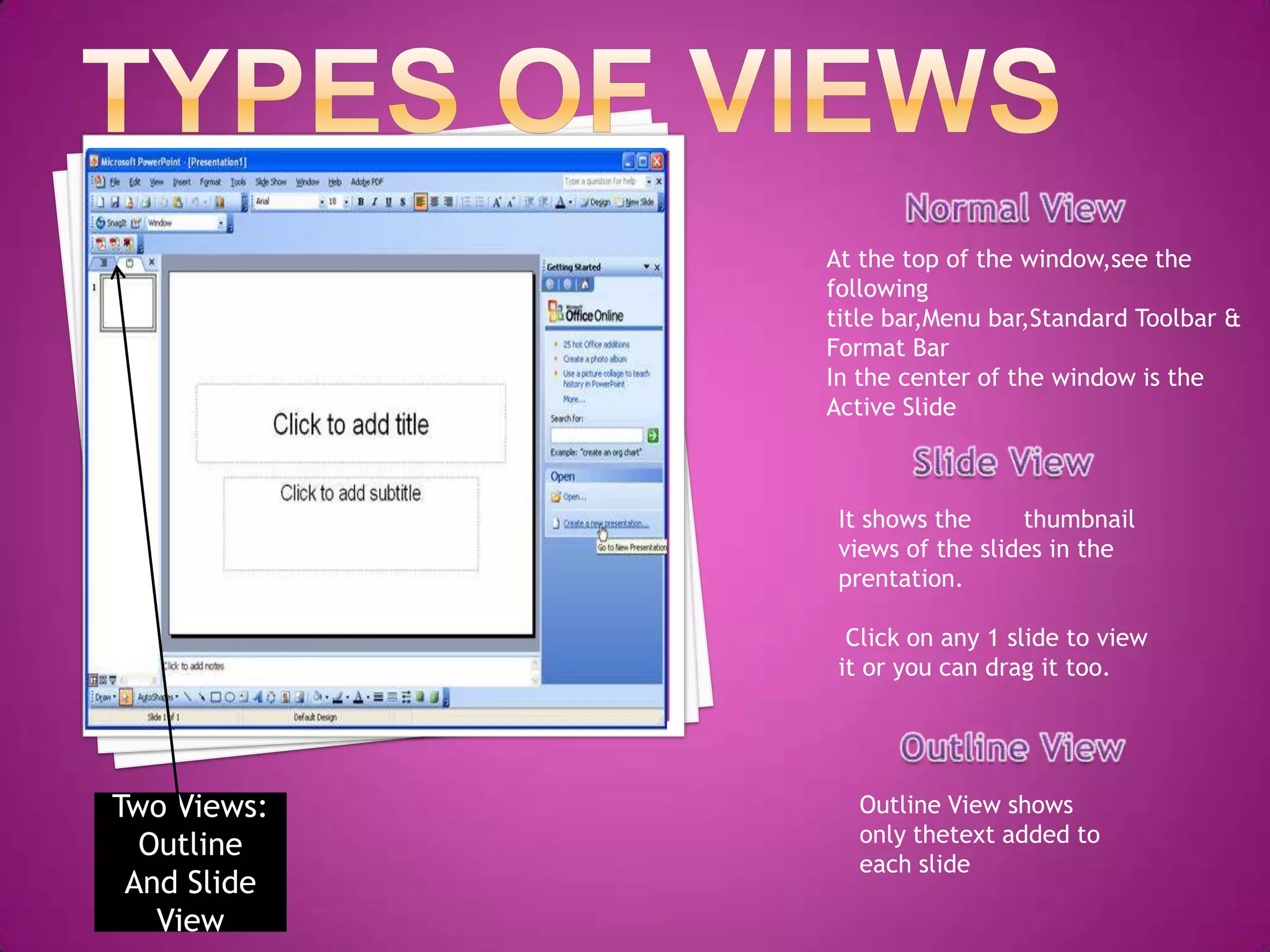
At the top of the window,see the
following
title bar,Menu bar,Standard Toolbar &
Format Bar
In the center of the window is the
Active Slide

It shows the
thumbnail
views of the slides in the
prentation.
Click on any 1 slide to view
it or you can drag it too.

Two Views:
Outline
And Slide
View

Outline View shows
only thetext added to
each slide
Slide Layout
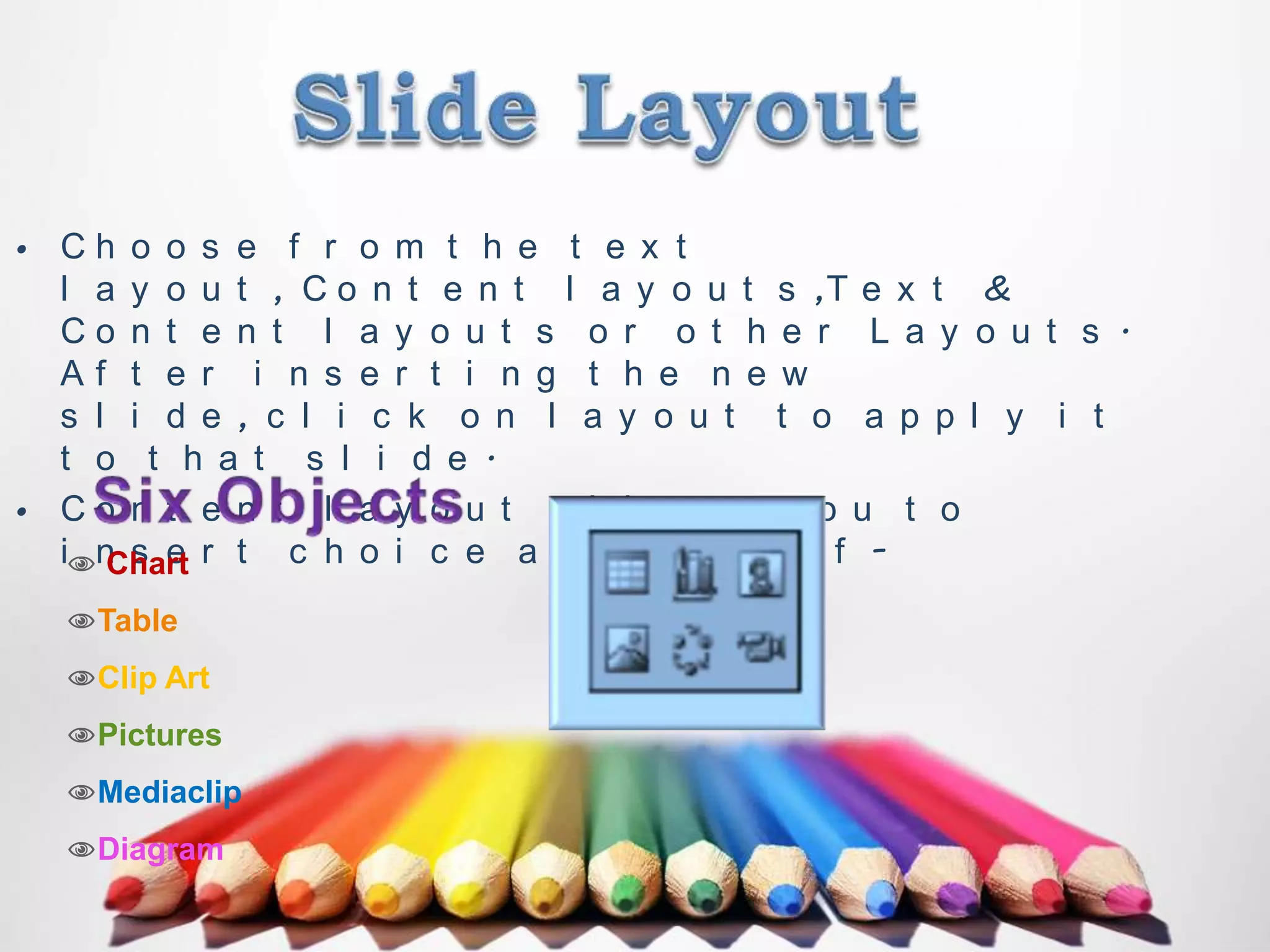
• Ch o o s e f r o m t h e t e x t
l a y o u t , C o n t e n t l a y o u t s ,T e x t &
Co n t e n t l a y o u t s o r o t h e r L a y o u t s .
Af t e r i n s e r t i n g t h e n e w
s l i d e , c l i c k o n l a y o u t t o a p p l y i t
t o t h a t s l i d e .
• Co n t e n t l a y o u t a l l o ws y o u t o
in s e r t c h o i c e a c h o i c e o f Chart
Table
Clip Art
Pictures
Mediaclip
Diagram
Slide Design
•

•

Choose from several Design Templates.Sllides Templates have
the backgrounds, fonts, font sizes, and colours already created.
Choose from several themes,schemes etc.

The design template is applied to all slides
If you want to change that on some slides
Select the slide you want to change
Hold the [Ctrl]key down and clik on
each slide
Click the down arrow button
Op e n i n g A
Ne w
Pr e s e nt a t i
on
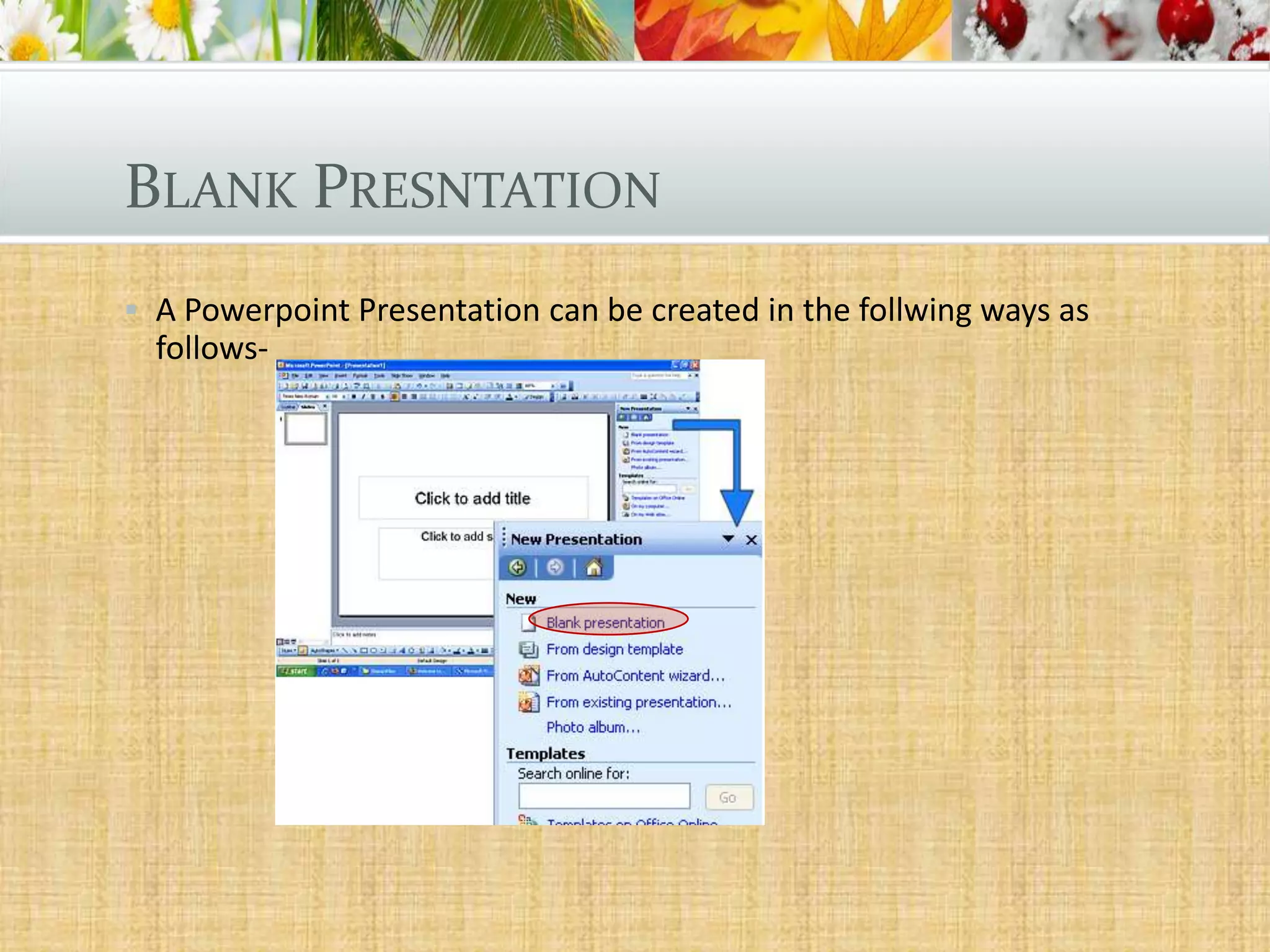
BLANK PRESNTATION
 A Powerpoint Presentation can be created in the follwing ways as

follows-
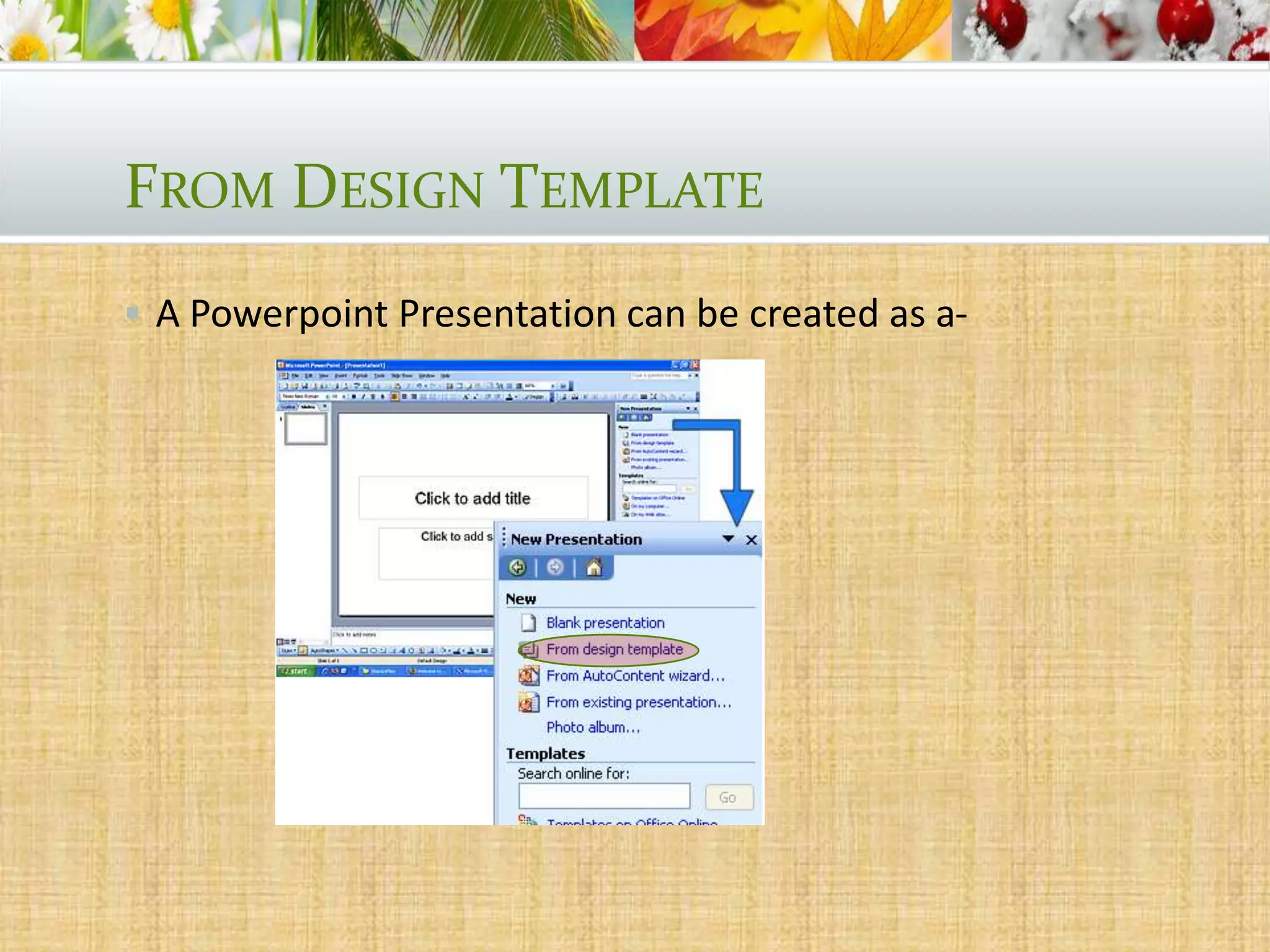
FROM DESIGN TEMPLATE
 A Powerpoint Presentation can be created as a-
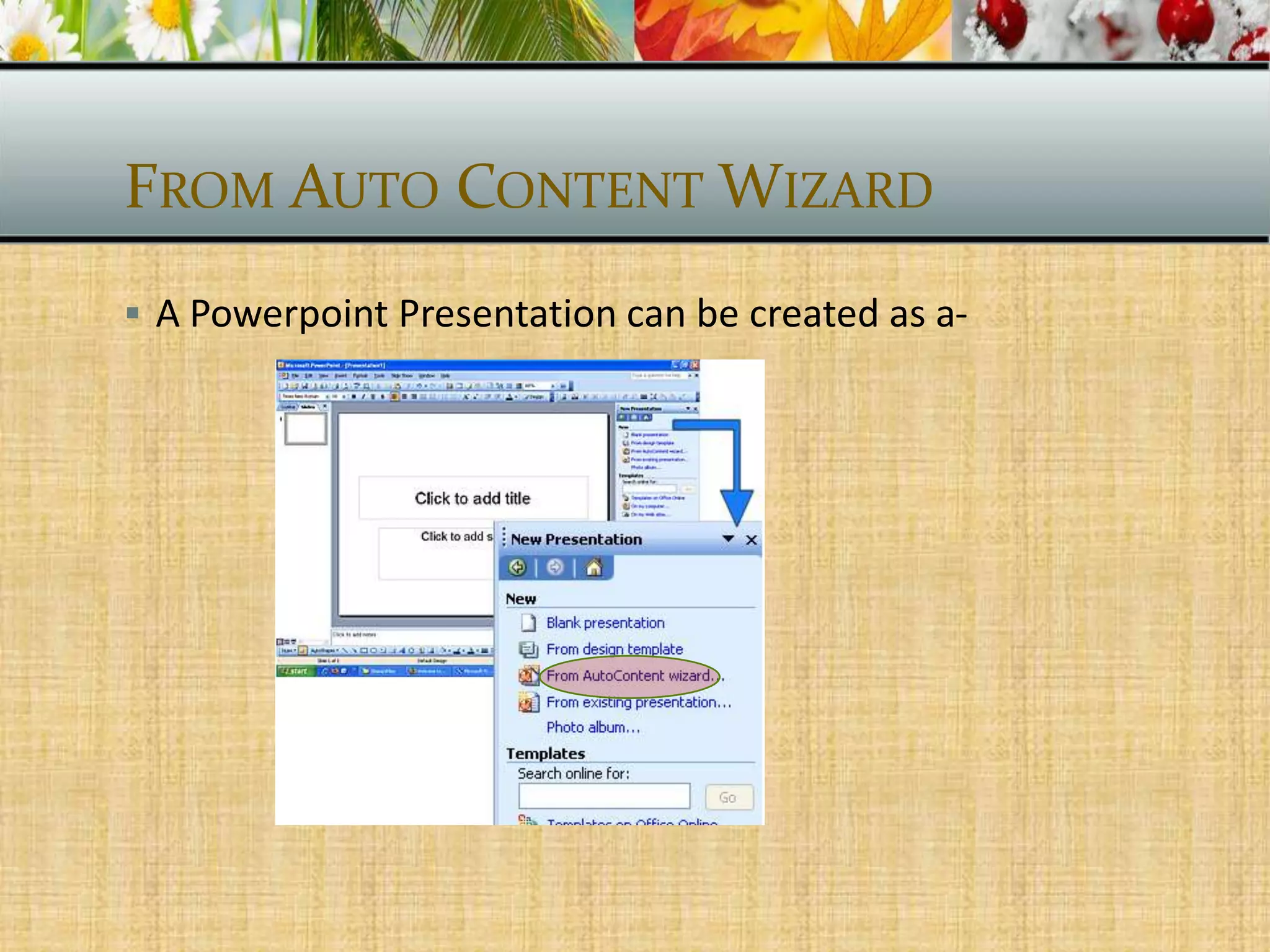
FROM AUTO CONTENT WIZARD
 A Powerpoint Presentation can be created as a-
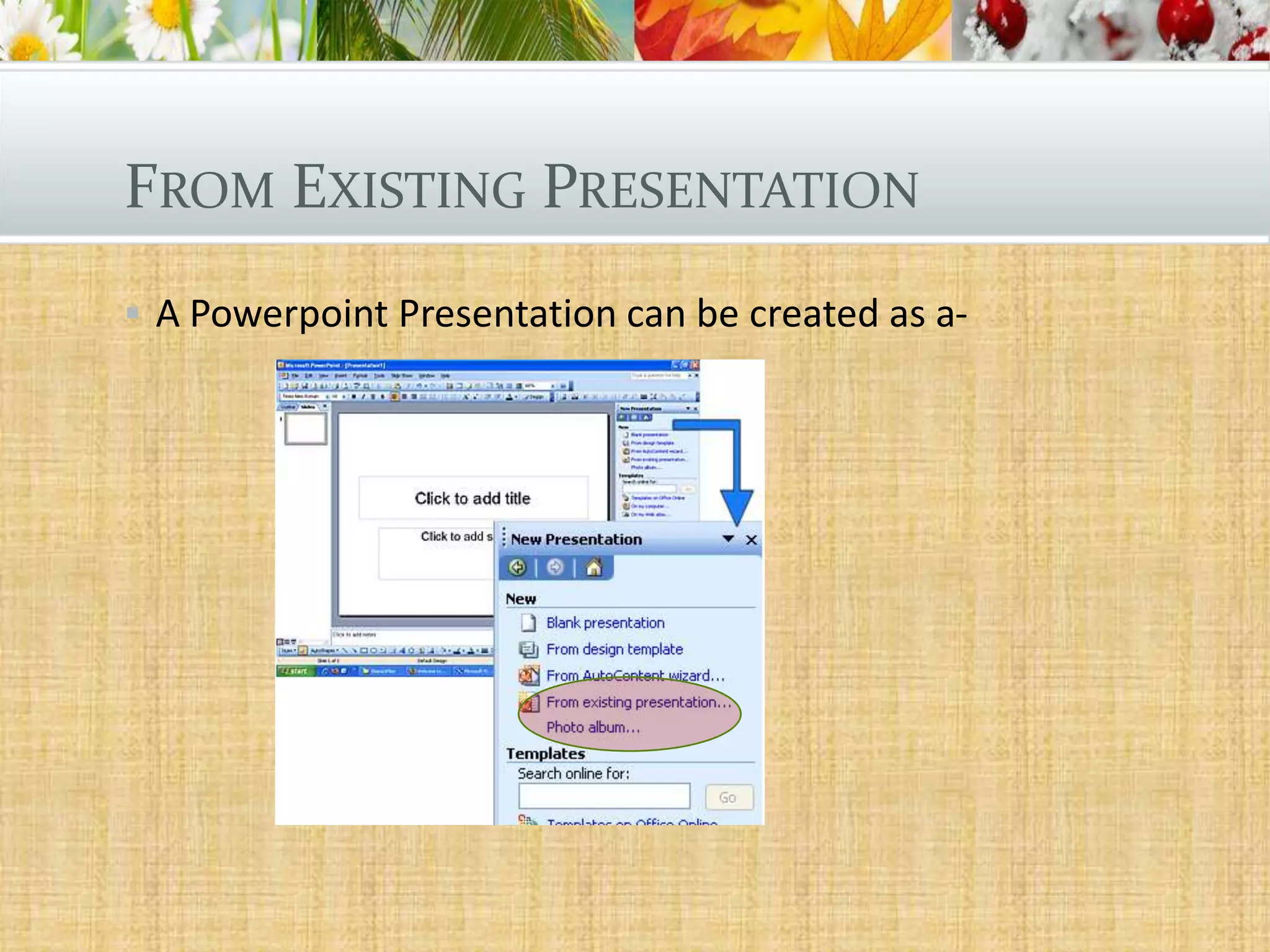
FROM EXISTING PRESENTATION
 A Powerpoint Presentation can be created as a-
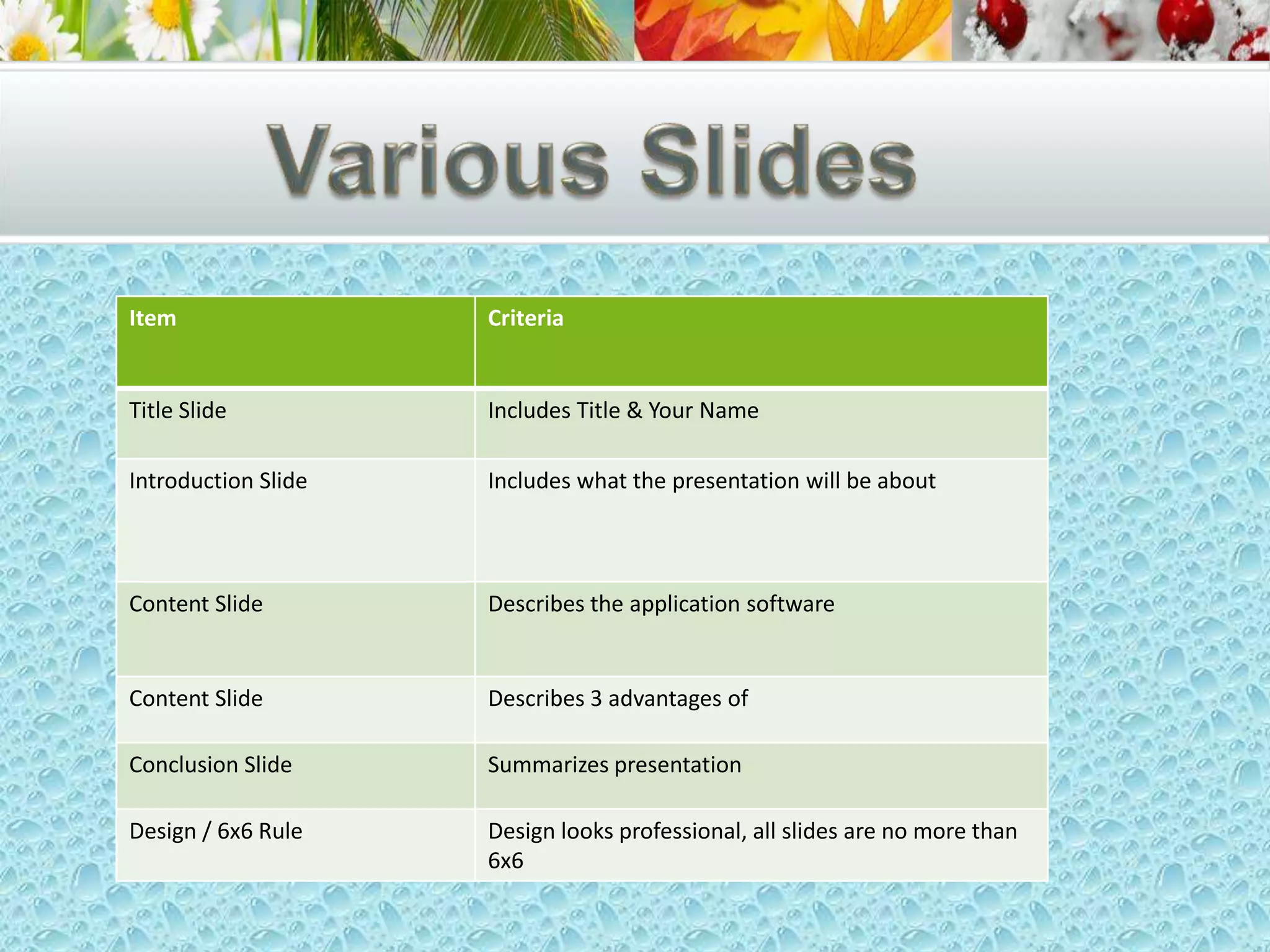
Item

Criteria

Title Slide

Includes Title & Your Name

Introduction Slide

Includes what the presentation will be about

Content Slide

Describes the application software

Content Slide

Describes 3 advantages of

Conclusion Slide

Summarizes presentation

Design / 6x6 Rule

Design looks professional, all slides are no more than
6x6
Animations & Transitions
PowerPoint: Setting Animations and Transitions
• Animations--effects that make text and other screen items
move, appear, and disappear--can, at the best of times, significantly
enhance a presentation and focus the audience's attention on the
point or points you'd like them to be focusing on. Unfortunately, it's
also an inherent quality of animations that they can render an
otherwise sober presentation silly, disrupting the presentation's pace
and distracting the audience.
•

The best way to ensure that your animations are helpful rather than
harmful is to set them, insofar as is possible, at the template level in
the slide master. A few animations, such as those that might be
required for individual images that do not appear on every slide will
still have to be set on a one-at-a-time basis, but by setting the
majority of your animations at the template level, you can ensure
that your audience doesn't become bewildered by an inconsistent
barrage of differing transitions and motions.
Benefits
• Benefits of adding animation and slide transitions:
• They provide visual interest to your presentation and
grab the audience's attention (as long as they are not
overused).
• You can reveal points on slides in a staggered way (i.e.
one bullet displayed at a time) to keep the audience
focused only on the point which you are discussing at
the given time.
• You can automate the presentation so it runs on its own.
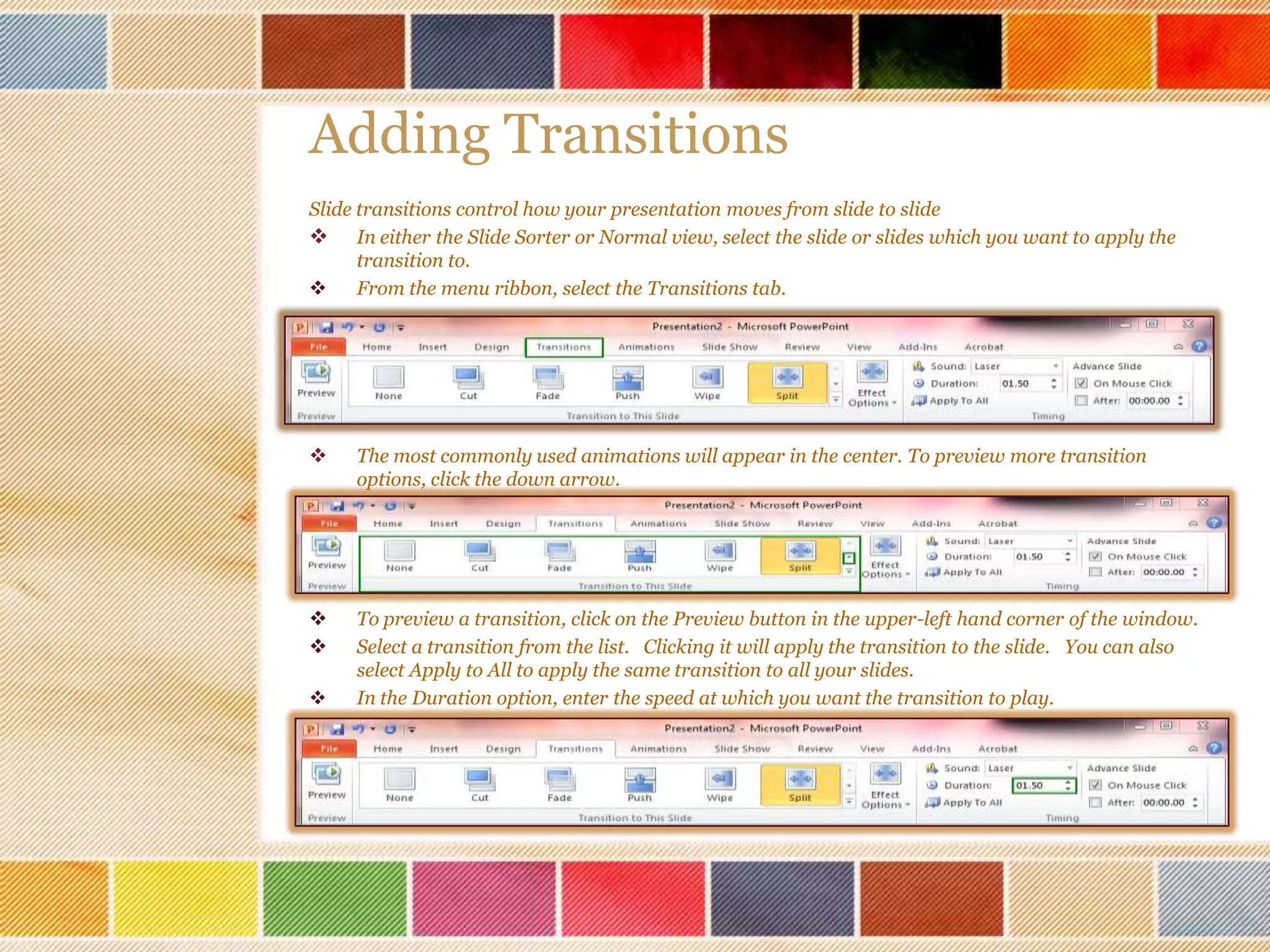
Adding Transitions
Slide transitions control how your presentation moves from slide to slide
 In either the Slide Sorter or Normal view, select the slide or slides which you want to apply the
transition to.

From the menu ribbon, select the Transitions tab.



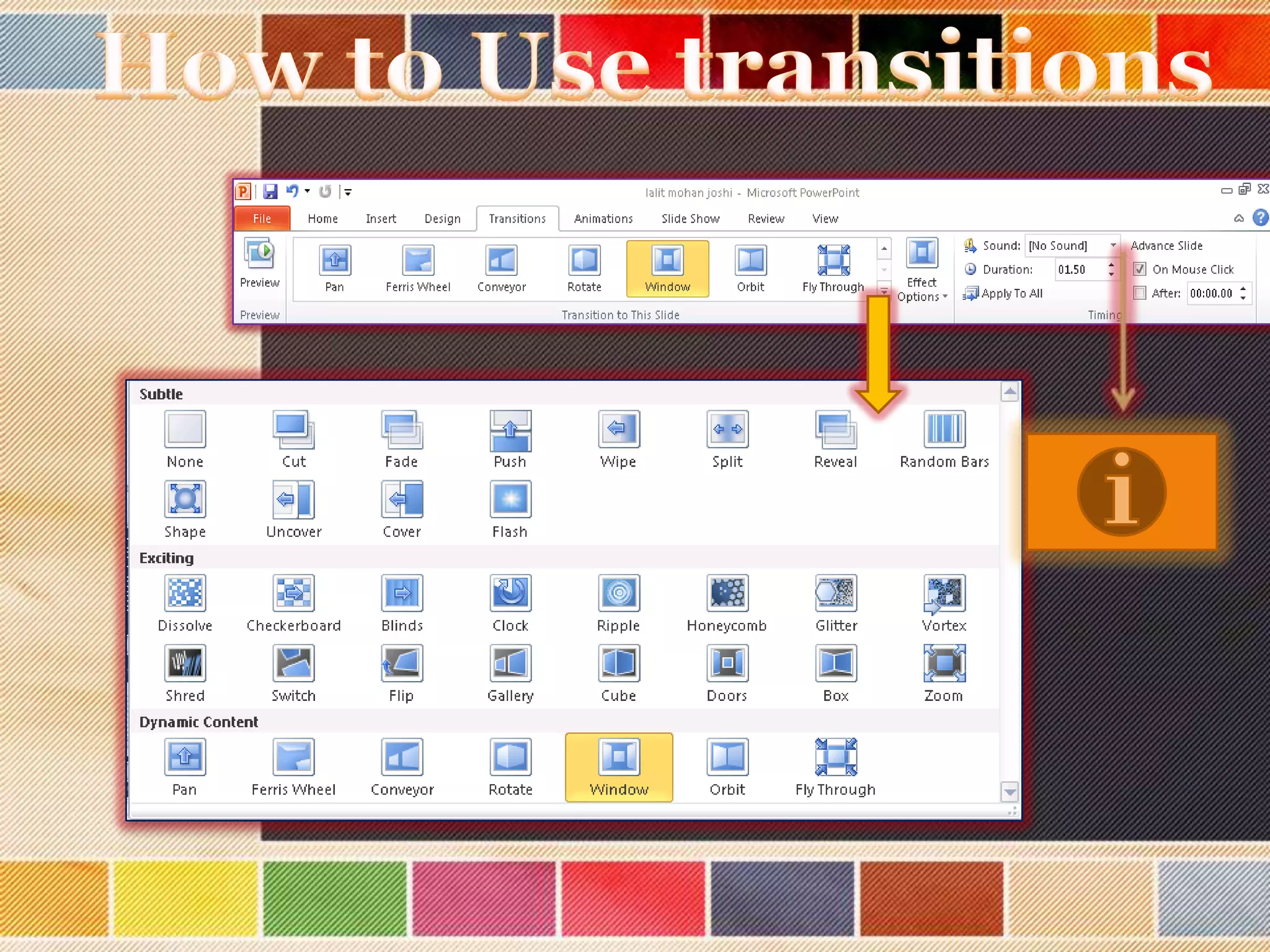
The most commonly used animations will appear in the center. To preview more transition
options, click the down arrow.




To preview a transition, click on the Preview button in the upper-left hand corner of the window.
Select a transition from the list. Clicking it will apply the transition to the slide. You can also
select Apply to All to apply the same transition to all your slides.
In the Duration option, enter the speed at which you want the transition to play.


Adding Transitions


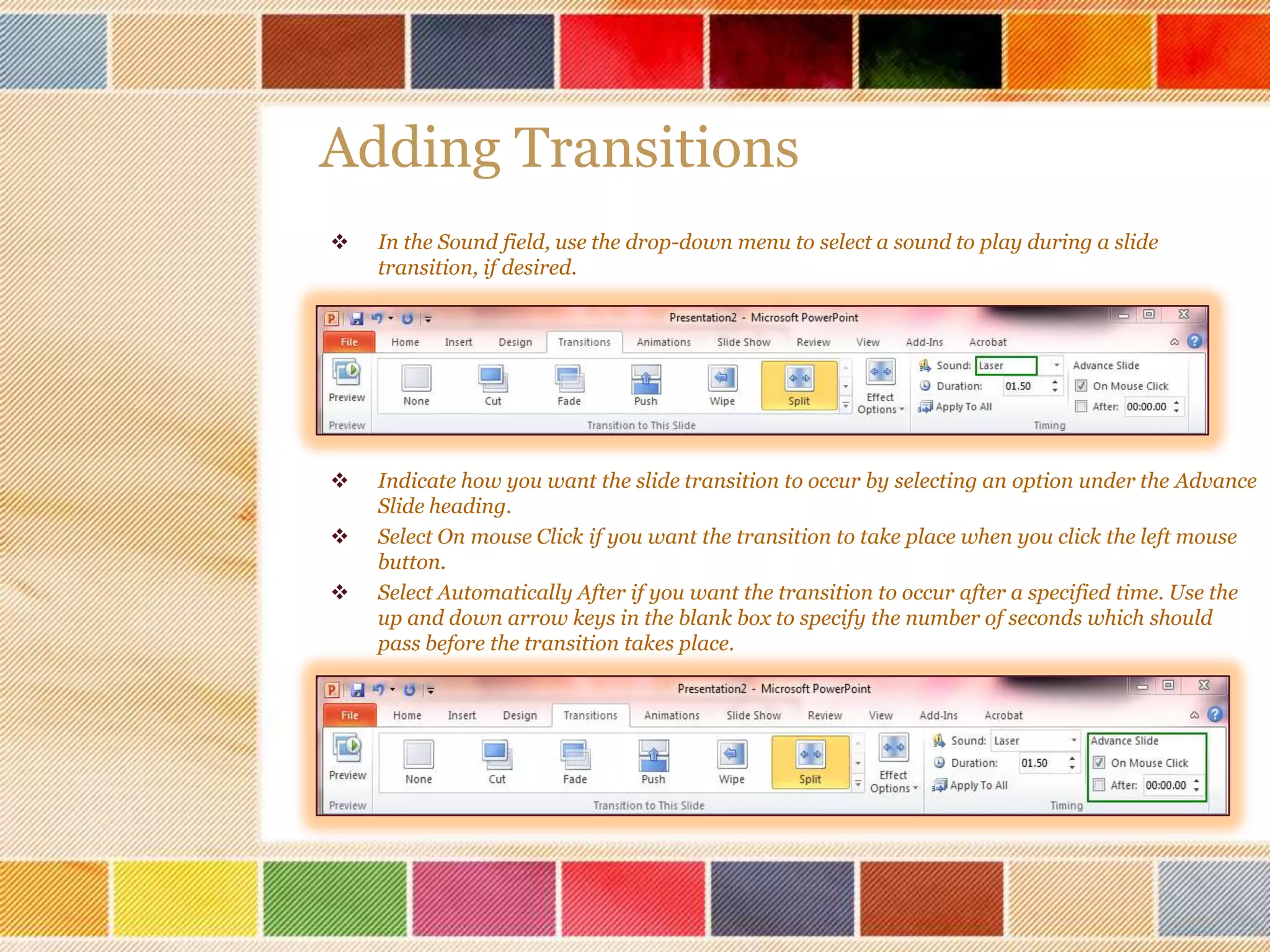
In the Sound field, use the drop-down menu to select a sound to play during a slide
transition, if desired.



Indicate how you want the slide transition to occur by selecting an option under the Advance
Slide heading.
Select On mouse Click if you want the transition to take place when you click the left mouse
button.
Select Automatically After if you want the transition to occur after a specified time. Use the
up and down arrow keys in the blank box to specify the number of seconds which should
pass before the transition takes place.





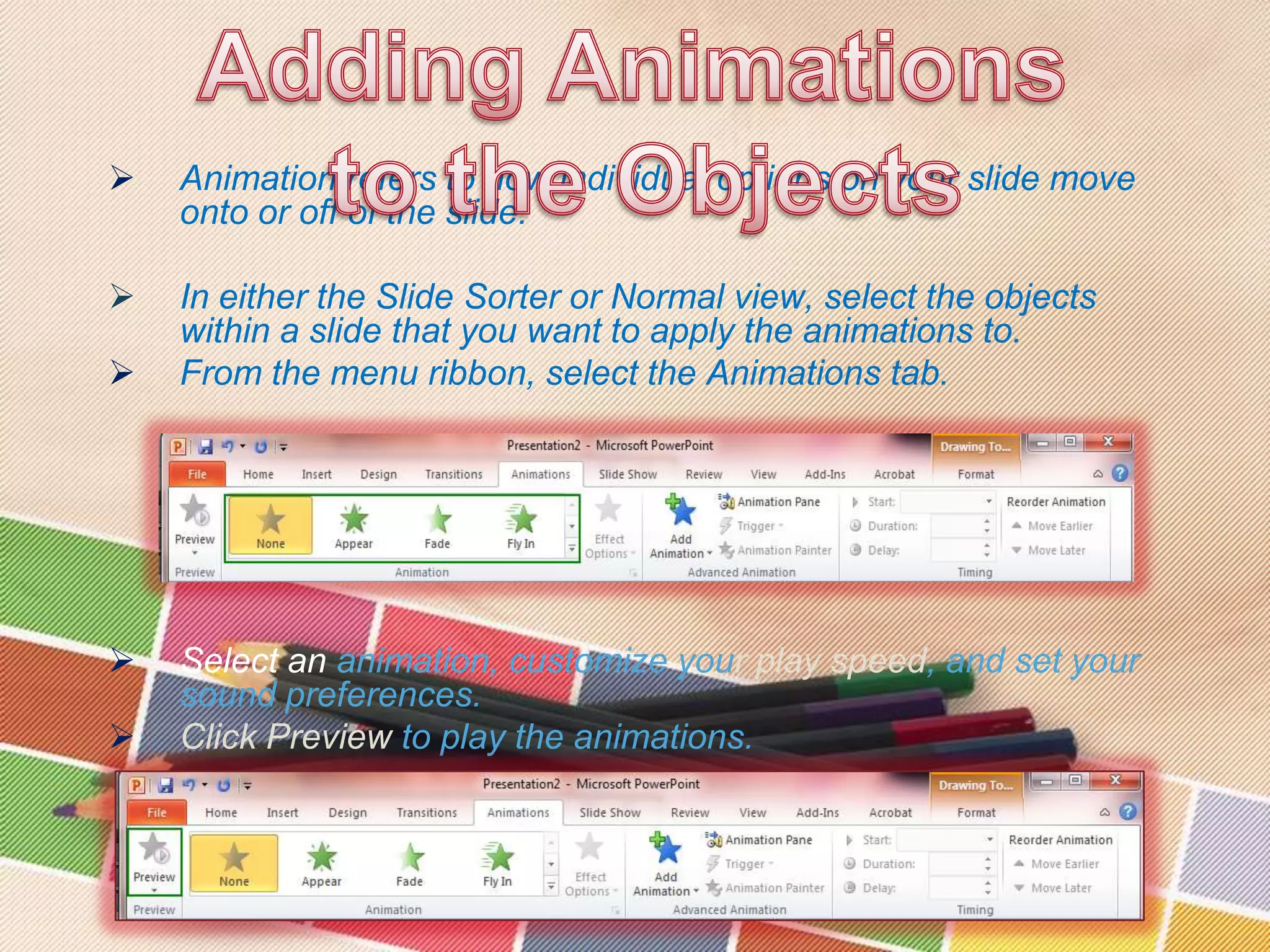
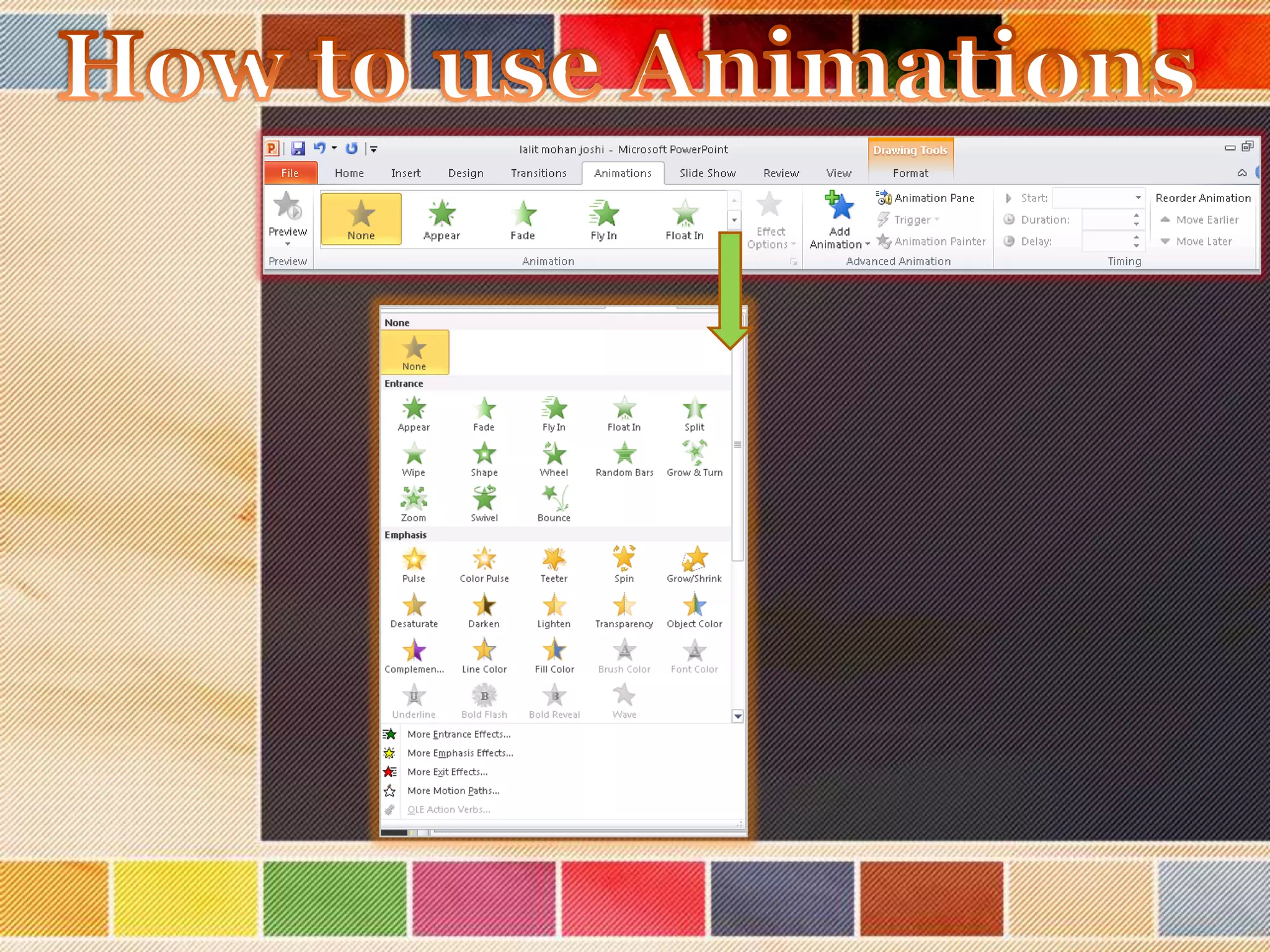
Animation refers to how individual options on your slide move
onto or off of the slide.



In either the Slide Sorter or Normal view, select the objects
within a slide that you want to apply the animations to.
From the menu ribbon, select the Animations tab.






Select an animation, customize your play speed, and set your
sound preferences.
Click Preview to play the animations.
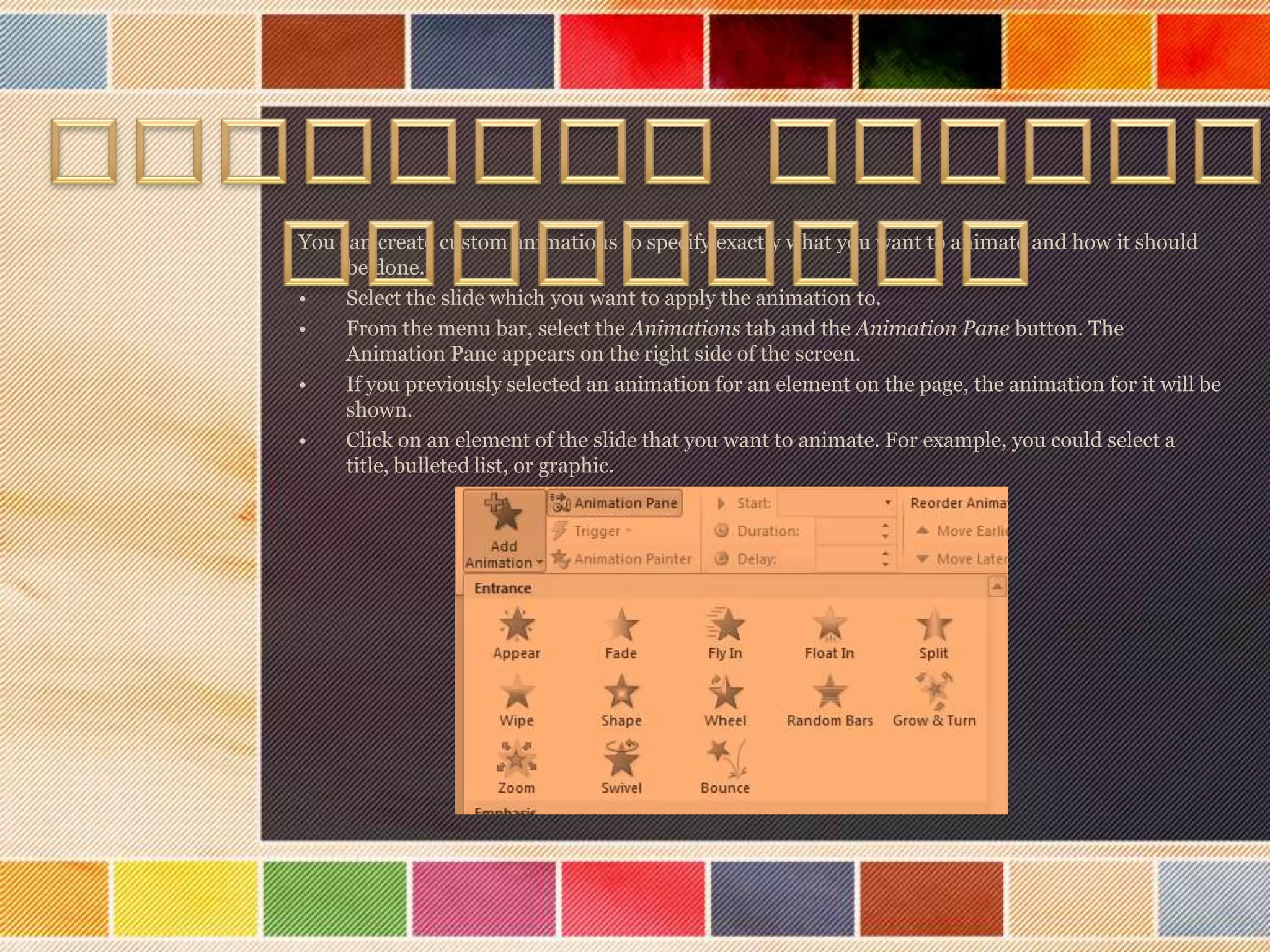
You can create custom animations to specify exactly what you want to animate and how it should
be done.
•
Select the slide which you want to apply the animation to.
•
From the menu bar, select the Animations tab and the Animation Pane button. The
Animation Pane appears on the right side of the screen.
•
If you previously selected an animation for an element on the page, the animation for it will be
shown.
•
Click on an element of the slide that you want to animate. For example, you could select a
title, bulleted list, or graphic.
•

Click Add Effect. A menu appears with a list of effect categories. Entrance effects
control how the element enters the slide. Emphasis effects make the element do
something after it enters the slide. Exit effects control how it leaves the slide. Motion
paths allow you to specify where the element travels on the slide.

•

Select one of the effects. Details about the effect appear in the Animation Pane.

•

In the Start field, use the drop-down menu to select an event which will trigger the
animation.
With Previous means the animation will occur at the same time as the previous
animation on the slide or it will occur when the slide appears if there are no previous
animations.
After Previous means the animation will occur after the previous animation.

•

Use the lists in the Animation Pane to adjuct options such as animation speed and
direction.
What is Powerpoint

What is Powerpoint

  • 1.
    WHAT IS POWERPOINT? PowerPoint isa Microsoft Application, designed to create presentations for a variety of medium including computer based Display Shows, Overhead Projection & 35mm Slides.It also includes-
  • 2.
     Create professional looking presentationsEASILY  a visual aid!  Makes you less nervous since they will be looking at the PowerPoint track with the presentation  Helps the presenter stay organized/on presentation not you Keeps audience interested giving them
  • 3.
    At the topof the window,see the following title bar,Menu bar,Standard Toolbar & Format Bar In the center of the window is the Active Slide It shows the thumbnail views of the slides in the prentation. Click on any 1 slide to view it or you can drag it too. Two Views: Outline And Slide View Outline View shows only thetext added to each slide
  • 4.
  • 5.
    • Ch oo s e f r o m t h e t e x t l a y o u t , C o n t e n t l a y o u t s ,T e x t & Co n t e n t l a y o u t s o r o t h e r L a y o u t s . Af t e r i n s e r t i n g t h e n e w s l i d e , c l i c k o n l a y o u t t o a p p l y i t t o t h a t s l i d e . • Co n t e n t l a y o u t a l l o ws y o u t o in s e r t c h o i c e a c h o i c e o f Chart Table Clip Art Pictures Mediaclip Diagram
  • 7.
    Slide Design • • Choose fromseveral Design Templates.Sllides Templates have the backgrounds, fonts, font sizes, and colours already created. Choose from several themes,schemes etc. The design template is applied to all slides If you want to change that on some slides Select the slide you want to change Hold the [Ctrl]key down and clik on each slide Click the down arrow button
  • 8.
    Op e ni n g A Ne w Pr e s e nt a t i on
  • 9.
    BLANK PRESNTATION  APowerpoint Presentation can be created in the follwing ways as follows-
  • 10.
    FROM DESIGN TEMPLATE A Powerpoint Presentation can be created as a-
  • 11.
    FROM AUTO CONTENTWIZARD  A Powerpoint Presentation can be created as a-
  • 12.
    FROM EXISTING PRESENTATION A Powerpoint Presentation can be created as a-
  • 13.
    Item Criteria Title Slide Includes Title& Your Name Introduction Slide Includes what the presentation will be about Content Slide Describes the application software Content Slide Describes 3 advantages of Conclusion Slide Summarizes presentation Design / 6x6 Rule Design looks professional, all slides are no more than 6x6
  • 15.
    Animations & Transitions PowerPoint:Setting Animations and Transitions • Animations--effects that make text and other screen items move, appear, and disappear--can, at the best of times, significantly enhance a presentation and focus the audience's attention on the point or points you'd like them to be focusing on. Unfortunately, it's also an inherent quality of animations that they can render an otherwise sober presentation silly, disrupting the presentation's pace and distracting the audience. • The best way to ensure that your animations are helpful rather than harmful is to set them, insofar as is possible, at the template level in the slide master. A few animations, such as those that might be required for individual images that do not appear on every slide will still have to be set on a one-at-a-time basis, but by setting the majority of your animations at the template level, you can ensure that your audience doesn't become bewildered by an inconsistent barrage of differing transitions and motions.
  • 16.
    Benefits • Benefits ofadding animation and slide transitions: • They provide visual interest to your presentation and grab the audience's attention (as long as they are not overused). • You can reveal points on slides in a staggered way (i.e. one bullet displayed at a time) to keep the audience focused only on the point which you are discussing at the given time. • You can automate the presentation so it runs on its own.
  • 17.
    Adding Transitions Slide transitionscontrol how your presentation moves from slide to slide  In either the Slide Sorter or Normal view, select the slide or slides which you want to apply the transition to.  From the menu ribbon, select the Transitions tab.  The most commonly used animations will appear in the center. To preview more transition options, click the down arrow.   To preview a transition, click on the Preview button in the upper-left hand corner of the window. Select a transition from the list. Clicking it will apply the transition to the slide. You can also select Apply to All to apply the same transition to all your slides. In the Duration option, enter the speed at which you want the transition to play. 
  • 19.
    Adding Transitions  In theSound field, use the drop-down menu to select a sound to play during a slide transition, if desired.  Indicate how you want the slide transition to occur by selecting an option under the Advance Slide heading. Select On mouse Click if you want the transition to take place when you click the left mouse button. Select Automatically After if you want the transition to occur after a specified time. Use the up and down arrow keys in the blank box to specify the number of seconds which should pass before the transition takes place.  
  • 20.
     Animation refers tohow individual options on your slide move onto or off of the slide.  In either the Slide Sorter or Normal view, select the objects within a slide that you want to apply the animations to. From the menu ribbon, select the Animations tab.    Select an animation, customize your play speed, and set your sound preferences. Click Preview to play the animations.
  • 22.
    You can createcustom animations to specify exactly what you want to animate and how it should be done. • Select the slide which you want to apply the animation to. • From the menu bar, select the Animations tab and the Animation Pane button. The Animation Pane appears on the right side of the screen. • If you previously selected an animation for an element on the page, the animation for it will be shown. • Click on an element of the slide that you want to animate. For example, you could select a title, bulleted list, or graphic.
  • 23.
    • Click Add Effect.A menu appears with a list of effect categories. Entrance effects control how the element enters the slide. Emphasis effects make the element do something after it enters the slide. Exit effects control how it leaves the slide. Motion paths allow you to specify where the element travels on the slide. • Select one of the effects. Details about the effect appear in the Animation Pane. • In the Start field, use the drop-down menu to select an event which will trigger the animation. With Previous means the animation will occur at the same time as the previous animation on the slide or it will occur when the slide appears if there are no previous animations. After Previous means the animation will occur after the previous animation. • Use the lists in the Animation Pane to adjuct options such as animation speed and direction.