Presentation Software Using PowerPoint in Your Classroom
Keep in Mind the Basics Plan your presentation! Remember your audience Information is the focus,  not  graphics, transitions, animation Remember the “7 and 7” rule Use phrases, not sentences--never paragraphs!
Get Started Think about your presentation as an outline Title Main ideas Supporting ideas Details
Launch Software From dock or Applications menu PowerPoint Begin New Presentation
First Slide Title Slide Topic of presentation Basic information (date, presenter, etc.) New Slide Click New Slide button in toolbar OR go to Insert, New Slide
Next slides Main topic Press return to go to next line Supporting ideas are indented Details are indented Use Tab key to demote (indent) Use Shift Tab to promote
Add Theme Go to Format, Slide Design  Choose a theme to  enhance  your presentation Make sure it’s appropriate Make sure your text fits on the slide with the theme Provide contrast between background and text
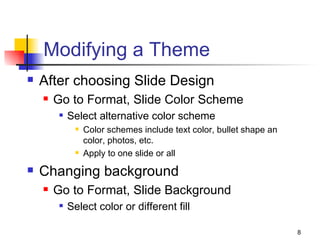
Modifying a Theme After choosing Slide Design Go to Format, Slide Color Scheme Select alternative color scheme Color schemes include text color, bullet shape an color, photos, etc. Apply to one slide or all Changing background Go to Format, Slide Background Select color or different fill
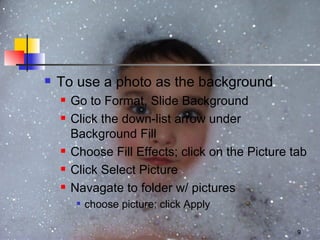
To use a photo as the background Go to Format, Slide Background Click the down-list arrow under Background Fill Choose Fill Effects; click on the Picture tab Click Select Picture Navagate to folder w/ pictures choose picture; click Apply
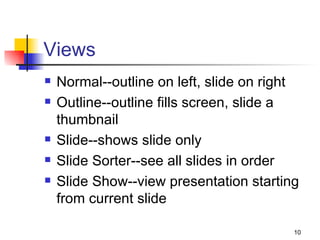
Views Normal--outline on left, slide on right Outline--outline fills screen, slide a thumbnail Slide--shows slide only Slide Sorter--see all slides in order Slide Show--view presentation starting from current slide
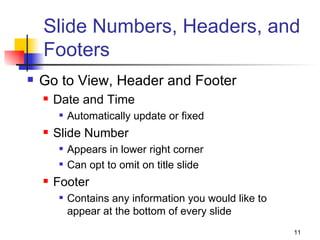
Slide Numbers, Headers, and Footers Go to View, Header and Footer Date and Time Automatically update or fixed Slide Number Appears in lower right corner  Can opt to omit on title slide Footer Contains any information you would like to appear at the bottom of every slide
Slides from Other Sources Go to Insert Choose  Slides from Outline (Word document) Slides from File (another PowerPoint) Information automatically organizes on slides
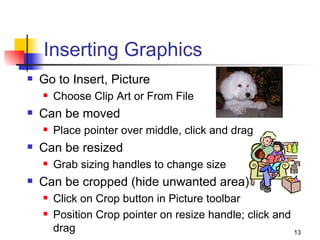
Inserting Graphics Go to Insert, Picture Choose Clip Art or From File Can be moved Place pointer over middle, click and drag Can be resized Grab sizing handles to change size Can be cropped (hide unwanted area) Click on Crop button in Picture toolbar Position Crop pointer on resize handle; click and drag
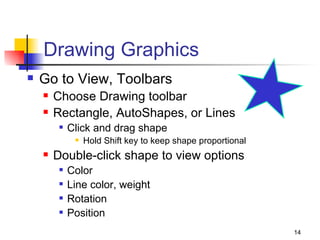
Drawing Graphics Go to View, Toolbars Choose Drawing toolbar Rectangle, AutoShapes, or Lines Click and drag shape Hold Shift key to keep shape proportional Double-click shape to view options Color Line color, weight Rotation Position
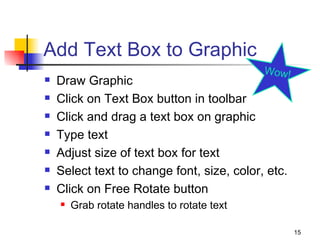
Add Text Box to Graphic Draw Graphic Click on Text Box button in toolbar Click and drag a text box on graphic Type text Adjust size of text box for text Select text to change font, size, color, etc. Click on Free Rotate button Grab rotate handles to rotate text  Wow!
Inserting a Hyperlink Type text to “trigger” link  Go to Insert, Hyperlink Provide URL Text to display Screen tip Yellow box that appears when mouse rests on something When in slide show, click on text to activate link
Action Buttons Go to Slide Show, Action Buttons Choose action  Click, drag button on slide  Select file needed Click button to start action  PowerPoint “rests” while another application is active PowerPoint active when other application closes
Printing Go to File, Print Slides Each slide fills a page Handouts Thumbnail of each slide with area for hand-written notes Outline Text only in outline form
Printing Hints Print in Grayscale when using a B/W printer or Xerox machines Color Slide Design omitted Use Outline when text is focus, not slide layout (notes for a student) Use Handouts when audience will follow along
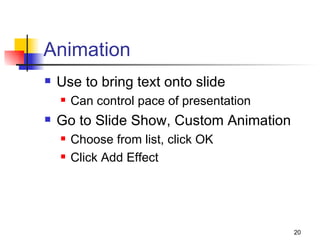
Animation Use to bring text onto slide Can control pace of presentation Go to Slide Show, Custom Animation Choose from list, click OK Click Add Effect
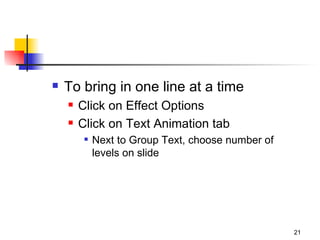
To bring in one line at a time Click on Effect Options Click on Text Animation tab Next to Group Text, choose number of levels on slide
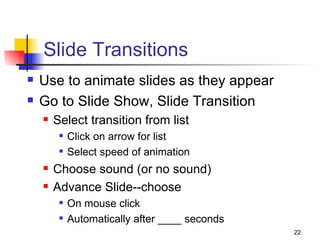
Slide Transitions Use to animate slides as they appear Go to Slide Show, Slide Transition Select transition from list Click on arrow for list Select speed of animation Choose sound (or no sound) Advance Slide--choose On mouse click Automatically after ____ seconds

P Pt Presentations

  • 1.
    Presentation Software UsingPowerPoint in Your Classroom
  • 2.
    Keep in Mindthe Basics Plan your presentation! Remember your audience Information is the focus, not graphics, transitions, animation Remember the “7 and 7” rule Use phrases, not sentences--never paragraphs!
  • 3.
    Get Started Thinkabout your presentation as an outline Title Main ideas Supporting ideas Details
  • 4.
    Launch Software Fromdock or Applications menu PowerPoint Begin New Presentation
  • 5.
    First Slide TitleSlide Topic of presentation Basic information (date, presenter, etc.) New Slide Click New Slide button in toolbar OR go to Insert, New Slide
  • 6.
    Next slides Maintopic Press return to go to next line Supporting ideas are indented Details are indented Use Tab key to demote (indent) Use Shift Tab to promote
  • 7.
    Add Theme Goto Format, Slide Design Choose a theme to enhance your presentation Make sure it’s appropriate Make sure your text fits on the slide with the theme Provide contrast between background and text
  • 8.
    Modifying a ThemeAfter choosing Slide Design Go to Format, Slide Color Scheme Select alternative color scheme Color schemes include text color, bullet shape an color, photos, etc. Apply to one slide or all Changing background Go to Format, Slide Background Select color or different fill
  • 9.
    To use aphoto as the background Go to Format, Slide Background Click the down-list arrow under Background Fill Choose Fill Effects; click on the Picture tab Click Select Picture Navagate to folder w/ pictures choose picture; click Apply
  • 10.
    Views Normal--outline onleft, slide on right Outline--outline fills screen, slide a thumbnail Slide--shows slide only Slide Sorter--see all slides in order Slide Show--view presentation starting from current slide
  • 11.
    Slide Numbers, Headers,and Footers Go to View, Header and Footer Date and Time Automatically update or fixed Slide Number Appears in lower right corner Can opt to omit on title slide Footer Contains any information you would like to appear at the bottom of every slide
  • 12.
    Slides from OtherSources Go to Insert Choose Slides from Outline (Word document) Slides from File (another PowerPoint) Information automatically organizes on slides
  • 13.
    Inserting Graphics Goto Insert, Picture Choose Clip Art or From File Can be moved Place pointer over middle, click and drag Can be resized Grab sizing handles to change size Can be cropped (hide unwanted area) Click on Crop button in Picture toolbar Position Crop pointer on resize handle; click and drag
  • 14.
    Drawing Graphics Goto View, Toolbars Choose Drawing toolbar Rectangle, AutoShapes, or Lines Click and drag shape Hold Shift key to keep shape proportional Double-click shape to view options Color Line color, weight Rotation Position
  • 15.
    Add Text Boxto Graphic Draw Graphic Click on Text Box button in toolbar Click and drag a text box on graphic Type text Adjust size of text box for text Select text to change font, size, color, etc. Click on Free Rotate button Grab rotate handles to rotate text Wow!
  • 16.
    Inserting a HyperlinkType text to “trigger” link Go to Insert, Hyperlink Provide URL Text to display Screen tip Yellow box that appears when mouse rests on something When in slide show, click on text to activate link
  • 17.
    Action Buttons Goto Slide Show, Action Buttons Choose action Click, drag button on slide Select file needed Click button to start action PowerPoint “rests” while another application is active PowerPoint active when other application closes
  • 18.
    Printing Go toFile, Print Slides Each slide fills a page Handouts Thumbnail of each slide with area for hand-written notes Outline Text only in outline form
  • 19.
    Printing Hints Printin Grayscale when using a B/W printer or Xerox machines Color Slide Design omitted Use Outline when text is focus, not slide layout (notes for a student) Use Handouts when audience will follow along
  • 20.
    Animation Use tobring text onto slide Can control pace of presentation Go to Slide Show, Custom Animation Choose from list, click OK Click Add Effect
  • 21.
    To bring inone line at a time Click on Effect Options Click on Text Animation tab Next to Group Text, choose number of levels on slide
  • 22.
    Slide Transitions Useto animate slides as they appear Go to Slide Show, Slide Transition Select transition from list Click on arrow for list Select speed of animation Choose sound (or no sound) Advance Slide--choose On mouse click Automatically after ____ seconds