BEGINNERS:
MICROSOFT OFFICE
POWERPOINT 2007
Lesson 1 – Samantha TerBeest, Willmar Public
Library
Overview
 Good to Know Terms
 Geography of PowerPoint
 Basic Tasks of PowerPoint Creation
 Creating a New Presentation
 Creating/Inserting a New Slide
 Selecting a Different Layout
 Changing the PowerPoint View
 Types of View
Good to Know Terms
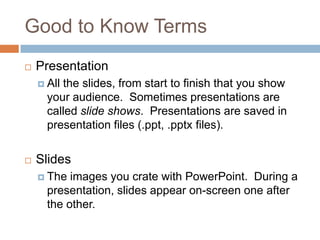
 Presentation
 All the slides, from start to finish that you show
your audience. Sometimes presentations are
called slide shows. Presentations are saved in
presentation files (.ppt, .pptx files).
 Slides
 The images you crate with PowerPoint. During a
presentation, slides appear on-screen one after
the other.
Good to Know Terms, Cont.
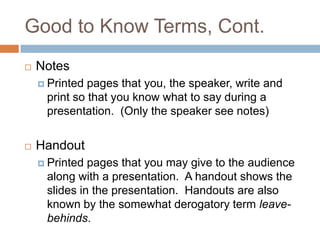
 Notes
 Printed pages that you, the speaker, write and
print so that you know what to say during a
presentation. (Only the speaker see notes)
 Handout
 Printed pages that you may give to the audience
along with a presentation. A handout shows the
slides in the presentation. Handouts are also
known by the somewhat derogatory term leave-
behinds.
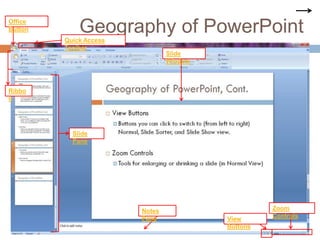
Geography of PowerPointOffice
Button
Quick Access
Toolbar
Ribbo
n
Slide
Pane
Slide
Window
Notes
Pane View
Buttons
Zoom
Controls
Geography of PowerPoint
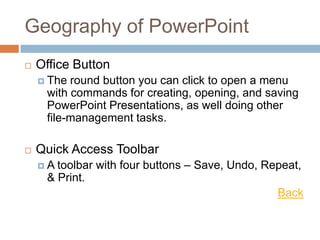
 Office Button
 The round button you can click to open a menu
with commands for creating, opening, and saving
PowerPoint Presentations, as well doing other
file-management tasks.
 Quick Access Toolbar
 A toolbar with four buttons – Save, Undo, Repeat,
& Print.
Back
Geography of PowerPoint, Cont
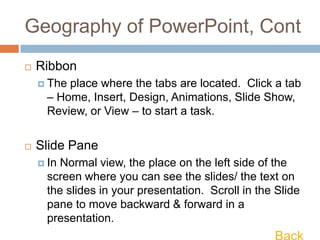
 Ribbon
 The place where the tabs are located. Click a tab
– Home, Insert, Design, Animations, Slide Show,
Review, or View – to start a task.
 Slide Pane
 In Normal view, the place on the left side of the
screen where you can see the slides/ the text on
the slides in your presentation. Scroll in the Slide
pane to move backward & forward in a
presentation.
Geography of PowerPoint,
Cont.
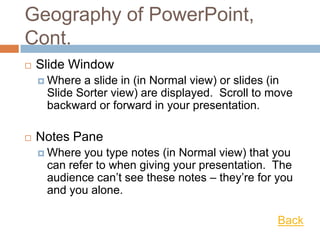
 Slide Window
 Where a slide in (in Normal view) or slides (in
Slide Sorter view) are displayed. Scroll to move
backward or forward in your presentation.
 Notes Pane
 Where you type notes (in Normal view) that you
can refer to when giving your presentation. The
audience can’t see these notes – they’re for you
and you alone.
Back
Geography of PowerPoint,
Cont.
 View Buttons
 Buttons you can click to switch to (from left to
right) Normal, Slide Sorter, and Slide Show view.
 Zoom Controls
 Tools for enlarging or shrinking a slide (in Normal
View)
Back
Basic Tasks of PowerPoint
Creation
 Creating the Slides
 After you create a new presentation, your next
task is to insert the slides. PowerPoint offers
many preformatted slide layouts, each one
designed for presenting information a certain way.
 Notes
 As you create slides you can jot down notes in
the Notes Pane. You can use these notes later to
formulate your presentation & decide what you’re
going to say to your audience while each slide is
on screen.
Basic Tasks of PowerPoint
Creation, Cont.
 Designing Your Presentation
 After you create a presentation, the next step is to
think about its appearance. You can change slides’
colors & backgrounds, as well as choose a theme for
your presentation – an all-encompassing design that
applies to all (or most of) the slides.
 Inserting Tables, Charts, Diagrams, & Shapes
 A PowerPoint presentation should be more than a
loose collection of bulleted lists. Starting on the Insert
tab, you can place tables, charts, and diagrams on
slides, as well as adorn your slides with text boxes,
WordArt images, & shapes.
Basic Tasks of PowerPoint
Creation, Cont.
 “Animating” Your Slides
 PowerPoint slides can play video & sounds, as well as
be “animated.” You can make the items in a slide
move on the screen. As a slide arrives, you can make
it spin or flash.
 Delivering Your Presentation
 During a presentation, you can draw on the slides.
You can also blank the screen and show slides out of
order. In case you can’t be there in person,
PowerPoint gives you the opportunity to create self-
running presentation & presentation that other can run
on their own. You can also distribute presentation on
CDs & post them on the Internet.
Creating a New Presentation
 Two Ways:
 Blank Presentation
 Presentation from a Template
Exercise
 Open Microsoft Office PowerPoint from the Desktop. This
will immediately open a blank presentation.
 To open a template, click the Office Button and select
New from the List.
 This will open a dialog box with template options on the
left-side.
 Choose a template and click create/download. This will
open the template.
 Once you have opened a template, you can close out of
PowerPoint. Do not save.
Creating/Inserting a New Slide:
Exercise
 Open Microsoft Office PowerPoint from the Desktop. (Leave
it open on the Blank Presentation.)
 In the Slide Pane, make sure the slide is highlighted. (The
new slide will always come after the slide that you
highlight/select.)
 Now click the Home tab.
 In the Slides Group, click the bottom half of the New Slide
button.
 A drop-down list will appear. Select the slide layout that best
approximates the slide you want to create.
 When you are done, close PowerPoint. Do not save.
Selecting a Different Layout
 In case you mistakenly choose the wrong
layout for a slide:
 On the Home tab, choose Layout in the Slides
group.
 A drop-down list will appear. Choose the layout
you originally wanted.
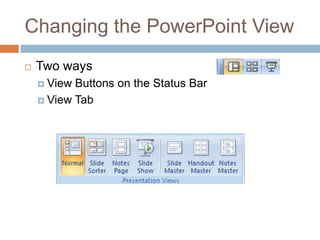
Changing the PowerPoint View
 Two ways
 View Buttons on the Status Bar
 View Tab
Types of View
 Normal/Outline/Slide View
 Perfect for when you are entering or reading text.
You can find the Outline tab at the top of the Slide
Pane. The Slide tab is also at the top of the Slide
Pane.
 Slide Sorter View
 This view is perfect for moving and deleting
slides. This view gives you a sense of whether
the different slides are consistent with one
another and how the whole presentation is
shaping up. (Slides are numbered so that you
Types of View, Cont.
 Notes Page View
 Perfect view for reading your speaker notes. You
can view notes you’ve written here or in the notes
pane.
 Slide Show View
 This is what you use for giving a presentation to
an audience. A single slide will fill the entire
screen.
Types of View, Cont.
 The Master View
 This view is perfect for creating consistent
presentations. These are the views that are
specifically made for formatting Slides, Handouts,
and Notes.
THE END
 Next class is Tuesday, January 29th at 11AM.
We will be talking about hiding, displaying, and
moving slides, themes, and more.
 Weverka, P. (2006). Office 2007 All-in-One
Desk Reference for Dummies. Hoboken, N.J. :
Wiley.

Microsoft Office PowerPoint 2007 - Lesson 1

  • 1.
    BEGINNERS: MICROSOFT OFFICE POWERPOINT 2007 Lesson1 – Samantha TerBeest, Willmar Public Library
  • 2.
    Overview  Good toKnow Terms  Geography of PowerPoint  Basic Tasks of PowerPoint Creation  Creating a New Presentation  Creating/Inserting a New Slide  Selecting a Different Layout  Changing the PowerPoint View  Types of View
  • 3.
    Good to KnowTerms  Presentation  All the slides, from start to finish that you show your audience. Sometimes presentations are called slide shows. Presentations are saved in presentation files (.ppt, .pptx files).  Slides  The images you crate with PowerPoint. During a presentation, slides appear on-screen one after the other.
  • 4.
    Good to KnowTerms, Cont.  Notes  Printed pages that you, the speaker, write and print so that you know what to say during a presentation. (Only the speaker see notes)  Handout  Printed pages that you may give to the audience along with a presentation. A handout shows the slides in the presentation. Handouts are also known by the somewhat derogatory term leave- behinds.
  • 5.
    Geography of PowerPointOffice Button QuickAccess Toolbar Ribbo n Slide Pane Slide Window Notes Pane View Buttons Zoom Controls
  • 6.
    Geography of PowerPoint Office Button  The round button you can click to open a menu with commands for creating, opening, and saving PowerPoint Presentations, as well doing other file-management tasks.  Quick Access Toolbar  A toolbar with four buttons – Save, Undo, Repeat, & Print. Back
  • 7.
    Geography of PowerPoint,Cont  Ribbon  The place where the tabs are located. Click a tab – Home, Insert, Design, Animations, Slide Show, Review, or View – to start a task.  Slide Pane  In Normal view, the place on the left side of the screen where you can see the slides/ the text on the slides in your presentation. Scroll in the Slide pane to move backward & forward in a presentation.
  • 8.
    Geography of PowerPoint, Cont. Slide Window  Where a slide in (in Normal view) or slides (in Slide Sorter view) are displayed. Scroll to move backward or forward in your presentation.  Notes Pane  Where you type notes (in Normal view) that you can refer to when giving your presentation. The audience can’t see these notes – they’re for you and you alone. Back
  • 9.
    Geography of PowerPoint, Cont. View Buttons  Buttons you can click to switch to (from left to right) Normal, Slide Sorter, and Slide Show view.  Zoom Controls  Tools for enlarging or shrinking a slide (in Normal View) Back
  • 10.
    Basic Tasks ofPowerPoint Creation  Creating the Slides  After you create a new presentation, your next task is to insert the slides. PowerPoint offers many preformatted slide layouts, each one designed for presenting information a certain way.  Notes  As you create slides you can jot down notes in the Notes Pane. You can use these notes later to formulate your presentation & decide what you’re going to say to your audience while each slide is on screen.
  • 11.
    Basic Tasks ofPowerPoint Creation, Cont.  Designing Your Presentation  After you create a presentation, the next step is to think about its appearance. You can change slides’ colors & backgrounds, as well as choose a theme for your presentation – an all-encompassing design that applies to all (or most of) the slides.  Inserting Tables, Charts, Diagrams, & Shapes  A PowerPoint presentation should be more than a loose collection of bulleted lists. Starting on the Insert tab, you can place tables, charts, and diagrams on slides, as well as adorn your slides with text boxes, WordArt images, & shapes.
  • 12.
    Basic Tasks ofPowerPoint Creation, Cont.  “Animating” Your Slides  PowerPoint slides can play video & sounds, as well as be “animated.” You can make the items in a slide move on the screen. As a slide arrives, you can make it spin or flash.  Delivering Your Presentation  During a presentation, you can draw on the slides. You can also blank the screen and show slides out of order. In case you can’t be there in person, PowerPoint gives you the opportunity to create self- running presentation & presentation that other can run on their own. You can also distribute presentation on CDs & post them on the Internet.
  • 13.
    Creating a NewPresentation  Two Ways:  Blank Presentation  Presentation from a Template
  • 14.
    Exercise  Open MicrosoftOffice PowerPoint from the Desktop. This will immediately open a blank presentation.  To open a template, click the Office Button and select New from the List.  This will open a dialog box with template options on the left-side.  Choose a template and click create/download. This will open the template.  Once you have opened a template, you can close out of PowerPoint. Do not save.
  • 15.
    Creating/Inserting a NewSlide: Exercise  Open Microsoft Office PowerPoint from the Desktop. (Leave it open on the Blank Presentation.)  In the Slide Pane, make sure the slide is highlighted. (The new slide will always come after the slide that you highlight/select.)  Now click the Home tab.  In the Slides Group, click the bottom half of the New Slide button.  A drop-down list will appear. Select the slide layout that best approximates the slide you want to create.  When you are done, close PowerPoint. Do not save.
  • 16.
    Selecting a DifferentLayout  In case you mistakenly choose the wrong layout for a slide:  On the Home tab, choose Layout in the Slides group.  A drop-down list will appear. Choose the layout you originally wanted.
  • 17.
    Changing the PowerPointView  Two ways  View Buttons on the Status Bar  View Tab
  • 18.
    Types of View Normal/Outline/Slide View  Perfect for when you are entering or reading text. You can find the Outline tab at the top of the Slide Pane. The Slide tab is also at the top of the Slide Pane.  Slide Sorter View  This view is perfect for moving and deleting slides. This view gives you a sense of whether the different slides are consistent with one another and how the whole presentation is shaping up. (Slides are numbered so that you
  • 19.
    Types of View,Cont.  Notes Page View  Perfect view for reading your speaker notes. You can view notes you’ve written here or in the notes pane.  Slide Show View  This is what you use for giving a presentation to an audience. A single slide will fill the entire screen.
  • 20.
    Types of View,Cont.  The Master View  This view is perfect for creating consistent presentations. These are the views that are specifically made for formatting Slides, Handouts, and Notes.
  • 21.
    THE END  Nextclass is Tuesday, January 29th at 11AM. We will be talking about hiding, displaying, and moving slides, themes, and more.  Weverka, P. (2006). Office 2007 All-in-One Desk Reference for Dummies. Hoboken, N.J. : Wiley.

Editor's Notes

  • #20 Notes Page view is used to type notes