POWERPOINT
WHAT IS MS POWERPOINT?
• Microsoft PowerPoint is a Presentation Program, created by Robert
Gaskins and Dennis Austinat a software company named Forethought,
Inc. It was released on April 20, 1987,initially for Macintosh computers
only and in 1990 it was offered for Windows users.
• A PowerPoint presentation is a group of slides that can haveText,
Pictures, Graphics,Tables, Sound andVideo. It is a Software Package
designed to create Electronic Presentation consisting of a series of
separate pages or slides.
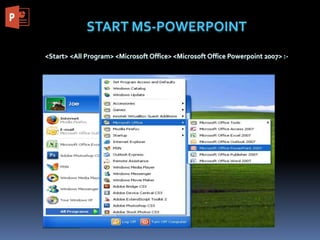
<Start> <All Program> <Microsoft Office> <Microsoft Office Powerpoint 2007> :-
Ribbon
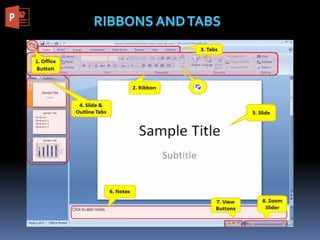
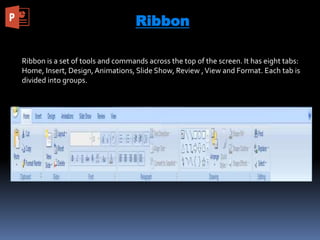
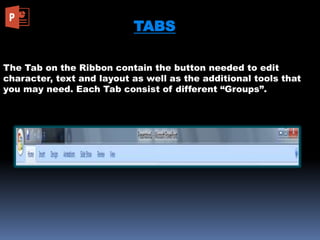
Ribbon is a set of tools and commands across the top of the screen. It has eight tabs:
Home, Insert, Design,Animations, Slide Show, Review ,View and Format. Each tab is
divided into groups.
TABS
The Tab on the Ribbon contain the button needed to edit
character, text and layout as well as the additional tools that
you may need. Each Tab consist of different “Groups”.
HOME TAB
The Home tab holds the Cut and Paste features, Font and Paragraph options, and
what you need to add and organize slides.
GROUPS:- Clipboard, Slides, Font, Paragraph, Drawing, and Editing
INSERT TAB
Click Insert to add something to a slide.This includes pictures, shapes, charts, links,
text boxes, video and more
GROUPS:-Tables, Illustrations, Links,Text, and Media Clips
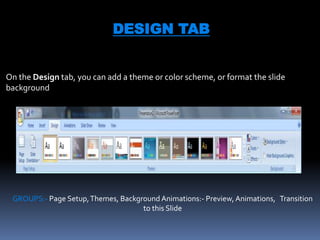
DESIGN TAB
On the Design tab, you can add a theme or color scheme, or format the slide
background
GROUPS:- Page Setup,Themes, Background Animations:- Preview, Animations, Transition
to this Slide
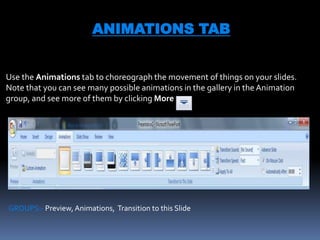
ANIMATIONS TAB
Use the Animations tab to choreograph the movement of things on your slides.
Note that you can see many possible animations in the gallery in the Animation
group, and see more of them by clicking More .
GROUPS:- Preview, Animations, Transition to this Slide
SLIDESHOW TAB
On the Slide Show tab, set up the way that you want to show your presentation to
others.
GROUPS:- Start Slide Show, Set Up, Monitors Review
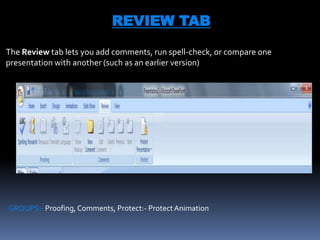
REVIEW TAB
The Review tab lets you add comments, run spell-check, or compare one
presentation with another (such as an earlier version)
GROUPS:- Proofing, Comments, Protect:- Protect Animation
VIEW TAB
Views allow you to look at your presentation in different ways, depending on where
you are in the creation or delivery process.
GROUPS:- Proofing, Comments, Protect:- Protect Animation
When you open PowerPoint this is what you will see….
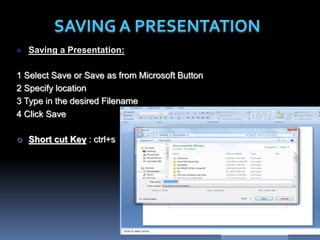
 Saving a Presentation:
1 Select Save or Save as from Microsoft Button
2 Specify location
3 Type in the desired Filename
4 Click Save
 Short cut Key : ctrl+s
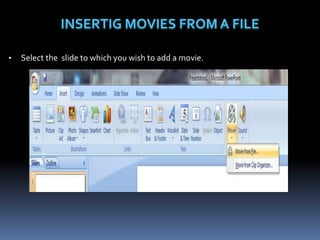
 Select the slide to which you wish to add a
movie.
 In the insert tab under the Media Clips group,
click the arrow on the button.
 Click the movie to insert it, or over your
mouse over it first, click on the menu arrow
that appears, and choose insert.
 The video appears on your slide.
 Select the slide to which you wish to add a
sound.
 In the insert tab under the Media Clips group,
click the arrow on the button.
 Click the Sound to insert it, or over your
mouse over it first, click on the menu arrow
that appears, and choose insert.
 The sound appears on your slide.
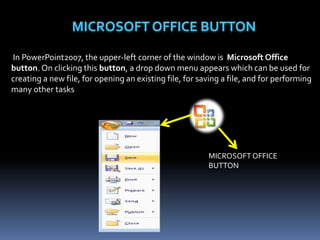
In PowerPoint2007, the upper-left corner of the window is Microsoft Office
button. On clicking this button, a drop down menu appears which can be used for
creating a new file, for opening an existing file, for saving a file, and for performing
many other tasks
MICROSOFTOFFICE
BUTTON
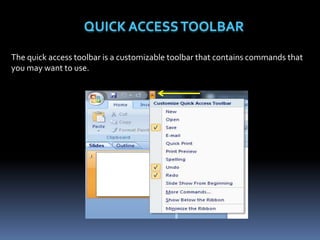
The quick access toolbar is a customizable toolbar that contains commands that
you may want to use.
• Select the slide to which you wish to add a movie.
A new feature in Office 2007 is the MiniToolbar.This is a floating toolbar that is
displayed when you select text or right-click text.
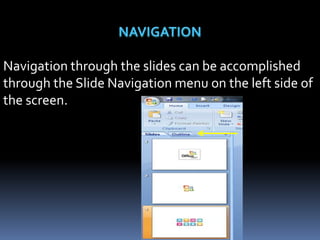
Navigation through the slides can be accomplished
through the Slide Navigation menu on the left side of
the screen.
You can start a new presentation from:-
A blank slide,
A template,
 An existing presentations
or aWord outline
1. Click the Microsoft Office Button.
2. Click New
3. Click Blank Presentation
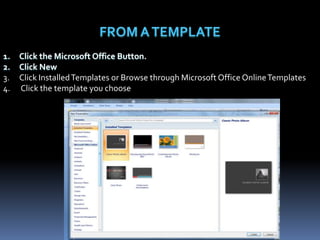
1. Click the Microsoft Office Button.
2. Click New
3. Click InstalledTemplates or Browse through Microsoft Office OnlineTemplates
4. Click the template you choose
1. Click the Microsoft Office Button.
2. Click New
3. Click New From Existing
4. Browse to and click the Presentation
1. In HomeTab Click on New Slide
2. Choose slide which you want to use
1. Select the slide where you want theText
2. On the InsertTab, click onText Box
3. Click on the slide and drag the cursor to expand the text box
4. Type in the text
1. Select the slide where you want theText
2. Click in a text box to add a text
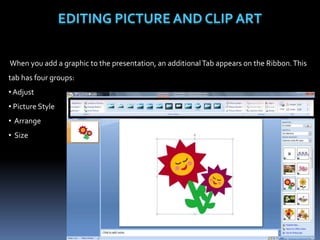
When you add a graphic to the presentation, an additionalTab appears on the Ribbon.This
tab has four groups:
• Adjust
• Picture Style
• Arrange
• Size
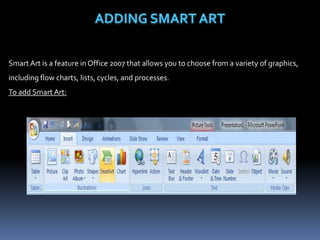
Smart Art is a feature in Office 2007 that allows you to choose from a variety of graphics,
including flow charts, lists, cycles, and processes.
To add Smart Art:
Drag it to the desired location in the slide
THANKYOU

Microsoft Power Point 2007 (Basics)

  • 1.
  • 2.
    WHAT IS MSPOWERPOINT? • Microsoft PowerPoint is a Presentation Program, created by Robert Gaskins and Dennis Austinat a software company named Forethought, Inc. It was released on April 20, 1987,initially for Macintosh computers only and in 1990 it was offered for Windows users. • A PowerPoint presentation is a group of slides that can haveText, Pictures, Graphics,Tables, Sound andVideo. It is a Software Package designed to create Electronic Presentation consisting of a series of separate pages or slides.
  • 3.
    <Start> <All Program><Microsoft Office> <Microsoft Office Powerpoint 2007> :-
  • 5.
    Ribbon Ribbon is aset of tools and commands across the top of the screen. It has eight tabs: Home, Insert, Design,Animations, Slide Show, Review ,View and Format. Each tab is divided into groups.
  • 6.
    TABS The Tab onthe Ribbon contain the button needed to edit character, text and layout as well as the additional tools that you may need. Each Tab consist of different “Groups”.
  • 7.
    HOME TAB The Hometab holds the Cut and Paste features, Font and Paragraph options, and what you need to add and organize slides. GROUPS:- Clipboard, Slides, Font, Paragraph, Drawing, and Editing
  • 8.
    INSERT TAB Click Insertto add something to a slide.This includes pictures, shapes, charts, links, text boxes, video and more GROUPS:-Tables, Illustrations, Links,Text, and Media Clips
  • 9.
    DESIGN TAB On theDesign tab, you can add a theme or color scheme, or format the slide background GROUPS:- Page Setup,Themes, Background Animations:- Preview, Animations, Transition to this Slide
  • 10.
    ANIMATIONS TAB Use theAnimations tab to choreograph the movement of things on your slides. Note that you can see many possible animations in the gallery in the Animation group, and see more of them by clicking More . GROUPS:- Preview, Animations, Transition to this Slide
  • 11.
    SLIDESHOW TAB On theSlide Show tab, set up the way that you want to show your presentation to others. GROUPS:- Start Slide Show, Set Up, Monitors Review
  • 12.
    REVIEW TAB The Reviewtab lets you add comments, run spell-check, or compare one presentation with another (such as an earlier version) GROUPS:- Proofing, Comments, Protect:- Protect Animation
  • 13.
    VIEW TAB Views allowyou to look at your presentation in different ways, depending on where you are in the creation or delivery process. GROUPS:- Proofing, Comments, Protect:- Protect Animation
  • 14.
    When you openPowerPoint this is what you will see….
  • 15.
     Saving aPresentation: 1 Select Save or Save as from Microsoft Button 2 Specify location 3 Type in the desired Filename 4 Click Save  Short cut Key : ctrl+s
  • 16.
     Select theslide to which you wish to add a movie.  In the insert tab under the Media Clips group, click the arrow on the button.  Click the movie to insert it, or over your mouse over it first, click on the menu arrow that appears, and choose insert.  The video appears on your slide.
  • 17.
     Select theslide to which you wish to add a sound.  In the insert tab under the Media Clips group, click the arrow on the button.  Click the Sound to insert it, or over your mouse over it first, click on the menu arrow that appears, and choose insert.  The sound appears on your slide.
  • 18.
    In PowerPoint2007, theupper-left corner of the window is Microsoft Office button. On clicking this button, a drop down menu appears which can be used for creating a new file, for opening an existing file, for saving a file, and for performing many other tasks MICROSOFTOFFICE BUTTON
  • 19.
    The quick accesstoolbar is a customizable toolbar that contains commands that you may want to use.
  • 20.
    • Select theslide to which you wish to add a movie.
  • 21.
    A new featurein Office 2007 is the MiniToolbar.This is a floating toolbar that is displayed when you select text or right-click text.
  • 22.
    Navigation through theslides can be accomplished through the Slide Navigation menu on the left side of the screen.
  • 23.
    You can starta new presentation from:- A blank slide, A template,  An existing presentations or aWord outline
  • 24.
    1. Click theMicrosoft Office Button. 2. Click New 3. Click Blank Presentation
  • 26.
    1. Click theMicrosoft Office Button. 2. Click New 3. Click InstalledTemplates or Browse through Microsoft Office OnlineTemplates 4. Click the template you choose
  • 27.
    1. Click theMicrosoft Office Button. 2. Click New 3. Click New From Existing 4. Browse to and click the Presentation
  • 28.
    1. In HomeTabClick on New Slide 2. Choose slide which you want to use
  • 29.
    1. Select theslide where you want theText 2. On the InsertTab, click onText Box 3. Click on the slide and drag the cursor to expand the text box 4. Type in the text
  • 30.
    1. Select theslide where you want theText 2. Click in a text box to add a text
  • 34.
    When you adda graphic to the presentation, an additionalTab appears on the Ribbon.This tab has four groups: • Adjust • Picture Style • Arrange • Size
  • 35.
    Smart Art isa feature in Office 2007 that allows you to choose from a variety of graphics, including flow charts, lists, cycles, and processes. To add Smart Art:
  • 36.
    Drag it tothe desired location in the slide
  • 38.