Microsoft

Powerpoint
What is

Microsoft

A computer program for presentation which
developed by Microsoft in their office application
package, Microsoft Office.
Presentation
Collection of Data and Information which is to be
delivered to a specific Viewer . Data and Information
could be Text, Table, Chart, Pictures, Sound and
Video.

Remember:
There are three features that you should remember
as you work within PowerPoint 2007:
-Microsoft Office Button
-Quick Access Toolbar
-The Ribbons
The Ribbon:
Commonly utilized features are displayed on the Ribbon. To view
additional features within each group, click the arrow at the
bottom right corner of each group. Clipboard, Slides, Font,
Paragraph, Drawing, and Editing
•Insert
•Home : Tables, Illustrations, Links, Text, and Media Clips
•Design : Page Setup, Themes, Background
•Animations : Preview, Animations, Transition to this Slide,
Advanced Slide
•Slide Show : Start Slide Show, Set Up, Monitors
•Review : Proofing, Comments
•View : Presentation Views, Show/Hide, Zoom,Color/Grayscale,
Window, Macros
New Presentation
You can start a new presentation from a blank slide, a
template, existing presentations, or a Word outline

A. To create a new presentation from a blank slide:
- Click the new microsoft office button
- Click new
- Click blank presentation

B. To create a new presentation from a template:
- Click the microsoft office button
- Click new
- Click installed or Browse through Microsoft Office
Online Templates
Layout
Select a Layout for the New Presentation:
•Go to Slide Tool Group in the Home Tab
•Layout contains Title Slide, Title and Content, Blank
Slide etc.
•Through Content slide, you can directly insert Table,
Pictures, Sounds etc.
•Select a Layout as per the requirement
Insert Picture, Clip Art, Smart
Art, Chart or Table:
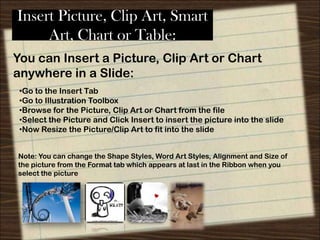
You can Insert a Picture, Clip Art or Chart
anywhere in a Slide:
•Go to the Insert Tab
•Go to Illustration Toolbox
•Browse for the Picture, Clip Art or Chart from the file
•Select the Picture and Click Insert to insert the picture into the slide
•Now Resize the Picture/Clip Art to fit into the slide
Note: You can change the Shape Styles, Word Art Styles, Alignment and Size of
the picture from the Format tab which appears at last in the Ribbon when you
select the picture
Slide Transitions:
Transitions are effects that are in place when you
switch from one slide to the next. To add slide
transitions:
•Select the slide that you want to transition
•Click the Animations tab
•Select an appropriate Transition from the Transition to this Slide Toolbox
•To apply the transition to all slides: Click the Apply to All button on the
Animations tab

Note: You can change the Transition Speed and Add the Transition Sound for the Slides
from the Transition to this Slide Toolbox.
Slide Animation:
Slide animation effects are predefined special effects that you
can add to objects on a slide.
-----To apply an animation effect----- :
•Select the object
•Click the Animations tab on the Ribbon
•Click Custom Animation
•Click Add Effect
•Choose the appropriate effect
•To see the Preview of Animation, Click on Preview Button in Animation
Tab
Florentina Patricia
Semester V

Microsoft Power Point

  • 1.
  • 2.
    What is Microsoft A computerprogram for presentation which developed by Microsoft in their office application package, Microsoft Office.
  • 3.
    Presentation Collection of Dataand Information which is to be delivered to a specific Viewer . Data and Information could be Text, Table, Chart, Pictures, Sound and Video. Remember: There are three features that you should remember as you work within PowerPoint 2007: -Microsoft Office Button -Quick Access Toolbar -The Ribbons
  • 4.
    The Ribbon: Commonly utilizedfeatures are displayed on the Ribbon. To view additional features within each group, click the arrow at the bottom right corner of each group. Clipboard, Slides, Font, Paragraph, Drawing, and Editing •Insert •Home : Tables, Illustrations, Links, Text, and Media Clips •Design : Page Setup, Themes, Background •Animations : Preview, Animations, Transition to this Slide, Advanced Slide •Slide Show : Start Slide Show, Set Up, Monitors •Review : Proofing, Comments •View : Presentation Views, Show/Hide, Zoom,Color/Grayscale, Window, Macros
  • 5.
    New Presentation You canstart a new presentation from a blank slide, a template, existing presentations, or a Word outline A. To create a new presentation from a blank slide: - Click the new microsoft office button - Click new - Click blank presentation B. To create a new presentation from a template: - Click the microsoft office button - Click new - Click installed or Browse through Microsoft Office Online Templates
  • 6.
    Layout Select a Layoutfor the New Presentation: •Go to Slide Tool Group in the Home Tab •Layout contains Title Slide, Title and Content, Blank Slide etc. •Through Content slide, you can directly insert Table, Pictures, Sounds etc. •Select a Layout as per the requirement
  • 7.
    Insert Picture, ClipArt, Smart Art, Chart or Table: You can Insert a Picture, Clip Art or Chart anywhere in a Slide: •Go to the Insert Tab •Go to Illustration Toolbox •Browse for the Picture, Clip Art or Chart from the file •Select the Picture and Click Insert to insert the picture into the slide •Now Resize the Picture/Clip Art to fit into the slide Note: You can change the Shape Styles, Word Art Styles, Alignment and Size of the picture from the Format tab which appears at last in the Ribbon when you select the picture
  • 8.
    Slide Transitions: Transitions areeffects that are in place when you switch from one slide to the next. To add slide transitions: •Select the slide that you want to transition •Click the Animations tab •Select an appropriate Transition from the Transition to this Slide Toolbox •To apply the transition to all slides: Click the Apply to All button on the Animations tab Note: You can change the Transition Speed and Add the Transition Sound for the Slides from the Transition to this Slide Toolbox.
  • 9.
    Slide Animation: Slide animationeffects are predefined special effects that you can add to objects on a slide. -----To apply an animation effect----- : •Select the object •Click the Animations tab on the Ribbon •Click Custom Animation •Click Add Effect •Choose the appropriate effect •To see the Preview of Animation, Click on Preview Button in Animation Tab
  • 10.