This is wherepresentation software
comes in. Presentation software,
like Microsoft PowerPoint or Google
Slides,
allows you to create slide shows
with text, images, videos,
animations, and more. It’s a great
tool for presenting information
in a visually appealing and
organized manner
3.
Rules in CreatingPresentation
1. Know Your Audience: Understand who you are presenting to and
what they expect to get out of the presentation. This will help you tailor
your content to meet their needs.
2. Define Your Objective: Every presentation should have a clear
objective. What do you want your audience to learn or do as a result of
your presentation?
3. Keep It Simple: Avoid cluttering your slides with too much text or too
many images. Use bullet points, infographics, and visuals to convey
your message clearly.
4. Use High-Quality Graphics: Use high-quality images and graphics to
support your message. Avoid using clip art or low-resolution images.
5. Consistency is Key: Use the same or similar themes, colors, and fonts
throughout the presentation to give it a cohesive look.
6. Limit Text and Bullet Points: Large blocks of text or numerous bullet
points can lose your audience’s attention. Try to limit each slide to one
4.
Rules in CreatingPresentation
8. Practice Makes Perfect: Practice your
presentation multiple times to ensure you are
familiar with your content and can present it
confidently.
9. Engage with Your Audience: Ask questions,
encourage participation, and make sure you
are addressing your audience’s needs and
questions.
10. Review and Edit: Review your presentation
for any errors or areas that could be improved.
A second set of eyes can also help catch any
mistakes or inconsistencies
5.
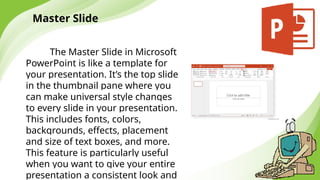
Master Slide
The MasterSlide in Microsoft
PowerPoint is like a template for
your presentation. It’s the top slide
in the thumbnail pane where you
can make universal style changes
to every slide in your presentation.
This includes fonts, colors,
backgrounds, effects, placement
and size of text boxes, and more.
This feature is particularly useful
when you want to give your entire
presentation a consistent look and
6.
Master Slide
Here arethe steps to use the Master Slide feature
in MS PowerPoint:
1. Open your Microsoft PowerPoint presentation.
2. Click on the View tab in the Ribbon (the Ribbon is
the toolbar at the top of the PowerPoint window).
3. In the Master Views group, click on Slide Master.
4. You’ll see the master slide at the top of the
thumbnail pane on the left, with related layout
slides beneath it. Make any changes you want to
apply universally here.
5. Once you’re done making changes, click on Close
Master View in the Slide Master tab.
7.
All the changesyou made on the master slide will
automatically apply to the rest of the slides in your
presentation. Now, all your slides will have a similar
background with similar font, giving your
presentation a consistent and neat look. Plus, it
saves you time from having to format each slide
individually!
8.
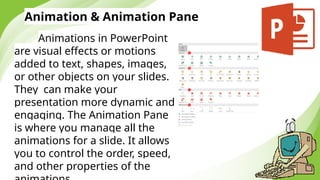
Animation & AnimationPane
Animations in PowerPoint
are visual effects or motions
added to text, shapes, images,
or other objects on your slides.
They can make your
presentation more dynamic and
engaging. The Animation Pane
is where you manage all the
animations for a slide. It allows
you to control the order, speed,
and other properties of the
9.
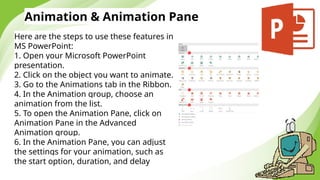
Animation & AnimationPane
Here are the steps to use these features in
MS PowerPoint:
1. Open your Microsoft PowerPoint
presentation.
2. Click on the object you want to animate.
3. Go to the Animations tab in the Ribbon.
4. In the Animation group, choose an
animation from the list.
5. To open the Animation Pane, click on
Animation Pane in the Advanced
Animation group.
6. In the Animation Pane, you can adjust
the settings for your animation, such as
the start option, duration, and delay
10.
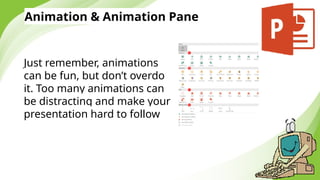
Animation & AnimationPane
Just remember, animations
can be fun, but don’t overdo
it. Too many animations can
be distracting and make your
presentation hard to follow
11.
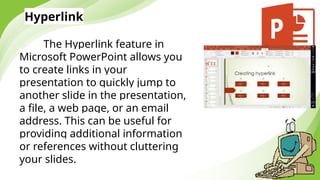
Hyperlink
The Hyperlink featurein
Microsoft PowerPoint allows you
to create links in your
presentation to quickly jump to
another slide in the presentation,
a file, a web page, or an email
address. This can be useful for
providing additional information
or references without cluttering
your slides.
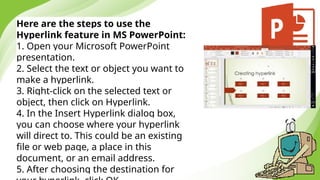
12.
Here are thesteps to use the
Hyperlink feature in MS PowerPoint:
1. Open your Microsoft PowerPoint
presentation.
2. Select the text or object you want to
make a hyperlink.
3. Right-click on the selected text or
object, then click on Hyperlink.
4. In the Insert Hyperlink dialog box,
you can choose where your hyperlink
will direct to. This could be an existing
file or web page, a place in this
document, or an email address.
5. After choosing the destination for
13.
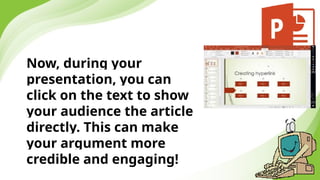
Now, during your
presentation,you can
click on the text to show
your audience the article
directly. This can make
your argument more
credible and engaging!
14.
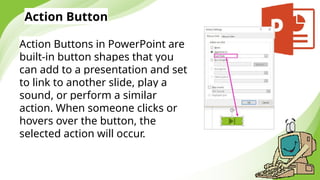
Action Button
Action Buttonsin PowerPoint are
built-in button shapes that you
can add to a presentation and set
to link to another slide, play a
sound, or perform a similar
action. When someone clicks or
hovers over the button, the
selected action will occur.
15.
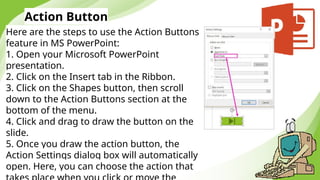
Action Button
Here arethe steps to use the Action Buttons
feature in MS PowerPoint:
1. Open your Microsoft PowerPoint
presentation.
2. Click on the Insert tab in the Ribbon.
3. Click on the Shapes button, then scroll
down to the Action Buttons section at the
bottom of the menu.
4. Click and drag to draw the button on the
slide.
5. Once you draw the action button, the
Action Settings dialog box will automatically
open. Here, you can choose the action that
16.
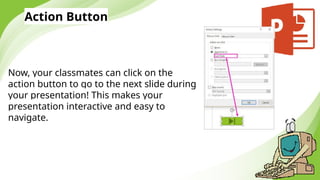
Action Button
Now, yourclassmates can click on the
action button to go to the next slide during
your presentation! This makes your
presentation interactive and easy to
navigate.



![Q1 WEEK 6 IN TLE 7 [Autosaved].pp777777777777777tx](https://cdn.slidesharecdn.com/ss_thumbnails/q1week6intle7autosaved-250902232032-e9a66c0d-thumbnail.jpg?width=640&height=640&fit=bounds)


