


KEYBOARD SHORTCUTS
What is a KEYBOARD?
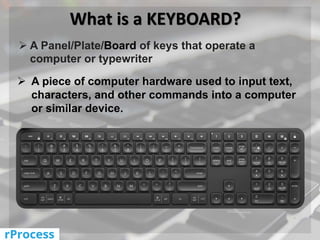
 A Panel/Plate/Board of keys that operate a
computer or typewriter
 A piece of computer hardware used to input text,
characters, and other commands into a computer
or similar device.
Types of Keys set up on Keyboard
How are keys organized on Keyboard
The keys on your keyboard can be divided into several
groups based on function:
•Typing (alphanumeric) keys These keys include the same letter,
number, punctuation, and symbol keys found on a traditional
typewriter
•Control keys These keys are used alone or in combination with
other keys to perform certain actions. The most frequently used
control keys are Ctrl, Alt, the Windows logo key and Esc
•Function keys The function keys are used to perform specific
tasks. They are labeled as F1, F2, F3, and so on, up to F12. The
functionality of these keys differs from program to program
•Navigation keys These keys are used for moving around in
documents or webpages and editing text. They include the
arrow keys, Home, End, Page Up, Page Down, Delete, and Insert
•Numeric keypad The numeric keypad is handy for entering
numbers quickly. The keys are grouped together in a block like a
conventional calculator or adding machine
Keyboard shortcuts are ways to perform actions by using your
keyboard. They're called shortcuts because they help you work faster.
In fact, almost any action or command you can perform with a mouse
can be performed faster using one or more keys on your keyboard.
In Help topics, a plus sign (+) between two or more keys indicates that
those keys should be pressed in combination. For example, Ctrl + A
means to press and hold Ctrl and then press A. Ctrl + Shift + A means
to press and hold Ctrl and Shift and then press A.
Using Keyboard Shortcuts
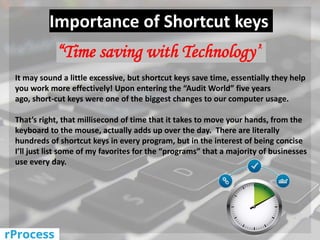
Importance of Shortcut keys
“Time saving with Technology”
It may sound a little excessive, but shortcut keys save time, essentially they help
you work more effectively! Upon entering the “Audit World” five years
ago, short-cut keys were one of the biggest changes to our computer usage.
That’s right, that millisecond of time that it takes to move your hands, from the
keyboard to the mouse, actually adds up over the day. There are literally
hundreds of shortcut keys in every program, but in the interest of being concise
I’ll just list some of my favorites for the “programs” that a majority of businesses
use every day.
Let us learn Top Keyboard Keys
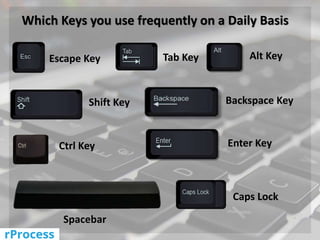
Which Keys you use frequently on a Daily Basis
Escape Key
Shift Key
Tab Key
Backspace Key
Enter KeyCtrl Key
Spacebar
Alt Key
Caps Lock
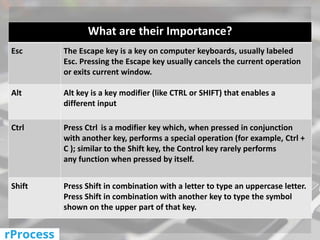
What are their Importance?
Esc The Escape key is a key on computer keyboards, usually labeled
Esc. Pressing the Escape key usually cancels the current operation
or exits current window.
Alt Alt key is a key modifier (like CTRL or SHIFT) that enables a
different input
Ctrl Press Ctrl is a modifier key which, when pressed in conjunction
with another key, performs a special operation (for example, Ctrl +
C ); similar to the Shift key, the Control key rarely performs
any function when pressed by itself.
Shift Press Shift in combination with a letter to type an uppercase letter.
Press Shift in combination with another key to type the symbol
shown on the upper part of that key.
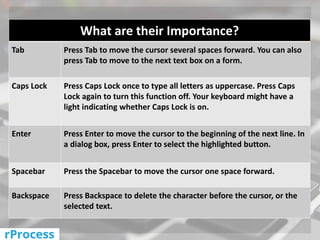
What are their Importance?
Tab Press Tab to move the cursor several spaces forward. You can also
press Tab to move to the next text box on a form.
Caps Lock Press Caps Lock once to type all letters as uppercase. Press Caps
Lock again to turn this function off. Your keyboard might have a
light indicating whether Caps Lock is on.
Enter Press Enter to move the cursor to the beginning of the next line. In
a dialog box, press Enter to select the highlighted button.
Spacebar Press the Spacebar to move the cursor one space forward.
Backspace Press Backspace to delete the character before the cursor, or the
selected text.
Let us learn the basic uses in entering
data by using shortcut keys
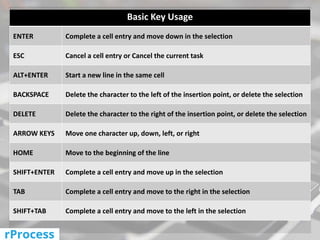
Basic Key Usage
ENTER Complete a cell entry and move down in the selection
ESC Cancel a cell entry or Cancel the current task
ALT+ENTER Start a new line in the same cell
BACKSPACE Delete the character to the left of the insertion point, or delete the selection
DELETE Delete the character to the right of the insertion point, or delete the selection
ARROW KEYS Move one character up, down, left, or right
HOME Move to the beginning of the line
SHIFT+ENTER Complete a cell entry and move up in the selection
TAB Complete a cell entry and move to the right in the selection
SHIFT+TAB Complete a cell entry and move to the left in the selection
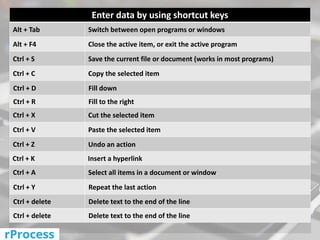
Enter data by using shortcut keys
Alt + Tab Switch between open programs or windows
Alt + F4 Close the active item, or exit the active program
Ctrl + S Save the current file or document (works in most programs)
Ctrl + C Copy the selected item
Ctrl + D Fill down
Ctrl + R Fill to the right
Ctrl + X Cut the selected item
Ctrl + V Paste the selected item
Ctrl + Z Undo an action
Ctrl + K Insert a hyperlink
Ctrl + A Select all items in a document or window
Ctrl + Y Repeat the last action
Ctrl + delete Delete text to the end of the line
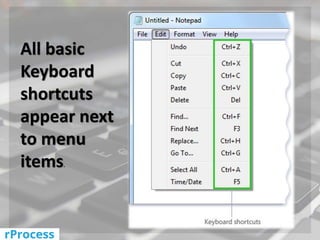
All basic
Keyboard
shortcuts
appear next
to menu
items.
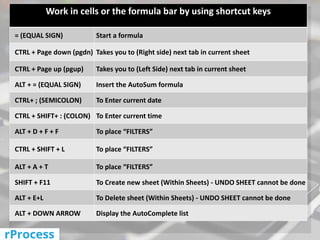
Work in cells or the formula bar by using shortcut keys
= (EQUAL SIGN) Start a formula
CTRL + Page down (pgdn) Takes you to (Right side) next tab in current sheet
CTRL + Page up (pgup) Takes you to (Left Side) next tab in current sheet
ALT + = (EQUAL SIGN) Insert the AutoSum formula
CTRL+ ; (SEMICOLON) To Enter current date
CTRL + SHIFT+ : (COLON) To Enter current time
ALT + D + F + F To place “FILTERS”
CTRL + SHIFT + L To place “FILTERS”
ALT + A + T To place “FILTERS”
SHIFT + F11 To Create new sheet (Within Sheets) - UNDO SHEET cannot be done
ALT + E+L To Delete sheet (Within Sheets) - UNDO SHEET cannot be done
ALT + DOWN ARROW Display the AutoComplete list
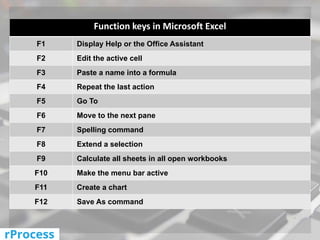
Function keys in Microsoft Excel
F1 Display Help or the Office Assistant
F2 Edit the active cell
F3 Paste a name into a formula
F4 Repeat the last action
F5 Go To
F6 Move to the next pane
F7 Spelling command
F8 Extend a selection
F9 Calculate all sheets in all open workbooks
F10 Make the menu bar active
F11 Create a chart
F12 Save As command
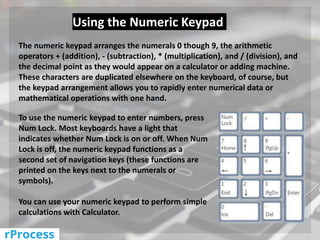
The numeric keypad arranges the numerals 0 though 9, the arithmetic
operators + (addition), - (subtraction), * (multiplication), and / (division), and
the decimal point as they would appear on a calculator or adding machine.
These characters are duplicated elsewhere on the keyboard, of course, but
the keypad arrangement allows you to rapidly enter numerical data or
mathematical operations with one hand.
Using the Numeric Keypad
To use the numeric keypad to enter numbers, press
Num Lock. Most keyboards have a light that
indicates whether Num Lock is on or off. When Num
Lock is off, the numeric keypad functions as a
second set of navigation keys (these functions are
printed on the keys next to the numerals or
symbols).
You can use your numeric keypad to perform simple
calculations with Calculator.
Keyboard shortcuts
Keyboard shortcuts

Keyboard shortcuts

  • 1.
  • 2.
    What is aKEYBOARD?  A Panel/Plate/Board of keys that operate a computer or typewriter  A piece of computer hardware used to input text, characters, and other commands into a computer or similar device.
  • 3.
    Types of Keysset up on Keyboard
  • 4.
    How are keysorganized on Keyboard The keys on your keyboard can be divided into several groups based on function: •Typing (alphanumeric) keys These keys include the same letter, number, punctuation, and symbol keys found on a traditional typewriter •Control keys These keys are used alone or in combination with other keys to perform certain actions. The most frequently used control keys are Ctrl, Alt, the Windows logo key and Esc
  • 5.
    •Function keys Thefunction keys are used to perform specific tasks. They are labeled as F1, F2, F3, and so on, up to F12. The functionality of these keys differs from program to program •Navigation keys These keys are used for moving around in documents or webpages and editing text. They include the arrow keys, Home, End, Page Up, Page Down, Delete, and Insert •Numeric keypad The numeric keypad is handy for entering numbers quickly. The keys are grouped together in a block like a conventional calculator or adding machine
  • 6.
    Keyboard shortcuts areways to perform actions by using your keyboard. They're called shortcuts because they help you work faster. In fact, almost any action or command you can perform with a mouse can be performed faster using one or more keys on your keyboard. In Help topics, a plus sign (+) between two or more keys indicates that those keys should be pressed in combination. For example, Ctrl + A means to press and hold Ctrl and then press A. Ctrl + Shift + A means to press and hold Ctrl and Shift and then press A. Using Keyboard Shortcuts
  • 7.
    Importance of Shortcutkeys “Time saving with Technology” It may sound a little excessive, but shortcut keys save time, essentially they help you work more effectively! Upon entering the “Audit World” five years ago, short-cut keys were one of the biggest changes to our computer usage. That’s right, that millisecond of time that it takes to move your hands, from the keyboard to the mouse, actually adds up over the day. There are literally hundreds of shortcut keys in every program, but in the interest of being concise I’ll just list some of my favorites for the “programs” that a majority of businesses use every day.
  • 8.
    Let us learnTop Keyboard Keys
  • 9.
    Which Keys youuse frequently on a Daily Basis Escape Key Shift Key Tab Key Backspace Key Enter KeyCtrl Key Spacebar Alt Key Caps Lock
  • 10.
    What are theirImportance? Esc The Escape key is a key on computer keyboards, usually labeled Esc. Pressing the Escape key usually cancels the current operation or exits current window. Alt Alt key is a key modifier (like CTRL or SHIFT) that enables a different input Ctrl Press Ctrl is a modifier key which, when pressed in conjunction with another key, performs a special operation (for example, Ctrl + C ); similar to the Shift key, the Control key rarely performs any function when pressed by itself. Shift Press Shift in combination with a letter to type an uppercase letter. Press Shift in combination with another key to type the symbol shown on the upper part of that key.
  • 11.
    What are theirImportance? Tab Press Tab to move the cursor several spaces forward. You can also press Tab to move to the next text box on a form. Caps Lock Press Caps Lock once to type all letters as uppercase. Press Caps Lock again to turn this function off. Your keyboard might have a light indicating whether Caps Lock is on. Enter Press Enter to move the cursor to the beginning of the next line. In a dialog box, press Enter to select the highlighted button. Spacebar Press the Spacebar to move the cursor one space forward. Backspace Press Backspace to delete the character before the cursor, or the selected text.
  • 12.
    Let us learnthe basic uses in entering data by using shortcut keys
  • 13.
    Basic Key Usage ENTERComplete a cell entry and move down in the selection ESC Cancel a cell entry or Cancel the current task ALT+ENTER Start a new line in the same cell BACKSPACE Delete the character to the left of the insertion point, or delete the selection DELETE Delete the character to the right of the insertion point, or delete the selection ARROW KEYS Move one character up, down, left, or right HOME Move to the beginning of the line SHIFT+ENTER Complete a cell entry and move up in the selection TAB Complete a cell entry and move to the right in the selection SHIFT+TAB Complete a cell entry and move to the left in the selection
  • 14.
    Enter data byusing shortcut keys Alt + Tab Switch between open programs or windows Alt + F4 Close the active item, or exit the active program Ctrl + S Save the current file or document (works in most programs) Ctrl + C Copy the selected item Ctrl + D Fill down Ctrl + R Fill to the right Ctrl + X Cut the selected item Ctrl + V Paste the selected item Ctrl + Z Undo an action Ctrl + K Insert a hyperlink Ctrl + A Select all items in a document or window Ctrl + Y Repeat the last action Ctrl + delete Delete text to the end of the line Ctrl + delete Delete text to the end of the line
  • 15.
  • 16.
    Work in cellsor the formula bar by using shortcut keys = (EQUAL SIGN) Start a formula CTRL + Page down (pgdn) Takes you to (Right side) next tab in current sheet CTRL + Page up (pgup) Takes you to (Left Side) next tab in current sheet ALT + = (EQUAL SIGN) Insert the AutoSum formula CTRL+ ; (SEMICOLON) To Enter current date CTRL + SHIFT+ : (COLON) To Enter current time ALT + D + F + F To place “FILTERS” CTRL + SHIFT + L To place “FILTERS” ALT + A + T To place “FILTERS” SHIFT + F11 To Create new sheet (Within Sheets) - UNDO SHEET cannot be done ALT + E+L To Delete sheet (Within Sheets) - UNDO SHEET cannot be done ALT + DOWN ARROW Display the AutoComplete list
  • 17.
    Function keys inMicrosoft Excel F1 Display Help or the Office Assistant F2 Edit the active cell F3 Paste a name into a formula F4 Repeat the last action F5 Go To F6 Move to the next pane F7 Spelling command F8 Extend a selection F9 Calculate all sheets in all open workbooks F10 Make the menu bar active F11 Create a chart F12 Save As command
  • 18.
    The numeric keypadarranges the numerals 0 though 9, the arithmetic operators + (addition), - (subtraction), * (multiplication), and / (division), and the decimal point as they would appear on a calculator or adding machine. These characters are duplicated elsewhere on the keyboard, of course, but the keypad arrangement allows you to rapidly enter numerical data or mathematical operations with one hand. Using the Numeric Keypad To use the numeric keypad to enter numbers, press Num Lock. Most keyboards have a light that indicates whether Num Lock is on or off. When Num Lock is off, the numeric keypad functions as a second set of navigation keys (these functions are printed on the keys next to the numerals or symbols). You can use your numeric keypad to perform simple calculations with Calculator.