GANTT CHART
• View most often seen in MSProject
• A Gantt Chart is a spreadsheet on the left
  half of the screen and a calendar on the
  right hand side
• Tasks & task information entered in
  spreadsheet and software transfers data
  to the calendar
GANTT CHART
PROJECT PROPERTIES
• These are entered on the project tab and
  can also be viewed (and changed) on File,
  Info
• Important kept up to date as projects can
  last long periods of time – should
  irregularities occur you can refer back to
  project information
START/END DATE
• MSProject can schedule either from a
  start date or an end date
• Dates are entered in project information
  under PROJECT TAB
CHANGE WORKING TIMES
• 3 default calendars
   • Standard
   • Nightshift
   • 24 hour

• Can customise to reflect non-
  working hours
   • Add in bank holidays etc.
CREATING THE WORK BREAKDOWN
STRUCTURE (WBS) AND GANTT CHART
•   WBS- a tool used to graphically display the
    deliverables of the project in a
    hierarchical fashion. It organises the
    work of a project in logical groupings and
    displays the information in tree form or in
    outline form (Heldman,2005)
• Gantt Chart – graphically displays tasks
  on a timescale
RELATIONSHIP BETWEEN WBS AND GANTT
CHART
• We will only use the outline form of WBS
• This means the task side of Gantt Chart
  is the WBS
• Therefore can use MSProject to
  construct WBS and Gantt Chart
  simultaneously
ACTIVITIES: TASKS, SUB TASKS AND SUMMARY
   TASKS
An activity is:-
“…A task or jobs that must be completed in order to
eventually complete the project” (Burke,2007)


Summary Tasks – headings or collections of group tasks


Subtasks – contain verbs and read like instructions, eg.
DIG FOUNDATIONS


Summary tasks – named as objects, eg. CONSTRUCTION
MSPROJECT
Show MSProject presentation
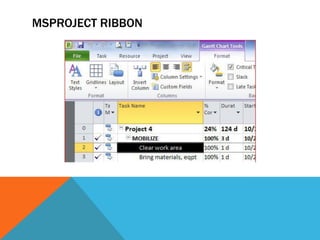
MSPROJECT RIBBON
CREATE A NEW PROJECT
 Project opens by default with a new
 project. To create additional projects,
 follow these steps:

 • Click the File tab. The Backstage view
   appears.
 • Click New.
 • Click Blank Project.
 • Click Create.
PROJECT INFORMATION
On the Project tab, click Project Information.


Schedule the project in the Project Information dialog
box:
 To schedule from the start date, click Project Start
  Date in the Schedule from box, and then select the
  start date in the Start date box.
 To schedule from the finish date, click Project Finish
  Date in the Schedule from box, and then select the
  finish date in the Finish date box.
MSPROJECT
• Type in 6 tasks and durations of your
  choice
LINKING TASKS
•   Linking tasks allows you to create relationships between
    tasks. For example, you may want one task to begin after
    another one ends.


•   Select the two tasks that you want to link. Select the first
    task by clicking its name in the Task Name column, and then
    hold down the SHIFT key while clicking the second task.


•   Click the Task tab, and then in the Schedule group, click Link

    Task   ∞   .


•   To change the link type, double click the line between the
    linked tasks, and select one of the options
TYPES OF DEPENDENCIES
Finish-Start
•   Default, most often used. Succeeding task cannot commence
    unless preceding task has finished
Finish-Finish
•   The succeeding activity cannot finish unless the preceding
    activity finishes
Start-Start
•   The succeeding activity cannot start unless the preceding
    activity has started
Start-Finish
•   Uncommon. The succeeding activity’s start date will determine
    when the preceding activity will finish
CHANGE THE TASK MODE FOR A TASK
Two types of task modes: manually scheduled and automatically
  scheduled:
•   Manually scheduled Manually scheduled tasks allow greater
    flexibility in how a task is scheduled. For example, you can
    create a duration of “Soon” for a manually scheduled task
    without Project displaying an error.
•   Automatically scheduled Automatically scheduled tasks
    require specific types of values for duration and start fields.
    These tasks use this information (along with calendar
    information) to help determine where tasks should begin in
    relation to other tasks.
•    To change the task mode of a task, do the following:
    • In the Task Mode column for a task, click Auto Schedule or
      Manually Scheduled
OUTLINE A PROJECT TO CREATE A PHASE WITH
SUBTASKS
•   Outlining allows you to break down your task list to make it
    appear more organised and readable. Outlines are created by
    indenting or moving a task to a lower outline level in the Task
    Name column. When you indent a task, it becomes a subtask of
    the nearest preceding task at a higher outline level. Tasks at the
    highest outline level are sometimes referred to a phases.


•   Select the task that you want to indent under its phase, or
    summary task.


•   On the Task tab, in the Schedule group, click Indent Task

Ms project lectures

  • 2.
    GANTT CHART • Viewmost often seen in MSProject • A Gantt Chart is a spreadsheet on the left half of the screen and a calendar on the right hand side • Tasks & task information entered in spreadsheet and software transfers data to the calendar
  • 3.
  • 4.
    PROJECT PROPERTIES • Theseare entered on the project tab and can also be viewed (and changed) on File, Info • Important kept up to date as projects can last long periods of time – should irregularities occur you can refer back to project information
  • 5.
    START/END DATE • MSProjectcan schedule either from a start date or an end date • Dates are entered in project information under PROJECT TAB
  • 6.
    CHANGE WORKING TIMES •3 default calendars • Standard • Nightshift • 24 hour • Can customise to reflect non- working hours • Add in bank holidays etc.
  • 7.
    CREATING THE WORKBREAKDOWN STRUCTURE (WBS) AND GANTT CHART • WBS- a tool used to graphically display the deliverables of the project in a hierarchical fashion. It organises the work of a project in logical groupings and displays the information in tree form or in outline form (Heldman,2005) • Gantt Chart – graphically displays tasks on a timescale
  • 8.
    RELATIONSHIP BETWEEN WBSAND GANTT CHART • We will only use the outline form of WBS • This means the task side of Gantt Chart is the WBS • Therefore can use MSProject to construct WBS and Gantt Chart simultaneously
  • 9.
    ACTIVITIES: TASKS, SUBTASKS AND SUMMARY TASKS An activity is:- “…A task or jobs that must be completed in order to eventually complete the project” (Burke,2007) Summary Tasks – headings or collections of group tasks Subtasks – contain verbs and read like instructions, eg. DIG FOUNDATIONS Summary tasks – named as objects, eg. CONSTRUCTION
  • 10.
  • 11.
  • 12.
    CREATE A NEWPROJECT Project opens by default with a new project. To create additional projects, follow these steps: • Click the File tab. The Backstage view appears. • Click New. • Click Blank Project. • Click Create.
  • 13.
    PROJECT INFORMATION On theProject tab, click Project Information. Schedule the project in the Project Information dialog box:  To schedule from the start date, click Project Start Date in the Schedule from box, and then select the start date in the Start date box.  To schedule from the finish date, click Project Finish Date in the Schedule from box, and then select the finish date in the Finish date box.
  • 14.
    MSPROJECT • Type in6 tasks and durations of your choice
  • 15.
    LINKING TASKS • Linking tasks allows you to create relationships between tasks. For example, you may want one task to begin after another one ends. • Select the two tasks that you want to link. Select the first task by clicking its name in the Task Name column, and then hold down the SHIFT key while clicking the second task. • Click the Task tab, and then in the Schedule group, click Link Task ∞ . • To change the link type, double click the line between the linked tasks, and select one of the options
  • 16.
    TYPES OF DEPENDENCIES Finish-Start • Default, most often used. Succeeding task cannot commence unless preceding task has finished Finish-Finish • The succeeding activity cannot finish unless the preceding activity finishes Start-Start • The succeeding activity cannot start unless the preceding activity has started Start-Finish • Uncommon. The succeeding activity’s start date will determine when the preceding activity will finish
  • 17.
    CHANGE THE TASKMODE FOR A TASK Two types of task modes: manually scheduled and automatically scheduled: • Manually scheduled Manually scheduled tasks allow greater flexibility in how a task is scheduled. For example, you can create a duration of “Soon” for a manually scheduled task without Project displaying an error. • Automatically scheduled Automatically scheduled tasks require specific types of values for duration and start fields. These tasks use this information (along with calendar information) to help determine where tasks should begin in relation to other tasks. • To change the task mode of a task, do the following: • In the Task Mode column for a task, click Auto Schedule or Manually Scheduled
  • 18.
    OUTLINE A PROJECTTO CREATE A PHASE WITH SUBTASKS • Outlining allows you to break down your task list to make it appear more organised and readable. Outlines are created by indenting or moving a task to a lower outline level in the Task Name column. When you indent a task, it becomes a subtask of the nearest preceding task at a higher outline level. Tasks at the highest outline level are sometimes referred to a phases. • Select the task that you want to indent under its phase, or summary task. • On the Task tab, in the Schedule group, click Indent Task