
INTRODUCTION TO MICROSOFT
PROJECT 2010
Bhishma Bhatti
Assistant professor,
Babaria Institute of Technology
WHAT IS M.S. PROJECT?
It is a business planning system that’s makes
it easy to schedule, manage, and
communicate project information.
 Helps in creating new project quickly and
efficiently.
 Creates new task and change task from manual to
automatic scheduling
 Creates links between tasks.
GOALS OF M.S. PROJECT
MODULE - 1
CREATING NEW SCHEDULE
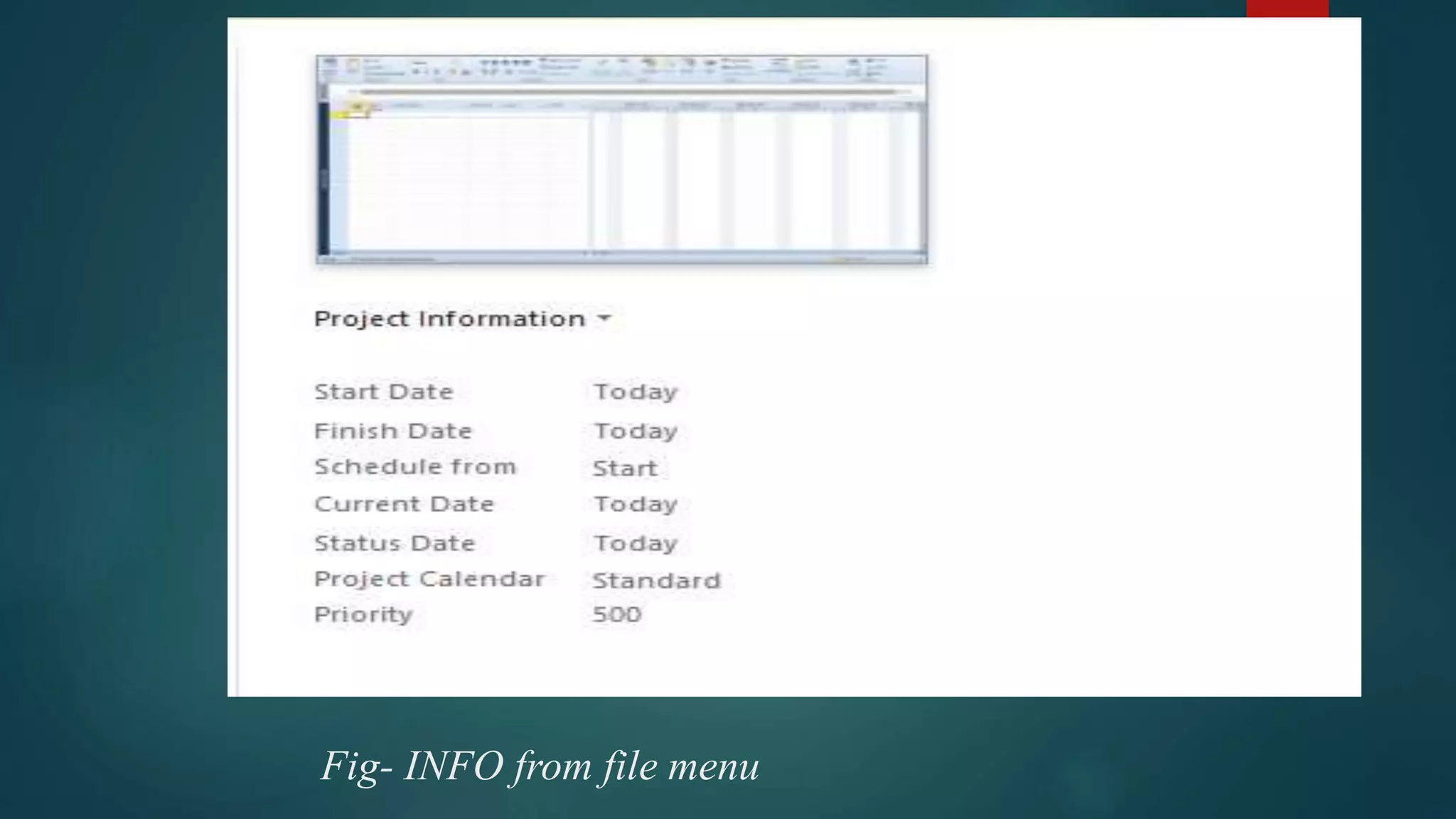
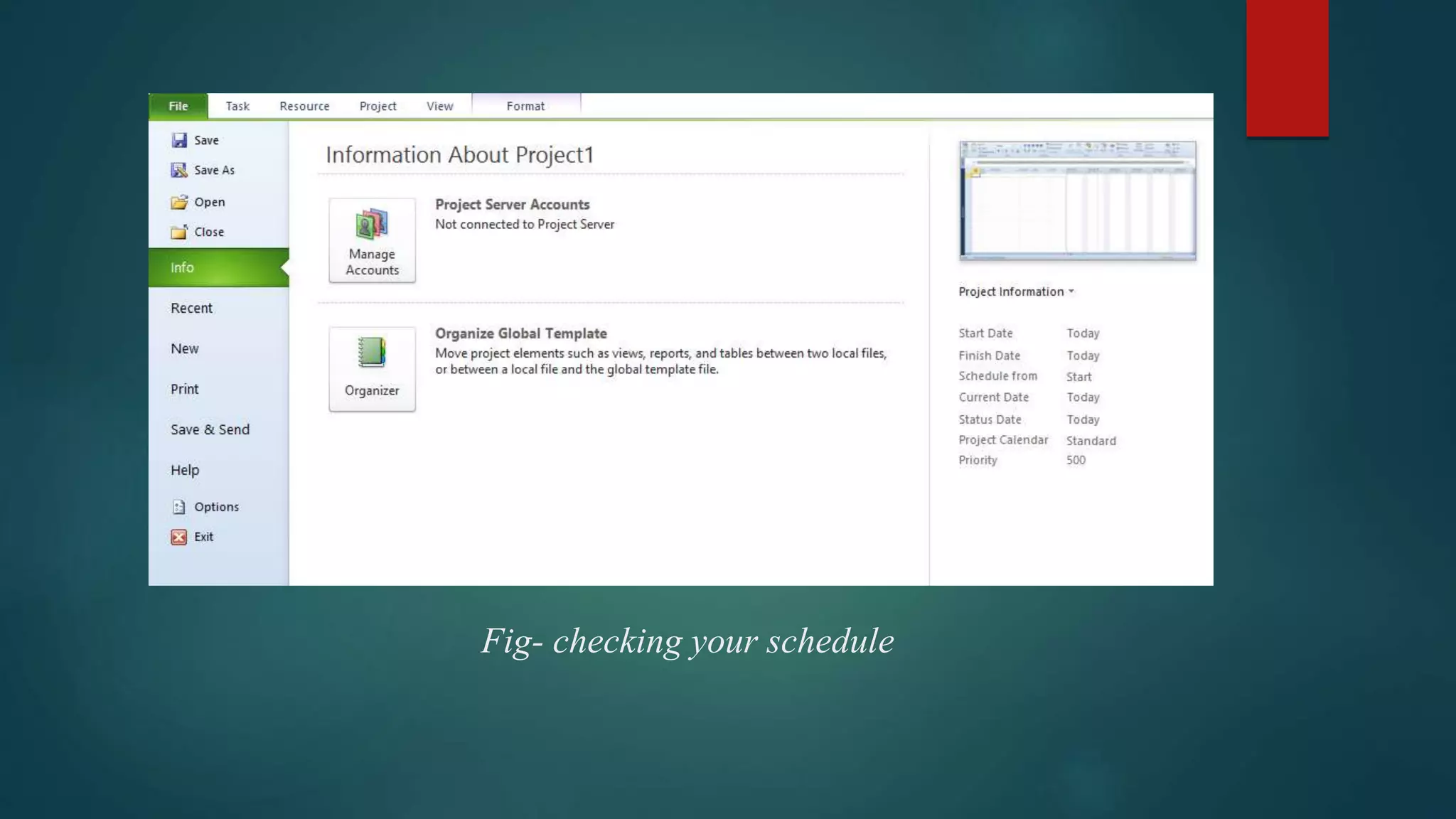
 Open Microsoft project.
 From file menu choose ‘INFO’ option.
 As per the planning of project fill the details.
Fig- INFO from file menu
INTRODUCING GANTT BAR
CHART
 A GANTT chart provides a graphical illustration of a
schedule that helps to plan, coordinate, and track specific
tasks in a project.
Fig- home screen of M.S. Project
Fig- Entering task in the schedule
ENTERING DURATION
Durations have to be entered in column
besides their tasks.
schedule can be entered manually or
automatic way from task mode.
Fig- auto schedule of tasks duration
Fig- manual schedule of task duration
GETTING ORGANIZED WITH
OUTLINING
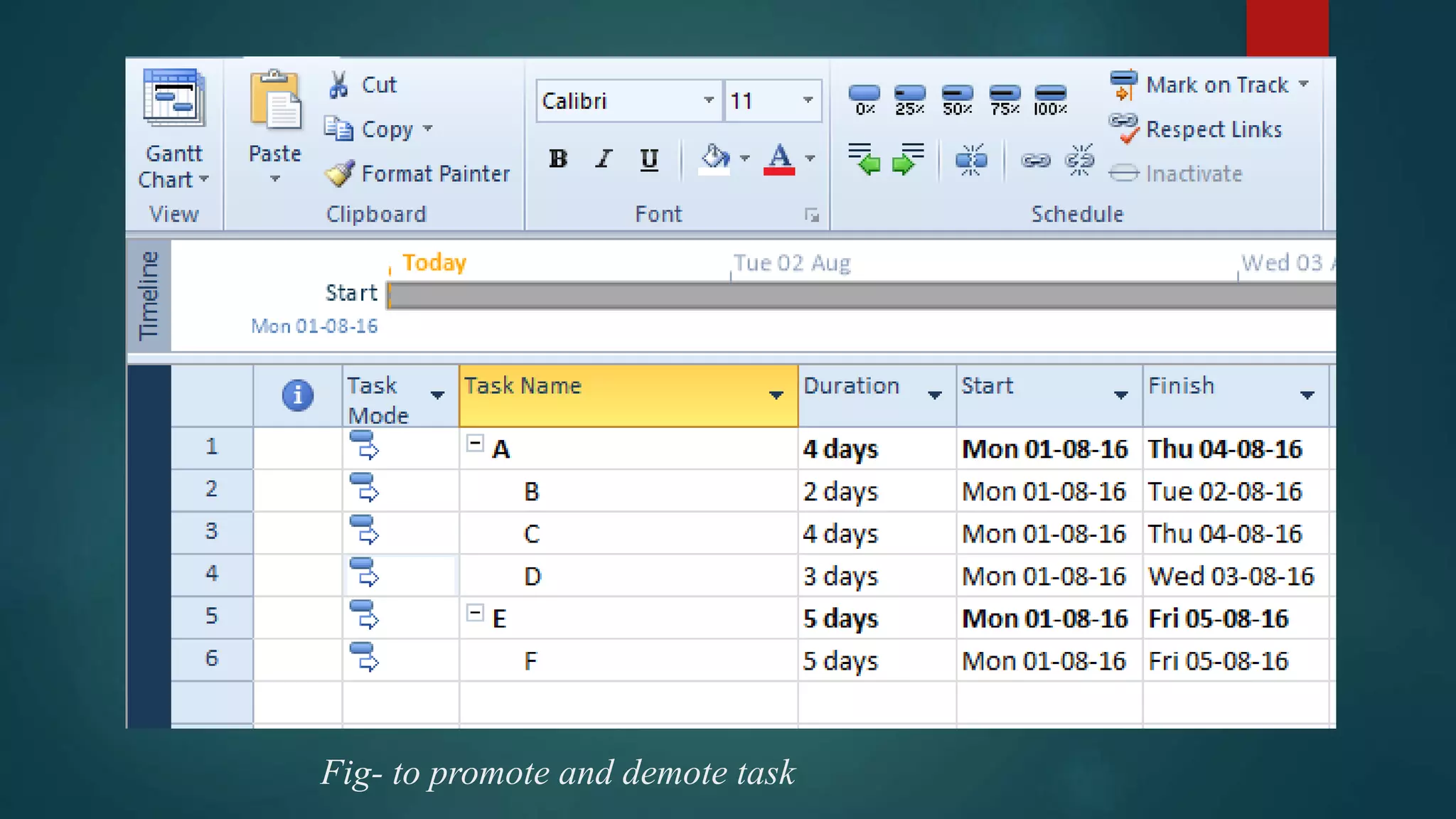
 Summary task are heading or main tasks and
under them sub-ordinate tasks are there.
 when you create summary task the duration shown
reflects the total duration for all related subtasks.
TO PROMOTE/DEMOTE A TASK
 Select task u want to demote or promote.
 From formatting toolbar select indent button to
demote task and outdent button for promoting task.
Fig- to promote and demote task
ASSIGNING PEOPLE TO TASK
 You can use the Resource Sheet in Microsoft Project to create a
list of the people, equipment, and material resources that make
up your team and carry out the project tasks.
 Your resource list will consist of work resources or material
resources. Work resources are people or equipment; material
resources are consumable materials or supplies, such as
concrete, wood, or nails.
fig- assigning people to task
Linking of Tasks
 4 Types of relationship between tasks.
- Finish to start
- Start to finish
- Finish to finish
- Start to start
 2.START TO START: The
work of Task 2 cannot start
until Task 1 starts, th2.START
TO START: The work of Task
2 cannot start until Task 1
starts, the tasks have a Start-
to-Start (SS) dependency.
1.FINISH TO START: The work of
Task 2 can start only after all the work
of Task 1 is finished, the tasks have a
Finish-to-Start (FS) dependency.
3.FINISH TO FINISH : The finish
date of Task 1 determines the finish
date of Task 2, they have a Finish-
to-Finish (FF) dependency.
4.START TO FINISH: The start
date of Task 1 determines the finish
date of Task 2, the tasks have a
Start-to-Finish (SF) dependency.
APPLICATIONS OF LINKING TASKS
 Establish relationship between task & specify a sequence of
events.
 It helps in smooth allocation of resources and avoids their
wastage.
 Optimization of time and resources can be done through this
linking of tasks.
CHECKING YOUR SCHEDULE
 After the completion of above steps : Entering tasks, linked tasks ( to
show relationship) , assigned resources to tasks its time to have and
Overview of the overall Schedule
 If We have set a baseline for our project, we can see how tasks progress
over time and see whether their start and finish dates are slipping or are
on schedule.
 We can track progress by comparing baseline and scheduled or actual
start and finish dates.
Fig- checking your schedule
ADVANTAGES OF CHECKING
SCHEDULE
 Comparison between the schedule and actual performance.
 It gives proper systematic look of the work that has been done
on site.
 Re-planning and Editing of current schedule
 It gives an idea about the amount of work done and the
pending work yet to be performed.
FORMATTING GANTT CHART
 It is used for updating work progress.
 Activity time management can be done.
 When some activities are rescheduled.
 Resource allocation can be represented.
Fig- editing bar of Gantt chart
Fig- changed bar of Gantt chart
MODULE-2
CREATING AND ORGANIZING
A SCHEDULE
ABOUT CREATING A
NEW SCHEDULE
 To Create a new schedule
means to decide the start date
and finish date of any project.
ENTERING TASKS
• After you enter the project start
date or finish date , you are ready
to add tasks to your schedule
• You can identify the work that
needs to be done in your project
with the help of information
regarding your project.
CHANGING OUR TASKS
TO MILESTONES
• A milestone is simply a task
with zero duration(0d) that you
use to identify significant
events in your schedule
• MS project displays the
milestone symbol on the Gantt
bar chart when you enter a
duration of zero days for a
task.
ENTERING A RECURRING
TASKS
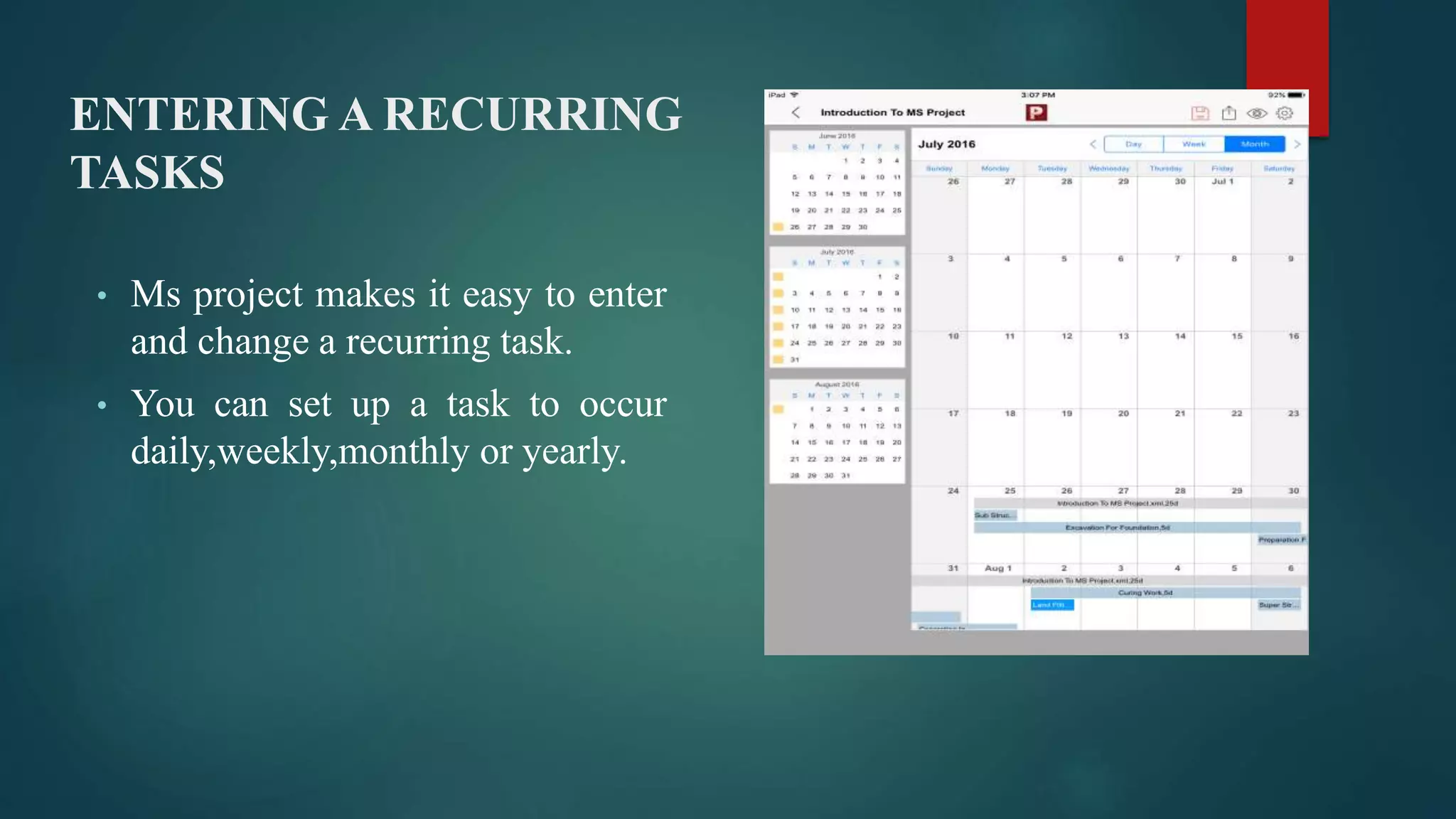
• Ms project makes it easy to enter
and change a recurring task.
• You can set up a task to occur
daily,weekly,monthly or yearly.
CHANGING A TASK
DURATION
• When you enter a task , MS Project
automatically assigns it a duration of
one day (1d).
• You can change the duration for a
task by following the process shown
in fig.
DELETING A TASK
• You can delete one or more
unneeded tasks easily.
• If you delete a summary task,
all of it's subtasks are also
deleted too.
• You can restore a deleted task
immediately after deleting it
by clicking undo button.
DEMOTING AND PROMOTING A TASK
• Outline helps you organise
your tasks into summary tasks
and sub tasks.
• To demote a task:
• Select the task and press
indent.
• To promote a task:
• Select the task and press
outdent.
REARRANGING TASKS IN YOUR SCHEDULE
• You can sort and rearrange
your tasks with the help of
Reorder command.
• When you sort out your order
the relationship maintains from
summary (main) tasks to
subtasks.
COLLAPSING AND
EXPANDING AN OUTLINE
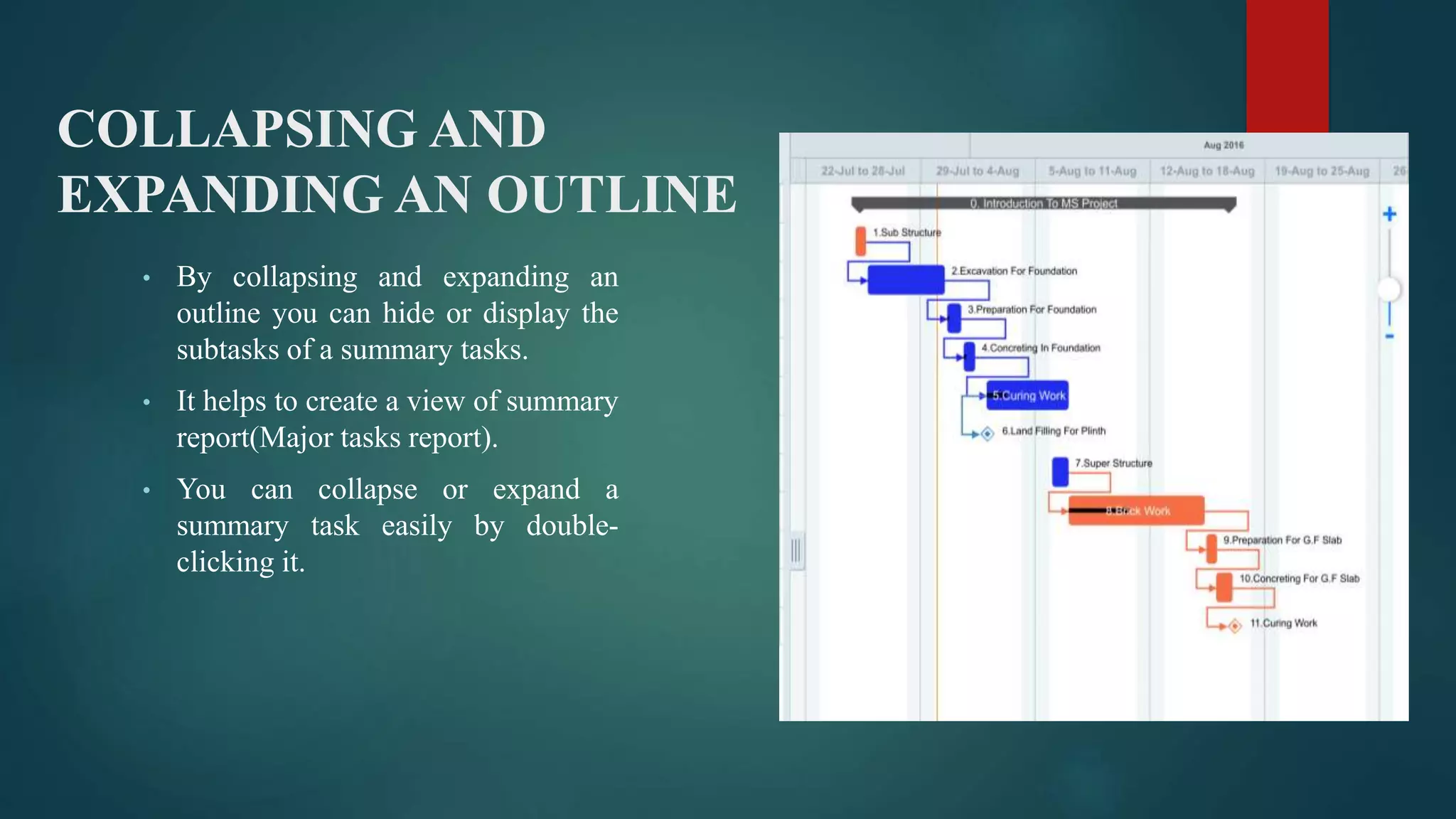
• By collapsing and expanding an
outline you can hide or display the
subtasks of a summary tasks.
• It helps to create a view of summary
report(Major tasks report).
• You can collapse or expand a
summary task easily by double-
clicking it.
CHANGING WORKING DAYS
AND HOURS
• You can change the working
days and hours for your
calendar to reflect the working
days and hours for your project
more accurately.
• You can specify regular
nonworking days and hours ,
such as weekends and holidays.
SCHEDULING TASK
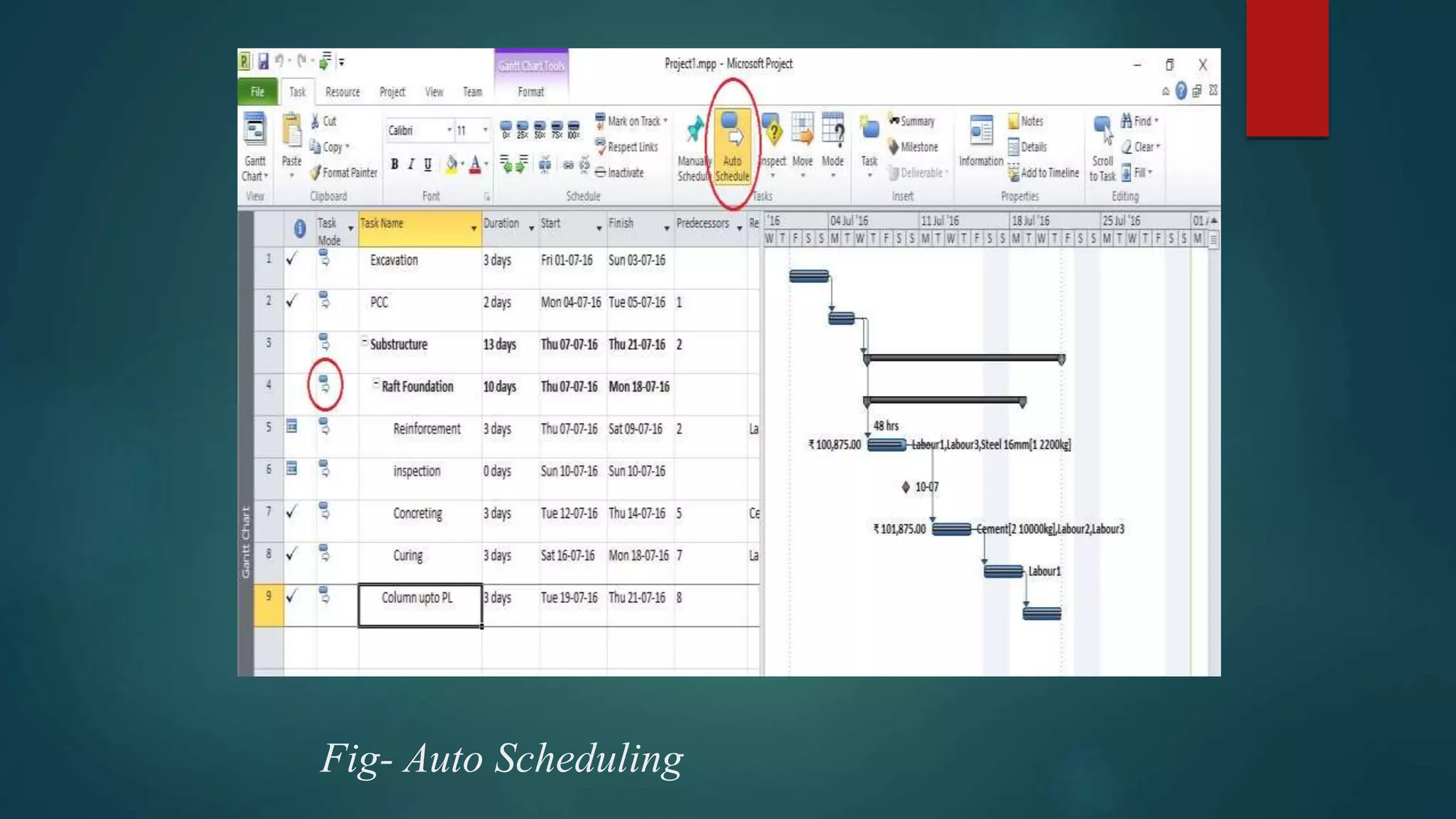
MSP offers two scheduling methods:
1. Manual Scheduling
With manual scheduling, project manager fully controls the
task’s start and finish date.
2. Automatic Scheduling
 While in automatic scheduling remind you all of the little
things that are easy to overlook when you’re planning your
project.
Fig- Manual Scheduling
Fig- Auto Scheduling
LINKING TASKS TO ASSIGN TASK
RELATIONSHIP
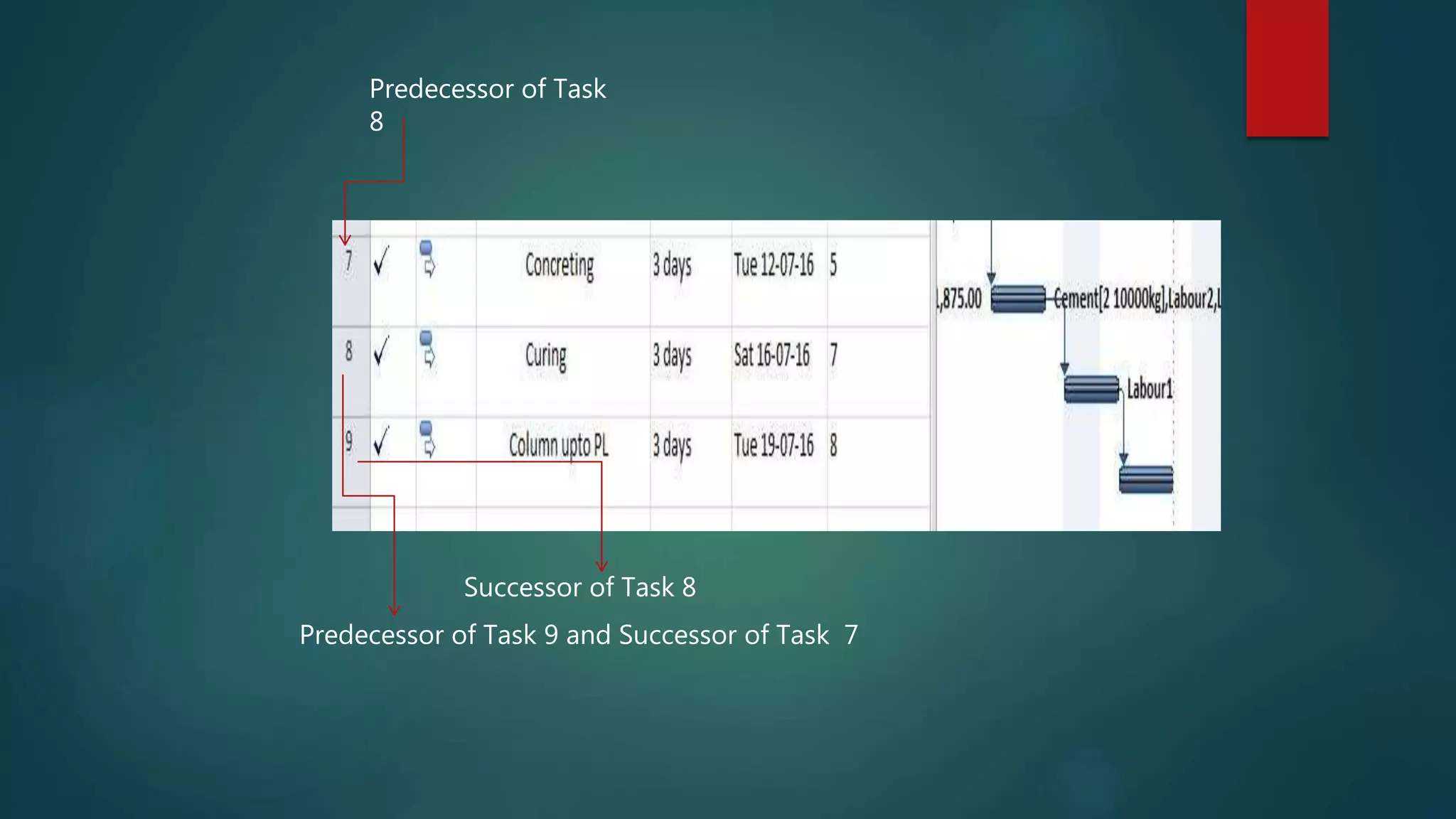
 Two different tasks can be linked together
 Linked tasks creates a relationship with each other
1. Predecessors
2. Successor
 Using these relationships, we may know how things really happen in
our project
Successor of Task 8
Predecessor of Task
8
Predecessor of Task 9 and Successor of Task 7
CREATING & REMOVING TASK
RELATIONSHIP
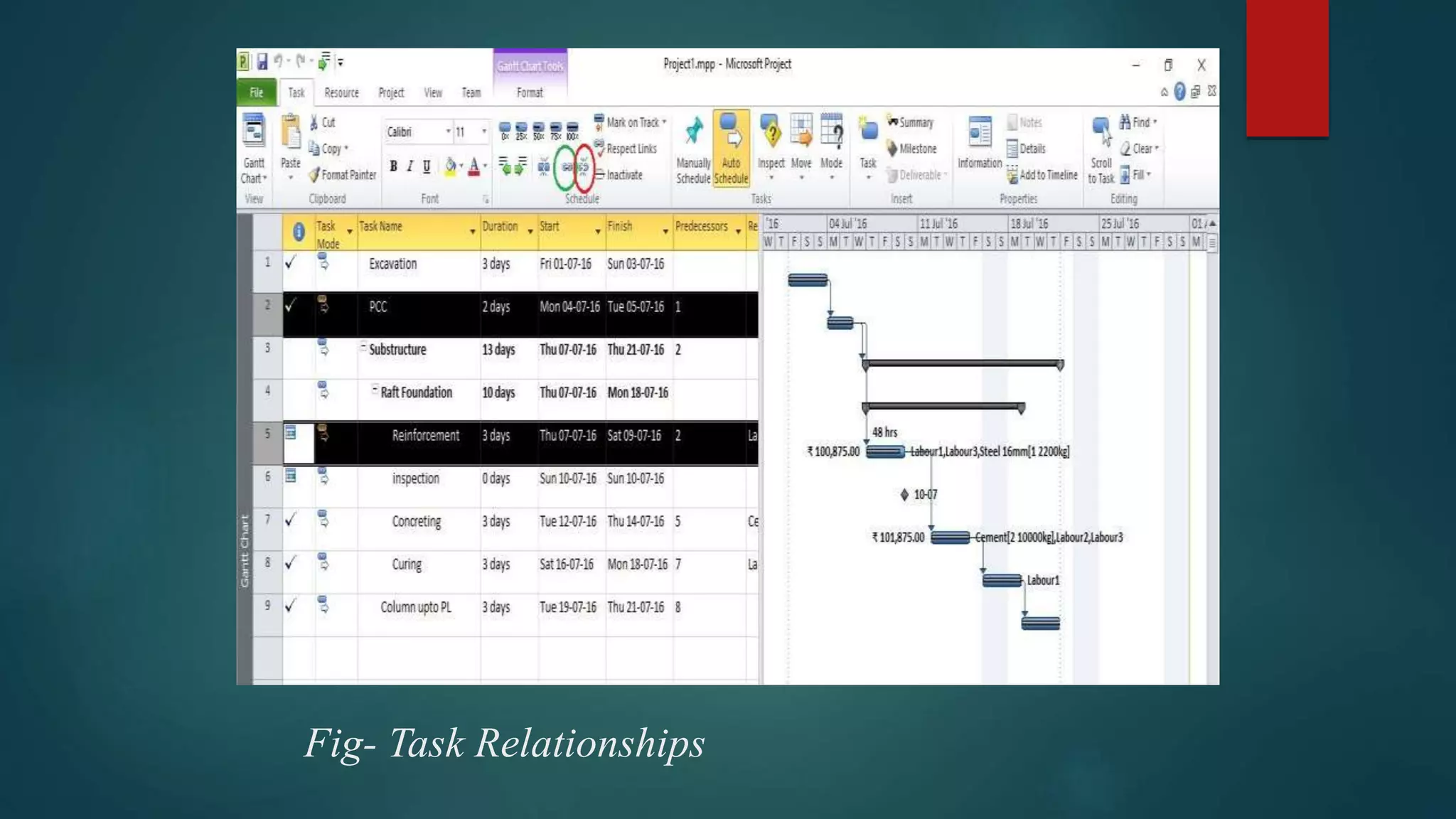
 To link tasks, select two or more tasks and then choose the Link
Task button on the Task Tab.
 Add predecessors of the task to create relationships between
them.
 Simply drag the pointer from one task to another task.
Fig- Task Relationships
Fig- Linking to different tasks
OVERLAPPING OR DELAYING TASK
 Two different tasks can be overlapped.
 Open Task Information.
 Enter Lag in negative percentage under Predecessors tab.
 This will overlap that task by applying the percentage with their
predecessor.
 Positive percentage of Lag should be entered for Delaying Task.
Fig- Overlapping Tasks
Fig- Delaying Task
TASK CONSTRAIN
 This field is set to “As Soon As Possible” by default.
 There are also other constrains:
 As Late As Possible
 Must Finish On
 Must Start On
 Finish No Earlier Than
 Finish No Later Than
Fig- Task Constraint “As Soon As Possible”
Fig- All Task Constraint
SCHEDULING A TASK TO START OR
FINISH RELATIVE TO A SPECIFIC DATE
 Task should be started or finished by within specific date.
 Add specific start or finish date to task for scheduling.
 Other than provided date should be considered
by task automatically.
MODULE 3
ADDING PEOPLE AND EQUIPMENT
TO YOUR PROJECT
Resources?
People + Equipment = resources
with MS
project
Assign resources to
task
Create work
schedules for
resources
Detailed information
(resource costs
along with task
assignments)
Needof resources-
 Track the amount of work done
 Ensure high accountability and understanding of the project
 Flexibility in planning
 Monitor resources with too little or too much work assigned.
 Keep track of resources.
CREATING A
RESOURCE LIST
 Once the project's schedule
has been calculated and a
Gantt chart created, the next
step in the planning process is
to create some resource
assignments.
 Before you begin to assign
resources create resource list.
How to proceed?
View menu
Resource list
Table & entry
ASSIGNING AND REMOVING A RESOURCE
 You can assign one resource, a part- time, multiple or multiple units of the
same resource to a task.
 Ms P displays the percentage of time a resource is assigned to a task.
 You can remove a resource from task at any time
Another way of assigning and
removing
CONTROLLING WHEN A RESOURCE STARTS
WORK ON A TASK
 You can designate when a resource will start working on a task
SETTING WORKING HOURS AND
DAYS OFF FOR A RESOURCE By default standard project calendar is used for all resources in a project.
 If individual resources has schedule differences, such as vacation, leave, absence or
regular equipment maintenance, you can modify accordingly.
ASSIGNING A CALENDER TO A RESOURCE
 Project calendar designates the default work schedule for all resources
assigned to the project.
 However, you can setup your own indicating non-working time.
ASSIGNING COSTS TO TASKS AND RESOURCES
with MS Project, you can:-
Monitor cash flow
Control cost
Account for the cost of
materials
• Assign wages or rates to resources
• Accordingly shift resources as well.
• Determine how much it will cost you to
complete the task
• As well as develop a cost history for future
projects
ASSIGNING RATE TO
RESOURCE
 Help you manage project cost accurately
 Resource rates might be the hourly cost of worker’s or
equipment or fixed cost per use for a piece of equipment.
View ribbon
Choose resource
sheet
Type std. rate,
ovt. rate or cost
field rate
ASSIGNING A FIXED COST TO A
TASK
FROM VIEW
MENU, CHOOSE
GANTT CHART
FROM TABLE,
CHOOSE
COST
IN THE
FIXED COST
FIELD FOR
THE TASK,
TYPE THE
COST
VIEWING PROJECT COST
 You can view task costs
 You can view resource costs, when you want to se how
much money is being spent on over time work
 You can view total project costs to see whether the project
is staying within its overall budget.
VIEWING THE COST PER TASK
 If the total project cost is
unacceptable , you may need to
look at the cost of each task. The
task cost includes the total cost of
all resources costs and fixed cost
for a task.
 If an individual cost is too high
perhaps you can reduce the scope
of work or choose way to
mitigate further expenses
Microsoft Project 2016
Task ribbon
Resource tab
Microsoft project 2016
Project tab
Microsoft project 2016
New report tab
2016
 Ms project 2016
What is new in ms project 2013?
Time line
enhancement
Change the style
What’s new in 2016?
View multiple timeline bars, each representing set
range in a single view
Intuitive interface to enter
details and submit request
Intuitive interface to approve
/reject request
New way to see some one is
allocated or not…..
Notifications
MODULE - 4
EVALUATING AND ADJUSTING
YOUR SCHEDULE
ABOUT EVALUATING YOUR
SCHEDULE
 Task Relationships and critical path
 Slack time in the schedule
 Constraints on tasks
 Over allocated resources
 Cost of tasks
CHECKING TASK RELATIONSHIPS
 Predecessor Task : A task that Must start or finish
before another task can begin is called Predecessor
task.
 Successor task : A task that depends on the Start or
finish of a Preceding task is called Successor task
THERE ARE FOUR TYPES OF TASK
RELATIONSHIPS:
 FS (Finish to Start): The task cannot be started
until the predecessor task is completed.
 SS (Start to Start): The task cannot be started until
the predecessor task is started.
 FF (Finish to Finish): The task cannot be finished
until the predecessor task is finished.
 SF (Start to Finish): The task cannot be finished
until the predecessor task begins.
TO CHECK TASK RELATIONSHIPS:
1. From the view menu, choose Gantt Chart.
2. Double click the task in Gantt table for which you want to see the
task relationship to see its predecessors
3. In the Task Information dialog box select the Predecessor tab.
IDENTIFYING THE CRITICAL PATH
 Critical Path : The longest sequence of activities in
a project plan which must be completed for the
entire project to be completed.
This is the minimum amount of time needed for
the completion of the project.
1. From the view menu choose the Gantt Chart.
2. From the Format menu choose the Text styles.
TO IDENTIFY TASKS ON THE CRITICAL PATH:
3. In the item to change box, Select critical tasks:
4. In the color box, select a color for the names of critical
tasks.
Finding Slack in your Schedule
1. From the view menu Choose the Gantt Chart.
2. From The view menu, choose Table and then
choose Schedule
3. Drag the divider bar to right to view the free Slack and Total
Slack Columns
EXAMINING CONSTRAINTS ON TASKS
 Using constraints you can control the start or finish
dates of important tasks.
 Task constraints can help you to create more
accurate schedule using detailed information. But
constraints can also limit your flexibility.
1. On screen I have two simple task which are linked to each other:
2. This can be best
understood by opening
a view called the then
click on the split
view’s detail check box.
Select more views and
choose Task detail
forms.
3. Here Task Details form shows constrains clearly
4. Here You can see different types of constraints.
Finding Over Allocated Resources
1. First add the three Tasks:
2. Here Resource will be Priyank:
3. Assign Priyank to all three Tasks:
4. As you can see, Priyank is over allocated in all three Tasks.
Finding Cost of a Task
1. From the view menu Choose the Gantt Chart.
2. From the view menu choose the table and choose the cost
3. Examine the fixed cost and
Total cost fields to determine
the cost of the task due to fixed
cost and the cost of the task
due to resources
 Total Cost : The total Cost of a Task is the sum of
the resources rates and any fixed costs that are
attributed to the task.
 Fixed Cost: A fixed cost is a specific amount you
set that does not rely on how much time or work is
done to complete.
Strategies for Shortening Your Schedule
Methods you can use to shorten your schedule
 Change task relationship to allow more tasks to overlap or occur at the
same time , rather than strictly sequentially
 Increase the available working time by changing the project calendar
 Reduce the scope of your project by combining or reducing the number of
tasks.
 Reduce the scope of task by decreasing the task’s duration or the same
amount of working assigned to the task
 For tasks with resources assigned you can;
Increase the number of resource units allocated to the task
Increase the resource’s availability by changing the resource calendar
Assign overtime work hours to resources.
SHORTENING YOUR SCHEDULE BY
CHANGING CRITICAL PATH
THE MOST OBVIOUS WAY TO SHORTEN YOUR
SCHEDULE IS TO SHORTEN THE CRITICAL PATH
 Shorten the duration or work on a task on the critical path.
 Change a task constraint to allow for more scheduling
flexibility.
 Break a critical task into smaller tasks that can be worked on at
the same time by different resources.
 Revise task dependencies to enable more scheduling flexibility.
 Set lead time between dependent tasks where applicable.
 Schedule overtime.
 Assign additional resources to work on critical path tasks.
SHORTENING YOUR SCHEDULE BY
ADDING LEAD OR LAG TIME TO TASKS
 Lead time: It is an overlap between two tasks, where those two tasks share
a dependency (a relationship between tasks).
For example, if you want the second task to start even though the first task
is only half complete, create a finish-to-start dependency between the two
tasks, and then add a lead time of 50 percent for the second task.
 Lag time : It creates a delay between two tasks that share a dependency.
For example, if you want a 2 day delay between the end of the first task
and the start of the second, create finish to start dependency between the
two tasks, and then add 2 days of lag time before the start of the second
task.
1. Double-click a task name, and then click the Predecessors tab
in the Task Information box.
2. In the Lag column, type the lead time
or lag time you want.
SHORTENING YOUR SCHEDULE BY
DECREASING A RESOURCE'S WORK ON A TASK
 Resource driven scheduling : Work shows the total effort to
complete a task. Units is the number or amount of are source you
assign to a task, such as three carpenters or one
engineer. Resource-driven scheduling means that resources you
assign "drive" the task duration, the scheduled start date, and
the scheduled finish date.
 You can decrease the duration of a task by decreasing the amount
of work assigned to the driving resources. Decreasing the work
required for tasks on the critical path can make the schedule
finish sooner.
SHORTENING YOUR SCHEDULE BY
ASSIGNING MORE RESOURCES
 If additional units of the same resources are available , you
can increase the number of resource units assigned to a
task.
 For example, You can increase the number of Site
engineers assigned to the task from 5 to 6.
 This will enable the same amount of work to be done in
less time.
SHORTENING YOUR SCHEDULE
BY ASSIGNING OVER TIME WORK
 If you can approve overtime pay, you can assign
overtime work hours to the task, so the amount of
work can be done in a shorter time.
Introduction to Microsoft Project 2010

Introduction to Microsoft Project 2010

  • 1.
    INTRODUCTION TO MICROSOFT PROJECT2010 Bhishma Bhatti Assistant professor, Babaria Institute of Technology
  • 2.
    WHAT IS M.S.PROJECT? It is a business planning system that’s makes it easy to schedule, manage, and communicate project information.
  • 3.
     Helps increating new project quickly and efficiently.  Creates new task and change task from manual to automatic scheduling  Creates links between tasks. GOALS OF M.S. PROJECT
  • 4.
  • 5.
    CREATING NEW SCHEDULE Open Microsoft project.  From file menu choose ‘INFO’ option.  As per the planning of project fill the details.
  • 6.
    Fig- INFO fromfile menu
  • 7.
    INTRODUCING GANTT BAR CHART A GANTT chart provides a graphical illustration of a schedule that helps to plan, coordinate, and track specific tasks in a project.
  • 8.
    Fig- home screenof M.S. Project
  • 9.
    Fig- Entering taskin the schedule
  • 10.
    ENTERING DURATION Durations haveto be entered in column besides their tasks. schedule can be entered manually or automatic way from task mode.
  • 11.
    Fig- auto scheduleof tasks duration
  • 12.
    Fig- manual scheduleof task duration
  • 13.
    GETTING ORGANIZED WITH OUTLINING Summary task are heading or main tasks and under them sub-ordinate tasks are there.  when you create summary task the duration shown reflects the total duration for all related subtasks.
  • 14.
    TO PROMOTE/DEMOTE ATASK  Select task u want to demote or promote.  From formatting toolbar select indent button to demote task and outdent button for promoting task.
  • 15.
    Fig- to promoteand demote task
  • 16.
    ASSIGNING PEOPLE TOTASK  You can use the Resource Sheet in Microsoft Project to create a list of the people, equipment, and material resources that make up your team and carry out the project tasks.  Your resource list will consist of work resources or material resources. Work resources are people or equipment; material resources are consumable materials or supplies, such as concrete, wood, or nails.
  • 17.
  • 18.
    Linking of Tasks 4 Types of relationship between tasks. - Finish to start - Start to finish - Finish to finish - Start to start
  • 19.
     2.START TOSTART: The work of Task 2 cannot start until Task 1 starts, th2.START TO START: The work of Task 2 cannot start until Task 1 starts, the tasks have a Start- to-Start (SS) dependency. 1.FINISH TO START: The work of Task 2 can start only after all the work of Task 1 is finished, the tasks have a Finish-to-Start (FS) dependency.
  • 20.
    3.FINISH TO FINISH: The finish date of Task 1 determines the finish date of Task 2, they have a Finish- to-Finish (FF) dependency. 4.START TO FINISH: The start date of Task 1 determines the finish date of Task 2, the tasks have a Start-to-Finish (SF) dependency.
  • 21.
    APPLICATIONS OF LINKINGTASKS  Establish relationship between task & specify a sequence of events.  It helps in smooth allocation of resources and avoids their wastage.  Optimization of time and resources can be done through this linking of tasks.
  • 22.
    CHECKING YOUR SCHEDULE After the completion of above steps : Entering tasks, linked tasks ( to show relationship) , assigned resources to tasks its time to have and Overview of the overall Schedule  If We have set a baseline for our project, we can see how tasks progress over time and see whether their start and finish dates are slipping or are on schedule.  We can track progress by comparing baseline and scheduled or actual start and finish dates.
  • 23.
  • 24.
    ADVANTAGES OF CHECKING SCHEDULE Comparison between the schedule and actual performance.  It gives proper systematic look of the work that has been done on site.  Re-planning and Editing of current schedule  It gives an idea about the amount of work done and the pending work yet to be performed.
  • 25.
    FORMATTING GANTT CHART It is used for updating work progress.  Activity time management can be done.  When some activities are rescheduled.  Resource allocation can be represented.
  • 26.
    Fig- editing barof Gantt chart
  • 27.
    Fig- changed barof Gantt chart
  • 28.
  • 29.
    ABOUT CREATING A NEWSCHEDULE  To Create a new schedule means to decide the start date and finish date of any project.
  • 30.
    ENTERING TASKS • Afteryou enter the project start date or finish date , you are ready to add tasks to your schedule • You can identify the work that needs to be done in your project with the help of information regarding your project.
  • 31.
    CHANGING OUR TASKS TOMILESTONES • A milestone is simply a task with zero duration(0d) that you use to identify significant events in your schedule • MS project displays the milestone symbol on the Gantt bar chart when you enter a duration of zero days for a task.
  • 32.
    ENTERING A RECURRING TASKS •Ms project makes it easy to enter and change a recurring task. • You can set up a task to occur daily,weekly,monthly or yearly.
  • 33.
    CHANGING A TASK DURATION •When you enter a task , MS Project automatically assigns it a duration of one day (1d). • You can change the duration for a task by following the process shown in fig.
  • 34.
    DELETING A TASK •You can delete one or more unneeded tasks easily. • If you delete a summary task, all of it's subtasks are also deleted too. • You can restore a deleted task immediately after deleting it by clicking undo button.
  • 35.
    DEMOTING AND PROMOTINGA TASK • Outline helps you organise your tasks into summary tasks and sub tasks. • To demote a task: • Select the task and press indent. • To promote a task: • Select the task and press outdent.
  • 36.
    REARRANGING TASKS INYOUR SCHEDULE • You can sort and rearrange your tasks with the help of Reorder command. • When you sort out your order the relationship maintains from summary (main) tasks to subtasks.
  • 37.
    COLLAPSING AND EXPANDING ANOUTLINE • By collapsing and expanding an outline you can hide or display the subtasks of a summary tasks. • It helps to create a view of summary report(Major tasks report). • You can collapse or expand a summary task easily by double- clicking it.
  • 38.
    CHANGING WORKING DAYS ANDHOURS • You can change the working days and hours for your calendar to reflect the working days and hours for your project more accurately. • You can specify regular nonworking days and hours , such as weekends and holidays.
  • 39.
    SCHEDULING TASK MSP offerstwo scheduling methods: 1. Manual Scheduling With manual scheduling, project manager fully controls the task’s start and finish date. 2. Automatic Scheduling  While in automatic scheduling remind you all of the little things that are easy to overlook when you’re planning your project.
  • 40.
  • 41.
  • 42.
    LINKING TASKS TOASSIGN TASK RELATIONSHIP  Two different tasks can be linked together  Linked tasks creates a relationship with each other 1. Predecessors 2. Successor  Using these relationships, we may know how things really happen in our project
  • 43.
    Successor of Task8 Predecessor of Task 8 Predecessor of Task 9 and Successor of Task 7
  • 44.
    CREATING & REMOVINGTASK RELATIONSHIP  To link tasks, select two or more tasks and then choose the Link Task button on the Task Tab.  Add predecessors of the task to create relationships between them.  Simply drag the pointer from one task to another task.
  • 45.
  • 46.
    Fig- Linking todifferent tasks
  • 47.
    OVERLAPPING OR DELAYINGTASK  Two different tasks can be overlapped.  Open Task Information.  Enter Lag in negative percentage under Predecessors tab.  This will overlap that task by applying the percentage with their predecessor.  Positive percentage of Lag should be entered for Delaying Task.
  • 48.
  • 49.
  • 50.
    TASK CONSTRAIN  Thisfield is set to “As Soon As Possible” by default.  There are also other constrains:  As Late As Possible  Must Finish On  Must Start On  Finish No Earlier Than  Finish No Later Than
  • 51.
    Fig- Task Constraint“As Soon As Possible”
  • 52.
    Fig- All TaskConstraint
  • 53.
    SCHEDULING A TASKTO START OR FINISH RELATIVE TO A SPECIFIC DATE  Task should be started or finished by within specific date.  Add specific start or finish date to task for scheduling.  Other than provided date should be considered by task automatically.
  • 55.
    MODULE 3 ADDING PEOPLEAND EQUIPMENT TO YOUR PROJECT
  • 56.
    Resources? People + Equipment= resources with MS project Assign resources to task Create work schedules for resources Detailed information (resource costs along with task assignments)
  • 57.
    Needof resources-  Trackthe amount of work done  Ensure high accountability and understanding of the project  Flexibility in planning  Monitor resources with too little or too much work assigned.  Keep track of resources.
  • 58.
    CREATING A RESOURCE LIST Once the project's schedule has been calculated and a Gantt chart created, the next step in the planning process is to create some resource assignments.  Before you begin to assign resources create resource list.
  • 59.
    How to proceed? Viewmenu Resource list Table & entry
  • 60.
    ASSIGNING AND REMOVINGA RESOURCE  You can assign one resource, a part- time, multiple or multiple units of the same resource to a task.  Ms P displays the percentage of time a resource is assigned to a task.  You can remove a resource from task at any time
  • 61.
    Another way ofassigning and removing
  • 62.
    CONTROLLING WHEN ARESOURCE STARTS WORK ON A TASK  You can designate when a resource will start working on a task
  • 63.
    SETTING WORKING HOURSAND DAYS OFF FOR A RESOURCE By default standard project calendar is used for all resources in a project.  If individual resources has schedule differences, such as vacation, leave, absence or regular equipment maintenance, you can modify accordingly.
  • 64.
    ASSIGNING A CALENDERTO A RESOURCE  Project calendar designates the default work schedule for all resources assigned to the project.  However, you can setup your own indicating non-working time.
  • 65.
    ASSIGNING COSTS TOTASKS AND RESOURCES with MS Project, you can:- Monitor cash flow Control cost Account for the cost of materials • Assign wages or rates to resources • Accordingly shift resources as well. • Determine how much it will cost you to complete the task • As well as develop a cost history for future projects
  • 66.
    ASSIGNING RATE TO RESOURCE Help you manage project cost accurately  Resource rates might be the hourly cost of worker’s or equipment or fixed cost per use for a piece of equipment. View ribbon Choose resource sheet Type std. rate, ovt. rate or cost field rate
  • 67.
    ASSIGNING A FIXEDCOST TO A TASK FROM VIEW MENU, CHOOSE GANTT CHART FROM TABLE, CHOOSE COST IN THE FIXED COST FIELD FOR THE TASK, TYPE THE COST
  • 68.
    VIEWING PROJECT COST You can view task costs  You can view resource costs, when you want to se how much money is being spent on over time work  You can view total project costs to see whether the project is staying within its overall budget.
  • 69.
    VIEWING THE COSTPER TASK  If the total project cost is unacceptable , you may need to look at the cost of each task. The task cost includes the total cost of all resources costs and fixed cost for a task.  If an individual cost is too high perhaps you can reduce the scope of work or choose way to mitigate further expenses
  • 70.
  • 71.
  • 72.
  • 73.
  • 74.
  • 77.
  • 78.
    What is newin ms project 2013?
  • 79.
  • 80.
  • 83.
    View multiple timelinebars, each representing set range in a single view
  • 86.
    Intuitive interface toenter details and submit request
  • 87.
    Intuitive interface toapprove /reject request
  • 88.
    New way tosee some one is allocated or not…..
  • 89.
  • 91.
    MODULE - 4 EVALUATINGAND ADJUSTING YOUR SCHEDULE
  • 92.
    ABOUT EVALUATING YOUR SCHEDULE Task Relationships and critical path  Slack time in the schedule  Constraints on tasks  Over allocated resources  Cost of tasks
  • 93.
    CHECKING TASK RELATIONSHIPS Predecessor Task : A task that Must start or finish before another task can begin is called Predecessor task.  Successor task : A task that depends on the Start or finish of a Preceding task is called Successor task
  • 94.
    THERE ARE FOURTYPES OF TASK RELATIONSHIPS:  FS (Finish to Start): The task cannot be started until the predecessor task is completed.  SS (Start to Start): The task cannot be started until the predecessor task is started.  FF (Finish to Finish): The task cannot be finished until the predecessor task is finished.  SF (Start to Finish): The task cannot be finished until the predecessor task begins.
  • 95.
    TO CHECK TASKRELATIONSHIPS: 1. From the view menu, choose Gantt Chart. 2. Double click the task in Gantt table for which you want to see the task relationship to see its predecessors
  • 96.
    3. In theTask Information dialog box select the Predecessor tab.
  • 97.
    IDENTIFYING THE CRITICALPATH  Critical Path : The longest sequence of activities in a project plan which must be completed for the entire project to be completed. This is the minimum amount of time needed for the completion of the project.
  • 98.
    1. From theview menu choose the Gantt Chart. 2. From the Format menu choose the Text styles. TO IDENTIFY TASKS ON THE CRITICAL PATH:
  • 99.
    3. In theitem to change box, Select critical tasks: 4. In the color box, select a color for the names of critical tasks.
  • 101.
    Finding Slack inyour Schedule
  • 102.
    1. From theview menu Choose the Gantt Chart. 2. From The view menu, choose Table and then choose Schedule
  • 103.
    3. Drag thedivider bar to right to view the free Slack and Total Slack Columns
  • 104.
    EXAMINING CONSTRAINTS ONTASKS  Using constraints you can control the start or finish dates of important tasks.  Task constraints can help you to create more accurate schedule using detailed information. But constraints can also limit your flexibility.
  • 105.
    1. On screenI have two simple task which are linked to each other:
  • 106.
    2. This canbe best understood by opening a view called the then click on the split view’s detail check box. Select more views and choose Task detail forms.
  • 107.
    3. Here TaskDetails form shows constrains clearly
  • 108.
    4. Here Youcan see different types of constraints.
  • 109.
  • 110.
    1. First addthe three Tasks:
  • 111.
    2. Here Resourcewill be Priyank:
  • 112.
    3. Assign Priyankto all three Tasks:
  • 113.
    4. As youcan see, Priyank is over allocated in all three Tasks.
  • 114.
  • 115.
    1. From theview menu Choose the Gantt Chart. 2. From the view menu choose the table and choose the cost
  • 116.
    3. Examine thefixed cost and Total cost fields to determine the cost of the task due to fixed cost and the cost of the task due to resources
  • 117.
     Total Cost: The total Cost of a Task is the sum of the resources rates and any fixed costs that are attributed to the task.  Fixed Cost: A fixed cost is a specific amount you set that does not rely on how much time or work is done to complete.
  • 118.
  • 119.
    Methods you canuse to shorten your schedule  Change task relationship to allow more tasks to overlap or occur at the same time , rather than strictly sequentially  Increase the available working time by changing the project calendar  Reduce the scope of your project by combining or reducing the number of tasks.  Reduce the scope of task by decreasing the task’s duration or the same amount of working assigned to the task  For tasks with resources assigned you can; Increase the number of resource units allocated to the task Increase the resource’s availability by changing the resource calendar Assign overtime work hours to resources.
  • 120.
    SHORTENING YOUR SCHEDULEBY CHANGING CRITICAL PATH
  • 121.
    THE MOST OBVIOUSWAY TO SHORTEN YOUR SCHEDULE IS TO SHORTEN THE CRITICAL PATH  Shorten the duration or work on a task on the critical path.  Change a task constraint to allow for more scheduling flexibility.  Break a critical task into smaller tasks that can be worked on at the same time by different resources.  Revise task dependencies to enable more scheduling flexibility.  Set lead time between dependent tasks where applicable.  Schedule overtime.  Assign additional resources to work on critical path tasks.
  • 122.
    SHORTENING YOUR SCHEDULEBY ADDING LEAD OR LAG TIME TO TASKS  Lead time: It is an overlap between two tasks, where those two tasks share a dependency (a relationship between tasks). For example, if you want the second task to start even though the first task is only half complete, create a finish-to-start dependency between the two tasks, and then add a lead time of 50 percent for the second task.  Lag time : It creates a delay between two tasks that share a dependency. For example, if you want a 2 day delay between the end of the first task and the start of the second, create finish to start dependency between the two tasks, and then add 2 days of lag time before the start of the second task.
  • 123.
    1. Double-click atask name, and then click the Predecessors tab in the Task Information box.
  • 124.
    2. In theLag column, type the lead time or lag time you want.
  • 125.
    SHORTENING YOUR SCHEDULEBY DECREASING A RESOURCE'S WORK ON A TASK  Resource driven scheduling : Work shows the total effort to complete a task. Units is the number or amount of are source you assign to a task, such as three carpenters or one engineer. Resource-driven scheduling means that resources you assign "drive" the task duration, the scheduled start date, and the scheduled finish date.  You can decrease the duration of a task by decreasing the amount of work assigned to the driving resources. Decreasing the work required for tasks on the critical path can make the schedule finish sooner.
  • 126.
    SHORTENING YOUR SCHEDULEBY ASSIGNING MORE RESOURCES  If additional units of the same resources are available , you can increase the number of resource units assigned to a task.  For example, You can increase the number of Site engineers assigned to the task from 5 to 6.  This will enable the same amount of work to be done in less time.
  • 127.
    SHORTENING YOUR SCHEDULE BYASSIGNING OVER TIME WORK  If you can approve overtime pay, you can assign overtime work hours to the task, so the amount of work can be done in a shorter time.