i
CONSTRUTION PROJETC PLANNING USING PRIMAVERA
PROFESSIONAL P6 18.8
CONSTRUCTION SCHEDULING GUIDELINE 1st Draft Nov-2019
Prepared by Matiwos Tsegaye (MSc CoTM, Senior Planning Engineer), matiwostse@gmail.com
ii
Table of Contents
LIST OF FIGURES ................................................................................................... III
LIST OF TABLES .....................................................................................................V
LIST OF ABBREVIATIONS ...........................................................................................V
CHAPTER 1 INTRODUCTION TO PLANNING AND SCHEDULING...............................................1
1.1. INTRODUCTION...............................................................................................1
1.2. PROJECT MANAGEMENT PLANNING SCHEDULING ............................................................2
1.3. CONSTRUCTION BASELINE SCHEDULE DEVELOPMENT STEPS.................................................4
1.3.1 Scope definition and Organizing Project ......................................................5
1.3.2 Sequencing and constraints assignment .......................................................8
1.3.3 Resource allocation................................................................................9
1.3.4 Scheduling and resource levelling ............................................................ 10
1.3.5 Cashflow Analysis ................................................................................ 12
1.3.6 Risk Analysis and Mitigation plan development ........................................... 13
1.3.7 Communication and Reporting schedule..................................................... 14
CHAPTER 2 PRIMAVERA PROVESSIONAL P6 18.8 ............................................................ 15
2.1. STARTING PRIMAVERA P6.................................................................................. 15
2.2. USER INTERFACE SCREEN .................................................................................. 15
2.3. WINDOWS AND THEIR FUNCTIONS.......................................................................... 17
2.4. ADMIN PREFERENCE ....................................................................................... 24
2.5. USER PREFERENCES SETTINGS ............................................................................. 24
2.6. PROJECT LAYOUTS IN THE PROJECTS WINDOW ............................................................ 28
2.7. ACTIVITY LAYOUTS IN THE ACTIVITIES WINDOW............................................................ 31
2.8. MODIFYING LAYOUT........................................................................................ 42
CHAPTER 3 DEVELOPING SCHEDULE USING P6 18.8........................................................ 52
3.1. SCOPE DEFINITION ......................................................................................... 52
3.1.1 Creating a Project: .............................................................................. 52
3.1.2 Creating WBS...................................................................................... 54
3.1.3 Creating activities ............................................................................... 56
3.2. ACTIVITIES RELATIONSHIPS AND CONSTRAINT DETERMINATION............................................ 62
3.2.1 ADDING ACTIVITY RELATIONSHIPS ............................................................ 62
3.2.2 ASSIGNING CONSTRAINTS........................................................................ 65
3.3. RESOURCE ALLOCATION............................................................................... 68
3.3.1 Creating and assigning Calendar.............................................................. 68
iii
3.3.1.1 Creating Calendars ........................................................................................68
3.3.1.2 Assigning a Calendar ......................................................................................75
3.3.1.3 Creating labor and equipment and assigning to activity .............................................80
3.3.1.4 Resource allocation .......................................................................................84
3.4. SCHEDULING AND RESOURCE LEVELLING................................................................... 87
3.4.1 Scheduling a project............................................................................. 87
3.4.2 Resource levelling................................................................................ 89
3.5. SCHEDULE COMMUNICATION AND REPORTING. ............................................................. 92
3.5.1 Import Export ..................................................................................... 92
3.5.2 Printing report.................................................................................... 94
3.5.2.1 Screen printing.............................................................................................94
3.5.2.2 Reports ......................................................................................................97
3.5.2.3 Time-scaled logic diagram ...............................................................................98
3.5.3 Establish Reference (baseline) Schedule .................................................... 99
REFERENCES ......................................................................................................100
ANNEXES...........................................................................................................101
A. Sample standard reports ............................................................................. 101
B. Effects of calendar on critical path (graphical illustration) ...................................... 104
List of Figures
Figure 1 Project management life cycle ..................................................................................... 2
Figure 2 Project planning parameters ........................................................................................ 3
Figure 3 Project planning flow chart during baseline schedule development .......................................... 4
Figure 4 Enterprise Project Structure (EPS), Organization Breakdown Structure (OBS), Work Breakdown
Structure (WBS) and Role Definition.......................................................................................... 6
Figure 5 project site layout for earth fill dam construction (cycle time and no of key machinery conceptual
identification).................................................................................................................... 7
Figure 6 project site layout for road construction (cycle time and no of key machinery conceptual
identification).................................................................................................................... 7
Figure 7 project site layout for building construction ..................................................................... 8
Figure 8 commonly used activities relationships............................................................................ 8
Figure 9 critical path project duration (working days or activities for 7-day calendar) calculation ...............11
Figure 10 Cash flow chart for construction project .......................................................................13
Figure 11 Primavera P6 18.8 Windows interface...........................................................................16
Figure 12 home window .......................................................................................................18
Figure 13 project window opened "open last project" is selected in home window. ................................18
Figure 14 Project window .....................................................................................................29
Figure 15 Figure 15 layout option button ...................................................................................30
Figure 16 layout chart view on project window ...........................................................................31
Figure 17 opening project using file menu .................................................................................31
Figure 18 Opening project in home window (project window) using right click......................................32
Figure 19 Activity layout ......................................................................................................33
iv
Figure 20 Figure 15 Saving opening activity layout ........................................................................34
Figure 21 activity layout options for top and bottom layout (left to right)............................................35
Figure 22 activity table view on top layout using Tool bar...............................................................35
Figure 23 activity Gantt chart view on top layout using tool bar .......................................................36
Figure 24 Activity network view on top using tool bar....................................................................36
Figure 25 editing network using right click on network area then activity network option .........................37
Figure 26 relationship line (logical link) of activity (on /of) using tool bar............................................37
Figure 27 Tracing logic (network diagram) on bottom layout of activity window.....................................38
Figure 28 Bottom layout Resource usage profile and filtering resource (right click on bottom resource display
button)...........................................................................................................................38
Figure 29 resource usage profile on bottom layout .......................................................................39
Figure 30 Activity spreadsheet ...............................................................................................39
Figure 31 Activity usage profile on bottom layout (use tool bar or layout option bar)...............................40
Figure 32 Activity detail on bottom layout using layout-option-bar and right-click to customize the tabs .......40
Figure 33 Customizing (adding or deleting activity tabs..................................................................41
Figure 34 apply activity tab customization .................................................................................41
Figure 35 Activity detail information under General-Tab ................................................................41
Figure 36 Activity detail information under Status-Tab ..................................................................41
Figure 37 Activity detail information under Resource-Tab (3d/d units/time for Plumber represents for 3
plumbers are assigned per day) ..............................................................................................42
Figure 38 Activity detail information under Relationships-Tab ..........................................................42
Figure 39 Activity detail information under Steps-Tab ...................................................................42
Figure 40 Opening Gant chart bar modifying window (bar button on tool bar (left picture), right click on Gantt
chart view (right picture) .....................................................................................................43
Figure 41 adding text to bars .................................................................................................44
Figure 42 bar chart with calendar type indicated at bottom centre....................................................44
Figure 43 column button using toolbar......................................................................................45
Figure 44 column button using right-click on activity table..............................................................46
Figure 45 Editing column elements ..........................................................................................46
Figure 46 timescale editing window .........................................................................................47
Figure 47 Editing window for table's Font & colour and row Hight, and for activity & WBS icon visibility ........48
Figure 48 Filter tab using toolbar ............................................................................................49
Figure 49 adding new filtering criteria ......................................................................................50
Figure 50 Group and sort window for activity layout .....................................................................51
Figure 51 create new project by right click then add.....................................................................52
Figure 52 Selecting the division of enterprise for the new project .....................................................52
Figure 53 Naming new project ...............................................................................................53
Figure 54 contractual start and finish date can be entered here .......................................................53
Figure 55 Open created project using right click ..........................................................................55
Figure 56 open WBS window using directory bar...........................................................................55
Figure 57 Adding WBS using right click and naming/editing WBS .......................................................56
Figure 58 duration type assignment .........................................................................................58
Figure 59 activity duration....................................................................................................58
Figure 60 Figure 55 click on schedule button on tool bar to view effect of sequencing on the project bar chart
....................................................................................................................................64
Figure 61 double click on activity relationship on bar chart for further editing ......................................65
Figure 62 assign project constraint ..........................................................................................66
Figure 63 assign constraint to activity.......................................................................................66
Figure 64 adjust working hour for calendar ................................................................................74
Figure 65 inherit holyday for new calendar from existing calendars ...................................................74
Figure 66 modifying subsequent years working hour for a calendar ....................................................74
Figure 67 modifying calendar (working and non working days)..........................................................75
Figure 68 Assigning calendar to activities ..................................................................................76
Figure 69 Table view of resource window ..................................................................................77
Figure 70 adding the site presence durations of the resource ...........................................................79
v
Figure 71 creating resource by right click-add.............................................................................83
Figure 72 set type resource (left) and creating resource maximum number per day availability(right)...........83
Figure 73 allocating resource to activity using activity detail tab on resource button...............................84
Figure 74 scheduling project (tools in the menu → schedule or F9)....................................................87
Figure 75 Scheduling setting..................................................................................................88
Figure 76 resource loaded schedule with 65 working days duration (daily allocated labor-t1 is 310; 110
overallocated) ..................................................................................................................89
Figure 77 The original project period (65 working days before levelling) is extended by 5 working days (to 70
days) due to labor-t1 levelling ...............................................................................................90
Figure 78 View resource assignment using directory bar (resource assignment tab) (left); resource assignment
window (right) ..................................................................................................................90
List of Tables
Table 1 checklist for schedule development during planning stage...................................................... 4
Table 2 Cashflow table for 11-month construction project ..............................................................13
Table 3 Primavera p6 windows Bar and their function....................................................................17
List of Abbreviations
BOQ Bill of Quantity
CPM Critical path method
CCPM Critical Chain Project Management
D Duration
EF Earliest finish time
ES Earliest start time
ET Estimated time
ETB Ethiopian Birr EPC
EPC Engineering Procurement Construction
EPS Enterprise Project Structures
LF Latest finish time
LS Latest start time
M Most likely
O Optimistic
OBS Organization Breakdown Structure
P Pessimistic
PERT Program evaluation review technique
WBS Work breakdown structure
PLANNING USING PRIMAVERA PROFESSIONAL P6 18.8 (BY MATIWOS TSEGAYE
1
CHAPTER 1 INTRODUCTION TO PLANNING AND SCHEDULING
1.1. Introduction
The construction industry has now turned out to be one of the major driving forces behind economic growth
in developing countries. It contributes to high employment opportunity, creates income for the population,
and increases government revenue through generation of corporate profit tax and income tax from
employees. Thus, a small improvement that can be made in the construction sector will certainly generate
lots of benefits.
The construction sector is overwhelmed by various constraints which in turn downsizes its economic
contribution. One major constraint is the pervasive poor management of construction projects. The gaps
created at planning stage extend to multitudes of challenges during implementation of construction
projects. For instance, as a result of planning gap, the actual cost and duration of some projects is
substantially higher when we compared it with the original contract.
Planning gaps has also impact on the construction industry on monitoring and reporting of ongoing projects
due to the low standard tools that are used by professionals of the sector. Less comprehended scheduling
of construction projects that result from using obsolete tools and conventional methods, such as MS Excel,
for planning can take a part in the problems of the project management.
It is important to note that planning is highly dependent on optimization efforts due to the presence of
various uncertain variables in the dynamic environment. Thus, it needs application of state-of-the-art
tools/applications and techniques. The best approach to provide a robust schedule is a generate-and-test
cycle for several alternatives until a satisfactory schedule is obtained. As a number of possible alternatives
could be enormous, manual calculation of each alternative and iteration would be impossible.
Therefore, appropriate scheduling software seems to be compulsory to efficiently and effectively manage
the construction projects. The commonly used scheduling software are Microsoft Project and Oracle
Primavera project management (p6). Both are used worldwide. However, compared to MS Project and other
software, Primavera project management is suitable and more user friendly for any type of business process
or industry. It can be employed for planning, management, and project reporting, can efficiently manage
up to 100, 000 activities per project. Based on recent studies, Primavera Project Management software has
been used as the most valuable tool in developing robust construction schedule.
Primavera Project Management software (Primavera P6) is one of the best software in the glob that
exclusively considers: allow practical sequence (SS &FF between an activity and calendar option for the lag)
and quick data editing operation (global edit); have improved milestones definition (finish & start
millstones); have flexible scheduling and robust resource allocation programming model (longest path
definition of critical path and wide levelling operation criteria); have enormous data documentation
interfaces; enable to substantiate claim (record sequence, constraint, critical path and others data for
baseline); have enormous visual reporting templates and graphics. Thus, this manual is developed to assist
construction professional in understanding the basic principles of planning and to guide them how planning
is developed using the recent edition Primavera Professional P6 18.8.
PLANNING USING PRIMAVERA PROFESSIONAL P6 18.8 (BY MATIWOS TSEGAYE
2
1.2. Project Management Planning Scheduling
A project- is a set of activities and their associated information that constitutes a plan for creating a product
or service (goals) with defined start date and completion date. Project management- is the process of
achieving set goals of a project within the constraints of time, budget, and staffing restrictions. It is the
application of knowledge, skills, tools and techniques to project activities in order to satisfy project
requirements. In order to meet the goal of project, project management undergo five stages of process:
Initiation, Planning, Execution, Controlling, and Closeout as indicated in Figure 1.
Figure 1 Project management life cycle
Initiation processes is performed to define a new project or a new phase of an existing project by obtaining
authorization to start the project or phase. Planning processes is required to establish the scope of the
Initiation
process
Project Information
Organization commitment
Team development (OBS)
Contract drawings, specification, BOQ
Contract award
Planning
process
Scope definition
Activity definition
Resource &
Cost planning
Schedule
development
Project plan development
Information distribution
Project plan execution
Performance measurement
are there
changes?
Project
complete?
No
Yes
Execution
process
Monitor &
Controlling
process
Closing
process
Project closeout
Administration closeout
Project completion
No
Yes
Contractor baseline
progress schedule
Contractor
monthly
progress
report
submission
, review,
comment
Substantial
completion,
inspection,
punch-list,
engineer’s
acceptance
PLANNING USING PRIMAVERA PROFESSIONAL P6 18.8 (BY MATIWOS TSEGAYE
3
project, refine the objectives, and define the course of action required to attain the objectives that the
project was undertaken to achieve. Executing processes is performed to complete the work defined in the
project management plan to satisfy the project specifications. Monitoring and Controlling Processes is done
to track, review, and regulate the progress and performance of the project; identify any areas in which
changes to the plan are required; and initiate the corresponding changes. Closing processes performed to
finalize all activities to formally close the project or phases.
Project Planning- is identifying activities, methods and resources to be used for accomplishing the
activities, assignment of responsibility and accountability, and establishment of an integrated plan to
achieve completion as required and to attain those goals in a dynamic environment as depicted in Figure 2.
Figure 2 Project planning parameters
Scheduling (Time programming)- is one element of planning and defined as the assignment of desired start
and finish times to each activity in the project within the overall time cycle required for completion
according to the plan. It is the ordering of activities and events within a plan utilizing additional
discretionary logic restraints and constraints based upon the discretion of the project manager and including
adjustments to activity-specific and total resource usage that may be directed.
The two purpose of project scheduling are schedule development: Define activities, durations, and
relationship logic to implement the project plan; and schedule control: Monitor, update, and communicate
the schedule to reflect current status and the impact of project changes. The common methods of
scheduling are Bar Chart and Network Analysis. Network Scheduling is a method of scheduling activities by
joining them in a series of interconnected links, which reflect relationships of activities showing their order
of sequence (logic) in pictorial form produces the project network. Critical Path Method (CPM) and Critical
Chain Project Management (CCPM) are key elements of schedule network analysis.
CPM is a planning and scheduling technique that defines the project activities, activity duration, and
relationships between activities based on their logical order. It applies deterministic approach to estimate
duration. CCPM mixes deterministic and probabilistic approaches to schedule network analysis and considers
resource constrained situations and uses feeding buffers (addition time added before tasks on the critical
path), and project buffer (additional time added before the project s due date).
Goal:
Option 1
Goal:
Option 1
Goal:
Option 2
Goal:
Option 2
Previous
Path-1
Path-3
Environment
Where to reachWhere are now?
Present status
Path-2
PLANNING USING PRIMAVERA PROFESSIONAL P6 18.8 (BY MATIWOS TSEGAYE
4
1.3. Construction Baseline Schedule Development Steps
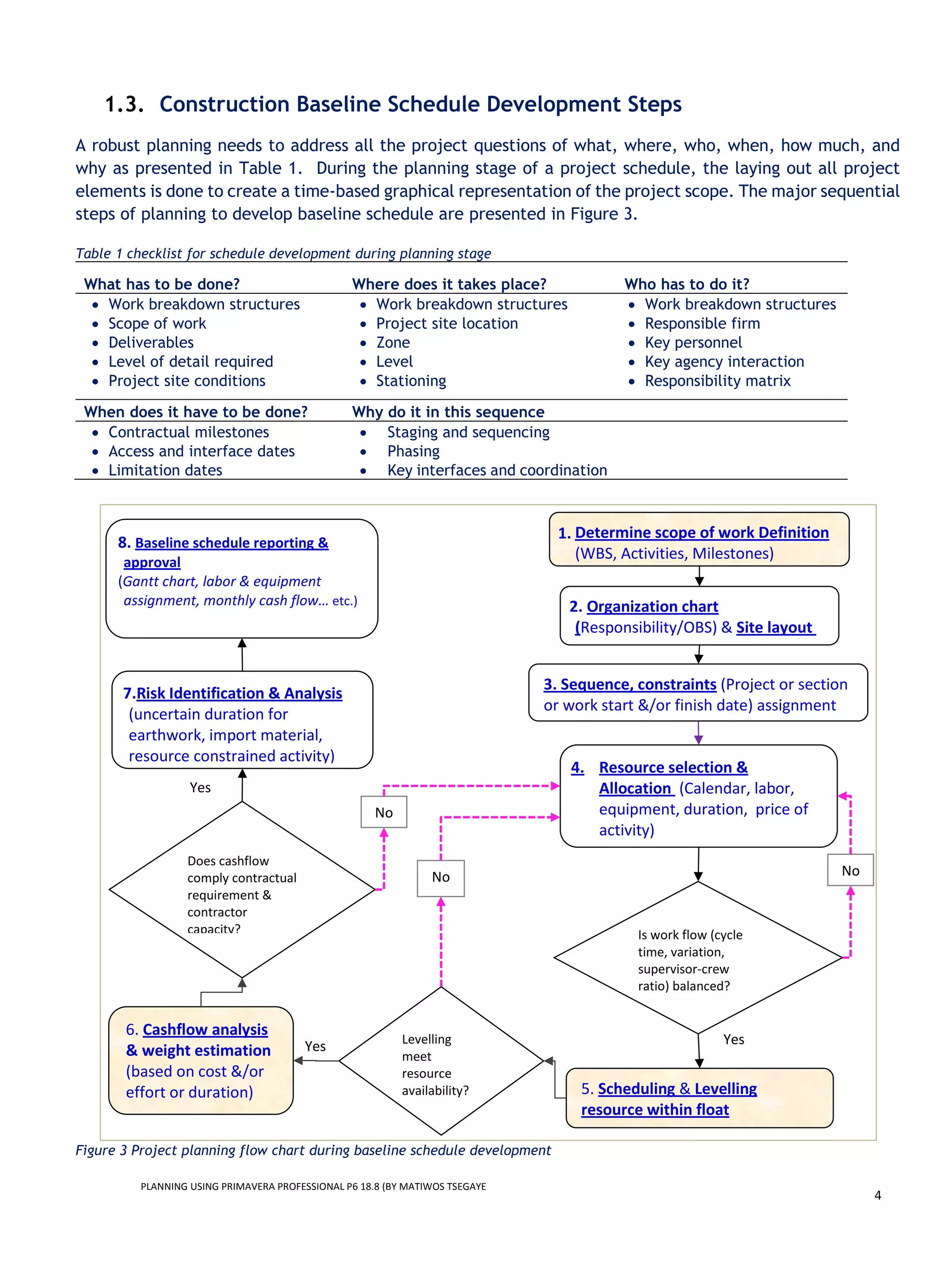
A robust planning needs to address all the project questions of what, where, who, when, how much, and
why as presented in Table 1. During the planning stage of a project schedule, the laying out all project
elements is done to create a time-based graphical representation of the project scope. The major sequential
steps of planning to develop baseline schedule are presented in Figure 3.
Table 1 checklist for schedule development during planning stage
What has to be done? Where does it takes place? Who has to do it?
• Work breakdown structures • Work breakdown structures • Work breakdown structures
• Scope of work • Project site location • Responsible firm
• Deliverables • Zone • Key personnel
• Level of detail required • Level • Key agency interaction
• Project site conditions • Stationing • Responsibility matrix
When does it have to be done? Why do it in this sequence
• Contractual milestones • Staging and sequencing
• Access and interface dates • Phasing
• Limitation dates • Key interfaces and coordination
Figure 3 Project planning flow chart during baseline schedule development
1. Determine scope of work Definition
(WBS, Activities, Milestones)
3. Sequence, constraints (Project or section
or work start &/or finish date) assignment
4. Resource selection &
Allocation (Calendar, labor,
equipment, duration, price of
activity)
Is work flow (cycle
time, variation,
supervisor-crew
ratio) balanced?
Yes
5. Scheduling & Levelling
resource within float
No
Levelling
meet
resource
availability?
Yes
6. Cashflow analysis
& weight estimation
(based on cost &/or
effort or duration)
No
2. Organization chart
(Responsibility/OBS) & Site layout
8. Baseline schedule reporting &
approval
(Gantt chart, labor & equipment
assignment, monthly cash flow… etc.)
7.Risk Identification & Analysis
(uncertain duration for
earthwork, import material,
resource constrained activity)
Does cashflow
comply contractual
requirement &
contractor
capacity?
Yes
No
PLANNING USING PRIMAVERA PROFESSIONAL P6 18.8 (BY MATIWOS TSEGAYE
5
1.3.1 Scope definition and Organizing Project
Work Breakdown Structure: is used as a road map for planning, monitoring, and managing all the
elements of a project such as scope of work, cost and time estimation, and resource allocation.
To achieve this objective the Breakdown WBS are integrated with bill of quantity that outlined in
the contract document. Project objectives & scope of work are defined by contract documents:
drawing, bill of quantity, specification, conditions of contract and other document. Project is
broken down to several elements using top-down approach (see Figure 4),
• Phases,
• Deliverables (verifiable work products),
• activities and
• milestones (Significant events or achievements, or Acceptance of deliverables or phase
completion).
Further broken down into individual activities is done to divide a project into meaningful and logical
elements, to allow summarizing project information at any level; and to provide a road map for
exception reporting and management. Stop dividing when the tasks are manageable work packages
based on: skill group(s) involved, managerial responsibility, length of time, and value of task.
Commonly the factors considered in the WBS creation for better project control are outlined as follow:
1. homogeneity: when the work involves two different materials and/or is measured by different
units, it must be divided into two different activities.
2. Timing/chronology: Sometimes a portion of the work may be delayed purposely by the
contractor. For example, a portion of the slab on grade for a building may be delayed until
the end of the project because the area is being used as storage. Such a portion must be
considered as an activity by itself.
3. Responsibility/trade: breaking down portions of work that are done by different parties
(subcontractors, crews) to determine who is responsible for a variation.
4. Location/floor/segment: Activities occurring in different locations must be separated.
5. Phase: A division based on timing.
EPS and OBS: Enterprise Project Structure (EPS) is a company-wide hierarchical project breakdown
structure while Organizational Breakdown Structure (OBS) represents the hierarchical
arrangement of the company management to fulfil the established needs and should be
structured in such a way that each task in the WBS must be assigned to a person or committee
as seen in Figure 4. Key staf identification and team development is done at this stage.
PLANNING USING PRIMAVERA PROFESSIONAL P6 18.8 (BY MATIWOS TSEGAYE
6
Figure 4 Enterprise Project Structure (EPS), Organization Breakdown Structure (OBS), Work Breakdown Structure (WBS)
and Role Definition
key map (Job/site Layout): is a plan of site and the area around it which shows the exact location
for placing the resources of construction as illustrated in Figure 5-7. It is the first duty of the site
Project manager/Construction engineer/Planning engineer before execution of work. Site layout
includes camps, toilets, entry and exit to sites, activities location, storage, quarry, borrow, precast
production, rebar cutting-bending, formwork preparation, water & aggregate sources, transport
route, disposal site. A careful site layout/planning ensures:
• Effective and efficient methods of works,
• Safety to workmen and visitors,
EPS-2 (BLD)
Project-1 Project-2 (WBS1)
Building constru.
(WBS2)
Milestones
(WBS2)
EPS-2 (WSP) EPS-2 (IRR)
EPS-3 (contract Admin) EPS-3 Design)
General Work
(WBS2)
Sanitary &
Electrical
Actvities
(Earthwork)
Reinforced
concrete
Finising
EPS-1 (ADSWE)
excavat
or-1
DL-1Carpent
er-x
Resources
Admin
Site
engineer
Office
engineer
Roles
(Project
Manager)
Haile (WSP) Br Mgr (Mas)Yihalem (IRR)
OBS (Responsibility Manager)
(CEO)
Habte (WSP) Techan (Irr)
Addisu (cont admin) Design
team leader
EM
engineer
PLANNING USING PRIMAVERA PROFESSIONAL P6 18.8 (BY MATIWOS TSEGAYE
7
• Avoiding wastage and deterioration of materials,
• No interference of disturbance to adjacent facilities and property.
Figure 5 project site layout for earth fill dam construction (cycle time and no of key machinery conceptual identification)
Figure 6 project site layout for road construction (cycle time and no of key machinery conceptual identification)
PLANNING USING PRIMAVERA PROFESSIONAL P6 18.8 (BY MATIWOS TSEGAYE
8
Figure 7 project site layout for building construction
1.3.2 Sequencing and constraints assignment
Sequential relationships: refer to the determined order in which the activities are to be accomplished
in the field. The tasks are constrained by natural work ordering (logical sequence), resource availability,
and construction methodology (whether machine based or labour based). These constraints are either
specified between two or more tasks, and they used to build a schedule that more accurately reflects
the real-world aspects of the project. A lag is introduced between predecessor and successor to
accommodate constraints due to logic constraint and resource optimization. The commonly used
precedence relationships are:
1. Finish to Start (FS): A must finish before B starts.
2. Start to Start (SS): when two tasks must begin at the same time or some days between their start
date. The start of A controls the start of B.
3. Finish to Finish (FF): the finish of A controls the finish of B. Many times, these are found prior to
a milestone in a project schedule.
Figure 8 commonly used activities relationships
Constraint: is a scheduling property that allows the user to specify when a project or an activity can or
G+40 MIXED USE
BUILDING
TOILET & Shower
HCBPRODUCTION&
STORE
CEMENT
STORE
AGGREGATE
STORE
REINFROCEMENT
PRODUCTION&STORE
JOINERY&TIMBER
STORE
GENERAL
STORE
20m wide road
ENTERANCE/E
XIT
SECUI
RITY
ENGINEERING OFFICE ADMIN & FINANCE
OFFICE
TOWER CRANE
5m
wide
road
Parking
1. FS 2. SS 3. FFFS relation FS relation FS relation
PLANNING USING PRIMAVERA PROFESSIONAL P6 18.8 (BY MATIWOS TSEGAYE
9
must begin or be completed to reflect project‐specific requirements (ex. substantial completion for
sections of project).
• Project‐level constraints can be used to restrict the start or finish of a project. Based on
requirements of contract specifications, a Must Finish By project constraint must be assigned at
the project‐level to establish the latest date by which the project must be completed. The
project Must Finish By constraint date is the latest date from which the backward pass
calculation is performed to determine the Total Float.
• An activity‐level constraint can be used to restrict the start or finish of an activity to reflect
project‐specific requirements or when logic alone is not sufficient to accurately reflect realistic
situations. However, constraints should be used sparingly and on a case by case basis as required
by specification or as approved by the Engineer. Some constraints violate network logic while
others affect float calculation.
1.3.3 Resource allocation
Resource can include labor, equipment, material, operating space for labor or equipment, working
calendar, and no of working days or hours that required to perform an activity.
1. Project calendars: Based on the nature of project and activities, operating calendars for a project
is defined in order to account foreseen non-working days starting from construction
commencement through completion date. Then the start date and finish date of activities can be
computed adding the working days with non working days that exist during execution of an activity.
The number of non working days per calendar days does substantially affect the project overhead
costs.
2. Labor, Equipment, and duration (working days): Labour and or equipment allocation is made
based on the following major factors:
• availability and productivity of the resource,
• project characteristics (accessibility, location, and nature),
• contractual requirements and
• cost.
Note: lumpsum price of an activity might be allocated at this stage for monitoring and controlling of
project cost or EVM (Earned value Management).
3. Duration (working days) for an activity: Duration depends on the quantity of activity, the
productivity of resource assigned to the activity; size and type of crew (labour and/or equipment)
that perform activities as presented in Equation 1. For calendar days duration depends on operating
calendar of the activity and its start time. As resource, duration (time), and cost are interdependent
each other, iteration will be performed on labor and/or equipment allocation until optimum
allocation in terms of cost, time, and contractual requirements are meet.
Duration (𝐷𝑖) =
Quantity (Qi)
No of Crew (Nij) x Productivity (Puj)
=
Budgeted units (labor/equipment hours or days
labor or equipment No/day
) = (Eq.1)
Subjected to constraints:
1 ≤ 𝑁𝑖𝑗 ≤ 𝑁𝑖𝑗−𝑚𝑎𝑥 ≤ 𝑁𝑗−𝑚𝑎𝑥 (Eq.2)
Where, Di is the duration for activity i (working hour or day),
PLANNING USING PRIMAVERA PROFESSIONAL P6 18.8 (BY MATIWOS TSEGAYE
10
Qi is the quantity of activity i (No, m, m², m³, kg, lit, Ls, etc),
Nij is a number of unit crews j assigned for activity i,
Puj is productivity of unit crew j per hour or day.
Nij-max is the maximum number crew j that the working space of an activity i can accommodate,
Nj-max is the maximum number of crew j that can be deployed for specific project based on local
socioeconomic data
During iteration of resource allocation, maximum number of labors and or equipment (and thereby
minimum construction durations) will often done only for those activities on the critical and near
critical paths. For these activities, the final resource size or number of crew (Nij) that would give the
shortest practical duration is iterated while the following are satisfied:
1. work-flow,
2. activity precedence constraints,
3. resource availability and
4. operating space constraints.
For activities having a significant total float, longer duration is established to meet objectives:
• To minimize stockpiling of supplied material (reinforcement bar, cement) and excavated soil,
• To maximize the effectiveness and productivity of available equipment and labor resources,
• To maximize the effectiveness of management and monitoring resources; example, ratio of
superintendent to working crews (mason, carpenter, bar-bender crew, etc),
• To minimize daily labor and equipment demand fluctuation, and
• To optimize net cash flow.
1.3.4 Scheduling and resource levelling
Scheduling operation (see equation 3b) is done to calculate the start and finish date of each activities
and the project duration (calendar days) based on allocated resources and sequences and constraints
assigned to each activity and project. From the operation the critical path of the project, the float of
each activity, the total number of each resource type per time would also compute. If the daily total
amount of a certain resource is exceeded from maximum supply limit, levelling operation (see equation
4) is done in order to devise method to resolve the deficit using the following options either being
combined or individually:
• Application of overtime or modify calendar for that activity
• Increase the working days for activities that results in resource deficit
• Replace labor crew by equipment or by higher performer or
• vary the combination of labor and equipment crews
• Modify the resource curve (ex., front loaded, backloaded, trapezoidal, etc.)
• Modify the logical sequence of activities by introducing lag
Project completion date (PF) = 𝑃𝑆 + 𝑚𝑎𝑥 {∑ (𝐷𝑖𝑐 + 𝐿𝑖𝑗
𝑛
𝑖=1 } (Eq. 3a)
Total calendar days (𝐷𝑐) = (𝑃𝐹 − 𝑃𝑆 + 1) (Eq. 3b)
Total working days (𝐷) = 𝐷𝑐 − 𝐾𝑠𝑓 (Eq. 3c)
PLANNING USING PRIMAVERA PROFESSIONAL P6 18.8 (BY MATIWOS TSEGAYE
11
Resource levelling (deficit assessment) ∑ 𝑁𝑖𝑗
𝑛
𝑖=1 ≤ 𝑁𝑗−𝑚𝑎𝑥 (Eq. 4)
Subjected to constraints:
𝑆𝑖 + 𝐷𝑖𝑐 + 𝐿𝑖𝑗 ≤ 𝑆𝑗 (FS relation) (Eq. 5)
𝑆𝑖 + 𝐿𝑖𝑗 ≤ 𝑆𝑗 (SS relation) (Eq. 6)
𝑆𝑖 + 𝐷𝑖𝑐 + 𝐿𝑖𝑗 ≤ 𝐷𝑖𝑐 + 𝑆𝑗 (FF relation) (Eq. 7)
Where, Nij is a number of unit crews j assigned for activity i,
Nj-max is the maximum number of crew j that can be deployed based on local socioeconomic data
Dc is the total calendar days of the project
Dic is the number of calendar days of activity i,
Si & Sj start time of activity i & j, respectively,
PS is start date of the project
PF is completion date of the project
Lij lag time (calendar days) between activity i & succeeding activity j
Ksf is the total nonworking days between project start and completion date which depends on the
calendar assigned to activities and the project.
Figure 9 critical path project duration (working days or activities for 7-day calendar) calculation
Every scheduled task is defined by the following parameters.
 Early Start (ES): Earliest possible point in time on which a task can start.
 Early Finish (EF): Earliest possible point in time on which a task can finish.
 Late Start (ES): Latest possible point in time on which a task can start.
 Late Finish (EF): Latest possible point in time on which a task can finish.
 Free Float: Amount of time a single task can be delayed without delaying the early start of any
successor task.
 Total Float: Amount of time a single task can be delayed without delaying project completion.
1 Early Start and finish dates are calculated by means of Forward Pass and for all the activities which
have no immediate predecessors: ES is 0 and EF is the activity’s duration. Select a node for which
EF of all its immediate predecessors has been determined.
B(Access road
construction)
0
10 20 20
10 10 20
E(canal excavation)
3
28 73 73
27 45 76
task name
total float
early start total duartion early finish
late start duration late finish
C(Headwork
earthwork)
0
22 30 30
22 8 30
D(Headwork Concrete-
Masonry-Finish)
0
30 75 75
30 45 75
A(Mobilize key
staff&machines)
0
0 10 10
0 10 10
G(Test-
commisioning
0
80 100 100
80 20 100
F(canal lining)
3
29 74 74
32 45 77
SS+1
FF+1
FS+5
FS+2
FS+8
FS+3
PLANNING USING PRIMAVERA PROFESSIONAL P6 18.8 (BY MATIWOS TSEGAYE
12
• ES = Max EF (of all its immediate predecessors)
• EF = ES + Activity Duration
2 Late Start and Late Finish dates are calculated by means of Backward Pass. For all the activities
which are not predecessors for any other activity:
• The latest finish time (LF) = project completion time
• The latest start time (LS) = LF – Activity Duration
Select a node which is the immediate predecessor for nodes whose LS times have all been determined
• LF = Min LS (all nodes for which it is a predecessor)
• LS = LF - Activity Duration
Many tasks have some amount of buffer added to them referred as Slack Time or Float which is obtained
by deducting ES from LS or EF from LF.
Example, project represented in Figure 9 has network paths (ABCDG, ABEG, ABFG). Thus, total project duration
of can be modelled and computed as follow.
𝐷 = 𝑆𝑎 + (𝐿𝑎 + 𝐷𝑎) + 𝑀𝑎𝑥𝑖𝑚𝑢𝑚 {(𝐷𝑏 + 𝐿𝑏1) + (𝐷𝑐 + 𝐿𝑐) + (𝐷𝑑 + 𝐿𝑑) + (𝐷𝑔 + 𝐿𝑔), (𝐷𝑏 + 𝐿𝑏2) + (𝐷𝑒 + 𝐿𝑒1 +
𝐿𝑓) + (𝐷𝑔 + 𝐿𝑔), (𝐷𝑏 + 𝐿𝑏2 + 𝐿𝑒2) + (𝐷𝑓 + 𝐿𝑓) + (𝐷𝑔 + 𝐿𝑔)}
= {100, 97, 97),
Note: Sa represents (Start date of activity A which considered as zero), La represents Lag between
activity A and its successor, Da represents duration of activity A.
The longest path is ABCDG and gives 100 working days or total project duration without considering
the calendar assigned to each activity. However, the critical path can be a path with lower total
working duration if the available working days associated to its calendar is comparatively lower than
the with longer working days duration. Effect of calendar is annexed in the last section of this guide.
1.3.5 Cashflow Analysis
The cost of an activity is computed based on direct resource allocated and indirect cost that expend
in the project site and company during execution of the project. The total budget (cost) would be the
sum of all activities’ costs. Cash outflow (expenditure of contractor) is analysed against employer
payment on time basis to sustain optimum cash outflow in contracting parties. The progress tracking
weight (based on cost &/or effort) is determined at this stage.
The following cashflow table and chart shows detail for sample project with 100 million ETB contractual
value and 11-month contract period. The advance payment is 20% of the contract and payable to the
contractor a month ahead of project commencement. The maximum monthly planned payment to be
paid by the employer is 15% of the contract amount.
As seen in the table the net cashflow for month August-2008 is negative 1 million. The payment payable
for the contractor for month September is 16 million which is above the contractual conditions. Thus,
although the project is profitable (5 million), the cash flow does neither comply contractual
requirement nor the optimum operating cashflow that sustain the contractor to manage efficiently
during the course of the project.
PLANNING USING PRIMAVERA PROFESSIONAL P6 18.8 (BY MATIWOS TSEGAYE
13
Table 2 Cashflow table for 11-month construction project
Cash
flow
type
Months
30 days before
commencement
1-Jan-2008 1-Feb-2008
1-Mar-
2008
1-Apr-
2008
1-May-2008 1-Jun-2008
monthly
payment
20,000,000 - 5,000,000 3,000,000 8,000,000 10,000,000 10,000,000
monthly
expense
2,000,000 5,000,000 9,000,000 4,000,000 7,000,000 12,000,000 8,000,000
net cash
at hand
18,000,000 13,000,000 9,000,000 8,000,000 9,000,000 7,000,000 9,000,000
cashflow
type
1-Jul-2008 1-Aug-2008 1-Sep-2008
1-Oct-
2008
1-Nov-
2008
1-Dec-2008 1-Jan-2009
monthly
payment
10,000,000 10,000,000 16,000,000 2,000,000 2,000,000 3,000,000 1,000,000
monthly
expense
10,000,000 20,000,000 6,000,000 6,000,000 4,000,000 2,000,000 -
net cash
at hand
9,000,000 (1,000,000) 9,000,000 5,000,000 3,000,000 4,000,000 5,000,000
Figure 10 Cash flow chart for construction project
1.3.6 Risk Analysis and Mitigation plan development
In order to refine optimum construction, schedule out of different alternatives, risk analysis is
performed on uncertain input variables:
(2,000,000)
(1,000,000)
-
1,000,000
2,000,000
3,000,000
4,000,000
5,000,000
6,000,000
7,000,000
8,000,000
9,000,000
10,000,000
11,000,000
12,000,000
13,000,000
14,000,000
15,000,000
16,000,000
17,000,000
18,000,000
19,000,000
20,000,000
monthly expense
monthly payment
PLANNING USING PRIMAVERA PROFESSIONAL P6 18.8 (BY MATIWOS TSEGAYE
14
1. commencement dates of the project,
2. activity associated with imported material and/or right of way issues,
3. availability of resources for critical activity and/or resource constrained activity, and
4. volume and type of excavation work.
Based on identified risks and their impact, mitigation plan is developed.
1.3.7 Communication and Reporting schedule
The final step of schedule development is production of reports that need employer/consultant
approval. The approved baseline schedule will use to monitor and control project performance during
construction. The simplest of schedules depict in a bar chart format the start and finish of activities
of a given duration that represent activities operating timetable. More complex schedules, generally
in CPM format, include schedule logic and show the critical path and floats associated with each
activity. The widely used standard elements of a baseline report includes:
1. Organization chart & sites layout map
2. Gantt chart whose activity table contain start & finish date, total float, project calendars,
constraints, relationships,
3. weekly average and maximum labor & equipment assignment, anticipated maximum labour and
their corresponding productivity assumed.
4. material & equipment mobilization schedule,
5. monthly cash flow,
6. weekly/or monthly physical plan for critical path & all activities,
7. risk ranking and mitigation plan,
8. Narrative report consisting:
i. Reasons for the sequencing of work and their lags & Justification for Contractor imposed
activity constraints,
ii. Describe resource limitations, potential conflicts, & how they may be resolved,
iii. List of calendars used in the schedule with the general reason for their use,
iv. Critical path & challenges that may arise (risk plan),
v. Anticipated coordination issues by other parties, that require additional information or
action,
vi. or assumed productivity of equipment/or labor crew for risk identification,
vii. sequence & milestone-dates justification
Note: Sample standard Reports are presented in Annex section of this guideline.
PLANNING USING PRIMAVERA PROFESSIONAL P6 18.8 (BY MATIWOS TSEGAYE
15
CHAPTER 2 PRIMAVERA PROVESSIONAL P6 18.8
2.1. Starting Primavera P6
Logging In window: Before using Primavera, login name and password needs to entered. the login
name and password, are the data entered during installation.
Steps:
1. Click Start, Programs, Primavera, P6 Professional 18(only when installed locally)
2. Type in your assigned Login Name and Password.
3. Under Database, select “PMDBSQL1” for training (Note: the PMDBSQL1 is the name of
standalone database or SQLite name that given during installation).
4. Click OK
2.2. User Interface screen
Primavera P6 uses various windows to display global, project, or activity data. The following figure
shows the interface window following login into p6 and Table 3 explain the function of each window.
PLANNING USING PRIMAVERA PROFESSIONAL P6 18.8 (BY MATIWOS TSEGAYE
16
11 Timescale
2. Menu bar 3. Tool bar 5.Command
bar
1. Title bar
4.Directory bar
6.Status bar7. Detail bar
9. Table view on top
layout
8. Layout
option bar
12. Bottom layout
10. Bar/Gantt chart on
top layout
Figure 11 Primavera P6 18.8 Windows interface
PLANNING USING PRIMAVERA PROFESSIONAL P6 18.8 (BY MATIWOS TSEGAYE
17
Table 3 Primavera p6 windows Bar and their function
2.3. Windows and their functions
1. Home Window – The Home window is the initial landing page of the application, depending on
user setting. The Home window provides quick access to enterprise (global) and project data.
Item Functionality
1.Title Bar Displays current application and name of open projects.
2. Menu Bar
Display under top window under title bar and it provides various menu items that can be used to
perform a variety of functions including viewing, creating, and managing global, projects, and activity
data. Each item on the Menu bar provides a drop-down list of options. Menu items vary depending on
the open window
3.Toolbar
displays buttons that can be used to access frequently used commands quickly. To display/hide
toolbars, click on View, then Toolbars, and then click on the toolbar you want to display/hide. A
checkmark in front of the toolbar name indicates that it is currently displayed.
4. Directory Bar
Displays on the left side of window and it provides quick launch buttons with which to access the
various windows: Enterprise project structure (EPS), OBS (Organization Breakdown Structures), Project,
WBS (work breakdown structures), activity, resource assignment, resource, reports, risk…
5. Command
Bar
displays on the right side of the window, available command buttons that can be used to perform a
variety of tasks within the open windows:
1) In the Projects window, command buttons can be used to add, delete, or copy/cut/paste projects.
2) In the WBS window, the command buttons can be used to add, delete, copy/cut/paste, or move
WBS elements.
3) In the Activities window, command buttons can be used to add, delete, copy/cut/paste activities;
or add resources, roles, activity codes, relationships, etc.
6. Status Bar
is a message bar at the bottom of the window that displays: user’s login name, data date of open
projects, access mode, and current baseline a description of the selected menu command, the name of
the current layout and filter, and other messages
7. Detail Bar Allows to view and edit detail information for project/WBS/activities/resource.
8.Layout
Options Bar
provides a menu of items with which to perform a variety of functions including, opening, modifying,
and saving a layout
9. Table view
layout
View project/activity/WBS data in table form. Enables you to see project data in spreadsheet format
10. Gantt/chart
view
View project/activity/WBS data in Gantt/chart view. The Gantt chart provides a graphical display of
activity/WBS progress over the duration of the project.
11. timescale
bar
Display the time in year/quarter/month/week/day basis for bar/Gantt charts
12. Bottom
layout
Display detail information for detail bar for selected window and button. It allows to edit activity
relation, resource assignment, update start and finish date, constraint etc.
PLANNING USING PRIMAVERA PROFESSIONAL P6 18.8 (BY MATIWOS TSEGAYE
18
Figure 12 home window
2. Projects Window – The Projects window is used to display project‐level data. The Projects window
can be used to set up the Enterprise Project Structure (EPS) with which to view/manage project
data or organize projects. Click on the Projects button in the Directory bar to open the Projects
window to view, add, delete, or edit projects.
3. Resources Window – The Resources window is used to display the Resource hierarchy and individual
resources. Click on the Resources button in the Directory bar to open the Resources window to view,
add, delete, edit, or move resources around in the Resource hierarchy.
Figure 13 project window opened "open last project" is selected in home window.
PLANNING USING PRIMAVERA PROFESSIONAL P6 18.8 (BY MATIWOS TSEGAYE
19
4. Reports Window – The Reports window is used to display the reports menu. Click on the Reports
button in the Directory bar to open the Reports window to create, delete, modify, or run reports.
5. Tracking Window – The Tracking window is used to display tracking layouts that can be used to
track summary performance at the EPS, project, or WBS level. Click on the Tracking button in the
Directory bar to open the Tracking window to display, create, import/export, delete, modify, or save
tracking layouts.
PLANNING USING PRIMAVERA PROFESSIONAL P6 18.8 (BY MATIWOS TSEGAYE
20
6. WBS Window – The WBS window is used to display project WBS hierarchy. Click on the WBS button
in the Directory bar to open the WBS window to display the Project WBS to add, delete, edit, or move
a WBS element around in the WBS hierarchy for the open project.
7. Activities Window – The Activities window is used display project activity data. Click on the
Activities button in the Directory bar to open the Activities window to view, add, delete, or edit
activities for the open project.
PLANNING USING PRIMAVERA PROFESSIONAL P6 18.8 (BY MATIWOS TSEGAYE
21
8. Assignments Window – The Assignments window is used to display project resource assignment
data. Click on the Assignments button to open the Resource Assignments window to view, add, delete,
or edit resource assignments for the open project.
9. WPs & Docs Window – The WPs & Docs window is used to display project work products and
documents register. Click on the WPs & Docs button to open the WPs & Docs window to view, add,
delete, or maintain work products and documents information for the open project.
PLANNING USING PRIMAVERA PROFESSIONAL P6 18.8 (BY MATIWOS TSEGAYE
22
10. Expenses Window – The Expenses window is used to display project expenses data. Click on the
Expenses button to open the Project Expenses window to view, add, delete, or edit expenses for the
open project.
11. Thresholds Window – The Thresholds window is used to display project thresholds data. Click on
the Thresholds button to open the Project Thresholds window to view, add, delete, edit, or monitor
thresholds for the open project.
PLANNING USING PRIMAVERA PROFESSIONAL P6 18.8 (BY MATIWOS TSEGAYE
23
12. Issues Window – The Issues window is used to display project issues data. Click on the Issues button
to open the Issues window to view, add, delete, edit, monitor, or send email notifications on issues on
the open project.
13. Risks Window – The Project Risks window is used to display project risks register. Click on the
Risks button to open the Project Risks window to view, a dd, delete, or edit project risks for the open
project; or tot calculate aa project risk’s exposure values and its impact on the schedule, costs, and
durations.
PLANNING USING PRIMAVERA PROFESSIONAL P6 18.8 (BY MATIWOS TSEGAYE
24
2.4. Admin Preference
The administration preference uses to select industry type, adjusting reporting view, earned value
calculation options, to adjust start day of the week, etc. to adjust industry preference
• click on Admin in the Menu bar, then Admin Preferences (see figure below) and Industry then
set Engineering & construction.
2.5. User preferences settings
A user can specify user settings and preferences to determine how information is displayed or
calculated using the User Preferences dialog box. Users can specify how to display time, date, or
currency information; or specify start-up options, send e‐mail, or change their password. To access
the User Preferences dialog box,
PLANNING USING PRIMAVERA PROFESSIONAL P6 18.8 (BY MATIWOS TSEGAYE
25
• click on Edit in the Menu bar, then User Preferences (see figure below).
The following are guidelines for defining user settings and preferences:
1.Time Units – Click on the Time Units tab to define the timescale and format to use when
displaying time units. Time Units formats affect how tracking layouts, activity durations, and
resource units, availability, and work efforts are displayed.
i. Units Format: Select Day to specify the time unit for displaying work efforts, and
resource units and availability in terms of days for resource‐loaded schedules. Select 2
to display resource units to two (2) decimal places. Mark the Show Unit label checkbox
to display the time unit abbreviation with the resource unit’s value.
ii. Durations Format: Select Day to specify the time unit used to display activity duration
values in terms of days. Un‐mark the Show Duration label checkbox to avoid displaying
the time unit abbreviation with the duration value.
iii. Units/Time Format: Specify Show as units/duration (4h/d) to display resource usage rate
(units/time) as units per duration.
PLANNING USING PRIMAVERA PROFESSIONAL P6 18.8 (BY MATIWOS TSEGAYE
26
2. Dates – Click on the Dates tab to specify how dates are displayed.
i. Date Format: Specify Month, Day, Year to display dates in the MM‐DD‐YY format.
ii. Date Format Options: Mark the Leading zeroes checkbox to display all months and days as
2-digit numbers. Select hyphen sign (‐) as the character used to separate a date's day, month,
and year.
iii. Time Format: Specify Do not show time to avoid showing time of day with the dates, unless
deemed necessary.
3. Currency – Click on the Currency tab to specify how monetary values are displayed. Click on the
button and select Dollar, then mark the Show currency symbol and Show decimal digits to show
monetary values with dollar the symbol ($) and in two (2) decimal places.
4.Assistance – Click on the Assistance tab to turn on/off the New Resource or New Activity wizard for
assistance when adding new resources or activities based on user preference.
5.Resource Analysis – Click on the Resource Analysis tab to specify which projects are included in
resource calculations and which dates and time interval are used to calculate time‐distributed data
for resource spreadsheets and profiles.
i. All Projects: When All Projects are shown in the Resource Usage Spreadsheet and Profile, all
opened projects are included as well the closed projects specified below:
• Specify All closed projects (except what‐if projects) only when electing to include data
for all closed projects other than what‐if projects.
• Specify All closed projects with levelling a priority only when electing to include data
for all closed projects with a specific levelling priority.
• Specify Opened projects only to include data for open projects only.
ii. Time‐Distributed Data: The Time‐Distributed Data settings are used to specify which dates
and time interval are used to calculate time‐distributed data for resource spreadsheets and
profiles.
• Specify Remaining Early dates to calculate remaining values based on remaining
start/finish dates (recommended).
• Specify Day as the Interval for time‐distributed resource calculations.
PLANNING USING PRIMAVERA PROFESSIONAL P6 18.8 (BY MATIWOS TSEGAYE
27
6.Calculation – Click on the Calculations tab to specify how remaining values are calculated when new
resource assignments are added to, or removed from activities. Specify Preserve the Units, Duration,
and Units/Time for existing assignments to ensure that the formula for calculating remaining units is
set as (Remaining Units = Remaining Duration * Remaining Units/Time), regardless of the duration type
of an activity (recommended).
PLANNING USING PRIMAVERA PROFESSIONAL P6 18.8 (BY MATIWOS TSEGAYE
28
7.Startup Filters – Click on the Start-up Filters tab to specify the default filters used in layouts when
starting the application. These filters can be modified in the individual layouts.
2.6. Project layouts in the projects window
In the Projects window, a customized layout can be defined by the user for use in displaying projects
and project‐level data. The following are guidelines for working with layouts in the Projects window.
PLANNING USING PRIMAVERA PROFESSIONAL P6 18.8 (BY MATIWOS TSEGAYE
29
Figure 14 Project window
1. Layout Options Bar – The Layout Options bar (or Display bar) provides a menu of items that can
be used to perform a variety of functions depending on the current window. For instance, in the
Projects window the Layout Options bar displays a menu that can be used to perform functions
such as opening, modifying, and saving a layout. Click on the Layout Options bar and then:
1 Click on Layout to open or save a project layout.
2 Click on Columns to select project data to display in the Project Table columns.
3 Click on Table Font and Row to format tabular data fonts and row height.
4 Click on Filter By to create, modify, or change filters.
5 Click on Group and sort project or activity data.
6 Click on Bars to format Bar Chart area elements.
7 Click on Show on Top or Show on Bottom to select a layout to show on top/bottom.
2. Top Layout – The Projects window can be divided into top and bottom layout views. The top
layout can be used to view, add, delete, or copy/paste a project; or to open an existing project.
To display a top layout view in the Projects window, click on View in the Menu bar or click on the
Layouts Option bar, then Show on Top, and then:
i. Select Project Table to display project list and data in a non‐timescale tabular format.
ii. Select Gantt Chart to display project data in a timescale bar‐chart format.
iii. Select Chart View to display projects in a hierarchical chart format based on the EPS.
3. Bottom Layout – In the Projects view, there is only one option for the bottom layout, users can
either display Project Details in the bottom layout or show no bottom layout. The Project Details
tabs can be used to view, add, or edit detailed information about the selected project. To display
the Project Details window in the bottom layout, click on View in the Menu bar or click on the
Layouts Option bar, then Show on Bottom, and then select Project Details.
Top
layout
Bottom
layout
Layout option bar
PLANNING USING PRIMAVERA PROFESSIONAL P6 18.8 (BY MATIWOS TSEGAYE
30
Figure 15 Figure 15 layout option button
bottom layout optionstop layout options
PLANNING USING PRIMAVERA PROFESSIONAL P6 18.8 (BY MATIWOS TSEGAYE
31
Figure 16 layout chart view on project window
2.7. Activity layouts in the activities window
A project must be open in order to work with activity layouts. An Activity Layout is a customized view
created by the user for use in displaying the project activities and activity data. The following are
guidelines for opening a project in Primavera P6:
• From the Home page or Projects view, click on the File menu, or right‐click in the Projects
window pane, and then click on Open to open the “Open Project” dialog box.
Figure 17 opening project using file menu
PLANNING USING PRIMAVERA PROFESSIONAL P6 18.8 (BY MATIWOS TSEGAYE
32
Figure 18 Opening project in home window (project window) using right click
Activity Layout Options Bar – The Layout Options bar provides a menu of functional items that can
be used to open, modify, create, or save a layout. The Layout Options bar is available only when the
Projects, WBS, Activities, and Tracking windows are selected.
Click on the Layout Options bar to modify, open, import, export, or save a layout; or to display a
selected layout on top or bottom.
Click on the Layout Options bar to:
i. Open or save a layout.
ii. Format activity bars.
iii. Format Bar Chart Area elements.
iv. Format timescale.
v. Format Activity Table font and row.
vi. Create, modify, or change filters.
vii. Group and sort project or activity data.
viii. Hide/show layout on top/bottom.
PLANNING USING PRIMAVERA PROFESSIONAL P6 18.8 (BY MATIWOS TSEGAYE
33
Opening/saving an Activity Layout – Users may select from a list of available standard layouts or
they may create custom layouts for specific use or to share with other users. Users can save layouts
for personal use or to share with other users. Layouts can be global, project‐specific, or user‐
specific. Layouts can be created and saved in the Projects, WBS, Activities, Assignment, or
Tracking window. The following are guidelines for saving layouts:
1. To save changes to the current layout without creating a new layout, click on the Layout Options
bar, then Layout, and then Save.
2. To create a new layout, click on Save As to open the Save Layout As dialog box, enter a Layout
Name for the new layout, then specify the user(s) to whom the layout will be available, and then
click on Save to save the layout and close the dialog box.
• All Users: Specify All Users to save the layout in the global pool to make it available for use by
any user.
• Another User: Specify Another User to save the layout in a specific user pool to make it available
only to the user.
• Current User: Specify Current User to save the layout in the current user pool to make it
available only to the user who created the layout.
• Project: Specify Project to save the layout in a project pool to make it available for use by any
user with access to the project.
Bottom layout
Top layout
Layout option bar
Figure 19 Activity layout
Vertical splitting bar Horizontal splitting
bar
Detail tab
Activity
table
Activity Bar
PLANNING USING PRIMAVERA PROFESSIONAL P6 18.8 (BY MATIWOS TSEGAYE
34
3.To open an existing layout. Click on the Layout Options bar, click on Layout, and then click on Open
to open the Open Layout dialog box. Click on the No button to leave the current layout as is. If
changes to the current layout are needed for future use, see steps for “Saving a Layout” below.
In the Open Layout dialog box, select a layout, and then click Apply to view the selected layout to
ensure that the correct layout was selected. Then click on Open to display the layout and close the
Open Layout dialog box
Figure 20 Figure 15 Saving opening activity layout
Top Layout – In the Activities window, the top layout displays on top, information about activities
for the open project. The top layout can be used to view activity information or to add, delete,
copy/paste, or edit activities. Click on layout option bar, then Show on Top, and then select from
the list of view options an Activity view to display on top.
Bottom Layout – In the Activities window, the bottom layout displays on bottom, information about
activities for the open project. Click on layout option bar, then Show on bottom, and then then
select from the list of view options an Activity view to display on bottom.
PLANNING USING PRIMAVERA PROFESSIONAL P6 18.8 (BY MATIWOS TSEGAYE
35
Figure 21 activity layout options for top and bottom layout (left to right)
Activity Table: Select Activity Table view to display activities for the open project in a
Columns to open the Columns dialog box to modify the columns of data shown in the table as needed.
Figure 22 activity table view on top layout using Tool bar
Gantt Chart: Select Gantt Chart view to display activities for the open project in a tabular and bar‐
chart format. The left side of the window displays an Activity Table, which shows the activity data in
columns. And the right-side displays a Bar Chart Area, which shows time‐phased bar‐chart plots of the
activities.
PLANNING USING PRIMAVERA PROFESSIONAL P6 18.8 (BY MATIWOS TSEGAYE
36
Figure 23 activity Gantt chart view on top layout using tool bar
Activity Network: Select Activity Network view to display in a network logic diagram, the inter‐
relationships between the activities. The left side of the window displays the WBS hierarchy. And the
right side displays a network diagram depicting the network relationships between the activities.
then click on an item to display on the bottom layout.
Figure 24 Activity network view on top using tool bar
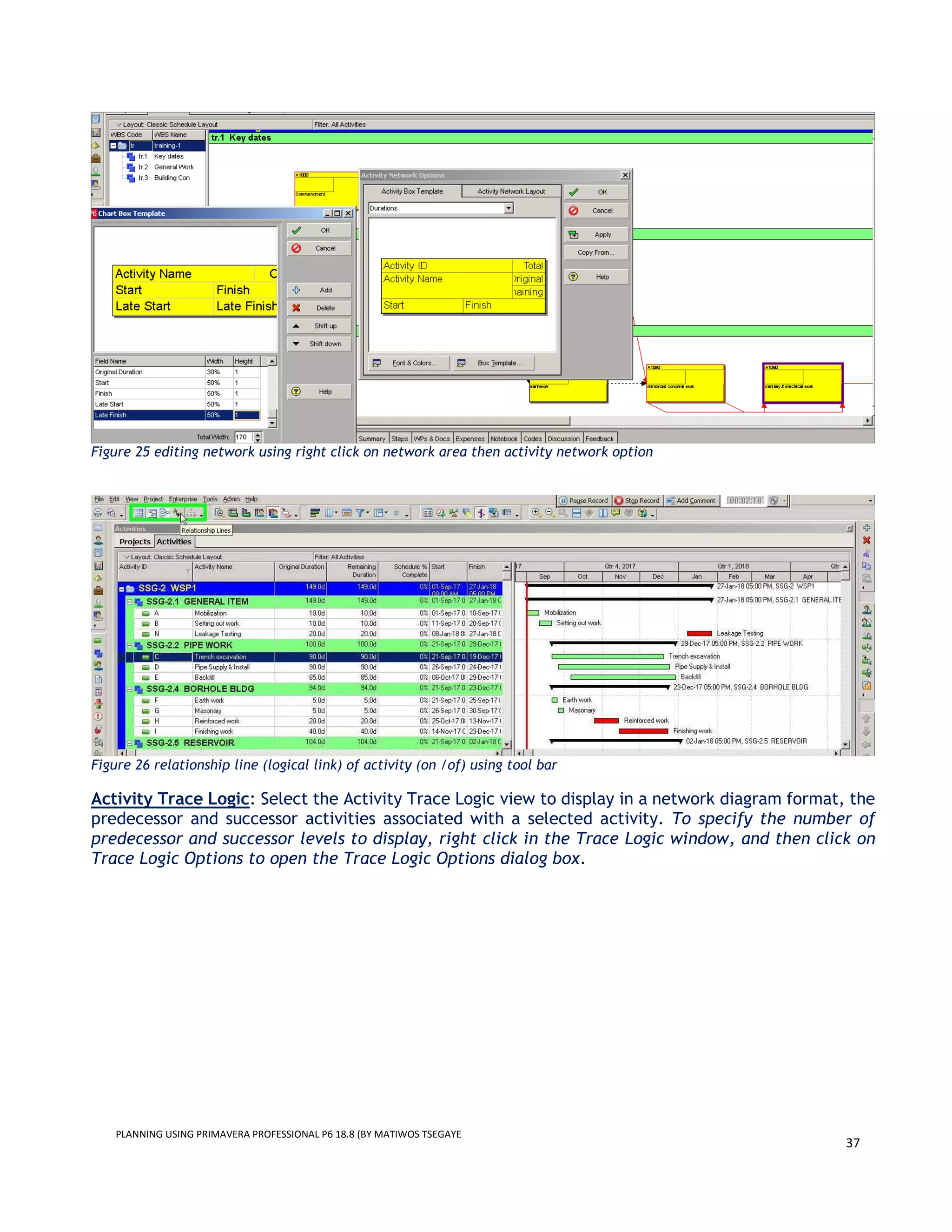
Activity network display can be edited: right click on network view are →Activity network option →
Activity box template (edit size and contents of box) → Activity Network layout → edit the vertical
and horizontal spacing between activities box.
Activity Relationships lines can be turned off and on using: Tool bar → Relationship.
PLANNING USING PRIMAVERA PROFESSIONAL P6 18.8 (BY MATIWOS TSEGAYE
37
Figure 25 editing network using right click on network area then activity network option
Figure 26 relationship line (logical link) of activity (on /of) using tool bar
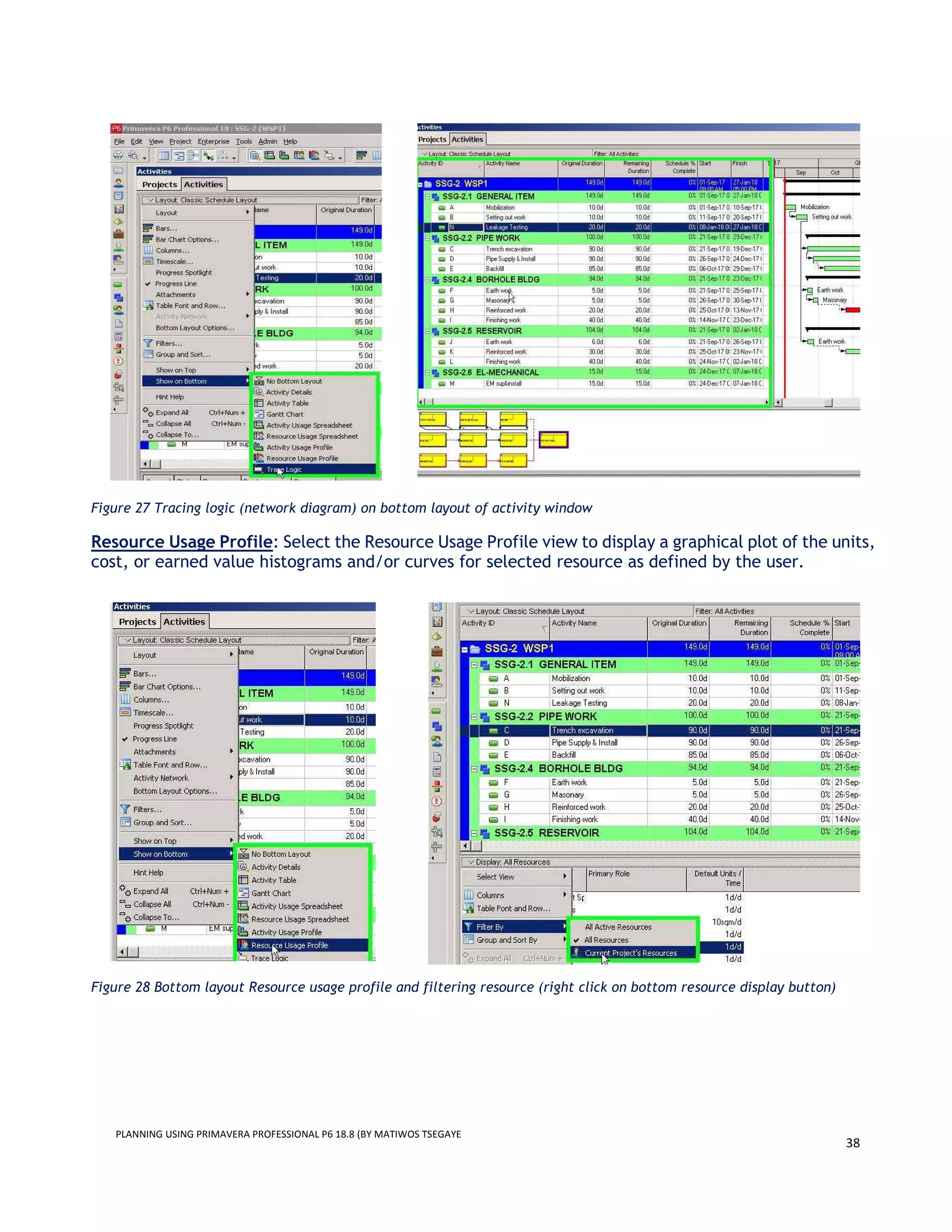
Activity Trace Logic: Select the Activity Trace Logic view to display in a network diagram format, the
predecessor and successor activities associated with a selected activity. To specify the number of
predecessor and successor levels to display, right click in the Trace Logic window, and then click on
Trace Logic Options to open the Trace Logic Options dialog box.
PLANNING USING PRIMAVERA PROFESSIONAL P6 18.8 (BY MATIWOS TSEGAYE
38
Figure 27 Tracing logic (network diagram) on bottom layout of activity window
Resource Usage Profile: Select the Resource Usage Profile view to display a graphical plot of the units,
cost, or earned value histograms and/or curves for selected resource as defined by the user.
Figure 28 Bottom layout Resource usage profile and filtering resource (right click on bottom resource display button)
PLANNING USING PRIMAVERA PROFESSIONAL P6 18.8 (BY MATIWOS TSEGAYE
39
Figure 29 resource usage profile on bottom layout
Activity Usage Spreadsheet: Select Activity Usage Spreadsheet view to display the resource/cost data
associated with the activities (useful for earned value analysis). The left side of the window displays
the Activity Table, which shows the activity data in a tabular format. And the right side displays the
Spreadsheet Area, which shows the units, cost, or earned value data for the activities, as defined by
the user.
Figure 30 Activity spreadsheet
PLANNING USING PRIMAVERA PROFESSIONAL P6 18.8 (BY MATIWOS TSEGAYE
40
Activity Usage Profile: Select the Activity Usage Profile view to display a graphical plot of the earned
value histograms and/or curves for selected activity or all activities as defined by the user.
Figure 31 Activity usage profile on bottom layout (use tool bar or layout option bar)
Activity Details: Select the Activity Details view to display on bottom the Activity Details form showing
detail information about the selected activity. The Activity Details form can be used to view, add, or
edit detailed information about the selected activity.
Figure 32 Activity detail on bottom layout using layout-option-bar and right-click to customize the tabs
PLANNING USING PRIMAVERA PROFESSIONAL P6 18.8 (BY MATIWOS TSEGAYE
41
Figure 33 Customizing (adding or deleting activity tabs
Figure 34 apply activity tab customization
Figure 35 Activity detail information under General-Tab
Figure 36 Activity detail information under Status-Tab
Status tab: Use the Status Tab to define or view the selected activity’s duration, constraint, start
and finish dates, labor and nonlabor units and costs, and material costs.
PLANNING USING PRIMAVERA PROFESSIONAL P6 18.8 (BY MATIWOS TSEGAYE
42
Figure 37 Activity detail information under Resource-Tab (3d/d units/time for Plumber represents for 3 plumbers are
assigned per day)
Figure 38 Activity detail information under Relationships-Tab
Figure 39 Activity detail information under Steps-Tab
2.8. Modifying layout
Users may modify existing layouts to create customized layouts for a specific use or to share with other
users. To modify a layout, click on the Layout Options bar or View menu or right click on Gantt chart,
then select an item of the layout to be modified as follows:
1. Bars – Click on the Bars button to open the Bars dialog box to add, delete, display, hide, or modify
Activity bars:
i. Click on the Add button to add an Activity bar to the current layout. Edit the bar name, as
necessary.
ii. Click on the Delete button to delete the selected Activity bar. To remove a specific bar
from the layout display without deleting it from the form, clear the Display checkbox next
to the bar.
PLANNING USING PRIMAVERA PROFESSIONAL P6 18.8 (BY MATIWOS TSEGAYE
43
iii. Double‐click the timescale to select from a drop-down menu the type of time‐scaled data
that the bar represents.
iv. Double‐click the filter to select from a drop-down menu a filter applied to the data item
represented by the bar type.
v. Click on the Bar Style tab to define the shape, colour, and pattern of the selected bar's
start endpoint, the bar itself, and the finish endpoint; as well as the position of the
selected bar in the Gantt Chart.
vi. Click on the Bar Settings tab to define the grouping band settings for summarizing activity
bars or the bar necking settings for necking bars.
vii. Click on the Bar Labels tab to add/delete a bar’s label for the selected bar or to define its
position.
viii. Use the Shift up or Shift down to move a bar upward or downward, as necessary.
ix. Mark the Display checkbox to show the selected bar in the Gantt Chart. Clear the checkbox
to hide.
x. Click on Apply to apply the changes and OK close the Bars dialog box.
Figure 40 Opening Gant chart bar modifying window (bar button on tool bar (left picture), right click on Gantt chart view
(right picture)
xi. Text can be added to bar by selecting bar labels, then add and select using dropdown selection
the place of text and type (example calendar of the activity is displayed on bottom centre of bar
as seen below.
PLANNING USING PRIMAVERA PROFESSIONAL P6 18.8 (BY MATIWOS TSEGAYE
44
Figure 41 adding text to bars
Figure 42 bar chart with calendar type indicated at bottom centre
2. Bar Chart Options – Click on Bar Chart Options to open the Bar Chart Options dialog box to modify
items displayed in the Bar Chart Area. Click on Apply and OK to apply the changes and close the
dialog box.
PLANNING USING PRIMAVERA PROFESSIONAL P6 18.8 (BY MATIWOS TSEGAYE
45
3. Columns – Click on Columns to open the Columns dialog box to select Activity data fields to display
on the Activity Table as needed.
• Click on the Available Options category “+ Add” button to expand the list of available options
for the selected category.
• Click on the single arrow directional buttons to move items back and forth between the
Available Options window and the Selected Options window.
• Click on the double arrow buttons to move all items.
• Click on the up and down arrow buttons to move items up or down to specify the position of
the columns.
• Click on Apply and OK to apply the changes and close the dialog box.
Figure 43 column button using toolbar
PLANNING USING PRIMAVERA PROFESSIONAL P6 18.8 (BY MATIWOS TSEGAYE
46
Figure 44 column button using right-click on activity table
Figure 45 Editing column elements
4. Timescale – Click on Timescale to open the Timescale dialog box to modify the timescale format
displayed in the Bar Chart Area. Click on OK to apply the changes and close the dialog box.
PLANNING USING PRIMAVERA PROFESSIONAL P6 18.8 (BY MATIWOS TSEGAYE
47
Figure 46 timescale editing window
PLANNING USING PRIMAVERA PROFESSIONAL P6 18.8 (BY MATIWOS TSEGAYE
48
5. Table Font, Colour, and Row Height – Click on Table Font and Row to open the Table Font and
Row dialog box to modify the Activity Table font, colour, and row height. Click on OK to apply the
changes and close the dialog box.
Figure 47 Editing window for table's Font & colour and row Hight, and for activity & WBS icon visibility
6. Filters – Click on Filters to open the Filters dialog box to add, modify, apply, or delete filters for
the current display. Filters are used to specify what items are displayed. In the Projects window,
filters can be used to specify which projects are displayed. Likewise, in the Activities window,
filters can be used to specify which activities are displayed in the current layout or to highlight
activities in the current layout that meets the criteria.
Filters are grouped into four possible categories: Default, Global, Layout Filters, and User Defined.
Users may select from a list of available default filters or they may create specific filters for
use by the user, all users, or applied to a layout and saved with the layout. The following are
guidelines for creating, modifying, and applying a filter:
1. Mark the All Activities checkbox to display all activities in the open project. (Note: This
box is marked by default when no other filters are selected).
2. When multiple filters are selected, mark All selected filters to display activities that meet
the selection criteria for each selected filter. Mark Any selected filter to display activities
that meet the criteria for any selected filter.
3. Click on Apply to apply the changes without closing the dialog box.
4. Click on the New button to add a new User Defined filter.
5. Click on the Delete button to delete the selected filter. You can only delete global, layout,
and user defined filters.
6. Click on the Copy/Paste buttons to copy and paste the selected filter.
7. Click on the Modify button to change the filtering criteria for the selected filter.
8. Click on the Make Global to make the selected filter a global filter.
PLANNING USING PRIMAVERA PROFESSIONAL P6 18.8 (BY MATIWOS TSEGAYE
49
9. Click on Copy as Layout button to make the selected filter available to the currently open
layout.
10. Specify Replace activities shown in the current layout to display only the activities in the
current layout that meet the selected filter criteria.
11. Specify Highlight activities in the current layout which match the criteria to highlight the
activities in the current layout that meet the selected filter criteria.
12. Click on OK to apply the changes and close the dialog box.
Figure 48 Filter tab using toolbar
PLANNING USING PRIMAVERA PROFESSIONAL P6 18.8 (BY MATIWOS TSEGAYE
50
Figure 49 adding new filtering criteria
7. Group and Sort
Group and Sort to open the Group and Sort dialog box to specify a grouping and sorting criteria for
the current layout. The following are guidelines for modifying a layout using the group and sort
dialog form: In the Display Options section:
i. Mark the Show Group Totals checkbox to display totals in the grouping bands.
ii. Mark the Show Grand Totals checkbox to show a grand total row at the top of the layout.
iii. Mark the Show Summaries Only checkbox to show summarized grouping bands only; details under
the grouping bands will be hidden. Clear the checkbox to show grouping bands with
corresponding details displayed below each group.
iv. Mark the Shrink vertical grouping bands checkbox to decrease the grouping hierarchy indenting
space to allow for more space to display data, as necessary.
PLANNING USING PRIMAVERA PROFESSIONAL P6 18.8 (BY MATIWOS TSEGAYE
51
2. In the Group By window:
• Define the grouping criteria for the current display by selecting from a drop-down list of grouping
data items. Activities may be grouped by WBS, Activity Code, or other available category.
• Double‐click on Font & Color of a grouping item to change the grouping's display color or font.
3. In the Group By Options section:
• Mark the Hide if empty checkbox to hide empty group bands. For instance, mark this checkbox
if you are grouping by WBS in the Activities window and the project has WBS bands that do not
contain data items.
• Mark the Sort bands alphabetically checkbox to sort the grouping bands in alphabetical order
rather than their respective hierarchical order. This checkbox is disabled for any grouping that
is not hierarchical.
• Mark the Show Title checkbox to display the field name on the grouping band.
• Mark the Show ID/Code checkbox to display the ID or Code value on the grouping band.
• Mark the Show Name/Description checkbox to display the Name or Description on the grouping
band.
4. Click on the Apply button to apply the changes without closing this dialog box.
5. Click on the Delete button to delete the grouping parameters for selected rows.
6. Click on the Sort button to specify the order in which the data items listed within each group are
sorted.
7. Click on the Default button to apply the default grouping and sorting parameters (by WBS code).
8. Click on OK to apply the changes and close the Group and Sort dialog box.
Figure 50 Group and sort window for activity layout
PLANNING USING PRIMAVERA PROFESSIONAL P6 18.8 (BY MATIWOS TSEGAYE
52
CHAPTER 3 DEVELOPING SCHEDULE USING P6 18.8
3.1. Scope Definition
To begin defining scope of project and developing a schedule in Primavera P6, users must first create
a new project shell in the database, in which the activities that make up the project will be added. A
new project can be created by using the copy/paste command to make a copy of an existing project
or by using the New Projects wizard.
3.1.1 Creating a Project:
1. From the Projects view, click on File, then New or click on the Add button in the Command bar
or right-click on selected EPS to launch the Create a New Project wizard.
Figure 51 create new project by right click then add
2. From the Create a New Project dialog box, click on the Select EPS browse button to select the
Project EPS node under which the new project will be added. Then click on Next to continue.
Figure 52 Selecting the division of enterprise for the new project
3.Enter the Project ID and Project Name. Then click on Next to continue.
Define the Project ID (tr-1) and Project Name (training-1)
PLANNING USING PRIMAVERA PROFESSIONAL P6 18.8 (BY MATIWOS TSEGAYE
53
Figure 53 Naming new project
4. Specify the Planned Start and Must Finish By dates by clicking on the browse buttons and selecting
the appropriate dates (use default). Then click on Next to continue.
The planned start date is the start date of the first activity on the schedule; The Must Finish By date
is the finish date of the last activity; the Contract fixed completion date.
Figure 54 contractual start and finish date can be entered here
5.Specify the Responsible Manager by clicking on the browse button and selecting the name of the
Project Manager (or Company) responsible for the project (use default). Then click on Next to
continue
PLANNING USING PRIMAVERA PROFESSIONAL P6 18.8 (BY MATIWOS TSEGAYE
54
6.Specify the assignment default rate type by clicking on the Rate Type drop‐down button and
selecting the rate type Price/Unit. Then click on Next to continue.
7.Click on Finish to complete creating the project. The project is now available to add WBS, events,
and activities that make up the project.
To modify project properties or to define project properties, use the Project Details window using
detail tab on toolbar
3.1.2 Creating WBS
Work Breakdown Structure is a hierarchical arrangement of the products and services produced
during and by the project. The project is the highest level of WBS while an activity to create a is at
the lowest level.
1. To create WBS open project using right click on project table, then
2. click on WBS tab on the directory bar to create WBS and give appropriate name on the WBS
Table layout under Name column.
The arrow buttons in the Command Bar can be used to move the WBS elements within the
hierarchy, as needed. The up and down arrow buttons can be used to move WBS elements upward
or downward vertically. The left arrow can be used to promote (decrease indent level) of the
selected WBS element. And the right arrow can be used to demote (increase indent level) the
selected WBS element, as needed.
PLANNING USING PRIMAVERA PROFESSIONAL P6 18.8 (BY MATIWOS TSEGAYE
55
Figure 55 Open created project using right click
Figure 56 open WBS window using directory bar
PLANNING USING PRIMAVERA PROFESSIONAL P6 18.8 (BY MATIWOS TSEGAYE
56
Figure 57 Adding WBS using right click and naming/editing WBS
3.1.3 Creating activities
1. To create activities, click on Activity tab on the directory bar then activity table window will be
appeared.
2. Then right click on WBS under which activity is created, add new, then new activity wizard is
appeared.
3. Give appropriate name for activity and select finish to finish creating activity.
Remark: The New Activity wizard guides the user through the process of defining necessary Activity
properties and information when adding new activities. Users may disable the New Activity wizard
by checking the “Do not show this wizard again” box. In which case, the Activity properties and
information must then be entered in the Activity Details form. See User Preferences for guidelines
on turning on/off the New Activity Wizard.
PLANNING USING PRIMAVERA PROFESSIONAL P6 18.8 (BY MATIWOS TSEGAYE
57
The following are guidelines for specifying Activity Types:
i. WBS Summary: A WBS Summary activity type can be used for a summary‐level activity that represents
the overall timing and duration of all activities under a WBS node. The start date of a WBS summary
activity is based on the start date of the earliest activity within the WBS group and its finish date is
based on the finish date of the latest activity. Unlike “Level of Effort” activities, WBS Summary
activities do not require logic.
ii. Start Milestone: A Start Milestone activity type can be used for milestone activities that mark the
start date of a major portion of the Work such as a phase or stage. A Start Milestone activity has a
start date, but not a finish date because its duration is zero.
iii. Finish Milestone: A Finish Milestone activity type can be used for milestone activities that mark the
finish date of a major portion of the Work such as a phase or stage. A Finish Milestone activity has a
finish date, but not a start date because its duration is zero.
iv. Task Dependent: A Task Dependent activity type can be used for activities whose start and finish
dates are dependent on network logic and the calendar assigned to the activities rather than the
calendar of their assigned resources. Task Dependent is the default Activity Type and should be used
for most activities.
v. Level of Effort: A Level of Effort (LOE) activity type can be used for on‐going tasks that typically
span an indefinite time period, whose start dates are dependent on their predecessors and finish
dates are dependent on their successors. LOE activities may be used for certain administrative or
project management tasks that typically span indefinite time periods such as surveying works.
vi. Resource Dependent: A Resource Dependent activity type can be used for activities whose assigned
resources are dependent on the resources calendars rather than the activity’s calendar. Therefore,
the activity durations and dates are dependent on the calendar and availability of the driving
resources. Such activities are scheduled to be performed when their assigned resources are available.
In the Assign Resources dialog box, leave blank, then click on Next. Assigning Resources will be covered
later.
PLANNING USING PRIMAVERA PROFESSIONAL P6 18.8 (BY MATIWOS TSEGAYE
58
 In the Duration Type dialog box, click on the Duration Type drop down button, then select Fixed
Duration & Units, and then click on Next.
 In the Activity Units and Duration dialog box, enter the Activity Duration (number of workdays
required to complete the activity), then click on Next.
 In the Dependent Activities dialog box, specify No, continue, and then click on Next. Predecessor
and successor relationships will be defined later.
 In the More Details dialog box, specify No, thanks, and then click on Next. Remaining required
properties will be defined later.
 Click on Finish to add the new activity and to close the New Activity Wizard.
Figure 58 duration type assignment
Figure 59 activity duration
PLANNING USING PRIMAVERA PROFESSIONAL P6 18.8 (BY MATIWOS TSEGAYE
59
Defining Project Properties and Settings
When creating a new project in Primavera P6 certain project properties and default settings must
be defined. Click on Projects in the Directory bar to open the Projects window, and then click on
the Project Details tabs to view, add, or edit project properties and information about the currently
open project. (Note: To select which tabs are displayed in the Project Details, right‐click on a tab
name, then click on Customize Project Details, then select from the available tabs menu the project
details tabs to be displayed).
1. General Tab: Click on the General tab to add/edit general information about the project.
Edit as necessary, the Project ID and Project Name.
 Project ID: The Project ID must be unique for each schedule submission. Define the Project ID
using a standard naming convention consisting of the Contract ID number as a prefix, a
letter, and a number to indicate which schedule is being submitted.
 Project Name: Define the Project Name to provide a concise description of the project,
submission number, and current data date (training-1 in this case).
2. Dates Tab: Click on the Dates tab to add/edit the Planned Start and Must Finish By dates for the
project. Click on the browse
buttons and select the appropriate dates.
 Planned Start: For initial baseline schedule, the Planned Start date is the start date of the
earliest activity in the schedule.
 Must Finish By: The Must Finish By date is the Contract completion date.
PLANNING USING PRIMAVERA PROFESSIONAL P6 18.8 (BY MATIWOS TSEGAYE
60
3. Defaults Tab: Click on the Defaults tab to add/edit the project default settings for adding new
activities. (Note: Default settings apply to new activities only. Activity properties can be modified for
each individual activity as necessary).
Define the project default settings as follows:
i. Duration Type: Specify Fixed Duration & Units as the default duration type.
ii. Percent Complete Types:
 Duration percent complete type when the percent complete of an activity is based on the
remaining duration rather than amount of work performed. (Note: When Duration percent
complete type is used, the percent complete and remaining duration of an activity are linked.
Therefore, changing the percent complete or remaining duration will automatically affect the
other).
 Physical percent complete type (set as default) when the percent complete is defined by the
user based on amount of work performed rather than remaining duration. (Note: When Physical
percent complete type is used, the percent complete and remaining duration of on‐going
activities must be individually specified based on amount of work remaining).
 Units percent complete type when the percent complete is based on the actual labor or non‐
labor units expended.
iii. Activity Type: Specify Task Dependent as the default activity type. The Activity Type may be
modified for each individual activity, as necessary.
iv. Calendar: Specify a default Project calendar that will be assigned to new activities. Specific
calendars may be assigned to individual activities, as necessary.
v. Auto‐numbering Defaults: Users may specify a user‐defined Activity ID auto‐numbering system
for new activities by defining the default Activity ID Prefix, Activity ID Suffix, and Increment.
4. Resources Tab: Click on the Resources tab to view/edit the project default settings for resource
assignments. Define the Assignment Defaults and Resource Assignments settings as follows:
 Specify the default Rate Type for new assignments as Price/Unit for use in cost‐loading or
resource‐loading.
 Mark the Drive activity dates by default checkbox to allow the assigned resources dates to be
dependent on the activity dates and vice versa for new resource assignments.
PLANNING USING PRIMAVERA PROFESSIONAL P6 18.8 (BY MATIWOS TSEGAYE
61
 Clear the Resource Assignments checkbox to prevent the same resource from being assigned to
an activity more than once.
5. Calculations Tab: Click on the Calculations tab to view/edit the project default settings
for calculating cost and resource usage when updating a cost‐loaded or resource‐loaded
schedule.
Define the Calculations default settings as follows:
i. Activities: In the Activities section of the form:
 Mark the Link Budget and At Completion Cost for not started activities checkbox to make
the Budgeted Cost and At Completion Cost the same for activities that have not started.
 Specify Reset Remaining Duration and Units to Original to reset the remaining duration and
units of an activity to their original values when an activity status is changed to not started.
ii. Resource Assignments: In the Resource Assignment section:
 Specify Subtract Actual from At Completion, when updating Actual Units or Cost.
 Set the Recalculate Actual Units and Cost when duration % complete changes checkbox as
follows:
i) For Design‐Bid‐Build projects, clear the checkbox to prevent the application from
automatically re‐calculating the actual units and cost when the activity duration %
changes to allow the user to define the actual units and costs.
ii) For Design‐Build projects, mark the Recalculate Actual Units and Cost when duration
% complete changes checkbox to allow for Auto Compute Actuals.
 Mark the Update units when costs changes on resource assignments checkbox to allow the
application to re‐calculate the units based on the price/unit when the cost is changed.
 Mark the Link Actual and Actual This Period Units and Cost checkbox to allow the application
to automatically change the Period Actual Units and Costs when the Actual Units and Costs
are changed and vice versa.
6. Setting Tab: Click on the Setting tab to view the definition of critical path and baseline (mark the
longest path checkbox).
PLANNING USING PRIMAVERA PROFESSIONAL P6 18.8 (BY MATIWOS TSEGAYE
62
3.2. Activities Relationships and Constraint Determination
3.2.1 ADDING ACTIVITY RELATIONSHIPS
Based on user preference, activity relationships can be created in the Activity Details form, Gantt
Chart view, or Activity Network view; or by using the right‐click function in the Activity Table.
Lines with arrows connect the boxes (bars) and represent the logical relationships between the
activities.
• Predecessor – Controls the start of its successor for SS and FS relationships, or the finish of its
successor for FS relationships.
• Successor – Depends on the start or finish of another activity(Predecessor).
Start with either the first activity in the network and enter each successor, or start with the last
activity in the network and enter each predecessor.
The following are guidelines for creating relationships using the Activity Details form.
 In the Activities window, click on the Relationships tab in the Activity Details form to open the
Predecessors and Successors forms. Then select an activity to which relationships will be added.
 To assign a predecessor relationship, click on the Predecessors button in the Command bar or
button in the Predecessors form to open the Assign Predecessors dialog box from which to select
and assign predecessor activities to the selected activity.
 In the Assign Predecessors window, select the predecessor activities, and then click on the
PLANNING USING PRIMAVERA PROFESSIONAL P6 18.8 (BY MATIWOS TSEGAYE
63
Assign button to assign the predecessor relationships.
 To select multiple predecessor activities, use the “Ctrl” or “Shift” keys on your keyboard
accordingly.
 Click on the Close button to close the Assign Predecessors window.
 To assign a successor relationship, click on the Successors button in the Command
bar or the button in the Successors form to open the Assign Successors.
 In the Assign Successors window, select the successor activities, and then click on
the Assign button to assign the successor relationships.
 Multiple successor activities can be selected by using the “Ctrl” or “Shift” keys on
your keyboard as appropriate.
 Click on the Close button to close the Assign Successors window.
 After assigning the predecessor or successor relationships, the relationship type
and/or lag may be edited as necessary.
 Click on the predecessor or successor activity Relationship Type field to select from a
drop down menu, one of four relationship types as applicable.
 Click on the predecessor or successor activity Lag field to adjust the relationship lag
as necessary.
 To delete a predecessor or successor relationship, select the predecessor or successor
button.
PLANNING USING PRIMAVERA PROFESSIONAL P6 18.8 (BY MATIWOS TSEGAYE
64
Figure 60 Figure 55 click on schedule button on tool bar to view effect of sequencing on the project bar chart
PLANNING USING PRIMAVERA PROFESSIONAL P6 18.8 (BY MATIWOS TSEGAYE
65
Figure 61 double click on activity relationship on bar chart for further editing
3.2.2 ASSIGNING CONSTRAINTS
Project‐level constraints can be used to restrict the start or finish of a project. The following are
guidelines for assigning a project‐level constraint:
1. In the Projects window, select the project to which a project‐level constraint will be assigned,
then click on the Dates tab in Project Details to open the Project Dates form.
2. In the Dates form, click on the Must Finish By browse button
3. to select the date by which
4. the project must be finished (i.e. Contract completion date).
PLANNING USING PRIMAVERA PROFESSIONAL P6 18.8 (BY MATIWOS TSEGAYE
66
Figure 62 assign project constraint
An activity‐level constraint can be used to restrict the start or finish of an activity.
In the Activities window,
1 click on the Status tab in Activity Details to open the Status form in which to assign an
activity constraint:
2 In the Constraints section of the Status form, click on the Primary constraints drop down
button to select the constraint date. A Secondary constraint may also be assigned, as
necessary.
Figure 63 assign constraint to activity
Definitions for activity‐level constraints in Primavera P6:
1 As Late As Possible: Specify As Late As Possible to restrict the start of an activity to the latest
possible early dates, as allowed by network logic. This constraint may be used when it is necessary
to delay the completion of an activity until its successor is scheduled to begin. It does not violate
network logic; however, it delays the ES and EF dates to the latest possible early dates based on
available Free Float, thereby reducing the activity’s Free Float to zero and the Total Float by the
number of Free Float days consumed.
PLANNING USING PRIMAVERA PROFESSIONAL P6 18.8 (BY MATIWOS TSEGAYE
67
2 Start On: Specify Start On to define a specific date on which an activity must begin, as allowed by
network logic. This constraint may be used when an activity must begin on the specified date such
as the date on which a subcontractor must mobilize or material must be delivered. It does not
violate network logic; however, it delays the Early Start (ES) and accelerates the Late Start (LS)
dates to the specified date, thereby reducing the activity’s available Free Float by the number of
days delayed and the Total Float to zero.
3 Start On or After: Specify Start On or After to define the earliest possible date that an activity
can begin, as allowed by network logic. This constraint may be used when an activity cannot begin
prior to a specified date. It does not violate network logic; however, it delays the ES date to the
specified date, thereby reducing the activity’s available Free Float and Total Float by the number
of days delayed.
4 Start On or Before: Specify Start On or Before to define the latest possible date that an activity
can begin, as allowed by network logic. This constraint may be used when an activity must begin
by a specified date. It does not violate network logic; however, it accelerates the LS date to the
specified date, thereby reducing the activity’s available Total Float by the number of days
accelerated.
5 Finish On: Specify Finish On to define a specific date on which an activity must finish, as allowed
by network logic. This constraint may be used when an activity must be completed on a specified
date such as reoccurring activities that must finish at the end of the month or progress period, as
applicable. It does not violate network logic; however, it delays the Early Finish (EF) date and
accelerates the Late Finish (LF) date to the specified date, thereby reducing the activity’s
available Free Float by the number of days delayed and the Total Float to zero.
6 Finish On or After: Specify Finish On or After to define the earliest possible date that an activity
can be completed, as allowed by network logic. This constraint may be used when an activity
cannot be finished prior to a specified date. It does not violate network logic; however, it delays
the EF date to the specified date, thereby reducing the activity’s available Free Float and Total
Float by the number of days delayed.
7 Finish On or Before: Specify Finish On or Before to define the latest possible date that an activity
can be completed, as allowed by network logic. This constraint may be used when an activity
must be completed by a specified date. It does not violate network logic; however, it accelerates
the LF date to the specified date, thereby reducing the activity’s Total Float by the number of
days accelerated. If an interim completion milestone is specified in the Contract, the finish
milestone activity should be constrained with a Finish On or Before constraint.
8 Mandatory Start: This constraint restricts the early and late start dates of an activity to the
specified date regardless of network logic. It violates network logic; it forces the ES and LS dates
to occur on the specified date, thereby reducing the activity’s Free Float and Total Float to zero.
9 Mandatory Finish: This constraint restricts the early and late finish dates of an activity to the
specified date regardless of network logic. It violates network logic; it forces the EF and LF dates
to occur on the specified date, thereby reducing the activity’s Free Float and Total Float to zero.
PLANNING USING PRIMAVERA PROFESSIONAL P6 18.8 (BY MATIWOS TSEGAYE
68
Note: When mandatory constraints are placed on calendar nonwork time, the early and late dates
are not set equal to each other. The early date is moved forward to the next valid worktime and the
late date is moved back (earlier) to the first valid worktime. This can cause negative float in the
schedule.
3.3. RESOURCE ALLOCATION
3.3.1 Creating and assigning Calendar
Each activity in a schedule is assigned a calendar, which is used by the application to calculate the
project schedule to determine when the activity can be performed. The start date/time and the finish
date/time of an activity are based on the available workdays and work hours defined in the assigned
calendar. The calendar assigned to the project when it is created is automatically assigned to each
new activity by default. However, additional calendars may be created as needed and assigned to
individual activities to reflect specific project requirements. For example, a standard 5-day workweek
calendar may be defined as the project default calendar and assigned to majority of the activities,
while a 7‐day calendar or other special calendars may be created and assigned to specific activities
based on project‐specific requirements.
In Primavera P6, there are three types of calendars global, resources, and project:
1. Global: Global calendars are defined within the global calendar pool and are therefore available for
use on any project or resource within the database. When global calendars are used, there is the
possibility of overwriting the global calendars in another database with identical calendar names
when the projects are exchanged as in the case with contractor schedules created in the
contractor’s database and imported into the client/consultant database.
2. Resource: Resource calendars are defined within the global resource calendar pool for use on
resources only and can be used by any resource within the database. Resource calendars are used
to determine the availability of resources and timing of activities with resource dependent activity
types.
3. Project: Project calendars are defined within the project calendar pool and are only available for
use on the project in which they are created. (Note: Project‐specific calendars are required by
specifications for contractor submitted schedules.
3.3.1.1 Creating Calendars
The following are guidelines for creating calendars:
i. Click on Enterprise in the Menu bar, and then click on Calendars to open the Calendars dialog
box.
PLANNING USING PRIMAVERA PROFESSIONAL P6 18.8 (BY MATIWOS TSEGAYE
69
ii. In the Calendars dialog box, specify Project, and then click on the Add button to open the Select
Calendar to Copy From dialog box.
iii. In the Select Calendar to Copy From dialog box, select an appropriate global calendar from
which to copy. Then click on the Select (+) button to copy the selected global calendar into the
project calendar pool.
iv. Select the newly added project calendar and rename, as appropriate.
PLANNING USING PRIMAVERA PROFESSIONAL P6 18.8 (BY MATIWOS TSEGAYE
70
v. Select the newly created calendar, and then click on the Modify button to view/edit the
calendar’s working hours, working days, and non‐working days, as necessary.
vi. Click on the Inherit holidays and exceptions from Global Calendar drop down list, and then select
<None> to detach the selected project calendar from the global calendar from which it was
created.
vii. Click on the Total work hours/day radio button, and then click on the Workweek button to
view/edit the Standard work hours for each day for the selected calendar. Then click on OK to
accept the changes and close the dialog box. (Note: Unless it is necessary to schedule by the
hour, all project calendars should be defined based on the same Standard work hours for each
day (typically 8 hours), regardless of number of work hours/day planned).
PLANNING USING PRIMAVERA PROFESSIONAL P6 18.8 (BY MATIWOS TSEGAYE
71
viii. Click on the Detailed work hours/day radio button, and then click on the Workweek button to
view/edit the standard work hours for each day. Select each day of the week to view/edit the
work hours for the day, as necessary. Then click on OK to accept the changes and close the
dialog box. (Note: Each day of the week should start and finish at the same times for a standard
8 hour work day, if the Time Period Hours/Day for each day is set to 8 hours).
ix. Click on the Time Periods button to view/edit the default number of hours per time period for
converting activity duration and resource units, as necessary. Then click on OK to accept the
changes and close the dialog box.
PLANNING USING PRIMAVERA PROFESSIONAL P6 18.8 (BY MATIWOS TSEGAYE
72
x. To modify a calendar to change a non‐work day(s) to work day(s) or vice versa, select the
date(s), and then click on the Work button or Nonwork button, as applicable. To make the
selected date(s) normal work day(s), click on the Standard button. Then click on OK to apply the
changes and close the calendar. (Tip: Use the “shift” or “ctrl” key to select multiple dates at
once).
xi. To display the calendar for the previous month, click on the “<” button. To display the calendar
for next month, click on the “>” button.
xii. To change the display from a monthly calendar to a yearly calendar or vice versa, click on the
month/year tab. To display the calendar for the previous year, click on the “<” button. To
display the calendar for next year, click on the “>” button
PLANNING USING PRIMAVERA PROFESSIONAL P6 18.8 (BY MATIWOS TSEGAYE
73
PLANNING USING PRIMAVERA PROFESSIONAL P6 18.8 (BY MATIWOS TSEGAYE
74
Figure 64 adjust working hour for calendar
Figure 65 inherit holyday for new calendar from existing calendars
Figure 66 modifying subsequent years working hour for a calendar
PLANNING USING PRIMAVERA PROFESSIONAL P6 18.8 (BY MATIWOS TSEGAYE
75
Figure 67 modifying calendar (working and non working days)
3.3.1.2 Assigning a Calendar
When an activity is added to a project, the default calendar defined when the project was created is
automatically assigned to the new activity.
 In the Activities window, select an Activity to which a specific calendar will be assigned, and then
click on the General tab in the Activity Details form,
 Click on the Activity browse button to open the Select Activity Calendar window.
 In the Select Activity Calendar dialog box, click on the Display bar, and then click on Project
Calendars to display list of available project calendars.
 Select a calendar from the project calendar list, and then click on the Select (+) button to assign
the calendar to the selected activity.
 To copy an assigned calendar to other activities in the Activity Table, click on the Calendar cell
of the activity from which to copy, then select the activities to which the new calendar will be
assigned using the “Shift” or “Ctrl” keys as applicable, then right‐click, and then click on Fill
Down.
PLANNING USING PRIMAVERA PROFESSIONAL P6 18.8 (BY MATIWOS TSEGAYE
76
Figure 68 Assigning calendar to activities
3.3.2 Labour and Equipment allocation
In Primavera P6, resources are global data that are available for use on any project or activity within
the database. The Resources window is used to display the Resource Hierarchy and Resource Details
form with which to view, add, delete, or edit resources. To open the Resources window, click on
Resources in the Directory bar.
1 Resource Hierarchy – The top pane of the Resources window displays the Resource Hierarchy,
which can be used to view resources in either a tabular or chart view. The Resource Hierarchy
can be used to view, add, delete, or edit resources in the pool.
2 Display Options Bar – The Display Options bar provides a menu of options that can be used to
customize the Resources window.
PLANNING USING PRIMAVERA PROFESSIONAL P6 18.8 (BY MATIWOS TSEGAYE
77
Figure 69 Table view of resource window
Move, indent, outdent (command bar)Resource detail view
Add, delete, cut, paste
(command bar)
Display option bar
Resource button in
directory bar
Resource
hierarchical view
PLANNING USING PRIMAVERA PROFESSIONAL P6 18.8 (BY MATIWOS TSEGAYE
78
PLANNING USING PRIMAVERA PROFESSIONAL P6 18.8 (BY MATIWOS TSEGAYE
79
Figure 70 adding the site presence durations of the resource
The Display Options bar can be used to customize the Resources window as described below:
1 Click on Details to display or turn off the Resource Details form, as needed.
2 Click on Chart View to display the resources in a chart view or Table View to display in a tabular
format.
3 Click on Columns to customize the Resource hierarchy by selecting from available options what
resource items to display in the columns.
4 Click on Filter By and then All Active Resources, All Resources, or Current Project’s Resources for
what resources to display.
5 Click on Group and Sort By to specify how the resources will be organized and sorted in the
Resource hierarchy.
6 Click on Collapse All or Expand All, as needed to collapse or expand the entire Resource
hierarchy.
3. Command Bar – The Command bar displays a menu of commands that can be used to add, delete,
merge, cut/copy/paste, or move resources around in the Resource hierarchy.
1. Click on the Add button to create a new resource under the selected resource within the
Resource hierarchy.
2. Click on the Del/Merge button to delete the selected resource from the Resource hierarchy.
PLANNING USING PRIMAVERA PROFESSIONAL P6 18.8 (BY MATIWOS TSEGAYE
80
3. Click on the Cut button to remove the selected resource from its current position. Click on the
Paste button to place it in the selected position.
4. Click on the Copy button to create a copy of the selected resource. Click on the Paste button to
place it in the selected position.
5. Click on the arrow buttons to move the selected resource from its current position within the
hierarchy.
• Click on the Up arrow to move the selected resource upwards vertically within the
hierarchy, as needed.
• Click on the Down arrow to move the selected resource downwards vertically within
the hierarchy, as needed.
• Click on the Left arrow to promote (decrease the indent level) the selected resource
within the hierarchy, as needed. Click on the Right arrow to demote (increase the
indent level) the selected resource within the hierarchy, as needed.
4. Resource Details – The Resources Details form can be used to view or edit information about the
selected resource as described below:
1. General Tab: Click on the General tab to view or edit general information about the selected
resource such as the Resource ID and Resource Name.
2. Codes Tab: Click on the Codes tab to assign resource codes to the selected resource for use in
grouping, sorting, and organizing resources by category.
3. Details Tab: Click on the Details tab to view or edit the resource details and properties for the
selected resource such as Resource Type, Unit of Measure, Currency, Calendar, Default
Units/Time; and settings for Auto Compute Actuals and Calculate costs from units.
4. Units & Prices Tab: Click on the Units & Prices tab to define the Price/Unit, Max Units/Time,
and effective dates of the units and prices for the selected resource.
3.3.1.3 Creating labor and equipment and assigning to activity
Resources can be of three types: labor, non-labor, and materials.
• Labor is actual people performing the work. These are managers, operators, tradesmen
subcontractors, and more. Labor type resources may have an overtime factor associated with
them.
• Non-labor resources are things required to perform the work, such as a crane, scaffold, or
other piece of equipment. Such items are not consumed by the work and can be reused later
on for other tasks. Both labor and non-labor are measured in time units.
• Material resources are items that are consumed as the work is performed.
To create new resource:
1. Right click on resource window, then add or use “+” in the command bar, then resource
wizard is displayed.
PLANNING USING PRIMAVERA PROFESSIONAL P6 18.8 (BY MATIWOS TSEGAYE
81
PLANNING USING PRIMAVERA PROFESSIONAL P6 18.8 (BY MATIWOS TSEGAYE
82
PLANNING USING PRIMAVERA PROFESSIONAL P6 18.8 (BY MATIWOS TSEGAYE
83
Figure 71 creating resource by right click-add
Open detail tab to edit resource information
• Using Unit and Price tab in resource detail, set maximum no of labor available (example 200 per
day for this project)
Figure 72 set type resource (left) and creating resource maximum number per day availability(right)
PLANNING USING PRIMAVERA PROFESSIONAL P6 18.8 (BY MATIWOS TSEGAYE
84
3.3.1.4 Resource allocation
Add Resource allows you to assign a resource to this activity. This brings up a resource selection
screen, which is initially filtered to show only resources in the current project. You can change the
filter to show all global resources, or only all active global resources. When you add a resource, the
role chosen is the resource's primary role, but this can be altered as needed.
Figure 73 allocating resource to activity using activity detail tab on resource button
Note: the number of resources per time and working duration is derived from bill of quantity in the
contract document and Resource productivity from standard norm. Example, the quantity of
PLANNING USING PRIMAVERA PROFESSIONAL P6 18.8 (BY MATIWOS TSEGAYE
85
excavation work is 4000m³ in average formation and the daily (8-hr) productivity of excavator is
100m², the duration will be 40 days (4000/100) for an excavator, if 4 excavators are daily allocated
the duration would be 10 days [4000/(4x100)].
Resource curves: When resources perform work on an activity, you can choose how the resource
units or costs are spread through time. This is done using a resource curve. To see this column,
• right-click on the Resources tab on an activity → customize the columns → and choose Curve.
To view and modify resource curves,
• choose the menu Enterprise →Resource Curves → add → modify on selected curve. A list of
resource curves appears.
PLANNING USING PRIMAVERA PROFESSIONAL P6 18.8 (BY MATIWOS TSEGAYE
86
From the above picture the curve is divided into 21 time slices, ranging from 0 to 100 percent in five
percent intervals. You may enter any numbers from 0.1 to 100 in these boxes. These represent a
time weighting of the resource usage based on an activity's state of progress, the specific resource
will prorate the cost or resource usage accordingly. The cumulative total must be 100 percent, and
you can normalize your curve at any time by pressing the Prorate button.
There are three components to the resource curve screen:
1. The S curve that provides a summary total for all the to date percent periods.
2. The histogram that provides an incremental portrait of the workload for the duration of the
activity that will use this curve. The visual weight may be adjusted by clicking on the top of
a histogram and moving it up or down.
3. The numerical value of the histogram. The specific value for a period may be modified
directly in the respective field.
PLANNING USING PRIMAVERA PROFESSIONAL P6 18.8 (BY MATIWOS TSEGAYE
87
3.4. Scheduling and Resource Levelling
3.4.1 Scheduling a project
1. Schedule Calculation Settings – When scheduling a project in Primavera P6, define the schedule
calculation settings as follows to conform to the scheduling requirements and to ensure consistency
with the Department’s standard schedule calculation settings:
i. In the Projects or Activities window, click on Tools from the main menu, and then Schedule;
or click on the Schedule icon on the Tool bar; or simply press the F9 key on your keyboard
to open the Scheduling window.
ii. Click on the Options button to open the Schedule Options dialog box.
Figure 74 scheduling project (tools in the menu → schedule or F9)
In the Schedule Options dialog box, click on the General tab to view/edit the project general schedule
calculation settings.
I. Unmark the Ignore relationships to and from other projects checkbox, as applicable.
II. Unmark the Make open‐ended activities critical checkbox to avoid treating open‐ended
activities as critical.
III. Mark the Use Expected Finish Dates checkbox to allow the application to schedule activity end
dates as expected end dates.
IV. Unmark the Schedule automatically when a change affects dates checkbox to prevent the
application from scheduling the project automatically every time a change is made.
V. Unmark the Level resources during scheduling checkbox to prevent the application from
resource‐levelling when scheduling open projects.
VI. Unmark the Recalculate assignment costs after scheduling checkbox is unchecked to prevent
the application from recalculating the resource and role assignment costs when scheduling
projects.
VII. Specify Retained Logic when scheduling progressed activities to maintain original network
logic.
VIII. Specify Early Start to calculate the lag for start‐to‐start.
IX. Specify the Longest path as the method for defining critical activities.
X. Specify Each project to ensure that float is calculated relative to the finish date of each
individual project as opposed to all open projects.
PLANNING USING PRIMAVERA PROFESSIONAL P6 18.8 (BY MATIWOS TSEGAYE
88
XI. Select from the drop-down list Finish Float = Late Finish ‐Early Finish as the method for
computing total float.
XII. Select from the drop-down list Predecessor Activity Calendar as the calendar to use for
scheduling relationship lag.
2. Scheduling a Project – After setting the schedule calculation options, calculate the schedule as
follows:
I. Click on the Current Data Date. The data date represents the status date for progressing
completed or on‐going work and the starting point for scheduling the remaining work. All
activities to the left of the data date are considered complete and all activities to the right
of the data date are considered remaining.
II. Mark the Log to file box to record scheduling results in a log file. Then click on the browse
button to specify the filename and location for the schedule calculation log file.
III. Click on the Schedule button to calculate the schedule.
IV. To view the schedule calculation log after scheduling the project, click on View Log button
to open the log text file. Alternatively, users may simply locate the log text file and
double‐click on it to open the log.
Figure 75 Scheduling setting
PLANNING USING PRIMAVERA PROFESSIONAL P6 18.8 (BY MATIWOS TSEGAYE
89
3.4.2 Resource levelling
To decide whether resource levelling is required or not, view resource usage profile for all labour
and equipment assigned. Should there be an indication for overallocation, levelling is mandatory (In
our case, 110 nos of daily labors are overallocated as seen in the figure below.
Figure 76 resource loaded schedule with 65 working days duration (daily allocated labor-t1 is 310; 110 overallocated)
To level resource curves,
•choose the menu Enterprise → level resource → select resource button on levelling wizard→ select
required resource to be levelled → then click OK an → Level. This makes to schedule a project
based on maximum availability of resource that set during resource property definition.
PLANNING USING PRIMAVERA PROFESSIONAL P6 18.8 (BY MATIWOS TSEGAYE
90
Figure 77 The original project period (65 working days before levelling) is extended by 5 working days (to 70 days) due to
labor-t1 levelling
Figure 78 View resource assignment using directory bar (resource assignment tab) (left); resource assignment window
(right)
IF levelling is done within available float and 25% overallocation is selected in the resource levelling
option wizard:
• The project period will not be extended.
• The resource is planned to operate 25% overtime (example, if daily working time is 8-hr, 2-hr
overtime will be considered).
PLANNING USING PRIMAVERA PROFESSIONAL P6 18.8 (BY MATIWOS TSEGAYE
91
PLANNING USING PRIMAVERA PROFESSIONAL P6 18.8 (BY MATIWOS TSEGAYE
92
3.5. Schedule communication and reporting.
3.5.1 Import Export
Import lets you bring a project and data into P6 from specially formatted data sources. These may come
from a variety of sources, including earlier versions of P6, Microsoft Project, and Excel.
• Click import in the file menu → select format → select import type → browse the file in your
computer → select EPS tree under which the file will be structured → select default configuration
then → finish.
PLANNING USING PRIMAVERA PROFESSIONAL P6 18.8 (BY MATIWOS TSEGAYE
93
Export lets you send projects and data out of P6 into a data file.
• Click export in the file menu → Export → select format → select export type → browse the file
destination to be located in your computer → select default configuration then → finish.
PLANNING USING PRIMAVERA PROFESSIONAL P6 18.8 (BY MATIWOS TSEGAYE
94
3.5.2 Printing report
Reporting is getting data from the system into a format where you can share it with others. Usually
this report is a printout, a PDF file, or an Excel workbook. With P6, there are many ways by which you
can retrieve and view data. P6 Professional has two reporting system: Screen Printing and Reports.
3.5.2.1 Screen printing
Choose File →Print Preview. This brings up a screen showing what the output would look like on your
printer. Then Click on Page in Page setup dialog box → make Paper size A3 → Click on Page Setup
Option Tab → select Timescale-Start as PS (project start date) and Timescale-Finish as PF (Project
finish date). Header and footer can also edit on Header and Footer tab in Page Setup dialog box.
PLANNING USING PRIMAVERA PROFESSIONAL P6 18.8 (BY MATIWOS TSEGAYE
95
PLANNING USING PRIMAVERA PROFESSIONAL P6 18.8 (BY MATIWOS TSEGAYE
96
PLANNING USING PRIMAVERA PROFESSIONAL P6 18.8 (BY MATIWOS TSEGAYE
97
3.5.2.2 Reports
P6 comes with a reporting engine and a set of preconfigured reports.
You can see these reports by clicking on Tools →Reports →Reports. This brings up a tab showing a
number of reports grouped by area of functionality. Then right-click a report and click on Run → Report
then view and save it in a number of formats and with a number of options.
Page setup layout can be done based on previous procedures.
PLANNING USING PRIMAVERA PROFESSIONAL P6 18.8 (BY MATIWOS TSEGAYE
98
3.5.2.3 Time-scaled logic diagram
A Time-scaled logic diagram is described as a cross between a Gantt chart and a Logic diagram, and
is helpful when reviewing the logic and critical paths of the project as a whole. It helps to view
and print reports in more compact and visible form.
To create timescale logic diagram: Click on Visualizer tab in Toolbar → ORACLE Primavera p6 Visualizer
Window will be appeared.
Then click on the symbol “+” → select TSLD → from Open or Create timescale logic diagram Dialog
box select project name that is to be printed → Next →choose your layout (give name Tr-1) →
then click on “Draw “ → from the drawn TSLD, Click on option → line → mark the relationship
line checkbox → save and draw →Print → select printer type and adjust paper size as required
(use A3).
PLANNING USING PRIMAVERA PROFESSIONAL P6 18.8 (BY MATIWOS TSEGAYE
99
3.5.3 Establish Reference (baseline) Schedule
Once the baseline schedule is approved by consultant, save your project as baseline.
• To create baseline: click on Menu → Project → Maintain baseline → add → give appropriate
name then the baseline will be created.
• To assign the baseline to your project so that monitoring and performance tracking can be
performed during project execution: click on Menu → Project → Assign baseline → Project
baseline.
PLANNING USING PRIMAVERA PROFESSIONAL P6 18.8 (BY MATIWOS TSEGAYE
100
References
[1] W.J. DelPico, Project control: integrating cost and schedule in construction, John Wiley & Sons, Inc,
Hoboken, New Jersey, 2013.
[2] T.E.Uher, Programming and scheduling techniques, UNSW Press, Sydney, N.S.W, 2003.
[3] Project Management Body of Knowledge. 2013. 5th edition. Newtown Square, PA, Project Management
Institute.
[4] Amos, Scott J., Editor. Skills and Knowledge of Cost Engineering, 5th ed. Morgantown, WV: AACE
International, 2004.
[5] Tsegaye M. Efficient procedure for construction Scheduling during planning phase. Journal of Construction
Management and Economic, 2018.
PLANNING USING PRIMAVERA PROFESSIONAL P6 18.8 (BY MATIWOS TSEGAYE
101
ANNEXES
A. Sample standard reports
1. Standard Gant char report
2. Resource (Labour and Machineries) Allocation schedule on weekly basis
PLANNING USING PRIMAVERA PROFESSIONAL P6 18.8 (BY MATIWOS TSEGAYE
102
3. Cash inflow schedule on Monthly Basis (Schedule of Payment)
4. Physical Plan on weekly basis (allocated crew productivity monitoring)
Activity
Name units
Total
Quantity
3-
Nov-
19
10-
Nov-
19
17-
Nov-
19
1-
Dec-
19
8-
Dec-
19
15-
Dec-
19
22-
Dec-
19
29-
Dec-
19
5-
Jan-
20
12-
Jan-
20
Setting out Ls 1 0.40 0.60
Testing and
commissioning Ls 1 0.25 0.45 0.30
Earthwork m³ 4000 1,600 2,400
Reinforced
concrete work m³ 100 25.00 45 30
Sanitary &
electrical
work Ls 1 0.20 0.50 0.30
Finishing work Ls 1 0.40 0.60
PLANNING USING PRIMAVERA PROFESSIONAL P6 18.8 (BY MATIWOS TSEGAYE
103
5. Project Calendar (5-day working days and Standard Ethiopian Holydays considered)
PLANNING USING PRIMAVERA PROFESSIONAL P6 18.8 (BY MATIWOS TSEGAYE
104
B. Effects of calendar on critical path (graphical illustration)
1. Critical path method project working duration (7 day working calendar for each activity and
Predecessor calendar is used for Lag between activities): project durations (Working days = 100,
Calendar days = 100 days), ABCDG Critical path.
Figure 79 Precedence diagram method/Activity network
Figure 80 Timescale logic diagram
Figure 81 Gantt chart
B(Access road
construction)
0
10 20 20
10 10 20
E(canal excavation)
3
28 73 73
27 45 76
task name
total float
early start total duartion early finish
late start duration late finish
C(Headwork
earthwork)
0
22 30 30
22 8 30
D(Headwork Concrete-
Masonry-Finish)
0
30 75 75
30 45 75
A(Mobilize key
staff&machines)
0
0 10 10
0 10 10
G(Test-
commisioning
0
80 100 100
80 20 100
F(canal lining)
3
29 74 74
32 45 77
SS+1
FF+1
FS+5
FS+2
FS+8
FS+3
PLANNING USING PRIMAVERA PROFESSIONAL P6 18.8 (BY MATIWOS TSEGAYE
105
2. Critical path method project working duration (7-day working calendar for ABCDG, 5-day for E &
F, and Predecessor calendar is used for Lag between activities): project durations ( Working days
= 83, Calendar days = 115 days), ABEFG Critical path.
Figure 82 Gantt chart
PLANNING USING PRIMAVERA PROFESSIONAL P6 18.8 (BY MATIWOS TSEGAYE
106
Figure 83 scheduling setting
3. Critical path method project working duration (7-day working calendar for ABCDG, 5-day for E &
F, and Successor calendar is used for Lag between activities): project durations (Working days =
84, Calendar days = 117 days), ABEFG Critical path.
Figure 84 Gantt chart
PLANNING USING PRIMAVERA PROFESSIONAL P6 18.8 (BY MATIWOS TSEGAYE
107
Figure 85 scheduling setting
4. Critical path method project working duration (7-day working calendar for ABCDG, 5-day for E &
F, and Default calendar is used for Lag between activities): project durations (Working days = 85,
Calendar days = 119 days), ABEFG Critical path.
Figure 86 Timescale diagram
PLANNING USING PRIMAVERA PROFESSIONAL P6 18.8 (BY MATIWOS TSEGAYE
108
Figure 87 Gantt chart
Figure 88 scheduling setting

Primavera p6 18.8 planning and scheduling guide r3

  • 1.
    i CONSTRUTION PROJETC PLANNINGUSING PRIMAVERA PROFESSIONAL P6 18.8 CONSTRUCTION SCHEDULING GUIDELINE 1st Draft Nov-2019 Prepared by Matiwos Tsegaye (MSc CoTM, Senior Planning Engineer), matiwostse@gmail.com
  • 2.
    ii Table of Contents LISTOF FIGURES ................................................................................................... III LIST OF TABLES .....................................................................................................V LIST OF ABBREVIATIONS ...........................................................................................V CHAPTER 1 INTRODUCTION TO PLANNING AND SCHEDULING...............................................1 1.1. INTRODUCTION...............................................................................................1 1.2. PROJECT MANAGEMENT PLANNING SCHEDULING ............................................................2 1.3. CONSTRUCTION BASELINE SCHEDULE DEVELOPMENT STEPS.................................................4 1.3.1 Scope definition and Organizing Project ......................................................5 1.3.2 Sequencing and constraints assignment .......................................................8 1.3.3 Resource allocation................................................................................9 1.3.4 Scheduling and resource levelling ............................................................ 10 1.3.5 Cashflow Analysis ................................................................................ 12 1.3.6 Risk Analysis and Mitigation plan development ........................................... 13 1.3.7 Communication and Reporting schedule..................................................... 14 CHAPTER 2 PRIMAVERA PROVESSIONAL P6 18.8 ............................................................ 15 2.1. STARTING PRIMAVERA P6.................................................................................. 15 2.2. USER INTERFACE SCREEN .................................................................................. 15 2.3. WINDOWS AND THEIR FUNCTIONS.......................................................................... 17 2.4. ADMIN PREFERENCE ....................................................................................... 24 2.5. USER PREFERENCES SETTINGS ............................................................................. 24 2.6. PROJECT LAYOUTS IN THE PROJECTS WINDOW ............................................................ 28 2.7. ACTIVITY LAYOUTS IN THE ACTIVITIES WINDOW............................................................ 31 2.8. MODIFYING LAYOUT........................................................................................ 42 CHAPTER 3 DEVELOPING SCHEDULE USING P6 18.8........................................................ 52 3.1. SCOPE DEFINITION ......................................................................................... 52 3.1.1 Creating a Project: .............................................................................. 52 3.1.2 Creating WBS...................................................................................... 54 3.1.3 Creating activities ............................................................................... 56 3.2. ACTIVITIES RELATIONSHIPS AND CONSTRAINT DETERMINATION............................................ 62 3.2.1 ADDING ACTIVITY RELATIONSHIPS ............................................................ 62 3.2.2 ASSIGNING CONSTRAINTS........................................................................ 65 3.3. RESOURCE ALLOCATION............................................................................... 68 3.3.1 Creating and assigning Calendar.............................................................. 68
  • 3.
    iii 3.3.1.1 Creating Calendars........................................................................................68 3.3.1.2 Assigning a Calendar ......................................................................................75 3.3.1.3 Creating labor and equipment and assigning to activity .............................................80 3.3.1.4 Resource allocation .......................................................................................84 3.4. SCHEDULING AND RESOURCE LEVELLING................................................................... 87 3.4.1 Scheduling a project............................................................................. 87 3.4.2 Resource levelling................................................................................ 89 3.5. SCHEDULE COMMUNICATION AND REPORTING. ............................................................. 92 3.5.1 Import Export ..................................................................................... 92 3.5.2 Printing report.................................................................................... 94 3.5.2.1 Screen printing.............................................................................................94 3.5.2.2 Reports ......................................................................................................97 3.5.2.3 Time-scaled logic diagram ...............................................................................98 3.5.3 Establish Reference (baseline) Schedule .................................................... 99 REFERENCES ......................................................................................................100 ANNEXES...........................................................................................................101 A. Sample standard reports ............................................................................. 101 B. Effects of calendar on critical path (graphical illustration) ...................................... 104 List of Figures Figure 1 Project management life cycle ..................................................................................... 2 Figure 2 Project planning parameters ........................................................................................ 3 Figure 3 Project planning flow chart during baseline schedule development .......................................... 4 Figure 4 Enterprise Project Structure (EPS), Organization Breakdown Structure (OBS), Work Breakdown Structure (WBS) and Role Definition.......................................................................................... 6 Figure 5 project site layout for earth fill dam construction (cycle time and no of key machinery conceptual identification).................................................................................................................... 7 Figure 6 project site layout for road construction (cycle time and no of key machinery conceptual identification).................................................................................................................... 7 Figure 7 project site layout for building construction ..................................................................... 8 Figure 8 commonly used activities relationships............................................................................ 8 Figure 9 critical path project duration (working days or activities for 7-day calendar) calculation ...............11 Figure 10 Cash flow chart for construction project .......................................................................13 Figure 11 Primavera P6 18.8 Windows interface...........................................................................16 Figure 12 home window .......................................................................................................18 Figure 13 project window opened "open last project" is selected in home window. ................................18 Figure 14 Project window .....................................................................................................29 Figure 15 Figure 15 layout option button ...................................................................................30 Figure 16 layout chart view on project window ...........................................................................31 Figure 17 opening project using file menu .................................................................................31 Figure 18 Opening project in home window (project window) using right click......................................32 Figure 19 Activity layout ......................................................................................................33
  • 4.
    iv Figure 20 Figure15 Saving opening activity layout ........................................................................34 Figure 21 activity layout options for top and bottom layout (left to right)............................................35 Figure 22 activity table view on top layout using Tool bar...............................................................35 Figure 23 activity Gantt chart view on top layout using tool bar .......................................................36 Figure 24 Activity network view on top using tool bar....................................................................36 Figure 25 editing network using right click on network area then activity network option .........................37 Figure 26 relationship line (logical link) of activity (on /of) using tool bar............................................37 Figure 27 Tracing logic (network diagram) on bottom layout of activity window.....................................38 Figure 28 Bottom layout Resource usage profile and filtering resource (right click on bottom resource display button)...........................................................................................................................38 Figure 29 resource usage profile on bottom layout .......................................................................39 Figure 30 Activity spreadsheet ...............................................................................................39 Figure 31 Activity usage profile on bottom layout (use tool bar or layout option bar)...............................40 Figure 32 Activity detail on bottom layout using layout-option-bar and right-click to customize the tabs .......40 Figure 33 Customizing (adding or deleting activity tabs..................................................................41 Figure 34 apply activity tab customization .................................................................................41 Figure 35 Activity detail information under General-Tab ................................................................41 Figure 36 Activity detail information under Status-Tab ..................................................................41 Figure 37 Activity detail information under Resource-Tab (3d/d units/time for Plumber represents for 3 plumbers are assigned per day) ..............................................................................................42 Figure 38 Activity detail information under Relationships-Tab ..........................................................42 Figure 39 Activity detail information under Steps-Tab ...................................................................42 Figure 40 Opening Gant chart bar modifying window (bar button on tool bar (left picture), right click on Gantt chart view (right picture) .....................................................................................................43 Figure 41 adding text to bars .................................................................................................44 Figure 42 bar chart with calendar type indicated at bottom centre....................................................44 Figure 43 column button using toolbar......................................................................................45 Figure 44 column button using right-click on activity table..............................................................46 Figure 45 Editing column elements ..........................................................................................46 Figure 46 timescale editing window .........................................................................................47 Figure 47 Editing window for table's Font & colour and row Hight, and for activity & WBS icon visibility ........48 Figure 48 Filter tab using toolbar ............................................................................................49 Figure 49 adding new filtering criteria ......................................................................................50 Figure 50 Group and sort window for activity layout .....................................................................51 Figure 51 create new project by right click then add.....................................................................52 Figure 52 Selecting the division of enterprise for the new project .....................................................52 Figure 53 Naming new project ...............................................................................................53 Figure 54 contractual start and finish date can be entered here .......................................................53 Figure 55 Open created project using right click ..........................................................................55 Figure 56 open WBS window using directory bar...........................................................................55 Figure 57 Adding WBS using right click and naming/editing WBS .......................................................56 Figure 58 duration type assignment .........................................................................................58 Figure 59 activity duration....................................................................................................58 Figure 60 Figure 55 click on schedule button on tool bar to view effect of sequencing on the project bar chart ....................................................................................................................................64 Figure 61 double click on activity relationship on bar chart for further editing ......................................65 Figure 62 assign project constraint ..........................................................................................66 Figure 63 assign constraint to activity.......................................................................................66 Figure 64 adjust working hour for calendar ................................................................................74 Figure 65 inherit holyday for new calendar from existing calendars ...................................................74 Figure 66 modifying subsequent years working hour for a calendar ....................................................74 Figure 67 modifying calendar (working and non working days)..........................................................75 Figure 68 Assigning calendar to activities ..................................................................................76 Figure 69 Table view of resource window ..................................................................................77 Figure 70 adding the site presence durations of the resource ...........................................................79
  • 5.
    v Figure 71 creatingresource by right click-add.............................................................................83 Figure 72 set type resource (left) and creating resource maximum number per day availability(right)...........83 Figure 73 allocating resource to activity using activity detail tab on resource button...............................84 Figure 74 scheduling project (tools in the menu → schedule or F9)....................................................87 Figure 75 Scheduling setting..................................................................................................88 Figure 76 resource loaded schedule with 65 working days duration (daily allocated labor-t1 is 310; 110 overallocated) ..................................................................................................................89 Figure 77 The original project period (65 working days before levelling) is extended by 5 working days (to 70 days) due to labor-t1 levelling ...............................................................................................90 Figure 78 View resource assignment using directory bar (resource assignment tab) (left); resource assignment window (right) ..................................................................................................................90 List of Tables Table 1 checklist for schedule development during planning stage...................................................... 4 Table 2 Cashflow table for 11-month construction project ..............................................................13 Table 3 Primavera p6 windows Bar and their function....................................................................17 List of Abbreviations BOQ Bill of Quantity CPM Critical path method CCPM Critical Chain Project Management D Duration EF Earliest finish time ES Earliest start time ET Estimated time ETB Ethiopian Birr EPC EPC Engineering Procurement Construction EPS Enterprise Project Structures LF Latest finish time LS Latest start time M Most likely O Optimistic OBS Organization Breakdown Structure P Pessimistic PERT Program evaluation review technique WBS Work breakdown structure
  • 6.
    PLANNING USING PRIMAVERAPROFESSIONAL P6 18.8 (BY MATIWOS TSEGAYE 1 CHAPTER 1 INTRODUCTION TO PLANNING AND SCHEDULING 1.1. Introduction The construction industry has now turned out to be one of the major driving forces behind economic growth in developing countries. It contributes to high employment opportunity, creates income for the population, and increases government revenue through generation of corporate profit tax and income tax from employees. Thus, a small improvement that can be made in the construction sector will certainly generate lots of benefits. The construction sector is overwhelmed by various constraints which in turn downsizes its economic contribution. One major constraint is the pervasive poor management of construction projects. The gaps created at planning stage extend to multitudes of challenges during implementation of construction projects. For instance, as a result of planning gap, the actual cost and duration of some projects is substantially higher when we compared it with the original contract. Planning gaps has also impact on the construction industry on monitoring and reporting of ongoing projects due to the low standard tools that are used by professionals of the sector. Less comprehended scheduling of construction projects that result from using obsolete tools and conventional methods, such as MS Excel, for planning can take a part in the problems of the project management. It is important to note that planning is highly dependent on optimization efforts due to the presence of various uncertain variables in the dynamic environment. Thus, it needs application of state-of-the-art tools/applications and techniques. The best approach to provide a robust schedule is a generate-and-test cycle for several alternatives until a satisfactory schedule is obtained. As a number of possible alternatives could be enormous, manual calculation of each alternative and iteration would be impossible. Therefore, appropriate scheduling software seems to be compulsory to efficiently and effectively manage the construction projects. The commonly used scheduling software are Microsoft Project and Oracle Primavera project management (p6). Both are used worldwide. However, compared to MS Project and other software, Primavera project management is suitable and more user friendly for any type of business process or industry. It can be employed for planning, management, and project reporting, can efficiently manage up to 100, 000 activities per project. Based on recent studies, Primavera Project Management software has been used as the most valuable tool in developing robust construction schedule. Primavera Project Management software (Primavera P6) is one of the best software in the glob that exclusively considers: allow practical sequence (SS &FF between an activity and calendar option for the lag) and quick data editing operation (global edit); have improved milestones definition (finish & start millstones); have flexible scheduling and robust resource allocation programming model (longest path definition of critical path and wide levelling operation criteria); have enormous data documentation interfaces; enable to substantiate claim (record sequence, constraint, critical path and others data for baseline); have enormous visual reporting templates and graphics. Thus, this manual is developed to assist construction professional in understanding the basic principles of planning and to guide them how planning is developed using the recent edition Primavera Professional P6 18.8.
  • 7.
    PLANNING USING PRIMAVERAPROFESSIONAL P6 18.8 (BY MATIWOS TSEGAYE 2 1.2. Project Management Planning Scheduling A project- is a set of activities and their associated information that constitutes a plan for creating a product or service (goals) with defined start date and completion date. Project management- is the process of achieving set goals of a project within the constraints of time, budget, and staffing restrictions. It is the application of knowledge, skills, tools and techniques to project activities in order to satisfy project requirements. In order to meet the goal of project, project management undergo five stages of process: Initiation, Planning, Execution, Controlling, and Closeout as indicated in Figure 1. Figure 1 Project management life cycle Initiation processes is performed to define a new project or a new phase of an existing project by obtaining authorization to start the project or phase. Planning processes is required to establish the scope of the Initiation process Project Information Organization commitment Team development (OBS) Contract drawings, specification, BOQ Contract award Planning process Scope definition Activity definition Resource & Cost planning Schedule development Project plan development Information distribution Project plan execution Performance measurement are there changes? Project complete? No Yes Execution process Monitor & Controlling process Closing process Project closeout Administration closeout Project completion No Yes Contractor baseline progress schedule Contractor monthly progress report submission , review, comment Substantial completion, inspection, punch-list, engineer’s acceptance
  • 8.
    PLANNING USING PRIMAVERAPROFESSIONAL P6 18.8 (BY MATIWOS TSEGAYE 3 project, refine the objectives, and define the course of action required to attain the objectives that the project was undertaken to achieve. Executing processes is performed to complete the work defined in the project management plan to satisfy the project specifications. Monitoring and Controlling Processes is done to track, review, and regulate the progress and performance of the project; identify any areas in which changes to the plan are required; and initiate the corresponding changes. Closing processes performed to finalize all activities to formally close the project or phases. Project Planning- is identifying activities, methods and resources to be used for accomplishing the activities, assignment of responsibility and accountability, and establishment of an integrated plan to achieve completion as required and to attain those goals in a dynamic environment as depicted in Figure 2. Figure 2 Project planning parameters Scheduling (Time programming)- is one element of planning and defined as the assignment of desired start and finish times to each activity in the project within the overall time cycle required for completion according to the plan. It is the ordering of activities and events within a plan utilizing additional discretionary logic restraints and constraints based upon the discretion of the project manager and including adjustments to activity-specific and total resource usage that may be directed. The two purpose of project scheduling are schedule development: Define activities, durations, and relationship logic to implement the project plan; and schedule control: Monitor, update, and communicate the schedule to reflect current status and the impact of project changes. The common methods of scheduling are Bar Chart and Network Analysis. Network Scheduling is a method of scheduling activities by joining them in a series of interconnected links, which reflect relationships of activities showing their order of sequence (logic) in pictorial form produces the project network. Critical Path Method (CPM) and Critical Chain Project Management (CCPM) are key elements of schedule network analysis. CPM is a planning and scheduling technique that defines the project activities, activity duration, and relationships between activities based on their logical order. It applies deterministic approach to estimate duration. CCPM mixes deterministic and probabilistic approaches to schedule network analysis and considers resource constrained situations and uses feeding buffers (addition time added before tasks on the critical path), and project buffer (additional time added before the project s due date). Goal: Option 1 Goal: Option 1 Goal: Option 2 Goal: Option 2 Previous Path-1 Path-3 Environment Where to reachWhere are now? Present status Path-2
  • 9.
    PLANNING USING PRIMAVERAPROFESSIONAL P6 18.8 (BY MATIWOS TSEGAYE 4 1.3. Construction Baseline Schedule Development Steps A robust planning needs to address all the project questions of what, where, who, when, how much, and why as presented in Table 1. During the planning stage of a project schedule, the laying out all project elements is done to create a time-based graphical representation of the project scope. The major sequential steps of planning to develop baseline schedule are presented in Figure 3. Table 1 checklist for schedule development during planning stage What has to be done? Where does it takes place? Who has to do it? • Work breakdown structures • Work breakdown structures • Work breakdown structures • Scope of work • Project site location • Responsible firm • Deliverables • Zone • Key personnel • Level of detail required • Level • Key agency interaction • Project site conditions • Stationing • Responsibility matrix When does it have to be done? Why do it in this sequence • Contractual milestones • Staging and sequencing • Access and interface dates • Phasing • Limitation dates • Key interfaces and coordination Figure 3 Project planning flow chart during baseline schedule development 1. Determine scope of work Definition (WBS, Activities, Milestones) 3. Sequence, constraints (Project or section or work start &/or finish date) assignment 4. Resource selection & Allocation (Calendar, labor, equipment, duration, price of activity) Is work flow (cycle time, variation, supervisor-crew ratio) balanced? Yes 5. Scheduling & Levelling resource within float No Levelling meet resource availability? Yes 6. Cashflow analysis & weight estimation (based on cost &/or effort or duration) No 2. Organization chart (Responsibility/OBS) & Site layout 8. Baseline schedule reporting & approval (Gantt chart, labor & equipment assignment, monthly cash flow… etc.) 7.Risk Identification & Analysis (uncertain duration for earthwork, import material, resource constrained activity) Does cashflow comply contractual requirement & contractor capacity? Yes No
  • 10.
    PLANNING USING PRIMAVERAPROFESSIONAL P6 18.8 (BY MATIWOS TSEGAYE 5 1.3.1 Scope definition and Organizing Project Work Breakdown Structure: is used as a road map for planning, monitoring, and managing all the elements of a project such as scope of work, cost and time estimation, and resource allocation. To achieve this objective the Breakdown WBS are integrated with bill of quantity that outlined in the contract document. Project objectives & scope of work are defined by contract documents: drawing, bill of quantity, specification, conditions of contract and other document. Project is broken down to several elements using top-down approach (see Figure 4), • Phases, • Deliverables (verifiable work products), • activities and • milestones (Significant events or achievements, or Acceptance of deliverables or phase completion). Further broken down into individual activities is done to divide a project into meaningful and logical elements, to allow summarizing project information at any level; and to provide a road map for exception reporting and management. Stop dividing when the tasks are manageable work packages based on: skill group(s) involved, managerial responsibility, length of time, and value of task. Commonly the factors considered in the WBS creation for better project control are outlined as follow: 1. homogeneity: when the work involves two different materials and/or is measured by different units, it must be divided into two different activities. 2. Timing/chronology: Sometimes a portion of the work may be delayed purposely by the contractor. For example, a portion of the slab on grade for a building may be delayed until the end of the project because the area is being used as storage. Such a portion must be considered as an activity by itself. 3. Responsibility/trade: breaking down portions of work that are done by different parties (subcontractors, crews) to determine who is responsible for a variation. 4. Location/floor/segment: Activities occurring in different locations must be separated. 5. Phase: A division based on timing. EPS and OBS: Enterprise Project Structure (EPS) is a company-wide hierarchical project breakdown structure while Organizational Breakdown Structure (OBS) represents the hierarchical arrangement of the company management to fulfil the established needs and should be structured in such a way that each task in the WBS must be assigned to a person or committee as seen in Figure 4. Key staf identification and team development is done at this stage.
  • 11.
    PLANNING USING PRIMAVERAPROFESSIONAL P6 18.8 (BY MATIWOS TSEGAYE 6 Figure 4 Enterprise Project Structure (EPS), Organization Breakdown Structure (OBS), Work Breakdown Structure (WBS) and Role Definition key map (Job/site Layout): is a plan of site and the area around it which shows the exact location for placing the resources of construction as illustrated in Figure 5-7. It is the first duty of the site Project manager/Construction engineer/Planning engineer before execution of work. Site layout includes camps, toilets, entry and exit to sites, activities location, storage, quarry, borrow, precast production, rebar cutting-bending, formwork preparation, water & aggregate sources, transport route, disposal site. A careful site layout/planning ensures: • Effective and efficient methods of works, • Safety to workmen and visitors, EPS-2 (BLD) Project-1 Project-2 (WBS1) Building constru. (WBS2) Milestones (WBS2) EPS-2 (WSP) EPS-2 (IRR) EPS-3 (contract Admin) EPS-3 Design) General Work (WBS2) Sanitary & Electrical Actvities (Earthwork) Reinforced concrete Finising EPS-1 (ADSWE) excavat or-1 DL-1Carpent er-x Resources Admin Site engineer Office engineer Roles (Project Manager) Haile (WSP) Br Mgr (Mas)Yihalem (IRR) OBS (Responsibility Manager) (CEO) Habte (WSP) Techan (Irr) Addisu (cont admin) Design team leader EM engineer
  • 12.
    PLANNING USING PRIMAVERAPROFESSIONAL P6 18.8 (BY MATIWOS TSEGAYE 7 • Avoiding wastage and deterioration of materials, • No interference of disturbance to adjacent facilities and property. Figure 5 project site layout for earth fill dam construction (cycle time and no of key machinery conceptual identification) Figure 6 project site layout for road construction (cycle time and no of key machinery conceptual identification)
  • 13.
    PLANNING USING PRIMAVERAPROFESSIONAL P6 18.8 (BY MATIWOS TSEGAYE 8 Figure 7 project site layout for building construction 1.3.2 Sequencing and constraints assignment Sequential relationships: refer to the determined order in which the activities are to be accomplished in the field. The tasks are constrained by natural work ordering (logical sequence), resource availability, and construction methodology (whether machine based or labour based). These constraints are either specified between two or more tasks, and they used to build a schedule that more accurately reflects the real-world aspects of the project. A lag is introduced between predecessor and successor to accommodate constraints due to logic constraint and resource optimization. The commonly used precedence relationships are: 1. Finish to Start (FS): A must finish before B starts. 2. Start to Start (SS): when two tasks must begin at the same time or some days between their start date. The start of A controls the start of B. 3. Finish to Finish (FF): the finish of A controls the finish of B. Many times, these are found prior to a milestone in a project schedule. Figure 8 commonly used activities relationships Constraint: is a scheduling property that allows the user to specify when a project or an activity can or G+40 MIXED USE BUILDING TOILET & Shower HCBPRODUCTION& STORE CEMENT STORE AGGREGATE STORE REINFROCEMENT PRODUCTION&STORE JOINERY&TIMBER STORE GENERAL STORE 20m wide road ENTERANCE/E XIT SECUI RITY ENGINEERING OFFICE ADMIN & FINANCE OFFICE TOWER CRANE 5m wide road Parking 1. FS 2. SS 3. FFFS relation FS relation FS relation
  • 14.
    PLANNING USING PRIMAVERAPROFESSIONAL P6 18.8 (BY MATIWOS TSEGAYE 9 must begin or be completed to reflect project‐specific requirements (ex. substantial completion for sections of project). • Project‐level constraints can be used to restrict the start or finish of a project. Based on requirements of contract specifications, a Must Finish By project constraint must be assigned at the project‐level to establish the latest date by which the project must be completed. The project Must Finish By constraint date is the latest date from which the backward pass calculation is performed to determine the Total Float. • An activity‐level constraint can be used to restrict the start or finish of an activity to reflect project‐specific requirements or when logic alone is not sufficient to accurately reflect realistic situations. However, constraints should be used sparingly and on a case by case basis as required by specification or as approved by the Engineer. Some constraints violate network logic while others affect float calculation. 1.3.3 Resource allocation Resource can include labor, equipment, material, operating space for labor or equipment, working calendar, and no of working days or hours that required to perform an activity. 1. Project calendars: Based on the nature of project and activities, operating calendars for a project is defined in order to account foreseen non-working days starting from construction commencement through completion date. Then the start date and finish date of activities can be computed adding the working days with non working days that exist during execution of an activity. The number of non working days per calendar days does substantially affect the project overhead costs. 2. Labor, Equipment, and duration (working days): Labour and or equipment allocation is made based on the following major factors: • availability and productivity of the resource, • project characteristics (accessibility, location, and nature), • contractual requirements and • cost. Note: lumpsum price of an activity might be allocated at this stage for monitoring and controlling of project cost or EVM (Earned value Management). 3. Duration (working days) for an activity: Duration depends on the quantity of activity, the productivity of resource assigned to the activity; size and type of crew (labour and/or equipment) that perform activities as presented in Equation 1. For calendar days duration depends on operating calendar of the activity and its start time. As resource, duration (time), and cost are interdependent each other, iteration will be performed on labor and/or equipment allocation until optimum allocation in terms of cost, time, and contractual requirements are meet. Duration (𝐷𝑖) = Quantity (Qi) No of Crew (Nij) x Productivity (Puj) = Budgeted units (labor/equipment hours or days labor or equipment No/day ) = (Eq.1) Subjected to constraints: 1 ≤ 𝑁𝑖𝑗 ≤ 𝑁𝑖𝑗−𝑚𝑎𝑥 ≤ 𝑁𝑗−𝑚𝑎𝑥 (Eq.2) Where, Di is the duration for activity i (working hour or day),
  • 15.
    PLANNING USING PRIMAVERAPROFESSIONAL P6 18.8 (BY MATIWOS TSEGAYE 10 Qi is the quantity of activity i (No, m, m², m³, kg, lit, Ls, etc), Nij is a number of unit crews j assigned for activity i, Puj is productivity of unit crew j per hour or day. Nij-max is the maximum number crew j that the working space of an activity i can accommodate, Nj-max is the maximum number of crew j that can be deployed for specific project based on local socioeconomic data During iteration of resource allocation, maximum number of labors and or equipment (and thereby minimum construction durations) will often done only for those activities on the critical and near critical paths. For these activities, the final resource size or number of crew (Nij) that would give the shortest practical duration is iterated while the following are satisfied: 1. work-flow, 2. activity precedence constraints, 3. resource availability and 4. operating space constraints. For activities having a significant total float, longer duration is established to meet objectives: • To minimize stockpiling of supplied material (reinforcement bar, cement) and excavated soil, • To maximize the effectiveness and productivity of available equipment and labor resources, • To maximize the effectiveness of management and monitoring resources; example, ratio of superintendent to working crews (mason, carpenter, bar-bender crew, etc), • To minimize daily labor and equipment demand fluctuation, and • To optimize net cash flow. 1.3.4 Scheduling and resource levelling Scheduling operation (see equation 3b) is done to calculate the start and finish date of each activities and the project duration (calendar days) based on allocated resources and sequences and constraints assigned to each activity and project. From the operation the critical path of the project, the float of each activity, the total number of each resource type per time would also compute. If the daily total amount of a certain resource is exceeded from maximum supply limit, levelling operation (see equation 4) is done in order to devise method to resolve the deficit using the following options either being combined or individually: • Application of overtime or modify calendar for that activity • Increase the working days for activities that results in resource deficit • Replace labor crew by equipment or by higher performer or • vary the combination of labor and equipment crews • Modify the resource curve (ex., front loaded, backloaded, trapezoidal, etc.) • Modify the logical sequence of activities by introducing lag Project completion date (PF) = 𝑃𝑆 + 𝑚𝑎𝑥 {∑ (𝐷𝑖𝑐 + 𝐿𝑖𝑗 𝑛 𝑖=1 } (Eq. 3a) Total calendar days (𝐷𝑐) = (𝑃𝐹 − 𝑃𝑆 + 1) (Eq. 3b) Total working days (𝐷) = 𝐷𝑐 − 𝐾𝑠𝑓 (Eq. 3c)
  • 16.
    PLANNING USING PRIMAVERAPROFESSIONAL P6 18.8 (BY MATIWOS TSEGAYE 11 Resource levelling (deficit assessment) ∑ 𝑁𝑖𝑗 𝑛 𝑖=1 ≤ 𝑁𝑗−𝑚𝑎𝑥 (Eq. 4) Subjected to constraints: 𝑆𝑖 + 𝐷𝑖𝑐 + 𝐿𝑖𝑗 ≤ 𝑆𝑗 (FS relation) (Eq. 5) 𝑆𝑖 + 𝐿𝑖𝑗 ≤ 𝑆𝑗 (SS relation) (Eq. 6) 𝑆𝑖 + 𝐷𝑖𝑐 + 𝐿𝑖𝑗 ≤ 𝐷𝑖𝑐 + 𝑆𝑗 (FF relation) (Eq. 7) Where, Nij is a number of unit crews j assigned for activity i, Nj-max is the maximum number of crew j that can be deployed based on local socioeconomic data Dc is the total calendar days of the project Dic is the number of calendar days of activity i, Si & Sj start time of activity i & j, respectively, PS is start date of the project PF is completion date of the project Lij lag time (calendar days) between activity i & succeeding activity j Ksf is the total nonworking days between project start and completion date which depends on the calendar assigned to activities and the project. Figure 9 critical path project duration (working days or activities for 7-day calendar) calculation Every scheduled task is defined by the following parameters.  Early Start (ES): Earliest possible point in time on which a task can start.  Early Finish (EF): Earliest possible point in time on which a task can finish.  Late Start (ES): Latest possible point in time on which a task can start.  Late Finish (EF): Latest possible point in time on which a task can finish.  Free Float: Amount of time a single task can be delayed without delaying the early start of any successor task.  Total Float: Amount of time a single task can be delayed without delaying project completion. 1 Early Start and finish dates are calculated by means of Forward Pass and for all the activities which have no immediate predecessors: ES is 0 and EF is the activity’s duration. Select a node for which EF of all its immediate predecessors has been determined. B(Access road construction) 0 10 20 20 10 10 20 E(canal excavation) 3 28 73 73 27 45 76 task name total float early start total duartion early finish late start duration late finish C(Headwork earthwork) 0 22 30 30 22 8 30 D(Headwork Concrete- Masonry-Finish) 0 30 75 75 30 45 75 A(Mobilize key staff&machines) 0 0 10 10 0 10 10 G(Test- commisioning 0 80 100 100 80 20 100 F(canal lining) 3 29 74 74 32 45 77 SS+1 FF+1 FS+5 FS+2 FS+8 FS+3
  • 17.
    PLANNING USING PRIMAVERAPROFESSIONAL P6 18.8 (BY MATIWOS TSEGAYE 12 • ES = Max EF (of all its immediate predecessors) • EF = ES + Activity Duration 2 Late Start and Late Finish dates are calculated by means of Backward Pass. For all the activities which are not predecessors for any other activity: • The latest finish time (LF) = project completion time • The latest start time (LS) = LF – Activity Duration Select a node which is the immediate predecessor for nodes whose LS times have all been determined • LF = Min LS (all nodes for which it is a predecessor) • LS = LF - Activity Duration Many tasks have some amount of buffer added to them referred as Slack Time or Float which is obtained by deducting ES from LS or EF from LF. Example, project represented in Figure 9 has network paths (ABCDG, ABEG, ABFG). Thus, total project duration of can be modelled and computed as follow. 𝐷 = 𝑆𝑎 + (𝐿𝑎 + 𝐷𝑎) + 𝑀𝑎𝑥𝑖𝑚𝑢𝑚 {(𝐷𝑏 + 𝐿𝑏1) + (𝐷𝑐 + 𝐿𝑐) + (𝐷𝑑 + 𝐿𝑑) + (𝐷𝑔 + 𝐿𝑔), (𝐷𝑏 + 𝐿𝑏2) + (𝐷𝑒 + 𝐿𝑒1 + 𝐿𝑓) + (𝐷𝑔 + 𝐿𝑔), (𝐷𝑏 + 𝐿𝑏2 + 𝐿𝑒2) + (𝐷𝑓 + 𝐿𝑓) + (𝐷𝑔 + 𝐿𝑔)} = {100, 97, 97), Note: Sa represents (Start date of activity A which considered as zero), La represents Lag between activity A and its successor, Da represents duration of activity A. The longest path is ABCDG and gives 100 working days or total project duration without considering the calendar assigned to each activity. However, the critical path can be a path with lower total working duration if the available working days associated to its calendar is comparatively lower than the with longer working days duration. Effect of calendar is annexed in the last section of this guide. 1.3.5 Cashflow Analysis The cost of an activity is computed based on direct resource allocated and indirect cost that expend in the project site and company during execution of the project. The total budget (cost) would be the sum of all activities’ costs. Cash outflow (expenditure of contractor) is analysed against employer payment on time basis to sustain optimum cash outflow in contracting parties. The progress tracking weight (based on cost &/or effort) is determined at this stage. The following cashflow table and chart shows detail for sample project with 100 million ETB contractual value and 11-month contract period. The advance payment is 20% of the contract and payable to the contractor a month ahead of project commencement. The maximum monthly planned payment to be paid by the employer is 15% of the contract amount. As seen in the table the net cashflow for month August-2008 is negative 1 million. The payment payable for the contractor for month September is 16 million which is above the contractual conditions. Thus, although the project is profitable (5 million), the cash flow does neither comply contractual requirement nor the optimum operating cashflow that sustain the contractor to manage efficiently during the course of the project.
  • 18.
    PLANNING USING PRIMAVERAPROFESSIONAL P6 18.8 (BY MATIWOS TSEGAYE 13 Table 2 Cashflow table for 11-month construction project Cash flow type Months 30 days before commencement 1-Jan-2008 1-Feb-2008 1-Mar- 2008 1-Apr- 2008 1-May-2008 1-Jun-2008 monthly payment 20,000,000 - 5,000,000 3,000,000 8,000,000 10,000,000 10,000,000 monthly expense 2,000,000 5,000,000 9,000,000 4,000,000 7,000,000 12,000,000 8,000,000 net cash at hand 18,000,000 13,000,000 9,000,000 8,000,000 9,000,000 7,000,000 9,000,000 cashflow type 1-Jul-2008 1-Aug-2008 1-Sep-2008 1-Oct- 2008 1-Nov- 2008 1-Dec-2008 1-Jan-2009 monthly payment 10,000,000 10,000,000 16,000,000 2,000,000 2,000,000 3,000,000 1,000,000 monthly expense 10,000,000 20,000,000 6,000,000 6,000,000 4,000,000 2,000,000 - net cash at hand 9,000,000 (1,000,000) 9,000,000 5,000,000 3,000,000 4,000,000 5,000,000 Figure 10 Cash flow chart for construction project 1.3.6 Risk Analysis and Mitigation plan development In order to refine optimum construction, schedule out of different alternatives, risk analysis is performed on uncertain input variables: (2,000,000) (1,000,000) - 1,000,000 2,000,000 3,000,000 4,000,000 5,000,000 6,000,000 7,000,000 8,000,000 9,000,000 10,000,000 11,000,000 12,000,000 13,000,000 14,000,000 15,000,000 16,000,000 17,000,000 18,000,000 19,000,000 20,000,000 monthly expense monthly payment
  • 19.
    PLANNING USING PRIMAVERAPROFESSIONAL P6 18.8 (BY MATIWOS TSEGAYE 14 1. commencement dates of the project, 2. activity associated with imported material and/or right of way issues, 3. availability of resources for critical activity and/or resource constrained activity, and 4. volume and type of excavation work. Based on identified risks and their impact, mitigation plan is developed. 1.3.7 Communication and Reporting schedule The final step of schedule development is production of reports that need employer/consultant approval. The approved baseline schedule will use to monitor and control project performance during construction. The simplest of schedules depict in a bar chart format the start and finish of activities of a given duration that represent activities operating timetable. More complex schedules, generally in CPM format, include schedule logic and show the critical path and floats associated with each activity. The widely used standard elements of a baseline report includes: 1. Organization chart & sites layout map 2. Gantt chart whose activity table contain start & finish date, total float, project calendars, constraints, relationships, 3. weekly average and maximum labor & equipment assignment, anticipated maximum labour and their corresponding productivity assumed. 4. material & equipment mobilization schedule, 5. monthly cash flow, 6. weekly/or monthly physical plan for critical path & all activities, 7. risk ranking and mitigation plan, 8. Narrative report consisting: i. Reasons for the sequencing of work and their lags & Justification for Contractor imposed activity constraints, ii. Describe resource limitations, potential conflicts, & how they may be resolved, iii. List of calendars used in the schedule with the general reason for their use, iv. Critical path & challenges that may arise (risk plan), v. Anticipated coordination issues by other parties, that require additional information or action, vi. or assumed productivity of equipment/or labor crew for risk identification, vii. sequence & milestone-dates justification Note: Sample standard Reports are presented in Annex section of this guideline.
  • 20.
    PLANNING USING PRIMAVERAPROFESSIONAL P6 18.8 (BY MATIWOS TSEGAYE 15 CHAPTER 2 PRIMAVERA PROVESSIONAL P6 18.8 2.1. Starting Primavera P6 Logging In window: Before using Primavera, login name and password needs to entered. the login name and password, are the data entered during installation. Steps: 1. Click Start, Programs, Primavera, P6 Professional 18(only when installed locally) 2. Type in your assigned Login Name and Password. 3. Under Database, select “PMDBSQL1” for training (Note: the PMDBSQL1 is the name of standalone database or SQLite name that given during installation). 4. Click OK 2.2. User Interface screen Primavera P6 uses various windows to display global, project, or activity data. The following figure shows the interface window following login into p6 and Table 3 explain the function of each window.
  • 21.
    PLANNING USING PRIMAVERAPROFESSIONAL P6 18.8 (BY MATIWOS TSEGAYE 16 11 Timescale 2. Menu bar 3. Tool bar 5.Command bar 1. Title bar 4.Directory bar 6.Status bar7. Detail bar 9. Table view on top layout 8. Layout option bar 12. Bottom layout 10. Bar/Gantt chart on top layout Figure 11 Primavera P6 18.8 Windows interface
  • 22.
    PLANNING USING PRIMAVERAPROFESSIONAL P6 18.8 (BY MATIWOS TSEGAYE 17 Table 3 Primavera p6 windows Bar and their function 2.3. Windows and their functions 1. Home Window – The Home window is the initial landing page of the application, depending on user setting. The Home window provides quick access to enterprise (global) and project data. Item Functionality 1.Title Bar Displays current application and name of open projects. 2. Menu Bar Display under top window under title bar and it provides various menu items that can be used to perform a variety of functions including viewing, creating, and managing global, projects, and activity data. Each item on the Menu bar provides a drop-down list of options. Menu items vary depending on the open window 3.Toolbar displays buttons that can be used to access frequently used commands quickly. To display/hide toolbars, click on View, then Toolbars, and then click on the toolbar you want to display/hide. A checkmark in front of the toolbar name indicates that it is currently displayed. 4. Directory Bar Displays on the left side of window and it provides quick launch buttons with which to access the various windows: Enterprise project structure (EPS), OBS (Organization Breakdown Structures), Project, WBS (work breakdown structures), activity, resource assignment, resource, reports, risk… 5. Command Bar displays on the right side of the window, available command buttons that can be used to perform a variety of tasks within the open windows: 1) In the Projects window, command buttons can be used to add, delete, or copy/cut/paste projects. 2) In the WBS window, the command buttons can be used to add, delete, copy/cut/paste, or move WBS elements. 3) In the Activities window, command buttons can be used to add, delete, copy/cut/paste activities; or add resources, roles, activity codes, relationships, etc. 6. Status Bar is a message bar at the bottom of the window that displays: user’s login name, data date of open projects, access mode, and current baseline a description of the selected menu command, the name of the current layout and filter, and other messages 7. Detail Bar Allows to view and edit detail information for project/WBS/activities/resource. 8.Layout Options Bar provides a menu of items with which to perform a variety of functions including, opening, modifying, and saving a layout 9. Table view layout View project/activity/WBS data in table form. Enables you to see project data in spreadsheet format 10. Gantt/chart view View project/activity/WBS data in Gantt/chart view. The Gantt chart provides a graphical display of activity/WBS progress over the duration of the project. 11. timescale bar Display the time in year/quarter/month/week/day basis for bar/Gantt charts 12. Bottom layout Display detail information for detail bar for selected window and button. It allows to edit activity relation, resource assignment, update start and finish date, constraint etc.
  • 23.
    PLANNING USING PRIMAVERAPROFESSIONAL P6 18.8 (BY MATIWOS TSEGAYE 18 Figure 12 home window 2. Projects Window – The Projects window is used to display project‐level data. The Projects window can be used to set up the Enterprise Project Structure (EPS) with which to view/manage project data or organize projects. Click on the Projects button in the Directory bar to open the Projects window to view, add, delete, or edit projects. 3. Resources Window – The Resources window is used to display the Resource hierarchy and individual resources. Click on the Resources button in the Directory bar to open the Resources window to view, add, delete, edit, or move resources around in the Resource hierarchy. Figure 13 project window opened "open last project" is selected in home window.
  • 24.
    PLANNING USING PRIMAVERAPROFESSIONAL P6 18.8 (BY MATIWOS TSEGAYE 19 4. Reports Window – The Reports window is used to display the reports menu. Click on the Reports button in the Directory bar to open the Reports window to create, delete, modify, or run reports. 5. Tracking Window – The Tracking window is used to display tracking layouts that can be used to track summary performance at the EPS, project, or WBS level. Click on the Tracking button in the Directory bar to open the Tracking window to display, create, import/export, delete, modify, or save tracking layouts.
  • 25.
    PLANNING USING PRIMAVERAPROFESSIONAL P6 18.8 (BY MATIWOS TSEGAYE 20 6. WBS Window – The WBS window is used to display project WBS hierarchy. Click on the WBS button in the Directory bar to open the WBS window to display the Project WBS to add, delete, edit, or move a WBS element around in the WBS hierarchy for the open project. 7. Activities Window – The Activities window is used display project activity data. Click on the Activities button in the Directory bar to open the Activities window to view, add, delete, or edit activities for the open project.
  • 26.
    PLANNING USING PRIMAVERAPROFESSIONAL P6 18.8 (BY MATIWOS TSEGAYE 21 8. Assignments Window – The Assignments window is used to display project resource assignment data. Click on the Assignments button to open the Resource Assignments window to view, add, delete, or edit resource assignments for the open project. 9. WPs & Docs Window – The WPs & Docs window is used to display project work products and documents register. Click on the WPs & Docs button to open the WPs & Docs window to view, add, delete, or maintain work products and documents information for the open project.
  • 27.
    PLANNING USING PRIMAVERAPROFESSIONAL P6 18.8 (BY MATIWOS TSEGAYE 22 10. Expenses Window – The Expenses window is used to display project expenses data. Click on the Expenses button to open the Project Expenses window to view, add, delete, or edit expenses for the open project. 11. Thresholds Window – The Thresholds window is used to display project thresholds data. Click on the Thresholds button to open the Project Thresholds window to view, add, delete, edit, or monitor thresholds for the open project.
  • 28.
    PLANNING USING PRIMAVERAPROFESSIONAL P6 18.8 (BY MATIWOS TSEGAYE 23 12. Issues Window – The Issues window is used to display project issues data. Click on the Issues button to open the Issues window to view, add, delete, edit, monitor, or send email notifications on issues on the open project. 13. Risks Window – The Project Risks window is used to display project risks register. Click on the Risks button to open the Project Risks window to view, a dd, delete, or edit project risks for the open project; or tot calculate aa project risk’s exposure values and its impact on the schedule, costs, and durations.
  • 29.
    PLANNING USING PRIMAVERAPROFESSIONAL P6 18.8 (BY MATIWOS TSEGAYE 24 2.4. Admin Preference The administration preference uses to select industry type, adjusting reporting view, earned value calculation options, to adjust start day of the week, etc. to adjust industry preference • click on Admin in the Menu bar, then Admin Preferences (see figure below) and Industry then set Engineering & construction. 2.5. User preferences settings A user can specify user settings and preferences to determine how information is displayed or calculated using the User Preferences dialog box. Users can specify how to display time, date, or currency information; or specify start-up options, send e‐mail, or change their password. To access the User Preferences dialog box,
  • 30.
    PLANNING USING PRIMAVERAPROFESSIONAL P6 18.8 (BY MATIWOS TSEGAYE 25 • click on Edit in the Menu bar, then User Preferences (see figure below). The following are guidelines for defining user settings and preferences: 1.Time Units – Click on the Time Units tab to define the timescale and format to use when displaying time units. Time Units formats affect how tracking layouts, activity durations, and resource units, availability, and work efforts are displayed. i. Units Format: Select Day to specify the time unit for displaying work efforts, and resource units and availability in terms of days for resource‐loaded schedules. Select 2 to display resource units to two (2) decimal places. Mark the Show Unit label checkbox to display the time unit abbreviation with the resource unit’s value. ii. Durations Format: Select Day to specify the time unit used to display activity duration values in terms of days. Un‐mark the Show Duration label checkbox to avoid displaying the time unit abbreviation with the duration value. iii. Units/Time Format: Specify Show as units/duration (4h/d) to display resource usage rate (units/time) as units per duration.
  • 31.
    PLANNING USING PRIMAVERAPROFESSIONAL P6 18.8 (BY MATIWOS TSEGAYE 26 2. Dates – Click on the Dates tab to specify how dates are displayed. i. Date Format: Specify Month, Day, Year to display dates in the MM‐DD‐YY format. ii. Date Format Options: Mark the Leading zeroes checkbox to display all months and days as 2-digit numbers. Select hyphen sign (‐) as the character used to separate a date's day, month, and year. iii. Time Format: Specify Do not show time to avoid showing time of day with the dates, unless deemed necessary. 3. Currency – Click on the Currency tab to specify how monetary values are displayed. Click on the button and select Dollar, then mark the Show currency symbol and Show decimal digits to show monetary values with dollar the symbol ($) and in two (2) decimal places. 4.Assistance – Click on the Assistance tab to turn on/off the New Resource or New Activity wizard for assistance when adding new resources or activities based on user preference. 5.Resource Analysis – Click on the Resource Analysis tab to specify which projects are included in resource calculations and which dates and time interval are used to calculate time‐distributed data for resource spreadsheets and profiles. i. All Projects: When All Projects are shown in the Resource Usage Spreadsheet and Profile, all opened projects are included as well the closed projects specified below: • Specify All closed projects (except what‐if projects) only when electing to include data for all closed projects other than what‐if projects. • Specify All closed projects with levelling a priority only when electing to include data for all closed projects with a specific levelling priority. • Specify Opened projects only to include data for open projects only. ii. Time‐Distributed Data: The Time‐Distributed Data settings are used to specify which dates and time interval are used to calculate time‐distributed data for resource spreadsheets and profiles. • Specify Remaining Early dates to calculate remaining values based on remaining start/finish dates (recommended). • Specify Day as the Interval for time‐distributed resource calculations.
  • 32.
    PLANNING USING PRIMAVERAPROFESSIONAL P6 18.8 (BY MATIWOS TSEGAYE 27 6.Calculation – Click on the Calculations tab to specify how remaining values are calculated when new resource assignments are added to, or removed from activities. Specify Preserve the Units, Duration, and Units/Time for existing assignments to ensure that the formula for calculating remaining units is set as (Remaining Units = Remaining Duration * Remaining Units/Time), regardless of the duration type of an activity (recommended).
  • 33.
    PLANNING USING PRIMAVERAPROFESSIONAL P6 18.8 (BY MATIWOS TSEGAYE 28 7.Startup Filters – Click on the Start-up Filters tab to specify the default filters used in layouts when starting the application. These filters can be modified in the individual layouts. 2.6. Project layouts in the projects window In the Projects window, a customized layout can be defined by the user for use in displaying projects and project‐level data. The following are guidelines for working with layouts in the Projects window.
  • 34.
    PLANNING USING PRIMAVERAPROFESSIONAL P6 18.8 (BY MATIWOS TSEGAYE 29 Figure 14 Project window 1. Layout Options Bar – The Layout Options bar (or Display bar) provides a menu of items that can be used to perform a variety of functions depending on the current window. For instance, in the Projects window the Layout Options bar displays a menu that can be used to perform functions such as opening, modifying, and saving a layout. Click on the Layout Options bar and then: 1 Click on Layout to open or save a project layout. 2 Click on Columns to select project data to display in the Project Table columns. 3 Click on Table Font and Row to format tabular data fonts and row height. 4 Click on Filter By to create, modify, or change filters. 5 Click on Group and sort project or activity data. 6 Click on Bars to format Bar Chart area elements. 7 Click on Show on Top or Show on Bottom to select a layout to show on top/bottom. 2. Top Layout – The Projects window can be divided into top and bottom layout views. The top layout can be used to view, add, delete, or copy/paste a project; or to open an existing project. To display a top layout view in the Projects window, click on View in the Menu bar or click on the Layouts Option bar, then Show on Top, and then: i. Select Project Table to display project list and data in a non‐timescale tabular format. ii. Select Gantt Chart to display project data in a timescale bar‐chart format. iii. Select Chart View to display projects in a hierarchical chart format based on the EPS. 3. Bottom Layout – In the Projects view, there is only one option for the bottom layout, users can either display Project Details in the bottom layout or show no bottom layout. The Project Details tabs can be used to view, add, or edit detailed information about the selected project. To display the Project Details window in the bottom layout, click on View in the Menu bar or click on the Layouts Option bar, then Show on Bottom, and then select Project Details. Top layout Bottom layout Layout option bar
  • 35.
    PLANNING USING PRIMAVERAPROFESSIONAL P6 18.8 (BY MATIWOS TSEGAYE 30 Figure 15 Figure 15 layout option button bottom layout optionstop layout options
  • 36.
    PLANNING USING PRIMAVERAPROFESSIONAL P6 18.8 (BY MATIWOS TSEGAYE 31 Figure 16 layout chart view on project window 2.7. Activity layouts in the activities window A project must be open in order to work with activity layouts. An Activity Layout is a customized view created by the user for use in displaying the project activities and activity data. The following are guidelines for opening a project in Primavera P6: • From the Home page or Projects view, click on the File menu, or right‐click in the Projects window pane, and then click on Open to open the “Open Project” dialog box. Figure 17 opening project using file menu
  • 37.
    PLANNING USING PRIMAVERAPROFESSIONAL P6 18.8 (BY MATIWOS TSEGAYE 32 Figure 18 Opening project in home window (project window) using right click Activity Layout Options Bar – The Layout Options bar provides a menu of functional items that can be used to open, modify, create, or save a layout. The Layout Options bar is available only when the Projects, WBS, Activities, and Tracking windows are selected. Click on the Layout Options bar to modify, open, import, export, or save a layout; or to display a selected layout on top or bottom. Click on the Layout Options bar to: i. Open or save a layout. ii. Format activity bars. iii. Format Bar Chart Area elements. iv. Format timescale. v. Format Activity Table font and row. vi. Create, modify, or change filters. vii. Group and sort project or activity data. viii. Hide/show layout on top/bottom.
  • 38.
    PLANNING USING PRIMAVERAPROFESSIONAL P6 18.8 (BY MATIWOS TSEGAYE 33 Opening/saving an Activity Layout – Users may select from a list of available standard layouts or they may create custom layouts for specific use or to share with other users. Users can save layouts for personal use or to share with other users. Layouts can be global, project‐specific, or user‐ specific. Layouts can be created and saved in the Projects, WBS, Activities, Assignment, or Tracking window. The following are guidelines for saving layouts: 1. To save changes to the current layout without creating a new layout, click on the Layout Options bar, then Layout, and then Save. 2. To create a new layout, click on Save As to open the Save Layout As dialog box, enter a Layout Name for the new layout, then specify the user(s) to whom the layout will be available, and then click on Save to save the layout and close the dialog box. • All Users: Specify All Users to save the layout in the global pool to make it available for use by any user. • Another User: Specify Another User to save the layout in a specific user pool to make it available only to the user. • Current User: Specify Current User to save the layout in the current user pool to make it available only to the user who created the layout. • Project: Specify Project to save the layout in a project pool to make it available for use by any user with access to the project. Bottom layout Top layout Layout option bar Figure 19 Activity layout Vertical splitting bar Horizontal splitting bar Detail tab Activity table Activity Bar
  • 39.
    PLANNING USING PRIMAVERAPROFESSIONAL P6 18.8 (BY MATIWOS TSEGAYE 34 3.To open an existing layout. Click on the Layout Options bar, click on Layout, and then click on Open to open the Open Layout dialog box. Click on the No button to leave the current layout as is. If changes to the current layout are needed for future use, see steps for “Saving a Layout” below. In the Open Layout dialog box, select a layout, and then click Apply to view the selected layout to ensure that the correct layout was selected. Then click on Open to display the layout and close the Open Layout dialog box Figure 20 Figure 15 Saving opening activity layout Top Layout – In the Activities window, the top layout displays on top, information about activities for the open project. The top layout can be used to view activity information or to add, delete, copy/paste, or edit activities. Click on layout option bar, then Show on Top, and then select from the list of view options an Activity view to display on top. Bottom Layout – In the Activities window, the bottom layout displays on bottom, information about activities for the open project. Click on layout option bar, then Show on bottom, and then then select from the list of view options an Activity view to display on bottom.
  • 40.
    PLANNING USING PRIMAVERAPROFESSIONAL P6 18.8 (BY MATIWOS TSEGAYE 35 Figure 21 activity layout options for top and bottom layout (left to right) Activity Table: Select Activity Table view to display activities for the open project in a Columns to open the Columns dialog box to modify the columns of data shown in the table as needed. Figure 22 activity table view on top layout using Tool bar Gantt Chart: Select Gantt Chart view to display activities for the open project in a tabular and bar‐ chart format. The left side of the window displays an Activity Table, which shows the activity data in columns. And the right-side displays a Bar Chart Area, which shows time‐phased bar‐chart plots of the activities.
  • 41.
    PLANNING USING PRIMAVERAPROFESSIONAL P6 18.8 (BY MATIWOS TSEGAYE 36 Figure 23 activity Gantt chart view on top layout using tool bar Activity Network: Select Activity Network view to display in a network logic diagram, the inter‐ relationships between the activities. The left side of the window displays the WBS hierarchy. And the right side displays a network diagram depicting the network relationships between the activities. then click on an item to display on the bottom layout. Figure 24 Activity network view on top using tool bar Activity network display can be edited: right click on network view are →Activity network option → Activity box template (edit size and contents of box) → Activity Network layout → edit the vertical and horizontal spacing between activities box. Activity Relationships lines can be turned off and on using: Tool bar → Relationship.
  • 42.
    PLANNING USING PRIMAVERAPROFESSIONAL P6 18.8 (BY MATIWOS TSEGAYE 37 Figure 25 editing network using right click on network area then activity network option Figure 26 relationship line (logical link) of activity (on /of) using tool bar Activity Trace Logic: Select the Activity Trace Logic view to display in a network diagram format, the predecessor and successor activities associated with a selected activity. To specify the number of predecessor and successor levels to display, right click in the Trace Logic window, and then click on Trace Logic Options to open the Trace Logic Options dialog box.
  • 43.
    PLANNING USING PRIMAVERAPROFESSIONAL P6 18.8 (BY MATIWOS TSEGAYE 38 Figure 27 Tracing logic (network diagram) on bottom layout of activity window Resource Usage Profile: Select the Resource Usage Profile view to display a graphical plot of the units, cost, or earned value histograms and/or curves for selected resource as defined by the user. Figure 28 Bottom layout Resource usage profile and filtering resource (right click on bottom resource display button)
  • 44.
    PLANNING USING PRIMAVERAPROFESSIONAL P6 18.8 (BY MATIWOS TSEGAYE 39 Figure 29 resource usage profile on bottom layout Activity Usage Spreadsheet: Select Activity Usage Spreadsheet view to display the resource/cost data associated with the activities (useful for earned value analysis). The left side of the window displays the Activity Table, which shows the activity data in a tabular format. And the right side displays the Spreadsheet Area, which shows the units, cost, or earned value data for the activities, as defined by the user. Figure 30 Activity spreadsheet
  • 45.
    PLANNING USING PRIMAVERAPROFESSIONAL P6 18.8 (BY MATIWOS TSEGAYE 40 Activity Usage Profile: Select the Activity Usage Profile view to display a graphical plot of the earned value histograms and/or curves for selected activity or all activities as defined by the user. Figure 31 Activity usage profile on bottom layout (use tool bar or layout option bar) Activity Details: Select the Activity Details view to display on bottom the Activity Details form showing detail information about the selected activity. The Activity Details form can be used to view, add, or edit detailed information about the selected activity. Figure 32 Activity detail on bottom layout using layout-option-bar and right-click to customize the tabs
  • 46.
    PLANNING USING PRIMAVERAPROFESSIONAL P6 18.8 (BY MATIWOS TSEGAYE 41 Figure 33 Customizing (adding or deleting activity tabs Figure 34 apply activity tab customization Figure 35 Activity detail information under General-Tab Figure 36 Activity detail information under Status-Tab Status tab: Use the Status Tab to define or view the selected activity’s duration, constraint, start and finish dates, labor and nonlabor units and costs, and material costs.
  • 47.
    PLANNING USING PRIMAVERAPROFESSIONAL P6 18.8 (BY MATIWOS TSEGAYE 42 Figure 37 Activity detail information under Resource-Tab (3d/d units/time for Plumber represents for 3 plumbers are assigned per day) Figure 38 Activity detail information under Relationships-Tab Figure 39 Activity detail information under Steps-Tab 2.8. Modifying layout Users may modify existing layouts to create customized layouts for a specific use or to share with other users. To modify a layout, click on the Layout Options bar or View menu or right click on Gantt chart, then select an item of the layout to be modified as follows: 1. Bars – Click on the Bars button to open the Bars dialog box to add, delete, display, hide, or modify Activity bars: i. Click on the Add button to add an Activity bar to the current layout. Edit the bar name, as necessary. ii. Click on the Delete button to delete the selected Activity bar. To remove a specific bar from the layout display without deleting it from the form, clear the Display checkbox next to the bar.
  • 48.
    PLANNING USING PRIMAVERAPROFESSIONAL P6 18.8 (BY MATIWOS TSEGAYE 43 iii. Double‐click the timescale to select from a drop-down menu the type of time‐scaled data that the bar represents. iv. Double‐click the filter to select from a drop-down menu a filter applied to the data item represented by the bar type. v. Click on the Bar Style tab to define the shape, colour, and pattern of the selected bar's start endpoint, the bar itself, and the finish endpoint; as well as the position of the selected bar in the Gantt Chart. vi. Click on the Bar Settings tab to define the grouping band settings for summarizing activity bars or the bar necking settings for necking bars. vii. Click on the Bar Labels tab to add/delete a bar’s label for the selected bar or to define its position. viii. Use the Shift up or Shift down to move a bar upward or downward, as necessary. ix. Mark the Display checkbox to show the selected bar in the Gantt Chart. Clear the checkbox to hide. x. Click on Apply to apply the changes and OK close the Bars dialog box. Figure 40 Opening Gant chart bar modifying window (bar button on tool bar (left picture), right click on Gantt chart view (right picture) xi. Text can be added to bar by selecting bar labels, then add and select using dropdown selection the place of text and type (example calendar of the activity is displayed on bottom centre of bar as seen below.
  • 49.
    PLANNING USING PRIMAVERAPROFESSIONAL P6 18.8 (BY MATIWOS TSEGAYE 44 Figure 41 adding text to bars Figure 42 bar chart with calendar type indicated at bottom centre 2. Bar Chart Options – Click on Bar Chart Options to open the Bar Chart Options dialog box to modify items displayed in the Bar Chart Area. Click on Apply and OK to apply the changes and close the dialog box.
  • 50.
    PLANNING USING PRIMAVERAPROFESSIONAL P6 18.8 (BY MATIWOS TSEGAYE 45 3. Columns – Click on Columns to open the Columns dialog box to select Activity data fields to display on the Activity Table as needed. • Click on the Available Options category “+ Add” button to expand the list of available options for the selected category. • Click on the single arrow directional buttons to move items back and forth between the Available Options window and the Selected Options window. • Click on the double arrow buttons to move all items. • Click on the up and down arrow buttons to move items up or down to specify the position of the columns. • Click on Apply and OK to apply the changes and close the dialog box. Figure 43 column button using toolbar
  • 51.
    PLANNING USING PRIMAVERAPROFESSIONAL P6 18.8 (BY MATIWOS TSEGAYE 46 Figure 44 column button using right-click on activity table Figure 45 Editing column elements 4. Timescale – Click on Timescale to open the Timescale dialog box to modify the timescale format displayed in the Bar Chart Area. Click on OK to apply the changes and close the dialog box.
  • 52.
    PLANNING USING PRIMAVERAPROFESSIONAL P6 18.8 (BY MATIWOS TSEGAYE 47 Figure 46 timescale editing window
  • 53.
    PLANNING USING PRIMAVERAPROFESSIONAL P6 18.8 (BY MATIWOS TSEGAYE 48 5. Table Font, Colour, and Row Height – Click on Table Font and Row to open the Table Font and Row dialog box to modify the Activity Table font, colour, and row height. Click on OK to apply the changes and close the dialog box. Figure 47 Editing window for table's Font & colour and row Hight, and for activity & WBS icon visibility 6. Filters – Click on Filters to open the Filters dialog box to add, modify, apply, or delete filters for the current display. Filters are used to specify what items are displayed. In the Projects window, filters can be used to specify which projects are displayed. Likewise, in the Activities window, filters can be used to specify which activities are displayed in the current layout or to highlight activities in the current layout that meets the criteria. Filters are grouped into four possible categories: Default, Global, Layout Filters, and User Defined. Users may select from a list of available default filters or they may create specific filters for use by the user, all users, or applied to a layout and saved with the layout. The following are guidelines for creating, modifying, and applying a filter: 1. Mark the All Activities checkbox to display all activities in the open project. (Note: This box is marked by default when no other filters are selected). 2. When multiple filters are selected, mark All selected filters to display activities that meet the selection criteria for each selected filter. Mark Any selected filter to display activities that meet the criteria for any selected filter. 3. Click on Apply to apply the changes without closing the dialog box. 4. Click on the New button to add a new User Defined filter. 5. Click on the Delete button to delete the selected filter. You can only delete global, layout, and user defined filters. 6. Click on the Copy/Paste buttons to copy and paste the selected filter. 7. Click on the Modify button to change the filtering criteria for the selected filter. 8. Click on the Make Global to make the selected filter a global filter.
  • 54.
    PLANNING USING PRIMAVERAPROFESSIONAL P6 18.8 (BY MATIWOS TSEGAYE 49 9. Click on Copy as Layout button to make the selected filter available to the currently open layout. 10. Specify Replace activities shown in the current layout to display only the activities in the current layout that meet the selected filter criteria. 11. Specify Highlight activities in the current layout which match the criteria to highlight the activities in the current layout that meet the selected filter criteria. 12. Click on OK to apply the changes and close the dialog box. Figure 48 Filter tab using toolbar
  • 55.
    PLANNING USING PRIMAVERAPROFESSIONAL P6 18.8 (BY MATIWOS TSEGAYE 50 Figure 49 adding new filtering criteria 7. Group and Sort Group and Sort to open the Group and Sort dialog box to specify a grouping and sorting criteria for the current layout. The following are guidelines for modifying a layout using the group and sort dialog form: In the Display Options section: i. Mark the Show Group Totals checkbox to display totals in the grouping bands. ii. Mark the Show Grand Totals checkbox to show a grand total row at the top of the layout. iii. Mark the Show Summaries Only checkbox to show summarized grouping bands only; details under the grouping bands will be hidden. Clear the checkbox to show grouping bands with corresponding details displayed below each group. iv. Mark the Shrink vertical grouping bands checkbox to decrease the grouping hierarchy indenting space to allow for more space to display data, as necessary.
  • 56.
    PLANNING USING PRIMAVERAPROFESSIONAL P6 18.8 (BY MATIWOS TSEGAYE 51 2. In the Group By window: • Define the grouping criteria for the current display by selecting from a drop-down list of grouping data items. Activities may be grouped by WBS, Activity Code, or other available category. • Double‐click on Font & Color of a grouping item to change the grouping's display color or font. 3. In the Group By Options section: • Mark the Hide if empty checkbox to hide empty group bands. For instance, mark this checkbox if you are grouping by WBS in the Activities window and the project has WBS bands that do not contain data items. • Mark the Sort bands alphabetically checkbox to sort the grouping bands in alphabetical order rather than their respective hierarchical order. This checkbox is disabled for any grouping that is not hierarchical. • Mark the Show Title checkbox to display the field name on the grouping band. • Mark the Show ID/Code checkbox to display the ID or Code value on the grouping band. • Mark the Show Name/Description checkbox to display the Name or Description on the grouping band. 4. Click on the Apply button to apply the changes without closing this dialog box. 5. Click on the Delete button to delete the grouping parameters for selected rows. 6. Click on the Sort button to specify the order in which the data items listed within each group are sorted. 7. Click on the Default button to apply the default grouping and sorting parameters (by WBS code). 8. Click on OK to apply the changes and close the Group and Sort dialog box. Figure 50 Group and sort window for activity layout
  • 57.
    PLANNING USING PRIMAVERAPROFESSIONAL P6 18.8 (BY MATIWOS TSEGAYE 52 CHAPTER 3 DEVELOPING SCHEDULE USING P6 18.8 3.1. Scope Definition To begin defining scope of project and developing a schedule in Primavera P6, users must first create a new project shell in the database, in which the activities that make up the project will be added. A new project can be created by using the copy/paste command to make a copy of an existing project or by using the New Projects wizard. 3.1.1 Creating a Project: 1. From the Projects view, click on File, then New or click on the Add button in the Command bar or right-click on selected EPS to launch the Create a New Project wizard. Figure 51 create new project by right click then add 2. From the Create a New Project dialog box, click on the Select EPS browse button to select the Project EPS node under which the new project will be added. Then click on Next to continue. Figure 52 Selecting the division of enterprise for the new project 3.Enter the Project ID and Project Name. Then click on Next to continue. Define the Project ID (tr-1) and Project Name (training-1)
  • 58.
    PLANNING USING PRIMAVERAPROFESSIONAL P6 18.8 (BY MATIWOS TSEGAYE 53 Figure 53 Naming new project 4. Specify the Planned Start and Must Finish By dates by clicking on the browse buttons and selecting the appropriate dates (use default). Then click on Next to continue. The planned start date is the start date of the first activity on the schedule; The Must Finish By date is the finish date of the last activity; the Contract fixed completion date. Figure 54 contractual start and finish date can be entered here 5.Specify the Responsible Manager by clicking on the browse button and selecting the name of the Project Manager (or Company) responsible for the project (use default). Then click on Next to continue
  • 59.
    PLANNING USING PRIMAVERAPROFESSIONAL P6 18.8 (BY MATIWOS TSEGAYE 54 6.Specify the assignment default rate type by clicking on the Rate Type drop‐down button and selecting the rate type Price/Unit. Then click on Next to continue. 7.Click on Finish to complete creating the project. The project is now available to add WBS, events, and activities that make up the project. To modify project properties or to define project properties, use the Project Details window using detail tab on toolbar 3.1.2 Creating WBS Work Breakdown Structure is a hierarchical arrangement of the products and services produced during and by the project. The project is the highest level of WBS while an activity to create a is at the lowest level. 1. To create WBS open project using right click on project table, then 2. click on WBS tab on the directory bar to create WBS and give appropriate name on the WBS Table layout under Name column. The arrow buttons in the Command Bar can be used to move the WBS elements within the hierarchy, as needed. The up and down arrow buttons can be used to move WBS elements upward or downward vertically. The left arrow can be used to promote (decrease indent level) of the selected WBS element. And the right arrow can be used to demote (increase indent level) the selected WBS element, as needed.
  • 60.
    PLANNING USING PRIMAVERAPROFESSIONAL P6 18.8 (BY MATIWOS TSEGAYE 55 Figure 55 Open created project using right click Figure 56 open WBS window using directory bar
  • 61.
    PLANNING USING PRIMAVERAPROFESSIONAL P6 18.8 (BY MATIWOS TSEGAYE 56 Figure 57 Adding WBS using right click and naming/editing WBS 3.1.3 Creating activities 1. To create activities, click on Activity tab on the directory bar then activity table window will be appeared. 2. Then right click on WBS under which activity is created, add new, then new activity wizard is appeared. 3. Give appropriate name for activity and select finish to finish creating activity. Remark: The New Activity wizard guides the user through the process of defining necessary Activity properties and information when adding new activities. Users may disable the New Activity wizard by checking the “Do not show this wizard again” box. In which case, the Activity properties and information must then be entered in the Activity Details form. See User Preferences for guidelines on turning on/off the New Activity Wizard.
  • 62.
    PLANNING USING PRIMAVERAPROFESSIONAL P6 18.8 (BY MATIWOS TSEGAYE 57 The following are guidelines for specifying Activity Types: i. WBS Summary: A WBS Summary activity type can be used for a summary‐level activity that represents the overall timing and duration of all activities under a WBS node. The start date of a WBS summary activity is based on the start date of the earliest activity within the WBS group and its finish date is based on the finish date of the latest activity. Unlike “Level of Effort” activities, WBS Summary activities do not require logic. ii. Start Milestone: A Start Milestone activity type can be used for milestone activities that mark the start date of a major portion of the Work such as a phase or stage. A Start Milestone activity has a start date, but not a finish date because its duration is zero. iii. Finish Milestone: A Finish Milestone activity type can be used for milestone activities that mark the finish date of a major portion of the Work such as a phase or stage. A Finish Milestone activity has a finish date, but not a start date because its duration is zero. iv. Task Dependent: A Task Dependent activity type can be used for activities whose start and finish dates are dependent on network logic and the calendar assigned to the activities rather than the calendar of their assigned resources. Task Dependent is the default Activity Type and should be used for most activities. v. Level of Effort: A Level of Effort (LOE) activity type can be used for on‐going tasks that typically span an indefinite time period, whose start dates are dependent on their predecessors and finish dates are dependent on their successors. LOE activities may be used for certain administrative or project management tasks that typically span indefinite time periods such as surveying works. vi. Resource Dependent: A Resource Dependent activity type can be used for activities whose assigned resources are dependent on the resources calendars rather than the activity’s calendar. Therefore, the activity durations and dates are dependent on the calendar and availability of the driving resources. Such activities are scheduled to be performed when their assigned resources are available. In the Assign Resources dialog box, leave blank, then click on Next. Assigning Resources will be covered later.
  • 63.
    PLANNING USING PRIMAVERAPROFESSIONAL P6 18.8 (BY MATIWOS TSEGAYE 58  In the Duration Type dialog box, click on the Duration Type drop down button, then select Fixed Duration & Units, and then click on Next.  In the Activity Units and Duration dialog box, enter the Activity Duration (number of workdays required to complete the activity), then click on Next.  In the Dependent Activities dialog box, specify No, continue, and then click on Next. Predecessor and successor relationships will be defined later.  In the More Details dialog box, specify No, thanks, and then click on Next. Remaining required properties will be defined later.  Click on Finish to add the new activity and to close the New Activity Wizard. Figure 58 duration type assignment Figure 59 activity duration
  • 64.
    PLANNING USING PRIMAVERAPROFESSIONAL P6 18.8 (BY MATIWOS TSEGAYE 59 Defining Project Properties and Settings When creating a new project in Primavera P6 certain project properties and default settings must be defined. Click on Projects in the Directory bar to open the Projects window, and then click on the Project Details tabs to view, add, or edit project properties and information about the currently open project. (Note: To select which tabs are displayed in the Project Details, right‐click on a tab name, then click on Customize Project Details, then select from the available tabs menu the project details tabs to be displayed). 1. General Tab: Click on the General tab to add/edit general information about the project. Edit as necessary, the Project ID and Project Name.  Project ID: The Project ID must be unique for each schedule submission. Define the Project ID using a standard naming convention consisting of the Contract ID number as a prefix, a letter, and a number to indicate which schedule is being submitted.  Project Name: Define the Project Name to provide a concise description of the project, submission number, and current data date (training-1 in this case). 2. Dates Tab: Click on the Dates tab to add/edit the Planned Start and Must Finish By dates for the project. Click on the browse buttons and select the appropriate dates.  Planned Start: For initial baseline schedule, the Planned Start date is the start date of the earliest activity in the schedule.  Must Finish By: The Must Finish By date is the Contract completion date.
  • 65.
    PLANNING USING PRIMAVERAPROFESSIONAL P6 18.8 (BY MATIWOS TSEGAYE 60 3. Defaults Tab: Click on the Defaults tab to add/edit the project default settings for adding new activities. (Note: Default settings apply to new activities only. Activity properties can be modified for each individual activity as necessary). Define the project default settings as follows: i. Duration Type: Specify Fixed Duration & Units as the default duration type. ii. Percent Complete Types:  Duration percent complete type when the percent complete of an activity is based on the remaining duration rather than amount of work performed. (Note: When Duration percent complete type is used, the percent complete and remaining duration of an activity are linked. Therefore, changing the percent complete or remaining duration will automatically affect the other).  Physical percent complete type (set as default) when the percent complete is defined by the user based on amount of work performed rather than remaining duration. (Note: When Physical percent complete type is used, the percent complete and remaining duration of on‐going activities must be individually specified based on amount of work remaining).  Units percent complete type when the percent complete is based on the actual labor or non‐ labor units expended. iii. Activity Type: Specify Task Dependent as the default activity type. The Activity Type may be modified for each individual activity, as necessary. iv. Calendar: Specify a default Project calendar that will be assigned to new activities. Specific calendars may be assigned to individual activities, as necessary. v. Auto‐numbering Defaults: Users may specify a user‐defined Activity ID auto‐numbering system for new activities by defining the default Activity ID Prefix, Activity ID Suffix, and Increment. 4. Resources Tab: Click on the Resources tab to view/edit the project default settings for resource assignments. Define the Assignment Defaults and Resource Assignments settings as follows:  Specify the default Rate Type for new assignments as Price/Unit for use in cost‐loading or resource‐loading.  Mark the Drive activity dates by default checkbox to allow the assigned resources dates to be dependent on the activity dates and vice versa for new resource assignments.
  • 66.
    PLANNING USING PRIMAVERAPROFESSIONAL P6 18.8 (BY MATIWOS TSEGAYE 61  Clear the Resource Assignments checkbox to prevent the same resource from being assigned to an activity more than once. 5. Calculations Tab: Click on the Calculations tab to view/edit the project default settings for calculating cost and resource usage when updating a cost‐loaded or resource‐loaded schedule. Define the Calculations default settings as follows: i. Activities: In the Activities section of the form:  Mark the Link Budget and At Completion Cost for not started activities checkbox to make the Budgeted Cost and At Completion Cost the same for activities that have not started.  Specify Reset Remaining Duration and Units to Original to reset the remaining duration and units of an activity to their original values when an activity status is changed to not started. ii. Resource Assignments: In the Resource Assignment section:  Specify Subtract Actual from At Completion, when updating Actual Units or Cost.  Set the Recalculate Actual Units and Cost when duration % complete changes checkbox as follows: i) For Design‐Bid‐Build projects, clear the checkbox to prevent the application from automatically re‐calculating the actual units and cost when the activity duration % changes to allow the user to define the actual units and costs. ii) For Design‐Build projects, mark the Recalculate Actual Units and Cost when duration % complete changes checkbox to allow for Auto Compute Actuals.  Mark the Update units when costs changes on resource assignments checkbox to allow the application to re‐calculate the units based on the price/unit when the cost is changed.  Mark the Link Actual and Actual This Period Units and Cost checkbox to allow the application to automatically change the Period Actual Units and Costs when the Actual Units and Costs are changed and vice versa. 6. Setting Tab: Click on the Setting tab to view the definition of critical path and baseline (mark the longest path checkbox).
  • 67.
    PLANNING USING PRIMAVERAPROFESSIONAL P6 18.8 (BY MATIWOS TSEGAYE 62 3.2. Activities Relationships and Constraint Determination 3.2.1 ADDING ACTIVITY RELATIONSHIPS Based on user preference, activity relationships can be created in the Activity Details form, Gantt Chart view, or Activity Network view; or by using the right‐click function in the Activity Table. Lines with arrows connect the boxes (bars) and represent the logical relationships between the activities. • Predecessor – Controls the start of its successor for SS and FS relationships, or the finish of its successor for FS relationships. • Successor – Depends on the start or finish of another activity(Predecessor). Start with either the first activity in the network and enter each successor, or start with the last activity in the network and enter each predecessor. The following are guidelines for creating relationships using the Activity Details form.  In the Activities window, click on the Relationships tab in the Activity Details form to open the Predecessors and Successors forms. Then select an activity to which relationships will be added.  To assign a predecessor relationship, click on the Predecessors button in the Command bar or button in the Predecessors form to open the Assign Predecessors dialog box from which to select and assign predecessor activities to the selected activity.  In the Assign Predecessors window, select the predecessor activities, and then click on the
  • 68.
    PLANNING USING PRIMAVERAPROFESSIONAL P6 18.8 (BY MATIWOS TSEGAYE 63 Assign button to assign the predecessor relationships.  To select multiple predecessor activities, use the “Ctrl” or “Shift” keys on your keyboard accordingly.  Click on the Close button to close the Assign Predecessors window.  To assign a successor relationship, click on the Successors button in the Command bar or the button in the Successors form to open the Assign Successors.  In the Assign Successors window, select the successor activities, and then click on the Assign button to assign the successor relationships.  Multiple successor activities can be selected by using the “Ctrl” or “Shift” keys on your keyboard as appropriate.  Click on the Close button to close the Assign Successors window.  After assigning the predecessor or successor relationships, the relationship type and/or lag may be edited as necessary.  Click on the predecessor or successor activity Relationship Type field to select from a drop down menu, one of four relationship types as applicable.  Click on the predecessor or successor activity Lag field to adjust the relationship lag as necessary.  To delete a predecessor or successor relationship, select the predecessor or successor button.
  • 69.
    PLANNING USING PRIMAVERAPROFESSIONAL P6 18.8 (BY MATIWOS TSEGAYE 64 Figure 60 Figure 55 click on schedule button on tool bar to view effect of sequencing on the project bar chart
  • 70.
    PLANNING USING PRIMAVERAPROFESSIONAL P6 18.8 (BY MATIWOS TSEGAYE 65 Figure 61 double click on activity relationship on bar chart for further editing 3.2.2 ASSIGNING CONSTRAINTS Project‐level constraints can be used to restrict the start or finish of a project. The following are guidelines for assigning a project‐level constraint: 1. In the Projects window, select the project to which a project‐level constraint will be assigned, then click on the Dates tab in Project Details to open the Project Dates form. 2. In the Dates form, click on the Must Finish By browse button 3. to select the date by which 4. the project must be finished (i.e. Contract completion date).
  • 71.
    PLANNING USING PRIMAVERAPROFESSIONAL P6 18.8 (BY MATIWOS TSEGAYE 66 Figure 62 assign project constraint An activity‐level constraint can be used to restrict the start or finish of an activity. In the Activities window, 1 click on the Status tab in Activity Details to open the Status form in which to assign an activity constraint: 2 In the Constraints section of the Status form, click on the Primary constraints drop down button to select the constraint date. A Secondary constraint may also be assigned, as necessary. Figure 63 assign constraint to activity Definitions for activity‐level constraints in Primavera P6: 1 As Late As Possible: Specify As Late As Possible to restrict the start of an activity to the latest possible early dates, as allowed by network logic. This constraint may be used when it is necessary to delay the completion of an activity until its successor is scheduled to begin. It does not violate network logic; however, it delays the ES and EF dates to the latest possible early dates based on available Free Float, thereby reducing the activity’s Free Float to zero and the Total Float by the number of Free Float days consumed.
  • 72.
    PLANNING USING PRIMAVERAPROFESSIONAL P6 18.8 (BY MATIWOS TSEGAYE 67 2 Start On: Specify Start On to define a specific date on which an activity must begin, as allowed by network logic. This constraint may be used when an activity must begin on the specified date such as the date on which a subcontractor must mobilize or material must be delivered. It does not violate network logic; however, it delays the Early Start (ES) and accelerates the Late Start (LS) dates to the specified date, thereby reducing the activity’s available Free Float by the number of days delayed and the Total Float to zero. 3 Start On or After: Specify Start On or After to define the earliest possible date that an activity can begin, as allowed by network logic. This constraint may be used when an activity cannot begin prior to a specified date. It does not violate network logic; however, it delays the ES date to the specified date, thereby reducing the activity’s available Free Float and Total Float by the number of days delayed. 4 Start On or Before: Specify Start On or Before to define the latest possible date that an activity can begin, as allowed by network logic. This constraint may be used when an activity must begin by a specified date. It does not violate network logic; however, it accelerates the LS date to the specified date, thereby reducing the activity’s available Total Float by the number of days accelerated. 5 Finish On: Specify Finish On to define a specific date on which an activity must finish, as allowed by network logic. This constraint may be used when an activity must be completed on a specified date such as reoccurring activities that must finish at the end of the month or progress period, as applicable. It does not violate network logic; however, it delays the Early Finish (EF) date and accelerates the Late Finish (LF) date to the specified date, thereby reducing the activity’s available Free Float by the number of days delayed and the Total Float to zero. 6 Finish On or After: Specify Finish On or After to define the earliest possible date that an activity can be completed, as allowed by network logic. This constraint may be used when an activity cannot be finished prior to a specified date. It does not violate network logic; however, it delays the EF date to the specified date, thereby reducing the activity’s available Free Float and Total Float by the number of days delayed. 7 Finish On or Before: Specify Finish On or Before to define the latest possible date that an activity can be completed, as allowed by network logic. This constraint may be used when an activity must be completed by a specified date. It does not violate network logic; however, it accelerates the LF date to the specified date, thereby reducing the activity’s Total Float by the number of days accelerated. If an interim completion milestone is specified in the Contract, the finish milestone activity should be constrained with a Finish On or Before constraint. 8 Mandatory Start: This constraint restricts the early and late start dates of an activity to the specified date regardless of network logic. It violates network logic; it forces the ES and LS dates to occur on the specified date, thereby reducing the activity’s Free Float and Total Float to zero. 9 Mandatory Finish: This constraint restricts the early and late finish dates of an activity to the specified date regardless of network logic. It violates network logic; it forces the EF and LF dates to occur on the specified date, thereby reducing the activity’s Free Float and Total Float to zero.
  • 73.
    PLANNING USING PRIMAVERAPROFESSIONAL P6 18.8 (BY MATIWOS TSEGAYE 68 Note: When mandatory constraints are placed on calendar nonwork time, the early and late dates are not set equal to each other. The early date is moved forward to the next valid worktime and the late date is moved back (earlier) to the first valid worktime. This can cause negative float in the schedule. 3.3. RESOURCE ALLOCATION 3.3.1 Creating and assigning Calendar Each activity in a schedule is assigned a calendar, which is used by the application to calculate the project schedule to determine when the activity can be performed. The start date/time and the finish date/time of an activity are based on the available workdays and work hours defined in the assigned calendar. The calendar assigned to the project when it is created is automatically assigned to each new activity by default. However, additional calendars may be created as needed and assigned to individual activities to reflect specific project requirements. For example, a standard 5-day workweek calendar may be defined as the project default calendar and assigned to majority of the activities, while a 7‐day calendar or other special calendars may be created and assigned to specific activities based on project‐specific requirements. In Primavera P6, there are three types of calendars global, resources, and project: 1. Global: Global calendars are defined within the global calendar pool and are therefore available for use on any project or resource within the database. When global calendars are used, there is the possibility of overwriting the global calendars in another database with identical calendar names when the projects are exchanged as in the case with contractor schedules created in the contractor’s database and imported into the client/consultant database. 2. Resource: Resource calendars are defined within the global resource calendar pool for use on resources only and can be used by any resource within the database. Resource calendars are used to determine the availability of resources and timing of activities with resource dependent activity types. 3. Project: Project calendars are defined within the project calendar pool and are only available for use on the project in which they are created. (Note: Project‐specific calendars are required by specifications for contractor submitted schedules. 3.3.1.1 Creating Calendars The following are guidelines for creating calendars: i. Click on Enterprise in the Menu bar, and then click on Calendars to open the Calendars dialog box.
  • 74.
    PLANNING USING PRIMAVERAPROFESSIONAL P6 18.8 (BY MATIWOS TSEGAYE 69 ii. In the Calendars dialog box, specify Project, and then click on the Add button to open the Select Calendar to Copy From dialog box. iii. In the Select Calendar to Copy From dialog box, select an appropriate global calendar from which to copy. Then click on the Select (+) button to copy the selected global calendar into the project calendar pool. iv. Select the newly added project calendar and rename, as appropriate.
  • 75.
    PLANNING USING PRIMAVERAPROFESSIONAL P6 18.8 (BY MATIWOS TSEGAYE 70 v. Select the newly created calendar, and then click on the Modify button to view/edit the calendar’s working hours, working days, and non‐working days, as necessary. vi. Click on the Inherit holidays and exceptions from Global Calendar drop down list, and then select <None> to detach the selected project calendar from the global calendar from which it was created. vii. Click on the Total work hours/day radio button, and then click on the Workweek button to view/edit the Standard work hours for each day for the selected calendar. Then click on OK to accept the changes and close the dialog box. (Note: Unless it is necessary to schedule by the hour, all project calendars should be defined based on the same Standard work hours for each day (typically 8 hours), regardless of number of work hours/day planned).
  • 76.
    PLANNING USING PRIMAVERAPROFESSIONAL P6 18.8 (BY MATIWOS TSEGAYE 71 viii. Click on the Detailed work hours/day radio button, and then click on the Workweek button to view/edit the standard work hours for each day. Select each day of the week to view/edit the work hours for the day, as necessary. Then click on OK to accept the changes and close the dialog box. (Note: Each day of the week should start and finish at the same times for a standard 8 hour work day, if the Time Period Hours/Day for each day is set to 8 hours). ix. Click on the Time Periods button to view/edit the default number of hours per time period for converting activity duration and resource units, as necessary. Then click on OK to accept the changes and close the dialog box.
  • 77.
    PLANNING USING PRIMAVERAPROFESSIONAL P6 18.8 (BY MATIWOS TSEGAYE 72 x. To modify a calendar to change a non‐work day(s) to work day(s) or vice versa, select the date(s), and then click on the Work button or Nonwork button, as applicable. To make the selected date(s) normal work day(s), click on the Standard button. Then click on OK to apply the changes and close the calendar. (Tip: Use the “shift” or “ctrl” key to select multiple dates at once). xi. To display the calendar for the previous month, click on the “<” button. To display the calendar for next month, click on the “>” button. xii. To change the display from a monthly calendar to a yearly calendar or vice versa, click on the month/year tab. To display the calendar for the previous year, click on the “<” button. To display the calendar for next year, click on the “>” button
  • 78.
    PLANNING USING PRIMAVERAPROFESSIONAL P6 18.8 (BY MATIWOS TSEGAYE 73
  • 79.
    PLANNING USING PRIMAVERAPROFESSIONAL P6 18.8 (BY MATIWOS TSEGAYE 74 Figure 64 adjust working hour for calendar Figure 65 inherit holyday for new calendar from existing calendars Figure 66 modifying subsequent years working hour for a calendar
  • 80.
    PLANNING USING PRIMAVERAPROFESSIONAL P6 18.8 (BY MATIWOS TSEGAYE 75 Figure 67 modifying calendar (working and non working days) 3.3.1.2 Assigning a Calendar When an activity is added to a project, the default calendar defined when the project was created is automatically assigned to the new activity.  In the Activities window, select an Activity to which a specific calendar will be assigned, and then click on the General tab in the Activity Details form,  Click on the Activity browse button to open the Select Activity Calendar window.  In the Select Activity Calendar dialog box, click on the Display bar, and then click on Project Calendars to display list of available project calendars.  Select a calendar from the project calendar list, and then click on the Select (+) button to assign the calendar to the selected activity.  To copy an assigned calendar to other activities in the Activity Table, click on the Calendar cell of the activity from which to copy, then select the activities to which the new calendar will be assigned using the “Shift” or “Ctrl” keys as applicable, then right‐click, and then click on Fill Down.
  • 81.
    PLANNING USING PRIMAVERAPROFESSIONAL P6 18.8 (BY MATIWOS TSEGAYE 76 Figure 68 Assigning calendar to activities 3.3.2 Labour and Equipment allocation In Primavera P6, resources are global data that are available for use on any project or activity within the database. The Resources window is used to display the Resource Hierarchy and Resource Details form with which to view, add, delete, or edit resources. To open the Resources window, click on Resources in the Directory bar. 1 Resource Hierarchy – The top pane of the Resources window displays the Resource Hierarchy, which can be used to view resources in either a tabular or chart view. The Resource Hierarchy can be used to view, add, delete, or edit resources in the pool. 2 Display Options Bar – The Display Options bar provides a menu of options that can be used to customize the Resources window.
  • 82.
    PLANNING USING PRIMAVERAPROFESSIONAL P6 18.8 (BY MATIWOS TSEGAYE 77 Figure 69 Table view of resource window Move, indent, outdent (command bar)Resource detail view Add, delete, cut, paste (command bar) Display option bar Resource button in directory bar Resource hierarchical view
  • 83.
    PLANNING USING PRIMAVERAPROFESSIONAL P6 18.8 (BY MATIWOS TSEGAYE 78
  • 84.
    PLANNING USING PRIMAVERAPROFESSIONAL P6 18.8 (BY MATIWOS TSEGAYE 79 Figure 70 adding the site presence durations of the resource The Display Options bar can be used to customize the Resources window as described below: 1 Click on Details to display or turn off the Resource Details form, as needed. 2 Click on Chart View to display the resources in a chart view or Table View to display in a tabular format. 3 Click on Columns to customize the Resource hierarchy by selecting from available options what resource items to display in the columns. 4 Click on Filter By and then All Active Resources, All Resources, or Current Project’s Resources for what resources to display. 5 Click on Group and Sort By to specify how the resources will be organized and sorted in the Resource hierarchy. 6 Click on Collapse All or Expand All, as needed to collapse or expand the entire Resource hierarchy. 3. Command Bar – The Command bar displays a menu of commands that can be used to add, delete, merge, cut/copy/paste, or move resources around in the Resource hierarchy. 1. Click on the Add button to create a new resource under the selected resource within the Resource hierarchy. 2. Click on the Del/Merge button to delete the selected resource from the Resource hierarchy.
  • 85.
    PLANNING USING PRIMAVERAPROFESSIONAL P6 18.8 (BY MATIWOS TSEGAYE 80 3. Click on the Cut button to remove the selected resource from its current position. Click on the Paste button to place it in the selected position. 4. Click on the Copy button to create a copy of the selected resource. Click on the Paste button to place it in the selected position. 5. Click on the arrow buttons to move the selected resource from its current position within the hierarchy. • Click on the Up arrow to move the selected resource upwards vertically within the hierarchy, as needed. • Click on the Down arrow to move the selected resource downwards vertically within the hierarchy, as needed. • Click on the Left arrow to promote (decrease the indent level) the selected resource within the hierarchy, as needed. Click on the Right arrow to demote (increase the indent level) the selected resource within the hierarchy, as needed. 4. Resource Details – The Resources Details form can be used to view or edit information about the selected resource as described below: 1. General Tab: Click on the General tab to view or edit general information about the selected resource such as the Resource ID and Resource Name. 2. Codes Tab: Click on the Codes tab to assign resource codes to the selected resource for use in grouping, sorting, and organizing resources by category. 3. Details Tab: Click on the Details tab to view or edit the resource details and properties for the selected resource such as Resource Type, Unit of Measure, Currency, Calendar, Default Units/Time; and settings for Auto Compute Actuals and Calculate costs from units. 4. Units & Prices Tab: Click on the Units & Prices tab to define the Price/Unit, Max Units/Time, and effective dates of the units and prices for the selected resource. 3.3.1.3 Creating labor and equipment and assigning to activity Resources can be of three types: labor, non-labor, and materials. • Labor is actual people performing the work. These are managers, operators, tradesmen subcontractors, and more. Labor type resources may have an overtime factor associated with them. • Non-labor resources are things required to perform the work, such as a crane, scaffold, or other piece of equipment. Such items are not consumed by the work and can be reused later on for other tasks. Both labor and non-labor are measured in time units. • Material resources are items that are consumed as the work is performed. To create new resource: 1. Right click on resource window, then add or use “+” in the command bar, then resource wizard is displayed.
  • 86.
    PLANNING USING PRIMAVERAPROFESSIONAL P6 18.8 (BY MATIWOS TSEGAYE 81
  • 87.
    PLANNING USING PRIMAVERAPROFESSIONAL P6 18.8 (BY MATIWOS TSEGAYE 82
  • 88.
    PLANNING USING PRIMAVERAPROFESSIONAL P6 18.8 (BY MATIWOS TSEGAYE 83 Figure 71 creating resource by right click-add Open detail tab to edit resource information • Using Unit and Price tab in resource detail, set maximum no of labor available (example 200 per day for this project) Figure 72 set type resource (left) and creating resource maximum number per day availability(right)
  • 89.
    PLANNING USING PRIMAVERAPROFESSIONAL P6 18.8 (BY MATIWOS TSEGAYE 84 3.3.1.4 Resource allocation Add Resource allows you to assign a resource to this activity. This brings up a resource selection screen, which is initially filtered to show only resources in the current project. You can change the filter to show all global resources, or only all active global resources. When you add a resource, the role chosen is the resource's primary role, but this can be altered as needed. Figure 73 allocating resource to activity using activity detail tab on resource button Note: the number of resources per time and working duration is derived from bill of quantity in the contract document and Resource productivity from standard norm. Example, the quantity of
  • 90.
    PLANNING USING PRIMAVERAPROFESSIONAL P6 18.8 (BY MATIWOS TSEGAYE 85 excavation work is 4000m³ in average formation and the daily (8-hr) productivity of excavator is 100m², the duration will be 40 days (4000/100) for an excavator, if 4 excavators are daily allocated the duration would be 10 days [4000/(4x100)]. Resource curves: When resources perform work on an activity, you can choose how the resource units or costs are spread through time. This is done using a resource curve. To see this column, • right-click on the Resources tab on an activity → customize the columns → and choose Curve. To view and modify resource curves, • choose the menu Enterprise →Resource Curves → add → modify on selected curve. A list of resource curves appears.
  • 91.
    PLANNING USING PRIMAVERAPROFESSIONAL P6 18.8 (BY MATIWOS TSEGAYE 86 From the above picture the curve is divided into 21 time slices, ranging from 0 to 100 percent in five percent intervals. You may enter any numbers from 0.1 to 100 in these boxes. These represent a time weighting of the resource usage based on an activity's state of progress, the specific resource will prorate the cost or resource usage accordingly. The cumulative total must be 100 percent, and you can normalize your curve at any time by pressing the Prorate button. There are three components to the resource curve screen: 1. The S curve that provides a summary total for all the to date percent periods. 2. The histogram that provides an incremental portrait of the workload for the duration of the activity that will use this curve. The visual weight may be adjusted by clicking on the top of a histogram and moving it up or down. 3. The numerical value of the histogram. The specific value for a period may be modified directly in the respective field.
  • 92.
    PLANNING USING PRIMAVERAPROFESSIONAL P6 18.8 (BY MATIWOS TSEGAYE 87 3.4. Scheduling and Resource Levelling 3.4.1 Scheduling a project 1. Schedule Calculation Settings – When scheduling a project in Primavera P6, define the schedule calculation settings as follows to conform to the scheduling requirements and to ensure consistency with the Department’s standard schedule calculation settings: i. In the Projects or Activities window, click on Tools from the main menu, and then Schedule; or click on the Schedule icon on the Tool bar; or simply press the F9 key on your keyboard to open the Scheduling window. ii. Click on the Options button to open the Schedule Options dialog box. Figure 74 scheduling project (tools in the menu → schedule or F9) In the Schedule Options dialog box, click on the General tab to view/edit the project general schedule calculation settings. I. Unmark the Ignore relationships to and from other projects checkbox, as applicable. II. Unmark the Make open‐ended activities critical checkbox to avoid treating open‐ended activities as critical. III. Mark the Use Expected Finish Dates checkbox to allow the application to schedule activity end dates as expected end dates. IV. Unmark the Schedule automatically when a change affects dates checkbox to prevent the application from scheduling the project automatically every time a change is made. V. Unmark the Level resources during scheduling checkbox to prevent the application from resource‐levelling when scheduling open projects. VI. Unmark the Recalculate assignment costs after scheduling checkbox is unchecked to prevent the application from recalculating the resource and role assignment costs when scheduling projects. VII. Specify Retained Logic when scheduling progressed activities to maintain original network logic. VIII. Specify Early Start to calculate the lag for start‐to‐start. IX. Specify the Longest path as the method for defining critical activities. X. Specify Each project to ensure that float is calculated relative to the finish date of each individual project as opposed to all open projects.
  • 93.
    PLANNING USING PRIMAVERAPROFESSIONAL P6 18.8 (BY MATIWOS TSEGAYE 88 XI. Select from the drop-down list Finish Float = Late Finish ‐Early Finish as the method for computing total float. XII. Select from the drop-down list Predecessor Activity Calendar as the calendar to use for scheduling relationship lag. 2. Scheduling a Project – After setting the schedule calculation options, calculate the schedule as follows: I. Click on the Current Data Date. The data date represents the status date for progressing completed or on‐going work and the starting point for scheduling the remaining work. All activities to the left of the data date are considered complete and all activities to the right of the data date are considered remaining. II. Mark the Log to file box to record scheduling results in a log file. Then click on the browse button to specify the filename and location for the schedule calculation log file. III. Click on the Schedule button to calculate the schedule. IV. To view the schedule calculation log after scheduling the project, click on View Log button to open the log text file. Alternatively, users may simply locate the log text file and double‐click on it to open the log. Figure 75 Scheduling setting
  • 94.
    PLANNING USING PRIMAVERAPROFESSIONAL P6 18.8 (BY MATIWOS TSEGAYE 89 3.4.2 Resource levelling To decide whether resource levelling is required or not, view resource usage profile for all labour and equipment assigned. Should there be an indication for overallocation, levelling is mandatory (In our case, 110 nos of daily labors are overallocated as seen in the figure below. Figure 76 resource loaded schedule with 65 working days duration (daily allocated labor-t1 is 310; 110 overallocated) To level resource curves, •choose the menu Enterprise → level resource → select resource button on levelling wizard→ select required resource to be levelled → then click OK an → Level. This makes to schedule a project based on maximum availability of resource that set during resource property definition.
  • 95.
    PLANNING USING PRIMAVERAPROFESSIONAL P6 18.8 (BY MATIWOS TSEGAYE 90 Figure 77 The original project period (65 working days before levelling) is extended by 5 working days (to 70 days) due to labor-t1 levelling Figure 78 View resource assignment using directory bar (resource assignment tab) (left); resource assignment window (right) IF levelling is done within available float and 25% overallocation is selected in the resource levelling option wizard: • The project period will not be extended. • The resource is planned to operate 25% overtime (example, if daily working time is 8-hr, 2-hr overtime will be considered).
  • 96.
    PLANNING USING PRIMAVERAPROFESSIONAL P6 18.8 (BY MATIWOS TSEGAYE 91
  • 97.
    PLANNING USING PRIMAVERAPROFESSIONAL P6 18.8 (BY MATIWOS TSEGAYE 92 3.5. Schedule communication and reporting. 3.5.1 Import Export Import lets you bring a project and data into P6 from specially formatted data sources. These may come from a variety of sources, including earlier versions of P6, Microsoft Project, and Excel. • Click import in the file menu → select format → select import type → browse the file in your computer → select EPS tree under which the file will be structured → select default configuration then → finish.
  • 98.
    PLANNING USING PRIMAVERAPROFESSIONAL P6 18.8 (BY MATIWOS TSEGAYE 93 Export lets you send projects and data out of P6 into a data file. • Click export in the file menu → Export → select format → select export type → browse the file destination to be located in your computer → select default configuration then → finish.
  • 99.
    PLANNING USING PRIMAVERAPROFESSIONAL P6 18.8 (BY MATIWOS TSEGAYE 94 3.5.2 Printing report Reporting is getting data from the system into a format where you can share it with others. Usually this report is a printout, a PDF file, or an Excel workbook. With P6, there are many ways by which you can retrieve and view data. P6 Professional has two reporting system: Screen Printing and Reports. 3.5.2.1 Screen printing Choose File →Print Preview. This brings up a screen showing what the output would look like on your printer. Then Click on Page in Page setup dialog box → make Paper size A3 → Click on Page Setup Option Tab → select Timescale-Start as PS (project start date) and Timescale-Finish as PF (Project finish date). Header and footer can also edit on Header and Footer tab in Page Setup dialog box.
  • 100.
    PLANNING USING PRIMAVERAPROFESSIONAL P6 18.8 (BY MATIWOS TSEGAYE 95
  • 101.
    PLANNING USING PRIMAVERAPROFESSIONAL P6 18.8 (BY MATIWOS TSEGAYE 96
  • 102.
    PLANNING USING PRIMAVERAPROFESSIONAL P6 18.8 (BY MATIWOS TSEGAYE 97 3.5.2.2 Reports P6 comes with a reporting engine and a set of preconfigured reports. You can see these reports by clicking on Tools →Reports →Reports. This brings up a tab showing a number of reports grouped by area of functionality. Then right-click a report and click on Run → Report then view and save it in a number of formats and with a number of options. Page setup layout can be done based on previous procedures.
  • 103.
    PLANNING USING PRIMAVERAPROFESSIONAL P6 18.8 (BY MATIWOS TSEGAYE 98 3.5.2.3 Time-scaled logic diagram A Time-scaled logic diagram is described as a cross between a Gantt chart and a Logic diagram, and is helpful when reviewing the logic and critical paths of the project as a whole. It helps to view and print reports in more compact and visible form. To create timescale logic diagram: Click on Visualizer tab in Toolbar → ORACLE Primavera p6 Visualizer Window will be appeared. Then click on the symbol “+” → select TSLD → from Open or Create timescale logic diagram Dialog box select project name that is to be printed → Next →choose your layout (give name Tr-1) → then click on “Draw “ → from the drawn TSLD, Click on option → line → mark the relationship line checkbox → save and draw →Print → select printer type and adjust paper size as required (use A3).
  • 104.
    PLANNING USING PRIMAVERAPROFESSIONAL P6 18.8 (BY MATIWOS TSEGAYE 99 3.5.3 Establish Reference (baseline) Schedule Once the baseline schedule is approved by consultant, save your project as baseline. • To create baseline: click on Menu → Project → Maintain baseline → add → give appropriate name then the baseline will be created. • To assign the baseline to your project so that monitoring and performance tracking can be performed during project execution: click on Menu → Project → Assign baseline → Project baseline.
  • 105.
    PLANNING USING PRIMAVERAPROFESSIONAL P6 18.8 (BY MATIWOS TSEGAYE 100 References [1] W.J. DelPico, Project control: integrating cost and schedule in construction, John Wiley & Sons, Inc, Hoboken, New Jersey, 2013. [2] T.E.Uher, Programming and scheduling techniques, UNSW Press, Sydney, N.S.W, 2003. [3] Project Management Body of Knowledge. 2013. 5th edition. Newtown Square, PA, Project Management Institute. [4] Amos, Scott J., Editor. Skills and Knowledge of Cost Engineering, 5th ed. Morgantown, WV: AACE International, 2004. [5] Tsegaye M. Efficient procedure for construction Scheduling during planning phase. Journal of Construction Management and Economic, 2018.
  • 106.
    PLANNING USING PRIMAVERAPROFESSIONAL P6 18.8 (BY MATIWOS TSEGAYE 101 ANNEXES A. Sample standard reports 1. Standard Gant char report 2. Resource (Labour and Machineries) Allocation schedule on weekly basis
  • 107.
    PLANNING USING PRIMAVERAPROFESSIONAL P6 18.8 (BY MATIWOS TSEGAYE 102 3. Cash inflow schedule on Monthly Basis (Schedule of Payment) 4. Physical Plan on weekly basis (allocated crew productivity monitoring) Activity Name units Total Quantity 3- Nov- 19 10- Nov- 19 17- Nov- 19 1- Dec- 19 8- Dec- 19 15- Dec- 19 22- Dec- 19 29- Dec- 19 5- Jan- 20 12- Jan- 20 Setting out Ls 1 0.40 0.60 Testing and commissioning Ls 1 0.25 0.45 0.30 Earthwork m³ 4000 1,600 2,400 Reinforced concrete work m³ 100 25.00 45 30 Sanitary & electrical work Ls 1 0.20 0.50 0.30 Finishing work Ls 1 0.40 0.60
  • 108.
    PLANNING USING PRIMAVERAPROFESSIONAL P6 18.8 (BY MATIWOS TSEGAYE 103 5. Project Calendar (5-day working days and Standard Ethiopian Holydays considered)
  • 109.
    PLANNING USING PRIMAVERAPROFESSIONAL P6 18.8 (BY MATIWOS TSEGAYE 104 B. Effects of calendar on critical path (graphical illustration) 1. Critical path method project working duration (7 day working calendar for each activity and Predecessor calendar is used for Lag between activities): project durations (Working days = 100, Calendar days = 100 days), ABCDG Critical path. Figure 79 Precedence diagram method/Activity network Figure 80 Timescale logic diagram Figure 81 Gantt chart B(Access road construction) 0 10 20 20 10 10 20 E(canal excavation) 3 28 73 73 27 45 76 task name total float early start total duartion early finish late start duration late finish C(Headwork earthwork) 0 22 30 30 22 8 30 D(Headwork Concrete- Masonry-Finish) 0 30 75 75 30 45 75 A(Mobilize key staff&machines) 0 0 10 10 0 10 10 G(Test- commisioning 0 80 100 100 80 20 100 F(canal lining) 3 29 74 74 32 45 77 SS+1 FF+1 FS+5 FS+2 FS+8 FS+3
  • 110.
    PLANNING USING PRIMAVERAPROFESSIONAL P6 18.8 (BY MATIWOS TSEGAYE 105 2. Critical path method project working duration (7-day working calendar for ABCDG, 5-day for E & F, and Predecessor calendar is used for Lag between activities): project durations ( Working days = 83, Calendar days = 115 days), ABEFG Critical path. Figure 82 Gantt chart
  • 111.
    PLANNING USING PRIMAVERAPROFESSIONAL P6 18.8 (BY MATIWOS TSEGAYE 106 Figure 83 scheduling setting 3. Critical path method project working duration (7-day working calendar for ABCDG, 5-day for E & F, and Successor calendar is used for Lag between activities): project durations (Working days = 84, Calendar days = 117 days), ABEFG Critical path. Figure 84 Gantt chart
  • 112.
    PLANNING USING PRIMAVERAPROFESSIONAL P6 18.8 (BY MATIWOS TSEGAYE 107 Figure 85 scheduling setting 4. Critical path method project working duration (7-day working calendar for ABCDG, 5-day for E & F, and Default calendar is used for Lag between activities): project durations (Working days = 85, Calendar days = 119 days), ABEFG Critical path. Figure 86 Timescale diagram
  • 113.
    PLANNING USING PRIMAVERAPROFESSIONAL P6 18.8 (BY MATIWOS TSEGAYE 108 Figure 87 Gantt chart Figure 88 scheduling setting