PROJECT ADMINISTRATION
     Learning Unit 2
LU 2 - Document Management
•   Explain principles of an efficient document management system
•   Explain how to implement an efficient document management system
•   Risks associated with poor document management
•   Reporting requirements; reporting formats
•   Key project documents
•   Organise information relating to a specific project
•   Add track changes and comments to a document
INTRODUCTION
• Projects create huge amounts of documentation
• No standard for document control across industry
• Time spent tracking project documents can be
  significant
• Knowing which is latest document is key
• Many types of documents with different purposes
• Due to complexity good to use state of the art
  technology to manage documents
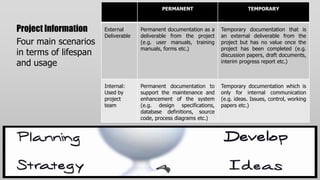
PERMANENT                         TEMPORARY


Project Information    External      Permanent documentation as a   Temporary documentation that is
                       Deliverable   deliverable from the project   an external deliverable from the
Four main scenarios                  (e.g. user manuals, training   project but has no value once the
                                     manuals, forms etc.)           project has been completed (e.g.
in terms of lifespan                                                discussion papers, draft documents,
and usage                                                           interim progress report etc.)


                       Internal:     Permanent documentation to     Temporary documentation which is
                       Used by       support the maintenance and    only for internal communication
                       project       enhancement of the system      (e.g. ideas. Issues, control, working
                       team          (e.g. design specifications,   papers etc.)
                                     database definitions, source
                                     code, process diagrams etc.)
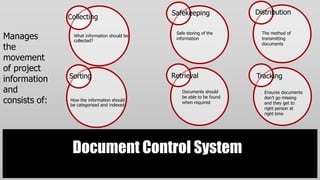
Safekeeping              Distribution
               Collecting

Manages          What information should be
                 collected?
                                               Safe storing of the
                                               information
                                                                         The method of
                                                                         transmitting

the                                                                      documents


movement
of project
               Sorting                        Retrieval                Tracking
information
and                                              Documents should         Ensures documents
                                                 be able to be found
consists of:   How the information should
               be categorised and indexed
                                                 when required
                                                                          don‟t go missing
                                                                          and they get to
                                                                          right person at
                                                                          right time


                Document Control System
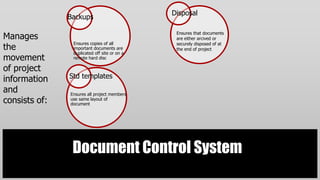
Disposal
               Backups

Manages                                        Ensures that documents
                                               are either arcived or
                Ensures copies of all
the             important documents are
                                               securely disposed of at
                                               the end of project
                duplicated off site or on a
movement        remote hard disc

of project
information    Std templates
and            Ensures all project members
consists of:   use same layout of
               document


                Document Control System
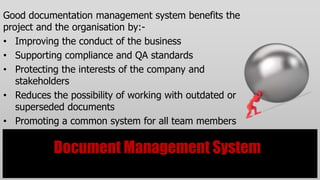
Good documentation management system benefits the
project and the organisation by:-
• Improving the conduct of the business
• Supporting compliance and QA standards
• Protecting the interests of the company and
   stakeholders
• Reduces the possibility of working with outdated or
   superseded documents
• Promoting a common system for all team members

           Document Management System
• Responsibility of project administrator
• PA responsible for co-ordinating all aspects,
  methodology and execution for project processes,
  templates, software etc.
• PMO creates a uniform approach within the
  organisation
• PMO is the physical environment within which
  team will be based and in which document
  management system will be controlled
               Setting up PMO
Group Activity
Research the following websites and answer the questions:-
www.apm.org
1. Summarise the case studies for a. Martin Gosden and b. Helen Timperley
2. What magazine is produced and published by APM?
3. What does APM stand for?
www.pmi.org
1. How many members does PMI have?
2. How many countries does PMI have a presence in?
3. Name the 2 committees ISO has set up to develop standards in project
    management
www.pmforum.org
1. What website do you default to?
Group Activity contd
Research the following websites and answer the questions:-
www.tensteps.com
1. Register and print a copy of the following free templates:-
    • Issues log
    • Issues submission form
    • Communication management plan
    • Project charter
    • Project scorecard
    • Project status report
    • Risk submission form
    • Risk tracking log
    • Scope change log
DOC M/MENT AT PROJECT START
Where possible give team members guidance with templates, models
and examples of each document:-
Template – a pre formatted skeleton for the
document
Model – a completed example of the document
Example – not as detailed as a model but contains
some points of value
DOC M/MENT DURING PROJECT
Project administrator and PMO will keep track of document status looking
particularly at:-
• Documents that are not at their planned stage of completion
• Documents that are unnecessarily checked out
• Completed work where the documents have not been completed
• Competing demands for a document
• Participants not working on the correct, controlled version of the document
• Adequacy of review, control, quality and audit information
DOC M/MENT AT END OF PROJECT
Project administrator needs to check all outstanding documents
Temporary items will normally be archived
Permanent items will be retained for future use e.g.
in maintenance and support
External deliverables will have been distributed and
must be maintained
DOCUMENT M/MENT DECISIONS
•   Determine where to store documents
•   Determine types of documents to include
•   Define a logical and physical document organizational structure
•   Define naming standards
•   Determine if some documents need versioning – latest or all versions of a document
•   Determine if (and how) you will track document approval status
•   Determine standard document formats
•   Identify standard document tools
STORAGE & DISTRIBUTION OF DOCUMENTS
• Larger the project more difficult to share information
• MUST have a control system in place before project starts to prevent
  confusion
• Use a common naming convention for all files eg: Project Charter
  19/08/2012 version 3
• A good idea to put date first so that if docs are sorted most recent
  will show first
STRUCTURED AND UNSTRUCTURED DATA
Structured – information that is stored
in a repetitive and structured format
Unstructured – documents, images
graphics, videos, audio etc.
STRUCTURED DATA
•   Fields, records, files, tables
•   Code, models, scripts
•   Rely on tools, databases
•   Source code management tools
•   Hard to organise without tools or structures
UNSTRUCTURED DATA
•   Documents, pictures, graphics, text, video, chat
•   Difficult to find tools, although more exist today
•   Document management tools
•   Can organise without tools
Documents after project completed
Some documents can be archived – i.e.
project status reports
User manuals etc. need to be available
for updating as required
CONFIGURATION MANAGEMENT
• CM or Version Control
• Baseline that provides management control at all phases of a project
  lifecycle
• Management discipline that applies technical and administrative
  direction to the development, production and life cycle support of a
  project
• Operation of CM system is responsibility of Project Administrator
Document Life Cycle
• Plan document
• Create initial draft
• Circulate document for feedback and modify as
  required
• Gain approval
Group Exercise
In groups of 3 or 4 discuss the following:-
1. What risks to the project could arise through poor document
    control?
2. Suggest appropriate contingency plans for each risk that you
    identify.
3. Prepare a 5 minute presentation on your answers – use of a
    computer is not acceptable for the presentation – simply provide
    feedback in verbal format or by using the whiteboard.
TOOLS & TECHNIQUES
Table page 57 Module Manual
PROJECT CHARTER
Table page 58 - 66 Module Manual
CHANGE MANAGEMENT
• Change is an alteration to the original agreed upon scope statement
  defined in the project plan and specified in the WBS
• Creeping scope
• Usually result in time and cost increases
• Scope change control is supposed to identify wherte changes occur,
  ensure changes are necessary and manage the implementation of the
  change
Controlling Changes
• No project goes entirely to plan
• Changes are inevitable due to planning oversights, new opportunities
  of events that no one could have foreseen
• Changes directly impact schedules and costs
• Controlling scope changes is an important aspect of controlling
  schedules and costs
• Scope change control is implemented through the change control
  system and configuration management
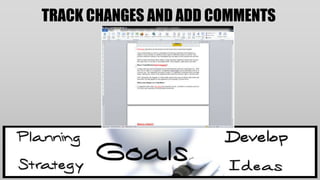
TRACK CHANGES AND ADD COMMENTS
• Using “track changes and comments” feature other people can edit or
  add comments to your document
• Originator of document can accept or reject the changes
• Microsoft Word uses balloons to display deletions, comments,
  formatting changes and content that has moved
TRACK CHANGES AND ADD COMMENTS
INSERTING A COMMENT
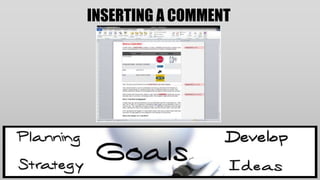
• Word allows you to make comments to documents by providing balloons to
  the screen that appear like sticky notes
• These can be used to communicate suggestions, ideas or editing comments
• Click or highlight the location in the document where you want to insert a
  comment
• Click the new comment button on the reviewing toolbar
• Enter a comment
• Click to return to the original document
INSERTING A COMMENT
ACCEPTING & REJECTING CHANGES
• When you receive a document with tracked changes you can accept
  or reject the changes
• Use the reviewing toolbar to accept/reject and to find and remove
  comments
• To move to next tracked change/comment click on the NEXT icon in
  the reviewing toolbar
Display options for viewing tracked changes
• Four options for reviewing a document that contains tracked changes
   • Original showing mark up
   • Original
   • Final
   • Final showing mark up
CREATING DOCUMENT VERSIONS
• You can use versions command to create 2 or more versions of a
  document
• Each version can contain text that differs from every other version
• You create versions of a document when you want to keep a record
  of the changes you have made and store all versions of the document
  with the same file name
CREATING DOCUMENT VERSIONS
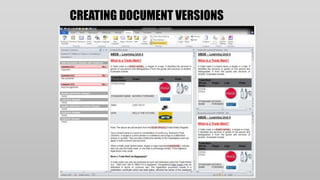
• In Microsoft office click review tab, click COMPARE in the compare
  tab
• Click MAJOR VERSION
• Office Word opens the last major version and compares the versions
  in a separate document
CREATING DOCUMENT VERSIONS
INDIVIDUAL EXERCISE

1. Revision exercise p 71 Module Manual
2. List any five (5) of the document
   management decisions that are made
   during the document planning and
   implementation process.
PowerPoint 2010 & 2007*
and PowerPoint 2008 & 2011 (Mac)**
        Cross-Platform Compatibility
  Use this template in either    *PowerPoint 2007            **PowerPoint 2008
  PowerPoint 2007 or 2010                                    and 2011.
  for the PC or PowerPoint       If the video is not
  2008 or 20011 for Mac.         playing with                If the video animation
                                 PowerPoint 2007 you         is not playing on a Mac
  Presentations saved from       are missing a required      computer you are
  this template in .PPTX         update from Microsoft.      missing a required
  format will work in                                        plug-in for QuickTime.
  PowerPoint 2007,               The Office 2007 Service
  2008(Mac), 2010,               Pack 2 installs             Flip4Mac is a WMV video
  2011(Mac).                     automatically with          plug-in for Quicktime. It
                                 Windows Update.             is a free plug-in
  Presentations saved in .PPT                                distributed by Microsoft.
  format will work in all        You can also download the
  versions of PowerPoint „97     update manually from        Get the Plug-in here.
  through 2011. But .PPT         Microsoft here.
  files will no longer contain
  the video animation.
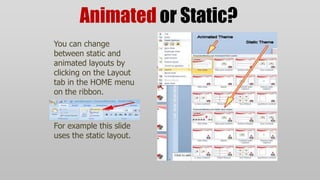
Animated or Static?
You can change
between static and
animated layouts by
clicking on the Layout
tab in the HOME menu
on the ribbon.


For example this slide
uses the static layout.
Useful Images and Icons
Bulleted Content Page
• This Layout Page has bullets
   • And Indented Levels
      • Level 3 Text Placeholder
          • Level 4 Place Holder
               • Level 5 Place Holder
Section Header

COMPANY GOALS AND OBJECTIVES
Agenda or Summary Layout
         Discussion Item One – A Placeholder for text
Goal 1
         Add a second line of text here
Goal 2   Discussion Item Two – A Placeholder for text
         Add a second line of text here
Goal 3   Discussion Item Three – A Placeholder for text
         Add a second line of text here
Goal 4   Discussion Item Four – A Placeholder for text
         Add a second line of text here
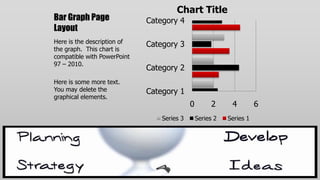
Chart Title
Bar Graph Page               Category 4
Layout
Here is the description of   Category 3
the graph. This chart is
compatible with PowerPoint
97 – 2010.
                             Category 2
Here is some more text.
You may delete the           Category 1
graphical elements.
                                            0         2     4         6
                                 Series 3       Series 2   Series 1
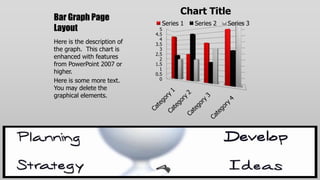
Chart Title
Bar Graph Page
                               Series 1   Series 2   Series 3
Layout                         5
                             4.5
                               4
Here is the description of   3.5
the graph. This chart is       3
                             2.5
enhanced with features         2
from PowerPoint 2007 or      1.5
                               1
higher.                      0.5
Here is some more text.        0
You may delete the
graphical elements.
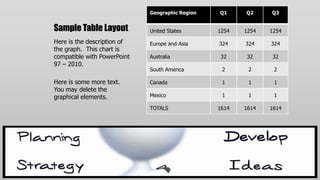
Geographic Region   Q1     Q2     Q3


Sample Table Layout          United States       1254   1254   1254

Here is the description of   Europe and Asia     324    324    324
the graph. This chart is
compatible with PowerPoint   Australia            32     32     32
97 – 2010.
                             South America        2      2      2

Here is some more text.      Canada               1      1      1
You may delete the
graphical elements.          Mexico               1      1      1

                             TOTALS              1614   1614   1614
Comparison Page
Your Sub Title Here               Your Sub Title Here
This is a place holder for        All the graphical elements
item one. Item one can be         can be moved, copied, or
text, a picture, graph, table,    deleted from the slide
etc. This is a place holder for   master view.
item one. Item one can be
text, a picture, graph, table,
etc.
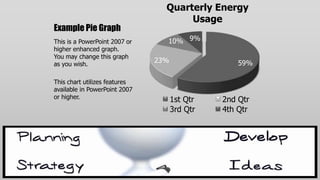
Quarterly Energy
                                      Usage
Example Pie Graph
This is a PowerPoint 2007 or     10% 9%
higher enhanced graph.
You may change this graph
as you wish.
                               23%                 59%

This chart utilizes features
available in PowerPoint 2007
or higher.                           1st Qtr   2nd Qtr
                                     3rd Qtr   4th Qtr
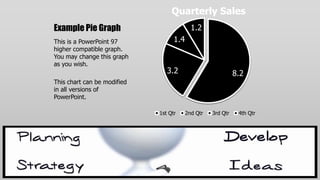
Quarterly Sales
Example Pie Graph                          1.2
This is a PowerPoint 97            1.4
higher compatible graph.
You may change this graph
as you wish.
                                3.2                          8.2
This chart can be modified
in all versions of
PowerPoint.

                             1st Qtr     2nd Qtr   3rd Qtr    4th Qtr
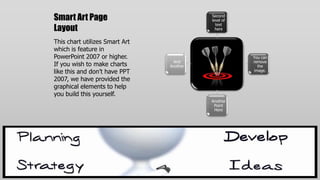
Smart Art Page                            Second
                                          level of
                                            text
Layout                                      here


This chart utilizes Smart Art
which is feature in
PowerPoint 2007 or higher.                           You can
                                  And                remove
If you wish to make charts      Another                the
like this and don‟t have PPT                         image.

2007, we have provided the
graphical elements to help
you build this yourself.
                                          Another
                                           Point
                                           Here
Smart Art Page                  Step 1
Layout                            Add Supporting Text Here.
                                  You can change this layout
This chart utilizes Smart Art     by selecting different
                                  SmartArt options.
which is feature in
PowerPoint 2007 or higher.
If you wish to make charts
like this and don‟t have PPT    Step 2
2007, we have provided the
graphical elements to help       Add Supporting Text Here.
you build this yourself.         You can change this layout
                                 by selecting different
                                 SmartArt options.
Picture Layout
You can add a description of the picture here.
A Two Column Page Layout
QUICK FACT                           QUICK FACT
A content placeholder. Use for       A content placeholder. Use for
text, graphics, tables and graphs.   text, graphics, tables and
You can change this text or          graphs. You can change this
                                     text or delete it. A content
delete it. A content placeholder.    placeholder. Use for
Use for text, graphics, tables and   text, graphics, tables and
graphs. You can change this text     graphs. You can change this
or delete it. A content              text or delete it. A content
placeholder. Use for                 placeholder. Use for
text, graphics, tables and graphs.   text, graphics, tables and
You can change this text or          graphs. You can change this
delete it.                           text or delete it.
Three Picture Page Layout


 A description of   A description of   A description
 the first          the second         of the third
 picture. You       picture. You       picture. You
 may change         may change         may change
 this text.         this text.         this text.
Two Picture Page Layout


A placeholder for the 1st picture    A placeholder for the 2nd picture
More information can be added here   More information can be added here
by changing this text.               by changing this text.
Questions? Comments?
  We are happy to help you!
          PresenterMedia.com

         4416 S. Technology Dr
         Sioux Falls, SD 57106
            (605) 274-2424

Priject admin lu 2

  • 1.
    PROJECT ADMINISTRATION Learning Unit 2
  • 2.
    LU 2 -Document Management • Explain principles of an efficient document management system • Explain how to implement an efficient document management system • Risks associated with poor document management • Reporting requirements; reporting formats • Key project documents • Organise information relating to a specific project • Add track changes and comments to a document
  • 3.
    INTRODUCTION • Projects createhuge amounts of documentation • No standard for document control across industry • Time spent tracking project documents can be significant • Knowing which is latest document is key • Many types of documents with different purposes • Due to complexity good to use state of the art technology to manage documents
  • 4.
    PERMANENT TEMPORARY Project Information External Permanent documentation as a Temporary documentation that is Deliverable deliverable from the project an external deliverable from the Four main scenarios (e.g. user manuals, training project but has no value once the manuals, forms etc.) project has been completed (e.g. in terms of lifespan discussion papers, draft documents, and usage interim progress report etc.) Internal: Permanent documentation to Temporary documentation which is Used by support the maintenance and only for internal communication project enhancement of the system (e.g. ideas. Issues, control, working team (e.g. design specifications, papers etc.) database definitions, source code, process diagrams etc.)
  • 5.
    Safekeeping Distribution Collecting Manages What information should be collected? Safe storing of the information The method of transmitting the documents movement of project Sorting Retrieval Tracking information and Documents should Ensures documents be able to be found consists of: How the information should be categorised and indexed when required don‟t go missing and they get to right person at right time Document Control System
  • 6.
    Disposal Backups Manages Ensures that documents are either arcived or Ensures copies of all the important documents are securely disposed of at the end of project duplicated off site or on a movement remote hard disc of project information Std templates and Ensures all project members consists of: use same layout of document Document Control System
  • 7.
    Good documentation managementsystem benefits the project and the organisation by:- • Improving the conduct of the business • Supporting compliance and QA standards • Protecting the interests of the company and stakeholders • Reduces the possibility of working with outdated or superseded documents • Promoting a common system for all team members Document Management System
  • 8.
    • Responsibility ofproject administrator • PA responsible for co-ordinating all aspects, methodology and execution for project processes, templates, software etc. • PMO creates a uniform approach within the organisation • PMO is the physical environment within which team will be based and in which document management system will be controlled Setting up PMO
  • 9.
    Group Activity Research thefollowing websites and answer the questions:- www.apm.org 1. Summarise the case studies for a. Martin Gosden and b. Helen Timperley 2. What magazine is produced and published by APM? 3. What does APM stand for? www.pmi.org 1. How many members does PMI have? 2. How many countries does PMI have a presence in? 3. Name the 2 committees ISO has set up to develop standards in project management www.pmforum.org 1. What website do you default to?
  • 10.
    Group Activity contd Researchthe following websites and answer the questions:- www.tensteps.com 1. Register and print a copy of the following free templates:- • Issues log • Issues submission form • Communication management plan • Project charter • Project scorecard • Project status report • Risk submission form • Risk tracking log • Scope change log
  • 11.
    DOC M/MENT ATPROJECT START Where possible give team members guidance with templates, models and examples of each document:- Template – a pre formatted skeleton for the document Model – a completed example of the document Example – not as detailed as a model but contains some points of value
  • 12.
    DOC M/MENT DURINGPROJECT Project administrator and PMO will keep track of document status looking particularly at:- • Documents that are not at their planned stage of completion • Documents that are unnecessarily checked out • Completed work where the documents have not been completed • Competing demands for a document • Participants not working on the correct, controlled version of the document • Adequacy of review, control, quality and audit information
  • 13.
    DOC M/MENT ATEND OF PROJECT Project administrator needs to check all outstanding documents Temporary items will normally be archived Permanent items will be retained for future use e.g. in maintenance and support External deliverables will have been distributed and must be maintained
  • 14.
    DOCUMENT M/MENT DECISIONS • Determine where to store documents • Determine types of documents to include • Define a logical and physical document organizational structure • Define naming standards • Determine if some documents need versioning – latest or all versions of a document • Determine if (and how) you will track document approval status • Determine standard document formats • Identify standard document tools
  • 15.
    STORAGE & DISTRIBUTIONOF DOCUMENTS • Larger the project more difficult to share information • MUST have a control system in place before project starts to prevent confusion • Use a common naming convention for all files eg: Project Charter 19/08/2012 version 3 • A good idea to put date first so that if docs are sorted most recent will show first
  • 16.
    STRUCTURED AND UNSTRUCTUREDDATA Structured – information that is stored in a repetitive and structured format Unstructured – documents, images graphics, videos, audio etc.
  • 17.
    STRUCTURED DATA • Fields, records, files, tables • Code, models, scripts • Rely on tools, databases • Source code management tools • Hard to organise without tools or structures
  • 18.
    UNSTRUCTURED DATA • Documents, pictures, graphics, text, video, chat • Difficult to find tools, although more exist today • Document management tools • Can organise without tools
  • 19.
    Documents after projectcompleted Some documents can be archived – i.e. project status reports User manuals etc. need to be available for updating as required
  • 20.
    CONFIGURATION MANAGEMENT • CMor Version Control • Baseline that provides management control at all phases of a project lifecycle • Management discipline that applies technical and administrative direction to the development, production and life cycle support of a project • Operation of CM system is responsibility of Project Administrator
  • 21.
    Document Life Cycle •Plan document • Create initial draft • Circulate document for feedback and modify as required • Gain approval
  • 22.
    Group Exercise In groupsof 3 or 4 discuss the following:- 1. What risks to the project could arise through poor document control? 2. Suggest appropriate contingency plans for each risk that you identify. 3. Prepare a 5 minute presentation on your answers – use of a computer is not acceptable for the presentation – simply provide feedback in verbal format or by using the whiteboard.
  • 23.
    TOOLS & TECHNIQUES Tablepage 57 Module Manual
  • 24.
    PROJECT CHARTER Table page58 - 66 Module Manual
  • 25.
    CHANGE MANAGEMENT • Changeis an alteration to the original agreed upon scope statement defined in the project plan and specified in the WBS • Creeping scope • Usually result in time and cost increases • Scope change control is supposed to identify wherte changes occur, ensure changes are necessary and manage the implementation of the change
  • 26.
    Controlling Changes • Noproject goes entirely to plan • Changes are inevitable due to planning oversights, new opportunities of events that no one could have foreseen • Changes directly impact schedules and costs • Controlling scope changes is an important aspect of controlling schedules and costs • Scope change control is implemented through the change control system and configuration management
  • 27.
    TRACK CHANGES ANDADD COMMENTS • Using “track changes and comments” feature other people can edit or add comments to your document • Originator of document can accept or reject the changes • Microsoft Word uses balloons to display deletions, comments, formatting changes and content that has moved
  • 28.
    TRACK CHANGES ANDADD COMMENTS
  • 29.
    INSERTING A COMMENT •Word allows you to make comments to documents by providing balloons to the screen that appear like sticky notes • These can be used to communicate suggestions, ideas or editing comments • Click or highlight the location in the document where you want to insert a comment • Click the new comment button on the reviewing toolbar • Enter a comment • Click to return to the original document
  • 30.
  • 31.
    ACCEPTING & REJECTINGCHANGES • When you receive a document with tracked changes you can accept or reject the changes • Use the reviewing toolbar to accept/reject and to find and remove comments • To move to next tracked change/comment click on the NEXT icon in the reviewing toolbar
  • 32.
    Display options forviewing tracked changes • Four options for reviewing a document that contains tracked changes • Original showing mark up • Original • Final • Final showing mark up
  • 33.
    CREATING DOCUMENT VERSIONS •You can use versions command to create 2 or more versions of a document • Each version can contain text that differs from every other version • You create versions of a document when you want to keep a record of the changes you have made and store all versions of the document with the same file name
  • 34.
    CREATING DOCUMENT VERSIONS •In Microsoft office click review tab, click COMPARE in the compare tab • Click MAJOR VERSION • Office Word opens the last major version and compares the versions in a separate document
  • 35.
  • 36.
    INDIVIDUAL EXERCISE 1. Revisionexercise p 71 Module Manual 2. List any five (5) of the document management decisions that are made during the document planning and implementation process.
  • 37.
    PowerPoint 2010 &2007* and PowerPoint 2008 & 2011 (Mac)** Cross-Platform Compatibility Use this template in either *PowerPoint 2007 **PowerPoint 2008 PowerPoint 2007 or 2010 and 2011. for the PC or PowerPoint If the video is not 2008 or 20011 for Mac. playing with If the video animation PowerPoint 2007 you is not playing on a Mac Presentations saved from are missing a required computer you are this template in .PPTX update from Microsoft. missing a required format will work in plug-in for QuickTime. PowerPoint 2007, The Office 2007 Service 2008(Mac), 2010, Pack 2 installs Flip4Mac is a WMV video 2011(Mac). automatically with plug-in for Quicktime. It Windows Update. is a free plug-in Presentations saved in .PPT distributed by Microsoft. format will work in all You can also download the versions of PowerPoint „97 update manually from Get the Plug-in here. through 2011. But .PPT Microsoft here. files will no longer contain the video animation.
  • 38.
    Animated or Static? Youcan change between static and animated layouts by clicking on the Layout tab in the HOME menu on the ribbon. For example this slide uses the static layout.
  • 39.
  • 40.
    Bulleted Content Page •This Layout Page has bullets • And Indented Levels • Level 3 Text Placeholder • Level 4 Place Holder • Level 5 Place Holder
  • 41.
  • 42.
    Agenda or SummaryLayout Discussion Item One – A Placeholder for text Goal 1 Add a second line of text here Goal 2 Discussion Item Two – A Placeholder for text Add a second line of text here Goal 3 Discussion Item Three – A Placeholder for text Add a second line of text here Goal 4 Discussion Item Four – A Placeholder for text Add a second line of text here
  • 43.
    Chart Title Bar GraphPage Category 4 Layout Here is the description of Category 3 the graph. This chart is compatible with PowerPoint 97 – 2010. Category 2 Here is some more text. You may delete the Category 1 graphical elements. 0 2 4 6 Series 3 Series 2 Series 1
  • 44.
    Chart Title Bar GraphPage Series 1 Series 2 Series 3 Layout 5 4.5 4 Here is the description of 3.5 the graph. This chart is 3 2.5 enhanced with features 2 from PowerPoint 2007 or 1.5 1 higher. 0.5 Here is some more text. 0 You may delete the graphical elements.
  • 45.
    Geographic Region Q1 Q2 Q3 Sample Table Layout United States 1254 1254 1254 Here is the description of Europe and Asia 324 324 324 the graph. This chart is compatible with PowerPoint Australia 32 32 32 97 – 2010. South America 2 2 2 Here is some more text. Canada 1 1 1 You may delete the graphical elements. Mexico 1 1 1 TOTALS 1614 1614 1614
  • 46.
    Comparison Page Your SubTitle Here Your Sub Title Here This is a place holder for All the graphical elements item one. Item one can be can be moved, copied, or text, a picture, graph, table, deleted from the slide etc. This is a place holder for master view. item one. Item one can be text, a picture, graph, table, etc.
  • 47.
    Quarterly Energy Usage Example Pie Graph This is a PowerPoint 2007 or 10% 9% higher enhanced graph. You may change this graph as you wish. 23% 59% This chart utilizes features available in PowerPoint 2007 or higher. 1st Qtr 2nd Qtr 3rd Qtr 4th Qtr
  • 48.
    Quarterly Sales Example PieGraph 1.2 This is a PowerPoint 97 1.4 higher compatible graph. You may change this graph as you wish. 3.2 8.2 This chart can be modified in all versions of PowerPoint. 1st Qtr 2nd Qtr 3rd Qtr 4th Qtr
  • 49.
    Smart Art Page Second level of text Layout here This chart utilizes Smart Art which is feature in PowerPoint 2007 or higher. You can And remove If you wish to make charts Another the like this and don‟t have PPT image. 2007, we have provided the graphical elements to help you build this yourself. Another Point Here
  • 50.
    Smart Art Page Step 1 Layout Add Supporting Text Here. You can change this layout This chart utilizes Smart Art by selecting different SmartArt options. which is feature in PowerPoint 2007 or higher. If you wish to make charts like this and don‟t have PPT Step 2 2007, we have provided the graphical elements to help Add Supporting Text Here. you build this yourself. You can change this layout by selecting different SmartArt options.
  • 51.
    Picture Layout You canadd a description of the picture here.
  • 52.
    A Two ColumnPage Layout QUICK FACT QUICK FACT A content placeholder. Use for A content placeholder. Use for text, graphics, tables and graphs. text, graphics, tables and You can change this text or graphs. You can change this text or delete it. A content delete it. A content placeholder. placeholder. Use for Use for text, graphics, tables and text, graphics, tables and graphs. You can change this text graphs. You can change this or delete it. A content text or delete it. A content placeholder. Use for placeholder. Use for text, graphics, tables and graphs. text, graphics, tables and You can change this text or graphs. You can change this delete it. text or delete it.
  • 53.
    Three Picture PageLayout A description of A description of A description the first the second of the third picture. You picture. You picture. You may change may change may change this text. this text. this text.
  • 54.
    Two Picture PageLayout A placeholder for the 1st picture A placeholder for the 2nd picture More information can be added here More information can be added here by changing this text. by changing this text.
  • 55.
    Questions? Comments? We are happy to help you! PresenterMedia.com 4416 S. Technology Dr Sioux Falls, SD 57106 (605) 274-2424