Project Management Using
MS Project 2010

              Done By
       Eng. Mazen S. H. Elsayed


                                  1
Chapter 1:
Getting Started with Project


                               2
CH# 1 Outline
   Introduction
   MS Project 2010 family.
   Start a Project, and identify the major
    parts of the Project window.
   Exploring MS Project 2010 Views and
    Reports.
   Create a project plan, Set its working
    and nonworking time, and properties.
                                              3
Introduction                                     (1/2)
   Projects are defined as temporary endeavors
    undertaken to create some unique deliverable or
    result.
   You should be able to answer such questions
    as:
       What tasks must be done to produce the deliverable of the
        project (the reason that the project was started)?
       Who will complete these tasks?
       What’s the best way to communicate project details to
        people who have an interest in the project?
       When should each task be performed?
       How much will it cost?
       What if some tasks are not completed as scheduled?
                                                                4
Introduction                                     (2/2)
   Project Management Tool can and should help
    you accomplish the following:
       Track all the information you gather about the work,
        duration, costs, and resource requirements for your
        project.
       Visualize and present your project plan in standard, well-
        defined formats.
       Schedule tasks and resources consistently and effectively.
       Exchange project information with other Microsoft Office
        System applications.
       Communicate with resources and other stakeholders while
        you, the project manager, retain ultimate control of the
        project.
       Manage projects using a program that looks and feels like
        other desktop productivity applications.                   5
MS Project 2010 family.

    Standard edition
    Professional edition
    Server
        Web Access


                            6
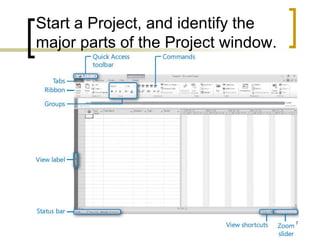
Start a Project, and identify the
major parts of the Project window.


                                     7
Exploring MS Project 2010
Views and Reports

   Gantt Chart view
   Resource Sheet
   Resource Usage
   Task Usage
   Calendar
   Network Diagram
   Task Entry
   Reports
                            8
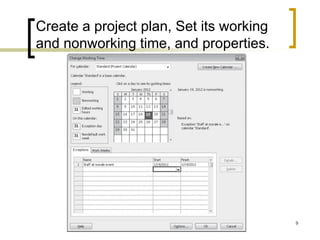
Create a project plan, Set its working
and nonworking time, and properties.


                                         9
Chapter 2:
Creating a Task List


                       10
CH# 2 Outline
   Enter task information.
   Estimate and enter how long each task
    should last.
   Create a milestone to track an important
    event.
   Organize tasks into phases.
   Create task relationships by linking tasks.
   Record task details in notes and insert a
    hyperlink.
   Check a project plan’s overall duration.
                                                  11
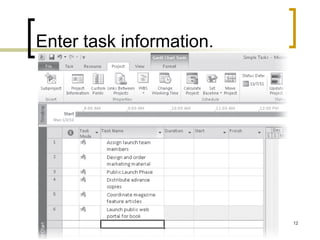
Enter task information.


                          12
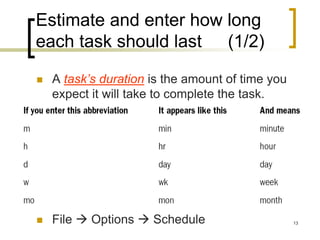
Estimate and enter how long
each task should last (1/2)

   A task’s duration is the amount of time you
    expect it will take to complete the task.


   File  Options  Schedule                     13
Estimate and enter how long
each task should last (2/2)
   Good sources of task duration estimates
    include:
       Historical information from previous, similar
        projects.
       Estimates from the people who will complete the
        tasks.
       The expert judgment of people who have
        managed similar projects.
       The standards of professional or industry
        organizations that carry out projects similar to
        yours.
                                                       14
Entering a Milestone

   Milestones are significant events that are
    either reached within the project (completion
    of a phase of work, for example) or imposed
    upon the project (a deadline by which to
    apply for funding, for example).


                                                15
Organize tasks into phases
   The two most common approaches to
    developing tasks and phases:
       Top-down planning
       Bottom-up planning


   Creating accurate tasks and phases for
    most complex projects requires a
    combination of top-down and bottom-up
    planning.

                                             16
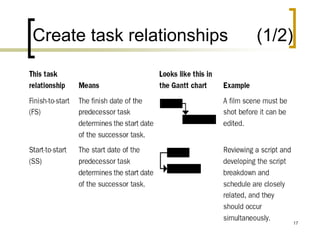
Create task relationships   (1/2)


                                    17
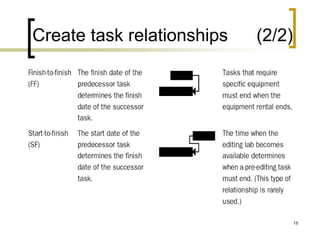
Create task relationships   (2/2)


                                    18
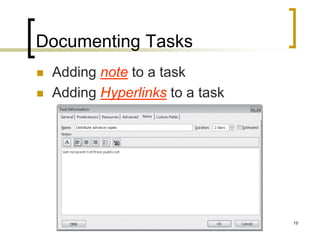
Documenting Tasks
   Adding note to a task
   Adding Hyperlinks to a task


                                  19
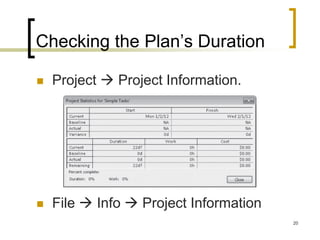
Checking the Plan’s Duration

   Project  Project Information.


   File  Info  Project Information
                                        20
Chapter 3:
Setting Up Resources


                       21
CH# 3 Outline
   Set up basic resource information for the
    people who work on projects and equipment
    that will be used in projects.
   Enter basic resource information for the
    materials that will be consumed as the
    project progresses.
   Set up cost information for resources.
   Change a resource’s availability for work.
   Record additional information about a
    resource in a note.

                                             22
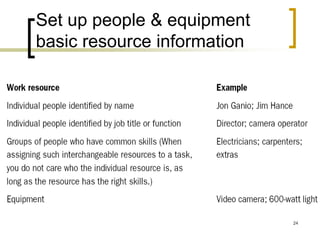
Set up people & equipment
basic resource information

   Project works with two types of
    resources:
       work resources: like people and
        equipment
       Cost resources: represent a financial cost
        associated with a task that you need to
        account for.
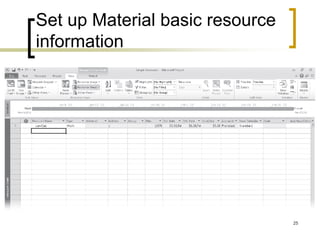
       material resources: consumables
                                                 23
Set up people & equipment
basic resource information


                             24
Set up Material basic resource
information


                                 25
Entering Resource Pay Rates
   Tracking and managing cost information
    allows the project manager to answer such
    important questions as:
       What is the expected total cost of the project,
        based on our task duration and resource
        estimates?
       Are we using expensive resources to do work
        that less expensive resources could do?
       How much money will a specific type of resource
        or task cost over the life of the project?
       Are we spending money at a rate that we can
        sustain for the planned duration of the project?
                                                       26
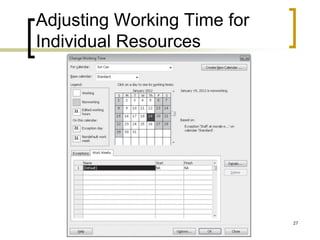
Adjusting Working Time for
Individual Resources


                             27
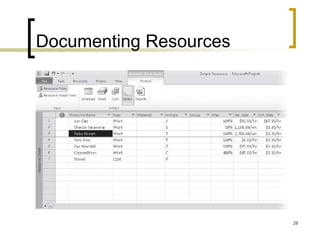
Documenting Resources


                        28
Chapter 4:
Assigning Resources to Tasks


                               29
CH# 4 Outline

   Assign resources to tasks.
   Control how Microsoft Office Project
    2010 schedules additional resource
    assignments.
   Assign material resources to tasks.


                                           30
Assign resources to tasks
   An assignment is the matching of a resource to a
    task to do work.
   If you assign resources to tasks, you can answer
    questions such as
       Who should be working on what tasks and when?
       Do you have the right number of resources to do the
        scope of work your project requires?
       Are you expecting a resource to work on a task at a time
        when that resource will not be available to work (for
        example, when the resource will be on vacation)?
       Have you assigned a resource to so many tasks that you
        have exceeded the capacity of the resource to work—in
        other words, have you overallocated the resource?


                                                                   31
The Scheduling Formula:
Duration, Units, and Work

   Duration × Units = Work
       Work: the amount of effort a resource or
        resources will spend to complete a task.
   effort-driven scheduling: means that
    the task’s initial work value remains
    constant, regardless of the number of
    additional resources you assign.

                                                   32

Ms Project 2010

  • 1.
    Project Management Using MSProject 2010 Done By Eng. Mazen S. H. Elsayed 1
  • 2.
  • 3.
    CH# 1 Outline  Introduction  MS Project 2010 family.  Start a Project, and identify the major parts of the Project window.  Exploring MS Project 2010 Views and Reports.  Create a project plan, Set its working and nonworking time, and properties. 3
  • 4.
    Introduction (1/2)  Projects are defined as temporary endeavors undertaken to create some unique deliverable or result.  You should be able to answer such questions as:  What tasks must be done to produce the deliverable of the project (the reason that the project was started)?  Who will complete these tasks?  What’s the best way to communicate project details to people who have an interest in the project?  When should each task be performed?  How much will it cost?  What if some tasks are not completed as scheduled? 4
  • 5.
    Introduction (2/2)  Project Management Tool can and should help you accomplish the following:  Track all the information you gather about the work, duration, costs, and resource requirements for your project.  Visualize and present your project plan in standard, well- defined formats.  Schedule tasks and resources consistently and effectively.  Exchange project information with other Microsoft Office System applications.  Communicate with resources and other stakeholders while you, the project manager, retain ultimate control of the project.  Manage projects using a program that looks and feels like other desktop productivity applications. 5
  • 6.
    MS Project 2010family.  Standard edition  Professional edition  Server  Web Access 6
  • 7.
    Start a Project,and identify the major parts of the Project window. 7
  • 8.
    Exploring MS Project2010 Views and Reports  Gantt Chart view  Resource Sheet  Resource Usage  Task Usage  Calendar  Network Diagram  Task Entry  Reports 8
  • 9.
    Create a projectplan, Set its working and nonworking time, and properties. 9
  • 10.
  • 11.
    CH# 2 Outline  Enter task information.  Estimate and enter how long each task should last.  Create a milestone to track an important event.  Organize tasks into phases.  Create task relationships by linking tasks.  Record task details in notes and insert a hyperlink.  Check a project plan’s overall duration. 11
  • 12.
  • 13.
    Estimate and enterhow long each task should last (1/2)  A task’s duration is the amount of time you expect it will take to complete the task.  File  Options  Schedule 13
  • 14.
    Estimate and enterhow long each task should last (2/2)  Good sources of task duration estimates include:  Historical information from previous, similar projects.  Estimates from the people who will complete the tasks.  The expert judgment of people who have managed similar projects.  The standards of professional or industry organizations that carry out projects similar to yours. 14
  • 15.
    Entering a Milestone  Milestones are significant events that are either reached within the project (completion of a phase of work, for example) or imposed upon the project (a deadline by which to apply for funding, for example). 15
  • 16.
    Organize tasks intophases  The two most common approaches to developing tasks and phases:  Top-down planning  Bottom-up planning  Creating accurate tasks and phases for most complex projects requires a combination of top-down and bottom-up planning. 16
  • 17.
  • 18.
  • 19.
    Documenting Tasks  Adding note to a task  Adding Hyperlinks to a task 19
  • 20.
    Checking the Plan’sDuration  Project  Project Information.  File  Info  Project Information 20
  • 21.
  • 22.
    CH# 3 Outline  Set up basic resource information for the people who work on projects and equipment that will be used in projects.  Enter basic resource information for the materials that will be consumed as the project progresses.  Set up cost information for resources.  Change a resource’s availability for work.  Record additional information about a resource in a note. 22
  • 23.
    Set up people& equipment basic resource information  Project works with two types of resources:  work resources: like people and equipment  Cost resources: represent a financial cost associated with a task that you need to account for.  material resources: consumables 23
  • 24.
    Set up people& equipment basic resource information 24
  • 25.
    Set up Materialbasic resource information 25
  • 26.
    Entering Resource PayRates  Tracking and managing cost information allows the project manager to answer such important questions as:  What is the expected total cost of the project, based on our task duration and resource estimates?  Are we using expensive resources to do work that less expensive resources could do?  How much money will a specific type of resource or task cost over the life of the project?  Are we spending money at a rate that we can sustain for the planned duration of the project? 26
  • 27.
    Adjusting Working Timefor Individual Resources 27
  • 28.
  • 29.
  • 30.
    CH# 4 Outline  Assign resources to tasks.  Control how Microsoft Office Project 2010 schedules additional resource assignments.  Assign material resources to tasks. 30
  • 31.
    Assign resources totasks  An assignment is the matching of a resource to a task to do work.  If you assign resources to tasks, you can answer questions such as  Who should be working on what tasks and when?  Do you have the right number of resources to do the scope of work your project requires?  Are you expecting a resource to work on a task at a time when that resource will not be available to work (for example, when the resource will be on vacation)?  Have you assigned a resource to so many tasks that you have exceeded the capacity of the resource to work—in other words, have you overallocated the resource? 31
  • 32.
    The Scheduling Formula: Duration,Units, and Work  Duration × Units = Work  Work: the amount of effort a resource or resources will spend to complete a task.  effort-driven scheduling: means that the task’s initial work value remains constant, regardless of the number of additional resources you assign. 32