P P a g e | 1
Page | 1
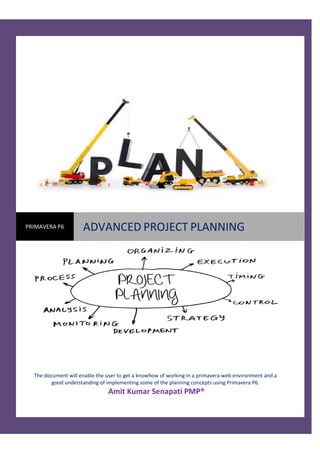
The document will enable the user to get a knowhow of working in a primavera web environment and a
good understanding of implementing some of the planning concepts using Primavera P6.
Amit Kumar Senapati PMP®
PRIMAVERA P6 ADVANCED PROJECT PLANNING
PRIMAVERA P6: ADVANCED PROJECT PLANNING
2 | P a g e
AMIT KUMAR SENAPATI PMP®
Serial
Number
Particulars Page
Number
1 What is Primavera P6 WEB Access 3
1.1 Benefits of Primavera P6 web access 3
2 Assignment of Project Codes 3
3 Layouts 4
4 Cleaning of Projects 7
5 How to manage cost in Primavera 8
6 Activity Steps 9
7 Critical path in P6 10
8 How Primavera Scheduling Works 12
9 Earned Value Management Formula 15
10 Cleaning POBS data 16
11 Measuring Project Progress 17
12 Grouping and Sorting in Primavera 21
13 How to use Activity Codes in Primavera P6 22
14 How to find Relationship Lag in Primavera P6 36
15 Using Level of Effort Activities in Primavera
P6
39
16 Using Resource Curves in Primavera P6 43
17 Basic understanding of Resource Leveling in
Primavera
46
18 Use of Ordinal Gantt Chart in Primavera P6 49
19 Conclusion 51
20 Reference 51
INDEX
PRIMAVERA P6: ADVANCED PROJECT PLANNING
3 | P a g e
AMIT KUMAR SENAPATI PMP®
1. What is Primavera P6 Web Access?
Primavera P6 Web Access is Oracle Primavera’s project management tool that has a web browser
interface.
1.1 Benefits of Primavera P6 web access
a) It allows project team to have anytime and anywhere access to project information
b) P6 web access has highly customizable graphical interface dashboards and portels that allow
users to view project and a portfolio of projects.
c) P6 web access allows executives to analyze groups of projects(portfolios) for high level
planning, such as resource capacity planning, risk and budgetary planning.
2. Assignment of Project Codes
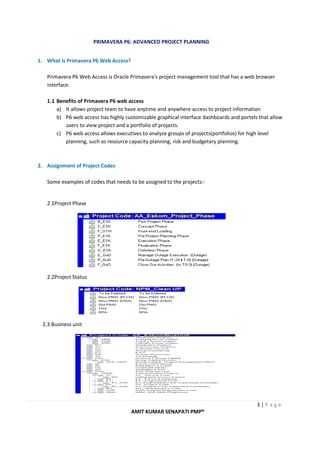
Some examples of codes that needs to be assigned to the projects:-
2.1Project Phase
2.2Project Status
2.3 Business unit
PRIMAVERA P6: ADVANCED PROJECT PLANNING
4 | P a g e
AMIT KUMAR SENAPATI PMP®
2.4 Project Risk
2.5 Operating Unit
3. Layouts
Primavera P6 users can share a layout with someone in a different layout as well as filters can be shared
using Layouts. The step is select view – Open layout – Export to transfort a Primavera Layout File(PLF) from
the database.
The trick to exporting filters with layout is to copy an existing filter as a Layout Filter.
PRIMAVERA P6: ADVANCED PROJECT PLANNING
5 | P a g e
AMIT KUMAR SENAPATI PMP®
The Project Layouts can be made available in 3 ways
3.1 Project :
Wherein the particular layout ir required only for a particular Project.
In the screenshot, I have selected the User
Defined Field, “Normal”.
To create a Layout Filter, select “copy as layout”
from the right hand side of the filters menu.
As a result of this operation, “Normal” filter
appears under a new group “Layout Filters”.
All filters copied to this group will be exported
with any layout we chose to export. Because of
this user may want to keep number of Layout
filters to a minimum or delete those that should
not be exported. The above layouts are Project
Layouts.
The Enterprise Project
Structure (EPS) has its own
set of layouts. When the
other user receives the
Primavera Layout File, it is
important that they open a
project and import the
layout in the activities
window. EPS layouts are not
compatible with project
layouts despite having the
same PLF format. EPS filters
can likewise be exported
with EPS layouts.
PRIMAVERA P6: ADVANCED PROJECT PLANNING
6 | P a g e
AMIT KUMAR SENAPATI PMP®
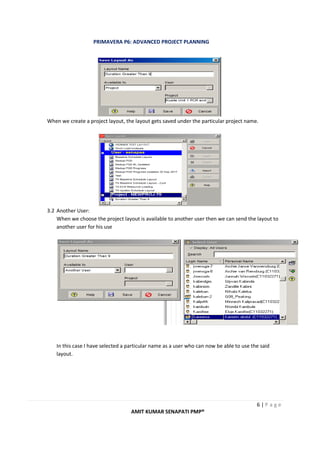
When we create a project layout, the layout gets saved under the particular project name.
3.2 Another User:
When we choose the project layout is available to another user then we can send the layout to
another user for his use
In this case I have selected a particular name as a user who can now be able to use the said
layout.
PRIMAVERA P6: ADVANCED PROJECT PLANNING
7 | P a g e
AMIT KUMAR SENAPATI PMP®
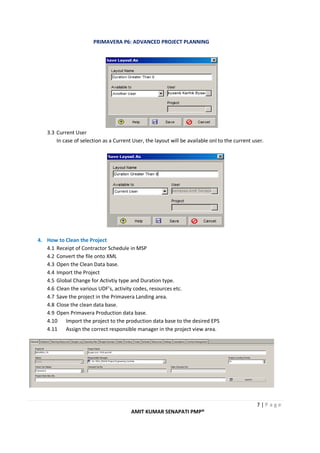
3.3 Current User
In case of selection as a Current User, the layout will be available onl to the current user.
4. How to Clean the Project
4.1 Receipt of Contractor Schedule in MSP
4.2 Convert the file onto XML
4.3 Open the Clean Data base.
4.4 Import the Project
4.5 Global Change for Activtiy type and Duration type.
4.6 Clean the various UDF’s, activity codes, resources etc.
4.7 Save the project in the Primavera Landing area.
4.8 Close the clean data base.
4.9 Open Primavera Production data base.
4.10 Import the project to the production data base to the desired EPS
4.11 Assign the correct responsible manager in the project view area.
PRIMAVERA P6: ADVANCED PROJECT PLANNING
8 | P a g e
AMIT KUMAR SENAPATI PMP®
5. How to manage cost in Primavera
5.1 Using Contractor Schedule
When ever there is an major change or inclusion in Project schedule, it requires an revision or
rebaselining of the schedule.
5.1.1 First Make the copy of the existing baseline
5.1.2 Then restore the copied baseline.
When we restore a baseline the said project separates itseft from the baseline and
displays as a separate project.
5.1.3 Rename the Project Appropriately – Proper Renaming of project is very essential for the
project, as at a later stage it may create confusion while trying to locate the right
baseline.
PRIMAVERA P6: ADVANCED PROJECT PLANNING
9 | P a g e
AMIT KUMAR SENAPATI PMP®
6.0 Activity Steps
Activity Steps is the break down of complex activity into a series of steps that better
describe the scope of work.The activity name does not need to go into a great deal of detail
because the steps offer additional explanation.
In order to use steps we must first tell P6 that we are planning to use steps.This is done in the
Project detail window, under the Calculations tab:
Next, activities that will be using steps must have “Physical” as the % Complete Type:
In the next screenshpt we have added a series of steps for Finalize PCR.
PRIMAVERA P6: ADVANCED PROJECT PLANNING
10 | P a g e
AMIT KUMAR SENAPATI PMP®
Each step isassigned a Step Weight, which then determines the Step Weight Percent.The total of
all the steps will automatically equal 100%.
When updating an activity with steps, we must record an Actual Start date. The Step %
Complete column is used for activities that have started but are not complete. Otherwise,
checking the Completed box closes out the step.
If we expect to use the same steps on other activities, then it is a good idea to create Activity
Step Templates.
These templates can then be inserted into the Steps tab for activities.
The only disadvantage of using Activity Steps is that the step names cannot be displayed in the
Activity Table – only the number of steps – so a printout does not convey as much information
as what is visible in the steps tab.
7.0 Critical Path in P6
There are 4 ways to show critical path in P6:
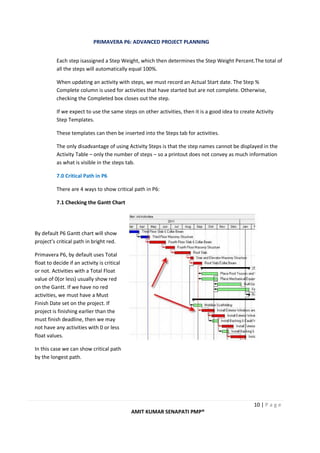
7.1 Checking the Gantt Chart
By default P6 Gantt chart will show
project’s critical path in bright red.
Primavera P6, by default uses Total
float to decide if an activity is critical
or not. Activities with a Total Float
value of 0(or less) usually show red
on the Gantt. If we have no red
activities, we must have a Must
Finish Date set on the project. If
project is finishing earlier than the
must finish deadline, then we may
not have any activities with 0 or less
float values.
In this case we can show critical path
by the longest path.
PRIMAVERA P6: ADVANCED PROJECT PLANNING
11 | P a g e
AMIT KUMAR SENAPATI PMP®
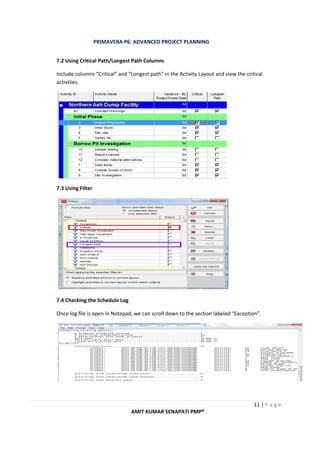
7.2 Using Critical Path/Longest Path Columns
Include columns “Critical” and “Longest path” in the Activity Layout and view the critical
activtiies.
7.3 Using Filter
7.4 Checking the Schedule Log
Once log file is open in Notepad, we can scroll down to the section labeled “Exception”.
PRIMAVERA P6: ADVANCED PROJECT PLANNING
12 | P a g e
AMIT KUMAR SENAPATI PMP®
8.0 How Primavera Scheduling Works
The Critical Path Methodology process goes through the project activity by activity twice.
It startes with the first activity and moves forward – this is called the Forward pass. For each
activity, it assigns or calculates that is activity’s Early Dates.
Early dates are the most optimistic start and finish dates for the project activties.
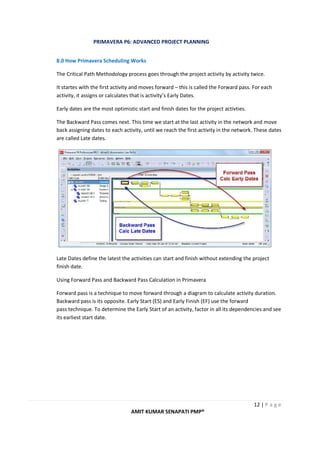
The Backward Pass comes next. This time we start at the last activity in the network and move
back assigning dates to each activity, until we reach the first activity in the network. These dates
are called Late dates.
Late Dates define the latest the activities can start and finish without extending the project
finish date.
Using Forward Pass and Backward Pass Calculation in Primavera
Forward pass is a technique to move forward through a diagram to calculate activity duration.
Backward pass is its opposite. Early Start (ES) and Early Finish (EF) use the forward
pass technique. To determine the Early Start of an activity, factor in all its dependencies and see
its earliest start date.
PRIMAVERA P6: ADVANCED PROJECT PLANNING
13 | P a g e
AMIT KUMAR SENAPATI PMP®
The forward pass begins at either the start date of a project (if there is no progress reported) or
the data date of the project and goes forward in time taking into consideration the durations,
calendars, logical ties and any hard constraint dates. This will determine the EARLIEST that an
activity can start and or finish. These are the early dates.
The backward pass begins at the project must finish by date (if no constraint date is used then it
starts at the early finish date) and goes backward in time taking into consideration the
durations, calendars, logical ties and any hard constraint dates. This will determine the LATEST
that an activity can start and/or finish. These are the late dates.
The difference between the late date and the early dates is the float.
USE OF PRIMAVERA TO FACILITATE BACKWARD AND FORWARD PASS
Step 1: Let us consider a project, with the following assumptions:-
• All the activities have the correct relationship.
• Correct calendar has been used for the project.
• The activity name and duration is correct.
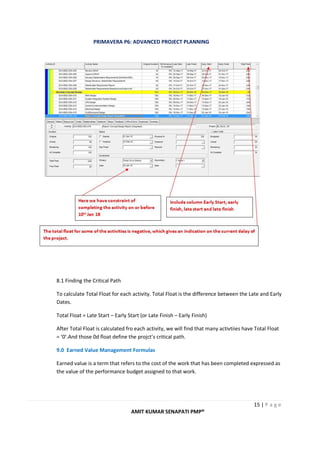
• The current completion of activity ID DUC-BSD-CRA-016 is 13th Feb’18. Highlighted
PRIMAVERA P6: ADVANCED PROJECT PLANNING
14 | P a g e
AMIT KUMAR SENAPATI PMP®
• The targeted completion of activity ID DUC-BSD-CRA-016 must be 10th Jan’18. Highlighted
STEP 2: There are two ways by which we will be able to find the Backward pass and forward pass
dates.
• By using project constraints under the status tab. One of the benefits of using project
constraints is that we can do the calculation on the basis of an activity constraint for any
particular activity.
• By assigning a project must finish date under date tab, using the project view.
PRIMAVERA P6: ADVANCED PROJECT PLANNING
15 | P a g e
AMIT KUMAR SENAPATI PMP®
8.1 Finding the Critical Path
To calculate Total Float for each activity. Total Float is the difference between the Late and Early
Dates.
Total Float = Late Start – Early Start (or Late Finish – Early Finish)
After Total Float is calculated fro each activity, we will find that many activtiies have Total Float
= ‘0’.And those 0d float define the projct’s critical path.
9.0 Earned Value Management Formulas
Earned value is a term that refers to the cost of the work that has been completed expressed as
the value of the performance budget assigned to that work.
PRIMAVERA P6: ADVANCED PROJECT PLANNING
16 | P a g e
AMIT KUMAR SENAPATI PMP®
Earned value is calculated as the Budget At Completion multiplied by the Percent Work
Completed
EV = BAC X % Complete.
Planned Value refers to the approved budget for work that is schduled to be completed by a
certain date in the future.Whereas Earned value takes a look at how much we spent to get the
work done by a certain time, Planned value is proactive as it looks at how much should have
spent at to get to a specified date. Planned value is also referred to as Budgeted Cost of Work
Scheduled or BCWS.
Actual Cost is a term used to describe the amount of money we actually spent to get a certain
task done.
Budget at Completion is the total amount of money that we are expecting to spend to finish a
particular task or for the entire project.
Schedule Variance is a number that tracks how long we thought a task would take during
planning versus how long it actually took and how that relates to the money we are spending.
SV = EV – PV.
Cost Variance is the differecne between the amount of value that we earned and the actual
cost. CV = EV – AC.
Schedule performance Index(SPI) provides an instantanous check on schedule at any point in the
project. SPI = EV / PV.
Cost Performance Index(CPI) provides an instantaneous check on cost performance at any point
in the project.CPI = EV / AC.
Estimate at Completion(EAC) allows us to estimate the total cost of a task as of today, taking
into account the work that we have already done.ECA = BAC / CPI.
Estimate to Complete(ETC) is the number that describes exactly what it will take to finish a
particular task, accounting for all of the work that we have done up to this point. ETC =
EAC – AC.
10. Cleaning POBS Data
When a particular inport takes a lot of time then the user should try to do the following.
10.1 Use XML format to import the project rather than using XER format.
If XML file imports quickly, then there are some issues with XER file.
10.2 Removing the POBS data from XER file.
PRIMAVERA P6: ADVANCED PROJECT PLANNING
17 | P a g e
AMIT KUMAR SENAPATI PMP®
By removing the POBS data we can reduce the file size considerably.
POBS stands for Performing Organizational Breakdown Structure.
10.2.1 How to clean POBS from the .XER file
10.2.1.1 POBS can be removed from the .xer file by using a POBS cleaner.It is the most
convinient way to remove POBS.
10.2.1.2 Removing the POBS manually
Since XER files are text files, we can edit them with notepad.
11. Measuring Project Progress
11.1 Unit Completed
The Units Completed works well when a task is done repeatedly and it tends to take the same
amount of time, resources and effort.So, tracking the units completed works well here.
Unit % Completion can be used in areas like amount of Concrete poured , length of pipe laid
down , number of light bulbs installed , no. Of weld build up , hours spent on welding activity
etc.
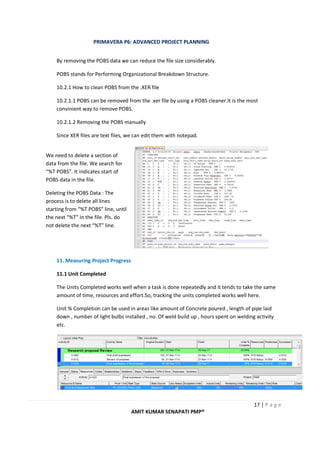
We need to delete a section of
data from the file. We search for
“%T POBS”. It indicates start of
POBS data in the file.
Deleting the POBS Data : The
process is to delete all lines
starting from “%T POBS” line, until
the next “%T” in the file. Pls. do
not delete the next “%T” line.
PRIMAVERA P6: ADVANCED PROJECT PLANNING
18 | P a g e
AMIT KUMAR SENAPATI PMP®
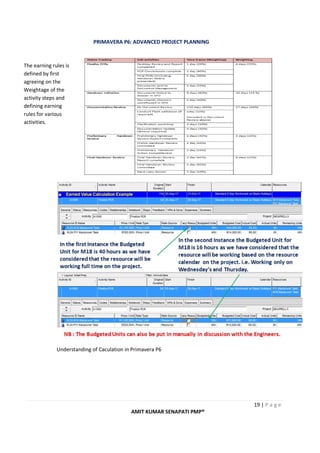
Of the total Budgeted units of 24 hours , 6 hours has been completed hence the Unit %
Complete is 25%.
11.2 Incremental Milestones
Here the calculation is built on each single step and the budgeted amount of time(labour hours)
that is needed to complete the task by the construction crew.As each step is completed, it
represnts a percentage of the total installation process.Here we use Activity Steps to implement
this method.
To enable reporting on Step/Earned Value , the following must be in place :-
a) Resources required for the project is identified.
b) Resource unit rate should be known.
c) The Project Cost Centre of the project should be available and used.
d) Earning rules are identified for the various activities and are linked.
e) The project should be resource loaded.
If the duration of the project is long,
then we should ensure that the
effective date for the Units and Prices
is filled in.
NB: Before finalizing the Activity
duration, we should ensure that
correct calendar is selected. If not
there will be changes to start and
finish dates.
PRIMAVERA P6: ADVANCED PROJECT PLANNING
19 | P a g e
AMIT KUMAR SENAPATI PMP®
Understanding of Caculation in Primavera P6
The earning rules is
defined by first
agreeing on the
Weightage of the
activity steps and
defining earning
rules for various
activities.
PRIMAVERA P6: ADVANCED PROJECT PLANNING
20 | P a g e
AMIT KUMAR SENAPATI PMP®
In the above instance, we see that the Performance % Complete is 12.91%
Activtiy Budgeted Cost / Total Budgeted Cost = 12.91%
NB : The CPI and SPI is displaying as ZERO as the data date is a past date and the Actual is ZERO.
As per the above Chart :
CPI is Equal to 2.84 i.e. R31,600(EVC) / R11,116.67(AC).
SPI is equal to 1.84. i.e. R31,600(EVC)/R17,174(PC)
Planned cost(PC) is calculated based on the data date, Planned Value = (Planned % Complete) X
(BAC), i.e. 7.03%(Planned % Complete) X R244,800(BAC) = R17,174(PC).
The curve we have chosen is “Linear” which means the cost is uniformly distributed throughout
the activtiy duration.
Often, companies agree to use the standard 50/50 Rule or other rules:
50/50 Rule – once started, the task is marked as 50% complete and the balance is earned at final
completion of the work.
PRIMAVERA P6: ADVANCED PROJECT PLANNING
21 | P a g e
AMIT KUMAR SENAPATI PMP®
20/80 Rule – used to track higher value tasks that takes a longer time to reach completion.
0/100 Rule – this rule illustrates that once 100 percent of the task is completed, only then will
the value be earned. Examples of this are testing or experimental tasks since you cannot get
results until the task is completed.
11.3 Duration % Complete
Team is required to report on the work completion.
When we do not have resources in our schedule.
There is no need to track the actual cost of the project.
There is no earning rules in the schedule.
In case there is a requirement of Weightage to the various packages then MS-Excel or
appropriate spreadsheet can be used in conjunction with Primavera to calculate the Overall %
Completion.
i.e. If a task has a duration of 10 days and the remaining duration marked in 4 then the duration
% completion is 60%.
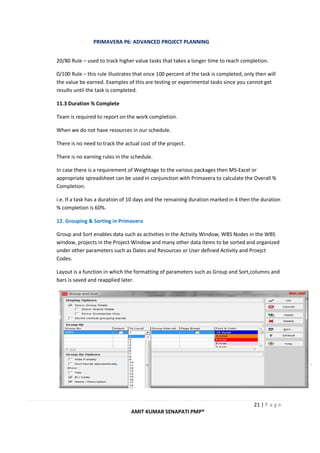
12. Grouping & Sorting in Primavera
Group and Sort enables data such as activities in the Activity Window, WBS Nodes in the WBS
window, projects in the Project Window and many other data items to be sorted and organized
under other parameters such as Dates and Resources or User defined Activity and Proejct
Codes.
Layout is a function in which the formatting of parameters such as Group and Sort,columns and
bars is saved and reapplied later.
PRIMAVERA P6: ADVANCED PROJECT PLANNING
22 | P a g e
AMIT KUMAR SENAPATI PMP®
13. How to use activtiy codes in Primavera P6
Activity codes can be setup at three levels:
• Global – Users can create an unlimited number of global activity codes, which
are available to all activities in your P6 database. This level enables you to organize
activities within a single project or across the entire enterprise project structure (EPS).
• EPS – These codes are available to activities within an EPS node. Users are able to create
an unlimited number of EPS level codes. Activities can be organized within a single
project or across all projects sharing a common EPS node.
• Project – Codes are available to activities in the project in which the codes are created.
Users can create up to 500 project-level activity codes. Project codes allow you to
organize and filter activities based on unique project reporting requirements.
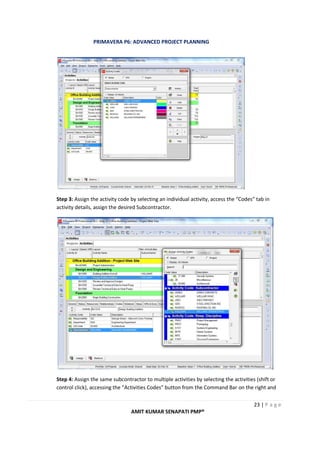
Step 1: Setup the activity code by accessing the Enterprise menu, Activity Codes.
Step 2: Setup the Activity Code and the various values. The image below reflects Global level
activity code Subcontractor with six values (Jones, Wellair, Joes etc).
PRIMAVERA P6: ADVANCED PROJECT PLANNING
23 | P a g e
AMIT KUMAR SENAPATI PMP®
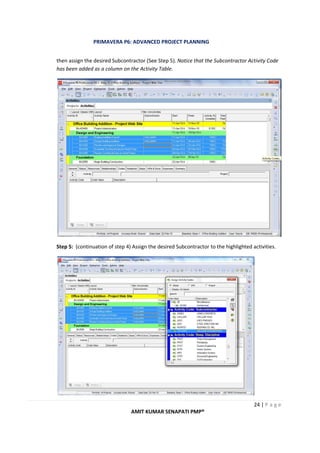
Step 3: Assign the activity code by selecting an individual activity, access the “Codes” tab in
activity details, assign the desired Subcontractor.
Step 4: Assign the same subcontractor to multiple activities by selecting the activities (shift or
control click), accessing the “Activities Codes” button from the Command Bar on the right and
PRIMAVERA P6: ADVANCED PROJECT PLANNING
24 | P a g e
AMIT KUMAR SENAPATI PMP®
then assign the desired Subcontractor (See Step 5). Notice that the Subcontractor Activity Code
has been added as a column on the Activity Table.
Step 5: (continuation of step 4) Assign the desired Subcontractor to the highlighted activities.
PRIMAVERA P6: ADVANCED PROJECT PLANNING
25 | P a g e
AMIT KUMAR SENAPATI PMP®
Step 6: You can also select the activities, right-click, select Assign, and then Activity Codes to
assign the same Subcontractor to multiple activities. The image below reflects the process of
selecting the activities, right-click, select Assign Activities Codes. Step 7 reflects the
Subcontractor “Jones” assigned to the Foundation activities.
Step 7: (continuation of Step 6) This image reflects the Foundation activities after assigning
Jones as the subcontractor.
PRIMAVERA P6: ADVANCED PROJECT PLANNING
26 | P a g e
AMIT KUMAR SENAPATI PMP®
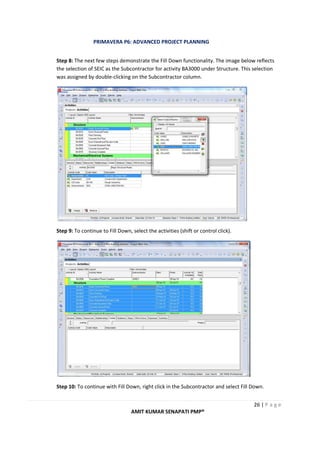
Step 8: The next few steps demonstrate the Fill Down functionality. The image below reflects
the selection of SEIC as the Subcontractor for activity BA3000 under Structure. This selection
was assigned by double-clicking on the Subcontractor column.
Step 9: To continue to Fill Down, select the activities (shift or control click).
Step 10: To continue with Fill Down, right click in the Subcontractor and select Fill Down.
PRIMAVERA P6: ADVANCED PROJECT PLANNING
27 | P a g e
AMIT KUMAR SENAPATI PMP®
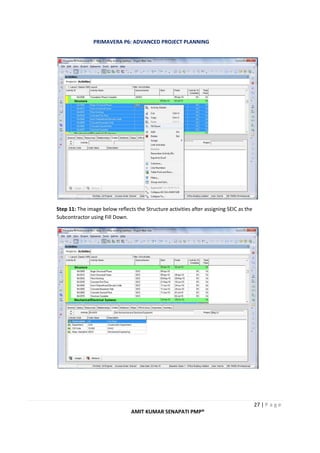
Step 11: The image below reflects the Structure activities after assigning SEIC as the
Subcontractor using Fill Down.
PRIMAVERA P6: ADVANCED PROJECT PLANNING
28 | P a g e
AMIT KUMAR SENAPATI PMP®
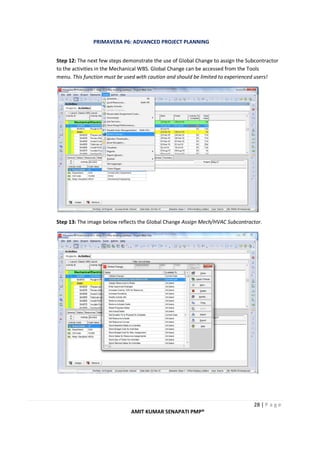
Step 12: The next few steps demonstrate the use of Global Change to assign the Subcontractor
to the activities in the Mechanical WBS. Global Change can be accessed from the Tools
menu. This function must be used with caution and should be limited to experienced users!
Step 13: The image below reflects the Global Change Assign Mech/HVAC Subcontractor.
PRIMAVERA P6: ADVANCED PROJECT PLANNING
29 | P a g e
AMIT KUMAR SENAPATI PMP®
Step 14: Setup the Global Change statement. The image below depicts the statement that if the
WBS is under Mechanical, assign WELLAIR as the Subcontractor. Click Change (on the right) to
preview the changes.
Step 15: View the Global Change Report to preview the changes and select Commit Changes
(bottom right corner) to actually change the data. Caution: this feature should only be used by
experienced users because this process is irreversible after Commit Changes is selected.
*It is highly recommended that you backup your project prior to executing a global change.
PRIMAVERA P6: ADVANCED PROJECT PLANNING
30 | P a g e
AMIT KUMAR SENAPATI PMP®
Step 16: The activities under the Mechanical WBS reflect WELLAIR as the Subcontractor after
Global Change.
Step 17: After the Subcontractors have been assigned, Group and Sort can be used to organize
activities by Subcontractor. Access the Layout Options bar & select Group and Sort.
PRIMAVERA P6: ADVANCED PROJECT PLANNING
31 | P a g e
AMIT KUMAR SENAPATI PMP®
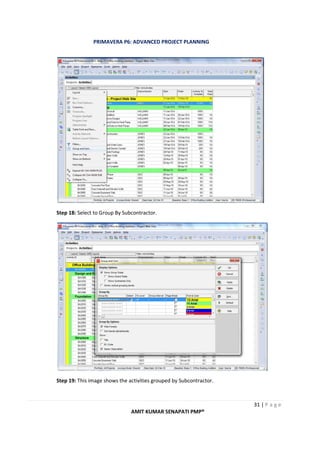
Step 18: Select to Group By Subcontractor.
Step 19: This image shows the activities grouped by Subcontractor.
PRIMAVERA P6: ADVANCED PROJECT PLANNING
32 | P a g e
AMIT KUMAR SENAPATI PMP®
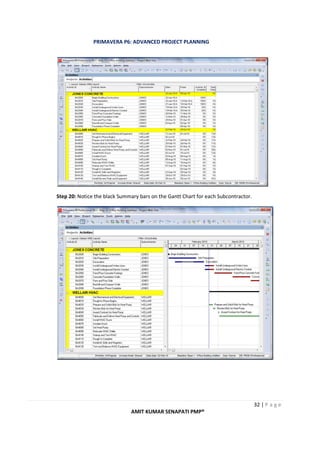
Step 20: Notice the black Summary bars on the Gantt Chart for each Subcontractor.
PRIMAVERA P6: ADVANCED PROJECT PLANNING
33 | P a g e
AMIT KUMAR SENAPATI PMP®
Step 21: Click Collapse All to see Summary bars just for the Subcontractors.
Step 22: You can utilize Filters to narrow down the activities displayed. If you wanted to provide
each Subcontractor, for example WELLAIR, with a report containing their activities, then a Filter
Statement can be used (see image below).
PRIMAVERA P6: ADVANCED PROJECT PLANNING
34 | P a g e
AMIT KUMAR SENAPATI PMP®
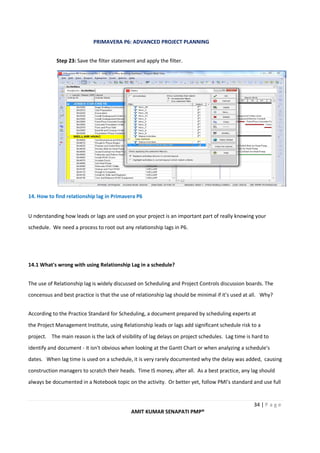
Step 23: Save the filter statement and apply the filter.
14. How to find relationship lag in Primavera P6
U nderstanding how leads or lags are used on your project is an important part of really knowing your
schedule. We need a process to root out any relationship lags in P6.
14.1 What's wrong with using Relationship Lag in a schedule?
The use of Relationship lag is widely discussed on Scheduling and Project Controls discussion boards. The
concensus and best practice is that the use of relationship lag should be minimal if it's used at all. Why?
According to the Practice Standard for Scheduling, a document prepared by scheduling experts at
the Project Management Institute, using Relationship leads or lags add significant schedule risk to a
project. The main reason is the lack of visibility of lag delays on project schedules. Lag time is hard to
identify and document - it isn't obvious when looking at the Gantt Chart or when analyzing a schedule's
dates. When lag time is used on a schedule, it is very rarely documented why the delay was added, causing
construction managers to scratch their heads. Time IS money, after all. As a best practice, any lag should
always be documented in a Notebook topic on the activity. Or better yet, follow PMI's standard and use full
PRIMAVERA P6: ADVANCED PROJECT PLANNING
35 | P a g e
AMIT KUMAR SENAPATI PMP®
activities to represent lead/lag delays. This approach makes leads/lags very visible on a schedule and also
allows for more flexibility.
It's common for less experienced planners to submit schedules with lag. In Primavera P6, we really need to
be able to find out if a schedule uses relationship lag.
Unfortunately, inside the Activity screens in P6, there seems to be no way to sort or filter activities by
Lag. So we'll need another approach, one that is easy and reusable.
Building a Reusable Relationship Lag Report in Primavera P6
It's pretty easy to build reports in Primavera P6. And the reporting features are able to report on a project's
relationships. Using Filters, we can create a nice report that shows only Activities that have relationships
with leads or lags. Here's how:
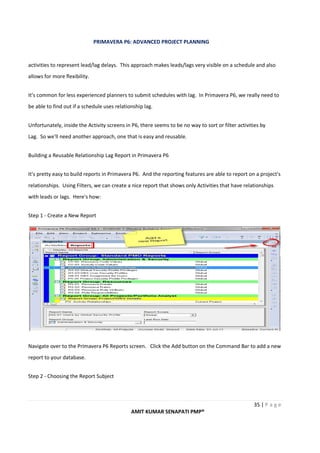
Step 1 - Create a New Report
Navigate over to the Primavera P6 Reports screen. Click the Add button on the Command Bar to add a new
report to your database.
Step 2 - Choosing the Report Subject
PRIMAVERA P6: ADVANCED PROJECT PLANNING
36 | P a g e
AMIT KUMAR SENAPATI PMP®
When the Report Wizard comes up, click Next to create a new Report. On the following screen, select the
"Activity Relationships" subject area and click next.
Step 3 - Choose Columns
PRIMAVERA P6: ADVANCED PROJECT PLANNING
37 | P a g e
AMIT KUMAR SENAPATI PMP®
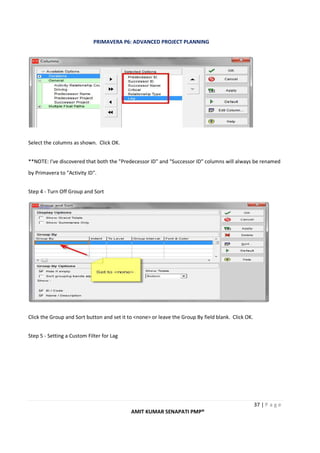
Select the columns as shown. Click OK.
**NOTE: I've discovered that both the "Predecessor ID" and "Successor ID" columns will always be renamed
by Primavera to "Activity ID".
Step 4 - Turn Off Group and Sort
Click the Group and Sort button and set it to <none> or leave the Group By field blank. Click OK.
Step 5 - Setting a Custom Filter for Lag
PRIMAVERA P6: ADVANCED PROJECT PLANNING
38 | P a g e
AMIT KUMAR SENAPATI PMP®
Click the "Filter..." button. In the Parameter dropdown, find and select "Lag". Set the conditional dropdown
to "is not equal to" and type '0' in the Value column. This combination will filter for both leads (ie: negative
lags) and lags. Click OK to save your Filer.
Step 6 - Saving the Primavera P6 Lag Report
Click Next. On the following screen, name your report "Relationship Lag Report". Click Next. Before you
click Run Report, click Next again and Save your report. Click Finish to close the Wizard.
It's ideal to Save your report first before running it. It may not run if you do not have a project open first.
Step 7 - Open a Project and Run the Primavera P6 Lag Report
PRIMAVERA P6: ADVANCED PROJECT PLANNING
39 | P a g e
AMIT KUMAR SENAPATI PMP®
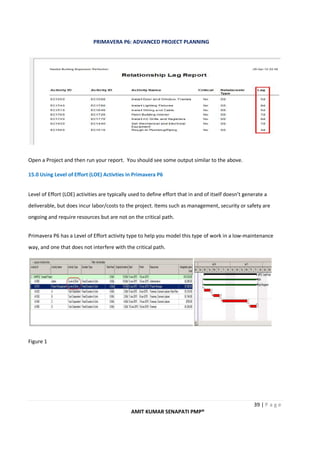
Open a Project and then run your report. You should see some output similar to the above.
15.0 Using Level of Effort (LOE) Activties in Primavera P6
Level of Effort (LOE) activities are typically used to define effort that in and of itself doesn’t generate a
deliverable, but does incur labor/costs to the project. Items such as management, security or safety are
ongoing and require resources but are not on the critical path.
Primavera P6 has a Level of Effort activity type to help you model this type of work in a low-maintenance
way, and one that does not interfere with the critical path.
Figure 1
PRIMAVERA P6: ADVANCED PROJECT PLANNING
40 | P a g e
AMIT KUMAR SENAPATI PMP®
The above figure displays a project with four Task Dependent activities A, B, C, and D with standard Finish-
to-Start relationships. Each of these activities are shown in the Gantt chart view as red bars, which indicates
that these activities are on the critical path.
Also, displayed in the above figure are two additional Gantt chart bars: one specifying the project
management effort and the other administrative overhead. Note that although both project management
and administrative efforts span the entire length of the project neither is on the critical path, which, again, is
shown in red.
Both project management and administrative efforts are predecessors to the first task A in a Start-to-Start
relationship and both are successors to the last task D in a Finish-to-Finish relationship, Figure 1. What
distinguishes the project management and administrative efforts from other activities is that they have an
Activity Type designation of ‘Level of Effort’. This indicates that they do not directly produce deliverables
and, therefore, are indirect costs.
Because these administrative and project management level of effort activities are connected to both the
first task A and last task D they will both grow and shrink in direct correlation to the expansion and/or
contraction of the project schedules critical path. This connection of each level of effort activity to the first
task and last task has led to the designation of these activities being called ‘hammocks’.
Effort Distribution Curve
In the above example, the project management cost is uniform throughout the project, whereas,
administrative costs in this example will most likely follow a bell shaped curve.
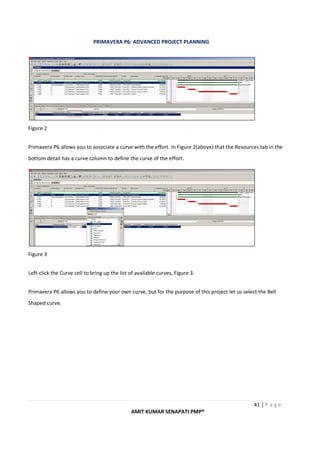
Primavera P6 allows you to associate a curve with the effort. Notice in Figure 2 that the Resources tab in the
bottom detail has a curve column to define the curve of the effort.
PRIMAVERA P6: ADVANCED PROJECT PLANNING
41 | P a g e
AMIT KUMAR SENAPATI PMP®
Figure 2
Primavera P6 allows you to associate a curve with the effort. In Figure 2(above) that the Resources tab in the
bottom detail has a curve column to define the curve of the effort.
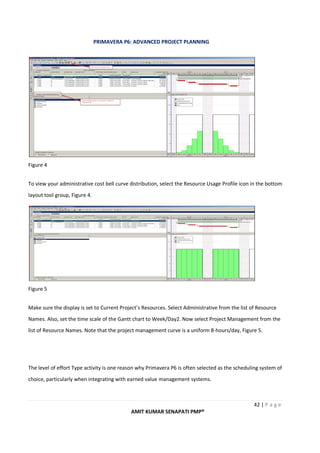
Figure 3
Left-click the Curve cell to bring up the list of available curves, Figure 3.
Primavera P6 allows you to define your own curve, but for the purpose of this project let us select the Bell
Shaped curve.
PRIMAVERA P6: ADVANCED PROJECT PLANNING
42 | P a g e
AMIT KUMAR SENAPATI PMP®
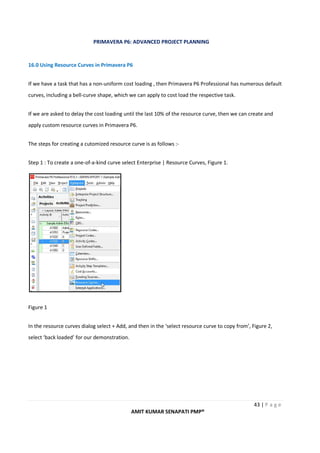
Figure 4
To view your administrative cost bell curve distribution, select the Resource Usage Profile icon in the bottom
layout tool group, Figure 4.
Figure 5
Make sure the display is set to Current Project’s Resources. Select Administrative from the list of Resource
Names. Also, set the time scale of the Gantt chart to Week/Day2. Now select Project Management from the
list of Resource Names. Note that the project management curve is a uniform 8-hours/day, Figure 5.
The level of effort Type activity is one reason why Primavera P6 is often selected as the scheduling system of
choice, particularly when integrating with earned value management systems.
PRIMAVERA P6: ADVANCED PROJECT PLANNING
43 | P a g e
AMIT KUMAR SENAPATI PMP®
16.0 Using Resource Curves in Primavera P6
If we have a task that has a non-uniform cost loading , then Primavera P6 Professional has numerous default
curves, including a bell-curve shape, which we can apply to cost load the respective task.
If we are asked to delay the cost loading until the last 10% of the resource curve, then we can create and
apply custom resource curves in Primavera P6.
The steps for creating a cutomized resource curve is as follows :-
Step 1 : To create a one-of-a-kind curve select Enterprise | Resource Curves, Figure 1.
Figure 1
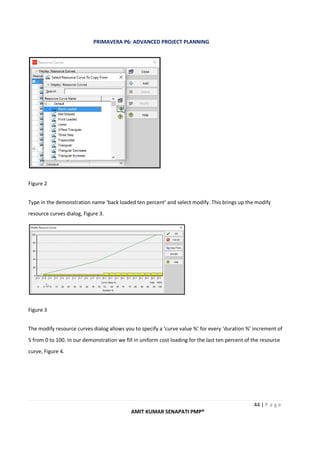
In the resource curves dialog select + Add, and then in the ‘select resource curve to copy from’, Figure 2,
select ‘back loaded’ for our demonstration.
PRIMAVERA P6: ADVANCED PROJECT PLANNING
44 | P a g e
AMIT KUMAR SENAPATI PMP®
Figure 2
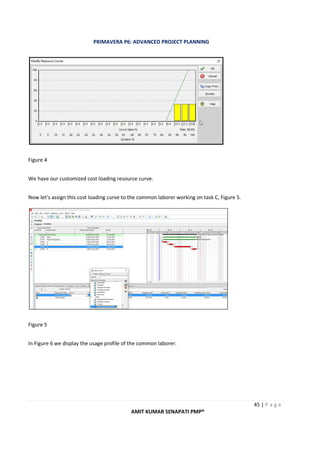
Type in the demonstration name ‘back loaded ten percent’ and select modify. This brings up the modify
resource curves dialog, Figure 3.
Figure 3
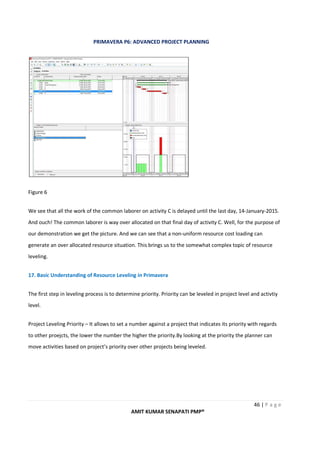
The modify resource curves dialog allows you to specify a ‘curve value %’ for every ‘duration %’ increment of
5 from 0 to 100. In our demonstration we fill in uniform cost loading for the last ten percent of the resource
curve, Figure 4.
PRIMAVERA P6: ADVANCED PROJECT PLANNING
45 | P a g e
AMIT KUMAR SENAPATI PMP®
Figure 4
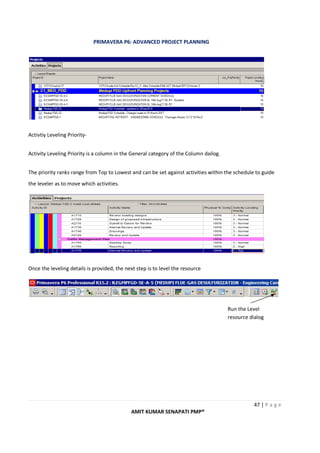
We have our customized cost loading resource curve.
Now let’s assign this cost loading curve to the common laborer working on task C, Figure 5.
Figure 5
In Figure 6 we display the usage profile of the common laborer.
PRIMAVERA P6: ADVANCED PROJECT PLANNING
46 | P a g e
AMIT KUMAR SENAPATI PMP®
Figure 6
We see that all the work of the common laborer on activity C is delayed until the last day, 14-January-2015.
And ouch! The common laborer is way over allocated on that final day of activity C. Well, for the purpose of
our demonstration we get the picture. And we can see that a non-uniform resource cost loading can
generate an over allocated resource situation. This brings us to the somewhat complex topic of resource
leveling.
17. Basic Understanding of Resource Leveling in Primavera
The first step in leveling process is to determine priority. Priority can be leveled in project level and activtiy
level.
Project Leveling Priority – It allows to set a number against a project that indicates its priority with regards
to other proejcts, the lower the number the higher the priority.By looking at the priority the planner can
move activities based on project’s priority over other projects being leveled.
PRIMAVERA P6: ADVANCED PROJECT PLANNING
47 | P a g e
AMIT KUMAR SENAPATI PMP®
Activtiy Leveling Priority-
Activity Leveling Priority is a column in the General category of the Column dailog.
The priority ranks range from Top to Lowest and can be set against activities within the schedule to guide
the leveler as to move which activities.
Once the leveling details is provided, the next step is to level the resource
Run the Level
resource dialog
PRIMAVERA P6: ADVANCED PROJECT PLANNING
48 | P a g e
AMIT KUMAR SENAPATI PMP®
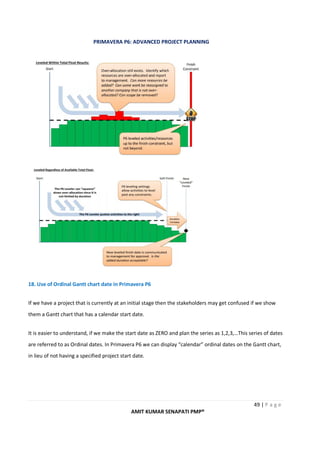
The Leveling process can be better understood by the below example:
Here we define the parameters for the levelling
process. Here we are levelling our resources based
on project and activity levelling priorities.
Once we have selected the required options, then
we click Level button to start the process.
PRIMAVERA P6: ADVANCED PROJECT PLANNING
49 | P a g e
AMIT KUMAR SENAPATI PMP®
18. Use of Ordinal Gantt chart date in Primavera P6
If we have a project that is currently at an initial stage then the stakeholders may get confused if we show
them a Gantt chart that has a calendar start date.
It is easier to understand, if we make the start date as ZERO and plan the series as 1,2,3,…This series of dates
are referred to as Ordinal dates. In Primavera P6 we can display “calendar” ordinal dates on the Gantt chart,
in lieu of not having a specified project start date.
PRIMAVERA P6: ADVANCED PROJECT PLANNING
50 | P a g e
AMIT KUMAR SENAPATI PMP®
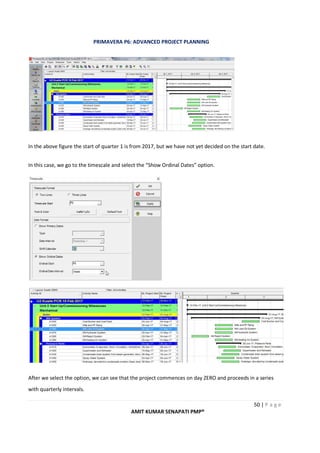
In the above figure the start of quarter 1 is from 2017, but we have not yet decided on the start date.
In this case, we go to the timescale and select the “Show Ordinal Dates” option.
After we select the option, we can see that the project commences on day ZERO and proceeds in a series
with quarterly intervals.
PRIMAVERA P6: ADVANCED PROJECT PLANNING
51 | P a g e
AMIT KUMAR SENAPATI PMP®
19. Conclusion :
The document has been developed keeping in mind the common challenges that a planner may face while
developing a schedule. I have also tried to cover in areas which is required for effective earned value
calculation. The document is been prepared considering that the reader has a basic understanding of
Primavera P6.
20. References.
a) Planningplanet website.
b) Linkedin Learning
c) Internet
b) Project Management Books

Primavera p6 advanced project planning

  • 1.
    P P ag e | 1 Page | 1 The document will enable the user to get a knowhow of working in a primavera web environment and a good understanding of implementing some of the planning concepts using Primavera P6. Amit Kumar Senapati PMP® PRIMAVERA P6 ADVANCED PROJECT PLANNING
  • 2.
    PRIMAVERA P6: ADVANCEDPROJECT PLANNING 2 | P a g e AMIT KUMAR SENAPATI PMP® Serial Number Particulars Page Number 1 What is Primavera P6 WEB Access 3 1.1 Benefits of Primavera P6 web access 3 2 Assignment of Project Codes 3 3 Layouts 4 4 Cleaning of Projects 7 5 How to manage cost in Primavera 8 6 Activity Steps 9 7 Critical path in P6 10 8 How Primavera Scheduling Works 12 9 Earned Value Management Formula 15 10 Cleaning POBS data 16 11 Measuring Project Progress 17 12 Grouping and Sorting in Primavera 21 13 How to use Activity Codes in Primavera P6 22 14 How to find Relationship Lag in Primavera P6 36 15 Using Level of Effort Activities in Primavera P6 39 16 Using Resource Curves in Primavera P6 43 17 Basic understanding of Resource Leveling in Primavera 46 18 Use of Ordinal Gantt Chart in Primavera P6 49 19 Conclusion 51 20 Reference 51 INDEX
  • 3.
    PRIMAVERA P6: ADVANCEDPROJECT PLANNING 3 | P a g e AMIT KUMAR SENAPATI PMP® 1. What is Primavera P6 Web Access? Primavera P6 Web Access is Oracle Primavera’s project management tool that has a web browser interface. 1.1 Benefits of Primavera P6 web access a) It allows project team to have anytime and anywhere access to project information b) P6 web access has highly customizable graphical interface dashboards and portels that allow users to view project and a portfolio of projects. c) P6 web access allows executives to analyze groups of projects(portfolios) for high level planning, such as resource capacity planning, risk and budgetary planning. 2. Assignment of Project Codes Some examples of codes that needs to be assigned to the projects:- 2.1Project Phase 2.2Project Status 2.3 Business unit
  • 4.
    PRIMAVERA P6: ADVANCEDPROJECT PLANNING 4 | P a g e AMIT KUMAR SENAPATI PMP® 2.4 Project Risk 2.5 Operating Unit 3. Layouts Primavera P6 users can share a layout with someone in a different layout as well as filters can be shared using Layouts. The step is select view – Open layout – Export to transfort a Primavera Layout File(PLF) from the database. The trick to exporting filters with layout is to copy an existing filter as a Layout Filter.
  • 5.
    PRIMAVERA P6: ADVANCEDPROJECT PLANNING 5 | P a g e AMIT KUMAR SENAPATI PMP® The Project Layouts can be made available in 3 ways 3.1 Project : Wherein the particular layout ir required only for a particular Project. In the screenshot, I have selected the User Defined Field, “Normal”. To create a Layout Filter, select “copy as layout” from the right hand side of the filters menu. As a result of this operation, “Normal” filter appears under a new group “Layout Filters”. All filters copied to this group will be exported with any layout we chose to export. Because of this user may want to keep number of Layout filters to a minimum or delete those that should not be exported. The above layouts are Project Layouts. The Enterprise Project Structure (EPS) has its own set of layouts. When the other user receives the Primavera Layout File, it is important that they open a project and import the layout in the activities window. EPS layouts are not compatible with project layouts despite having the same PLF format. EPS filters can likewise be exported with EPS layouts.
  • 6.
    PRIMAVERA P6: ADVANCEDPROJECT PLANNING 6 | P a g e AMIT KUMAR SENAPATI PMP® When we create a project layout, the layout gets saved under the particular project name. 3.2 Another User: When we choose the project layout is available to another user then we can send the layout to another user for his use In this case I have selected a particular name as a user who can now be able to use the said layout.
  • 7.
    PRIMAVERA P6: ADVANCEDPROJECT PLANNING 7 | P a g e AMIT KUMAR SENAPATI PMP® 3.3 Current User In case of selection as a Current User, the layout will be available onl to the current user. 4. How to Clean the Project 4.1 Receipt of Contractor Schedule in MSP 4.2 Convert the file onto XML 4.3 Open the Clean Data base. 4.4 Import the Project 4.5 Global Change for Activtiy type and Duration type. 4.6 Clean the various UDF’s, activity codes, resources etc. 4.7 Save the project in the Primavera Landing area. 4.8 Close the clean data base. 4.9 Open Primavera Production data base. 4.10 Import the project to the production data base to the desired EPS 4.11 Assign the correct responsible manager in the project view area.
  • 8.
    PRIMAVERA P6: ADVANCEDPROJECT PLANNING 8 | P a g e AMIT KUMAR SENAPATI PMP® 5. How to manage cost in Primavera 5.1 Using Contractor Schedule When ever there is an major change or inclusion in Project schedule, it requires an revision or rebaselining of the schedule. 5.1.1 First Make the copy of the existing baseline 5.1.2 Then restore the copied baseline. When we restore a baseline the said project separates itseft from the baseline and displays as a separate project. 5.1.3 Rename the Project Appropriately – Proper Renaming of project is very essential for the project, as at a later stage it may create confusion while trying to locate the right baseline.
  • 9.
    PRIMAVERA P6: ADVANCEDPROJECT PLANNING 9 | P a g e AMIT KUMAR SENAPATI PMP® 6.0 Activity Steps Activity Steps is the break down of complex activity into a series of steps that better describe the scope of work.The activity name does not need to go into a great deal of detail because the steps offer additional explanation. In order to use steps we must first tell P6 that we are planning to use steps.This is done in the Project detail window, under the Calculations tab: Next, activities that will be using steps must have “Physical” as the % Complete Type: In the next screenshpt we have added a series of steps for Finalize PCR.
  • 10.
    PRIMAVERA P6: ADVANCEDPROJECT PLANNING 10 | P a g e AMIT KUMAR SENAPATI PMP® Each step isassigned a Step Weight, which then determines the Step Weight Percent.The total of all the steps will automatically equal 100%. When updating an activity with steps, we must record an Actual Start date. The Step % Complete column is used for activities that have started but are not complete. Otherwise, checking the Completed box closes out the step. If we expect to use the same steps on other activities, then it is a good idea to create Activity Step Templates. These templates can then be inserted into the Steps tab for activities. The only disadvantage of using Activity Steps is that the step names cannot be displayed in the Activity Table – only the number of steps – so a printout does not convey as much information as what is visible in the steps tab. 7.0 Critical Path in P6 There are 4 ways to show critical path in P6: 7.1 Checking the Gantt Chart By default P6 Gantt chart will show project’s critical path in bright red. Primavera P6, by default uses Total float to decide if an activity is critical or not. Activities with a Total Float value of 0(or less) usually show red on the Gantt. If we have no red activities, we must have a Must Finish Date set on the project. If project is finishing earlier than the must finish deadline, then we may not have any activities with 0 or less float values. In this case we can show critical path by the longest path.
  • 11.
    PRIMAVERA P6: ADVANCEDPROJECT PLANNING 11 | P a g e AMIT KUMAR SENAPATI PMP® 7.2 Using Critical Path/Longest Path Columns Include columns “Critical” and “Longest path” in the Activity Layout and view the critical activtiies. 7.3 Using Filter 7.4 Checking the Schedule Log Once log file is open in Notepad, we can scroll down to the section labeled “Exception”.
  • 12.
    PRIMAVERA P6: ADVANCEDPROJECT PLANNING 12 | P a g e AMIT KUMAR SENAPATI PMP® 8.0 How Primavera Scheduling Works The Critical Path Methodology process goes through the project activity by activity twice. It startes with the first activity and moves forward – this is called the Forward pass. For each activity, it assigns or calculates that is activity’s Early Dates. Early dates are the most optimistic start and finish dates for the project activties. The Backward Pass comes next. This time we start at the last activity in the network and move back assigning dates to each activity, until we reach the first activity in the network. These dates are called Late dates. Late Dates define the latest the activities can start and finish without extending the project finish date. Using Forward Pass and Backward Pass Calculation in Primavera Forward pass is a technique to move forward through a diagram to calculate activity duration. Backward pass is its opposite. Early Start (ES) and Early Finish (EF) use the forward pass technique. To determine the Early Start of an activity, factor in all its dependencies and see its earliest start date.
  • 13.
    PRIMAVERA P6: ADVANCEDPROJECT PLANNING 13 | P a g e AMIT KUMAR SENAPATI PMP® The forward pass begins at either the start date of a project (if there is no progress reported) or the data date of the project and goes forward in time taking into consideration the durations, calendars, logical ties and any hard constraint dates. This will determine the EARLIEST that an activity can start and or finish. These are the early dates. The backward pass begins at the project must finish by date (if no constraint date is used then it starts at the early finish date) and goes backward in time taking into consideration the durations, calendars, logical ties and any hard constraint dates. This will determine the LATEST that an activity can start and/or finish. These are the late dates. The difference between the late date and the early dates is the float. USE OF PRIMAVERA TO FACILITATE BACKWARD AND FORWARD PASS Step 1: Let us consider a project, with the following assumptions:- • All the activities have the correct relationship. • Correct calendar has been used for the project. • The activity name and duration is correct. • The current completion of activity ID DUC-BSD-CRA-016 is 13th Feb’18. Highlighted
  • 14.
    PRIMAVERA P6: ADVANCEDPROJECT PLANNING 14 | P a g e AMIT KUMAR SENAPATI PMP® • The targeted completion of activity ID DUC-BSD-CRA-016 must be 10th Jan’18. Highlighted STEP 2: There are two ways by which we will be able to find the Backward pass and forward pass dates. • By using project constraints under the status tab. One of the benefits of using project constraints is that we can do the calculation on the basis of an activity constraint for any particular activity. • By assigning a project must finish date under date tab, using the project view.
  • 15.
    PRIMAVERA P6: ADVANCEDPROJECT PLANNING 15 | P a g e AMIT KUMAR SENAPATI PMP® 8.1 Finding the Critical Path To calculate Total Float for each activity. Total Float is the difference between the Late and Early Dates. Total Float = Late Start – Early Start (or Late Finish – Early Finish) After Total Float is calculated fro each activity, we will find that many activtiies have Total Float = ‘0’.And those 0d float define the projct’s critical path. 9.0 Earned Value Management Formulas Earned value is a term that refers to the cost of the work that has been completed expressed as the value of the performance budget assigned to that work.
  • 16.
    PRIMAVERA P6: ADVANCEDPROJECT PLANNING 16 | P a g e AMIT KUMAR SENAPATI PMP® Earned value is calculated as the Budget At Completion multiplied by the Percent Work Completed EV = BAC X % Complete. Planned Value refers to the approved budget for work that is schduled to be completed by a certain date in the future.Whereas Earned value takes a look at how much we spent to get the work done by a certain time, Planned value is proactive as it looks at how much should have spent at to get to a specified date. Planned value is also referred to as Budgeted Cost of Work Scheduled or BCWS. Actual Cost is a term used to describe the amount of money we actually spent to get a certain task done. Budget at Completion is the total amount of money that we are expecting to spend to finish a particular task or for the entire project. Schedule Variance is a number that tracks how long we thought a task would take during planning versus how long it actually took and how that relates to the money we are spending. SV = EV – PV. Cost Variance is the differecne between the amount of value that we earned and the actual cost. CV = EV – AC. Schedule performance Index(SPI) provides an instantanous check on schedule at any point in the project. SPI = EV / PV. Cost Performance Index(CPI) provides an instantaneous check on cost performance at any point in the project.CPI = EV / AC. Estimate at Completion(EAC) allows us to estimate the total cost of a task as of today, taking into account the work that we have already done.ECA = BAC / CPI. Estimate to Complete(ETC) is the number that describes exactly what it will take to finish a particular task, accounting for all of the work that we have done up to this point. ETC = EAC – AC. 10. Cleaning POBS Data When a particular inport takes a lot of time then the user should try to do the following. 10.1 Use XML format to import the project rather than using XER format. If XML file imports quickly, then there are some issues with XER file. 10.2 Removing the POBS data from XER file.
  • 17.
    PRIMAVERA P6: ADVANCEDPROJECT PLANNING 17 | P a g e AMIT KUMAR SENAPATI PMP® By removing the POBS data we can reduce the file size considerably. POBS stands for Performing Organizational Breakdown Structure. 10.2.1 How to clean POBS from the .XER file 10.2.1.1 POBS can be removed from the .xer file by using a POBS cleaner.It is the most convinient way to remove POBS. 10.2.1.2 Removing the POBS manually Since XER files are text files, we can edit them with notepad. 11. Measuring Project Progress 11.1 Unit Completed The Units Completed works well when a task is done repeatedly and it tends to take the same amount of time, resources and effort.So, tracking the units completed works well here. Unit % Completion can be used in areas like amount of Concrete poured , length of pipe laid down , number of light bulbs installed , no. Of weld build up , hours spent on welding activity etc. We need to delete a section of data from the file. We search for “%T POBS”. It indicates start of POBS data in the file. Deleting the POBS Data : The process is to delete all lines starting from “%T POBS” line, until the next “%T” in the file. Pls. do not delete the next “%T” line.
  • 18.
    PRIMAVERA P6: ADVANCEDPROJECT PLANNING 18 | P a g e AMIT KUMAR SENAPATI PMP® Of the total Budgeted units of 24 hours , 6 hours has been completed hence the Unit % Complete is 25%. 11.2 Incremental Milestones Here the calculation is built on each single step and the budgeted amount of time(labour hours) that is needed to complete the task by the construction crew.As each step is completed, it represnts a percentage of the total installation process.Here we use Activity Steps to implement this method. To enable reporting on Step/Earned Value , the following must be in place :- a) Resources required for the project is identified. b) Resource unit rate should be known. c) The Project Cost Centre of the project should be available and used. d) Earning rules are identified for the various activities and are linked. e) The project should be resource loaded. If the duration of the project is long, then we should ensure that the effective date for the Units and Prices is filled in. NB: Before finalizing the Activity duration, we should ensure that correct calendar is selected. If not there will be changes to start and finish dates.
  • 19.
    PRIMAVERA P6: ADVANCEDPROJECT PLANNING 19 | P a g e AMIT KUMAR SENAPATI PMP® Understanding of Caculation in Primavera P6 The earning rules is defined by first agreeing on the Weightage of the activity steps and defining earning rules for various activities.
  • 20.
    PRIMAVERA P6: ADVANCEDPROJECT PLANNING 20 | P a g e AMIT KUMAR SENAPATI PMP® In the above instance, we see that the Performance % Complete is 12.91% Activtiy Budgeted Cost / Total Budgeted Cost = 12.91% NB : The CPI and SPI is displaying as ZERO as the data date is a past date and the Actual is ZERO. As per the above Chart : CPI is Equal to 2.84 i.e. R31,600(EVC) / R11,116.67(AC). SPI is equal to 1.84. i.e. R31,600(EVC)/R17,174(PC) Planned cost(PC) is calculated based on the data date, Planned Value = (Planned % Complete) X (BAC), i.e. 7.03%(Planned % Complete) X R244,800(BAC) = R17,174(PC). The curve we have chosen is “Linear” which means the cost is uniformly distributed throughout the activtiy duration. Often, companies agree to use the standard 50/50 Rule or other rules: 50/50 Rule – once started, the task is marked as 50% complete and the balance is earned at final completion of the work.
  • 21.
    PRIMAVERA P6: ADVANCEDPROJECT PLANNING 21 | P a g e AMIT KUMAR SENAPATI PMP® 20/80 Rule – used to track higher value tasks that takes a longer time to reach completion. 0/100 Rule – this rule illustrates that once 100 percent of the task is completed, only then will the value be earned. Examples of this are testing or experimental tasks since you cannot get results until the task is completed. 11.3 Duration % Complete Team is required to report on the work completion. When we do not have resources in our schedule. There is no need to track the actual cost of the project. There is no earning rules in the schedule. In case there is a requirement of Weightage to the various packages then MS-Excel or appropriate spreadsheet can be used in conjunction with Primavera to calculate the Overall % Completion. i.e. If a task has a duration of 10 days and the remaining duration marked in 4 then the duration % completion is 60%. 12. Grouping & Sorting in Primavera Group and Sort enables data such as activities in the Activity Window, WBS Nodes in the WBS window, projects in the Project Window and many other data items to be sorted and organized under other parameters such as Dates and Resources or User defined Activity and Proejct Codes. Layout is a function in which the formatting of parameters such as Group and Sort,columns and bars is saved and reapplied later.
  • 22.
    PRIMAVERA P6: ADVANCEDPROJECT PLANNING 22 | P a g e AMIT KUMAR SENAPATI PMP® 13. How to use activtiy codes in Primavera P6 Activity codes can be setup at three levels: • Global – Users can create an unlimited number of global activity codes, which are available to all activities in your P6 database. This level enables you to organize activities within a single project or across the entire enterprise project structure (EPS). • EPS – These codes are available to activities within an EPS node. Users are able to create an unlimited number of EPS level codes. Activities can be organized within a single project or across all projects sharing a common EPS node. • Project – Codes are available to activities in the project in which the codes are created. Users can create up to 500 project-level activity codes. Project codes allow you to organize and filter activities based on unique project reporting requirements. Step 1: Setup the activity code by accessing the Enterprise menu, Activity Codes. Step 2: Setup the Activity Code and the various values. The image below reflects Global level activity code Subcontractor with six values (Jones, Wellair, Joes etc).
  • 23.
    PRIMAVERA P6: ADVANCEDPROJECT PLANNING 23 | P a g e AMIT KUMAR SENAPATI PMP® Step 3: Assign the activity code by selecting an individual activity, access the “Codes” tab in activity details, assign the desired Subcontractor. Step 4: Assign the same subcontractor to multiple activities by selecting the activities (shift or control click), accessing the “Activities Codes” button from the Command Bar on the right and
  • 24.
    PRIMAVERA P6: ADVANCEDPROJECT PLANNING 24 | P a g e AMIT KUMAR SENAPATI PMP® then assign the desired Subcontractor (See Step 5). Notice that the Subcontractor Activity Code has been added as a column on the Activity Table. Step 5: (continuation of step 4) Assign the desired Subcontractor to the highlighted activities.
  • 25.
    PRIMAVERA P6: ADVANCEDPROJECT PLANNING 25 | P a g e AMIT KUMAR SENAPATI PMP® Step 6: You can also select the activities, right-click, select Assign, and then Activity Codes to assign the same Subcontractor to multiple activities. The image below reflects the process of selecting the activities, right-click, select Assign Activities Codes. Step 7 reflects the Subcontractor “Jones” assigned to the Foundation activities. Step 7: (continuation of Step 6) This image reflects the Foundation activities after assigning Jones as the subcontractor.
  • 26.
    PRIMAVERA P6: ADVANCEDPROJECT PLANNING 26 | P a g e AMIT KUMAR SENAPATI PMP® Step 8: The next few steps demonstrate the Fill Down functionality. The image below reflects the selection of SEIC as the Subcontractor for activity BA3000 under Structure. This selection was assigned by double-clicking on the Subcontractor column. Step 9: To continue to Fill Down, select the activities (shift or control click). Step 10: To continue with Fill Down, right click in the Subcontractor and select Fill Down.
  • 27.
    PRIMAVERA P6: ADVANCEDPROJECT PLANNING 27 | P a g e AMIT KUMAR SENAPATI PMP® Step 11: The image below reflects the Structure activities after assigning SEIC as the Subcontractor using Fill Down.
  • 28.
    PRIMAVERA P6: ADVANCEDPROJECT PLANNING 28 | P a g e AMIT KUMAR SENAPATI PMP® Step 12: The next few steps demonstrate the use of Global Change to assign the Subcontractor to the activities in the Mechanical WBS. Global Change can be accessed from the Tools menu. This function must be used with caution and should be limited to experienced users! Step 13: The image below reflects the Global Change Assign Mech/HVAC Subcontractor.
  • 29.
    PRIMAVERA P6: ADVANCEDPROJECT PLANNING 29 | P a g e AMIT KUMAR SENAPATI PMP® Step 14: Setup the Global Change statement. The image below depicts the statement that if the WBS is under Mechanical, assign WELLAIR as the Subcontractor. Click Change (on the right) to preview the changes. Step 15: View the Global Change Report to preview the changes and select Commit Changes (bottom right corner) to actually change the data. Caution: this feature should only be used by experienced users because this process is irreversible after Commit Changes is selected. *It is highly recommended that you backup your project prior to executing a global change.
  • 30.
    PRIMAVERA P6: ADVANCEDPROJECT PLANNING 30 | P a g e AMIT KUMAR SENAPATI PMP® Step 16: The activities under the Mechanical WBS reflect WELLAIR as the Subcontractor after Global Change. Step 17: After the Subcontractors have been assigned, Group and Sort can be used to organize activities by Subcontractor. Access the Layout Options bar & select Group and Sort.
  • 31.
    PRIMAVERA P6: ADVANCEDPROJECT PLANNING 31 | P a g e AMIT KUMAR SENAPATI PMP® Step 18: Select to Group By Subcontractor. Step 19: This image shows the activities grouped by Subcontractor.
  • 32.
    PRIMAVERA P6: ADVANCEDPROJECT PLANNING 32 | P a g e AMIT KUMAR SENAPATI PMP® Step 20: Notice the black Summary bars on the Gantt Chart for each Subcontractor.
  • 33.
    PRIMAVERA P6: ADVANCEDPROJECT PLANNING 33 | P a g e AMIT KUMAR SENAPATI PMP® Step 21: Click Collapse All to see Summary bars just for the Subcontractors. Step 22: You can utilize Filters to narrow down the activities displayed. If you wanted to provide each Subcontractor, for example WELLAIR, with a report containing their activities, then a Filter Statement can be used (see image below).
  • 34.
    PRIMAVERA P6: ADVANCEDPROJECT PLANNING 34 | P a g e AMIT KUMAR SENAPATI PMP® Step 23: Save the filter statement and apply the filter. 14. How to find relationship lag in Primavera P6 U nderstanding how leads or lags are used on your project is an important part of really knowing your schedule. We need a process to root out any relationship lags in P6. 14.1 What's wrong with using Relationship Lag in a schedule? The use of Relationship lag is widely discussed on Scheduling and Project Controls discussion boards. The concensus and best practice is that the use of relationship lag should be minimal if it's used at all. Why? According to the Practice Standard for Scheduling, a document prepared by scheduling experts at the Project Management Institute, using Relationship leads or lags add significant schedule risk to a project. The main reason is the lack of visibility of lag delays on project schedules. Lag time is hard to identify and document - it isn't obvious when looking at the Gantt Chart or when analyzing a schedule's dates. When lag time is used on a schedule, it is very rarely documented why the delay was added, causing construction managers to scratch their heads. Time IS money, after all. As a best practice, any lag should always be documented in a Notebook topic on the activity. Or better yet, follow PMI's standard and use full
  • 35.
    PRIMAVERA P6: ADVANCEDPROJECT PLANNING 35 | P a g e AMIT KUMAR SENAPATI PMP® activities to represent lead/lag delays. This approach makes leads/lags very visible on a schedule and also allows for more flexibility. It's common for less experienced planners to submit schedules with lag. In Primavera P6, we really need to be able to find out if a schedule uses relationship lag. Unfortunately, inside the Activity screens in P6, there seems to be no way to sort or filter activities by Lag. So we'll need another approach, one that is easy and reusable. Building a Reusable Relationship Lag Report in Primavera P6 It's pretty easy to build reports in Primavera P6. And the reporting features are able to report on a project's relationships. Using Filters, we can create a nice report that shows only Activities that have relationships with leads or lags. Here's how: Step 1 - Create a New Report Navigate over to the Primavera P6 Reports screen. Click the Add button on the Command Bar to add a new report to your database. Step 2 - Choosing the Report Subject
  • 36.
    PRIMAVERA P6: ADVANCEDPROJECT PLANNING 36 | P a g e AMIT KUMAR SENAPATI PMP® When the Report Wizard comes up, click Next to create a new Report. On the following screen, select the "Activity Relationships" subject area and click next. Step 3 - Choose Columns
  • 37.
    PRIMAVERA P6: ADVANCEDPROJECT PLANNING 37 | P a g e AMIT KUMAR SENAPATI PMP® Select the columns as shown. Click OK. **NOTE: I've discovered that both the "Predecessor ID" and "Successor ID" columns will always be renamed by Primavera to "Activity ID". Step 4 - Turn Off Group and Sort Click the Group and Sort button and set it to <none> or leave the Group By field blank. Click OK. Step 5 - Setting a Custom Filter for Lag
  • 38.
    PRIMAVERA P6: ADVANCEDPROJECT PLANNING 38 | P a g e AMIT KUMAR SENAPATI PMP® Click the "Filter..." button. In the Parameter dropdown, find and select "Lag". Set the conditional dropdown to "is not equal to" and type '0' in the Value column. This combination will filter for both leads (ie: negative lags) and lags. Click OK to save your Filer. Step 6 - Saving the Primavera P6 Lag Report Click Next. On the following screen, name your report "Relationship Lag Report". Click Next. Before you click Run Report, click Next again and Save your report. Click Finish to close the Wizard. It's ideal to Save your report first before running it. It may not run if you do not have a project open first. Step 7 - Open a Project and Run the Primavera P6 Lag Report
  • 39.
    PRIMAVERA P6: ADVANCEDPROJECT PLANNING 39 | P a g e AMIT KUMAR SENAPATI PMP® Open a Project and then run your report. You should see some output similar to the above. 15.0 Using Level of Effort (LOE) Activties in Primavera P6 Level of Effort (LOE) activities are typically used to define effort that in and of itself doesn’t generate a deliverable, but does incur labor/costs to the project. Items such as management, security or safety are ongoing and require resources but are not on the critical path. Primavera P6 has a Level of Effort activity type to help you model this type of work in a low-maintenance way, and one that does not interfere with the critical path. Figure 1
  • 40.
    PRIMAVERA P6: ADVANCEDPROJECT PLANNING 40 | P a g e AMIT KUMAR SENAPATI PMP® The above figure displays a project with four Task Dependent activities A, B, C, and D with standard Finish- to-Start relationships. Each of these activities are shown in the Gantt chart view as red bars, which indicates that these activities are on the critical path. Also, displayed in the above figure are two additional Gantt chart bars: one specifying the project management effort and the other administrative overhead. Note that although both project management and administrative efforts span the entire length of the project neither is on the critical path, which, again, is shown in red. Both project management and administrative efforts are predecessors to the first task A in a Start-to-Start relationship and both are successors to the last task D in a Finish-to-Finish relationship, Figure 1. What distinguishes the project management and administrative efforts from other activities is that they have an Activity Type designation of ‘Level of Effort’. This indicates that they do not directly produce deliverables and, therefore, are indirect costs. Because these administrative and project management level of effort activities are connected to both the first task A and last task D they will both grow and shrink in direct correlation to the expansion and/or contraction of the project schedules critical path. This connection of each level of effort activity to the first task and last task has led to the designation of these activities being called ‘hammocks’. Effort Distribution Curve In the above example, the project management cost is uniform throughout the project, whereas, administrative costs in this example will most likely follow a bell shaped curve. Primavera P6 allows you to associate a curve with the effort. Notice in Figure 2 that the Resources tab in the bottom detail has a curve column to define the curve of the effort.
  • 41.
    PRIMAVERA P6: ADVANCEDPROJECT PLANNING 41 | P a g e AMIT KUMAR SENAPATI PMP® Figure 2 Primavera P6 allows you to associate a curve with the effort. In Figure 2(above) that the Resources tab in the bottom detail has a curve column to define the curve of the effort. Figure 3 Left-click the Curve cell to bring up the list of available curves, Figure 3. Primavera P6 allows you to define your own curve, but for the purpose of this project let us select the Bell Shaped curve.
  • 42.
    PRIMAVERA P6: ADVANCEDPROJECT PLANNING 42 | P a g e AMIT KUMAR SENAPATI PMP® Figure 4 To view your administrative cost bell curve distribution, select the Resource Usage Profile icon in the bottom layout tool group, Figure 4. Figure 5 Make sure the display is set to Current Project’s Resources. Select Administrative from the list of Resource Names. Also, set the time scale of the Gantt chart to Week/Day2. Now select Project Management from the list of Resource Names. Note that the project management curve is a uniform 8-hours/day, Figure 5. The level of effort Type activity is one reason why Primavera P6 is often selected as the scheduling system of choice, particularly when integrating with earned value management systems.
  • 43.
    PRIMAVERA P6: ADVANCEDPROJECT PLANNING 43 | P a g e AMIT KUMAR SENAPATI PMP® 16.0 Using Resource Curves in Primavera P6 If we have a task that has a non-uniform cost loading , then Primavera P6 Professional has numerous default curves, including a bell-curve shape, which we can apply to cost load the respective task. If we are asked to delay the cost loading until the last 10% of the resource curve, then we can create and apply custom resource curves in Primavera P6. The steps for creating a cutomized resource curve is as follows :- Step 1 : To create a one-of-a-kind curve select Enterprise | Resource Curves, Figure 1. Figure 1 In the resource curves dialog select + Add, and then in the ‘select resource curve to copy from’, Figure 2, select ‘back loaded’ for our demonstration.
  • 44.
    PRIMAVERA P6: ADVANCEDPROJECT PLANNING 44 | P a g e AMIT KUMAR SENAPATI PMP® Figure 2 Type in the demonstration name ‘back loaded ten percent’ and select modify. This brings up the modify resource curves dialog, Figure 3. Figure 3 The modify resource curves dialog allows you to specify a ‘curve value %’ for every ‘duration %’ increment of 5 from 0 to 100. In our demonstration we fill in uniform cost loading for the last ten percent of the resource curve, Figure 4.
  • 45.
    PRIMAVERA P6: ADVANCEDPROJECT PLANNING 45 | P a g e AMIT KUMAR SENAPATI PMP® Figure 4 We have our customized cost loading resource curve. Now let’s assign this cost loading curve to the common laborer working on task C, Figure 5. Figure 5 In Figure 6 we display the usage profile of the common laborer.
  • 46.
    PRIMAVERA P6: ADVANCEDPROJECT PLANNING 46 | P a g e AMIT KUMAR SENAPATI PMP® Figure 6 We see that all the work of the common laborer on activity C is delayed until the last day, 14-January-2015. And ouch! The common laborer is way over allocated on that final day of activity C. Well, for the purpose of our demonstration we get the picture. And we can see that a non-uniform resource cost loading can generate an over allocated resource situation. This brings us to the somewhat complex topic of resource leveling. 17. Basic Understanding of Resource Leveling in Primavera The first step in leveling process is to determine priority. Priority can be leveled in project level and activtiy level. Project Leveling Priority – It allows to set a number against a project that indicates its priority with regards to other proejcts, the lower the number the higher the priority.By looking at the priority the planner can move activities based on project’s priority over other projects being leveled.
  • 47.
    PRIMAVERA P6: ADVANCEDPROJECT PLANNING 47 | P a g e AMIT KUMAR SENAPATI PMP® Activtiy Leveling Priority- Activity Leveling Priority is a column in the General category of the Column dailog. The priority ranks range from Top to Lowest and can be set against activities within the schedule to guide the leveler as to move which activities. Once the leveling details is provided, the next step is to level the resource Run the Level resource dialog
  • 48.
    PRIMAVERA P6: ADVANCEDPROJECT PLANNING 48 | P a g e AMIT KUMAR SENAPATI PMP® The Leveling process can be better understood by the below example: Here we define the parameters for the levelling process. Here we are levelling our resources based on project and activity levelling priorities. Once we have selected the required options, then we click Level button to start the process.
  • 49.
    PRIMAVERA P6: ADVANCEDPROJECT PLANNING 49 | P a g e AMIT KUMAR SENAPATI PMP® 18. Use of Ordinal Gantt chart date in Primavera P6 If we have a project that is currently at an initial stage then the stakeholders may get confused if we show them a Gantt chart that has a calendar start date. It is easier to understand, if we make the start date as ZERO and plan the series as 1,2,3,…This series of dates are referred to as Ordinal dates. In Primavera P6 we can display “calendar” ordinal dates on the Gantt chart, in lieu of not having a specified project start date.
  • 50.
    PRIMAVERA P6: ADVANCEDPROJECT PLANNING 50 | P a g e AMIT KUMAR SENAPATI PMP® In the above figure the start of quarter 1 is from 2017, but we have not yet decided on the start date. In this case, we go to the timescale and select the “Show Ordinal Dates” option. After we select the option, we can see that the project commences on day ZERO and proceeds in a series with quarterly intervals.
  • 51.
    PRIMAVERA P6: ADVANCEDPROJECT PLANNING 51 | P a g e AMIT KUMAR SENAPATI PMP® 19. Conclusion : The document has been developed keeping in mind the common challenges that a planner may face while developing a schedule. I have also tried to cover in areas which is required for effective earned value calculation. The document is been prepared considering that the reader has a basic understanding of Primavera P6. 20. References. a) Planningplanet website. b) Linkedin Learning c) Internet b) Project Management Books