Group Presentation
on Microsoft Project
SOFTWARE PROJECT MANAGEMENT AND QUALITY ASSURANCE
MCS 3102
CONTENTS
01 • Introduction
02 • How can I obtain a copy
03 • Starting your first project
04 • Setting up you time line
05 • Allocating resources
06 • Setting up the cost
07 • Reports
08 • Why Microsoft project is special
09 • Conclusion
INTRODUCTION
Microsoft
Project is
for?
Different
Versions
INTRODUCTION
 Microsoft Project is a project management software program
developed and sold by Microsoft, which is designed to assist a
project manager in developing a plan, assigning resources to tasks,
tracking progress, managing the budget, and analyzing workloads.
 Microsoft Project was the company's third Microsoft Windows-based
application, and within a couple of years of its introduction it
became the dominant PC-based project management software.
Reference : Wikipedia
MICROSOFT PROJECT IS FOR
 Team Members
 Enables Project Team Members to manage tasks, collaborate, submit
time sheets, and flag issues and risks.
 Project Managers
 Enable them to analyze resources, budgets and timelines. Also, Project
managers can easily measure progress and anticipate resource needs
with detailed and easily customizable out-of-the box reports.
 For Executives
 Enable Executives to define business drivers, measure strategic impact
of competing ideas, make right funding decisions and view project and
resource status across the enterprise.
DIFFERENT VERSIONS OF
MICROSOFT PROJECT
 Project Lite.
 Project Pro Office.
 Project Standard.
 Project Online.
 Project Server.
HOW CAN I OBTAIN A COPY
Offline
Version
Web or
Online
Version
HOW CAN I OBTAIN A COPY –
OFFLINE VERSION
 You can obtain a trial version of
Microsoft project from the
following web page upon
registering or you can purchase it
through app store
 https://www.microsoft.com/en-
us/evalcenter/evaluate-project-
professional-2013
HOW CAN I OBTAIN A COPY – WEB
VERSION
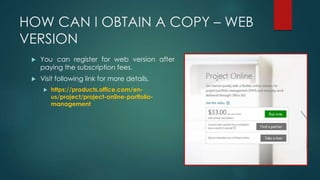
 You can register for web version after
paying the subscription fees.
 Visit following link for more details.
 https://products.office.com/en-
us/project/project-online-portfolio-
management
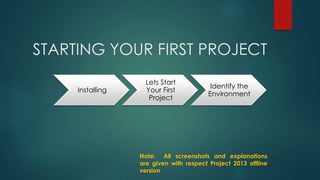
STARTING YOUR FIRST PROJECT
Installing
Lets Start
Your First
Project
Identify the
Environment
Note: All screenshots and explanations
are given with respect Project 2013 offline
version
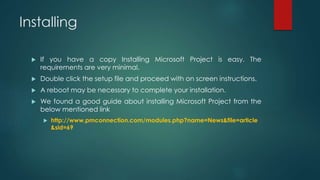
Installing
 If you have a copy Installing Microsoft Project is easy. The
requirements are very minimal.
 Double click the setup file and proceed with on screen instructions.
 A reboot may be necessary to complete your installation.
 We found a good guide about installing Microsoft Project from the
below mentioned link
 http://www.pmconnection.com/modules.php?name=News&file=article
&sid=69
STARTING YOUR FIRST PROJECT
 After installing Microsoft Project, You can access
it through
Start Menu  All Programs  Microsoft Office 2013
 Microsoft Project 2013
IDENTIFY THE ENVIRONMENT
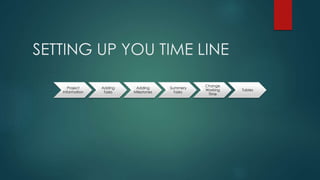
SETTING UP YOU TIME LINE
Project
Information
Adding
Tasks
Adding
Milestones
Summery
Tasks
Change
Working
Time
Tables
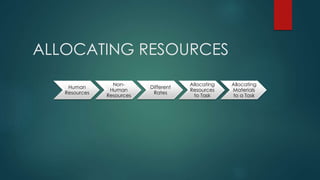
ALLOCATING RESOURCES
Human
Resources
Non-
Human
Resources
Different
Rates
Allocating
Resources
to Task
Allocating
Materials
to a Task
SETTING UP COST
Allocating
Cost to a
Human
Resource
Allocating
Cost to a
Non-Human
Resource
REPORTS
Dashboards Resources Costs In Progress Custom
Visual
Reports
WHY MICROSOFT PROJECT IS
SPECIAL
 Ease of Integration.
 Sharepoint task sync.
 Share documents.
 Project server and project online sync.
 Version upgrades.
 Integration with skype enabling real time communication.
CONCLUSION
 Microsoft is a PM tool which is used to
 Stay organized.
 Easily plan and manage your projects using the latest Project templates from
Office.com.
 Create a project site in Office 365 or SharePoint with a few simple clicks to quickly
share project details with your team, keeping everyone connected and
organized.
 Deliver projects successfully.
 Anticipate change using enhanced tools like Team Planner to help you see and
amend potential problems before they can impact your schedule.
 Improve everyday collaboration.
 Quickly deliver project information to your team and easily receive their changes
from virtually anywhere with improved task list synchronization between Project
and Office 365 or SharePoint.
 Project's new integration with Skype for Business and Skype for Business Online.
Thank You!!

Microsoft Project 2013

  • 1.
    Group Presentation on MicrosoftProject SOFTWARE PROJECT MANAGEMENT AND QUALITY ASSURANCE MCS 3102
  • 2.
    CONTENTS 01 • Introduction 02• How can I obtain a copy 03 • Starting your first project 04 • Setting up you time line 05 • Allocating resources 06 • Setting up the cost 07 • Reports 08 • Why Microsoft project is special 09 • Conclusion
  • 3.
  • 4.
    INTRODUCTION  Microsoft Projectis a project management software program developed and sold by Microsoft, which is designed to assist a project manager in developing a plan, assigning resources to tasks, tracking progress, managing the budget, and analyzing workloads.  Microsoft Project was the company's third Microsoft Windows-based application, and within a couple of years of its introduction it became the dominant PC-based project management software. Reference : Wikipedia
  • 5.
    MICROSOFT PROJECT ISFOR  Team Members  Enables Project Team Members to manage tasks, collaborate, submit time sheets, and flag issues and risks.  Project Managers  Enable them to analyze resources, budgets and timelines. Also, Project managers can easily measure progress and anticipate resource needs with detailed and easily customizable out-of-the box reports.  For Executives  Enable Executives to define business drivers, measure strategic impact of competing ideas, make right funding decisions and view project and resource status across the enterprise.
  • 6.
    DIFFERENT VERSIONS OF MICROSOFTPROJECT  Project Lite.  Project Pro Office.  Project Standard.  Project Online.  Project Server.
  • 7.
    HOW CAN IOBTAIN A COPY Offline Version Web or Online Version
  • 8.
    HOW CAN IOBTAIN A COPY – OFFLINE VERSION  You can obtain a trial version of Microsoft project from the following web page upon registering or you can purchase it through app store  https://www.microsoft.com/en- us/evalcenter/evaluate-project- professional-2013
  • 9.
    HOW CAN IOBTAIN A COPY – WEB VERSION  You can register for web version after paying the subscription fees.  Visit following link for more details.  https://products.office.com/en- us/project/project-online-portfolio- management
  • 10.
    STARTING YOUR FIRSTPROJECT Installing Lets Start Your First Project Identify the Environment Note: All screenshots and explanations are given with respect Project 2013 offline version
  • 11.
    Installing  If youhave a copy Installing Microsoft Project is easy. The requirements are very minimal.  Double click the setup file and proceed with on screen instructions.  A reboot may be necessary to complete your installation.  We found a good guide about installing Microsoft Project from the below mentioned link  http://www.pmconnection.com/modules.php?name=News&file=article &sid=69
  • 12.
    STARTING YOUR FIRSTPROJECT  After installing Microsoft Project, You can access it through Start Menu  All Programs  Microsoft Office 2013  Microsoft Project 2013
  • 13.
  • 14.
    SETTING UP YOUTIME LINE Project Information Adding Tasks Adding Milestones Summery Tasks Change Working Time Tables
  • 15.
  • 16.
    SETTING UP COST Allocating Costto a Human Resource Allocating Cost to a Non-Human Resource
  • 17.
    REPORTS Dashboards Resources CostsIn Progress Custom Visual Reports
  • 18.
    WHY MICROSOFT PROJECTIS SPECIAL  Ease of Integration.  Sharepoint task sync.  Share documents.  Project server and project online sync.  Version upgrades.  Integration with skype enabling real time communication.
  • 19.
    CONCLUSION  Microsoft isa PM tool which is used to  Stay organized.  Easily plan and manage your projects using the latest Project templates from Office.com.  Create a project site in Office 365 or SharePoint with a few simple clicks to quickly share project details with your team, keeping everyone connected and organized.  Deliver projects successfully.  Anticipate change using enhanced tools like Team Planner to help you see and amend potential problems before they can impact your schedule.  Improve everyday collaboration.  Quickly deliver project information to your team and easily receive their changes from virtually anywhere with improved task list synchronization between Project and Office 365 or SharePoint.  Project's new integration with Skype for Business and Skype for Business Online.
  • 20.