WELCOME TO YOU IN
RSB
GUIDED BY -:
DEVENDRA
KUSHWAHA
PRESENTED BY -:
1.SHADA KHAN
2.RAJESHWARI RAJPUT
3.ANJALI PATWA
TOPIC ON
DTP
Desktop Publishing
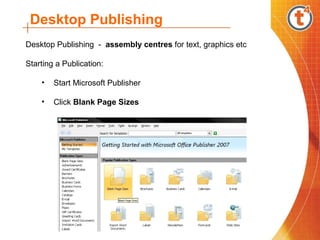
Desktop Publishing - assembly centres for text, graphics etc
Starting a Publication:
• Start Microsoft Publisher
• Click Blank Page Sizes
Desktop Publishing
• Select A4 Portrait from the resulting window
• Click the Create Publication button at the bottom-right of the screen
Desktop Publishing
Blank publication - before you add any text, it is important to set up
the page
This involves:
• Setting the correct units of measure
• Setting the page size
• Setting the layout guides
Units of measure:
• Click the Tools menu and select Options
• Set the units to Centimetres
Desktop Publishing
Setting layout guides
• Click the Arrange menu and choose Layout Guides
• Set the Margins
• Click OK
Tip - 2 cm suits most printers and looks well when printed. The
publication is now set up and ready to receive text
Desktop Publishing
Publisher terms
Publisher uses special terminology to describe the component parts of a
publication:
• Elements - Anything created in Publisher itself is an element.
This includes text, WordArt, tables, clip art, lines and boxes etc
• Objects: - Anything imported into Publisher. This includes
AutoCAD or AutoSketch drawings, images from the Internet, a
scanner or digital camera etc
• Frames - Elements or objects in Publisher are placed in
frames. Frames are specific to the item being placed - text
must be placed in a text frame etc. Frames can be moved and
resized
Desktop Publishing
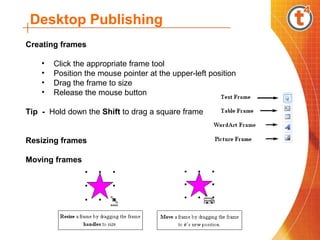
Creating frames
• Click the appropriate frame tool
• Position the mouse pointer at the upper-left position
• Drag the frame to size
• Release the mouse button
Tip - Hold down the Shift to drag a square frame
Resizing frames
Moving frames
Desktop Publishing
Frames
All elements and objects in Publisher are placed in frames
You can change the look of frames by:
• Adding Borders and BorderArt
• Adding Shadow
• Adding Fill Colour, Patterns and Gradients
• Layering and Grouping frames
Desktop Publishing
Adding Borders
• Select the frame
• From the Format menu, select Text Box
• Select your options for Border Thickness and Colour
• Click OK
Desktop Publishing
Adding BorderArt
• Select the required frame
• Click the BorderArt button in the Format Text Box dialog box
• Select a border from the list
• Click OK
Desktop Publishing
Adding Shadow
 
Tip: - For shadow to work correctly, the frame must be filled with a
colour. If the frame appears white in colour, still fill it with white as
frames are transparent in Publisher.
 
• Select the frame
• Select the Shadow button from the toolbar
Choose Shadow Settings to adjust the colour of the shadow etc
Desktop Publishing
Adding patterns and gradients
• Select the frame
• From the Format menu, select Text Box
• Choose a Fill Colour from the drop down box. There are more
colours available by selecting the more colours option
• To add a Fill Effect, choose the fill effects option. This gives the
option of filling with a pattern, gradient, texture etc
Desktop Publishing
Layering frames
Frames are layered in the order they were created. It is possible to
rearrange this ordering:
• Select the frame
• From the Arrange menu, select Order and arrange the frames:
- Bring to Front - move the frame to the top of the stack
- Send to Back - move the frame to the bottom of the stack
- Bring Forward - move the frame one position up the stack
- Send Backwards - move the frame one position down
Steel Girder
Text Frame on top Picture Frame on top
Desktop Publishing
Grouping frames
When you create several frames, such as a graphic and caption, you can
group them together and they will behave as one frame. Grouped frames
will resize in proportion and can be moved as one frame:
• Click the Selection tool - drag a selection box around the frames
• Click the Group button at the bottom of the selection box
Tip - select individual frames by holding down the Shift key and
selecting frames in turn. To Ungroup frames, select the group and click
the selection button
Grouped Ungrouped
Desktop Publishing
Text
Every element or object inserted into Publisher is placed in a Frame
The frame type is determined by the type of element being inserted.
To create a text frame:
• Click the Text Frame tool
• Using the mouse, Drag the frame to size
• The size and position can be changed later
• Set the Zoom to 100% on the toolbar.
• Start typing your text
Tip - The F9 key toggles between 100% and the current zoom setting
Desktop Publishing
Formatting text
Formatting text means changing it’s appearance. The techniques used
are:
• Setting font type, size, emphasis or colour
• Setting text alignment
• Setting line spacing
• Setting bullets or numbers
Setting font type and size
 
• Select the text - drag the mouse pointer over the text
• Set the font type and size from the drop down lists
Desktop Publishing
Setting text emphasis
 
• Select the text
• Click on Bold, Italic and Underline as required
Setting text colour
• Select the text
• Click the Font Colour button and choose a colour
• If the colour you want is not visible, click on More Colours to see
the full range
Desktop Publishing
Setting text alignment
 
When you drag a text frame, the alignment is automatically set to Left
Aligned. This is suitable for most situations:
• Select the text
• Click the required alignment button
Setting line spacing
• Select the text
• Click the Format menu and select Paragraph
• In the Line Spacing area, set the line spacing and click OK
Desktop Publishing
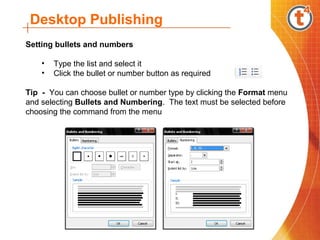
Setting bullets and numbers
 
• Type the list and select it
• Click the bullet or number button as required
Tip - You can choose bullet or number type by clicking the Format menu
and selecting Bullets and Numbering. The text must be selected before
choosing the command from the menu
Desktop Publishing
WordArt
WordArt is used to create special effects using text
Publisher treats WordArt as a graphic element and so it can be:
• Filled with a colour or pattern
• Rotated and resized
• Made to follow drawn objects
• Set to any of several predefined shapes
Adding WordArt
 
Click on the WordArt button
The WordArt Gallery appears
Select the required WordArt style and click OK
Desktop Publishing
• The Edit WordArt Text box appears
• Type your text
• Format the WordArt
• Click the OK button
The WordArt appears as a graphic and can be resized and moved to suit
Desktop Publishing
The WordArt Toolbar appears. Using it, you can:
• Edit text
• change the appearance using the gallery
• format the WordArt
• change the shape etc
Desktop Publishing
Creating a table
 
• Click the Table button and drag a frame
• The table dialog box appear
• Choose the number of Rows and Columns you require
• Publisher provides predefined table formats and you can select
one in the Table
• Format window and see a preview in the Sample window
• Click OK
• Enter the information into the table and format as required
Desktop Publishing
Adjusting cell size
Position the cursor on a gridline
Drag the cell to size
Printing the guidelines
 
Cell guidelines do not automatically print. You must convert them to
borders.
• Select the entire table
• Click the Line/Border Style button on the toolbar
• Select More Lines from the Drop Down menu
• Select Grid from the Presets section
Desktop Publishing
Merging table cells
Merged cells will behave as a single cell.
• Select the cells
• Select the Table menu and Merge Cells
Adding rows or columns
• Click in a cell next to where you want the columns or rows inserted
• From the Table menu, choose Insert and select rows or columns
Desktop Publishing
Graphics
Inserting Clip Art
Publisher comes with an extensive range of Clip Art.
• From the Insert menu, choose Clip Art
• Type a keyword into the Search For box
• Click Go
• Choose from the results
Desktop Publishing
From File
• Drag a Picture frame
• From the Insert menu, select Picture and From File
• Find the picture using the dialog box
Desktop Publishing
From the Internet
 
Microsoft maintains an extensive Clip Art collection online. This can be
accessed from Clip Art if you have an Internet connection.
• Open Clip Art (Insert menu, choose Clip Art)
• Click the Clips Art on OfficeOnline link
The Microsoft web site opens and connects you to the clip art gallery.
• Set the search parameters and download the clip art
Desktop Publishing
From a scanner or camera
• From the Insert menu, choose Picture, From Scanner or
Camera an select the scanner from the list
Select the device you intend using. You are now ready to use the device to
import an image
• The software for the selected device opens
• Use the software to import the image
Desktop Publishing
Drawing Tools
These are used to add lines, ovals, boxes and other shapes. Simply
select the required tool and drag the shape. Size and position can be
changed later.
 To add lines
• Click the Line tool
• Drag the line to the required size
• Move the line to position if necessary
To add Arrows
Click the Arrow tool
Drag the line to the required size
Move the line to position if necessary
Tip - Hold down the Shift key to draw straight lines or lines at 45°
Desktop Publishing
To Edit lines
 
With the line selected, choose AutoShape from the Format menu
Set your options and click OK
Desktop Publishing
To add Ovals and boxes
 
• Click the Oval or Box tool
• Drag to size
• Move to position if required
• Format for fill colour, outline colour and thickness as for lines
Tip - Hold down the Shift key to drag a perfect circle or square.
 
 
To add AutoShapes
 
• Click the Shape tool
• Choose the required category
• Choose the required shape
• Drag the shape to size
• Move to position if necessary
• Format for fill colour, outline colour and thickness as for lines
Desktop Publishing
The Background
• Pages in Publisher are stored in an area called the Foreground
• Publisher provides another area, called the Background, where you
can place elements or objects that will appear on every page
A blank background is automatically created when Publisher is started
To move to the background
• Select the View menu
• Select Master Page
Tip - Alternatively, you can use the CTRL+M keys to toggle between the
foreground and the background
Desktop Publishing
Foreground pages in Publisher are like transparency sheets placed on top
of the background
The elements or objects on the background can be seen through the
transparent foreground sheets
What goes on the background
• Page numbers which will increment on the foreground pages
• Headers, footers or sidebars you want on all foreground pages
• Graphics or text you want on all foreground pages
Foreground pageForeground page
BackgroundBackground
Desktop Publishing
To insert page numbers
• Go to the background
• From the Insert menu, select Page Numbers
Publisher inserts the page number mark (the hash symbol #) which only
appears on the background
It is replaced by the appropriate page numbers on the foreground pages.
• Add any text you require before the hash symbol (Page etc)
• Format the text as you would any other text
• Return to the foreground
Thanking

Dtp

  • 1.
  • 2.
  • 3.
    PRESENTED BY -: 1.SHADAKHAN 2.RAJESHWARI RAJPUT 3.ANJALI PATWA
  • 4.
  • 5.
    Desktop Publishing Desktop Publishing- assembly centres for text, graphics etc Starting a Publication: • Start Microsoft Publisher • Click Blank Page Sizes
  • 6.
    Desktop Publishing • SelectA4 Portrait from the resulting window • Click the Create Publication button at the bottom-right of the screen
  • 7.
    Desktop Publishing Blank publication- before you add any text, it is important to set up the page This involves: • Setting the correct units of measure • Setting the page size • Setting the layout guides Units of measure: • Click the Tools menu and select Options • Set the units to Centimetres
  • 8.
    Desktop Publishing Setting layoutguides • Click the Arrange menu and choose Layout Guides • Set the Margins • Click OK Tip - 2 cm suits most printers and looks well when printed. The publication is now set up and ready to receive text
  • 9.
    Desktop Publishing Publisher terms Publisheruses special terminology to describe the component parts of a publication: • Elements - Anything created in Publisher itself is an element. This includes text, WordArt, tables, clip art, lines and boxes etc • Objects: - Anything imported into Publisher. This includes AutoCAD or AutoSketch drawings, images from the Internet, a scanner or digital camera etc • Frames - Elements or objects in Publisher are placed in frames. Frames are specific to the item being placed - text must be placed in a text frame etc. Frames can be moved and resized
  • 10.
    Desktop Publishing Creating frames •Click the appropriate frame tool • Position the mouse pointer at the upper-left position • Drag the frame to size • Release the mouse button Tip - Hold down the Shift to drag a square frame Resizing frames Moving frames
  • 11.
    Desktop Publishing Frames All elementsand objects in Publisher are placed in frames You can change the look of frames by: • Adding Borders and BorderArt • Adding Shadow • Adding Fill Colour, Patterns and Gradients • Layering and Grouping frames
  • 12.
    Desktop Publishing Adding Borders •Select the frame • From the Format menu, select Text Box • Select your options for Border Thickness and Colour • Click OK
  • 13.
    Desktop Publishing Adding BorderArt •Select the required frame • Click the BorderArt button in the Format Text Box dialog box • Select a border from the list • Click OK
  • 14.
    Desktop Publishing Adding Shadow   Tip:- For shadow to work correctly, the frame must be filled with a colour. If the frame appears white in colour, still fill it with white as frames are transparent in Publisher.   • Select the frame • Select the Shadow button from the toolbar Choose Shadow Settings to adjust the colour of the shadow etc
  • 15.
    Desktop Publishing Adding patternsand gradients • Select the frame • From the Format menu, select Text Box • Choose a Fill Colour from the drop down box. There are more colours available by selecting the more colours option • To add a Fill Effect, choose the fill effects option. This gives the option of filling with a pattern, gradient, texture etc
  • 16.
    Desktop Publishing Layering frames Framesare layered in the order they were created. It is possible to rearrange this ordering: • Select the frame • From the Arrange menu, select Order and arrange the frames: - Bring to Front - move the frame to the top of the stack - Send to Back - move the frame to the bottom of the stack - Bring Forward - move the frame one position up the stack - Send Backwards - move the frame one position down Steel Girder Text Frame on top Picture Frame on top
  • 17.
    Desktop Publishing Grouping frames Whenyou create several frames, such as a graphic and caption, you can group them together and they will behave as one frame. Grouped frames will resize in proportion and can be moved as one frame: • Click the Selection tool - drag a selection box around the frames • Click the Group button at the bottom of the selection box Tip - select individual frames by holding down the Shift key and selecting frames in turn. To Ungroup frames, select the group and click the selection button Grouped Ungrouped
  • 18.
    Desktop Publishing Text Every elementor object inserted into Publisher is placed in a Frame The frame type is determined by the type of element being inserted. To create a text frame: • Click the Text Frame tool • Using the mouse, Drag the frame to size • The size and position can be changed later • Set the Zoom to 100% on the toolbar. • Start typing your text Tip - The F9 key toggles between 100% and the current zoom setting
  • 19.
    Desktop Publishing Formatting text Formattingtext means changing it’s appearance. The techniques used are: • Setting font type, size, emphasis or colour • Setting text alignment • Setting line spacing • Setting bullets or numbers Setting font type and size   • Select the text - drag the mouse pointer over the text • Set the font type and size from the drop down lists
  • 20.
    Desktop Publishing Setting textemphasis   • Select the text • Click on Bold, Italic and Underline as required Setting text colour • Select the text • Click the Font Colour button and choose a colour • If the colour you want is not visible, click on More Colours to see the full range
  • 21.
    Desktop Publishing Setting textalignment   When you drag a text frame, the alignment is automatically set to Left Aligned. This is suitable for most situations: • Select the text • Click the required alignment button Setting line spacing • Select the text • Click the Format menu and select Paragraph • In the Line Spacing area, set the line spacing and click OK
  • 22.
    Desktop Publishing Setting bulletsand numbers   • Type the list and select it • Click the bullet or number button as required Tip - You can choose bullet or number type by clicking the Format menu and selecting Bullets and Numbering. The text must be selected before choosing the command from the menu
  • 23.
    Desktop Publishing WordArt WordArt isused to create special effects using text Publisher treats WordArt as a graphic element and so it can be: • Filled with a colour or pattern • Rotated and resized • Made to follow drawn objects • Set to any of several predefined shapes Adding WordArt   Click on the WordArt button The WordArt Gallery appears Select the required WordArt style and click OK
  • 24.
    Desktop Publishing • TheEdit WordArt Text box appears • Type your text • Format the WordArt • Click the OK button The WordArt appears as a graphic and can be resized and moved to suit
  • 25.
    Desktop Publishing The WordArtToolbar appears. Using it, you can: • Edit text • change the appearance using the gallery • format the WordArt • change the shape etc
  • 26.
    Desktop Publishing Creating atable   • Click the Table button and drag a frame • The table dialog box appear • Choose the number of Rows and Columns you require • Publisher provides predefined table formats and you can select one in the Table • Format window and see a preview in the Sample window • Click OK • Enter the information into the table and format as required
  • 27.
    Desktop Publishing Adjusting cellsize Position the cursor on a gridline Drag the cell to size Printing the guidelines   Cell guidelines do not automatically print. You must convert them to borders. • Select the entire table • Click the Line/Border Style button on the toolbar • Select More Lines from the Drop Down menu • Select Grid from the Presets section
  • 28.
    Desktop Publishing Merging tablecells Merged cells will behave as a single cell. • Select the cells • Select the Table menu and Merge Cells Adding rows or columns • Click in a cell next to where you want the columns or rows inserted • From the Table menu, choose Insert and select rows or columns
  • 29.
    Desktop Publishing Graphics Inserting ClipArt Publisher comes with an extensive range of Clip Art. • From the Insert menu, choose Clip Art • Type a keyword into the Search For box • Click Go • Choose from the results
  • 30.
    Desktop Publishing From File •Drag a Picture frame • From the Insert menu, select Picture and From File • Find the picture using the dialog box
  • 31.
    Desktop Publishing From theInternet   Microsoft maintains an extensive Clip Art collection online. This can be accessed from Clip Art if you have an Internet connection. • Open Clip Art (Insert menu, choose Clip Art) • Click the Clips Art on OfficeOnline link The Microsoft web site opens and connects you to the clip art gallery. • Set the search parameters and download the clip art
  • 32.
    Desktop Publishing From ascanner or camera • From the Insert menu, choose Picture, From Scanner or Camera an select the scanner from the list Select the device you intend using. You are now ready to use the device to import an image • The software for the selected device opens • Use the software to import the image
  • 33.
    Desktop Publishing Drawing Tools Theseare used to add lines, ovals, boxes and other shapes. Simply select the required tool and drag the shape. Size and position can be changed later.  To add lines • Click the Line tool • Drag the line to the required size • Move the line to position if necessary To add Arrows Click the Arrow tool Drag the line to the required size Move the line to position if necessary Tip - Hold down the Shift key to draw straight lines or lines at 45°
  • 34.
    Desktop Publishing To Editlines   With the line selected, choose AutoShape from the Format menu Set your options and click OK
  • 35.
    Desktop Publishing To addOvals and boxes   • Click the Oval or Box tool • Drag to size • Move to position if required • Format for fill colour, outline colour and thickness as for lines Tip - Hold down the Shift key to drag a perfect circle or square.     To add AutoShapes   • Click the Shape tool • Choose the required category • Choose the required shape • Drag the shape to size • Move to position if necessary • Format for fill colour, outline colour and thickness as for lines
  • 36.
    Desktop Publishing The Background •Pages in Publisher are stored in an area called the Foreground • Publisher provides another area, called the Background, where you can place elements or objects that will appear on every page A blank background is automatically created when Publisher is started To move to the background • Select the View menu • Select Master Page Tip - Alternatively, you can use the CTRL+M keys to toggle between the foreground and the background
  • 37.
    Desktop Publishing Foreground pagesin Publisher are like transparency sheets placed on top of the background The elements or objects on the background can be seen through the transparent foreground sheets What goes on the background • Page numbers which will increment on the foreground pages • Headers, footers or sidebars you want on all foreground pages • Graphics or text you want on all foreground pages Foreground pageForeground page BackgroundBackground
  • 38.
    Desktop Publishing To insertpage numbers • Go to the background • From the Insert menu, select Page Numbers Publisher inserts the page number mark (the hash symbol #) which only appears on the background It is replaced by the appropriate page numbers on the foreground pages. • Add any text you require before the hash symbol (Page etc) • Format the text as you would any other text • Return to the foreground
  • 39.