Introduction to Desktop Publishing Page 1 of 8
INTRODUCTION TO DESKTOP PUBLISHING
Desktop publishing uses page layout software and a personal computer to
combine text, type, drawings, and images on a page to create books,
newsletters, marketing brochures, flyers, greeting cards, and Web sites,
for example. Anything you can print on a page can be put into a page
layout program.
Microsoft Publisher 2 0 0 7 lets you place elements on a page, precisely
position them, modify them, and specify a print job by using techniques
that commercial printers require. Whether you print to your inkjet or laser
printer, go to your local Staples, or send your files to a commercial
printer, Microsoft Publisher 2007 helps you prepare your work for that
level of quality.
But why use Microsoft Publisher when you can do most of these things with Microsoft Word? The biggest
advantage of using Publisher over Word is that Publisher lets you control the contents of a document
with finer precision. It also includes special tools to help you format your document that do not exist in
Word.
GETTING STARTED WITH MICROSOFT PUBLISHER
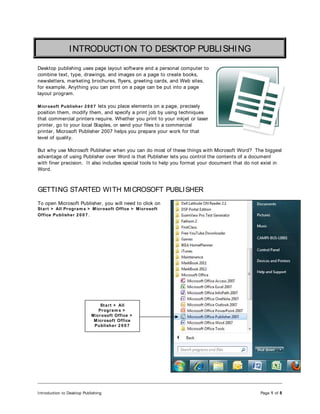
To open Microsoft Publisher, you will need to click on
Start > All Program s > Microsoft Office > Microsoft
Office Publisher 2 0 0 7 .
Start > All
Program s >
Microsoft Office >
Microsoft Office
Publisher 2 0 0 7
Introduction to Desktop Publishing Page 2 of 8
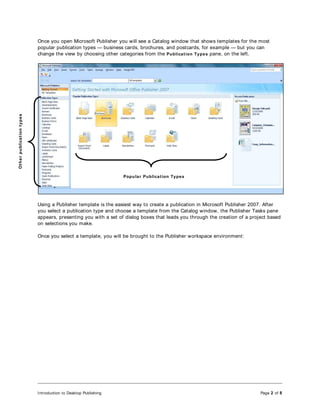
Once you open Microsoft Publisher you will see a Catalog window that shows templates for the most
popular publication types — business cards, brochures, and postcards, for example — but you can
change the view by choosing other categories from the Publication Types pane, on the left.
Using a Publisher template is the easiest way to create a publication in Microsoft Publisher 2007. After
you select a publication type and choose a template from the Catalog window, the Publisher Tasks pane
appears, presenting you with a set of dialog boxes that leads you through the creation of a project based
on selections you make.
Once you select a template, you will be brought to the Publisher workspace environment:
Popular Publication Types
Ot
h
e
r
pu
blica
t
ion
t
ype
s
Introduction to Desktop Publishing Page 3 of 8
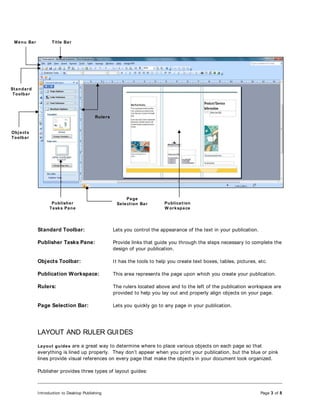
Standard Toolbar: Lets you control the appearance of the text in your publication.
Publisher Tasks Pane: Provide links that guide you through the steps necessary to complete the
design of your publication.
Objects Toolbar: It has the tools to help you create text boxes, tables, pictures, etc.
Publication Workspace: This area represents the page upon which you create your publication.
Rulers: The rulers located above and to the left of the publication workspace are
provided to help you lay out and properly align objects on your page.
Page Selection Bar: Lets you quickly go to any page in your publication.
LAYOUT AND RULER GUIDES
Layout guides are a great way to determine where to place various objects on each page so that
everything is lined up properly. They don’t appear when you print your publication, but the blue or pink
lines provide visual references on every page that make the objects in your document look organized.
Publisher provides three types of layout guides:
Title Bar
Menu Bar
Standard
Toolbar
Publisher
Tasks Pane
Objects
Toolbar
Publication
W orkspace
Rulers
Page
Selection Bar
Introduction to Desktop Publishing Page 4 of 8
1. MARGI N GUI DES
 They define the boundary of your printable area and automatically appear in every
publication
 They indicate where you should and shouldn’t place objects
 They help you align objects along the perimeter of each page
2. GRI D GUI DES
 They are like lines on graph paper that are very useful for aligning objects that you don’t
want to align to the margin guides
 For example, if you want to set an image in the centre of the page, grid guides can help you
do this
3. BASELI NE GUI DES
 These guides help you align text in between text boxes in columns even though the text
boxes are not linked
When you use templates to begin a publication, Publisher sets up grid guides automatically to save you
the trouble of doing it yourself. Of course, you can always change them, if you like.
To set up or change layout guides:
1. Choose Arrange  Layout Guides.
2. The Layout Guides dialog box will appear and from here you can set the margins for your printed
page by clicking the Margin Guides tab.
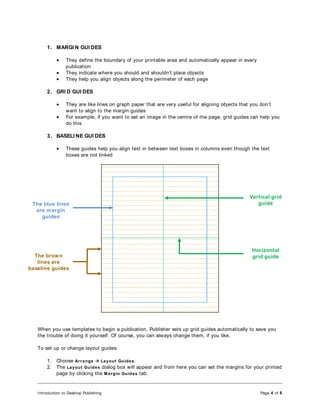
The blue lines
are margin
guides
Vertical grid
guide
Horizontal
grid guide
The brown
lines are
baseline guides
Introduction to Desktop Publishing Page 5 of 8
3. Click the Grid Guides tab to enter the number of columns and rows you want. Grid guides evenly
divide the space contained by the margin guides. If you want to change the amount of space
between the columns or rows, use the arrows next to the respect Spacing boxes.
If you can’t see your layout guides after setting them, check the View menu to see whether the View 
Boundaries and Guides command is hiding your guides. If the View  Boundaries and Guides command
appears on the menu without a check mark next to it, choose that command or press CTRL+ SHI FT+ O.
To hide the guides again, reapply the View  Boundaries and Guides command or press CTRL+ SHI FT+ O
again. If you still can’t see your guides, they may be covered by other objects, such as lines or a frame
boundary.
Introduction to Desktop Publishing Page 6 of 8
RULER GUI DES
In addition to setting layout guides, you can set ruler guides anywhere on your page. Ruler guides let
you arrange elements on your page at any horizontal or vertical position you want. You can create as
many ruler guides as you need. Here are some of the ways you can use ruler guides:
To create a vertical guide:
Position the mouse cursor over the vertical ruler until the cursor changes to a double-headed arrow.
Then click and drag from the vertical ruler right to the desired position on your layout. A green
dotted line appears and remains when you release the mouse button.
To create a horizontal guide:
Position the mouse cursor over the horizontal ruler. Then click and drag from the horizontal ruler
down to the desired position on your layout.
To place a vertical guide in the centre of the page:
Choose Arrange  Ruler Guides  Add Vertical Ruler Guide. Publisher places a vertical guide in the
exact centre of the page.
To place a horizontal guide in the centre of the page:
Choose Arrange  Ruler Guides  Add Horizontal Ruler Guide. Publisher places a horizontal guide
across the center of the page.
To move a ruler guide:
Just click and drag it.
To remove a ruler guide:
Click and drag the ruler of the page.
Make sure there is a
check m ark next to
Boundaries and Guides
Introduction to Desktop Publishing Page 7 of 8
To remove all ruler guides:
Choose the Arrange  Ruler Guides  Clear All Ruler Guides command.
ALIGNING OBJECTS USING THE “SNAP TO GUIDE” FEATURE
The purpose of using guides in a Publisher document is to allow users to automatically align objects to
them. Publisher has a Snap to Guides feature which directly aligns objects you place close to a guide.
The Snap To commands ensures that any objects you draw or drag near a guide automatically aligns with
that guide.
To turn the Snap To commands on and off, you will need to do the following:
 Choose Arrange  Snap  To Ruler Marks to align objects with your ruler marks
 Choose Arrange  Snap  To Guides to align objects with your layout guides
 Choose Arrange  Snap  To Objects to align objects with selected objects in your
publication
A check mark next to the command name means that the option is turned on; click it to turn it off. If
there is no check mark that means that the option is turned off; click it to turn it on.
You’ll notice that the Snap  To Objects command has no check mark. When this command is turned on,
you will see a coloured background on the icon next to the command. When the Snap  To Objects
command is turned off, the coloured background goes away.
USING THE NUDGE COMMAND TO ALIGN OBJECTS
Another way you can precisely place objects on your publication is by using the Nudge commands which
lets you use the arrow keys on the keyboard to move your objects a very small amount at a time in any
direction.
To set up the Nudge commands:
1. Choose Tools  Options.
2. From the Options dialog box, select the Edit tab.
3. Select the Arrow Keys Nudge Objects By check box and type the amount to nudge the selected
object by in the adjacent box.
Introduction to Desktop Publishing Page 8 of 8
Set the num ber of
inches you w ant to
nudge objects

Introduction_to_Desktop_Publishing.pdf

  • 1.
    Introduction to DesktopPublishing Page 1 of 8 INTRODUCTION TO DESKTOP PUBLISHING Desktop publishing uses page layout software and a personal computer to combine text, type, drawings, and images on a page to create books, newsletters, marketing brochures, flyers, greeting cards, and Web sites, for example. Anything you can print on a page can be put into a page layout program. Microsoft Publisher 2 0 0 7 lets you place elements on a page, precisely position them, modify them, and specify a print job by using techniques that commercial printers require. Whether you print to your inkjet or laser printer, go to your local Staples, or send your files to a commercial printer, Microsoft Publisher 2007 helps you prepare your work for that level of quality. But why use Microsoft Publisher when you can do most of these things with Microsoft Word? The biggest advantage of using Publisher over Word is that Publisher lets you control the contents of a document with finer precision. It also includes special tools to help you format your document that do not exist in Word. GETTING STARTED WITH MICROSOFT PUBLISHER To open Microsoft Publisher, you will need to click on Start > All Program s > Microsoft Office > Microsoft Office Publisher 2 0 0 7 . Start > All Program s > Microsoft Office > Microsoft Office Publisher 2 0 0 7
  • 2.
    Introduction to DesktopPublishing Page 2 of 8 Once you open Microsoft Publisher you will see a Catalog window that shows templates for the most popular publication types — business cards, brochures, and postcards, for example — but you can change the view by choosing other categories from the Publication Types pane, on the left. Using a Publisher template is the easiest way to create a publication in Microsoft Publisher 2007. After you select a publication type and choose a template from the Catalog window, the Publisher Tasks pane appears, presenting you with a set of dialog boxes that leads you through the creation of a project based on selections you make. Once you select a template, you will be brought to the Publisher workspace environment: Popular Publication Types Ot h e r pu blica t ion t ype s
  • 3.
    Introduction to DesktopPublishing Page 3 of 8 Standard Toolbar: Lets you control the appearance of the text in your publication. Publisher Tasks Pane: Provide links that guide you through the steps necessary to complete the design of your publication. Objects Toolbar: It has the tools to help you create text boxes, tables, pictures, etc. Publication Workspace: This area represents the page upon which you create your publication. Rulers: The rulers located above and to the left of the publication workspace are provided to help you lay out and properly align objects on your page. Page Selection Bar: Lets you quickly go to any page in your publication. LAYOUT AND RULER GUIDES Layout guides are a great way to determine where to place various objects on each page so that everything is lined up properly. They don’t appear when you print your publication, but the blue or pink lines provide visual references on every page that make the objects in your document look organized. Publisher provides three types of layout guides: Title Bar Menu Bar Standard Toolbar Publisher Tasks Pane Objects Toolbar Publication W orkspace Rulers Page Selection Bar
  • 4.
    Introduction to DesktopPublishing Page 4 of 8 1. MARGI N GUI DES  They define the boundary of your printable area and automatically appear in every publication  They indicate where you should and shouldn’t place objects  They help you align objects along the perimeter of each page 2. GRI D GUI DES  They are like lines on graph paper that are very useful for aligning objects that you don’t want to align to the margin guides  For example, if you want to set an image in the centre of the page, grid guides can help you do this 3. BASELI NE GUI DES  These guides help you align text in between text boxes in columns even though the text boxes are not linked When you use templates to begin a publication, Publisher sets up grid guides automatically to save you the trouble of doing it yourself. Of course, you can always change them, if you like. To set up or change layout guides: 1. Choose Arrange  Layout Guides. 2. The Layout Guides dialog box will appear and from here you can set the margins for your printed page by clicking the Margin Guides tab. The blue lines are margin guides Vertical grid guide Horizontal grid guide The brown lines are baseline guides
  • 5.
    Introduction to DesktopPublishing Page 5 of 8 3. Click the Grid Guides tab to enter the number of columns and rows you want. Grid guides evenly divide the space contained by the margin guides. If you want to change the amount of space between the columns or rows, use the arrows next to the respect Spacing boxes. If you can’t see your layout guides after setting them, check the View menu to see whether the View  Boundaries and Guides command is hiding your guides. If the View  Boundaries and Guides command appears on the menu without a check mark next to it, choose that command or press CTRL+ SHI FT+ O. To hide the guides again, reapply the View  Boundaries and Guides command or press CTRL+ SHI FT+ O again. If you still can’t see your guides, they may be covered by other objects, such as lines or a frame boundary.
  • 6.
    Introduction to DesktopPublishing Page 6 of 8 RULER GUI DES In addition to setting layout guides, you can set ruler guides anywhere on your page. Ruler guides let you arrange elements on your page at any horizontal or vertical position you want. You can create as many ruler guides as you need. Here are some of the ways you can use ruler guides: To create a vertical guide: Position the mouse cursor over the vertical ruler until the cursor changes to a double-headed arrow. Then click and drag from the vertical ruler right to the desired position on your layout. A green dotted line appears and remains when you release the mouse button. To create a horizontal guide: Position the mouse cursor over the horizontal ruler. Then click and drag from the horizontal ruler down to the desired position on your layout. To place a vertical guide in the centre of the page: Choose Arrange  Ruler Guides  Add Vertical Ruler Guide. Publisher places a vertical guide in the exact centre of the page. To place a horizontal guide in the centre of the page: Choose Arrange  Ruler Guides  Add Horizontal Ruler Guide. Publisher places a horizontal guide across the center of the page. To move a ruler guide: Just click and drag it. To remove a ruler guide: Click and drag the ruler of the page. Make sure there is a check m ark next to Boundaries and Guides
  • 7.
    Introduction to DesktopPublishing Page 7 of 8 To remove all ruler guides: Choose the Arrange  Ruler Guides  Clear All Ruler Guides command. ALIGNING OBJECTS USING THE “SNAP TO GUIDE” FEATURE The purpose of using guides in a Publisher document is to allow users to automatically align objects to them. Publisher has a Snap to Guides feature which directly aligns objects you place close to a guide. The Snap To commands ensures that any objects you draw or drag near a guide automatically aligns with that guide. To turn the Snap To commands on and off, you will need to do the following:  Choose Arrange  Snap  To Ruler Marks to align objects with your ruler marks  Choose Arrange  Snap  To Guides to align objects with your layout guides  Choose Arrange  Snap  To Objects to align objects with selected objects in your publication A check mark next to the command name means that the option is turned on; click it to turn it off. If there is no check mark that means that the option is turned off; click it to turn it on. You’ll notice that the Snap  To Objects command has no check mark. When this command is turned on, you will see a coloured background on the icon next to the command. When the Snap  To Objects command is turned off, the coloured background goes away. USING THE NUDGE COMMAND TO ALIGN OBJECTS Another way you can precisely place objects on your publication is by using the Nudge commands which lets you use the arrow keys on the keyboard to move your objects a very small amount at a time in any direction. To set up the Nudge commands: 1. Choose Tools  Options. 2. From the Options dialog box, select the Edit tab. 3. Select the Arrow Keys Nudge Objects By check box and type the amount to nudge the selected object by in the adjacent box.
  • 8.
    Introduction to DesktopPublishing Page 8 of 8 Set the num ber of inches you w ant to nudge objects