Meridian Career Institute
presents
A Learning Resource Center
Seminar
Microsoft Publisher
Publisher or Word?
Use Publisher when working with
pictures and a complicated layout,
such as a newsletter or greeting card.
Use Word when working with mostly
text.
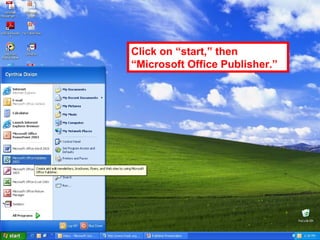
Click on “start,” then
“Microsoft Office Publisher.”
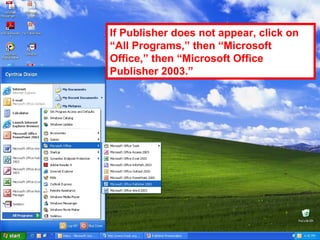
If Publisher does not appear, click on
“All Programs,” then “Microsoft
Office,” then “Microsoft Office
Publisher 2003.”
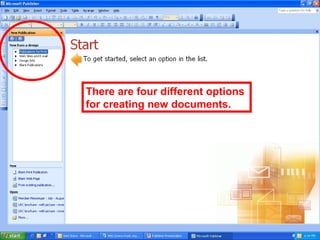
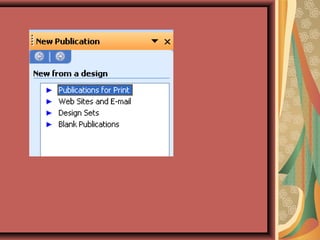
There are four different options
for creating new documents.
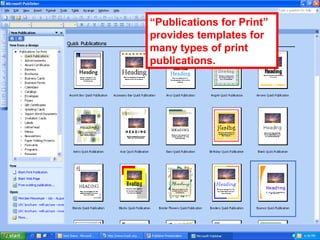
“Publications for Print”
provides templates for
many types of print
publications.
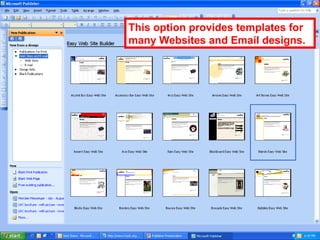
This option provides templates for
many Websites and Email designs.
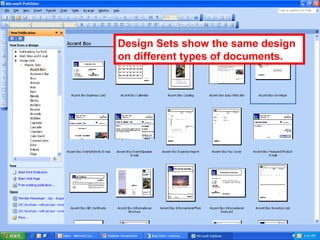
Design Sets show the same design
on different types of documents.
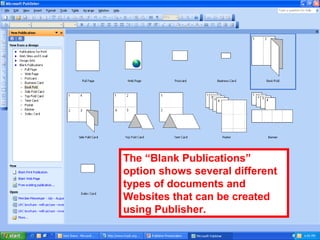
The “Blank Publications”
option shows several different
types of documents and
Websites that can be created
using Publisher.
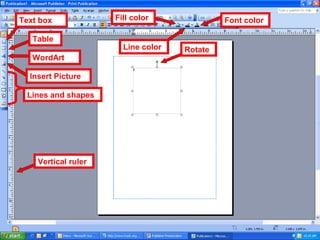
Text box
Table
WordArt
Insert Picture
Lines and shapes
Vertical ruler
Rotate
Font colorFill color
Line color
Inserting Text
You MUST use a text box or
WordArt to put text into a Publisher
document.
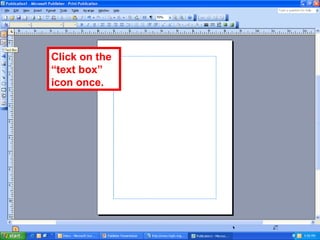
Text box
Click on the
“text box”
icon once.
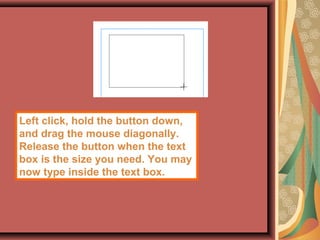
Left click, hold the button down,
and drag the mouse diagonally.
Release the button when the text
box is the size you need. You may
now type inside the text box.
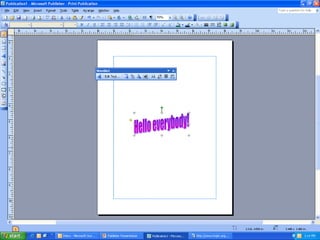
WordArt
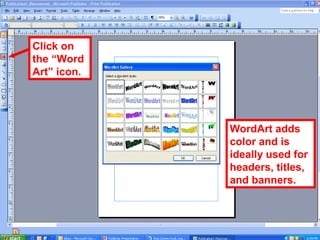
WordArt adds
color and is
ideally used for
headers, titles,
and banners.
Click on
the “Word
Art” icon.
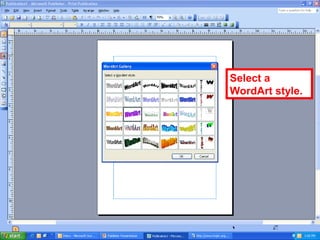
Select a
WordArt style.
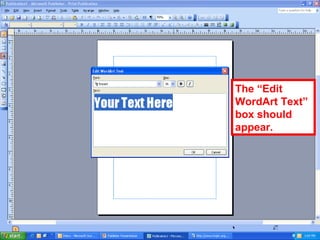
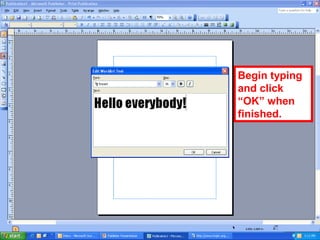
The “Edit
WordArt Text”
box should
appear.
Begin typing
and click
“OK” when
finished.
Inserting Images
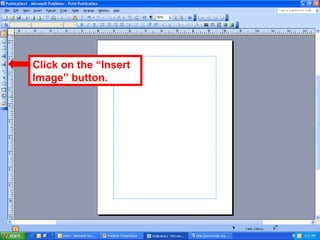
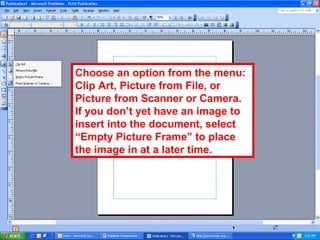
Click on the “Insert
Image” button.
Choose an option from the menu:
Clip Art, Picture from File, or
Picture from Scanner or Camera.
If you don’t yet have an image to
insert into the document, select
“Empty Picture Frame” to place
the image in at a later time.
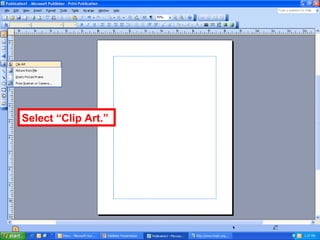
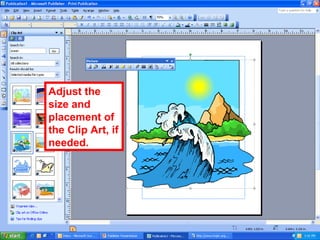
Inserting Clip Art
Select “Clip Art.”
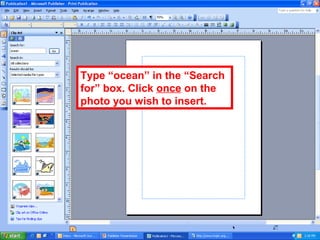
Type “ocean” in the “Search
for” box. Click once on the
photo you wish to insert.
Adjust the
size and
placement of
the Clip Art, if
needed.
Inserting images from your hard
drive.
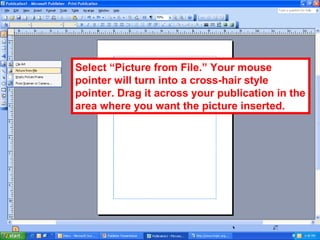
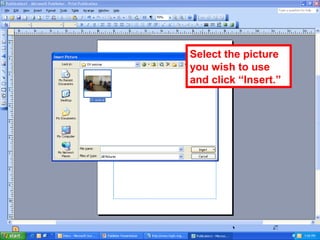
Select “Picture from File.” Your mouse
pointer will turn into a cross-hair style
pointer. Drag it across your publication in the
area where you want the picture inserted.
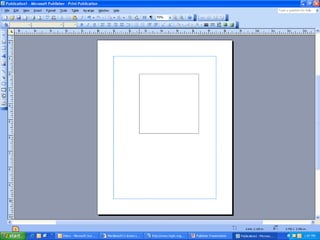
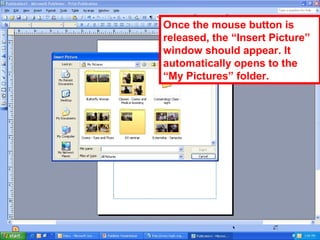
Once the mouse button is
released, the “Insert Picture”
window should appear. It
automatically opens to the
“My Pictures” folder.
Select the picture
you wish to use
and click “Insert.”
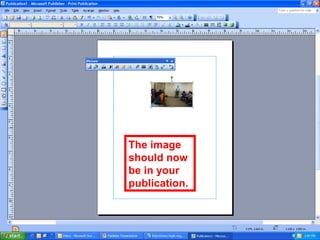
The image
should now
be in your
publication.
Manipulating Text boxes
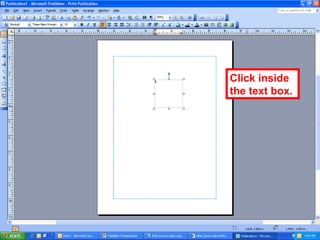
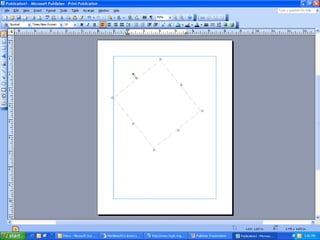
Click inside
the text box.
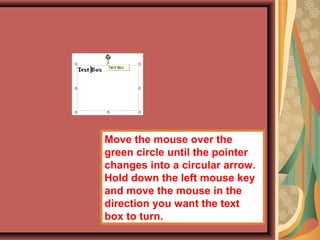
Move the mouse over the
green circle until the pointer
changes into a circular arrow.
Hold down the left mouse key
and move the mouse in the
direction you want the text
box to turn.
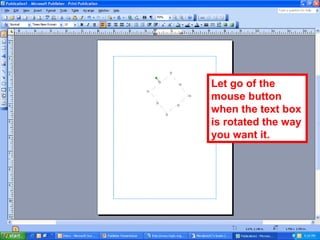
Let go of the
mouse button
when the text box
is rotated the way
you want it.
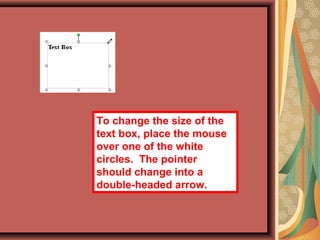
To change the size of the
text box, place the mouse
over one of the white
circles. The pointer
should change into a
double-headed arrow.
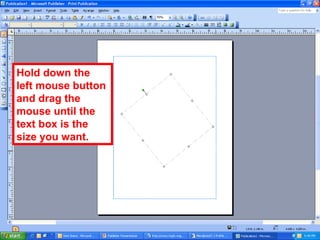
Hold down the
left mouse button
and drag the
mouse until the
text box is the
size you want.
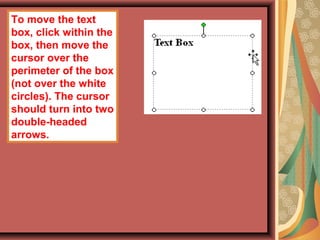
To move the text
box, click within the
box, then move the
cursor over the
perimeter of the box
(not over the white
circles). The cursor
should turn into two
double-headed
arrows.
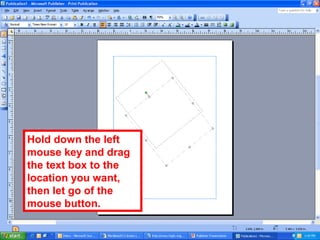
Hold down the left
mouse key and drag
the text box to the
location you want,
then let go of the
mouse button.
Nudge a picture/text
If you need to move a text box or
image by a very small amount,
select it, then use the arrow keys to
move it.
Inserting Pages
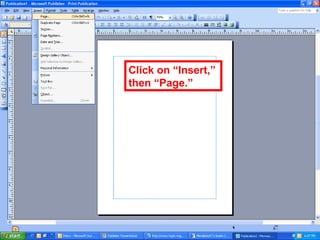
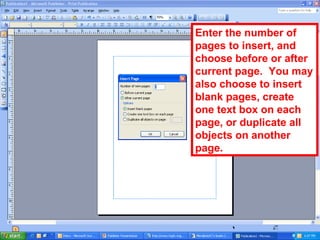
Click on “Insert,”
then “Page.”
Enter the number of
pages to insert, and
choose before or after
current page. You may
also choose to insert
blank pages, create
one text box on each
page, or duplicate all
objects on another
page.
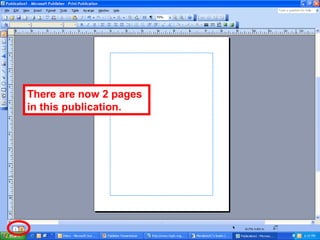
There are now 2 pages
in this publication.
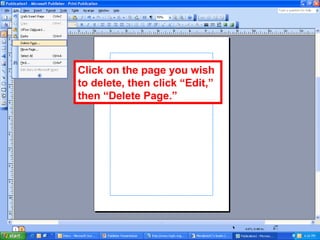
Deleting pages
Click on the page you wish
to delete, then click “Edit,”
then “Delete Page.”
Lines, borders, colors, and
shadows
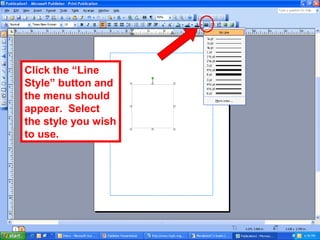
Click the “Line
Style” button and
the menu should
appear. Select
the style you wish
to use.
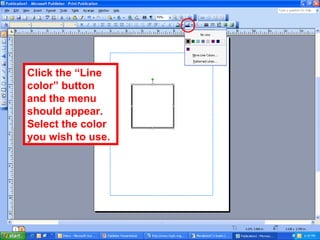
Click the “Line
color” button
and the menu
should appear.
Select the color
you wish to use.
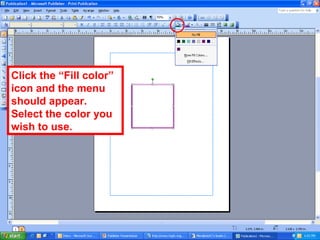
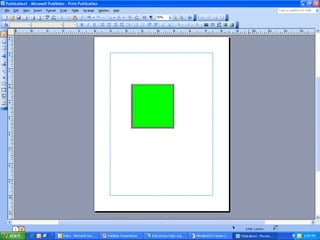
Click the “Fill color”
icon and the menu
should appear.
Select the color you
wish to use.
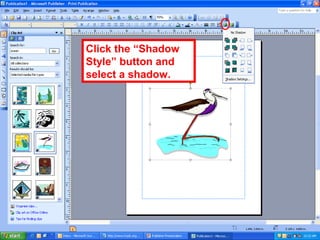
Click the “Shadow
Style” button and
select a shadow.
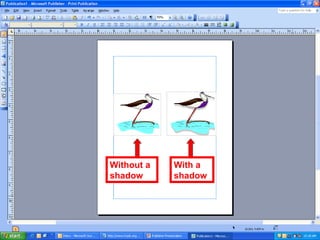
Without a
shadow
With a
shadow
How to Create a Page Border
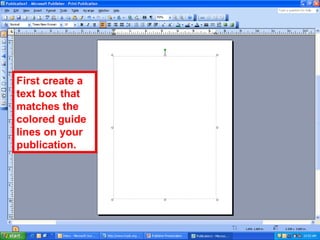
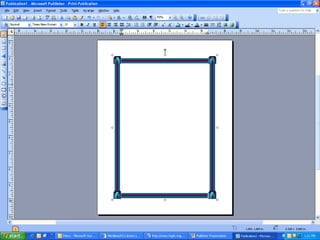
First create a
text box that
matches the
colored guide
lines on your
publication.
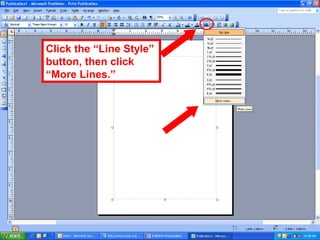
Click the “Line Style”
button, then click
“More Lines.”
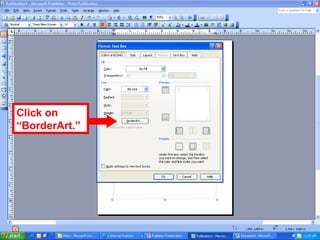
Click on
“BorderArt.”
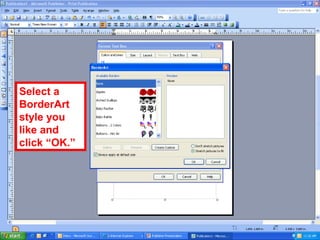
Select a
BorderArt
style you
like and
click “OK.”
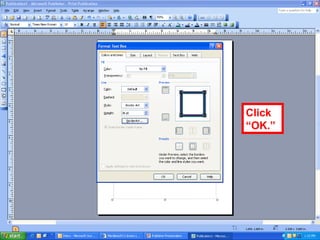
Click
“OK.”
If you have any questions, please
contact your Librarian.
Cdocumentsandsettingscdixionmydocumentsseminarsppppublisherseminar 100513155716-phpapp01

Cdocumentsandsettingscdixionmydocumentsseminarsppppublisherseminar 100513155716-phpapp01