INTRODUCTION TO
PAGE MARKER 7.0
BY
K.THAMIZHSELVI, M.Sc., M.phil.,B.Ed.,
Assistantprofessor
Bon secours college for women, Thanjavur.
ADOBE PAGE MAKER
• Pagemaker is a Desktop publishing program
• Used to create publications for print and electronic
distribution
• Page maker used text, graphics and layout to create
publications for business card, advertisements,
brochures, Magazines, Prospectuses, catalogs, etc
• BENEFITS:
• Professional quality publications
• Extensive layout and design features
• Control of the production process
• Color publications
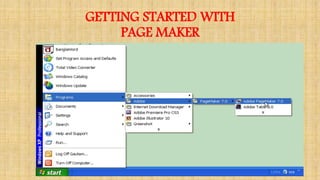
GETTING STARTED WITH
PAGE MAKER
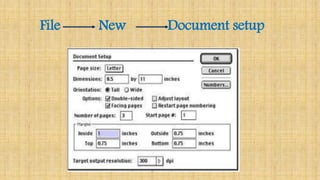
File New Document setup
Elements in Pagemaker Window
• Title bar
• Menu bar
• Tool bar
• Horizontal and vertical rulers
• Zero point maker
• Publication window
• Tool box
• Publication page
• Paste board
• Margin guides & column guides
• Scroll bars
• Master page icons & Page icons
Working with Text
• Click on the Text tool in the Toolbox.
• Click anywhere on your document within the margin
guides, and then drag the mouse to the right to create a
rectangular box.
• Type the text using type tool.
• Position the cursor at the beginning of the text you want
to format.
• To delete text Click and drag the text to select it.
Tap the Delete key or simply start typing, which will
replace the selected text.
Click on the Edit menu, and then select Clear.
• To copy or move the text - Click on
the Edit menu
Select the Cut, Copy or Paste command
• To change the type style - Click on
the Type menu
Select your desired option
• To add lot of text to your document, use
the Place command to import text from a word
processor, or use PageMaker’s Story Editor.
TOOL BOX
• The Toolbox can be dragged around just like any other
window.
• To close it, go to Window on the menu bar and select
Hide Tools
• . To retrieve it, go to Window and select Show Tools
• .These tools are used primarily for creation and editing of
simple graphics and text.
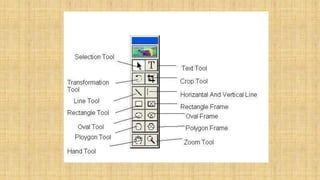
• Pointer Tool Used to select items, text, or a location. Once an item has
been selected, it can be resized, moved, copied or deleted.
• Text tool Enables text entry and editing.
• Rotating tool Rotates text, drawings, or graphics.
• Cropping tool Allows custom trimming of graphics.
• Line tool Draws straight lines at any angle. See Elements, Lines for
options.
• Constrained line tool Draws horizontal, vertical, and 45 degree lines.
See Elements, Line for options.
• Rectangle tool Draws rectangles. To draw squares, hold the SHIFT key
before clicking and dragging.
• Rectangle frame tool Creates rectangular placeholders for text and
graphics. To create square placeholders, hold down the SHIFT key
before clicking and dragging.
• Ellipse tool Draws ellipses. To draw circles, hold down the SHIFT key
before clicking and dragging.
• Ellipse frame tool Creates elliptical placeholders for text and
graphics.
• To create circular placeholders, hold down the SHIFT key before
clicking and dragging.
• Polygon tool Draws basic polygons. See Element, Polygon Settings for
options.
• Polygon frame tool Creates polygonal placeholders for text and
graphics.
• Hand tool Used to scroll the page (an alternative to the scroll bar)
• Zoom tool Used to magnify or reduce the view of your work area. To
zoom out hold the ALT key before clicking.
Pagemaker
Pagemaker

Pagemaker

  • 1.
    INTRODUCTION TO PAGE MARKER7.0 BY K.THAMIZHSELVI, M.Sc., M.phil.,B.Ed., Assistantprofessor Bon secours college for women, Thanjavur.
  • 2.
    ADOBE PAGE MAKER •Pagemaker is a Desktop publishing program • Used to create publications for print and electronic distribution • Page maker used text, graphics and layout to create publications for business card, advertisements, brochures, Magazines, Prospectuses, catalogs, etc • BENEFITS: • Professional quality publications • Extensive layout and design features • Control of the production process • Color publications
  • 3.
  • 4.
  • 5.
    Elements in PagemakerWindow • Title bar • Menu bar • Tool bar • Horizontal and vertical rulers • Zero point maker • Publication window • Tool box • Publication page • Paste board • Margin guides & column guides • Scroll bars • Master page icons & Page icons
  • 7.
    Working with Text •Click on the Text tool in the Toolbox. • Click anywhere on your document within the margin guides, and then drag the mouse to the right to create a rectangular box. • Type the text using type tool. • Position the cursor at the beginning of the text you want to format. • To delete text Click and drag the text to select it. Tap the Delete key or simply start typing, which will replace the selected text. Click on the Edit menu, and then select Clear.
  • 8.
    • To copyor move the text - Click on the Edit menu Select the Cut, Copy or Paste command • To change the type style - Click on the Type menu Select your desired option • To add lot of text to your document, use the Place command to import text from a word processor, or use PageMaker’s Story Editor.
  • 9.
    TOOL BOX • TheToolbox can be dragged around just like any other window. • To close it, go to Window on the menu bar and select Hide Tools • . To retrieve it, go to Window and select Show Tools • .These tools are used primarily for creation and editing of simple graphics and text.
  • 11.
    • Pointer ToolUsed to select items, text, or a location. Once an item has been selected, it can be resized, moved, copied or deleted. • Text tool Enables text entry and editing. • Rotating tool Rotates text, drawings, or graphics. • Cropping tool Allows custom trimming of graphics. • Line tool Draws straight lines at any angle. See Elements, Lines for options. • Constrained line tool Draws horizontal, vertical, and 45 degree lines. See Elements, Line for options. • Rectangle tool Draws rectangles. To draw squares, hold the SHIFT key before clicking and dragging. • Rectangle frame tool Creates rectangular placeholders for text and graphics. To create square placeholders, hold down the SHIFT key before clicking and dragging.
  • 12.
    • Ellipse toolDraws ellipses. To draw circles, hold down the SHIFT key before clicking and dragging. • Ellipse frame tool Creates elliptical placeholders for text and graphics. • To create circular placeholders, hold down the SHIFT key before clicking and dragging. • Polygon tool Draws basic polygons. See Element, Polygon Settings for options. • Polygon frame tool Creates polygonal placeholders for text and graphics. • Hand tool Used to scroll the page (an alternative to the scroll bar) • Zoom tool Used to magnify or reduce the view of your work area. To zoom out hold the ALT key before clicking.