16/01/2020 1
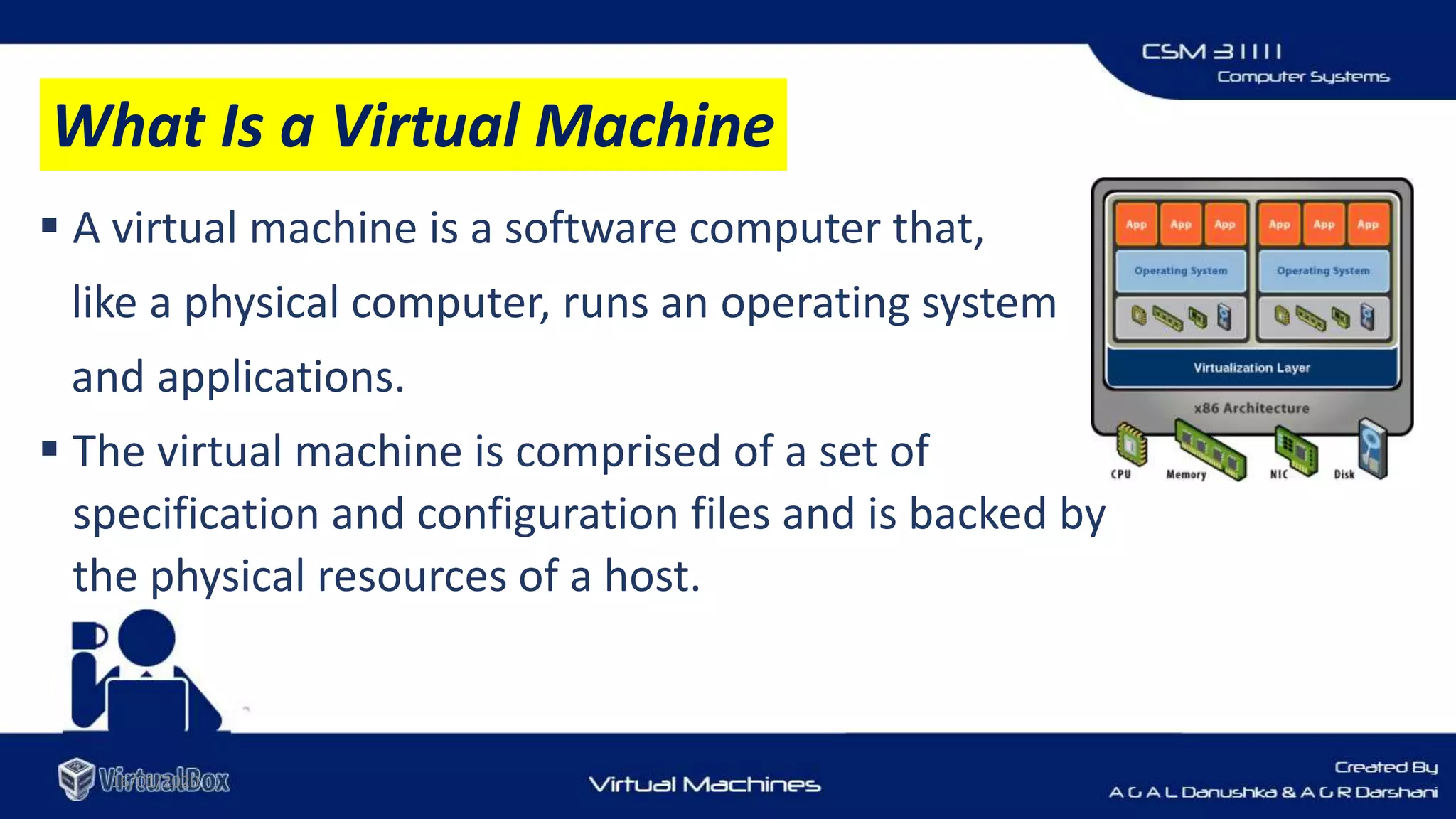
 A virtual machine is a software computer that,
like a physical computer, runs an operating system
and applications.
 The virtual machine is comprised of a set of
specification and configuration files and is backed by
the physical resources of a host.
16/01/2020
What Is a Virtual Machine
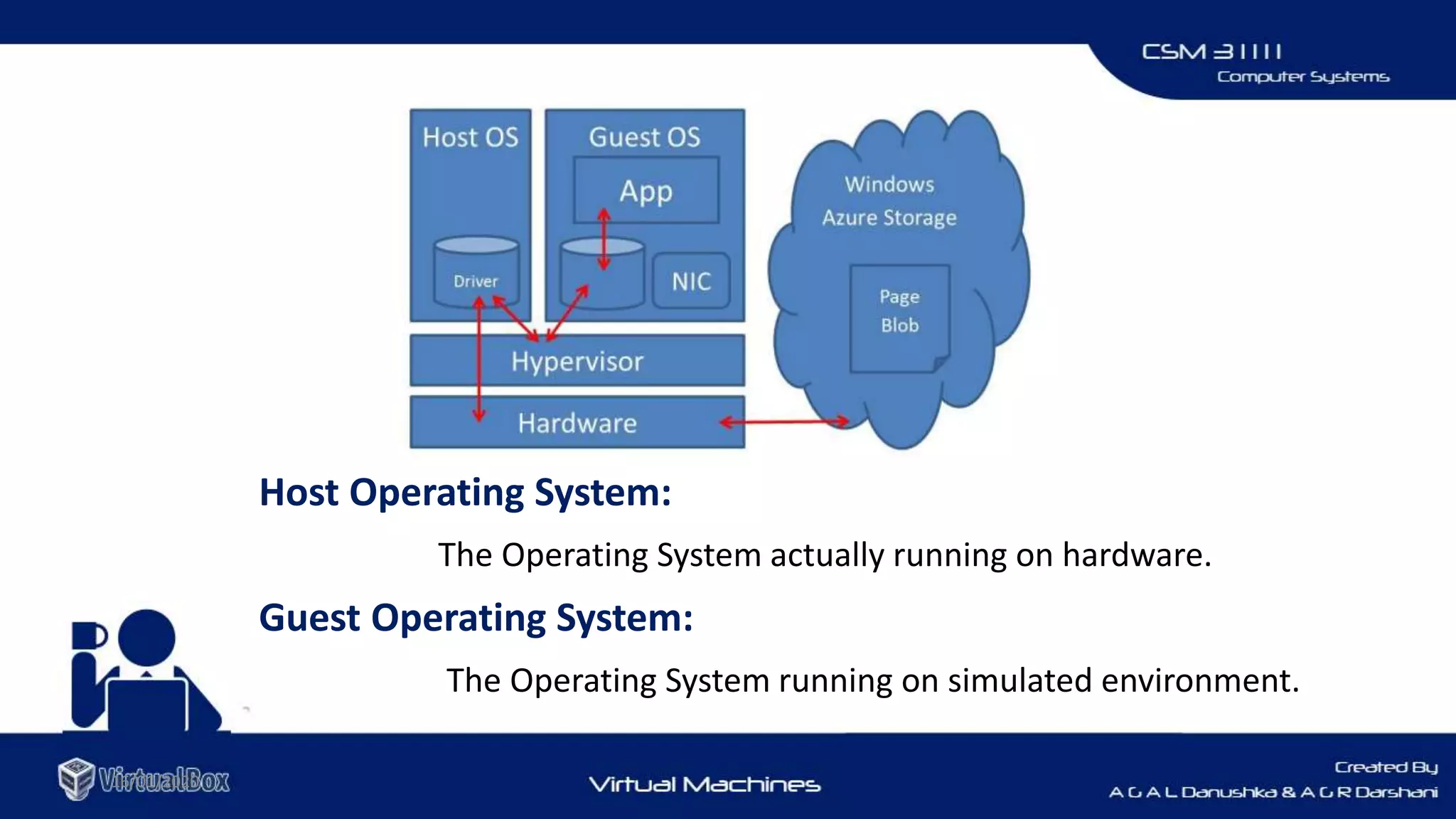
Host Operating System:
The Operating System actually running on hardware.
Guest Operating System:
The Operating System running on simulated environment.
16/01/2020
 As there is a process perspective and a system perspective of machines, there are
also Process-level and System-level VMs
1. System Virtual Machines
• Capable of supporting an individual process
2. Process Virtual Machine
• Provide a complete system environment
• Supports an OS with potentially many types of processes
16/01/2020
Types of Virtual Machines
Using different Operating system
• If someone needs to work on different operating system on top of another OS.
Running old applications
• If you have an application that won't support on windows 10 but supports on windows 7 , then you need to do is
install windows 7 within virtual machine.
Testing Software
• If you are a developer and working on some new software and wants to test its functionality
you can use virtual machines for this purpose.
16/01/2020
Why We Need Virtual Machines ?
16/01/2020
Easy to replicate
• Once you have installed your operating system in virtual machine and configured it
completely then virtual machines can be saved as appliance.
Creating your personal cloud computer
• If you don't want to take your laptop to office, leave it and take your mobile and access
the laptop via Remote Desktop
• Protocol (RDP) over the internet.
Why We Need Virtual Machines ? Cont.
16/01/2020
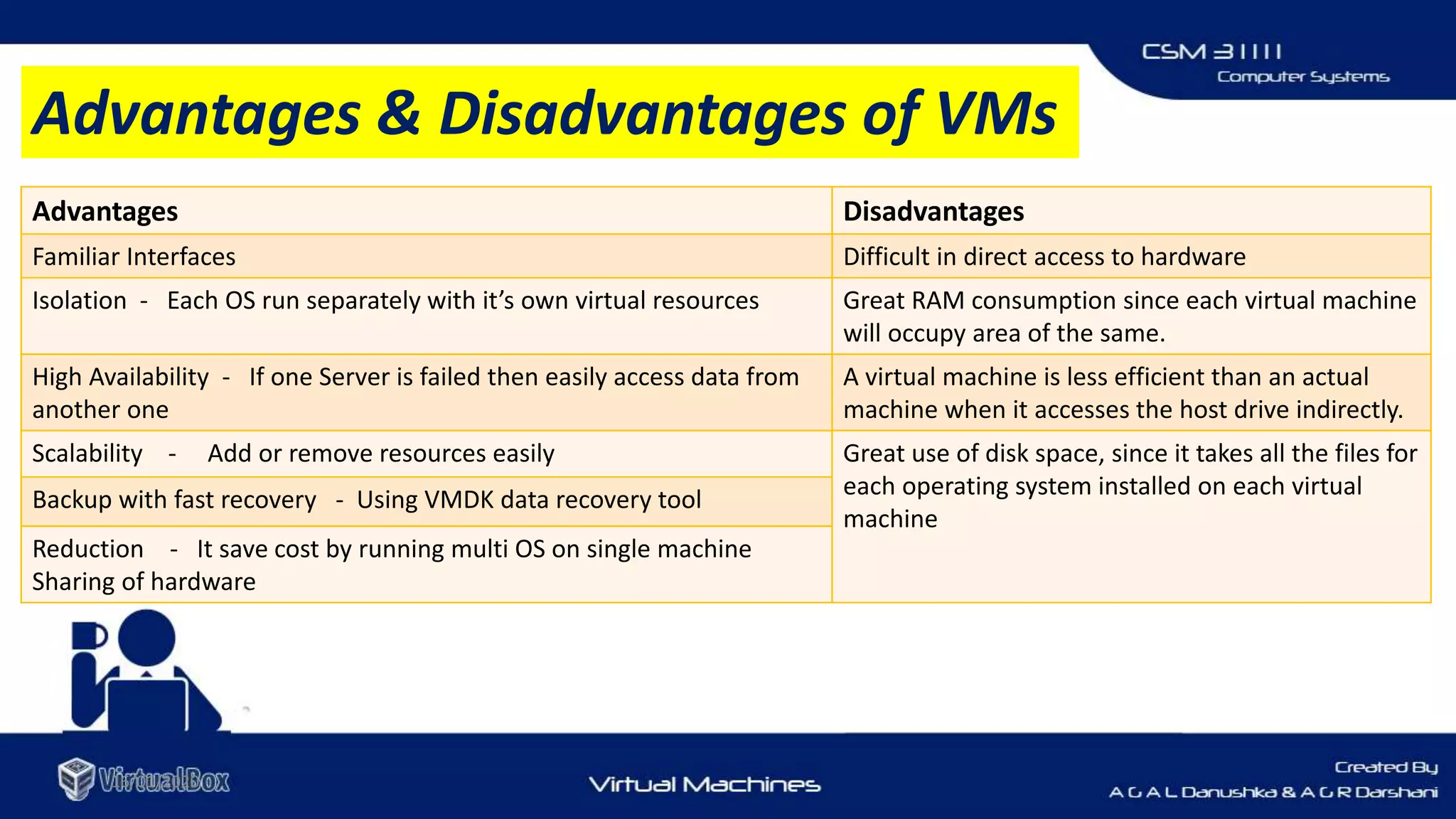
Advantages Disadvantages
Familiar Interfaces Difficult in direct access to hardware
Isolation - Each OS run separately with it’s own virtual resources Great RAM consumption since each virtual machine
will occupy area of the same.
High Availability - If one Server is failed then easily access data from
another one
A virtual machine is less efficient than an actual
machine when it accesses the host drive indirectly.
Scalability - Add or remove resources easily Great use of disk space, since it takes all the files for
each operating system installed on each virtual
machine
Backup with fast recovery - Using VMDK data recovery tool
Reduction - It save cost by running multi OS on single machine
Sharing of hardware
Advantages & Disadvantages of VMs
16/01/2020
Widely used Virtual Machine
Software Programs
16/01/2020
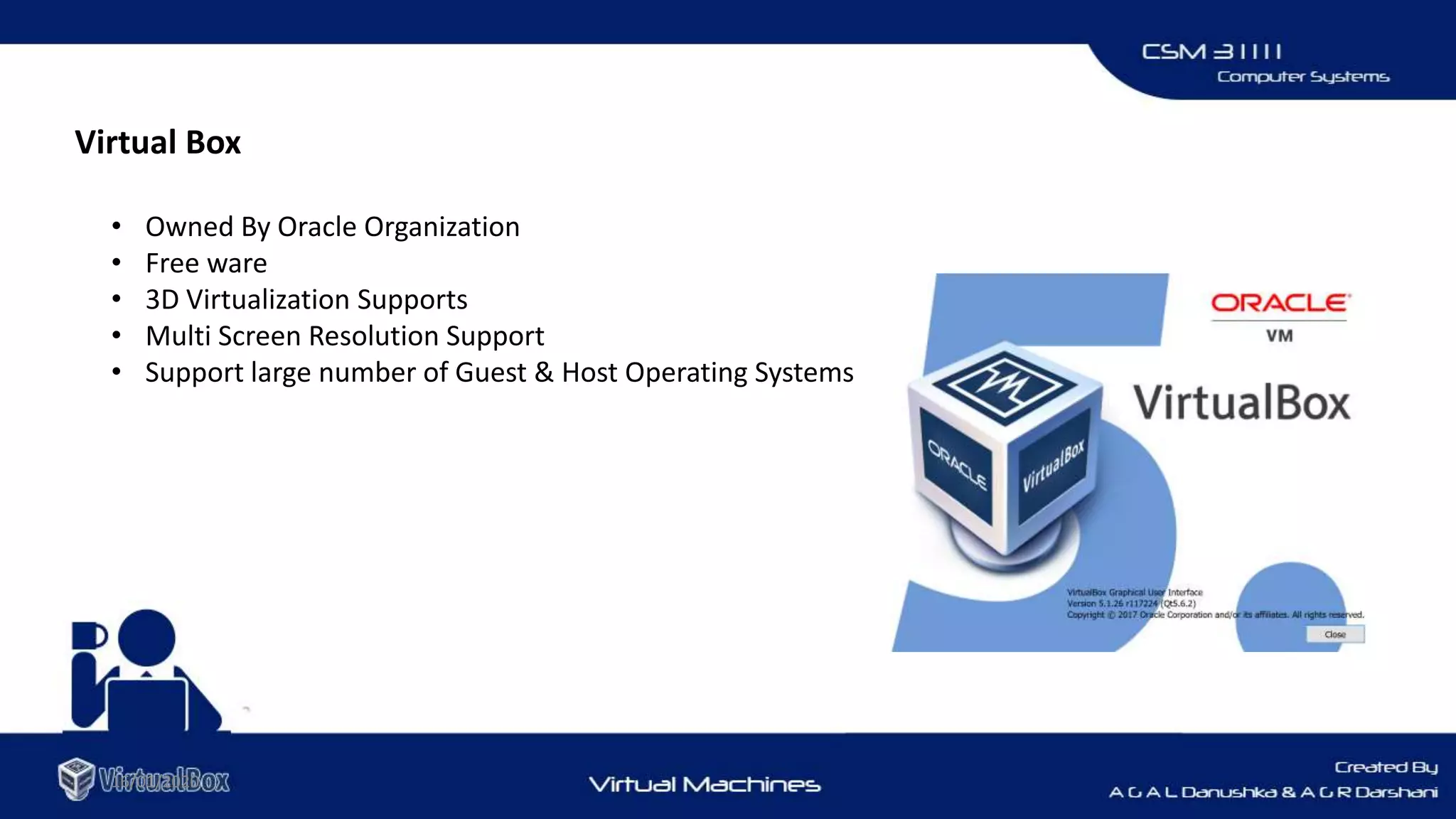
Virtual Box
• Owned By Oracle Organization
• Free ware
• 3D Virtualization Supports
• Multi Screen Resolution Support
• Support large number of Guest & Host Operating Systems
VM Ware
16/01/2020
• Owned By Dell Technologies
• Commercial Software
• Some Free Versions also available.
• Online Virtual Disks Support
• vSpeare Extra Data Protector
• Good for professional use
16/01/2020
Parallel Desktop for MAC
• Owned By Parallels
• Only for Mac Users
• Designed for Apple Intel Architecture
• Commercial Software
• Support Advanced 3D Graphics
16/01/2020
Boot Camp
• Owned By Apple INC
• Freeware
• For Intel Based Macintosh Computers
• Does not support Linux
16/01/2020
QEMU
• Owned By QEMU team
• Free ware and Open Source
• Attaining near-native performance
• Ideal for Linux Users
• Highly Customizable
16/01/2020
VIRTUAL BOX
16/01/2020
• VirtualBox is a cross-platform virtualization application.
• It installs on your existing Intel or AMD-based computers.
• Free Ware
• Developed By Oracle Organization
• Supports Large number of guest operating systems
About Virtual Box
16/01/2020
Running multiple operating systems simultaneously.
VirtualBox allows you to run more than one operating system at a time.
Easier software installations.
Software vendors can use virtual machines to ship entire software configurations.
Testing and disaster recovery.
Once installed, a virtual machine and its virtual hard disks can be considered a "container" that can be arbitrarily frozen,
woken up, copied, backed up, and transported between hosts.
VirtualBox SnapShot feature.
one can save a particular state of a virtual machine and revert back to that state, if necessary.
Infrastructure consolidation.
Virtualization can significantly reduce hardware and electricity costs. Most of the time, computers today only use a
fraction of their potential power and run with low average system loads.
Usefulness of Virtual Box
16/01/2020
 Multigenerational branched snapshots
• VirtualBox can save arbitrary snapshots of the state of the virtual machine.
 VM groups
• VirtualBox provides a groups feature that enables the user to organize and control virtual machines
collectively, as well as individually.
 Clean architecture
• unprecedented modularity.
 Remote machine display
• The Virtual Box Remote Desktop Extension (VRDE) allows for high-performance remote access to any
running virtual machine.
Key Features of Virtual Box Cont..
16/01/2020
 Portability
• VirtualBox runs on a large number of 32-bit and 64-bit host operating systems
 No hardware virtualization required
• For many scenarios, VirtualBox does not require the processor features built into newer hardware like Intel VT-x
or AMD-V.
 Guest Additions
• shared folders, seamless windows, 3D virtualization.
 Great hardware support
• Guest multiprocessing (SMP).
• USB device support.
• Full ACPI support. The Advanced Configuration and Power Interface (ACPI) is fully supported by VirtualBox.
• Multiscreen resolutions. VirtualBox virtual machines support screen resolutions many times that of a physical
screen.
Key Features of Virtual Box
16/01/2020
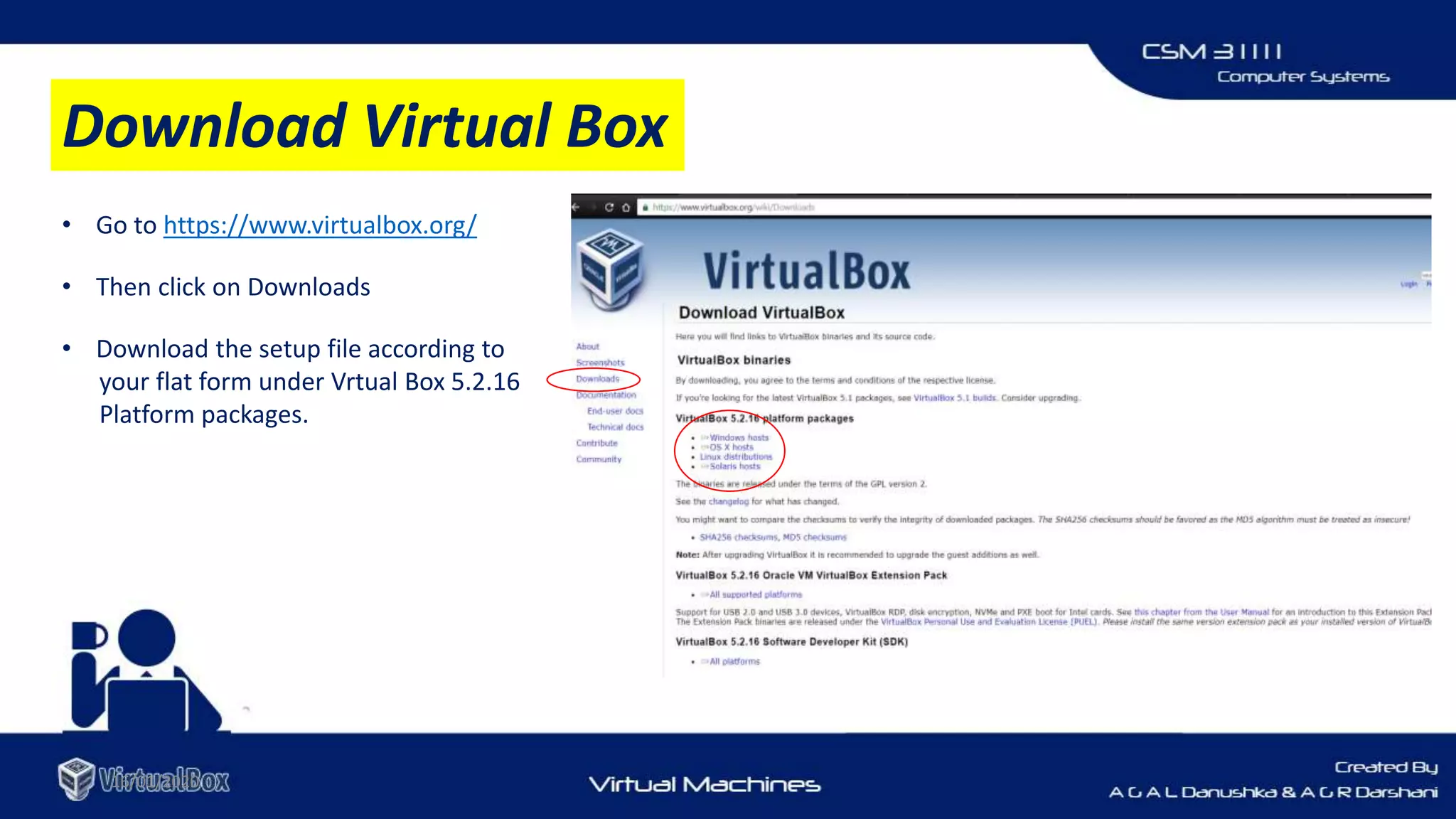
• Go to https://www.virtualbox.org/
• Then click on Downloads
• Download the setup file according to
your flat form under Vrtual Box 5.2.16
Platform packages.
Download Virtual Box
16/01/2020
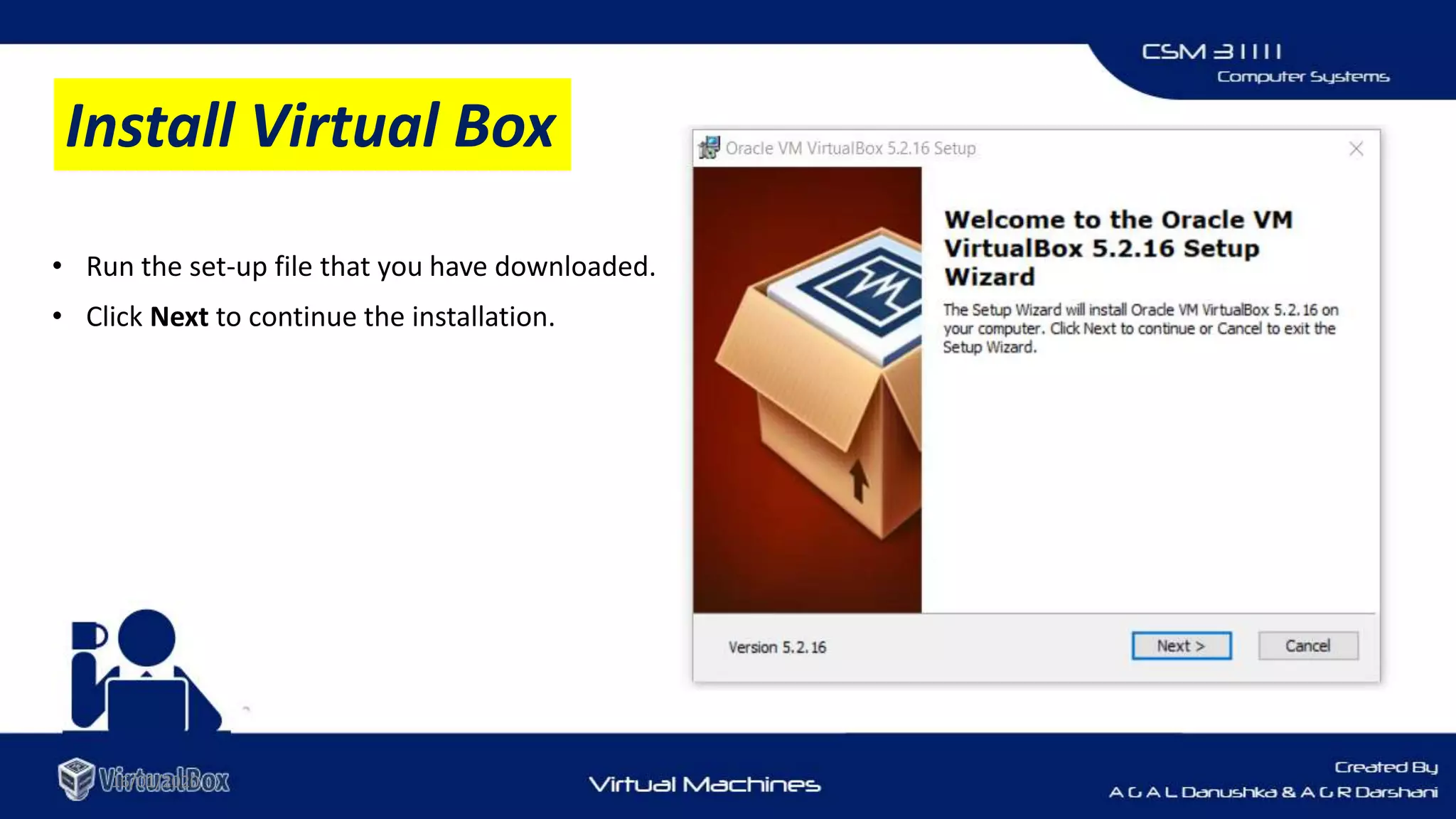
• Run the set-up file that you have downloaded.
• Click Next to continue the installation.

Install Virtual Box
16/01/2020
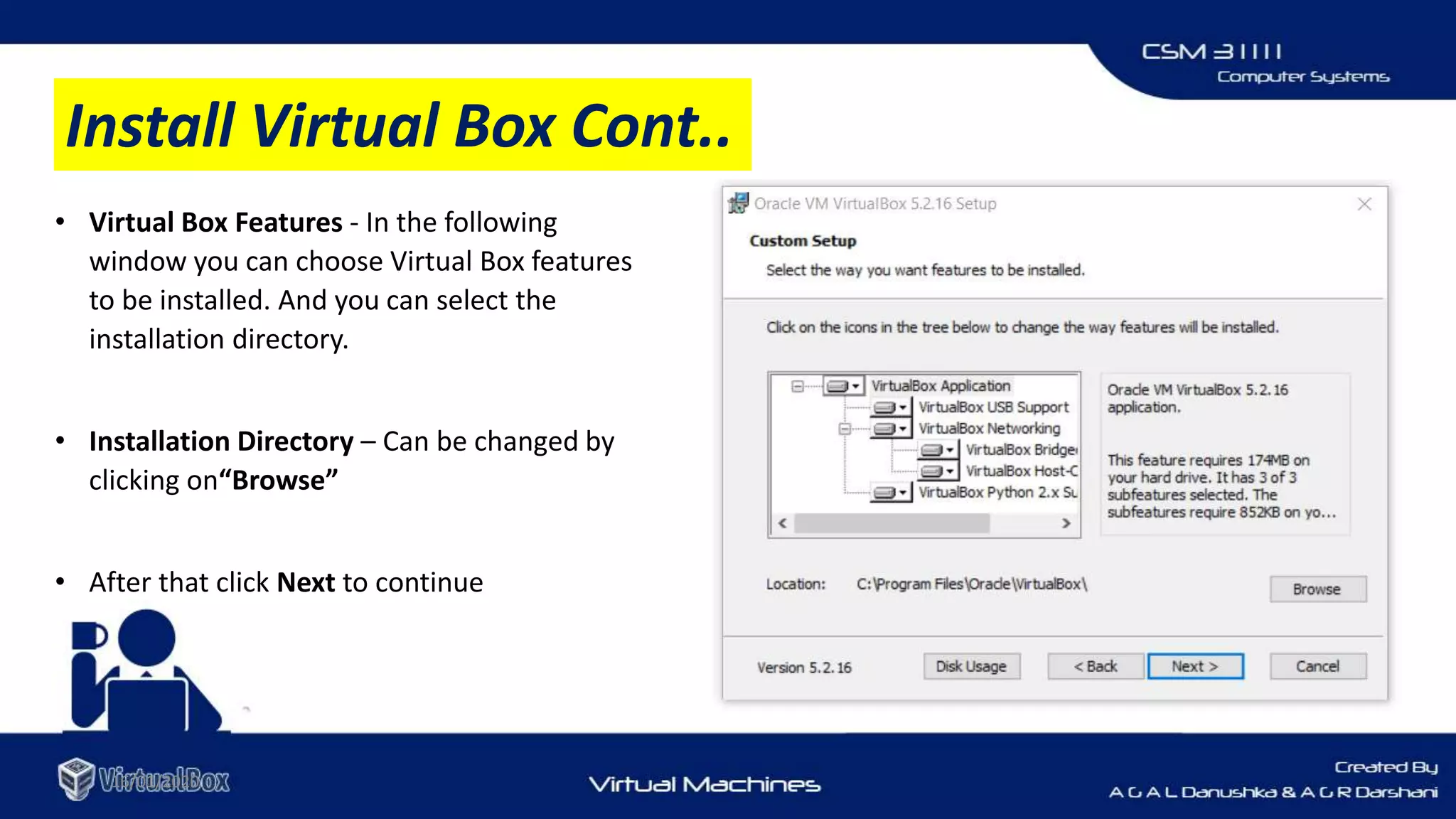
• Virtual Box Features - In the following
window you can choose Virtual Box features
to be installed. And you can select the
installation directory.
• Installation Directory – Can be changed by
clicking on“Browse”
• After that click Next to continue
Install Virtual Box Cont..
16/01/2020
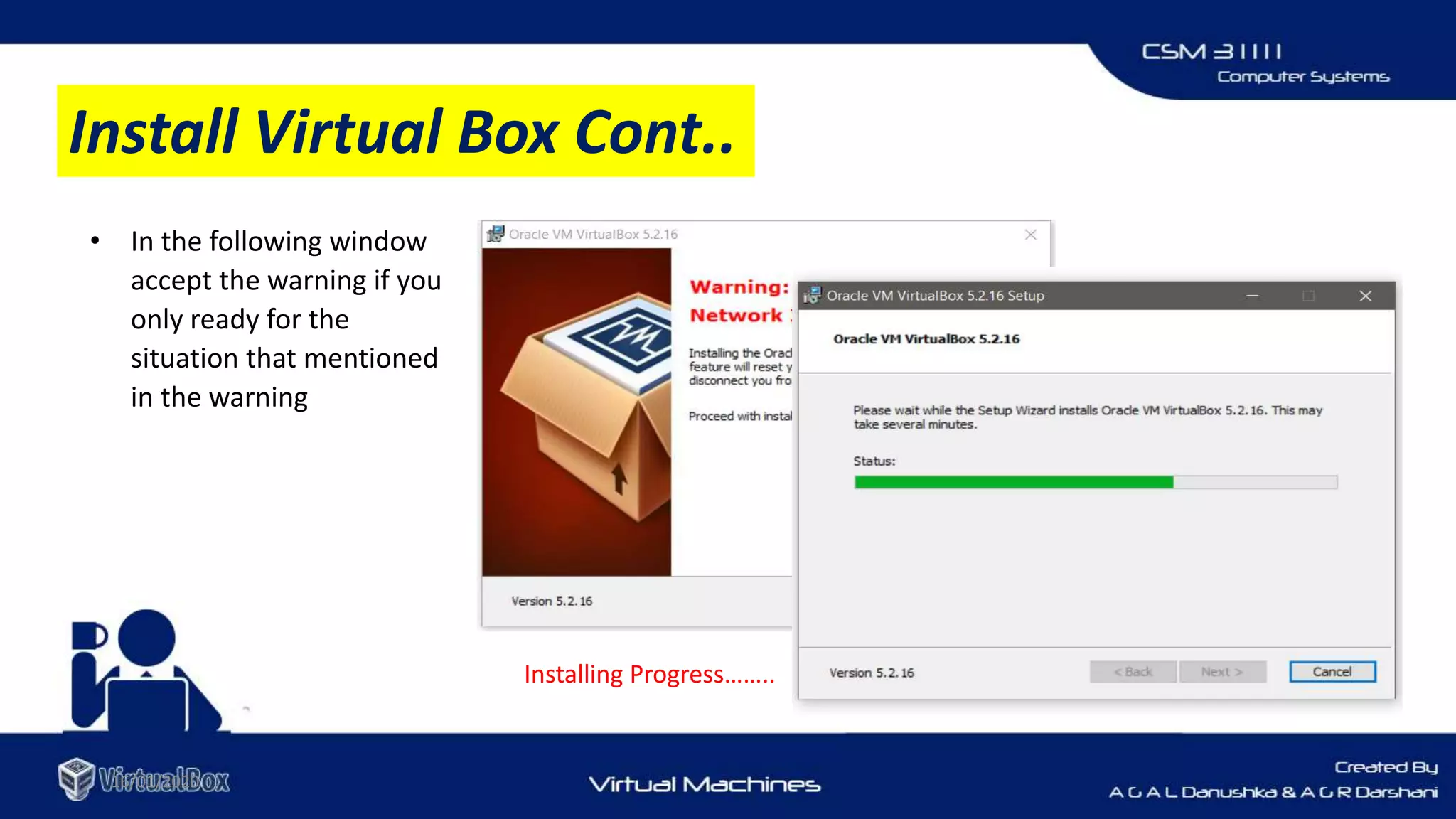
• In the following window
accept the warning if you
only ready for the
situation that mentioned
in the warning
Installing Progress……..
Install Virtual Box Cont..
16/01/2020
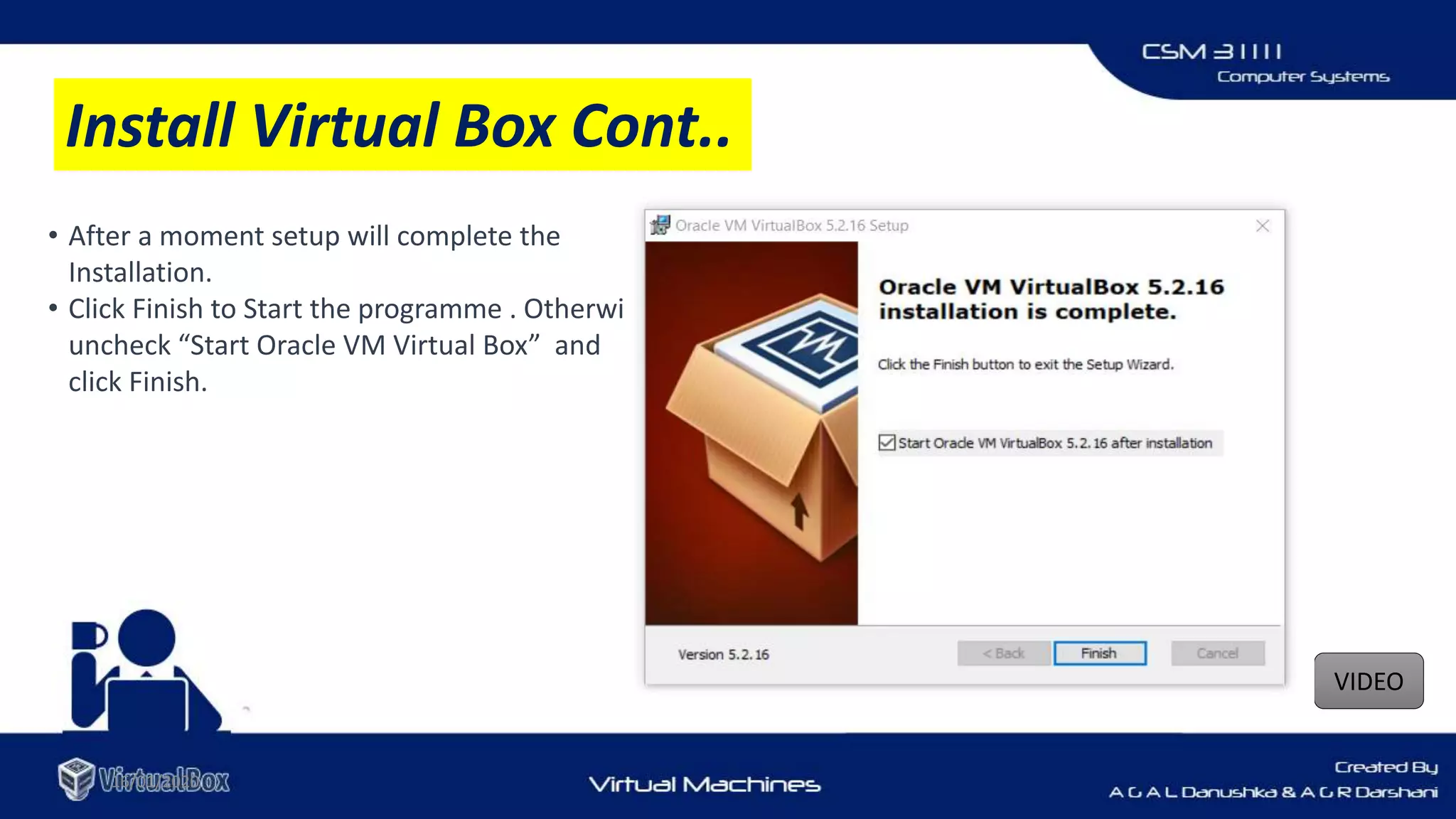
• After a moment setup will complete the
Installation.
• Click Finish to Start the programme . Otherwise
uncheck “Start Oracle VM Virtual Box” and
click Finish.
VIDEO
Install Virtual Box Cont..
16/01/2020
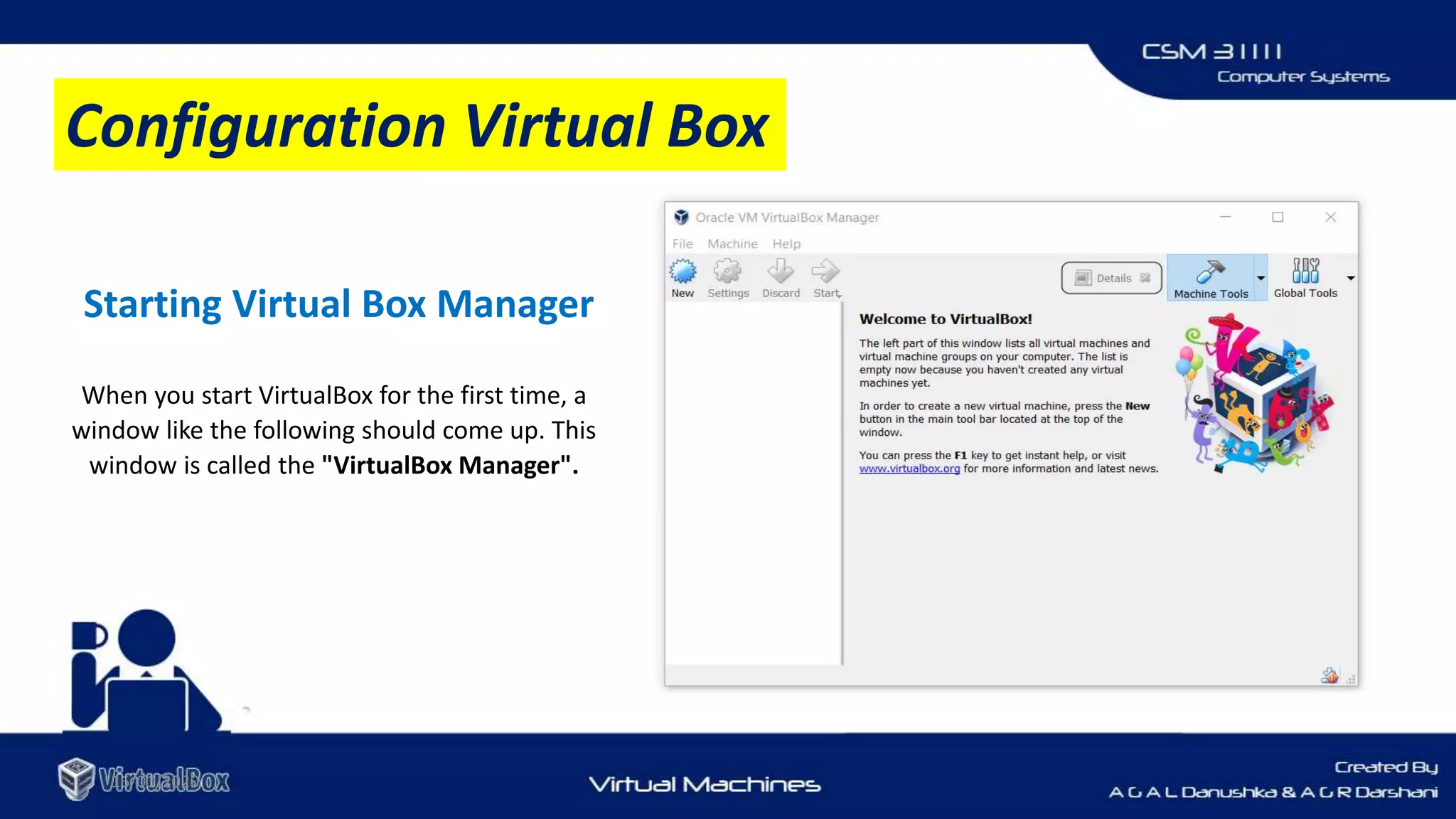
Starting Virtual Box Manager
When you start VirtualBox for the first time, a
window like the following should come up. This
window is called the "VirtualBox Manager".
Configuration Virtual Box
16/01/2020
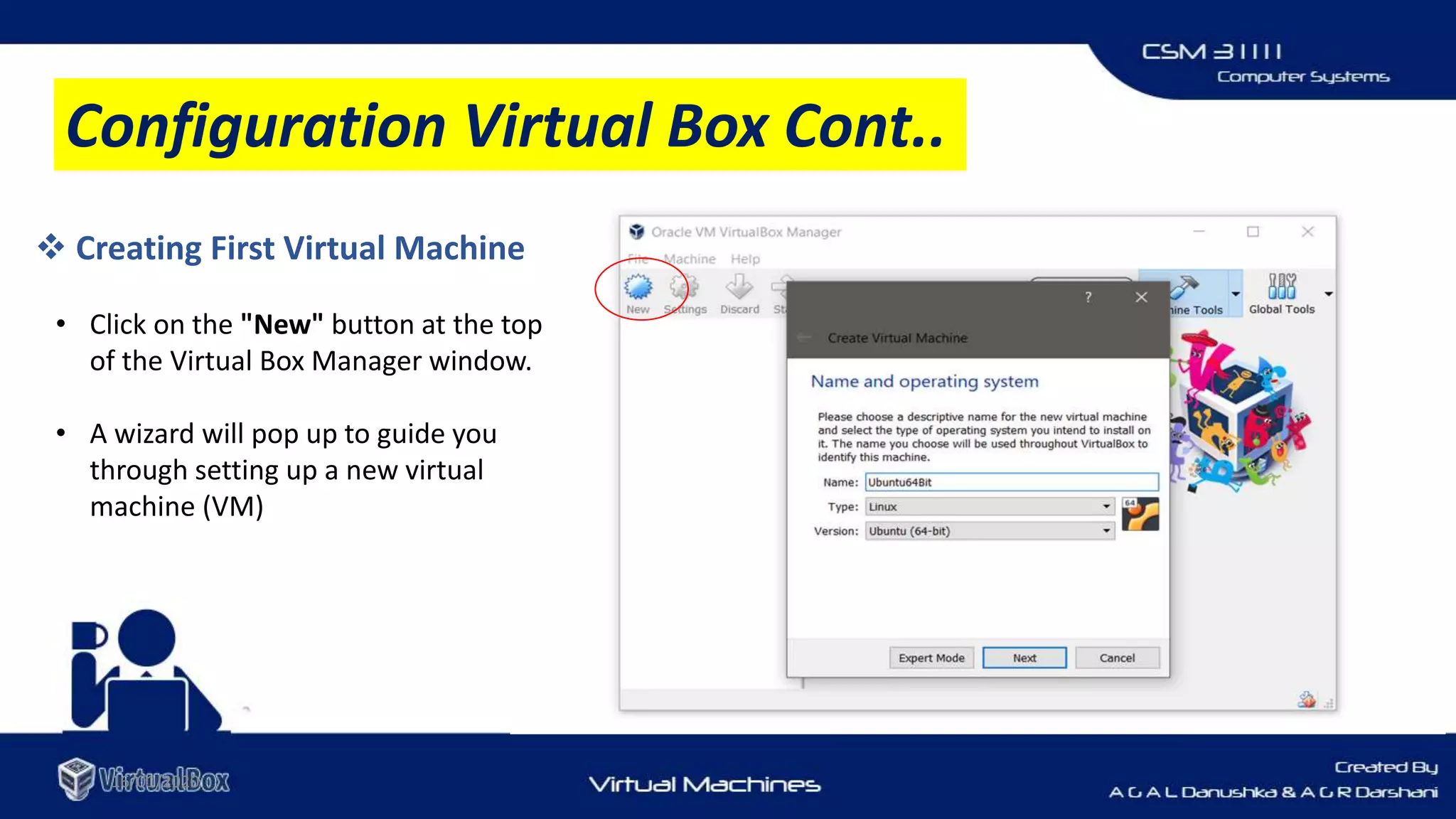
 Creating First Virtual Machine
• Click on the "New" button at the top
of the Virtual Box Manager window.
• A wizard will pop up to guide you
through setting up a new virtual
machine (VM)
Configuration Virtual Box Cont..
16/01/2020
 Select the Guest Operating System and Naming the Virtual
Machine
• VM name : will later be shown in the VM list of the Virtual Box Manager window, and it will be
used for the VM's files
on disk.
• Type : Select the operating system that you want to install later. The supported operating
systems are grouped.
• Version : Select the operating system version.
Configuration Virtual Box Cont..
Depending on your selection, VirtualBox will
enable or disable certain VM settings that your
guest operating system may require.
16/01/2020
Important Note
Choose this setting carefully! The memory you give to the
VM will not be available to your host OS while the VM is
running, so do not specify more than you can spare.
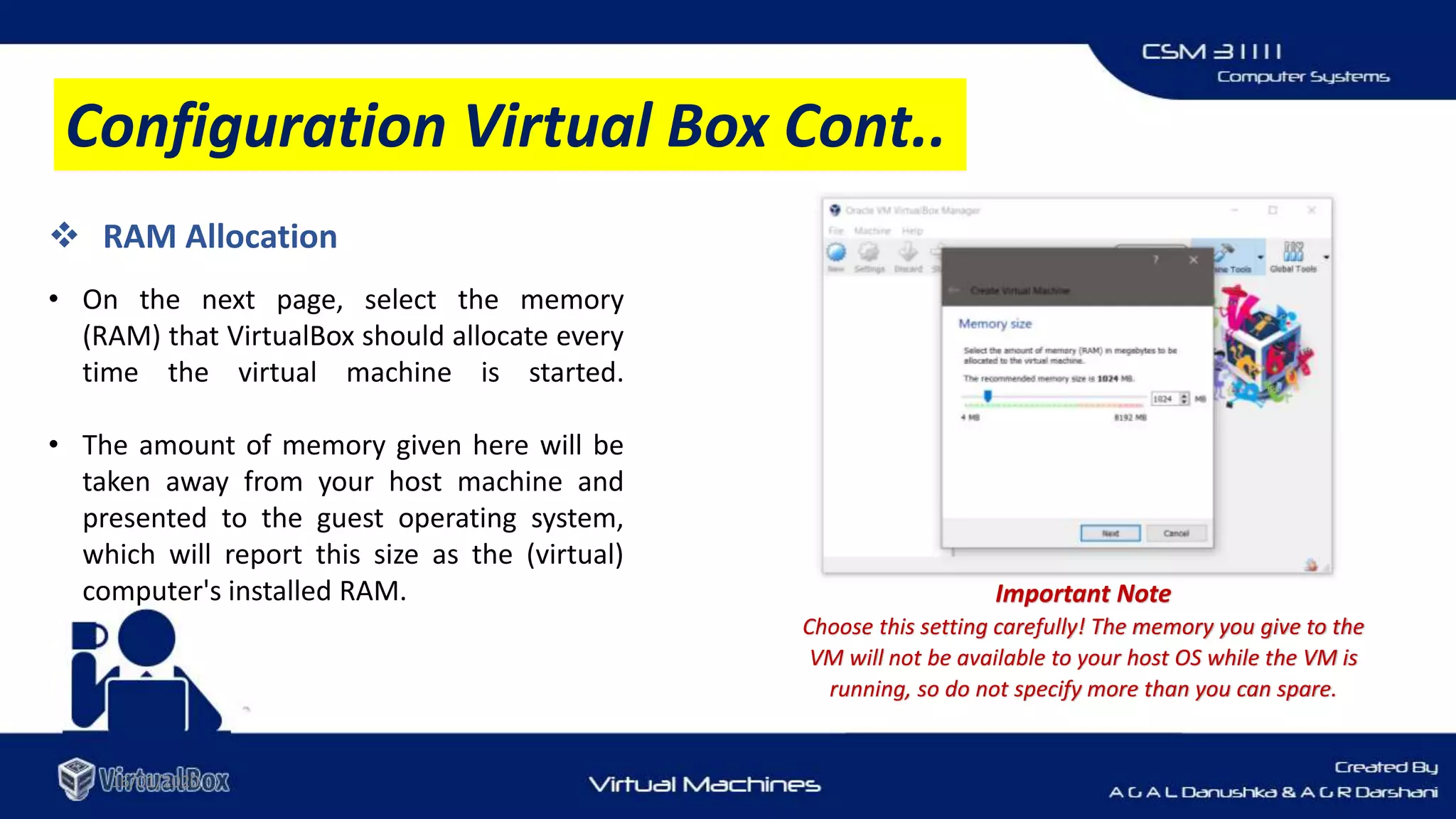
 RAM Allocation
• On the next page, select the memory
(RAM) that VirtualBox should allocate every
time the virtual machine is started.
• The amount of memory given here will be
taken away from your host machine and
presented to the guest operating system,
which will report this size as the (virtual)
computer's installed RAM.
Configuration Virtual Box Cont..
16/01/2020
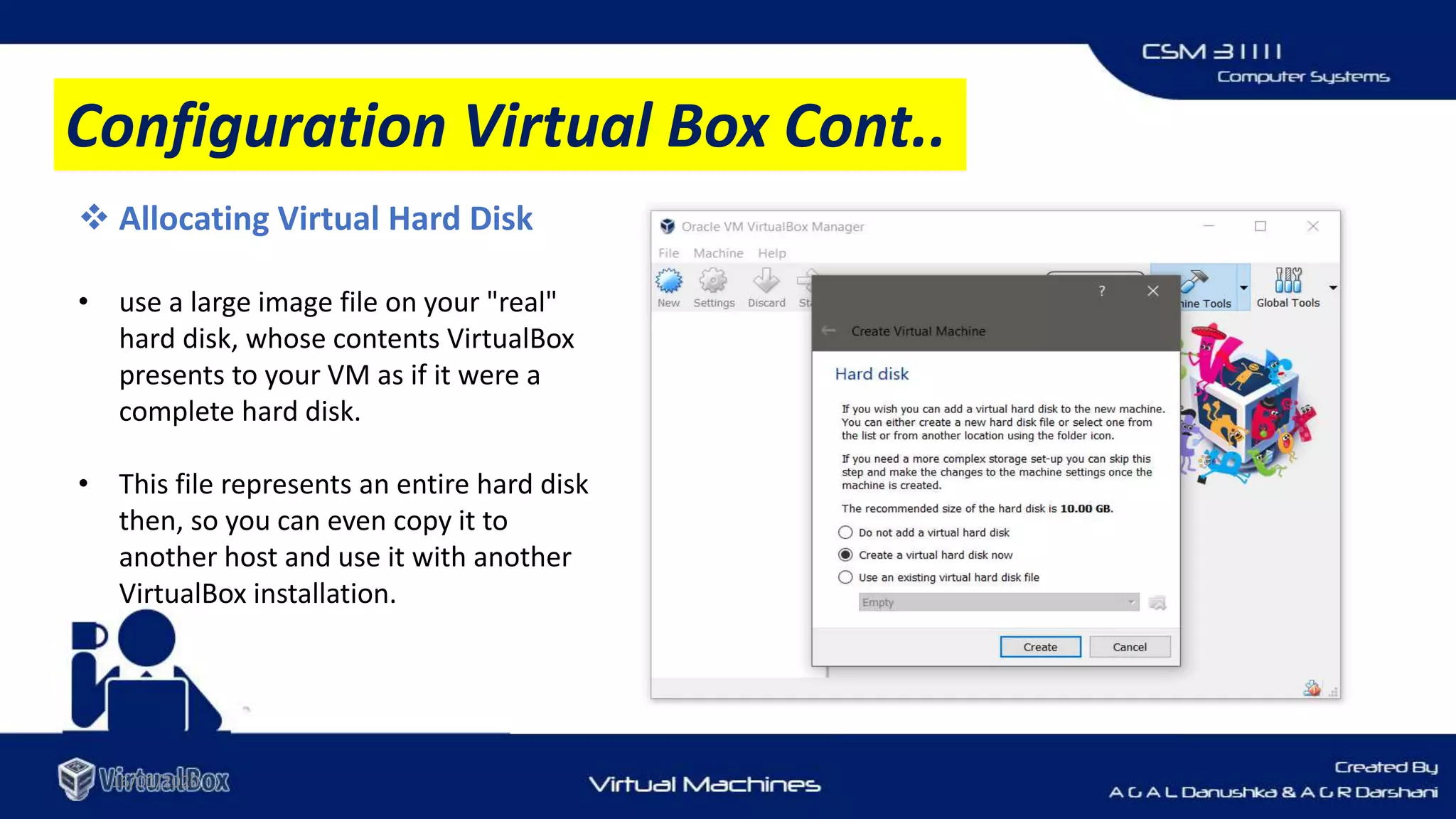
 Allocating Virtual Hard Disk
• use a large image file on your "real"
hard disk, whose contents VirtualBox
presents to your VM as if it were a
complete hard disk.
• This file represents an entire hard disk
then, so you can even copy it to
another host and use it with another
VirtualBox installation.
Configuration Virtual Box Cont..
16/01/2020
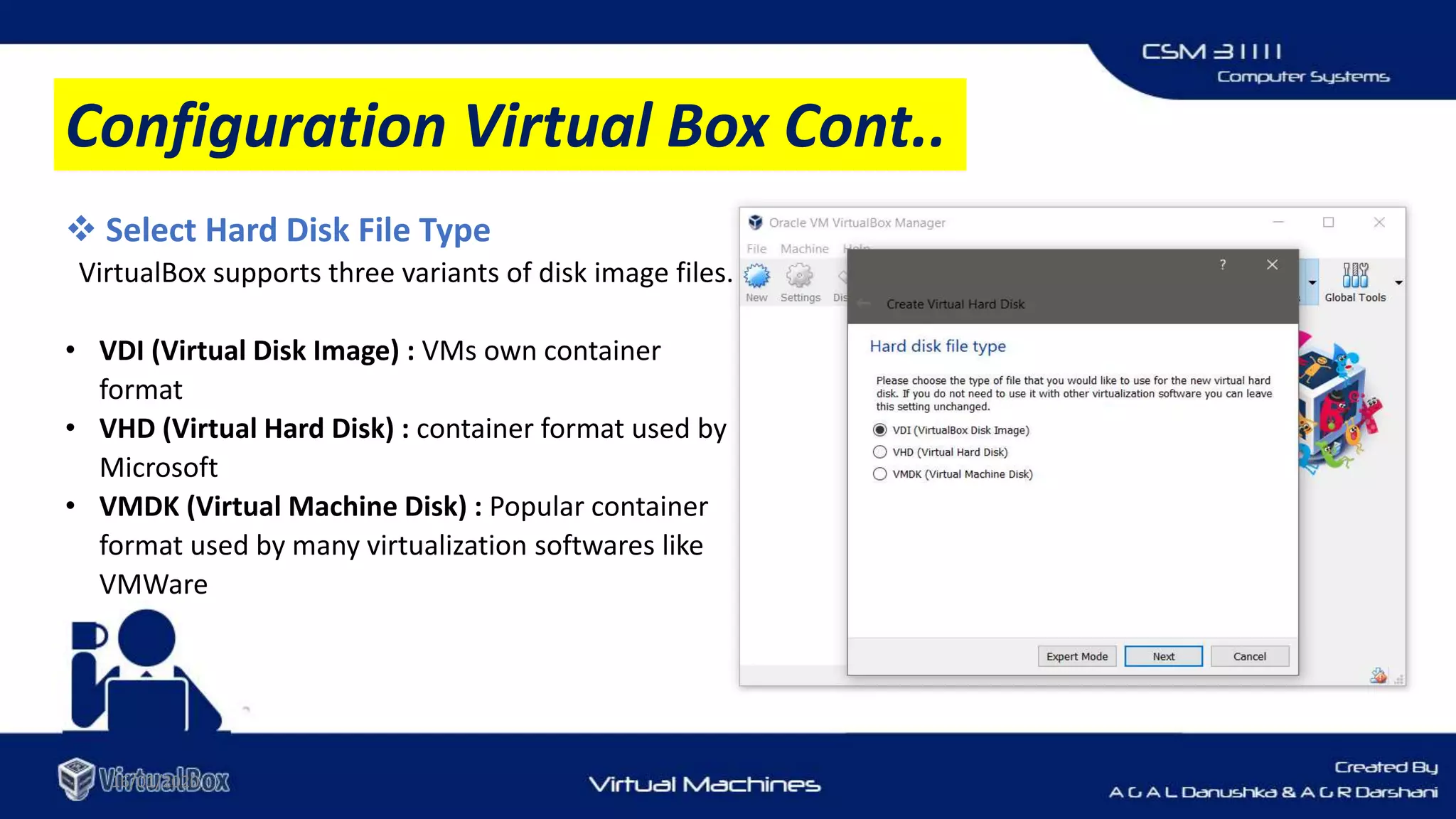
 Select Hard Disk File Type
VirtualBox supports three variants of disk image files.
• VDI (Virtual Disk Image) : VMs own container
format
• VHD (Virtual Hard Disk) : container format used by
Microsoft
• VMDK (Virtual Machine Disk) : Popular container
format used by many virtualization softwares like
VMWare
Configuration Virtual Box Cont..
16/01/2020
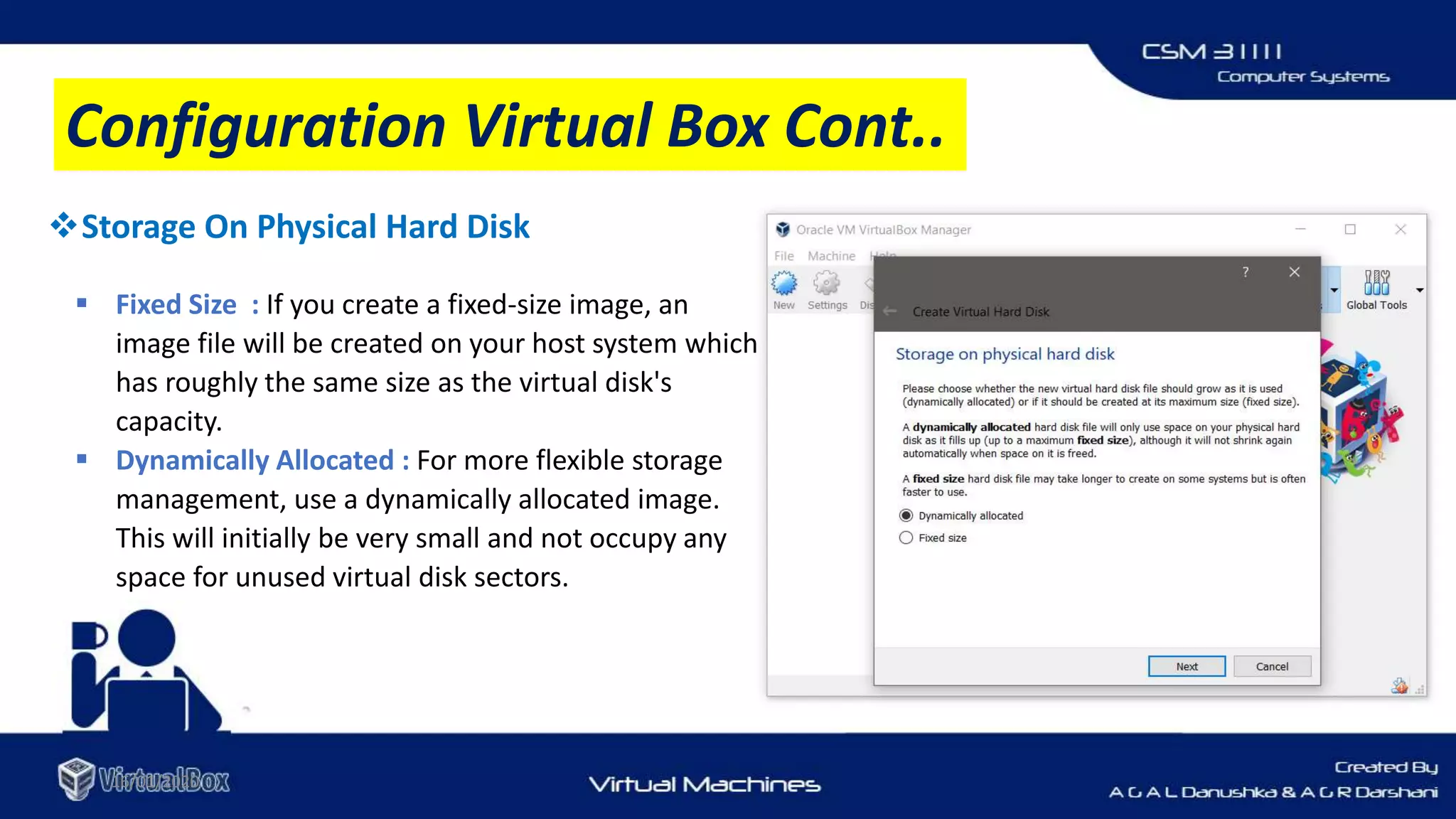
Storage On Physical Hard Disk
 Fixed Size : If you create a fixed-size image, an
image file will be created on your host system which
has roughly the same size as the virtual disk's
capacity.
 Dynamically Allocated : For more flexible storage
management, use a dynamically allocated image.
This will initially be very small and not occupy any
space for unused virtual disk sectors.
Configuration Virtual Box Cont..
16/01/2020
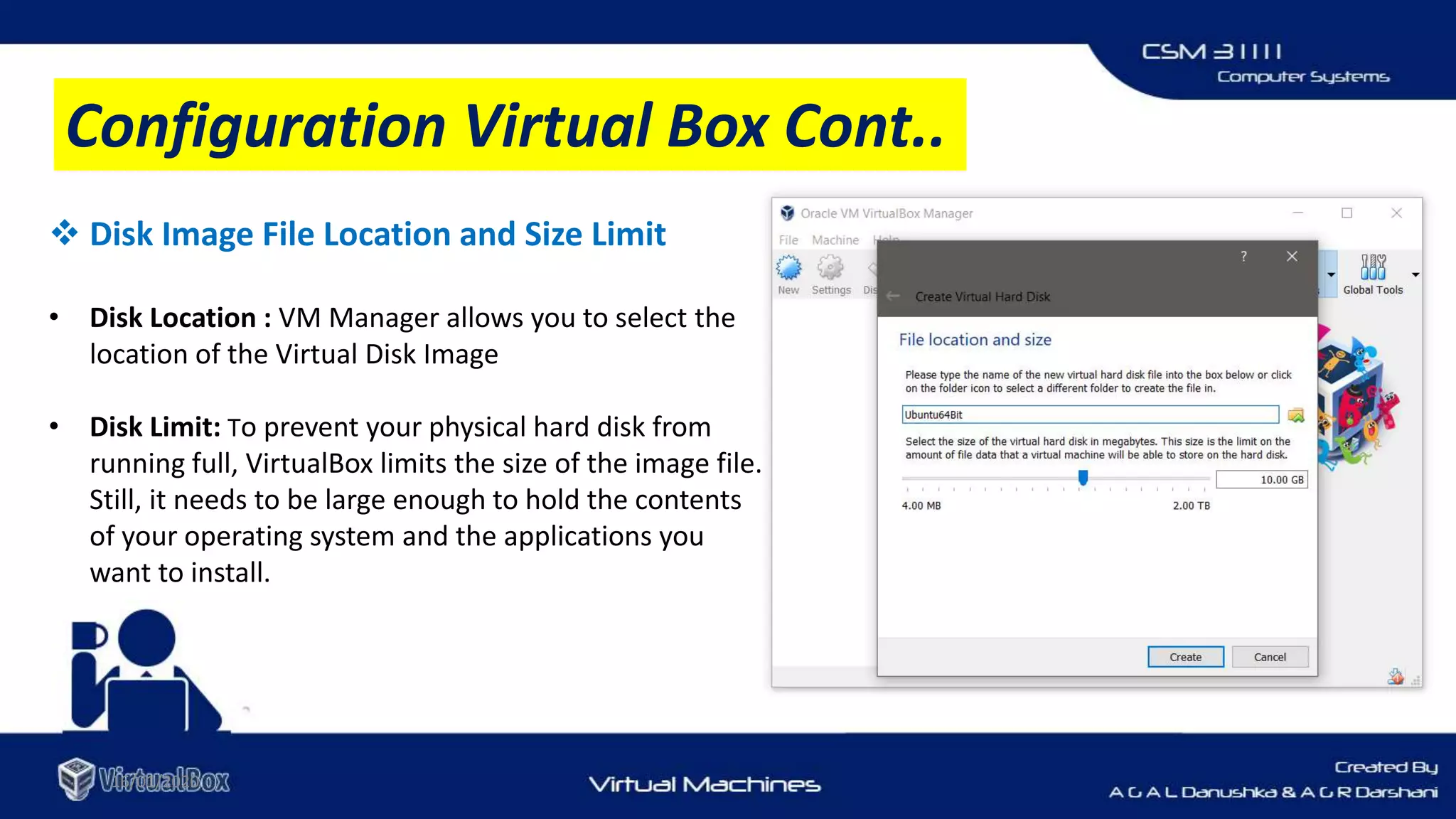
 Disk Image File Location and Size Limit
• Disk Location : VM Manager allows you to select the
location of the Virtual Disk Image
• Disk Limit: To prevent your physical hard disk from
running full, VirtualBox limits the size of the image file.
Still, it needs to be large enough to hold the contents
of your operating system and the applications you
want to install.
Configuration Virtual Box Cont..
16/01/2020
 Completion of Configuring the
Virtual Box
After completing the configurarion of new virtual
machine, you can see it listed on Virtual Box
Manager
Configuration Virtual Box Cont..
16/01/2020
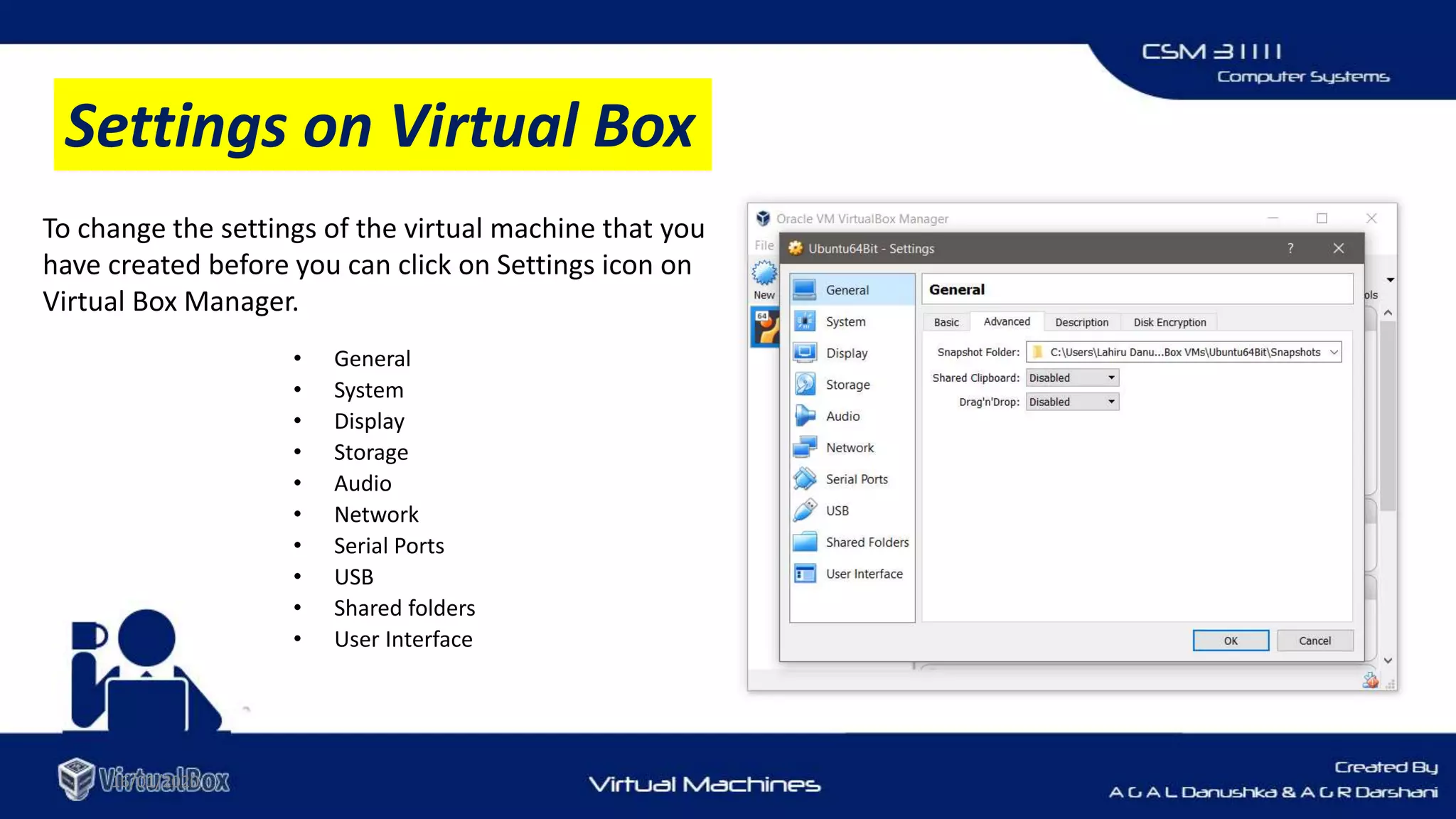
To change the settings of the virtual machine that you
have created before you can click on Settings icon on
Virtual Box Manager.
Settings on Virtual Box
• General
• System
• Display
• Storage
• Audio
• Network
• Serial Ports
• USB
• Shared folders
• User Interface
16/01/2020
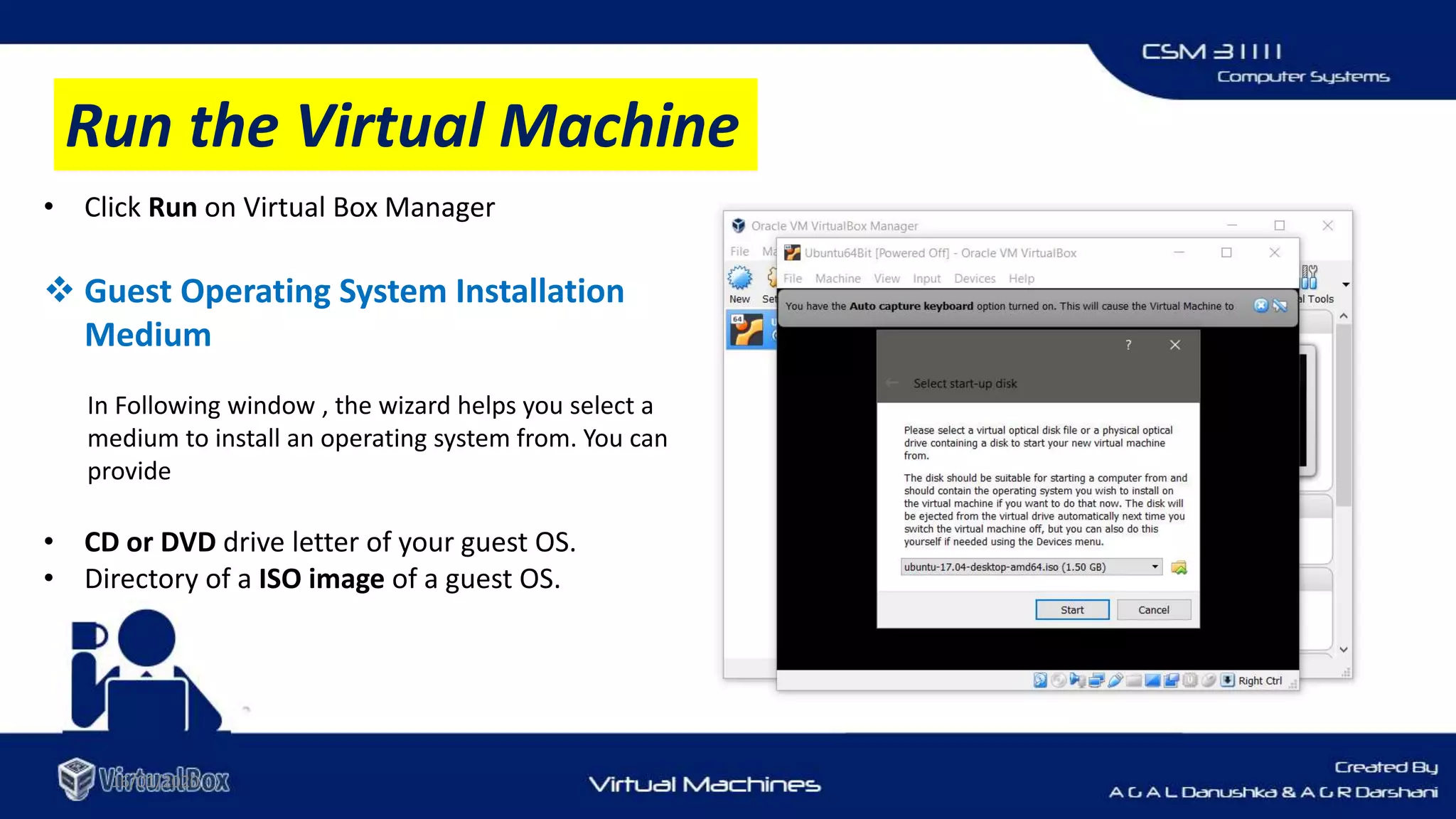
• Click Run on Virtual Box Manager
 Guest Operating System Installation
Medium
In Following window , the wizard helps you select a
medium to install an operating system from. You can
provide
• CD or DVD drive letter of your guest OS.
• Directory of a ISO image of a guest OS.
Run the Virtual Machine
16/01/2020
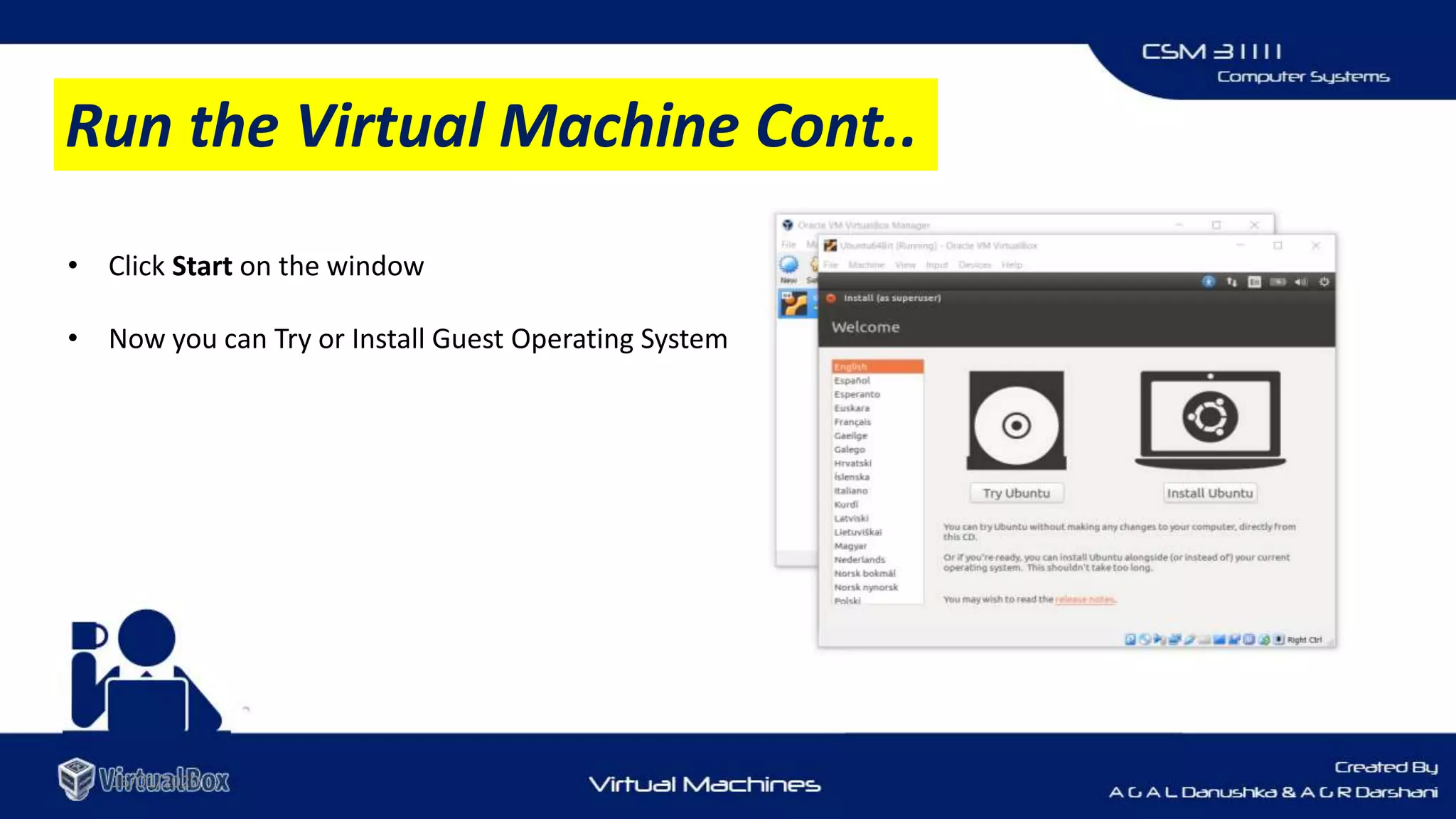
• Click Start on the window
• Now you can Try or Install Guest Operating System
Run the Virtual Machine Cont..
16/01/2020
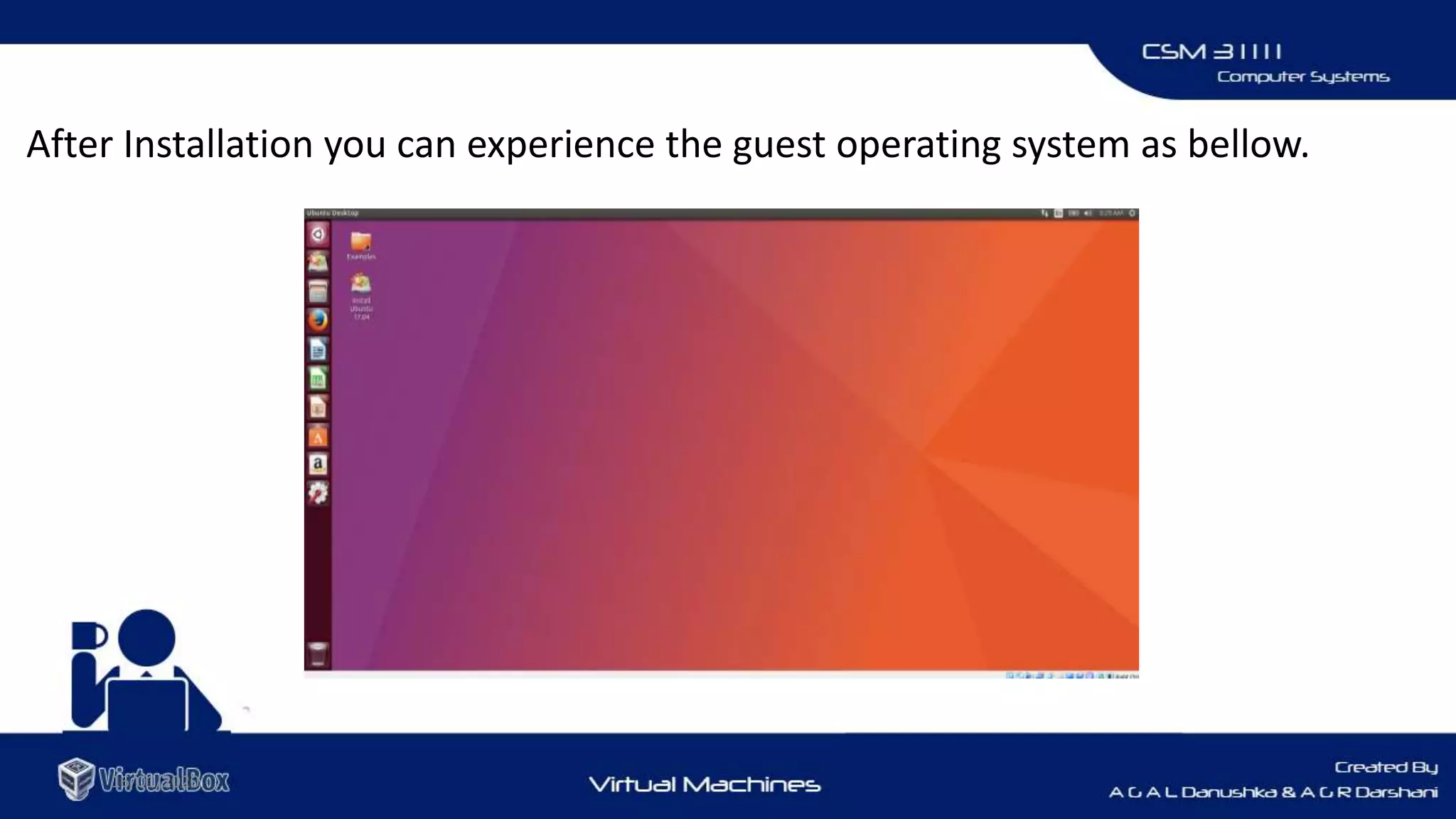
After Installation you can experience the guest operating system as bellow.
16/01/2020
16/01/2020
BACK

Virtual Machines - Virtual Box

  • 1.
  • 2.
     A virtualmachine is a software computer that, like a physical computer, runs an operating system and applications.  The virtual machine is comprised of a set of specification and configuration files and is backed by the physical resources of a host. 16/01/2020 What Is a Virtual Machine
  • 3.
    Host Operating System: TheOperating System actually running on hardware. Guest Operating System: The Operating System running on simulated environment. 16/01/2020
  • 4.
     As thereis a process perspective and a system perspective of machines, there are also Process-level and System-level VMs 1. System Virtual Machines • Capable of supporting an individual process 2. Process Virtual Machine • Provide a complete system environment • Supports an OS with potentially many types of processes 16/01/2020 Types of Virtual Machines
  • 5.
    Using different Operatingsystem • If someone needs to work on different operating system on top of another OS. Running old applications • If you have an application that won't support on windows 10 but supports on windows 7 , then you need to do is install windows 7 within virtual machine. Testing Software • If you are a developer and working on some new software and wants to test its functionality you can use virtual machines for this purpose. 16/01/2020 Why We Need Virtual Machines ?
  • 6.
    16/01/2020 Easy to replicate •Once you have installed your operating system in virtual machine and configured it completely then virtual machines can be saved as appliance. Creating your personal cloud computer • If you don't want to take your laptop to office, leave it and take your mobile and access the laptop via Remote Desktop • Protocol (RDP) over the internet. Why We Need Virtual Machines ? Cont.
  • 7.
    16/01/2020 Advantages Disadvantages Familiar InterfacesDifficult in direct access to hardware Isolation - Each OS run separately with it’s own virtual resources Great RAM consumption since each virtual machine will occupy area of the same. High Availability - If one Server is failed then easily access data from another one A virtual machine is less efficient than an actual machine when it accesses the host drive indirectly. Scalability - Add or remove resources easily Great use of disk space, since it takes all the files for each operating system installed on each virtual machine Backup with fast recovery - Using VMDK data recovery tool Reduction - It save cost by running multi OS on single machine Sharing of hardware Advantages & Disadvantages of VMs
  • 8.
    16/01/2020 Widely used VirtualMachine Software Programs
  • 9.
    16/01/2020 Virtual Box • OwnedBy Oracle Organization • Free ware • 3D Virtualization Supports • Multi Screen Resolution Support • Support large number of Guest & Host Operating Systems
  • 10.
    VM Ware 16/01/2020 • OwnedBy Dell Technologies • Commercial Software • Some Free Versions also available. • Online Virtual Disks Support • vSpeare Extra Data Protector • Good for professional use
  • 11.
    16/01/2020 Parallel Desktop forMAC • Owned By Parallels • Only for Mac Users • Designed for Apple Intel Architecture • Commercial Software • Support Advanced 3D Graphics
  • 12.
    16/01/2020 Boot Camp • OwnedBy Apple INC • Freeware • For Intel Based Macintosh Computers • Does not support Linux
  • 13.
    16/01/2020 QEMU • Owned ByQEMU team • Free ware and Open Source • Attaining near-native performance • Ideal for Linux Users • Highly Customizable
  • 14.
  • 15.
    16/01/2020 • VirtualBox isa cross-platform virtualization application. • It installs on your existing Intel or AMD-based computers. • Free Ware • Developed By Oracle Organization • Supports Large number of guest operating systems About Virtual Box
  • 16.
    16/01/2020 Running multiple operatingsystems simultaneously. VirtualBox allows you to run more than one operating system at a time. Easier software installations. Software vendors can use virtual machines to ship entire software configurations. Testing and disaster recovery. Once installed, a virtual machine and its virtual hard disks can be considered a "container" that can be arbitrarily frozen, woken up, copied, backed up, and transported between hosts. VirtualBox SnapShot feature. one can save a particular state of a virtual machine and revert back to that state, if necessary. Infrastructure consolidation. Virtualization can significantly reduce hardware and electricity costs. Most of the time, computers today only use a fraction of their potential power and run with low average system loads. Usefulness of Virtual Box
  • 17.
    16/01/2020  Multigenerational branchedsnapshots • VirtualBox can save arbitrary snapshots of the state of the virtual machine.  VM groups • VirtualBox provides a groups feature that enables the user to organize and control virtual machines collectively, as well as individually.  Clean architecture • unprecedented modularity.  Remote machine display • The Virtual Box Remote Desktop Extension (VRDE) allows for high-performance remote access to any running virtual machine. Key Features of Virtual Box Cont..
  • 18.
    16/01/2020  Portability • VirtualBoxruns on a large number of 32-bit and 64-bit host operating systems  No hardware virtualization required • For many scenarios, VirtualBox does not require the processor features built into newer hardware like Intel VT-x or AMD-V.  Guest Additions • shared folders, seamless windows, 3D virtualization.  Great hardware support • Guest multiprocessing (SMP). • USB device support. • Full ACPI support. The Advanced Configuration and Power Interface (ACPI) is fully supported by VirtualBox. • Multiscreen resolutions. VirtualBox virtual machines support screen resolutions many times that of a physical screen. Key Features of Virtual Box
  • 19.
    16/01/2020 • Go tohttps://www.virtualbox.org/ • Then click on Downloads • Download the setup file according to your flat form under Vrtual Box 5.2.16 Platform packages. Download Virtual Box
  • 20.
    16/01/2020 • Run theset-up file that you have downloaded. • Click Next to continue the installation. Install Virtual Box
  • 21.
    16/01/2020 • Virtual BoxFeatures - In the following window you can choose Virtual Box features to be installed. And you can select the installation directory. • Installation Directory – Can be changed by clicking on“Browse” • After that click Next to continue Install Virtual Box Cont..
  • 22.
    16/01/2020 • In thefollowing window accept the warning if you only ready for the situation that mentioned in the warning Installing Progress…….. Install Virtual Box Cont..
  • 23.
    16/01/2020 • After amoment setup will complete the Installation. • Click Finish to Start the programme . Otherwise uncheck “Start Oracle VM Virtual Box” and click Finish. VIDEO Install Virtual Box Cont..
  • 24.
    16/01/2020 Starting Virtual BoxManager When you start VirtualBox for the first time, a window like the following should come up. This window is called the "VirtualBox Manager". Configuration Virtual Box
  • 25.
    16/01/2020  Creating FirstVirtual Machine • Click on the "New" button at the top of the Virtual Box Manager window. • A wizard will pop up to guide you through setting up a new virtual machine (VM) Configuration Virtual Box Cont..
  • 26.
    16/01/2020  Select theGuest Operating System and Naming the Virtual Machine • VM name : will later be shown in the VM list of the Virtual Box Manager window, and it will be used for the VM's files on disk. • Type : Select the operating system that you want to install later. The supported operating systems are grouped. • Version : Select the operating system version. Configuration Virtual Box Cont.. Depending on your selection, VirtualBox will enable or disable certain VM settings that your guest operating system may require.
  • 27.
    16/01/2020 Important Note Choose thissetting carefully! The memory you give to the VM will not be available to your host OS while the VM is running, so do not specify more than you can spare.  RAM Allocation • On the next page, select the memory (RAM) that VirtualBox should allocate every time the virtual machine is started. • The amount of memory given here will be taken away from your host machine and presented to the guest operating system, which will report this size as the (virtual) computer's installed RAM. Configuration Virtual Box Cont..
  • 28.
    16/01/2020  Allocating VirtualHard Disk • use a large image file on your "real" hard disk, whose contents VirtualBox presents to your VM as if it were a complete hard disk. • This file represents an entire hard disk then, so you can even copy it to another host and use it with another VirtualBox installation. Configuration Virtual Box Cont..
  • 29.
    16/01/2020  Select HardDisk File Type VirtualBox supports three variants of disk image files. • VDI (Virtual Disk Image) : VMs own container format • VHD (Virtual Hard Disk) : container format used by Microsoft • VMDK (Virtual Machine Disk) : Popular container format used by many virtualization softwares like VMWare Configuration Virtual Box Cont..
  • 30.
    16/01/2020 Storage On PhysicalHard Disk  Fixed Size : If you create a fixed-size image, an image file will be created on your host system which has roughly the same size as the virtual disk's capacity.  Dynamically Allocated : For more flexible storage management, use a dynamically allocated image. This will initially be very small and not occupy any space for unused virtual disk sectors. Configuration Virtual Box Cont..
  • 31.
    16/01/2020  Disk ImageFile Location and Size Limit • Disk Location : VM Manager allows you to select the location of the Virtual Disk Image • Disk Limit: To prevent your physical hard disk from running full, VirtualBox limits the size of the image file. Still, it needs to be large enough to hold the contents of your operating system and the applications you want to install. Configuration Virtual Box Cont..
  • 32.
    16/01/2020  Completion ofConfiguring the Virtual Box After completing the configurarion of new virtual machine, you can see it listed on Virtual Box Manager Configuration Virtual Box Cont..
  • 33.
    16/01/2020 To change thesettings of the virtual machine that you have created before you can click on Settings icon on Virtual Box Manager. Settings on Virtual Box • General • System • Display • Storage • Audio • Network • Serial Ports • USB • Shared folders • User Interface
  • 34.
    16/01/2020 • Click Runon Virtual Box Manager  Guest Operating System Installation Medium In Following window , the wizard helps you select a medium to install an operating system from. You can provide • CD or DVD drive letter of your guest OS. • Directory of a ISO image of a guest OS. Run the Virtual Machine
  • 35.
    16/01/2020 • Click Starton the window • Now you can Try or Install Guest Operating System Run the Virtual Machine Cont..
  • 36.
    16/01/2020 After Installation youcan experience the guest operating system as bellow.
  • 37.
  • 38.